


The use of mods in life simulation games is not a new thing. Mods, created and supported by the community, have the power to enhance or even completely change the game experience. For Paralives, the team has chosen to work with Steam Workshop to make it really easy for players to create, manage, and download mods.
Let’s explore how to use Steam Workshop with this guide!
Table of Contents
What is Steam Workshop?
Steam Workshop is a content-sharing service that developers can provide to players, created to make it easier for players to share their creations with each other. This means that Paralives players won’t need to search third-party sites for extra Paralives content, and that households, lots, and mods can be shared and installed directly on Steam.
How to access the Steam Workshop for Paralives
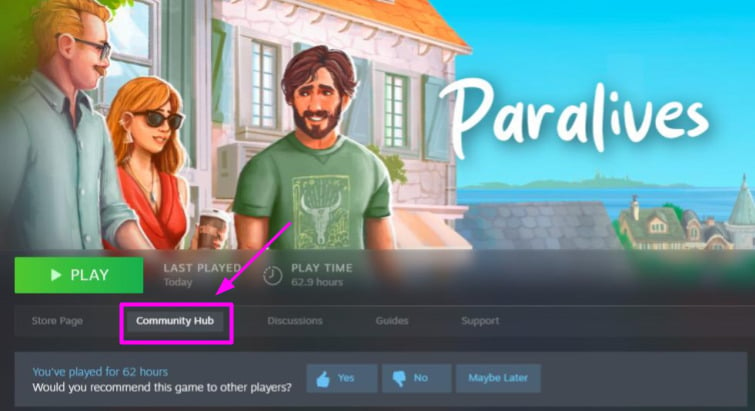
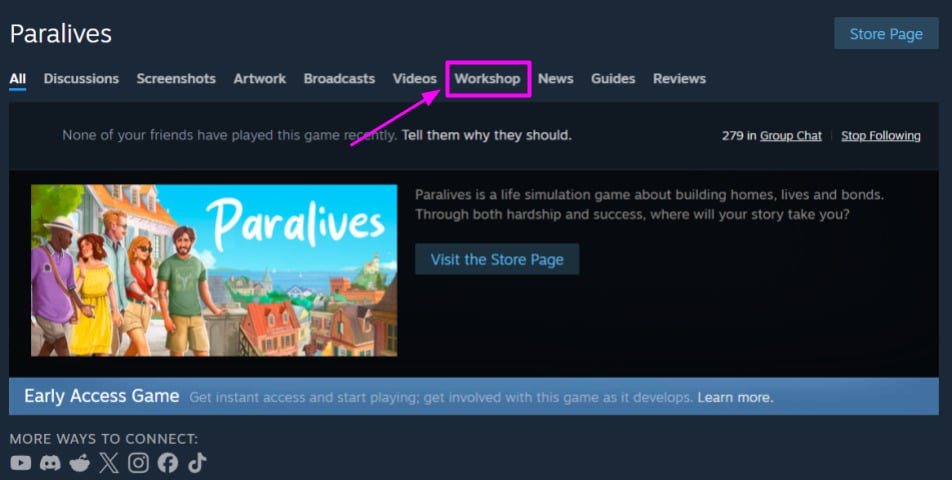
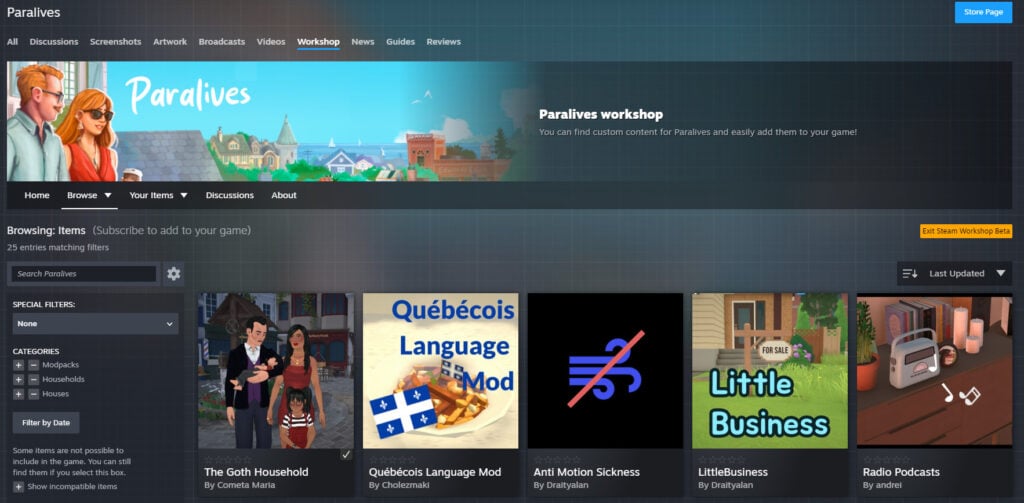
When you get your copy of Paralives on Steam, clicking on the game in your library will take you to its game page. On that page, click on “Community Hub”, and it will take you directly to the Paralives Community Hub on Steam. Then, to find the Steam Workshop, simply click on “Workshop” at the top menu.
How to download Paralives mods from the Steam Workshop
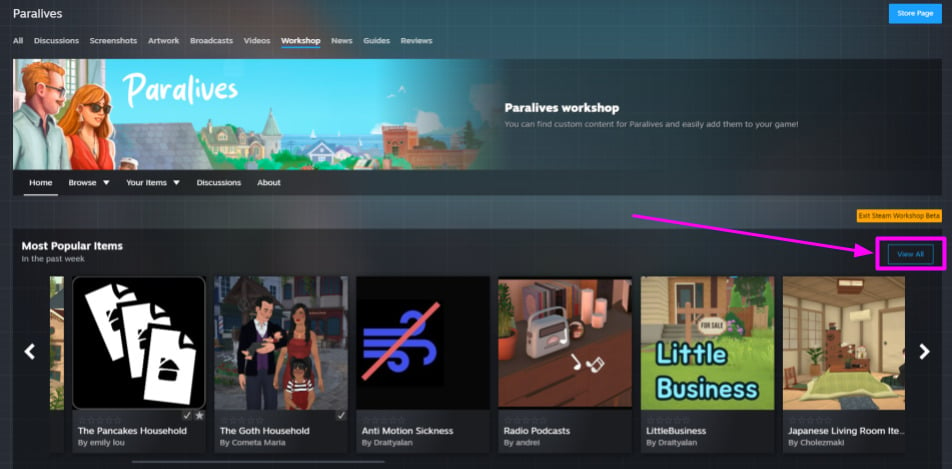
Downloading Paralives content from the Steam Workshop is pretty simple. Once you’re on the Steam Workshop page, you can already start subscribing to mods, or click the “View All” button to browse all content uploaded by other players.
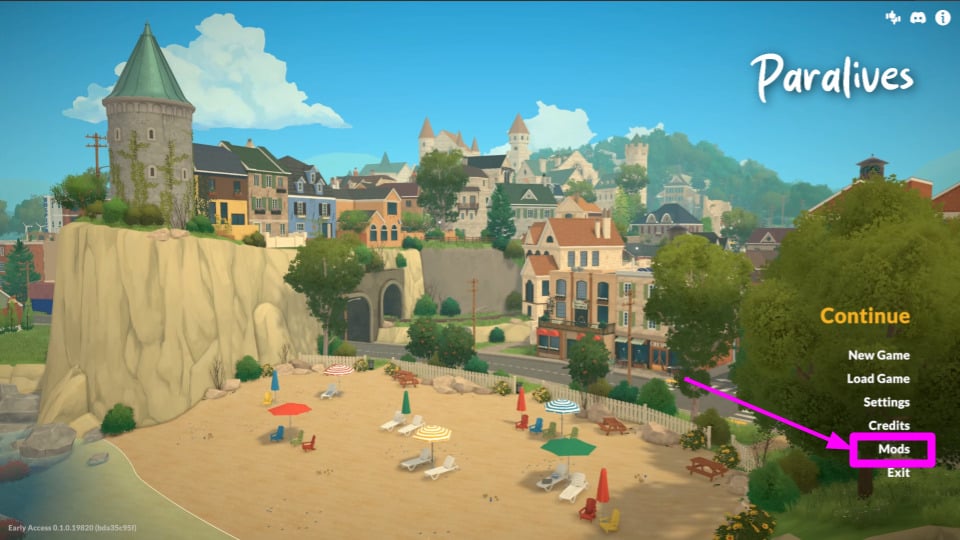
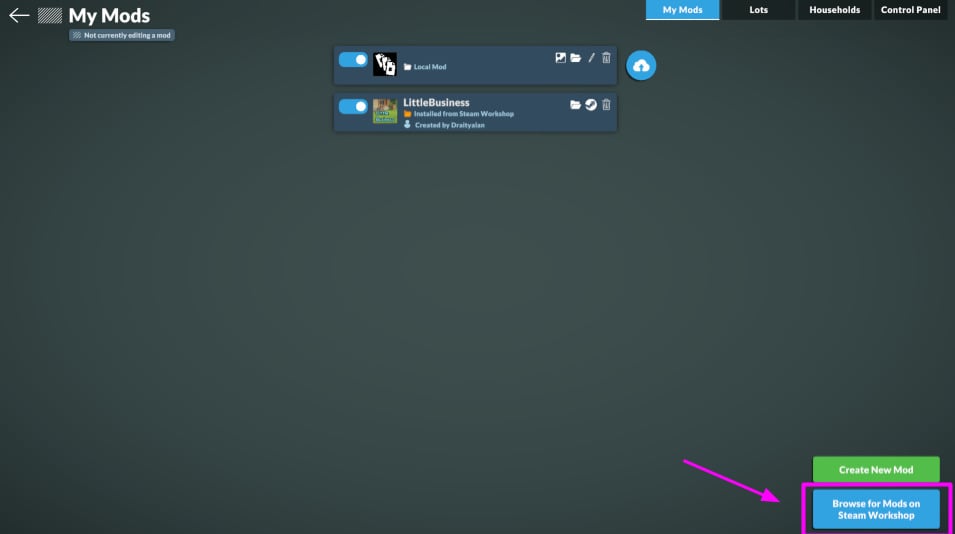
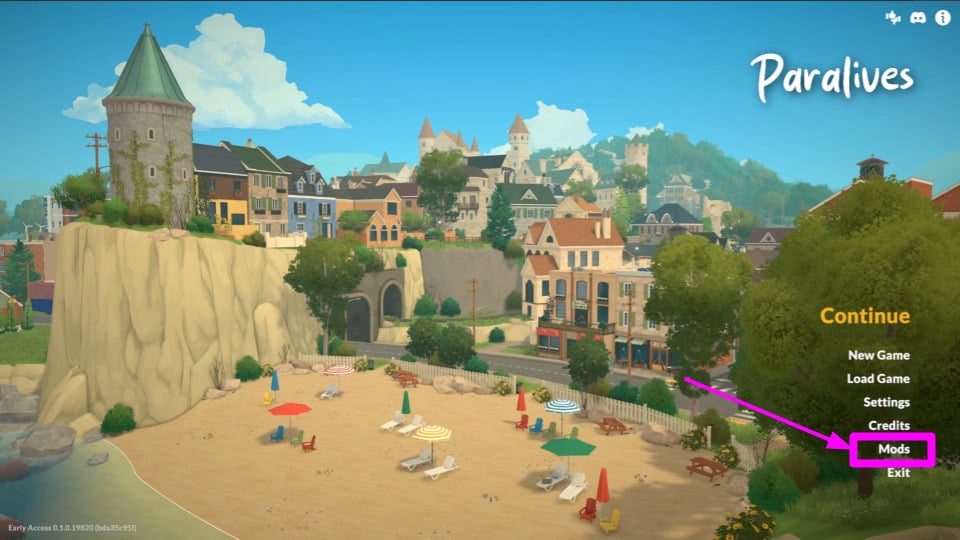
If you are already in the game, you can go to the Main Menu → Mods. You’ll notice that it contains a button that reads “Browse Mods on Steam Workshop”.
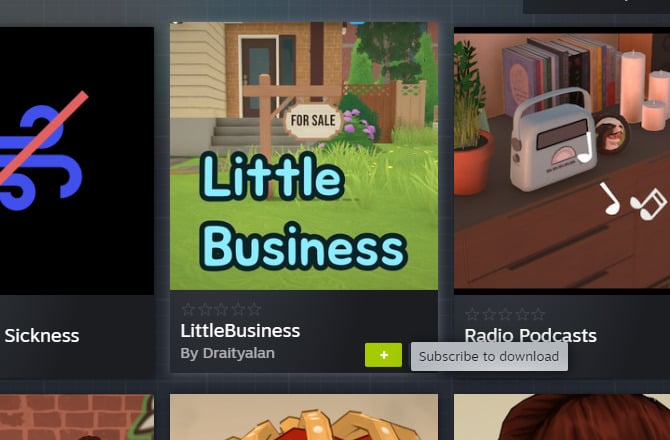
To download a mod, simply click on the + sign that appears when you hover your mouse over the item!
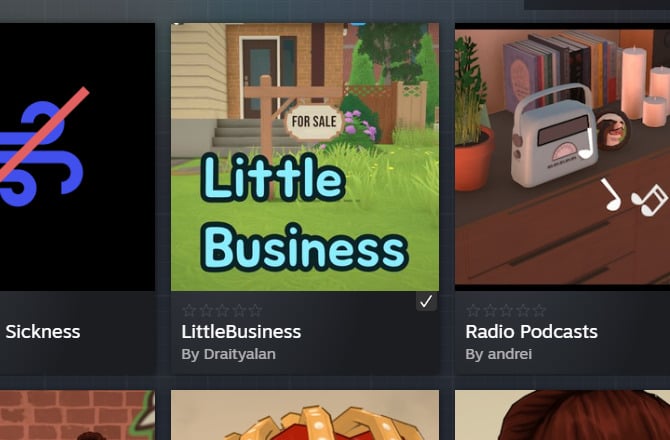
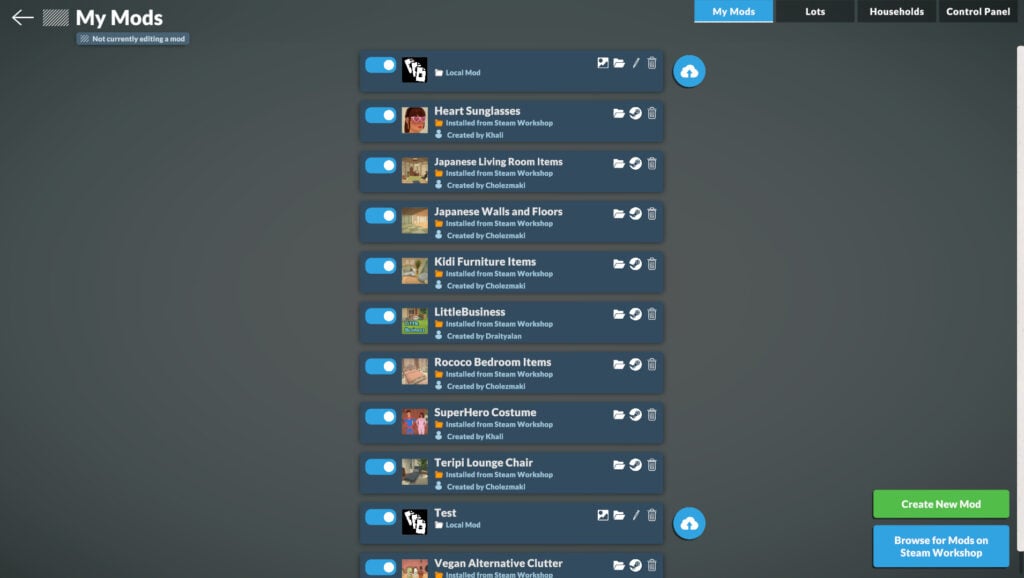
To confirm that the item has been installed, launch the game and navigate to Mods → My Mods.
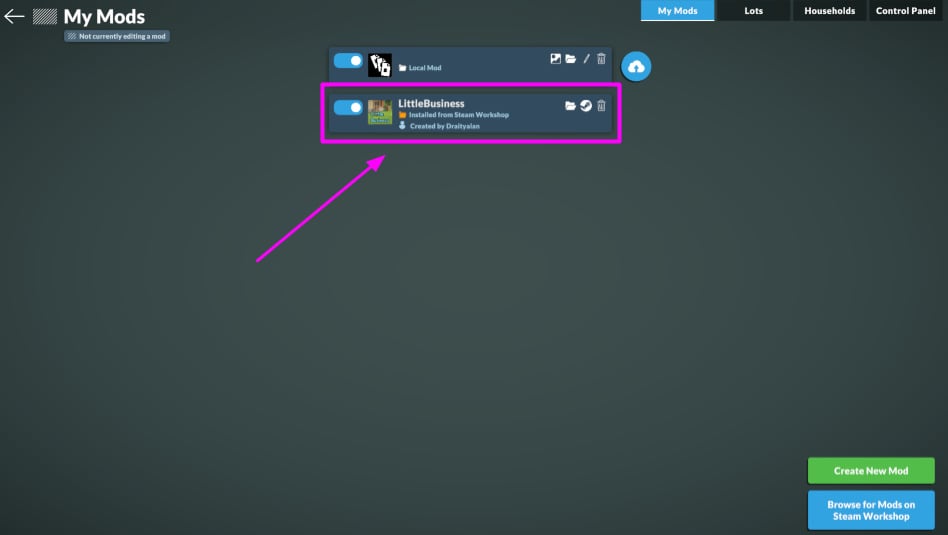
The best part is that when the modder updates the mod, it will be automatically updated, and you won’t have to worry about downloading a new version!
Steam Workshop Search, Categories and Filters
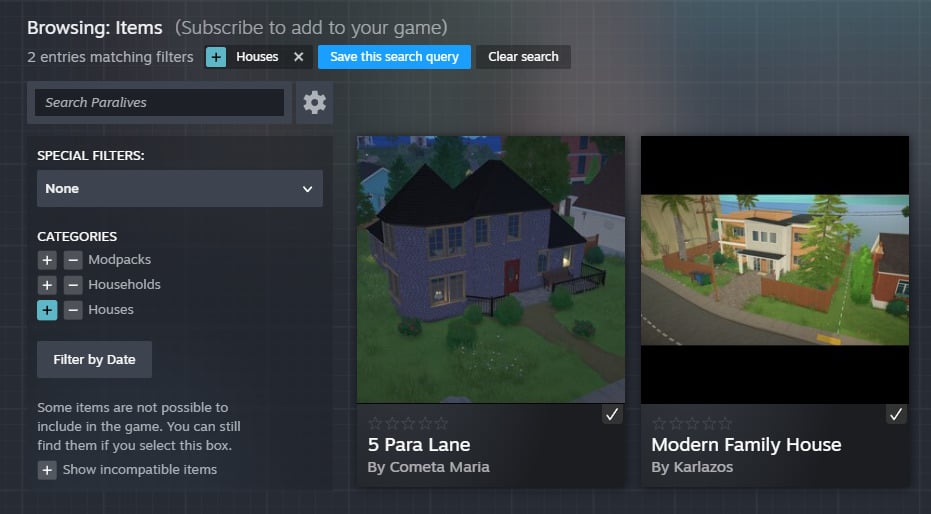
The Steam Workshop offers filters to help you find the kind of mod you want. The three main categories are: Modpacks (for furniture, new interactions, new radio stations, etc.), Households, and Lots.
On the left menu, you’ll also have access to the search and special filters, which are: Created by Friends, Created by Followed, Favorited by Friends, Required by Other Items, and In Collections.
On the right, you’ll find a dropdown menu where you can select how to sort the items. The options are: Most Popular, Top Rated All Time, Most Recent, Last Updated, Search Relevance, and Total Unique Subscribers.
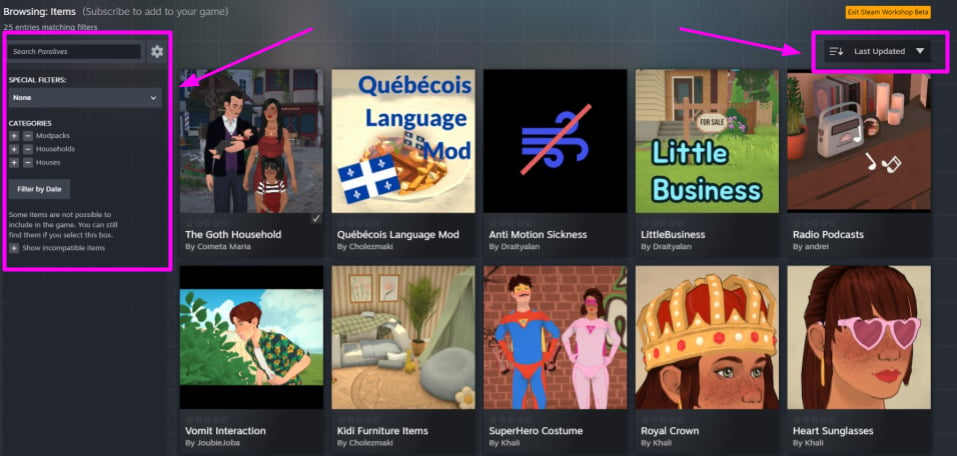
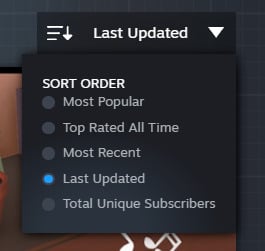
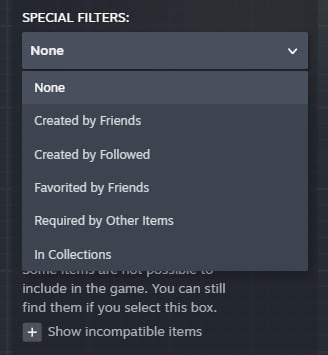
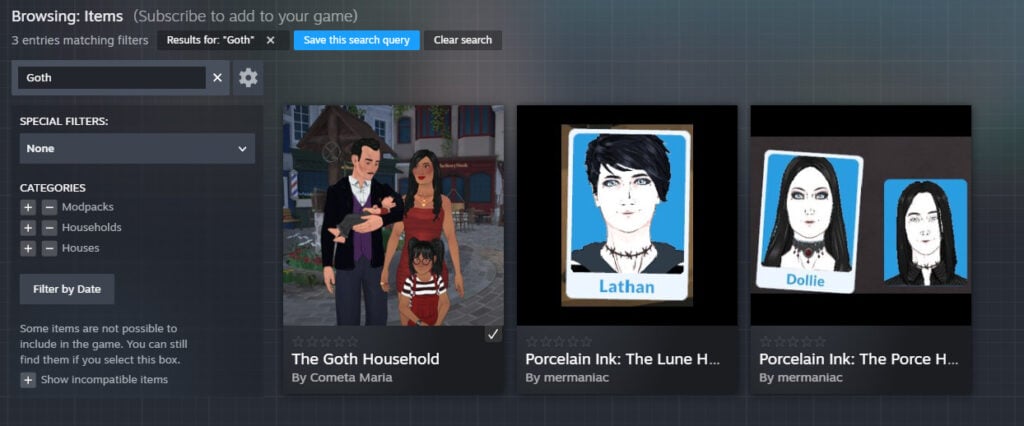
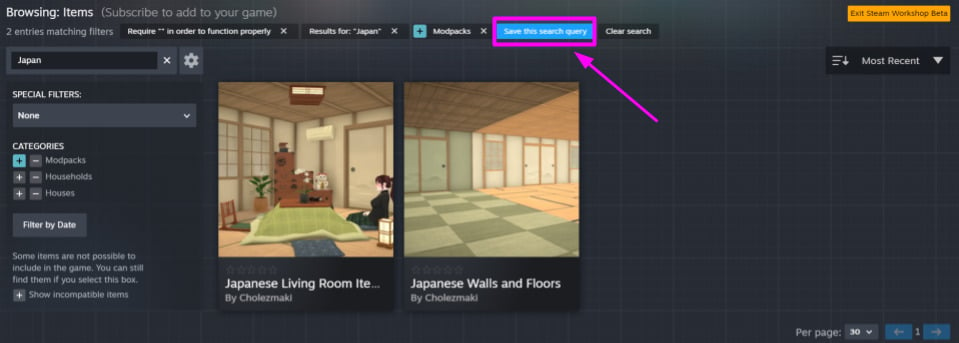
You can search for a specific mod:
You can combine multiple filters to make your search even easier if you want!
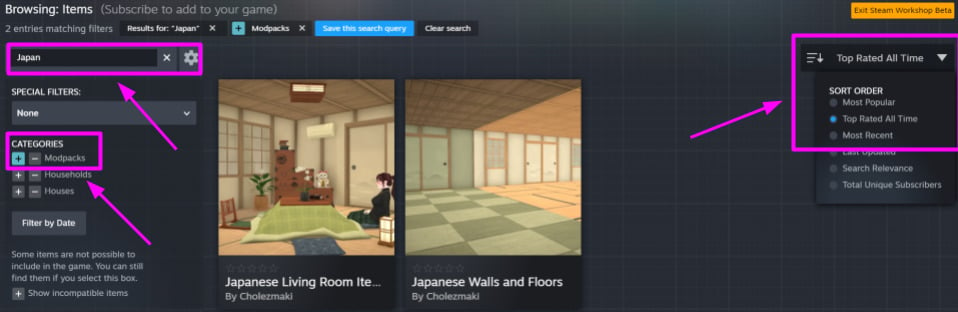
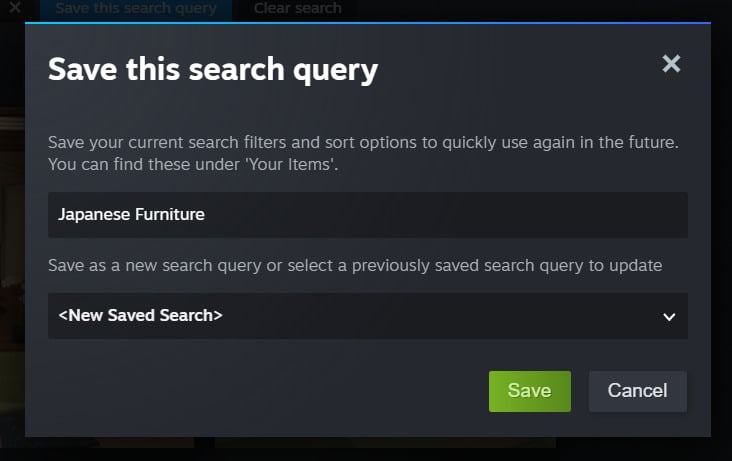
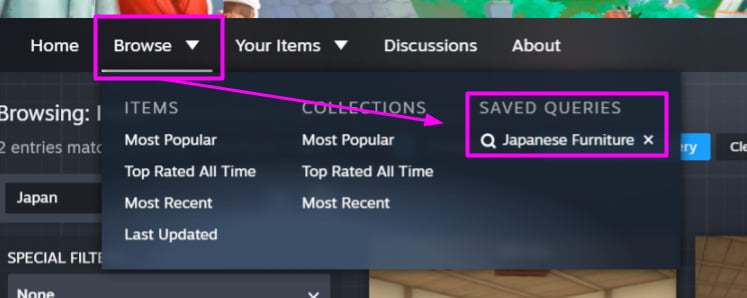
You can also save the query to make future searches even easier!
How do I find the items I subscribed to on Steam Workshop?
To manage your mods, go to the Main Menu and select Mods. On this page, you’ll be able to see everything you have installed and can easily manage and delete items.
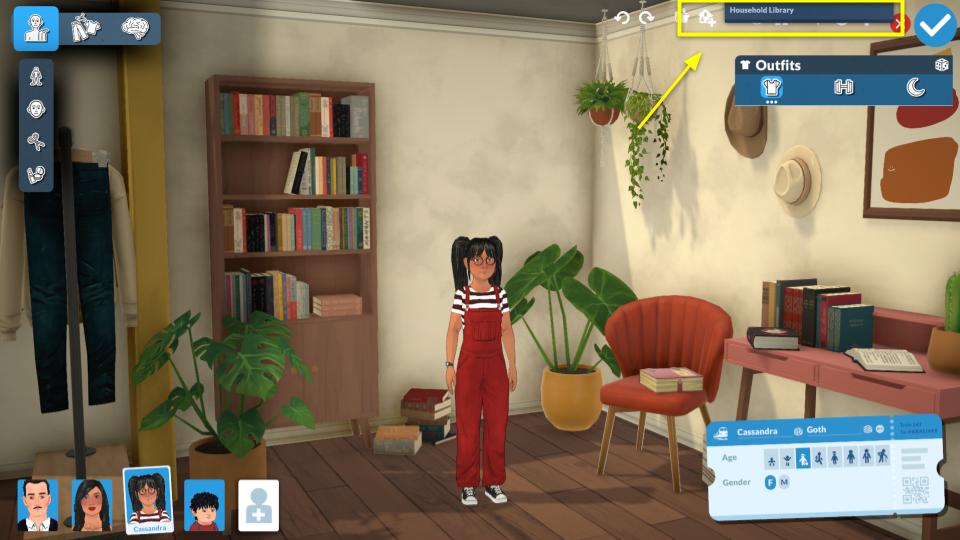
To find the households you saved, enter the Paramaker and click on “Household Library”. You can switch to the “Installed from Workshop” tab.
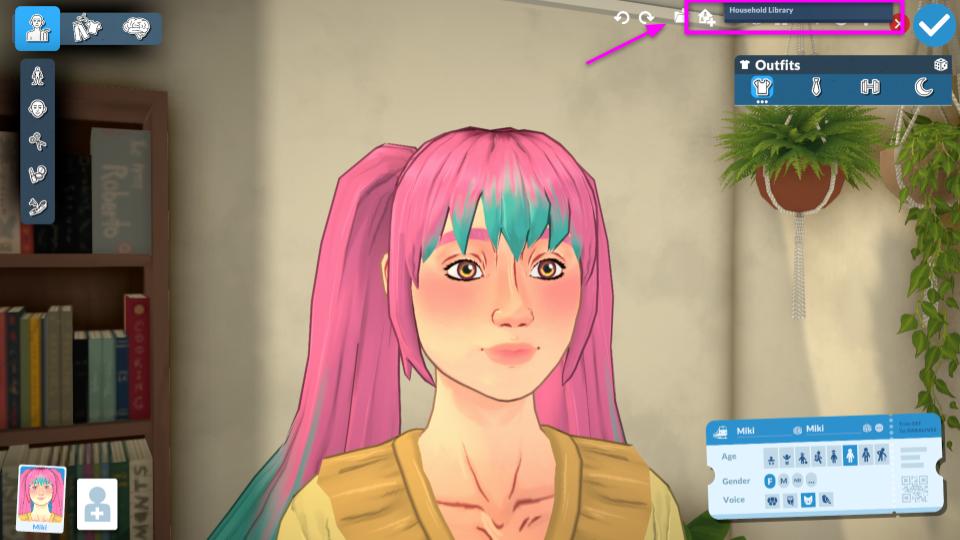
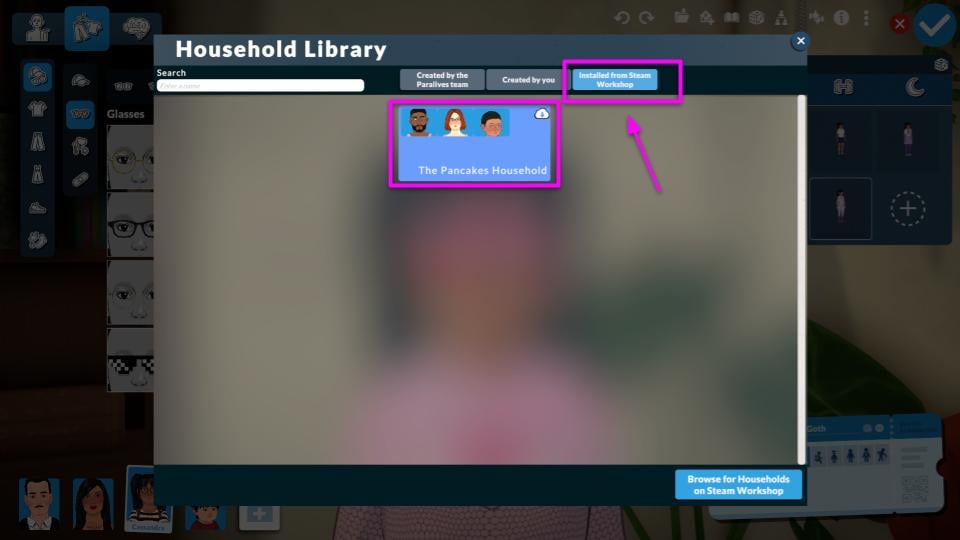
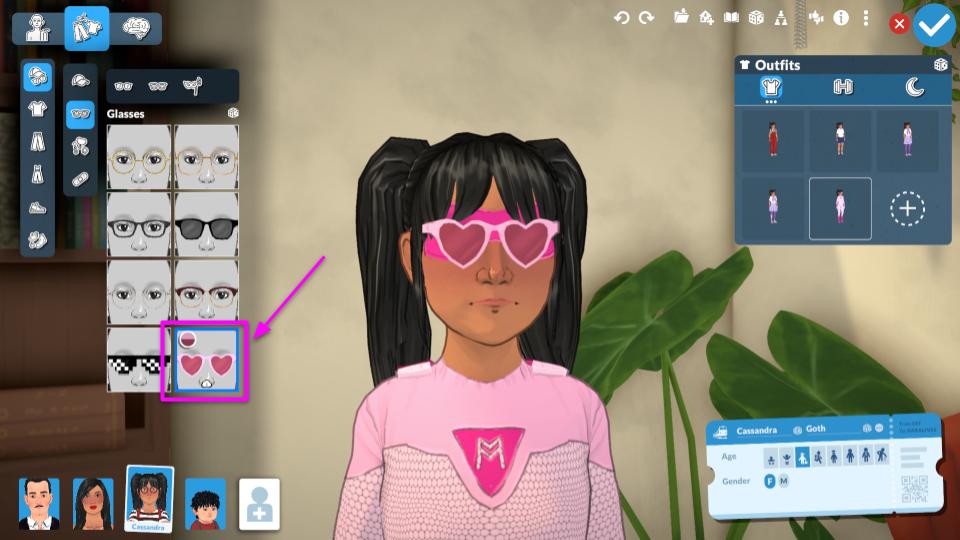
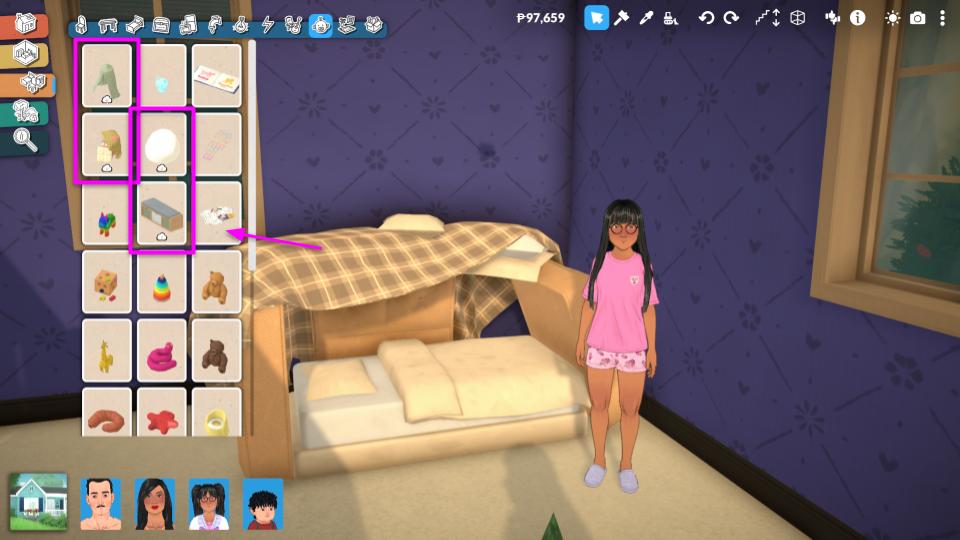
In the Paramaker, you’ll also find the items you downloaded in their respective categories. You can tell an item is a mod because it will have a cloud icon on it to make it easier to identify.
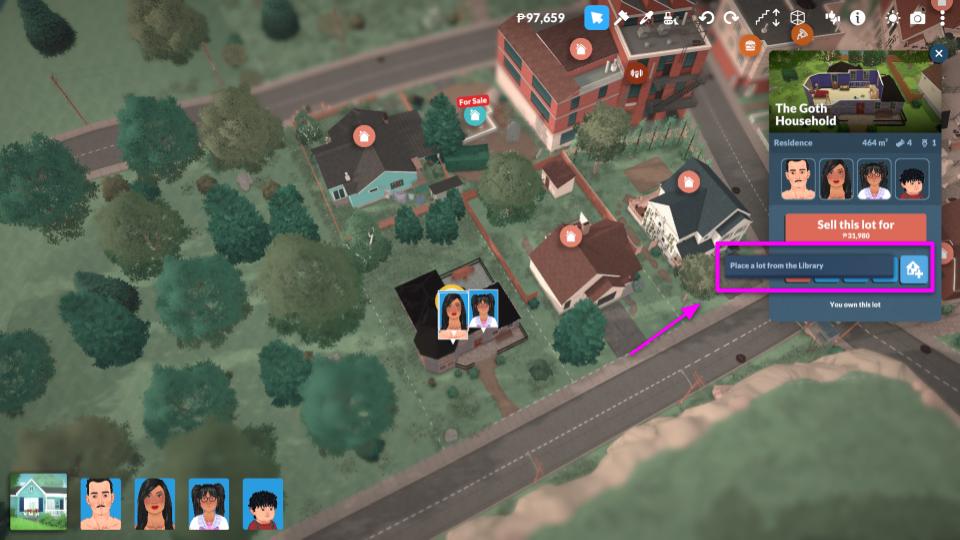
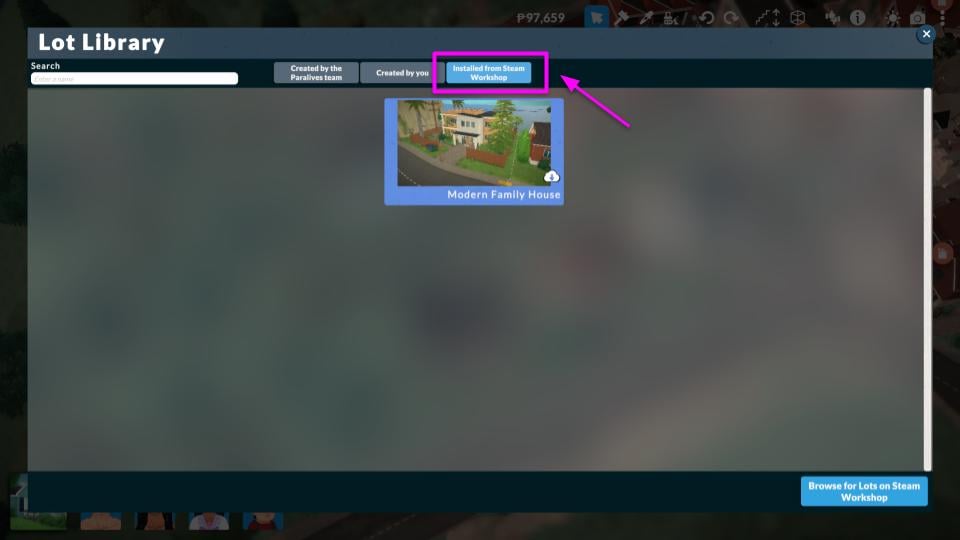
For lots, you’ll find them in the town view lot menu when you click “Place a Lot from the Library”.
You can find Build and Buy mode items in their respective areas. The cloud icon makes them easy to identify.
How to Upload Mods to Steam Workshop
It’s very simple to upload a mod from Paralives to the Steam Workshop, as the process is already fully integrated into the game. In this part of the guide, we’ll focus on teaching you how to upload lots and households to the Steam Workshop, as well as give some tips on the process.
Uploading Lots
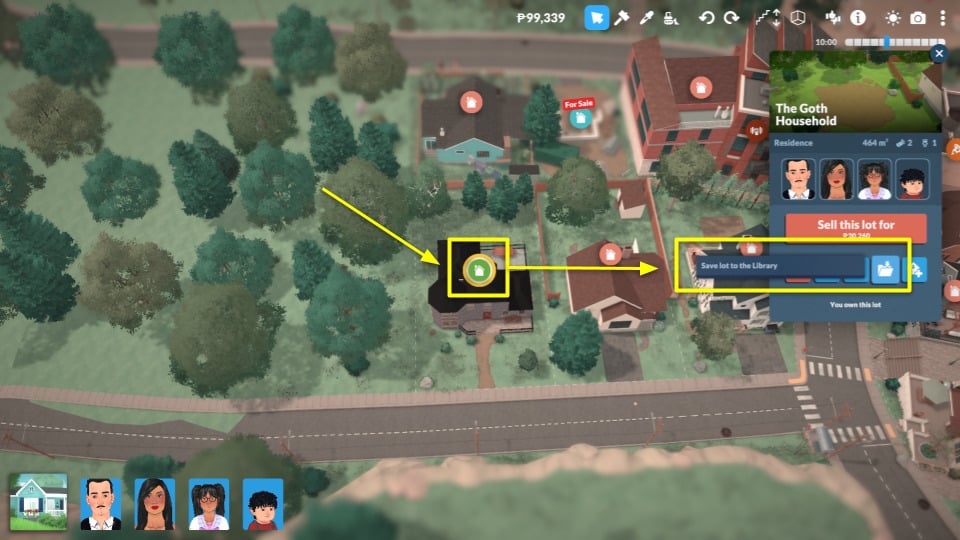
After you finish building, zoom out to reveal the lot’s town options. Then click on “Save Lot in the Library” (image below).
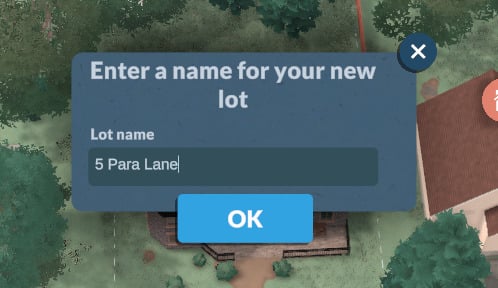
Give your lot a name and click “OK”.
To upload the lot, go back to the lot menu and click “Place a Lot from the Library” to access your library.
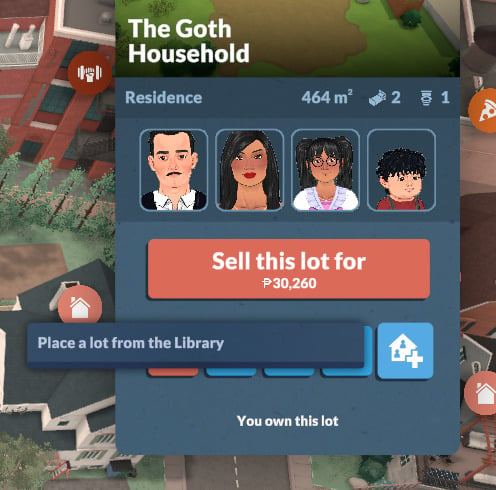
In the lot library view, you’ll find the “Upload to Steam Workshop” option. You have the option to upload a custom thumbnail and add a name and description for your mod, which will then be displayed on the Steam Workshop.
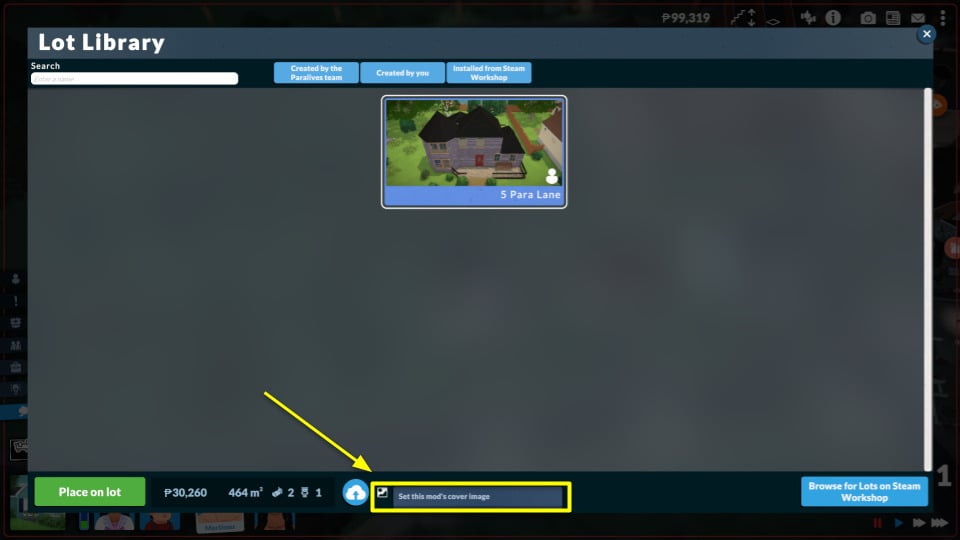
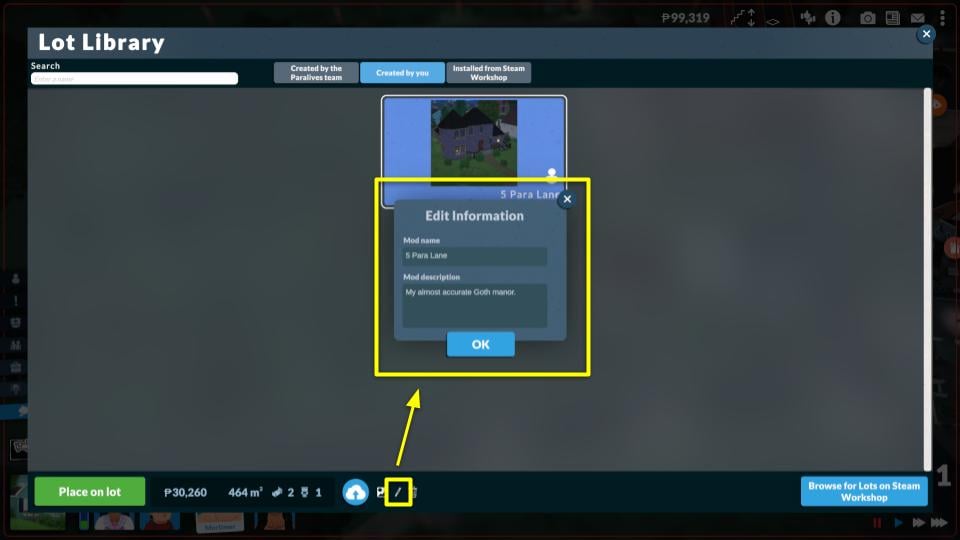
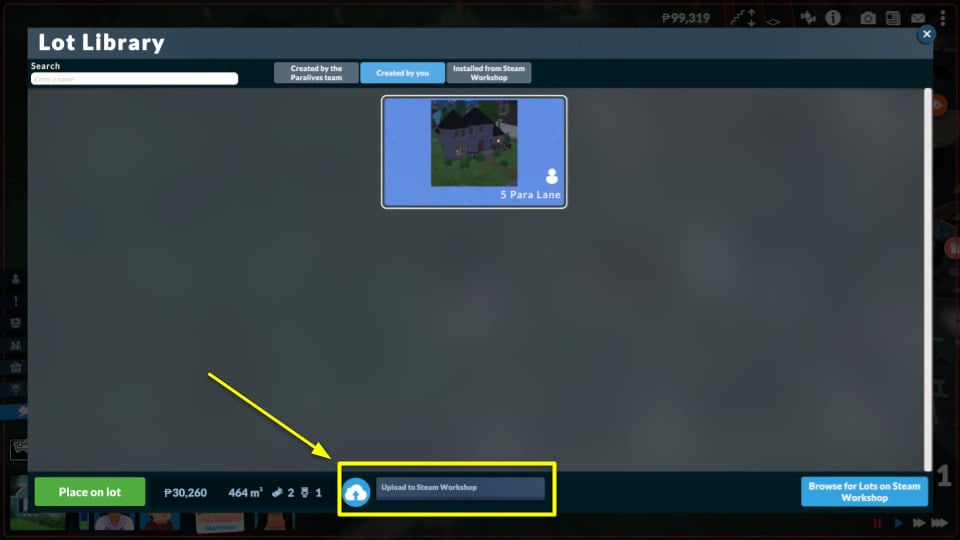
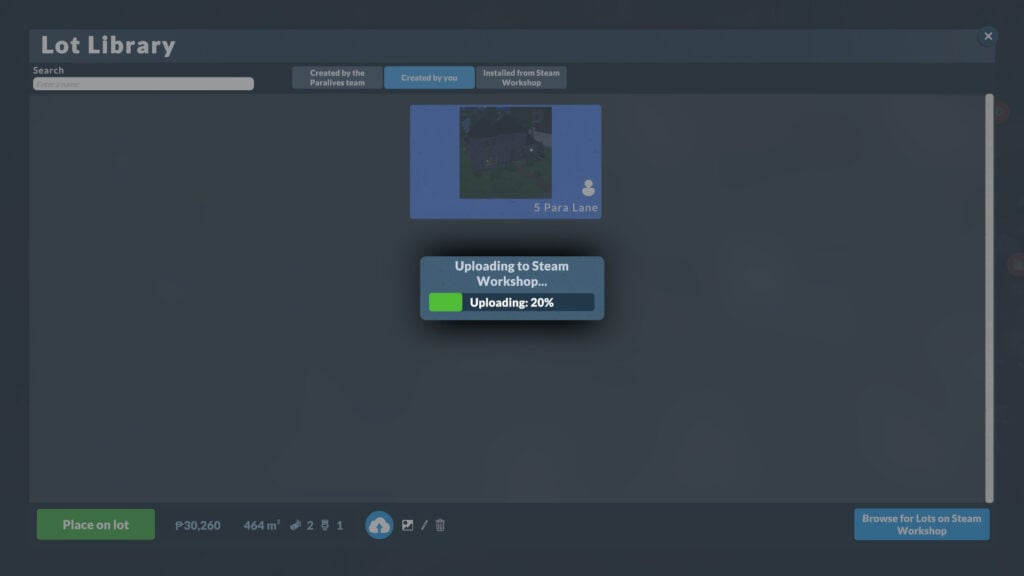
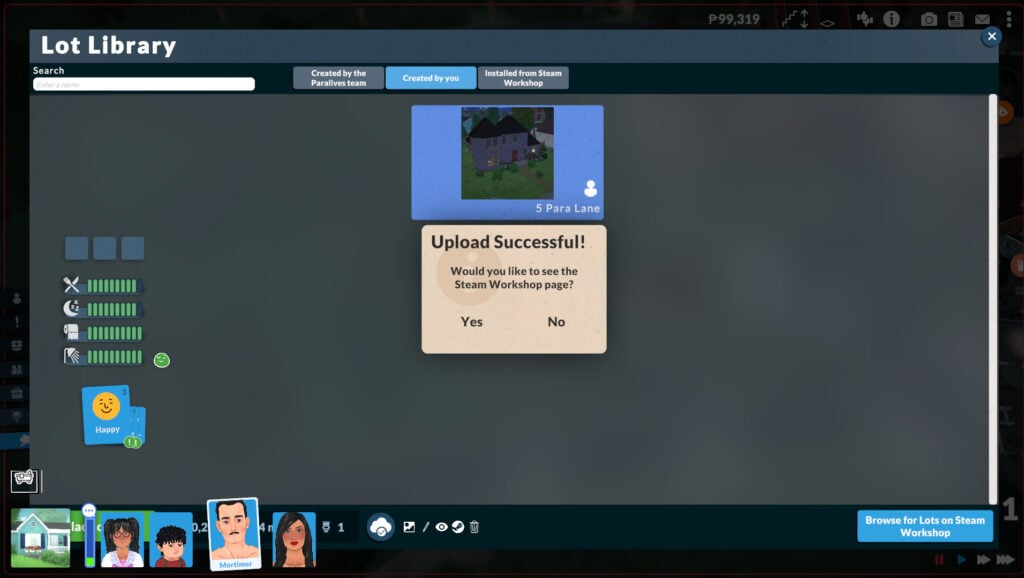
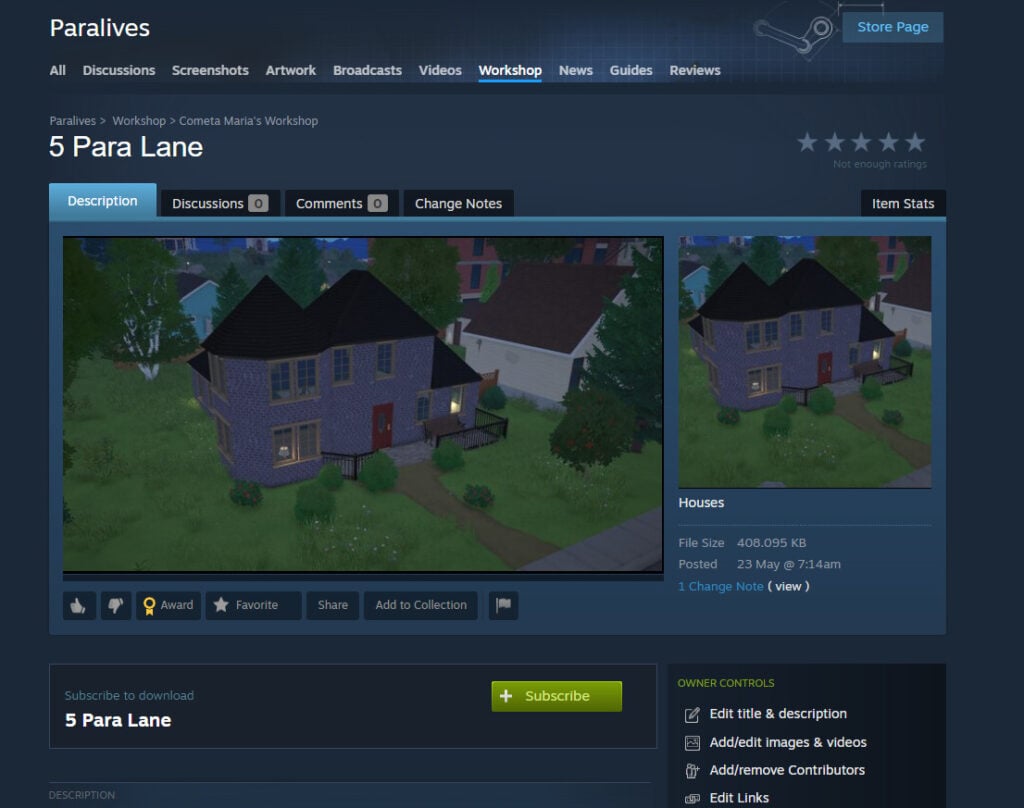
You can update your creation’s images and description directly on your Steam Workshop creation page, but changing the thumbnail requires repeating the steps described earlier or going to Main Menu → Mods → Lots, and clicking “Set This Mod’s Cover Image”.
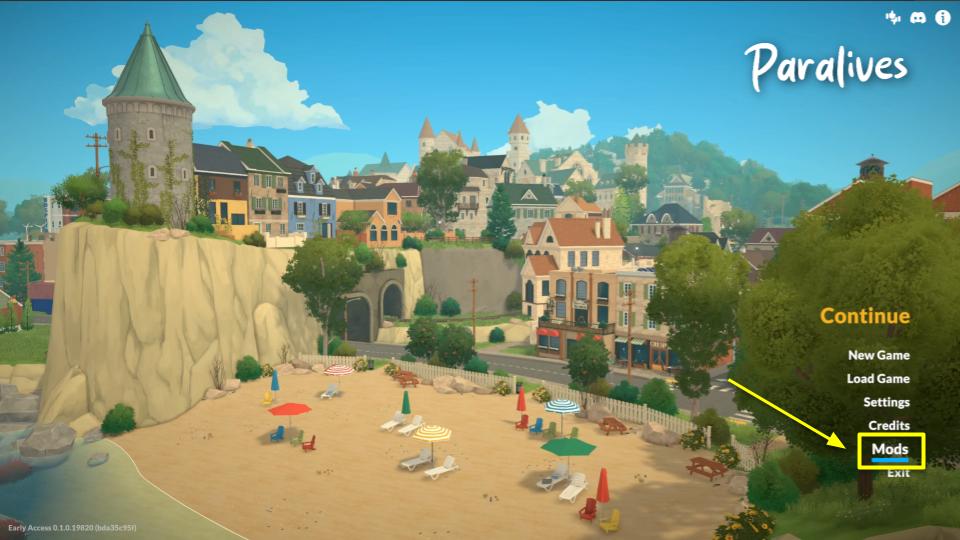
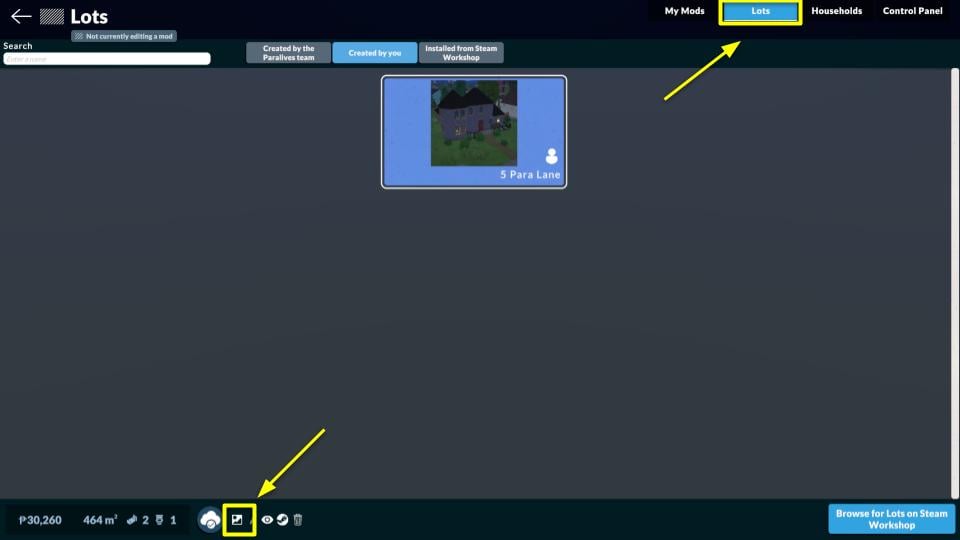
Pro-tip: Using a 1:1 (square) image is recommended so the thumbnail displays correctly without cropping!
All uploads go through a moderation process from both Steam and the Paralives team, so your creation won’t appear on the Workshop right away. Once it’s approved, you should see it listed.
Uploading Households
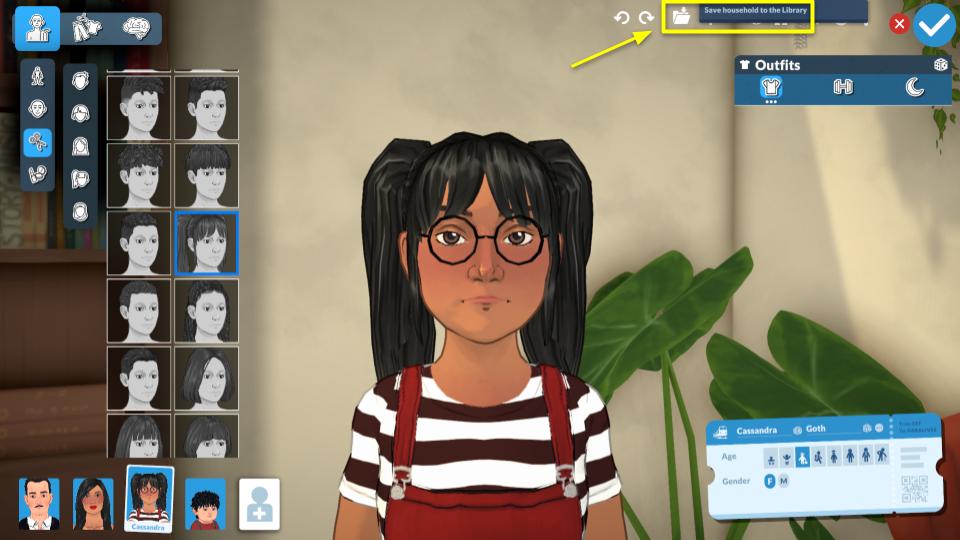
When you finish editing the household you want to upload, click “Save Household to Library”. You have the option to write a bio for your household, which will then appear as their in-game description.
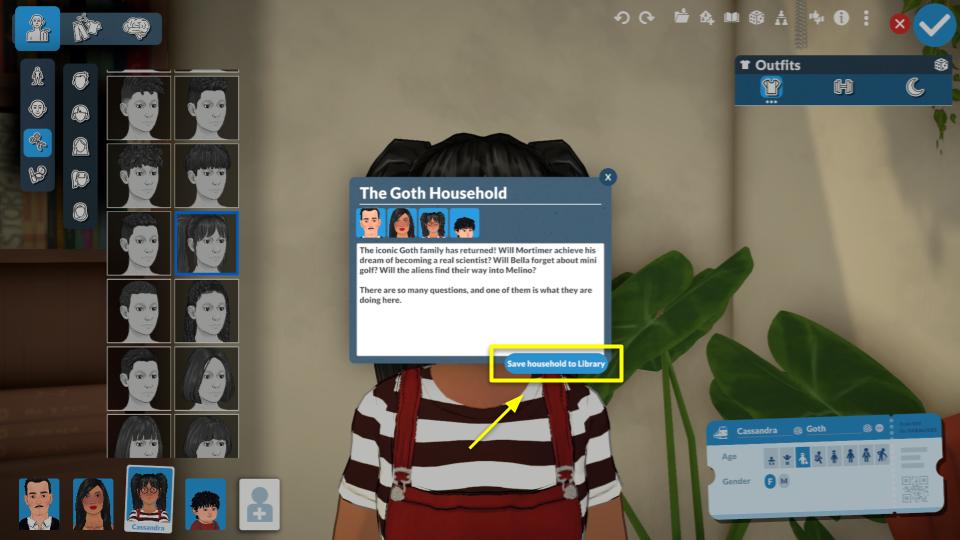
Next, go to Household Library, add a description via “Edit Information,” and select a thumbnail image with “Set This Mod’s Cover Image” for the Workshop.
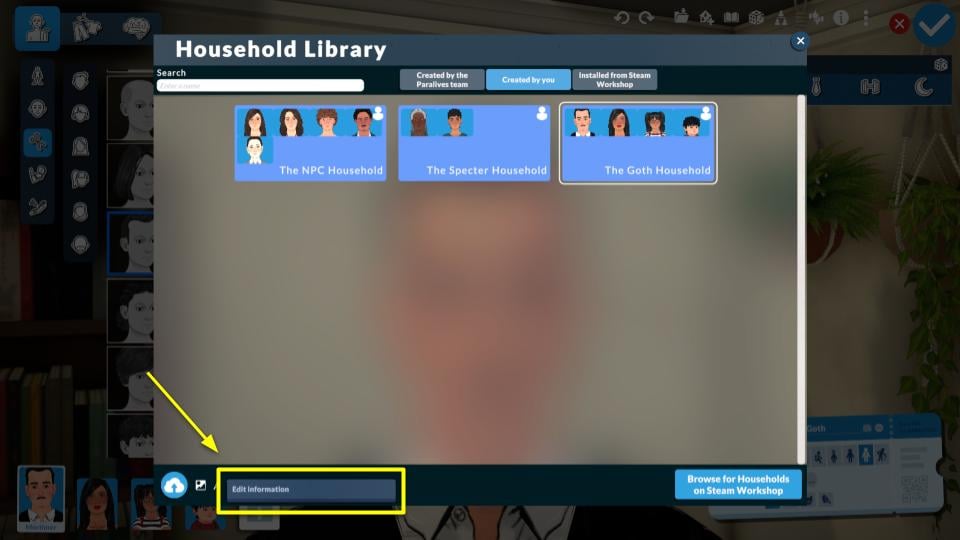
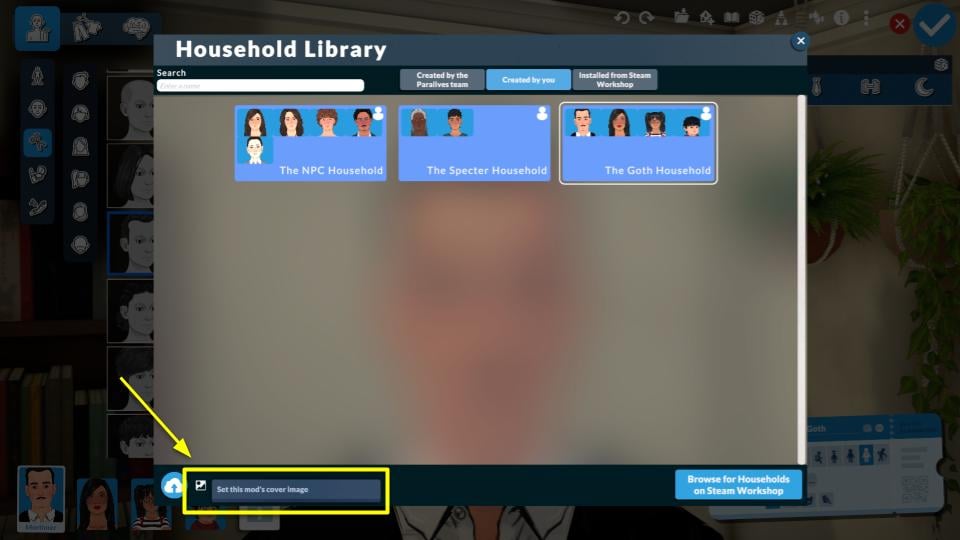
Then you’re ready to click “Upload to Steam Workshop”.
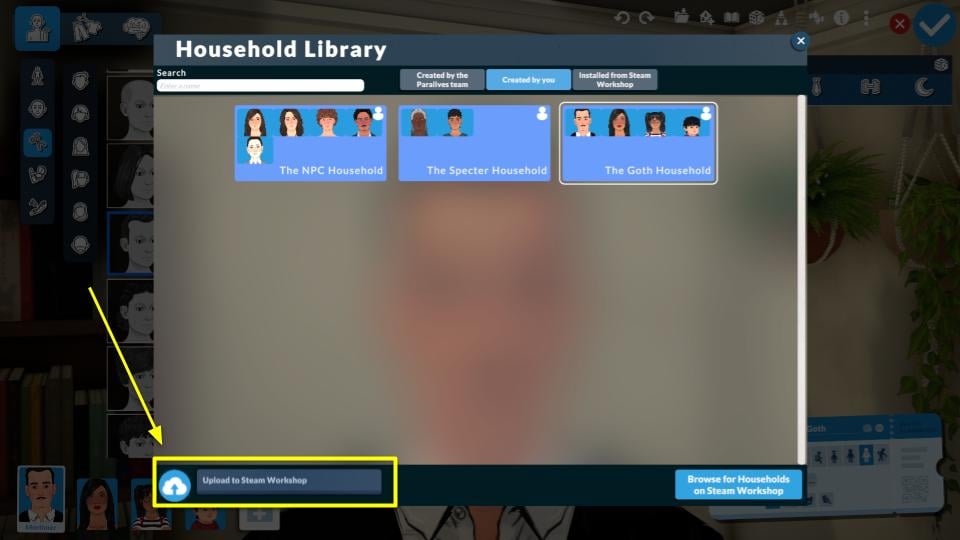
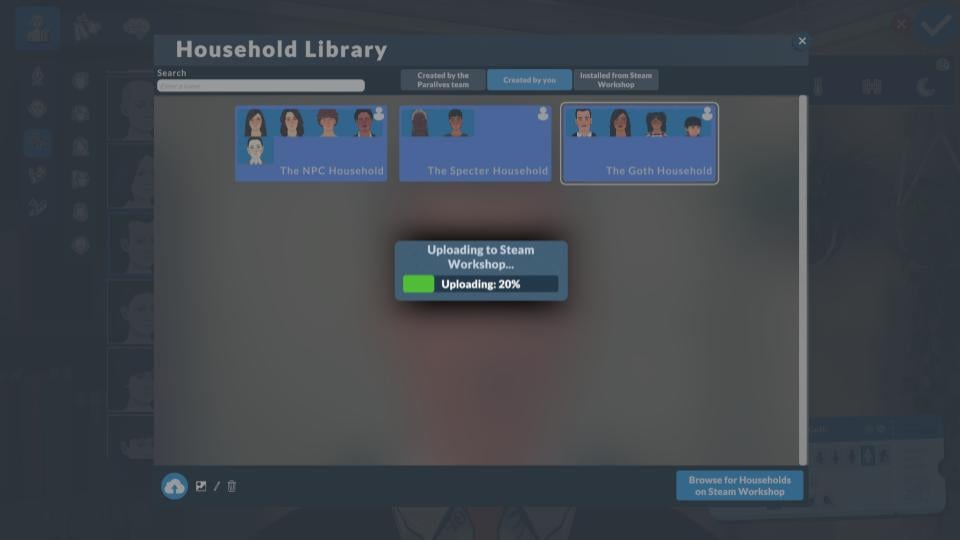
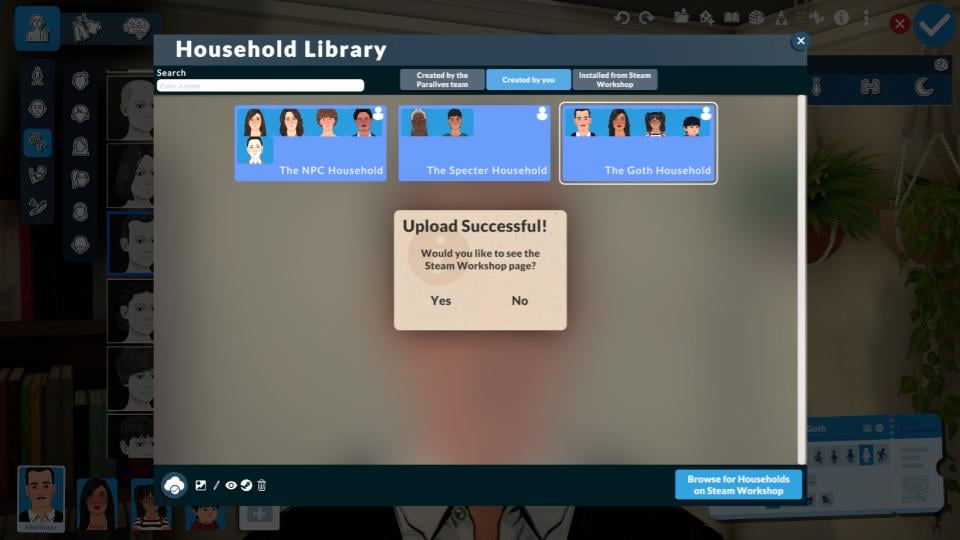
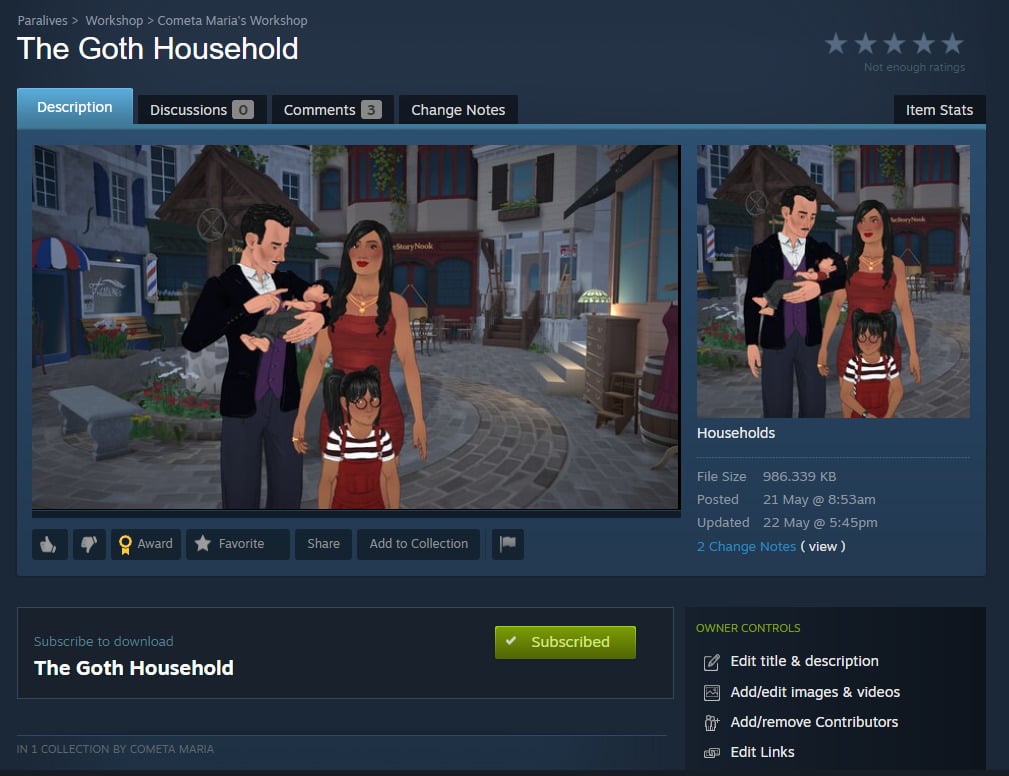
Like sharing a lot, households won’t appear right away on the Workshop due to moderation by both Steam and the Paralives team.
Final Thoughts
Past life simulation games often lacked a safe, user-friendly modding hub. Steam Workshop changes that: it’s easy for beginners, has all the essential tools, and adds a security layer with moderation from both Steam and the Paralives team. Choosing Steam Workshop as the official modding platform was a great decision!
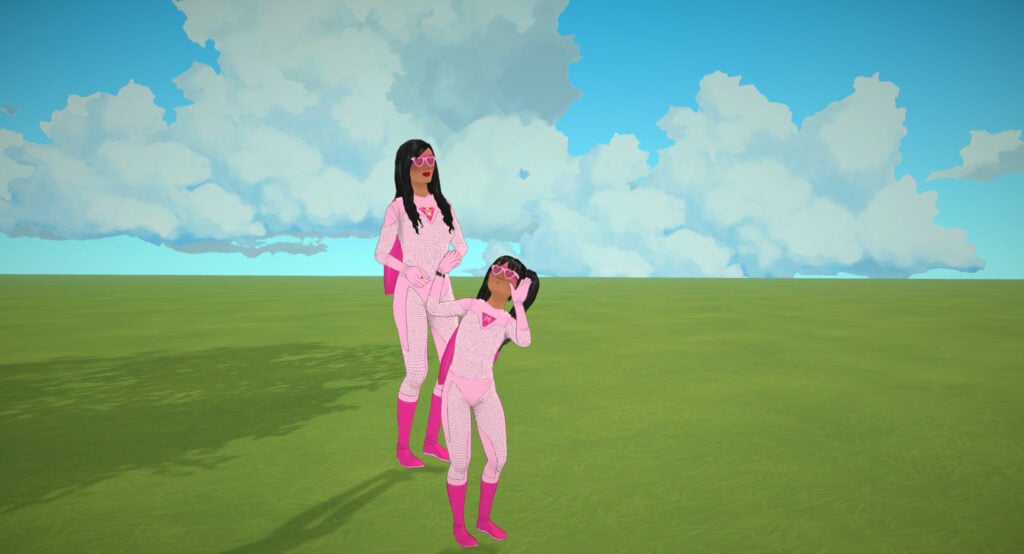
Now we want to hear from you. What do you think about Steam Workshop? Will you use mods in your game? Let us know in the comments and check out more of our Paralives Guides.










How do you translate “moker-” in English, in Dutch we use it as an adjective but what is a similar English language adjective! Asking this because I’m “moker-excited” for Paralives!