Contribute to building a trustworthy platform and get a chance to be featured!
Sims Community is growing its tools and giving readers an opportunity to express themselves. Through OpenWeb’s Social Platform, we are expanding the possibilities of conversations, and keeping those conversations fun, safe and constructive.
Sims Community wants to build a review platform that is based on honesty and transparency. From players who experienced a game. And who want to tell their experience about a game they’ve played.
AND give a ⭐️ rating!
Sims Community is introducing Community Reviews, that allow players to give their honest reviews about a Sims Game they’ve played.
On each Community Review post you are able to give a rating from 1 to 5 stars for a given question.
Sims Community wants to review current and future Game releases through the eyes of the community. With their stories, opinions, and even in-game screenshots.
The Sims 4 High School Years Community Review
This Expansion Pack just recently came out, and many players are on the fence for whether they should get the Pack or not. It’s generally hard to get an actual perception of a quality of a Sims Pack, considering that this is a life simulation game after all, and not all aspects will appeal to every player.
With High School Years, it’s hard because the pack both appeals – and doesn’t appeal, to different types of Sims players there are out there. Just like with previous Packs. However, personal stories, experiences and reports on the Game you’ve played can make a positive impact and help a player make a decision.
High School Years has been out for 10 days, and many are still wondering if the game is playable or not. For this round, we are making a trial period with the game’s current state, and we’re planning to do another High School Years Review after things (hopefully) get better.
Until then, we also think it’s important to elevate the voices of our readers and spotlight actual player experiences. Other than the ones we write you about on Sims Community!
That’s why we’re also bringing:
Community Review Highlights
Your Review might be featured in our Community Review Highlights Article! Submissions with In-Game Photos will be featured in our upcoming Community Highlights article. Including our upcoming High School Years Highlights!
That’s it for now!
You can try out our first Community Review by clicking the button below.
It’s recommended that the Review is done with a photo submission so we can spotlight you on our website!
The latest Expansion Pack has been out for 10 days. Let’s see what YOU think about it!
The Sims 4 High School Years was released on July 28th across PC and Consoles!
This promising Expansion Pack brought new CAS Items, Build Items, Copperdale World and gameplay features that we’re still covering! Or trying to cover, considering the huge hiccups in The Sims 4’s stability at the moment. Including the Bugs and Issues for The Sims 4 High School Years.
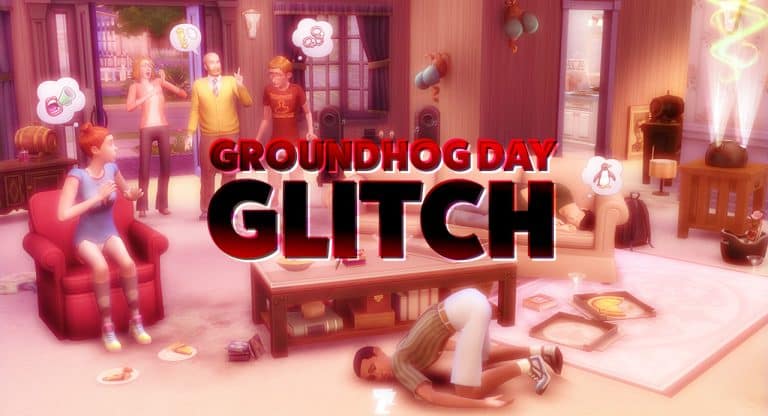
With Groundhog Day Issue and certain High School Years glitches that are currently being polished by modders now, the Live Mode aspect of The Sims 4 is very unstabile at the moment. For some less, for some more. All we’ve got is a Hot Fix Update that recently resolved some issues, with no talks about future updates.
However, The Sims 4 High School Years has been out for long enough to write a review, right? That’s where YOU come along!
You Review The Sims 4 High School Years
It’s time for you to review The Sims 4 High School Years and give it an honest opinion!
Please note that this Review is advised to be filled out by a player who got their hands on this Expansion Pack. This is due to the transparency and trustworthyness of this Community Review.
In all, your feedback can be of true help to someone who hasn’t made a decision on getting the pack.
With that being said – let’s get rating!
How do you rate The Sims 4 High School Years and why?
In the Submit a Review section, you have to provide the following:
A Rating from 1 to 5*
A written explanation on why you chose that rating. You can share your gameplay experiences and opinions about any aspect of this Expansion Pack. There are no limitations in how many words you write, so type as much (or as little) as you want!*
An in-game Screenshot as proof that you played The Sims 4 High School Years. Choose your favorite that’s related to the Review you’re writing!
Rules followed with a * are a requirement. An in-game screenshot is recommended to verify your review, but it’s not a must. Those who submit their photos might get featured in our upcoming Community Review Highlights article!
Please note that the review you write can help out simmers who are still undecided about High School Years.
Make sure you follow the Sims Community House Rules linked below!
The review mechanism is new, so some things might need tuning. Contact us if you have any issues!
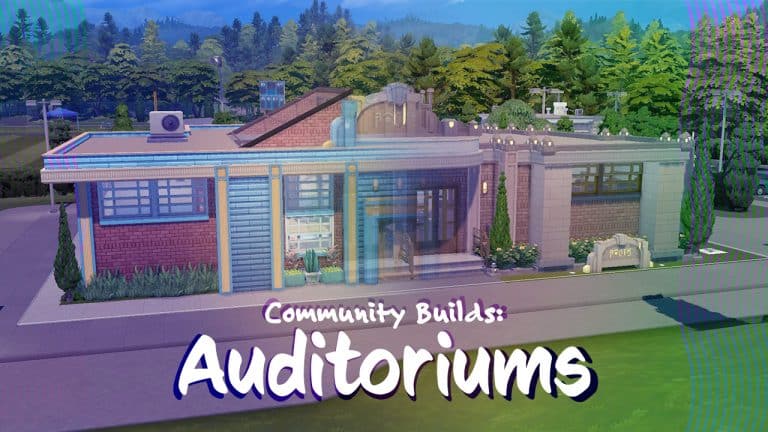
We’re showing off some amazing auditorium builds by talented creators!
In The Sims 4 High School Years, teen Sims can attend a variety of events at the auditorium located next to the high school in Copperdale. The auditorium is a special lot type that cannot be placed anywhere else in the game but players can edit and rebuild on the lot.
The auditorium is a dynamic lot, meaning it has different states it changes to depending on which event is currently active there. There are four states: default, formal dance, career day, and graduation. Each state gets uploaded to the Gallery separately so it can be hard to track down every state you need of the same build.
We’ve made the search a little easier for you by collecting a few of our favourite auditorium builds from the Gallery in multiple states, which will all be linked for you! To place every auditorium state in your game, just go into build mode on the auditorium lot and make sure you select the state you want before placing down that version of the auditorium.
10kiwii01
This auditorium build by 10kiwii01 keeps the same general style as the original auditorium but gives it some dimension and personality on the outside by changing up the shape and adding more architectural detail. The inside is decorated much more nicely for each event and this build comes in all four states!
This colourful auditorium gives us Roaring Heights vibes and fits right in with Copperdale High’s art deco theme. It’s a bright, inviting space for your teens to celebrate all kinds of important milestones in their lives and the interior is just as beautiful. This build also comes in all four states!
This auditorium in cream and light blue brick really looks like a real-life auditorium or community centre. We’re loving the covered entryway and large lettering on the front of the building. This build comes in all four states, too.
This sleek, modern auditorium with angled walls looks fantastic! We’re sure any teen Sim would be excited about attending their prom or graduation in such a nice venue! This build only comes in three states; there is no default version but players can easily delete all the objects inside one of the other states to have a basic version.
This is another ultra-modern auditorium with unique architecture. We absolutely love the curved roof pieces and curved wraparound windows. What an impressive place to celebrate your prom or graduation! This build comes in all four states as well!
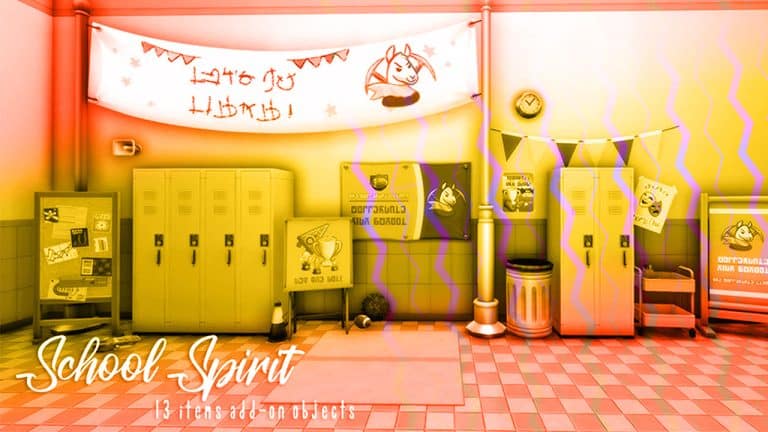
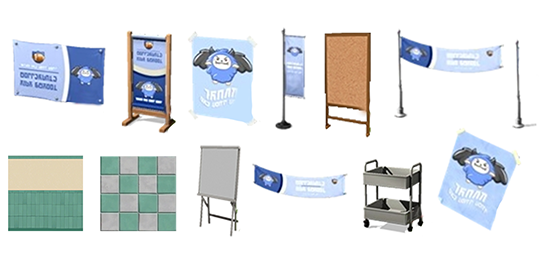
Something that seemed to be lacking in High School Years was the posters, banners, etc that cover every High School’s walls on television shows. Even the high school I went to had more school spirit banners and posters than Copperdale seems to have available.
Thanks to hula zombie, we now have a large selection of school spirit decorations for Copperdale High School! There are multiple “mascots” to choose from so you can even have Sims attend “different” schools.
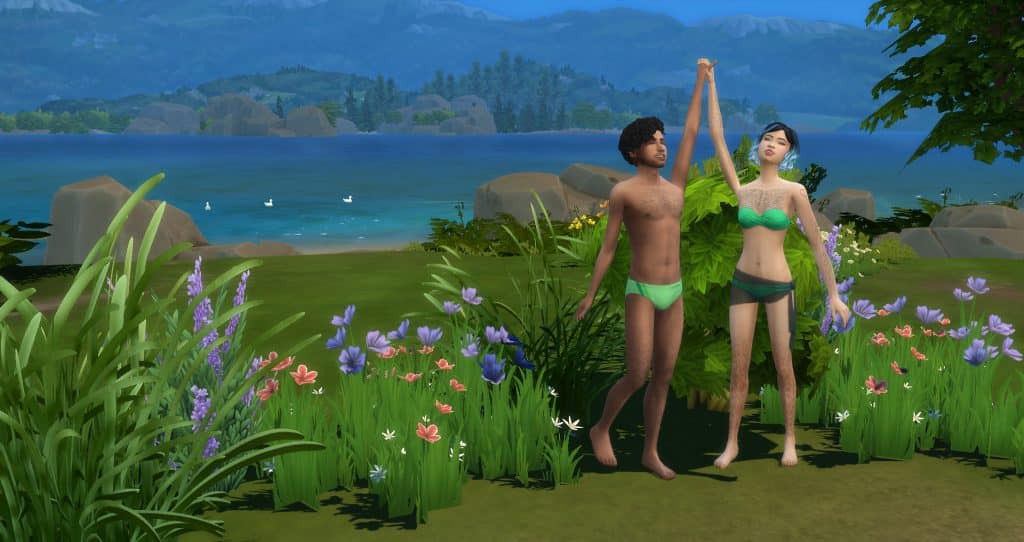
Body hair has come to the Base Game. And with additional features in The Sims 4 High School Years!
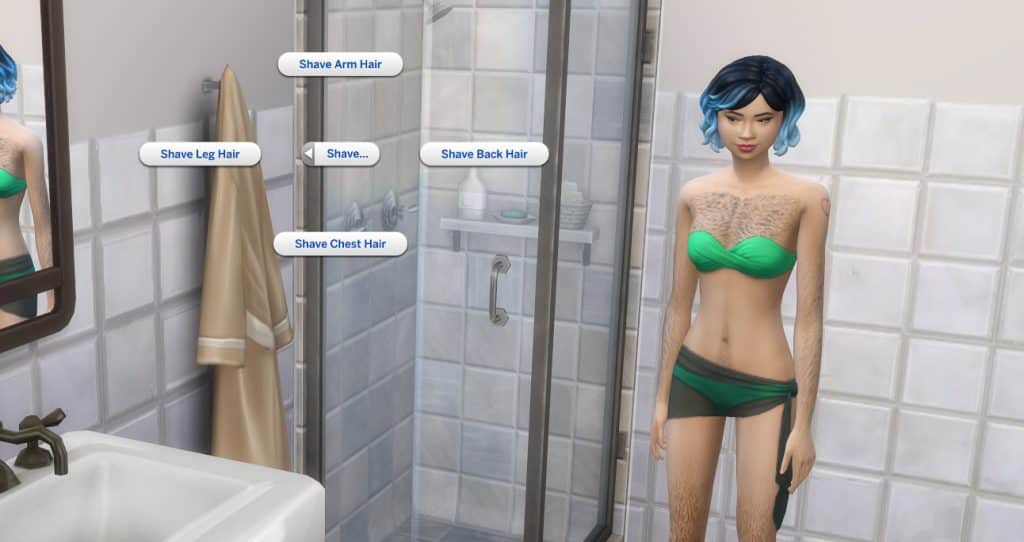
Many of us thought that body hair would be coming with The Sims 4 Werewolves. In June, SimGuruFrost announced in a Tweet that body hair would be “coming to the base game in a future update”. During the High School Years Deep Dive Livestream, we got our first glimpse of body hair and shaving. Then on July 26th, body hair was officially added to the game as part of a Base Game Update! Two days later, as part of The Sims 4 High School Years launch, body hair growth and the ability to shave, plus additional body hair options were added.
And thankfully, the body hair options are available to both frames and not just the masculine frame in both the base game update and The Sims 4 High School Years.
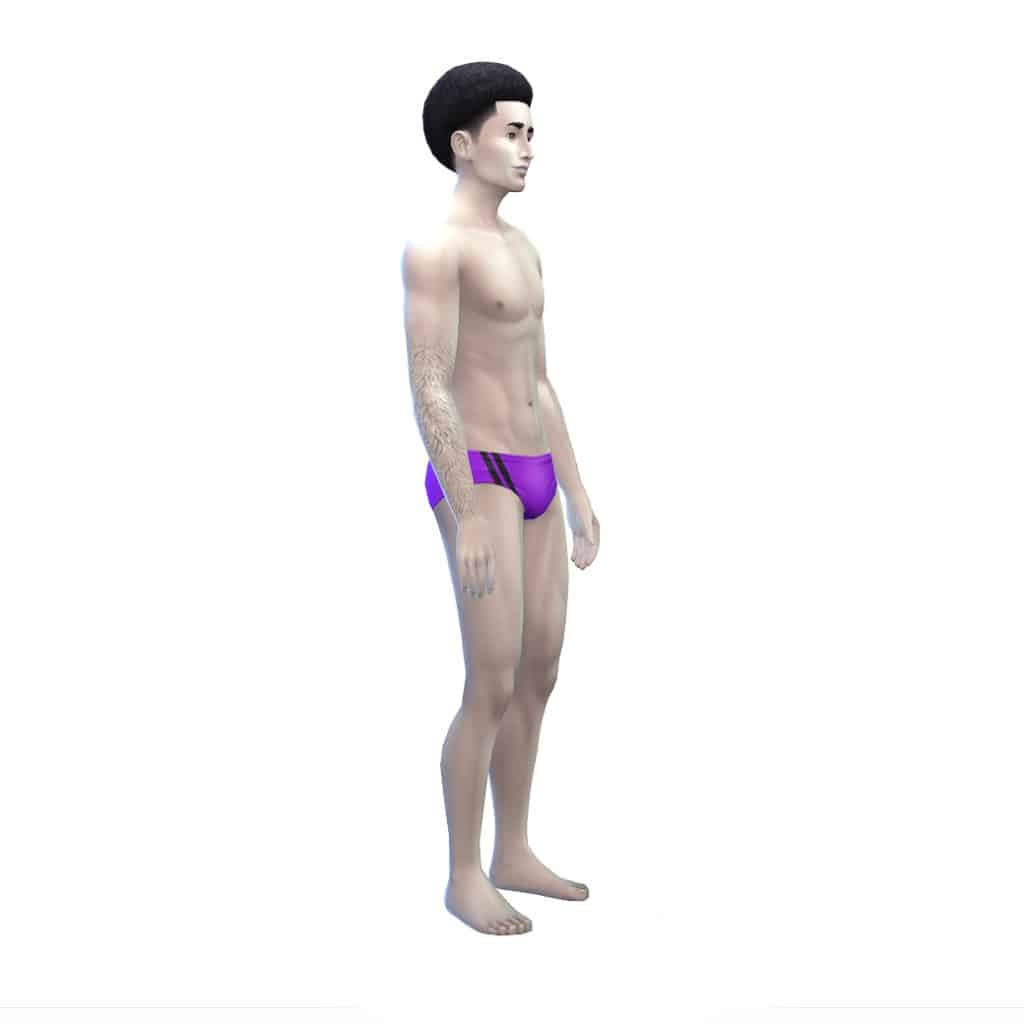
The base game comes with five different body hair options for both feminine and masculine frames. There is one arm hair choice, two torso hair options, a back hair choice, and one leg hair option. High School Years adds two arm hair options, 4 torso hair options, 2 back hair options, and 2 leg hair options for both frames.
To access the body hair options, click on the Sim’s body when inside CAS, then choose the first circle labeled body. Between tattoos and body scars will be the four body hair options for arm hair, torso hair, back hair, and leg hair.
Below are pictures of the different body hair available now.
Base Game Body Hair
Masculine Frame Arm Hair (BG)Masculine Frame Torso Hair (BG)Masculine Frame Torso Hair (BGMasculine Frame Back Hair (BG)Masculine Frame Leg Hair (BG)Feminine Frame Arm Hair (BG)Feminine Frame Torso Hair (BG)Feminine Frame Torso Hair (BG)Feminine Frame Back Hair (BG)Feminine Frame Leg Hair (BG)
High School Years Body Hair
HSY Feminine Frame Arm HairHSY Feminine Frame Arm HairHSY Feminine Frame Torso HairHSY Feminine Frame Torso HairHSY Feminine Frame Torso HairHSY Feminine Frame Torso HairHSY Feminine Frame Back HairHSY Feminine Frame Back HairHSY Feminine Frame Leg HairHSY Feminine Frame Leg HairHSY Masculine Frame Arm HairHSY Masculine Frame Arm HairHSY Masculine Frame Torso HairHSY Masculine Frame Torso HairHSY Masculine Frame Torso HairHSY Masculine Frame Torso HairHSY Masculine Frame Back HairHSY Masculine Frame Back HairHSY Masculine Frame Leg HairHSY Masculine Frame Leg Hair
Sims Can Finally Shave
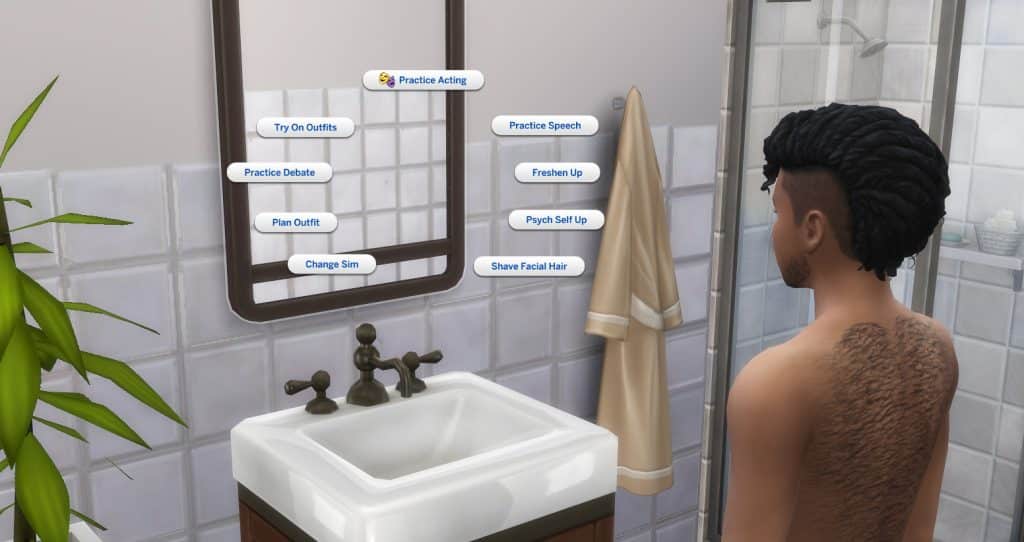
Sims can finally let their body hair and facial hair grow and then shave it off! To do this, masculine frame sims need to use a mirror to shave their face and both frames need to use a shower to shave their body hair.
We also can’t wait to see what the community does with the CC body hair now that there is body hair in the game! There are so many talented CC body hair creators so we know that there will be some great options.
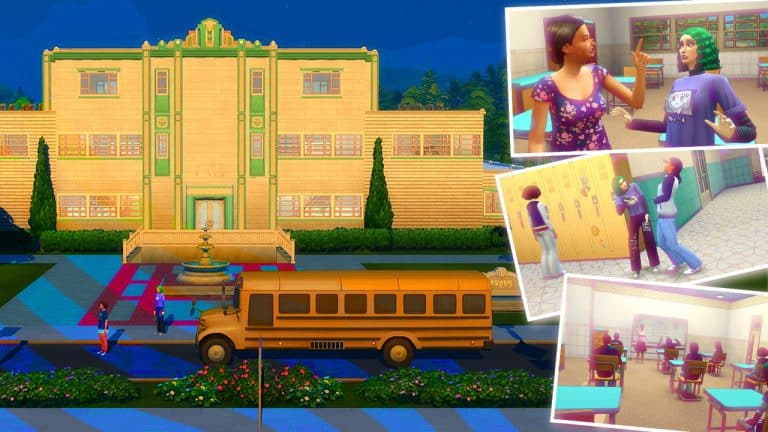
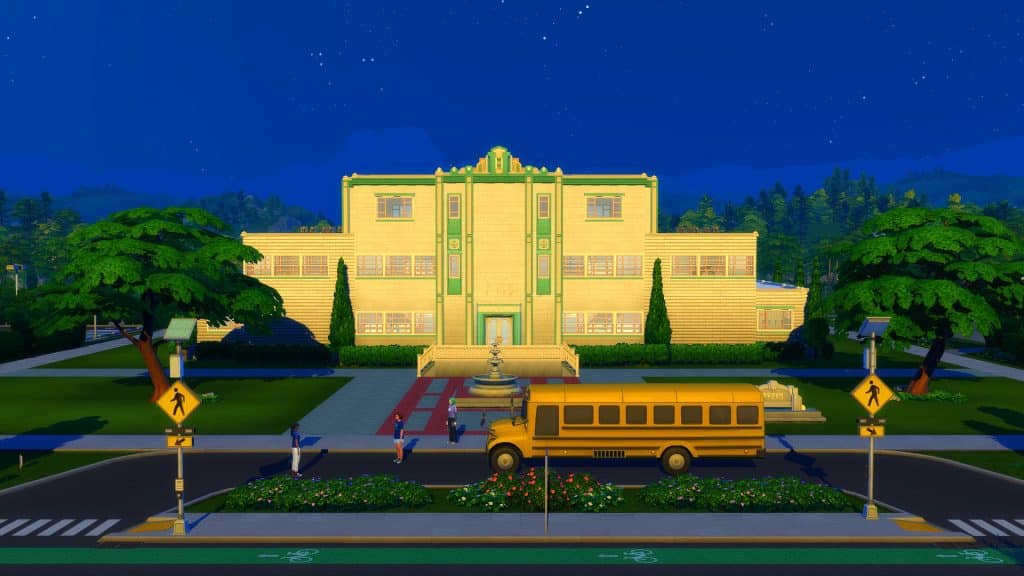
Situated in the Rockridge Heights area of Copperdale, the school has been well-loved by Sims for generations. A home for teens to make memories and prepare for their future! With everything, you could think of for the ultimate learning experience as well as a multipurpose auditorium perfect for Prom, Copperdale High is the perfect place for your Sims to truly explore who they are and what they strive for!
What does Copperdale High have to offer?
Copperdale High is the place for Sims to attend for their High School education. A home for many generations of teen Sims over the years, as well as being at the heart of the Copperdale community! The school also offers plenty of After School Clubs and events for Sims to participate in outside of school hours.
A typical day at Copperdale High
The school day starts promptly at 8am and ends at 3pm. When it is time for school to start, you will be given the option to attend with your Sim or send them alone.
Upon arriving at Copperdale High, you will have some Free Time to utilize how you feel best. It’s recommended that students use this time to further their skills and knowledge, however you can also spend this time getting to know fellow students around campus.
Once the morning Free Time has ended, you will attend classes as well as break during the day for lunch. Once the school day comes to an end, you are free to go home, however you can stay on campus until you feel it is time to go home, to utilize any resources or equipment that may be needed.
Classes
Copperdale High offers a variety of different classes. Each class helps your Sims build different skills. You will have two classes a day Monday to Thursday, with Friday being focused around Exam preparation and Exams.
Here are the types of classes you can expect your Sims to attend.
Social Studies (Writing Skill)
Maths (Logic Skill)
Science (Logic Skill)
Language Arts (Writing Skill)
Art (Painting Skill)
Computer Science (Programming Skill)
Business (Charisma Skill)
Foreign Language (Charisma Skill)
Not sure what classes your Sim is attending on which day? Simply click on your Sim, head to the High School option, and then Review Class Schedule. The Class Schedule will then appear in the Notification Wall for you to check.
Additionally, students will have homework to complete. You’ll find this in your Sims inventory. Simply click on the book and complete your Sims homework for the day.
Behaviour
It goes without saying, that Copperdale High Students are expected to be at school learning and studying. Living the Copperdale High values and being proud to be a student of the school. There is no room for mischief or misbehaviour. If your Sims get caught out, it may result in spending time in detention.
If your Sim is unlucky enough to end up in detention frequently or doesn’t achieve the grades required, then you may find yourself being expelled from Copperdale High.
After School Activities
There are a number of After School Activities that your Sims can join. This includes being a part of the Cheer, Chess, Computer and Football Team!
Additionally, if you own The Sims 4 Seasons or The Sims 4 Get Famous, you will also find the Scout and Drama Club After School Activities listed here as options.
Joining an After School Activity is easy!
To join an After School Activity, just go to your child or teen Sims’ Smartphone. Select the Business Icon and then click Join After School Activity. Once your Sim starts to use the phone, you will get a pop-up asking which activity they would like to join.
Once joining, you will get a notification stating that your Sim has joined the After School Activity of your choice. You can keep track of your Sims progress under the Career tab of your Sims profile.
Make sure your Sims attend their After School Activity sessions, complete any daily and advancement tasks to help your Sim reach the next level.
Another way that you can join an After School Activity, is by find one of the club representatives on campus at the end of the school day. Talk to them, find out more and join in the fun!
Student Life
Outside of lessons, exams and After School Activities, there is plenty for Students to get involved in. Make friends (or enemies), decorate your locker space, find out the latest trends, attend one of the Club Festivals or get involved with Prom!
Students can also stay connected via the Social Bunny app that can be found via the Mobile Phone.
Events
School events can be found on the Household Calendar. Throughout each week, students can participate in the Football Team Sports Day or the Cheerleading Team Sports Day. Both of these events take place after school hours and usually run on a Thursday or Friday. You will be able to take part in the Football Throwing competition or the Group Cheerleading Competition during the events.
You will also find Career Day and Science Festival events periodically during term time as well.
Prom
One of the two main events of the school year! Held at the Copperdale High Auditorium, it really is the night of nights!
Students will take the opportunity to create promposal signs to ask another student to attend Prom together or, you can send notes if you want instead!
However, as you and your friends bop to the top during prom, don’t forget to vote for who you would like to be seen crowned as Prom King and Queen!
Graduation
As they say, we’re all in this together!
Graduation is the second main event of any students school year. While some players may experience problems with Graduation taking place, it is still a moment to reflect and celebrate achievements before looking to the future and, breaking free!
Are you having problems with graduation not going to plan? Why not create your own event and celebrate your Sims finishing High School in your own way!
It’s been awhile since I’ve updated my CAS Unlock for The Sims 4!
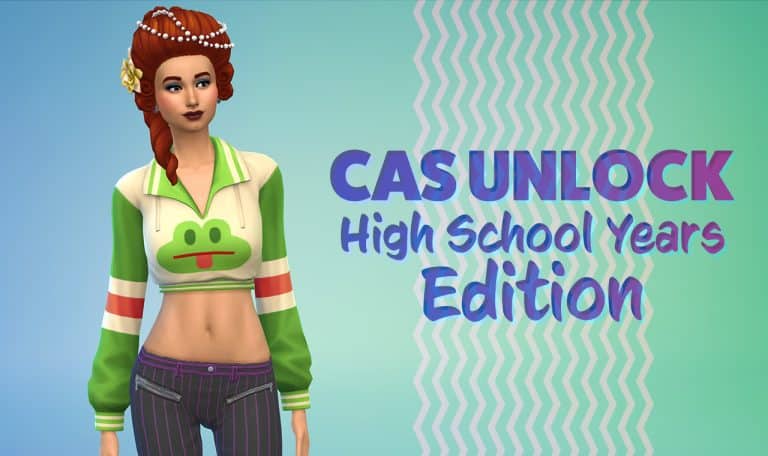
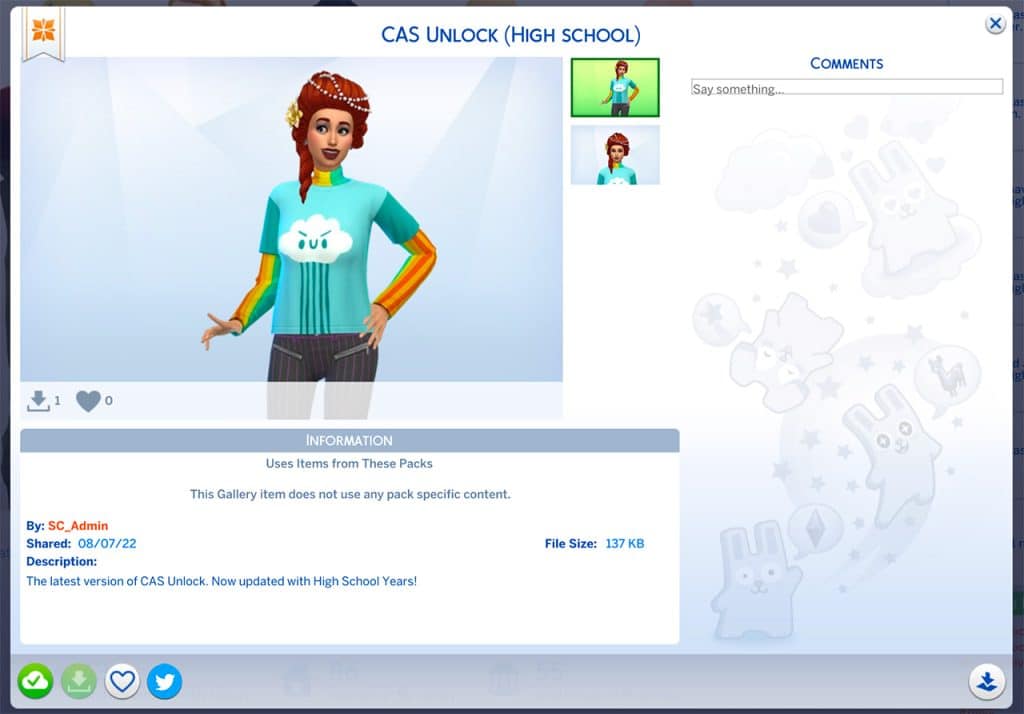
The latest version of my Sim Fashion Nista is now updated to the latest version of The Sims 4 High School Years. This means that any release to the point of High School Years will now provide you with Unlocked content!
It’s simple, all you have to do is place the CAS Unlock Household in Create A Sim (or Live Mode). Immediately afterwards all the locked content from Create A Sim will be present to you. If you have multiple packs installed, you’ll have the content for those Packs unlocked as well.
You can find the latest version of The Sims 4 Create A Sim Unlock under my Origin ID: SC_Admin.
Simply place down the Household in CAS / Live Mode and enjoy the benefits of a fully unlocked catalogue!
Ever wanted to get that shiny costume, cool pair of glasses or a fancy dress for your Sim but you don’t want to through the struggles of completing a certain Career / Skill Level? Now you don’t have to worry about that!
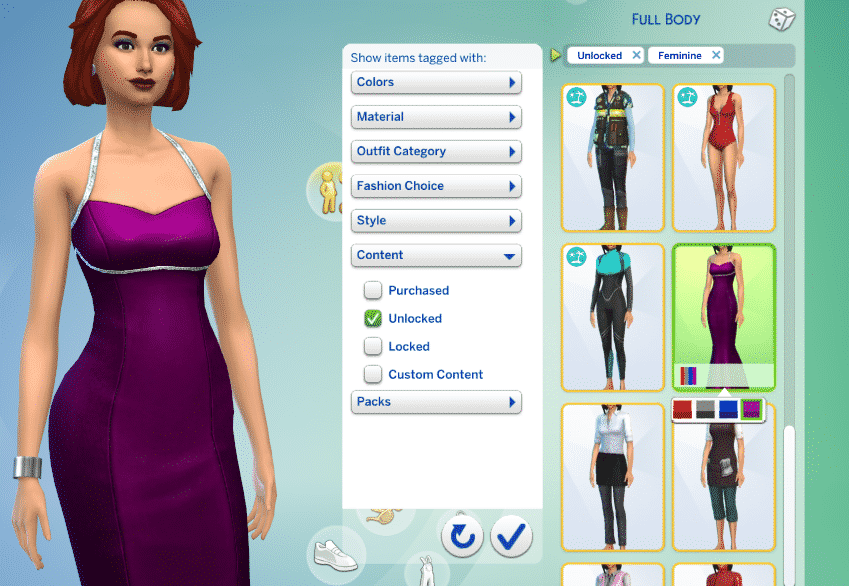
The Sims 4’s Create A Sim includes a bundle of clothing pieces that are already presentable to you. However, there’s a whole different set of clothing items that show up in Create A Sim only after you complete a certain milestone / level in a certain Career / Skill. These can be easily accessed through the “Unlocked” filter tag:
The Sims 4 Base Game, including various different packs came with new unlockable clothing items. Although there isn’t a specific cheat that lets you unlock all of the CAS clothing all at once there is a very easy workaround.
With the power of The Gallery you can unlock all of the items right away! I’ve made a special household which is now up in The Gallery that functions as a “key” to unlock the CAS items. All you have to do is place this Sim in Create A Sim or in Live Mode and all of the locked items will be unlocked for you in Create A Sim!
You can simply remove the Sim as soon as you’ve placed her down as a part of your own household. This Sim will automatically unlock all the CAS items as soon as she’s been placed down so there’s no need to have her around. You can do so by either editing her out through “Modify in CAS” (with the cas.fulleditmode cheat), removing her immediately if you’ve just started creating a household or evicting her from the Manage Worlds options. The Sim will unlock all the lockables for all ages and fashion choices.
You can find the “CAS Unlock” Household in The Gallery under the SC_Admin EA ID or by simply downloading the Sim from this link! Currently she’s been updated to The Sims 4 Snowy Escape CAS unlockables.
A huge thanks goes to The Gallery creator KillianMonroe who unlocked previous clothing items!
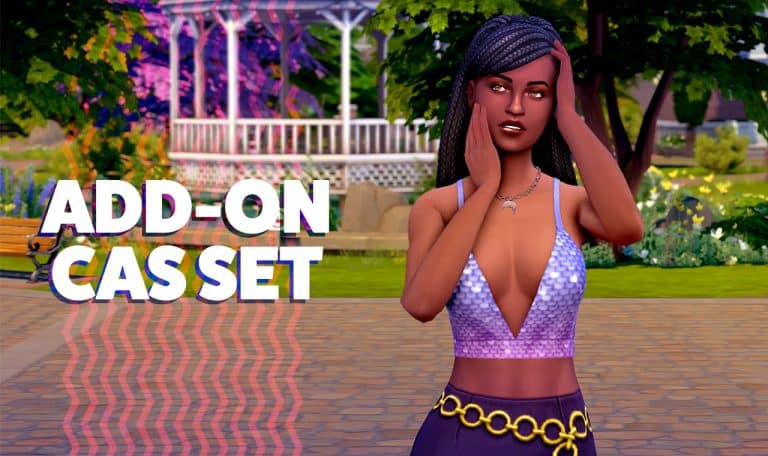
20 new CAS pieces to give High School Years a different flavour… but you don’t need High School Years to use it!
One thing we always look forward to when a new pack comes out is all the custom add-on sets creators will make for it. It’s always fun to get revamped versions of the pack items to give us more variety in the looks we can create for our Sims.
Image from simancholy
simancholy has released a set of 20 new CAS items based on the High School Years CAS catalogue. The set features revamped versions of the High School Years necklaces, new tops using parts of the High School Years clothes, and new hairs with new accessories added and fixes to make them look more proportionate to Sims’ heads.
Oh, and the best part? These add-on items are base game compatible! Even if you don’t have the High School Years expansion pack, you can still download and enjoy these items!
Here’s a look at all the previews in the set!
Image by simancholy
We downloaded the set for ourselves and came up with a couple looks using the new items. The pieces look great and gave us more freedom to design the exact high school look we wanted. We’re definitely keeping this one in our Mods folder!
This new skill is all about living that side hustle life!
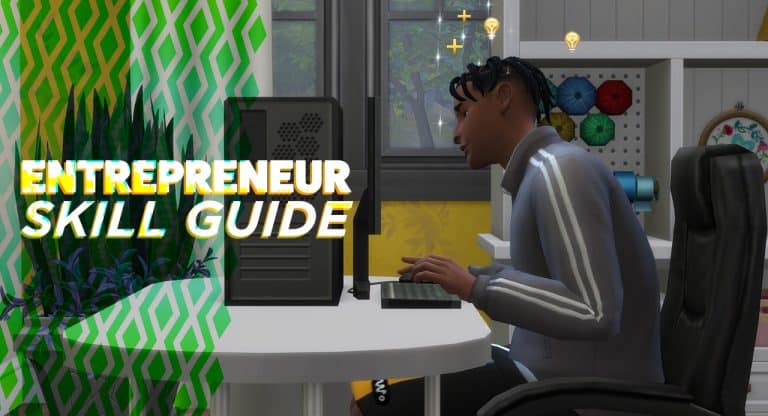
The Sims 4 High School Years comes with a new minor 5-level skill. The Entrepreneur Skill is tied to the new Trendi marketplace and the new part-time jobs that come with this pack but any Sim who makes a living from any kind of self-employment can benefit from this skill.
This skill is built through any type of “hustle” activity, from selling outfits on Trendi, to crafting and selling your own goods, to participating in odd jobs and freelance careers. There is a lot of cross-pack compatibility here but you’ll get the most out of the skill if you’re a Simfluencer or Video Game Streamer.
Building the Entrepreneur Skill
Late-level rewards from the Entrepreneur skill
Entrepreneur skill can be built in the following ways:
Completing odd jobs
Participating in the Simfluencer or Video Game Streamer part-time careers
Participating in a freelance career
Selling things you’ve crafted/created (Trendi outfits, paintings, sculptures, etc)
Entrepreneur Skill Levels
Reward trait for maxing out the Entrepreneur skill
As you build the Entrepreneur skill, you’ll gain access to new ways to build the skill and perks that will allow you to have more success in self-employed careers.
Level 1
No specific perks
Level 2
Can advertise side hustle online
Level 3
Can make and research a business plan on the computer. You must be employed to do this.
Level 4
Can contact angel investors for funding. To do this, make or research a business plan on the computer, then click on the USB stick that appears in your Sim’s inventory.
Level 5
Ability to appear on The Llama’s Lair reality TV show. To do this, make or research a business plan on the computer, then click on the USB stick that appears in your Sim’s inventory.
Gain The Knowledge reward trait, which increases your career salary and makes Sims more receptive to you in conversation
Tired of the same old plants? Why not make your own!
When looking for a plant to fill an empty corner, we know you always end up in the Decorations menu in Build mode. But there’s one plant item that you won’t find there: this base game Bonsai Tree!
It’s in the Activities & Skills menu under Creative activities.
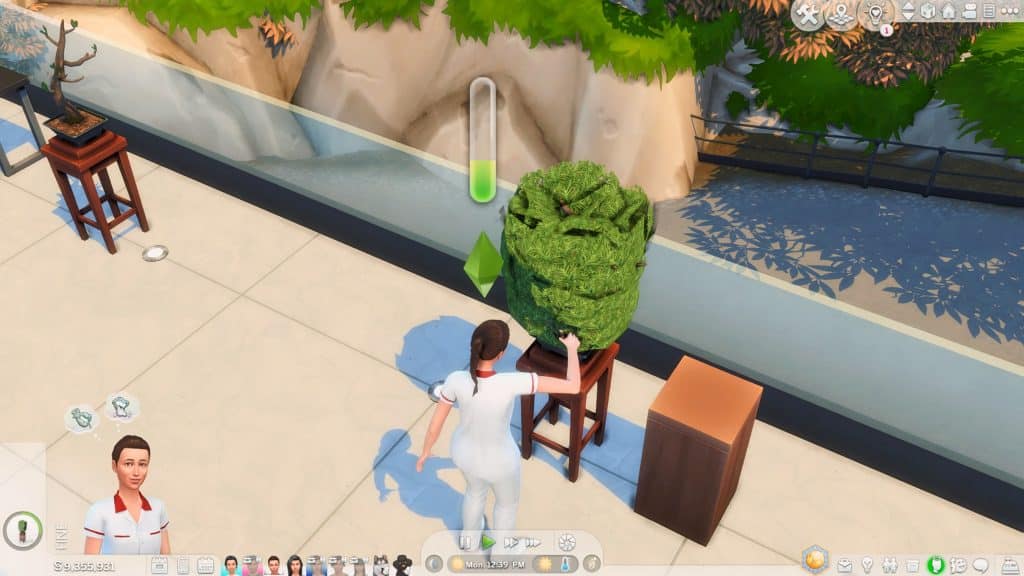
Don’t be deceived by its boring blob shape. You can create 5 different styles out of this single item and make it look fancy (Plus special shapes depending on your Sim’s moodlet!)
But remember, enter the bb.moveobjects cheat before starting!
Grab the bonsai tree along with this tall pedestal from Get To Work. You can do without the pedestal, but trust me, it gives an extra oomph to this decoration!
Place the bonsai away from the pedestal. Go to Live Mode – we’ll be using your Gardening Sims to transform the tree.
The number of bonsai shapes available will depend on your Sim’s Gardening Skill Level (or Flower Arranging Level if you have Seasons). Here’s a guide on what shapes you can unlock:
Let’s try a basic shape! Click on the bonsai, select ‘Prune Shape’, then click on your desired shape. Just take note that sometimes, you’d have to trim the overgrowth first before pruning.
Every time your Sims prune the bonsai, their skill level builds up. This takes around 45 minutes in-game or 1 minute in real-time.
When your Sim is done, go back to Build mode to place the bonsai over the pedestal. Now it looks like a real bonsai that’s on display.
Note: your Sims can’t reach the bonsai with the pedestal overlapping it, which can be a good thing or a bad thing depending on your gameplay. If you need to retrim the bonsai, just go back to Build mode and move the pedestal away.
Use the bonsai indoors or outdoors
Since the bonsai blooms year round, you can show it off outside your build with no problem. You can make a fancy bonsai collection or feature it with other plants.
With the pedestal, it also looks great inside as a corner accessory.
It’s a great alternative if you don’t own Snow Escape which also has a small bonsai plant. Plus, the texture of the Base game bonsai looks more realistic and dynamic!
pruned Base Game bonsai vs Snowy Escape bonsai
See this trick in action by watching this video tutorial!
Is your Save Game not Saving? You’re not the only one.
The Sims 4’s recent update for High School Years has started a new roll of issues for players. After some of the issues being addressed in a Hot Fix Update, one of the major game issues remained still: Not being able to save properly.
The community at the moment calls this issue “Groundhog Day”. Why, you might ask?
EA AHQ Member taytay444555 opened a Thread describing the issue:
I cannot progress in the game because every load transition either through save/exit, CAS, or Manage world takes my game back to the day I loaded in at the start. For example, I load into the game on a Tuesday…play the game until Sunday, and try to edit a baby NPC that has now turned into a toddler. Go into manage worlds and the toddler is now a baby again, exit CAS and load back into my household…and it is back to Tuesday(hence why the toddler is back to a baby because the age reset). The same happens if I save from Sunday, exit game, then come back it will still be Tuesday again once loaded in. I took out all mods, and rolled back the save to a later date than that Tuesday but it just does the same with that date as well.
P.S. this household is primarily using the new werewolf game pack. I did not have this issue until I updated my game with the latest patch for high school years on July 26-27th
The issue of the game is a bit stressful if you’ve ever encountered it yourself. The game affirms players that the game has been saved, only for the player to realize that they are back where they started before saving the game.
The issue is widely present to players who have Mods (especially MCCC) installed. At least it was the main cause of issues in the beginning. After days of troubleshooting PC players without mods and Console players have started reporting the issue too. Even after the latest Hot Fix Update for The Sims 4.
EA AHQ Hero crinrict has posted a useful list of Symptoms and Things To Try:
Symptoms seen for this
The game doesn’t save. When reloading the game, it’s in the exact state it was before playing on the last session
The game only saves part. Some progress is reset. This includes skill progress, XP progress for Occult, building changes and other things
When loading into another lot, the time reverts to when you first loaded the game.
Werewolves (and probably other occult) loose all their points and even corrupt more. (there is currently a dedicated thread for this here)
Sims age up and then when reloading age down again.
Things to try
Remove ALL your mods completely from the game (this includes files put in the saves folder by the mod)
Delete the localthumbcache file
If you had point resetting and other things besides the time reverts and saved your game, you will need to load a backup or they will still be gone. Removing mods does nor revert lost progress.
Keep backups and do not play any saves you wish your mod settings to retain until the problem is solved.
If you are experiencing issues with the Groundhog Day Save Bug in The Sims 4, SimGuruQARoboto advises to share your Save Game with them for further troubleshooting:
Hello.
For anyone seeing this issue with saves that never had mods installed, would you be willing to share affected save files?
Need a place to find some unique clothes for your teen not found in CAS? Want some clothes to sell on Trendi? Or do you need a place to hang out for a poetry night or fashion show?
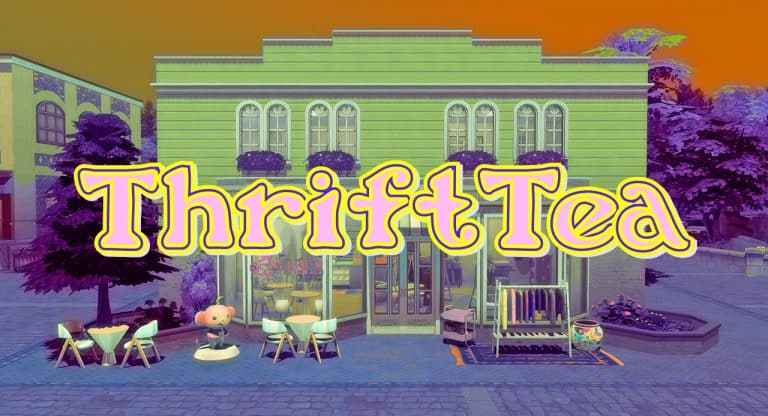
ThrifTea is the newest hangout spot for teens in The Sims 4 with High School Years! It’s a multiuse lot including the bubble tea shop and the thrift store. Here’s all you need to know about your teen’s new favorite place to go after school!
Overview of Store
The thrift and bubble tea store’s main three sections are the shopping area with the clothing racks, the bubble tea and food ordering area, and the sitting area. There are also two changing rooms, a bathroom, and a kitchen.
Hint: When building your own thrift store, the lot type requires 4 retail racks, 1 retail counter, 2 dining tables, 4 dining chairs, 1 coffee table, 1 sofa, 1 bubble tea counter, 1 microphone, 1 wall speaker, 1 waste disposal, 1 toilet, and 1 sink.
Thrift Store Owner
The owner of the ThrifTea is named Eloise Hiddlestix. You will find her hanging around the store. She is helpful when researching fashion trends. You can “Talk about Fashion Looks” and “Talk about Fashion Trends” with Eloise. “Talking about Fashion Looks,” tells you more about creating looks and “Talk about Fashion Trends” will give you inside information on the current fashion trends.
Buying Thrifted Clothes and Accessories
At ThrifTea, you can create Fashion Looks. The clothing you can choose from rotates every day. There are clothing from the regular CAS selection, rare and exclusive clothing, and a DPOP collection. Five sellers designed the DPOP collection: @internetgirl, @happyxloco, @selenasshop, @judaku, and @furrylittlepeach.
After creating a look, your sim receives a bag in their inventory and they can wear it or sell it on Trendi.
Wondering how the game calculates the cost of each outfit? The cost of an outfit can be calculated this way: Base Cost + Rarity + Style
Example: Base Cost (§5) + Rare (§20) + Hipster (§20) = Total Cost of §45 Note: A few items are tagged with more than one style. If that is the case, they seem to use the larger amount.
Style Street: §10 General Contemporary Basic: §10 Bohemian: §20 Country: §20 Hipster: §20 General Outdoor Explorer: §20 General Preppy: §30 Goth Rock Punk: §30 General Polished: §50
Local Hang Out Spot
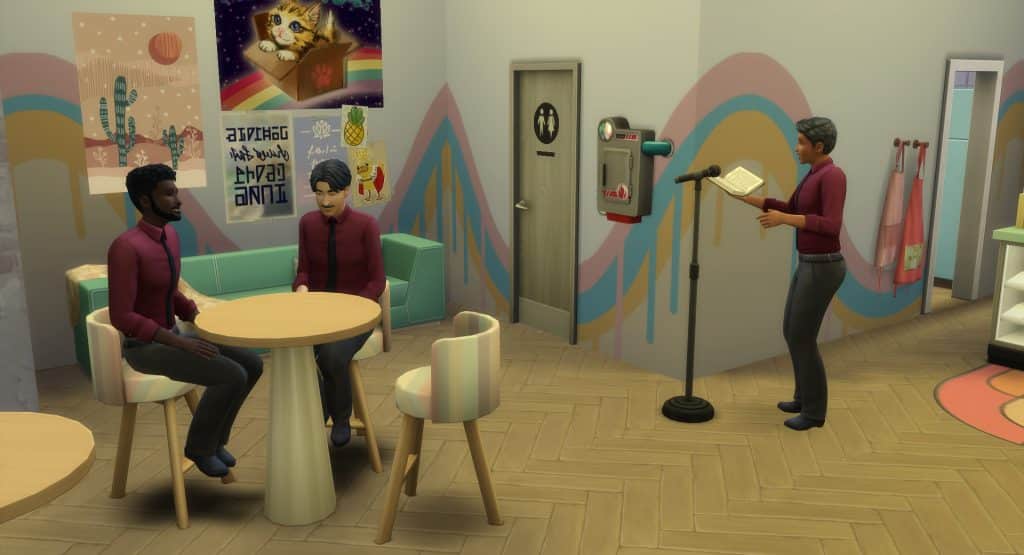
Comedy Night
Your Sims can hang out at ThrifTea on different nights of the week. Here is the schedule:
Fashion Show (Fridays and Mondays): “Are you ready to Show Off your sublime style? Gain the applause of other fashionistas at the ThrifTea Fashion Show!” Comedy Night (Wednesdays): “The ThrifTea Amateur Comedy Night has begun! Grab the mic and amuse yourself (and bystanders) with your fledgling repartee!” Poetry Night (Sundays): “Grab your chin (and the mic) and get all poetical to the quiet applause of an adoring crowd. The ThrifTea Poetry Evening begins!”
Bubble Tea Shop
The Bubble Tea Shop has both food and drinks for sale.
Drinks available include Lychee Milk Bubble Tea ($6), Mango Milk Bubble Tea ($6), Taro Milk Bubble Tea ($7), Chocolate Milk Bubble Tea with Cheese Foam ($8), and Strawberry Matcha Latte Bubble Tea ($9).
Food available includes Veggie Slider ($10), Fried Chicken Slider ($10), Hamburger Slider ($10), and Corndog ($8).
ThrifTea is the perfect place for a teen Sim to hang out. There are so many different events and activities for them to participate in. They can have club meetings at ThrfTea or just hang out after school and do homework. Thrift Store and Bubble Tea Store might have seemed like a weird combination at first, but it is a useful and fun addition to the game!
The Sims Team gave us a sneak peek at some of our favorite Sims during their Teen years. They tweeted out a yearbook photo of some of our favorite premade Sims. Including some very interesting lore for each iconic Character as a Teen. Now, they’ve shared them to the gallery for us to add to our games!
Here is some information about these teens!
Bob and Eliza
Eliza Hastings Aspiration and Traits: Goal Oriented Aspiration; Relatable, Materialistic, and Perfectionist Traits Sexual Orientation: Romantically attracted to neither men or women, exploring romantically, and interested in messing around with men and women Likes: Green, S-Pop Music, Preppy Fashion, Fitness, and Painting
Bob Pancakes Aspiration and Traits: Master Chef Aspiration: Essence of Flavor, Slob, and Loner Traits Sexual Orientation: Romantically attracted to neither men or women, exploring romantically, and interested in messing around with men and women. Likes: Brown, Retro Music, Basics Fashion, and Cooking Dislikes: Mischief
Geoffrey and Nancy
Geoffrey Osteer Aspiration and Traits: Goal OrientedAspiration; Relatable, Good, and Outgoing traits Sexual Orientation: Romantically attracted to women, exploring romantically, and interested in messing around with men and women. Likes: Blue and Red, Classical Music, Basics and Preppy Fashion, Mischief Dislikes: Rocker Fashion
Nancy Landgraab Aspiration and Traits: Drama Llama Aspiration; Relatable, Snob, and Materialistic traits Sexual Orientation: Romantically attracted to neither men or women, exploring romantically, and interested in messing around with men and women. Likes: Purple, Pop Music, Polished Fashion and Preppy Fashion, and fitness
Mortimer and Bella
Mortimer Goth Aspiration and Traits: Live Fast Aspiration; Relatable, Outgoing, and Creative traits Sexual Orientation: Romantically attracted to women, exploring romantically, and interested in messing around with men and women. Likes: Black, Alternative Music, Hipster Fashion, Polished Fashion, Rocker Fashion, and Writing
Bella Bachelors Aspiration and Traits: Admired Icon Aspiration; Relatable, Good, and Romantic traits Sexual Orientation: Romantically attracted to men, exploring romantically, and willing to mess around with men and women Likes: Black and Red, Romance Music, and Polished Fashion
Will you be playing with the new teen versions or will you stick to their original adult selves?
Choose which classrooms your teens have for different subjects! No mods or CC required!
There is a lot to love about The Sims 4 High School Years, which adds so much for teens to do and discover that really set them apart from adults for the first time in The Sims 4’s history. However, one complaint from players is that the classes are all the same no matter what subject your Sims are taking. Math, science, art, and every other subject all take place in the same room every day. In a real high school, the classrooms are set up differently depending on what subject is being taught.
But there’s good news! A user on Twitter, @AmandaKWrites, has found a way we can customise which classrooms our teen Sims have their different subjects in! It doesn’t involve any mods or CC, either. All you need is at least three classrooms (or more) with a whiteboard in each class.
I’ve done more testing with #Sims4HighSchoolYears and switching classrooms during the school day. I added more classes by adding whiteboards and desks. Using the Review Schedule interaction, I assign class 1 to an appropriate room by clicking the whiteboard 1/ pic.twitter.com/WfOp4OJXNF
Amanda goes into more detail on Twitter but here’s the basic breakdown of how to do this.
At the start of the school day, during morning free time, click your teen Sim and select High School > Review Class Schedule to see what subjects your Sim has that day.
Your teens will always be in Class 1, so click on any unused whiteboard and select Assign Whiteboard to Class 1. If the interaction is not available, this means the whiteboard is already assigned to a class. Find the unused whiteboard to reshuffle classes if need be until you can assign the whiteboard for the room you want to Class 1.
Your teens will now go to that classroom for their first class of the day!
During lunch period, do the same thing to assign your teen to a classroom that’s appropriate for their next subject.
It requires a bit of a game of “musical whiteboards” but once you get it, it’s fairly simple to make sure your teens attend the right classrooms for their subjects.
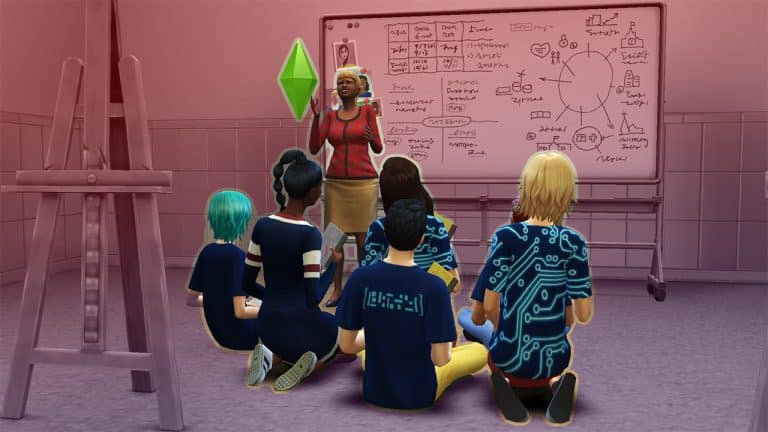
This is mostly for immersion and storytelling purposes. Your students will still sit at desks and take notes even if there are easels in the room for art class or instruments for music class. If there are no desks, they’ll sit on the floor for the lesson, which can be a good way to have a more casual class setting if you want.
Thank you Amanda for letting the Simming community know about this neat trick! A lot of us will surely get plenty of use out of this feature!
A whopping 90 fashionably “baysic” furnishings for your fashionably “baysic” homes!
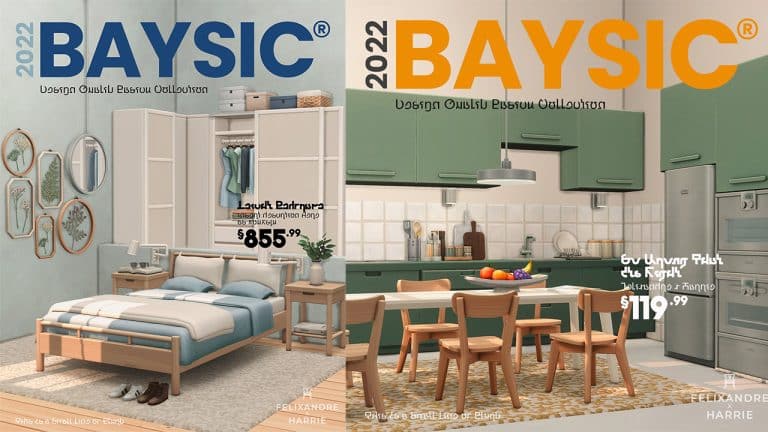
Popular CC creators, heyHarrie and Felixandre have teamed up to give Simmers a huge collection of new furnishings and décor to decorate their homes! The Baysic collection is inspired by “our favourite Swedish furniture store” according to heyHarrie on Twitter, most likely referring to IKEA.
Since the IKEA Home Stuff pack for The Sims 2 was so wildly popular back in its hey day, we think Simmers are going to love this new CC collection with even more items than IKEA Home Stuff and in a more contemporary style than IKEA Home Stuff, which was released 14 years ago in 2008.
You can check out previews of everything included in this CC set in this handy gif preview provided by heyHarrie! There is so much to look at, we actually watched the whole thing a few times over to be sure we got to really admire every piece in this collection!
Ya Baysic!
Felixandre & Hey Harrie are back with yet another collaboration, but this time it is for that simpler life! It’s great to have unique one of a kind pieces in your Sims’ homes, but sometimes it’s the Baysic items that are missing. This set of 91 items aims to solve the problem for the living, dining, kitchen and bedroom.
Kitchen: Two fully fledged kitchens with not only a rainbow of colour swatches, but also special accent counters, appliance units, fridge nooks and colour co-ordinated appliances. Not forgetting the new kitchen prep trolley & clutter pieces to turn your house into a home.
Dining: A set of matching dining tables in 3 sizes along with a matching dining chair and pendant lighting
Living: Full suite of matching sofa, love seat and armchair, plus your favourite ‘Needs No Introduction’’ accent armchair, along with matching side & coffee table and lighting options for every area of the room
Bedroom: The most requested item has finally been brought to life! The ‘Packs Wardrobe System’ enables you to create a custom built in wardrobe with 3 different cupboard fronts that snap into place and allow you to create an infinite amount of colour combinations to suit your room design perfectly. Of course there is a matching set of double, single and toddler bed frames and comfy bedding
99.9% of the items are Base Game compatible, however the ‘Colour Pop High Oven’ requires DHD to be fully functional. If you don’t own that pack the item will still place in game, but be purely decorative.
Also make sure to have auto counters turned off when placing built-in appliances, otherwise they disappear when placed. You can always turn auto counters back on once placed 🙂
You can find all of the items in the build/buy catalogue by searching BAYSIC, plus look out for the fun new item names introduced with this set.
This amazing Maxis Match set is available now to everyone! Click the download button below to add it to your game!