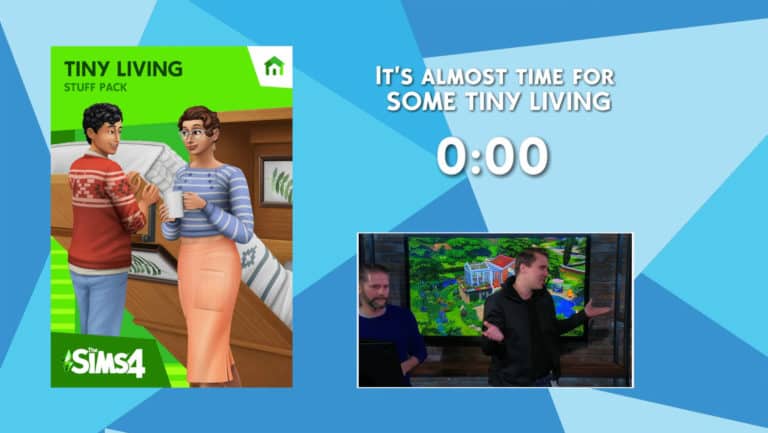
SimGuruNinja and Conor (who is a designer for The Sims 4) took us on a tour of The Sims 4 Tiny Living Stuff Pack earlier today. They showcased various aspects of the new Stuff Pack including Create A Sim, Build/Buy Mode, the different Tiers of Tiny Homes and more.
If you missed the livestream earlier today, you can watch the replay below.
Let us know what you thought of today’s livestream below in the comments.
We’re just a few days away until the official release of The Sims 4 Tiny Living Stuff Pack on PC / Mac!
The pack is set to release on January 21st, 2020. It’s expected that the pack will have the same release time as the previous Stuff Packs, which is at 10AM PT / 7PM CET / 6PM BT. At that time the pack finally gets listed on Origin and you’ll be able to purchase the pack for $9.99, download and play it!
Considering that the time zones can get pretty confusing we’ve made a handy countdown down below that counts to the exact moment of the pack’s release. As soon as the counter turns zero you should be able to find the pack on Origin!
The Sims Team will be doing a deep dive livestream of The Sims 4 Tiny Living Stuff Pack today, January 17th 2020.
The livestream will be hosted by SimGuruNinja (and some other guests) where he’ll be showcasing new Build / Buy items, Create A Sim content, gameplay as well as announcing the winners of the Tiny Living contest.
The livestream starts at 11AM Pacific Time / 8PM CET / 7PM BT. To make sure you don’t get lost with the time zones we’ve included a handy countdown down below that counts to the exact beginning of the livestream!
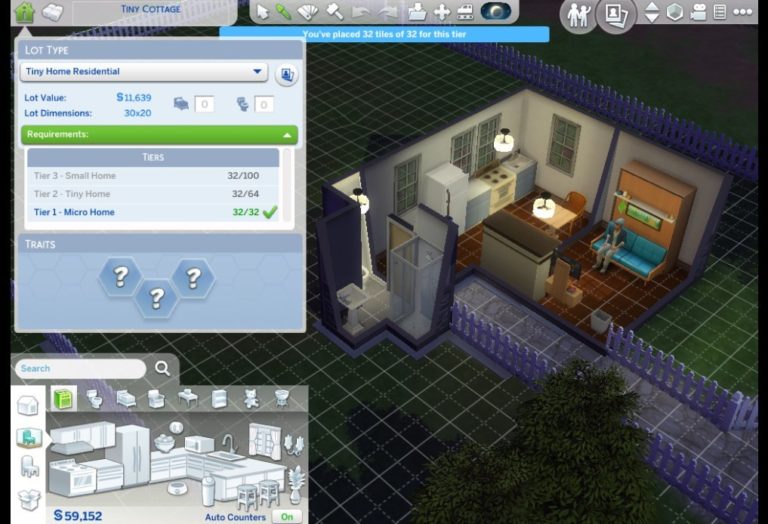
SimGuruMrE has shared 4 new screenshots from The Sims 4 Tiny Living Stuff Pack showcasing his tiny residental lot that he’s built.
The screenshots of his lot that you can see down below are of a Tiny Home Lot (the brand new Lot Type that comes with this pack) that belongs in the “Micro Tier”.
EOcHKySU0AAwrmx 1
EOcHKyRU0AYLtGQ 1
EOcHKyTUUAEliXX
In another screenshot the developer reveals all 3 tiers / requirements, with each tier requiring a certain amount of home tiles.
As shown in the screenshot below there are 3 different tiers including:
Tier 3 – Small Home (up to 100 tiles)
Tier 2 – Tiny Home (up to 64 tiles)
Tier 1 – Micro Home (up to 32 tiles)
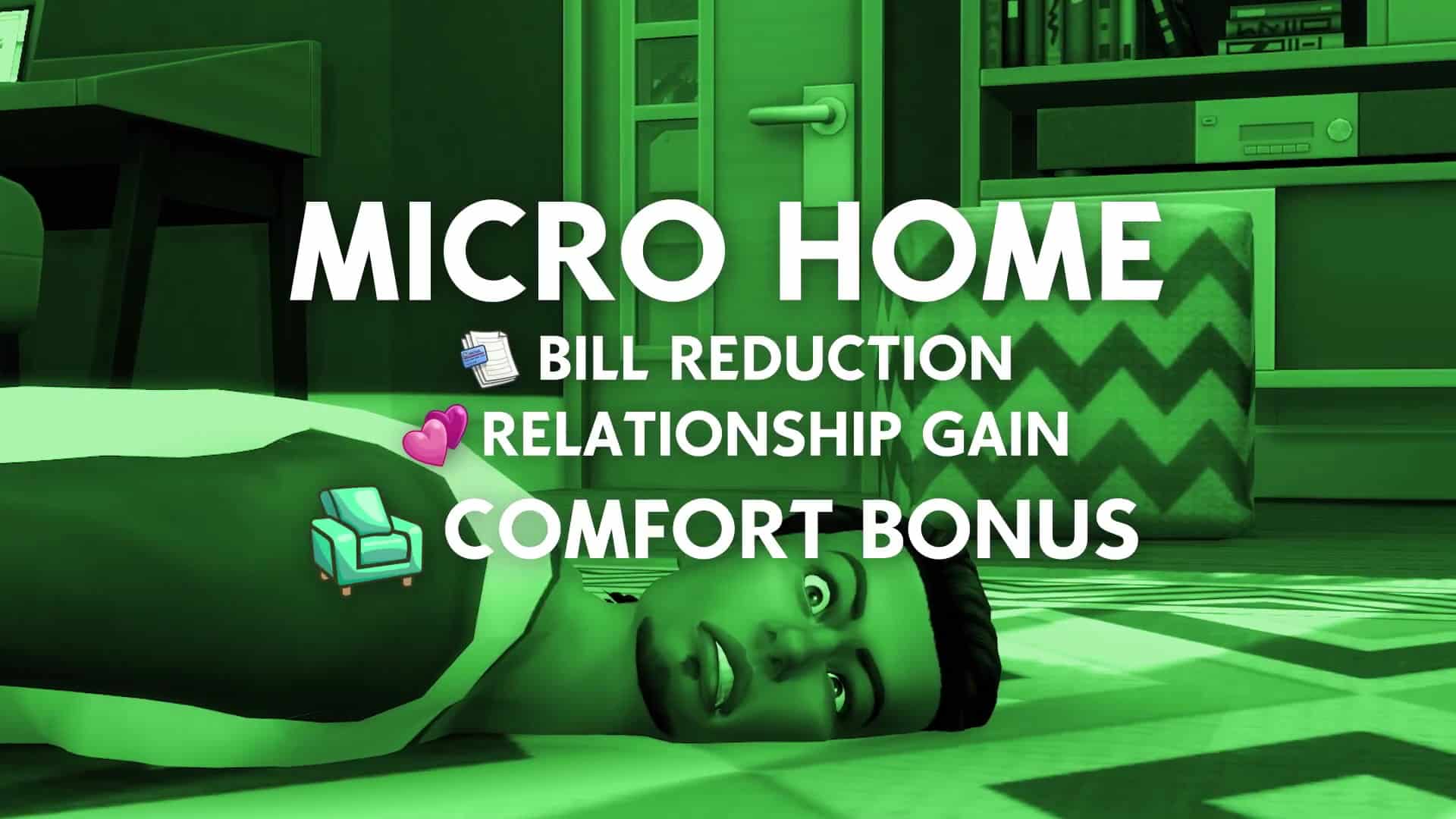
As revealed in the official trailer for Tiny Living Stuff Pack, the smaller lot you build – the more benefits you unlock for your lot. If you manage to build a Micro Home you’ll be able to enjoy all of the Tiny Home benefits, with some of them being listed from the trailer screengrab down below:
Console players, rejoice! It’s finally here! The Gallery has come to console and the best part? It’s cross-platform! Share and discover player-made creations across PC and console right in the comfort of your living room (or wherever you like to game).
In order to help our console friends transition into using the Gallery smoothly, we’ve compiled a little introductory guide on how to use the Gallery. You’ll find it’s nearly identical to the Gallery on PC, just with a few additions to make browsing and navigating a little easier on a console.
Before we dive in, it’s worth noting that you do NOT need a PlayStation Plus or XBox Live Gold subscription in order to access the online Gallery! It is completely free to use for any player with The Sims 4 installed on their console. However, you do need to link your PlayStation or XBox account to EA if you haven’t, already.
Introducing the Gallery
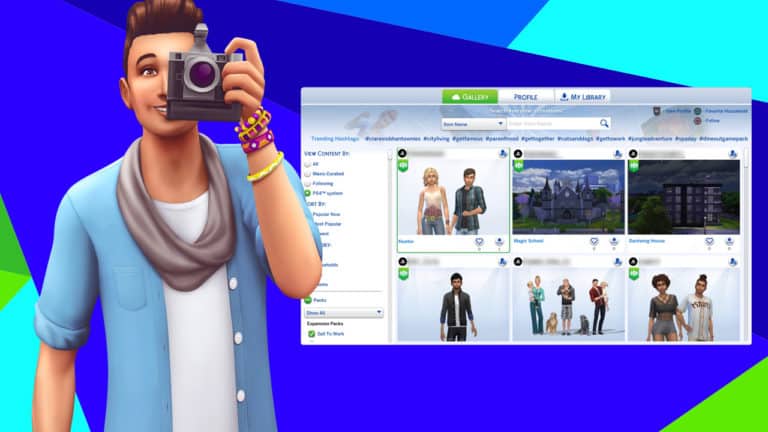
Anytime in-game or on the main menu, you can select the icon of two photographs in the top right corner of your screen. This icon was always there, but previously, it just led you to your local library of Maxis created items and things you created in your game and saved for later use. Now it has a whole new function! You can still browse the library like you could before, but now you have access to a whole new world of creations made and uploaded by other players on both console and PC!
You’ll see three tabs at the top of the Gallery. Navigate between them using the L1 & R1 buttons (PS4) or RB & LB buttons (XBox). We’re going to break down each tab so you can get the most out of all the new features they offer.
The Gallery
This tab is where you want to go when you want to look for player-created Sims, lots, and rooms to download into your own game. Use the filters in the sidebar to refine your search. You can sort between lots, rooms, or households, as well as select whether you want to see PC creations or just console creations. Filter for different packs, too. Explore the filters; there are many ways you can hone your search on exactly what you’re looking for!
When you find something you want to add to your game, select it to bring up more details about that creation and look at it in a larger window. You can also just like and download right from the Gallery browse page if you’ve fallen in love at first sight. For households, you’ll be able to see the traits, ages, and names of every Sim in the household on this larger screen, as well as any family ties they might have with the other Sims in that household. For lots, you’ll be able to view more pictures of the lot, including the layout of each floor.
NOTE: We noticed this message on some Gallery posts. It looks like some downloads made on PC with newer versions of The Sims 4 might take some time before they can be downloaded on console.
Don’t forget to be a courteous Simmer!Console players may not know this, but it’s considered good Gallery etiquette to favourite and leave a nice comment on any lot or household you download. You can also follow the creator to be notified whenever they upload a new creation. If you liked it enough to use it, the creator deserves some appreciation for making it for you!
Favourite a fantastic creation by selecting the heart icon at the bottom of that Gallery creation and don’t forget to comment! You’ll need to open up the creation by selecting it from the Gallery browse page in order to comment on a creation.
You can also quickly favourite a creation by pressing △ (PS4) or Y (XBox) on your controller. Quickly follow your favourite creators by pressing □ (PS4) or X (XBox).
TIP!
It’s a good idea to read the description of anything you download. There’s no risk of accidentally downloading something dangerous, but lots of builders like to use advanced build cheats to really make their builds pop. This can cause some objects to disappear when you download and place the lot in your own game. You’ll have to use the bb.moveobjects on cheat before placing the lot to have everything show up correctly. Creators will often tag their creations with the #MOO tag to let players know they should use this cheat before placing the lot. Don’t worry! This cheat won’t disable your trophies/achievements!
Profile
Your profile is where you’ll be able to see everything related to your own creations. Check out how many people have downloaded your creations, look at any comments other players have left on your profile, see how many followers you have, and browse and manage your catalogue. It’s all there for you!
If you plan to really build up a following on the Gallery, it’s a good idea to regularly go through your catalogue, deleting old uploads that didn’t get many downloads and showcasing some of your best creations. Keeping your catalogue fresh and current is sure to increase interest in your uploads.
Showcase in moderation! It’s ideal to showcase items while lots of people are online so more of your followers will see the notification that you showcased a creation, but too much of a good thing is a bad thing. Showcasing the same item over and over again will spam all your followers and end up annoying them. Showcasing every single item in your catalogue will make all your creations get lost in the sea of notifications and nothing will get noticed. Try to only showcase your absolute best creations and be mindful of spamming your followers.
My Library
You’ll already be familiar with this tab. The library was what you were using before to save and download creations, except these creations were limited to Maxis creations and your own creations that you had previously saved to the Library. It’s like an offline version of the Gallery. You’ll be able to use the Library even without an Internet connection.
But the best part about having the Library in conjunction with the Gallery is that any creations from the Gallery that you’ve saved to your Library can be accessed through the Library later on, even without an Internet connection! So if you see something while browsing online that you know you’ll want to be able to access again when you don’t have Internet, make sure you save it to your Library!
So what are you waiting for! Go forth and create, but most importantly, share and connect!
The Sims 4 latest update not only allows you to upgrade your Sims’s beds (you can find out more about that here), but there are also several other handy features that have been added.
Bookends
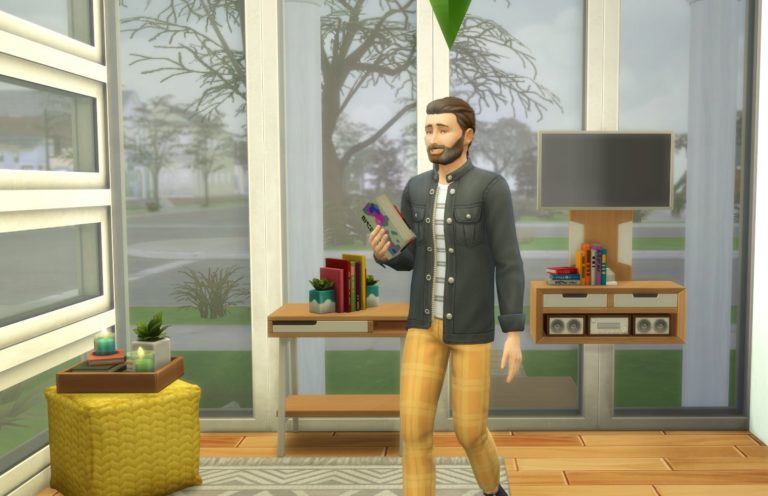
Bookends have received an overhaul and now act as much smaller functional bookshelves. Whether you place them on an accent table, desk or anywhere in your Sims home they really help add just that little bit more to the room they are in and of course, they save plenty of space compared to a standard bookcase too!
Televisions & Accent Tables
This update has also seen the addition of being able to place freestanding televisions on most of the accent tables in-game. If you are looking at a way for your Sims to save a little bit of money and space or even if you want to change things up a little bit in your Sims’ living area then this is the perfect way of doing so!
The only two that I found that would not allow a television to be placed on are the Cook Book Nook from Cool Kitchen and the Corned Table which is a base game object.
Did You Know?
You can also use the Amp Stack from the Moschino Stuff Pack as a stereo now as well!
Don’t forget you can check out today’s patch notes here.
Our servers are coming back up now. If you can’t connect yet, try again in another 5 minutes or so. Thanks so much! Let me know if you have any issues, otherwise link me to your new Gallery uploads created via Console! Happy Gallerying! https://t.co/R3AT3PLONf
Just a few moments after The Sims 4 Gallery has been made available for players on Xbox One and PS4, SimGuruLegacy has issued a statement that the new wave of players has “hit the servers hard”.
Wow, you hit the servers hard. As you may have seen, Gallery is unavailable right now on PS4/Xbox One. Server team is working on bringing it back online as quickly as possible.
The Gallery was first went down for players on PS4 and Xbox One, but now SimGuruNick has issued a statement that they’ll be taking The Gallery down for all players for maintenance to fix and bring back the servers.
We’re taking The Gallery down for some maintenance, this will affect all platforms. I’ll let you know when we’re back up, apologies and thanks for understanding!
So you’ve finally picked out a bed that you really like but you’re afraid that it just won’t be enough to satisfy your Sim’s Energy Need in time? Fear no more because there’s now a solution with The Sims 4’s latest update!
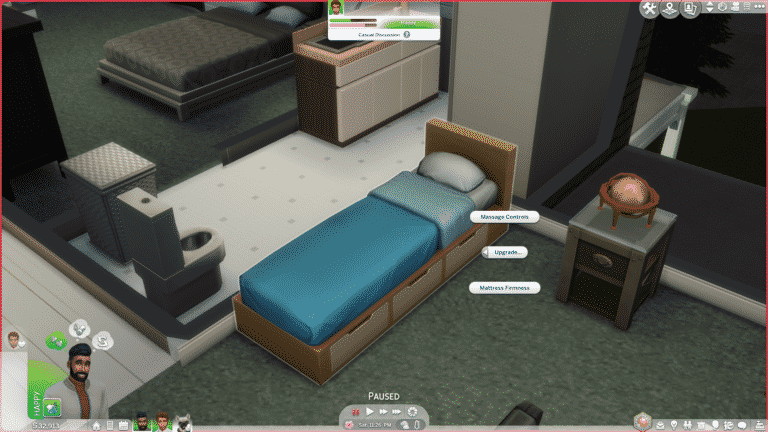
The Sims Team has added a brand new “Upgrade” interaction branch on Beds, allowing you to add these following new features to your desired bed:
Massage Controls
Increases Energy Gain during Sleep and Nap interactions (requires Handiness Skill Level 6 and 4 Common Upgrade Parts)
Mattress Firmness
Upgrades the Mattress Firmness allow Sims to have more restful sleep and wake up in a positive mood (requires Handiness Skill Level 8 and 4 Common Upgrade Parts)
The Massage Controls upgrade will make sure that beds, especially lower end ones, have their energy gain rate doubled. Of course, as the quality of the bed that you’ve chosen to upgrade increases, the upgrade will offer less energy gain.
This feature is useful for those who want to place down any bed of their choice but also make sure their Sims get their Energy need replenished in time.
With the Mattress Firmness upgrade, Sims will have a restful sleep with a +1 Happy moodlet that lasts for 3 hours each time after they wake up.
The Sims Team has just pushed out a brand new update for The Sims 4 on Xbox One and PS4, allowing players to finally get their hands on THE GALLERY! One important thing to note is that players won’t need PS Plus or Xbox Live Gold subscriptions in order to access the Online Gallery, meaning that it’s free for everyone who have connected their Playstation Network / Xbox Live accounts to their EA Accounts.
More in the patch notes down below:
Update: 01/16/2020 – v1.21
Sul Sul! Now you can share your Sims household and your own creative builds through the Gallery which is available now on PlayStation 4 and Xbox One. The Gallery opens up a world of content created by other Simmers, ready to download and use in your Worlds. Be sure to favorite households and builds within the gallery!
What’s New?
Gallery
If you aren’t familiar with the Gallery, it’s like My Library only global. On the Gallery you’ll find creative Simmers sharing their Households, Lots and Rooms for everyone to download and use.
There are a few things you should know before diving in.
The Gallery does not require you to have PlayStation Plus or Xbox Live Gold subscriptions to access.
To use The Gallery, you will need to connect your PlayStation Network or Xbox Live account to your EA Account.
When you first start The Sims 4, you should see the invite to link to your EA Account if you haven’t done so already.
You can also link your account by going to Game Options > Other
Linking your account will also unlock Grim’s Ghoulish Guitar
The Gallery is cross-platform. That means PC, Mac, PlayStation 4 and Xbox One Simmers all use the same Gallery.
Simmers who disable cross-platform play on their accounts will only be able to see creations from Simmers that have been uploaded from the same platform
Simmers who have blocked Community Creations will not be able to use the Gallery but will still have access to My Library
Creations using CC will not be available on PlayStation 4 and Xbox One Gallery
PlayStation 4 and Xbox One Simmers have the ability to Block and Unblock players from within The Gallery. These blocks are managed via your EA Account and do not apply to PSN or Xbox Live friends or block lists.
The Sims Team has released a brand new Update for The Sims 4 on PC and Mac!
To download the latest version of The Sims 4, simply open your Origin program and if the game doesn’t update automatically, right click on The Sims 4 and select ”Update”.
In case you have Mods or Custom Content, the game will automatically disable them for you after first launching The Sims 4 after the update. To re-enable all your Mods and Custom Content, select the Settings option in the Menu and select Settings. Under the”Other” section you’ll find the ”Enable Custom Content and Mods” option. Check it and restart your game in order for it to take effect!
Hello Simmers! Hope you all had a fantastic holiday season.
In today’s update we welcome you all to The Sims™ 4 Tiny Living Stuff pack; where your goal is to build the most comfortable space within the smallest footprint possible. Stretch your imaginative muscles as you figure out creative ways to cram in all you need! How low can you go?!
Besides preparing us for Tiny Living, in this update we have addressed a few issues as well as we have set aside quite some time for a new addition in our language roster, we are happy to announce that The Sims™ 4 is now supported in Simplified Chinese! We are very excited to release this to the public and further connect with Simmers in different languages across the world!
-SimGuruNinja, Ft. SimGuruRusskii
FIXES & UPDATES
The Sims 4
Fixed an issue in which Hygiene was not being resolved when Taking a Shower on any Bathtub and Shower Combo.
Fixed an issue in which the game would jump to Ultra Speed randomly when some Service NPC, specifically Maids, were on the Lot. Talk about speed cleaning!
Resolved an issue related to Traveling that resulted in Error Codes: 109:8c87f108 and 106:69b9523b.
Photo frames used within Gallery Uploads would not retain their chosen color once those lots were downloaded from The Gallery. They’ve been properly chastised and will listen to you now.
Freelancer gigs can now complete and/or update accordingly while on Vacation. So if you want to work while you vacay I guess you can now. Sucker.
Burned no longer The Child Statue (sculptTableMedium_EF22GENchild01_set1) will be.
Inventory can be also be placed in, and live draggable no longer can be.
Fixed an issue where two “Tuck In” interactions were able to be selected when Children slept on any bed. Kids – so needy, amirite?
Get Together
Toddlers will now route appropriately when selecting ‘Plan Outfit’ on Closets. Well, as appropriately as those slow little Sims move anyway.
Seasons
Solved an issue with swimwear yfBody_EP05SwimRetro_PinkGreen that made it display incorrectly in certain Graphics Quality Settings. And no one wants a swimsuit malfunction!
Get Famous
Actor Sims can now Check Open Auditions properly when returning from Work. Get that bread! Be a starving artist no more!
Sims’ Acting Gigs Career Panel will now get updated properly on performing tasks. Credit for your work? Imagine that!
Discover University
Sims will no longer see the option to remove Robo Arm when choosing to remove Computer Glasses.
Fixed an issue in which the option to Pay Student Loans was available even though students had enough Simoleons to cover their Tuition.
Sims can now be warned about losing scholarships if they choose to withdraw from the term. And they’re lucky to get a warning! Expel ‘em, I say (they don’t listen to me, though)!
Some lots were unloadable in Britechester and made the game unresponsive. That should no longer be the case.
Outdoor Retreat
A visual issue was resolved where highlighting the Granite Falls Blossom would result in a strange texture.This however only was affecting Simmers who had StrangerVille installed as well.
Dine Out
Food was sometimes not able to be ordered or delivered when the game was exited or reloaded from the Main Menu. But a Sim’s gotta eat after all, so we’ve fixed it.
Realm of Magic
Two ‘Inferniate’ interactions display on some rugs. As much as some hate those rugs’ patterns, only one ‘Inferniate’ is more than enough.
Laundry Day
Clothes moved to the clothing line to dry were not getting dry. We’ve reduced the moisture in the air and it should work now.
Moschino
yfHair_SP15SlickedBackLong was displaying with a grey line. “Not that there’s anything wrong with a little gray,” says SimGuruNinja reflectively touching his hair.
“Take Photo Of” was allowed to target unmet NPC Sims. Creepy and awkward for sure. Go meet them first for goodness sake like a normal human.
Freelance Photographer Sims can now see all proper tasks for gigs ‘Genius Professor Outdoor Wear Study’ and ‘Everyday Activities Fashion Shoot.’ So no more excuses for any future lackluster job performance!
Freelance Fashion Photography Gigs ‘Finding the Essence of Efficiency with Everyday Style’ and ‘Fantastic Formula for Formal Style’ now display correct information for Pay, Due Date, and/or Required Skill Level.
The Amp Stack (stereoFloor2x1_SP15GEN) now functions as a Stereo, living to its full potential. Rock on!
Burnt photos would not be charred anymore once placed outside Sims’ inventory. We’ve burnt them all to a crisp and they’ll appear correctly now.
SimGuruNinja went on Twitter to talk more about The Sims 4 Tiny Living Stuff Pack releasing next week on PC/Mac.
He shared a few interesting facts regarding some of the new items and gameplay that revolve this pack, as well as shared some new screenshots of the items as well as the User Interface. We’ll make sure to update the post in case new tweets surface!
We tried to go with a very hygge style in this pack! Very warm & comfy!
We don’t offer the couch attached to the murphy bed by itself, but we do have versions of the bed with and without the loveseat. pic.twitter.com/MlJRgRfq7x
Unbroken beds will kill at a very low percentage.
Broken beds have a much higher chance. Upgrading can make death less frequent or entirely avoidable depending on the specific upgrade you perform.
SimGuruNinja has shared a brand new screenshot from The Sims 4 Tiny Living Stuff Pack!
The screenshot showcases some of the new items from the pack, such as the three-in-one TV / Bookshelf / Stereo combo and the 1×1 Bookshelf that can be placed down on surfaces.
The Sims Team has published one of the biggest, most important surveys for The Sims 4. The survey talks about a lot of things – from letting us rate our satisfaction with the latest update to talking about improvements we want to see in The Sims 4 Base Game and it’s potential upcoming paid content.
However, one of the most interesting questions that the survey has asked (at least in my opinion) is the question that asks Which previous EPs and GPs do we want to receive more polish and additional development.
The official survey listed all of the Expansion Packs and Game Packs that have been released to date – from Get to Work to Discover University (Expansion Packs) and from Outdoor Retreat to Realm of Magic (Game Packs).
Now, it’s no secret that the community has been asking for more polish and content to EPs and GPs that have already been released. For example, The Sims 4 Cats & Dogs Expansion Pack came with debug features that allow you to control Cats & Dogs firsthand. However, it can only be unlocked through a mod.
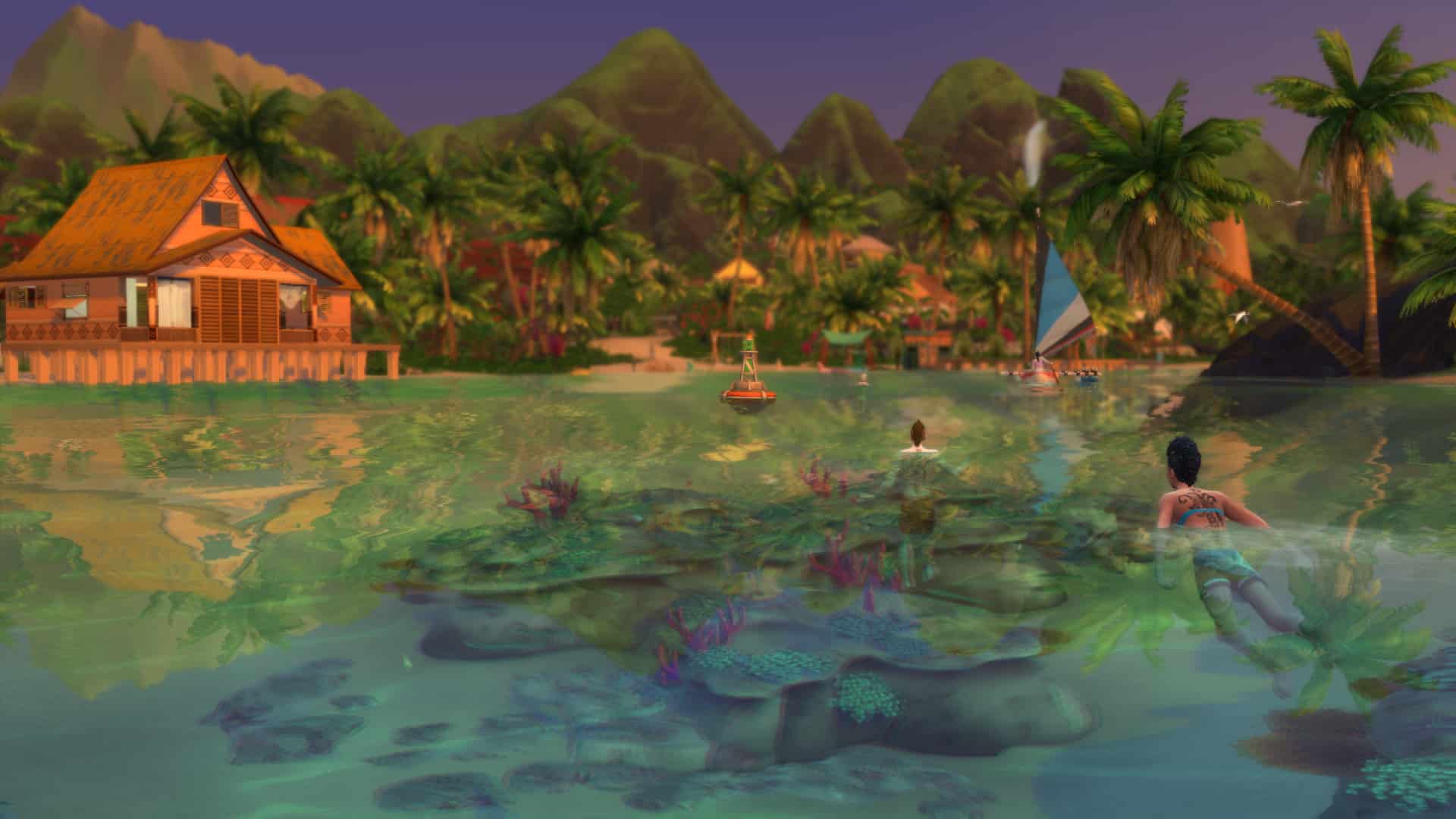
There’s also been plenty of feedback on the Island Living Expansion Pack just not having enough content to play with and that the pack is pretty to look at and useful for its new CAS / Build Items.
Also, don’t get me started on the cluttered User Interface that comes with The Sims 4 Discover University when your Sim enrolls to college with 2 classes or more…
These are just some of the things that The Sims 4’s current packs could improve upon.
The Sims Team probably won’t be able to upgrade and polish all of the Expansions and Game Packs that have been released which is why the survey lets you pick up to 3 Expansions and Game Packs which will help prioritize which packs deserve the most attention.
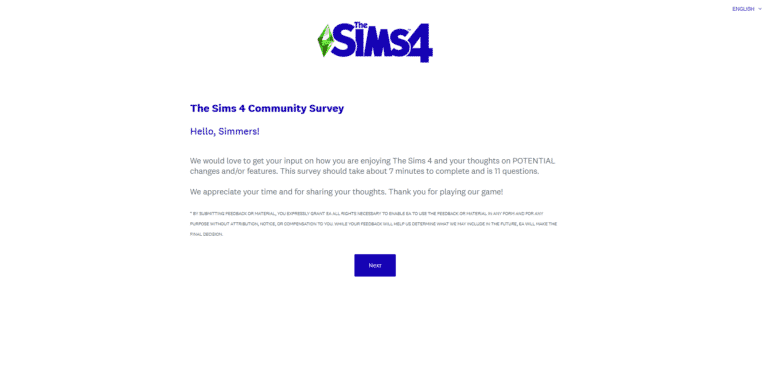
SimGuruFrost has revealed a new Community Survey for The Sims 4.
The survey takes around seven minutes to complete and has eleven questions in total.
Some of the questions in the survey look at how satisfied players are with the December Update, players interests in various relationship, gameplay, snow activities and more. There are also a handful of questions that look at which Expansion or Game Pack players would like to see a bit of extra polish and what kinds of improvements players would like to see when it comes to creating Sims that we want.
Of course, don’t forget about the popularity contest towards the end of the survey featuring some familiar names and some we haven’t seen for a while, as well as a question asking us which brands players would love to see The Sims collaborate with in the future.
This is one of the most in-depth Community Surveys we have had which covers a variety of different topics.
The survey won’t be live for long so make sure you take a look at it and let The Sims team know what you think!
Click the image below to take the survey or click here.
Have you taken the recent Community Survey? Let us know what you thought below in the comments!