

Create a World is Back (Kinda): Add New Objects or Overide Existing Ones With Our Sims 4 World Modding Guide!
Believe it or not, world modding in The Sims 4 is possible! Tutorials on how exactly world modding works are few and far between, spread across forums and Discord channels. Well, I’m here to save the day with a simple starter world modding on, covering how to replace existing objects in your Sims worlds, and how to override existing ones. Let’s jump in and take a look!
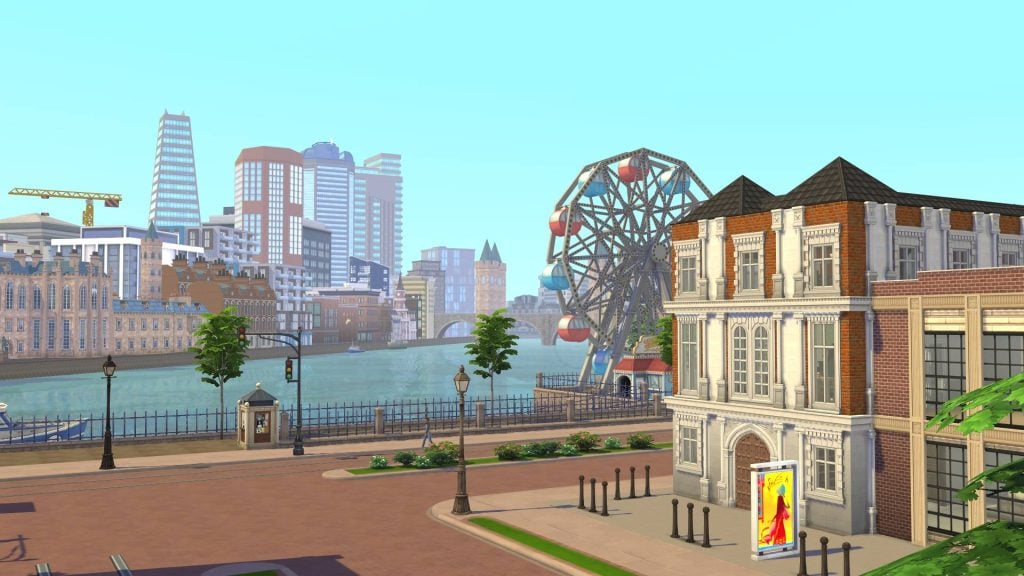
Table of Contents
How Do Custom World Mods Work?
If you are active on various Sims-based communities online, you may be familiar with the concept of ‘custom saves’. These are usually created with the assistance of the T.O.O.L mod by TwistedMexi, and can be downloaded straight into your game, ready to play.
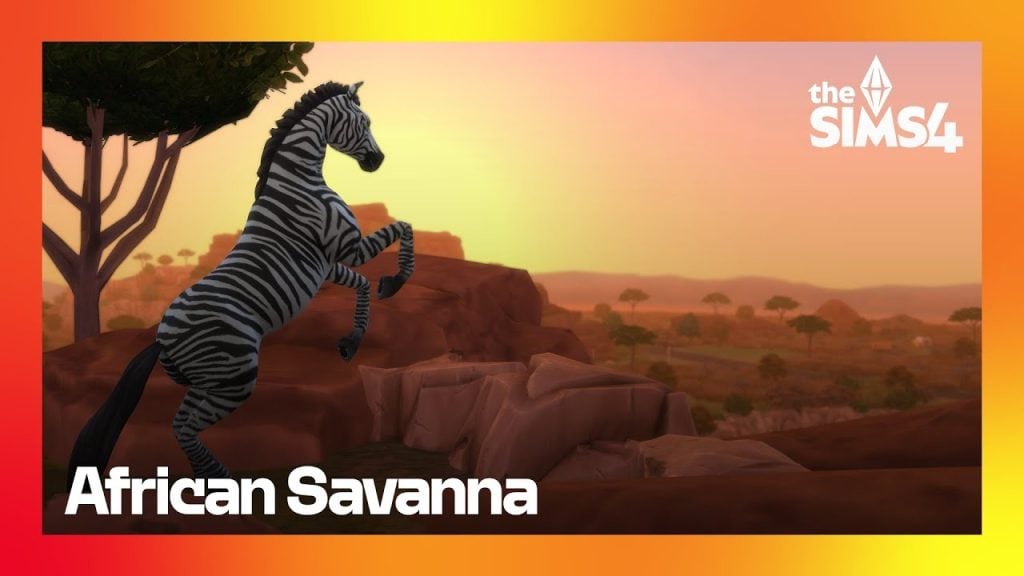
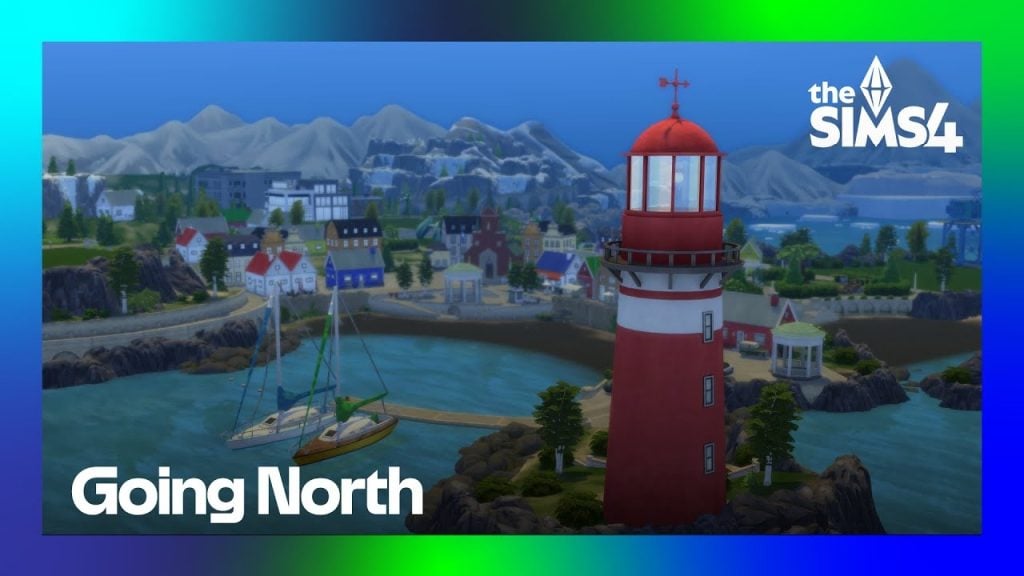
World mods, on the other hand, allow you to play with new custom worlds in any past and future save! Creators such as NANDO have created worlds based on the African Savanna, the Fjords of Scandinavia, and the Greek islands.
Even I get up to world modding from time-to-time! You may know me online as CBXSims, and I’ve been creating world mods for the Sims 4 for almost two years now. My first project was based on London, transforming Magnolia Promenade into a busy city centre. My latest world mod transforms Innisgreen into a Caribbean city inspired by Santo Domingo, the capital of the Dominican Republic.
But how exactly do we make these worlds? Let’s take a look at everything you need to get started with world modding!
Getting Started
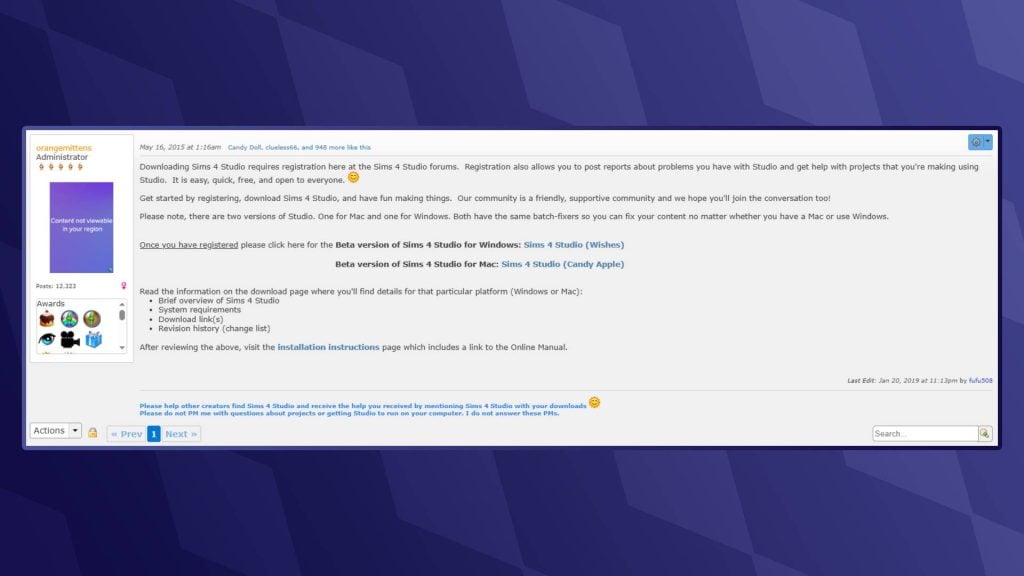
Unlike The Sims 3, The Sims 4 doesn’t have an official world modding tool. This is where the folks at Sims 4 Studio come to the rescue. Sims 4 Studio is a modding tool that allows us players and modders to directly edit ‘.package’, ‘.script’, and ‘.save’ files.
- If you are a Windows user, download the version labelled ‘Wishes’
- If you are using a Mac, then choose the ‘Candy Apple’ version
Setting Up Sims 4 Studio
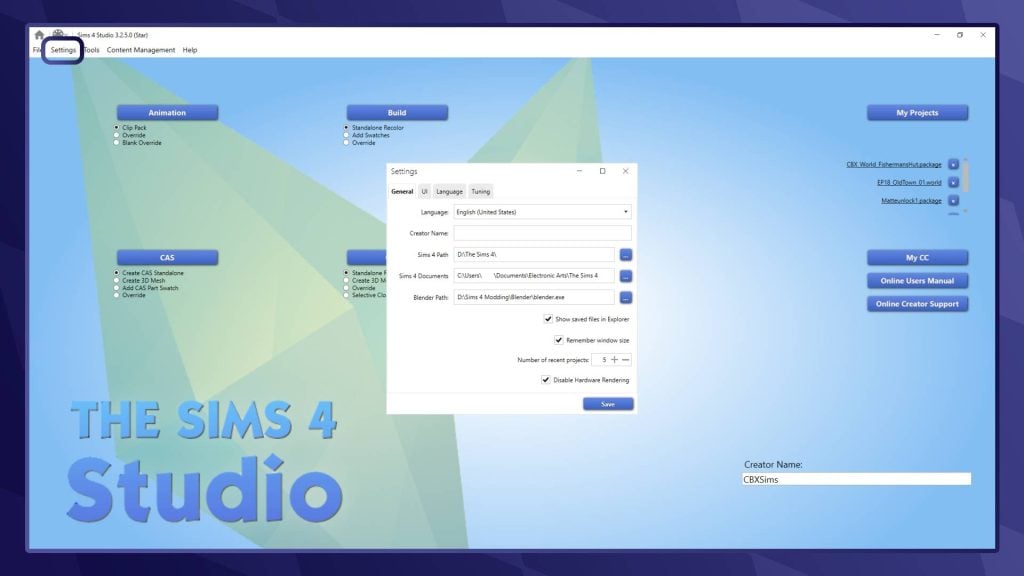
Launch Sims 4 Studio and head to the ‘Settings’ tab in the top-left corner of your screen. Here, you will need to set up a few things. You can choose your language, input your creator name, locate your Sims 4 folder (usually under ‘Documents/Electronic Arts/The Sims 4’), and finally, your Blender path. If you don’t intend to use Sims 4 Studio to create custom CAS or Build/Buy objects, you can leave that blank.
Locating the World Files
When editing worlds in The Sims 4, we will be directly editing the ‘.world’ files. These are the files that the game stores all information about the individual neighbourhoods in-game, including objects, lot sizes, weather, lighting, and more!
Base Game Worlds
To find Base Game world files, head to your Sims 4 install location (NOTE: This is separate from your Sims 4 documents folder). This is usually located under the hard drive or SSD that you installed The Sims 4 on. To find base game files, head to:
The Sims 4/Data/Shared/Worlds/Areas
Take a look at the visualisation below for assistance:
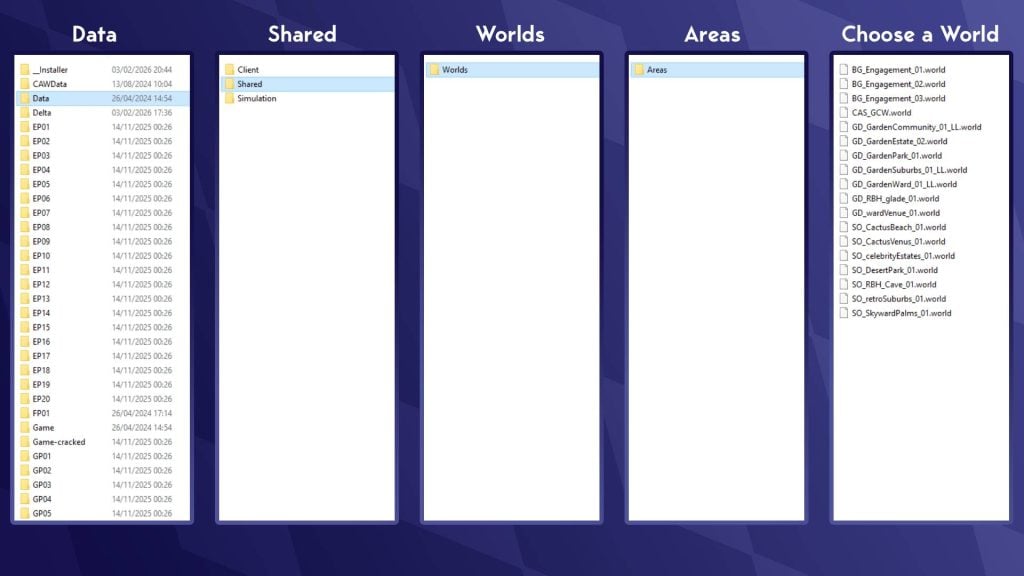
These world names can look a little confusing at first. ‘.world’ Files in The Sims 4 represent what we would likely call neighbourhoods. The in-game world of Willow Creek is made up of 7 .world files, one for each neighbourhood, including the hidden area of Sylvan Glade. Take a look at the table below to get a sense of which world is which:
| World | Neighbourhood | File Name |
| Willow Creek | Pendula View | GD_GardenCommunity_01_LL.world |
| Sage Estates | GD_GardenEstate_02.world | |
| Magnolia Blossom Park | GD_GardenPark_01.world | |
| Courtyard Lane | GD_GardenSuburbs_01_LL.world | |
| Foundry Cove | GD_GardenWard_01_LL.world | |
| Crawdad Quarter | GD_wardVenue_01.world | |
| Sylvan Glade (Hidden) | GD_RBH_glade_01.world | |
| Oasis Springs | Bedrock Strait | SO_CactusBeach_01.world |
| Mirage Canyon | SO_CactusVenus_01.world | |
| Acquisition Butte | SO_celebrityEstates_01.world | |
| Desert Bloom Park | SO_DesertPark_01.world | |
| Parched Prospect | SO_retroSuburbs_01.world | |
| Skyward Palms | SO_SkywardPalms.world | |
| Forgotten Grotto (Hidden) | SO_RBH_Cave_01.world | |
| Newcrest | Ridgeline Drive | BG_Engagement_01.world |
| Llama Lagoon | BG_Engagement_02.world | |
| Bridgeview | BG_Engagement_03.world | |
| Create-A-Sim | Create-A-Sims (Hidden) | CAS_GCW.world |
Expansion / Game Pack Worlds
World files that belong to worlds from both Expansion and Stuff packs are located in a different folder. Go back to your install location for The Sims 4 and go to the following path:
The Sims 4/Delta/[Pack Number]/Worlds/Areas
| Pack | Neighbourhood | File Name |
| Get To Work (EP01) | Magnolia Promenade | EP01_Retails_01.world |
| Science Lab (Hidden) | EP01_ScienceLab.world | |
| Police Station (Hidden) | EP01_CivicCenter_01.world | |
| Hospital (Hidden) | EP01_CivicCenter_02.world | |
| Sixam (Hidden) | EP01_AlienWorld_01.world | |
| Get Together (EP02) | Lykke Centre | EP02_Business_01.world |
| Von Haunt Estate | EP02_ChaletGarden_01.world | |
| The Crumbling Isle | EP02_Island_01.world | |
| Olde Platz | EP02_OldTown_01.world | |
| Windslar | EP02_Rural_01.world | |
| Ancient Ruins | EP02_OldTownRuins_01.world | |
| The Bluffs | EP02_IslandBluff_01.world | |
| City Living (EP03) | Arts Quarter | EP03_ArtsQuarter_01.world |
| Spice Market | EP03_Docklands_01.world | |
| Fashion District | EP03_fashionDistrict_01.world | |
| Uptown | EP03_Uptown_01.world | |
| Myshuno Meadow | EP03_CentralPark_01.world | |
| Cats & Dogs (EP04) | Cavalier Cove | EP04_Coastal_01.world |
| Whiskerman’s Wharf | EP04_Harbor_01.world | |
| Sable Square | EP04_TownSquare_01.world | |
| Deadgrass Isle | EP04_Island_01.world | |
| Get famous (EP06) | Mirage Park | EP06_EastHollywood_01.world |
| The Pinnacles | EP06_HollywoodHills_01.world | |
| Starlight Boulevard | EP06_StarsBlvd_01.world | |
| Plumbob Pictures | EP06_Studio_01.world | |
| Island Living (EP07) | Ohan’ali Town | EP07_LocalIsland_01.world |
| Lani St. Taz | EP07_ResortIsland.world | |
| Mua Pel’am | EP07_Natural_Island_01.world | |
| Discover University (EP08) | Gibbs Hill | EP08_CollegeTown_01.world |
| University of Britechester | EP08_ArtsCampus_01.world | |
| Foxbury Institute | EP08_STEMCampus_01.world | |
| Eco Lifestyle (EP09) | Port Promise | EP09_Industrial_01.world |
| Conifer Station | EP09_InnerCity_01.world | |
| Grims Quarry | EP09_Suburbs_01.world | |
| Snowy Escape (EP10) | Wakaba | EP10_TouristTown_01.world |
| Yukimatsu | EP10_SummitTown_01.world | |
| Senbamachi | EP10_MountainTown_01.world | |
| Mt. Komorebi Base Camp (Hidden) | EP10_BaseCamp_01.world | |
| The Croft Icefall (Hidden) | EP10_BaseCamp_02.world | |
| Mt. Komorebi Peak (Hidden) | EP10_BaseCamp_03.world | |
| Cottage Living (EP11) | The Bramblewood | EP11_Forest_01.world |
| Finchwick | EP11_Village_01.world | |
| Old New Henford | EP11_Rural_01.world | |
| High School Years (EP12) | Prescott Square | EP12_TownSquare_01.world |
| Plumbite Cove | EP12_Pier_01.world | |
| Rockridge Heights (School) | EP12_HighSchool_01.world | |
| Growing Together (EP13) | Hopewell Hills | EP13_AcrossTheBay_01.world |
| Gilbert Gardens | EP13_ThePark_01.world | |
| Anchorpoint Wharf | EP13_WaterFront_01.world | |
| Horse Ranch (EP14) | Galloping Gulch | EP14_Park_01.world |
| New Appaloosa | EP14_Town_01.world | |
| Riders’ Glen | EP14_Ranches_01.world | |
| For Rent (EP15) | Koh Sahpa | EP15_RiverDelta_01.world |
| Morensong | EP15_Urban_01.world | |
| Lovestruck (EP16) | Plaza Mariposa | EP16_CentralSquare_01.world |
| Vista Hermosa | EP16_Suburban_01.world | |
| Nuevo Corazón | EP16_Downtown_01.world | |
| Life & Death (EP17) | Mourningvale | EP17_Afterlife_01.world |
| Whispering Glen | EP17_Countryside_01.world | |
| Crow’s Crossing | EP17_Village_01.world | |
| Netherworld Department (Hidden) | EP17_Grim_01.world | |
| Businesses & Hobbies (EP18) | Iverstad | EP18_NewTown_01.world |
| Gammelvik | EP18_OldTown_01.world | |
| Enchanted by Nature (EP19) | Coast of Adhmor | EP19_Coastal_01.world |
| Everdew | EP19_Forest_01.world | |
| Sprucederry Grove | EP19_Grove_01.world | |
| Adventure Awaits (EP20) | Crystal Valley | EP20_GoldenRetreat_01.world |
| Wanderwood Wilds | EP20_Wilderness_01.world | |
| Jellyfish Junction | EP20_SeabreezeSpa_01.world | |
| Outdoor Retreat (GP02) | Campground | GP01_Campground_01.world |
| Granite Falls Forest | GP01_Forest_01.world | |
| Hermit’s House (Hidden) | GP01_HermitDwelling_01.world | |
| Vampires (GP04) | Forgotten Hollow | GP04_VampireWorld_01.world |
| Jungle Adventure (GP06) | Puerto Llamante Marketplace | GP06_Marketplace_01.world |
| Belomisia Jungle | GP06_Jungle_01.world | |
| Strangerville (GP07) | StrangerVille Plaza | GP07_Downtown_01.world |
| Shady Acres | GP07_Outskirts_01.world | |
| The ____ Lab | GP07_CraterBase_01.world | |
| Realm of Magic (GP08) | Glimmerbrook Village | GP08_Village_01.world |
| The Magic Realm (Hidden) | GP08_MagicRealm_01.world | |
| Journey to Batuu (GP09) | Black Spire Outpost | GP09_SMG_01.world |
| Resistance Encampment | GP09_RES_01.world | |
| First Order District | GP09_FOO_01.world | |
| My Wedding Stories (GP11) | Porto Luminoso | GP11_Coastal_01.world |
| Terra Amorosa | GP11_Inland_01.world | |
| Werewolves (GP12) | Moonwood Mill | GP12_Town_01.world |
Opening and Navigating the .World File
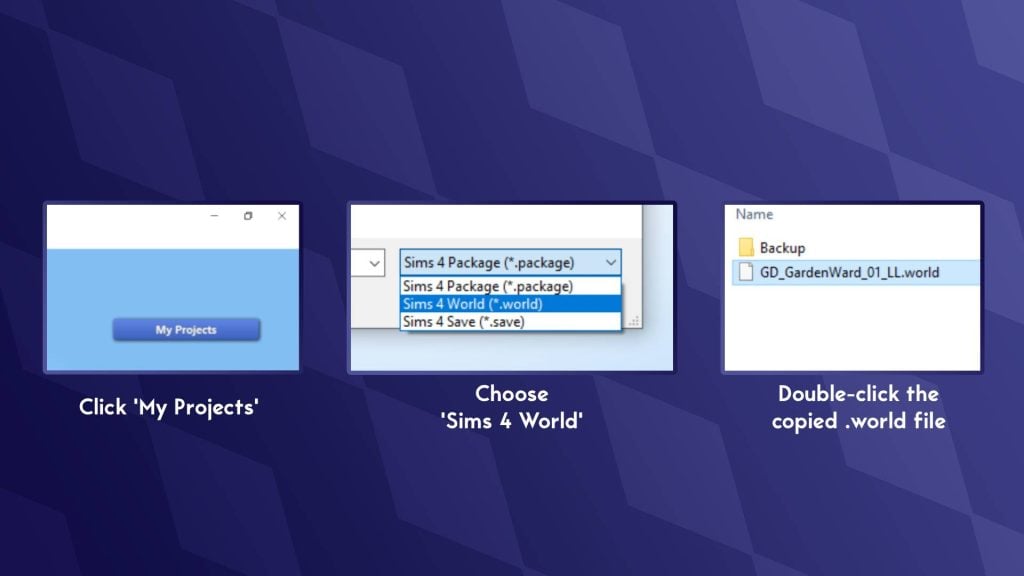
- Now that you’ve chosen the world you wish to edit, right-click, copy, and paste into a separate folder (The desktop is the best place for this!). For this tutorial, I will be editing Foundry Cove in Willow Creek (GD_GardenWard_01_LL.world). Make sure to save a backup of this .world file so you can revert any changes later.
- On the Sims 4 Studio home page, click ‘My Projects’ to bring up the file explorer. Now navigate to where you copied the world file.
- In the bottom right-hand corner, click the drop-down that reads ‘Sims 4 Package’ and select ‘Sims 4 World’.
- Double-click the .world file you copied earlier to open it.
Locating World (Off-Lot) Objects
Now that you have the .world file open, it’s time to find a list of all objects in the world:
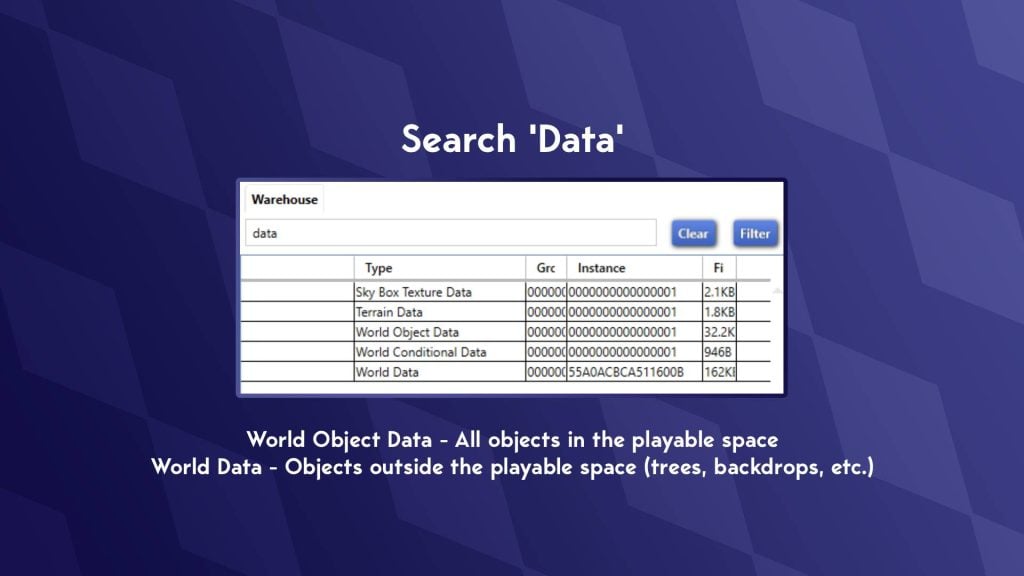
- In the search bar in the top-left, search for ‘Data’
- This will bring up 5 files that all contain the word ‘Data’
- There are two sections we will be looking at: ‘World Data’ and ‘World Object Data’.
- Explanation of what these are:
World Object Data – All objects within the playable space
World Data – All objects outside the playable space
REQUIRED MOD: T.O.O.L
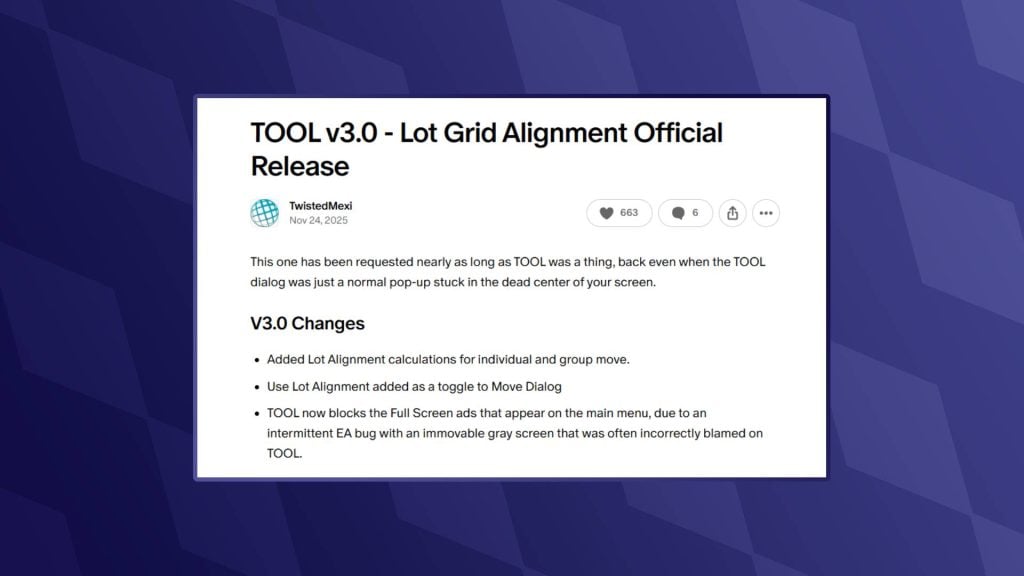
Now it’s time to open up our game and start placing objects. Before we do this, there is one mod we will require to place objects off-lot. That being, of course, the fan favourite T.O.O.L mod by TwistedMexi. You can find the download for this below:
REQUIRED MOD: Better Cheat Console
The second mod we need, also by TwistedMexi, will allow us to copy the object’s coordinates from the cheat console so we can add the position correctly.
Placing New Objects In-Game
Once installed, open up the Sims 4.
I would recommend starting a new save, as we don’t want to run the risk of breaking any older saves!
- Head into Build/Buy Mode on a lot in the world you intend on editing.
- Place any object (Can be either a gameplay or deco object)
- Go into Live Mode
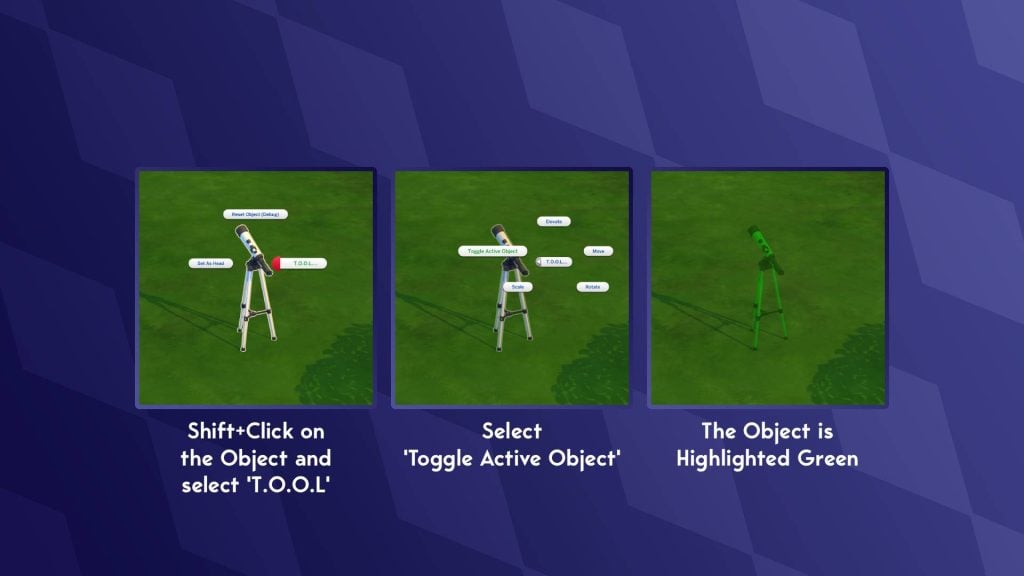
- Shift+ click on the object
- Select ‘T.O.O.L’
- Select ‘Toggle Active Object’
- The object will now be highlighted green
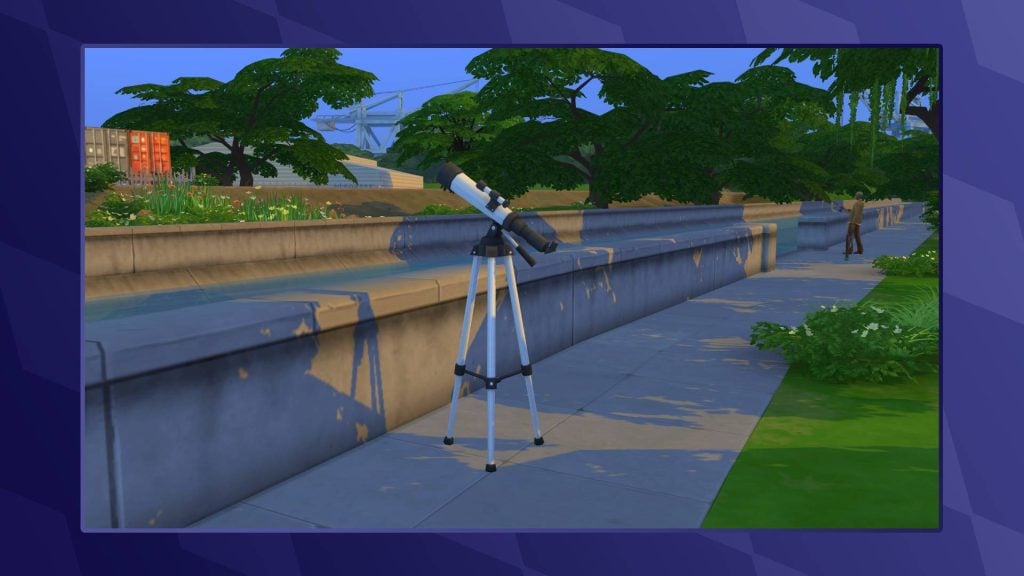
- Navigate to the area of the world you wish for this object to be in
- Click on the ground to move the highlighted object into position
- Click on the object again to un-toggle it
Finding an Object’s Position
Now that we have an object in-position, it’s time to find the object’s position coordinates and add it to our world file.
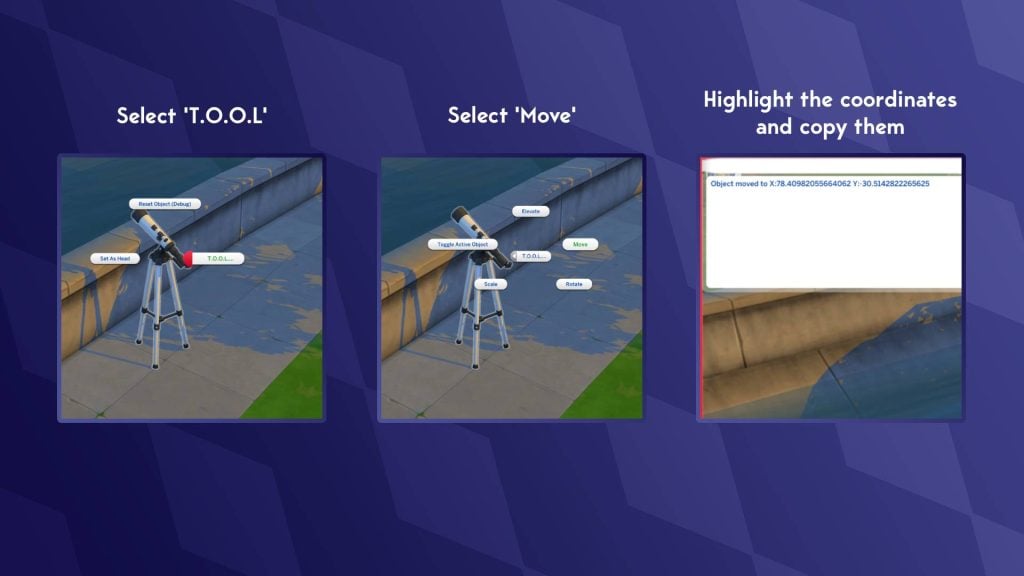
- Open the cheat console with Ctrl + Shift + C (Command + Shift + C on Mac)
- Shift+click on the object
- Select ‘T.O.O.L’
- Select ‘Move’
- Do not input any coordinates, and click ‘Cancel’
- The cheat console should now have “Object moved to X: number Y: number”
- Copy these and paste them into your notes
Adding Our New Object
We’re almost done collecting everything we need, but there is one last vital step to make sure our object appears correctly in the world.
- Return to the home screen of Sims 4 Studio (Click the house icon in the top-left)
- In the options at the top, click ‘Tools’
- In the drop-down, click ‘Hash Generator’
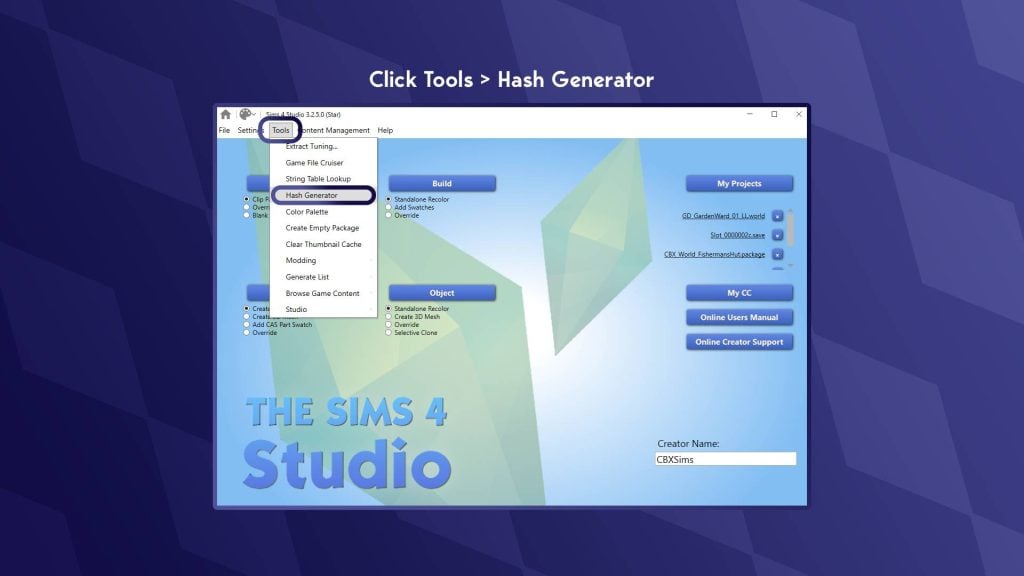
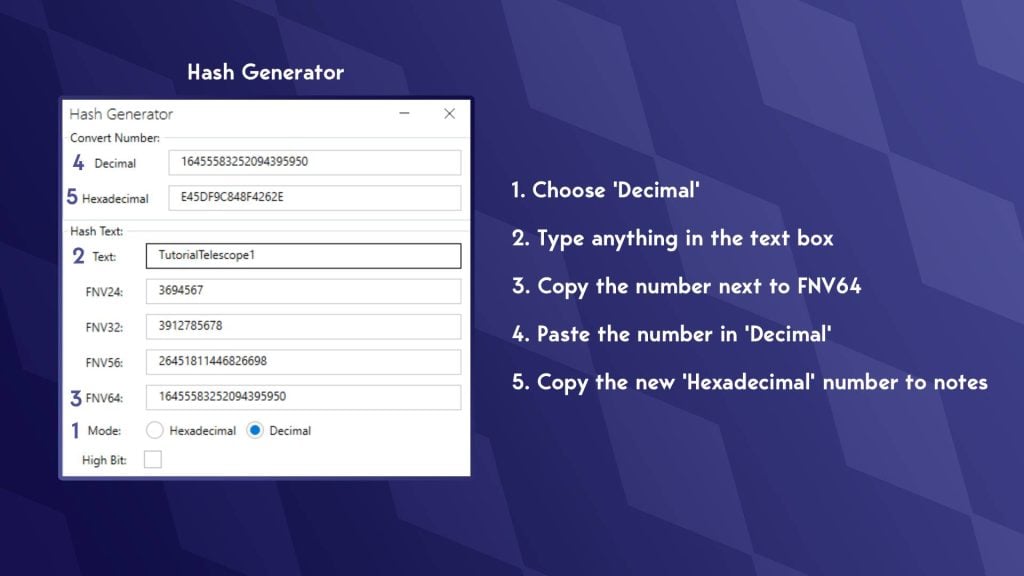
- The Hash Generator window should now open
- At the bottom, next to ‘Mode:’ select ‘decimal’
- In the text box, type whatever you want; you don’t have to remember what you typed
- Copy the number next to ‘FNV64’
- In the box at the top labelled ‘Decimal’, paste the FNV64 number there
- Now copy the new string of letters and numbers you have just generated from the ‘Hexadecimal’ box.
- Paste this number in your notes
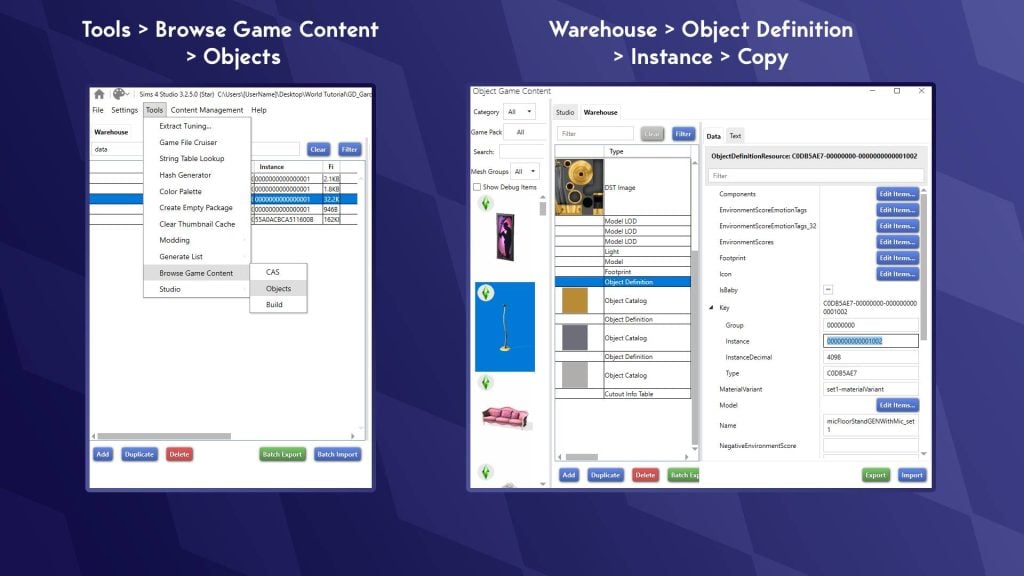
We need to find what is known as the ‘footprint’. This determines how big the area around the object is and how close your Sims can get. We also need to find the objects ‘Definition’. This is a string of numbers that the game uses to identify which object is there.
- Go to ‘Tools’
- Hover over ‘Browse Game Content’
- Select ‘Objects’
- Search for the object you moved with T.O.O.L. (You can use filters and search to narrow it down)
- Select the object
- In the window on the right, click ‘Warehouse’
- Go to ‘Object Definition’
- Copy the number next to ‘Instance’ to your notes.
- Still in the Warehouse tab, go to ‘Footprint’
- Copy the number after ‘Instance’ to your notes
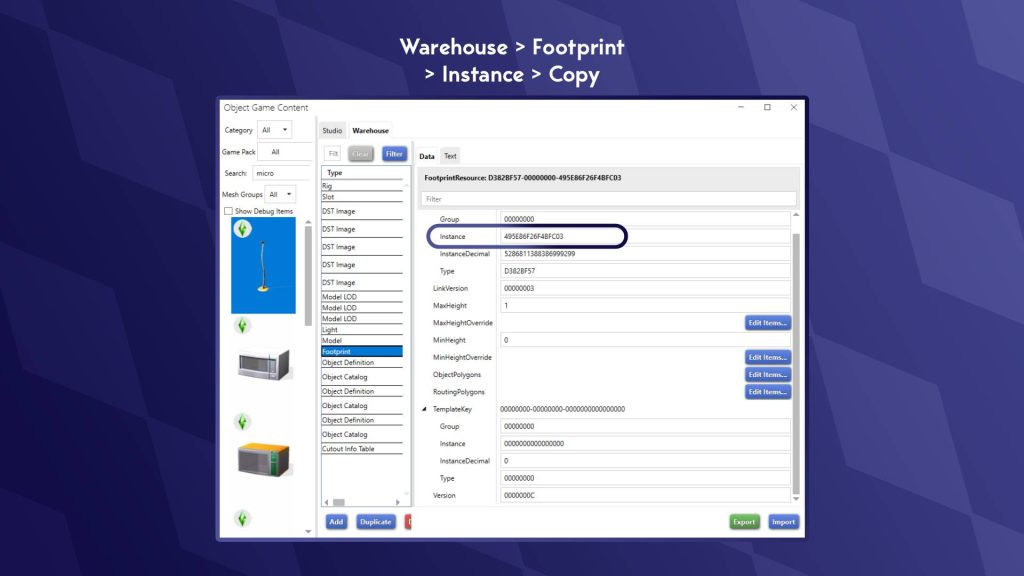
Now we can add all this info to our .world file!
- Open up your .world file, the same way we did last time
- Type ‘Data’ in the search bar
- Choose ‘World Object Data’
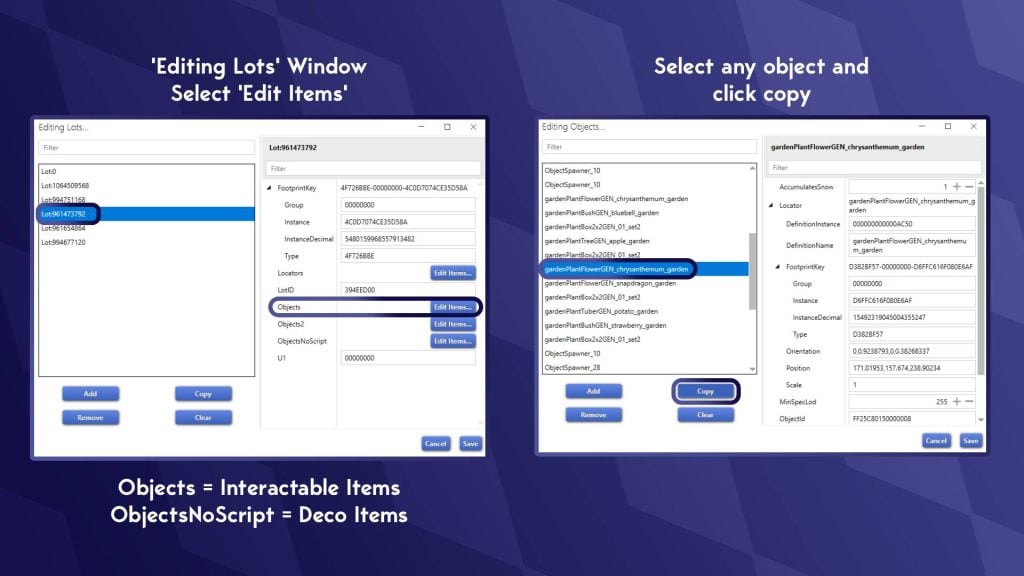
- In the right-hand window, next to ‘Lots’, click ‘Edit Items’
- This will bring up a list of ‘Lots’, one of these ‘Lots’ is a collection of all off-lot objects (confusingly)
- In the right-hand window, you will see a few different buttons. There are two types of objects we can edit
Objects – items that your Sim can interact with (e.g. benches, gardens, playgrounds)
ObjectsNoScript – Items your Sim cannot interact with (e.g. trees, streetlights, bollards)
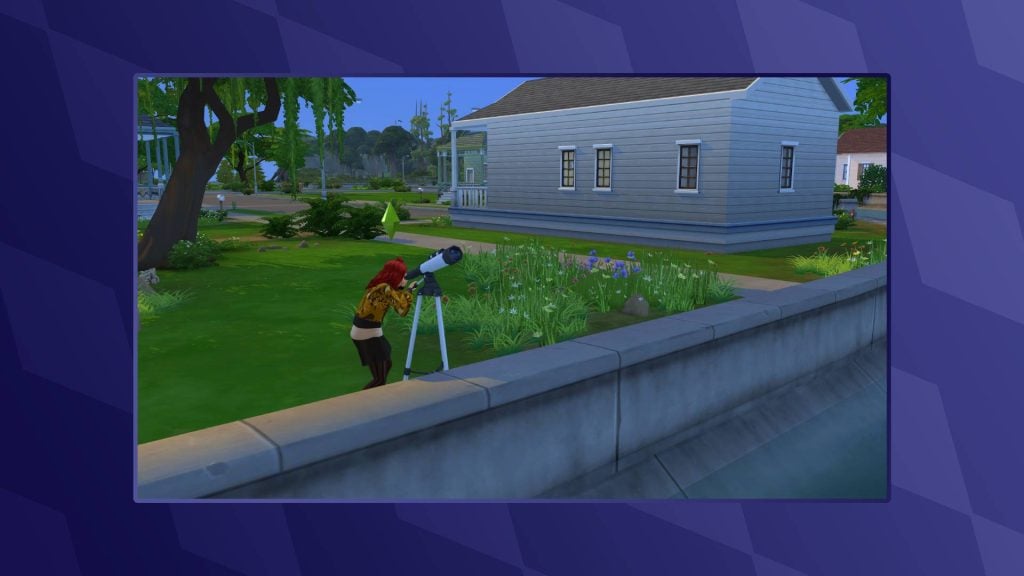
- As I’m placing a telescope in the world, I will want my Sim to be able to interact with it. I am going to choose ‘Edit Items’ next to ‘Objects’
- If you are having trouble finding which ‘Lot’ the off-lot items are on, keep clicking through each one until an ‘Edit Items’ list is populated with objects
- Select any object and click copy
- The copied item will now be at the bottom of the list; scroll down and select it
Now it’s time to use our notes!
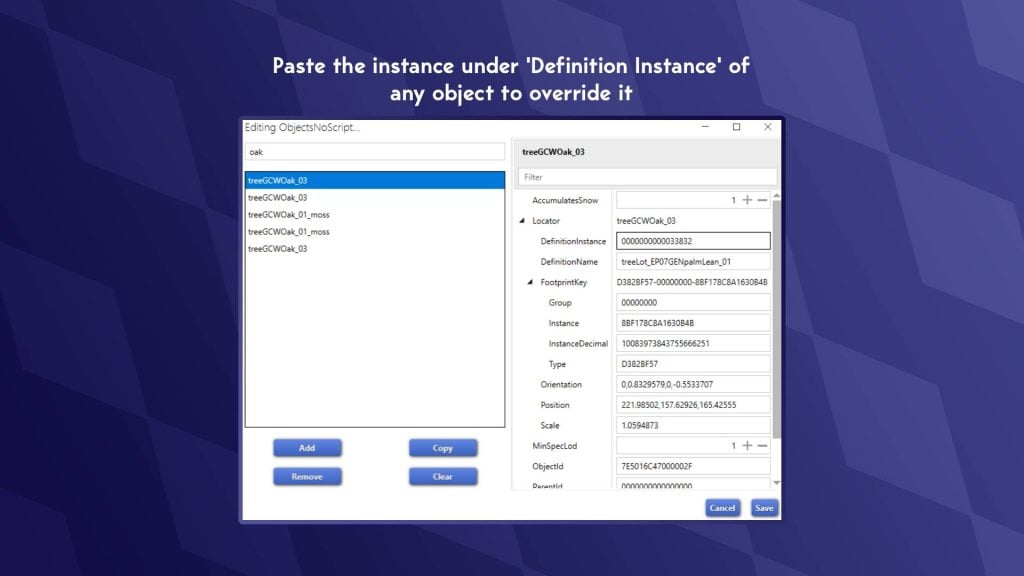
- Paste the ‘Object Definition’ number from your notes into the box marked ‘DefinitionInstance’
- Paste the second number we collected into ‘Instance’ under ‘ FootprintKey’ (This is the footprint, the routable area)
- Paste the Position coordinates into the ‘Position’ box
- And finally, paste the string of letters and numbers we made using the Hash Generator
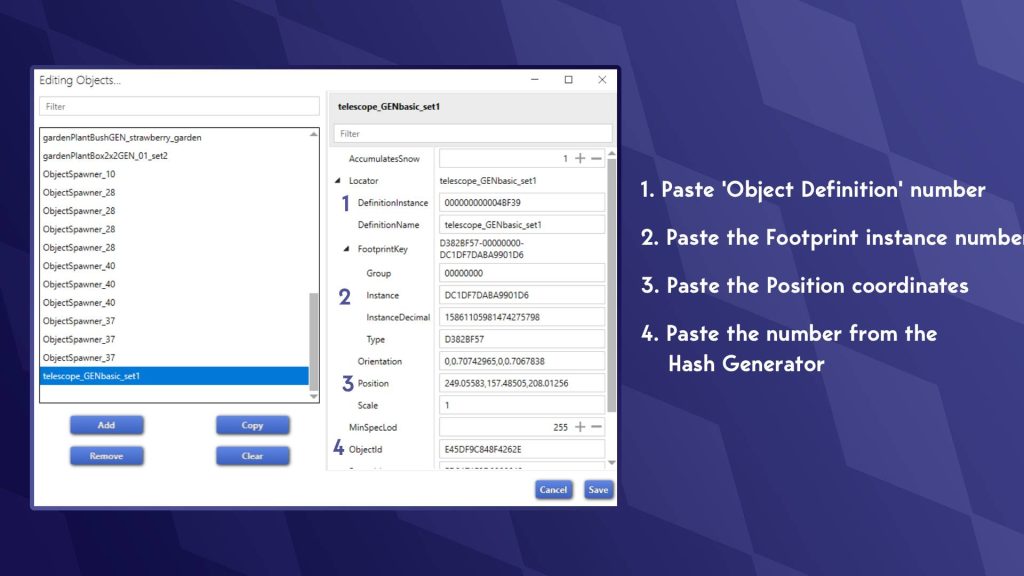
- You will now notice an error with the coordinates. This is normal, and we will fix this.
- Select any other object above
- Look for the position coordinates of the other objects
- Copy the middle set of coordinates (e.g. xxxxx,zzzzz,yyyyy) This is the elevation at which your object sits
- Go back to your object and add this between the coordinates you collected using the cheat console.
- Click ‘Save’ in the bottom right, then save again on the ‘Editing Lots’ window
- Now, in the main screen of your .world file, hit ‘ Save’ in the bottom-right
- Go to the location where you have your edited .world file.
- Right-click and ‘Copy’
- Go to:
Base Game: The Sims 4/Data/Shared/Worlds/Areas
DLC: The Sims 4/Delta/[Pack Number]/Worlds/Areas
- Paste the file and overwrite the existing one
- Launch your game and start a new save (otherwise, your objects will overlap)
Overriding an Existing Object
Overriding an existing object is much easier, with many fewer steps:
- Go to ‘Tools’ at the top of Sims 4 Studio
- Hover over ‘Browse Game Objects’ and select ‘Objects’
- Find the item you want to have in your world
- Go to the ‘Warehouse’ tab
- Scroll down to find ‘Object Definition’ (There is one for each swatch)
- Copy the instance
- Select an object in your world file under the editing lots section we previously visited
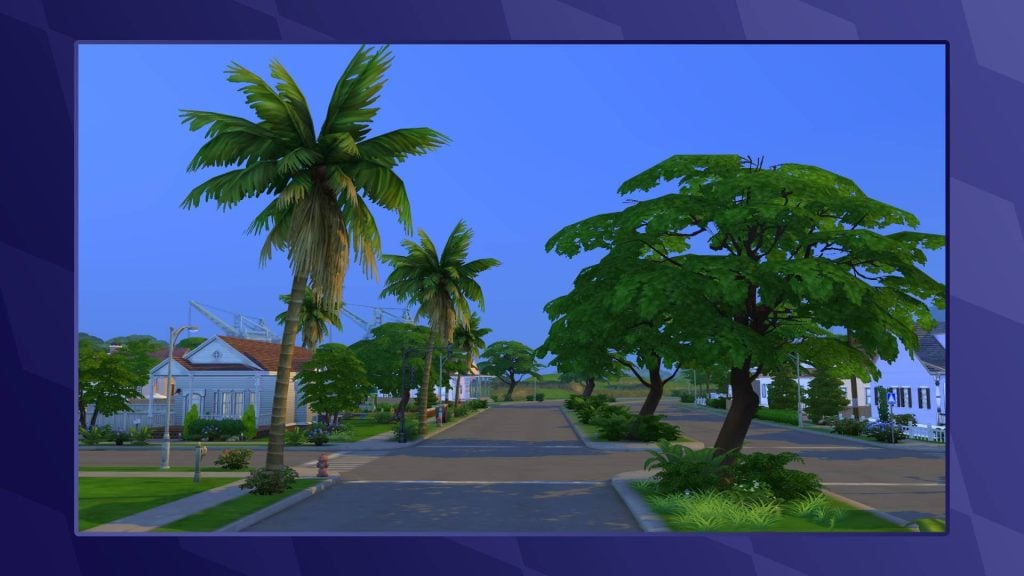
- Paste this definition into ‘DefinitionInstance’ when editing objects
World Modding Resources
As previously mentioned, it’s hard to find solid tutorials on world modding, so I have collated a few for those interested in learning more or having a play around!
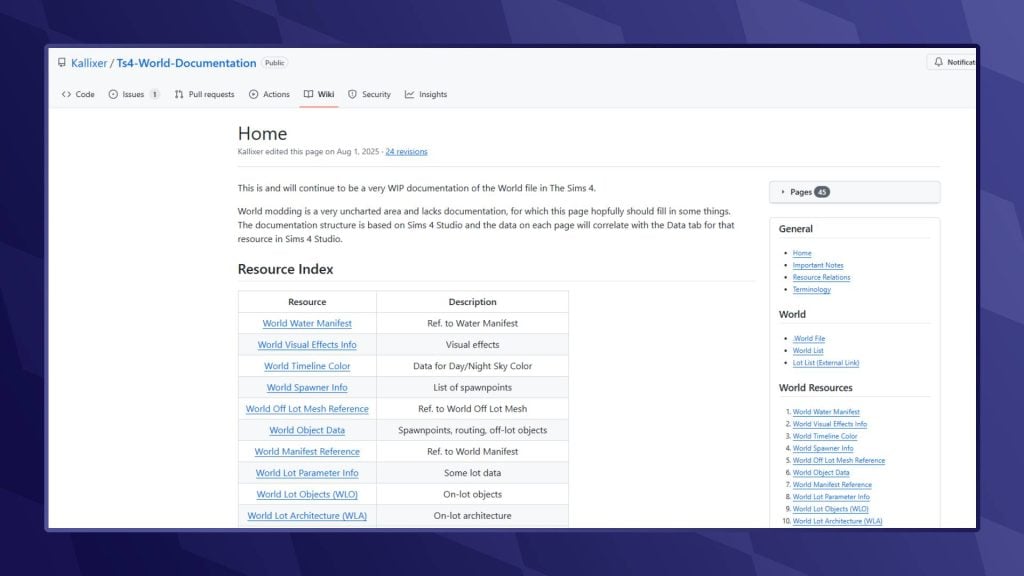
World Documentation – Kallixer & NerdyDoll
Both Kallixer and NerdyDoll are pros when it comes to world editing, and thankfully, they have collated a number of resources that can help you better understand what some of the files do and how to edit them. They have also included a tutorial on permanently editing the hallways of City Living and Eco Lifestyle Apartments!
Other Modders & Mods
As a modder myself, I am always happy to answer any queries, so please do drop me a DM over on Twitter. Likewise, I am sure other creators will be happy to help.
Also, feel free to crack open one of my world mods to see how I pulled some of this wizardry off. Please do not outright steal my work, though, but make sure to show me what you’ve done with your worlds. I love seeing what others do!
What worlds do you want to create in The Sims 4? Let us know in the comments below and stay tuned to Sims Community for all the latest on The Sims 4!


This is fantastic information however, the TOOL mod is currently broken due to the patch. I am not sure if you know this or not.
This article is amazing. Thank you for breaking it down.