

Hey guys! Today I wanted to talk about a way you can make your Sims game feel unique and personal by using your screenshots as paintings.
Tools needed:
- Graphic editing program (photoshop, paintshop, gimp, etc)
- Gimp + DDS plugin
- Sims 4 Studio (S4S)
Step 1
Create a folder on your computer where you will be keeping all your images for this project.
Step 2
Open up S4S and select “standalone recolor” under the object icon.
Step 3
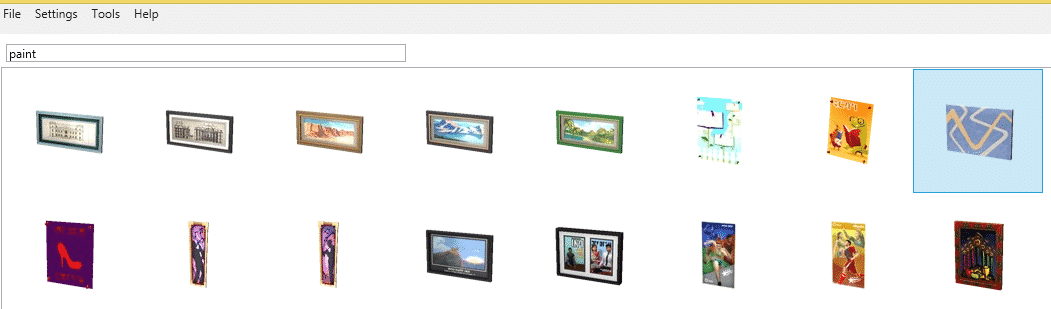
Search for paintings in the menu bar by typing in paint; for this tutorial we will be using the one I highlighted in the screenshot but you can use any size you want. Click the next button on the bottom right corner and label your package anything you want.
Step 4
Now you are going to extract your .dds image so you can use it as a template for your screenshots from your game. Select the texture tab, highlight texture, then click export. Name the texture anything you want.

Step 5
After extracting the .dds texture, you are going to open Gimp and convert that into a .png image so you can edit it in your graphic program. I am assuming that you do not have Photoshop CS and the DDS plugin installed; if you do then skip this step. Begin by opening the image in Gimp, select OK when it asks you if you want to load DDS. Under the file drop down menu, you are going to select “export as”. Go down to where it says “select file type (by extension)” and then scroll down till you find .png. Select export and make sure you change the compression level to zero. Leaving it at 9 will make your image grainy looking. Click on export in the popup menu.


Step 6
Now comes the fun part! Load the image you just converted into your graphics program and also load your favorite screens. You will be copy/pasting these over the EA image. You may need to do some crop work and resizing to get it just right.
These are the end results of the screens I chose for this tutorial. Notice that I did not cover the edges with images, I left those as is.


Step 7
Now you are going to load these back into S4S so they will show up in your game. Open up the package in S4S and select the texture tab. This time you will be choosing import. A popup will appear and you select the image you want. Then select the open button. To add more images, click the add swatch on the top right corner. You can also delete images by highlighting it and then clicking the remove swatch button. The more swatches you add, the larger the file becomes. So, try to keep them between 10 – 15. Also, just for variety make sure you use different size paintings. Once you are finished adding your swatches, click save and you are done. Now all that is left for you to do is test it out in your game.

Step 8
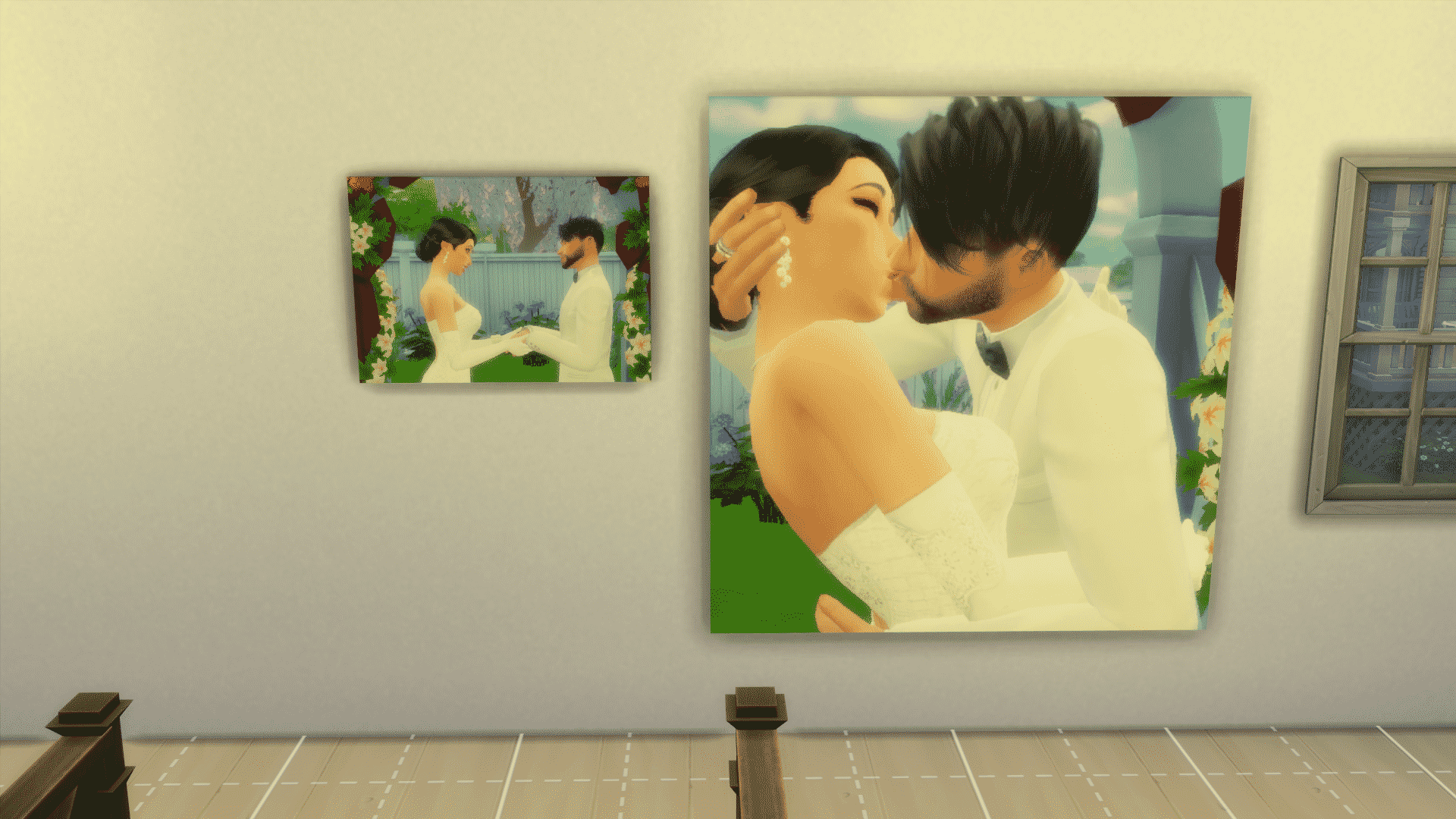
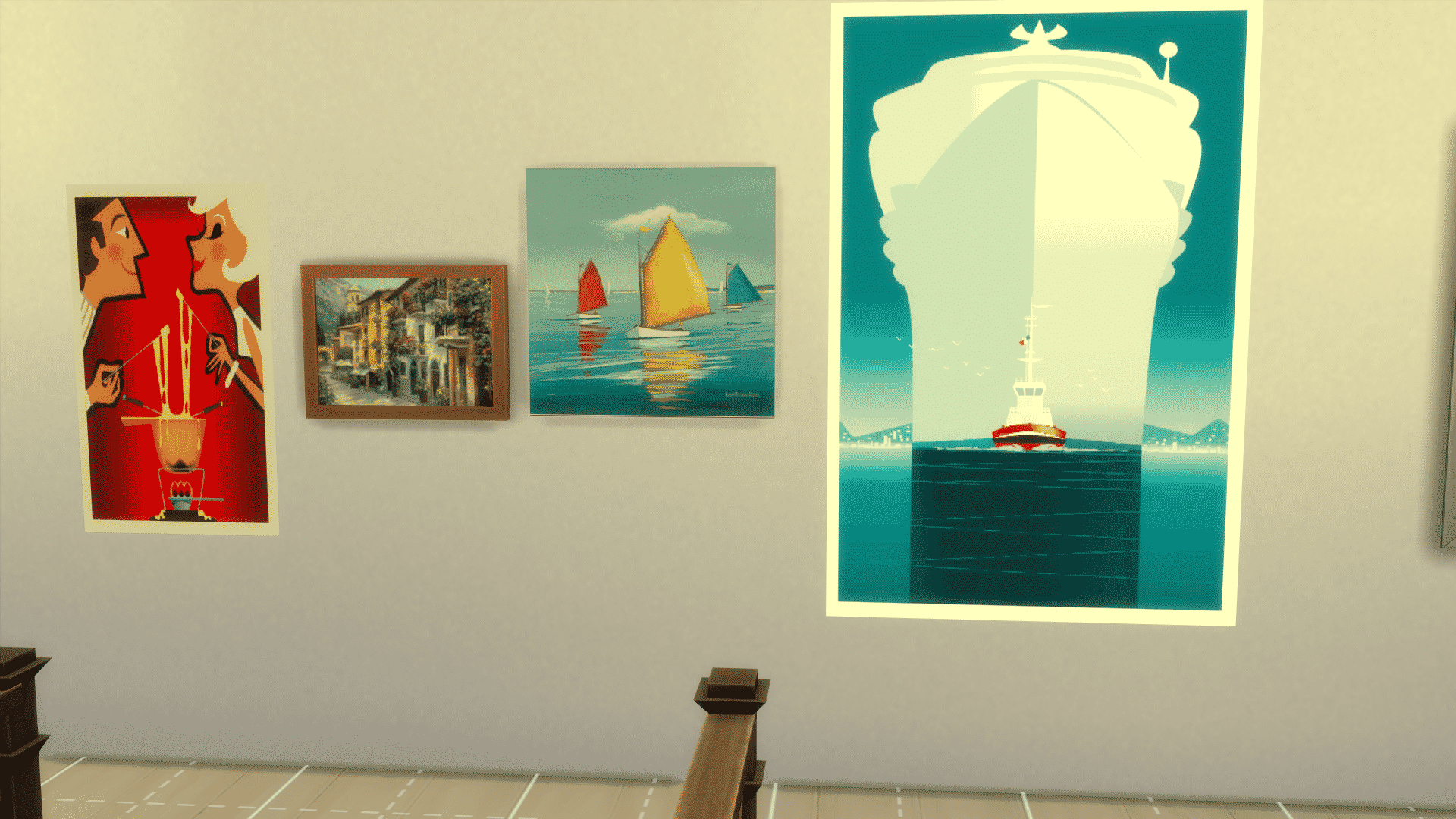
Test it out in game and make sure it’s what you wanted. You may need to do some editing till you get used to where the edges of the paintings should be. These are some that I have done. Pretty cool, right? Since the photography skill doesn’t allow you to take actual family photos this is an easy way for you to stage your Sims (including that baby that can’t be taken to the studio) and then hang their family portrait on your Sims walls. As you can see from the last screen, this method can be used to change your paintings and posters as well.



the DDS Plug In comes up with so many different links, can I please just get an answer on which one to pick. I have GIMP 2.8. PLEASE ANSWER QUICKLY!!!
Just download the most recent version of the plug-in for your OS obviously.
Can i use the same methods for sims 3?
I know this is old, but I’m stuck at step 6. I don’t know how to crop and align on this program. It won’t let me do it
Great info! Did my first one, which was a family portrait made of the gallery image screenshot.
for some reason my pictures keep having a giant green ? on the painting Although i followed all the steps o-o
The same thing keeps happening to me! Did you figure out what’s wrong?
Thank you for the tutorial. I’ve made a couple pictures already. But I’m assuming, since it’s that way for me, that you need to restart Sims 4 before you can load content you just created. Is this correct?
For some reason when I try doing this, my CC shows up in game as weird technicolor paintings with a green question mark on them huhu. In the Sims 4 Studio it shows up fine, but when I load it up in the game it shows up with that green question mark. Any ideas what I’m doing wrong?