

The Sims Team released a new render for The Sims 4 Vintage Glamour!
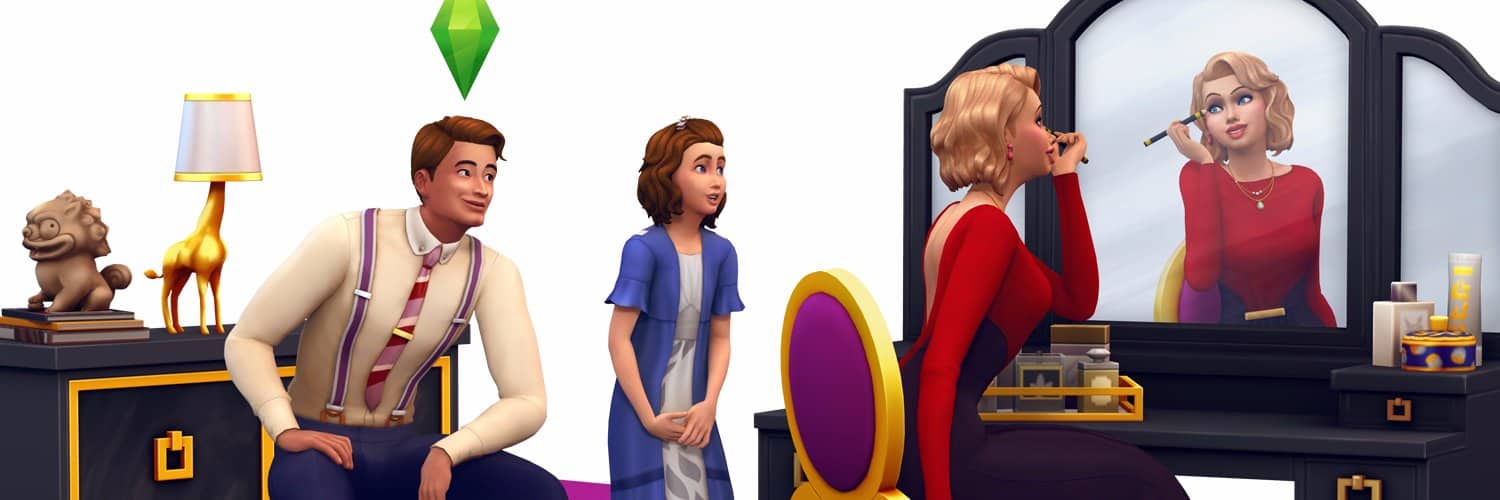
The Sims Team released a new render for The Sims 4 Vintage Glamour!
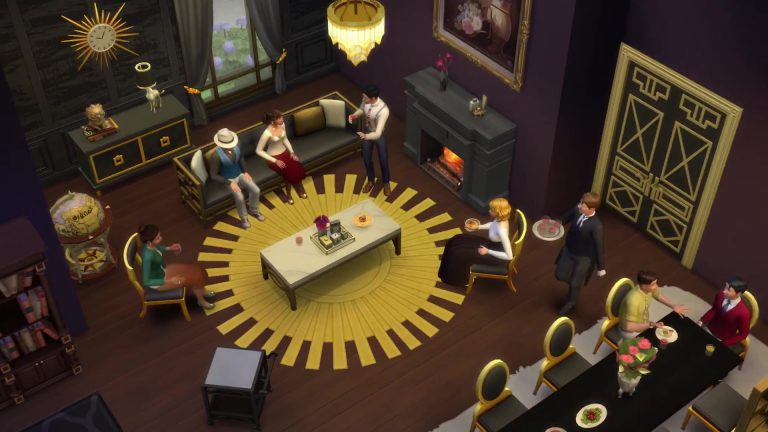
Check out 80 screens from The Sims 4 Vintage Glamour Stuff Pack Trailer!


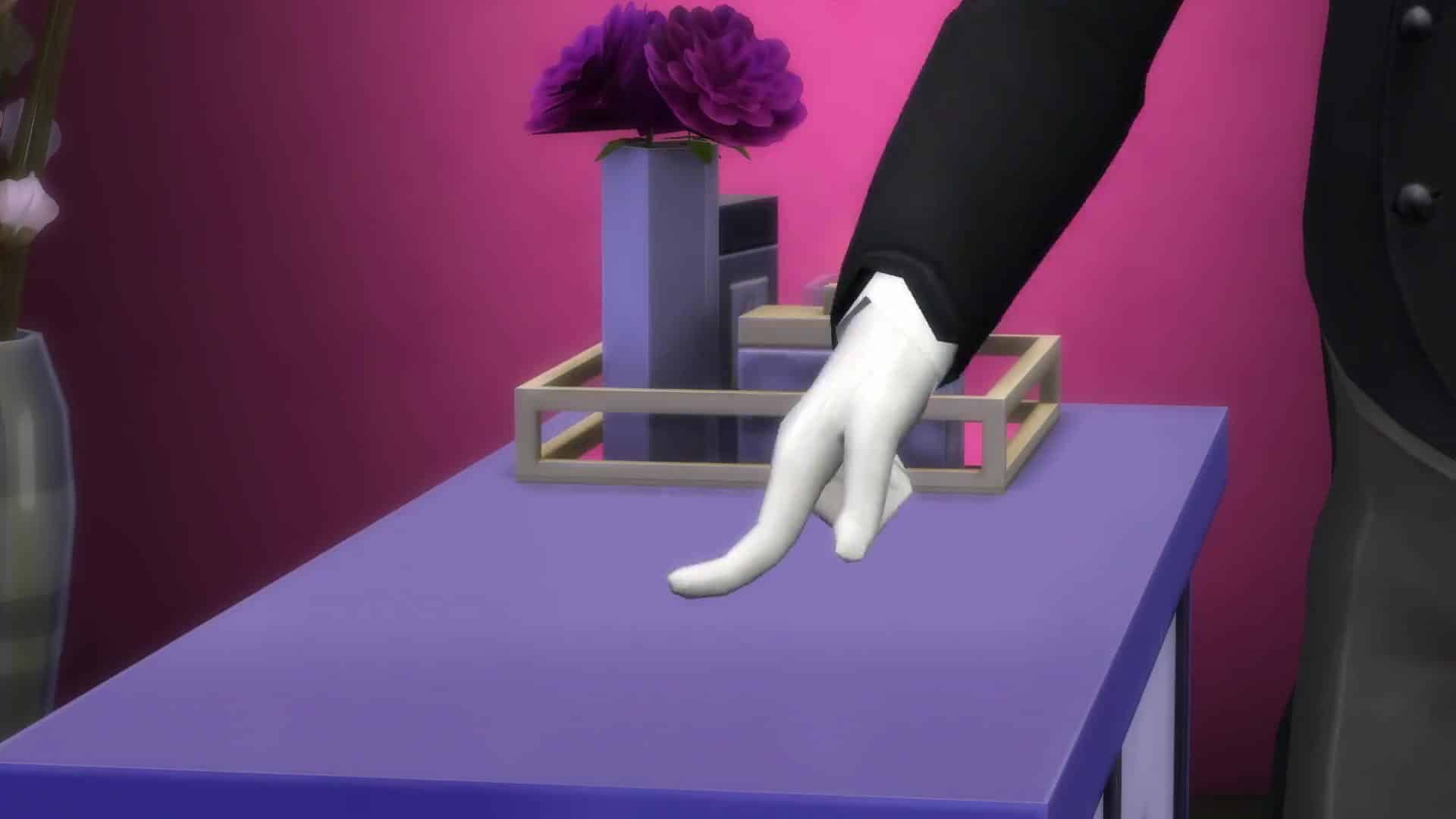


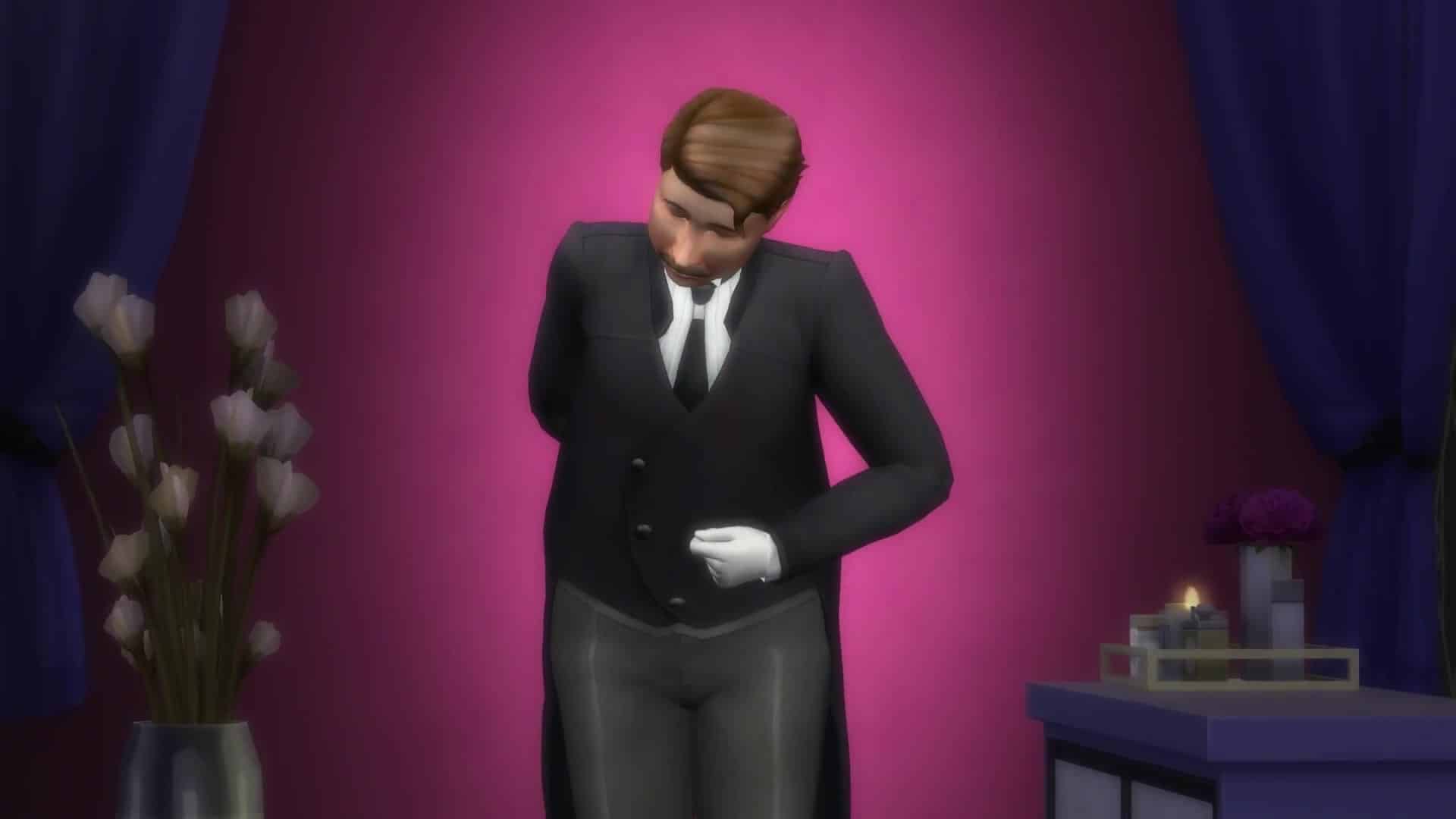


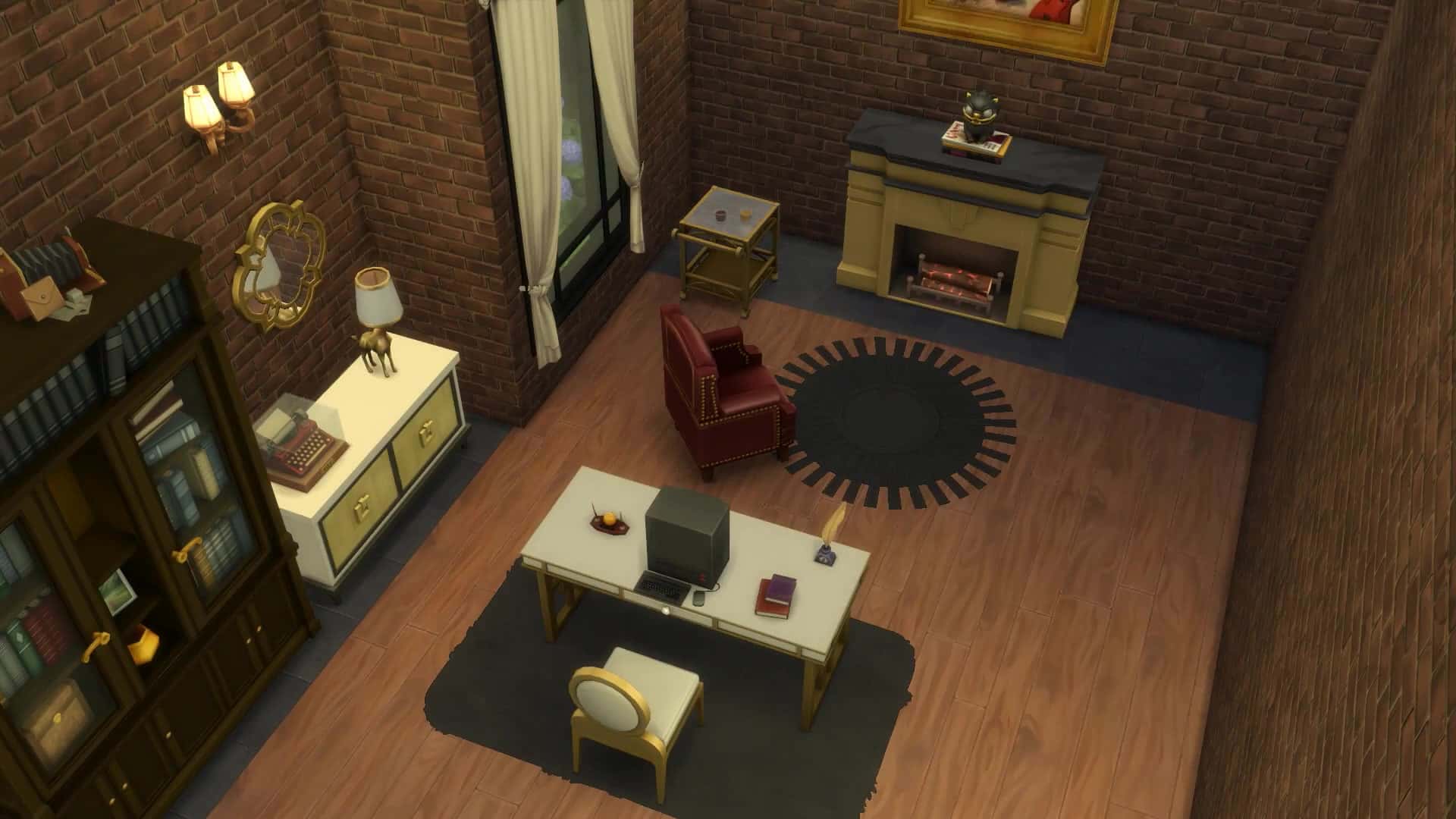


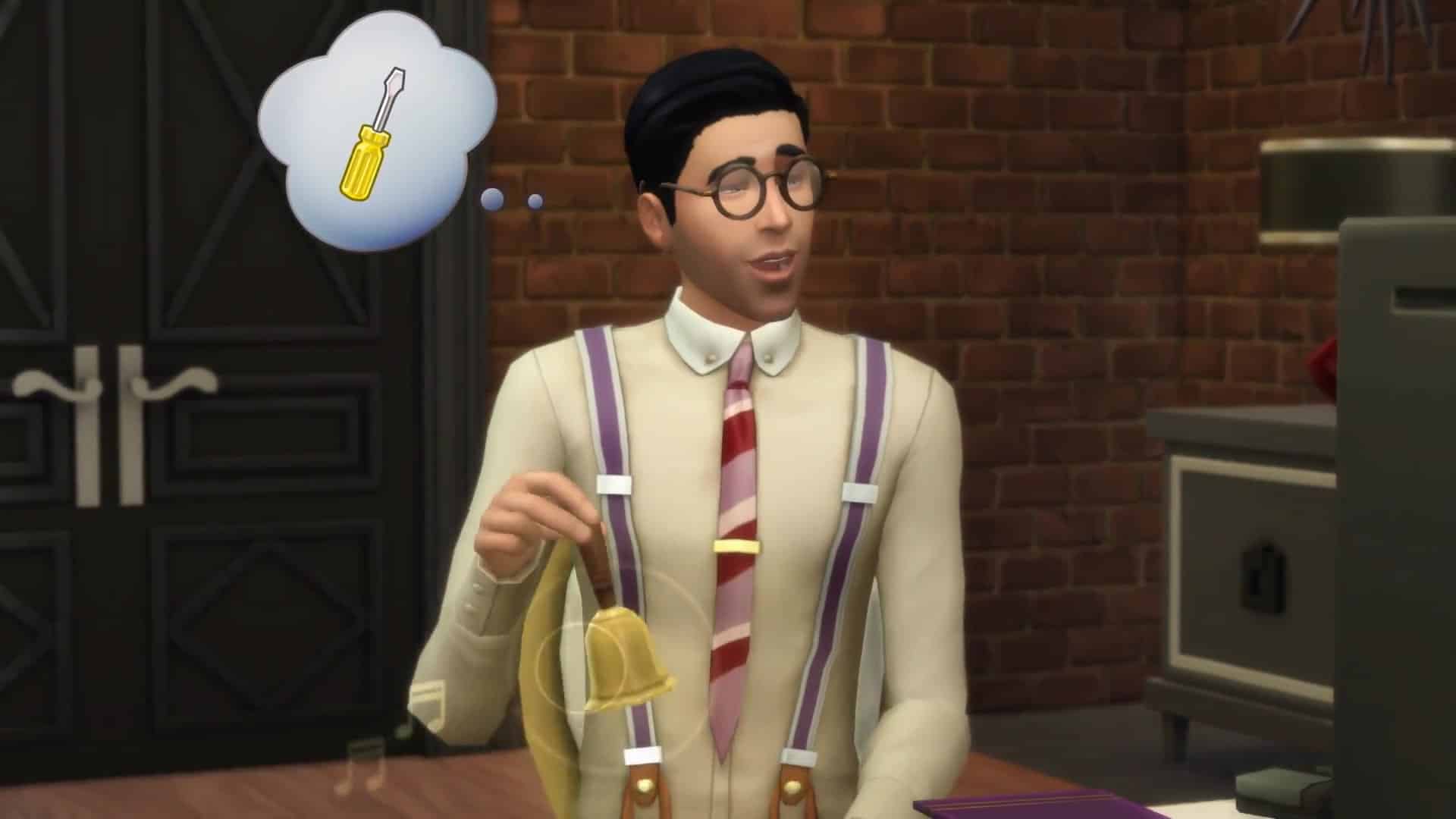


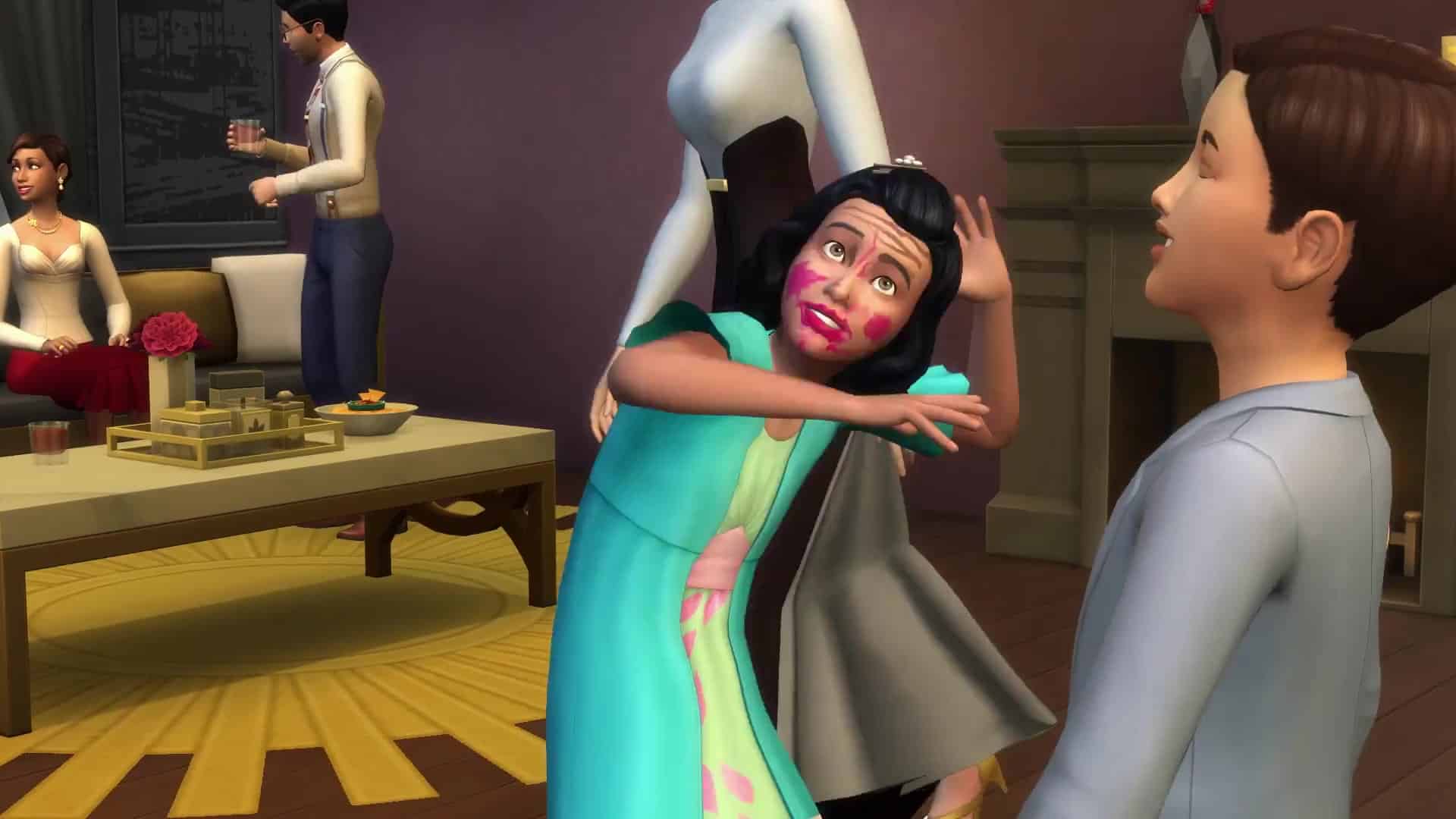


Check out the trailer for The Sims 4’s 9th Stuff Pack – Vintage Glamour!
Via TheSims.com!
Is your Sim longing for threads and furnishing that match the glamour and decadence of yester-year? Well, get ready because The Sims™ 4 is going classic with The Sims 4 Vintage Glamour Stuff Pack*, coming next week on December 6th!
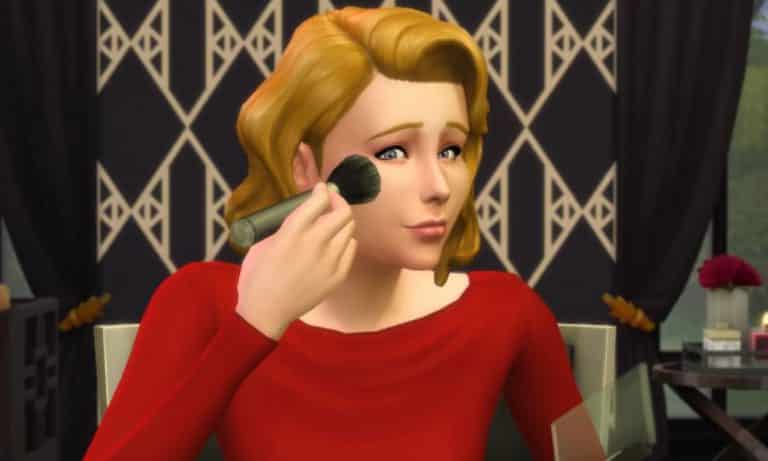
This pack has some really cool new objects to make your Sim’s home feel like it’s right out of the golden age of old Hollywood. With the new vanity table, your Sim can now take their time touching-up their make-up and looking their very best, without going in to Create a Sim! Children can also play at the vanity table, with slightly messier results. And when they’re done getting ready, they can go ahead and grab a drink from their classy new 16th Century Monte Vista Globe Bar.
This pack has really great decorative items & fancy furnishings for your Sims home, including a particularly awesome giraffe lamp that every Sim is going to want in pride of place. There’s also some really cool new wallpapers that have a metallic reflective appearance, and we just know you’re going to love them!
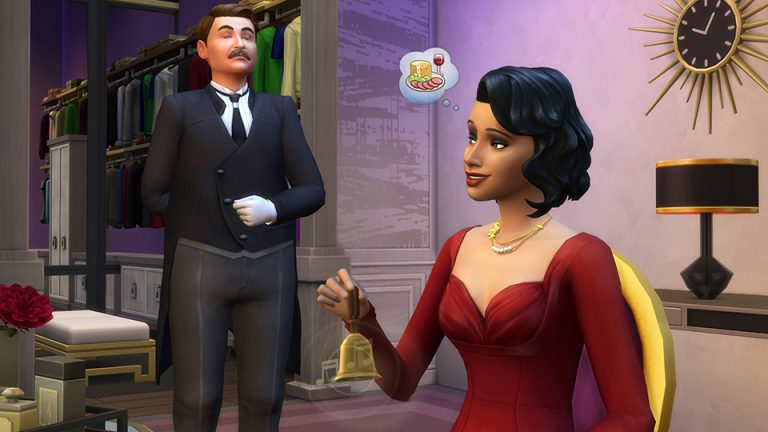
One more little thing; your Sim will be able to live an easy life without having to lift a finger. That’s right, The Sims 4 Vintage Glamour Stuff also adds a Butler NPC that your Sim can hire to do the things they don’t want to, like cooking, cleaning, repairing broken things and tending to the garden. If your Sim spots them relaxing when they’re on duty, the Butler even gets embarrassed. Don’t be too mean to them though, they can also sabotage objects…
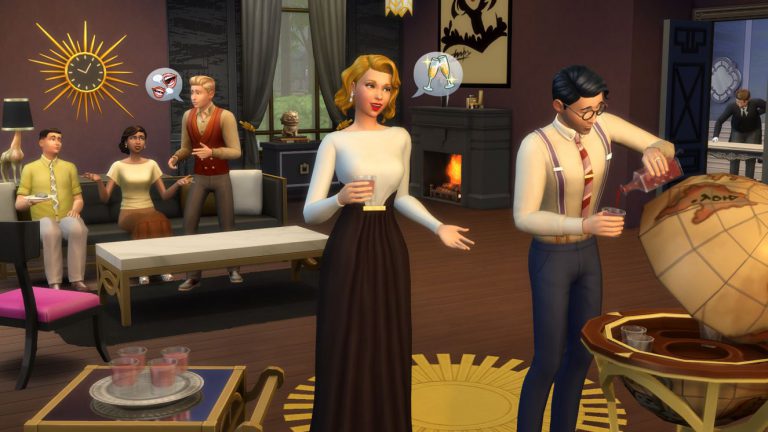
Check out the 3 new screens for The Sims 4 Vintage Glamour Stuff Pack!


The Sims 4 Vintage Glamour is The Sims 4’s 9th Stuff Pack! More info to follow…

Check out some of The Sims 4 renders and box arts directed by Donna Roggi!
Direction and creation of marketing design system and character renders. Including: Directing large character render creation, additional SKU designs for both online and print, maintaining strong simplified branding system, and directing global retail and digital storefront presence.


SimGuruDrake has subtly confirmed that we should expect new The Sims 4 news this week :

It’s not yet clear if we’ll be getting a pack announcement tomorrow or a patch on thurdsay.
In case you missed, The Sims Team announced 2 new packs coming in December: Stuff Pack 9 and an updated Holiday Celebration pack. There’s a high possibility that we’ll be hearing about at least one of these packs so stay tuned on Sims Community for upcoming news!
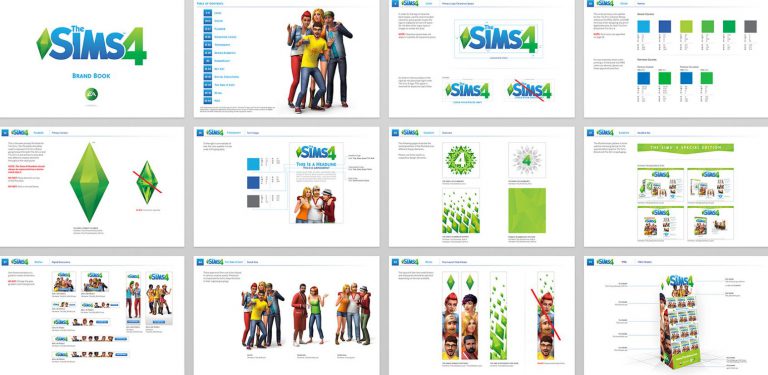
Z Lin has published the design work he made for various The Sims 4 games. If you look closely the logo of The Sims 4 Outdoor Retreat says ”Great Outdoors”, meaning this was one of the early names for this Game Pack.
Check it out!

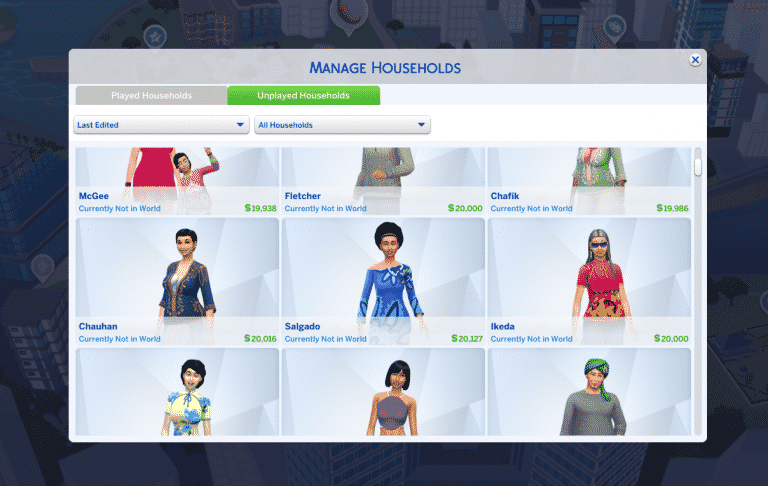
You may have noticed that when the population in all The Sims 4 worlds reaches a certain number random unplayed Sims will start disappearing from worlds, including the ones that your Sims that you played may have met. Neia, who created this mod, described the culling in The Sims 4 pretty well:
What is culling?
Culling and genealogy pruning are background processes run in the middle of the night to remove households for performance :
– Households that are both unplayed and unhoused can be culled when the population reaches around 285
– Households who are played or housed are never culled
– In addition to that, unplayed Sims who have a played Sims as a close relative can also be kept (up to 100) in a simplifed state.
Originally Dark Gaia was the first one who came up with this mod but it hasn’t been updated since June 2015. The new version of this mod by Neia is updated and works with the latest The Sims 4 game version!
To install this mod, extract the .ts4script file from the downloaded .zip file into the Electronic Arts > The Sims 4 > Mods folder. Make sure you have Mods / CC AND script modes enabled in your game options!
[mks_button size=”large” title=”DOWNLOAD!” style=”rounded” url=”http://modthesims.info/download.php?t=586033″ target=”_blank” bg_color=”#1e73be” txt_color=”#FFFFFF” icon=”fa-arrow-down” icon_type=”fa” nofollow=”0″]

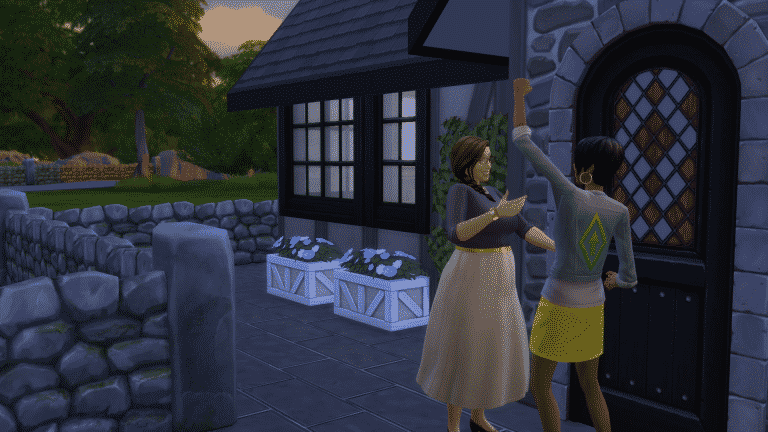
The Sims 4 is once again back with another Boost Week. This time the Boost Week is all about satisfaction, making it 3 times harder for your needs to decay and giving you an ability to earn 3 times more satisfaction points!
If you’ve updated your The Sims 4 game to the latest version you’ll be greeted with the following screen:

To activate these boosts you’ll need to call Jasmine Holiday using your phone:


You can request for these two boosts after Jasmine appears on your lot: Satisfaction Gain and Slower Needs Decay.
The Satisfaction Gain option will promise 3 times bigger Satisfaction Points after completing certain whims.

TIP: You can use these Satisfaction Points to purchase various rewards. Click the Aspiration category in the bottom right corner and find the Reward Store icon to see what you can spend your points on!
The Slower Needs Decay option will make your needs decay 3 times slower. This’ll give you plenty of time to focus on activities that do not revolve around sleeping, eating, showering and so on.

NOTE: You can only use one boost at a time. Each boost lasts for 7 Sim days and you can extend each boost by calling Jasmine Holiday again. You can also change your boost choice whenever you want by calling her!
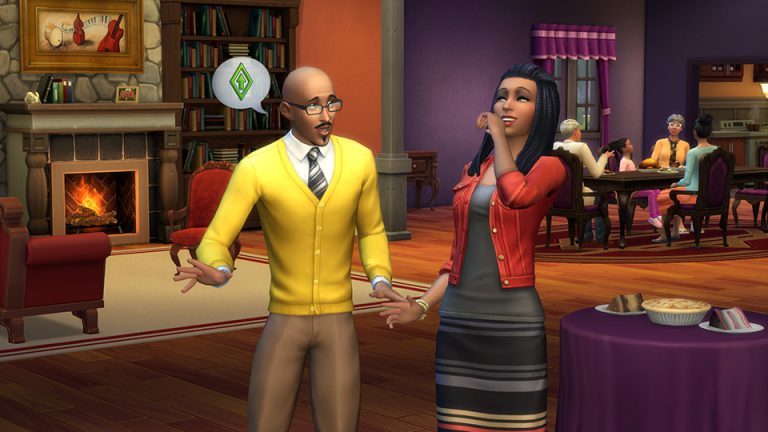
The Sims Team has announced that a brand new Boost Week is starting today!
We’re kicking off the holiday season in The Sims 4™ with the return of Jasmine Holiday, and she’s bringing Boost Week back! Like last time, just give Jasmine a call and she can hook your Sim up with a sweet boost.
This time, we’re focusing on your Sims satisfaction. You can choose for your Sim to either gain 3x Satisfaction Points from Whims, or if your Sim is doing pretty well on whims, you can receive a 3x slower decline on your Sims needs! You can only have one running on a Sim at a time, but don’t worry, you can switch if you change your mind.
Boost Week: All About Satisfaction begins right now, and runs until 10am PT on November 28th, so go ahead and give Jasmine a call and get started!
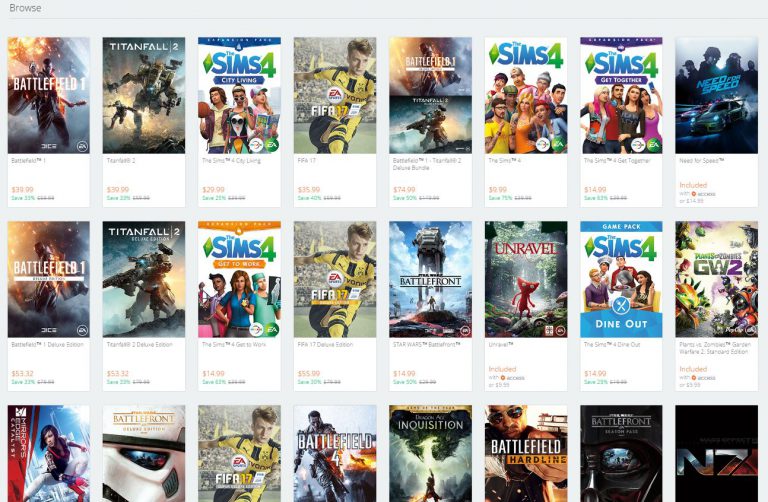
Origin has just started their Black Friday sale! There are some really great deals including The Sims 4 Base Game which is only 10$ and The Sims 4 City Living which is 30$!
Here are all The Sims 4 games that are currently on sale:
Don’t forget: you can gift these games to your friend and family or add them to your wishlist and have someone else gift them to you! For more information about this feature, CLICK HERE!
Click below to check out all the deals!

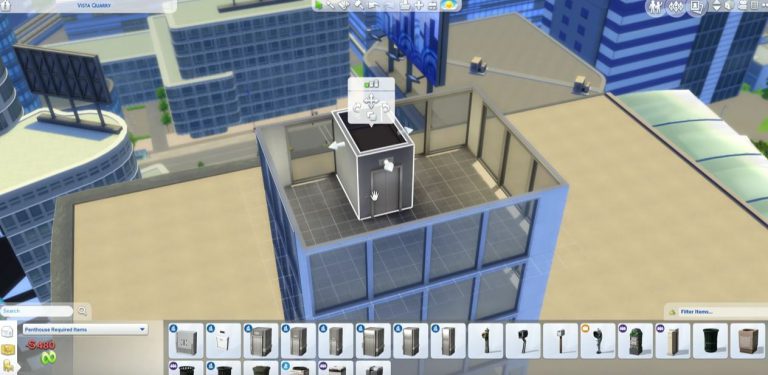
The Sims Forum member Jason came up with a very simple solution on how to place multiple elevators in a penthouse! By using the new copy tool in build mode you can stack elevators on multiple stories.
The entire trick has been explained in a short video down below:
Tip: @Iron_Cgull

Origin has just introduced a new feature that lets you gift games to other people, as well as make your own wishlist and have other Origin users gift certain game(s) to you.
This Origin feature is already available on the Origin website. If you want to use this feature using the Origin client you’ll have to make sure it’s updated to the latest version.

To add a certain game to your wishlist, simply click the arrow on the right side of the Buy button and select Add to wishlist. You can also select the Purchase as a gift option to gift a certain game to an Origin user that’s in your friends list.

You can keep track of your (or someone else’s) wishlist by selecting View (my) Profile > Wishlist tab.

EA released a post explaining the entire process of how and what you can gift and receive:
Send games and Downloadable Content (DLC) to friends or family on Origin.Choose an Origin product you’d like to send to a friend or family member and we’ll send it right to their game library. You can grab a new teammate for a game you love, send the perfect gift for a special occasion, or just be an awesome friend.
You can gift already-released, full EA games and extra content, including special editions.
There are some gift restrictions. We cannot send or receive the following as gifts:
- Pre-order games and DLC
- Third-party products
- Virtual currency
- Game bundles that contain virtual currency
- Free games or DLC
If you’re an Origin Access member, your discount applies to gifts.
COOL. HOW DO I SEND A GIFT TO MY FRIEND?
It’s easy to send games and extra content to friends.
Here‘s how you can send a gift:
- Find the product you want to gift on the Origin store.
- Click the button pull-down menu.
- Select Purchase as a gift.
- Origin will bring up a list of friends you can send the gift to.
- If you do not see your friend in the list, try searching for them in the search bar.
- Follow the prompts to complete your purchase.
- Credit cards and Paypal are the only payment options for gifting games.
You can only send a gift to one friend at a time.
You can send a friend a higher edition of a game they already own. If you start to send them a lower (or the same) version by mistake, we’ll mark them as “Ineligible to receive.”
If you have any problems sending gifts, check out our Origin gifting issues and workarounds article.
YesNoI GOT A GIFT! HOW DO I ACCEPT IT?
You’ll see a notification at the top of your My Home page in Origin. You’ll also get a pop-up notification and an email letting you know that you received a gift and instructions on how to open it.
Can I reject a gift?
Currently, there’s no option to reject a gift.
WHERE CAN I SEE MY SENT AND RECEIVED GIFTS?
Games you gifted:
- Click your profile in the bottom-right corner of your screen.
- Select EA Account and Billing.
- On mobile, click the menu icon in the top-right corner of the screen and swipe up until you see EA Account and Billing.
- This will open your account page in a new browser tab or page.
- Click Order History to see a full list of the gifts you’ve sent.
Games and extra content you’ve received:
- Click your profile in the bottom-right corner of your screen.
- On mobile, click the menu icon in the top-right corner of your screen and scroll down to EA Account and Billing.
- Select EA Account and Billing and then My Gifts.
- Your unopened gifts will appear at the top and your opened gifts at the bottom.
GIFTS JUST AREN’T MY THING. CAN I OPT OUT OF GETTING THEM?
At this time, you cannot opt out of receiving gifts. We recommend asking your friends not to send you gifts. The only way prevent a friend from sending you gifts is to block them.
- Click your profile in the bottom-right corner of your screen.
- Select EA Account and Billing and then Privacy Settings.
- On mobile, click the menu icon in the top-right corner of your screen and scroll down to EA Account and Billing.
- Scroll down to the Origin Blocked Users List.
- Type in the EA ID of the user and click Block.
- Their name should appear just above the input bar.
If you decide you want to unblock them later, click Remove next to their name on the Origin Blocked Users List.
CAN I CANCEL A GIFT AND GET A REFUND?
Under certain circumstances you may be entitled to cancel a gift and obtain a refund. Review our warranty and refund policies as well as section 10 of the Terms of Sale.


