Home Blog Page 158

The Sims 4: The Ultimate In-Game Photography Guide

As a generational and family player, I’m obsessed with taking beautiful family photos to display on the walls of my Sims’ homes. Weddings, graduations, first days of school, birthday parties, family vacations, it’s all captured in photo memories that make a house feel like a home. I’m always using the in-game camera tools to get the perfect shots of my Sims. A friend of mine asked me for a photography tutorial to help her learn the ins and outs of taking photographs in the game. I was all too happy to share my process!

So today, I’ll be walking you through how to take beautiful in-game photos that your Sims can hang up on the wall or display on surfaces. First, I’ll show you how to take photos with just the base game. Then I’ll introduce you to how you can enhance your photography using the Moschino Stuff pack! Lastly, I’ll point you to some optional mods that I find helpful for taking and organizing my photos.

Getting the Equipment

To start taking photos, your Sims will need either their cell phone or any camera found in Build/Buy. All the cameras are located in the Activities & Skills > Creativity category. There are three base game cameras you can purchase. The cheapest one isn’t any better than the cell phone for taking pictures; it only lets you take small photos and doesn’t have zoom capabilities. The mid-range camera allows you to take small and medium photos and does have zoom capabilities. The expensive camera takes small, medium, and large photos and has even better zoom capabilities.

On the cell phone, your photo options will be under the Entertainment tab. It’s the icon of a stereo speaker on the bottom far right of the phone menu. On the cameras from Build/Buy, you’ll have to drag them into a Sim’s inventory before any photo options will come up on them. In a Sim’s inventory, click on the camera to bring up photo options.

  • Take Selfie: This will allow your Sim to snap a picture of themselves! This option is only available on the cell phone.
  • Take Photo: This will let your Sim take a photo of anything from wherever they’re standing. This option is good for taking shots of landscapes, objects, or capturing candid moments between Sims.
  • Take Photo Of: This option lets you take nice posed portrait shots of other Sims.
  • Take Photo With: This will let your Sims take a picture of themselves with another Sim. Great for cute couple shots or best friend pictures!
  • Simstagram Pet: This option will only be available if you own the Cats & Dogs expansion pack. Your Sims can take photos of their pets to upload to Simstagram.

Getting the Perfect Shot

When you take a picture using the camera, there are several tools and options available to you. Not all options will be available on all cameras but below is an example picture of what the in-game photography screen looks like with the most expensive digital camera.

The Sims 4: The Ultimate In-Game Photography Guide

  • Filters: Click on the filters tab in the top left to bring up 11 different filters for your shots. If your Sim does not have high photography skill, choose your filter carefully; poor quality photos cannot have their filters changed afterwards.
  • Poses: This option is only available for players who own the Moschino Stuff pack and only appears when using the Take Picture Of option. Click through the bottom left tab to switch between different poses. There are eight different categories of emotions with a few poses to cycle through in each category. You can also click the group icon at the top of the pose tab to cycle through all the different pose categories.
  • Sizing: In the bottom bar on the left, you’ll see three rectangles in different sizes. This is where you can select the size of your photo. The cell phone and cheapest camera only allow you to take small photos. The mid-range camera allows you to take small and medium sized photos. The expensive camera has small, medium, and large photo sizing options.
  • Orientation: In the bottom centre tab on the left, the circular icon is your orientation. Click this to switch between landscape and portrait shots.
  • Take Photo: The camera icon in the centre is how you snap your pictures. You can take up to 5 pictures at once so don’t worry too much if you’re not 100% sure about your first few takes. If your Sim has low Photography skill, it’s always best to take all five shots, even if it’s all of the exact same picture. There’s a chance some of your photos might turn out blurry or with a gnome in it so it’s best to take as many shots as possible to ensure at least one looks okay.
  • Flash: I don’t use this option too much but it is available if you need it. It’s next to the camera icon on the right side of the bottom centre tab and it just turns the flash setting on and off. Turn this on when taking photos at night or in dim lighting. Turn it off for daytime photos in bright lighting.
  • Pan and Tilt: The directional arrows in the bottom right corner allow you to pan and tilt the camera around. I don’t like to use these; I find them clunky and hard to manage. I prefer to use the keyboard keys and mouse to have better control over my shots, but more on that later. For now, just know it’s there if you want to use it.
  • Zoom: On the right hand side is the zoom function. The cell phone and cheapest camera will not have zoom capabilities but the mid-range and expensive cameras will. Unlike the Pan and Pitch option, I actually prefer to use this slider bar rather than my keyboard and mouse. I can zoom in and out more precisely when using the slider.
  • X: The little X in the top right corner just exits out of the photography menu in case you change your mind or decide you’re done taking pictures before you’ve used up your five shots.

When you’re happy with all your settings, take your picture! The photos will be added to the photographer Sim’s inventory as well as to your Screenshots folder in Documents > Electronic Arts > The Sims 4. The photos can then be framed and displayed on a wall or surface to decorate your Sims’ homes.

Get Greater Control Over Your Shots

Like I mentioned, if you’re a PC player, you can make it easier on yourself to control the camera by using your keyboard and mouse.

  • Q + E Keys: Tilt the camera up or down.
  • A + D Keys: Pan the camera left and right.
  • Mouse Scroll Wheel or Z + X Keys: Zoom in and out.
  • Left Click + Drag: Freely move the camera in any direction.
  • C Key: Snap Picture

Personally, I pretty much only use the Left Click + Drag feature on the mouse to move the camera around. It gives me so much more freedom to get the exact angle I want. For Zoom, I do prefer the slider on-screen, however.

What To Do With Your Photos

The Sims 4: The Ultimate In-Game Photography Guide

Once you have some photos in your Sim’s inventory, drag them onto a wall or surface to display them! Photos have lots of different options available on them and the more packs you own, the more options you’ll have.

  • Add/Remove Frame: You can put a frame on your photos. There are eight different colours to choose from.
  • Update Frame: If you want to change the colour of your frame, you can do so with this option.
  • Rotate Photo: I find this option pretty useless, personally. All it does is switch the orientation between landscape and portrait. The result always looks wonky but hey, it’s there, I guess.
  • Set Filter: This option is not available on poor quality photos; you’re stuck with whatever filter you picked when you took your shot, but nicer quality photos can have their filter changed anytime.
  • View: Your Sim will admire the photo. Nothing really exciting about it but they may get a positive moodlet if it’s a good photo.
  • Create Copy: You can make copies of your photos to sell or gift to other Sims but it does cost some simoleons to do so.
  • List on Plopsy: This is only available with the Nifty Knitting Stuff Pack. Sims can list their photos for sale on the online marketplace, Plopsy. It costs a few simoleons to list a photo for sale.
  • Upload to Simstagram: This is only available with the Get Famous expansion pack. Sims can post their photos to Simstagram for fame.
  • Sell to Publication: This is only available with the Get Famous expansion pack. Sims can sell their photos to magazines for both fame and simoleons.

Other Tips for Taking Great Photos

  • Lighting is important! It’s best to take shots outside during the day in sunny weather but if you are taking indoor shots, make sure the room is well-lit to get the most clear and colourful pictures.
  • If you don’t own Moschino Stuff, you won’t be able to customize your poses when taking pictures of other Sims. They’ll pose according to their emotional state. So make sure your photo subjects are in a good mood if you don’t want sad, mopey, or bored-looking portrait shots.
  • Without Moschino Stuff, you cannot pitch the camera lower or higher. All photos will be taken at the height of the photographer Sim; you can only tilt the camera upwards or downwards from that starting height. A way to get around this is by using children as your photographer. If you’re taking a picture of a toddler or child and you want the camera closer to their height, have a child take the picture. Kids are short and will therefore take pictures from a lower vantage point.
  • Make use of the classic photography rule; The Rule of Thirds. There’s a lot to learn about this rule but for beginner photographers, all you really need to know is this; most of the time, your photo will look better when your subject is not dead centre of your shot. Photos usually look more pleasing to the eye when your subject is centred at the point where the grid lines meet. In my labeled diagram above, you can see I’ve centred the Sim’s nose on one of these points. The Rule of Thirds doesn’t always work so use your own judgement when taking your pictures but it’s a good rule of thumb for beginners to get a feel for photo layout.
  • Backgrounds really make a difference. Make sure your photos have a nice scenic background or a solid colour background. Dirty plates, trash, or a cluttered area that looks very busy will distract from your photo subject and ruin an otherwise lovely shot.

Enhance Your Photography Game with Moschino Stuff

Players who own the Moschino Stuff pack will find they have a much wider range of photography options available to them. Moschino Stuff is one of my favourite stuff packs because it gives me almost unlimited control over my photos and offers so many different options for getting the perfect shot and displaying my photos.

First, let’s check out all the photography-related stuff that comes with this stuff pack:

  • Fashion Studio Photography Tripod: This is your bread and butter when taking photos. The tripod can be equipped with any camera and put in your Sim’s inventory to be taken anywhere in the world you want to take a beautiful photo, even off of a lot! Not only that but the tripod makes any amateur photographer a professional; no matter the skill of the photographer or how cheap the camera, the tripod opens up all advanced photography options and takes Outstanding quality photos every time! You also have the freedom to pitch the camera to low or high angles to get more dramatic, cinematic shots. It’s just all-around more powerful and versatile than using a camera by itself. It also comes with extra photo options which I’ll go over in more detail soon.
  • Fashion Studio Subject Mark: These are incredibly useful for making your photo subjects stand exactly where you want them. I highly recommend using these when taking photos with pets and toddlers; for some reason, the Sims like to pose off to the side instead of directly in front of the tripod when taking pet and toddler photos. Using the subject mark stops that. They can placed in the world off a lot, too, so it helps make Sims stand where you want off of a lot.
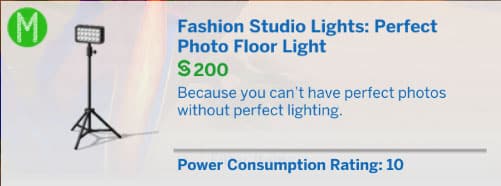
  • Fashion Studio Lights: You can technically use any lighting you prefer in the game to light up your scenes the way you want them but these are specifically designed for studio lighting so they’re my go-to for taking pictures. They’re also live draggable so it’s a lot easier to drag them around quickly in Live Mode when I’m doing long photoshoots. Don’t forget to adjust the colour and brightness for just the right mood lighting!
  • Photo Drape & Backdrops: These are awesome for a quick backdrop in a pinch! The photo drape comes in several colours and patterns and is very useful for nice, clean portrait shots. The only downside is that you have to go into Build/Buy to change the colour of it all the time. The curved and straight digital backdrops are my preferred backdrops. They can be connected for impressive wraparound backgrounds and you can select multiple different animated backgrounds in Live Mode. My personal favourite is the cityscape backdrop.
  • MixPix Digital Photo Frames: I love love LOVE these so much! They save a tonne of space on my Sims’ walls. I take literally hundreds of family photos and always run out of wall space so fast. Just drop all the photos you want into these frames’ shared inventory and they’ll cycle through all of your photos on a time schedule you can customise.
  • Collage Photo Frame: This collage frame lets you display three photos in a single frame. I love to use these to document my Sims’ kids as they age. Each child gets their own frame when they’re born and as they grow, their toddler, child, and teen portraits get added to them. Another great space saver! The collage frames only take small sized photos for the two left slots and medium sized photos for the right slot. Make sure they’re the right orientation, too, or they’ll look strange in the frame.
  • ClickShoot P10 Mirrorless Camera: This camera is a high end camera that you unlock via the freelance Fashion Photographer career that Moschino Stuff added. I don’t use it too often because I don’t play the Fashion Photographer career a lot but it is a very impressive, powerful professional camera.

Most of these items are self-explanatory to use but the tripod and subject mark do have some options that are worth breaking down.

In addition to all the same options available on the Crystal Clear Digital Camera, the Moschino Tripod also has a few other options and functions:

The Sims 4: The Ultimate In-Game Photography Guide

  • Take Picture Carrying: This option allows you to take adorable pictures of a teen or older Sim holding a toddler. There are a few different poses they do together and they’re all very heartwarming. I recommend making sure both the older Sim and the toddler are very close to where you’re taking the picture because toddlers are slow. If the adult has to walk a long distance to go get them and carry them back, the action can cancel itself on you.
  • Take Picture of Sim with Pet: This option is only available if you own the Cats & Dogs expansion pack. It allows you to take pictures of a Sim with your pets! Sims will hold cats and small dogs. They will pose low to the ground with big dogs. Again, all the poses are adorable.
  • Take Picture of Sim on Subject Mark: This option will be greyed out if you don’t have a subject mark placed down near the tripod with a Sim already standing on it. Click the subject mark to direct a Sim to stand there and wait for a photographer, then have your photographer Sim use this option on the tripod to take their picture.
  • Take Picture With: This is the same function as the other cameras, except the tripod has a timer so your photographer Sim will set the timer on the tripod and go pose with the other Sims.
  • Q + E Keys: This will actually pitch the camera up and down properly when taking pictures with the tripod, unlike just using the cameras by themselves, which will tilt the camera up or down from the same starting height.
  • Rotate Photographer: There will be an extra slider along the bottom when taking photos with the tripod. This will actually rotate your photographer around a full 360 degrees. This is helpful for when your Sim has placed down the tripod in the wrong direction off of a lot when you can’t easily just swivel the tripod around.

The Sims 4: The Ultimate In-Game Photography Guide

The Subject Mark that can be used with the tripod has a few different options as well:

  • Wait for Photographer: This is the option you should pick to have your Sim stand on the subject mark to get their picture taken.
  • Hire a Fashion Subject: This is useful for professional photographers who want to use different models for their photoshoots. It costs 100 simoleons to hire a fashion subject and a Sim will show up on the lot to be photographed.
  • Ask to Pose: You can have your photographer Sim direct a specific Sim to stand on the subject mark.

In addition to all the new photography options, Moschino Stuff also adds a whole new freelance career for your Sims to make a living as a fashion photographer. It’s just a really great pack all-around for players who are photography enthusiasts, I can’t recommend it enough.

For players who own the Get Famous expansion pack, there are additional stage lights and set pieces you can use for photography as well.

If you own Get To Work, there is an all-in-one photo studio you can use to take really nice shots, too.

Optional Mods to Elevate Your Photography

None of these mods are required to take beautiful photos in The Sims 4. This guide has given you all the tools in both the base game and packs that you need to take amazing photos with no third-party content. However, if you are a PC player who likes to use mods, these can really set your photos apart.

  • Andrew’s Pose Player: This mod lets you use an endless number of custom poses in the game so you aren’t limited by the game’s existing pose selection. You will also need the Sim Teleporter and some custom poses to use with the Pose Player.
  • Sim Teleporter: This object lets you teleport Sims where you want them easily with no hassle. It’s essential for custom group poses.
  • Custom Poses: There a wide number of custom poses available to download. This tumblr directory is a good place to start looking for some.
  • TOOL: The TOOL mod is intended for creative building purposes but it’s also a lifesaver for avid storytellers and photographers. Use this mod to move your Sims anywhere in the world for great photos or nudge them back into place without breaking their pose when they don’t pose in the right spot. I could not take pictures of large events without this mod to help keep all those pesky Sims where they’re supposed to be.
  • MCCC: I use this mod to swap out outfits easily without having to wait for my Sim to change into them. You can also use the teleport features of this mod to help put Sims in the right position for custom poses.
  • Photographic Memory: Holy moly, I love this mod. I love it so much, I wrote a walkthrough for it. You can read it here. This mod adds so many new options for customizing and cataloguing all your precious photos, it’s a total game changer and I can’t sing its praises highly enough. Seriously, go download it right now and never look back.
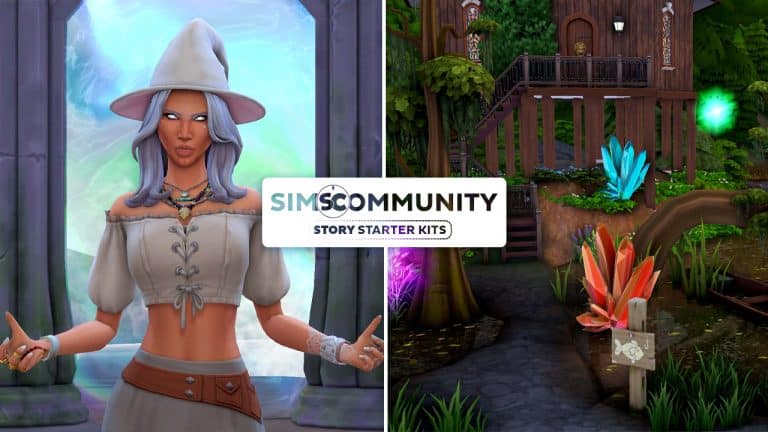
The Sims 4 Story Starter Kit: Yadira the Swamp Witch

Welcome to our very first entry in our new Story Starter Kits series! If you missed all the info on Story Starter Kits, you can read more about what they are and how they work in our introductory article!

In honour of spooky month, we thought it was only fitting to introduce you to a spellcaster with a dark backstory.

Yadira the Swamp Witch

The Sims 4 Story Starter Kit: Yadira the Swamp Witch

Centuries ago, Yadira was in love with a young man and trusted him with all of her magical secrets but he betrayed her when he had an affair with Yadira’s jealous stepmother, who wanted Yadira’s eyes for a spell of eternal youth. On her stepmother’s orders, Yadira’s beloved lured her out into the swamplands where he plucked out her eyes and left her for dead in the bog’s wilderness. But the bog spirits saw what happened and were enraged by such an act of cruelty. The spirits dragged the man and Yadira’s stepmother into the depths of the swampy waters, never to be seen again. Although they could not fully restore Yadira’s lost sight nor mend her broken heart, they granted her the ability to see one’s true character in place of their physical appearance.

Forever scarred by the cruelty of mankind but eternally grateful for the spirits’ aid, Yadira stayed in the swamplands to care for the spirits’ natural home. She spends her days fishing in the swamp, experimenting with her cauldron, and tending to the potted plants she uses for her potion ingredients but so many years of solitude has caused her to lose touch with the outside world. While she does not hate anyone for what was done to her once upon a time, she’s mistrustful of strangers and isn’t above a bit of mischief to keep them out of her swamp.

But with her uncanny ability to see beyond the physical and into someone’s soul, maybe Yadira will one day find another she can truly trust.

Other Info:
  • Age: Young Adult
  • Occult Type: Spellcaster (Neophyte)
  • Traits: Loner, Noncommittal, Loves Outdoors, Collector
  • Aspiration: Purveyor of Potions
  • Likes: White, World Music, Fishing, Gardening, Mischief, Storybook Décor
  • Dislikes: None
  • Skills: Fishing (3), Gardening (4), Mischief (5)
  • Career: None
  • Packs Used: Realm of Magic, Spooky Stuff, Paranormal Stuff, Vampires

Yadira’s Yurt

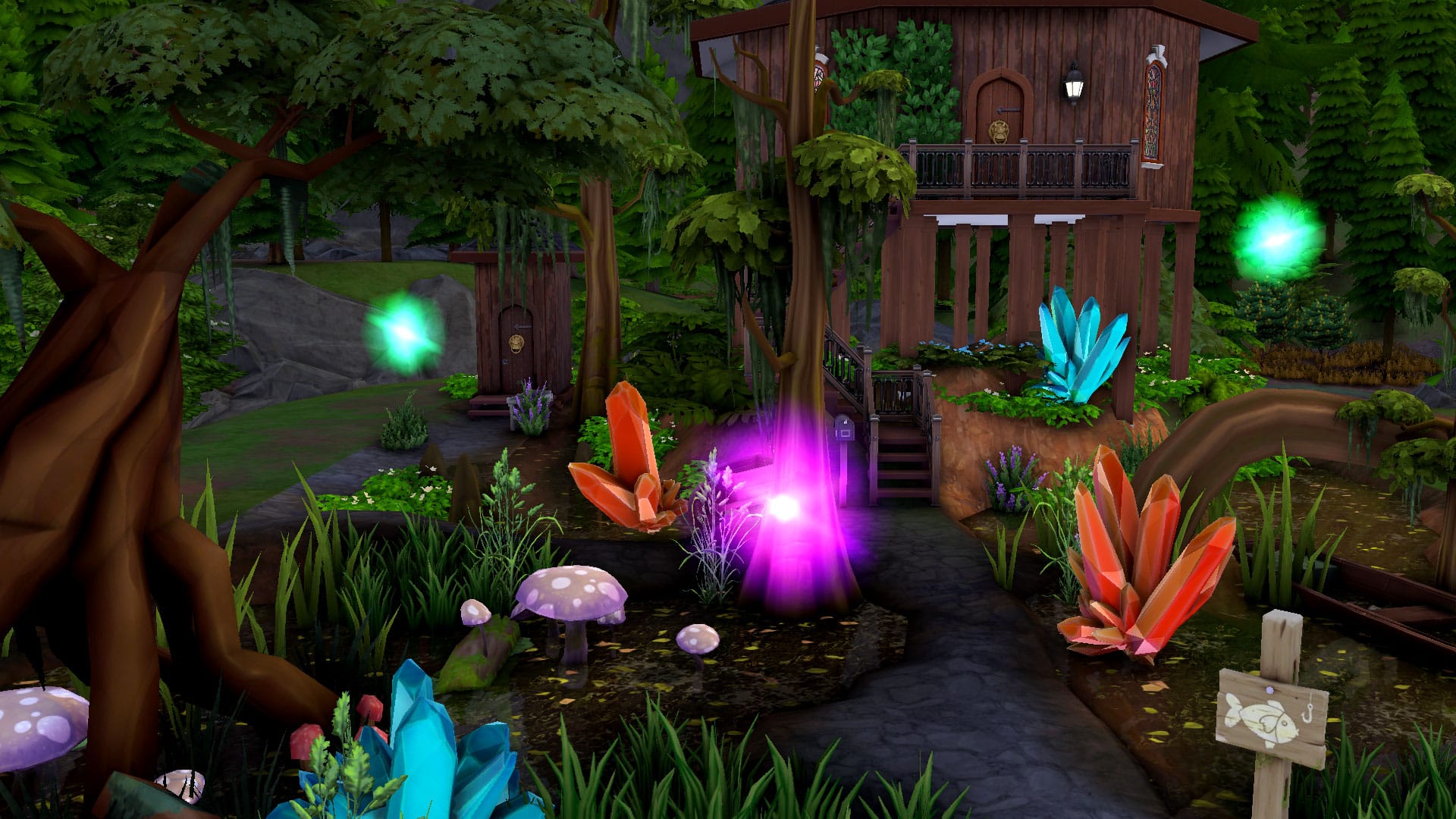
This is where the reclusive swamp witch, Yadira, spends her days and nights fishing, experimenting with potions, and tending to her potted plants. Brave visitors beware; the swamp witch is protected by the glowing spirits that surround the bog around her yurt and they will keep Yadira safe by any means necessary. Don’t take it personally; Yadira doesn’t hate people. She just likes her privacy.

Lot Info:

  • Price: §17,464
  • Size: 30×20
  • Beds: 1
  • Baths: 1
  • Lot Traits: None
  • Packs Used: Realm of Magic, Spooky Stuff, Paranormal Stuff

Your Story Starter Kit is waiting for you! Get The Household and The Lot by downloading them from the official Gallery Website linked on the buttons below. Or, follow SnarkyWitch in the Gallery and look for Yadira the Swamp Witch and Yadira’s Yurt!

[mks_button size=”medium” title=”The Household” style=”rounded” url=”https://www.ea.com/games/the-sims/the-sims-4/pc/gallery/1AEF908A2E2711EC88282E2CE62140A4″ target=”_blank” bg_color=”#4aa500″ txt_color=”#FFFFFF” icon=”fa-arrow-down” icon_type=”fa” nofollow=”0″][mks_button size=”medium” title=”The Lot” style=”rounded” url=”https://www.ea.com/games/the-sims/the-sims-4/pc/gallery/2FE2CE702D2B11EC86682E2CE62140A4?” target=”_blank” bg_color=”#4aa500″ txt_color=”#FFFFFF” icon=”fa-arrow-down” icon_type=”fa” nofollow=”0″]


Credits

Introducing our The Sims 4 Story Starter Kits!

Welcome to a new series on Sims Community; Story Starter Kits!

No, not those kits…

Think of our Story Starter Kits as a prepackaged story all ready to go. The Sim, house, and backstory have all been created for you and all you have to do is download and start playing out that story any way you like! Story Starter Kits are great for people who want a refreshing and unique playing experience they’ve never explored before but find themselves playing the same way over and over again. They can also be lots of fun for Simmers who don’t have a lot of free time to develop complex stories and create elaborate Sims and builds; they just want to get into the game and start playing right away to accommodate their busy schedules.

Introducing our The Sims 4 Story Starter Kits!

Every Story Starter Kit will include the following three components:

  • A household of anywhere between 1-8 Sims and/or pets.
  • A house for them to live in or a community lot that ties into their story.
  • A unique backstory for the Sims to inspire you and get you exploring some content you might not have delved into before.

More Info:

  • All our Story Starter Kits will be 100% CC-free and use only a limited number of DLC packs/kits (five or less, total). Some may be base game only as well. This gives everyone an opportunity to use some of our Story Starter Kits no matter what platform they play on or how big/small their pack collection is.
  • All Sims in the household will have one curated outfit in every outfit category. No ugly randomised cold weather outfits or styled looks. They are truly ready to just download and play. They will also have some likes/dislikes to give them a fleshed out personality.
  • All Sims will come with a small handful of skills but no more than 5 points in any major skill. They may sometimes have a career as well if it fits their story. Occult Sims may or may not come with some abilities already, depending on their story.
  • All builds accompanying the Sims will be playtested before being uploaded to confirm that everything is working. Our builds will make use of the bb.moveobjects on cheat and the debug menu, especially for starter builds.

Oh, and they don’t cost $5. They’re free, of course.

Our very first Story Starter Kit will be coming soon, just in time for Spooky Day! If you want to make sure you always know when new Story Starter Kits will be available, follow SnarkyWitch in the Gallery! You can also keep up to date by following Sims Community on social media!

The Sims 4: Let’s Build a Honeymoon Suite!

As a storyteller, I love to build “sets” to shoot my story scenes in. Most times, I don’t need an entire building for one scene so spending days building a whole entire lot would be a waste of time. The majority of my story scenes are shot inside a room plopped down on a blank lot; to the readers, it looks convincing as a real location but behind the camera, it’s a lot of stage lights, clutter, and unfinished walls and floors, just like a real movie set.

Thanks to the ability to save and upload individual rooms to the Gallery, it’s easier than ever for me to build and share my sets with everyone. Last night, a friend of mine asked me if I could build a romantic hotel room for an unforgettable prom night for her wealthy Sims. I loved the idea and decided to start on it immediately. I’ll be showing you how I put together this ultra-romantic getaway set that you can use on its own for storytelling purposes or work into a larger build if you like.

The Sims 4: Let’s Build a Honeymoon Suite!

Everything starts with a box so that’s what I made. Once I had this big blocky square on one of my “movie set” lots, I had to envision how to lay things out inside. My first thought was that platforms make everything fancier. I opted to create a step leading up to where the bed would be using two sets of platforms. Then I got started putting together the bed. I knew the bed would have to make a statement because let’s be honest… it’s probably going to be the main attraction of the room, if ya get my drift. *wink wink*

I love the beds with an extra set of pillows leaning against the headboard; those are my favourite because I can embed the headboard into other objects and have the pillows look like they’re leaning against the custom headboard I put together. I also think that extra set of pillows just makes the bed look classier. I used one of those beds here and embedded it into the marble accent table from Dine Out for a sleek, built-in look. In case you’re not familiar with how to do things like this, you can place objects overlapping each other with the bb.moveobjects on cheat and holding the Alt key with an object selected will allow you to freely move the object outside of the grid lines.

The Sims 4: Let’s Build a Honeymoon Suite!

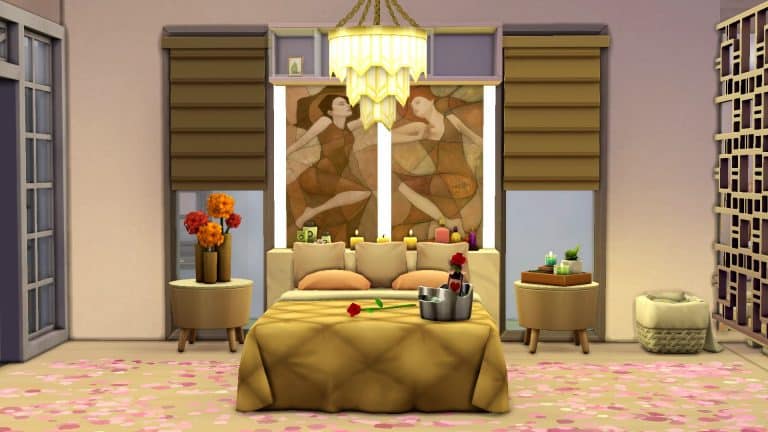
Once I had the bed and table placed the way I wanted, I embellished the area with lots of little details. I added some sleek side tables with romantic candles and flowers, added some romantic décor to the table I used as a headboard, and drew attention to the bed with some lovely statement art I downloaded off the Gallery. If you’re not familiar with Gallery art (or “No CC Gallery Art” as it’s sometimes called), it is custom art that other players have recreated in their games using painter Sims and oodles of patience. The resulting paintings that they upload don’t get flagged as CC so you can download these custom paintings from the Gallery to use in your builds with no hassle! The art collection I used in this build was created by FruitLoops40. Be sure to follow her on the Gallery and check out all of her art collections!

To make the art pop more and cast some romantic lighting over the bed, I used the strip wall lights from Spa Day in between the two canvases and covered up the pieces sticking out at the top with some shelving from Dream Home Decorator. Everything put together like this makes the area look very sleek and polished. For the last finishing touches, I placed the ice bucket with a bottle of wine at the end of the bed along with a red rose I got out of the debug catalogue. If you don’t know how to access the full debug catalogue, use the cheats bb.showhiddenobjects and then the cheat bb.showliveeditobjects in that order. Then type DEBUG in the search field to bring up thousands of small trinkets and world décor pieces to accent your builds. To raise objects on top of things you ordinarily couldn’t, enable the bb.moveobjects on cheat and use the 0-9 keys to lower/raise objects to the desired height.

The Sims 4: Let’s Build a Honeymoon Suite!

After popping in a rug of rose petals underneath the bed, I moved on to another very important part of any ultra-romantic honeymoon suite; the jacuzzi. There was a lot of empty space on one side of the bed so I decided to make a romantic jacuzzi area in that corner. I used a divider from Vintage Glamour Stuff to break up the areas between the bed and jacuzzi without making the space feel closed off and put the sleek, rounded corner tub from Get Famous in the corner, pushed up against another Dine Out accent table for some useful and aesthetically-pleasing shelving behind the tub. Behind the tub along one wall, I put in floor-to-ceiling mirrors to make that corner feel bigger and more grand. Along the other wall, I used some more of FruitLoops40‘s art with robes hanging on hooks on either side. Some finishing touches included the base game shower stool with a towel and lotion on it, the standing Get Famous towel rack, and the Snowy Escape area rug sized up once to use as a bath mat. You can resize objects by enabling the bb.moveobjects on cheat and using the [ and ] keys to make almost any object in the game bigger or smaller.

With the bed and jacuzzi now finished, it was time to put together the rest of the room. Any hotel suite needs some kind of sitting/entertainment area and what romantic getaway would be complete without a balcony to take in amazing views? I constructed shelving around a big-screen TV using a combination of Dine Out accent tables and Dream Home Decorator shelving pieces. I then customized my own spacious and luxurious seating area using Dream Home Decorator’s modular seating. On the other side of the bed, I put in the open French doors from the Industrial Loft Kit which opened out onto a small, intimate balcony. I just built this on one of my blank lots in Willow Creek but I highly recommend putting this room down on one of the penthouse lots in San Myshuno for incredible balcony views!

The Sims 4: Let’s Build a Honeymoon Suite!

Near the entrance, I put a classy buffet table and drink fountain from Luxury Party Stuff, accented with more FruitLoops40 art above it. By the front door, I put in a spot to hang up coats and put away shoes and added a welcome rug along with some decorative plants.

And there you have it! A perfectly romantic couples’ getaway in the lap of luxury in classy shades of cream and gold. This build is called Honeymoon Suite and is in the Gallery under the ID SnarkyWitch! I hope this article gave you some building inspiration and I hope both you and your Sims enjoy this romantic slice of paradise in your games.

The Sims 4: Walkthrough of the Photographic Memory Mod

A little while ago, I had the pleasure of exploring and writing a walkthrough of Ravasheen’s Ink for Yourself Memory Keeper and Custom Journal mod. I was so impressed with that mod, I knew I had to check out her latest mod, the Photographic Memory mod. This is an overhaul of a previous mod of hers but this is my first time exploring either version of the mod. I’ll be walking you through the mod and all of its features, as well as giving my overall thoughts of the mod.

So let’s get into it!

Of course, you will have to install the mod, first. You can get it from Ravasheen’s website. The current version releases to the public TODAY (October 13th, 2021) so go ahead and grab it if you haven’t, already. You can also follow Ravasheen on Patreon (no subscription needed to follow Patreon creators) to find out more about future early access versions if you’re interested. If you need help with installing mods, check out our article Getting Started With Mods and CC.

The Sims 4: Walkthrough of the Photographic Memory Mod

Once the mod is installed correctly, all you have to do to get started creating your photo memories is look in Build/Buy under Activities & Skills > Misc. You’ll find two photo storage objects; a floppy disc and a flash drive. Both objects have the same in-game functions, so it doesn’t really matter which one you choose to purchase. Purchase one or both if you like! You can have as many photo storages as you want. This is useful for organizing your photos into different collections; you can have a flash drive for your wedding photos, another for your vacation photos, and so on.

Click on the floppy or flash drive to bring up more options. Click Label Photo Storage to give your drive a name and description so you can differentiate them if you own multiple. You can also open it to see all the photos contained inside. To start, you won’t have any photos in here, of course, but that’s where the really fun option comes into play; the Photo Studio! Click the Photo Studio option on the drive to bring up a new menu with a variety of creative options:

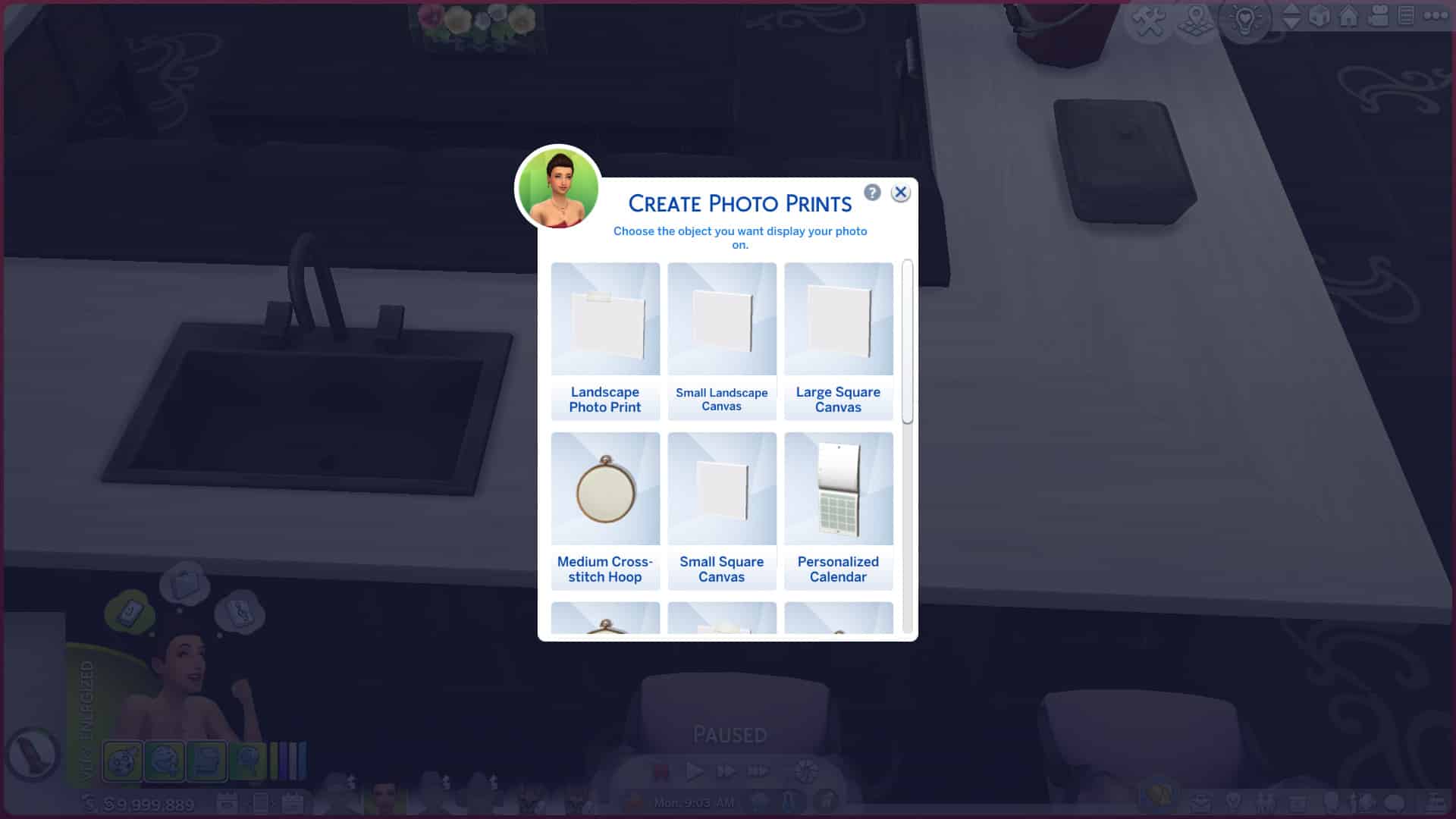
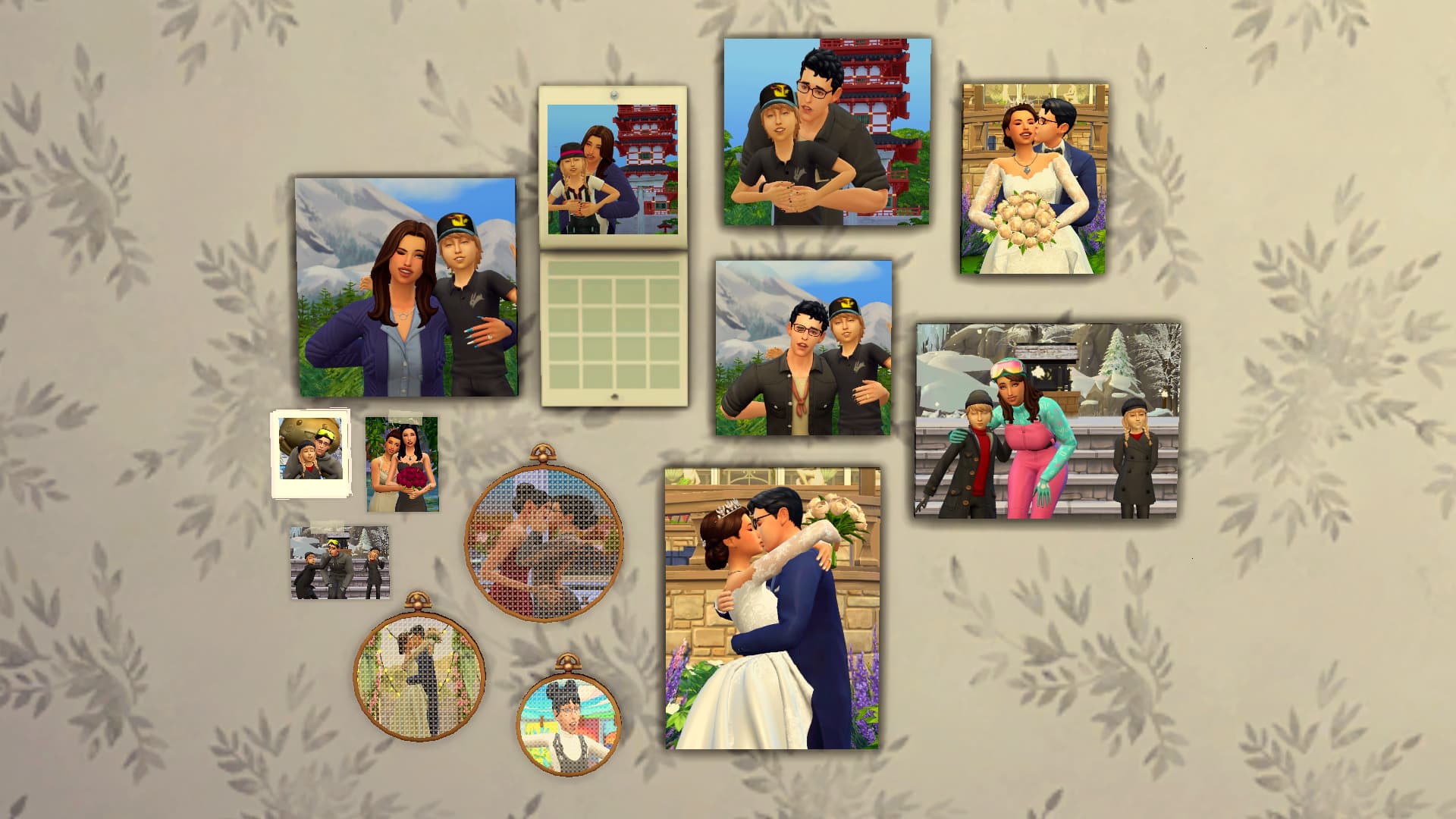
  • Create Photo Gifts: This is probably the option you’ll be using the most. This is where you can purchase copies of your photos to turn into prints, polaroids, calendars, and more! There are a variety of different sizes and photo orientations to choose from. The mod is base game compatible, but if you do have the Cottage Living expansion pack installed, cross-stitch designs will be available to order as well. When you order a print of your photos, it will immediately be added to the active Sim’s inventory. Then you can display it on the wall or keep it safe in your photo storage object.
  • Improve Photo Quality: Did you take a blurry photo, or a photo with a thumb print or gnome blocking the view? No problem! Sharpen up those photos and remove pesky thumb prints and gnomes with this option! Never worry about having a beautiful moment ruined by bad photography again.
  • Transfer Photo, Canvas, or Cross-Stitch: This is a useful function for putting painted art on custom photo objects and for any occasion where you might want to copy the image from one object to another. It’s similar to the Create Photo Gifts option, except instead of creating a copy, it’s a direct image transfer to another object in your Sim’s inventory.

The Sims 4: Walkthrough of the Photographic Memory Mod

If you don’t see the Photo Studio option available, make sure you have some photos in your Sim’s inventory. The option will not be available unless your Sim has some photos to work with.

Once you’ve ordered some custom photo objects, you’ll notice some new options on them! You can name your photos just like you can with your original photos in the game but you can also give them descriptions! Now you can capture all those moments perfectly with just the right description to take you back to those earlier days with your Sims family. You can also set the photographer, change the filter, swap out that photo for a different one if you aren’t happy with your initial selection, and change the rotation.

However, the most exciting option is the Add Moodlet option on all your new custom photos. This is what truly turns your photos into priceless memories for your Sims to reflect on. Click on a custom photo and choose Customize Photo > Add Moodlet to bring up a pie menu of emotions. You can choose between eight different emotions. Pick whatever emotion you feel suits that photo the best. Once you’ve assigned a moodlet to a custom photo, the photo will have an emotional label attached to it, like “Happy Memory” or “Sad Memory” or “Embarrassed Memory.” I chose to make one of my vacation photos from a hike in Mt. Komorebi an Inspiring Memory. Click any custom photo with a moodlet attached to it to recall the memory. I can now click on this vacation photo to have my Sim “Recall an Inspiring Moment.”

Recalling a particular moment will cause the Sim to do an animation related to that emotion and they’ll gain a small emotional moodlet related to the memory for 4 hours. This is much the same feature as what The Sims 4 added to the Screenshot Manager but much more intuitive and better integrated into gameplay. You don’t have to go searching through a bunch of menus to get to it. It’s always right there in your Sim’s photo storage or displayed proudly on the wall in the form of custom prints.

The Sims 4: Walkthrough of the Photographic Memory Mod

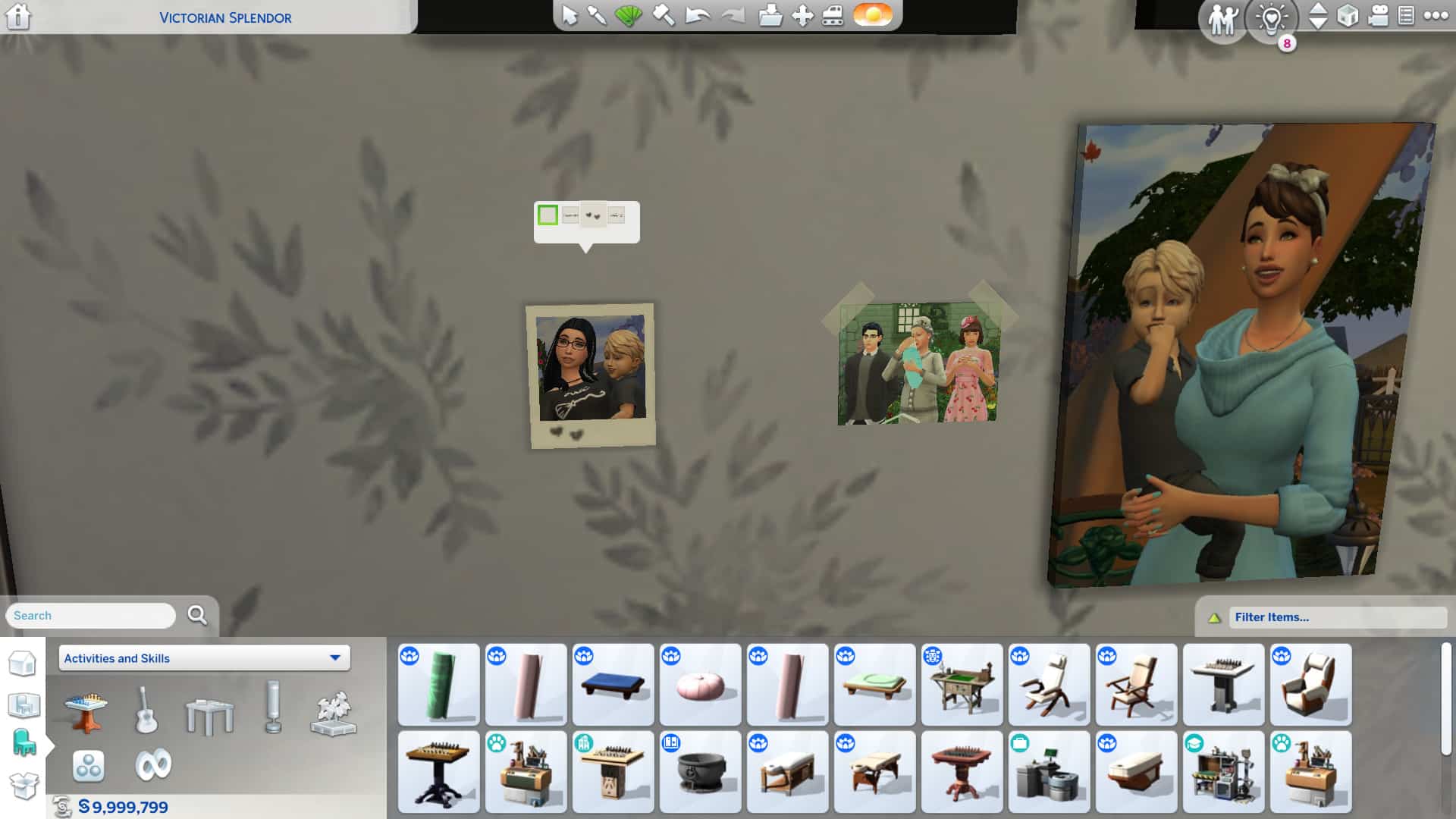
Many of the custom photos have different swatches in Build/Buy. Just to give a few examples, the calendar has a few different calendar day colours, the polaroid has some different writing along the bottom, and the photo prints come both with and without scotch tape variants. This adds an extra layer of customization to your photos.

As you can see, both the custom photos themselves and the photo storage drives are highly versatile to suit your own play style. The drives have separate inventories so you can use them to organize and catalogue all your photo memories. You can even make multiple copies of a set of photos, put them in a drive and gift them to friends and family members if you want them to have copies of your Sim’s wedding, graduation, new baby, or any other important moment in their lives. There are so many different ways to keep and cherish all those moments with your Sims!

The Sims 4: Walkthrough of the Photographic Memory Mod

The best part? If you also have Ravasheen’s Ink for Yourself Memory Keeper and Custom Journal mod, this mod is fully compatible with the journals! You can keep your custom photos in the Ink for Yourself journals alongside all your written journal entries! How neat is that? I can’t wait to start using these two mods together to create wedding albums and vacation albums! The possibilities really are endless.

And if you’re worried that this mod might mess up your original photos… don’t be! The Photographic Memory mod does not override or touch your original photos in any way! This means that if you ever need to remove the mod for any reason, all of your original photos will stay safe and untouched as if you had never installed the mod in the first place. Only the customized copies you made will be gone. Ravasheen really has thought of everything to ensure that all of your precious memories stay safe no matter what.

The Sims 4: Walkthrough of the Photographic Memory Mod

So what are my final thoughts on the Photographic Memory mod? I’m sure it’s probably pretty obvious by my enthusiasm that I love this mod. I already know I’m going to spend hours redoing my Sims’ entire house and cataloguing my hundreds and hundreds of photos into different flash drives for safe keeping and gifting. I know I’m a bit of a sap when it comes to making memories and telling stories with my Sims and I couldn’t help but get a bit emotional while exploring this mod. Seeing all those memories my Sims have made in such beautiful prints on the wall with descriptions, moodlets and everything really brought all those memories to life again for me.

The Sims is my happy place when the rest of the world isn’t so happy and Ravasheen has helped to make my happy little world even happier.

The Sims 4 threatens with another Kit

7

It’s been known for a while that this season for The Sims 4 will bring multiple content updates and Kits only – as shown in their roadmap.

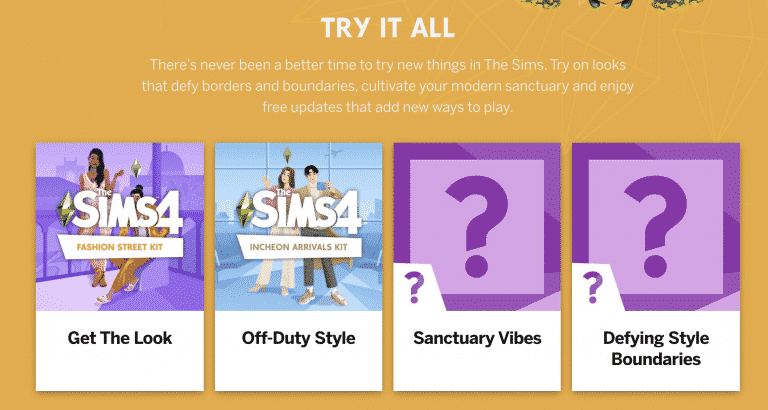
However, not all 4 Kits have been appropriately teased on the official TheSims.com website until today. The 3rd CAS Kit, which seems to be the last of this season, will “defy style boundaries” as teased below:

The Sims 4 threatens with another Kit

So for this season we have three Create A Sim Kits and one Build Kit which has been teased as “Sanctuary Vibes”. If we add up that number to the currently released Kits for The Sims 4, that equates to 4 Build Kits, 4 CAS Kits and only 1 Gameplay Kit for The Sims 4.

Will the upcoming Content Updates for The Sims 4 that promise to “add dimension to our Sims’ lives, let us customize our space with color and unlock new ways to play” be enough to cover the new gameplay aspect for the rest of 2021? So far we’ve gotten the customize our space part from the teaser with the 1200 new object swatches update.

The Sims 4 threatens with another Kit

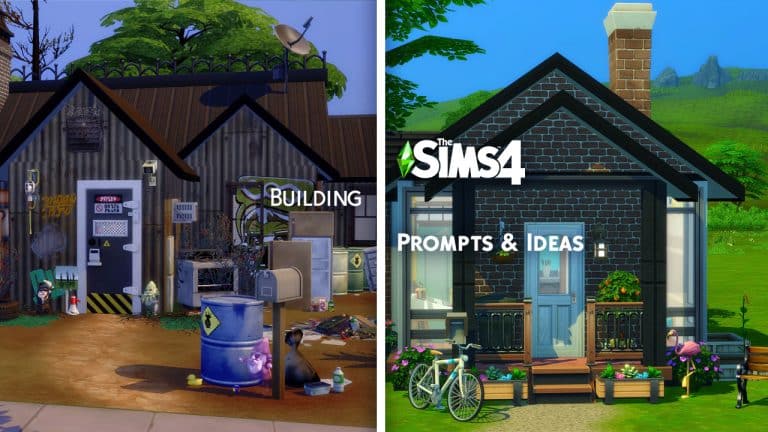
The Sims 4: 70+ Building Prompts & Ideas

0

Building Prompts For Every Occasion!

Every now and then it can be difficult to know what to build in game. You spend what feels like forever trying to figure out what to build, and almost get to the point where you wonder why you opened the game originally in the first place. Well, fear not, as here is a list of over seventy Sims 4 Build prompts and ideas to get you in the building mood!

General Sims 4 Build Prompts

  • Family Home
  • Tiny Home
  • Tree House
  • Beach House
  • Haunted House
  • Log Cabin
  • Jungle Retreat
  • Campsite
  • Country Cottage
  • Spellcaster Home
  • Mansion
  • Farm/Barn House
  • Underground/Underwater House
  • Apartment
  • University House/Dorm Room
  • School
  • Café/Coffee House
  • Restaurant/Diner
  • Pub
  • Vets
  • Gym
  • Library
  • Lounge Bar
  • Nightclub
  • Museum
  • Art Gallery
  • Spa/Onsen Bathhouse
  • Your Dream Home
The Sims 4: 70+ Building Prompts & Ideas

Of course, the ideas listed about are inspired by many of the options and features we currently have in game. Here are a few more Sims 4 Build prompts to help you through that Builders Block

  • Abandoned House
  • Ruins
  • Castle
  • Marketplace
  • Houseboat/Ship
  • Hotel
  • Place of Worship
  • Wedding Venue
  • Maze
  • Festival Lot
  • Concert Venue
  • Underground Bunker/Secret Hideout
  • Floating House
  • Fantasy Inspired House
  • TV/Movie Inspired
  • Book Inspired
The Sims 4: 70+ Building Prompts & Ideas

Let’s not forget a handful of ideas for Room Builds too. Now while we have the standard rooms for most homes, here are a few more ideas of rooms you could add to your builds too.

  • Art Room
  • Play Room
  • At Home Spa/Gym
  • Sauna
  • Recording Studio
  • Photography Studio
  • Craft Room
  • Library
  • Walk-in Closet
  • Gaming Room
  • Conservatory
  • Secret Room/Passages
  • Pantry
  • At Home Theatre/Bowling Alley
  • Secret Laboratory
  • Hobby Inspired

Themed Rooms

We can’t forget some themed Sims 4 Build prompts, either!

  • Modern
  • Classical
  • Boho
  • Historical
  • Fantasy/Supernatural
  • Periodic
  • Haunted
  • Abstract
  • Mid-Century
  • Industrial
  • TV/Movie Inspired
  • Book Inspired
  • Harry Potter
  • Marvel
  • Disney
  • Star Wars
  • Current Trends
The Sims 4: 70+ Building Prompts & Ideas

Disney Castle by KateEmerald

Of course, this is by no means a definitive list, as there are so many ideas out there. These Sims 4 Build prompts might not necessarily be one that you chose to use, but you may think of other ideas of what to build in game because of something mentioned in this list.

Looking for ideas and inspiration for creating new Sims? Take a look at our Create A Sim Look Prompts & Ideas post here!

Let us know if you use any of these prompts by tagging us on Social Media or by joining us over on our Discord Server.

Creator Spotlight: ThePeachyFaerie

A custom content creator whose creations I’ve been loving lately is ThePeachyFaerie! Now you may recognize the name as they were also a part of The Sims 21st Birthday collaboration earlier this year.

https://www.youtube.com/watch?v=DAQBfn7doVI

Jaden’s creations mainly focus on Create A Sim additions including a variety of different make up options, skin details, eyebrows and tattoos, but they also have a reshade preset too. Each and every piece of custom content is beautiful and works brilliantly alongside many of the Maxis created content options that we have in game already.

I’ve been using a number of Jaden’s creations in my own game as well as the XOXO reshade preset, and honestly I’ve loved having each piece of content in game. I’ve been able to create so many wonderful looks for a number of different themes, and everything just comes together perfectly when using Jaden’s custom content.

Apart from creating custom content, Jaden also regularly uploads a variety of videos to their YouTube channel including the Not So Berry Challenge, Townie MakeoversCreate A Sim Videos, Custom Content Showcases and more!

https://www.youtube.com/watch?v=3bjsycgUUFY

You can find and follow ThePeachyFaerie using the links below!

The Sims Community Challenge: October

It’s time to get spooky Simmers!

The October challenge is here, and it is something that has been highly requested by many players. I’m happy to reveal that we have our first Create A Sim challenge! So grab your pumpkins, ghosts, skeletons and of course your Sims, and it’s time to get your Sims ready for Halloween.

Now, there are two parts to this challenge, both of which will need to be completed in order to submit your entry.

Part One

Create A Spooky Sim! This can be an individual Sim, two Sims or your current family. Any Sim that you want to use! Just no more than eight Sims in total.

Part Two

Take your best spooky screenshot!

The Sims Community Challenge: October

Challenge Rules

  • One entry per person
  • Custom Content is allowed
  • Poses may be used for your screenshot
  • Screenshots must be family friendly

Once you have completed both of these steps, you can submit your entries by one of the following ways.

Twitter – upload your image to Twitter using the hashtag #SCSpooky!

Discord – head over to our Discord server and head to the Spooky Sims Channel, which you can find under the Announcements & News category. Upload your image with the caption #SCSpooky!

Click the button below to join The Sims Community Discord 

[mks_button size=”large” title=”Sims Community Discord” style=”squared” url=”https://discord.gg/6kRVv4h2je” target=”_blank” bg_color=”#4e62ac” txt_color=”#FFFFFF” icon=”” icon_type=”” nofollow=”0″]

Closing date for entries: Saturday 23rd October 2021 at 10am PST/6pm BST/ 7PM CET. The Spotlight post will be released a few days after entries have closed. Don’t worry, it will be just in time for Halloween!

If you have any questions, feel free to ask them in the comments below, or head over to our The Sims Community Challenge channel on our Discord server! If you aren’t a member of our Discord Server, you can click here to join.

Good luck, have fun, and we can’t wait to see your spooktacular creations!

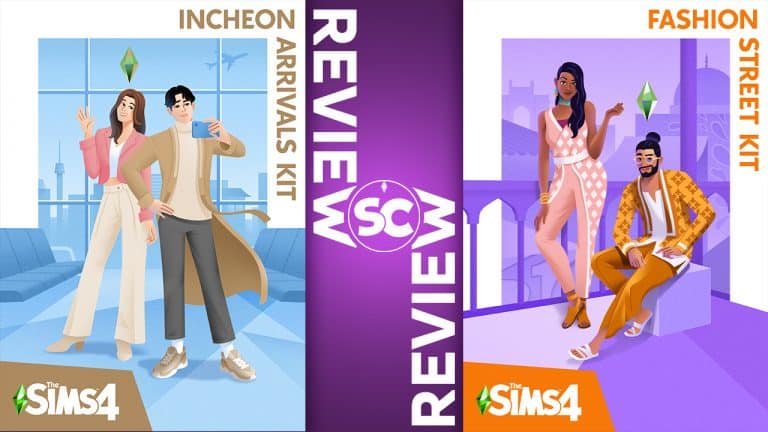
Review of The Sims 4 Incheon Arrivals & Fashion Street Kits

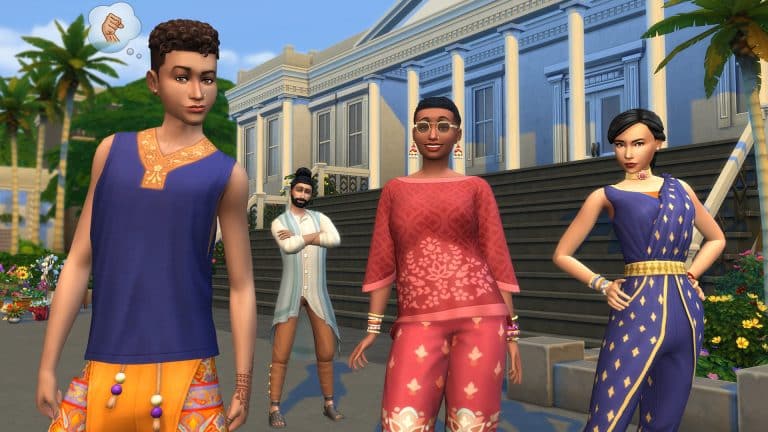
This week, we said hello to two new CAS kits that were added to The Sims 4’s extensive list of add-on packs; Incheon Arrivals and Fashion Street. The kits showcase fashion from different cultures, with Incheon Arrivals focusing on airport fashion based out of South Korea, and Fashion Street highlighting India’s vibrant and colourful fashion style.

We tend to look at these bite-sized kits with a rather critical eye; after all, such small collections of content should be of the highest quality if The Sims expects its players to spend $5 (or more in some countries) on them. While some of the kits have impressed us in the past, others have fallen short. When we dove into Incheon Arrivals and Fashion Street, we were dearly hoping to be impressed after the underwhelming Industrial Loft Kit.

Review of The Sims 4 Incheon Arrivals & Fashion Street Kits

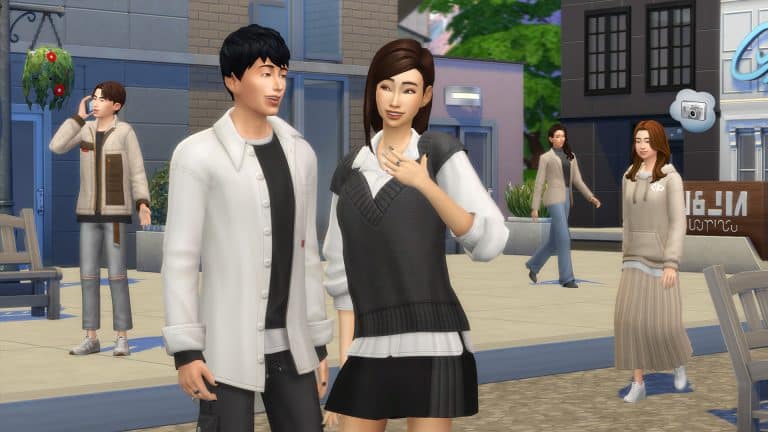
So let’s start with Incheon Arrivals. This kit comes with 20 items for teen-to-elder Sims in both feminine and masculine styles. Somewhat surprisingly, it contains no items for children or toddlers. The overall vibe of the kit is very comfy casual but trendy, with looks inspired by K-pop bands as well as a few pieces reminiscent of traditional South Korean attire. We were actually pretty impressed with the quality of the pieces in this kit. Everything looks very chic with nice textures and the casual yet trendy pieces can suit a variety of different looks. Although the swatch selection isn’t bad, there is a heavy focus on neutral colours. We would have liked to see some brighter colours in some of the swatches. Still, the neutral tones do make it easy to mix and match pieces with many different packs as well as the base game. We also enjoyed some of the soft pastel swatches. Many of the tops have multiple layers that fall nicely over a wide variety of bottoms in the game, which is really exciting to see because we haven’t really gotten much layered clothing that’s this versatile before. It also seems that The Sims Team is finally listening to us about masculine clothing because there is almost an exact equal number of masculine and feminine clothes and a large number of unisex items as well.

Review of The Sims 4 Incheon Arrivals & Fashion Street Kits

However, we also noticed some problems with the Incheon Arrivals Kit, mainly with how some of the pieces layer with each other. The calf-high heeled boots get cut off at the ankles when worn with the ankle-length pleated skirt from the kit. Even though the ankle boots strangely look quite good as well, that’s still no excuse for a glitch like this. Again, there are only 20 pieces in this kit and it costs $5. Every single thing in the kit should be polished to perfection. We also noticed a small but irritating conflict with the layered blazer and the pleated skirt in the back. The blazer cuts through the skirt a bit in the middle instead of neatly layering over it. This is a really big bummer because otherwise, this kit is really solid.

Review of The Sims 4 Incheon Arrivals & Fashion Street Kits

Moving on to Fashion Street, which showcases colourful Indian fashion, we were happy to see such an emphasis on accessories. Incheon Arrivals does not come with any accessories so it was nice to get quite a few accessories in Fashion Street. In fact, Fashion Street has a really impressive variety of items, from shoes to tops and bottoms, to full-body outfits, and even jewellery and tattoos. There is a lot to work with in this kit. Fashion Street comes with 30 different CAS pieces, which is more than what we usually get in CAS kits. Most tend to be around 20 items, like Incheon Arrivals. The one drawback is out of 30 items, 0 of them are for children or toddlers. Everything is for teen-elder Sims.

Review of The Sims 4 Incheon Arrivals & Fashion Street Kits

We were very happy with the quality of pretty much everything in Fashion Street. All the pieces have beautiful textures and patterns and a large number of swatches. Most of the swatches are bright and colourful with intricate designs and patterns but there are a few plainer variants in the mix as well. Overall, we felt that Fashion Street came out stronger than Incheon Arrivals in the swatch variety but the juxtaposition of the two styles offer a nice variety of looks for players. While all the clothing is beautiful, we were most excited by the number of accessories, especially the new nose ring and tattoos! If you wanted any kind of facial piercing in the game before, you had to spend a whole $40 on either Discover University or Eco Lifestyle and let’s just be honest; the piercings in those expansions are plain, chunky and awful. The nose ring that comes with Fashion Street is so delicate and detailed, it’s honestly gorgeous. The same goes for all of the other accessories, from the chandelier earrings to the beaded choker. The henna hand tattoos also come in a few different colours and different patterns which is something we don’t get very often with the game’s tattoo selection.

Review of The Sims 4 Incheon Arrivals & Fashion Street Kits

So overall, what’s our take on The Sims 4 Incheon Arrivals and Fashion Street Kits? Well let’s just say we’re happy we didn’t have to drag another kit in a review. We thoroughly enjoyed exploring these styles from around the world and getting creative with designing our own unique looks using all the new content. However, that doesn’t mean we’re okay with the glitches and issues that seem to come along with almost every single kit, including Incheon Arrivals. Fix. Your. Stuff. EA. Were it not for the layering problems with the boots, skirt, and blazer, we would have praised Incheon Arrivals just as highly as Fashion Street.

COMMUNITY POLL: Your Opinion on The Sims 4 Fashion Street Kit

We love to hear your thoughts and opinions on new content that comes out and with the release of two new CAS kits this week, we wanted you to share your thoughts with us in one of our community polls. It’s time for you to submit your feedback about The Sims 4 Fashion Street Kit!

Please note that this is a community, fan-run poll. This poll is not affiliated with or endorsed by EA or Maxis in any way.

COMMUNITY POLL: Your Opinion on The Sims 4 Fashion Street Kit

[totalpoll id=”102308″]

COMMUNITY POLL: Your Opinion on The Sims 4 Incheon Arrivals Kit

We love to hear your thoughts and opinions on new content that comes out and with the release of two new CAS kits this week, we wanted you to share your thoughts with us in one of our community polls. It’s time for you to submit your feedback about The Sims 4 Incheon Arrivals Kit!

Please note that this is a community, fan-run poll. This poll is not affiliated with or endorsed by EA or Maxis in any way.

COMMUNITY POLL: Your Opinion on The Sims 4 Incheon Arrivals Kit

[totalpoll id=”102305″]

The Sims 4: How to Make Sure Your Creations Qualify to be Maxis Curated!

Have you ever dreamed of having one of your Gallery creations be noticed by Maxis? Ever wondered what makes them choose one creation over another? Have you ever been left scratching your head, wondering why on earth that amazing build or creative household you made didn’t get a Maxis fav while another creation that wasn’t as detailed as yours did?

The truth is, The Sims Team has a system in place for selecting which creations become Maxis Curated. There are several things they look for and some rules players have to follow in order for their creations to be considered. All Maxis Curated creations have been downloaded and tested by The Sims Team for any potential issues or problems. They do not exclusively pay attention to established creators; they go out of their way to find new and unknown creators to showcase as well, so everyone really does have an equal opportunity to have their creation become Maxis Curated, no matter how small of a following they have.

The Sims 4: How to Make Sure Your Creations Qualify to be Maxis Curated!

So what are the exact requirements? SimGuruIcarus shared a post detailing the whole selection process on the official forums, which we will summarize down below.

Households

  • Outfits should be innovative and unique. Pair together varied and interesting pieces.
  • Celebrities, public figures, and copyrighted fictional characters will not be considered.
  • Backstories for your households are not required, but greatly preferred! The Sims Team loves reading interesting backstories.
  • Households with custom content will not be considered.
  • Households with custom poses will not be considered unless all Sims and pets are standing and most of the body is visible in the preview image.

Lots & Rooms

  • Builds with custom content will not be considered.
  • You are allowed to use the moveobjects cheat, but The Sims Team does not test with that cheat. So if your build does not look right in a game that does not have MOO enabled, it will not be considered. Missing and overlapping/flickering objects are a no-no. Be careful when using MOO and make sure your build still looks the way it should without it.
  • Sims must be able to use and interact with everything in the build. Clutter is great but make sure it doesn’t impede functionality.
  • Sims must be able to access every room/area of the build, including gardens and pools.
  • Builds that use custom thumbnails will not be considered. The build must look exactly the same in the Gallery preview as it does in the game.
  • Builds that resemble or mention copyrighted content will not be considered. So that great build inspired by your favourite TV show is not eligible for a Maxis fav, unfortunately.
  • Items can be resized as long as they do not disappear or flicker when downloaded into someone else’s game.
  • Complexity is a factor; preference is given to more detailed builds but that doesn’t mean your simple starter build won’t receive a Maxis fav! They do like simple builds, too.
  • The price of a build is not a factor when selecting Maxis Curated builds.
  • The Sims Team does not always test builds in the same season they were created or designed for but this does not impact your chances for selection.

General

  • All creations must follow the Terms of Service.
  • Only original content will be considered. Reuploads of someone else’s content are not eligible to be Maxis Curated. Respect your fellow creators.
  • The item name and description should not contain any offensive or inappropriate content or language. Neither should your profile or catalogue.
  • The Sims Team loves holiday-themed creations! Don’t hesitate to share your holiday creations around the holidays because The Sims Team curates a lot of holiday stuff around those times.
  • The Sims Team does not favour established creators. They look for small creators to showcase as well.

We hope this summary helps you get that coveted Maxis Curated tag on one of your creations someday! Keep creating and having fun!


Thank you to Jade from our Sims Community Facebook group for linking me to the post detailing the selection process!

The Sims Community Challenge: September Showcase

September’s The Sims Community Challenge was all about getting creative and thinking outside the box. With a more freedom to create what you did not hold back! Thank you to everyone who took part in the challenge, we’ve loved scrolling through and taking a look at all of your creations. Click here for a quick recap of what was involved for the September Challenge!

Without further ado, let’s take a look at some of the creations!

Apollo 13 by Pouki8

The Sims Community Challenge: September Showcase

  • Value –  $95,518
  • Click here to view on The Gallery

Fall Pumpkin House by BuildByMichelle

The Sims Community Challenge: September Showcase

  • Value – $44,766
  • Click here to view on The Gallery

Squid Game by BuiltByApril

The Sims Community Challenge: September Showcase

  • Value – $90,391
  • Click here to view on The Gallery

Head over to page two for more creations!

The Sims 4 Fashion Street Kit Lookbook

With the recent release of the Incheon Arrivals and Fashion Street Create A Sim focused Kits, SnarkyWitch and I decided to collaborate on not one but two new lookbooks for the Kits!  We created a number of new looks that were inspired by both Kits. You can check out The Sims 4 Incheon Arrivals Kit Lookbook here!

For this post, we’ll be taking a look at some of the looks we created using The Sims 4 Fashion Street Kit, Base Game and one other pack. As always these looks are Custom Content free!

You’ll find all the information about each look below!

The Sims 4 Fashion Street Kit Lookbook

Vacation Cool

Outfit

Hair: Swept Middle Parting (Base Game)

Top: Patterned Top with Necklace (Fashion Street)

Bottom: 3/4 Length Jeans (Cats & Dogs)

Shoes: Relaxed Lace Ups (Cats & Dogs)

Accessories: Watch (Base Game)

The Sims 4 Fashion Street Kit Lookbook

Professional in Purple

Outfit

Hair: Updo with Gold Circlet (City Living)

Top: Patterned Blouse over Low-Cut Top (City Living)

Bottom: Flared Pants (Fashion Street)

Shoes: Toe Sandals (Fashion Street)

Accessories: Nose Ring (Fashion Street) / Thick Beaded Choker (Fashion Street) / Layered Bangles (Fashion Street) / Henna Hand Tattoo (Fashion Street) / Nails (Base Game)

Makeup: Eyeliner (Base Game) / Eyeshadow (Base Game – MAC Cosmetics) / Contour (Base Game – MAC Cosmetics) / Lips (Base Game – MAC Cosmetics) / Highlight (Base Game – peachyfairie)

The Sims 4 Fashion Street Kit Lookbook

Casual Yet Comfortable

Outfit

Hair: Tied Up Braids (Dream Home Decorator)

Top: Patterned 3/4 Sleeve Top (Fashion Street)

Bottom: Bootcut Jeans (Dream Home Decorator)

Shoes: Sandals (Fashion Street)

Accessories: Necklace (Dream Home Decorator), Small Hoops (Base Game) & Layered Bracelets (Fashion Street)

Makeup: Blush and Lips (Base Game – MAC Cosmetics) &  Eyeshadow & Eyeliner (Base Game)

The Sims 4 Fashion Street Kit Lookbook

Dripping in Gold

Hair: Spiked Sideswept with Long Fringe (Vampires)

Top: Patterned Button-Up Tunic with Gold Pocket Chain (Fashion Street)

Bottom: Ornate Patterned Pants (Vampires)

Shoes: Comfy Sandals (Fashion Street)

Accessories: Earring (Vampires) / Beaded Tassel Bracelet (Base Game) / Henna Hand Tattoo (Fashion Street) / Nails (Base Game)


Credits

This post was a collaboration between Krista and SnarkyWitch!

Don’t forget to show us your The Sims 4 Fashion Street Kit looks over on social media!