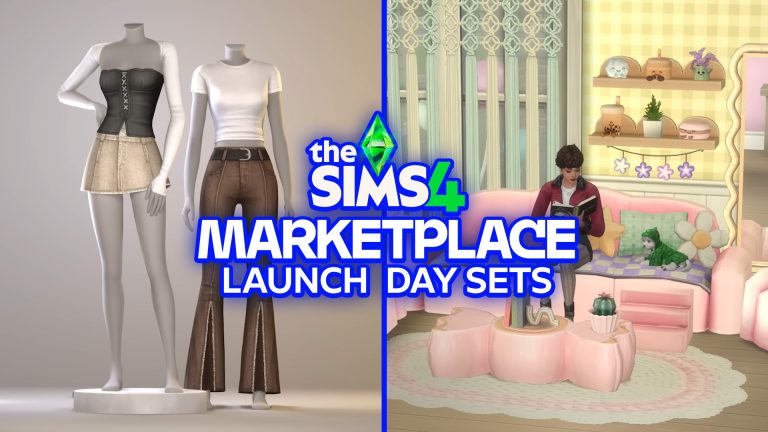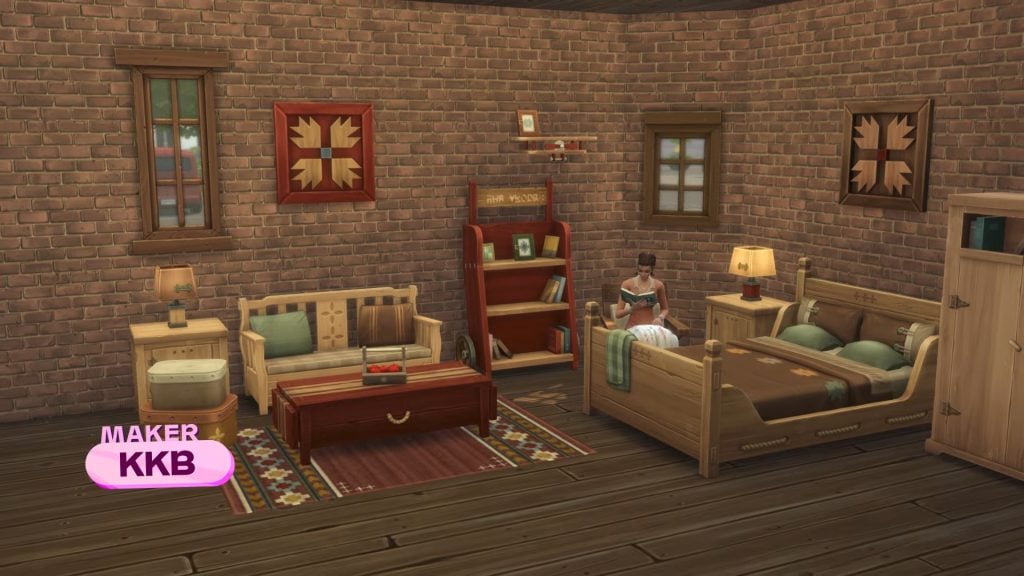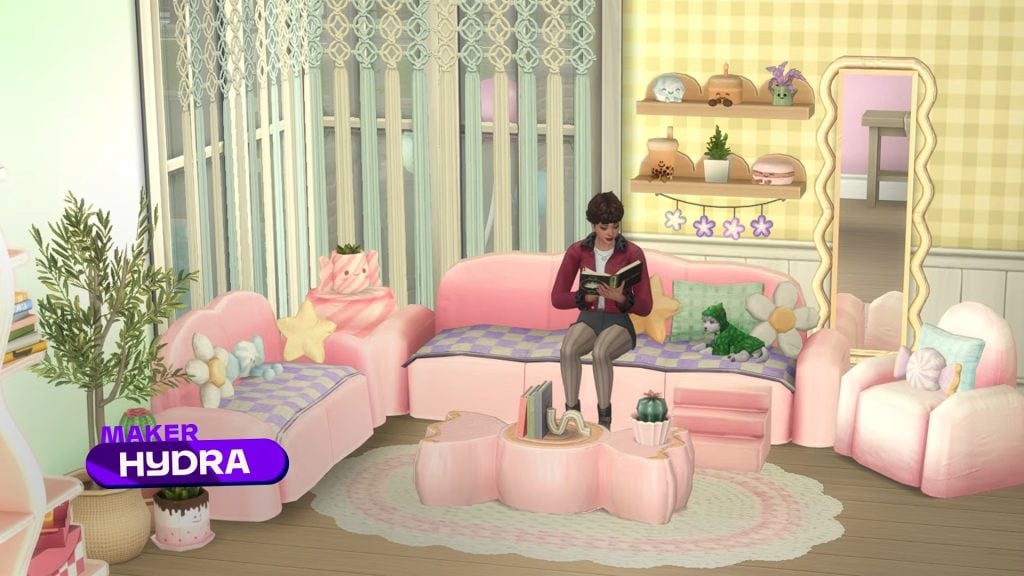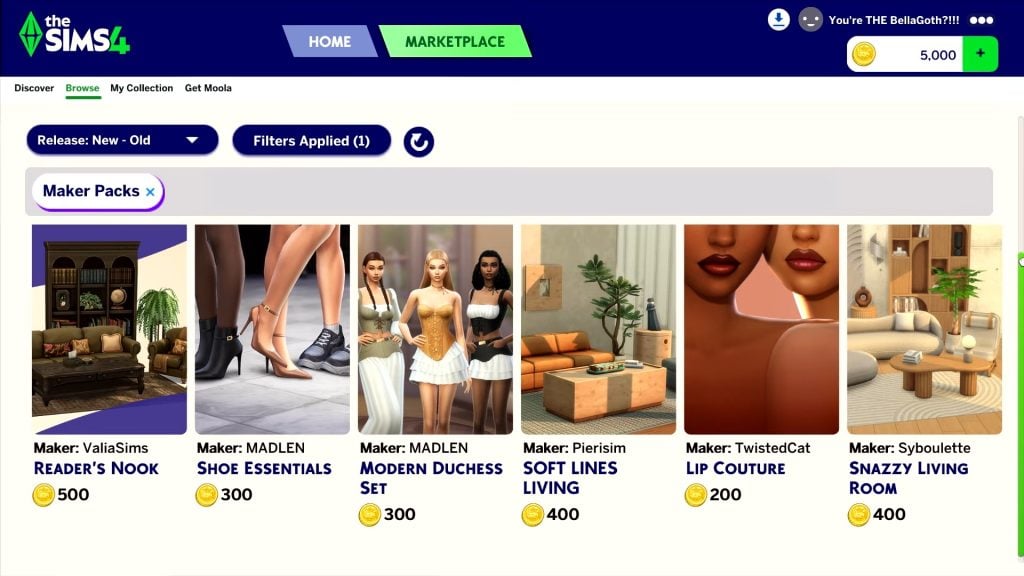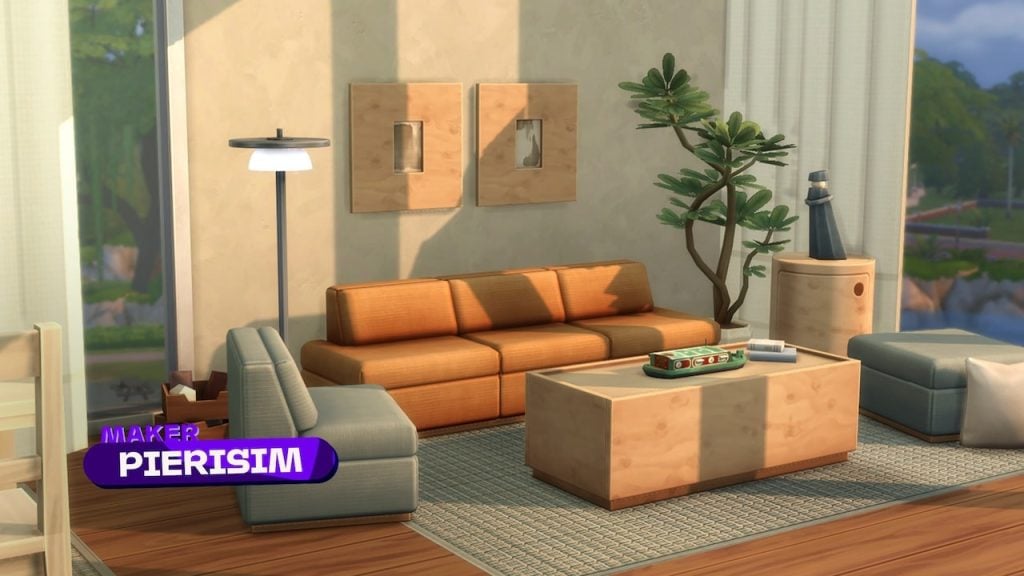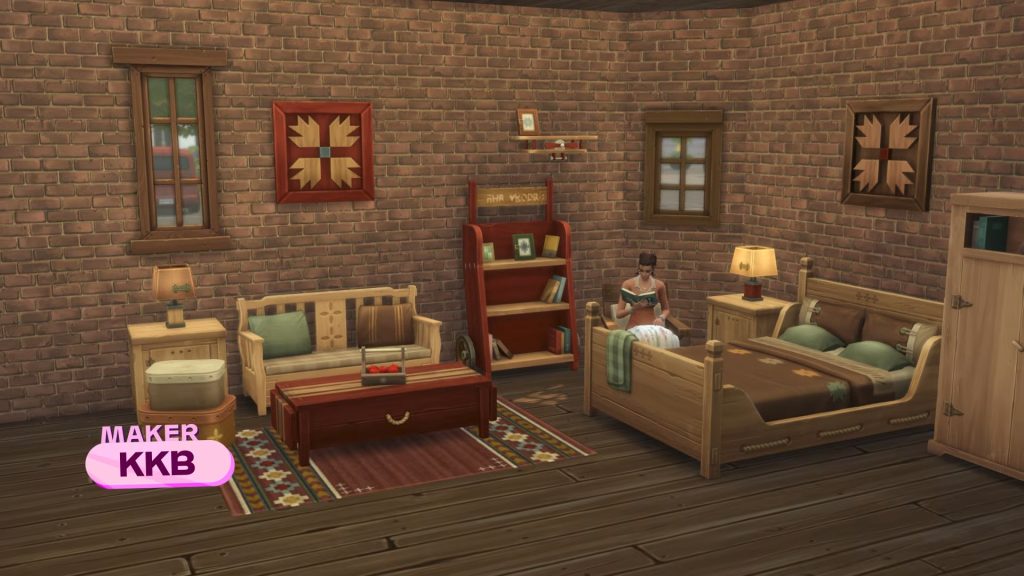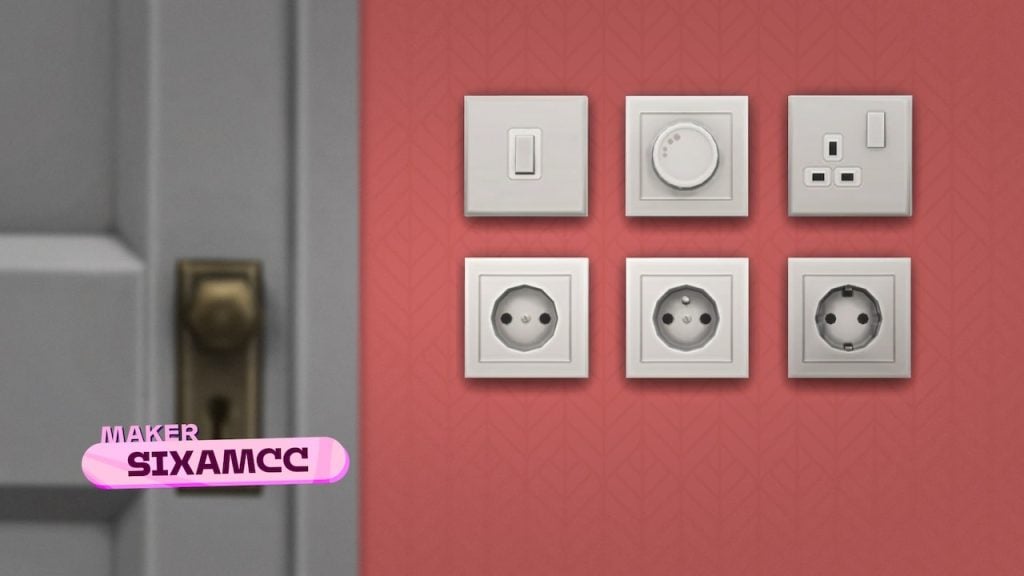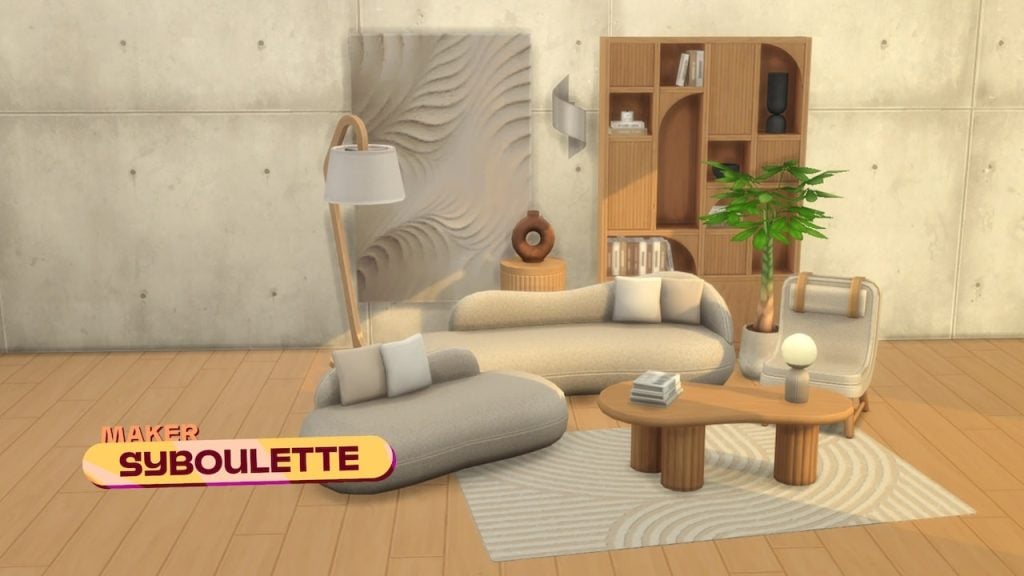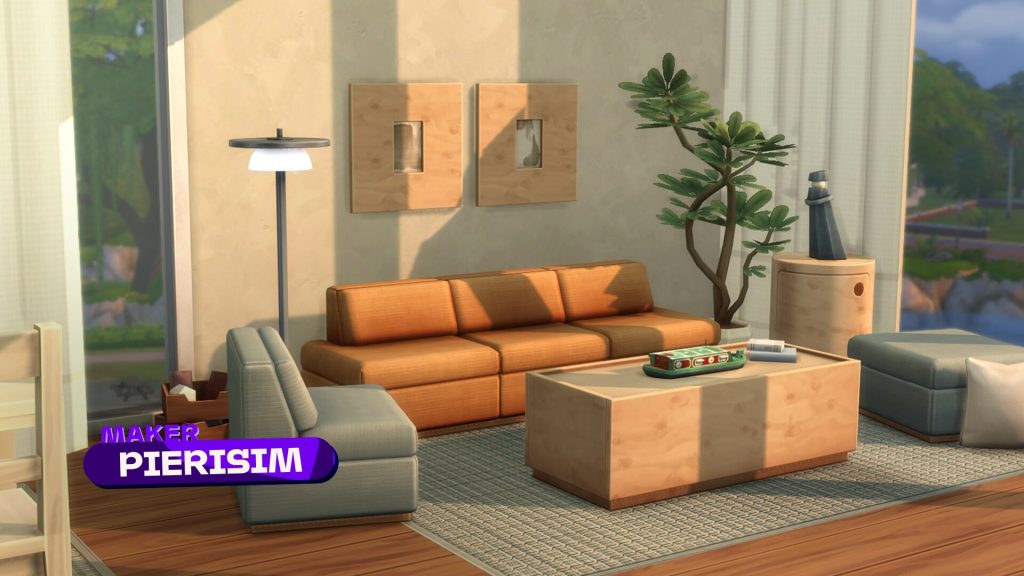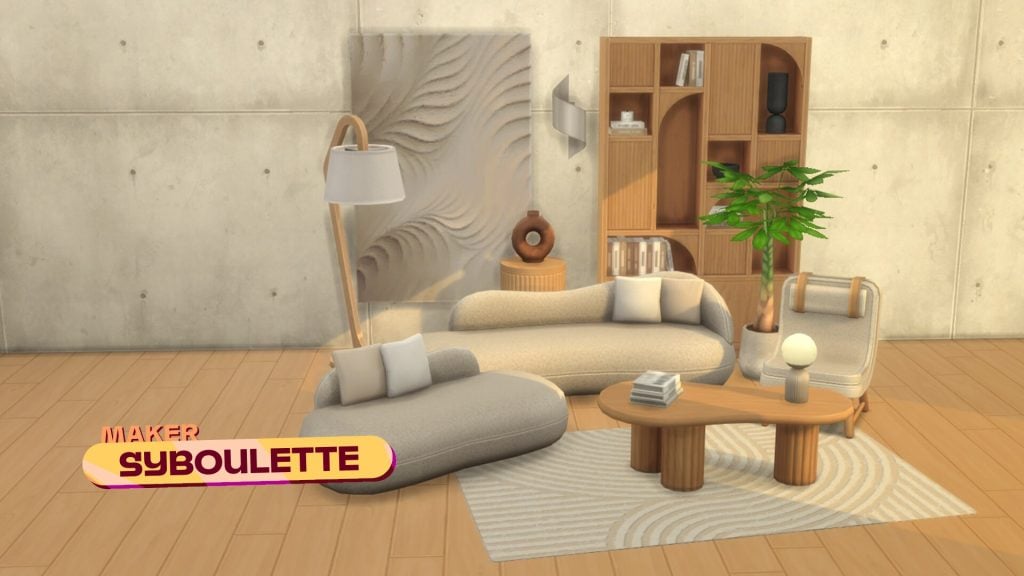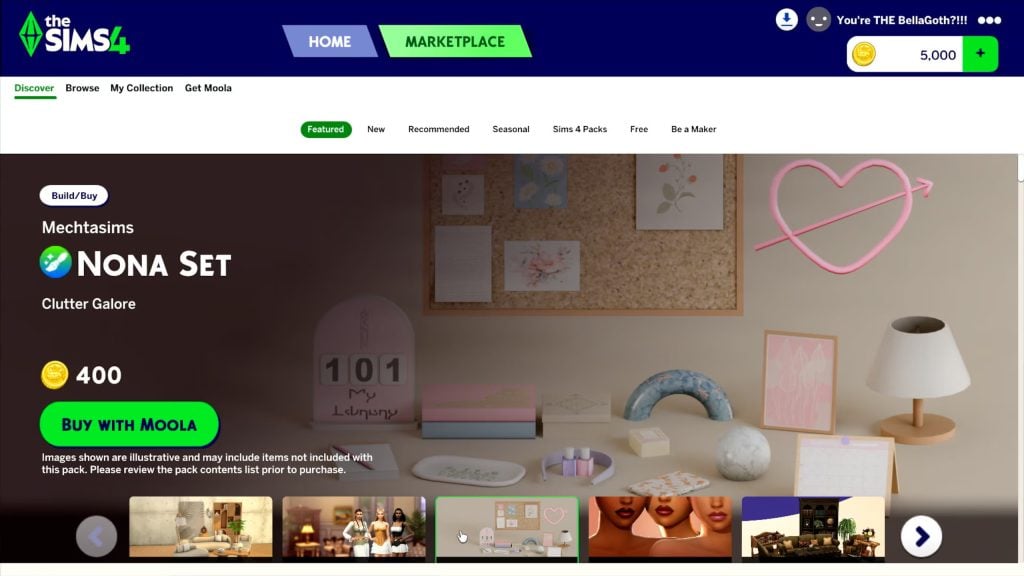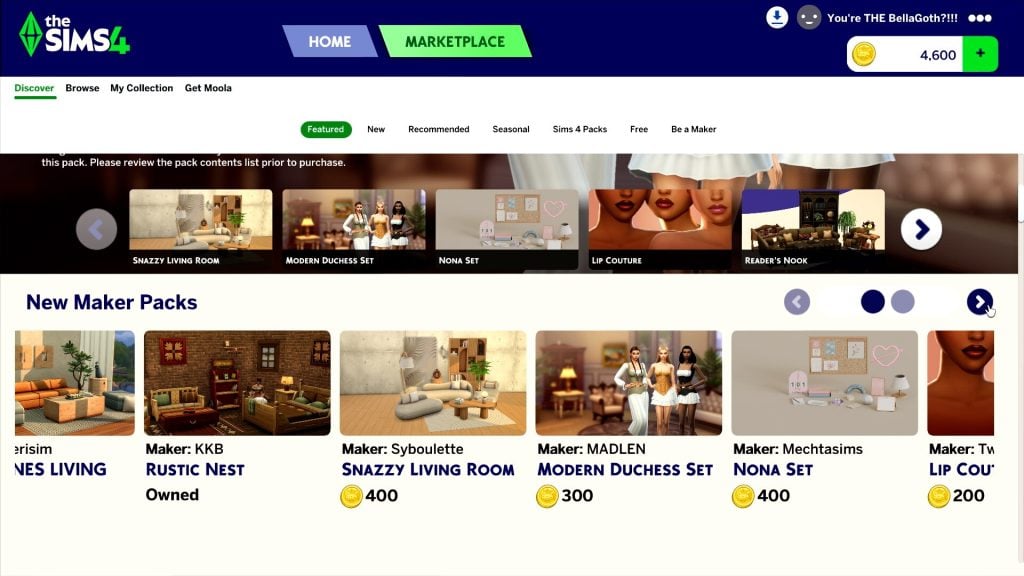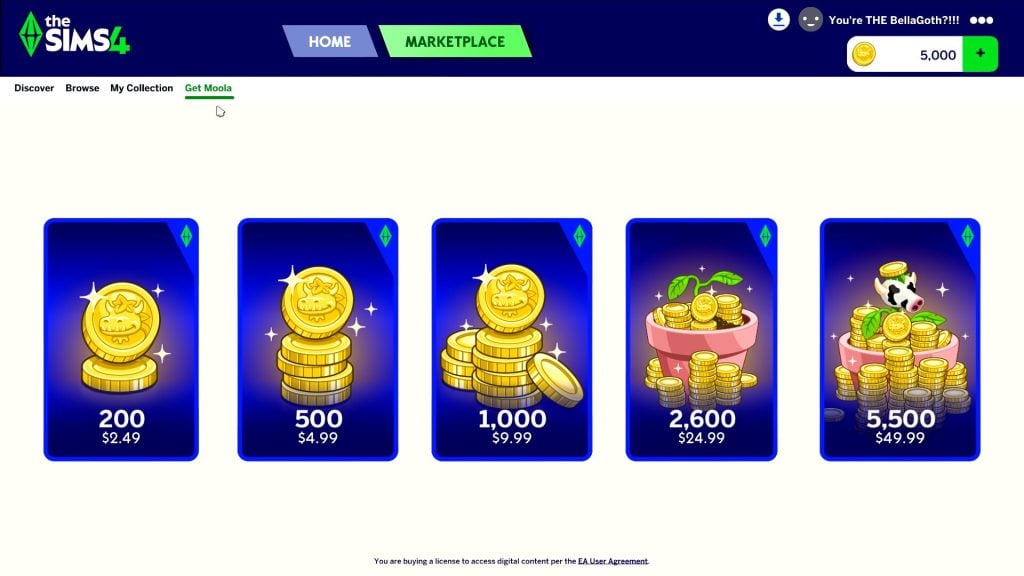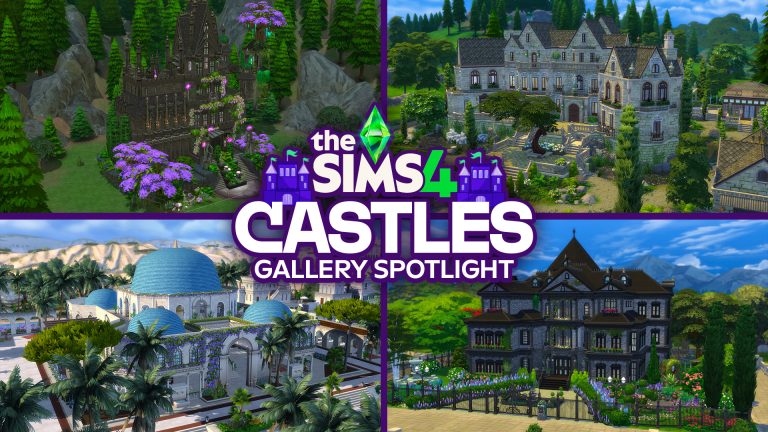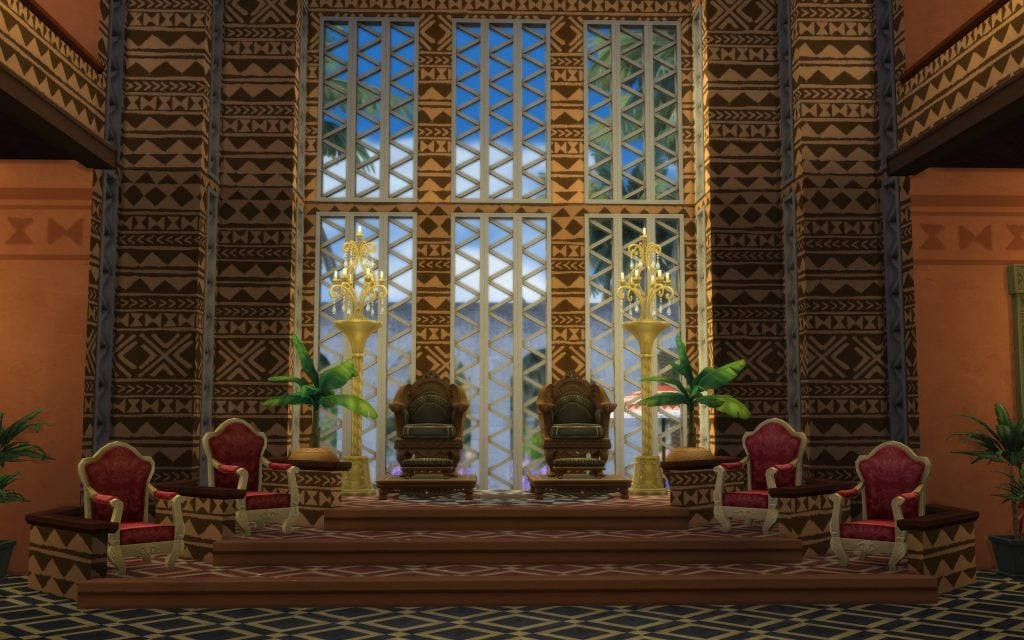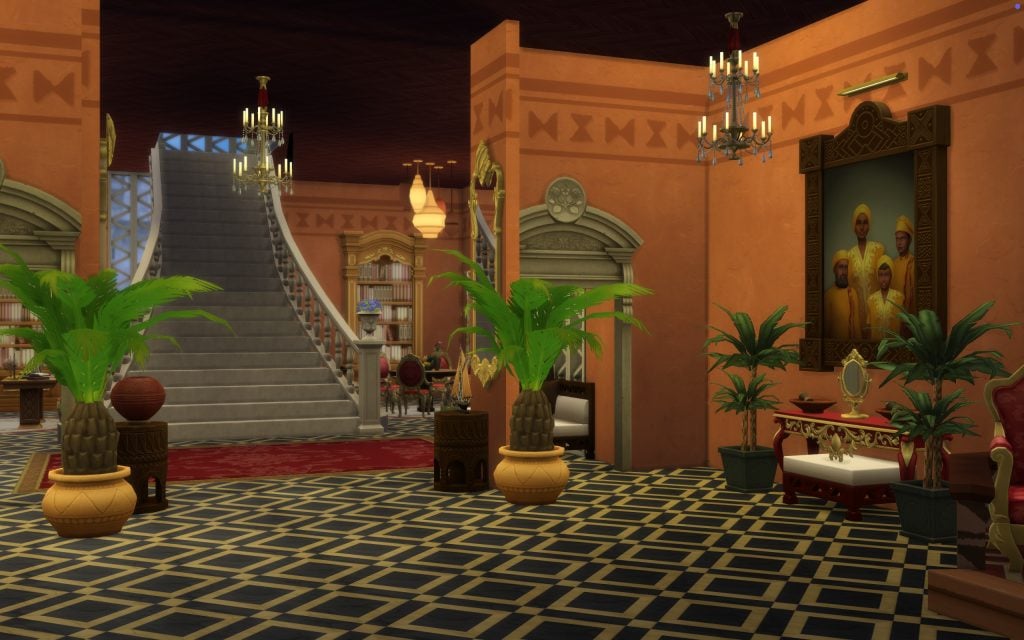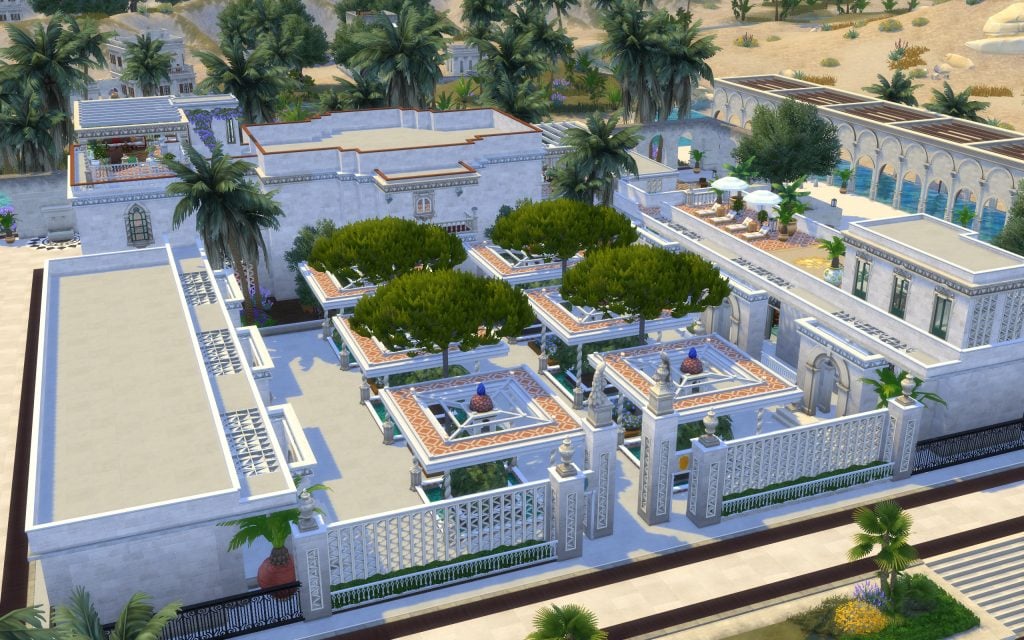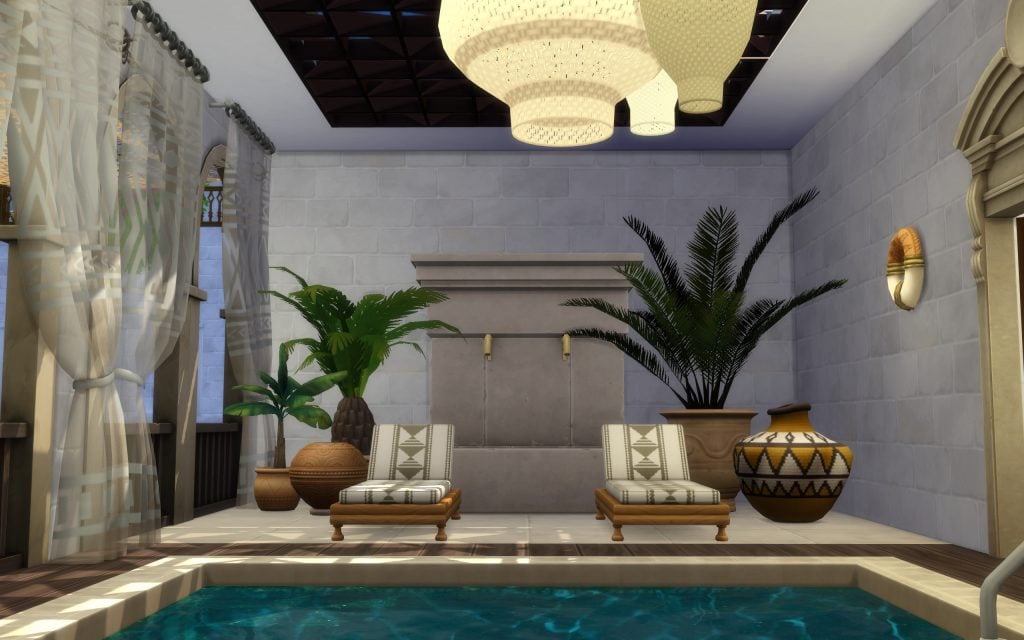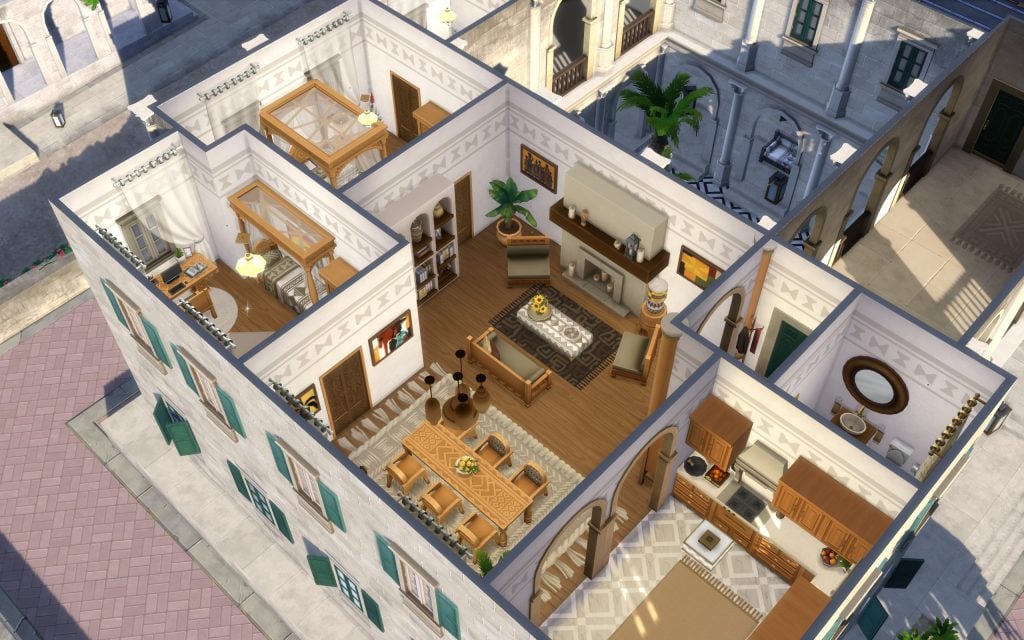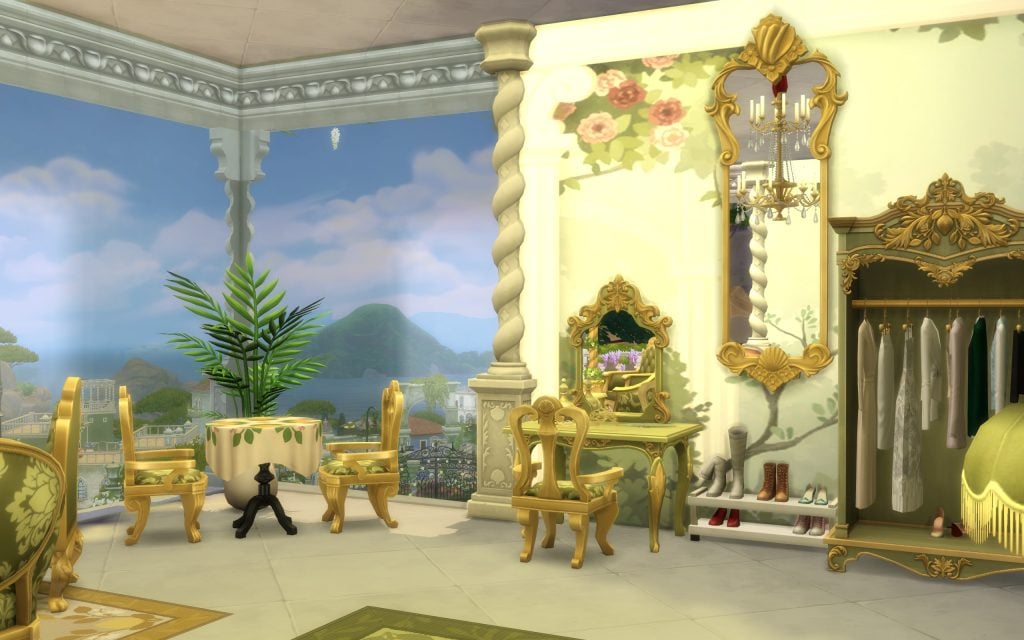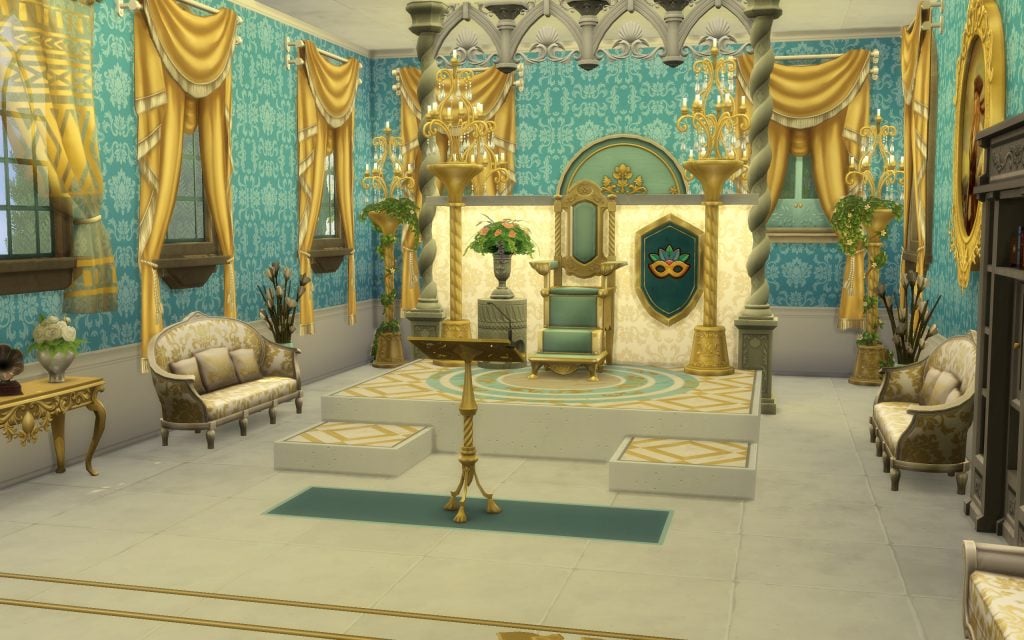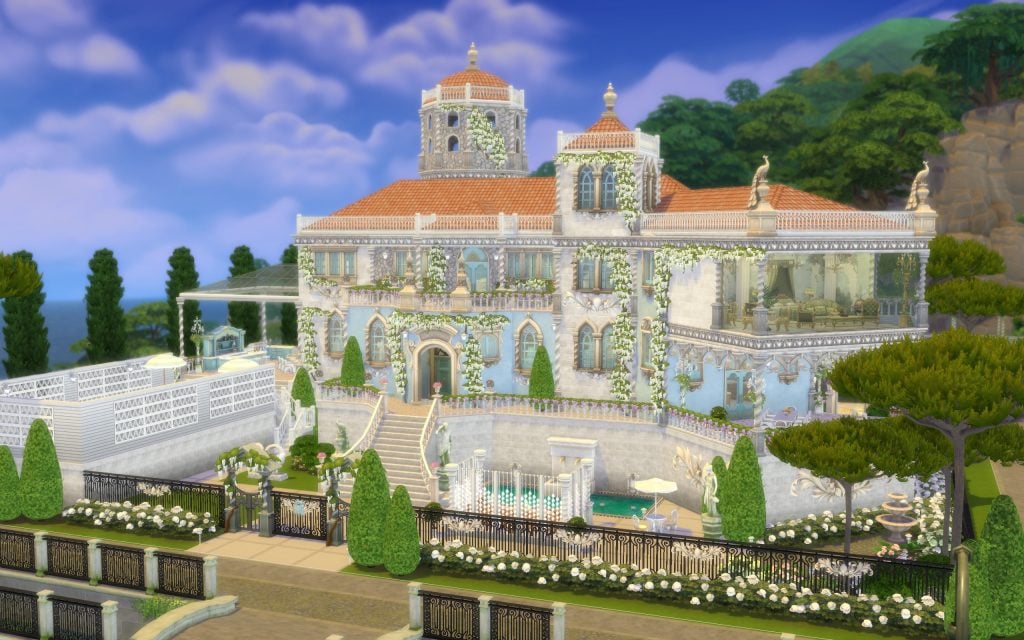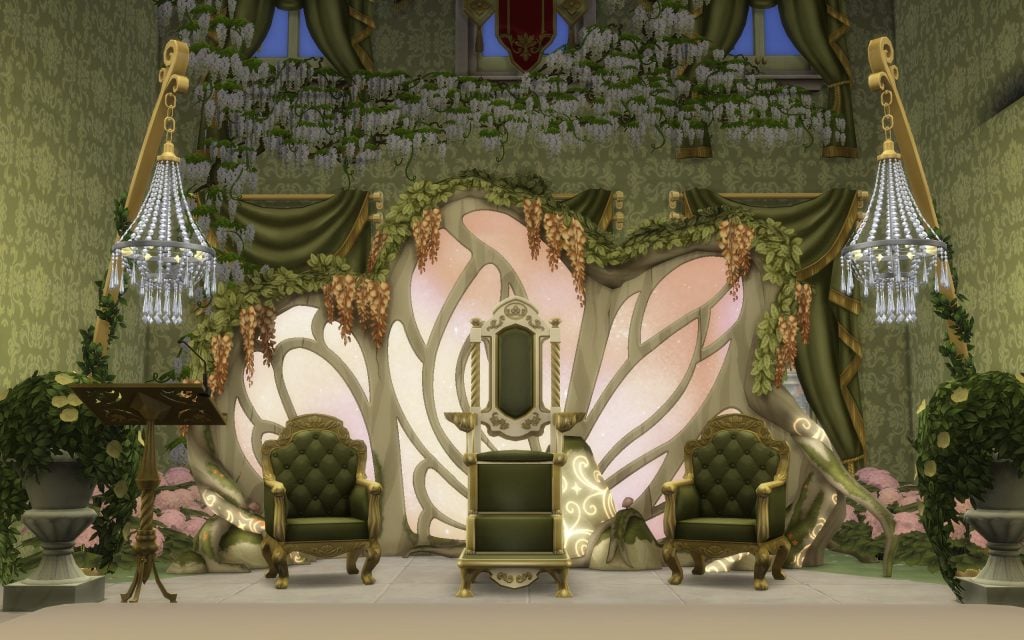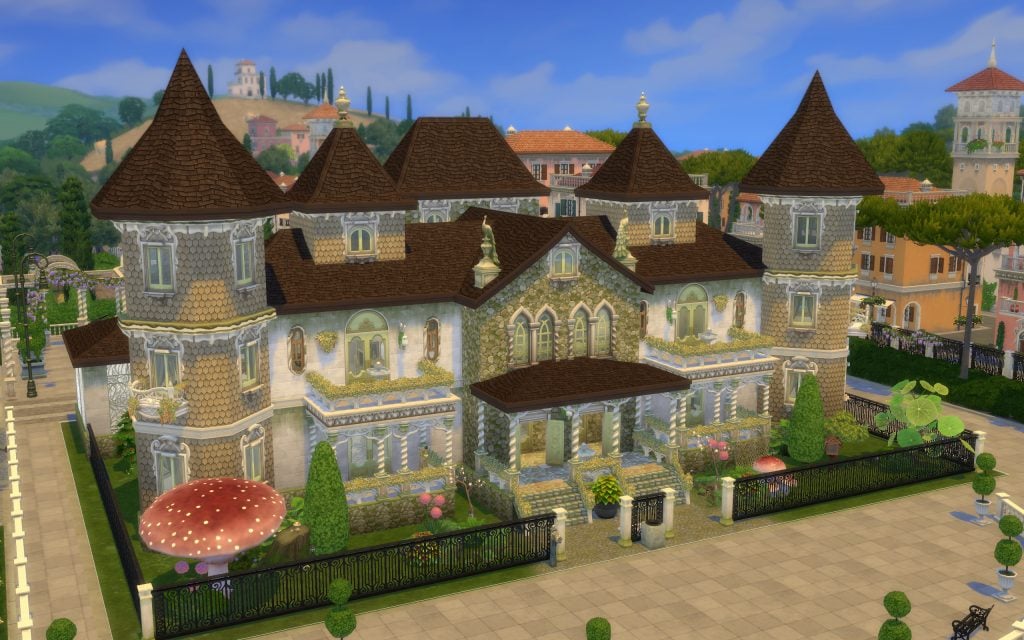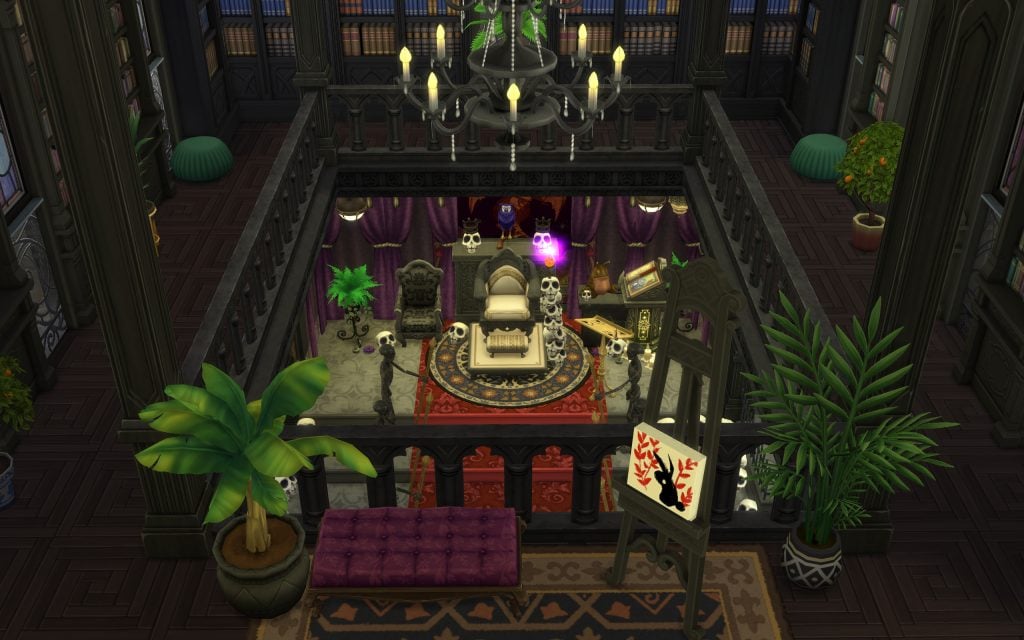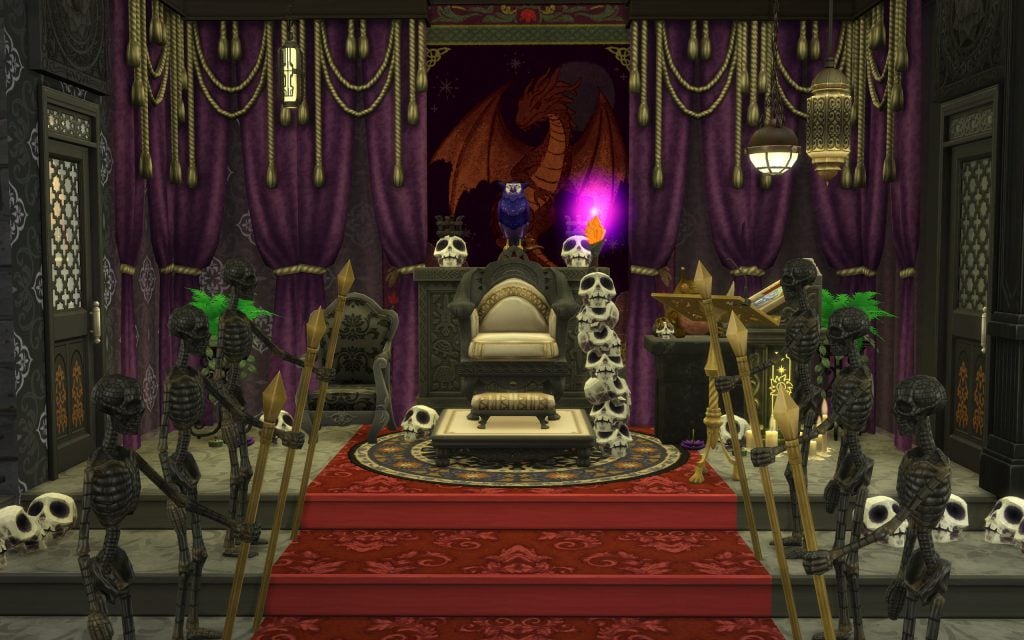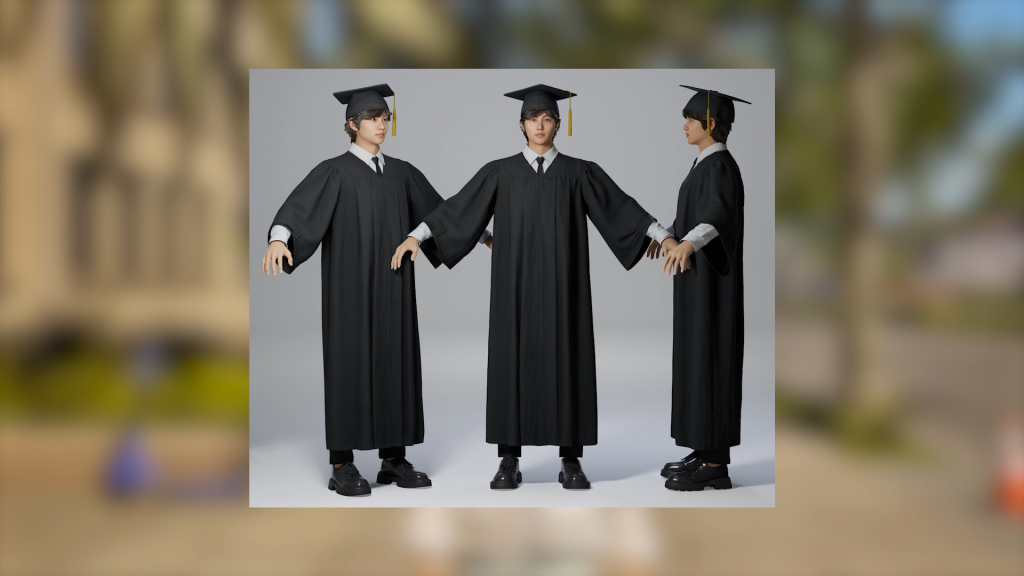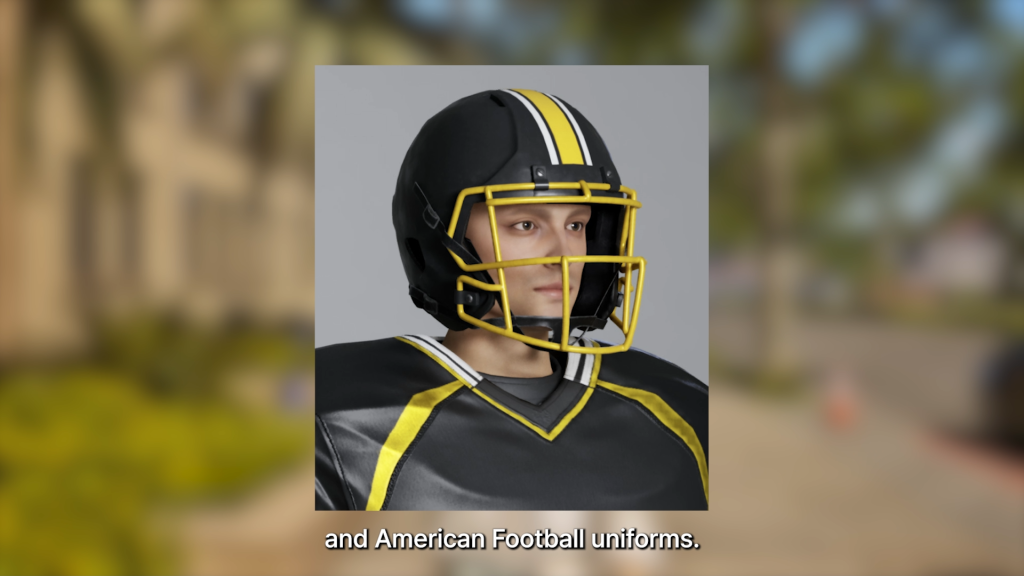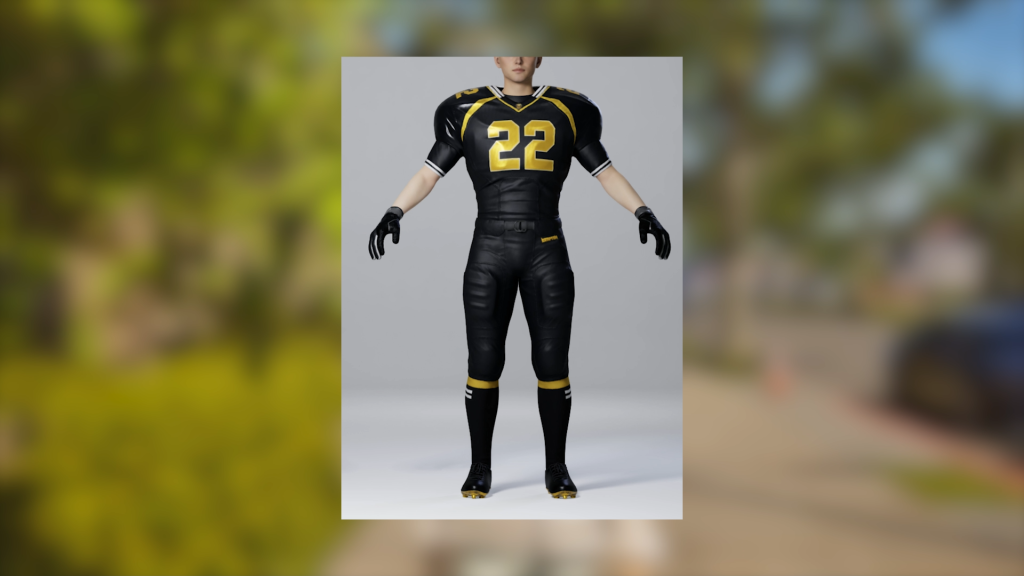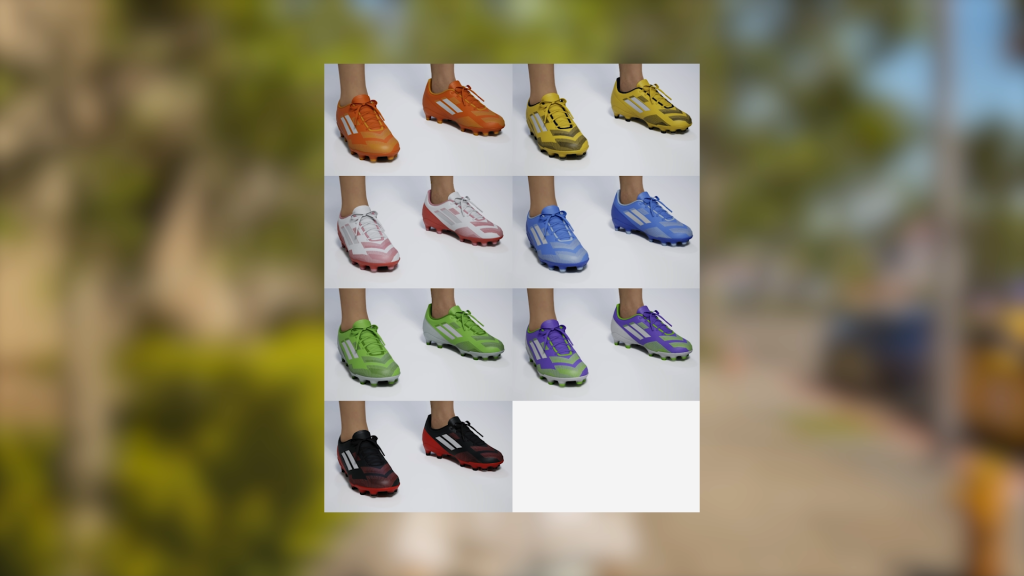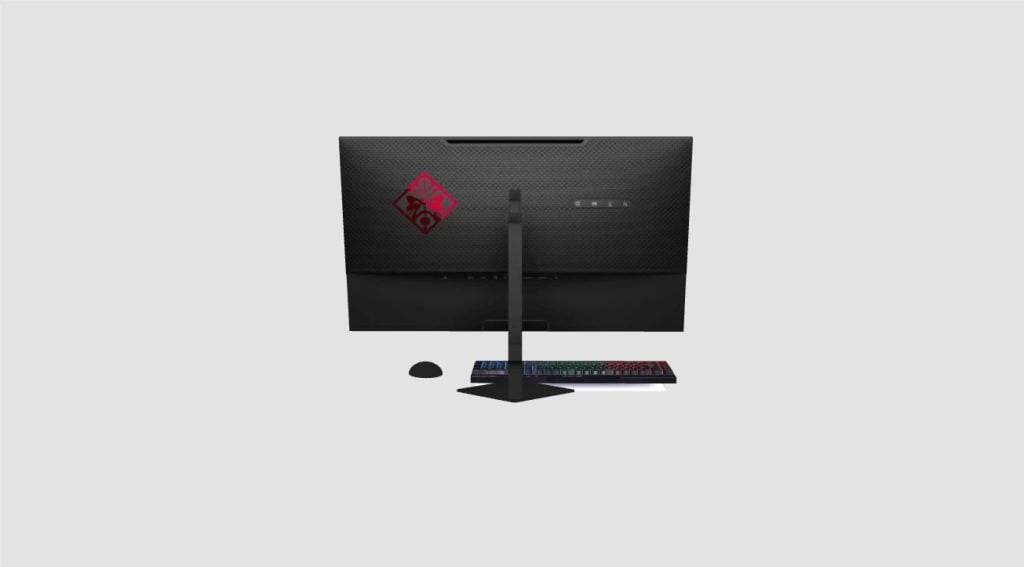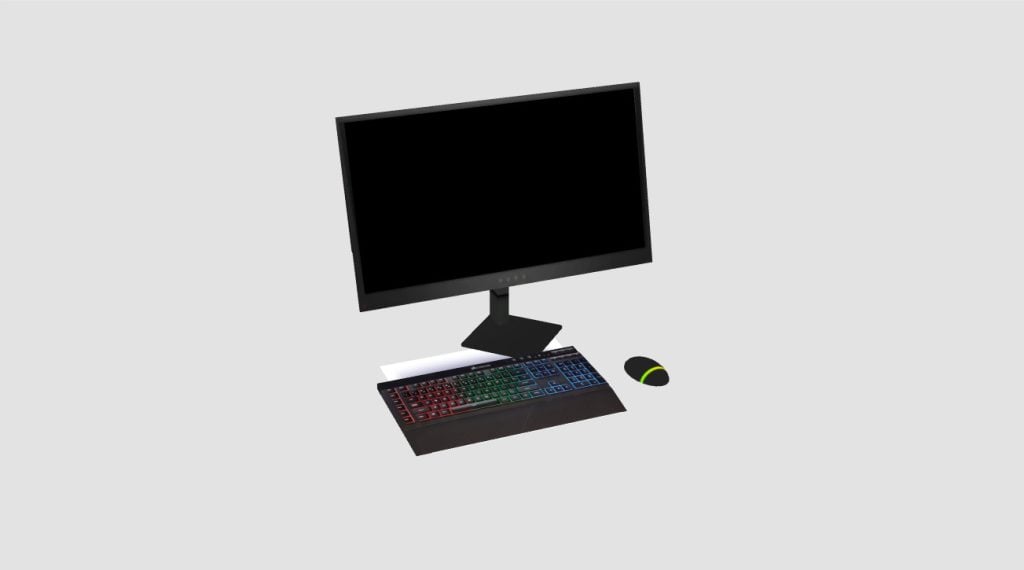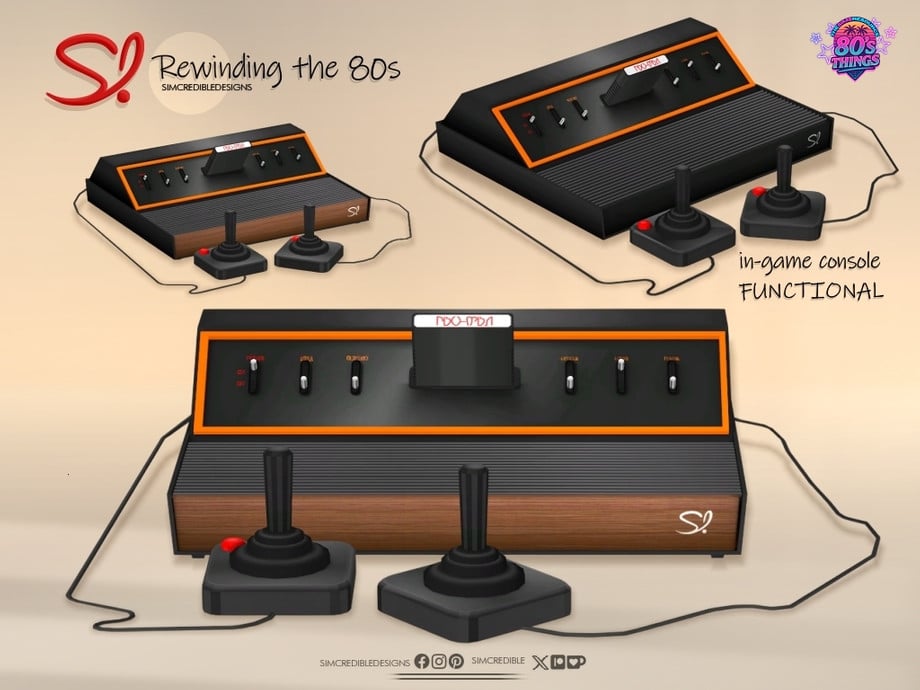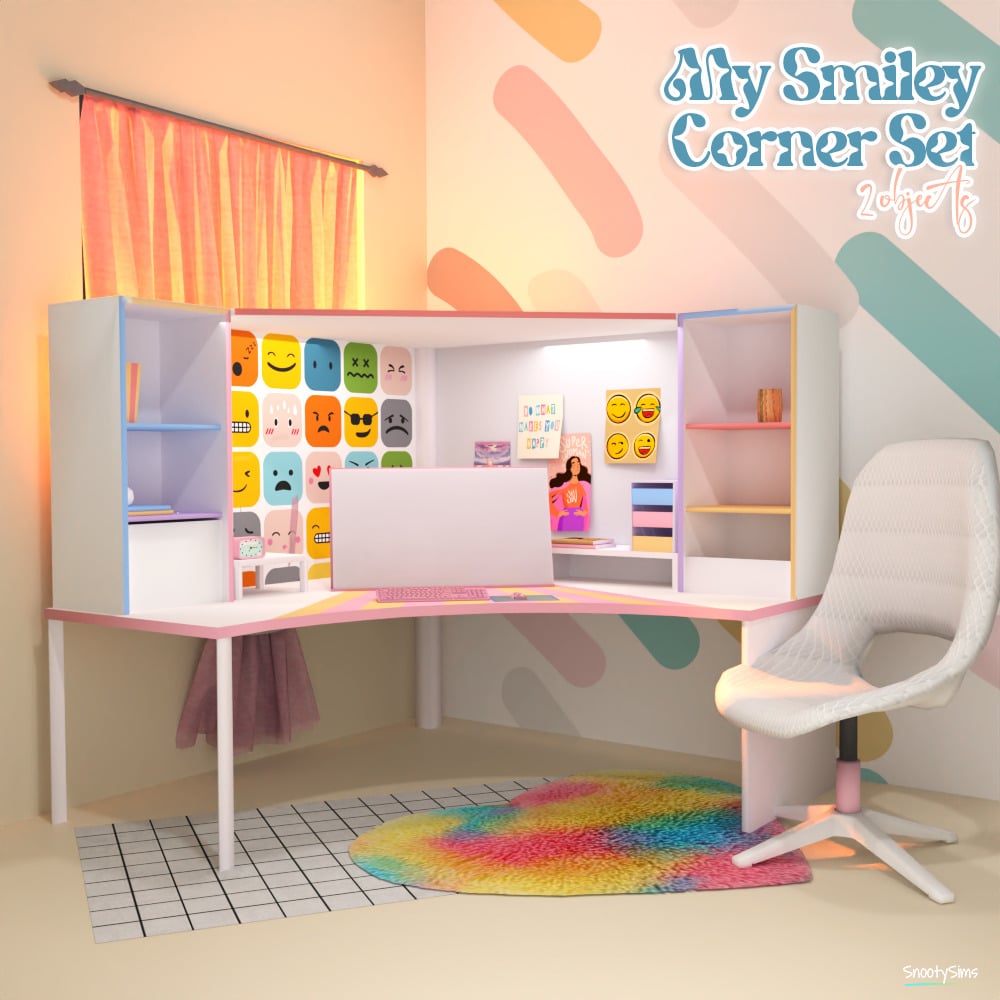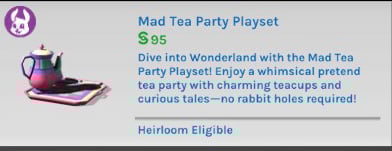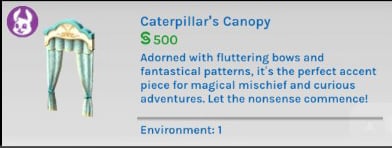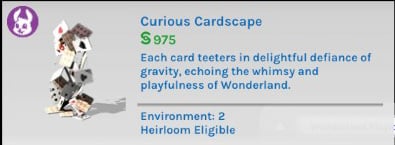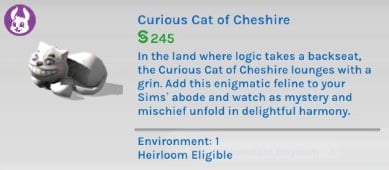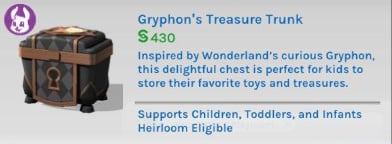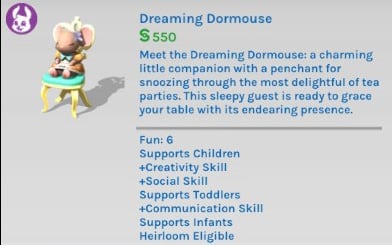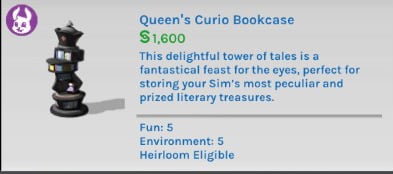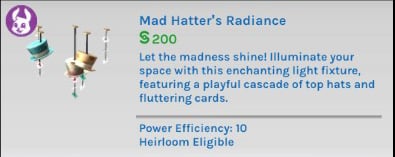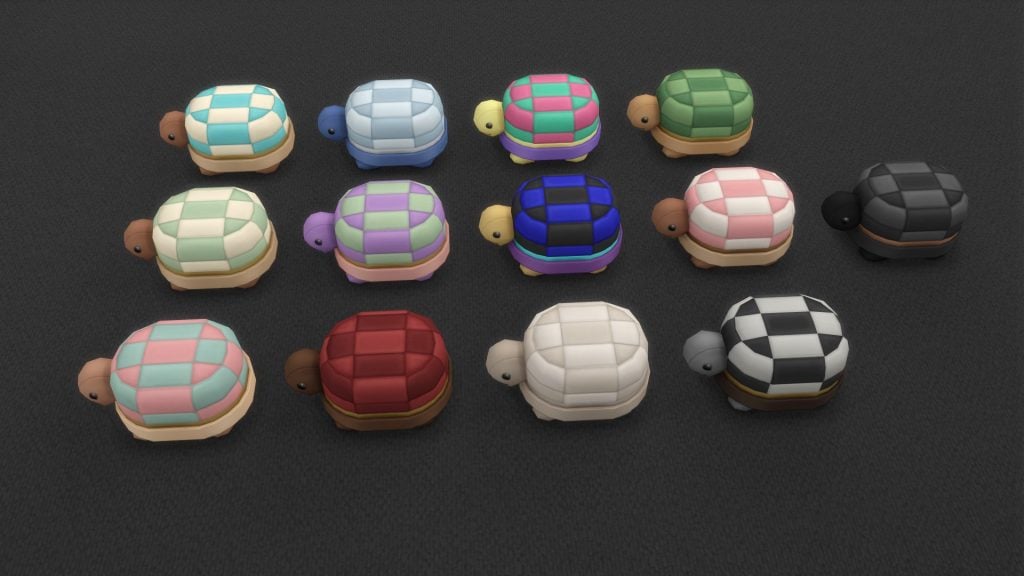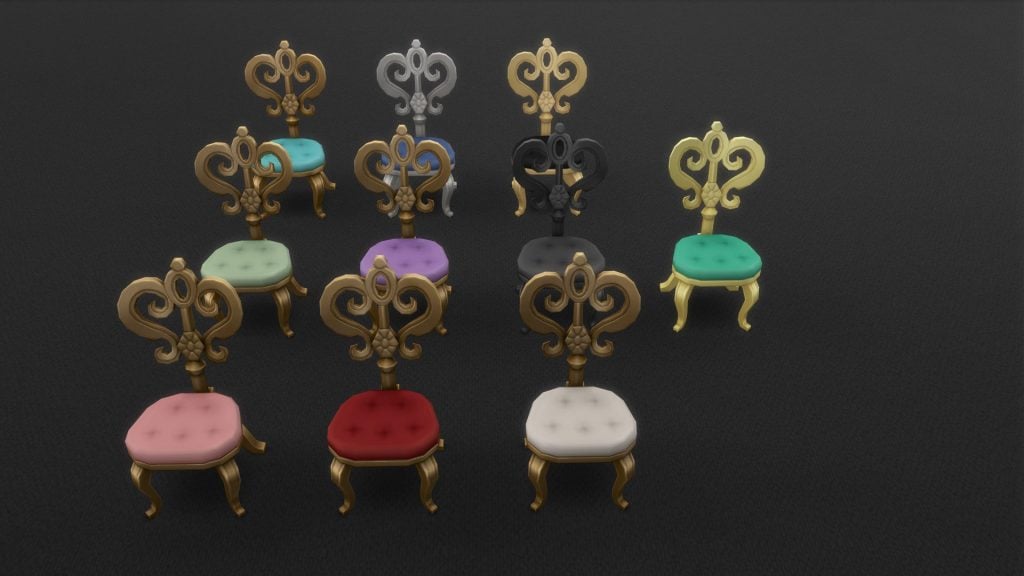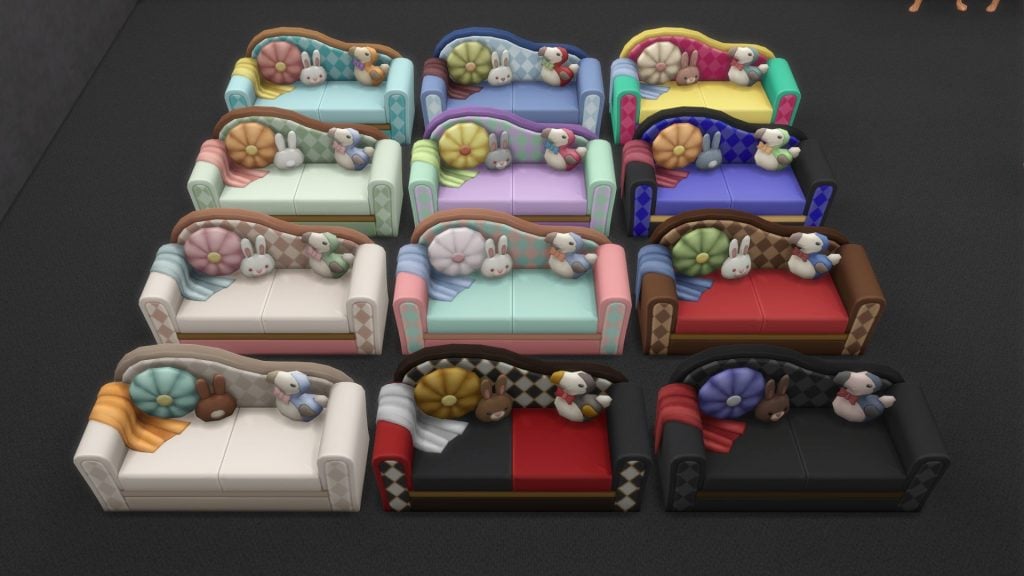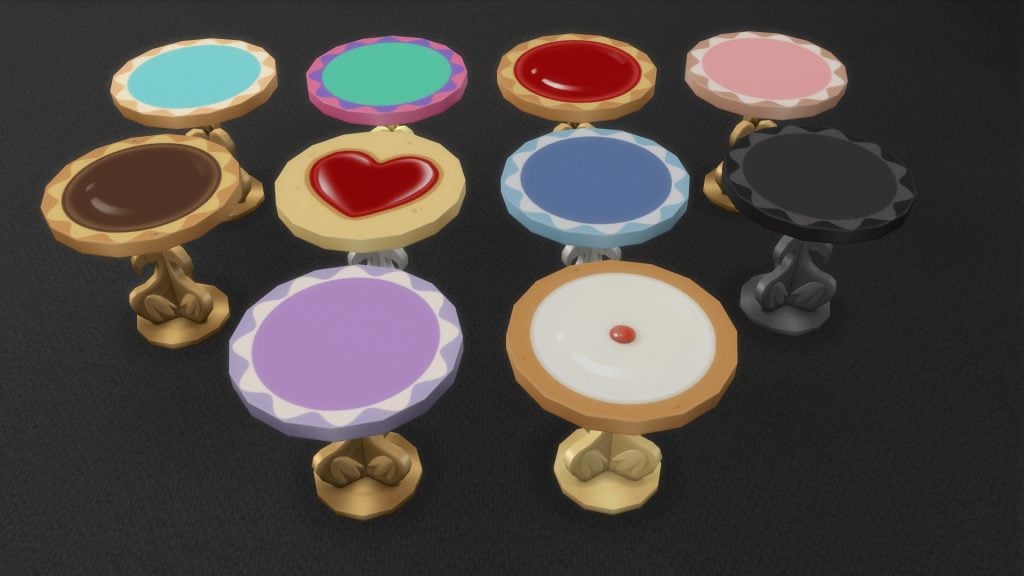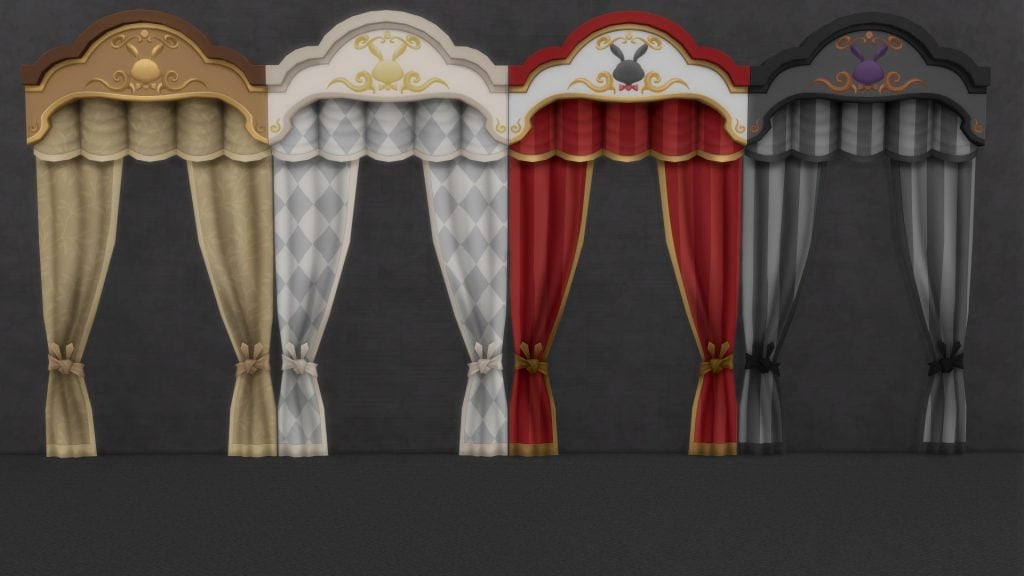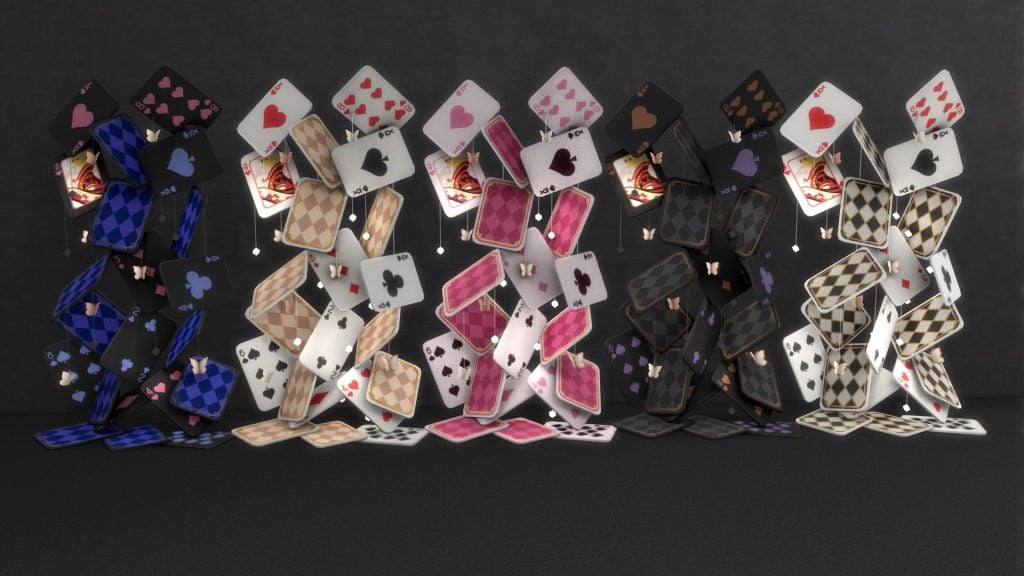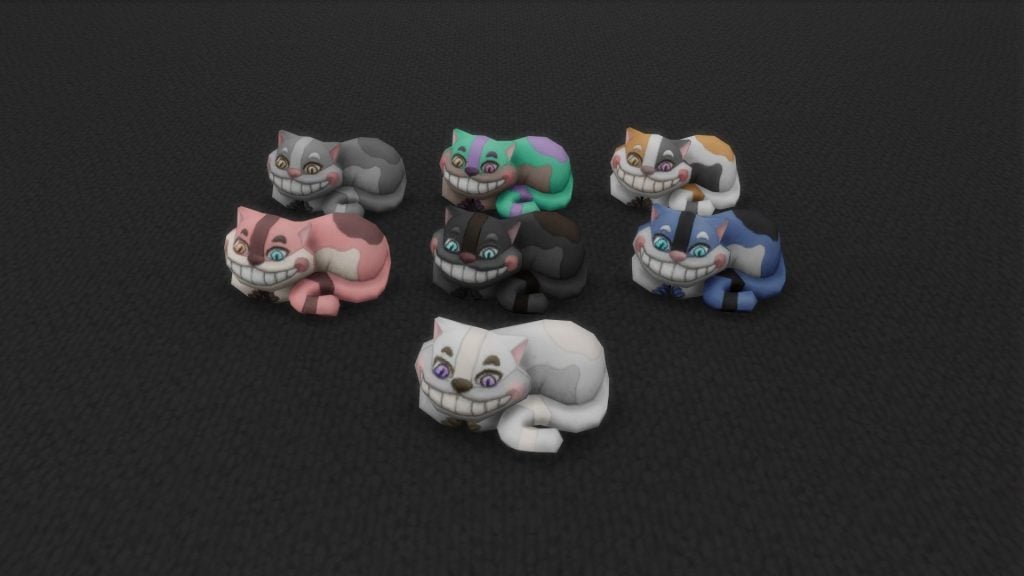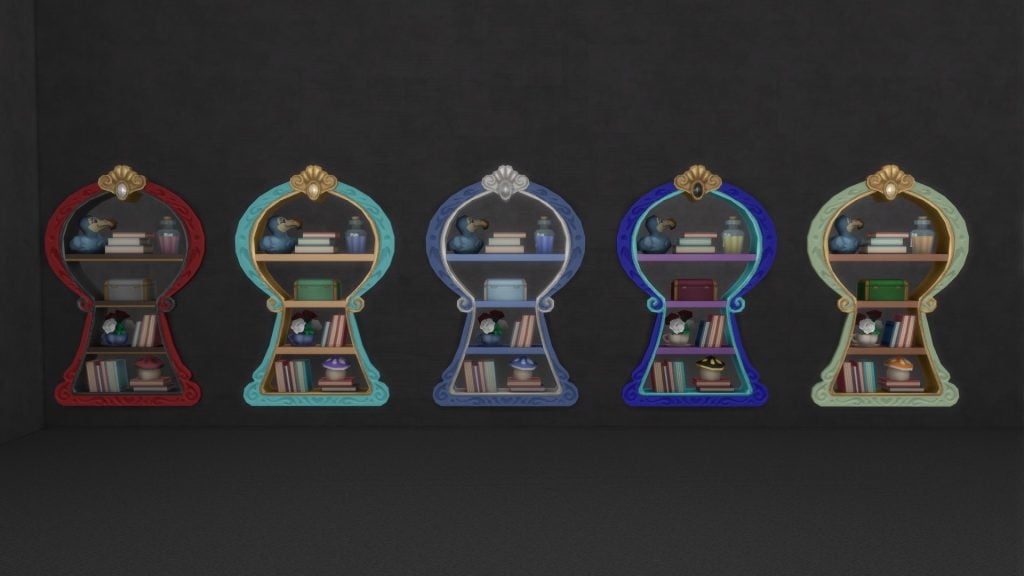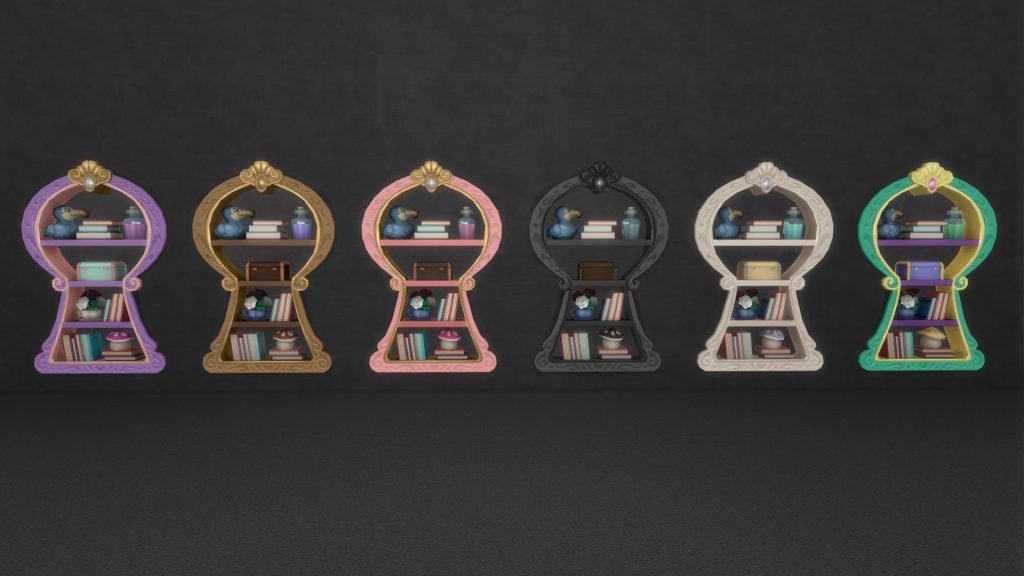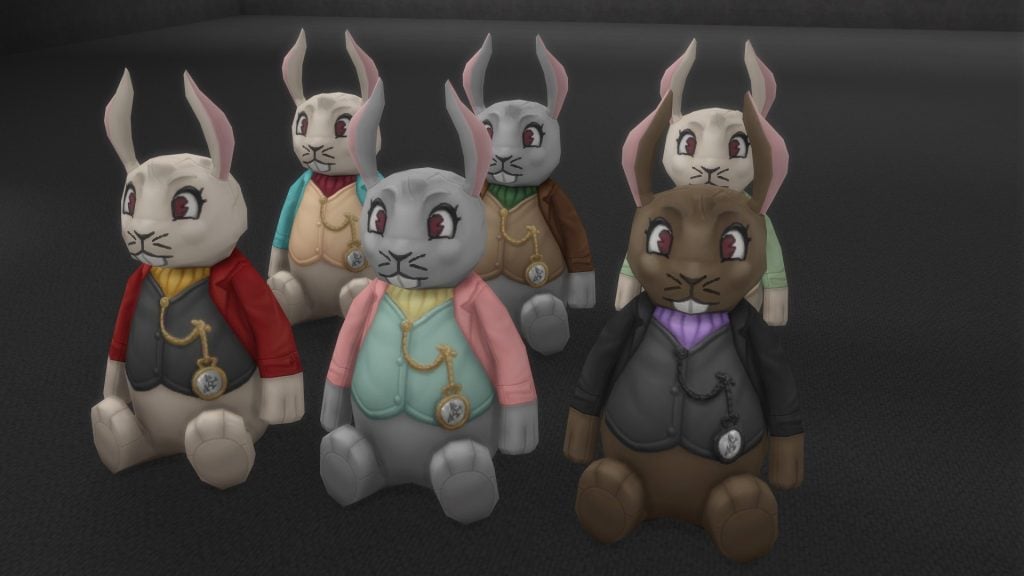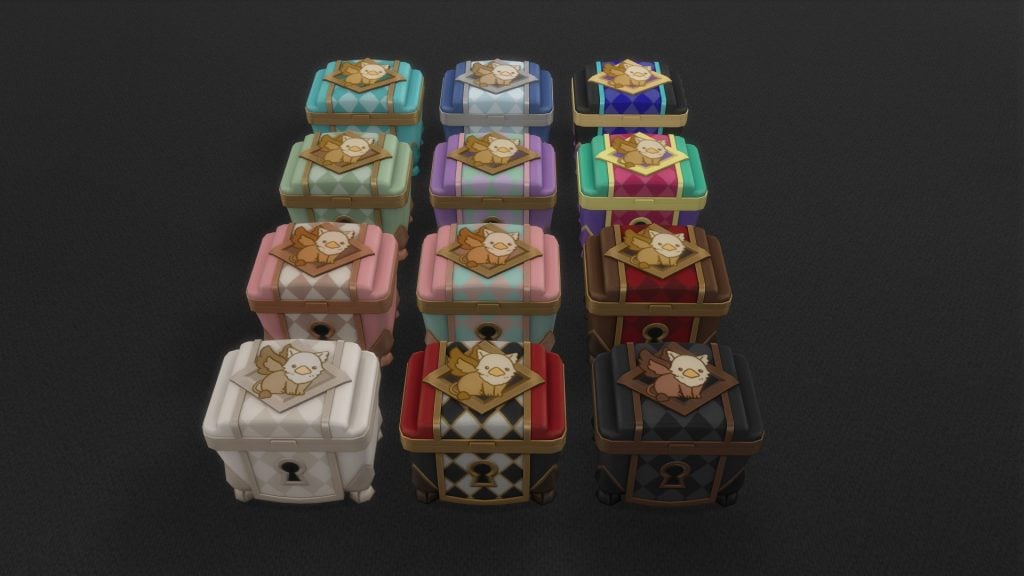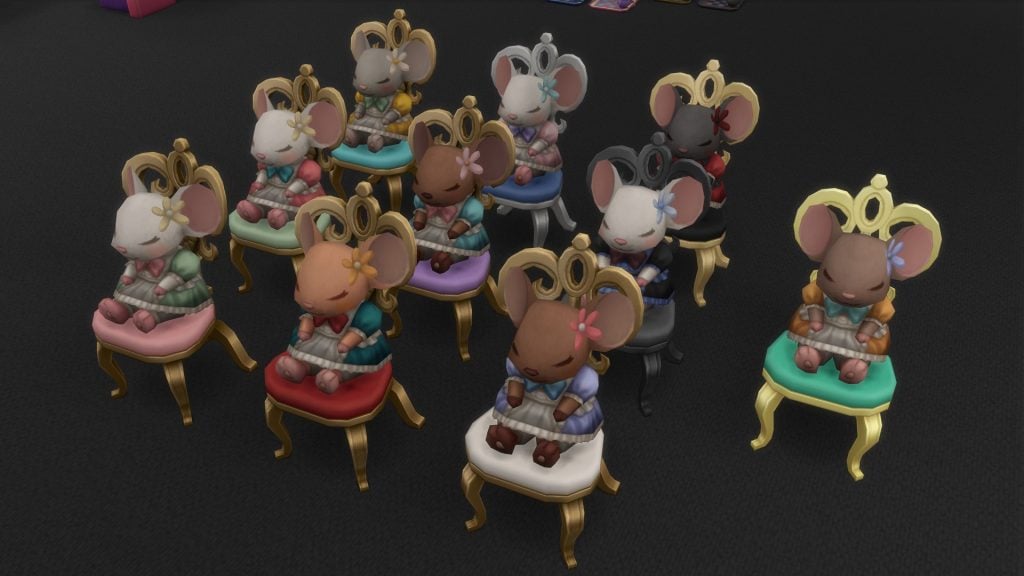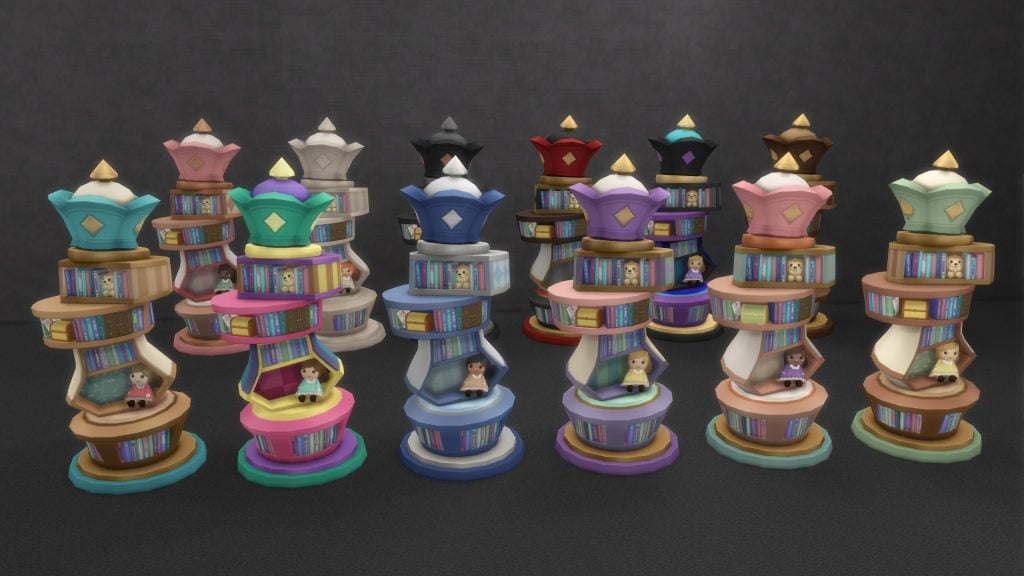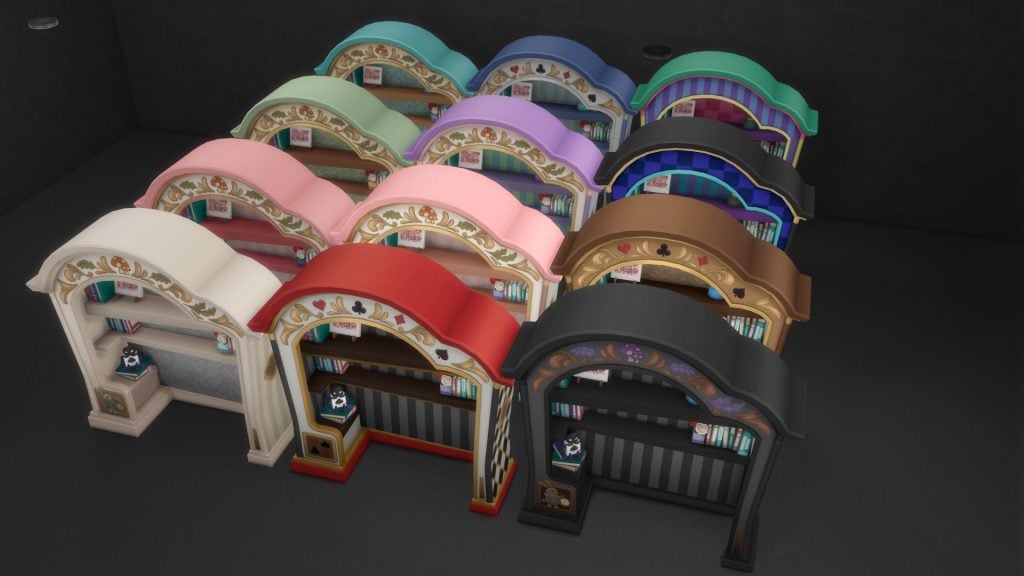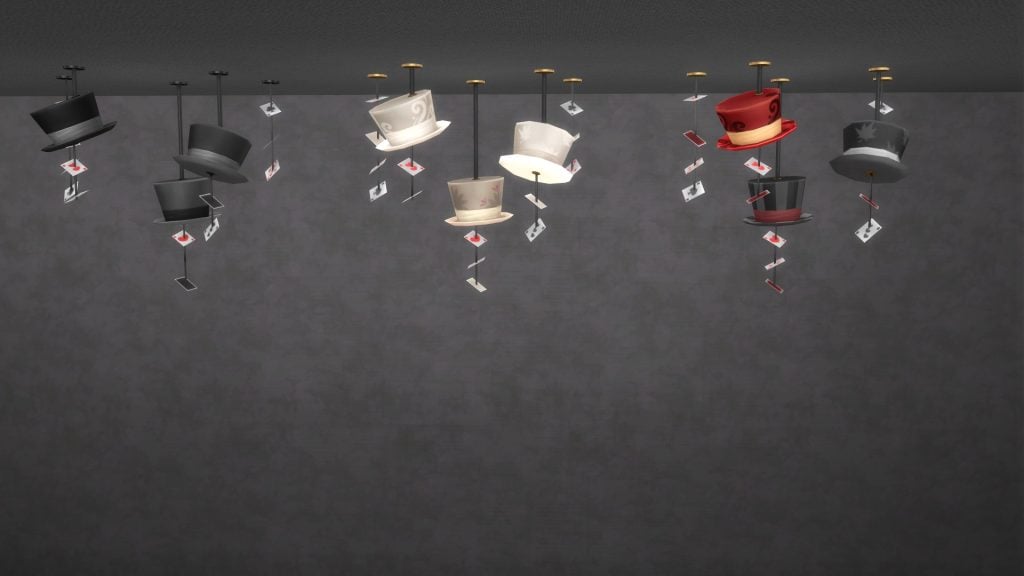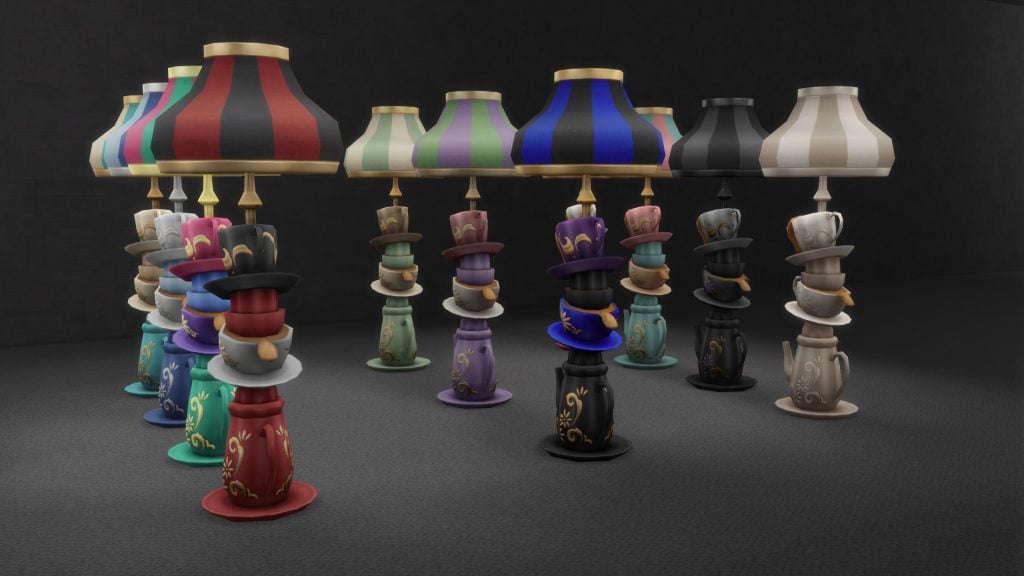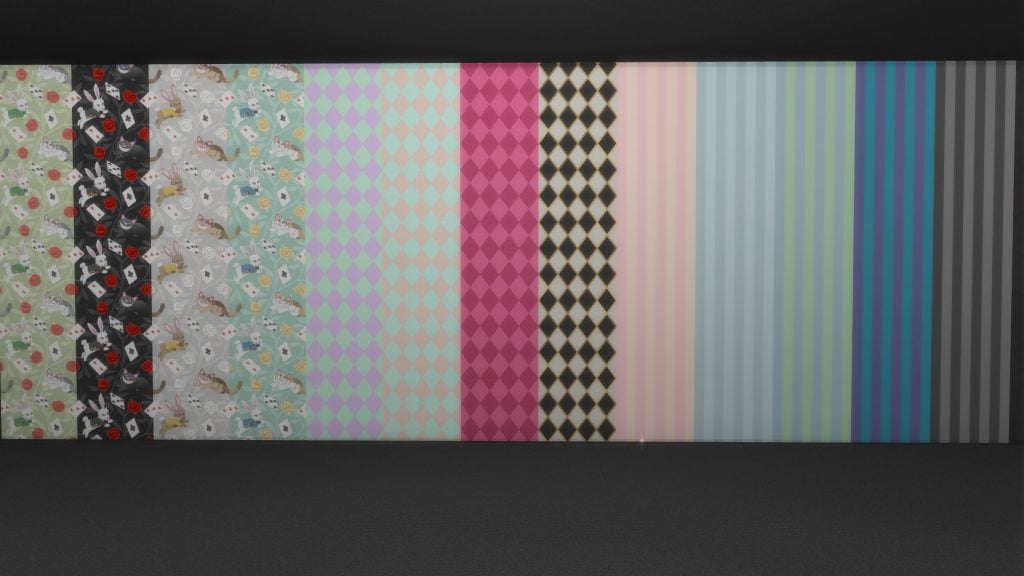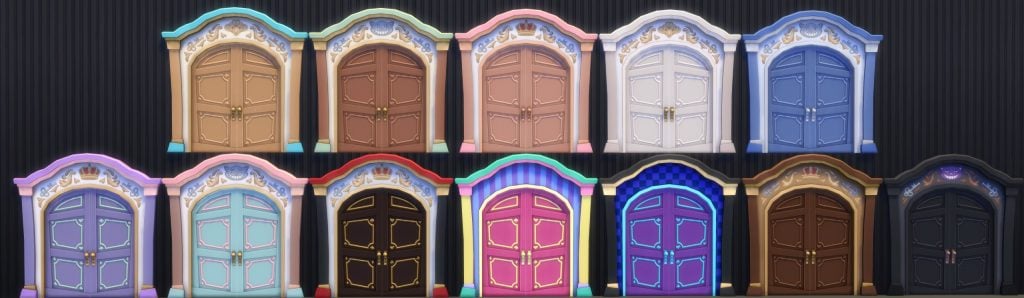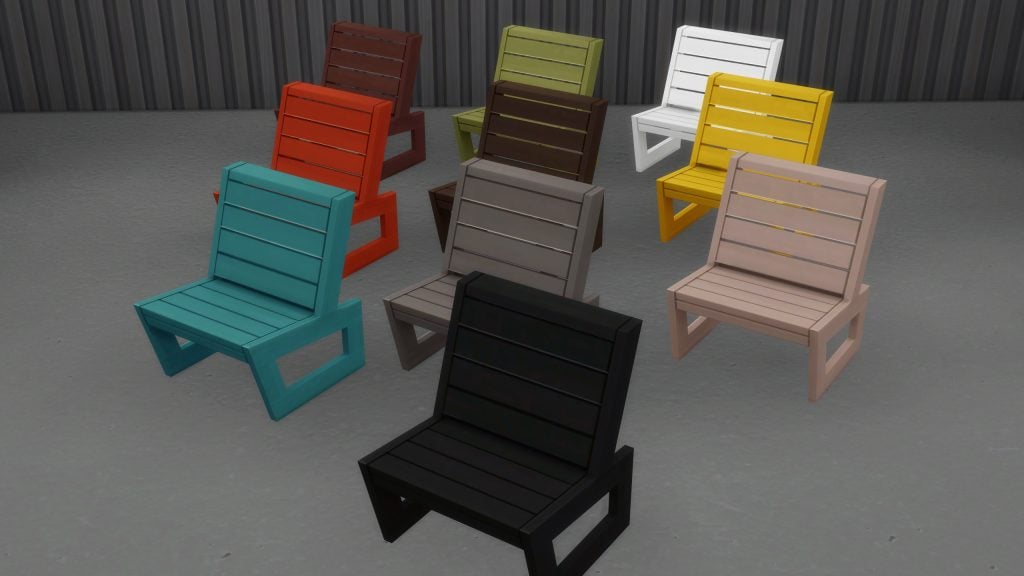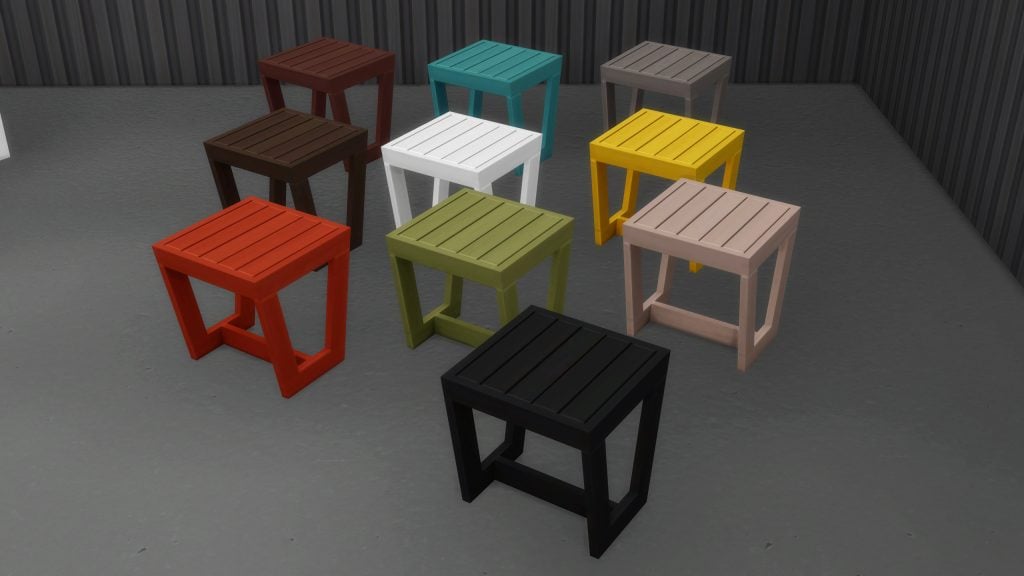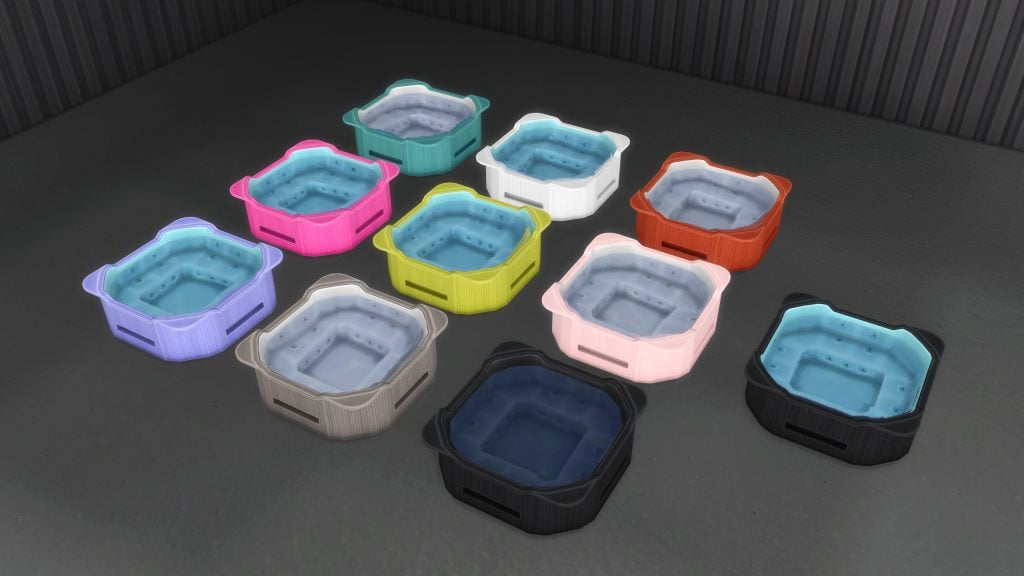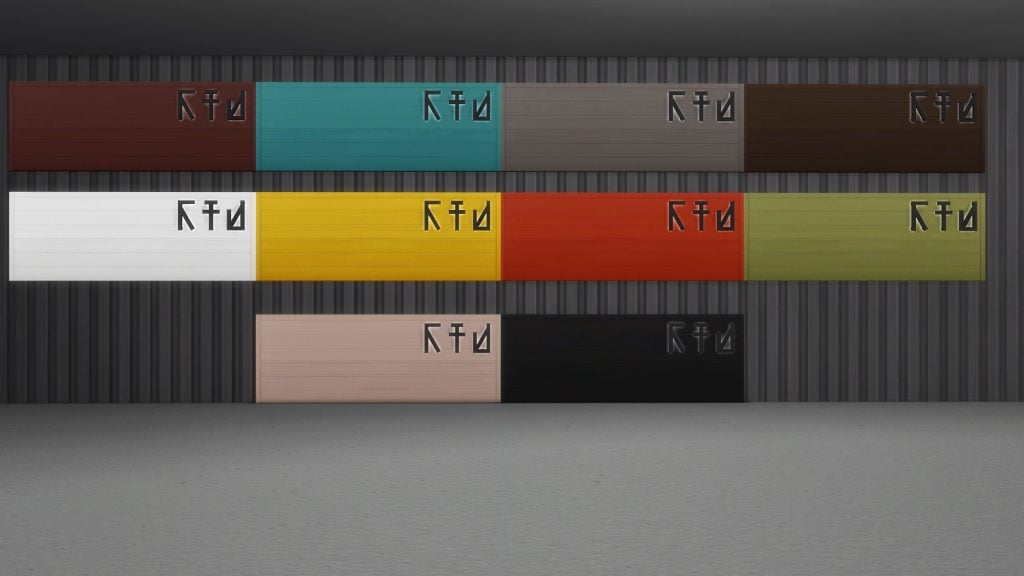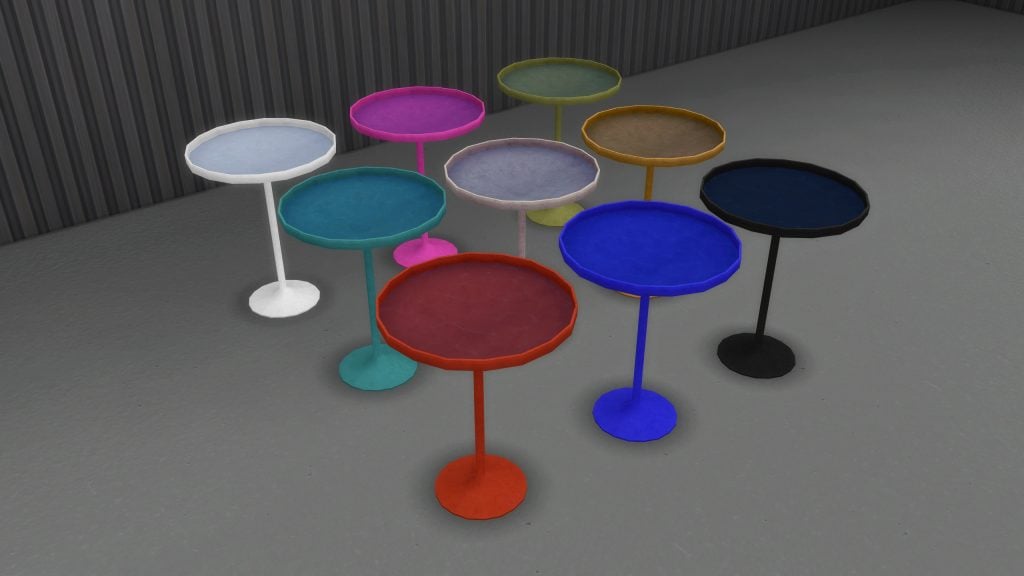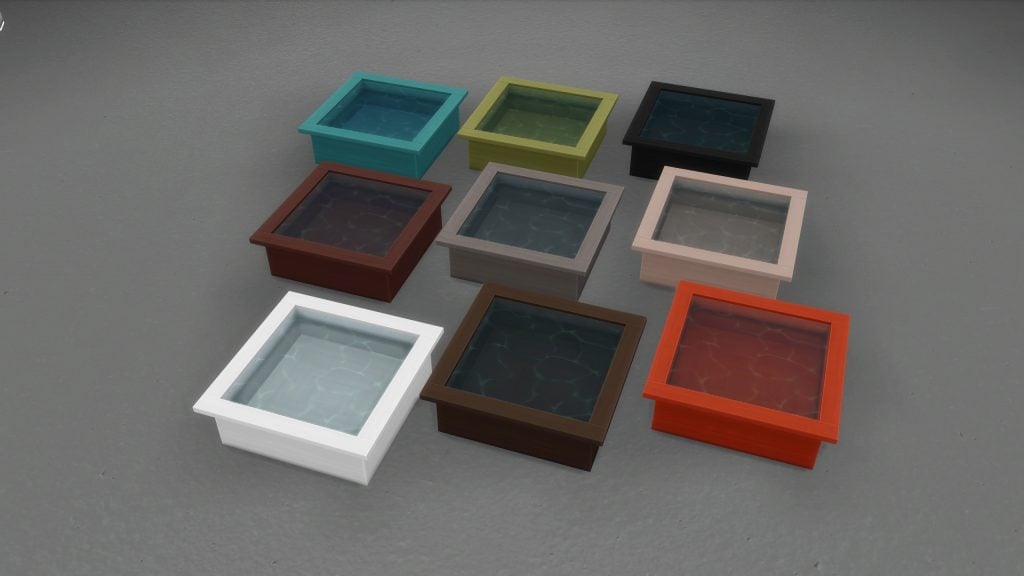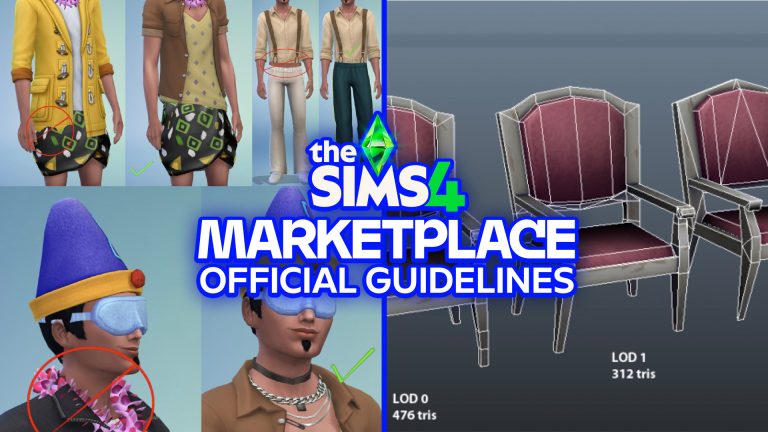
Looking to create content for The Sims 4 Marketplace? Maxis has released an official set of guidelines!
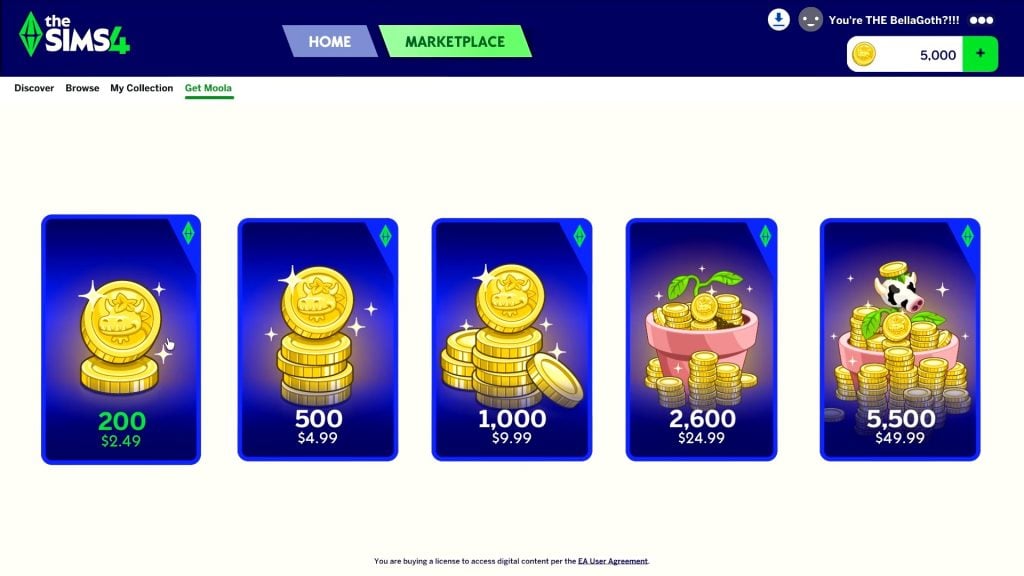
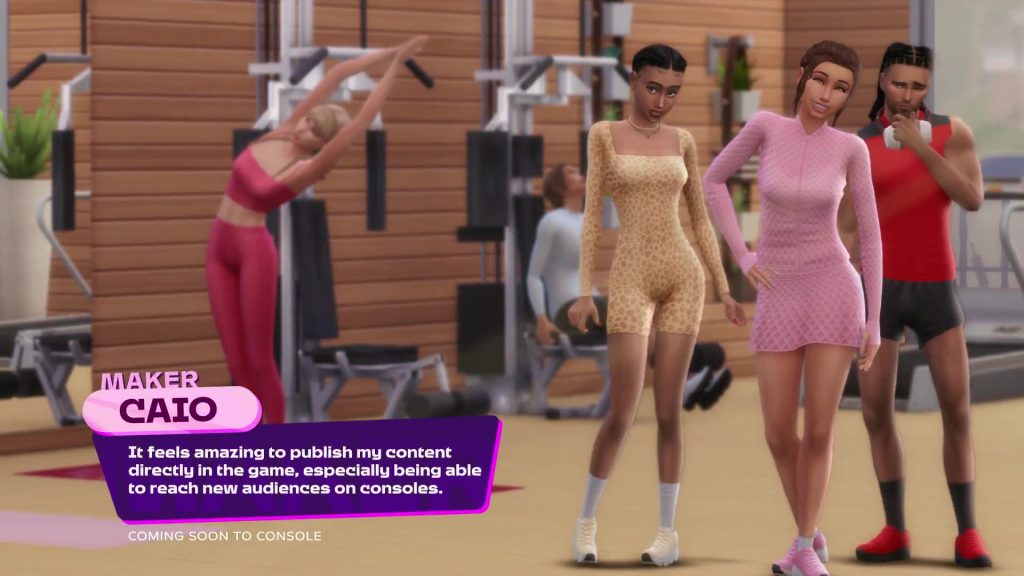
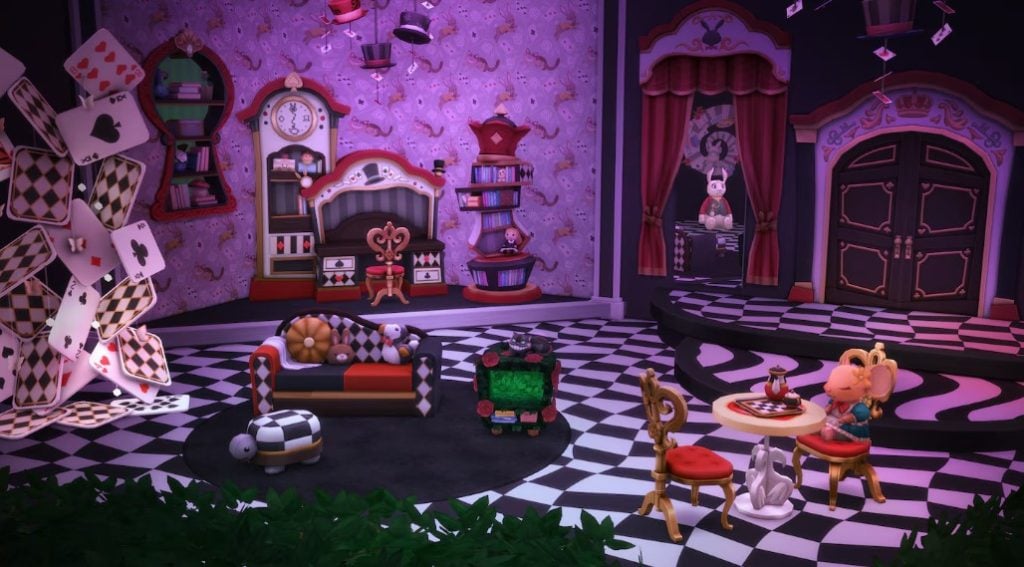
The Sims Team is opening up the world of Custom Content to all supported Console and PC platforms with the upcoming release of The Sims 4 Marketplace. First coming to PC and Mac on March 17th and later in a few months to Xbox and Playstation.
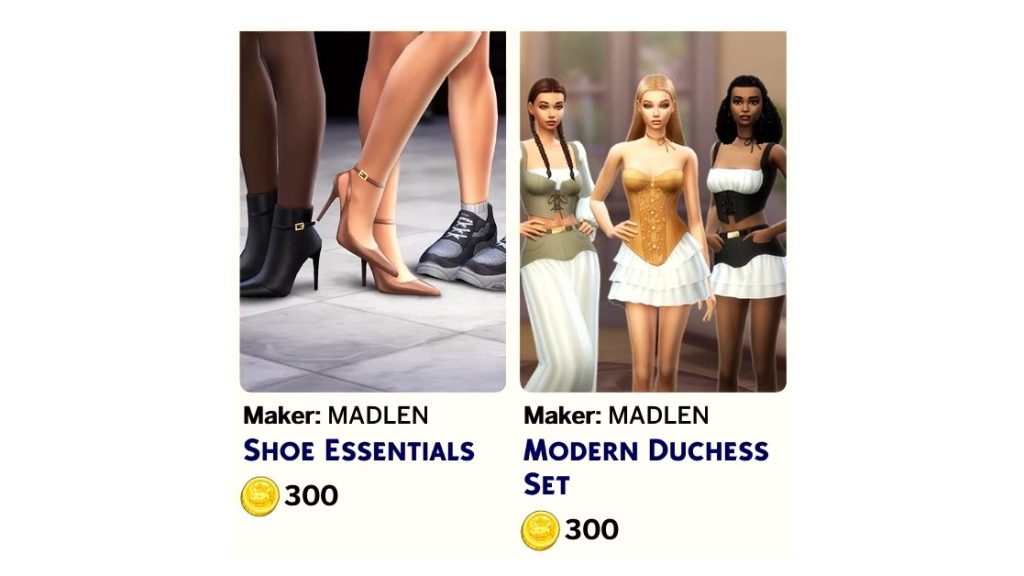
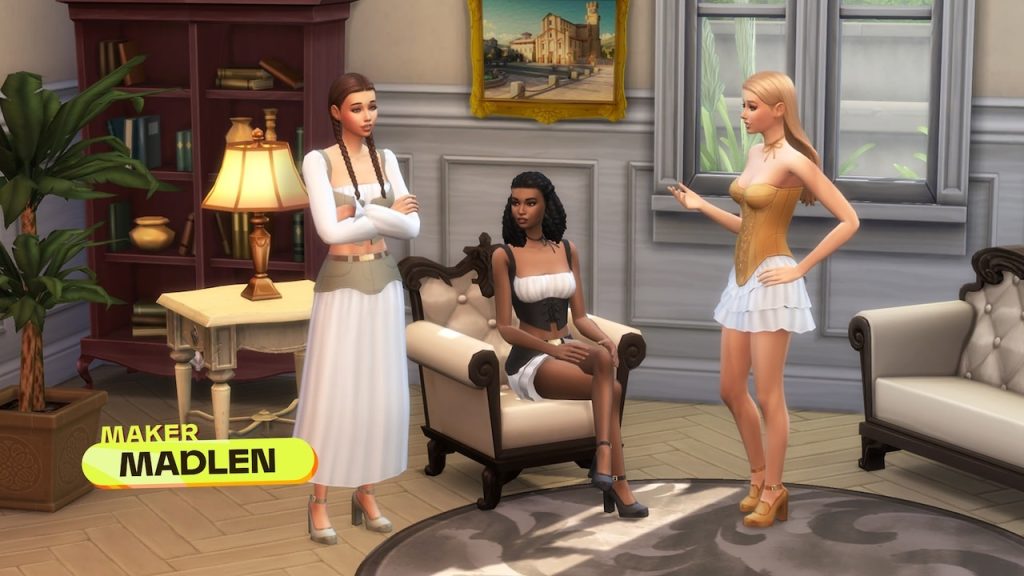
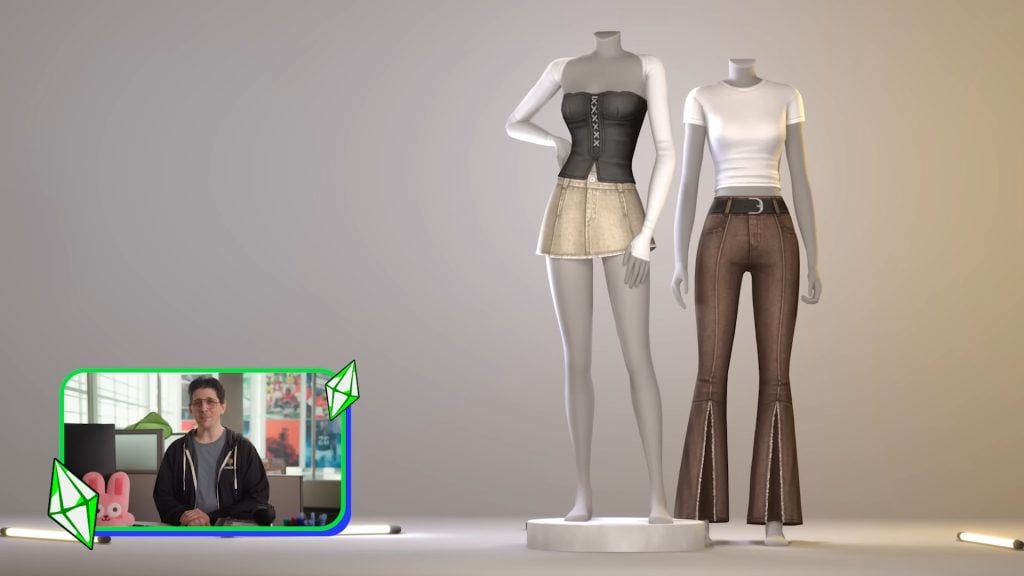
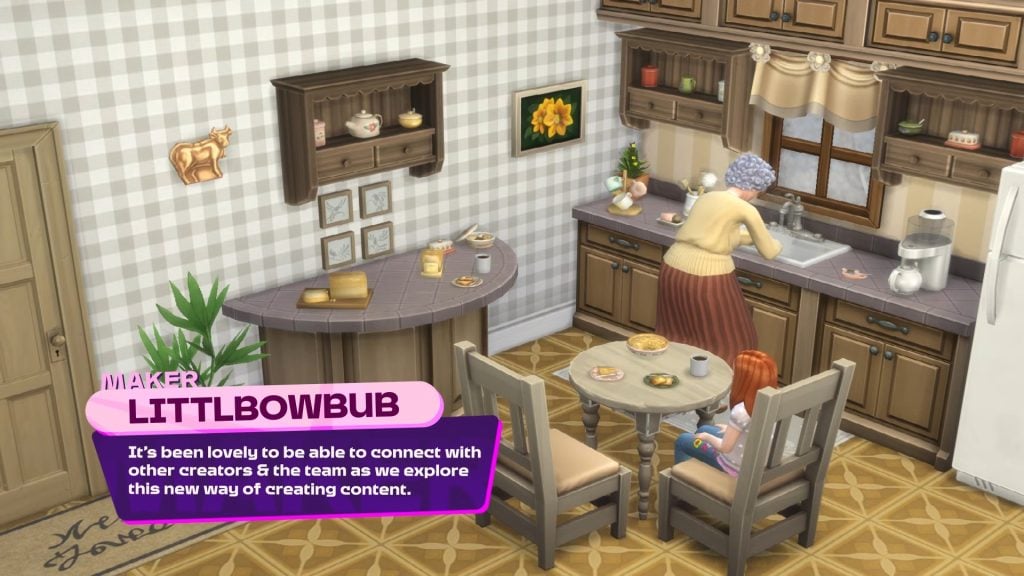
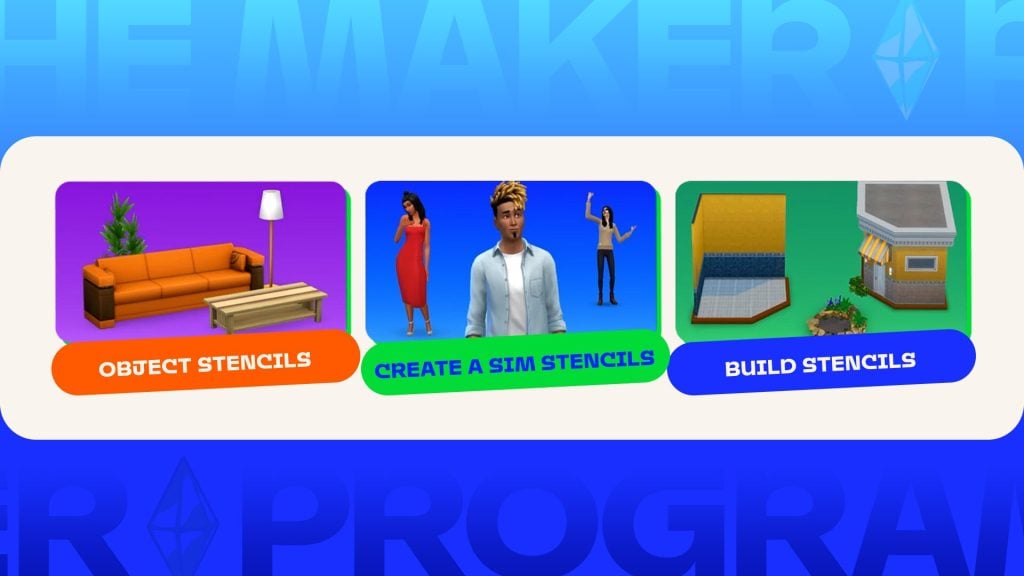
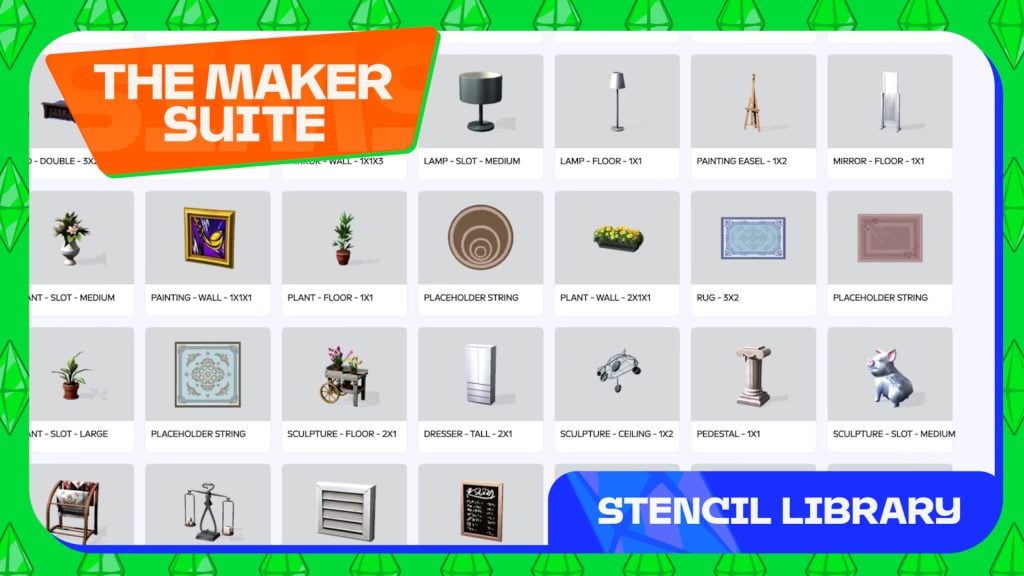
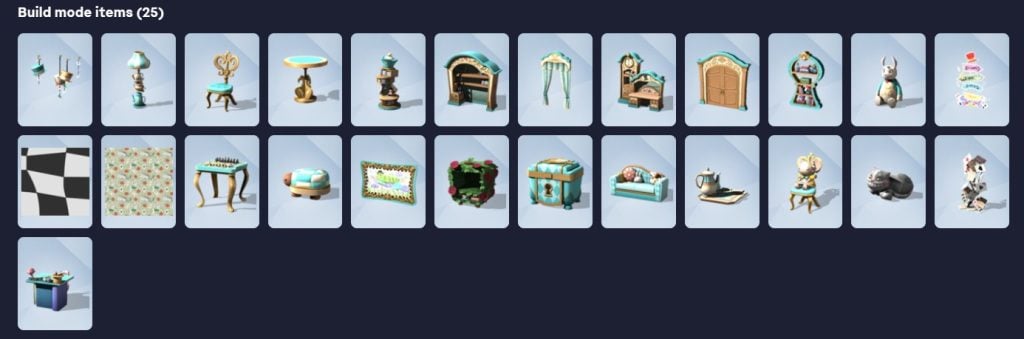
Sims custom content creators will be able to join a special Maker program where they’ll get to create their themed Build / CAS Sets and sell it to the official Marketplace for a 30% cut. The Sims Team has a very strict set of rules when it comes to the “Maxis Match” style of low polygons and texture resolutions.
To make sure all of your content complies and gets approved to the marketplace, the team released a special set of Guidelines for Create A Sim and Build Mode. Revealing what steps you need to take for a maximum approval rate to The Sims 4 Marketplace, coming March 17th.
Learn more in the officicial guidelines release below:

Table of Contents
The Sims 4 Marketplace: Create a Sim Technical Test Criteria
Sul Sul! We’re excited you want to make great content for The Sims 4. We look forward to seeing your ideas and assets. To help you successfully pass the Criteria Test, we’ve put together a checklist guide with examples, so that your asset will successfully load and be seen as intended.
Please note that two assets that meet the below criteria, are required for the technical evaluation.
Software Requirements
● Ability to generate 3D models into a .fbx file.
● Ability to generate .tga and .psd files.
Common Term Definitions
● Diffuse map – A texture map that contains color and shading information, such as highlights, shadows, AO, etc.
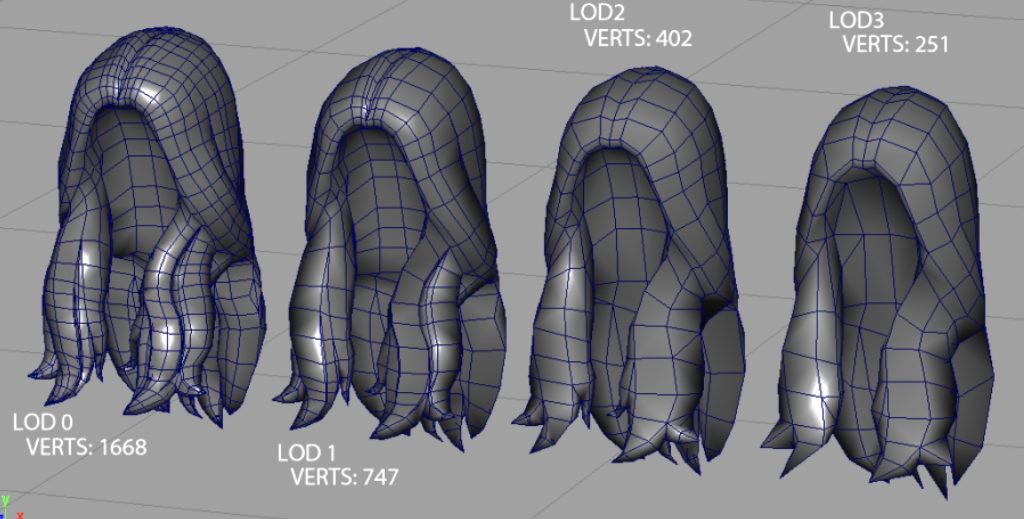
● LOD – Level of Detail, or the number of poly faces in a 3D Mesh object. ○ LOD0 – Highest polycount. Used for close-up view.
○ LOD1 – 30% of the polycount of LOD0. Used for viewing from a short distance.
● Normal map – A texture mapping technique used for faking the lighting of bumps and dents – an implementation of bump mapping. It is used to add details without using more polygons.
● Occluders – Planes that cast shadows from a light source on floors and walls.
● Poly Planes – Individual faces that make up the 3D model
● Snow mask map – A variation of the diffuse map that shows what the object looks like if it was covered in snow.
● Specular map – determines the shininess or reflectivity of an object in 3D. It’s used in conjunction with a diffuse and normal map to enhance the realism of the object’s texture. Do not use gradients. Only flat values of grayscale.
● Tris – Triangular Poly Plane. Tri’s (triangles) can be used to break up an n-gon (5 sided plane) or when trying to avoid shading issues on the mesh.
● Quad / Poly Plane – A 4 sided Poly Plane. This equals 2 Tris in your LOD Polycount. Aim for modeling using quads/Poly Planes where possible.
Checklist Overview
- File Structure Checklist
- Mesh File Format is .fbx or .ma
- Files are Named Appropriately
- Modeling Checklist
- The Mesh is Well Constructed.
- CAS Asset Renders as Expected
- CAS Triangle Targets
- Texture Checklist
- PSD file is Setup Correctly
- Texture Files are Correctly Sized
- File Structure Checklist
Mesh File Format is .fbx or .ma
● Save your 3D Model mesh as .fbx or .ma.
Files are Named Appropriately
To create your AssetName for your CAS Part, combine the BodyType, Clothing Type, and a Short Descriptor that is NOT a color. Camel Case is encouraged. For example: yTopGraphicTee, mBottomDenimShorts, fNecklaceBohoBeads
Body Type:
● Y = Youth
● M = Masculine
● F = Feminine
Clothing Types:
● Top
● Bottom
● FullBody
● Coat or Robe
● Shoes
● Hat
● Glasses
● Gloves
● Necklace
● Bracelet
● Sock
Once you have your AssetName, please structure your folders and files as below:
● A Root folder: [CreatorName]
● Asset Folder: [CreatorName_AssetName] ○ .fbx or .ma File [CreatorName_AssetName] ■ Geo Mesh Outliner for LOD0: <CreatorName_AssetName>_LOD0
■ Geo Mesh Outliner for LOD1: <CreatorName_AssetName>_LOD1
○ .psd File [CreatorName_AssetName].psd
○ .tga File Normal Map [CreatorName_AssetName_n].tga
○ .tga File Specular Map [CreatorName_AssetName_s].tga
○ .tga File Shadow Map [CreatorName_AssetName_sh].tga
○ .tga File Diffuse Color Map Variant 1 [CreatorName_AssetName_colorVariant1].tga
○ .tga File Diffuse Color Map Variant 2 [CreatorName_AssetName_colorVariant2].tga
○ .package file (your asset as a mod)
Modeling Checklist
The Mesh is Well Constructed.
● Before Submission, please REMOVE any templates or assisting artifacts used for the creation process. We want to review only your work on the finished asset, and you must have rights to any data submitted in the 3D modeling file.
● Face Normals are outward facing.
● Vertices are merged, there’s no collapsed polygons, no 5-sided concave polys, and no laminar faces.
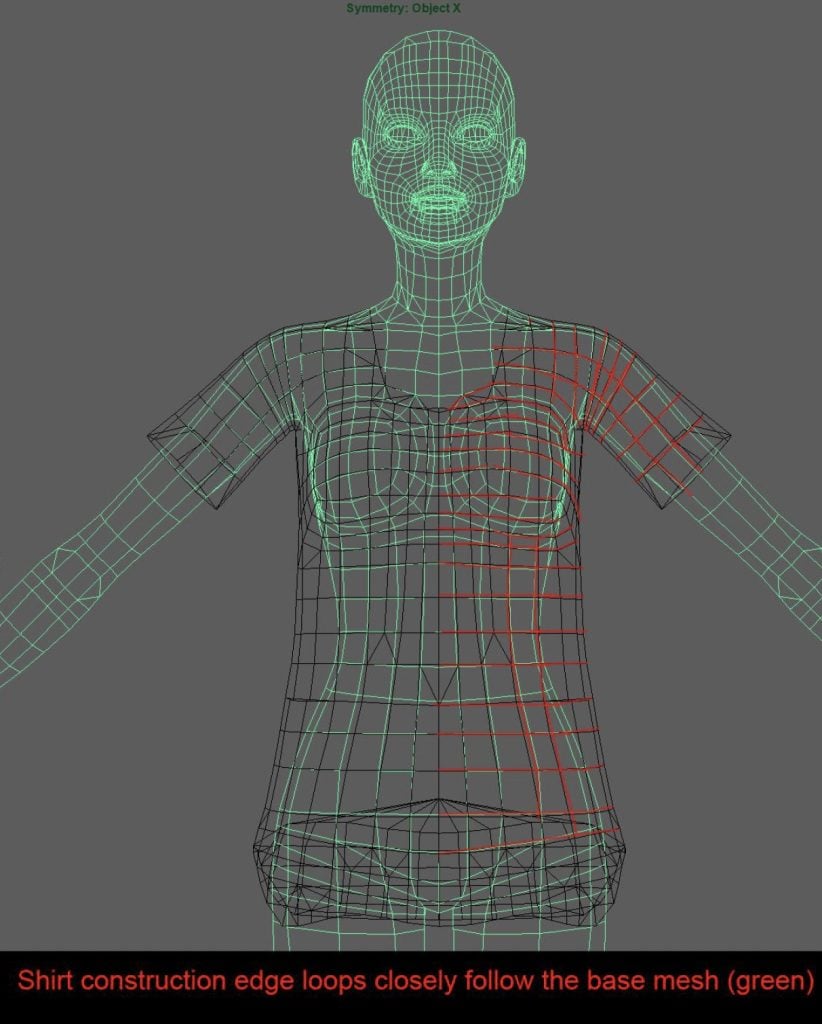
● It is recommended to line up the asset’s edge loops with the base model’s edge loops. Example:
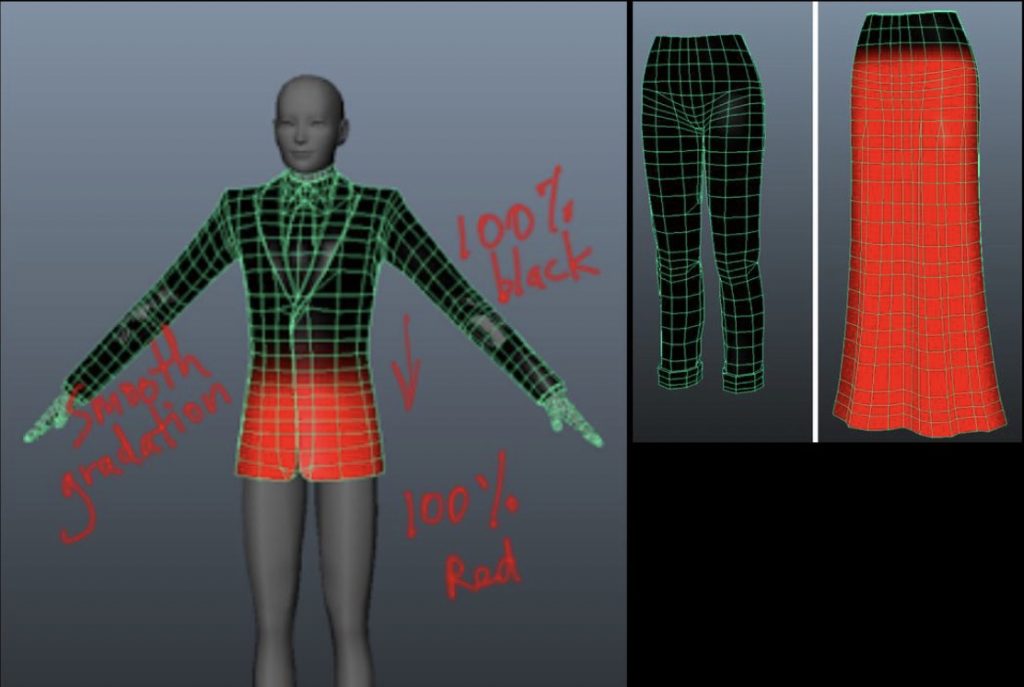
Color the Vertices to indicate close fitting (black), or loose fitting (red). Example:
CAS Asset Renders as Expected
How to test:
● Create a .package file of your CAS asset feel free to use whatever workflow or 3rd party tools you are familiar with.
● Add this .package file to your Mods folder under My Documents > Electronic Arts > The Sims 4 > Mods
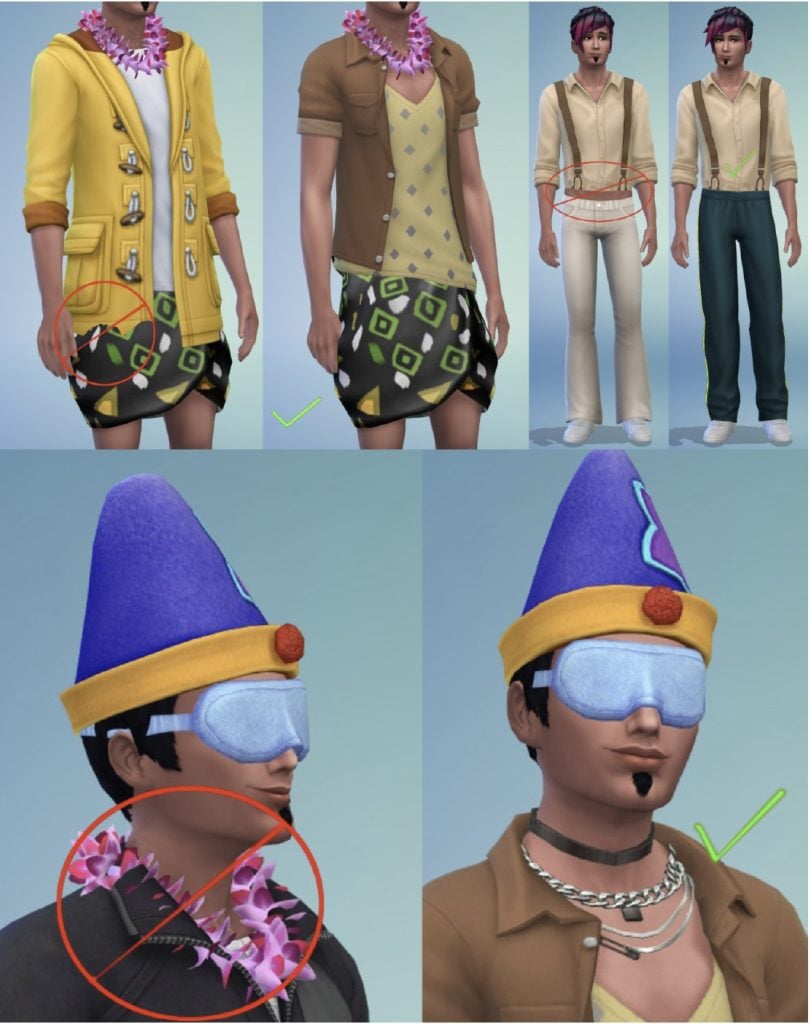
● If any visual issues occur when applying the content to the Sim.
● How the asset performs on different CAS body frames and skin tones. ○ Push and pull the body frame to check for any clipping or weird geometry effects
● How the CAS asset stacks with other clothing items. For example: ○ Check bracelets, rings, necklaces, nails, shoes, and hats do not have any undesired effects.
● If the clothing deforms smoothly over the body.
CAS Triangle Targets
| It’s ok to go over by up to 10%, but please keep it below the limit when possible. Please follow the polygon counts provided below: Clothing Type | LOD0 Count | L0D1 Count |
| Bottoms | 1100 | 770 |
| Full Body | 4200 | 2940 |
| Shoes | 350 | 245 |
| Tops | 200 | 140 |
| Hats | 1200 | 1000 |
Texture Checklist
PSD File is Setup Correctly
● Do not flatten the layers.
● Use layer masks and gradients to make color variants.
● Keep the highlights and shadows layers separate.
● When making textures with alpha, please ensure that those are saved with the alpha channel (32-bit) in the .tga file.
Texture Files are Correctly Sized
● Diffuse Color Map: 1024 x 2048 (32 bits)
● Normal Map: 1024 x 1024 (24 bits)
● Specular Map: 1024 x 2048 (32 bits)
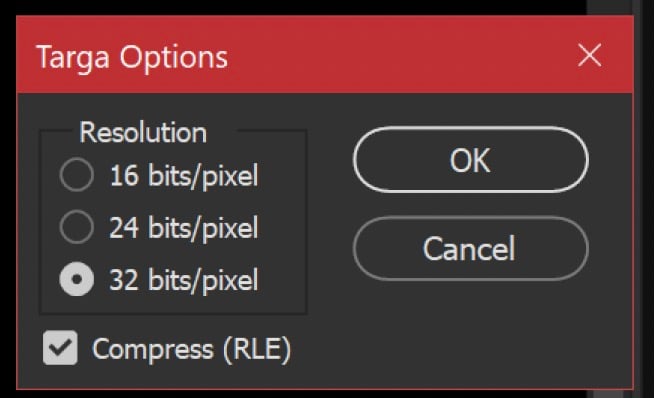
● Textures should be saved as .tga Targa files. All maps, except the Normal Map, should have alpha channels and 32 bit resolution and the Compress (RLE) option box checked. Normal Maps don’t need an alpha channel and should be saved at 24 bit resolution with the Compress (RLE) option box checked.
The Sims 4 Marketplace: Build/Buy Technical Test Criteria
Sul Sul! We’re excited you want to make great content for The Sims 4. We look forward to seeing your ideas and assets. To help you successfully pass the Criteria Test, we’ve put together a checklist guide with examples, so that your asset will successfully load and be seen as intended.
Please note that two assets that meet the below criteria, are required for the technical evaluation.
Software Requirements
● Ability to generate 3D models into a .fbx file.
● Ability to generate .tga and .psd files.
Common Term Definitions
● AO map – An Ambient Occlusion (AO) map creates soft shadowing, as if the model was lit without a direct light source, like on a cloudy day.
● Diffuse map – A texture map that contains color and shading information, such as highlights, shadows, AO, etc.
● Dirty map – A variation of the diffuse map that shows what the object looks like in a dirty state.
● Light map – Light maps are a texture that emulates the effect of light casting on an object. We use light maps on assets that aren’t lights and therefore do not have the benefit of a light in the Maya file or vertex color painted on the model itself.
● LOD – Level of Detail, or the number of poly faces in a 3D Mesh object. ○ LOD0 – Highest polycount. Used for close-up view.
○ LOD1 – 30% of the polycount of LOD0. Used for viewing from a short distance.
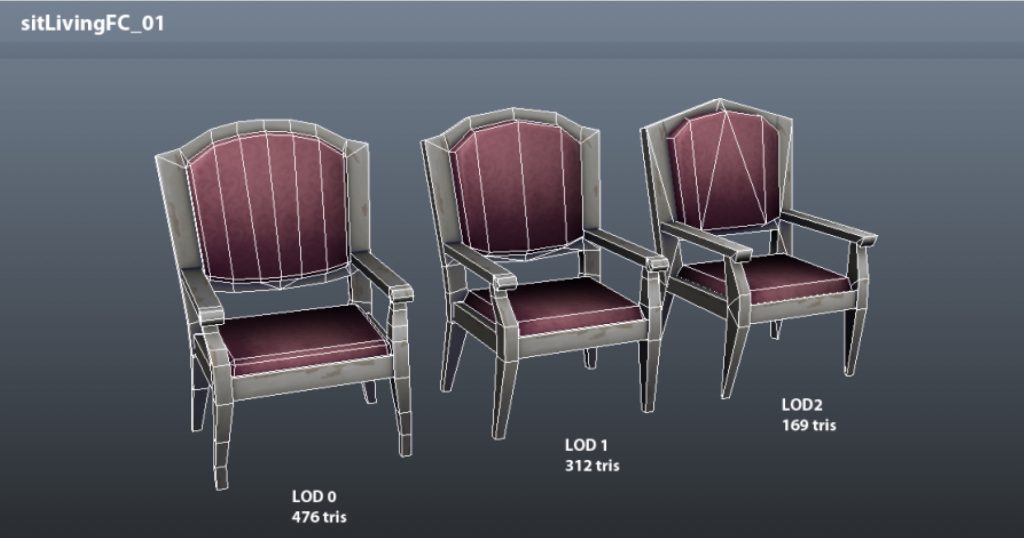
● Normal map – A texture mapping technique used for faking the lighting of bumps and dents – an implementation of bump mapping. It is used to add details without using more polygons.
● Occluders – Planes that cast shadows from a light source on floors and walls. Uses AO maps.
● Poly Planes – Individual faces that make up the 3D model
● Shadow map – flat shadow plane(s) placed underneath an object. Also known as drop shadow.
● Snow mask map – A variation of the diffuse map that shows what the object looks like in a state with snow
● Specular map – determines the shininess or reflectivity of an object in 3D. It’s used in conjunction with a diffuse and normal map to enhance the realism of the object’s texture. Do not use gradients. Only flat values of grayscale.
● Tile – Unit of measurement, one tile equals one meter, for example a 3 Tile high wall is 3 meters tall.
● Tris – Triangular Poly Plane. Tri’s (triangles) can be used to break up an n-gon (5 sided plane) or when trying to avoid shading issues on the mesh.
● Quad / Poly Plane – A 4 sided Poly Plane. This equals 2 Tris in your LOD Polycount. Aim for modeling using quads/Poly Planes where possible.
Checklist Overview
- File Structure Checklist
- Mesh File Format is .fbx or .ma
- Files are Named Appropriately
- Texture Checklist
- PSD file is Setup Correctly
- Texture Files are Correctly Sized
- Modeling Checklist
- Asset Compatibility with Gameplay Requirements
- The Mesh is Well Constructed
Mesh File Format is .fbx or .ma
● Save your 3D Model mesh as .fbx (Blender) or .ma (Maya).
● Maya formats are preferred.
Files are Named Appropriately
● A Root folder: [CreatorName]
● Asset Folder: [CreatorName_AssetName] ○ .fbx or .ma File [CreatorName_AssetName] ■ Geo Mesh Outliner for LOD0: <CreatorName_AssetName>_LOD0
■ Geo Mesh Outliner for LOD1: <CreatorName_AssetName>_LOD1
○ .psd File [CreatorName_AssetName].psd
○ .tga File Normal Map [CreatorName_AssetName_n].tga
○ .tga File Specular Map [CreatorName_AssetName_s].tga
○ .tga File Drop Shadow Map [CreatorName_AssetName_sh].tga
○ .tga File Vertex Light Map [CreatorName_AssetName_l].tga (if applicable)
○ .tga File Snow Map [CreatorName_AssetName_sm].tga (if applicable)
○ .tga File Dirty Map [CreatorName_AssetName_d].tga (if applicable)
○ .tga File Diffuse Color Map Variant 1 [CreatorName_AssetName_colorVariant1].tga
○ .tga File Diffuse Color Map Variant 2 [CreatorName_AssetName_colorVariant2].tga
○ .package file (your asset as a mod)
Texture Checklist
PSD File is Setup Correctly
● Do not flatten the layers.
● Use layer masks and gradients to make color variants.
● Keep the highlights and shadows layers separate.
● When making textures with alpha, please ensure that those are saved with the alpha channel (32-bit) in the .tga file.
Texture Files are Correctly Sized
Standard Object Sizes
● General rule is that one tile = 256×256
● If object is: ○ 1×1 (1 meter high) texture = 256×256
○ 1×1 (up to 2 meters high) texture = 256×512
○ 2×1 texture = 512×512
○ 2×2 or 4×1 texture = 512×1024
○ larger than 4 tiles texture = 1024×1024
Small Decorative Objects
● Small objects = 256×256 or less ○ sculptTableSmall = 128×128 max
○ sculptTableMedium and sculptTableLarge = 128×256 or 256×256 max
Special Cases
● 1×1 painting = 256×256
● 2×1 painting = 512×256
● 3×1 sofa = 1024×512
● 1×1 refrigerator = 1024×512
● 4×2 awning = 1024×512
● 2×3 (high) curtain = 512×512
● bedSingle frame = 512×512 sheets = 512×512 (or one 1024×1024)
● bedDouble frame = 512×1024 (or 1024×1024 if necessary) sheets = 1024×1024
Counters, Cabinets, Bars
● counterModTile: ○ The surface texture should be 1024×512
○ The wood casing texture should be 1024×512
● counterIsleMod: ○ The surface texture should be 512×1024 or 1024×512
○ The wood casing texture should be 1024×1024 or 1024×512
● cabinetMod ○ The texture should be 1024×1024.
● barPro’s:
○ The texture should include the countertop, and wood casing, and should be 512×1024 for bar2x1 and bar4x1. barProCurved5x2 can be 1024×1024 (but smaller would be better if possible).
Other Texture File Sizes
● Specular map tga (assetName_s.tga) should be ¼ size as your diffuse texture. For example, if the diffuse map is 256×256 the specular map should be 128×128.
● Normal map tga (assetName_n.tga) should be the same size as your diffuse texture. For example, if the diffuse map is 256×256 the normal map should be 256×256.
● Dirty map tga (assetName_d.tga) should be the same size as your diffuse texture. For example, if the diffuse map is 256×256 the dirty map should be 256×256.
● Snow Mask tga (assetName_sm.tga) should be ¼ size as your diffuse texture. For example, if the diffuse map is 256×256 the snow mask should be 128×128.
● Lightmap tga (assetName_l.tga) should be ¼ size as your diffuse texture. For example, if the diffuse map is 256×256 the lightmap should be 128×128.
● Drop Shadow map tga (assetName_sh.tga) should be shaped according to the asset. If the asset has an irregular shape the drop shadow mesh should be shaped accordingly to keep the shadow tight to the asset. The drop shadow mesh should be made with the fewest triangles possible.
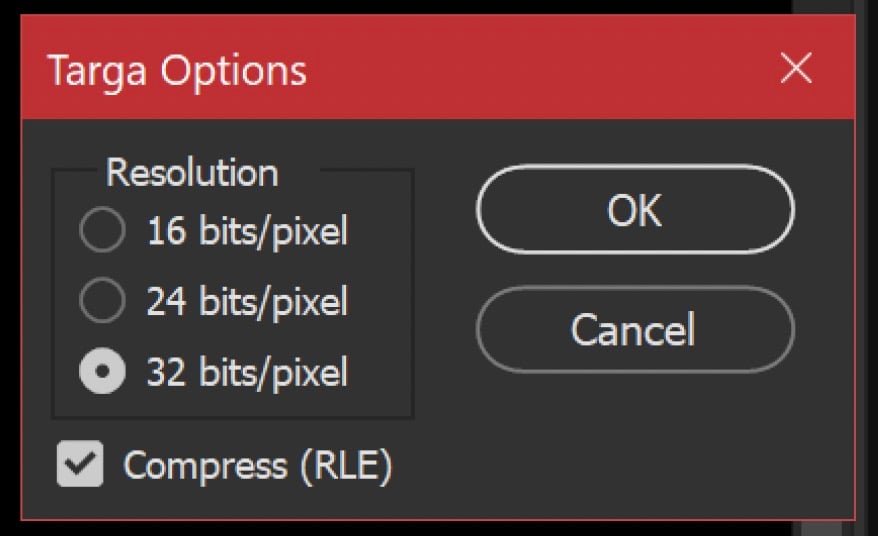
● Textures should be saved as .tga Targa files. All maps, except the Normal Map, should have alpha channels and 32 bit resolution and the Compress (RLE) option box checked. Normal Maps don’t need an alpha channel and should be saved at 24 bit resolution with the Compress (RLE) option box checked.
Modeling Checklist
Asset Compatibility with Gameplay Requirements
● Appropriate animations should avoid interacting or intersecting with non-functional areas of the asset. (ie. Sims clipping through seats, table legs, armrests, assets clipping into walls, etc.).
● The areas where a Sim can interact with the asset such as touching, grabbing, or sitting have the correct animation and prop targets.
● The asset should adhere closely to the size of the intended item subcategory. For example: ○ Ceiling lights should not clip with book cases or armoires.
○ Pets should be able to route under and above tables and surfaces.
○ Sims should not be able to walk through solid materials.
The Mesh is Well Constructed
● Before Submission, please REMOVE any templates or assisting artifacts used for the creation process. We want to review only your work on the finished asset, and you must have rights to any data submitted in the 3D modeling file.
● Face Normals are outward facing.
● Vertices are merged, there’s no collapsed polygons, no 5-sided concave polys, and no laminar faces.
● Most object asset’s origin can be centered.
● Wall placeable object’s origin is recommended to be set to the bottom middle of the base and back of the object.
● Bottom of object recommended to be set to Y=0.
● Drop shadows are recommended to be set to .006 in Y.
● Assets under ¼ tile in size don’t need drop shadows or occluders.
● Occluders are casting shadows and blocking light as expected.
● The appropriate number of tris is used for LOD0 and LOD1 meshes. 10% overage is ok. ○ LOD0 = 800 tris per tile
○ LOD1 = 560 tris per tile
What are your thoughts on The Sims 4 Marketplace guidelines laid out above? Let us know in the comments down below and stay tuned to Sims Community for all the latest Sims 4 Marketplace News!