

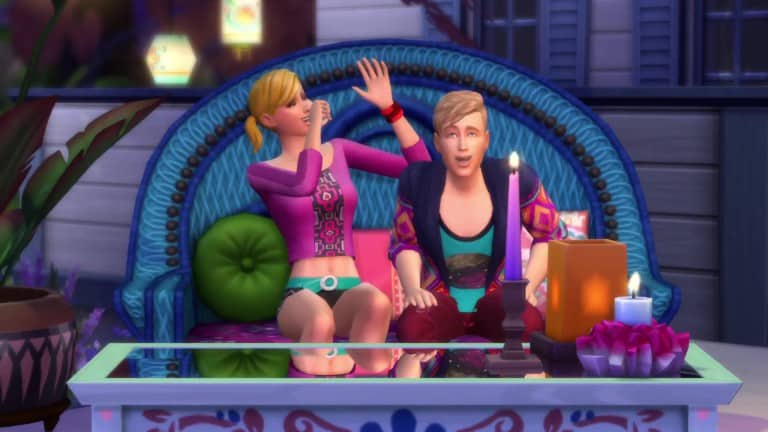
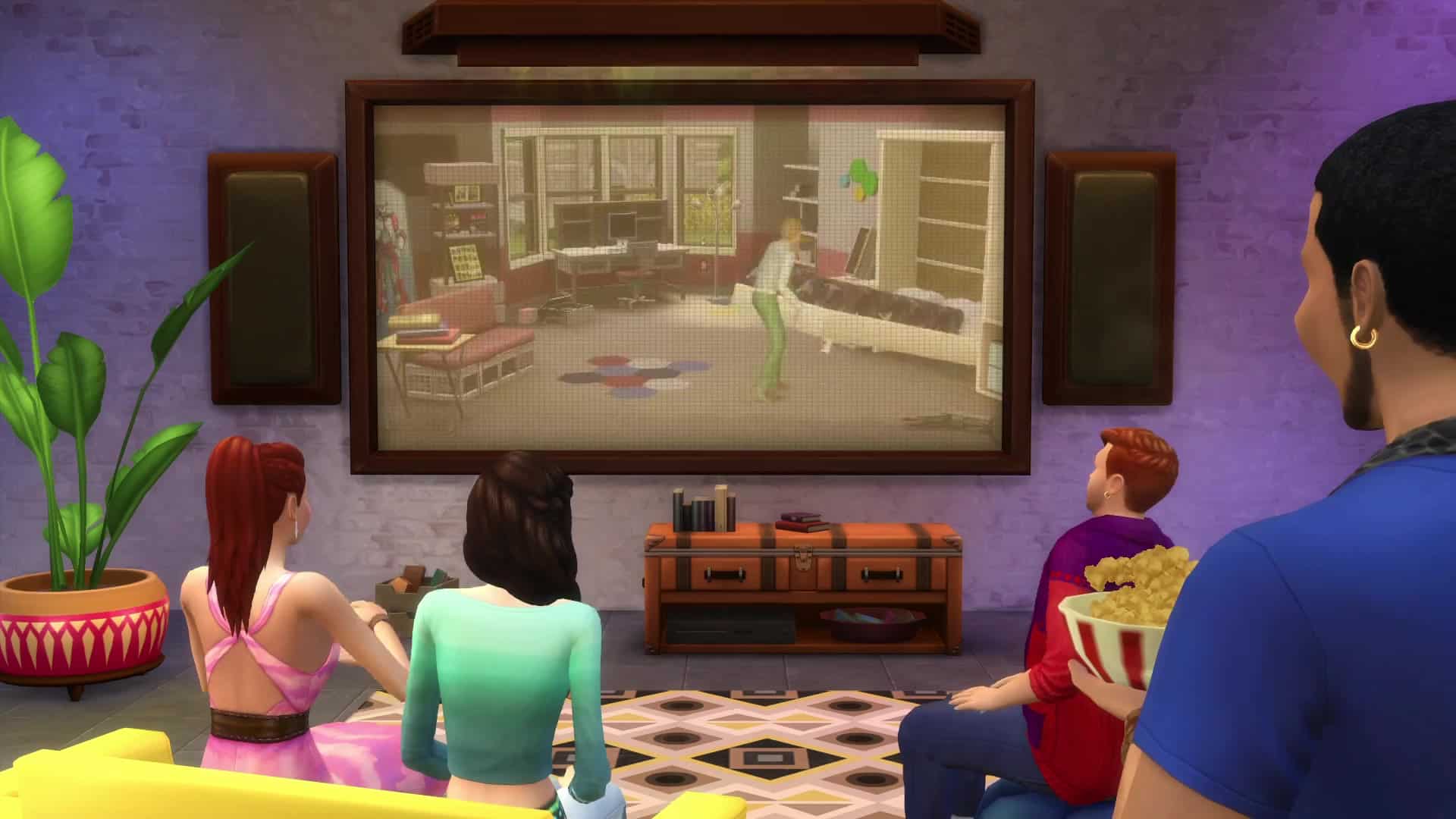
SimGuruRomeo has shared a new screenshot from The Sims 4 Movie Hangout Stuff, showing off his Movie Club enjoying a movie with some popcorns!
Just an every day Club Gathering for the Oasis Springs Film Critics (OSFC)
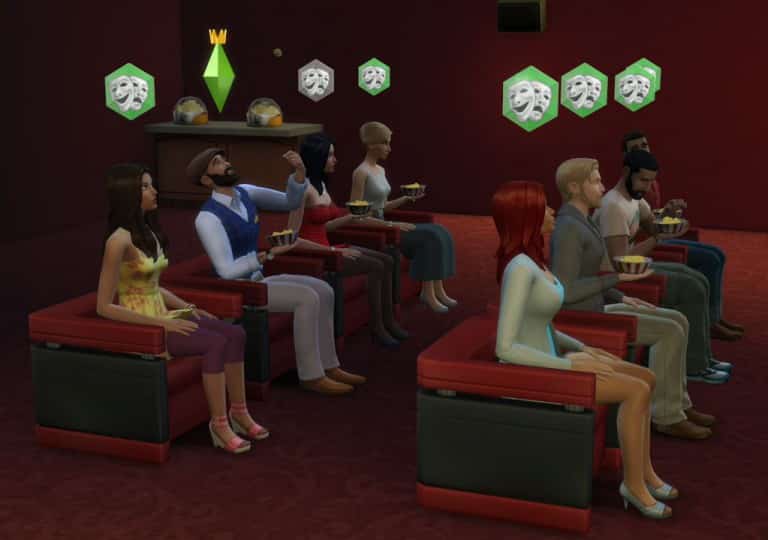
SimGuruRomeo has shared a new screenshot from The Sims 4 Movie Hangout Stuff, showing off his Movie Club enjoying a movie with some popcorns!
Just an every day Club Gathering for the Oasis Springs Film Critics (OSFC)

Rummaging through The Sims 4’s updated game files, I came across these covers of Movie Hangout Stuff that have been translated into 16 different languages.



The Sims Team has released a brand new Update for The Sims 4, preparing us for the release of The Sims 4 Movie Hangout Stuff that’s out next week!
To download the latest version of The Sims 4, simply open your Origin program and if the game doesn’t update automatically, right click on The Sims 4 and select ”Update”.
Update: 01/07/2016 – PC Version 1.14.49.1020 / Mac Version 1.14.49.1220
Happy year of the new, Simmers!
We have a short and sweet release this fine 7th of January, like a New Year’s Eve peck – just a quick welcome to 2016!
Around the corner, I hear Sims are prepping the popcorn for their movie relaxations (just remember, if the bunny in the woods is too much, just call on the super kids to battle the dancing undead).
And with that warning out of the way, we have a bit of NEW…
- We have modified the way in which Sims react to those acting inappropriately in their neighbors’ homes. Beware, for you might find your Sim asked to leave if they get out of line.
- We have also modified the behavior of Sims when a fight occurs.
- Your friends may cheer you on, but your enemies may cheer when you’re down.
- There are 8 new wall decorations to decorate your décor! (ok, well, they don’t decorate the décor, they add to the décor… I really just wanted to ignore the conventions of grammar and write what I wanted to write. There… I admitted it, I ignore grammar!)
- Movie posters for It’s Amber!, Stay Weirder, Cow Plant Love, Cop and Llama, Malpractice, Epic Wood, Sul Sul, and Still Life, are all now available in the Build catalog.
… And have addressed a few Issues…
- The repair service will no longer become unavailable if the player switches active households while the repair service was in progress.
- The repair service is no longer available to not service a retail lot.
- It is now not available, as it was not repairing. Thus, the service will now not charge you for not repairing, when you attempted to have a repair service, service your repairs.
- We fixed an issue that could result when connecting or reconnecting online, in an interface misalignment in the My Library tab of the Gallery.
- Essentially, interface elements were not redrawing properly, and were overlapping in ways that made parts of the interface inaccessible.
- In-acc-sess-ible is so much more fun to say when you accent each syllable.
- We have addressed an issue that could allow users to modify existing lots and upload them as their own.
- Without going into too much detail, through a means of saving, deleting, and re-uploading, it was possible for the owner ID to be “lost” and thus allow the owner modification to occur.
- Sims can now chat with children playing on a jungle gym without route failing.
- … of course I thought the whole purpose of the park was to let your kids run free, while you found peace in the nature inspired sanctuary of silence…
- “Dad?!”
- Blissful, golden silence…
- “DAD!!!”
- SILENCE!
- “DAD?!”
- “What?!”
- “Nuh-thing.”
- We fixed an issue with the DJ booth that could result in the upgrade action failing to perform, but still deducting the parts from the Sims’ inventory.
I hope you had a pleasant December, and wish you joy as we move into the beginnings of this new year.
-SimGuruGnome
SimGurus are sharing new info about the latest Stuff Pack – The Sims 4 Movie Hangout!
.@Ceres_Meiriona Happy to hear; the number of detailed pattern variants for the objects & clothes in this pack is nuts! Very versatile.
— Graham Nardone (@SimGuruGraham) January 6, 2016
.@Howdy_Simmer This pack is for friends/family gathering in a relaxing setting to enjoy a movie, it’s not for a cinema or home theater feel.
— Graham Nardone (@SimGuruGraham) January 6, 2016
.@nickperri_ Definitely. Sims can even declare their favorite movie genre! Check out the blog if you haven’t yet: https://t.co/rZjFHthFYq
— Graham Nardone (@SimGuruGraham) January 6, 2016
.@Howdy_Simmer Sims consider them as different activities. For example, you could have a club that watches movies and avoids watching TV.
— Graham Nardone (@SimGuruGraham) January 6, 2016
.@Howdy_Simmer Each movie is about an hour and a half in Sim time. It’s a unique interaction to watch each one so they’ll stick around.
— Graham Nardone (@SimGuruGraham) January 6, 2016
.@Sathos_voice Each movie is about an hour and a half in Sim time. That adds up to approximately 20 minutes of new video in real time 🙂
— Graham Nardone (@SimGuruGraham) January 6, 2016
@thesimplynando There’s a new club rule to watch movies if that’s what you’re asking about.
— Graham Nardone (@SimGuruGraham) January 6, 2016
@Howdy_Simmer That’s the idea; they’re great fun to watch along together with your Sims!
— Graham Nardone (@SimGuruGraham) January 6, 2016
@SimInterstellar Yup, multiple new styled rooms. Some really lovely arrangements thanks to the wide variety in the pack.
— Graham Nardone (@SimGuruGraham) January 6, 2016
.@thesimplynando Yes, there are ways to watch together, or join in watching a movie in progress. Even a new romantic cuddle while watching.
— Graham Nardone (@SimGuruGraham) January 6, 2016
@Sim_Cookie The movies don’t directly change their emotion, but Sims do have varying degrees of enjoyment when watching a flick.
— Graham Nardone (@SimGuruGraham) January 6, 2016
.@Weealbet Movies can be watched on TVs, and TV can be watched on the new screens. New gameplay is around Sim behavior during/after movies.
— Graham Nardone (@SimGuruGraham) January 6, 2016
@MooniGaming @thesimplynando No sofa woohoo; turn the movie off and take it to the bedroom 😉
— Graham Nardone (@SimGuruGraham) January 6, 2016
@catloverplayer @thesimplynando Yes, or until the movie ends.
— Graham Nardone (@SimGuruGraham) January 6, 2016
@PattonKieran Kids don’t make popcorn; but they can eat the popcorn that adults make in the new popcorn popper.
— Graham Nardone (@SimGuruGraham) January 7, 2016
@daniel_willyan You can invite friends to hang out & then watch a movie with them; it didn’t feel like something needing a dedicated event.
— Graham Nardone (@SimGuruGraham) January 7, 2016
.@ZerbuTabek The ten movies don’t loop or repeat themselves, each tells its own complete story from start to finish 🙂
— Graham Nardone (@SimGuruGraham) January 7, 2016
@PattonKieran They sure can.
— Graham Nardone (@SimGuruGraham) January 7, 2016
.@purpleclauu The reactions they have relate to what’s happening on screen, i.e., monster pops out; Sims jump in fright. Not emotion based.
— Graham Nardone (@SimGuruGraham) January 7, 2016
.@leo3487 Did someone say telesplosion? I love that in Get Together! …and yes, it works & looks fantastic on the new Movie Stuff screens.
— Graham Nardone (@SimGuruGraham) January 7, 2016
@Chelle_Jo44 Yup, each one is two minutes in real time.
— Graham Nardone (@SimGuruGraham) January 7, 2016
@RacodyZ No, it’s done via an interaction in-game. There are a number of new socials between Sims that they can use after watching a movie.
— Graham Nardone (@SimGuruGraham) January 7, 2016
@RacodyZ This pack is for friends/family to gather in a relaxing setting and enjoy a movie. Comfy boho clothing and accent piece furniture.
— Graham Nardone (@SimGuruGraham) January 7, 2016
@RacodyZ We specifically stayed away from cinema as that’s a totally different experience, and something larger than a stuff pack.
— Graham Nardone (@SimGuruGraham) January 7, 2016
@RacodyZ Things like discussing a scene, asking about the plot, chatting about actors or directors, spreading spoilers, etc. Variety.
— Graham Nardone (@SimGuruGraham) January 7, 2016
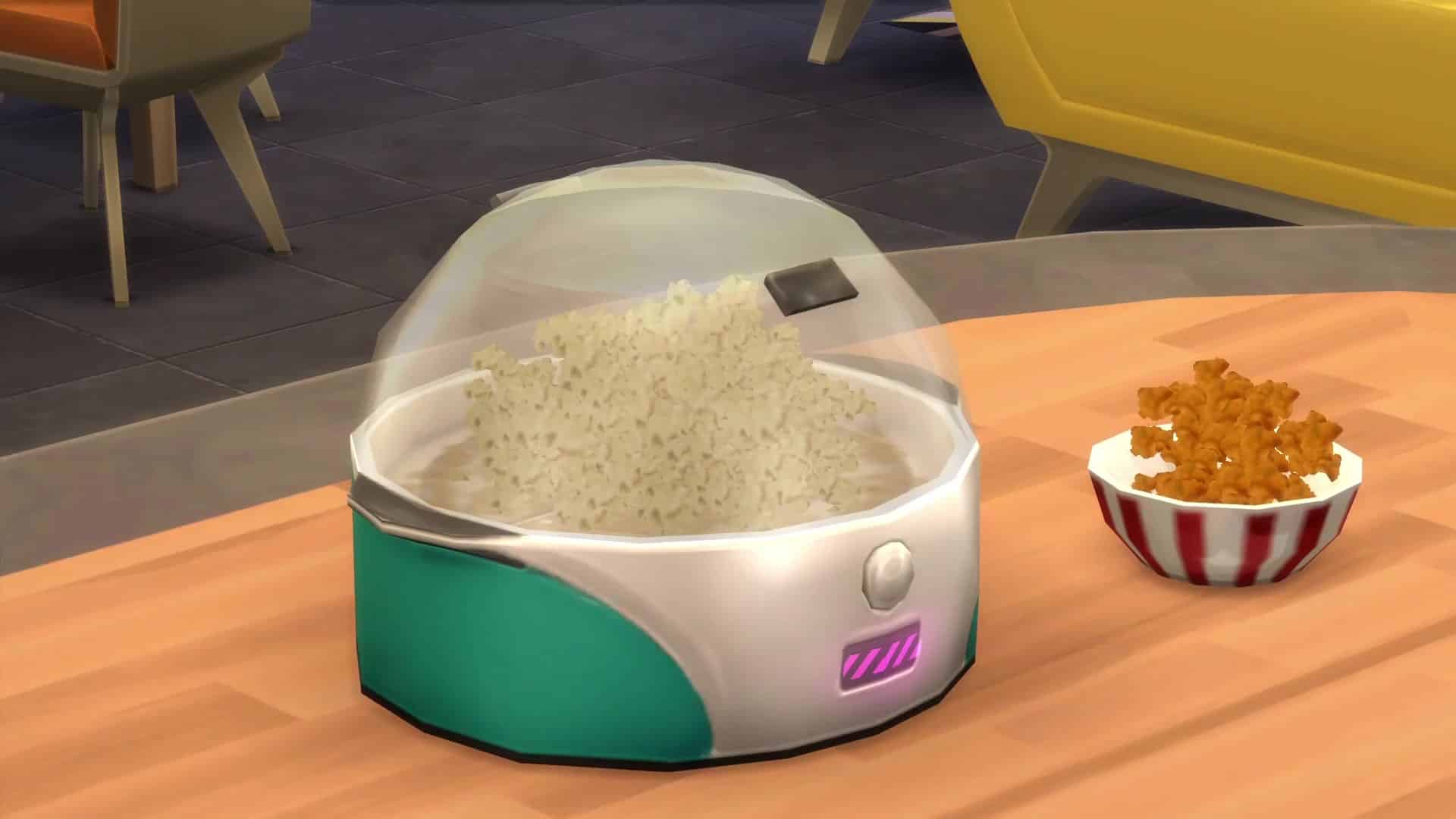
.@RacodyZ There are four popcorn flavors… buttered, caramel, cheddar, and kettle.
— Graham Nardone (@SimGuruGraham) January 7, 2016
.@Ceres_Meiriona In Movie Hangout Stuff, shushing happens when a Sim who is enjoying a movie gets distracted by other Sims who aren't.
— Graham Nardone (@SimGuruGraham) January 8, 2016
.@Ceres_Meiriona Examples… if another Sim starts talking, or laughs during a serious moment, a Sim enjoying the movie may "SHH!" them.
— Graham Nardone (@SimGuruGraham) January 8, 2016
.@Howdy_Simmer @leegravesg15 Watching TV and watching a movie are two separate club rules that can be selected independently of each other.
— Graham Nardone (@SimGuruGraham) January 8, 2016
@QueenavaZ No, making popcorn isn't a club activity.
— Graham Nardone (@SimGuruGraham) January 9, 2016

SimGuruDrake has announced today that The Sims 3 website will be down for site maintenance and that they’ll change the way you purchase SimPoints and Worlds from The Sims 3 Store.
Hello Simmers!
Today the The Sims 3 store / website will be going down for a short time for site maintenance starting at 11AM PT. We will be making an update to the way that you purchase SimPoints and Worlds on The Sims 3 store.
When selecting a SimPoint or World bundle you will now be brought to Origin.com for your payment.
The payment flow will goes as follows:
For SimPoints:
- Log in to Origin.com using your thesims3.com username and password.
- Choose the amount of SimPoints you want and follow the instructions on-screen to purchase them.
- Go back to https://store.thesims3.com/ and refresh the page (press CTRL + F5 on a PC or Command + R on a Mac)
- Your SimPoints balance will refresh too, and you’ll see your new points have been added.
- If your SimPoints balance does not correctly display your expected balance, log out of https://store.thesims3.com/ and log back in.
- If you’re also logged into the game, or have the launcher open, you’ll need to exit and restart so that your new Points balance is updated in-game.
For World Bundles:
If you select a World Bundle from the store on thesims3.com, you’ll be taken to the Origin.com purchase page for that bundle.
If you’re asked to, please log in to Origin.com using your thesims3.com username and password.
Follow the instructions to complete your purchase and you will be given a code to redeem.
To redeem the code, go to the code redemption page on thesims3.com and enter your code.
- Check the box to agree to the Terms of Service and Privacy Policy.
- Click Redeem.
Next, go to your Purchase History and click the Download button for your new World.
The World should now be available for you to download through The Sims 3 launcher.
We’re currently running a Giveaway on Sims Community Social where you can win THREE digital copies of The Sims 4 Movie Hangout Stuff! To enter, simply post a reply on the thread that’s linked in the picture down below. Good luck!

Click on the pictures below to enlarge them!











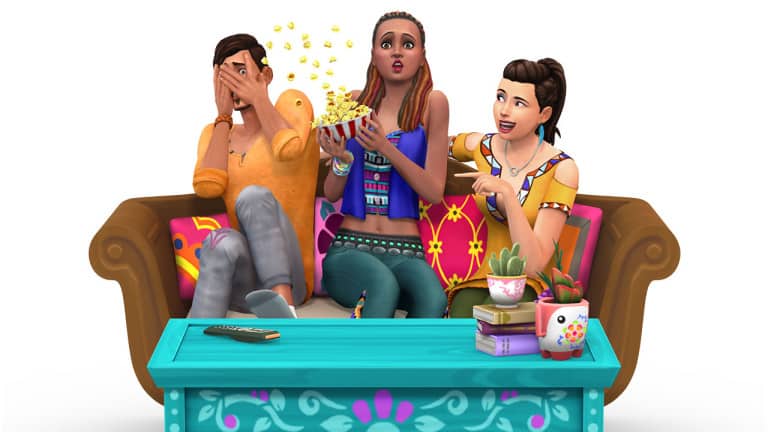
Check out this Box Art Render from the newly-announced Stuff Pack for The Sims 4 – Movie Hangout Stuff!
Provided by EA

Via TheSims.com
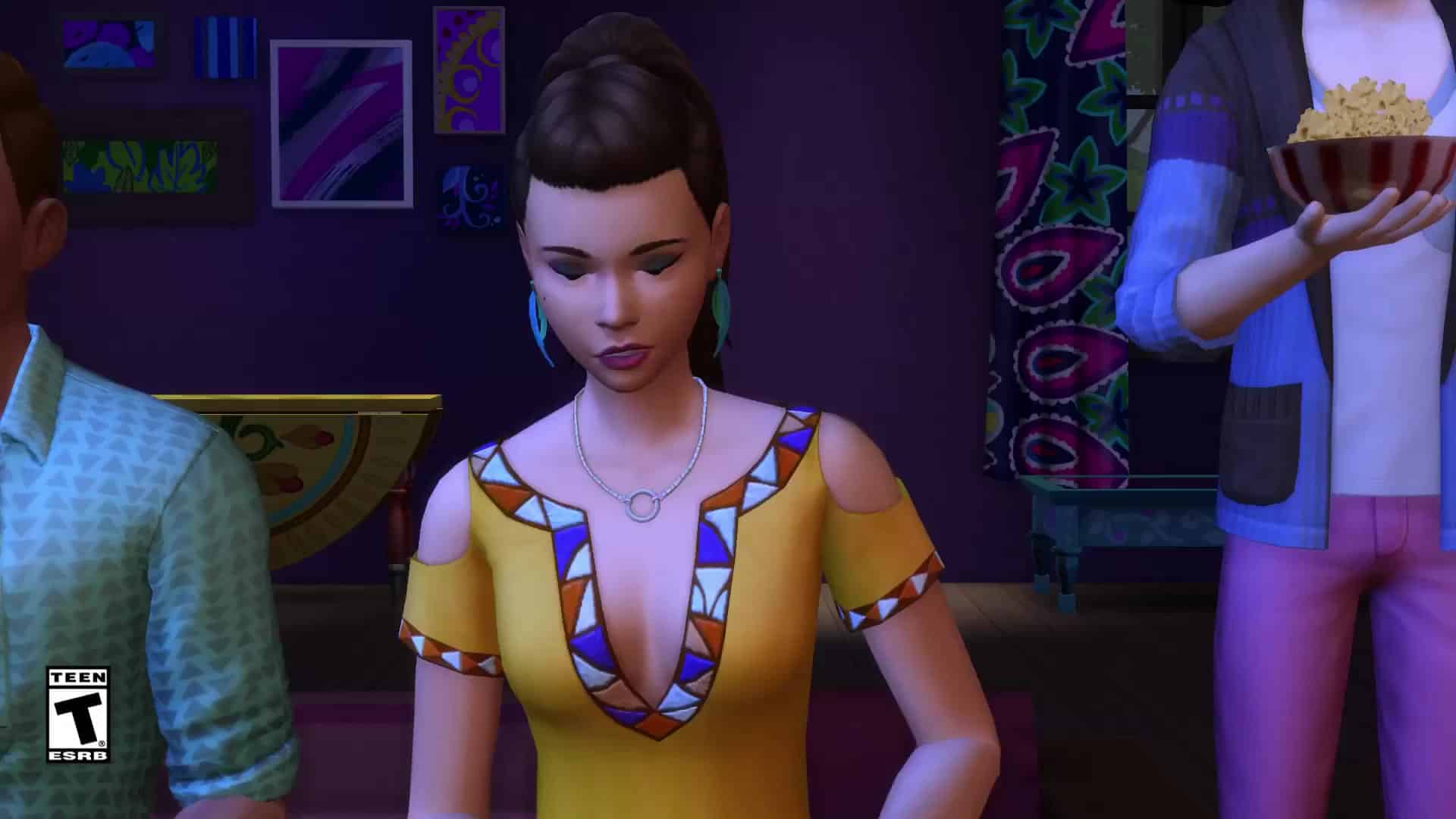
Grab the popcorn and invite your friends – The Sims 4 Movie Hangout Stuff Pack* is coming on January 12, and includes the stuff your Sims need to set the stage for a relaxing movie night.
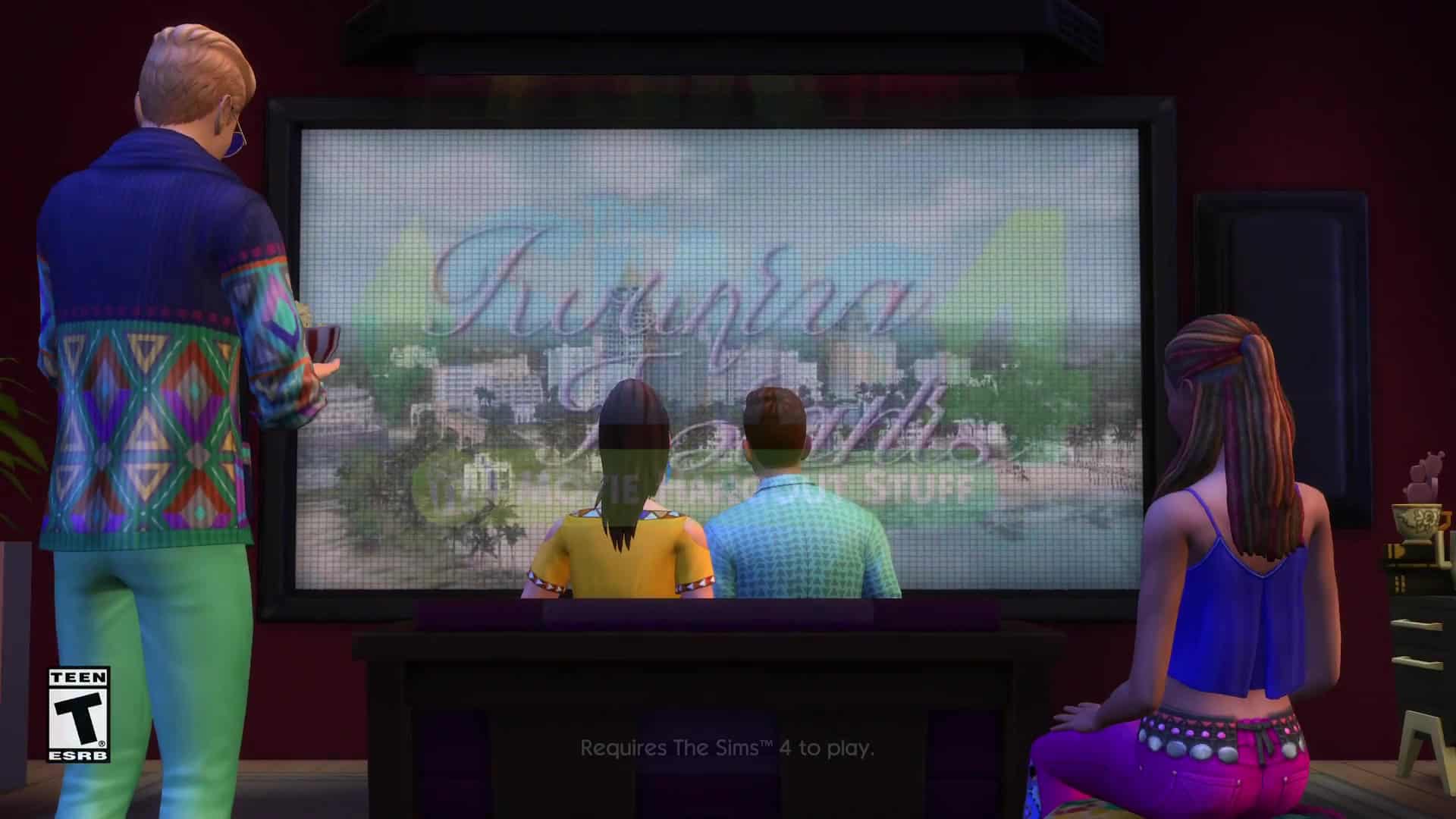
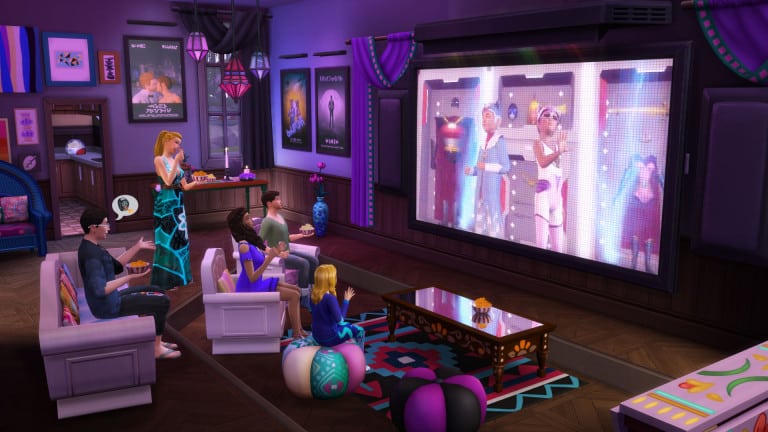
Key to any screening is an awesome screen, and the new Movie Projector Screen fits the bill. This new object is much more than an oversized TV – it’s loaded with ten original films to watch, from action and comedy to romance and horror. There are even two family movies in case your Sim wants to catch a flick with their kids. Each tells a unique tale, and you’ll be captivated alongside your Sims as they gasp in shock, cry over tragedy, and share a good laugh at the perfect punchline.
Movies may be best experienced as a group viewing under a night sky, but that’s not the only way to enjoy the new films. You can always retreat to your den of solitude and watch these flicks on your TV, if you’d rather enjoy a more intimate environment.
Of course no flick can be fully appreciated without an accompanying bowl of popcorn on your lap, and the new Popcorn Popper lets you do just that. Your Sims can pop (and devour) traditional buttered, cheddar, caramel, or kettle. Just beware… popcorn may fly everywhere when they view a jump scare in one of the horror movies!
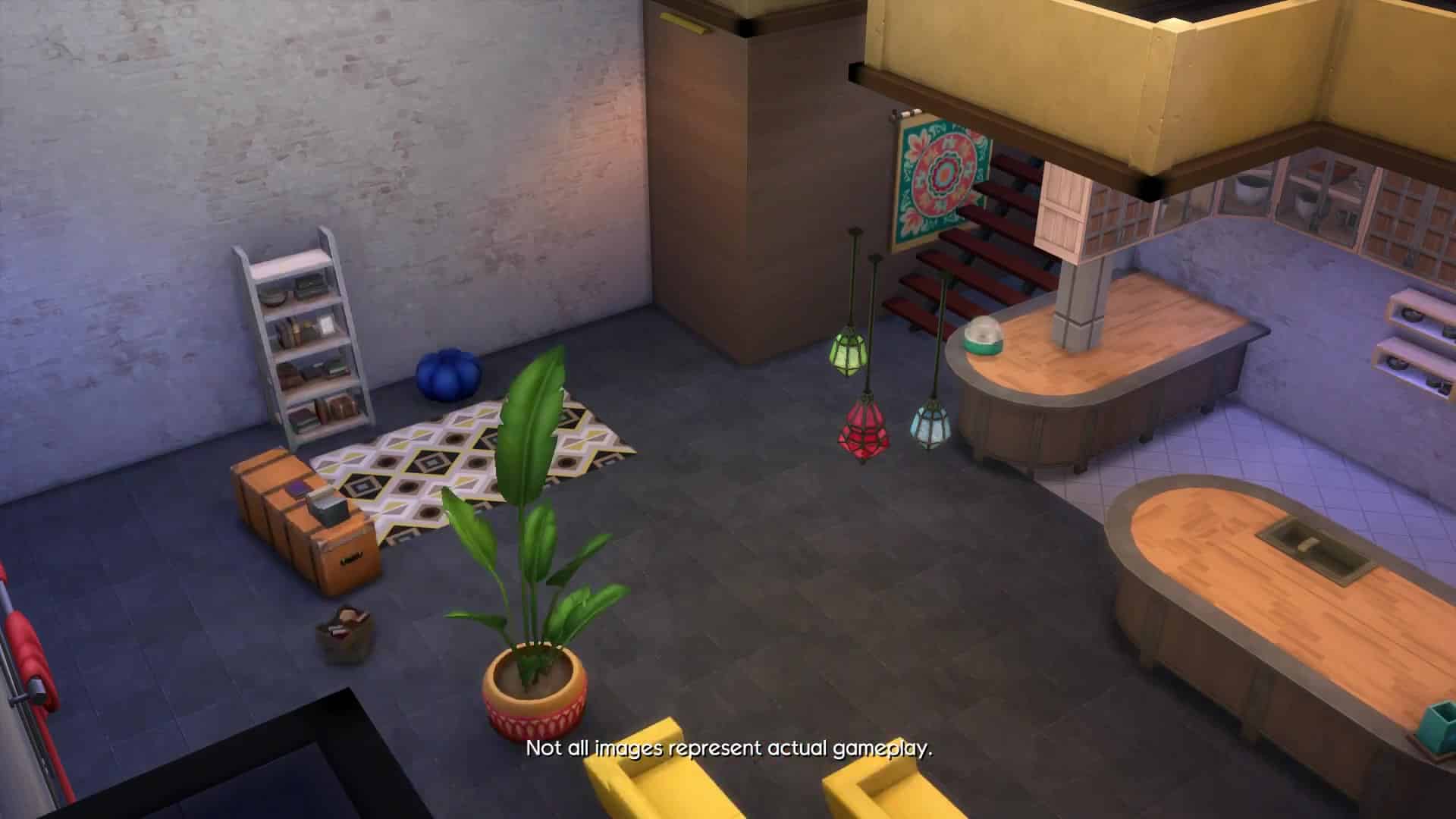
But we didn’t just want to give you the tools to watch movies (and eat popcorn). The Sims 4 Movie Hangout Stuff also includes new furniture and decorative accents to add a touch of color to your awesome hangout. You can create a great indoor movie lounge, or take it outside and create a totally awesome bohemian atmosphere to watch movies in the breeze.
The Sims 4 Movie Hangout Stuff releases worldwide on January 12 – are your Sims excited to watch some flicks and chill?
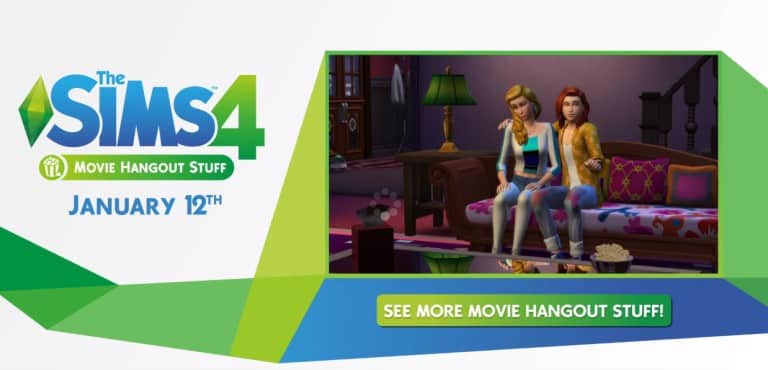
The Sims Team has announced a new stuff pack for The Sims 4 – Movie Hangout!
UPDATE: The latest Sims 3 Update got a small update (lol), addressing the pop up issue. The current version of The Sims 3 is 1.69.43

The Sims Team has released a new game update for The Sims 3 that allows you once again to play with The Sims 3’s Create A World Tool. SimGuruDrake provided more info about this update down below:
Hello everyone!
Today we had a small update to the Origin Client for The Sims 3 that will enable the users who took part in our last Origin client update to now use the updated CAW tool.
I want to reiterate that this version of the CAW tool is ONLY for those who have downloaded the Origin update (that means that in order to use this version of the CAW tool you need to have the previous Origin Client updated PLUS the client update we released today otherwise this tool will not work for you.)
After you download the client update please visit this link to download the updated CAW tool:http://lvlt.thesims3.com//content/global/downloads/caw/ts3caw.exe
If you did NOT take part in the previous update and did not download the update today please use this version of the CAW tool:
thesims3.com/game/tools/worldWe will be updating the tools page on TheSims3.com with this new CAW tool soon and will update this page once it has been.

In the forth addition to the series we will be looking at ways you can get your YouTube channel looking the part! Channel visuals are extremely important, this is what someone see’s the second they find your channel. Video thumbnails are what attracts a suspecting viewer to click on your video over the hundreds and thousands of others uploaded doing the same or a similar thing.
In order to create some snazzy branding for your channel you are going to need some form of photo editor to craft thumbnails, banners and even an icon if you wish. Photoshop is a popular one as it features many useful tools that help to make text, images and backgrounds stand out. In this tutorial I will be taking you through some of the main features of Photoshop that I use on a daily basis to make my channel art. There are some free options as always, PicMonkey is a really good one. I used this when I was starting out and it features some elements that Photoshop doesn’t. Such as free to use fonts (no need to go looking for them), decorative overlays, frames and so much more! I still use this site now and then and I totally recommend it to anyone who is starting out or doesn’t want to pay the price for Photoshop.
Gimp or Paint.net are other good free alternatives, they are more on par with Photoshop in terms of editing capabilities and features, almost identical in fact and make for excellent tools for creating channel art! (The following images have been watermarked to avoid theft, they do not feature on my actual thumbnails, it is only a precaution)

Step 1: After opening the program, click file, new and then a little window like this will pop up. It is ESSENTIAL that it is 1280×720 pixels as these are the dimensions YouTube uses. Any other size will not be accepted by the site. When this is done you will have your blank canvas to get started. Now the fun part! The thumbnail will need a fitting background, I always look through Google images for something that fits the theme of the actual video or sim. In this instance I am creating a thumbnail for a Rocker DJ Create A Sim video. So I searched terms like ‘Grunge background’, ‘Rock background’ ‘punk rocker background’ etc. Once you have selected your chosen background you can now start to think about how you would like the layout to look. Before starting my thumbnail I made sure to take some screenshots in game just after creating my sim. Taking Some close up shots and some further away gives you a good selection to chose from when arranging the items on the canvas. Using pose mods on your sims for thumbnail shots also really help to make your thumbnails distinctive and unique!


Step 2: Once you’ve picked out your chosen images and removed the background etc. You can now start adding all kinds effects to make them stand out more. By right clicking on the layer you want to edit and selecting blending options you will find a little window that has lots of options to edit your image! One of my favourite ones to use is the one titled ‘stroke’ by doing this you can add an outline to your images, helping them to stand out against strong backgrounds. I also like to use the ‘drop shadow’ option to lift my image off the page, this adds great dimension to your thumbnail! Here’s what the two look like when I use them together:


Step 3: Typography! When placing your images make sure to leave room for text, you don’t necessarily need to include The Sims 4 logo in every thumbnail you make, as long as its in the title of the video. However do not leave so much space that there is more background than anything else. Thumbnails appear very small on the YouTube interface so make sure your sims look big and clear to see, same goes for the text, use your space wisely! Fonts like Ariel, Times New Roman or Comic Sans are the biggest NO when it comes to making thumbnails. It looks so uncreative, bland and well… just boring! You want to grab potential viewers attention, that is what thumbnails are for! Dafont is a great place to download and install thousands of fonts for every occasion. For my thumbnail I will be using a font called “bloody”. Take the same steps you did for your images to open the blending options and the same rules apply! Experiment with the different effects to get the look you want. On this occasion I once again used a stroke, this time black and a drop shadow to add dimension. For the colouring I decided to use a gradient using two shades of green to enhance the 3D emboss effect. Now, I cant stress enough about colour coordination. Some colours just do not go together and furthermore too much of the same colour can be overbearing. Pick one or two shades of a colour and stick to it. BUT ensure the text colour is not too similar to the background or it will not stand out enough. I chose green for this thumbnail because there are a lot of grey and black tones, something bright not only stands out but also adds to the whole neon, nightlife theme as she is a DJ sim! Here is how it came out:

If you have any empty space like I do (under the text) instead of filling it with icons or more unnecessary text. Enhance the background to fill the space! One way I like to do this is to find a pattern background, most often I use stripes or a sun burst. Place the layer on top of the background layer and using the little drop list next to the opacity option, I experiment with overlay, screen and lighten to get a slightly faded effect. Sometimes simply lowering the opacity does the trick too if the image is black and white. This leaves us with the finished product!

That’s all for today’s article! I hope this helps some of you when creating your own channel art, the same methods and rules apply for banners and icons. Just experiment and be creative! Next time I will be giving advice to you guys who have already embarked on your YouTube journey and are perhaps considering partnership? I will be exploring the biggest gaming networks out there and what to do when you receive those pesky emails offering you all kinds of nonsense! Dag dag!
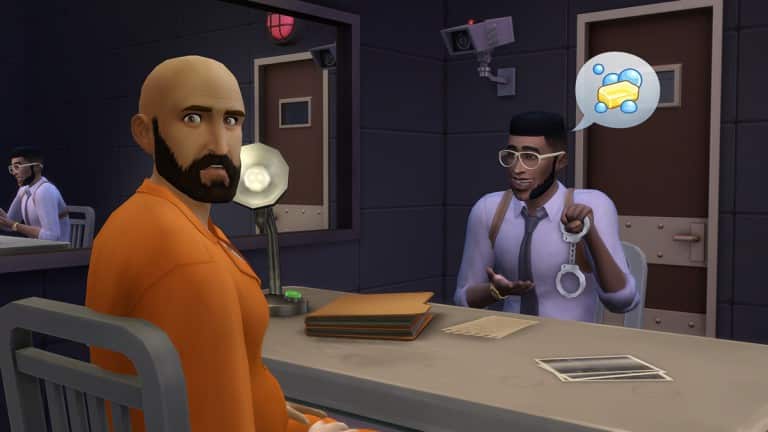
The Sims 4 Marketing Imagery
The Sims 4 is a life simulation game developed in 2014. To help market the release of The Sims 4 and additional expansion packs, I created a series of images to help showcase the diversity of the game-play to potential and ongoing players. The Sims 4 is a user creation focused game focused very heavily around storytelling. Players can build their own houses and characters using tools within the game.
Each image I created for The Sims 4 first involved creation of the set and characters. The characters were then choreographed using console commands (cheats) to force them to play certain animations. Solo frames of each character were then composed, along with the image of the set, in Adobe Photoshop to arrive at the final image.
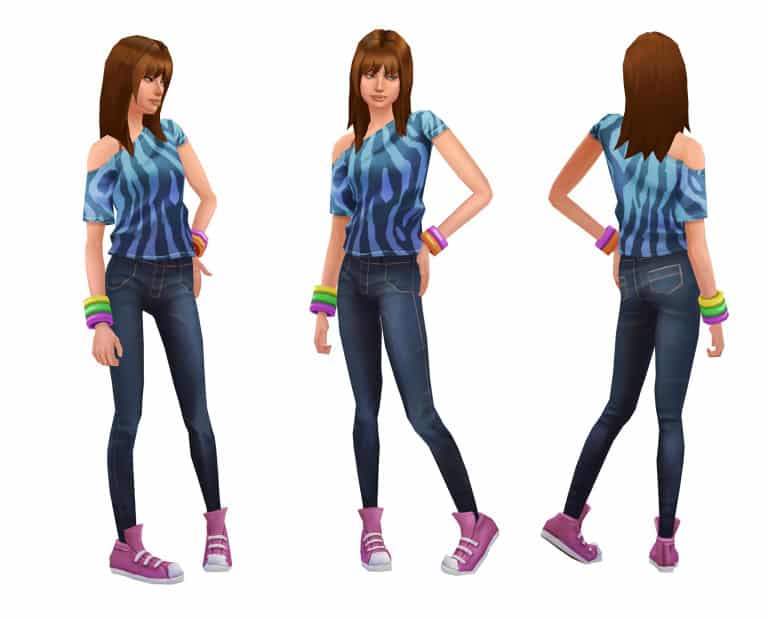
Via Kenneth Toney!
Sims 4 – For this project my main responsibility was to create prototype items such as hair styles, cloths, and accessories. The images you see below are all prototypes. For Sims 4 the art budget was quite low so we had no normal mapping or specular mapping. We had to paint in all the shadows and highlights into the diffuse maps. It ended up looking quite nice and created a new look for the game.
Note: I did not create the faces for this game.
In this article I’ll be teaching you how to extract Music and Soundtrack from The Sims 4. For this process you will need:
After downloading the required tools for extracting music, you’ll need to lay them out specifically. Create a folder that’s meant for extracting music, and extract the Package Editor files there (I advise you to put all those files inside a new folder). Then, create a folder where you’ll extract the EALayer decoder + .package files for decoding.

Open s4pe.exe and select File > Open. Locate where your The Sims 4 game is installed. As you have The Sims 4 installed through Origin, you can figure out where Origin installs your games by going to Origin > Application Settings > Advanced > Downloaded Games.
If, for example, you’re looking for music from The Sims 4 Base Game, go to The Sims 4 > Data > Client. There you’ll see several .package files that are marked with ClientDeltaBuild and ClientFullBuild. ClientDeltaBuild packages contain content that have been patched in The Sims 4 Base Game, while ClientFullBuild packages contain original content from the Base Game. For this tutorial, we’re going to open up ClientFullBuild1. Other packages in the Base Game folder that include Music and Soundtrack are:
At first, you’re gonna see bunch of files with all sorts of tags such as _VID, _AUD, _IMG and so on. What you need to do is filter out the _AUD tag so that other files don’t stand in your way. You can do so by writing _AUD in the Tag field below (and checking the Tag box), checking the Filter Active box and pressing the Set button.
The other thing you need to do is press the Memsize sort button TWICE, so that it lists files from biggest to smallest.

Sadly, you’ll be ”blind” when it comes to knowing which soundtrack you’re extracting. The Package editor cannot locate the names of the files inside the packages. But, you can find a difference between Music/Soundtrack and Sound Effects. Music from The Sims 4 is tagged with the 0x01EEF63A Type tag, while the rest is SFX.
Select all files inside the package that are tagged with the 0x01EEF63A Type tag, right click on one of them and select Export > To file… . As these files require decoding, you’ll want to extract them to the Decoder folder where you extracted those zipped files.

Your Decoder folder should look something like this:

Now that you have all your desired Soundtrack and Music pieces extracted, open up the Start.cmd file and let the command executer do its thing.

After you’re done, feel free to remove unecessary .SNS files.
There really isn’t an easy way to find the names of the music you extracted. The method I use is open The Sims 4, go to Options > Music and find the music files that are matching.
When it comes to the size of these songs, you should consider reducing the quality from 1411kbps to 192kbps. You can use Audacity, Adobe Audition or similar programs to achieve that.
Extracted music files that take up more than 100MB of space are Soundtrack files from Build Mode, Map View or CAS. They cannot be opened using music players and must be extracted once again, but this time using special audio programs such as Audacity and Adobe Audition.
Each The Sims 4 Soundtrack file has 16 layers (8 if you make them Stereo). First Layers contain only 1-2 instruments and they build up as you progress through Layers.

To get the final version of the Soundtrack, I need to extract the file to Layers. Using Adobe Audition you can do by right clicking the file and selecting Extract Channels to Mono Files.

As I want the full, final version of the Soundtrack piece, I need to insert the last 2 layers from the Soundtrack into a Multitrack Session.

From there I’ll make AUD_16 layer stereo balance to right and AUD_15 layer stereo balance to left.

All that’s left is Exporting the Multitrack mix and your Soundtrack piece is ready for listening!


