

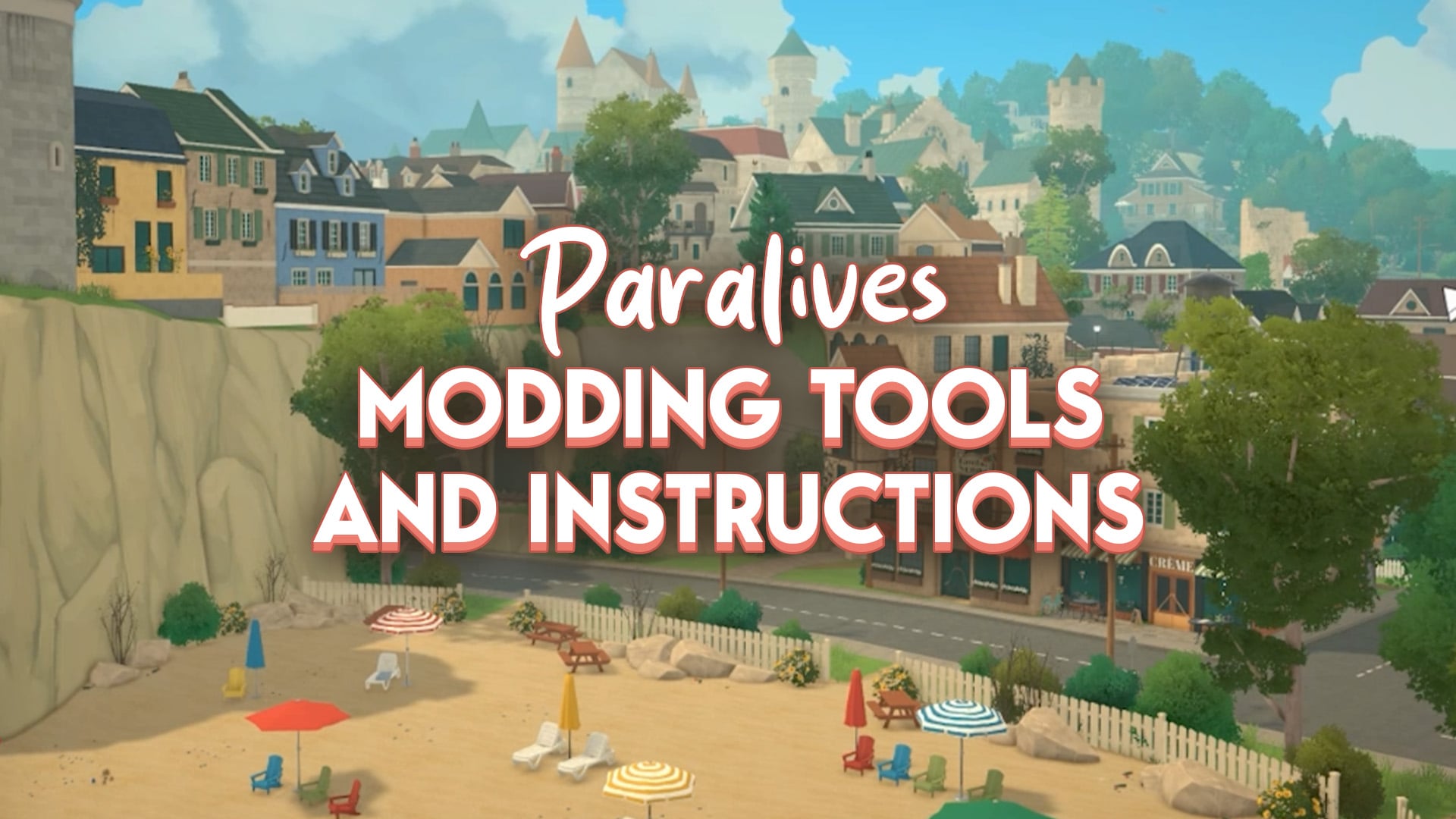
Plus, a first look at the Paralives Main Menu!
Smack dab in the middle of the few months between Paralives old release date in February and the new release date in May 2026, the development studio and developers themselves have made a very active effort to show how they’re using that time to improve the game for Early Access launch.
As modding and modders for Paralives was something they’ve discussed wanting to support and make an essential part of the community and playerbase surrounding Paralives, they have now begun to build an official Paralives Modding Toolkit, providing guides to modding in specific items, pointers, and tips to make the process smooth for all the new players and modders looking to dip their toes into Paralives in May. This is a new section being added to the in-progress and pre-existing Paralives Wiki.
These resources are still somewhat under development, and the Wiki itself includes mentioned tutorials that are still being written, and will likely not be linked on the Wiki until they are fully fleshed out and closer to launch. However, so many tutorials have already been created, from overall fundamentals like just creating a new item or uploading to the Steam workshop, to specific fine details of making custom content.
Table of Contents
Tips for Modders
- If you are unsure how to mod something, you can open the Control Panel and find out how game content was set up and integrated.
- Press Ctlr+F2 at any time to open the Control Panel
- Use the Console (Ctrl+F1, Console mode) to see if your mods cause errors or exceptions in the code. No red errors should appear in the console.
- If something doesn’t work, try restarting the game. Some changes in settings may break game data, but work after a game restart.
- Lists of elements in the Control Panel can be searched and re-ordered.
Limitations of the Official Modding Tools
Paralives’ official modding tools are all about editing existing game content, adding new content, or removing content from the base game. The modding tools do not support scripting to create features. Official script mods are under consideration by the development team, but are not confirmed.
While almost every piece of game content can be modded, some things are not moddable:
- Interfaces: The layout, style, and colors of the UI windows.
Paralives Modding Guides
Creating a Basic Furniture Item – Paralives Modding Tutorial
1) Create the item
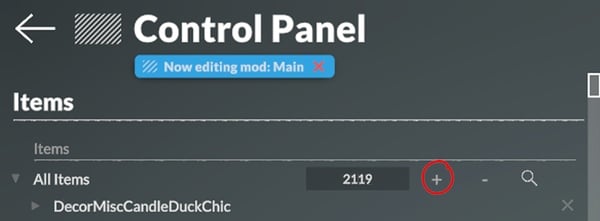
Find the Items tab in the Control Panel, under the Build category. Once in the menu, click on the + button next to All Items to add a new item. Scroll all the way down to find the new item.
2) Name the item
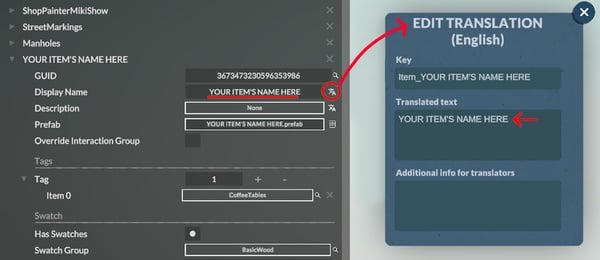
Name the item in the Display Name field. Click on the little icon next to the field to open the Edit Translation menu. Make sure to also write the item’s name in the Translated text field.
3) Create a Prefab
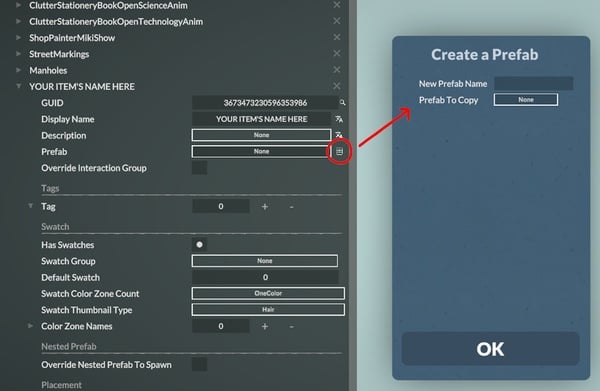
Click on the little icon next to the None button of the Prefab field. This will prompt a pop-up to create a Prefab. Input the item’s name for New Prefab Name, and press OK to launch the Prefab Editor.
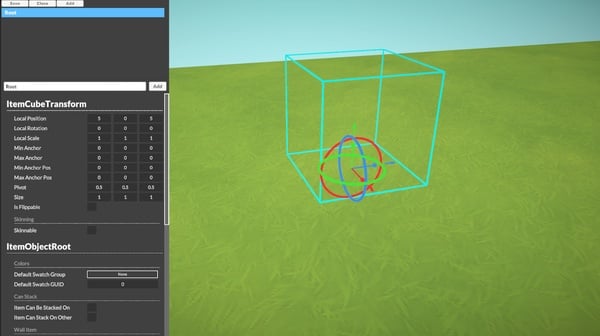
The default view in the Prefab Editor.
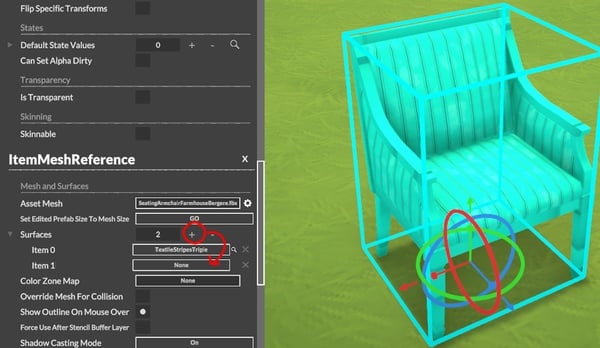
4) Add ItemMeshReference
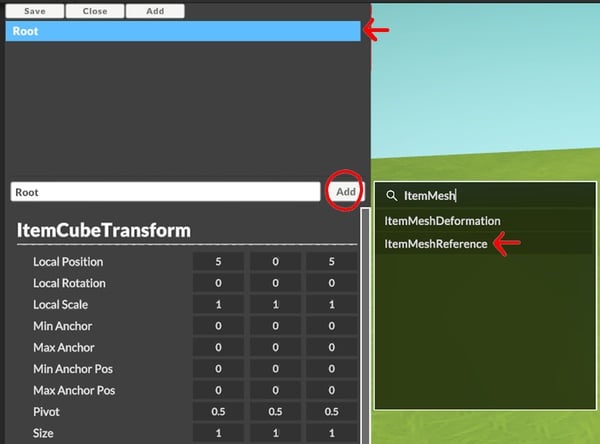
To add a mesh, make sure to have the item’s Root selected, and select Add. From the pop-up menu that appears, search and select ItemMeshReference.
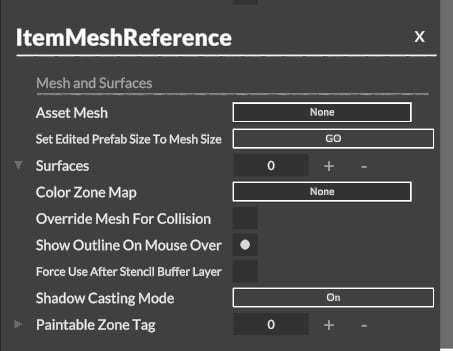
When scrolling to the bottom, there should now be the ItemMeshReference section.
5) Select a FBX
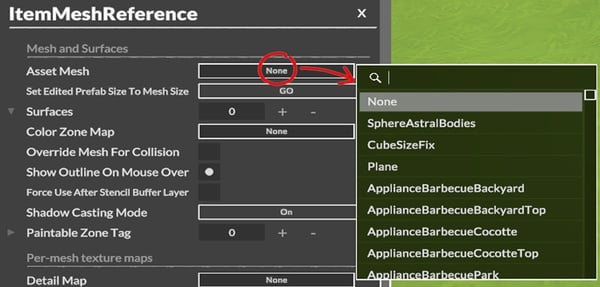
Click on the button next to Asset Mesh to select the mesh. If the asset was imported properly, it should appear within the list.
6) Fit the bounding box
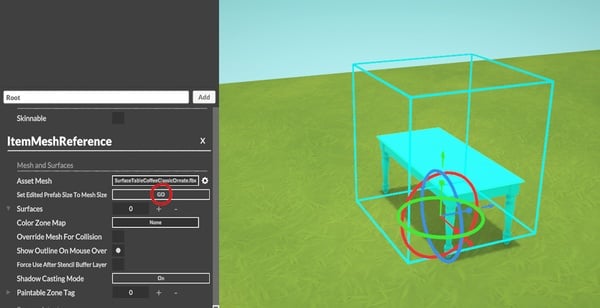
The item should now be inside the blue cube. The blue cube around the item is the item’s Bounding Box: it defines the size of the selection UI, how the item will snap to walls and other items, and whether the item is out of bounds. It should be fitted to the item. Click the GO button next to Set Edited Prefab Size to Mesh Size to get the box perfectly shaped to the item.
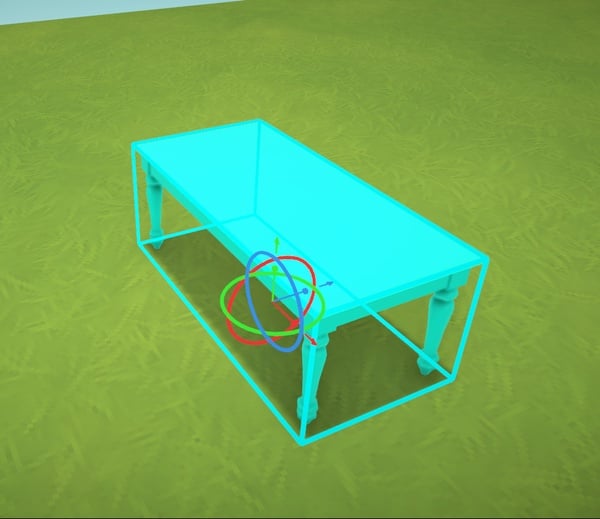
This is what the bounding box looks like when perfectly fitted to an item.
7) Add a surface
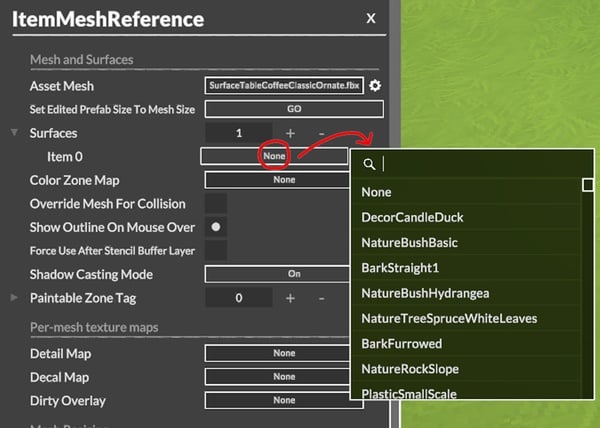
Add a surface to the item. This is the material that the item will have. Click the + to add a surface, then None to get a selection pop-up. Pick from the many surfaces already created in the game, or create your own (see Adding Texture Assets to Create Surfaces).
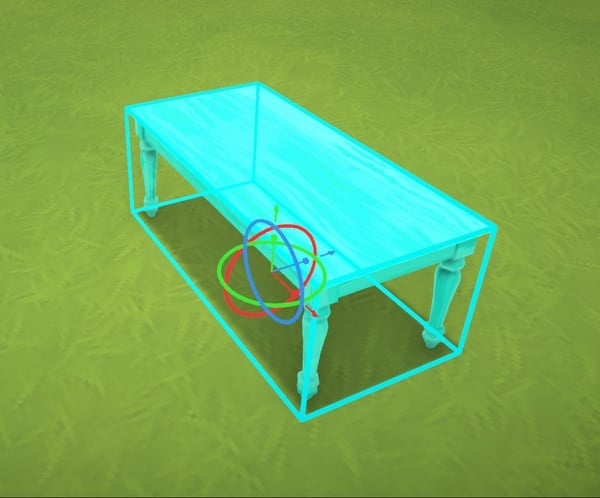
The surface chosen will display on the item.
8) Save your item
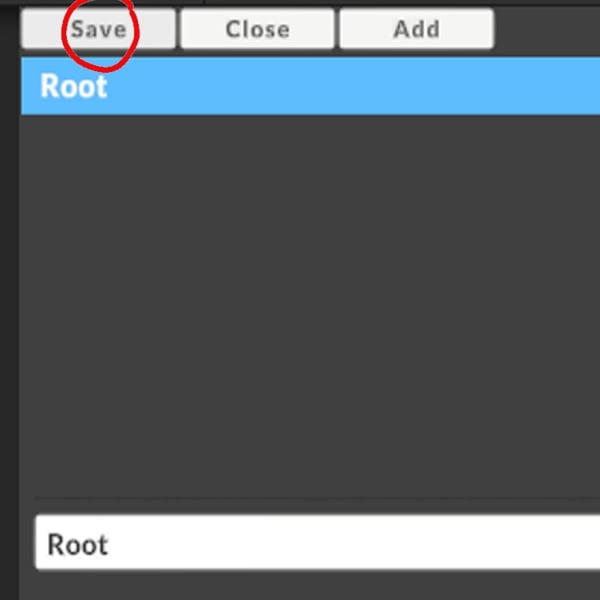
This wraps up the steps in the Prefab editor. Click Save and return to the Items page.
9) Add an item tag
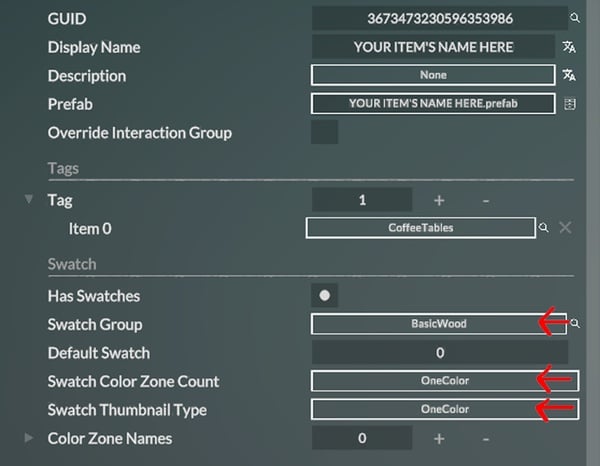
The item needs a tag to appear in the Build Mode catalog. Click the + to add a tag, and click on None to choose a tag in the list. The tag will also give the item a base price, as well as some other settings on the back-end.
10) Add swatches
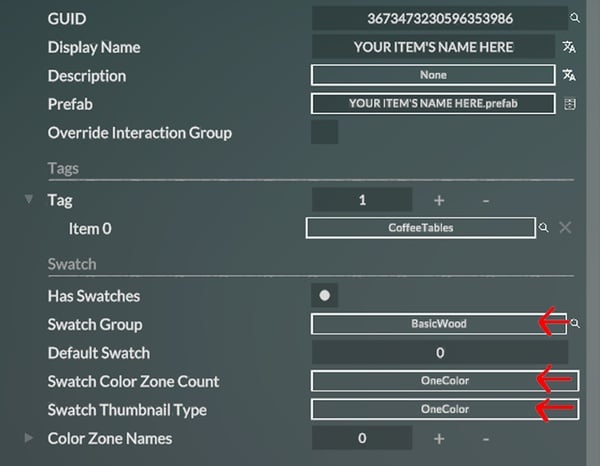
Last, the item needs swatches. The item from this tutorial is quite basic and made of a single surface/color. Pick an already existing Swatch Group like BasicWood, which sets up the item with already picked out colors for a wooden item. Set Swatch Color Zone Count and Swatch Thumbnail Type to OneColor.
The new item should now appear in the Build Mode catalog.
Creating a Clothing Item – Paralives Modding Tutorial
1) Add a new equipment
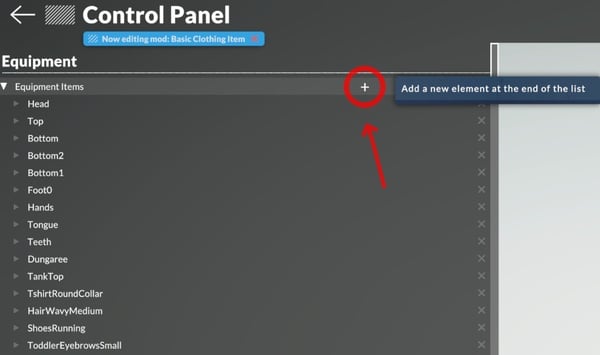
In the Equipment section of the Control Panel, under the Characters category, find Equipment. Click on the + sign to add a new piece of equipment, and scroll down the list to find it.
2) Name the new equipment
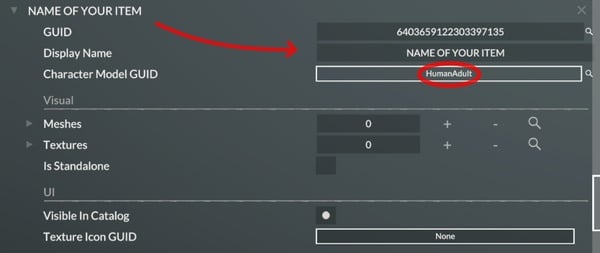
Name the new clothing item and select HumanAdult as Character Model. The other options can be used for toddlers or pets.
3) Add the mesh
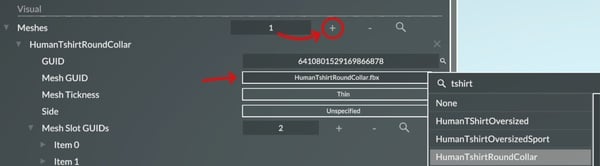
Click on the + right to Meshes to add a mesh. This example uses HumanTshirtRoundCollar.
4) Add the mesh slots
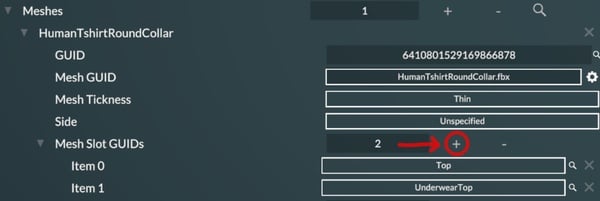
Click on the + button to add Mesh Slot GUIDS. Mesh Slot GUIDS indicate where the garment is located on the body, and the game will replace the body part with the mesh. An underwear top, like a bra, can be added to hide the underwear for optimisation or when it’s visually more interesting.
5) Add the textures
This garment is a close-fitting top. In this scenario, there are two textures: a pecs version and a breasts version. The breasts version will have more shadows painted in the texture to help convey the idea of volume.
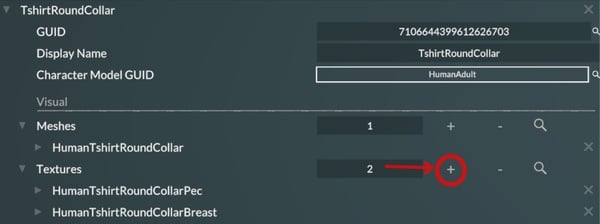
Click the + to add the required textures.
6) Add the pecs version

Select the texture for the pec version.
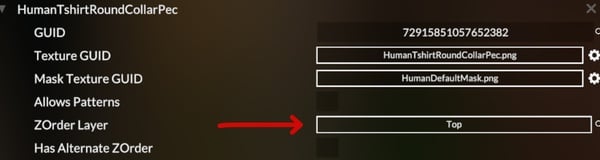
Select the type of equipment in the ZOrder Layer line. Each texture appears on the Parafolk in a specific order, with some able to overlap others, called the ZOrder Layer.

For the texture condition, select HasBreasts and leave the box unchecked since this is the pec version of the texture.
7) Add the breast version
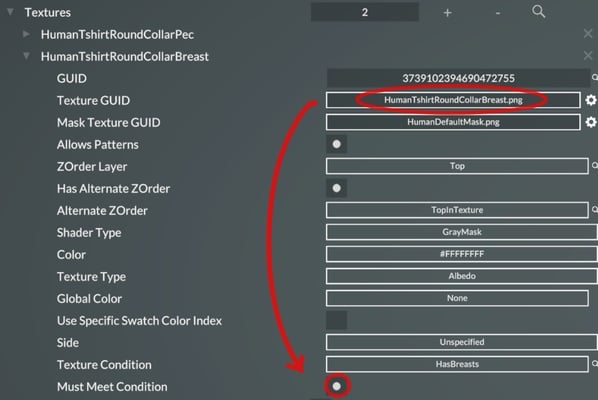
For the breasts version, repeat the same steps, but make sure to check the last box.
8) Add equipment tags
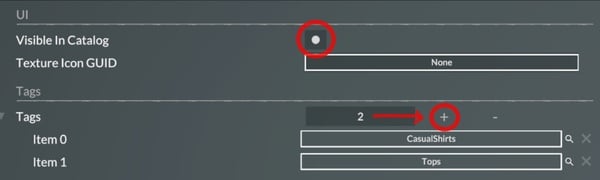
Check the Visible In Catalog box to enable the new item in Paramaker. Click on the + to add a tag. Add as many tags as needed; these are the categories in which the garment will appear. For example, Tops is a main category, and CasualShirts is a specific category.
9) Add the Deformation texture map
The equipment is a t-shirt, and it needs to be a little stretched when breasts are equipped on the Parafolks, instead of following every curve of the body.

Select TextureMapHumanTopAlternate to indicate to the game which zone is affected by the clothing deformations.
10) Find the equipment in the Paramaker
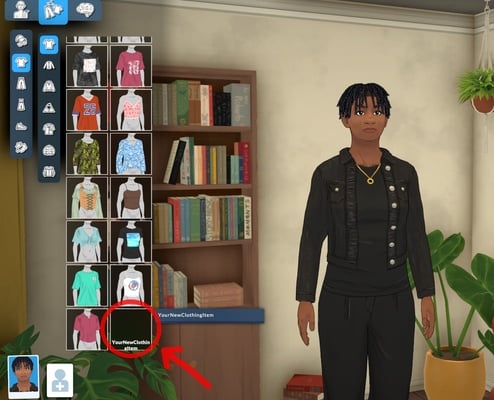
Inside the Paramaker, go to the clothing item category; in this case, it’s Tops and CasualShirts. Find the clothing item at the end of its category on the list and click it to equip it on the Parafolk.
11) Generate the thumbnail
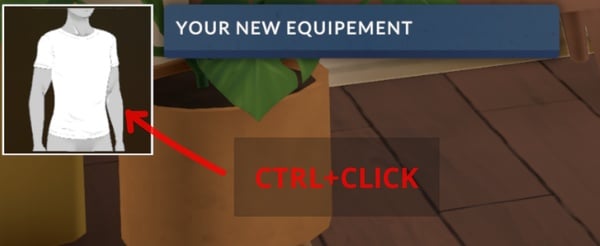
Hover the mouse on the thumbnail and Ctrl+Click to generate a new thumbnail.
Changing a Sound – Paralives Modding Tutorial
1) Select the current sound
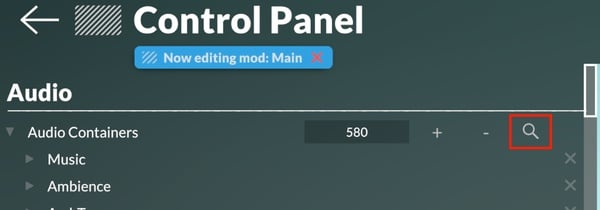
Go to the Audio section of the Control Panel, under the General category. Browse the Audio Containers and pick one to edit or select the Search button and type the name of the sound to be changed.
2) Change the asset
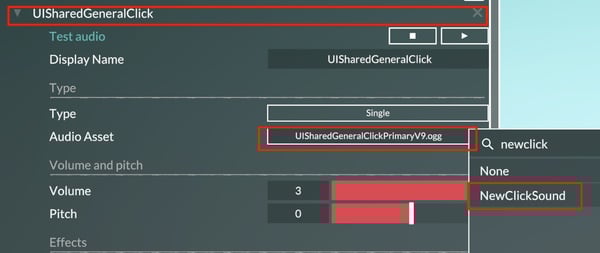
For this example, let’s change the UISharedGeneralClick audio container which is the generic Click sound. Change its Audio Asset by clicking on the highlighted rectangle and typing the name of the desired sound. Then, select the sound in the list.
3) Test the sound
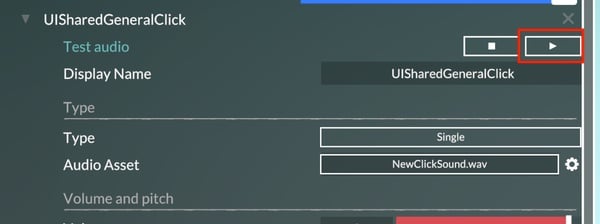
Test the playback of the sound by pressing on the highlighted Play button to make sure it’s working properly. It is possible to stop the container’s playback if it’s a long audio file with the Stop button.
4) Adjust the parameters
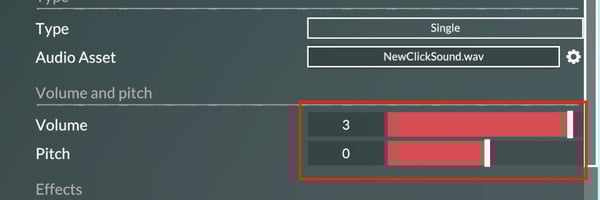
Adjust the Volume and Pitch parameters of the sound to taste. Playback the sound to test out the result.
Integrating a Music Track – Paralives Modding Tutorial
This guide will cover the integration of Build mode, Paramaker, and Main menu music tracks in the Paralives modding tools, step by step.
1) Open the Music audio container
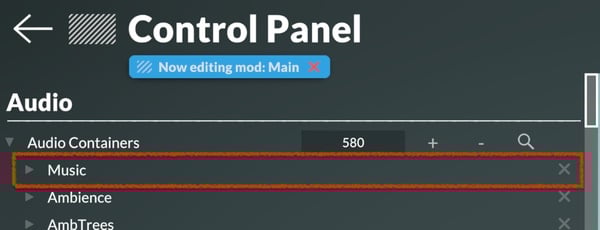
Go to the Audio section of the Control Panel, under the General category. Locate the Music audio container and open it. It should appear at the top of the audio container list. If not, search for it with the search button.
2) Open a game mode
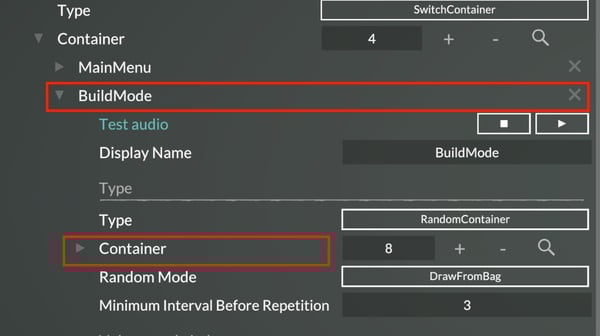
Open the container of the desired game mode to add music inside. Then open the highlighted container if it’s set as RandomContainer.
Note – For Live mode music-specific integration instructions, see Integrating a Music Track (Live Mode).
3) Add a container
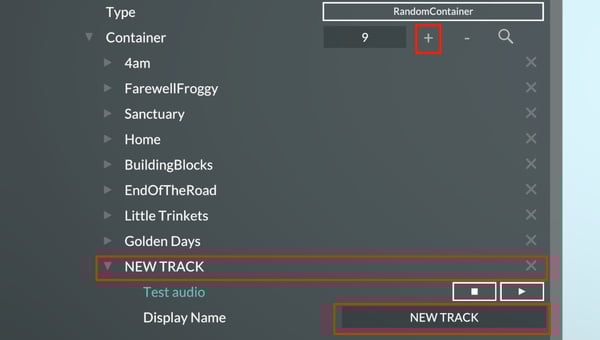
Click on the “+” button to add a new container to the game mode’s random container. Open it and give it a name.
4) Add an asset
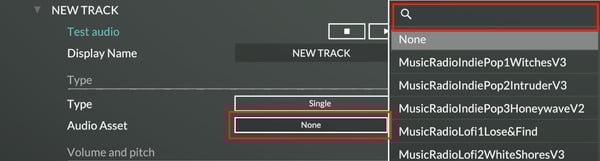
Open the asset menu by clicking on None. Search for the desired music’s audio file and select it. For more information on how to add your audio files to the game, see Creating a Mod and Uploading to the Steam Workshop.
Now the selected music track should occasionally play whenever the user is in the respective game mode.
Creating a Mod and Uploading to the Steam Workshop
1) Create the mod
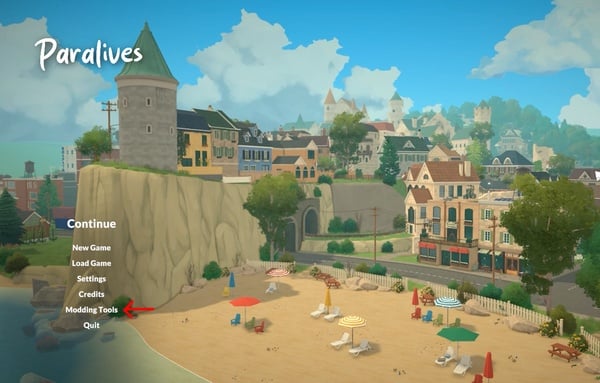
When booting the game, find Modding Tools on the Main Menu.
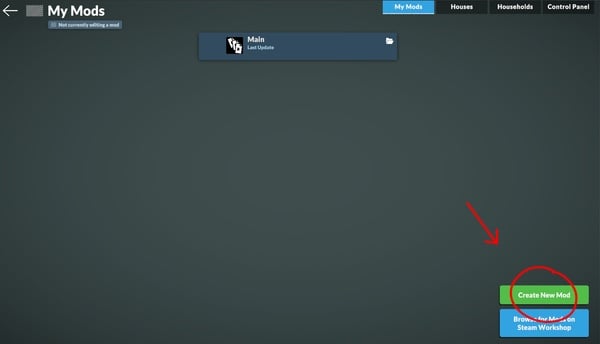
On the My Mods page, click Create New Mod.
2) Name the mod
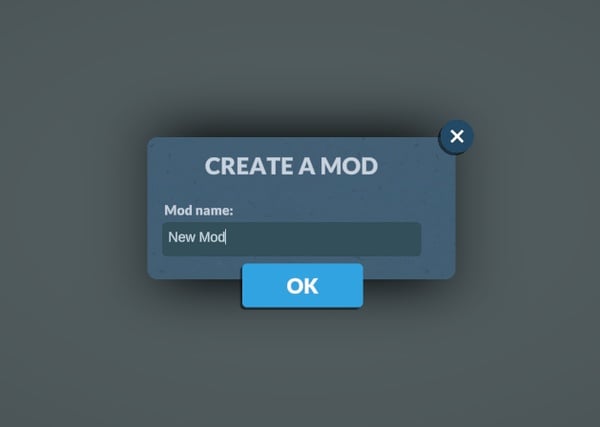
In the pop-up window, name the mod.
3) Find the mod’s folder (if adding files)
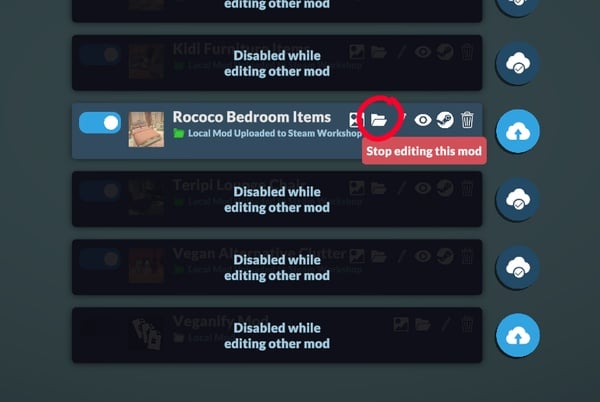
Click on the folder icon to open the folder’s location.
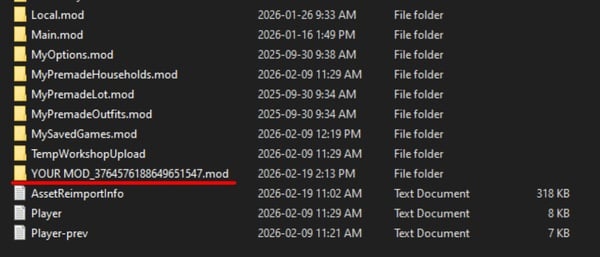
It’s also possible to follow the path C:\Users\YOUR_USER\AppData\LocalLow\Paralives to reach the mod’s folder.
4) Add files to the folder
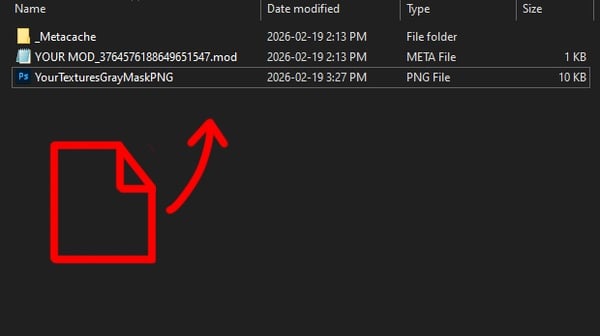
Drag and drop the files into the folder. File types supported are:
- Texture files: png, jpg
- 3D Mesh files: fbx, obj
- Mesh deformations: obj
- Character rig: fbx
- Animations files: .catalog (fbx animation files must be packaged in Unity, link here to Alice documentation page)
- Audio files: ogg, mp3, wav
- Text files: txt
- Font files: ttf
5) Create game content
Follow some of the many guides available to add game content for the Live Mode, Build Mode, and Paramaker.
- Creating a Basic Furniture Item
- Creating a Clothing Item
- Creating a Character Interaction and Animation
- Creating a Personality Trait
- Creating a Skill
- Creating a Together Card
- Changing a Sound
- Integrating a Music Track
6) Choose a thumbnail
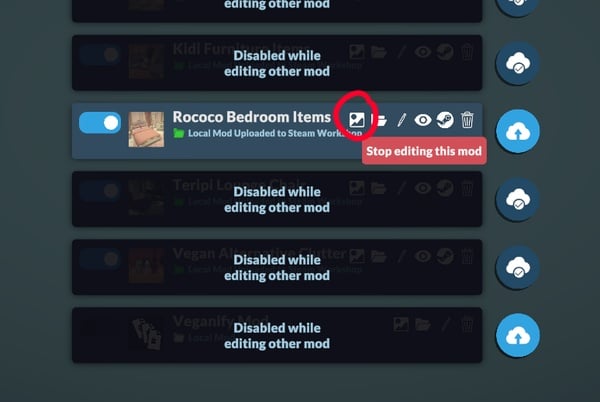
Click on the picture icon to open a menu to choose an image to use as a thumbnail. The image should be square or else it will be cropped, and should be less than 15MB, otherwise the upload to the Steam Workshop will fail.
7) Uploading the mod to the Steam Workshop
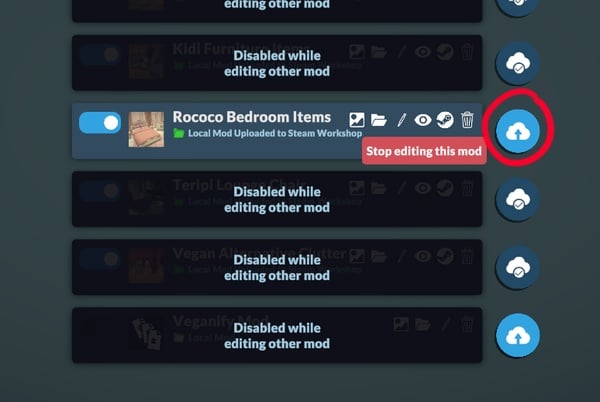
Go back to the My Mods page. Next to the mod, click on the cloud icon.
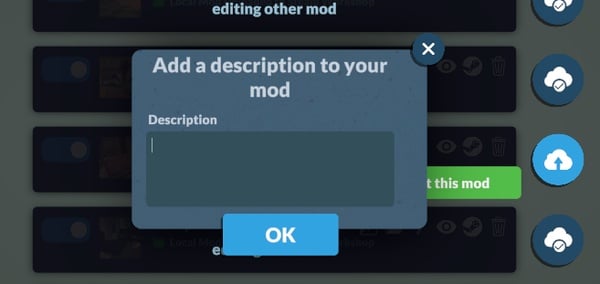
Add a description to the mod in the pop-up menu. This will be the description that will be displayed on the Steam Workshop page.
8) Add images and edit the workshop page
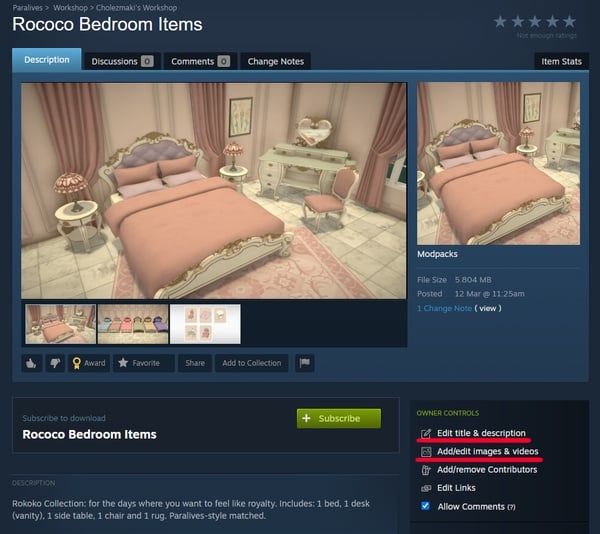
The game will prompt to open the Steam Workshop page. Open it. Once on the mod’s page, click on Edit title and description to change the name of the mod or the description. It is possible to add images in higher resolution and in HD format for the mod’s image carousel, in Add/edit images & videos.
9) Updating a mod
It is possible to update a mod at any time from the game’s My Mods page by clicking on the cloud icon next to the mod. A prompt to add Change Notes will appear, in which it is recommended to describe the changes that were made in the update. The change notes appear on the mod’s Steam Workshop page and are visible to the public by default, under {0} Change Note (view).
Other and Specific Tutorials
Paramaker
- Creating a Clothing Item
- Creating Hair
- Creating Hats
- Creating a Top
- Creating Bottoms
- Creating Shoes
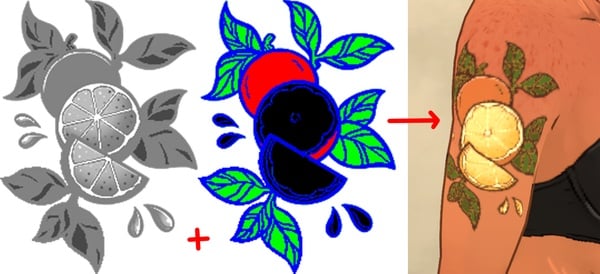
- Creating Tattoos
Build Mode
- Creating a Basic Piece of Furniture
- Adding a Mesh for the Build Mode
- Creating an Item with Multiple Colors and Materials
- Creating a Resizable or Scalable Item
- Creating an Item with Multiple Meshes
- About Anchor Points
- Additional Item Properties in the Prefab Editor
- Creating a Window
- Creating a Door
- Creating a Molding
- Creating a Fence
- Creating a Roof
- Adding Texture Assets to Create Surfaces
- Creating a Resizable or Scalable Item
Audio & The Audio Container
- Changing a Sound
- Adding an Audio Container
- Integrating a Music Track (Build Mode and Paramaker)
- Integrating an Ambient Sound
- Adding New Character Voices
- Integrating a Character Sound (Voice & Foley)
- Integrating an Item Sound
- Integrating a User Interface Sound
- Audio System Overview
- Types of Audio Containers
- Types of Audio Effects
Paralives Main Menu Reveal
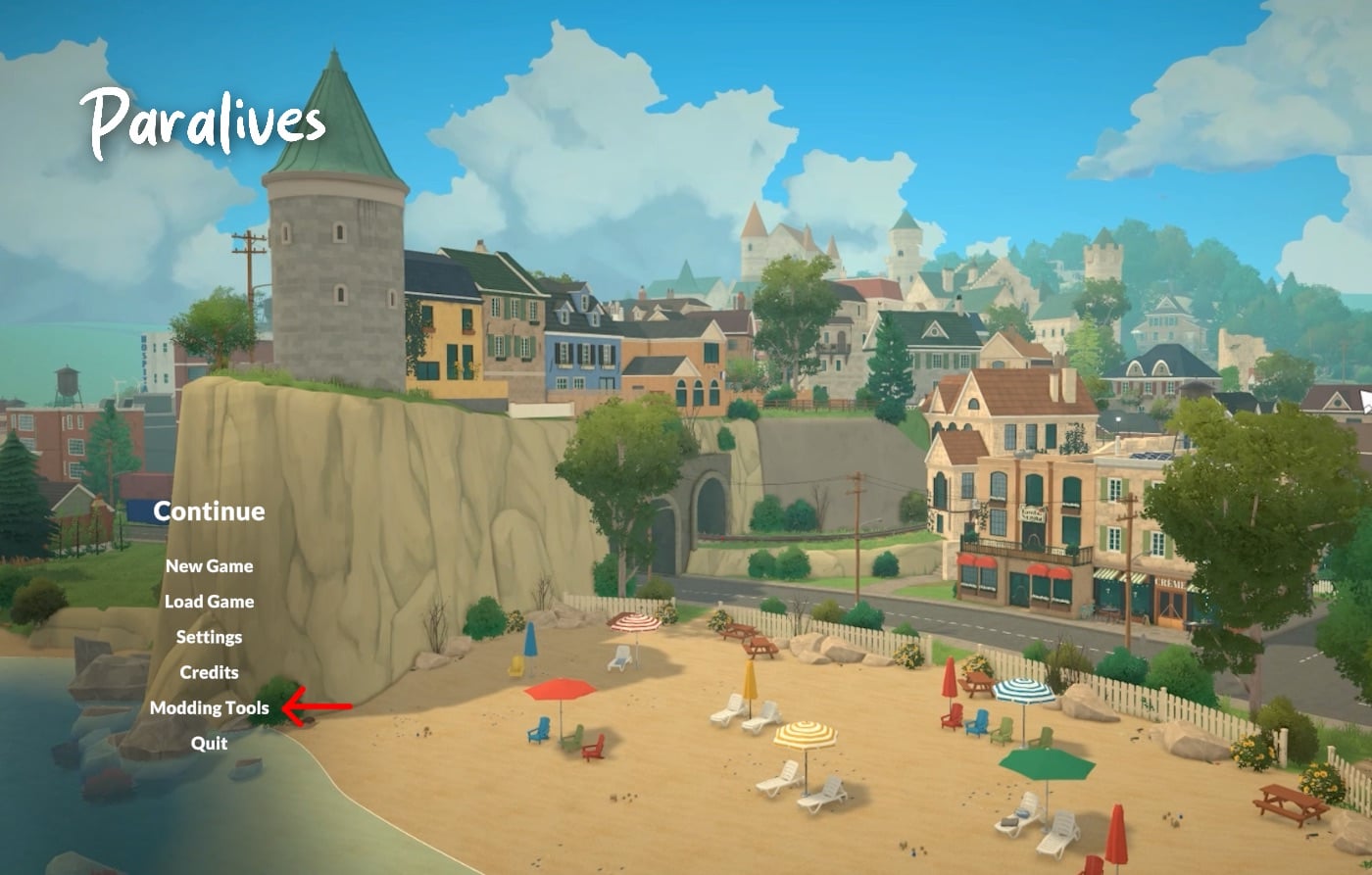
Snuck into the Creating a Mod and Uploading to the Steam Workshop tutorial was an image to showcase where to find the official Modding Tools, but also was a look at the Official Main Menu screen! It shows the seaside of the town that will be available upon release, with a beach empty of Paras but full of decor and clutter, helping the world to look lived in and very colorful!
Paralives has planned for an Early Access release on May 25th, 2026, which is right around the corner in the grand scheme of things. Make sure to follow The Sims Community while we keep you up to date with new releases and behind the scenes for Paralives before their big launch!









I can’t wait to finally play Paralives. The game gives me such a cozy and fun vibe.
Will this one be exclusive to the marketplace or will it be available to publish on 3rd party websites?
This is about Paralives.
Then why is it on the Sims community if it’s not The Sims?
Why all the downvotes? I think that the marketplace is stupid and should give creators more than 30% if that was the case then I think the creator packs would be better. I hope that they make this new tool available to be published on 3rd party websites or make the 30% cut higher.
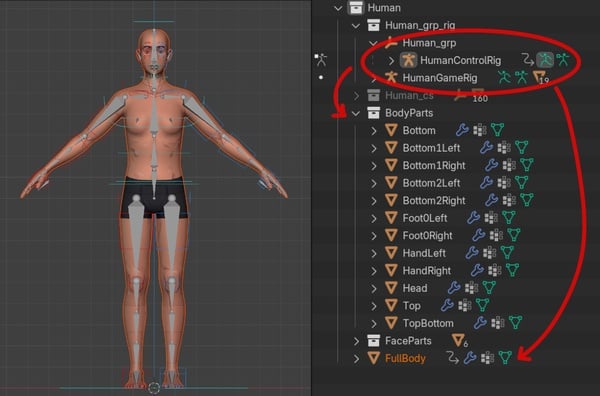
In the latest article on Creating Animation Assets Using Blender, they shared character rigs and textures. So I guess that means that anyone who wants to, can technically start making Paralives CC and animations now, because they have the model, body textures and the animation rigs