Home Blog Page 147

The Sims 4: Build/Buy Hotkey Guide

2

The Sims 4 build mode is probably the most versatile we’ve seen in the series. It’s definitely one of the game’s strong points but did you know there’s a way to make Build mode even faster and easier to work with? Using hotkeys can save you a lot of time and open up Build mode features you might not have known about!

Next time you’re in Build/Buy, try out some of these hotkey shortcuts to save you some time!

  • B: Just hit the B key to quickly switch to the wall building tool. No need to navigate to it in the menu.
  • E: Switches to the eyedropper tool which allows you to copy items.
  • G: Toggles the grid lines on and off.
  • H: This key is the hand tool. It’s what will allow you to grab and move objects around. Pressing the H key can be a lot faster than clicking the on screen icon.
  • K: Switches to the sledgehammer tool which destroys objects.
  • L: Switches between morning, afternoon, evening, and nighttime lighting. This is a visual change within Build/Buy only. It does not affect the in-game time. It’s just so you can see what your build looks like during different times of day. You can also choose the time of day in your Gallery preview image when you upload a lot by using this tool.
  • R: Use the R key to recolour an item more easily.
  • T: Switches to top-down view. Hit this key again to switch back out of this view.
  • U: Easily move and rotate the entire structure of your building. Useful for when you realise that you don’t like the placement of your build after you’ve already built it.
  • F5: Toggles between full, half, and quarter grid placement mode.
  • F1, F2, F3: These keys will switch between Live Mode, Build Mode, and Buy Mode. Very handy for quickly playtesting something you’ve done in Build/Buy.
  • Hold CTRL: Holding down the CTRL key while using the wall tool will delete existing walls and fence pieces. It will also erase any terrain paint when held down in terrain paint mode.
  • Hold SHIFT: With the wall or room tool selected, holding down SHIFT will switch between the wall and room tools. You can also hold down SHIFT while placing objects in Buy Mode to place more of that item easily without having to grab it out of the catalogue again. With the wall covering or flooring tool selected, holding SHIFT will fill the entire room with that flooring or wall covering. When you’re applying friezes to the exterior of a building, you can hold SHIFT to only apply the frieze to that wall section rather than the entire room.
  • Hold Alt (Option on Mac): With an object selected, hold down the Alt key to place it freely instead of along the grid lines. Moving the mouse left or right while you have an object selected in this way will also rotate the item freely in a 360 degree circle instead of snapping to 90 and 45 degree angles. You can also hold down the Alt key while painting to cover an entire straight wall section with that wall covering.
  • CTRL+F: While laying down flooring, use this shortcut to switch to half-tile mode, which will cut your floor tile square into a triangle. Excellent for creating unique floor designs and patterns.
  • CTRL+Z: Undoes your last action. The game will remember all actions you’ve done during that Build session so as long as you have not left Build/Buy, you can hit these keys repeatedly to undo multiple actions.
  • CTRL+Y: Redoes the last action you just undid.
  • [ and ]: Makes the brush size smaller ( [ ) or larger ( ] ) while painting terrain. With the bb.moveobjects on cheat enabled, these keys will also allow you to scale selected objects to be smaller or larger.
  • , and .: Rotates the selected object left (,) or right (.)
  • ; and ‘: Changes thee brush intensity to be softer (;) or harder (‘) while painting terrain.
  • + (Numpad): With an item selected, press the + key on the numpad to cycle through all the colour swatches for that item.
  • Backspace: You can store a lot of household items much faster by hitting Backspace with the item selected instead of manually moving it to the household inventory.
  • Delete: With an object selected, hit Delete key to sell it.

Here are just a few examples of some of the things you can achieve in Build/Buy using these hot keys:

Roofs

Did you know that you can unlock additional access points with Hotkeys when creating Roofs?

Simply hold down Shift + C while having a Roof selected to unlock additional manipulation points! This will allow for creating Roofs with more curves.

The Sims 4: Build/Buy Hotkey Guide

You can also make one side longer than the other by holding down Shift while dragging one side of the roof:

The Sims 4: Build/Buy Hotkey Guide

The Sims 4: This Voidcritter Mod Will be a Game Changer… Literally!

We’ve showcased many of Ravasheen‘s amazing creations in the past and this time, she’s teamed up with another talented creator, LittleDica, to change the world of Voidcritters forever!

What the heck are Voidcritters, you ask? Voidcritters came with the Kids Room Stuff pack and are essentially the Pokémon of the Sims universe. Children can collect, train, trade, and battle their Voidcritter cards against their friends. Each Voidcritter has its own lore, power level, and elemental alignment to make the battle and training mechanics an in-depth experience. Since the release of Kids Room Stuff, Voidcritters have made cameo appearances in later packs and updates. For example, Sims can own their own pet Bubalus with the My First Pet Stuff pack, one of the water-type Voidcritters. And the holiday cracker collection features a variety of Meduso plushies, one of the air-type Voidcritters.

All of this is already super cool on its own but of course Ravasheen and LittleDica have made Voidcritters even better! There were two main problems with the way Voidcritters worked; 1) The battle station was a big bulky object that wasn’t live-draggable. This means kids were limited to playing Voidcritters on lots that already had a battle station on them. 2) Only children could play with Voidcritters. Once they became teens, the cards they worked so hard to collect and train just became non-functional décor. Since it takes so long to train every Voidcritter to their max power level, kids often did not have enough time to fully enjoy their Voidcritters before they aged up.

Ravasheen and LittleDica have come together to solve both those problems AND add extra functionality to Voidcritters!

https://twitter.com/RAVASHEENCC/status/1484575378530189313

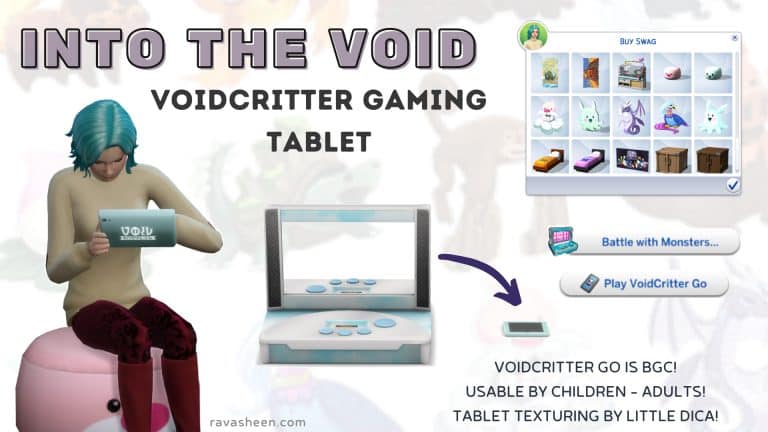
The Into The Void: Voidcritter Gaming Tablet will bring the world of Voidcritters to life in a new way for children and adults alike! It will eliminate the need for the big bulky battle station and allow Sims to take Voidcritters with them wherever they go. In addition to having all the same features as the existing battle station, it will also come with new features that are base game compatible. Players who don’t own Kids Room Stuff will still be able to collect virtual versions of the Voidcritter cards and play with the Voidcritter Go app on the tablet, as well as earn rewards for playing and purchase Voidcritter merchandise! Players who do own Kids Room Stuff will be able to purchase the physical cards and train/battle them with the tablet as well. Online play that increases relationships between Sims will also be a part of the mod.

That’s all the info that’s been released about this upcoming mod so far but you can look forward to a walkthrough of this mod from us when it’s released! We can’t wait to get our hands on this mod and experience the world of Voidcritters in an entirely new light!

The Into The Void: Voidcritter Gaming Tablet is being released on January 23rd for patrons but you can expect a public release in the coming weeks. Make sure you’re subscribed to Ravasheen’s YouTube channel and set a reminder so you don’t miss her livestream showcasing the mod on release day!


How To Prevent Neighbourhood Corruption in The Sims 2

1

Lately, I’ve seen so many Simmers revisiting The Sims 2, which is awesome because The Sims 2 is an awesome game. In fact, most Simmers agree that The Sims 2 was the golden age of The Sims series. But as amazing as The Sims 2 is, it’s not perfect and does have its own set of glitches and problems, some of which can completely destroy your neighbourhoods if you aren’t careful.

A lot of people experiencing The Sims 2 for the first time may not know that there are, unfortunately, many ways you can unknowingly corrupt your Sims 2 neighbourhoods. There are a lot of actions the game allows you to do so naturally, you assume it’s safe but it actually isn’t. The good news is you can avoid corrupting your neighbourhoods pretty easily if you know the common causes of neighbourhood corruption and avoid them.

How Do I Know if My Neighbourhood is Corrupted?

How To Prevent Neighbourhood Corruption in The Sims 2

It might be difficult to tell if you have a corrupted neighbourhood at first. Typically, the issues start out so small, they’re almost unnoticeable and then snowball into larger problems as time goes on. You may still be able to play in a corrupted neighbourhood… for a while, but your Sims and neighbourhood are all running on borrowed time. Eventually, a corrupted neighbourhood will become completely unplayable.

There’s a few telltale signs that your neighbourhood has become corrupted.

  • Sims roll wants that don’t match their age group: If your adult Sim is rolling wants to learn to use the potty when they are not a toddler, or if your toddler Sims are rolling wants to do activities only adults can do, chances are your neighbourhood has become corrupted. However, don’t be so quick to panic; if your Sim has just aged up that day, it’s possible their wants just haven’t rerolled yet and everything is fine. If it has been longer than a day and your Sims keep rolling new wants that are not appropriate for their age group, that’s when you need to worry.
  • Sims are missing social interactions: Before you panic over this one, first make sure that the missing social interactions are not due to something else. For example, you may not be seeing romance socials come up for your Sims if they are distant relatives, or if one Sim is an adult but the other is a teen. Romance socials also will not progress past flirting unless both Sims have a high relationship; relationship levels are not always mutual in The Sims 2! Your Sim could be in love with a Sim who hates them. Broken mods can also cause socials to disappear. If you have eliminated every other possible cause for certain interactions not appearing, then corruption is the next likely explanation.
  • Family trees become broken: If your Sim’s family tree suddenly has family members disappear from it or if you start seeing animals show up on the family tree as a Sim’s parent, this is a tell tale sign of corruption.
  • Children and toddlers have a LTW: Children and toddlers should only ever have one Lifetime Want; Grow Up. If they have a LTW other than Grow Up, you have a corrupted neighbourhood.
  • Disappearing or Glitched Memories: If your Sims suddenly are missing memories you know they should have or if some of your Sim’s memories appear glitchy; either blank tiles or memories with squiggly lines and distorted text, that’s a classic symptom of corruption.
  • Lots or Sims are not playable: If you cannot load a lot or control a Sim in your active household who is toddler-aged or older, and you have eliminated bad CC or broken mods as the cause, then your neighbourhood is likely corrupted.
  • Build/Buy becomes permanently disabled: If you can’t access Build or Buy Mode on a lot for no apparent reason, corruption is the likely cause. However, please note that Build/Buy is supposed to be disabled in certain situations. For example, you cannot access Build/Buy while in Live Mode on a community or vacation lot. That is by design. You must enter community and vacation lots from the neighbourhood screen to build on them.
  • You cannot save your household: If you go to save your household after a play session but find that the Save icon is greyed out and unclickable, your neighbourhood has become corrupted beyond repair.

How Do I Fix a Corrupted Neighbourhood?

How To Prevent Neighbourhood Corruption in The Sims 2

Once a neighbourhood has become corrupted, it’s done for. Sooner or later, it will completely blow up on you even if it’s still playable for the moment. The only way to fix it is to reset the neighbourhood back to its original, uncorrupted state.

The easiest way to do this is to just reinstall the entire game but this actually isn’t necessary if only one neighbourhood is corrupted. There is a way to reset only the corrupted neighbourhood without reinstalling everything but it does take some more time and effort. You will have to delete the whole neighbourhood and replace it with its original version. Doing this will completely wipe all your progress in that neighbourhood and essentially revert it back to the way it was when you first opened it.

Navigate to Documents > EA Games > The Sims 2 > Neighborhoods. Then find the folder for the neighbourhood that is corrupted. The folders all have a code name but here are the folder names for every neighbourhood:

  • N001: Pleasantview
  • N002: Strangetown
  • N003: Veronaville
  • G001: Riverblossom Hills
  • F001: Desiderata Valley
  • E001: Belladonna Cove

Delete the folder that corresponds to the corrupted neighbourhood you wish to reset. Then navigate to Program Files (x86) > EA GAMES. If you own the Ultimate Collection, navigate to Program Files (x86) > Origin Games > The Sims 2 Ultimate Collection instead.

Now locate where the original, unmodified files for your corrupted neighbourhood are. They will be in the folder that corresponds with the pack they shipped with.

  • The Sims 2 (or Double Deluxe) folder contains the Pleasantview, Strangetown, and Veronaville neighbourhoods.
  • The Seasons folder contains the Riverblossom Hills neighbourhood.
  • The FreeTime folder contains the Desiderata Valley neighbourhood.
  • The Apartment Life folder contains the Belladonna Cove neighbourhood

Within that folder, navigate to TSData > Res > UserData > Neighborhoods. You will find folders named with the codes for the neighbourhoods. Copy (do NOT cut) the folder that corresponds to the neighbourhood you wish to reset and paste it into Documents > EA Games > The Sims 2 > Neighborhoods.

And you’re done! Your neighbourhood has been successfully reset!

How Do I Prevent Neighbourhood Corruption?

How To Prevent Neighbourhood Corruption in The Sims 2

Of course, resetting your neighbourhood means losing all your progress you made which can be gut-wrenching if you’ve been playing a neighbourhood for a long time and have an emotional attachment to all your Sims there. The best way to keep your neighbourhood safe from corruption is to avoid doing things that risk corrupting it in the first place. You’d be surprised how many seemingly benign things can actually corrupt your neighbourhood.

To keep your neighbourhood safe, avoid doing any of the following actions:

  • Delete Sims for any reason, ever: Deleting Sims does not delete the Sim properly. Traces of them remain in the neighbourhood so every memory, relationship, or gossip involving that Sim that gets left behind is now corrupted because the game is trying to locate data that no longer exists.
  • Move occupied/owned or previously occupied/owned lots to the bin: This goes back to the issue with deleting Sims. When you move an occupied lot to the bin, the Sims go with it but they aren’t properly erased from the neighbourhood, leaving corruption behind. They’ll also bring the corruption with them to any new neighbourhood you place that lot in. Lots that have been previously occupied or owned by Sims still have traces of the Sims attached to them after the Sims have moved out so it’s not safe to bin lots that have ever been occupied or owned by a Sim, either.
  • Install occupied lots or Sims with pre-existing relationships and memories: Exercise extreme caution when downloading lots and Sims made by other players. If the lots they upload were previously occupied by Sims or if they played with their Sims before uploading, there is a very high chance putting them in your neighbourhood will corrupt it. Again, it goes back to the same issue of the game trying to look for data that isn’t there.
  • Delete urns/tombstones or move lots with graves to the bin: The Sims 2 treats graves like Sims since there is a Sim attached to the object. You’ll end up with the same problem you’d have if you deleted a living Sim or moved a played Sim to the bin. You’ll create broken and partially missing files in your neighbourhood.
  • Letting a Sim die with graves in their inventory: This is essentially the same thing as deleting a tombstone. The tombstone disappears with the Sim, creating corrupted game files.
  • Save with a ghost on the lot: The next time you load that household, the game might decide to delete the tombstone on you, resulting in incomplete files for the Sim the tombstone is attached to.
  • Save or bin a lot while a Sim is talking on the phone: This is a weird one and only really an issue if you are installing new mods or new packs afterwards. When a Sim is talking on the phone, the other Sim is technically considered to be on the lot even though they aren’t physically there. They are “sent home” when the Sim hangs up the phone. If you save while your Sim is still on the phone and then install a mod or a new pack, the next time you load the lot, everything on the lot gets reset… including the phone. This creates a limbo situation where the Sim on the other end of the line can’t “go home” and traces of them remain stuck on the lot, causing problems. The same issue occurs if you try to bin/move the lot while Sims are talking on the phone.
  • Resurrect premade dead Sims: Even though you theoretically can resurrect Sims that are already dead when you start playing in a neighbourhood, it’s a bad idea. Most of these Sims have incomplete data and trying to bring them back will cause corruption.
  • Attempt to interact with NPC Sims in any way outside of their intended game function: Trying to romance, move in, marry, make selectable, or in any way touch NPC Sims outside of their purpose is a sure fire way to corrupt not just your neighbourhood but your entire game. Game corruption is MUCH more serious than neighbourhood corruption. There are some NPC Sims that are safe to marry and move in but most are not. A good rule of thumb here is if you can romance, marry, move in, etc, the Sim without the use of cheats or mods, they are probably safe to make playable and modify. If you need cheats or mods to tamper with them, they are probably not safe to be tampering with.
  • Rezone lots with Sims living or staying there: Try to avoid rezoning lots if you can help it but if you do need to rezone, only rezone brand new, unplayed lots.
  • Have too many Sims in your neighbourhood: There’s actually a limit to the number of Sims that can be in your neighbourhood. Although the limit is fairly high if you have Nightlife or a later pack installed, you could still run into this problem if you’ve been playing the same neighbourhood for a very long time. When the game reaches the limit, it starts deleting Sims and we’ve already established how terrible the game is at properly deleting Sims. Sadly there isn’t much of a way around this except by installing mods that prevent too many Sims from spawning in your neighbourhoods. We’ll link to some good anti-corruption mods at the end of this article.
  • Remove some mods, such as geneticized/townified skins and eyes, custom foods, or custom degrees/careers: Be careful what you put in your Downloads folder because depending on what it is, you might not ever be able to remove it without corrupting your neighbourhood. If you’re not too mod-savvy and nervous about accidentally running into this problem, we recommend sticking to only default replacement skin and eyes and avoiding downloading custom foods, careers, or degrees if you’re not completely sure it’s okay to remove them later.

More Info and Helpful Tools

How To Prevent Neighbourhood Corruption in The Sims 2

If you’d like more information on neighbourhood corruption, The Sims Wiki has a guide that goes into the nitty gritty details of corruption. It breaks down the hows and whys of neighbourhood corruption in The Sims 2 in a more technical way. Our guide has been condensed and simplified for easier reading for beginners who may not be familiar with the more technical aspects. The Sims Wiki guide also explains the difference between game corruption and neighbourhood corruption, which we have not covered here. We focused exclusively on neighbourhood corruption, which is far more common than game corruption.

There are also a number of mods that have been created to help minimize the dangers of corruption. The Sims Wiki also has a list of those mods and we highly recommend installing all of them if you are a mod user. They will protect your neighbourhoods in the long run.

The Sims 4: 21 Functional CC Objects for Toddlers!

21 Amazing, Completely Functional CC Objects!

As a family player, I’m always on the hunt for mods and CC that enhance my style of play. I’m especially fond of anything that adds new gameplay for toddlers. While I love all the toys toddlers currently already have, I still find myself wanting more for them. That’s why I love The Sims 4 modding community so much. They add so much to the game and allow us to make it our own.

I’ve compiled a list of all my favourite functional new toys for toddlers, although some of these items can also be used by children. All of these amazing objects have their own new animations and gameplay attached to them, such as toddler skill building and custom moodlets.

Sleeping Mat

The Sims 4: 21 Functional CC Objects for Toddlers!
Creator: Pandasama

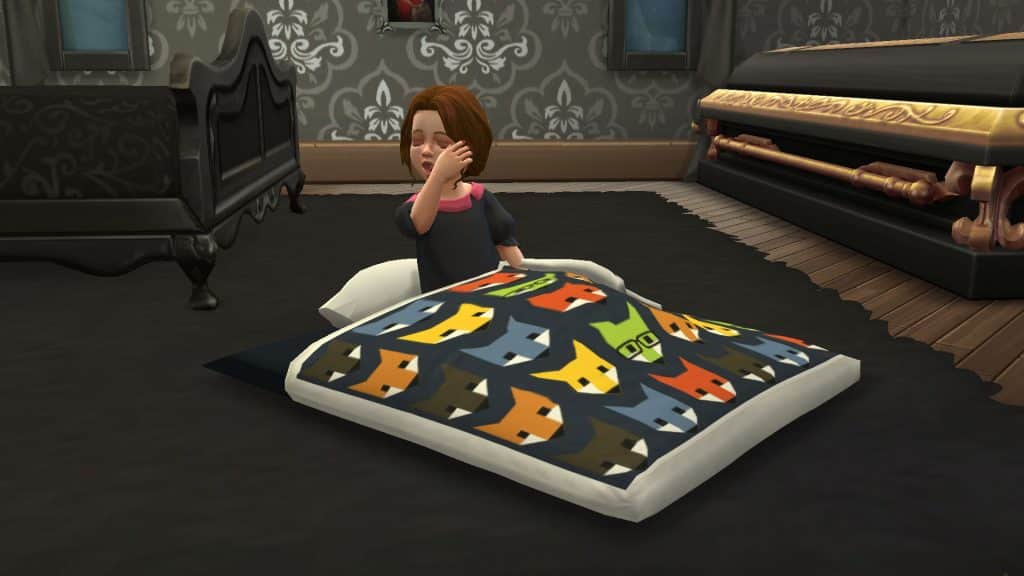
This adorable toddler sleeping mat works just like a toddler bed but it’s more compact and easy to plop down anywhere your little tots need a quick midday nap. Toddlers can get in and out of it on their own and do the cutest little sleepy animation when they crawl inside it before they fall asleep.

This sleeping mat comes in a set that also includes the basketball hoop, toddler swing, and rocking horse featured below so just click the link in the sleeping mat header to download all of these objects at once.

Toy Basketball Hoop

The Sims 4: 21 Functional CC Objects for Toddlers!
Creator: Pandasama

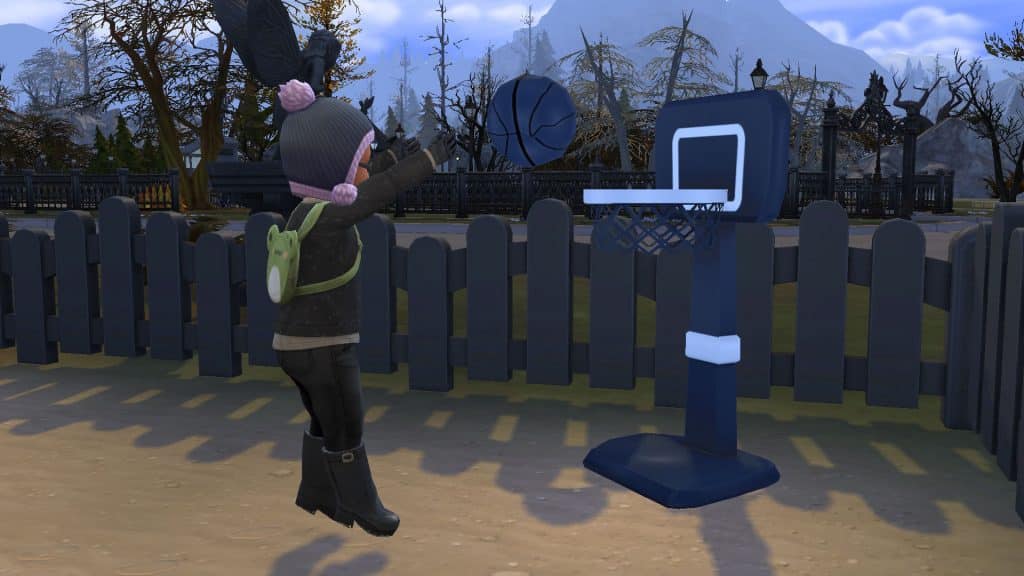
This cute toy basketball hoop was designed specifically for toddlers and it has several different animations depending on the toddler’s Movement skill. Toddlers with high Movement skill will do a little jump when they throw the ball and it will land in the hoop most of the time. Toddlers with low Movement skill will fall down a lot and can sometimes even get bonked in the head with the ball. Of course, playing with the basketball hoop builds the Movement skill, so the more they practice, the better they’ll get.

Toddler Swing

The Sims 4: 21 Functional CC Objects for Toddlers!
Creator: Pandasama

This toddler swing is animated and usable by all ages, not just toddlers! Toddlers can play in the swing where they will swing back and forth, kicking their legs. The swing can also be used like a regular chair so Sims can read in it and do other sitting activities they can do while sitting in a chair.

Rocking Horse

The Sims 4: 21 Functional CC Objects for Toddlers!
Creator: Pandasama

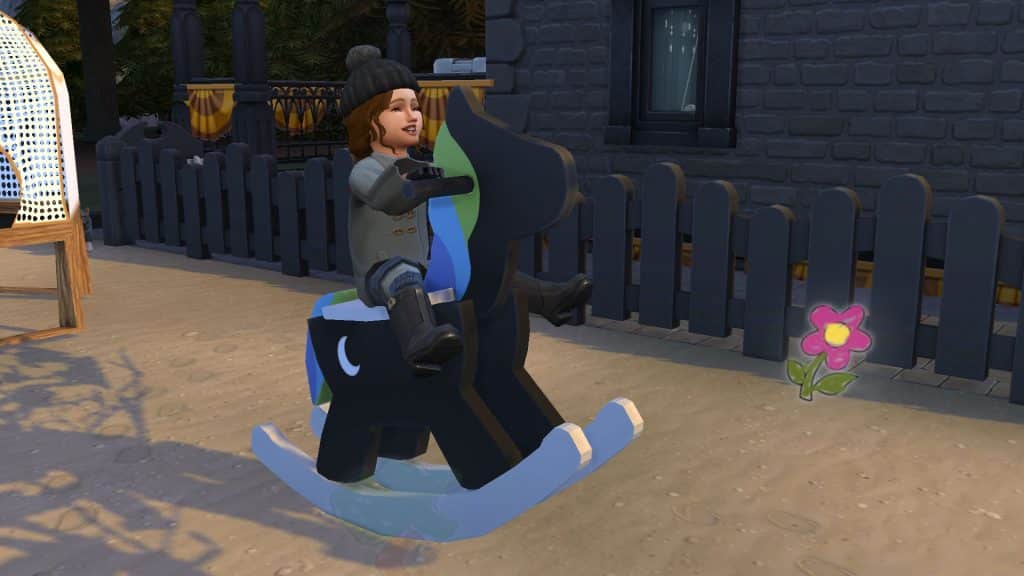
This rocking horse is usable by all ages and even adults with the Childish trait will get a positive moodlet from playing with it! Toddlers can also take a nap on the rocking horse which looks adorable.

Play Telephone

The Sims 4: 21 Functional CC Objects for Toddlers!
Creator: Pandasama

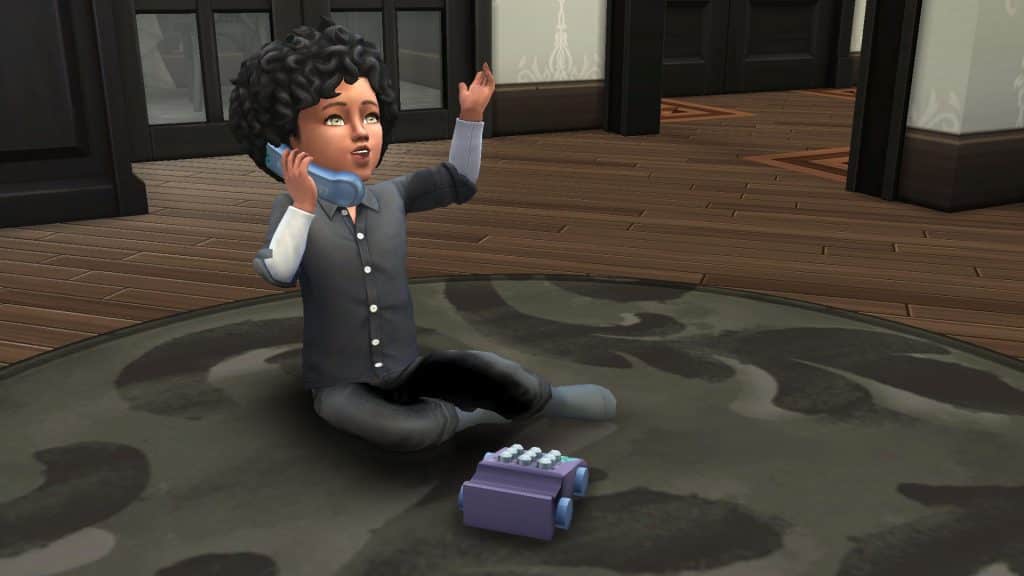
Toddlers can practice their Communication skill by playing with this toy telephone! They can also make pretend phone calls to their favourite cartoon characters, an imaginary friend, and even Father Winter! Doing so will build both Imagination and Communication skill at the same time. Adults can even help teach their toddlers how to talk by playing telephone with them.

Trampoline

The Sims 4: 21 Functional CC Objects for Toddlers!
Creator: Pandasama

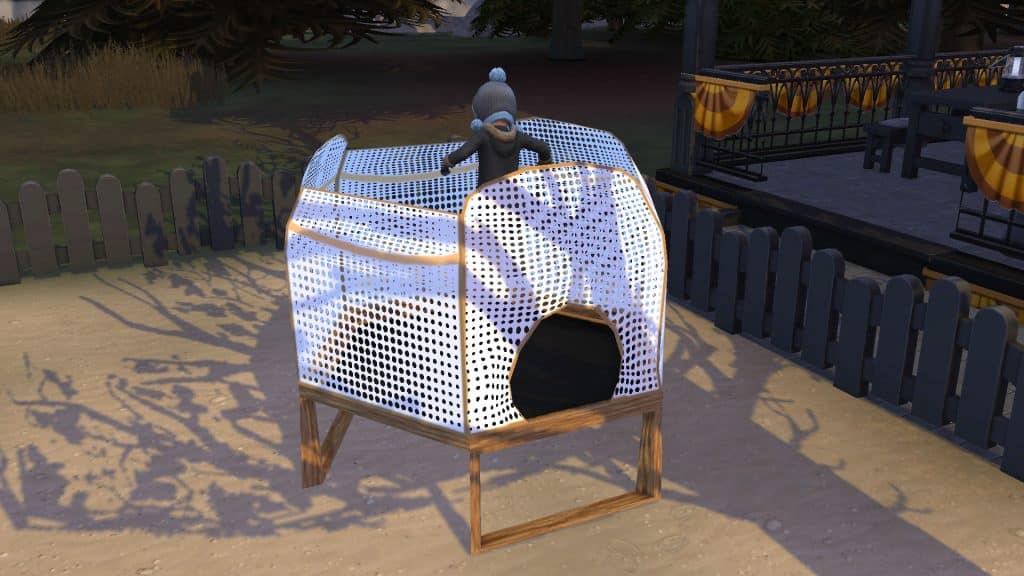
This miniature trampoline comes in a large netted version and a smaller version without a net. It is usable by both children and toddlers! Personally, I like to use the netted version for my toddlers as it feels a little safer for their teeny delicate noggins.

Play-Doh

The Sims 4: 21 Functional CC Objects for Toddlers!
Creator: Pandasama

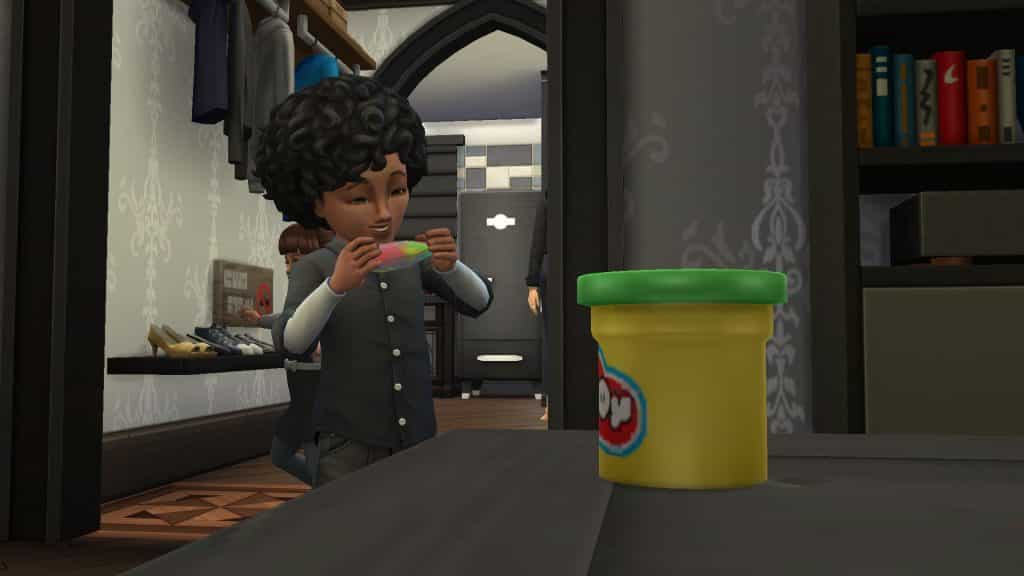
Now your tiny tots can make all kinds of wonderful creations with Play-Doh! Toddlers will spend some time moulding the Play-Doh until it becomes a toy they can play with! There are seven different creations they can craft out of the Play-Doh.

This Play-Doh comes in a set that also includes the race car track, toy food truck, and toddler crib featured below so just click the link in the Play-Doh header to download all of these objects at once.

Race Car Track

The Sims 4: 21 Functional CC Objects for Toddlers!
Creator: Pandasama

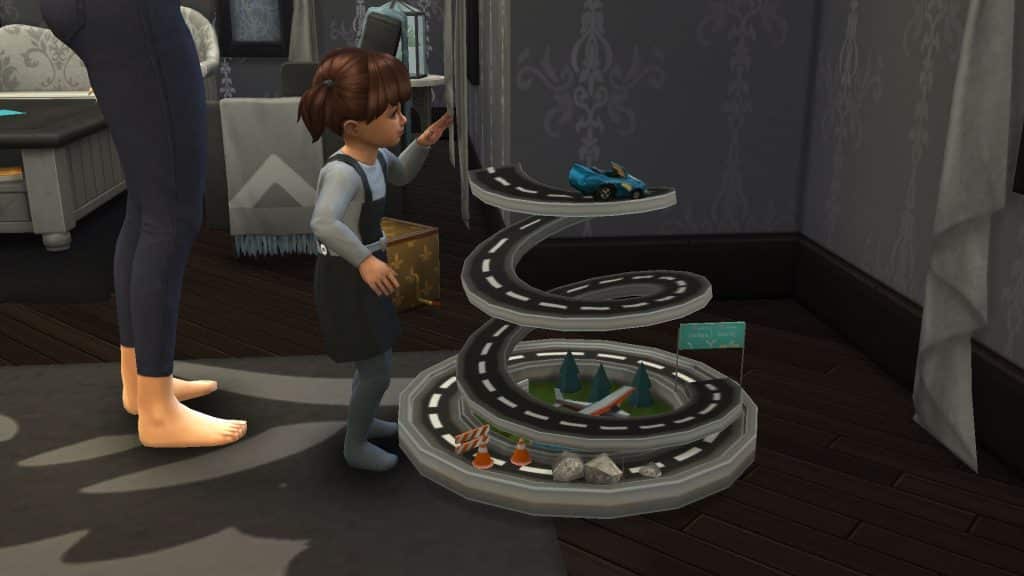
Toddlers can place toy cars at the top of this spiral track and watch it race all the way down to thee bottom! If you have two toddlers, they can play together with the race track! Super cute!

Toy Food Truck

The Sims 4: 21 Functional CC Objects for Toddlers!
Creator: Pandasama

Toddlers can pretend to run their own food truck business with this adorable toy! They will pretend to drive the truck at the steering wheel and pretend to make burgers. Other Sims of all ages can play with the toddler at the food truck by placing an order. The Sim will walk over and order the food and the toddler will prepare and serve it. The food will be a different toy depending on what kind of food the Sim ordered. This object builds Imagination skill and comes with its own custom moodlets.

Toddler Crib

The Sims 4: 21 Functional CC Objects for Toddlers!
Creator: Pandasama

If you prefer the old days when toddlers slept in cribs, you’ll love this toddler crib. It’s fully functional and adults can put their toddlers in it to sleep. They can even read them bedtime stories while the toddler is in the crib but make sure you put a chair near the crib for the adult to sit in. Toddlers can also eat and play with their tablet inside the crib. The crib is lockable as well so adults will not obsessively take them in and out of the crib when you don’t want them to. The crib does have a few small quirks and issues which Pandasama goes over in their Patreon post so make sure you read all the info before you download!

Jack-in-the-Box

The Sims 4: 21 Functional CC Objects for Toddlers!
Creator: Pandasama

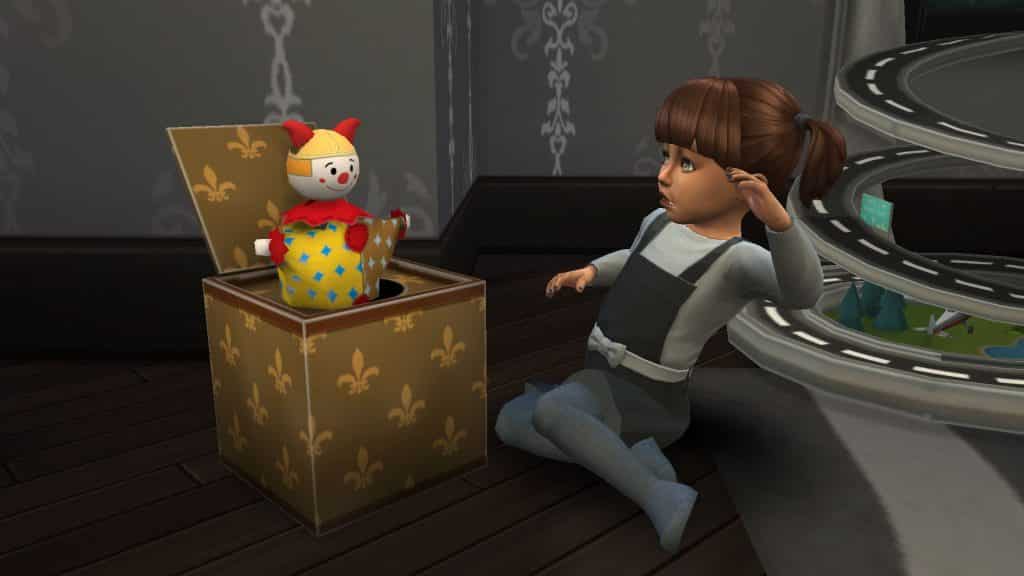
This adorable jack-in-the-box toy winds up and plays music as it does so! When it’s fully wound up, the clown will pop out of the box, surprising the toddler or child that’s playing with it! Kids and toddlers can have a positive reaction to the clown and get a happy or playful moodlet when it pops out. There’s also a chance that the clown will scare them, resulting in a scared moodlet.

This download also comes with a piñata toy but the piñata is only usable by children. Toddlers can eat the candy that kids knock out of the piñata, though! And it won’t give them a sugar rush, resulting in a sugar crash later like other sweets in the game.

Play Tunnel

The Sims 4: 21 Functional CC Objects for Toddlers!
Creator: Pandasama

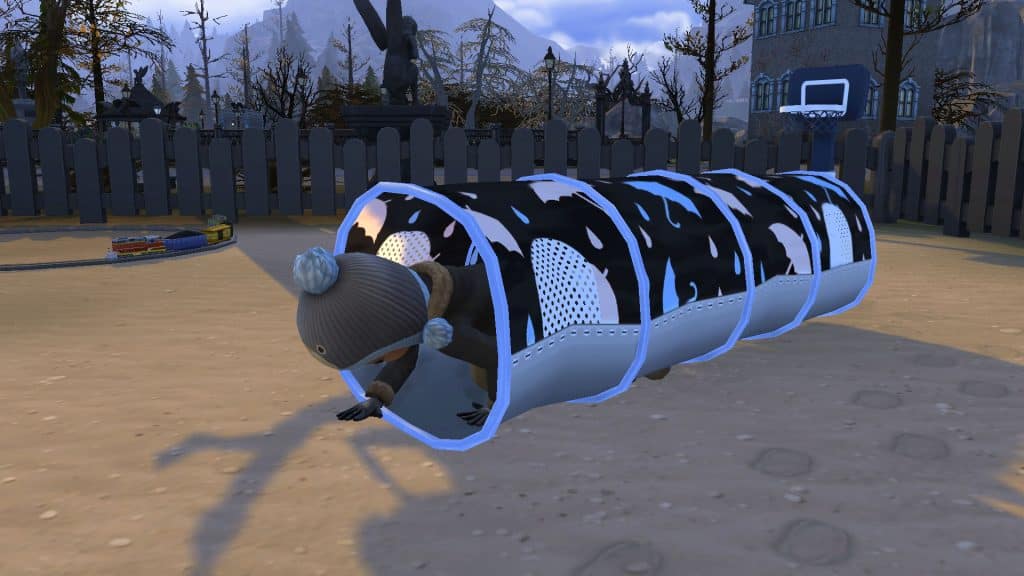
Toddlers can build Movement skill by crawling through this tunnel! The tunnel itself even moves with the toddler as they crawl through it! A great addition to any toddler room or playground!

This tunnel is part of a set that also comes with the makeup kit showcased below. Just click the link in the Play Tunnel header to download both items at once.

Makeup Kit

Creator: Pandasama

This play makeup kit has multiple interactions on it! Toddlers can play with the makeup by themselves or give another Sim a makeover. When the toddler is finished giving the Sim a makeover, the Sim will have messy splotches all over their face and nails. If other Sims see the Sim like this, they will laugh at them. Sims can remove the mess on their hands and face by taking a shower.

Pet Marimo Aquarium

The Sims 4: 21 Functional CC Objects for Toddlers!
Creator: Ravasheen

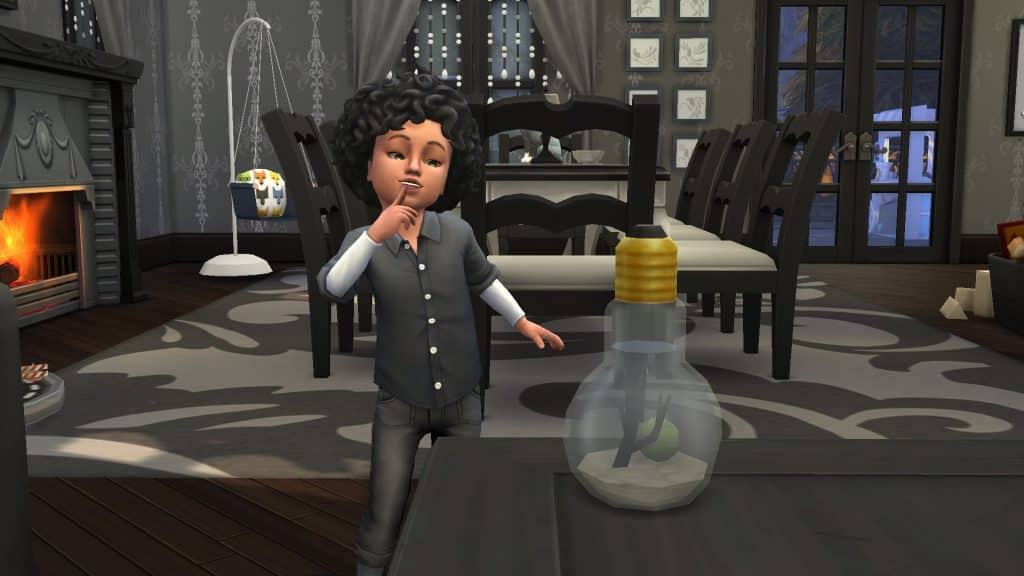
I actually had to look up what the heck a marimo was. Turns out, marimo are aquatic moss balls and are very much alive! They’ve become quite popular low maintenance pets. How cute! Now your toddlers can have their very own little marimo pet they can interact and bond with!

Toy Train Track

The Sims 4: 21 Functional CC Objects for Toddlers!
Creator: Ravasheen

This toy train track is animated and can be enjoyed by both children and toddlers! The space in the middle is usable for placing other objects as well. A Winterfest tree will fit perfectly inside the circle, for example.

Toy Kitchen

The Sims 4: 21 Functional CC Objects for Toddlers!
Creators: Ravasheen & Pandasama

This adorable play kitchen can be used by both children and toddlers and builds skills for both age groups! Cooking with the play kitchen will create functional custom toys for toddlers and a few custom edible recipes for children. Both children and toddlers will wear a cute little chef hat while playing with the kitchen and toddlers will stand on a little stack of cook books while using the kitchen.

Stackable Ring Toy

The Sims 4: 21 Functional CC Objects for Toddlers!
Creator: Pandasama

This classic childhood toy can be great fun for your toddlers! They will pull the rings off the pole and attempt to stack them again in order of their size. This toy builds the Thinking skill. Toddlers with low Thinking skill will stack the rings incorrectly while toddlers with high Thinking skill will have an easier time stacking the rings in order.

The ring toy comes in a set along with the xylophone, drawing supplies, and toddler crafting station showcased below. Click the link in the Stackable Ring Toy Header to download all of these objects at once!

Xylophone

The Sims 4: 21 Functional CC Objects for Toddlers!
Creator: Pandasama

This is an absolutely adorable toy for toddlers to build their Thinking skill. The xylophone has its own custom music and just like the ring toy, toddlers will get better at playing it as they build their Thinking skill.

Drawing Supplies

The Sims 4: 21 Functional CC Objects for Toddlers!
Creator: Pandasama

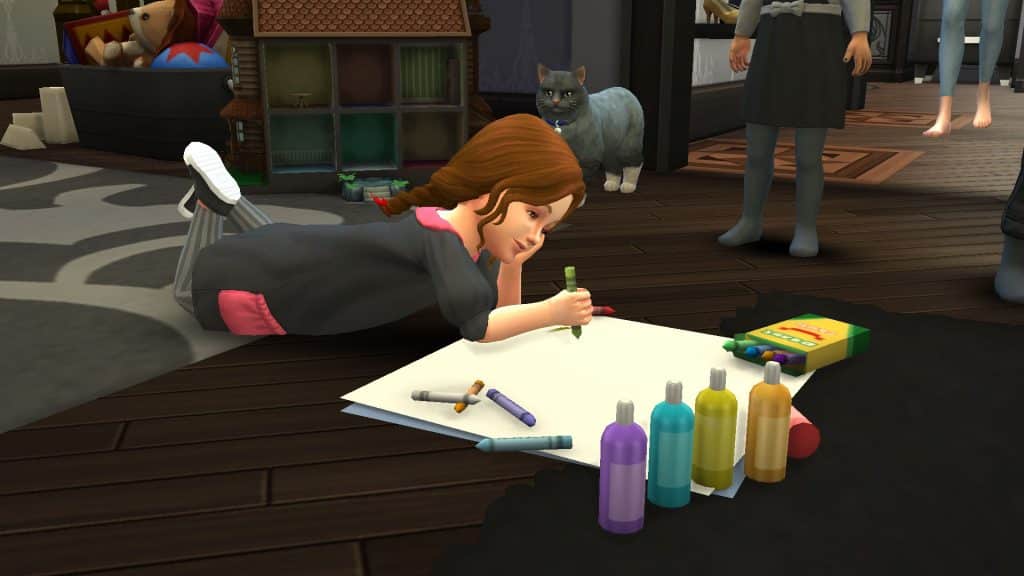
Children have their own activity table they can draw pictures on but for some reason, toddlers don’t get to do the same thing. These drawing supplies are made especially for toddlers and they can draw all kinds of cute pictures with it, either by themselves or with help from another Sim. There’s multiple designs they can draw, including a “corona” design which Pandasama says they included as sort of a meta reference to remember this crazy rollercoaster ride we’ve all been on the past couple years. Watch out for when toddlers are using this object while their Hunger is in the red! They may decide to eat a crayon and give themselves a tummyache!

Toddler Crafting Station

The Sims 4: 21 Functional CC Objects for Toddlers!
Creator: Pandasama

Toddlers finally have their own activity table they can make crafts with just like children! There’s a variety of different crafts and designs toddlers can create with the crafting table, including mason jar pumpkins and paper balls.

Toddler Bunk Beds

The Sims 4: 21 Functional CC Objects for Toddlers!
Creator: Pandasama

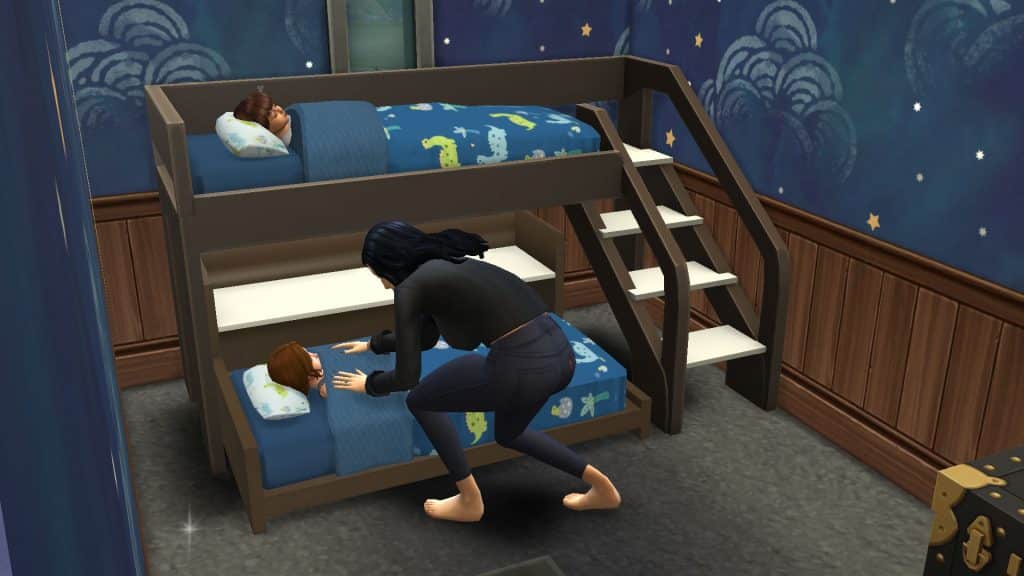
Nearly every family player has faced the struggle of having a set of twins before their Sims are financially stable and all of a sudden, they have to cram two of everything for their little ones into a tiny house. These fully functional toddler bunk beds will allow you to save valuable space while still keeping your toddlers comfy at night. Toddlers will climb the stairs and get into the top bunk all on their own. No adult help required. The bottom bunk even has shelf space for toys and small décor. The top and bottom bunks can also be used as separate pieces on their own. Just make sure you don’t place anything too close to the stairs under the top bunk or it will cause routing failures when toddlers try to climb the stairs.

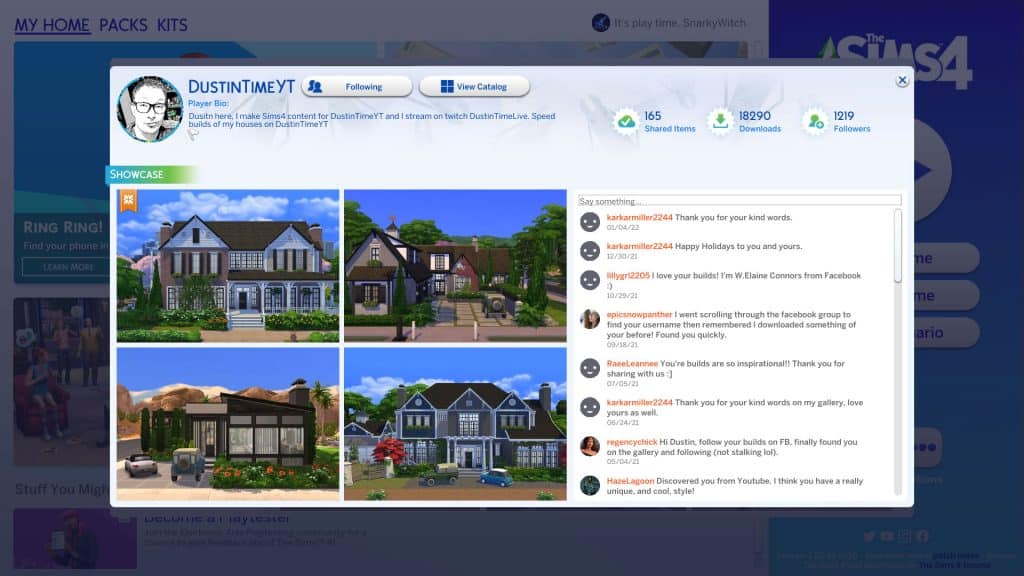
The Sims 4 Creator Spotlight: DustinTimeYT

We love showcasing talented creators at Sims Community so today, we’re here to spotlight an amazing builder who blends form and function to create incredible lots that are not only beautiful but functional and enjoyable for Sims to spend time in as well!

The Sims 4 Creator Spotlight: DustinTimeYT
DustinTimeYT is a builder who thinks outside the box with his amazing designs and fun, functional spaces. His builds aren’t just for show; he makes sure all his builds can be played in Live Mode with no issues. I am always speechless when he uploads something new. He always thinks of a way to use game objects in a completely new way I haven’t thought of before without rendering the space unusable. I definitely study some of his techniques for inspiration in my own builds.

He builds both gorgeous homes and community lots so you can really go to town filling up your worlds with a variety of his creations. I am especially fond of the commercial lots he builds since public spaces are not my strong suit when it comes to building. Below are just two of my current favourites I’m using in my game.

Planet Honey Pop!

The Sims 4 Creator Spotlight: DustinTimeYT

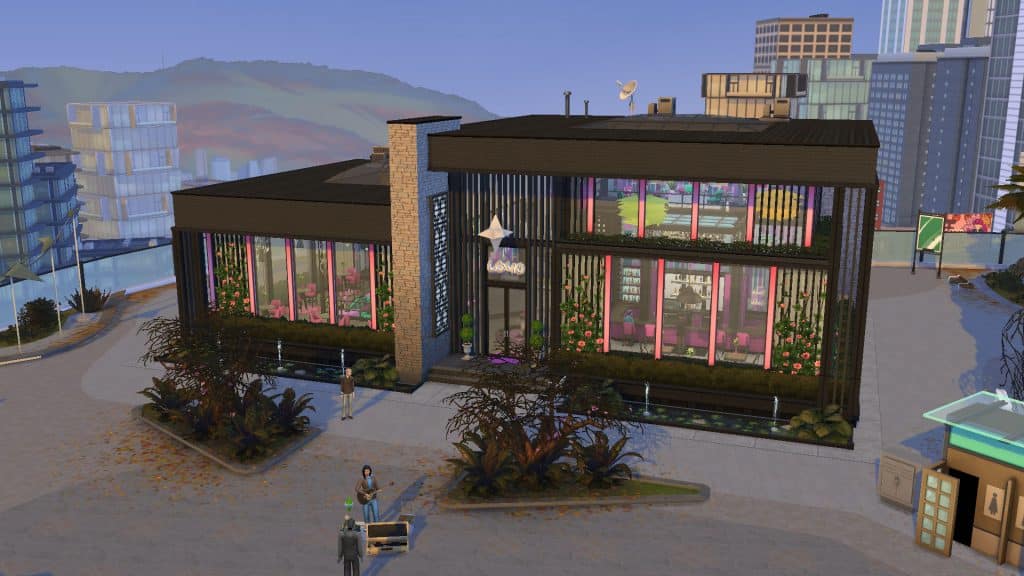
This atrocious EA build was in desperate need of a makeover and WOW! Dustin turned a very drab EA build into an eye-catching, fun space for Sims to enjoy. I’ve had plenty of fun nights out with my Sims here. Not only is there a bar and karaoke, but Dustin has also included a variety of other fun activities for Sims to enjoy, like the bubble blowers in the loft and ahem… walk-in closets for when things go really well on your date, if ya know what I mean. *wink*

Corner Cup Cafe

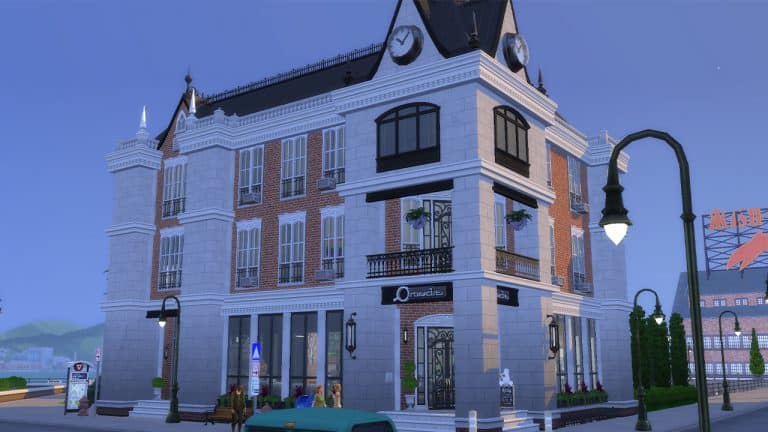
Dustin’s really embraced the idea of compact living by combining an apartment shell with a fully furnished, functional attached café. However, the space does not feel cramped at all. The café has a very open, smooth layout. It’s clear that Dustin has thought about the functionality of the space here; there’s lots of space around the barista station so the crowds of Sims all trying to order coffee at once will not obstruct other Sims from enjoying the space. I love that there’s more for my Sims to do than just sit around drinking coffee, too. My Sim and his club regularly hang out here to enjoy the darts, foosball table, and outdoor seating area as well as the coffee. While I am not normally a fan of shell builds, choosing to make the apartment portion a shell makes a lot of sense for this lot. Sims cannot live at cafés so furnishing the apartment portion would have just caused Sims to hang out inside apartments they don’t even own rather than the focal point of the lot, which is the café. Once again, Dustin has put a lot of thought into how the lot will function during gameplay.

I’ve just showcased a couple of my favourites that I’m using in my own game at the moment but Dustin has so many more amazing builds in his Gallery! You can follow him in The Sims 4 Gallery by searching the ID DustinTimeYT. He also has a YouTube channel with the same name where he uploads speed builds of his creations and let’s plays!

DustinTimeYT is a must-follow creator so if you haven’t checked out his stuff yet, give him a follow!

Importance and Progress on adding Customizable Pronouns in The Sims 4

59

The Sims Team shared progress on the work they’ve done for the upcoming Customizable Pronouns feature coming to The Sims 4 during their Inside Maxis Livestream.

The team collaborated with GLAAD, It Gets Better and EA’s Localization Team experts to learn why Customizable Pronouns are important, as well as what challenges they have to overcome in order to turn this feature into realization!

Since the team shared some valuable insight on the importance, challenges and progress of creating this feature I thought it would be valuable to transcribe the whole interview with the team and share it here!


SimGuruDuck – The Sims Producer (he/him): Back in May of last year you’ll know that we announced our pursuit of customizable pronouns in The Sims 4. We promised to do a fireside chat with you all and give you a status update on where we are on the production process.

Today we’ll share some insights into our process of adding customizable pronouns to The Sims 4. We know that this feature is near and dear to many of you as it is to us as well. In our world today we believe that gender neutrality plays a critical part in working towards a fully inclusive society. The Sims continues to evolve and we as a team continue to learn and work on making our game more inclusive step-by-step, day by day. We need to acknowledge that we messaged you with terminology on non-binary pronouns. We do want to acknowledge that gender neutral pronouns are not just for non-binary people and we’re going to continue to share the work to you on customizable pronouns moving forward.

As you know, this is a work in progress. We’re sharing with you stuff that’s happening as it comes and as we take this journey together we’re really excited to take you behind the scenes today and show you where we’re at in production.

The importance of pronouns for gender neutral inclusion

SimGuruDuck (he/him): In our conversations with you and your team as well as our partners including GLAAD, in addition to It Gets Better, we discussed what it means for The Sims to be gender neutral. Pronouns are an important element of gender neutral inclusivity but certainly not the finish line.

Rae Sweet – It Gets Better (they/them): Exactly. Taking a step back and looking at the society as a whole we can’t just stop at incorporating pronoun usage in our day-to-day. It has to go much deeper than that. There’s an internal process. There’s a difference in memorizing pronouns and unlearing the gender binary, gender roles and expectations, and really understanding the complexity of every human’s identity, expressions and experience. Alongside that internal work in fully understanding and accepting the gender spectrum, we need to continue to implement policies and structures and protections and systems that support this internal understanding. Our society needs to be built in a way that can adapt to this ever evolving realm of identities and the experiences that come along with that. The Sims can work in a really beautiful way toward reflecting that evolution. It’s a virtual world where you get to be who you want to be and I think that’s such a unique position to be in to be a guiding light in how we can build that kind of world in real life.

SimGuruDuck (he/him): …with that being said, we know that this feature will not make The Sims 4 100% gender neutral. We still have the selection for male and female in CAS, even with this feature. As we’ve learned in our investigations with you and working on this game over the years there are many complex systems involved in creating a Sim. Even looking at gender neutral language only, we’re aware that the ultimate freedom would be the ability to combine any binary or non binary pronouns in either gendered or gender-neutral language.

To give an example, let’s say that some might use he/him pronouns, but that person wants to use gender neutral lenguage and refer to themselves as spouse or sibiling versus husband or brother.

Going back to pronouns they are still an important piece when it comes to inclusivity with The Sims.

Rae Sweet (they/them): Absolutely. I think that’s a very important point. Although there’s so much work that we’ll always be continuing to do, pronouns are super important. Our language shapes the world around us and how we interact with the world. Recognizing and incorporating and practicing what I like to call conceous pronoun usage is really a crucial step towards shaping it all. Not only does it include but celebrates transgender and gender-expansive people. At It Gets Better we work with a wonderful of youth voices which is a group of LGBTQ+ ages 13-18 and some of them play The Sims! I just know that they’re gonna be so excited to see a feature like this where they can be reflected in the game and they can be their true authentic versions of themselves in-game. That’s how I personally was able to figure out my gender identity – in an environment that gave me the option to try on new pronouns. The day that I tried on they/them pronouns for the first time was the day I was first ever able to recognize myself in the mirror. Which as you can imagine is life changing. I just know that giving people a space to play in The Sims and play with pronouns and be who they want to be just gives them so much room to explore and find themselves and be their true authentic selves. Especially in a society where they might not be able to in real life.

Rachel Gilbert – The Sims Game Designer (they/them): Pronouns are a really important step for me. At least for just my experience.

I’ve played The Sims for years before I came out. I’ve used The Sims to play around with my gender identity because I wasn’t sure, as I didn’t know for a really long time. Always trying to figure that out and see what would feel different. The core thing I have is when I have a really tough day I unwind and let myself feel better and feel safe and secure. When I go to the save that is me in Henford-in-Bagley and going to see my foxes and chickens I’m just like “I’m safe here, I’m good”. No one is going to discriminate against me, no one is going to be weird, everything is going to be cool and it’s all gonna be fine.

I just think adding pronouns to the game are gonna make that game feel even more welcoming and kind and it’s really validating to see your pronouns. I really can’t underscore that enough. It’s reassuring and it’s like a little checkbox – we’re all good here, we know who we are. I’m really excited about that and even more excited to make characters since I’m a character making person with lots of unique pronouns to represent the world that I want to see and surround myself in. I’m really excited about it!

Linguistic considerations of bringing Customizable Pronouns to The Sims 4

SimGuruDuck (he/him): Another important aspect is we need to consider how pronouns work in 18 different languages that The Sims 4 is being translated into. There’s no one solution for all but we need to be mindful of gramatical issues that each of those languages have.

Let’s take the example of the adjective “perfect”. In English you may refer to a non-binary person and say “they are perfect”. However this might not work for other languages that have adapted to the gender of the person. An example of this is in Spanish that there is no gender neutral for the world “perfect”. It’s either “perfecta” or “perfecto” with female and male respectively. “They are perfect” as a gender neutral option also does not translate for languages where the plural pronoun is gender. For example, in Polish, the pronoun for a male or a mix-gendered group of people is “idealni” and for the pronoun for the female group of people is “idealne”.

Veronica Morales (she/her) – Lead EA Localization: There’s no common solution for all the territories. This is the first conclusion that we came to when we started doing some research on how the different langauges work.

It has to be treated and broken down to the specifics of the language because culture regulations and the language itself have a great impact on how this topic is handled in the different regions. Linguistically speaking all different sides of the spectrum are represented in the languages The Sims are localized into. Some languages have an officially accepted and ready to use non-binary pronouns. For instance Swedish – they have “hen” which would work. For other terittories however the problems are not being included in the dictionaries which proves that languages are evolving and accepting of this new language which is changing over time. In case for French with the pronoun “yel” which was recently accepted in their dictionary.

Some countries such as Germany, Spain and Brazil – communities have started using non-binary grammar in the syntax systems. These are not officially accepted but they are being used by a part of the society and they feel comfortable with this grammar and system and syntax systems.

On other side of the spectrum we have terittories with strict regulations and laws which the use of non binary pronouns can be quite challenging. It’s important to point out the reachness of the languages and for those teritorries which face some challenges there are some ways to resolve these. For instance we can use the passive voice in order to avoid referrencing the subject. Instead of saying “they sent me a letter yesterday” you can say “the letter was sent yesterday”.

Another workaround would be to substitude the gender pronoun with the action name of the character or avoid using the pronoun in languages with information and where binaries are present in their form.

These are just some workarounds to name a few.

Overall it’s most important that the linguistic approach that we go for has to sound natural in the context and it has to feel real to the players and at the same time respectful. This is what we are working towards and we have spent some time informing ourselves and also creating some inclusive language guides for everyone involved in the linguistic process. The aim of this guide is to set some basis and some recommendations on how these linguistic challenges can be sorted or can be changed or updated.

SimGuruDuck (he/him)For this first iteration of this feature we will focus on English first. But, rest assured other language support will be added as we continue to update and improve the feature over time.

Work in Progress Preview at Customizable Pronouns

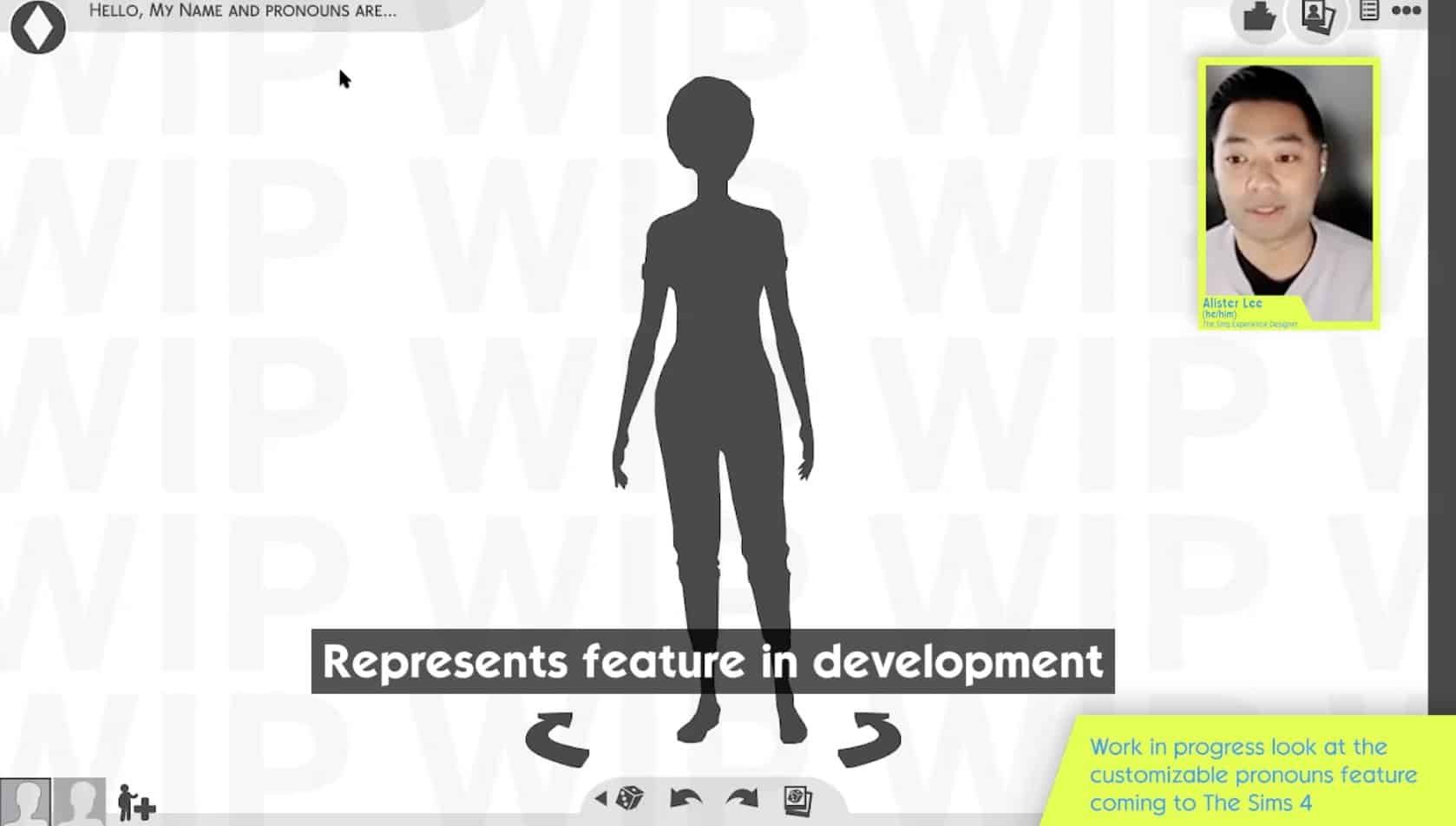
SimGuruFelix – The Sims Experience Designer (he/him): As you all know this is a pretty recognizable screen – this is in CAS. One thing that you probably noticed in the top left is that something is different. As you remember before, currently in the game it says “Hello, My Name Is”. What I’ve changed and added here is “Hello, My Name and Pronouns Are…”. This is because I feel in real life this is how we generally introduce ourselves – to say our name and then our pronouns. It felt like it was really important to show this in The Sims as well.

Importance and Progress on adding Customizable Pronouns in The Sims 4

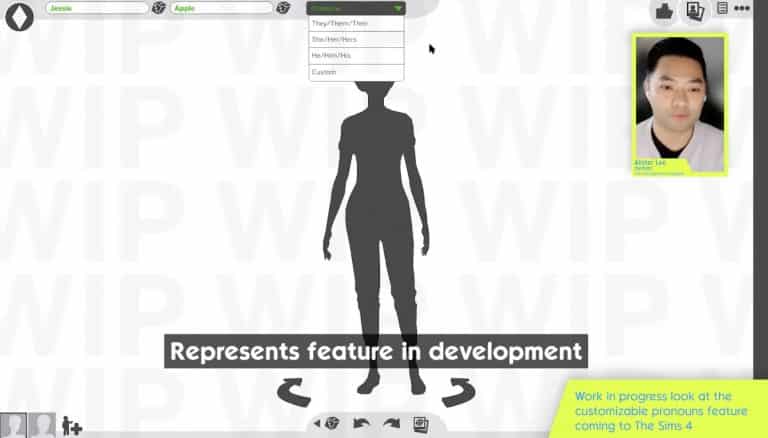
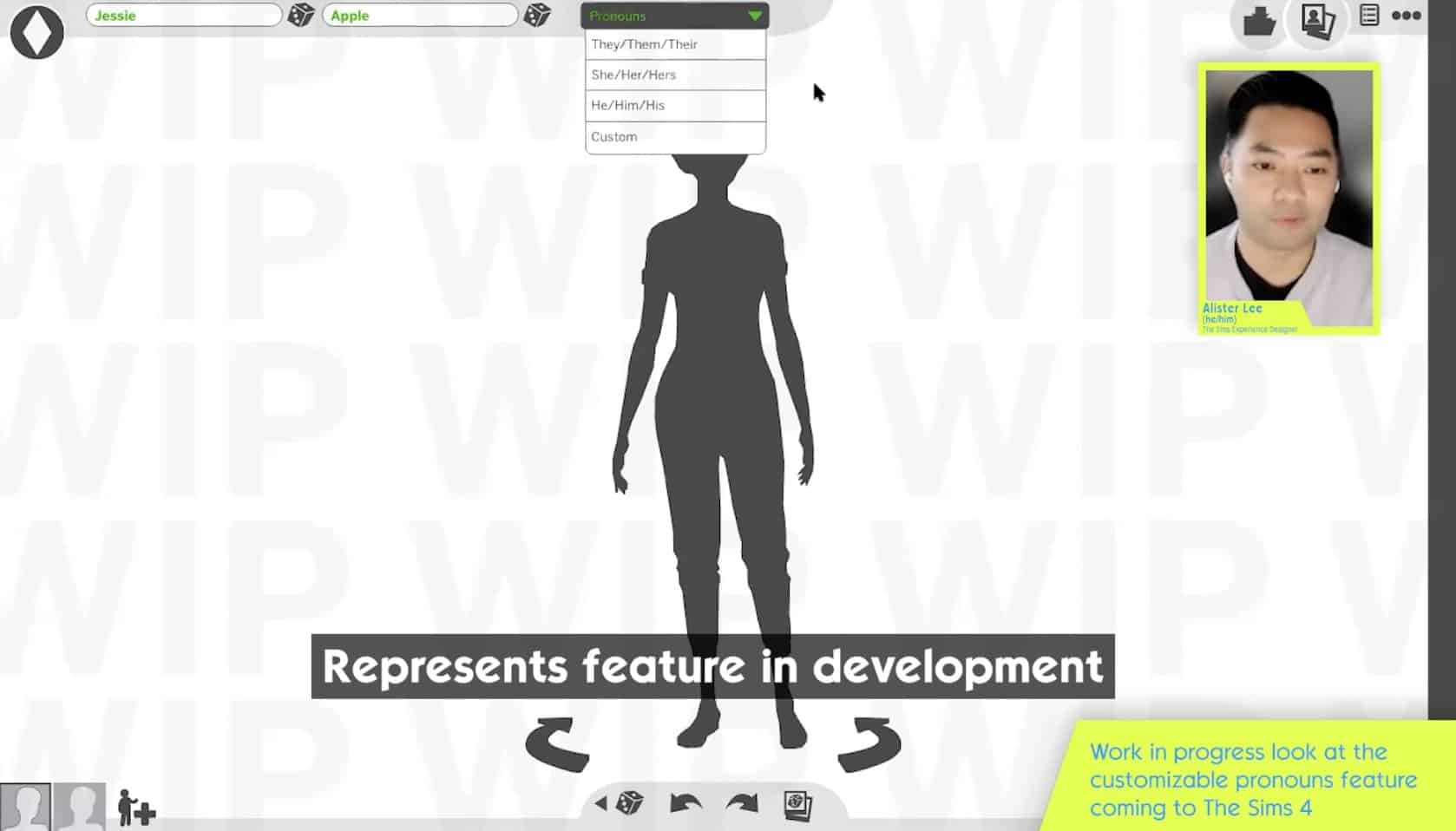
Going through the clickthroughs – this is obviously work in progress. You can still put and randomize your names, but there’s now a new dropdown section which says “Pronouns”. As you can see there are 4 different options. Let’s say Jessie Apple identifies as she/her/hers – as you can see it steps back and pronouns appear right next to her name. This generally would appear in Live Mode where there’s tooltips or any notifications that would refer to Jessie who uses these pronouns.

Importance and Progress on adding Customizable Pronouns in The Sims 4Importance and Progress on adding Customizable Pronouns in The Sims 4

Going back to the menu and let’s figure out what this “Custom” section is. Clicking on this option you can see that there’s a new UI that pops up – this is all going to be Work in Progress text. This is generally where you can add Custom Pronouns for your Sim. There are examples of these subject pronouns, object pronouns and possesive pronouns.

Importance and Progress on adding Customizable Pronouns in The Sims 4

Let’s say I want to change “they” to “zi” – “them” to “zer” and “their” to “zirs”. As you can see as I’m changing it here it changes the examples grammatically correct as well. After confirming it you can see it appears next to Jessie’s name.

Importance and Progress on adding Customizable Pronouns in The Sims 4

This is generally an idea we have – obviously a work in progress – but the concept is there.

I know we have a profanity filter. For example in The Gallery where we are planning on having protection on custom pronouns as we do want to be much more inclusive than exclusive.

SimGuruDuck (he/him)We take the profanity filter really seriously and we want to make sure that we’re doing this in the most respectful way possible.


When is this feature going to be available?

As you saw this is still a work in progress and our research and design will continue until we feel the feature is in the good place to be launched into the game. That being said we still have a path ahead of us and we want to make sure to check on you along the way and keep you updated. Once the first version of this feature is out please know that we are continuously working on improving the game and each update brings us one step closer to a greater, inclusive experience in The Sims 4.

The Sims 4: “Power Couple” Permanent Scenario Coming Soon

1

The Sims 4 is finally getting another permanent Scenario!

On top of the “Finding Money” and “Finding Love After A Breakup” permanent scenarios that you can already play in the game, there is going to be another scenario added soon. The team revealed during Inside Maxis that the “Power Couple” Scenario will be added through Sims Delivery Express very soon. Unlike some of the previous Scenario drops that were limited, this one will stay in the game forever.
Check out the sneak peek below:

This is a non-limited time scenario. This is what we call “evergreen”. In this scenario you’ll be playing a married couple working in business together. You’ll have a friendly bet to see who can rise to the CEO first.

The Sims 4: “Power Couple” Permanent Scenario Coming Soon

The Sims 4: Preview Into Upcoming Sims Deliveries

3

During the Inside Maxis Livestream The Sims Team has shared more details about upcoming Sims Delivery Express Drops coming to The Sims 4 Base Game!

In case you don’t know what Sims Deliveries are – they are free content updates and additions to the game that get patched in the moment you open your game.

During the livestream the team has shared a preview of TWO drops coming to the game. Let’s take a look into each one!

February 2nd Sims Delivery

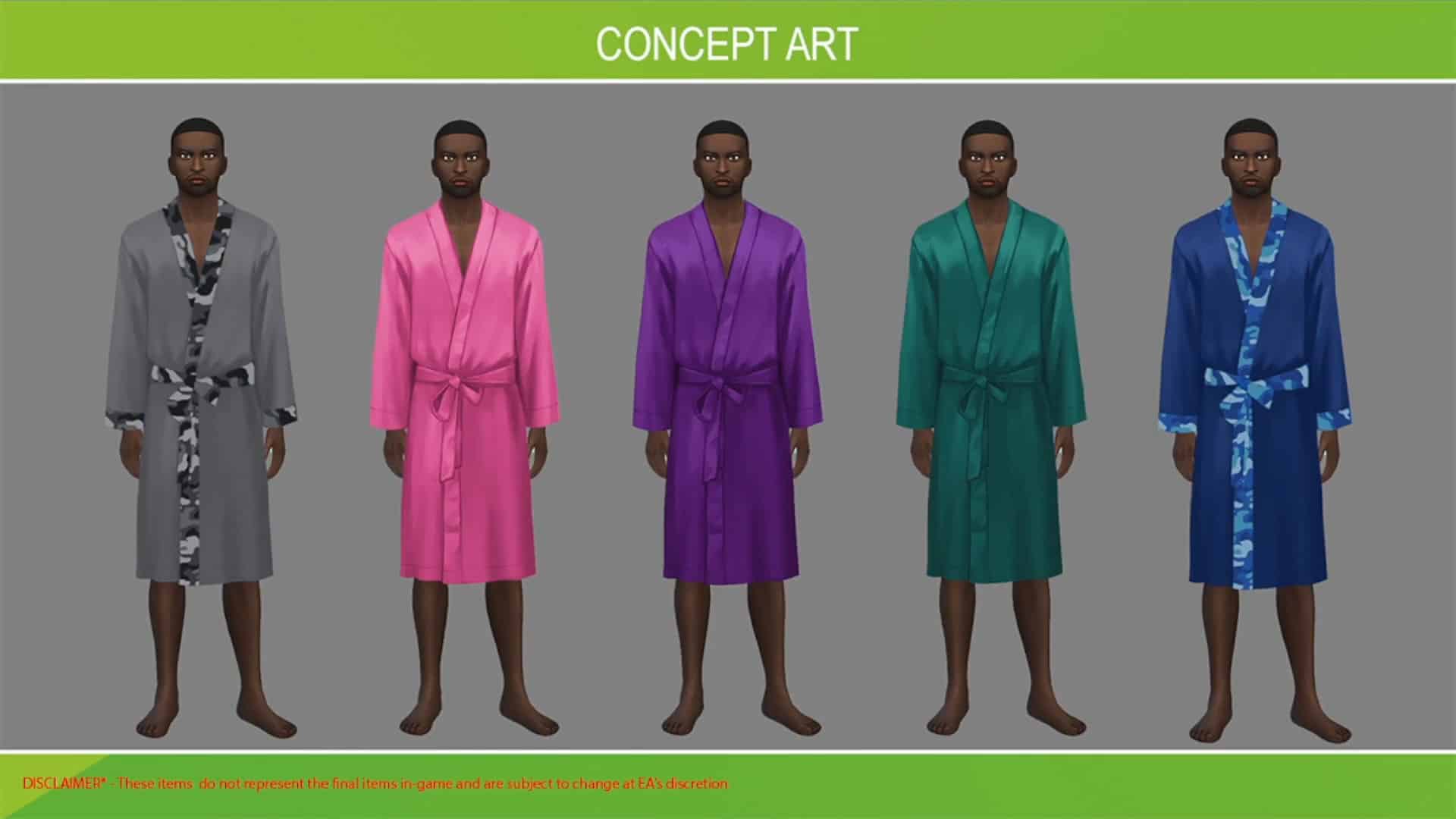
The Sims Team partnered with a Custom Content creator ComplexSims to bring you 3 unique Create A Sim pieces! Although the team hasn’t revealed all of the pieces we can expect, they did share a Concept Art preview of a new robe coming to the game, including some of the swatches you can expect in-game. You can expect this free addition to your game on February 2nd!

The Sims 4: Preview Into Upcoming Sims Deliveries

Upcoming Sims Delivery

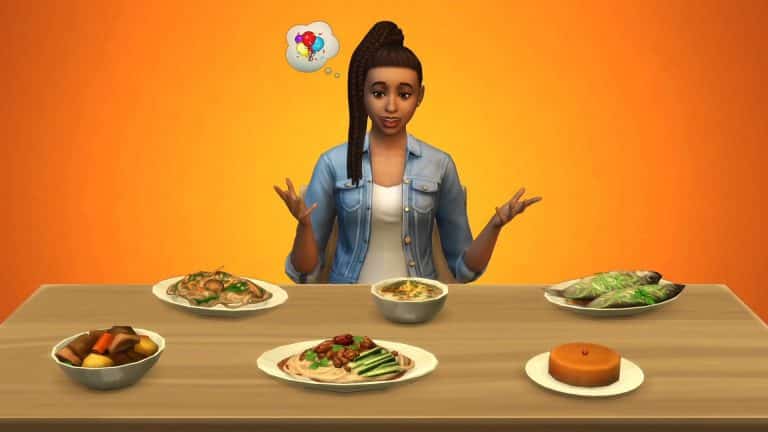
Another Sims Delivery that you can expect during this season is an addition of a Braided Ponytail Hair to the Base Game. Plus, there are 6 new recipes inspired by East Asian cuisine, including Sticky Rice Cake, Steamed Fish, Cold Noodles, Nian Gao and more that you can see in the preview below!

The team didn’t specify an exact release date of this Sims Delivery but you can expect it to drop in either February or March.

The Sims 4: Preview Into Upcoming Sims Deliveries

First look at Customizable Pronouns coming to The Sims 4

26

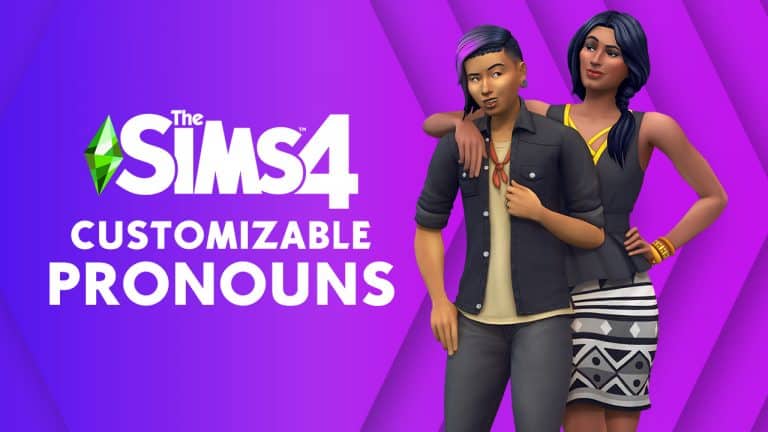
The Sims Team has shared their first look at the customizable Pronouns coming to The Sims 4!

As you all may know, the team confirmed that they are working on including pronouns to the game with a better implementation in CAS. During the livestream developers SimGuruDuck, along with other developers and partners from It Gets Better organization have shared their current progress of adding Customizable Pronouns.

During the livestream they shared their work in progress screens that you can check out below. Everything shown below is Work in Progress and is subject to change!

In the introduction part of creating a character in Create A Sim the screen on the top left corner will now say “Hello, My Name and Pronouns are…”.

First look at Customizable Pronouns coming to The Sims 4

When clicking the name section of the user interface there is now a dropdown for custom pronouns that you can choose for your Sim character! This includes options for They/Them, She/Her and He/Him. Also, there is a special “Custom” option on the bottom part…

First look at Customizable Pronouns coming to The Sims 4

Adding Custom Pronouns of your choice is something that’s still new to the world of video games, but it seems that so far The Sims has made great progress with the options seen below. You can type ANY pronoun you want of your choice with examples in sentences shown below:

First look at Customizable Pronouns coming to The Sims 4

The team confirmed that this feature is still work in progress and is the first iteration.

During the stream they confirmed that, due to the game being translated into 18 different languages, the options for Custom Pronouns will come to players who play The Sims 4 in English first. However, Customizable Pronouns are coming to players of all different languages as well as soon as the team wraps up the logistics of translating different pronouns for different languages.

You can check out the full interview with producers about this upcoming feature in the livestream replay below!

This article is still a work in progress..

The Sims 4 Official Livestream Replay: Inside Maxis (January 18th, 2022)

1

The livestream has ended! You can catch the replay above.

The Sims Team has announced their first Inside Maxis Livestream for 2022! The livestream is set to start on January 18th – aka tomorrow.

The team has shared the agenda for tomorrow’s livestream, including:

  • Simthing to Celebrate Segment with ComplexSims
  • Hot Topics, including a Status Update on Customizable Pronouns coming to The Sims 4
  • Sneak Peek at the upcoming update for The Sims4

The Sims 4 Official Livestream Replay: Inside Maxis (January 18th, 2022)

The livestream is set to begin at 11AM Pacific Time. To make things easier we’ve included a countdown below that counts to the exact moment to the beginning of this stream!

The stream can be watched right below the countdown and should begin the moment when the counter turns zero. We’ll keep you updated with all the latest news and updates from the stream here on Sims Community so stay tuned!

[janky target_time=”1642532400″ color=”#065bff”]

new Twitch.Player(“twitch-embed”, {
channel: “thesims”
});

The Sims 4 Mod & Custom Content Manager Walkthrough

Anyone who uses Mods or Custom Content in The Sims 4, or even from any of previous The Sims games, will know that your Mods folder can sometimes feel a little overwhelming. However, GameTimeDev has created a program to help players keep their Mods folder organized.

The Mod & Custom Content Manager is described as a file explore with additional features which allows you to browse your files for The Sims 4 easily. You are able to delete and move files but also disable and enables files both on their own, in multiples or even whole folders. View files alongside thumbnails, which will help you distinguish content that is for Build Buy Mode or Create A Sim.

As the Mod & Custom Content Manager is still in a BETA phase, it is frequently being updated and more features planned to be added going forward. Some of the features planned for the future include a way to find broken and duplicated files, custom content files used in specific households and additional filters. There are also some more technical updates to be made for the program going forward, including making the code more efficient and reducing the programs overall file size.

How to Download

To download the Sims 4 Mod Manager, all you need to do is head to the program’s page over on Mod The Sims.

Note: At the time of writing this overview, the Sims 4 Mod Manager has been released on PC and a first test version of the program for MacOS has been released. Full updates can be found via the Sims 4 Mod Manager Discord Sever.

The Sims 4 Mod & Custom Content Manager Walkthrough

[mks_button size=”large” title=”Click here to Download” style=”squared” url=”https://modthesims.info/d/663086/sims-4-mod-cc-manager-2021-by-gametimedev-beta-v1-0-4.html” target=”_blank” bg_color=”#4e62ac” txt_color=”#FFFFFF” icon=”” icon_type=”” nofollow=”0″]

How to Install

Once your download is complete, go to the location where it has been downloaded and open the file. Open up the Zip file using a program like WinRar or 7Zip, and you’ll find the installation file that you need. Follow the installation process step by step, which takes a couple of minutes, and you’ll be ready to go.

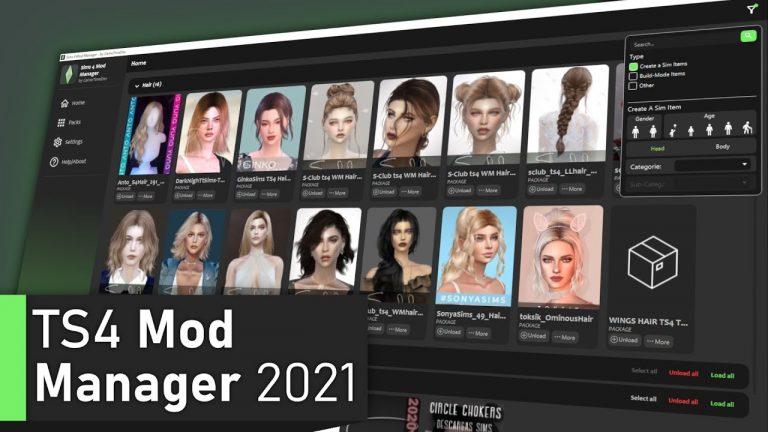
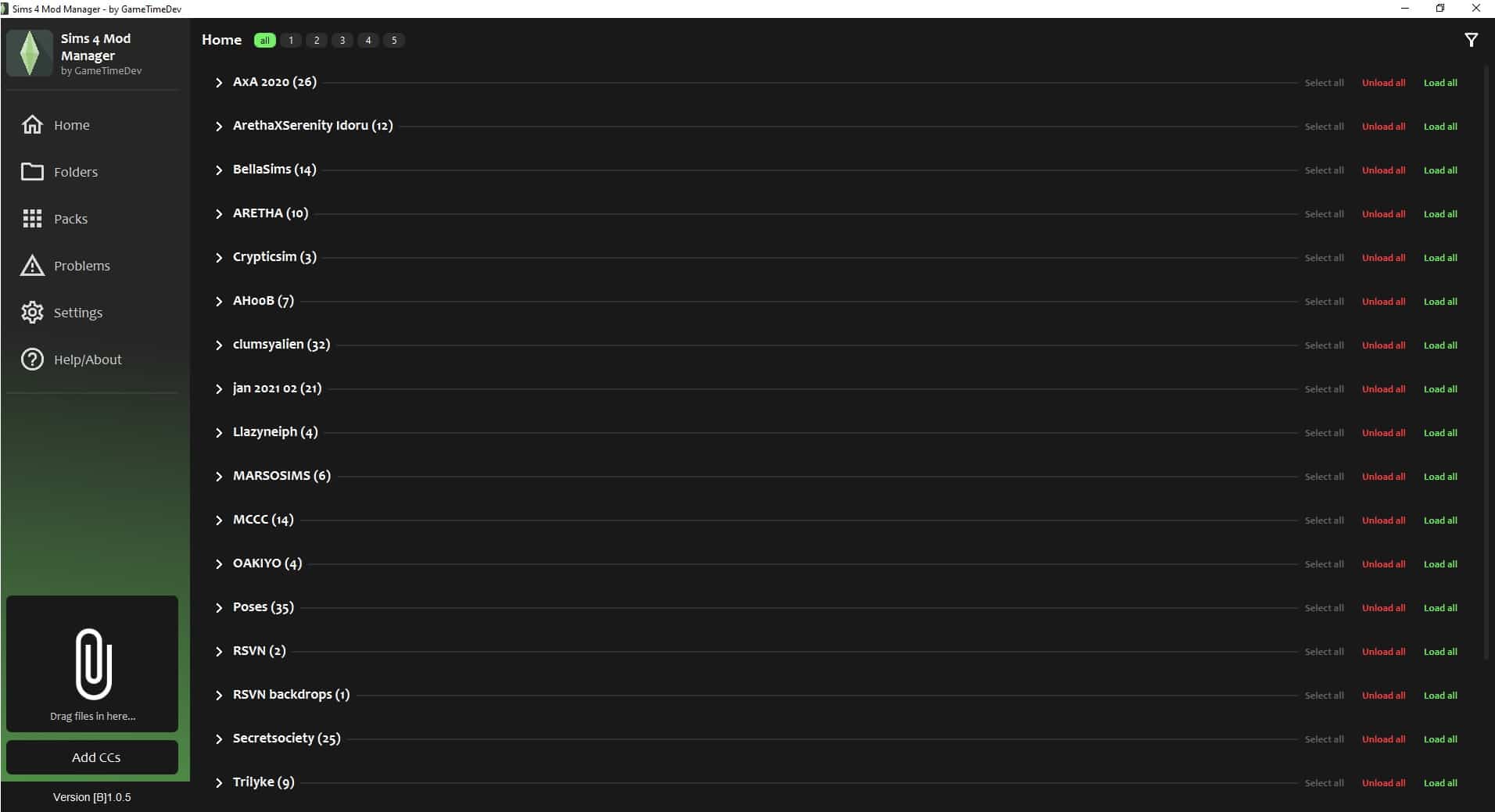
Upon loading the program for the first time, it will search for any existing Mods or Custom Content you already have installed. You’ll then be presented with a screen that looks like this.

The Sims 4 Mod & Custom Content Manager Walkthrough

Navigating the Sims 4 Mod Manager

  • Home – this is the default screen where you’ll find all the mods and custom content you have in game listed. Clicking on the arrow next to the creators name will allow you to view what creations you have from that creator

The Sims 4 Mod & Custom Content Manager Walkthrough

  • Folders – Folders is where you can quickly view any content that you have within your mods folder. Whether you have it organized by creator or the type of custom content or mod, you’ll be able to quickly and easily navigate each of those folders.

The Sims 4 Mod & Custom Content Manager Walkthrough

  • Packs – Packs allows you to make edits and add to the folders you have within your Mods folder.
  • Problems  – here you will find any files that may be weird or duplicated. Weird files may not actually be broken files but may not be loading correctly. However, you can send any peculiar acting files to GameTimeDev for further investigation. As for duplicated files, this is a work in progress feature at the moment but will show any files that you may have multiples of.
  • Setting – Find your program settings.
  • Help/About – Information about the program and helpful links.
  • Drag Files – Add Mods and Custom Content by dragging and dropping files to the paper clip icon.
  • Add CC – browse your computer for Mods and Custom Content files you are wanting to import to the game.

The Sims 4 Mod & Custom Content Manager Walkthrough

Tools

While navigating the Sims 4 Mod Manager, you’ll notice a number of different features you can use to manage your Custom Content and Mods.

  • Filters – In the very top right-hand corner, you will find the Filters Tab. Here you can search for files as well as filtering files by either CAS Items, Catalogue Objects or Other.
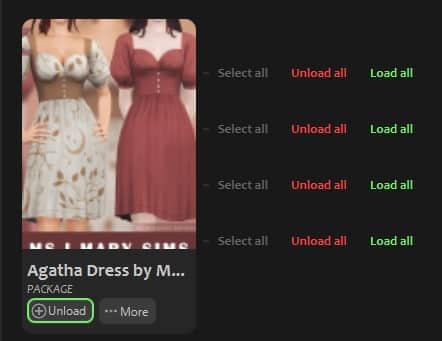
  • Load/Load All – This will add the mods & custom content to your game.
  • Unload/ Unload All – This will remove the mods & custom content from your game.

The Sims 4 Mod & Custom Content Manager Walkthrough

With both of these, you can either do this with individual files or whole folders. Unload/Load you’ll find under individual files, whereas Unload All and Load All you can find against the complete folder.

You’ll also notice, when viewing individual files, another tab called More. Clicking on this will present you with three new options.

  • Edit – Allows you to edit the Filepath, Filename and add any notes. You can view the file in Sims 4 Studio or within your Mods folder.
  • Move – Allows you to move the file to another folder
  • Delete – Deletes the file from your folder

The Sims 4 Mod & Custom Content Manager Walkthrough

Linking Sims 4 Studio

The Sims 4 Mod Manager allows you to link Sims 4 Studio to the program.

To do this, simply head over to Settings (General) > S4S Path (.exe) > Search Sims 4 Studio > Complete.

The Sims 4 Mod & Custom Content Manager Walkthrough

Once you have linked Sims 4 Studio to the Sims 4 Mod Manager, you’ll be able to directly load the file in the program and view any additional information that Sims 4 Studio displays.

Video Overview

GameTimeDev has also made a short yet handy overview video that also guides you through the Sims 4 Mod Manager.

Feedback

While the Sims 4 Mod Manager is still in its BETA phase, GameTimeDev is looking for feedback as well as any questions. You can do this by emailing developer.gametime@gmail.com or by joining the Discord Server by clicking here.

The Sims 4 Mod Manager by GameTimeDev is incredibly easy to start using and works well alongside Sims 4 Studio. Even with the program being in its BETA phase, there is still plenty to come and will be a great addition for many players wanting to get on top of and keep their Mod folders organized!

For more updates about the Sims 4 Mod Manager, be sure to join the Discord!

New to Mods and Custom Content for The Sims 4? Take a look at our Getting Started guide here.

COMMUNITY POLL: The Sims 4 Kits

5

2021 brought the introduction of a new DLC type for The Sims 4 that you’re all probably already familiar with – Kits.

In the past year The Sims Team has published 9 different Kits focusing on different aspects of the game – primarily on new Create A Sim and Build Mode items. There was only one Gameplay Kit (Bust the Dust) unfortunately, and after the leak of the upcoming Carnavale Streetwear Kit and a tease for the next one, it feels like we’re not seeing a Gameplay Kit anytime soon.

Below is a list of 4 questions regarding The Sims 4 Kits and your current opinions on each Kit type. Since it’s also been more than a year since we’ve had a new Stuff Pack for the game, there’s also a question regarding if you prefer the current method of Kit releases or ocassional Stuff Pack releases over Kits.

The last question is a list of all the Kits released for The Sims 4 so far in order of their release date. Considering we have more than one Kit type you can choose up to two of your favorite Kit releases for this iteration of the Kit Community Poll.

Want to drop in your vote on the favorite Expansion Pack, Game Pack and / or Expansion Pack or just want to see how others voted? Click the polls below:

[totalpoll id=”105413″]

The Sims 4: Four Lesser Known Facts About Aliens

3

Aliens have been around in The Sims 4 for quite a while now. They were introduced in the very first expansion pack released for the game, Get To Work. While later occults have put aliens to shame in the level of detail and gameplay they have, aliens do still have a few tricks up their sleeves that many players might not know about.

Here are four lesser known facts about aliens in The Sims 4!

Aliens Can Revive Dead Space Aliens

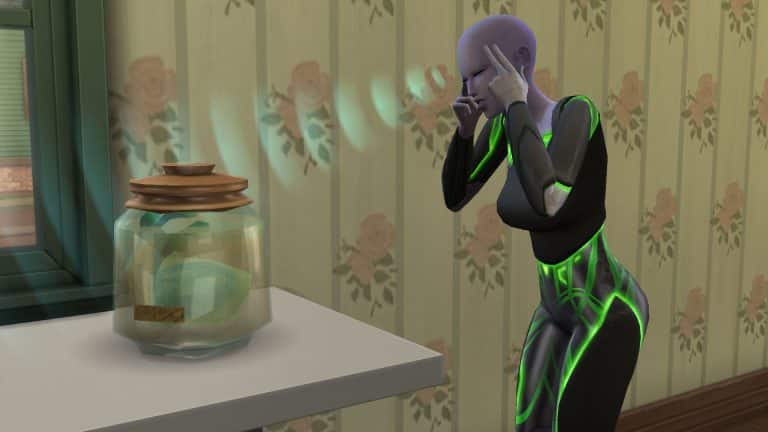
If you’re trying to complete the base game space alien collection, having an alien Sim in your household can come in handy. There are a total of 10 space aliens; 5 live aliens in a terrarium and 5 dead ones in a jar. Each alien in the collection has a live and a dead version. If you have duplicate dead aliens in a jar but are missing the live version of that alien, your alien Sim can bring one of the dead ones back to life for you!

Just click on the jar with your alien Sim active and select Revive. Your alien will direct some psychic rays from their minds towards the dead alien and POOF! Your dead space alien is now a live space alien! Pretty cool, right?

There Are Hybrid Aliens! Well… Sort Of

With most occult and human pairings, the resulting offspring has a 50/50 chance of being either a human or the occult type of their other parent. You might assume this is the case for aliens as well, but not so! When an alien Sim and a human Sim have a baby together, the baby will never be an alien. They will always be human; however, they will be born with an alien skin tone. This is evident by the lack of alien bassinet or alien clothes on the baby when they are born. They also won’t have the signature alien baby echo-y cry.

Previously, “hybrid” aliens had a few limited alien interactions with aliens but like many other happy accidents in this game, the devs decided to “fix” this in an update rather than any real glitches that are actually annoying. So your human Sims with alien skin tones used to be kind of cool and hybrid-like. Now they’re just humans with alien skin tones. Thanks for “fixing” that, EA…

In fact, the only way to get a real alien child from a human/alien pairing is through alien abduction. Your played human/alien pairings will always have human children with alien skin tones.

Aliens Have A Secret Handshake

Aliens have a special handshake that they can only do with other aliens. The secret handshake interaction can be found under the Friendly social category. Your aliens will do an amusing little hand gesture that involves waving their palms in a circular motion and then touching the tips of their fingers with a funny little sound effect.

The handshake doesn’t have any kind of effect on the Sims but it will build friendship between the aliens like any other Friendly social. It’s also a fun little animation to watch. I definitely recommend seeing it for yourself at least once just for the novelty of it.

How to Spot an Alien in Disguise

The Sims 4: Four Lesser Known Facts About Aliens
This alien is wearing a human disguise but still glowing green from being Very Happy.

Aliens have human disguises to avoid being detected in public so you could be chatting up an alien at the bar and not even know! They look just like a human! However, these human disguises aren’t infallible; there is one tell-tale giveaway that aliens will sometimes display even while in their human disguise.

When aliens experience strong emotions, they start glowing in the colour of that emotion. Aliens that are Very Happy will glow green while aliens that are Very Angry will glow red and so on. This is one thing they cannot hide, even in their human disguise.

So next time you’re at the nightclub flirting with a cute Sim and all of a sudden, they start glowing pink… you’ll know you’ve caught an alien red-handed!


What other facts about aliens do you find interesting? Let us know in the comments or come chat with us on social media!

A Day In The Life of a Scientist Sim

0

Meet Colten, one of the newest residents to move to Oasis Springs.

Having completed university life at Foxbury Institute, it was time for him to take his first steps into the adult world.

Before settling on moving to Oasis Springs, Colten had considered city life in San Myshuno and living in an apartment there. While he loved the idea of living in the city, he decided that it wasn’t quite what he was after. Colten also considered moving to StrangerVille, but there was something peculiar that he just couldn’t put his finger on. However, with a job opportunity at FutureSims Labs as an Apprentice Inventor popping up, he took the chance and moved to Oasis Springs.

With a new home and a new career, things were coming together nicely.

A Day In The Life of a Scientist Sim

While  another Monday had rolled around again, it was now Colten’s first day at FutureSims Lab. Even though his shift doesn’t start until 10am, he wanted to make sure he gave himself plenty of time to get ready and commute to his job. With an alarm set for 6am, Colten eventually got up just before 6.30am. There was a weird sense of calm as the sun began to peek through the windows. It was also very quiet, which was a huge difference to how things were when living in the Foxbury Dorms.

Colten decided to take things slowly while he got ready for his first day. After a quick shower, it was time for some breakfast. Something he didn’t want to skip out on, as he wasn’t sure how his induction day was going to go. Sadly, breakfast wasn’t as good as Colten had hoped. With overcooked eggs and toast and a questionably tasting coffee, cooking definitely was something he needed to work on and soon too!

There was no point dwelling on breakfast, as it was time to focus on leaving for work and the day ahead.

A Day In The Life of a Scientist Sim

The walk to work was pleasant, it was a beautiful Fall day, and it was also the first time Colten had ventured further than the path leading to his house. It didn’t take too long to get to work, either, but it also allowed Colten to reflect on his move and his new career.

A Day In The Life of a Scientist Sim

After his induction to FutureSims Lab, Colten got started on his daily tasks. As he was working on his first experiment, he overheard some senior colleagues talk about how people believed Bella Goth was still missing in Strangetown. They were discussing how they seemed to be close to proving that she actually was and unravelling the secrets of Strangetown. This was a place Colten was led to believe never actually existed. There had been so many different reports, rumours and even conspiracy theories over the years that it was hard to tell what was the truth and what wasn’t. Was it actually all a lie after all this time?

After a quick break for lunch, Colten returned to his work. He couldn’t help but hear the same group of colleagues talk about similarities between Strangetown and StrangerVille. He tried not to dwell too much on what they were saying, but maybe that peculiar feeling Colten had about StrangerVille wasn’t so peculiar after all?

The day continued without any issues. Colten was getting used to his new surroundings at the lab, as well as getting to know his colleagues. It was still unclear what Colten would be working on in the long run, but for now, a series of smaller experiments and plenty of research projects would keep him busy.

A Day In The Life of a Scientist Sim

With his first work day coming to an end, Colten took some time to explore the rest of FutureSims Lab as well as tend the plants out in the greenhouse, tidy up and get ready to head home.

Overall, Colten’s first day seemed to go pretty well. Even though it is still early days, he’s excited to see what else is in store for him. Perhaps it won’t be long until he creates his first invention, who knows what it might be?

A Day In The Life of a Scientist Sim

Upon returning home, there is one moment that stood out in Colten’s mind from his first day at FutureSims Lab, and that was all that talk about Strangetown and StrangerVille. Maybe he could research more about it himself to understand what is already known about the two towns. Surely, there is no harm in doing so if no one knows? If not, he would have to try and get in on the project somehow, but who would even consider an Apprentice Inventor?

For now, it was clear what Colten needed to do, but first a good well-earned sleep was in order. After all, tomorrow is a new day!

The Sims 4: Walkthrough of the Easy Peasy Lumen Squeezy Lighting Mod

Have you ever noticed how dark everything is in The Sims 4? Do you find yourself sizing down those saucer lights and sticking them inside of other lights just so your Sims’ homes don’t look like a dimly lit dungeon? Me too! That’s why I was so excited when I saw that Ravasheen released a new lighting mod for the game and, of course, it has an adorably catchy name like all her other amazing mods; it’s called the Easy Peasy Lumen Squeazy Hidden Lighting mod!

This mod adds four new objects to your Sims 4 game; three different types of hidden lights and a light switch controller object you can use to control all of the hidden lights on the lot at once. The mod is also base game compatible!

Getting Started

Of course, you will have to install the mod, first. You can get it from Ravasheen’s website. The current version is in early access for patrons only but will be released to the public on January 29th, 2022. If you need help with installing mods, check out our article Getting Started With Mods and CC.

Once the mod is installed correctly, all you have to do is load up the game and go into Build/Buy. Searching the term “lumen” in the search bar will bring up the four custom objects that come with this mod; the Hidden Floor Spotlight, Hidden Ceiling Light, Hidden Under Shelf Light, and the Hidden Light Switch Controller.

Here’s a catalogue overview of each object included with the mod:

Using the Hidden Lights

Using the hidden lights is as simple as using any EA light. Just grab it out of the Build/Buy catalogue and place it wherever you would like to have a lit area on your lot. The lights are small and in the shape of a cone indicating the direction the light is facing. The ceiling and under shelf light have the light spreading out in a downwards cone. The floor light can be rotated to have the light facing any direction you want on the ground.

When you place the hidden lights, they will remain visible until you also place a light switch controller on the lot. This light switch controls all of the hidden lights on the lot. Click on the light switch in Live Mode to bring up new options. You can hide or unhide all the hidden lights. You can also control the intensity and colour of the hidden lights the same way you can with the EA lights.

Every time you load a lot with the hidden lights on them, the game runs a check to see if there is also a light switch controller on the lot. If there is, all the hidden lights will automatically be invisible. If there is not, the hidden lights will remain visible. So if you’re on a lot in Build/Buy without an active family there and would like to hide all the hidden lights, just place a light switch controller, exit and reload and all the hidden lights will now be invisible.

Why use the hidden lights instead of the EA lights? Well Ravasheen’s lights are much brighter and cast a more even level of lighting across a much wider distance. Instead of hiding multiple lights inside of each other to get the kind of brightness you want, all you need is one of these lights placed where you want them. The under shelf light is especially useful for illuminating the undersides of kitchen cabinets, which are always difficult to light properly.

Lighting Comparisons

Below you can see the comparison between Ravasheen’s lights and a similar EA light from the base game. All lights were compared in a bare 5×5 room with no other light sources to give you an accurate picture of the lighting level.

Remember, the lights are super bright because you can adjust the brightness. If you think the lights are too bright, you can dim them down but having a wider spectrum between dim and super bright gives you more freedom in how you want to light your space.

Our Thoughts

Yet another simple but brilliant mod from Ravasheen! She always thinks of even the smallest details to make our games more enjoyable. My personal aesthetic has always been very bright and colourful in my game so the lack of ultra bright lighting in the game drove me crazy. I was always sticking lights inside of other lights to try and brighten up my Sims’ homes but the lighting was never even so I’d end up with blinding white in some areas and not quite enough light in others. I could never find a perfect solution, even using the dimmers on the EA lights.

All it took was one of Ravasheen’s lights to light up an entire large room evenly and to my preferred brightness. And the light switch controller it comes with is so cute! It doesn’t look out of place in any home and I’m definitely going to be putting one in every room of my homes now. Not just for easier access to the lighting controls when I need them but just for a touch of realism in every room.