

The Sims Spain shared 2 new renders from The Sims 4!


Tip: PekeSims

This is a step-by-step guide on how to build a simple modern house. There are many ways to do it, and of course, many different styles to choose from, but I’ll go for a very simple one, which everyone can do quickly!
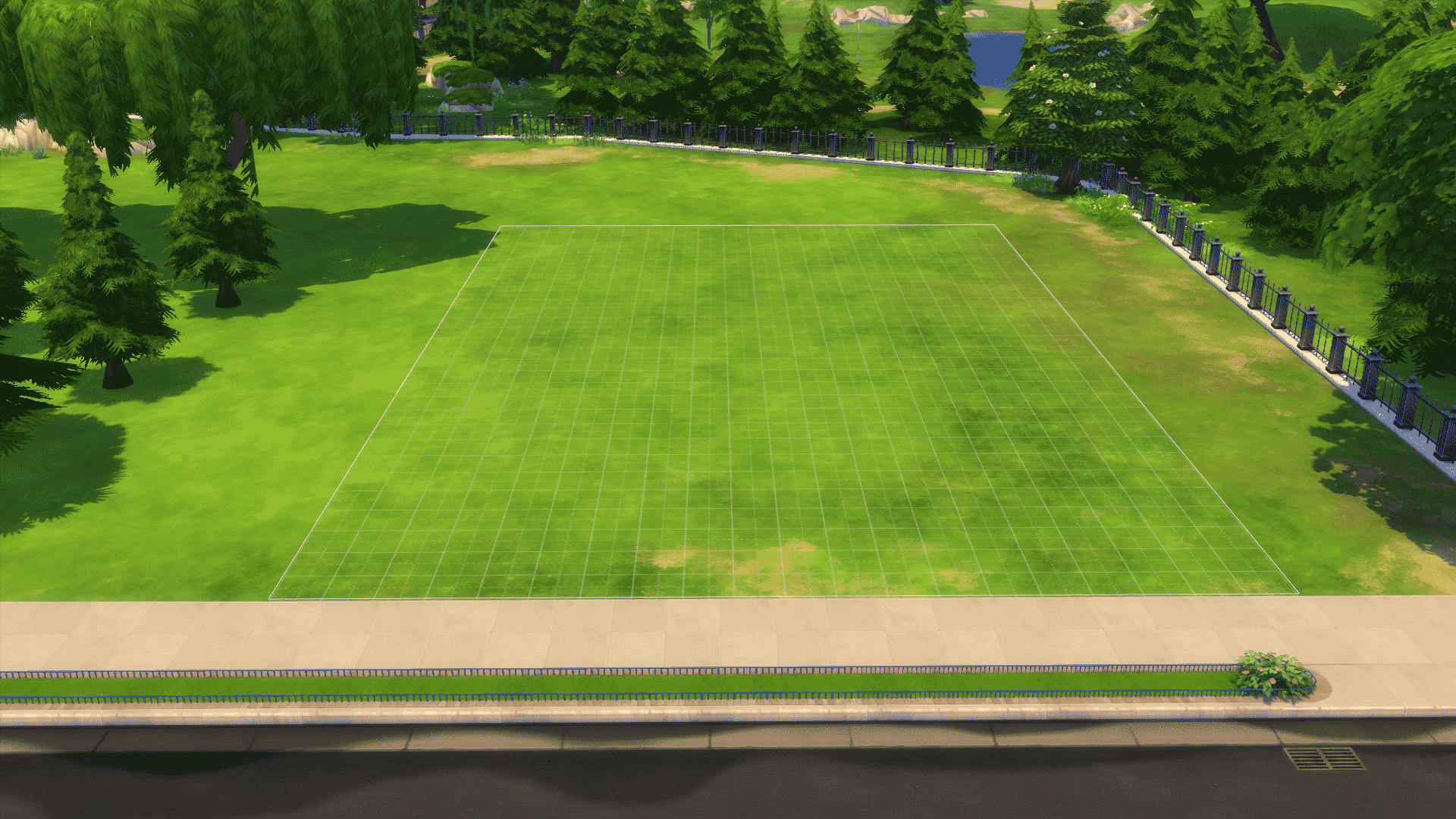
A lot of people pick the biggest lot, because you get an easy overview and plenty of space, but the design will be more fitting to the scenario if it’s the correct size. You should pick a lot-size that fits the size of the house you want to build, so if you’re building a small house, build it on a small lot (Unless you want to do heavy landscaping!)
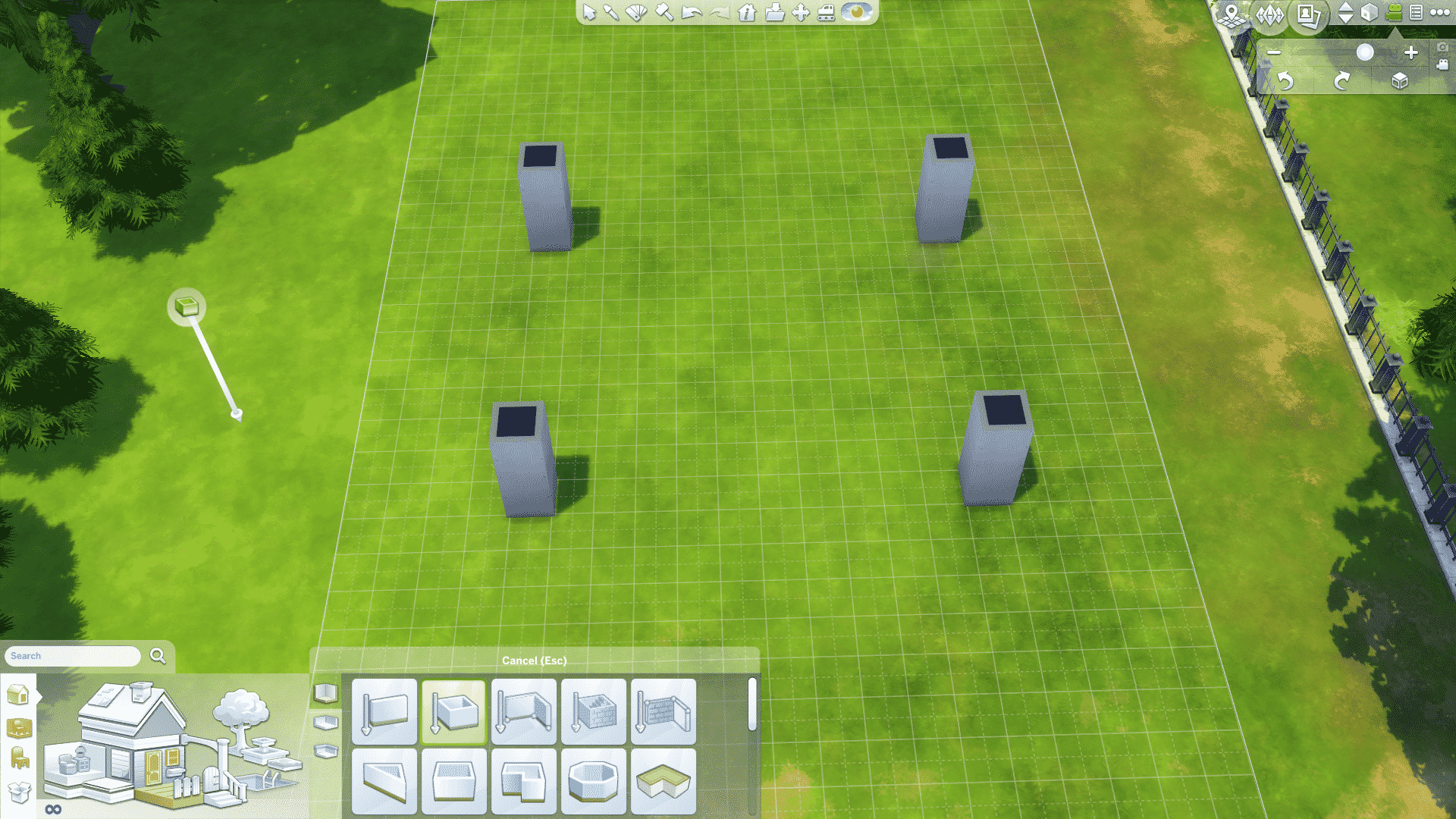
I normally start by using the roomtool to create pillars symmetrically on the lot. So here I’m going to make a simple square house as an example. For different shapes and structures, be thorough to make the pillars perpendicular to one-another, to get a safe result! -Playing around with asymmetry can be really cool, but it’s also a lot more time consuming.

When making the shape, make sure you drag from the inner corner of the pillar and over to the next one, like so:
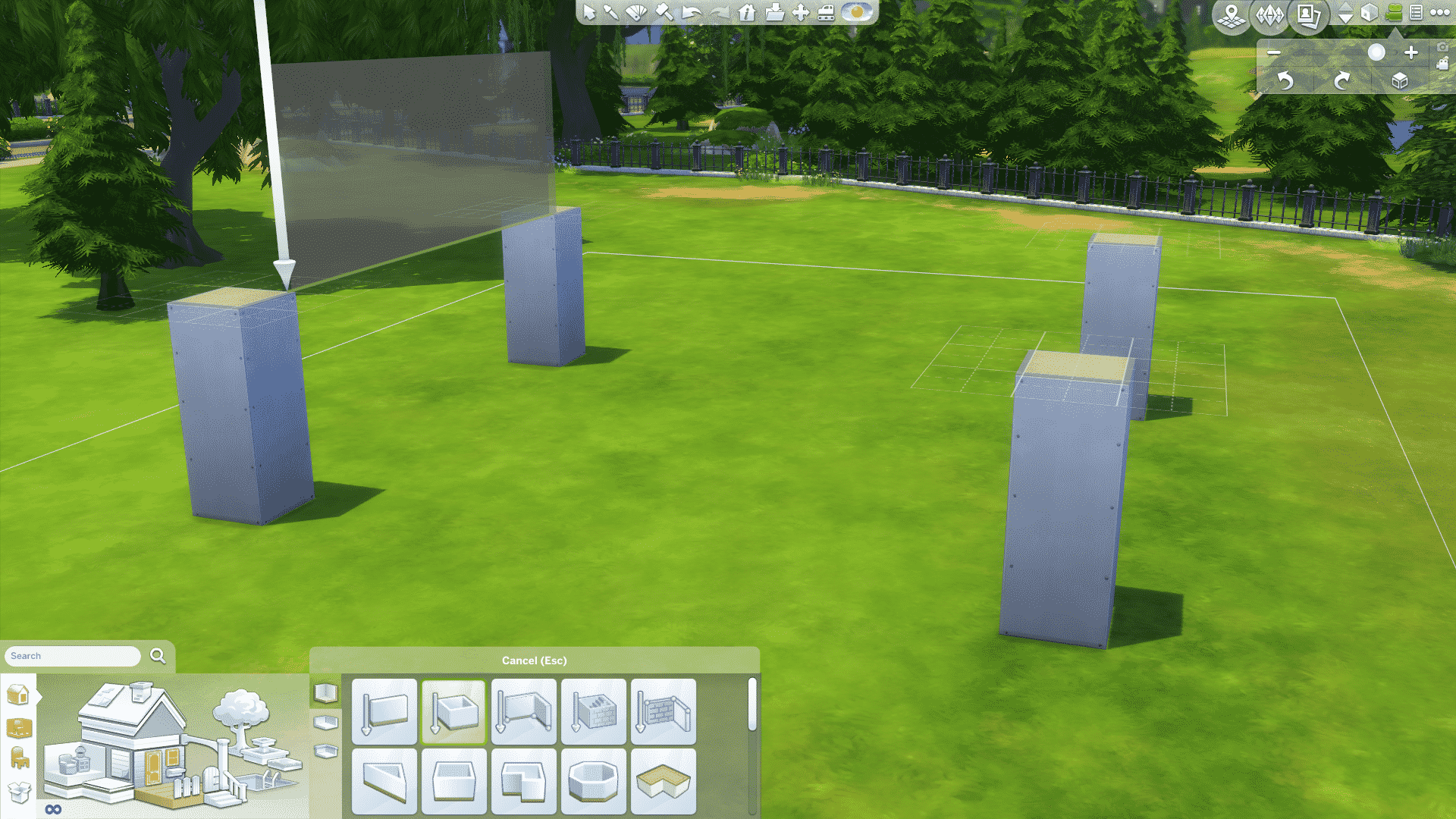
You can do it on the outside too for a more slick and clean look, but this way gives it more depth, and definitely fits small, simple modern houses very well! Also, if you realize that you want to change the shape during, just add more pillars wherever you want, and connect the walls. Like connect the dots, with pillars!
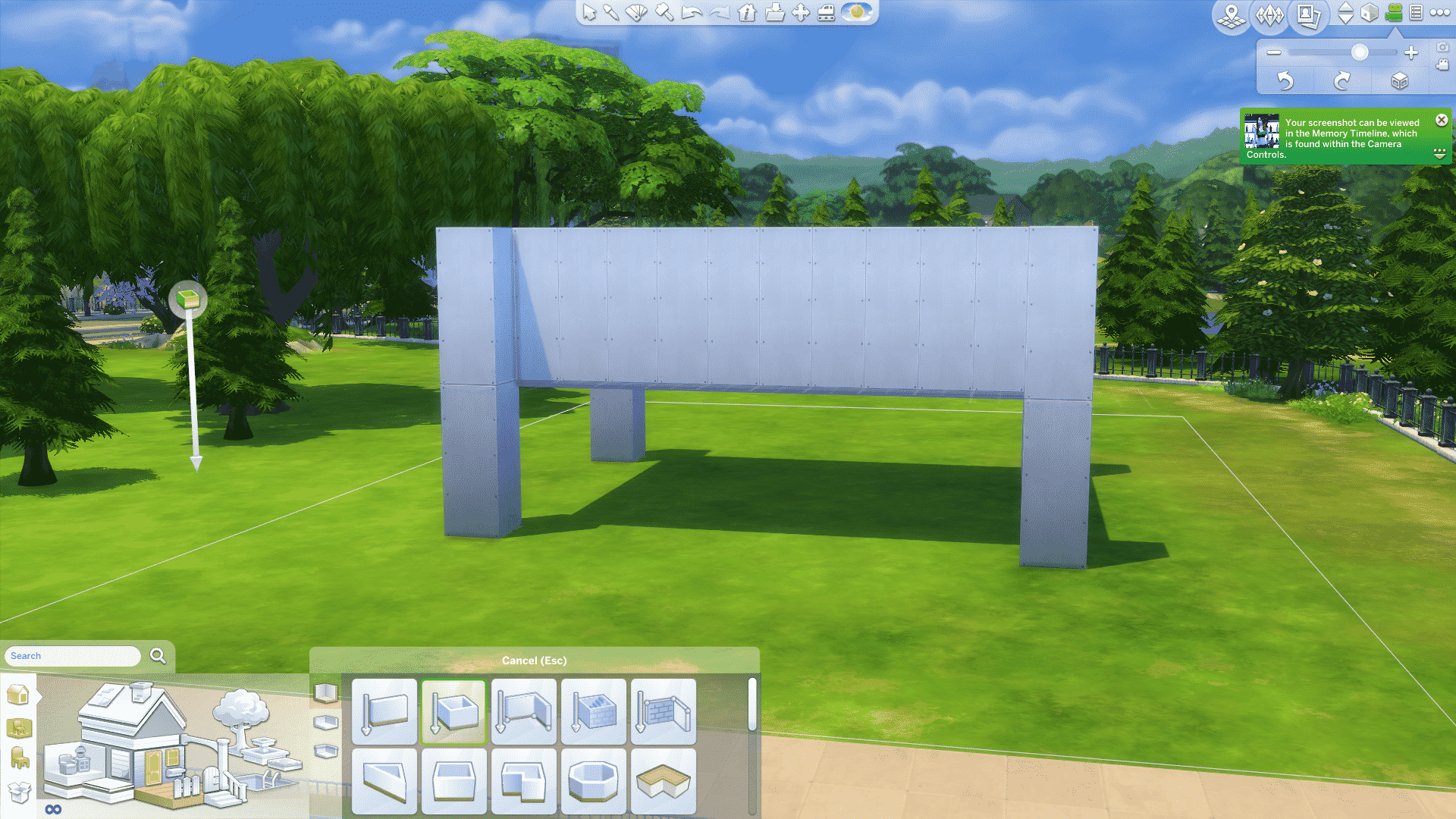
Then continue the pillars on top of the ones you’ve already made, so follow the wall all the way up each floor, and bam, you’ve got yourself a fancy box!
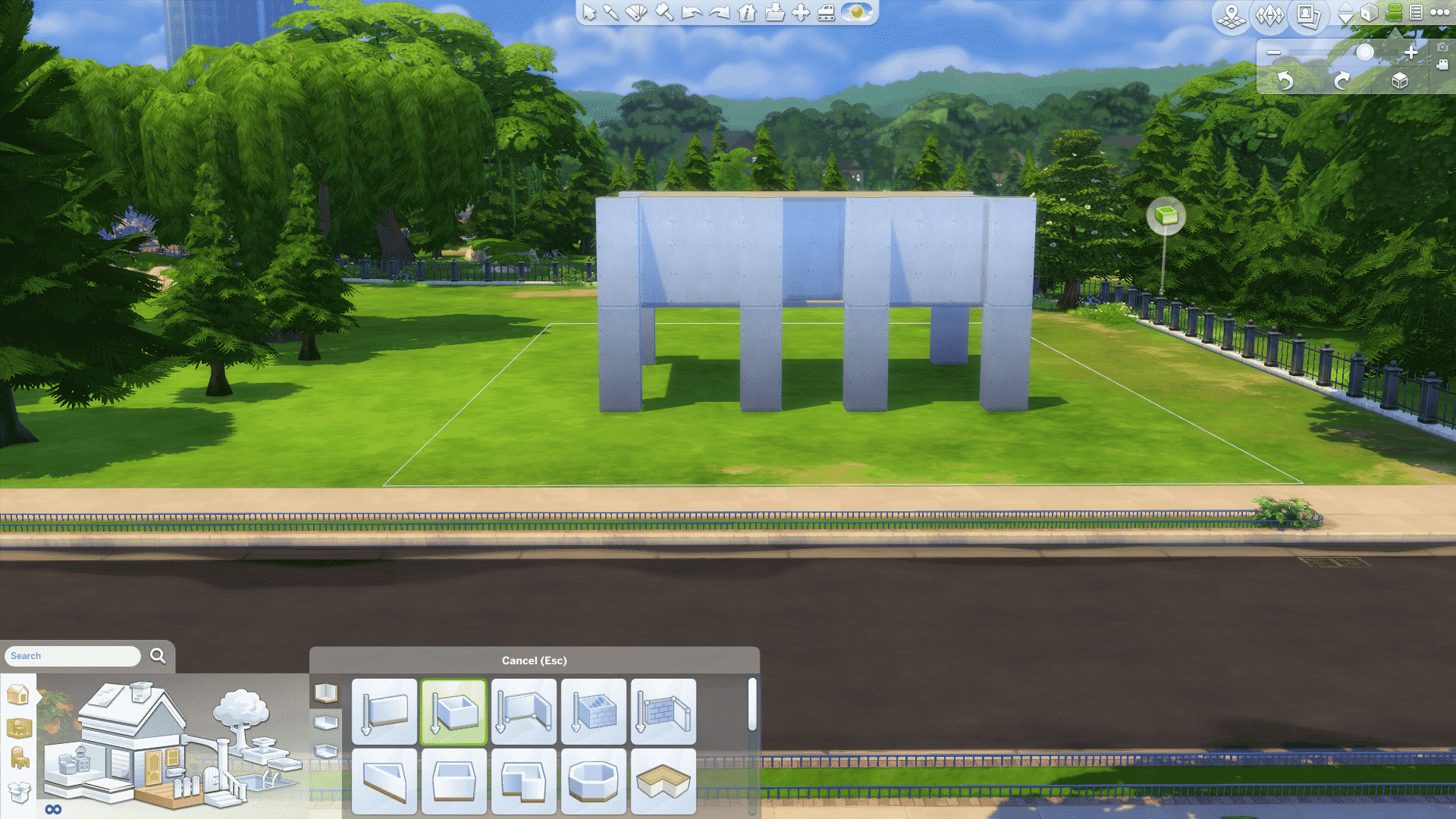
Here you can see I’ve added two extra pillars for aesthetics and pulled the wall back one square where the door is going to be, again: Depth!
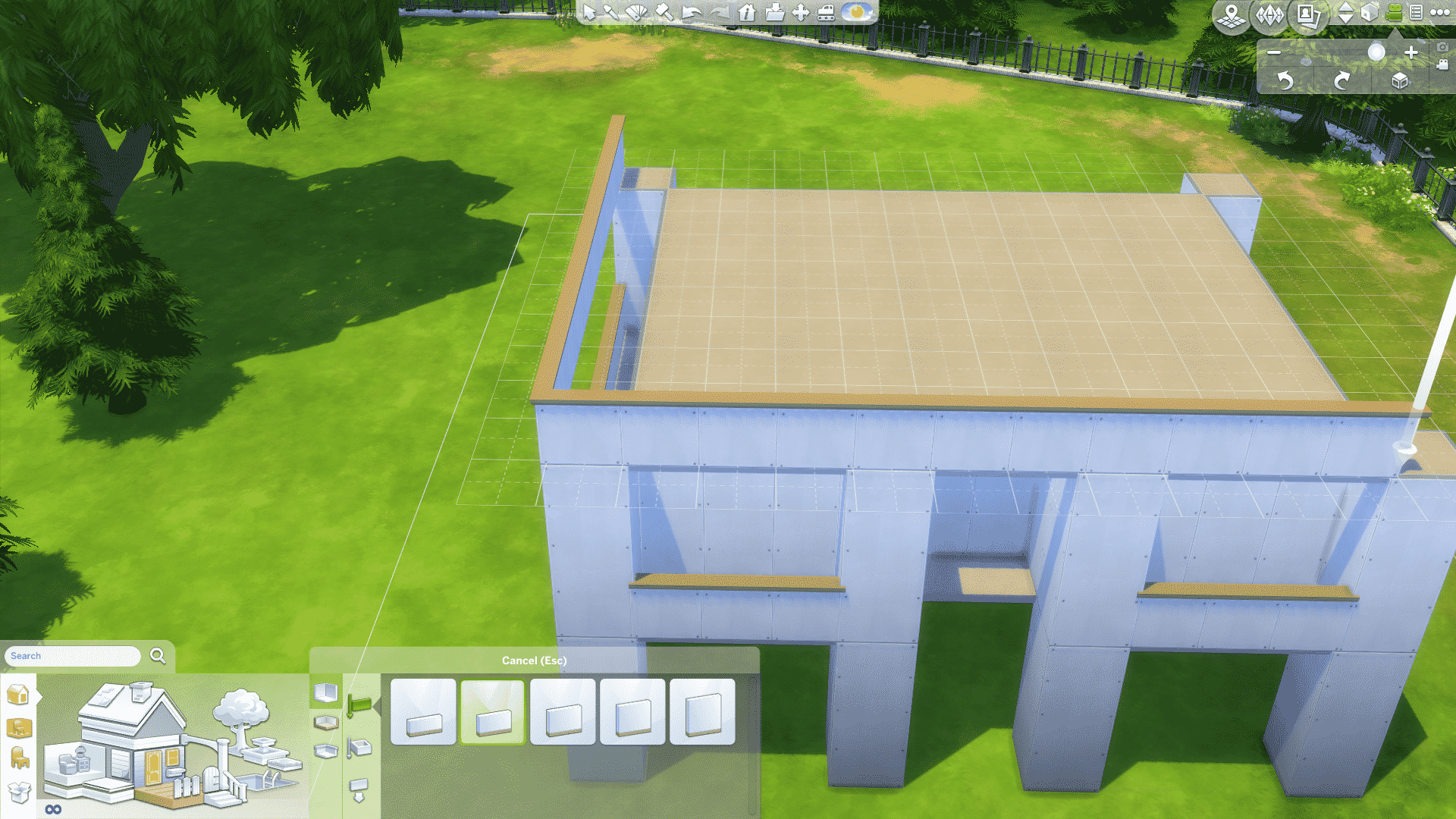
Half-walls are an amazing and simple way to make details on the outside of the structure. Use the half-wall tool and drag on the outer corner of the pillars all the way around the house, and on the roof. That will also create a perfect roof to your house. Flat as flat can be!


Add exterior wall trim to the top of your walls, and half-wall trim to your outside half-walls. A good tip is to colour your house the desired colour before you do this, so you can see what your accent colour is going to be (the colour of all of your details).
Then colour the base and roof of your house in the same colour as your accent colour like so:
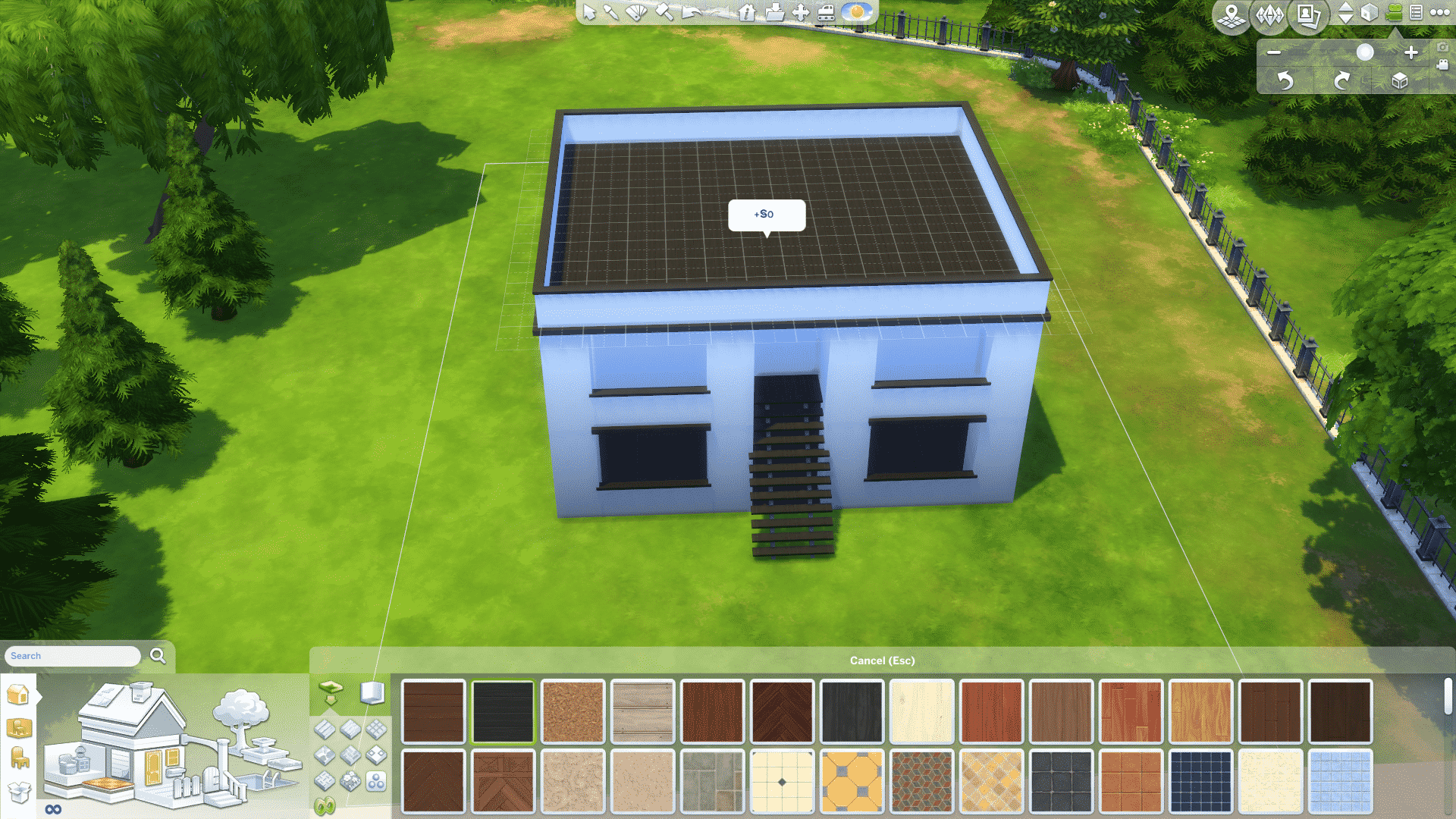
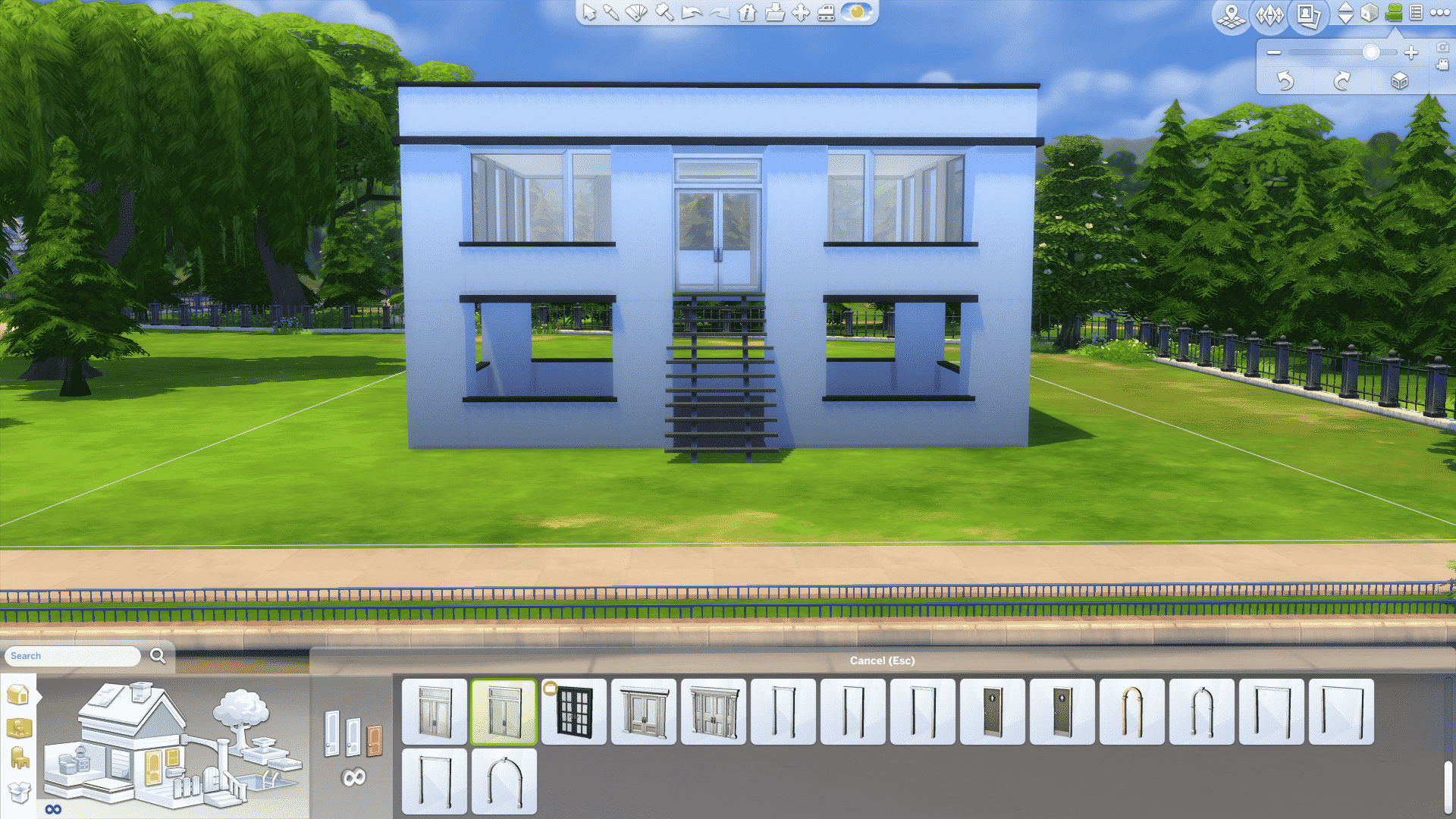
A modern house can have many windows, or none at all! Personally I prefer lots of windows, symmetrically placed on each side of the house. I would recommend having window placement on the front of the house symmetrical, if your stairs are centered.
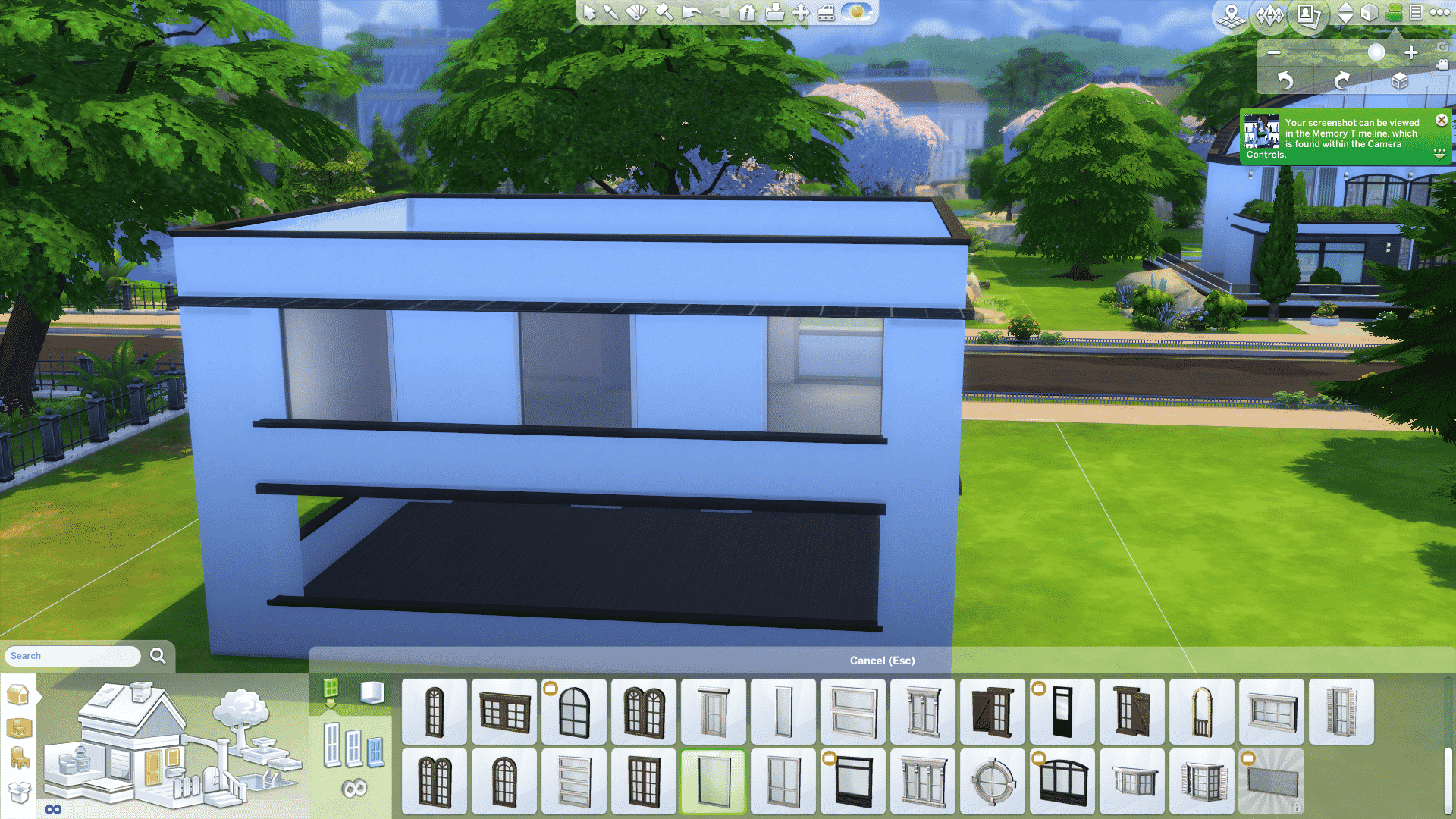
Modern architecture often uses asymmetry with balance items or structures to make it seemingly symmetrical to the eye when it’s in fact not symmetrical at all, but I’ll come back to that in Patio and Path.
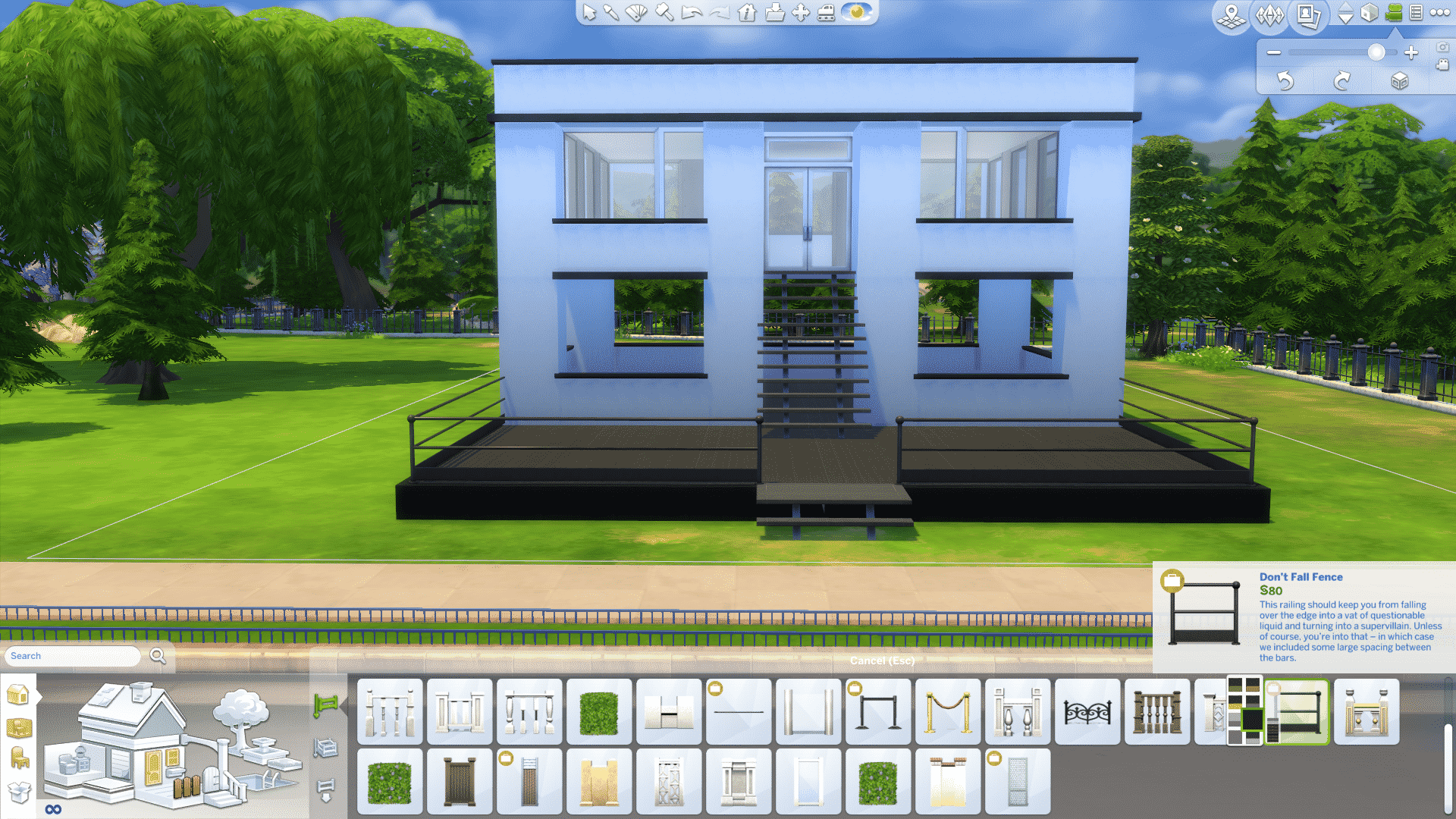
Make a patio from the outer corner of your front pillars, and drag until you find it big enough. Raise it a little bit, and colour it with your accent colour.


Add a fence you like, and pick either the accent colour, or the main colour of your house. Either will work fine!

On this patio I’ve decided to have a pool and seating area because it looks very inviting. It also looks great on The Gallery images if you want to upload your house!


This is an asymmetrical design, with the pool on one side, and balance objects on the other. So the pool is the main focus, and the seating area is the balance. I’ve put a plant in each corner of the seating area to “frame it”, so it follows my square and edge-focused design. I’ve also given the furniture a different colour to make it pop, a softer brown works well with black and white. For a more quirky and extreme look you can play with strong neon colours. Playing with colours is fun!
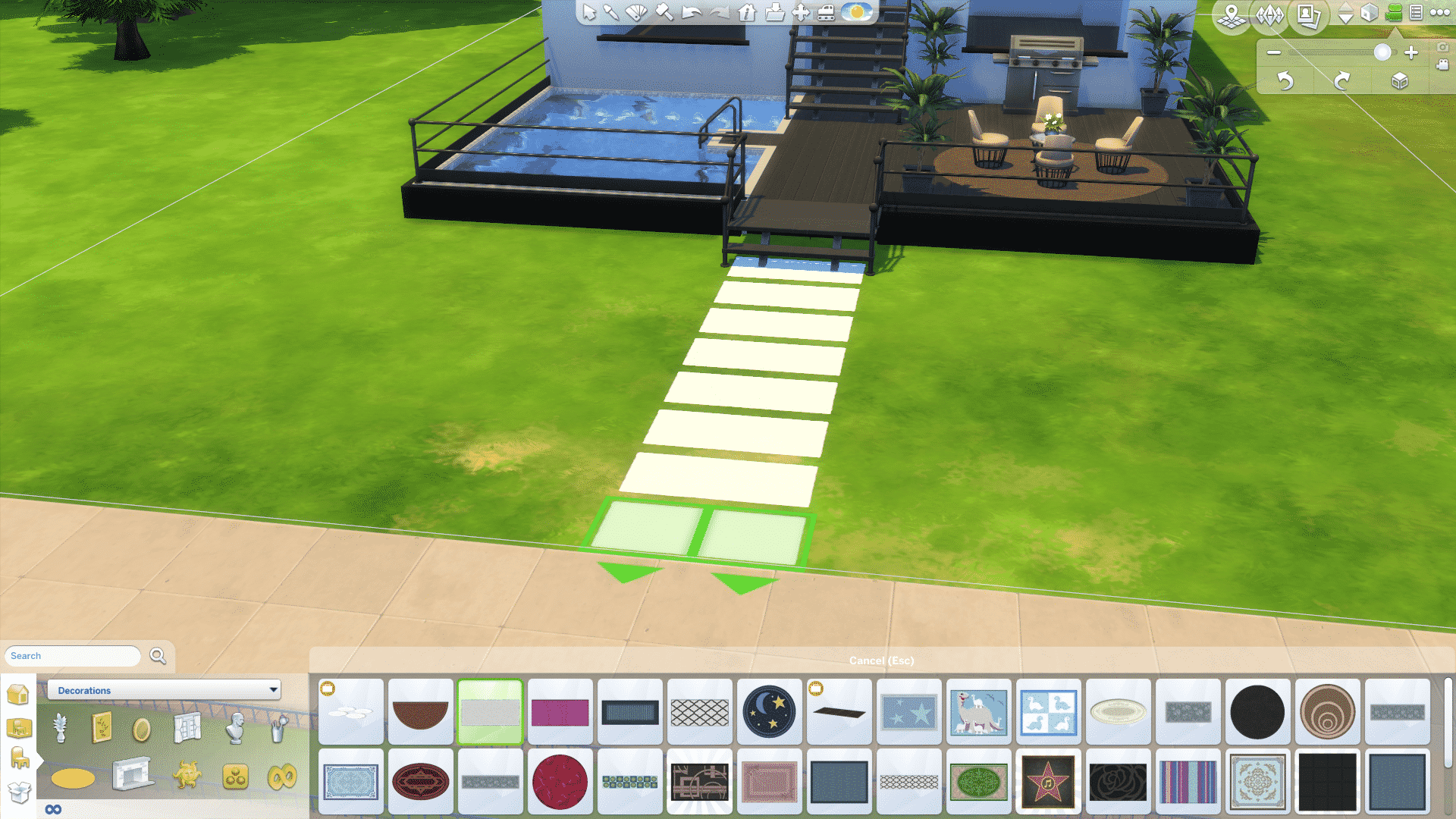
The path I made with carpets, and I’ve chosen the main colour of the house to create contrast. This is a straight simple path, but it’s also quite fun to play around and make curvy paths like this:

Do some gardening, maybe add some fountains and your house should be done!

So far in this series we have looked at technology and programs that are useful if you want to start a Youtube channel, today I am going to give you tips on what content you can include on your new channel to grow and maintain an audience. This is not something people often think about when starting out, but I have found that it is vital to success on the site.
There are so many options when it comes to gaming on Youtube, especially with a game like The Sims that has multiple aspects that enable players to be creative. If you are someone that doesn’t have a lot of time to spend editing and recording let’s plays, then a channel based around the Create A Sim (CAS) aspect of the game might be perfect for you! CAS in itself is something you can do a lot with on your channel especially if you use custom content! CC shopping videos are one of the most popular kinds out there. Creating ‘look books’ or themed styles gives you an opportunity to showcase your fancy editing skills.
If fashion really isn’t your thing then building is another alternative. Again it doesn’t require an awful lot of time however depending on the size and detail within the build the actual process can take much longer than simply creating a sim. All you would need to do is record while you build and speed up the clips during the editing process to avoid an extremely long tedious video. Some creators prefer to then add some voice over to explain their ideas and thoughts and some prefer to just place some music. If you choose the second option I strongly advise that you use tracks that are not restricted by copyright. No Copyright Sounds is a really great place to find thousands of upbeat tracks for all your videos!
Within these two kinds of videos are tags, collaborations and challenges. These are really fun to do once and a while and it is a good chance to interact with other simmers/gamers and put yourself out there. I have created an article on Create A Sim Tags which you can find here! I strongly recommend collaborating with other creators if you want to grow as a Youtuber, not only does this enable you to put yourself out there across other channels, but it really helps you to become part of the simming community which is an incredibly rewarding experience.
Last but not least are let’s plays. Time consuming, hard work and lengthy, these things are a big commitment that people often don’t realize until they actually start one! Before even thinking about planning, you should be completely honest and realistic about how much time you can commit to recording, editing and rendering let’s plays on a daily basis. Its not gonna work if you only upload one lets play, once a week and nothing else. Viewers will become impatient, disinterested and eventually go somewhere else to get their fix of sims content! You have to be consistent. Don’t get me wrong, you don’t need to upload every single day, but often enough that you regularly active and it doesn’t look like you have completely abandoned your channel! Perhaps think about setting up an upload schedule for your subscribers to follow so they know what content is coming when. Personally, I am a very busy person. Juggling a Philosophy degree among many other things while maintaining a Youtube channel is very difficult but there are ways to make it work:
Whatever you chose to do, uploading on a regular basis is vital to growing your audience, no matter what content you choose to post. If you do want to take on an let’s play I have a few tips that will help you keep your subscribers watching:
Tip #1 – Be unique. I cant stress enough how important it is to come up with your own ideas and be original. People don’t want to see the same thing over and over. They want to come to your channel for something they cant get anywhere else!
Tip #2 – Storyline. With a game like the sims you have full control over what you and your sims get up to. According to a recent poll I posted on Twitter, a story line is KEY to maintaining interest.
Tip #3 – DRAMA! Keep your subs on their toes! Bring in that big plot twist they weren’t expecting, an unexpected pregnancy, death, relationship. Be creative!
Tip #4 – Enthusiam – When recording your let’s play, sound like you actually want to be playing the game. There’s nothing worse than listening to someone sound so bored and disinterested in what they are doing.
Tip # 5 – BE YOU! Let your personality shine in your videos. This allows your subscribers to get to know you as an actual person behind that microphone and engage with you in the comments.
My final, most valued tip for growing your Youtube channel is to use social media to the up-most. I would not be where I am now without it, Twitter is fantastic! There is a whole world of simmers out there who regularly communicate through the site. It is by far the best way to get stuck in and meet like-minded people who love the same thing you do, simming! Also, of course you should totally go and check out the forums on The Sims Community Social! Again there are thousands of members who chat and post ideas, photos, challenges and even giveaways! There are even threads dedicated to Youtubers like you and me so head on over there to get started!
That is the end of this very long edition to the series, next time I am going to focus on channel art and how to get your Youtube channel looking the part!

Hey guys! Today I wanted to talk to you about how I do object recoloring. I taught myself how to recolor so I may not do it the easiest way or the way others do it but it makes sense to me. Hopefully, it will make sense to you as well! Recoloring objects is invaluable in a game that lacks a color wheel and with objects that rarely match or are oddly colored. What is up with the white objects in this game? The first thing you are probably going to want to do is remove the dingy color off all that whites, right? I’ll show you how to make your whites brighter.
But first, a little detour into the ethics of custom content creating. The most important thing is respecting the wishes of the original creators. If their rules say “do not recolor” (even if it’s ridiculous to put this on an EA object) or if it says “do not share or alter my meshes” then you CANNOT SHARE IT! Period. End of discussion. Don’t be a stealing jerk. The second most important rule is TEST YOUR STUFF! How many times have you downloaded something because it was too cute for words and then put it in your game to discover it’s broken? Exactly. That’s because the creator couldn’t be bothered to actually play test the item…or they don’t even own the game. Don’t be that person. Work hard at becoming the kind of CC or Mods maker that people can trust because they know you release quality and well tested items.
Lecture over.
Back to the tutorial.
Create a folder on your computer where you will be keeping all your custom content. Your top folder should be something like “Sims 4 Custom Content” and then inside that you will store your goodies. Stuff like the fabric swatches, art work, palettes, etc that you might want to use for your CC should have it’s own folder. Then you will have a folder for your CC WIP and one for when you complete you CC. This is a sampling of some of my folders; as an example:
Sims 4 Custom Content
–Fabrics
–Palettes
–Artwork
–CC Wip
——Name of CC I’m making
–Completed CC
Go shopping! Search for fabrics (I recommend colour lovers for patterns), artwork, palettes. A quick word on artwork, be mindful of the copyrights. I have seen Disney shut people down for using their images. You don’t want to be hit with a copyright infringement over some free CC you are making. Once you have gathered things you like and organized them into their own folder, then you can start the process of doing your first object recolor. This is what a palette looks like, I suggest making yourself a big grid and then filling in each box with colors you like so you can make your own unique color palette.

Now that you’ve got all the prep work out of the way, you can start the recoloring process. Launch S4S and then choose “standalone recolor” found under the “object” button. We will be recoloring a love seat, so I’m going to type loveseat into the search bar at the top. If you know exactly what you want to recolor, type the name in or you can type in the number of the pack to find things faster. The Grand Wickish Pizzazz looks like a good choice, let’s do that one. Select it by clicking on it and then choosing next at the bottom of the screen. Once it is done cloning, name your package.
As you can see, every single color option for that item shows up. What I want to do is give myself more of the light wicker color options since it’s my favorite. So, I will be exporting a couple of the textures. Under the studio tab, click on the texture tab and then choose the texture you want to export. I’m going to export the 4th and the 7th ones.


After extracting the .dds texture, you are going to open Gimp and convert that into a .png image so you can edit it in your graphic program. I am assuming that you do not have Photoshop CS and the DDS plugin installed; if you do then skip this step. Begin by opening the image in Gimp, select OK when it asks you if you want to load DDS. Under the file drop down menu, you are going to select “export as”. Go down to where it says “select file type (by extension)” and then scroll down till you find .png. Select export and make sure you change the compression level to zero. Leaving it at 9 will make your image grainy looking. Click on export in the popup menu.


Load the images you just converted into your graphics program and also load any palettes you made that you want to use for this item. I like to work in layers, so the first thing I will do is make layers of the items in the image. I made a layer of just the brown wicker part of the love seat. I will also make a layer of just the pillow part because I want a solid colored pillow. I made the layers separate images just so I could show you guys what I’m doing. They are actually just placed on top of the main image when doing this.


I want to make the wicker a darker color, so I will use the eyedropper tool and choose one of my palette colors. Next select the color changer tool and select the layer that has the wicker, this is the color I want to change. As you can see, the wicker is now a dark brown. Do this for the other layers changing the colors to whatever you want.


Once you are done changing the colors of your layers, save your texture and then go back to your package in S4S and select the texture tab. This time you will be choosing import. A popup will appear and you select the image you want. Then select the open button. To add more images, click the add swatch on the top right corner. You can also delete images by highlighting it and then clicking the remove swatch button. The more swatches you add, the larger the file becomes. So, try to keep them between 10 – 15. At this point, you can either change the textures or delete them. I deleted them for this tutorial.
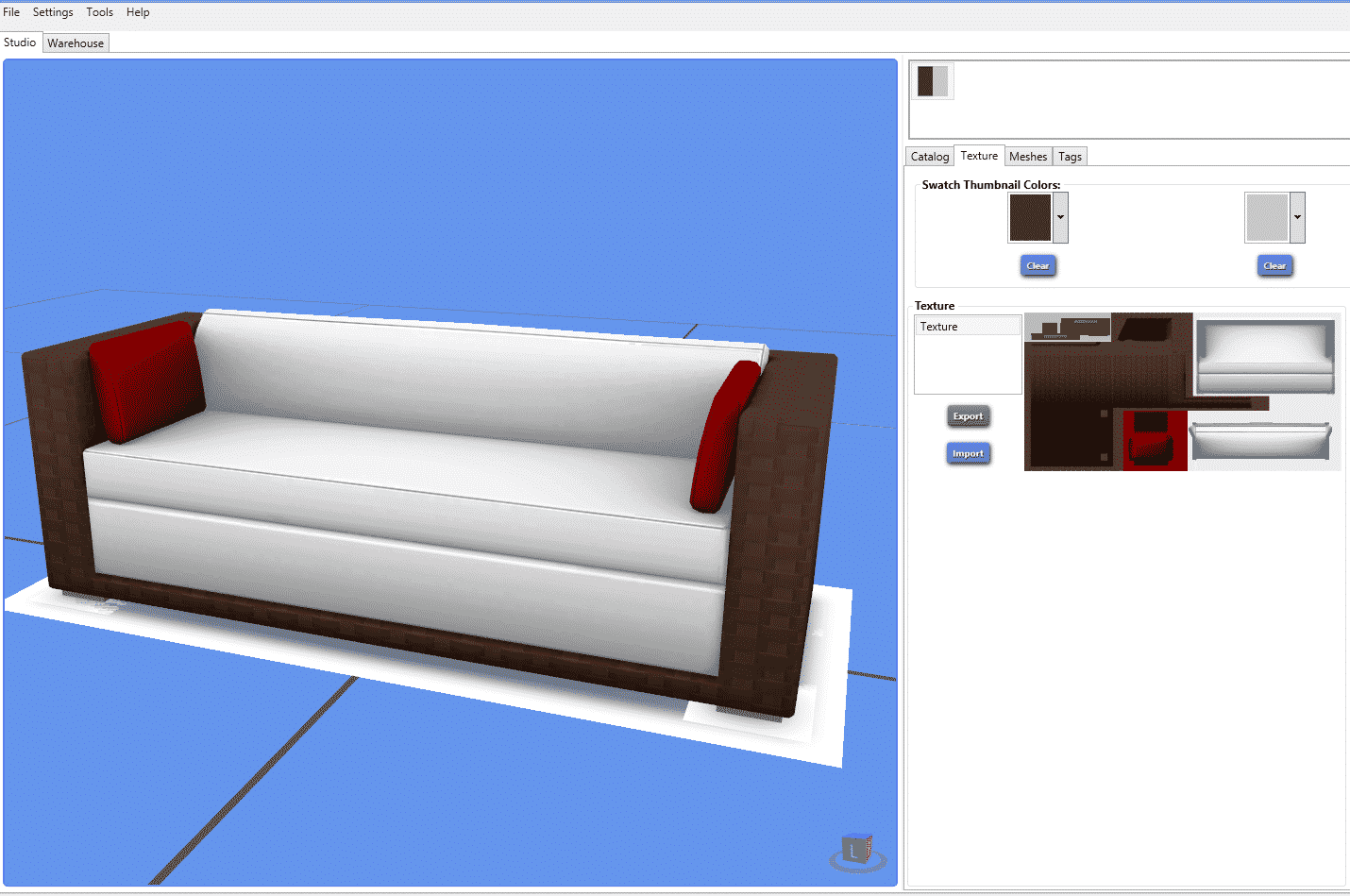
Save your package and then test it out in you game. Please be sure to test your custom content in live mode so you can correct any problems.
Congratulations! You just did your first recolor. This method can be used on CAS items as well. Feel free to reach out to me at the Sims Community Social if you have any questions.

One of the fastest, and arguably most fun, ways to earn magicoins was through dueling. To take part in a duel, you first needed to dive through the magic ‘A Hole in the Ground’ or summon a blimp ride to travel to Magic Town. After arriving you could challenge anyone on the lot to a duel, even the special NPC characters such as the infamous Vicki Vampiress.
Duels consisted of four rounds and five spells. At the beginning of a duel each wizard was randomly barred from using a spell. This was done to increase the challenge as you couldn’t rely on having the same spells available each duel. The challenge of dueling was remembering the spell hierarchy. Each spell was effective against two others and was defeated by the remaining two. If both sims picked the same spell, the round resulted in a draw. In the end, whichever sim won the most rounds was declared the winner and awarded a hefty sum of magicoins.
To increase the levels of nostalgia, the five spells are shown below.


And just in case anyone decides to jump back into The Sims Makin’ Magic after reading this post, here’s the spell pentagram that shows which spells conquer which. Or go it alone and see how much you remember from binge playing it back in the day.


The Sims shared a new video advertisement on Facebook showing off some main features of The Sims 4 Get Together!
Tip: Platinum Simmers

The Sims Team is currently rolling out new ads for The Sims 4 in France, and SimCookie was able to capture these 7 advertisements that contain new renders!





It’s time to introduce our very first Giveaway Event! Down below you’ll learn all about our Gift Giving Festival, how to enter and more. We can’t wait for the festival to begin and we hope you’ll have lots of fun!
What’s a Gift Giving Festival?
The Gift Giving Festival is a one-of-a-kind event where you get multiple chances to win a Sims 4 Pack of your liking.
How can I enter the Gift Giving Festival?
Starting December 1st, we’ll be opening a new Thread on Sims Community Social every day for you to enter. Simply post a reply on the currently open thread and that’s it. If you’re not a member of Sims Community Social, you’ll need to register first before posting your reply.
How many giveaways will there be?
32. Check our Festival Calendar below for a full overview!
How is the winner chosen?
Randomly using the random.org website. We write down the Thread ID numbers and whichever number pops up first on the random.org list, he/she wins the pack of their choice.
Which TS4 Games will you be giving away?
The Sims 4 Packs that we’ll give away won’t be specific. For example, one day we’ll have a Stuff Pack giveaway, one day a Game Pack giveaway and one day Expansion Pack giveaway. If you win one giveaway it’s up to you to pick which Pack do you want (example: if you win a SP giveaway, you can pick one Stuff Pack of your choice).
But…I already have all The Sims 4 Packs!
Don’t worry! If, for example, you win a Game Pack giveaway, you can reserve your free Game Pack #3 copy! (yup, GP #3 has been confirmed)
Can I enter more than one giveaway?
Yes! But, if you win a giveaway, you can’t enter any more giveaways as we want to allow everyone to have equal chances of winning.
Can SC Social Staff enter?
Yes! Same rules apply to them.


TheSims.com recently updated their The Sims 4 Store page with the new layout and some new features! You can now purchase The Sims 4 Packs directly from TheSims.com website and place them in your shopping cart.

Other than that, all The Sims 4 Pack Pages now have a full overview of new objects and clothing.

Learn more about the creation of The Sims 4: Get Together, as well as the upcoming upgrade to 64-bit.

The Sims Official Twitter account has posted two new renders of The Sims 4: Get Together.


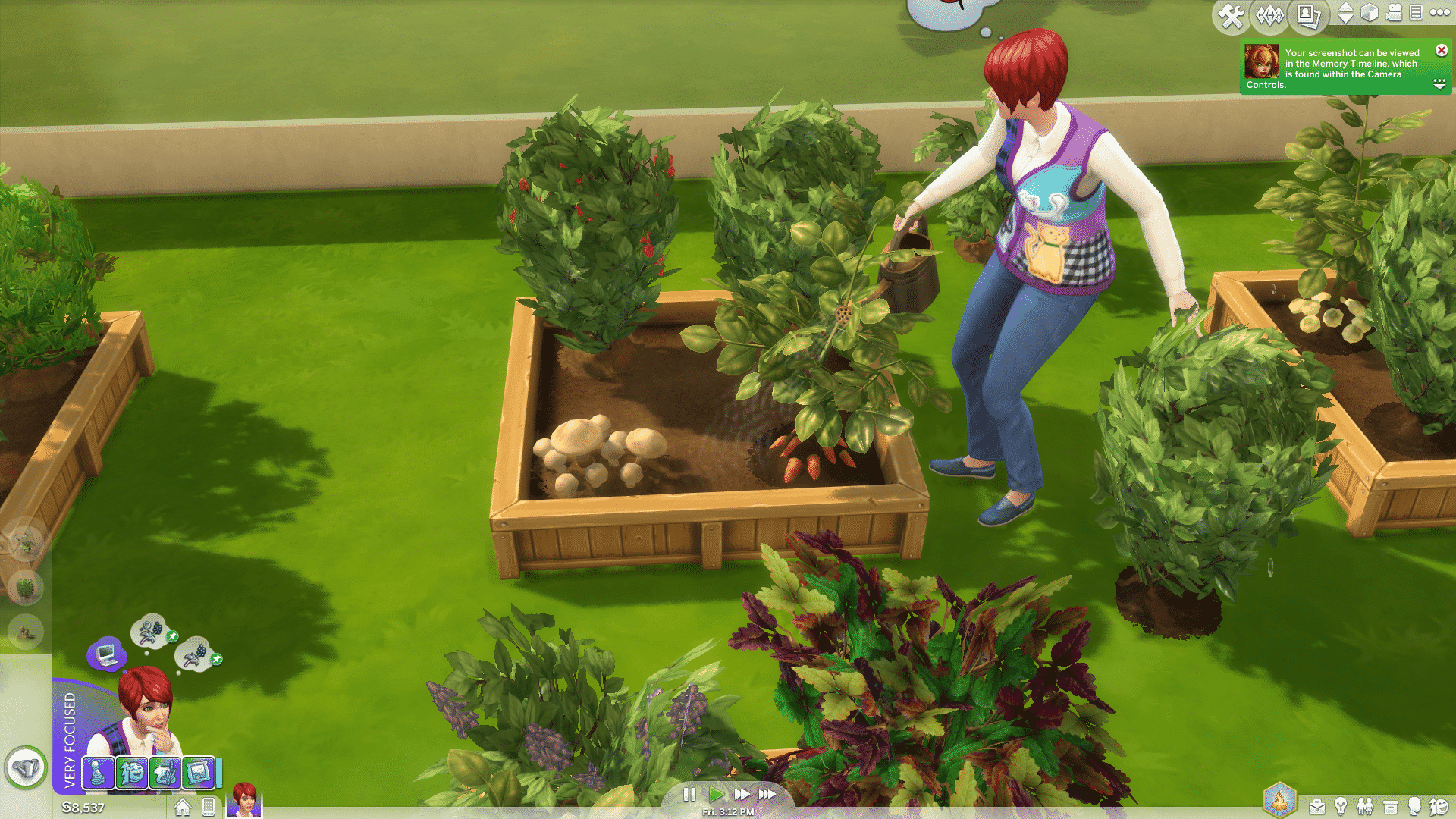
One great skill for your Sims to master is the gardening skill. This skill is used to produce many plants that you can later splice together to create other more exotic plants. For example the Strawberry and Snapdragon plants splice together make the Dragon Fruit plant. Then you take a Dragon Fruit splice and graft that to a Strawberry plant you will get the elusive Cowplant berry. This is of course used to grow a cowplant, every Sims household can use a Cowplant, for the pesky visitor who just won’t leave?

To get started on your Sims gardening skill you have two choices either go around the area and gather different plants by harvesting the already mature fruits, Vegetables or flowers. Or you can buy a planter box/pot then click on it and choose buy seeds, you can also buy seeds via the computer. These seeds packets don’t need to be planted in a planter box/pot they can go directly into the ground. When you purchase the seed packets they will automatically show up in your inventory simply click on the packet to open and reveal what seeds you got.

The following plant types are available in the seed packs:
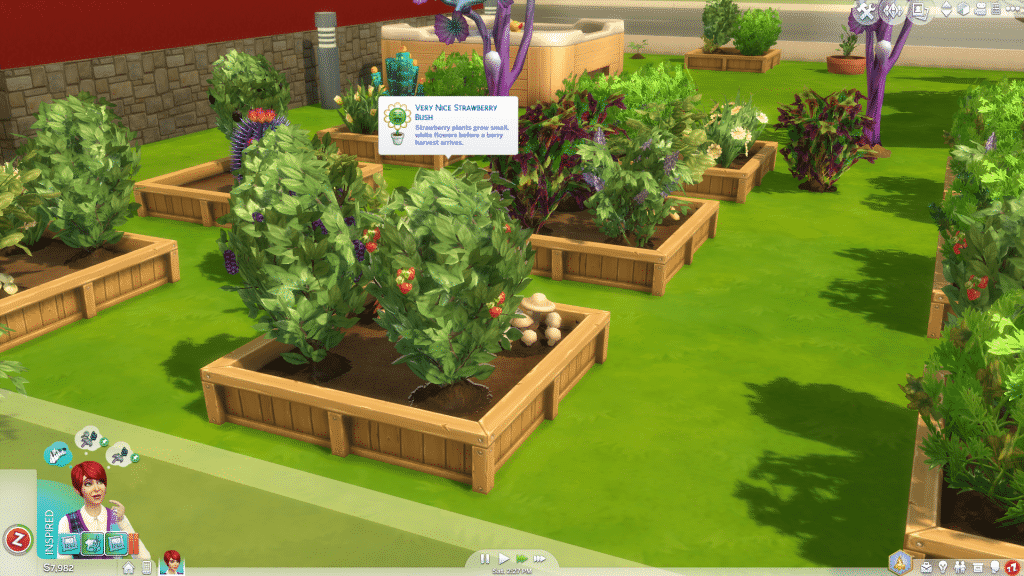
Plants can be grown in the planter boxes or Gardening Pots. Gardening Pots can be used both indoors and out but only hold one plant. Planter Boxes can only be used outdoors and hold up to four plants or one tree. You can also plant directly into the ground. When ready to plant open your inventory, click and drag the plant to the pot/box/ground. When you click on a plant and choose to plant it your Sims will plant all plants placed in that area. Then you will need to water them, keep a close eye on your plants as they do need lots of attention.
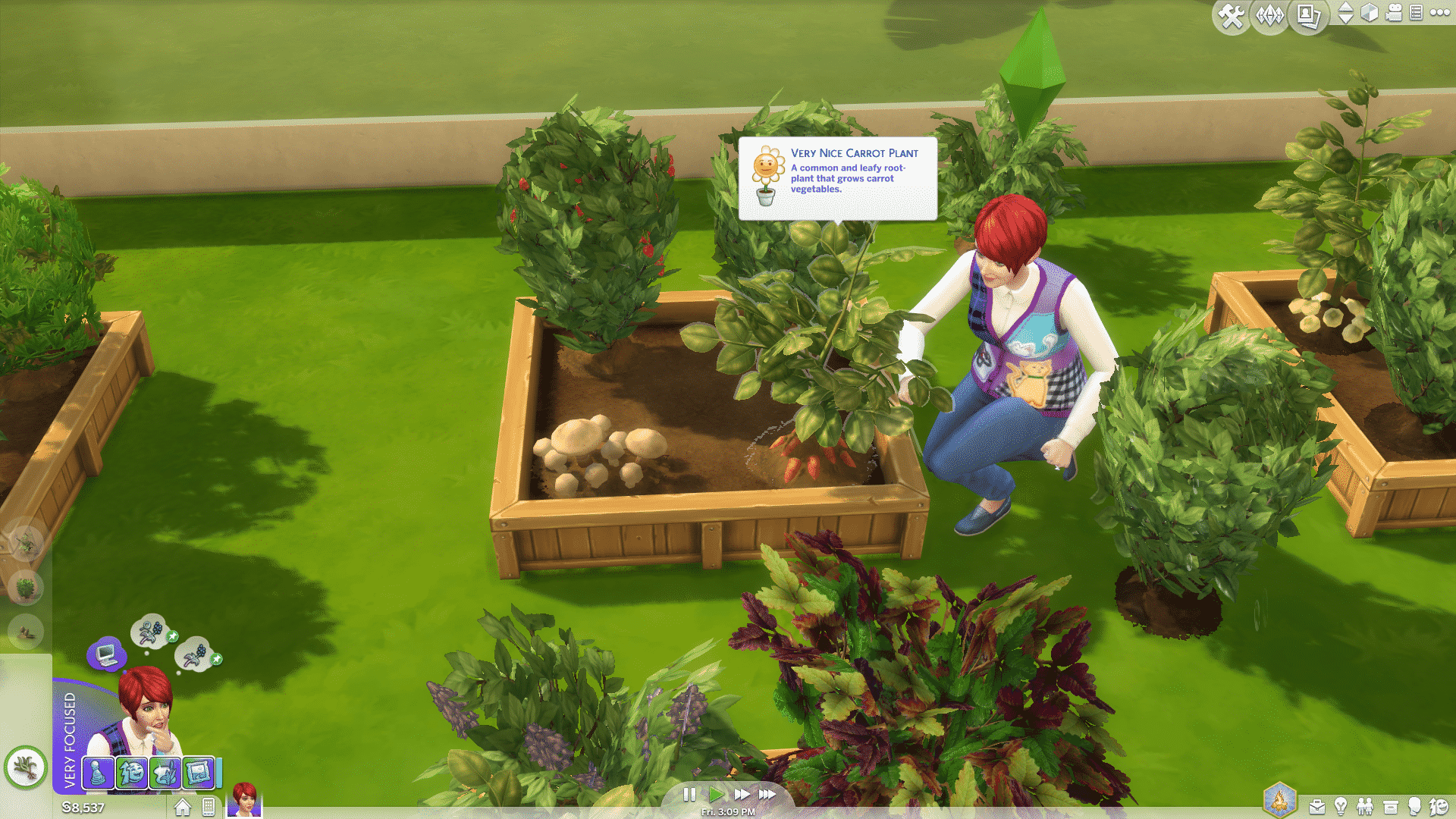
The first seed packets you can buy are Starter fruits, vegetables, flowers and herbs. Later you will be able to buy Farmer versions of these seed packets. Hovering your mouse over a plant will show you the progress of it’s evolution by way of a flower with petals as well as it’s health. If the flower is green your plant is happy and healthy. However if it is red, orange or yellow act quickly as that plant is in need of some tender loving care. When you hover the mouse over the plants and the flowers in the box that opens has all the petals it’s time to Evolve that plant to a new level. This is also indicated by a “sparkle” around the plant. This sparkle will also happen when the plant’s fruits or flowers are mature and ready to harvest. When you’re ready to Evolve or Harvest that plant just click on the plant and choose the option from the pie menu that opens up.

The following interactions are available when leveling up in the Gardening Skill:
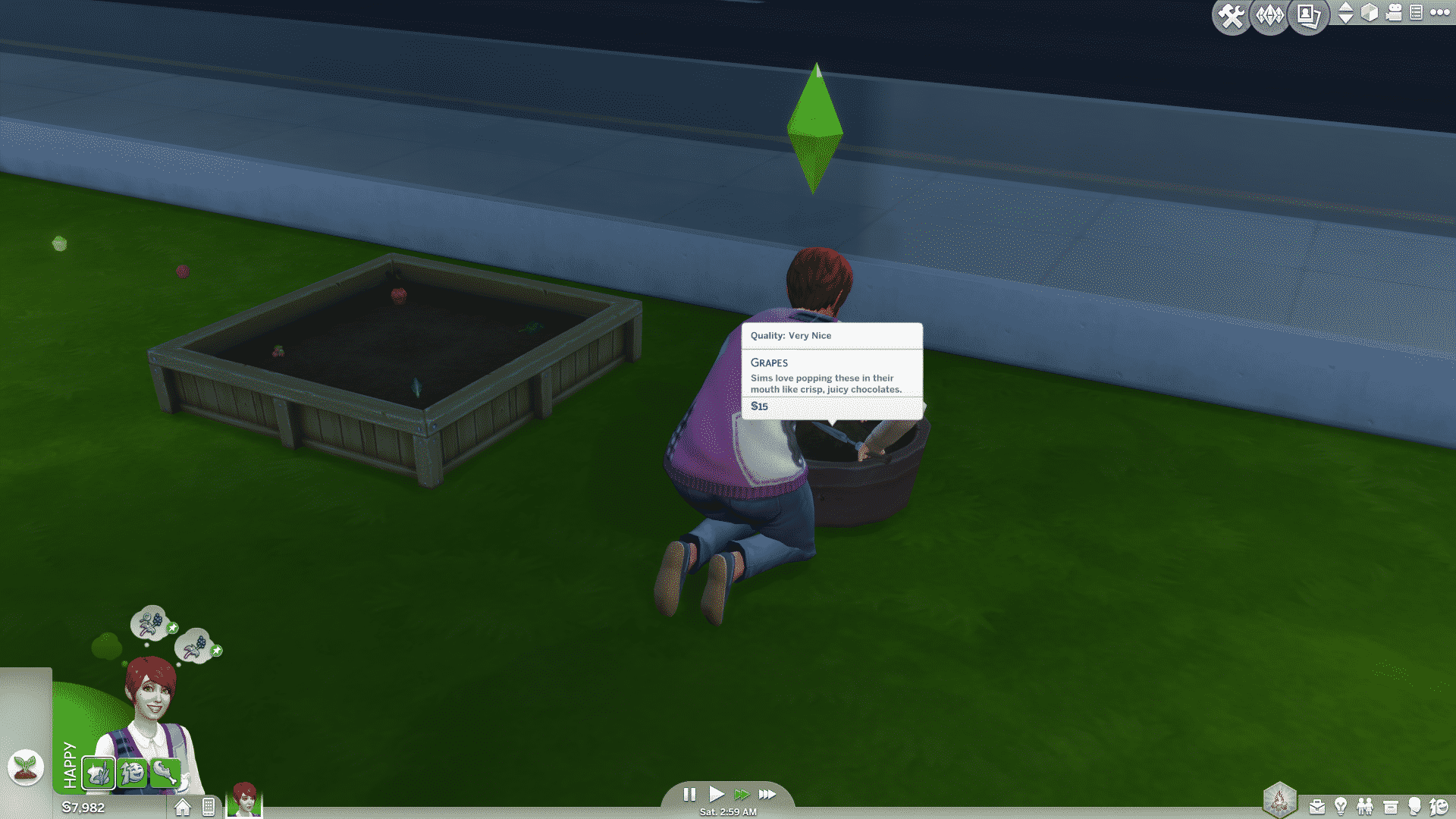
At Level 3 of the gardening skill you will be able to Fertilize your garden. Higher level fish are the very best fertilizers you can use. However during the lower levels of gardening you can use other plants you have harvested to fertilize. So be sure to increase your Fishing Skill as well. To Fertilize simply choose it from the pie options and then choose a plant or fish to fertilize your garden. Plants that are fertilized will not grow faster necessarily, but jump in quality faster. Getting to Perfect Quality Plants quickly means using the Fertilize option as often as it is available.
You can make money with Gardening by investing in a Microscope which costs $1630. Click on a Plant and select the option to take a Microscope Sample. This will give you a slide of the plant that will give you the ability to analyze it with the Microscope. You can then create a print from this sample that can be worth hundred of Simoleons. That should help pay for the Microscope pretty quickly. As a bonus it will help increase your Sims Logic skill level as well.

I hope that this will help your Sims gain more insight and skill in the garden. After they are maxed out in the gardening skill it’s time to tackle the Herbalism Skill. Until then Happy Simming.

The Sim Supply shared this really cool tutorial on how to create Skylight Roofs using the glass awnings from The Sims 4 Get Together. Check it out!

Here’s a look at 5 new carpets and 8 new flooring tiles in Get Together. 🙂

Deligracy shared a 13-minute video of unedited gameplay of The Sims 4 Get Together, showing off some Club features. Check it out!