


This is going to be me after dinner tomorrow!
Origin Black Friday and Cyber Monday Sale!

Celebrate Black Friday and Cyber Monday with the Origin Store and save up to 75% on today’s hottest games! Included in this sale are best-selling titles, such as The Sims 4 Standard Edition & Deluxe Edition, The Sims 4 Get To Work, Dragon Age, Battlefield 4, FIFA 16 and Battlefield Hardline.
Sale ends on Nov 30th at 9pm PST.
Click the picture below to start saving!

The Sims 4 Get Together: New Aspiration + Traits


During The Sims 4 Get Together Preview Event in Cologne, Germany, Crinrict was able to find out more about the New Aspiration and Traits that come with this Pack.
There’s a new aspiration which can be found under popularity: Leader of the Pack. There’s also two new traits for adults: Dance Machine and Insider. Insider is also available to kids.
Moreover, SimCookie clarified a bit further what comes with these new Traits and where can you find the new Aspiration:
A whole new aspiration is added in the popularity section “Leader of the Pack“. That’s not all, there are also two new character traits, “Insider“, Sims like going out with their group and be surrounded by friends. Then there’s the “Dance Machine” trait, it unlocks a new dance interaction. These traits are accompanied by new animations!
The Sims 4: Map View is getting a colorful update!

Among many other features that are coming, changing and upgrading for free in the next The Sims 4 Update, Map View is also one of those features!
Down below you’ll see an updated map of Willow Creek, Oasis Springs and Windenburg (from Get Together): As you can also see, some new buttons and UI icons can be found in the Map overlay.
Thanks to Crinrict for the screens!


The Sims 4 Get Together: Carly Rae Jepsen, Zedd and more in Simlish!

SimCookie has confirmed that among The Vamps (Wake Up) and Tori Kelly (Expensive) simlish soundtrack, you’ll also be hearing Carly Rae Jepsen’s Run Away With Me and Zedd’s Beautiful Now in Simlish Soundtrack for The Sims 4 Get Together! Great choice The Sims Team 😀
The Sims 4: More info about the upcoming Update!


Get Together FREE Update
Crinrict attended a Get Together event in Germany, and with some info about Get Together that she brought (that you can see here), she also shared some juicy new info about what should we expect in the upcoming Update that should release sometime before Get Together, which is due Dec 8 in US.
There’s a few things coming with the patch itself. This means you won’t need to buy the expansion pack to get these, just update your game.
-
-
-
Lot Type: Pool
-
2 of 6 pool colors (not 100% sure)
-
GUI and map changes
-
The existing groups and their behavior was revamped and improved
-
New interaction on the fridge and bar: Hire Caterer
-
Some new greetings
-
Several bug fixes (details unknown)
Map view
- Buttons that were in the pop-up menu at the same spot have been moved to the lower right
- Household manager has a new icon
- Household manager icon can also be found next to the family in the lower left corner
- I think change lot type was removed from map view
Live Mode
- Conversation window at the top has been revamp
- Screenshot manager, settings for video and photo can now be found next to the speed buttons
- Easy switch from Sims 3 to Sims 4 camera mode and back in the upper right corner added
- Button for clubs added to the lower right corner
The Sims 4 CC Tutorial: How to Separate Mattresses and Frames
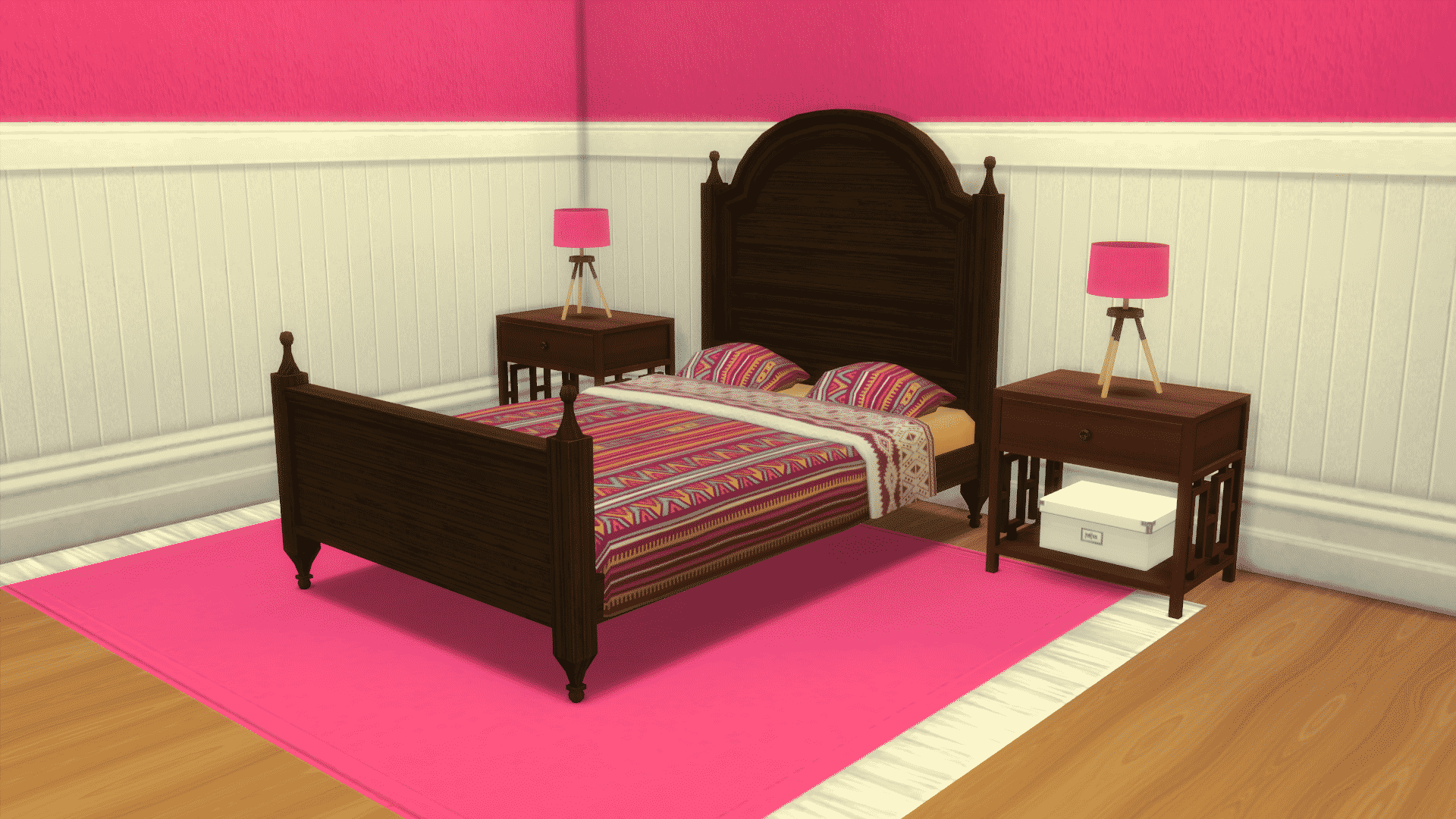
Hey guys!
Today I wanted to talk to you about how I separate mattresses from their frames. I have watched countless videos and read many tutorials but I could not figure out how to do it. Then a dear friend came to my rescue and showed me how she does it. So, I’m dedicating this article to my friend Ami as a thank you for her help.
Tools needed:
- Sims 4 Studio
- Blender
- Graphic Program
- Annachibi’s separated frames
Before we get started, I want to make something very clear. If you release these items using this tutorial and Annachibi’s bed frames then you must provide her credit. Do not release separated beds that use her frames as a base without giving her credit.
Step 1
Organize! You guys should know by now how big I am on keeping everything nice and neat. Make yourself a folder called “Working CC”. Then inside that folder you will keep all your goodies. I suggest making a folder called “Bed Frames” and then in there you will have a folder with all of Annachibi’s frames. You will also create folders for every bed you separate. For this tutorial, I’m going to show you how to separate the Sims 3 Cape Cod Double Bed that I converted and now need to separate. Because they are both packages, I made sure to put the Sims 3 bed package in it’s own folder so I wouldn’t get confused.
Step 2
Place the package of the bed you want to separate and all of Annachibi’s frames into the mods folder found inside the Sims 4 Studio folder. C:Users****DocumentsSims 4 StudioMods it should be in that folder. Open Sims 4 Studio (S4S) and then select “create 3D mesh” found under the objects button. Click load and let it do it’s thing. Once it is done, then you will type in the name of the package you want to separate. Usually, you can just type in the first few letters and it will find it. I did a search for Cape and found my bed.

Step 3
Once you have found the bed you will export the mesh and the texture. Put them into your folder that you made for this project and label them something that makes sense. It’s important to label everything right so you don’t get mixed up.
Step 4
Now you will open this bed in blender and export it as an object. Remember, this is the package of the bed you are wanting to separate.

Step 5
Go back to S4S and once again select “create 3D mesh” but this time you will be opening up Annachibi’s frame. Type in her name in the search bar and select a bed that looks like the one you are wanting to separate. Export the mesh and remember to name it something that makes sense.

Step 6
Go back to Blender and open Annachibi’s frame mesh. Import the .obj mesh of the bed you are wanting to separate so it is on top of Annachibi’s frame. You will see the frame like in the 3rd image below. The fifth image shows how the frame looks with the mesh of the one you are wanting to separate on top of it.


Step 7
To navigate with Blender, press down the middle roll wheel on your mouse to scroll around. You hold down the right button to highlight something (it will have an orange outline).
Write down the cut number of Annachibi’s frame (it should be 0) and then select it so you can delete it. You will be left with a white blob. Next you have to delete the mattress, pillows and sheets so you are left with just the frame. You do that by right clicking on each item to highlight in orange and then pushing your delete button. After you are done with that, you will delete the shadow of the bed you are using for your base. First, right down the cut number (it should be 1) and type that into the shadow cut number of your bed that you are separating. Finally, you will right click on the leg shadows (the small circular shadows) and then select scale so you can make them really small and hide them under the bed.
Screens to explain this process:


Step 8
Once you are done with all that, save your mesh. You do that by click “save as” and then naming it whatever and then select “save as blender file” in the upper right corner area.

Step 9
Go back to S4S and create yet another package. This will be your final one so label it something that makes sense. Import the mesh you just made in blender into the LOD High under the mesh tab. It’s going to look really crazy because of the LOD but you’ll fix that next. After you have imported the mesh, it will look like the below and that will tell you did it right. BE SURE to click on every LOD! Otherwise when you zoom out, it will morph into something ugly. You can also go in and fix the bumps and shininess at this point by changing them in the warehouse tab (that is another tutorial).


Step 10
Now you will fix the shadows by going back to Blender. Right click on the big shadow box (cut number 1) and delete it. Select save as and name it whatever (I usually name it something like CapeCodBedShadow). Then you will go back to S4S and import this into as shadows for your bed frame. Remember to do this for every Shadow LOD. You will know you did this right because it will look like the below:


Step 11
Import the texture you exported of the bed you wanted to separate. Then save it and test it in your game. If all went right, then you should be able to place it and put a mattress on top.


Congratulations! You just separated your first bed frame. I choose to leave my items at high LOD counts. There are tutorials out there showing you how to lower these for the medium and lower LODs. If you have any questions, please reach out to me at the Sims Community and I’ll be happy to try and help.
Download the bed frame I converted and used for this tutorial:

Terms:
Recolors are allowed. Please tag me because I’d love to see what you did.
-Don’t use my swatches and claim as your own.
-Don’t reload my items to a paysite.
-Don’t remove my credit from the description.
-Link back to me here if you recolor as the person who converted them.
-Link back to me here if you include them in your build package.
Download (click the words)
The Sims 4 Maxis Match CC: Autumn at Your Doorstep!

Hello everyone! Here is another Sims 4 Maxis Match CC post, it is rather late so I decided to include stuff from September, October and November. There are lots of Create A Sim items to show you, and I hope you see something you like!
Clothes
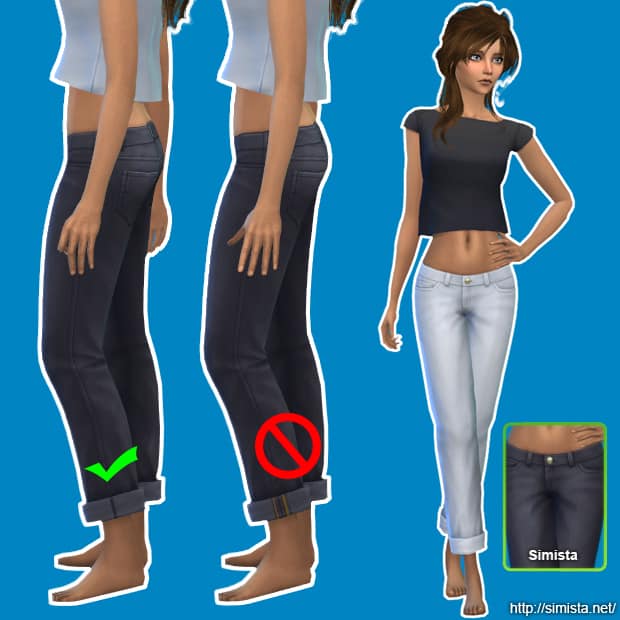
Simista | Boyfriend Jeans Recolours
- Non-default and standalone
- Mesh by EA
- Comes in 22 colours
- Found in Everyday and Retail categories
- Custom thumbnail included


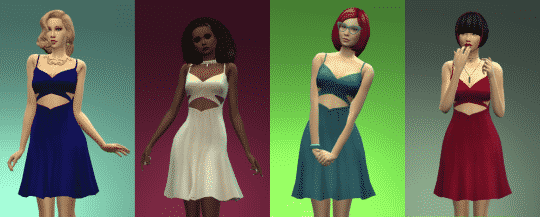
Amylet | Centuries Dress
- Inspired by a real dress
- Enabled for everyday, formal and party wear
- Comes in 15 colours
- Standalone item
“The mesh is a slightly edited version of a Luxury Party Stuff mesh (I mostly edited the UV map because there was some weird stuff going with the straps of the original dress), but I used Jennisims’ extracted mesh to make sure it was BG compatible”
Manueapinny | Autumn Cropped Knit Sweaters
- Teen to Elder
- Comes in 15 Colours
- Standalone item
- Custom thumbnail
- EA mesh edit – All LODs


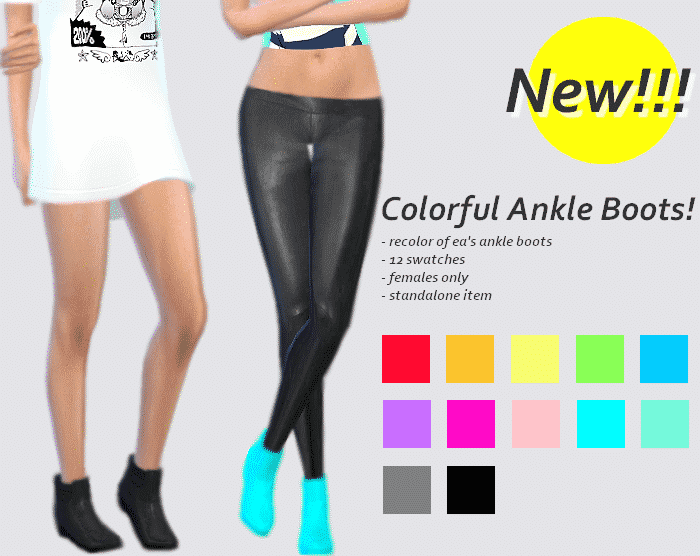
SulSulSims | Colourful Ankle Boots
- EA recolour
- Standalone item
- Comes in 12 Colours
” These are my favorite boots by EA in the game, I just never liked the color swatches, so I decided to make these the other day. This item has a custom thumbnail and it won’t override the original ankle boots.”
Ubichobolita | Fancy Wool Coat
- Comes in 12 colours
- For female children
- Standalone item

Usedtoplaygames | Sweater Recolour
“I really love this sweater from the base game but I’ve always wanted some nice recolors of it. So for first clothing recolor I chose it. I used a pattern from Squid Fingers for the sweater & colors from Eversims.”

Kedluu | 5 Part Gift Set
“As a big thank you [for 1000 followers] I bring you a set of 5 items: A raincoat, a dress, thigh-highs, lace stockings and some high heel boots.”
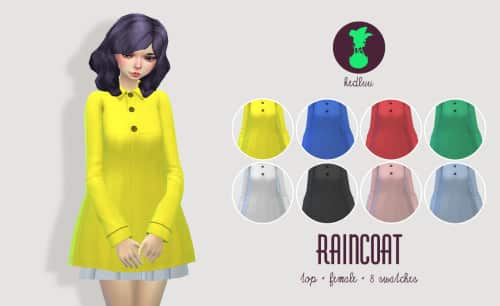
- Vinyl raincoat for female Sims – classified as top – you can wear anything underneath (some clipping might occur during some animations though)
- New Mesh
- Comes in 8 colours – 4 bright, 4 neutral

- Simple cotton dress -skater skirt – button detail on the back
- New Mesh
- Comes in 6 colours – Muted jewel tones

- Comes in 8 neutral colours
- EA Mesh
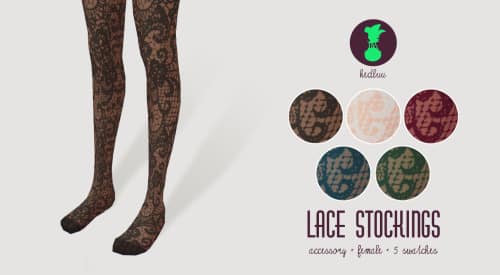
- Comes in 5 colours
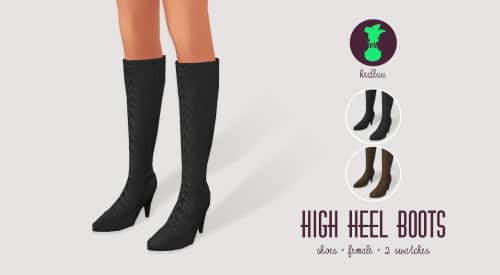
- New Mesh – please note that these can’t be worn with some pants due to the fact that they are so tight. They work well with skirts, dresses, skin tight pants, tights and baggy pants that cover them completely.
- Comes in 2 colours
xdeadgirlwalking | Rumanzovia Dress
- Comes in 39 colours – including some patterns, versions with white skirts and versions with black skirts
- Standalone item

Hairstyles
Tamo | Nicey-Nice Bob
- Standalone item
- New mesh
- All EA colours
- For women and children
- Hat compatible


FarrellHawkins | Half Moon
“This “Half Moon” hair is my first attempt at frankenmeshing, so there might be some imperfections here and there, but all in all, it looks pretty solid and ok. It’s a combination of the spiky hair that came with Luxury Party Stuff and my Not-So-Tidy hairstyle that you can get here.”
- Standalone item
- All EA colours
- Teen to elder males
- Hat compatible


Pastel-Sims | Sleek Puffs for Children
- Disabled for random
- Comes in the same colors as the adult version.
- Male & Female Child
- Not hat compatible
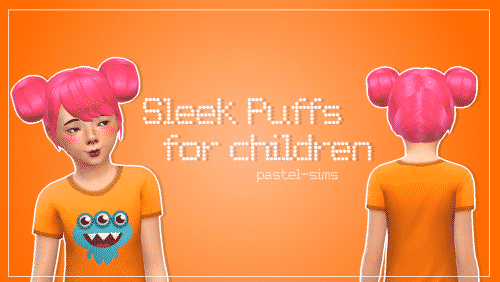
Pastel-Sims | Glued
- Male Teen – Elder
- Base Game colours
- Not hat compatible

Gohliad (Formerly ImTater) | Lotus
- Standalone item
- New mesh – All LODs
- Comes in all EA colours and textures
- Hat compatible
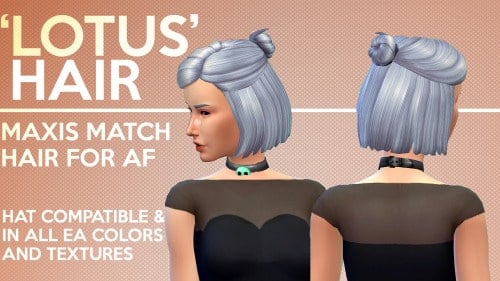
I hope you found something that you like here, I know I did. Let us know what you think and feel free to share your favourite custom content over on our forums! Thanks for reading, guys!
The Sims Video Spotlight: #10


Hello again and welcome to another week of The Sims Video Spotlight, featuring awesome video content from our community!
The Sims 4 | House Build: Edge
By The Sim Supply
Our first video today is this small modern house build, one bedroom one bathroom. I really love the idea that everything is on the top floor, it’s definitely a little quirky and a tight space but great!
The Sims 4 | Room By Room: House #1 – Part 1
By Emvy Sims
Next here is a build series in which a different section of a house is built each time. This is another modern feeling home with, in my opinion, a very slight industrial twist while being cozy at the same time.
https://www.youtube.com/watch?v=bF6Smz8cnWc
The Sims 4 | Create a Sim: Autumn
By GamingMermaid
Our Create A Sim video this week is this beautiful lady inspired by Autumn! The custom content unfortunately isn’t listed in the description but GamingMermaid’s CC Finds Tumblr page is, so feel free to go and have a look!
The Sims | Throwback Thursday: PETS!
By XUrbanSimsX
Here is something a little different, I don’t know about you but I loved playing The Sims (1) and this gives me so much nostalgia as well as being really entertaining. It’s one of my favourite things to watch recently!
Let’s Play The Sims 3 | Montoya Family (Part 1)
By Thetideschanging
If Let’s Plays are your thing, here you go! I love all of The Sims’ games but The Sims 3 is my favourite to watch other people play as there is so much to it. This is based around the Island Paradise expansion pack and has an interesting backstory that I really recommend listening to. I included this as it’s different to other Let’s Plays I have seen. There aren’t many people playing single fathers out there!
The Sims 4 | CC Shopping #1
By LifeSimmer
Lastly today is a very relaxed custom content video, in which LifeSimmer scrolls the internet to find content that she likes. It’s a great way to introduce people to things they may not have otherwise found.
That’s all this week, I hope you found something you like, thanks for reading guys and as always go ahead and leave the content creators a like if you enjoy their videos!
12 reasons to join Sims Community Social

Sims Community Social launched in July 2015 and ever since then we give our best to give you the ultimate Social Network experience! Since our announcement, we made lots of changes and upgrades, so let’s run down what’s new (and old) on Sims Community Social and why you should join one of the biggest Social Networks designed specifically for simmers!
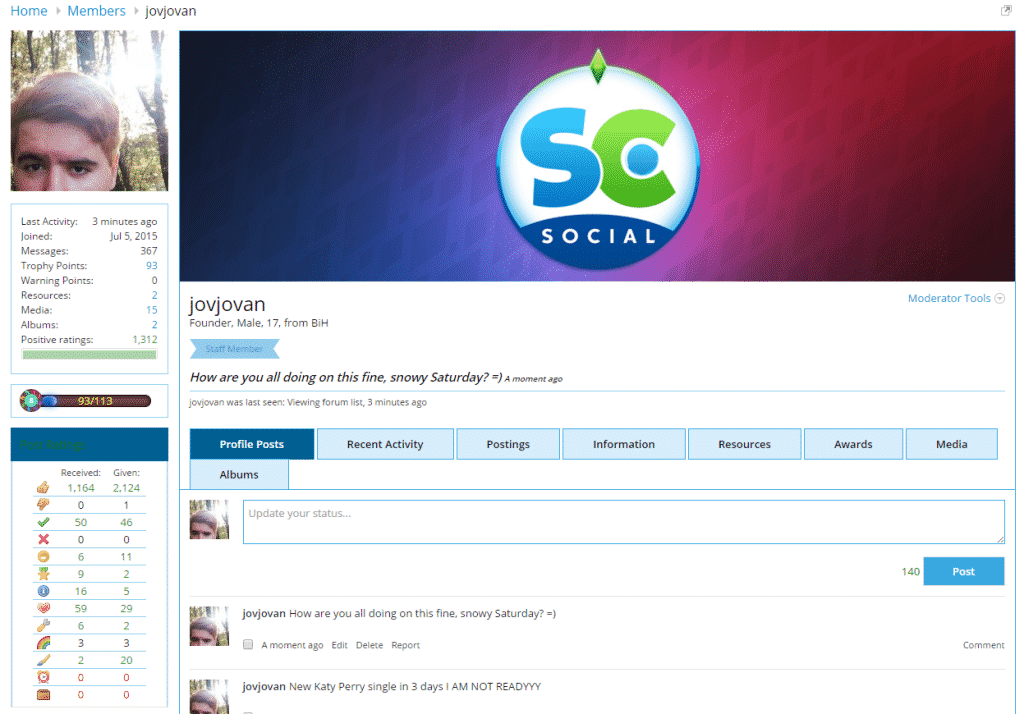
1. You can customize your profile!
2. There are over 45 different Forum Categories!

3. You can upload your own Images and create your own Albums!

4. You can upload and/or link your Custom Content, Mods and Wallpapers!

5. Keep up with the latest updates from Simmers all around the World!

6. You can get all sorts of Trophies for being active!

7. You can unlock new Memberships with more benefits!

8. Get emotional with over 25 emotions describing how you feel!

9. Compete with your fellow Simmers and top the leaderboards!

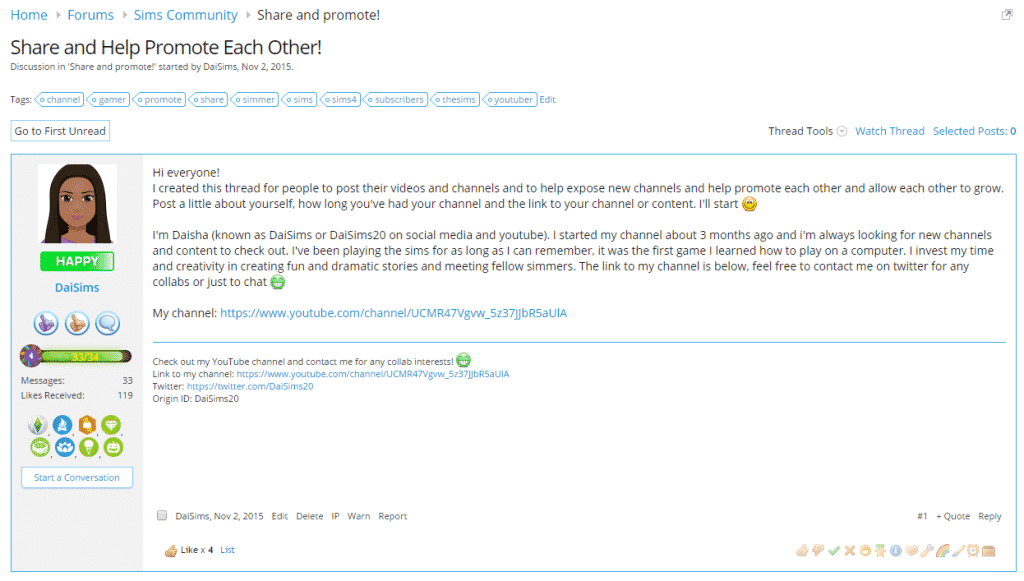
10. Promote your content and discover other Simmers!
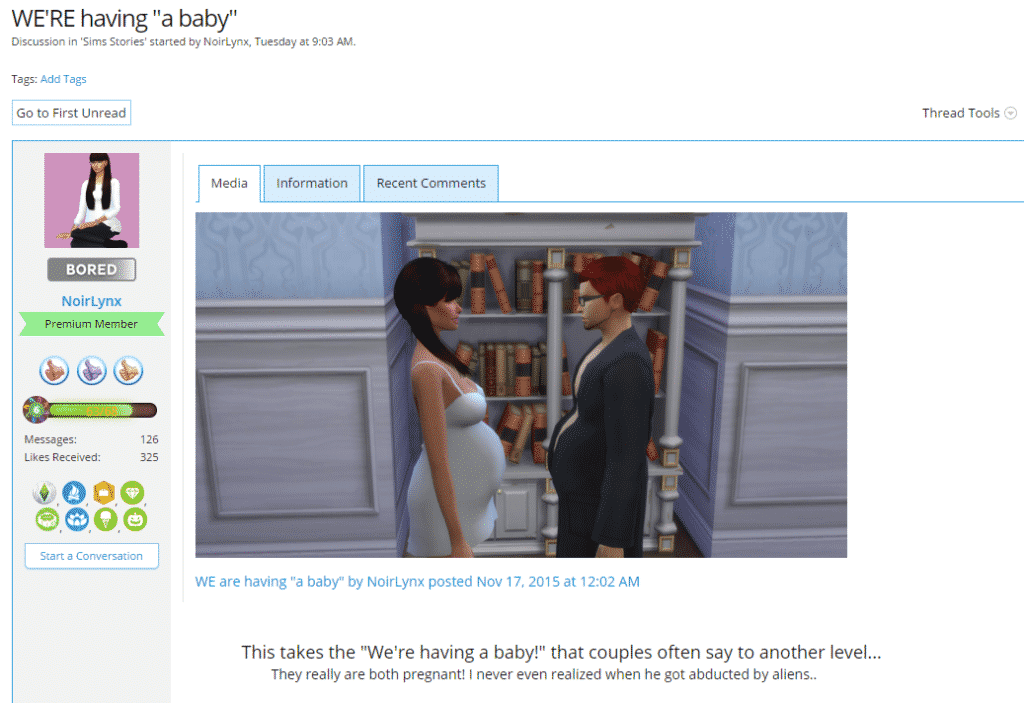
11. Share your Simming stories!
12. The biggest event of the year starts this December!

So what are you waiting for?
Join Sims Community Social Now!
The Sims 4: ‘The Hunger Games’ Movie Render

Going to the movies this weekend? We salute you!
– The Sims
Starting A Youtube Channel Part 2: Editing & Recording

Editing & Recording
In the last edition we looked at what tech you will need to start your Youtube channel, now its time for phase two! Editing and Recording. So as you will have guessed, in order to actually create your videos you will need first something to record your game play and once that is done you will need to do some editing to make it pleasant to watch for your viewers!
Screen Capture Software
There are so many programs out there that enable you to record your game, some are very basic and others are extremely detailed and have very in depth settings. I have used a few different ones in my time but by far my favorite and the one I am currently using is called DXtory. Although it isn’t free, it has very high capabilities and lots of options to suit your computers ability. The settings are very complicated but there are a lot of videos and guides out there to help you get everything set up! I used this one. As with any, it does have its downsides. I have noticed after a standard 25 minute recording my files sizes can be quite large taking up a lot of storage on my PC, however compared to other programs this is a minor defect.
Fraps is another popular program that people use to record their game play. I have used Fraps, but I think personally compared with DXtory it is not worth the £25.00 it costs. Also, the file size with Fraps is insanely large, I could only fit about 5 recordings before it maxed out the space on my computer! There are no settings to tweak screen resolution which is extremely important. If you are not recording at at least 720p your footage will not fit the Youtube screen in which the videos are played and you will experience black panels like this!

Furthermore, there are not options to alter your voice-over volume, and if you are like me and choose to record your voice and game sound together this will cause problems when editing as you wont be able to make your voice louder/quieter if need be. DXtory allows you to include your microphone sound when recording and separates them into two files so you have the ability to adjust them accordingly as well as giving you the option to change it in the actual settings themselves. Here is an image showing the two different sound files, all using DXtory but still separate. This saves having to record on Audacity for example and then having to spend hours syncing your voice to your game play!

There are free options out there if you don’t want to pay for your software. Open Broadcaster Software (OBS) is a free recording program that also has very impressive streaming capabilities. Again you may need help setting it up as there are lots of settings, but this is good as it enables you to get the right settings for your computer. Once you are all set up, much like DXtory you can adjust your microphone volume and such which is a very valued feature. However it isn’t as helpful in terms of actually splitting them for you. When you go to record, you will need to have your sound levels perfect beforehand because you wont be able to change them separately once you have filmed. Unlike Fraps & Dxtory the file sizes for OBS are tiny and you wont ever have to worry about taking up too much space with video files.
Top Tips:
Always make sure you are recording in the correct screen resolution. Make sure your video is full screen (1280 x 720p) or 1080p if you have good enough specs to support that. (Personally, I can never tell the difference between the two but there you go!) Also a frame rate of at least 30 FPS is recommended to avoid laggy footage. Again, if your computer is capable you can increase this to 60 FPS. Always make sure your audio levels are listenable. You dont want to be too loud and overbearing or so quiet people are struggling to hear. This is just as important as your screen resolution. People will not want to sit through a 25 minute let’s play if it isn’t to a good standard, its just not pleasant.
So, you’ve filmed your first video and you want to know what you should use to edit! This is very much dependent on what you want to do, if you want to include fancy transitions, text animations, panning options and such then Windows Movie Maker is an awesome free program to get you started. Yes it is simple, but it has enough for you to put your own unique stamp on your videos. If you would like something more complex Sony Vegas Pro is excellent! I use this and I have found it very useful for many different things. Not only does it include everything that Movie Maker does, but a LOT more! For instance, if for some reason you accidentally recorded a video in the wrong resolution and you get this pesky black bars down the side of your footage you have the ability to remove them using Sony Vegas (awesome right!) There are also many more options for editing such as the ‘Chroma Keyer’ which you can use to remove backgrounds from your videos and all kinds of fancy video editing effects for you to create lots of amazing content for your viewers!
So that is your tech and your editing and recording software, check! Next time I will be going over actual game play and how you can maintain an engaging and entertaining let’s play to get those subs rolling in!
Simmers Syndicate – The First YouTube Network for Simmers!

We interviewed the awesome Rachybop about her latest project – Simmers Syndicate! Take it away Rachael 😀
Hello Sims Community readers! Rachybop here to talk to you about a fab and relatively new network called Simmers Syndicate for all of you creators who like to share your content on YouTube.
1) What is Simmers Syndicate?
Simmers Syndicate is a YouTube network exclusively for simmers! You don’t have to only create Sims content but it must be a part of what you do on your YouTube channel and you must have the intent of uploading more to be eligable to join. This includes all The Sims games, SimCity and The Sims Freeplay!
2) What inspired you to create it?
I have seen other communities create networks within their niche and I felt like ours was really missing out. There are so many networks now and all of them are aimed at different types of people, which is great, but none were great for simmers in my opinion. Even gaming channel networks are directed towards helping creators who make content with shooter games and other games closer to that kind of genre.
3) How many people have joined so far?
We’ve had a great response so far and new applicants are joining daily which is so awesim.
4) What are the benefits of joining Simmers Syndicate?
Firstly you’ll be joining a community in which people are just like you. We all want to grow our channels and learn tips along the way. Apart from learning from other creators you meet who are also part of Simmers Syndicate we will also promote your videos on social media and, in the future, we’ll be offering some great perks! Plus, there’s no lock-in so you can leave the network anytime you like.
5) What are the plans for the future of Simmers Syndicate?
We’re still relatively small so growth is a definate plan and that will be shaped by feedback from our creators and the sponsorships we can get. We have some great contacts so we hope to be able to offer our members some amazing opportunities pretty soon. Our main aim is to provide value and support to people who create Sims related content on YouTube.
Thank you so much to Jovan for inviting me to share info about the network. It’s great to be able to get the word out and to be supported by so many lovely simmy people. If you are interested in joining Simmers Syndicate please head over to www.simmers-syndicate.com to learn more and apply. Much love and happy simming!
– Rachybop <>


The Sims 4 Get Together: Music Spotlight – The Vamps

British Pop Band ”The Vamps” made a Simlish version of their song ”Wake Up” in Simlish for The Sims 4 Get Together. Check it out!
The Sims 4: Automatic Disabling of Mods and CC when updating (coming in December)

You no longer have to worry about leaving your Mods and/or Custom Content in the Mods folder when updating The Sims 4 to the latest version. With the latest 64bit version that’s coming in December, The Sims Team will also be introducing Automatic Disabling of Mods and CC when updating your The Sims 4 Game.
The SimsTM 4 version 1.13 (released December 2015) adds a new feature that will disable all Mods when the game is updated via Origin. On first launch after the Update is applied you will be shown a dialog at the main menu indicating that Mods have been disabled.
Let’s start by defining some terminology:
- “Custom Content”: This is the addition of player-made clothing or objects to the game. Sometimes just referred to in The Sims community as “CC”. For example: new hair, new clothing, new furniture, etc.
- “Game Mods”: These are Mods that add features or change functionality of the game. These Mods may include script code, but not always. For example: a new trait, new console cheats, objects with new functionally, new UI functionality, etc.
- “Mods”: A blanket term referring to any player-made content for the game – this includes both Custom Content and Game Mods.
Maxis Policy on Mods
Maxis strives to support the creativity of our community. We know that, for many of you, Mods are an important part of your game experience. For that reason, we support a framework in The Sims 4 that makes it easier for you to install and use Mods. Maxis doesn’t pre-screen, endorse or specifically support any particular Mod. You should use Mods with caution and understand there may be risk.
Why does The Sims 4 disable Mods after an update?
Because Maxis cannot screen or otherwise support any particular Mod, Mods that previously caused no issues for users may cause problems after an Update, especially a significant Update that corresponds with an Expansion Pack or Game Pack. By disabling Mods when we update, we hope to limit any disruption or problems with your game play and provide you with the opportunity to decide whether to reinstall those Mods.
How to re-enable Mods after an update.
You may re-enable Mods that were disabled during an Update via the options menu, however you should use caution and understand there may be risk. You may wish to consider performing the following steps, after the Update, to help determine if your Mods conflict or will cause problems with The Sims 4Update:
- Run The Sims 4 with Mods disabled and load into gameplay to make sure everything is working correctly. Important Note: if you have installed Custom Content, it has been disabled and if you save your game before re-enabling the Custom Content, content may be removed from your saved game. However, you can verify that the game is functioning correctly without saving so that your Custom Content returns once Mods are re-enabled.
- Before re-enabling any Mod, but particularly Game Mods, we recommend that you visit the Mod creator’s site to verify that the Mod works with The Sims 4 Update or to see if there is an updated version of the Mod.
- Once you verify the game is running correctly, re-enable Mods via the options panel. The setting can be found in “Options | Other | Enable Custom Content and Mods”. Once you re-enable Mods, you will need to restart the game.
- Once The Sims 4 is restarted with Mods re-enabled, enter gameplay and verify that the game is working correctly – see the “How to tell if Mods are causing problems” section below. If it is not working correctly, see the “How to find Mods that are causing problems” section below to identify the Mods that are creating issues.
- Once you have identified the Mods causing problems, remove those Mods and visit the Mod creators’ site to see if there is an updated version that works with new version of the game. As a member of The Sims Community, you may also wish to contact the Mod creator to let them know their Mod is causing issues. Note that your current game version number can be seen on the lower left hand side of the Main Menu.
How to tell if Mods are causing problems
Mods can cause issues and conflict with The Sims 4 game in many different ways, so there is no single way to determine if problems exist. The best way is to just play the game. There may be very obvious problems, such as the game fails to boot or save games fail to load. But the problems may be more subtle. If using Custom Content, review that content to make sure it looks to be working correctly. If using Game Mods, verify the functionality they provide is still working.
How to find problematic Mods
Once you have identified that one or more of your Mods is creating issues, you then need to determine which Mods are the problem. Since you could potentially have many Mods in your Mods folder, this can be a time consuming process. Here are some tips to speed things up:
-
Remove all your Mods from the “Mods” folder and add them back in batches. After adding each batch, run the game to see if the problem persists. Once you determine that a particular batch contains a problematic Mod, remove half of that batch and see if the problem still exists. If it does then remove another half of the batch and try again. If it does not then add back in half of the removed Mods and try again. Repeat this process until the problem Mod is identified. This type of searching is sometimes referred to in The Sims community as the “50% method”.
-
Since Game Mods are more likely to cause conflicts, start by just removing those Mods (if you have them) to narrow down your search.
Source: EA Help
Tip: Crinrict