Home Blog Page 445

The Sims 4 Get Together Adds Two New Skills to Master

via The Sims Blog

Pump Up the Crowd!

The Sims 4 Get Together* is coming out next month, and brings fun new ways to hang out with friends. There’s the beautiful World of Windenburg, the customisable Clubs feature (which we talked about last week), and two awesome new Skills: DJ and Dancing.

TS4_552_EP02_DJ_DANCING_01_002

Want a deeper look into how these Skills work? Check out the video below, which walks you through the story of a Sim trying to get in good with the Spin Masters, one of the new Clubs in The Sims 4 Get Together that wants – nay, demands – its members know how to pump up the crowd and cut a rug with the DJ and Dancing Skills.

Pretty cool, right? But there’s plenty more to get excited about. The higher you level up your Sim’s Dancing and DJ Skills, the more powerful and bigger the performance.

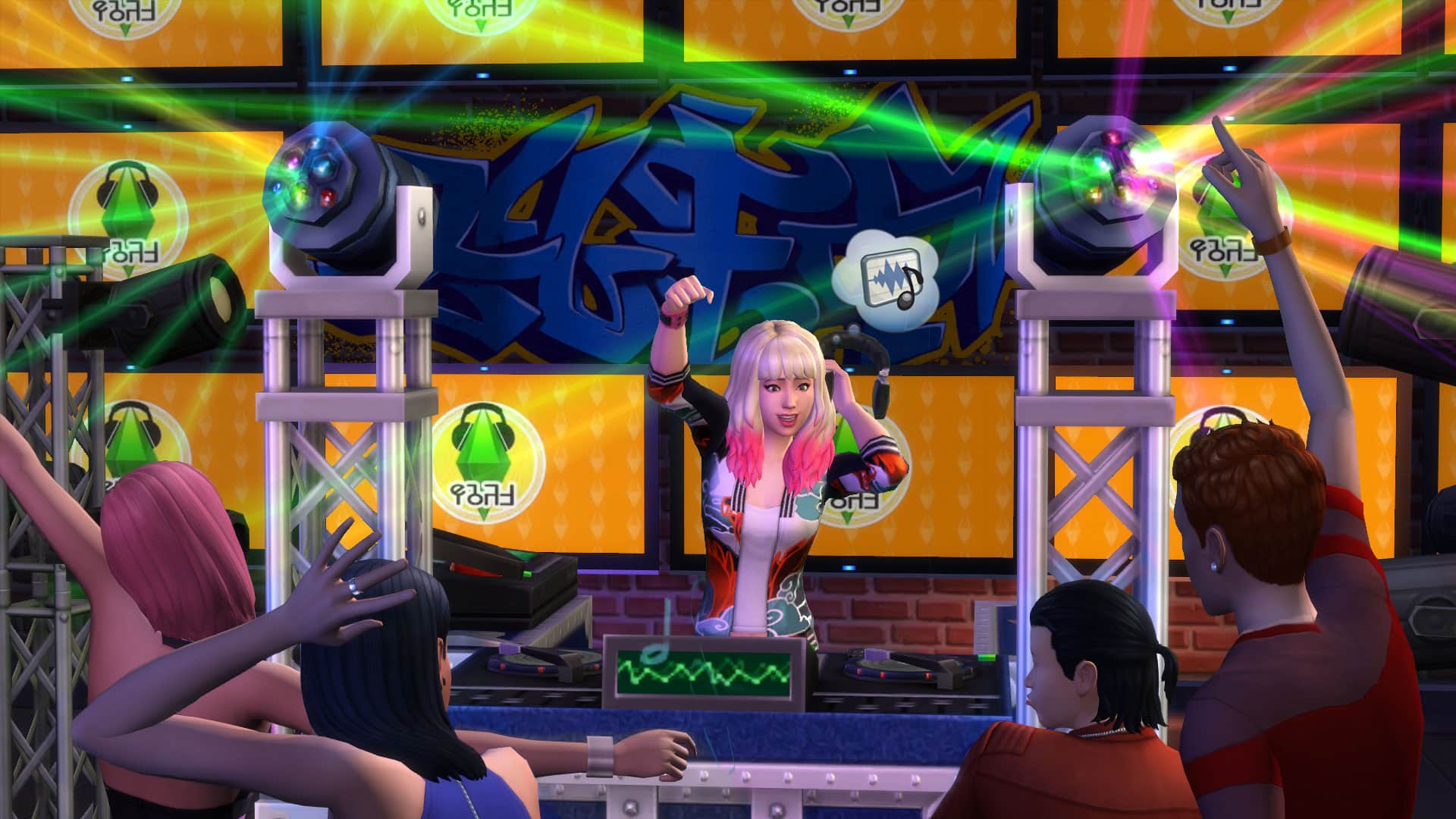
The DJ Skill starts off with Sims learning the basics of pumping up the crowd. But the more they work, and the harder they party, the better they’ll get at getting the room on its feet. From making mix tapes to controlling the emotions of the room with the Feel the Crowd ability, the DJ Skill is an absolute must-have for anyone who wants to take over the room and turn the party up to 11. One of their advanced abilities is called Teleplosion – once your DJ has added it to their DJ Booth, the DJ can activate it to take over TVs in the room for the ultimate performance! It’s electrifying!

TS4_552_EP02_DJ_DANCING_02_002

Dancing gets more exciting as Sims level it up, too. While Sims can already dance in The Sims 4, the addition of a Skill in Get Together lets them get much more adept at busting a move. While there are obvious upgrades, like being able to do cooler and cooler dances, there are also some more impressive feats – Sims with Dancing skill can do a Fire Dance at the Bonfire. There’s also a new Dance Floor object, where Sims can show off more dances and initiate Dance Battles. You can even show off your group’s skills with the ability to initiate a Group Dance, showing some synchronized swagger. Needless to say, high level Dance Skills let your Sims really step it up on the dance floor.

TS4_552_EP02_DJ_DANCING_03_002

We hope you liked this peek into the world of The Sims 4 Get Together Expansion Pack, and we can’t wait to see how your Sims enjoy the new Skills when it comes out in December.
Poland: Win a Trip to The Sims 4 Get Together Event!

0

The Sims Poland has announced a competition where Polish residents are getting a chance to attend and meet Graham Nardone at a Sims 4 Get Together Event, held at Electronic Arts Poland. If you’re from Poland and are willing to enter this event, you can read more about it HERE! 2 lucky winners will be chosen.

gettogetherpoland

It’s also worth of mentioning that this event, along with the event being held in Germany (probably some other countries too) will bring lots of new Get Together informationBoth confirmed events will begin this Monday (16th of November), so you’ll want to stay tuned for the latest news and updates here on Sims Community!

Tip: DotSim

The Sims 4 Get Together: 143 Screens from the DJ and Dancing Trailer

0

Click on the images below to see them in bigger scale. The original Trailer can be seen HERE!

The Sims 4: First Snow Mod Now Available!

21

Ready for some winter fun? After days of hard work, SimCookie is bringing you The Sims 4 First Snow Mod, which redecorates all the current TS4 Worlds into a beautiful winter wonderland!

Download

22783781425_770f3ef442_b

The Sims 4 Tutorial: How to create Clothing Recolors

The Sims 4 Tutorial: How to create Clothing Recolors
Hello everyone,
I have been asked many times to create a tutorial on how I make my recolors. I will be showing you two different and simple ways to create a recolor. We will go over clothing recoloring in this tutorial, but you may use the same methods for object recolors as well.
 
I will not be explaining how to export the .DDS images you will need to create your recolor in this tutorial.
If you have any questions, feel free to ask in the SC Social thread.
For this tutorial you are going to need the following programs:
For this tutorial I will be using Photoshop CC, but you can use any art program as long as you can create layers, alter opacity, and edit with hue/saturation.
Be sure to download and install these programs, if you have any questions on installing please ask.
The Sims 4 Tutorial: How to create Clothing Recolors
In this section I will be showing you how to create a clothing recolor using the Hue/Saturation method. This is one of the most common ways to create a recolor.
So, let’s get started.
1. This method is very simple. First open the .DDS image you would like to recolor.
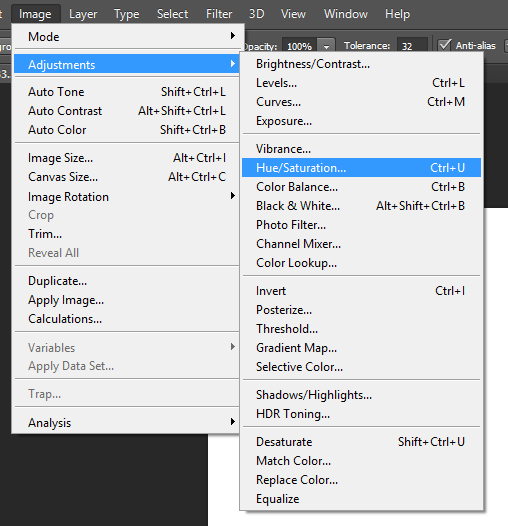
2. For Photoshop users, you can find the Hue/Saturation adjustment on the right side of your screen under the Adjustment tab.
If you do not have it available on your screen you can also go up to: Image > Adjustments > Hue/Saturation
a3008350b62550ec72ff647b68f82be4
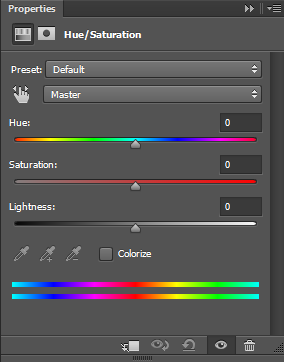
3. Now a window called Hue/Saturation will open.
There are 3 bars as pictured below.
~ Hue– Color or Shade
~ Saturation – Measures the degree to which a color differs from gray
~ Lightness – How dark or light the image appears.
032cf2ea1343bcb07e1af13a5e414973
4. Next, simply move the sliders for Hue to achieve the color you are wanting.
Then, change the saturation to change how vibrant the color is.
Finally, change the lightness to adjust the shadows and highlights of the item.
The Sims 4 Tutorial: How to create Clothing Recolors
In this section I will be showing you how to create a clothing recolor using my own method. This is the way I create all of my recolors for all of my work. I use this method instead of the Hue/Saturation method because it eliminates any pixelation in the image.
So, let’s get started.
1. First, create a new layer. Using the Spill bucket 692b9e20099ed0971a5f846f2785a9a5 spill black on the image.
Next, go up to the filters and select Color. This will turn the image into black/white.
(Even if your image is already black and white, do not skip this step.)
The Sims 4 Tutorial: How to create Clothing Recolors
2. First, next to your layers tab, select Channels.
Then, go down to the bottom and click the box next to Alpha 1. This will cause the white background of the image to turn red.
Next, uncheck the box next to the RGB channel. This will deselect the image and leave you with a black and white image (Alpha).
3. Hold Shift + Right Click the ‘Alpha 1’ image. This will select the alpha as pictured below.
The Sims 4 Tutorial: How to create Clothing Recolors
4. After your alpha is selected, check the box next to the RGB channel. This will allow you to see the texture again.
5. Next, create a new layer.
Once again, using the spill bucket spill black on the layer.
Go up to Opacity and change it to 85%. I usually use 85% but you can go anywhere between 70%-85% as long as you can see the details of the original texture. Now you have a black recolor of the item as pictured below.
The Sims 4 Tutorial: How to create Clothing Recolors
5. Next, create a new layer.
6. Choose a color and use the spill bucket to cover the image.
Change the filter to Linear Light as pictured below.
Now you have a recolor! Repeat step 6 for all colors you would like.
The Sims 4 Tutorial: How to create Clothing Recolors
To get different shades, play with colors!
How I achieve different vibrant shades:
Use the spill bucket with grey/white set to liner light and change the opacity to 21%.
Create a new layer, and now you can spill your color(s) you desire.
The Sims 4 Tutorial: How to create Clothing Recolors

The Sims 4 Get Together: DJ and Dancing Trailer coming in 2 Days!

0

A DJ and Dancing trailer is coming in TWO DAYS! Subscribe here: bit.ly/20EQZfc

CTTtFccXAAAMY29

The Sims

The Sims Video Spotlight: #8

2

scplaylogo

Welcome back to another week of The Sims Video Spotlight, I hope everybody had a wonderful time last week and we now return to normal, non-spooky content!

The Sims 4 | Speed Build: Pearly Gates

By Triin Künnapas

Our first video today is this lovely modern house build, this does use a lot of custom content but fear not! Links to all the content used is listed underneath the download link, here.

triinhouse


The Sims 4 | Speed Build: Doll House

By Snow Enchanted

Our second build today is something a little different yet very creative, I think it’s the perfect house for the Dollhouse Challenge. I love this as it’s so cute and unique, Snow did such a great job!

https://www.youtube.com/watch?v=BhGFXa-Ex70


The Sims 3 | House Building: Cottontail

By SimtasticBuilder

The last build video today is this stunning Sims 3 house by one of my favourite builders, it’s so beautiful and I can’t wait to have my sims move in! It’s Autumn inspired, 4 bedrooms and placed in Appaloosa Plains. Perfect!


The Sims 4 | Create A Sim: Lucas Grant

By jessamica92

If Create A Sim videos are more your thing, here is one worth watching. I love seeing people create beautiful lady sims just as much as the next person but it is refreshing to find a good male Create A Sim.

Let’s Play The Sims 4 | Life Stories: Part 1

By Dai Sims20

For our Let’s Plays this week, we begin with one inspired by The Sims 2 Life Stories. Dai Sims has created three unique families to follow and they’re all so different that I think this is going to be such a fun series to watch and be a a part of.

https://www.youtube.com/watch?v=j3eAsnp-Gdk

Let’s Play The Sims 3 | Colony 13: Part 1

By LuckyGurlB

If you like apocalyptic things, you’ll love this Let’s Play. It’s a little older but there are three seasons, the last has just finished so there’s plenty of videos to enjoy! This is not your typical Zombie Apocalypse Challenge, despite being themed very similarly – there are no rules. It begins after the first wave of the outbreak has passed, and a group of survivors have been abandoned by their government and military.

The Sims 4 | First Snow – Mod Trailer

By SimCookie

To finish up today, I thought I would spread the word a little more of something you may or may not have heard of yet. SimCookie has been making something very exciting – the First Snow mod. Our sims may now have a white Christmas! I think this texture mod is so beautiful and I can’t wait for it to be finished and released very soon, if you like what you see be sure to go and let him know what you think!

That’s all for this week, thanks for reading guys and I hope you found something great to watch – be sure to visit the creators and show them some love!

SpringSims: One Year On Youtube (An Interview)

1

ChannelArt 2015__ (1)

SpringSims‘ One Year Youtube Anniversary!

Hello everyone! Today I am here with SpringSims as he celebrates his first year sharing sims related content on Youtube! I managed to spare a few moments of his time to ask him some questions about his experience.

First things first, what are some of your highlights from your first year on Youtube?

I could say so many things about what happened in the first year of being on YouTube, but I guess I would list just a few for now. Some highlights that were and still are very eventful would have to be my first room build that I ever did on my channel. When I reached that 100 subscriber mark on YouTube I was really excited that 100 people were watching my videos.

Awesome! So what has being a simmer on Youtube taught you over the past year?

Being a simmer in the YouTube community has taught me that it is always a good thing to stay true to yourself & to always have patience. A few things I have seen in the past year have taught me that originality is always the key to being an ‘awesim’ simmer in the community.

I have to agree originality is key! Now lets talk achievements, what are some of your biggest?

When I first joined You Tube, I could say that my biggest achievements would have to be when I first reached 1K subscribers. Which was pretty amazing might I say. The second one would have to be when I reached 10k just a few days ago, I thought I would never reach that number for a long time. I guess with hard work and dedication it paid off.

Congratulations! Do you have any advice for fellow simmers wanting to achieve their own goals on Youtube?

I would have to say that staying positive in your videos and originality is always the key to being a great simmer on YouTube. Well at least it worked for me, so it might work for you as well. With some recommendations for recording software I would have to say OBS (Open Broadcaster Software) is the best for me and Audacity for audio recording. People often say that you need a high end computer to start simming on Youtube. I would say that is not the case, I film all my videos on a regular laptop. But pretty much overall Originality, Patience and being positive is the key.

Great advice, I definitely agree about OBS It’s free and it works! Now more on the actual game itself, what have been some of your favorite Sims 4 releases over the past year and why?

At the top of my list for my favorite sims 4 game it would have to be either Get To Work or Spa day. Get to Work is a good expansion pack because I like how we could go to work with our sims on a daily basis. My favorite  career would have to be the Doctor career just because I could actually  treat people like a real doctor it was a lot of fun in my opinion. With Spa Day, now that I’m getting into building in the Sims 4 I like the modern look of the colors schemes & the objects that we got. Also the yoga and Wellness skill that came with the game.

Some of Stephen’s favorite Sims 4 moments

SpringSims: One Year On Youtube (An Interview) SpringSims: One Year On Youtube (An Interview) SpringSims: One Year On Youtube (An Interview) SpringSims: One Year On Youtube (An Interview)

SpringSims: One Year On Youtube (An Interview)
Sul Sul everyone, if you don’t know who I am yet. I’m Stephen aka SpringSims on YouTube. I’m currently 19 years old and a college studying graphic design. I do lots of variety of Sims games on my channel such as Sims 3, Sims 4 and more to come later.

Before we say goodbye, Stephen will be holding a celebratory giveaway to give something back to all his supporters! If you would like a chance of winning head on over to his channel for more information.


The Sims 4 Get Together: Bears Club Screen

4

This looks like a mighty fine group for a Club! What should the name be, and what should they do?

SimGuruRomeo

CTAUehhUEAA7eGe

The Sims 4: Spooky Stuff Decorating Tips

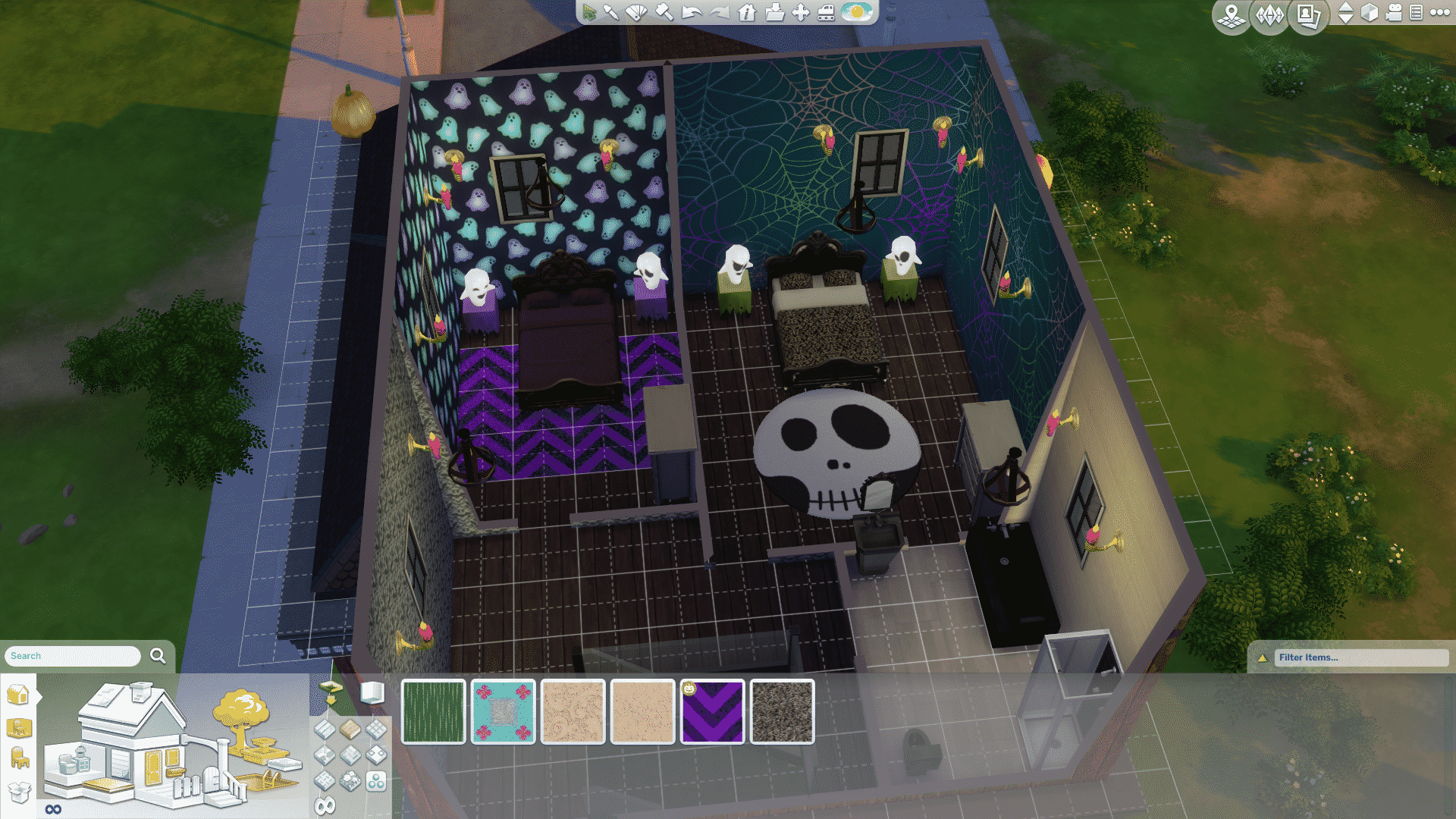
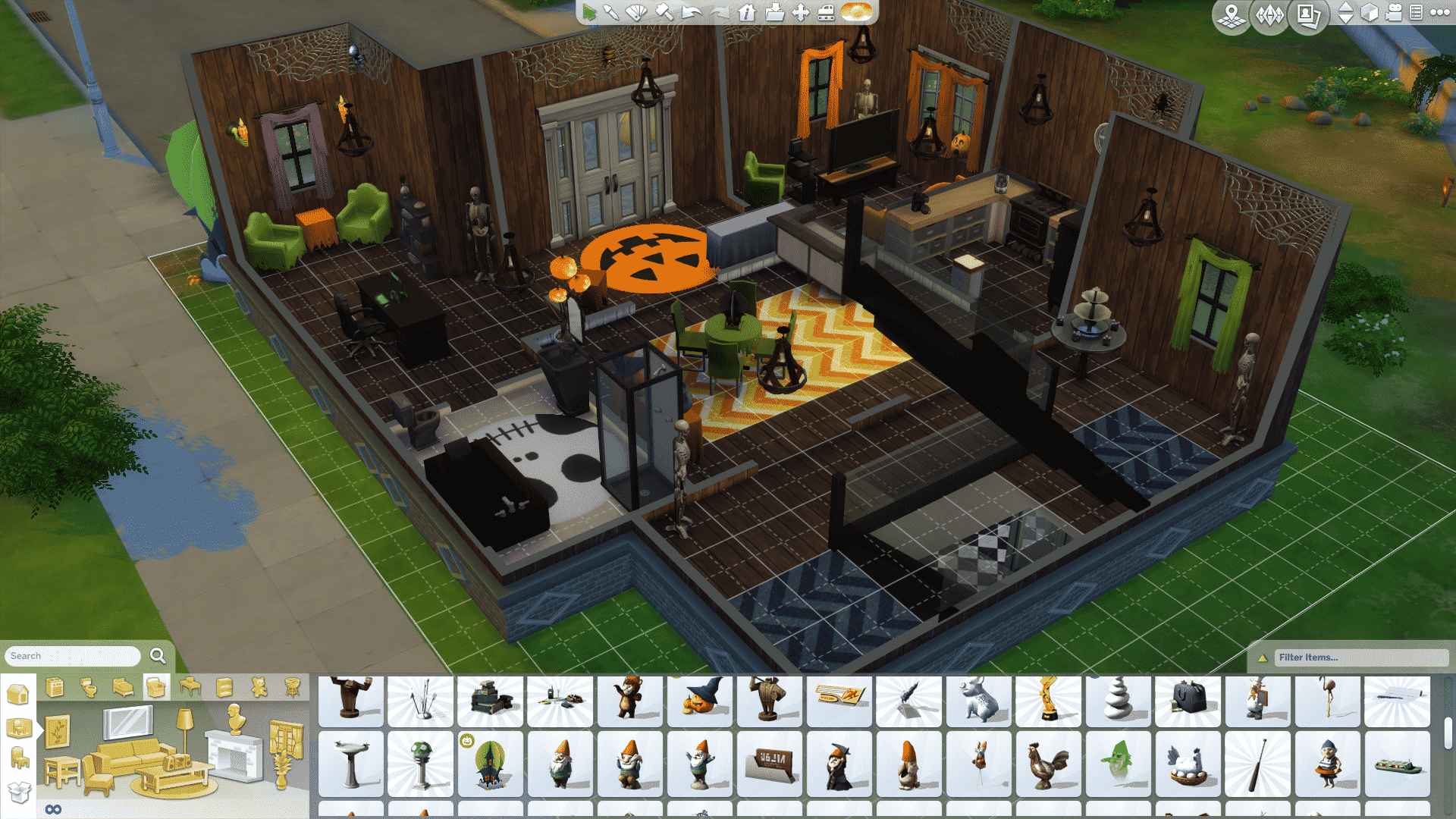
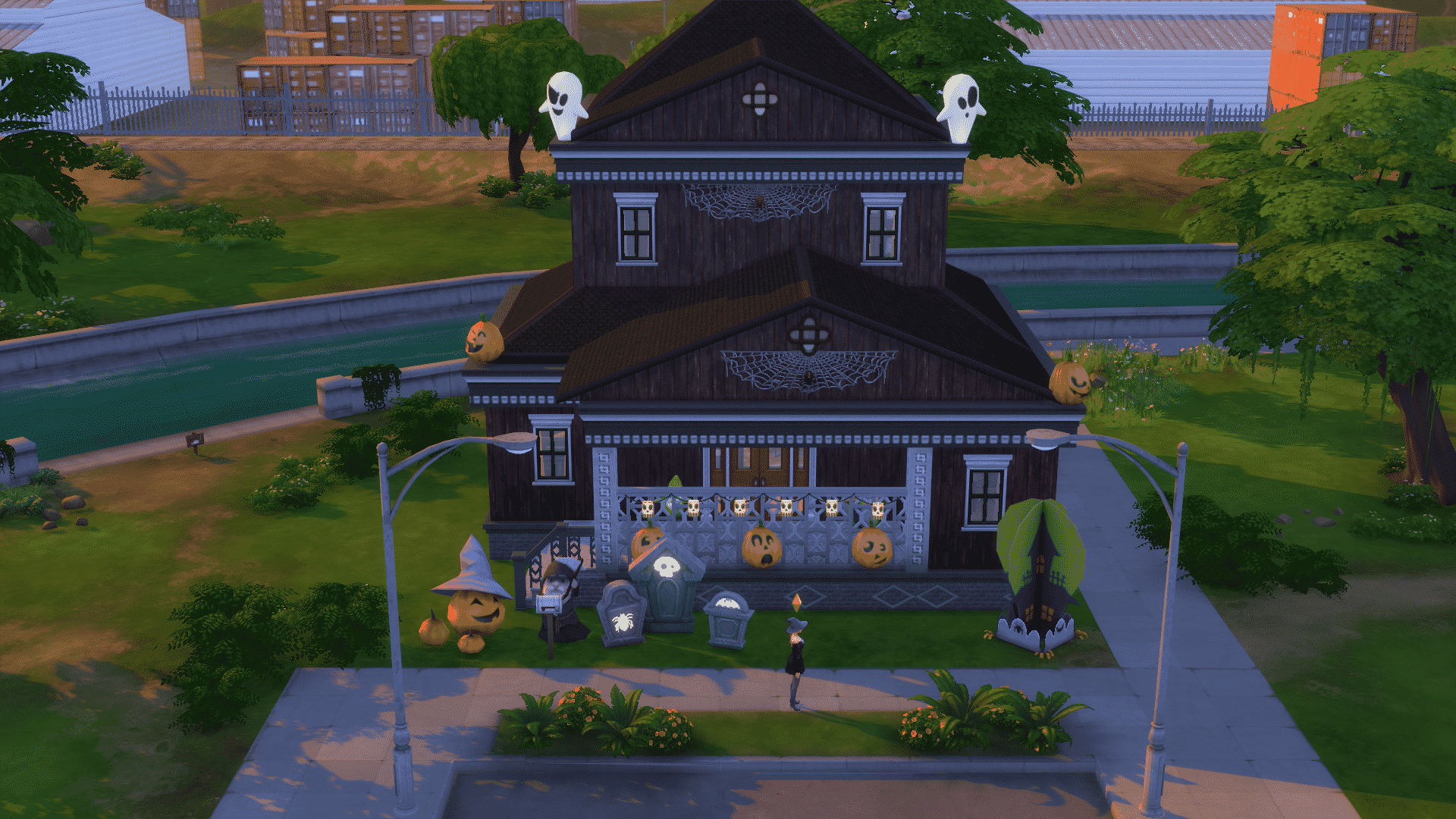
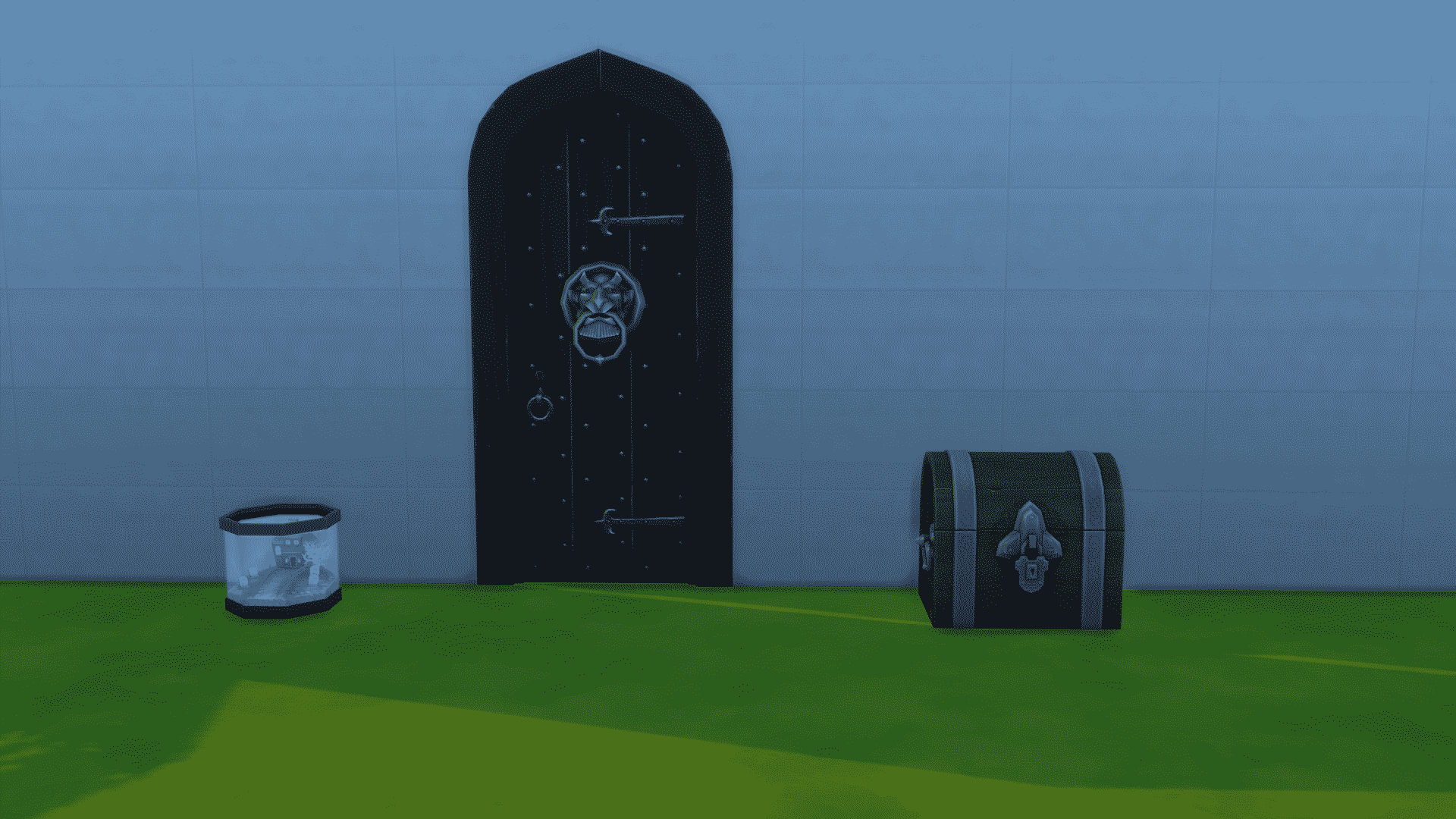
With the great choices that the Spooky Stuff pack has given us there is no reason to not go re-decorate your Sims homes for Halloween. In this article we will explore the options to decorating a custom built house in The Sims 4. We’ll start with a custom built home, you can create a spooky creeped out home for your Witchy Sims to live in, with the great variety of exterior and interior wall coverings. The best way to find all the items is to use the built in game filters by going to the right hand lower part of the screen you will see a place that says filter with an arrow next to it. Clicking the arrow will open a menu where you can pick and choose what will be shown below in the build menu. Just remember sometimes less is more but often going all out is more fun. Here I built a custom home and used the exterior wood paneling that came in the Spooky Stuff pack for the outside walls. I also chose windows that had some darker color trim on them and a large red door.

10-28-15_5-46-44 PM 10-28-15_7-22-23 PM

Here I built a custom home and used the exterior wood paneling that came in the Spooky Stuff pack for the outside walls. I also chose windows that had some darker color trim on them and a large red door. Then I set to work of decorating the outside yard. You can have fun playing with the size cheat and be sure to enable MOO (Moveobjects on) by opening up the ingame console and typing bb.moveobjects then press enter. This makes it possible to set things wherever you want, as I have with the ghosts and pumpkins by placing them on the roof trim. For the front porch area I placed pumpkins along the front bottom and Skeleton lanterns across the front railing. I was able to place the laterns by holding the Alt +tapping the #9 key and carefully moving them up to the level then “phasing” them into place by holding Alt and gently sliding the mouse till they were where I wanted. You can use this method to add lights that would normally be on the ground to raise them onto a table too. As I did in the photo with the ghost lamps using them as nightstand lights.

11-02-15_12-44-58 PM

By using the resizing cheat you can make any of the decor items or centerpieces instant lawn ornaments! in the picture you can see the original size next to the enlarged items that I used to decorate the yard. To resize you hold Alt and then tap the ]/} key till it is the size you want to revert just hold Alt and tap the {/[ key. This is a great little trick…or a treat!

10-28-15_7-53-49 PM 11-02-15_1-48-20 PM 11-02-15_12-51-04 PM

When creating rooms and decorating with the build mode items don’t forget you can use the new chevrom carpeting to create the look of an area rug. Also now that we can resize rugs properly play with several sizes to fit your rooms. In this dining room I have utilized the chevron carpet to make the center rug and then placed a table from the pack with chairs from the base game. I was a little disappointed they didn’t include a larger table for my Sims to dine at.  I like to create a very creepy cob webbing around the walls don’t forget to add a few spiders.

11-02-15_1-08-24 PM 11-02-15_1-16-19 PM

A trio of shapeshifting Portraits are great to hang above a candy dish that will give even the most seasoned Sim a jump scare. The pack also features several new seating options for your Sims. There is a couch with a ghostly face on it in several colors as well as plain with no face. A matching chair can also be found with or without the ghostly face. I hope you’ve enjoyed exploring the decorative ideas shown here…let me know below in the comments how you have decorated with the Sims 4 Spooky Stuff Pack. Until then Happy Simming!!

11-03-15_2-49-00 PM

11 Ways You Can Customize Your Clubs in The Sims 4 Get Together

0

Via The Sims Blog

Your Club, Your Rules

When The Sims 4 Get Together Expansion Pack* comes out on December 8 in North America, you’ll be experiencing something totally new: Clubs! With Clubs, you’ll be able to lead groups of Sims in a Gathering, where they’ll follow Club rules, do Club activities, and react to situations in the ways their Club suggests. Sims in a Gathering will even break their own rules in favor of keeping in line with the Club’s rules.

https://www.youtube.com/watch?v=rWPZgy2peFA

You’ll be able to join a pre-made Club, like the food-obsessed Upper Crusts or the stylish Paragons, but you can also create your own! Here are all of the ways you can customize your own Clubs.

Choose your Club’s name. Obviously, before you start doing anything else, you’re going to want to decide what to name your Club. You could go with something fairly generic (The [THING] Club!), or try to think of something cooler – like an inside joke!

Pick Your Club Logo. When Sims are in a Gathering, little icons float above their heads showing that they’re hanging out with their Club. There are dozens to choose from, so you’ll be able to find the perfect insignia for your Club to use.

TS4_554_EP02_CLUB_SCREENS_01_002

Set Club Requirements. Do you want your Club to be open to anyone and everyone? Or do you want it to be a bit more… exclusive? You can decide what sorts of people are allowed in by choosing Age Groups, Skill Levels, and even Traits that your Club members are required to have.

Choose Club Activities. Here’s where things start getting really exciting. You’re able to choose from a list of over 100 Activities that you can encourage Club members to do when they’re in a Club Gathering – things like Play Instrument, Cook, Swim, Tell Jokes, View Art, and (a lot) more. Your Club can have five Encouraged Activities, which creates a ton of possibilities!

Set Club’s Banned Activities. On the other side of the coin, you can also choose up to five things that your Club members aren’t supposed to do. When you mix these with the Club Activities, you get some absolutely crazy options. Want your members to Hug, Kiss, be Romantic, but never to WooHoo when in a Club Gathering? You can do that!

TS4_554_EP02_CLUB_SCREENS_02_002

Make Your Activities More Specific. Besides being able to choose Club Activities and Banned Activities, you can take it a level deeper and say who your Members are supposed to do these things with. Your Club members might love swimming, but maybe they won’t swim with members of another specific Club. Or maybe they flat-out can’t talk to specific members of other Clubs. Break the rules, and your Sim might get kicked out of the Club!

Create a Club Outfit. Want your Club members to all wear a matching jacket and hat (with a matching Club logo) when they enter a Club Gathering? Want them to wear matching… hot dog costumes? You’re able to choose their outfits, personalizing your Club’s style as much as you want.

Pick a Hangout. A Club needs a place to hang out, right? When you’re making your Club, you can make their Hangout a general place, like any Bar or any Gym, or a specific place in the world. Different Club types call for different Hangout types – a Foodie Club might want to check out any café they can find, whereas a Workout Club might only want to frequent a specific gym.

TS4_554_EP02_CLUB_SCREENS_03_002

Customize a Hangout Location. If you want to personalize your Hangouts even more, you can choose to have your Club gather at a specific lot, and then use door locks to only allow access to your Club to make an exclusive place that only they can enter. This means that an Art Club can have a secret backroom where only thebest artwork is held, or the Gaming Club could have a special room with extra computers to play on. There’s also special Club décor you can unlock to help you customize your Hangout even further.

Unlock a Club Vibe. The more your Sims preform Club activities, the more Club points you’ll earn. These can be used to unlock a slew of Perks, like secret handshakes and Club vibes. Club vibes are emotions that your members will feel once they’re in a Gathering, so you can make your Workout Club automatically Energized, or your Romance Club Flirty during Club Gatherings.

Get Club Skill Boosts. There are other Perks besides Club Vibes, though – you can also get Skill bonuses, meaning that your Sims will gain skill at an increased rate while in a Club Gathering. Mix that together with a Vibe, and you can end up with some really interesting results. An Art Club that gains Artistic skill faster and is always Inspired can be pretty awesome at cranking out incredible paintings.

We built the Club system to be as robust as possible, and we can’t wait to see the amazing things you’re going to create with them when The Sims 4 Get Together Expansion Pack launches in December!

The Sims 4 Get Together: Updated Description + 2 New Screens

0

gettogetherlogo

Get Together with Clubs!

Create Clubs for your Sims where you set the rules, define their looks, and customize their hangouts in The Sims™ 4 Get Together. Sims in a Club follow your rules when they’re together, regardless of how they usually behave, giving you new ways to play with your Sims! You can also meet new Sims by joining various Clubs with distinct interests, identities, and styles. Get together with other Sims for secret dance parties, midnight bonfires, and more. Explore the beautiful new world of Windenburg, with its scenic neighborhoods and exciting locales!

KEY FEATURES

Create unique Clubs. You set the rules, select the members, and customize the exclusive hangouts in The Sims™ 4 Get Together. Sims in a Club will follow your rules when they’re together, giving you new ways to play with your Sims.

Join Clubs & meet new Sims. Whether you’re getting stylish with the Paragons or enjoying a delicious meal with the Upper Crusts, there are a variety of interesting Clubs to explore. As you play with Clubs, you’ll unlock perks including secret handshakes, social boosts and more!

Get together & live it up. Take on other Sims in foosball, darts, and Don’t Wake The Llama. Get cozy with your special someone or dance around the bonfire. Plus show off your best cannonballs and make a splash with the new jumping platform.

Rule the dance floor. Thrill partygoers with new DJ & Dancing skills. Excite the crowd in the DJ Booth. Then jump onto the dance floor and challenge other Sims to a fantastic dance contest!

Explore a new world. Discover the beautiful new world of Windenburg in The Sims™ 4 Get Together! Enjoy an afternoon Sim-watching at the outdoor café, enjoy drinks at the local pub, or explore the mysterious ancient ruins.

1020340_screenhi_930x524_en_US_01 1020340_screenhi_930x524_en_US_04

Via Origin!

The Sims 4: Download Team Trick Objects!

The latest Sims 4 Update brought 3 items that Team Treat won, but The Sims Team ”accidentally” left 3 Team Trick objects as well in the game code.

Our member Tatiana was able to quickly extract them and post them on SC Social!

Terms:

-If you recolor, please link back to the Sims Community forum.

-This unlocked package is exclusive to the Sims Community forum.

Download

11-03-15_2-10-38 PM