The Sims Team shared infographics for the #TeamTrick vs #TeamTreat Challenge that took place from October 23rd to October 31st. Check out these stats!


The Sims Team shared infographics for the #TeamTrick vs #TeamTreat Challenge that took place from October 23rd to October 31st. Check out these stats!

The Sims Germany has shared a new render for The Sims 4 Get Together. Check it out!

New The Sims 3 Update that brings a brand new Expansion and Stuff Pack Manager is now available!
Before updating, it’s recommended that you remove any Mods and Custom Content until they’re proven compatible with the new, 1.69.36.0240 Version.
Please note that the Create A World Tool is currently NOT compatible with the new version! SimGuruDrake confirmed they’re looking into this issue.
Downloading the latest The Sims 3 game update on Origin
After you have registered The Sims 3 and your packs on Origin, download the latest game update which includes the new The Sims 3 Expansion and Stuff Pack Manager. Log into Origin and update The Sims 3 by navigating to “My Games” then right clicking on The Sims 3 tile and choosing the “Update” option.
If you have “Automatically keep my games up to date” enabled in Origin Application Settings, the update will download automatically the next time you launch Origin.
In either case, before completing the installation, you will be presented with End User License Agreements which you must accept to install the update. After accepting the End User License Agreements, Origin will update your The Sims 3 game to the latest version.

SimGuruDaniel confirmed that he’s doing everything in his power to make The Sims 4’s third Expansion Pack awesome!
@TurkkiToni: Will EP3 be awesome?
SimGuruDaniel:I’m doing everything in my power to make it so!
What do you think the third Expansion Pack will be all about? Join the discussion on Sims Community Social!

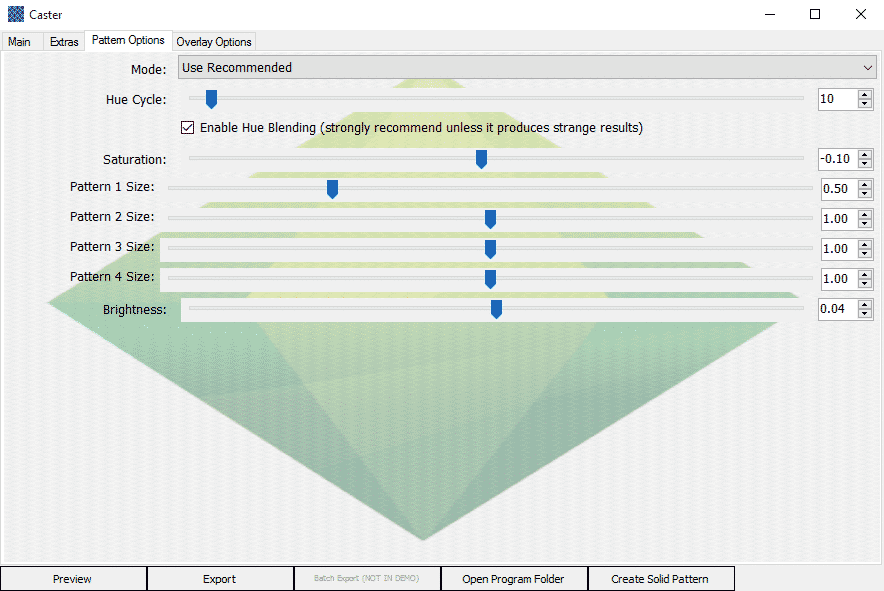
Do you ever miss the Create a Style tool from The Sims 3? Well, you’re in luck! Caster is a tool that lets you easily generate custom Create a Sim textures for The Sims 4 which can then be imported into Sims 4 Studio to create custom content. It works in a similar way to The Sims 3’s Create a Style. While the original version of Caster was made last year, this new version is much easier to use, comes with content ready, and blends saturation values to create textures with the same level of detail as the originals.
Furthermore, Caster also lets you easily add logos and stencils which will position themselves automatically.
The full version of the tool isn’t finished yet, but you can now download the demo, which has limited content and doesn’t have all the features yet.
Caster comes with several bases, all patterns from The Sims 3 and three logos from The Sims 3 World Adventures. There will be more content coming with the full version, as well as more features.
For more information and a link to download: http://zerbu.tumblr.com/post/133080591222/caster-create-a-style-for-the-sims-4-demo




Check out Tori Kelly perform her single ”Expensive” in Simlish! This song will be featured in the soundtrack of The Sims 4 Get Together.

If you’re a creator and like to share your creations with the world using The Sims 4’s Gallery feature, then you probably wondered what does it take to have your creation faved by Maxis, which usually boosts your download rate. These questions written by SimGuruDrake will help you increase your chances in getting a Maxis fave, so make sure you follow them next time you decide to create and upload something!
I’ve been working with our team to get something together for all of you wonderful builders and Sims creators to know our process when providing a Maxis Fave.
I want to first address that yes, we do check lots and Sims that we curate to make sure that they appear in game as they do in the screenshot. There are several things that we check for as we want all players to have the best experience with your creations.
I want to note that we do not enable MOO when checking any lots / rooms.
Households
- Does the household have a backstory? (Not a must have but we really do enjoy reading the stories you create and think that other players do as well.)
- Does the household have custom content? (If so it will automatically be rejected as it is not official Maxis created content.)
- Does the household have more than one look? –Nothing like downloading a Sim who only has their Everyday attire done and the rest were simply forgotten.
Rooms
- When placing the room does it appear as it does in the thumbnail?
- What panning around the room do you notice any flickering?
- When Sims enter the room can they view and use the objects within it?
- Does the room have any custom content? (If so it will automatically be rejected as it is not official Maxis created content.)
Lots
This is where things get tricky. We know a lot of you use the MOO cheat (and we LOVE the amazing things you create with it) but not all users are aware of this cheat. So when we check the lots we do so without enabling cheats.
- When placing the lot does it appear as it does in the thumbnail?
- Are there any floating, missing, or resized objects?
- When panning around the lot do you notice any flickering?
- When going room by room do you notice if there are any objects flickering that used MOO to place them there?
- Can Sims get to every room in the lot?
- Can Sims get out of every room in the lot?
- If there is water can they easily swim in it and get out without issues?
- Can Sims view and use the objects within the lot?
- Does the lot have custom content? (If so it will automatically be rejected as it is not official Maxis created content.)
Additional Questions
- Are you looking to highlight new/unknown creators?
- Absolutely! We like to keep it a mix of new/unknown creators and established creators.
- Do you like to find the unique/unusual or do you like things to be simple?
- Actually we really love both. What we try to do is always keep it a mix, showcase the really crazy and unique ones you come up with and also highlight the more simple homes so that there is always a variety.
- Do you only choose things that would do well on social media/promotional videos?
- The builds we showcase on social are pulled from those we have faved and passed our curation process. We like to do a mixture on there as well though sometimes we do have months where we have themes (example: Halloween for October, we wanted to highlight some of the really amazing spooky homes that were created but also highlight some non-Halloween themed things as well.) We also like to showcase a mixture of new and established builders there as well.
- Does there have to be a specific price range for a build?
- Nope If a higher priced build doesn’t get a fave it means they may have failed one or more of the criteria above.
- Does the build fitting into the landscape help?
- Good question! Since players tend to choose where they want to place the lot and don’t always use the same one that you created it on it doesn’t play a huge factor. BUT what does help with landscaping is actually adding life around the build. Like flowers, bushes, trees, etc. to make it really feel like it’s lived in. It won’t hurt you if you don’t have those things but it really does help
- Besides being nominated in the recommendations thread, what other method can creators go about in order to get Maxis’ eye on their lot? Does Maxis look at any of the showcase threads? Is it a good idea to try to reach out on social media (i.e. Twitter and Facebook)?
- We check out lots that are shared with us on Twitter, Facebook, and Tumblr and even our SimGuru’s pass along lots that are shared with them. We do try to keep up with the showcase / challenge threads that are found throughout the forum.

The Sims Team has released a brand new Promotional Image celebrating No Shave November, featuring a brand new beard that’s coming with The Sims 4 Get Together!

The Sims 3 Expansion and Stuff Pack Manager gives you more control over your game experience by letting you choose which Expansion and Stuff Packs to play with.
How to get The Sims 3 Expansion and Stuff Pack Manager for Windows PC
The Sims 3 Expansion and Stuff Pack Manager is included as part of the latest The Sims 3 game update, only for Windows PCs. To download the game update you will need to register your The Sims 3 game and packs on Origin using an EA Account and accept the updated End User License Agreements. This update is not available for Mac.
Registering your The Sims 3 games on Origin
You can register your disc copies of The Sims 3, Expansion Packs, and Stuff Packs on Origin by following these steps:
- Log into the Origin client using your EA Account.
(If you do not have an EA Account or need to install the Origin client, please visit https://connect.origin.com/create.- From the main menu, select “Origin” then “Redeem Product Code”.
- On the next window, enter your CD/Installation Code from your manual in the Product Code box, then click “Next”.
Downloading the latest The Sims 3 game update on Origin
After you have registered The Sims 3 and yyour packs on Origin, download the latest game update which includes the new The Sims 3 Expansion and Stuff Pack Manager. Log into Origin and update The Sims 3 by navigating to “My Games” then right clicking on The Sims 3 tile and choosing the “Update” option.
If you have “Automatically keep my games up to date” enabled in Origin Application Settings, the update will download automatically the next time you launch Origin.
In either case, before completing the installation, you will be presented with End User License Agreements which you must accept to install the update. After accepting the End User License Agreements, Origin will update your The Sims 3 game to the latest version.
Troubleshooting The Sims™ 3 game update
If you have any problems installing The Sims 3 game update, uninstall The Sims 3 and reinstall via Origin. Origin will provide you with the latest version of The Sims 3 with no additional updates required.
If you continue to experience issues, search for a solution here at EA Help using the search box on the top right of this page or click on Contact Us to contact support.
Choosing Which Packs to Play
The Sims 3 Expansion and Stuff Pack Manager lets you choose which Expansion and Stuff Packs to play with.
Before making your selection, install all of the Expansion and Stuff Packs you own. Only packs that you have installed will display in the Pack Selector. Once all of your packs are installed, locate the ones you want to play with, then check the checkbox next to the pack. Once you finish making your selections, press the Play button to launch The Sims 3 with the desired Expansion and Stuff Packs selected.
When choosing which packs to play with, we recommend selecting only a couple at a time. This will ensure you have the best game experience.
To help manage the packs, you can click the column headers to sort by:
- Status – Sorts by enabled and disabled.
- Title – Sorts alphabetically by title.
Installing and Uninstalling Packs
Visit Origin to install, uninstall, or purchase additional packs. All The Sims 3 Expansion and Stuff Packs can be found under The Sims 3 tile by selecting the Game Details option.
Backing Up Save Game Files
Making changes to the packs you play with may also affect your game save file. Specifically, if in The Sims 3 Expansion and Stuff Pack Manager you deselect packs that you have been playing with and load a game save that uses those packs, the game will replace the unloaded content with default items or remove them altogether. If you wish to keep a backup copy of the game save file for future use, locate the file in your computer’s directory and save a copy to your desktop.
The Sims 3 game save files can be found here:
Windows XP, 7, 8, and 10 – C:UsersUsernameDocumentsElectronic ArtsThe Sims 3Saves
Windows Vista – C:Documents and SettingsUsernameMy DocumentsElectronic ArtsThe Sims 3Saves
Source: EA Help

UPDATE: SimGuruDrake shared some details about the compatibility of The Sims 3’s latest update with Create A World Tool:
Today we will be releasing an update for PC Windows version of The Sims 3 launcher to add the new Expansion and Stuff Pack Manager. During preparation for the release we have discovered that this update is not compatible with the current version of the Create-a-World (CAW) tool. We are working on an update for this particular issue and will notify you as soon as we have one.
SimGuruDrake announced that The Sims 3 will be getting a brand new Update, featuring a new Launcher that lets you pick Expansion and Stuff Packs that you’d like to play. For more info about this update and how to install it, check out this post!
Hello everyone!
Tomorrow (November 12) The Sims 3 website will be undergoing maintenance from 9am PT. During this time you may have issues accessing the The Sims 3 website. An update will also be available via Origin for The Sims 3 on PC only, which will include a new The Sims 3 Expansions and Stuff Pack Manager.
You can find out more information about the update and the new The Sims 3 Expansions and Stuff Pack Manager in this FAQ:http://help.ea.com/article/new-launcher-for-the-sims-3/
You can prepare to obtain The Sims 3 update by updating to the latest version of Origin, you will receive the latest version the next time you launch the Origin client.
If you have Origin running:
- In the top left, select Origin
- Click Exit
- Re-launch Origin
You will automatically be updated to the latest version of Origin (Version 9.10.2.4863)
You can verify you have the latest Origin client by selecting HELP>ABOUTYou are now ready to receive The Sims 3 update tomorrow 12th November
Happy Simming!

via The Sims Blog
Pump Up the Crowd!
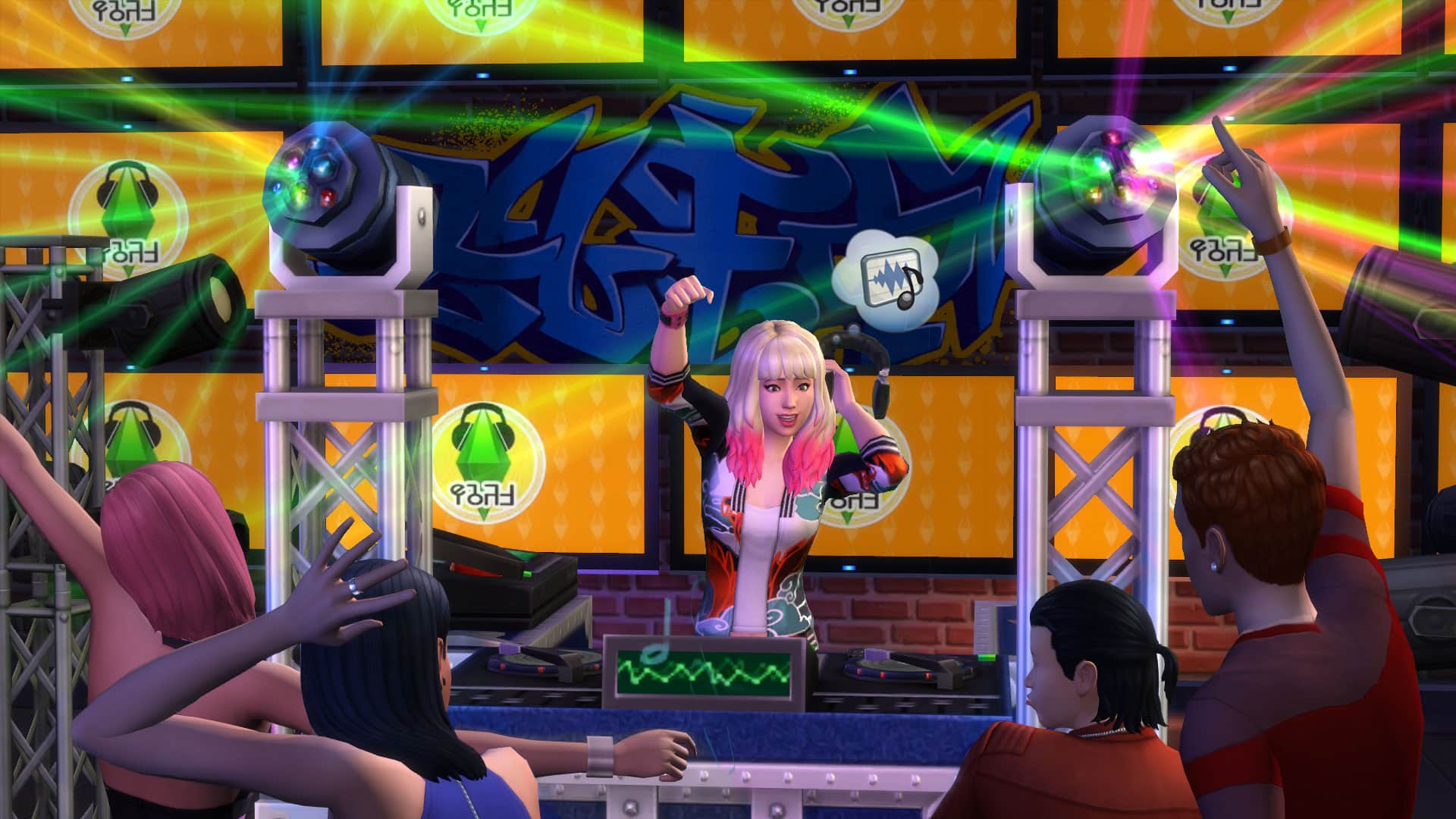
The Sims 4 Get Together* is coming out next month, and brings fun new ways to hang out with friends. There’s the beautiful World of Windenburg, the customisable Clubs feature (which we talked about last week), and two awesome new Skills: DJ and Dancing.
Want a deeper look into how these Skills work? Check out the video below, which walks you through the story of a Sim trying to get in good with the Spin Masters, one of the new Clubs in The Sims 4 Get Together that wants – nay, demands – its members know how to pump up the crowd and cut a rug with the DJ and Dancing Skills.
Pretty cool, right? But there’s plenty more to get excited about. The higher you level up your Sim’s Dancing and DJ Skills, the more powerful and bigger the performance.
The DJ Skill starts off with Sims learning the basics of pumping up the crowd. But the more they work, and the harder they party, the better they’ll get at getting the room on its feet. From making mix tapes to controlling the emotions of the room with the Feel the Crowd ability, the DJ Skill is an absolute must-have for anyone who wants to take over the room and turn the party up to 11. One of their advanced abilities is called Teleplosion – once your DJ has added it to their DJ Booth, the DJ can activate it to take over TVs in the room for the ultimate performance! It’s electrifying!
Dancing gets more exciting as Sims level it up, too. While Sims can already dance in The Sims 4, the addition of a Skill in Get Together lets them get much more adept at busting a move. While there are obvious upgrades, like being able to do cooler and cooler dances, there are also some more impressive feats – Sims with Dancing skill can do a Fire Dance at the Bonfire. There’s also a new Dance Floor object, where Sims can show off more dances and initiate Dance Battles. You can even show off your group’s skills with the ability to initiate a Group Dance, showing some synchronized swagger. Needless to say, high level Dance Skills let your Sims really step it up on the dance floor.
We hope you liked this peek into the world of The Sims 4 Get Together Expansion Pack, and we can’t wait to see how your Sims enjoy the new Skills when it comes out in December.

The Sims Poland has announced a competition where Polish residents are getting a chance to attend and meet Graham Nardone at a Sims 4 Get Together Event, held at Electronic Arts Poland. If you’re from Poland and are willing to enter this event, you can read more about it HERE! 2 lucky winners will be chosen.
It’s also worth of mentioning that this event, along with the event being held in Germany (probably some other countries too) will bring lots of new Get Together information. Both confirmed events will begin this Monday (16th of November), so you’ll want to stay tuned for the latest news and updates here on Sims Community!
Tip: DotSim

Click on the images below to see them in bigger scale. The original Trailer can be seen HERE!


Ready for some winter fun? After days of hard work, SimCookie is bringing you The Sims 4 First Snow Mod, which redecorates all the current TS4 Worlds into a beautiful winter wonderland!