Home Blog Page 444

The Sims 4 is getting its 64bit Update next month!

2

ts4e3logo

The Sims Team and EA have just announced that The Sims 4 will be getting it’s 64bit version next month! This means that if you have more than 4GB of RAM, you’ll be able to run the game faster and more stabile!

Here’s how EA Help fully explained it:

What is 64-bit?

  • All modern versions of Windows are available in two flavors: 32-bit and 64-bit.  Most users on Windows 7, Windows 8 and Windows 10 are using the 64-bit version.
  • 32-bit Windows can only run 32-bit applications.
  • 64-bit Windows can run both 32-bit and 64-bit applications.
  • 32-bit applications are restricted to 4 GB of memory usage, regardless of how much physical memory your computer has.  If a 32-bit application uses more than 4 GB it will crash.
  • 64-bit applications do not have this limitation, so can make better use of your hardware.

How does this impact The Sims™ 4?

  • Prior to version 1.13, The Sims 4 was only a 32-bit application.
  • As of version 1.13 (released December 2015), The Sims 4 can be run either as a 32-bit application or as a 64-bit application.
  • For most players, Origin will automatically choose the correct version to run and this is not something you need to worry about.

What is better about the 64-bit version of The Sims 4?

  • Short answer: The Sims 4 will be more stable when running the 64-bit version.
  • Long answer:
    • The Sims 4 is designed to use less than 4GB of memory, so in most cases there is no difference between the 32-bit and 64-bit versions.
    • However there are scenarios where the game may take more than 4GB memory.
      • For instance, if you are playing on large heavily populated lots.
    • With the 64-bit version of The Sims 4, the game will no longer crash when these scenarios are encountered.

Can I use the 64-bit version of The Sims 4?

  • If you are on a 64-bit version of Windows, then you can run the 64-bit version of The Sims 4 and by default Origin will automatically launch it for you.
  • However, we do not recommend running the 64-bit version of The Sims 4 if you have less than 4 GB of memory, or if you are running Windows Vista.
  • 64-bit is not supported on Window XP.

I received the following dialog when starting the game, what does it mean?

sims4error

  • It means you have less than 4 GB of memory or you are on Windows Vista.  In these configurations we recommend manually switching back to the 32-bit version of The Sims 4.

How do I run the 32-bit version of The Sims 4?

  • If you are on a 64-bit version of Windows and would like to run the 32-bit version of The Sims 4, do the following:
    • Right click on The Sims 4 tile in Origin.
    • Select “Game Properties
    • Change the “When launching this Game” setting to “The Sims 4 32-bit

What about Mac?

  • The Mac version of The Sims 4 is 64-bit only.

Tip: Crinrict

The Sims 4: Wellness Skill Guide

Find inner peace with the Wellness skill!

These days, a lot of time and effort goes into maintaining the wellness of our minds, bodies, and souls. Of course, our Sims are no exception! With the release of the Spa Day Game Pack came a new skill. The Sims 4 Wellness skill will help your Sims find their inner peace!

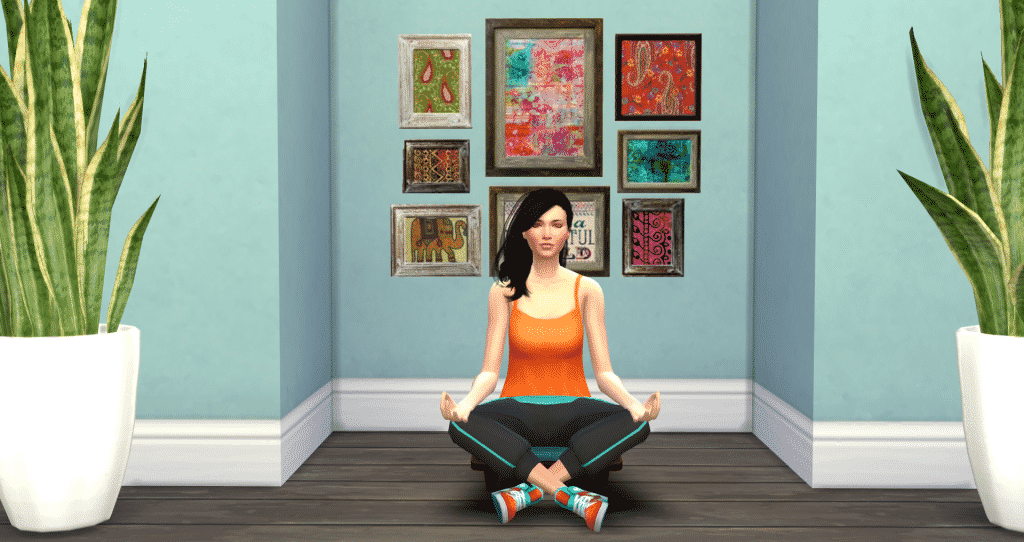
There are a number of ways that your Sims can begin their road to wellness. Firstly, in build/buy mode you can purchase a Yoga mat or meditation stool and place those items directly into your home, or you can visit a spa. The Game Pack came with several pre-made Spa venues, or you can download one off the Gallery and plop it into your game.

The Sims 4 Wellness Skill

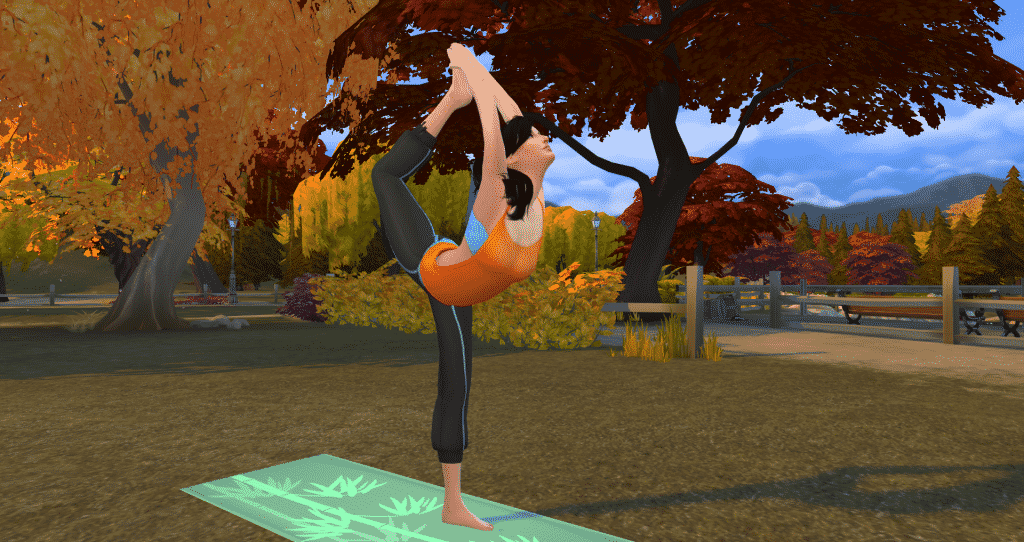
Personally, I find it useful to have both a meditation stool and a yoga mat on the lots I play. For starters, both items can be placed in your Sim’s inventory to be used anywhere you like. What’s more peaceful than doing Yoga outdoors while listening to nature?

Yoga

The Sims 4 Wellness Skill

As with most Skills, there are 10 levels that can be achieved with the Wellness skill.

  • Wellness Level 1 – Can perform various yoga poses, meditate, and give a massage.
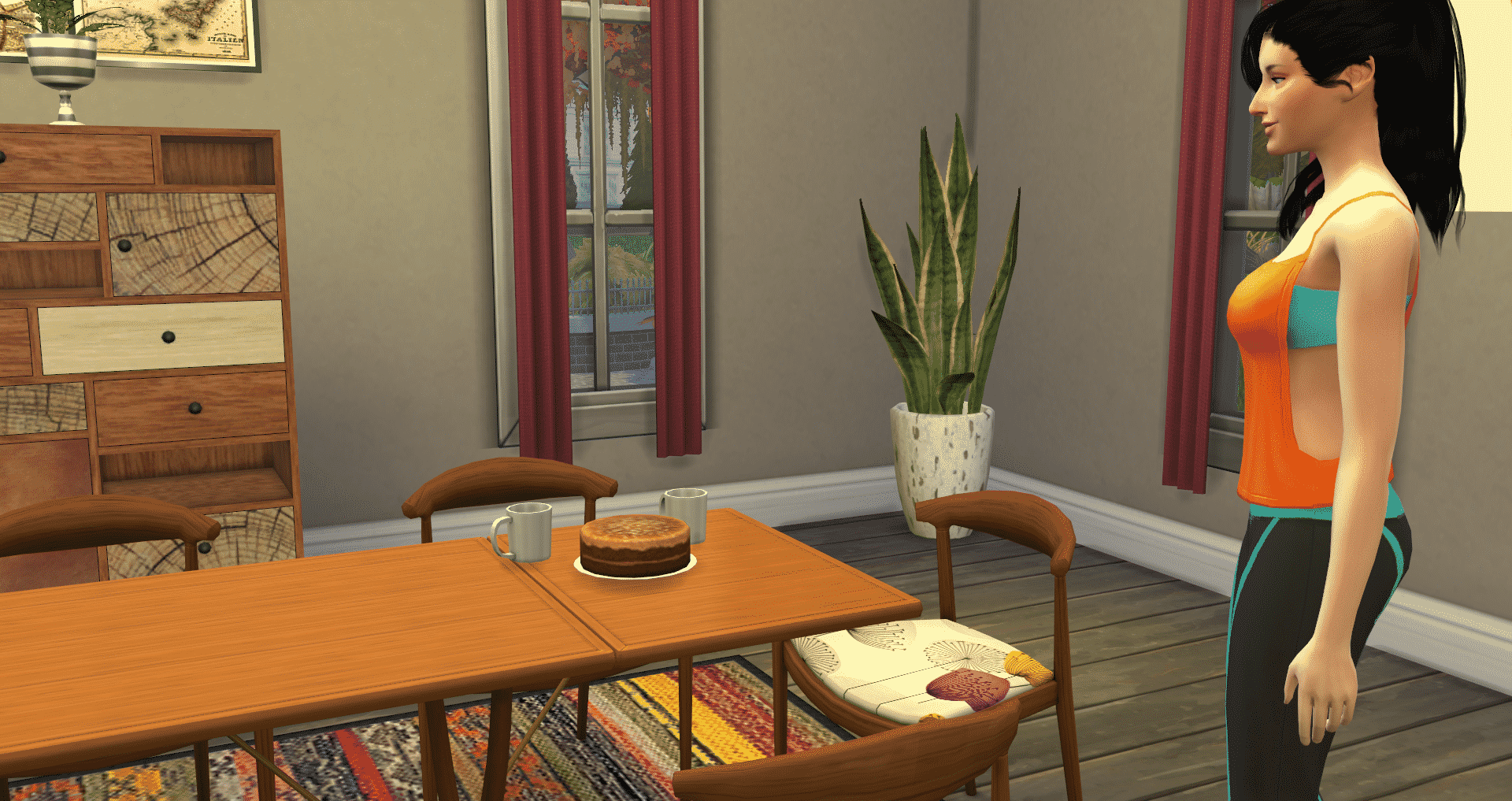
  • Wellness Level 2 – Can perform the Boat Pose in Yoga, discuss cognitive focusing methods, and bake sugar free carob coconut cake.
  • Wellness Level 3 – Can give aromatherapy massages and perform the Triangle Pose in Yoga.
  • Wellness Level 4 – May offer mental relaxation tips and perform the Tree Pose in Yoga.
  • Wellness Level 5 – May now give Deep Tissue Massage, perform the Warrior Pose in Yoga and can now levitate while meditating.
  • Wellness Level 6 – Your Sim can give a Sports Massage, suggest visualization techniques, and can perform the Lord of the Dance Pose in Yoga.
  • Wellness Level 7 – Can now teleport when levitating, make Super Food Salad, and perform the Bridge Pose in Yoga.
  • Wellness Level 8 – Can give a Stone Massage, recommend self esteem exercises and perform a Handstand in Yoga.
  • Wellness Level 9 – Can give a Fertility Massage.
  • Wellness Level 10 – Can brew Lemon Honey Ginger Detox Tea and share detox secrets.

Wow, that’s a lot of stuff! As you can see, that’s 4 different ways to improve the wellness of your Sims! Let’s look at each of those areas a little closer.

Yoga

I think it’s safe to say we were all pretty excited about the return of Yoga to the lives of our Sims. This time, Yoga is better than ever with ultra-smooth animations and a plethora of poses to perform.

The yoga poses available at level 1 are the Greeting Pose , Corpse Pose, Downward Facing Dog, Half Moon, and Side Plank.

The Sims 4 Wellness Skill

The more advanced you get in the wellness skill, the more poses you unlock including the Lord of the Dance Pose shown below.

Yoga

The most advanced pose is the Handstand, which is a beautiful, graceful pose (when performed correctly).

The Sims 4 Wellness Skill

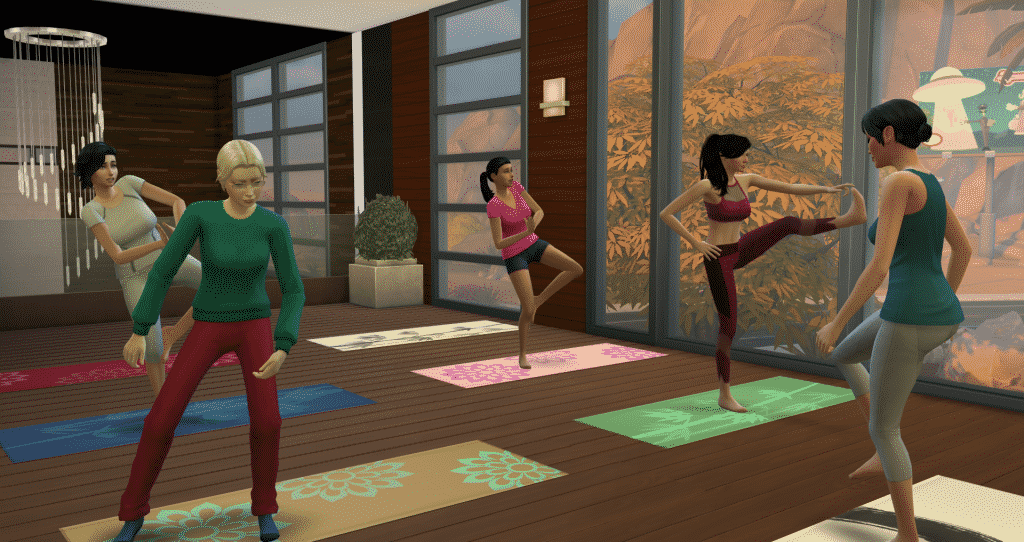
As I mentioned earlier, you can also advance your Wellness skill by attending Yoga classes at your local spa. When you arrive at the spa, there will be a Sim that arrives wearing a tank top bearing the official Spa logo and a symbol above his or her head. You should receive a notification saying that a Yoga Class will be beginning in 30 minutes and to let the instructor know if you’d like to join the class.  If you choose to join, simply click on the instructor and select to join the class.

Yoga Classes at the Spa

There are 3 different classes that are offered at 110 Simoleans a piece. Additionally, each of the classes gives a different buff after completing the class.

  • Mind Concentrating Class – Focused +2 buff
  • Brain Boosting Class – Inspired +2 buff
  • Energy Centering Class – Energized +1 buff

Massages

Also, who doesn’t enjoy a relaxing massage? Obviously, our Sims love receiving, and giving, massages with The Sims 4 Wellness Skill. With Spa Day, there are two different objects with which massages can be given (or received). Of course, there’s your standard massage table, and there is the hand and foot massage chair. Additionally, there are several different kinds of massages and each of them gives a different buff.

The following massages can be performed on the table:

  • Aromatherapy Massage
    • Lotus Blossom – Confident +1 for 12 hours
    • Mint and Rosemary – Energized +1 for 12 hours
    • Lavender – Focused +1 for 12 hours
    • Ylang Ylang Scent – Inspired +1 for 12 hours
  • Swedish Massage – Happy +1 for 12 hours
  • Deep Tissue Massage – Happy +1 for 24 hours
  • Sports Massage – Energized +1 for 12 hours
  • Stone Massage – Happy +1 for 24 hours
  • Fertility Massage – Increases probability of conception. I’ve used it once and my Sim got pregnant on the first try. I’m too scared to try it repeatedly to determine if there’s an increased probability of multiples. It’s also worth noting that this massage can only be performed on female Sims.
The Sims 4 Wellness Skill

Hand and foot massages can be given in the chair. During my game play I’ve gotten various buffs for these ranging from pretty rotten to pretty great.

  • Foot Massage – Happy +3 for 6 hours
  • Hand Massage – Happy +3 for 6 hours

Sometimes your Sim may get a lousy massage, leaving them with an uncomfortable buff, so be careful who you chose!

Meditation

Naturally, when life gets to be too much, sometimes it’s best to take a few minutes, relax, and find your center. With the meditation stool, your Sims can now find inner peace with The Sims 4 Wellness Skill.

There are a couple of pretty neat things that meditating does. Firstly, meditation reduces negative buffs. So if your Sim is in a negative emotional state, they can meditate to put themselves in a good mood again. The time left on their negative buffs will slowly decrease while meditating until it eventually disappears.

Meditation

At level 5 of the Wellness skill, your Sims can levitate while meditating.

The Sims 4 Wellness Skill

At level 7, they can teleport anywhere in the neighborhood! Also, Sims with that high of skill in Wellness don’t even need the stool to meditate and teleport – they can do it right where they’re standing.

Eating Clean with The Sims 4 Wellness Skill

Moreover, no heath-centric Sim is complete without introducing super-healthy foods into their diet.  Building the Wellness skill unlocks two new recipes.

  • Sugar Free Carob Coconut Cake. This costs 15 Simoleans to cook and gives a Happy +1 buff for 4 hours.
New Spa Day Recipes
  • Super Food Salad. Pomegranate is the special ingredient, but it is optional. It costs 48 Simoleans without the Pomegranate.
  • Also, at level 10, you can brew Lemon Honey Ginger Detox tea which gives a Focused +2 buff for 4 hours and costs 15 Simoleans.
The Sims 4 Wellness Skill

Also, If all those buffs aren’t enough, you can always light some incense for the cost of 20 Simoleans. Each scent also has its own unique buff.

  • Evocative Lemon – Inspired +1
  • Sharpening Saffron – Focused +1
  • Soothing Sage – Happy +1
  • Romantic Sandalwood – Flirty +1
  • Peaceful Patchouli – Happy +1
  • Invigorating Cinnamon – Energized +1

Of course, now it’s time to get out there, grab your Yoga mat, and get your Sims happy and healthy with The Sims 4 Wellness Skill!


Additionally, looking for more information on Spa Day? Check out all of our articles on this game pack, including everything you need to know about the exciting Spa Day refresh!

This article was edited by SnarkyWitch!

Get Together: Explore New Venues, Special Locations, and more in Windenburg

0

Via The Sims Blog

Explore the New World

The Sims 4 Get Together Expansion Pack* is coming out next month, and it’s all about new ways to get together and go out with groups of Sims. So naturally, they need all sorts of fantastic new locations to go out to! That’s why we built the new World of Windenburg, a visually-striking European-inspired location that looks like nothing you’ve ever seen before in The Sims 4.

Windenburg is jam-packed with things to do and places to see, including three Special Venues, two new Venue types, and some changes to Nightclubs and Bars. Here’s a look at the places your Sims will be able to explore in December.

paragons-selfie

The Von Haunt Estate. Windenburg’s prized Von Haunt Estate is a historic and enchanted garden property that’s been up kept as a famous museum and tourist attraction. Its most notable landmark is the enormous and perfectly pruned hedge maze where Sims can get lost for hours. Oh, and don’t be surprised if you run into the former Lord and Lady who used to inhabit the location before its new owners took over – even after 100 years of being deceased, they’re still around to entertain and terrify their guests.

The Bluffs. This secluded island is a picturesque and forgotten location that’s perfect for a group of Sims to get away to with no interruption. Facing the gorgeous Windenburg lake view is the bonfire where your Sims can cozy up or compare their best fire dance moves. There’s also a natural pool for swimming (or skinny dipping), and if you’re really patient, you just might catch a glimpse of Windenburg’s elusive sea monster.

TS4_553_EP02_GROUP_ACTIVITIES_02_002

The Ancient Ruins. This is by far the best spot for a private Dance Party. By day, it’s a serene and preserved area for the locals to take in, appreciate, and explore. But at night, the huge ruins walls are the perfect backdrop for DIY stage lights, fog, and laser beams that emit from the DJ booth. It’s got a small buildable lot by the party area in case you want to supplement your gathering with any other helpful or fun objects.

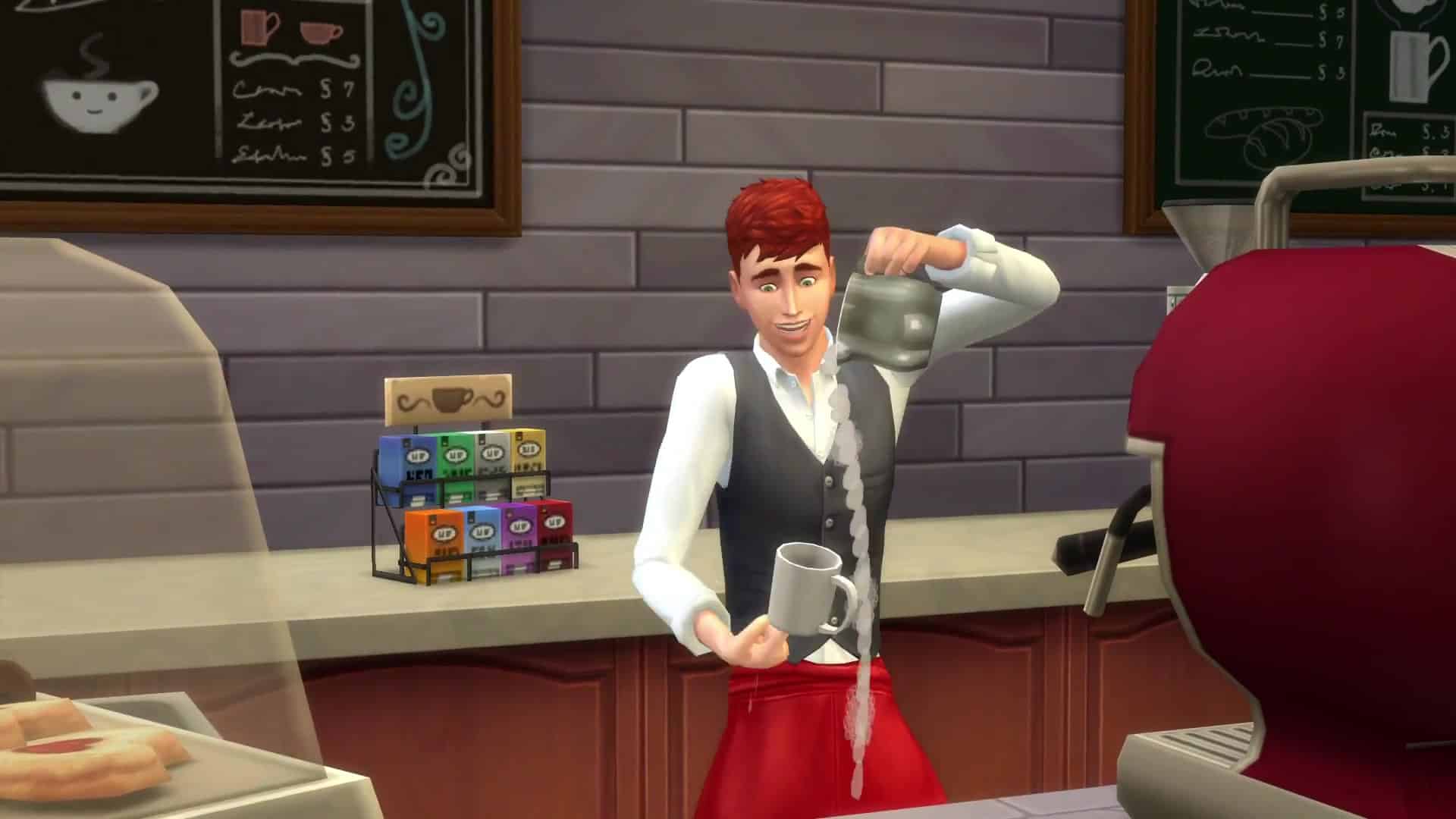
The Café Venue. Latte, anyone? At the new Café Venue, your group can order their drinks for here or to go. The new Barista NPC and Espresso Machine are at your service to serve up your favorite frothy beverage and flaky pastry. You can order a pre-work shot that puts you in the perfect emotion to go to work in.

TS4_553_EP02_GROUP_ACTIVITIES_03_002

Community Pool Venue. Cannonball!!! While the new Pool Venue type itself will be available for everyone when The Sims 4 Get Together releases, it really shines best with the fun new objects we made specific to this pack. We added a slew of cool new community and natural pool decorations, like pool lanes, new pool trims, and a handful of different pool water colors so you can jazz it up. The most exciting new pool object specific to The Sims 4 Get Together is the Jumping Platform: this object gives your Sims the elevation they need to impress their friends with a flawless backflip or endure a humiliating belly flop.

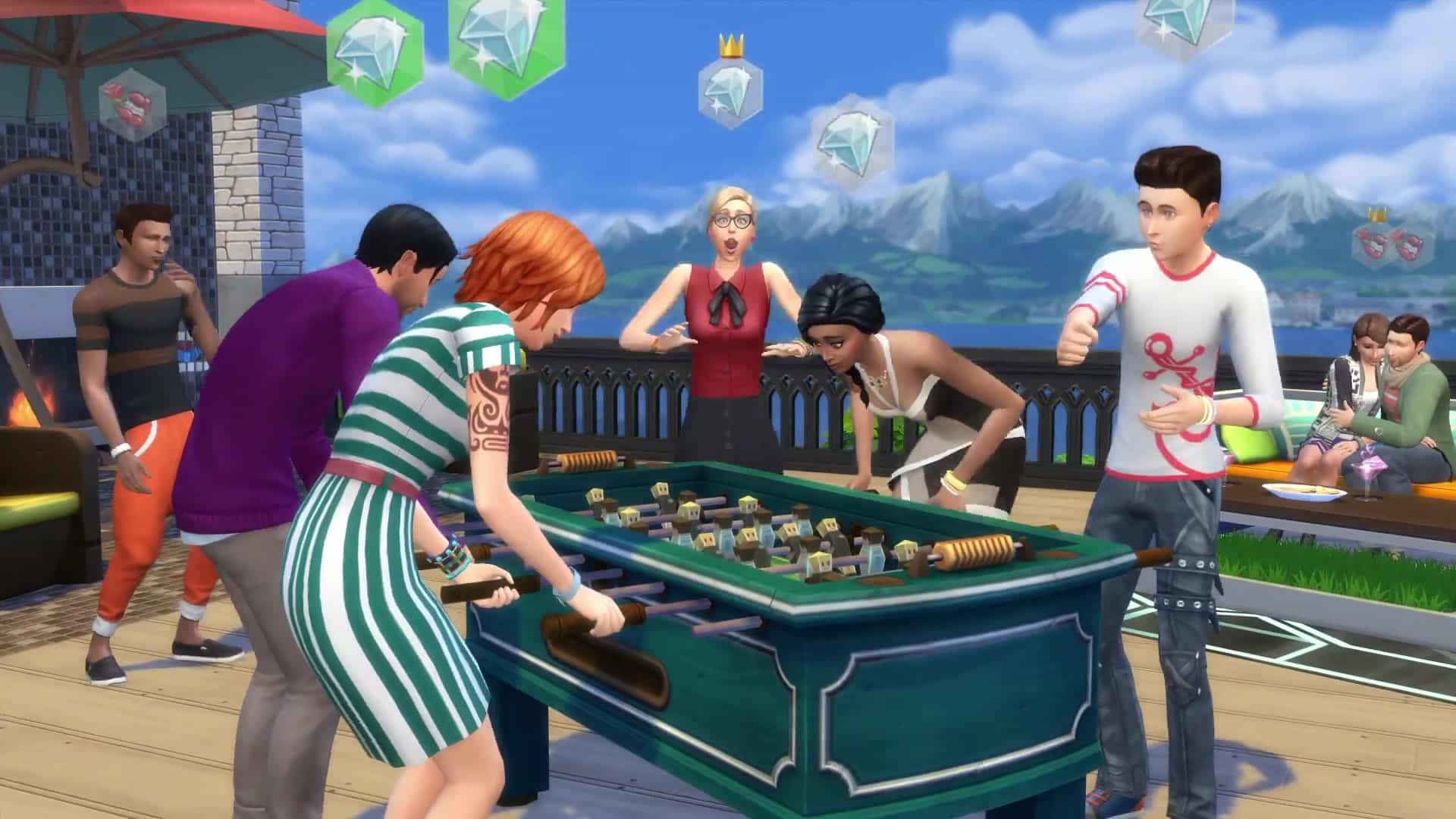
Nightclub and Bar Changes. To make Windenburg feel really unique, we made some changes to two of the pre-existing Venue types: Nightclubs and Bars. Now, you can visit European-inspired Discotheques and quaint Pubs. We’ve added a number of fun pub games like Darts, Foosball, and Don’t Wake the Llama to bolster the community vibe and keep your Sims hooting it up. There are even special themed nights almost every day of the week, so your Sim and their friends might find themselves in the midst of Ladies’ Night (or Knight Night).

Even more exciting than the things we put into the new World are the things you will build in it, something we think will be made even cooler thanks to the inclusion of two massive 64×64 lots in Windenburg. These are the biggest lots we’ve had in The Sims 4 to date, and we can’t wait to see what you do with them – and the rest of the World – when The Sims 4 Get Together comes out this December.

The Sims 4 Get Together: Leaked Image of the Windenburg Map

0

Image of Get Together’s Windenburg World surfaced on Twitter, after it shortly got deleted. Luckily, our member TheAlexer was fast enough to caputre this screen!

Originally posted by DirectSims – Discuss on SC Social!

CUGFfWFWsAAYZVU

The Sims 4: New Map Layout confirmed! (Kinda)

1

Today SimGuruDaniel teasingly responded with what appears to be a confirmation that Sims 4 will soon be getting a new map view.

tweet2

This information was first leaked by a photo of a screen taken during the Sims 4 Get Together fan event in Cologne.  That post can be found here.

12256894_892635534159479_1544760346_n

So what do you guys think the new maps in The Sims 4 will look like?

The Sims 4 Get Together: New Windenburg Screen

0

TheSims.com published a brand new Screen from The Sims 4 Get Together, featuring a high-wealth neighborhood in Windenburg!

TS4_553_EP02_GROUP_ACTIVITIES_01_001

The Sims 4 Get Together: 104 Screens from the Windenburg Trailer

1

Click on the arrows left and right to navigate. The original Trailer can be seen HERE!

Keeping your The Sims 4 Folder Tidy: Mods

ts4e3logo

Hey guys!

I wanted to talk to you about organizing your Sims 4 folders.  I’m one of those people who likes everything nice and tidy, including my Sims 4 folders.  So, I wanted to show you how I organize my folder.  This will be done in multiple articles with the first one covering the mods folder.

Part 1: Tackling the mods folder

Before beginning the tidying up process, copy and paste your entire Sims 4 folder somewhere safe. My suggestion is a thumb drive dedicated strictly for Sims.  Get the largest you can afford.  A quick search of Amazon shows that a 128gig flash drive can be purchased for under $35 USD.  Try to get an even bigger one, if you can. You should already be doing this on a regular basis of your important folders. These include your saves, tray, screenshots, and mods folders.  Backing up ensures that you will not have a catastrophic loss of your important Sim documents later.

Now that you’ve ensured that your files are protected, you can begin the process of cleaning things up starting with that mods folder.

I suggest you read the excellent blog post by LindseyXSims where she explains how to remove those pesky extra characters in package names that could slow your computer down.  The process may seem daunting; however, after a few times doing this it will become second nature. It’s that easy.

Got that renaming out of the way?  Let’s take a look at your mods folder.  I’m going to ask you to copy your mods folder to your desktop and then delete everything in it.  Trust me.  You’ve already backed up your entire Sims 4 folder and for extra measure, you’ve now backed up your mods folder.  Double backup, no need to panic.

A quick little side note:  It is important to organize your mods folder because if you are like me, you have over a thousand packages.  If you are like many of my Simming friends, you have thousands of packages.  Now imagine if there is a repeat of the “Day the Mods and Custom Content All Broke”.  Remember that day?  Remember the nightmare it was to figure out what broke?  By having your mods folder organized, it facilitates the trouble shooting process.  Instead of hunting and pecking and hoping you found it?  You simply remove a few folders at a time, testing your game, till you no longer have their error.  It’s that simple.

Now that we know why we want that mods folder organized (it also helps when there are updates to find the package), let’s start organizing.

The first thing you are going to do is launch your game so a brand new resource.cfg file is generated.  Once you have done that; go ahead and exit your game.   Let’s go take a look at that file so you know what it is and what it does.  I would suggest downloading notepad++ because it will allow you to save it as .cfg.  You can certainly use notepad but you will need to remember to change the file extension when you are done.  Open the resource file and it should look like the below (except for the overrides section):

Priority 500
PackedFile *.package
PackedFile */*.package
PackedFile */*/*.package
PackedFile */*/*/*.package
PackedFile */*/*/*/*.package
PackedFile */*/*/*/*/*.package
Priority 1000
PackedFile Overrides*****.package

The overrides is for any mods you might want to install that function as game overrides.  An example would be the one that removes the bathing suit Sims wear while taking a mud bath.  That mod goes inside a folder called “overrides” in your mods folder.  You have to direct the game to that folder and you do that by putting in the above into your resource.cfg file.  That file should only have those words in it.  Nothing else.  Now comes the tricky part if you are not using notepad ++ because not saving it properly changes the extension to .txt and then it no longer works.  Select “saveas” and instead of save.  In the drop down menu, select the second option (all files) and then scroll to your old resource.cfg file and overwrite it.

Now you are able to go five sub-folders deep in your mods folder.  I suggest that you keep all your mods on the top level and only use the sub-folders for your custom content.  Many mods (especially those that are zipped) need to be on the top level.  How you organize at this point is really up to you but I will show you how mine looks to give you an idea.  I like to organize my folder by what it is and then the creator.  So for example my path to a shoes by Madlen would look like this:  C:Users****DocumentsElectronic ArtsThe Sims 4ModsCustom ContentClothingMadlen

Here are some graphics for those who prefer a visual. (click to enlarge)

modsfolder1 modsfolder1a modsfolder1c modsfolder1d


The final step is putting all your stuff back in.  This can seem daunting so I suggest grouping things together by creators first.  Then you can drop stuff into their appropriate folders from there.  What I did when I first organized was go to the creator sites and download new versions.

And that’s it!  Your mods folder is now nice and tidy and ready for more goodies.  Feel free to contact me at The Sims Community if you have any questions.  Next time I’ll show you guys how I organize my saves and tray folders.

The Sims 4 Get Together: Windenburg Teaser Trailer

0

The Sims official Facebook page has released a brand new teaser trailer for The Sims 4 Get Together, featuring the world of Windenburg.

The Sims 4 Get Together: New Trailer coming in 2 days!

2

The Sims Spain has just shared an information with the image below that a brand new trailer for The Sims 4 Get Together will be coming in 2 days! (this Tuesday).

CT3wNfjWwAAKVrM

Amaz’sims interviews Sims Community

0

We got a chance to be interviewed by the lovely people from Amaz’sims!

– Your website is developing quickly, its design is changing, the home page too. You add new features to it and I think I’ve seen that you were working on some other websites and graphics. Is it something that you like doing and is that why you decided to create Sims Community?

That is true. We constantly keep improving our website because we’re still exploring what our readers want and do not want. Lately we noticed that they love our Interactive Articles, and we have some awesome plans for them in the future.

I am not really that involved in creating custom code for websites, because mostly they’re pre-made or purchased from Theme Websites. I don’t really mind that because with some work in photoshop and CSS modifications I’m able to create any design I think of!

Continue (English) / Continue (French)

Capture

Starting a Youtube Channel Part 1: Tech and Equipment

5

Tech and Equipment

So you want to start a Youtube channel? Well great news! Here at the Sims Community we have got all the information you will need to get started! Each article will give a detailed guide into every aspect of simming on Youtube starting today with the equipment you will need.

PC or Laptop?

Being a youtuber myself I get a lot of questions regarding PC specs and how I get my game play to run so smoothly. This is one of the most important aspects of your setup, no PC/laptop no sims! Which brings me to my primary point, PC or laptop? In my opinion using a PC for this kind of thing is a much better option for various reasons. When you intend to record game play you need a moderately powerful system that is capable of running your game without a tone of lag and will record at a frame rate of at least 30 frames per second without skipping frames. Of course this is achievable with a laptop, however finding a laptop capable of this could cost you significantly more money and is more likely to overheat. Perhaps the biggest concern of using a laptop is when it breaks, unlike with a PC you cannot simply extract the broken component and replace it, you are more likely to have to replace the entire thing. If you have already made your mind up, its time to talk specs, the minimum required specifications to run The Sims 4 on PC and Mac can be found here and below are the specs that I currently have in my own computer:

Operating System – Windows 7 Ultimate
CPU – Intel Core i3 4130 @ 3.40GHz
Motherboard – ASUS H81M-E
Graphics Card – ATI ASUS R7 250X Series
4GB RAM

Recording Audio

Aside from your actual system, the next essential bit of kit you will need is a microphone! This is a controversial topic as there are so many different brands and at times they can be very pricey! But if you make the right choice first time round you can save yourself some pennies. Expensive microphones ARE NOT necessary. Yes they are good, but there are others out there that work the same if not better for a lot less money!

Floureon BM-800

61OctxTTQ1L._SL1024_

Price: £22.99

Tonor UBB MIc

41qskFjfTyL

Price: £15.99

Blue Snowball

517QfQT7bdL._SL1000_

Price: £53.45

Pricey microphones like the Blue Yeti or Rode Podcaster are very popular in the simming/Youtube community. I know very little simmers who don’t use one of these, but it is not necessary as there are cheaper options like I have listed above which produce very clear audio needed for voice over! Nobody likes to sit through 25 minutes of muffled, echoed, crackly audio and so this is one of the most important aspects of your videos. If you would like to hear how the Floureon BM-800 sounds check out SourPatchSimmer, she uses this for her voice overs! And I use the Blue Snowball. In the reviews section for the Tonor mic someone has provided a sound test so you can hear the clarity for yourself.

That is all for today! I hope this helps all of you looking to embark on your own Youtube journeys, next time I will be advising you guys on screen capture and editing software!

The Sims Video Spotlight: #9

0

scplaylogo

Hello Simmers and welcome back to another week of The Sims Video Spotlight! There are plenty of builds today, I couldn’t help myself they’re all just so beautiful. Remember if you like any of the videos you see here feel free to go and leave the creator a like and/or a comment, I’m sure they’ll appreciate it!


The Sims 4 | Build: Puron Point

By Simified & SimtasticBuilder

First today is a two-part house build; one building, one furnishing. I love this house for its sleek appearance and unique design.  It’s definitely a modern beauty!

https://www.youtube.com/watch?v=FrEk5EsyItU


The Sims 3 | Speed Build: Seafoam

By Thetideschanging

Here is something a little different but just as lovely, a house boat speed build! Island Paradise is one of my favourite expansions for The Sims 3, and this little gem and its colour scheme is perfect for my tropical sailor sims.


The Sims 4 | Room Build: Industrial Kitchen

By Steph0sims

If you love urban, industrial themed things you’ll love this kitchen, it definitely has the feel of a city loft and is a lovely creative idea.

https://www.youtube.com/watch?v=hoSfLwVH5Hc


The Sims 4 | Room Build: Kid’s Bedroom

By BuildItFilmItM

Ah, something for the kids – refreshing! Here is a very sweet children’s bedroom with a natural, blue and green theme. It has just the right amount of clutter to appear lived-in and cozy!


The Sims 4 | CC Favourites: Makeup

By FabtasticSims

Something a little different this week is a custom content favourites video. I see these all the time, always secretly hoping to have my creations featured in one. I had yet to include this type of video but I realised I probably should! Here is something for you makeup lovers out there who love to doll up your sims. All the content showcased has been listed in the description of the video.

https://www.youtube.com/watch?v=QioB-4pqKFY


The Sims 4 | Create A Sim: Miracle

By Fantasy

Our Create A Sim video this week is this beautiful sim by Fantasy, she does use custom content that is unfortunately not listed, but it is fun to watch!


The Sims 3 | The Island – Part 1 : Introductions

By Wysidia

The last of our videos today is this Let’s Play based around the Hunger Games challenge and the TV program, The Island. This is a rather exciting series using death challenges and reward challenges. There are 6 males and 6 females, but there can only be one winner!

https://www.youtube.com/watch?v=DsTKXaYzNvg

That’s all for this week guys and as always feel free to head over to the creators featured and drop them a like/comment!

The Sims 4: Updated TV Spot (Featuring New Get Together Footage)

1

The Sims Germany shared an updated TV Spot for The Sims 4, featuring new footage from Get Together Expansion Pack!

Tip: TheAlexer