Home Blog Page 495

The Sims 4 Custom Content: Puzzle It Bedroom Set

0

This Set has been brought to you by The Sims Resource member – Kiolometro!

Note: the Bunk Bed object is just decor!

Objects for kids’ room. There are funny green-yellow tone for both genders. Relaxing blue for boys and pictorial pink for girls. With realistic blanket. For work and relax.

Click on the picture below to download this Set!

w-600h-450-2522032

Click Here for more information on how to install Custom Content!

The Sims 4 Custom Content: Boston Patio Dining Set

0

This Set has been brought to you by a talented Custom Content Creator – DragonK Sims!

Continuing along the theme of pool items. I decided that the next set would be the Boston Patio Dining Set.

The Boston Patio Dining Set comes with a Dining Table, a Single Tile Dining Table, Dining Chair with Arm Rests,Dining Chair without Arm rests and Table Parasol.

I really hope you enjoy. Happy Simming.

3 wood colour variations have been included and 3 different coloured parasol options.

Click on the picture below to download this Set!

bostonscreenies1

Click Here for more information on how to install Custom Content!

Hey Everyone, New Staff Member Here!

4

hY-sfh2m

I’m Zerbu, a fan of The Sims who’s best known for modding. I’m happy to announce that from this day forward, I am officially a staff member on The Sims Community. My main job will be helping out in various Mod-related stuff that I have yet to share!

I have a history of creating mods for The Sims 3 and The Sims 4. My milestone moment was when I created the Ultimate Careers mod for The Sims 3, which opens up careers to allow Sims to work on community lots instead of rabbitholes. I have also made several other mods as well. It wasn’t long after the release of The Sims 4 that I went to modding that as well. The system for The Sims 4 was a lot different than The Sims 3, but I soon got the hang of it. I soon created, among other mods, the very first custom traits for The Sims 4.

Hopefully my understanding of The Sims 4’s system, file formats and modding tools will be useful here.

You can check some of my creations Here!

The Sims 4 Tutorial: How to Build a Decent Home!

26

Last week we’ve showed you 8 steps on how to make the lives of your Sims much more entertaining.

For this week, we’re going to show you what it takes to build a decent exterior and structure of your Sim’s home in The Sims 4!

Step 1: The Basics

Beginnings are never easy. If you don’t know where to begin with, just start building random walls from different angles and eventually you’ll get the shape and the look of the house you’re looking for. If you’re aiming for a more expensive house, build at least 2 stories so the house will have more objects, both interactive and decorative! Make sure the shape of the second floor is not an exact replica of the first floor. Push and pull to get a small outdoor part for Sims to enjoy in.

TS4 2014-11-14 18-07-57-03 TS4 2014-11-14 18-10-39-77

Note: Try not to make the exterior of your house look too square-ish. To avoid that, add different kinds of rectangular rooms and more diagonal walls on the edge of exterior.

Tip: before you start with building, it’s recommended that you have a pen and a piece of paper near you to write down and draw ideas that may flash randomly in your head. Combine those ideas into a residental lot, do some modifications and you might just build your perfect home!

Tip #2: For luxurious homes, make taller wall levels!

TS4 2014-11-14 18-15-35-11

Step 2: Roofing

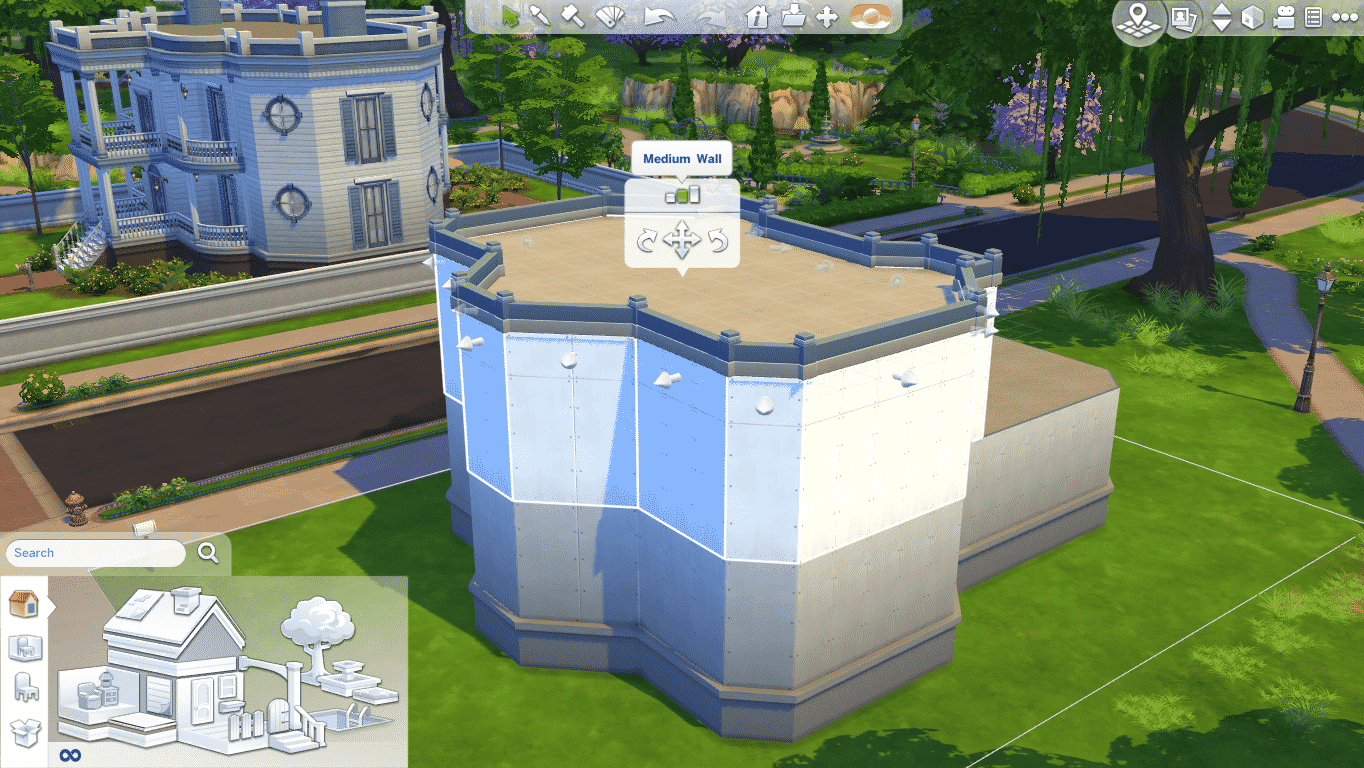
Roofs are very important for your home! Always add multiple roof shapes and combine them to make it look as a whole. Don’t forget to modify their height and width. Adding bigger roofs will let you build attics!

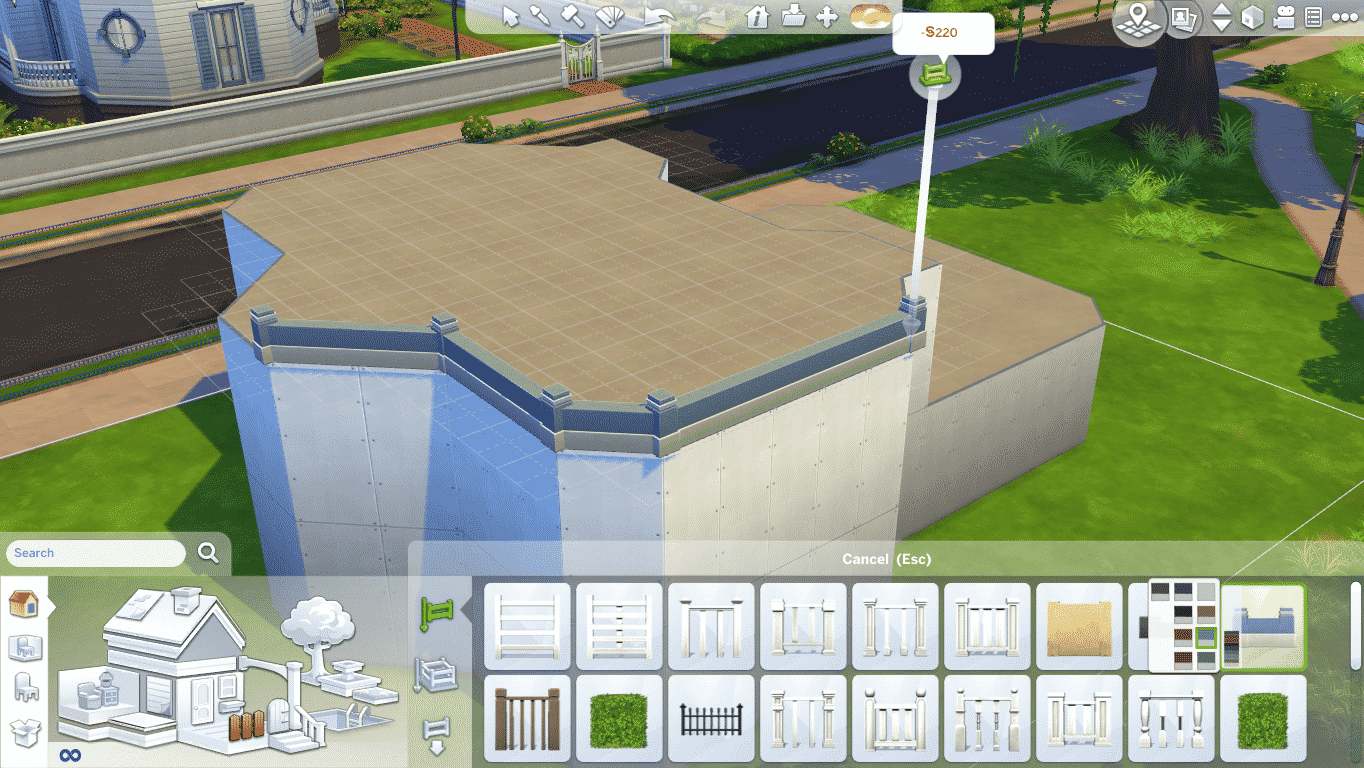
Adding roofs will surely make your house look cozy, but how to roof a house that has diagonal walls? The best way to do it is not add roof at all! Fence up the edges with low fences and add a floor pattern that’s not too tacky. If you plan to add fireplaces in your home, don’t forget to add a chimney or two from the Roof Decor category.

TS4 2014-11-14 18-13-25-92

Step 3: Entrance and Decks

It’s important that your Home has an attracting entrance. Level up the foundation to make the house look more luxurious, apply the foundation paint,add decks on the main entrance of your home and don’t forget the stairs! If you want to tone down the squareness of your home, we recommend that you add a rounded deck. Adding a deck is not just for the entrance though. You can add them on different floor levels so that Sims can enjoy their view from a higher perspective.

Recommended: Add fences on each deck you’ve built!

Tip: to make a 180° Deck, connect 2 rounded decks by rotating and moving them.

TS4 2014-11-14 18-14-43-72 TS4 2014-11-14 18-23-34-53 TS4 2014-11-14 18-26-16-58

Step 4: Painting the Walls

This part is difficult as different wall textures and colors should be added to different house styles.

If you’re building a:

Modern Home – add single colored walls with no tacky textures.

Recommended colors: Black, Gray, White, Dark Brown, Blue, Yellow, Red.

Classic Home – add bricks or wood sidings (since we all know that clasically built houses should be cozy).

Recommended colors: Light Green, Dark Red, Gray and some warm colors.

Step 5: Windows and Doors

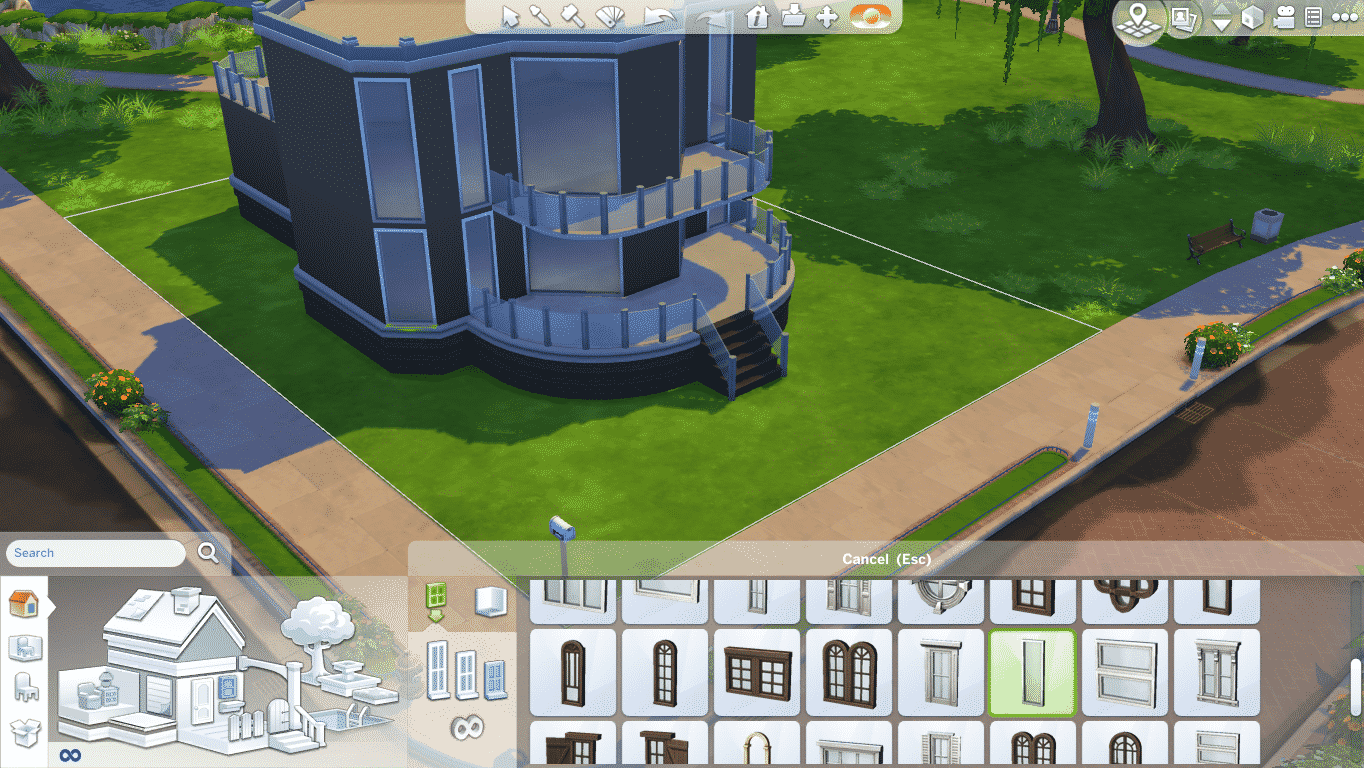
You need to let some light in your Home! Add wide and tall windows and doors for a Modern home so that other Sims can have a look at all the expensive stuff you possess.

When it comes to Classic and Cozy Homes, add doors and windows that are discrete and that have different shapes.

Tip: you can add windows by room which will automatically add Windows to each room.

Tip #2: you can move windows up and down without any limits by selecting the window and pressing the Alt key on your keyboard.

Tip #3: If you have taller walls, make sure you check out taller Doors and Windows!

TS4 2014-11-14 18-32-53-06 TS4 2014-11-14 18-35-44-70 TS4 2014-11-14 18-35-55-45

Note: if you decide to add one or two types of similar Windows, do not add Windows that look completely different. It just won’t look good on your Home!

TS4 2014-11-14 18-33-25-67

Step 6: Adding a Pool

Both low, medium and high wealth Homes should own a Pool! The Pool size should depend on how much you decide to invest in your Sim’s Home.

For Luxurious Homes, add Pools not on the terrain, but on the first, second or third level of your Home instead! Make sure that that part of your Lot is outside so that Sims can enjoy the Sun.

Tip: Even though Sims in The Sims 4 are much more smarter and can get out of the Pool without ladders, it’ll still look more nicer if you add them.

TS4 2014-11-14 18-37-46-53 TS4 2014-11-14 18-38-24-06

Step 7: Outdoor Fencing & Fountains

Fences are a good way to level up the overall image of your Home. Add them on all 4 edges of your Lot and don’t forget the main entrance!

Tip: make sure that the fence is not too high, especially if you have a nice garden to show off!

Tip #2: the fence you choose to protect your Lot should be different from the one you used for the entrance and decks.

TS4 2014-11-14 19-10-44-08

As of Fountains, add them nearby the Fence (or in this case, Hedge) and don’t forget the Fountain Decor and Jets/Sprinklers. Jets are a perfect way to show that you have a Fountain that cannot be seen over the Fence..

Tip: add diagonal Fountains and connect them to create all kinds of shapes!

Tip #2: apply Fountain Trims after you’ve finished building your Fountain(s).

TS4 2014-11-14 19-13-00-16 TS4 2014-11-14 19-17-00-53

Step 8: Gardening

Live up your Residental Lot by adding Trees, Bushes, Flowers and terrain paints.

When you’re adding Trees, make sure the Tree is not covering all the important details and beauties of your Home.

Flower bushes and regular bushes should be added by the Foundation , but you can also build a seperate corner that’s dedicated to gardening.

Apply terrain paint such as dirt under the Tree and Bushes for a more natural look and add Flower terrain paint around the entrance. You can also scatter the Flower terrain paint around your lot, but in small amounts.

TS4 2014-11-14 19-20-56-00 TS4 2014-11-14 19-23-01-32

There you have it. We built a decent looking Home in The Sims 4 using exclusively these 8 steps. You don’t have to follow them all in order to finish your perfect Home, but it’s recommended that the structure you create is good.

Tune in next week when we show you how to decently decorate the interior of your Home!

TS4 2014-11-14 19-24-45-99 TS4 2014-11-14 19-25-45-83

The Sims 4 Custom Content: Shabby Chic Bedroom

0

This Set has been brought to you by The Sims Resource member – TheNumbersWoman!

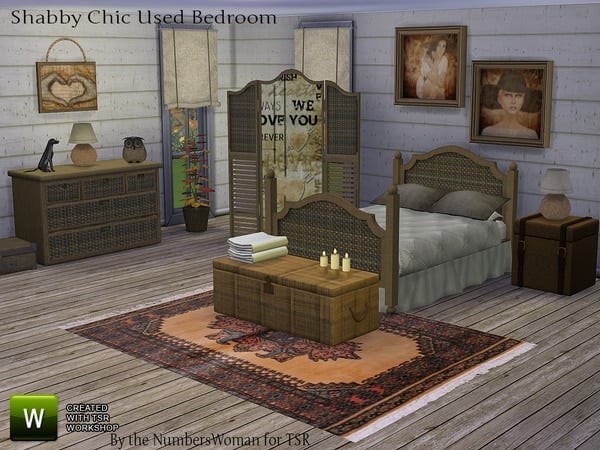
Shabby Used furniture is a bargain for that Sim starting out. We got together our cheap labor and had them fix our bargain items. Fromt the trash, garage sales, and flea markets, we think we have gathered and fixed so your neighbors won’t be able to tell! This set has one full color option extra and also has a few extra options on some.

Click on the picture below to download this Set!

w-600h-450-2520551

Click Here for more information on how to install Custom Content!

Maxis: ”Unannounced Sims Title” in the works!

4

Capture

Maxis team is recruiting new members on their team and they’ve published an application page on EA Careers site to prove it.

They’re looking for someone who will design and create user-facing content in a brand new Sims title using internal scripting tools.

Although it’s not certain which Title are they exactly working on, we can only guess that it’s a new Expansion or Gameplay Pack for The Sims 4. Rachel Franklin announced about a month and a half ago that they’re exploring new features and expansions for The Sims 4.

We’re also exploring new features and some expansion packs for further down the line, and we’re always listening to your feedback to help us decide what to build.

The Sims Team was very active on the forums these last couple of weeks looking for feedback on what Simmers like, dislike, want and need in this game.

In order to work on this Unannounced Sims Game, you need to meet some requirements and responsibilities:

The Role:

As a Technical Designer, you’ll be working with a large (but tight-knit) team of enthusiastic industry professionals from all walks of life. Your job will be to design and create user-facing content in a brand new Sims title using our internal scripting tools.

Duties and Responsibilities

  • Creative Content Design.
  • Design and create compelling and intuitive experiences that unleash player creativity and allow each player to craft a unique game experience.
  • Be resourceful with the tools available to you to implement unique and fun experiences.
  • Actively participate in brainstorm sessions with the design team and document details on the team wiki.
  • Script scalable solutions for content.
  • Create re-usable design patterns for future content creation.
  • Collect and analyze feedback from other designers or producers to identify where gameplay falls short of expectations and iterate on those parts of the design.
  • Collaborate with artists, animators, modelers, engineers, producers, and scripters to find creative and effective solutions to problems.
  • Be proactive.
  • Know the Game and Community. The Sims has a huge community and a long history. Learn and represent their desires and views for past, current, and future projects.

If you’d like to see more details about this job, Click Here!

Tip: SimsVIP; Deligracy

The Sims 4 Custom Content: Keira Dining Set

0

This Set has been brought to you by The Sims Resource member – Angela!

Keira Dining Room. A new Sims 4 diningroom containing the following items in a modern version…
8 sim diningtable, diningroom hutch, Chair, Vases, Plates and Bowls, 3 sizes French Shutters, curtains and decorative cushions.

Click on the picture below to download this Set!

w-600h-450-2519896

Click Here for more information on how to install Custom Content!

The Sims 4: More information about the World Builder!

7

Talented modder @ZerbuTabek found a reference in the source code to ”World Builder Mode” in The Sims 4’s game files!

worldbuildertext

Back in October, we found 2 interesting icons that are possibly related to this Mode.

world1 world2

SimGuruZera asked  on The Sims Forums about what options and features do we want to modify our worlds and confirmed that they’re already working on some of the World Editing features!

Tell us the features you most want to change your World. We have ideas, we have things a spinnin’, but we want to hear from you first hand. What can we do to help you make your The Sims 4 Worlds the best ever?


The Sims 4: Loading Multiple Lots proven as possible?

3

O Sim BR proved that the simplest things can miss our eye!

The official screenshot that EA released on 4th of November celebrating the launch of Pools in The Sims 4 includes a rather important detail.

lotsanalysis

In case you didn’t know; the ability to see other Sims being controlled on the lot that your Household isn’t located in or that your Household didn’t visit isn’t possible. When you load a Household, the only area that where you can control Sims and see vibrant surroundings is your Household’s Lot and Public Area in that Neighborhood.

To demonstrate, I loaded the Lot where the Pool House on the picture above is located. I could select all objects and move my Sims around that Lot, but when I tried to select an object from a different Lot, it gives me an option to Visit that Lot which will give me a short Loading Screen. After I have visited that lot, the option to choose objects from my previous objects will only give me a ”Visit” option.

11-14-14_12-16 AM TS4 2014-11-14 00-16-42-53 TS4 2014-11-14 00-16-52-49

It may just be some sort of a debug option that EA has to make this screenshot more vibrant, but whatever it is, you can’t see something like this in retail versions of The Sims 4!

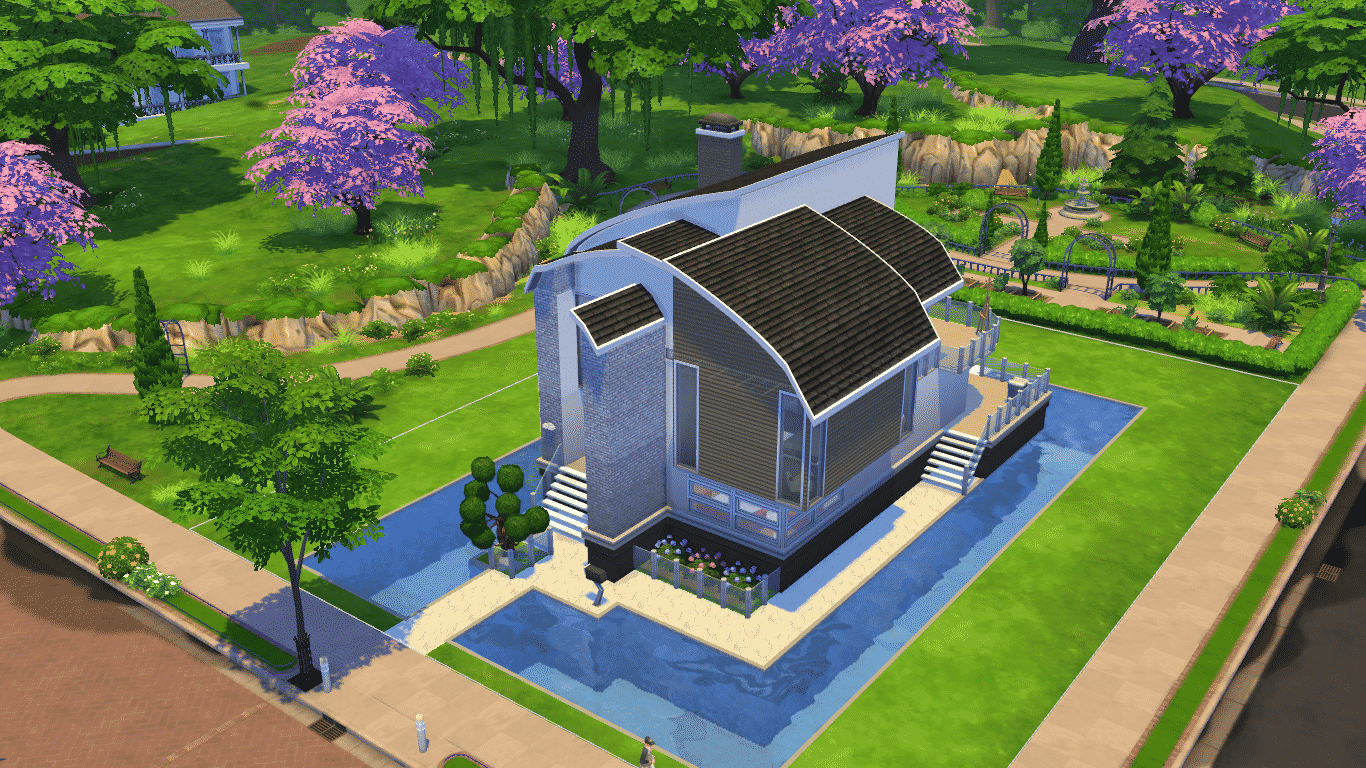
The Sims 4 Tutorial: Building a Pool next to Foundation

1

When trying to build a Pool next to Foundation in The Sims 4, the Pool will automatically shift to a level your foundation is.

TS4 2014-11-13 21-53-11-16

Here’s how to build a Pool next to Foundation without changing the Pool’s level:

First you need to place a Square Pool tile from the Pool menu. Make sure you place it at least 1 tile away from the Foundation. Then, push and pull it using the arrows to the foundation and adjust it’s width with arrows as well.

TS4 2014-11-13 21-53-42-17 TS4 2014-11-13 21-53-54-58

If you’d like to connect your existing Pool with sides of foundation, just add a Square Pool, push & pull it to the foundation and connect it with the existing Pool. This allows you to place one giant Pool around your whole lot!

TS4 2014-11-13 21-54-13-91 TS4 2014-11-13 21-54-27-85

11-13-14_10-06 PM

With this level of customization you can also delete a small part of the Pool next to the Foundation by pressing CTRL + dragging the left mouse click. You can decorate your Pool by adding a ladder and a fence to make the entrance to this type of Pool more ”official”.

TS4 2014-11-13 21-57-09-75

The Sims 4 Mod: ”Musical Chairs” Fix

1

Do you get annoyed with Sims in The Sims 4 constantly changing their seats while communicating with others or having a drink or a snack? Thankfully, Mod The Sims member Shimrod101 made a Mod that reduces this issue.

This mod reduces the amount of moving around from chair to chair or place to place when sims are socializing with other sims. This is achieved by requiring the AI to score 3-4 times higher against any sim in order to push them to move from their current position.

Also the delay is increased before the AI will check any given sim, particularly seated, for desired movement.

Click on the picture below to download this Mod! (requires MTS registration)

MTS_Shimrod101-1479525-LessMusicalChairs

Click Here for more information on how to install Custom Content!

SimCity BuildIt: The New Mayor’s Guide!

0

Via EA Help!

Play online and never miss a thing!
SimCity BuildIt is best enjoyed online Your progress will be preserved (even across multiple devices), you will never miss an update with new content or improvements, and you’ll have a chance to jump on all the great deals in neighboring towns! Don’t worry if your connection gets lost–you can keep playing in offline mode. Just remember to reconnect as soon as you can in order to save the progress you made while playing offline.

Learn more about playing offline.

How do I save my game? Can I play across multiple devices?
There are three very good reasons for connecting through Facebook, Game Center, or Google Play in SimCity BuildIt.

First, you’ll keep your progress even if you switch to a new mobile device. Second, you can continue building your city across as many devices as you like using the same account; just make sure you play online regularly to keep them all in sync. Third, you get to visit all your friends’ cities too. What’s not to love?

Settings icon

Just click on the settings icon on the left of your screen to sign in on one or more account. Learn more about saving your game.

What are Simoleons and how do I get more of them?

Simoleons

Simoleons (§) are everyday currency: They are how your citizens pay their taxes; you receive them as rewards for building and upgrading; they are what you spend and receive in trades and deals. You’ll need Simoleons for things like purchasing different types of buildings or upgrading roads. Simoleons (§) make the SimCity world go round!

Start earning Simoleons by placing residential zones, areas for your citizens to build their homes. As your city expands you’ll have more opportunities to upgrade those homes, collect taxes, complete cargo shipments, make deals, and sell items to other players. Each of these actions will keep the Simoleons rolling in. If things get tight you can also convert your SimCash to Simoleons or purchase Simoleons in the store.

Read More

The Sims 4 Custom Content: GVEN Accessories

0

This set has been brought to you by The Sims Resource member – Severinka_!

Double chain necklace and bracelets in ethnic style.
4 color options

Click on the picture below to download this CAS Set!

w-600h-450-2520707

Click Here for more information on how to install Custom Content!

The Sims 4: 50% off during Black Friday! (Best Buy – US)

0

Best Buy has recently announced their exclusive offers for the annual Black Friday – a day (or two) where every price drastically falls down!

There’s no exception for The Sims 4 in this case. Best Buy will offer the Limited Edition of this game for 50% off! ($29,99).

This offer will be available at Best Buy starting 27th of November to 29th of November. If you still haven’t got the game and really want to purchase it, now’s the right time!

Click on the picture below for more information about this offer!

Capture

Tip: IGN

The Sims 4 Custom Content: Kitchen Alobi Set

0

This Set has been brought to you by The Sims Resource member – ShinoKCR!

here comes the most popular Kitchen I ever made for Sims. Its not converted, all objects are new made. Set has 3 Coloroptions: Dark wood, white, light wood with white tops.

– Counter1 and Counter 2
– Islandcounter 1 and Islandcounter 2
– Cabinet
– Fridge
– Stove in 2 Variations (one with back splash and one without backsplash
– Rangehood like EA’s and Rangehood on a Wall light (shiftable)
– Kitchentools on wall with matching rail
– Sidetable to snap on left or right side
– Barstool

Click on the picture below to download this Set!

w-600h-450-2519436

Click Here for more information on how to install Custom Content!