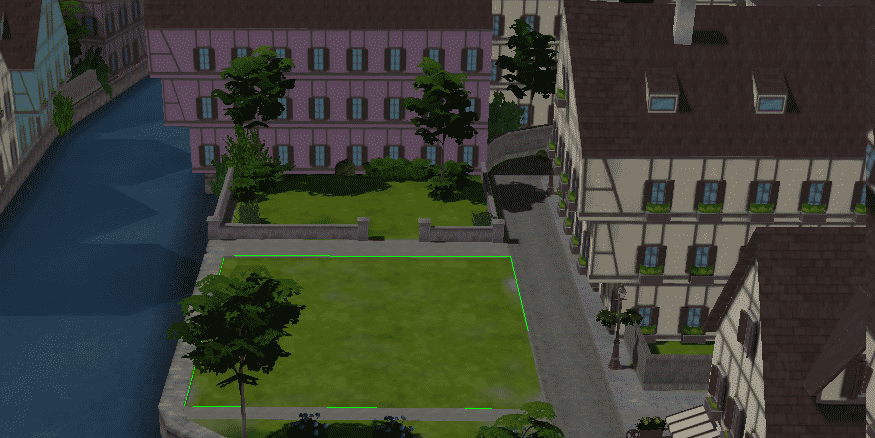
Tails are wagging and there are purrs aplenty with the grand opening of Barkshire Pet Park! Grab your furry friends and explore a pet paradise, filled with exciting new activities for your Sims and their Pets. Roam free, Pets! Roam free!

Tails are wagging and there are purrs aplenty with the grand opening of Barkshire Pet Park! Grab your furry friends and explore a pet paradise, filled with exciting new activities for your Sims and their Pets. Roam free, Pets! Roam free!
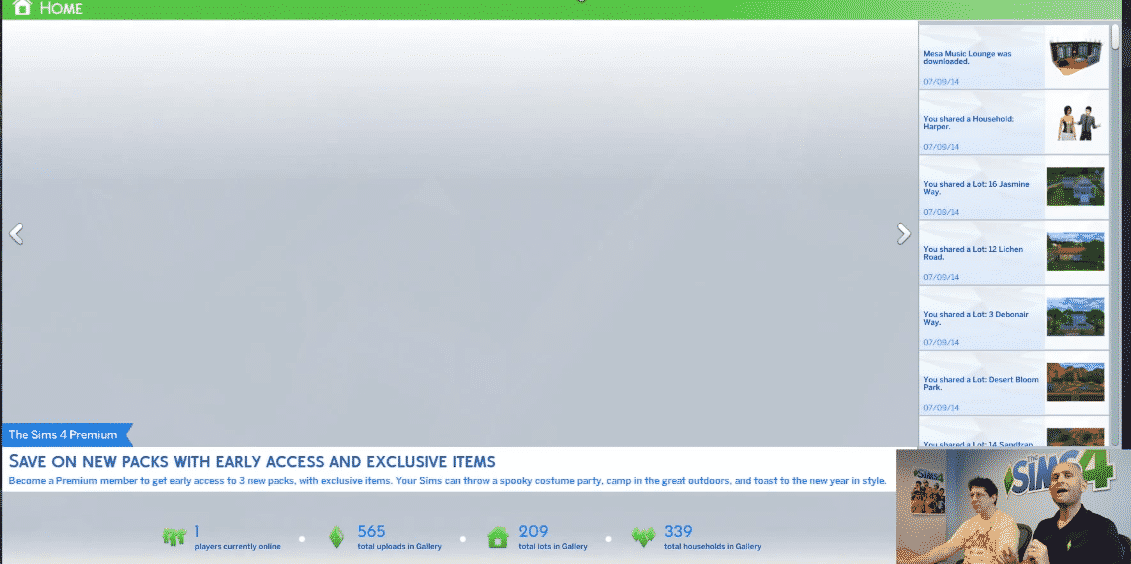
Instant Gaming – a French gaming site, listed ”The Sims 4 Premium Service” on their site. According to them, this Premium Service will release on 10. October, 2014. It’s price will be 24,99 Euros, although it seems that’s just a 50% discount of it’s original, 50 Euro price.

This confirms a leaked text of The Sims 4 Premium Membership from a 20-minute gameplay walkthrough of The Sims 4.
Please note that the release date of Premium Service may vary as we get closer to October.
Thanks Sims Village for letting us know about this!

The Sims 4 offers 3 video resolutions: Small (320×240), Medium (640×480) and Large (1024×768). There is one problem though: none of these Video sizes are not recognizable as High Definition.
To make your video files bigger, you’ll need to adjust a small detail in The Sims 4’s Game Files.
To edit your video size, open the folder where you install your Origin Games and then go to The Sims 4 > Game > Bin > res. In the ”res” folder, you’ll have to open a configuration setting file called ”VideoRecording”.
To make a video larger, simply rename the ”Large =” section from 1024 to any bigger resolution you want.

After your’re done with editing, go to File and select Save.
Here’s a tip: if you plan to The Sims 4 Videos on YouTube, it’s recommended that you set the resolution to 1280 (1280×720 – 720p) or 1920 (1920×1080 – 1080p).


The Sims 4 introduces a similar way of avoiding grids like we could do so in The Sims 3.
To avoid a grid when placing objects, all you have to do is select an object and press the ”ALT” keyboard button. While holding that button, you can move around your selected object anywhere, as long as it doesn’t touch another object or a wall.
You can also rotate objects for 360°. To do so, select an object, press the ”ALT” keyboard button, click the left mouse button and now you can rotate it however you want.


Wall objects can be moved anywhere on the wall with the ”ALT” keyboard button as well.
Let’s say I want to add paintings and other wall objects around this TV.

I’ll move the TV up with the ALT keyboard button so I can place more paintings underneath it.


With the magic of ALT button, I managed to fill the entire wall with paintings and posters!

You can do the same thing for Windows as well, although you can’t move it just anywhere when it comes to left and right directions, only up and down.


SimFans have created an interactive map for The Sims 4 worlds. Click the image below and check it out. 🙂


Any Sims that you uploaded to the Gallery in the Create A Sim (CAS) demo must be downloaded from the Gallery in the full game. Households that are just saved to your Library will not be available in the full game until they are downloaded from the Gallery.
If you are not finding your Sims, it could be due to one of the following issues:
The CAS demo and The Sims 4 are on separate Origin accounts.
- If your demo and base game are tied to different Origin accounts, then your Sims from the demo will not populate into your base game Gallery.
- The easiest way to get your Sims is to upload them to the Gallery from the CAS demo. Then you can search for the proper Origin ID in Gallery and download them in The Sims 4 on your other Origin account and download your Sims from the Gallery.*
The CAS demo and The Sims 4 are on the same Origin account, but the Sims were never uploaded to the Gallery.
If the demo and base game are tied to the same Origin account, it’s likely that your Sims were not uploaded to the Gallery. Sims that are saved only to your Library in the demo will not display in the full game.
The easiest way to get your Sims into the full game is to just upload them to the Gallery from the demo and then download them into the full game.* Otherwise, you can copy the files fromDocumentsElectronic ArtsThe Sims 4 Create A Sim DemoTray to DocumentsElectronic ArtsThe Sims 4Tray in order to “move” your Sims from the demo to the full game.
Via EA Help

EA Help explained how to add your Custom music into The Sims 4!
Please note that your music file *must* be .mp3!
You can play your own MP3s through the radios in The Sims 4. Copy them into the The Sims 4Custom Music folder that corresponds with your genre of choice and tune your in-game radio to that station to hear your music.


What do you think? Would you be happy playing the game on a low setting? Do you think it looks better than The Sims 3 at a low setting?

Found in The Sims 4 game files. Please note that these screens do NOT represent the current version of The Sims 4!


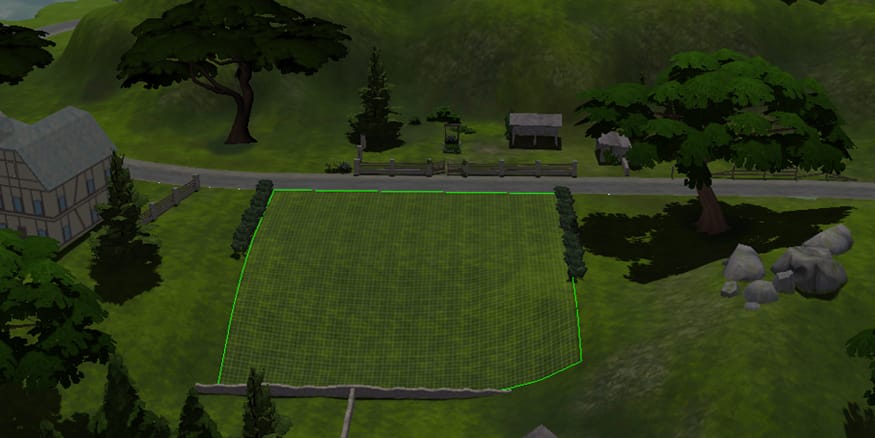


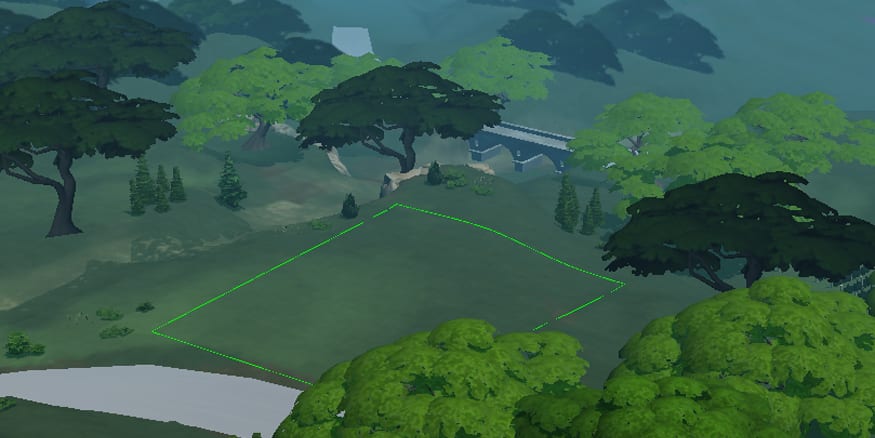


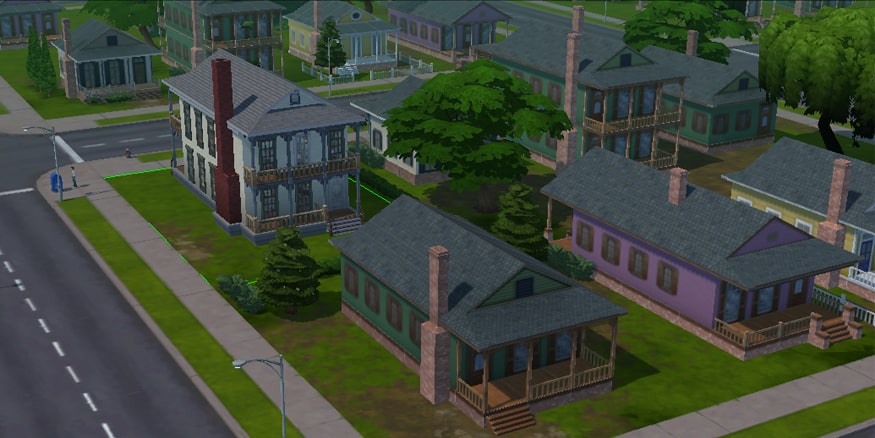


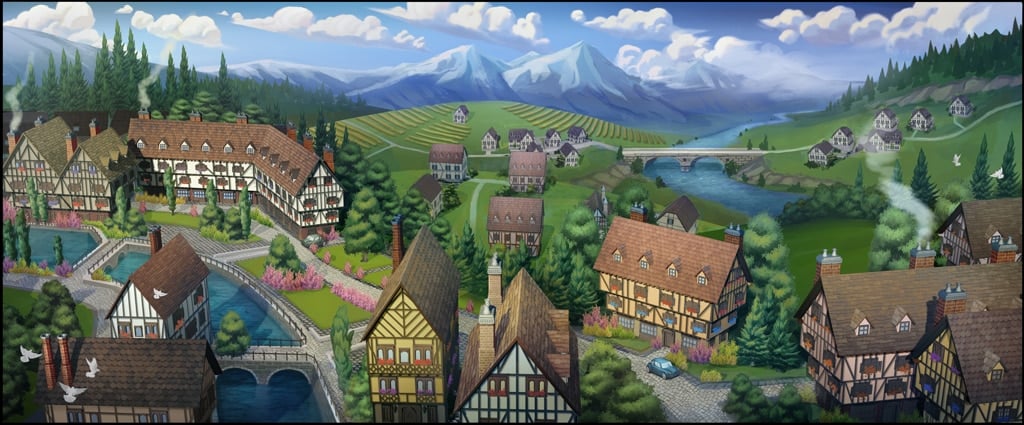
Back in June, GamesTM published their preview of The Sims 4. There was an interesting sentence about a potential world in the game:
”We spot a drawing on a nearby whiteboard of a humble rural shack, surrounded by rolling farmland, livestock and mountains in the distance. Could the American frontier be another location in The Sims 4? Truong and his colleagues refuse to comment.”
While going through The Sims 4 Game Files, I saw this Concept Art of the World. It exactly matches with the description that GamesTM gave!

While continuing my scavanger hunt through the Pre-Load files, I noticed this interesting image!
What do you think it is? My guess is that it’s an early version of The Sims 4’s Map Mode! 🙂

While rummaging through The Sims 4’s Origin Pre-Load Files, I noticed this boxart of the game:
This means that after The Sims 4 is released, you’ll be able to upgrade your The Sims 4 Standard/Limited Edition to Digital Deluxe. The cost for SimCity’s Digital Deluxe Upgrade is 19,99$, so I don’t expect this price to be changed for The Sims 4 as well.

I was able to dig through the Pre-Load files of The Sims 4 and found a Concept Art of Oasis Springs! Check it out:

PeterSims was able to extract some Early Developer Photos of The Sims 4!
SimGuruDaniel replied to Peter saying ”It’s been a long journey.”.