Home Blog Page 505

The Sims 4 Tutorial: How to Delete Floor tiles and Wallpapers

24

You probably noticed that when you try to delete a floor tile using the sledgehammer tool or the remove floor option when you click on a room, it simply removes the entire floor, not just a tile you want to remove.

TS4 2014-09-09 09-53-31-02 TS4 2014-09-09 09-53-34-75

If you try to add a new floor tile, it simply goes over the existing floor tile without deleting it and giving you Simoleons for it.

TS4 2014-09-09 09-53-50-67

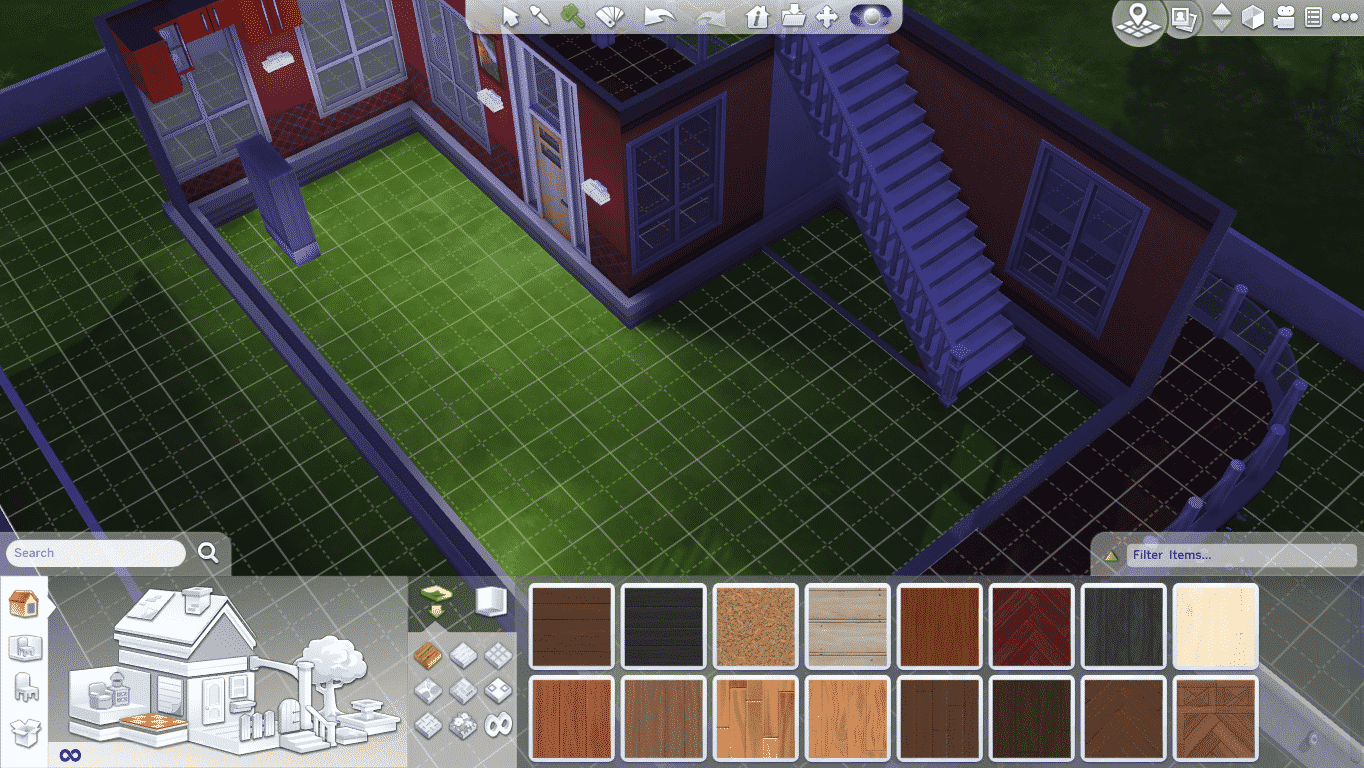
To delete a floor tile, click on Floor Patterns and select the Masonry pattern category.

The first floor pattern on that category is the Construction-Quality Concrete. That floor tile is used when adding new rooms and it costs 0 Simoleons!

TS4 2014-09-09 09-54-32-67

Simply place that tile on any floor tile you want and you’ll get Simoleons for deleting the old one (must be at least 1 Simoleon more expensive).

TS4 2014-09-09 09-54-43-14

The same thing goes for Wallpapers. You can’t use the sledgehammer tool since it will delete a wall, not the wallpaper.

TS4 2014-09-09 09-55-26-11

To delete a Wallpaper, go to the Wall Patterns section and select the Paint category. The first pattern on the list is a Drywall, which is also used when building and adding new rooms.

TS4 2014-09-09 09-55-30-24

Add it on any wall pattern and you’ll get Simoleons for ”deleting” the old one (must be at least 1 Simoleon more expensive).

TS4 2014-09-09 09-55-35-13

The Sims 4 – More Cheats provided by SimGuruGrant!

1

SimGuruGrant’s Forum Post

Hi Simmers. As you guys know, we like to provide a variety of cheats for you in the game. Some of you play by your own rules and we like to encourage that. In addition to the cheats already published and shared with you, it turns out a few of our Development Cheats slipped in as well! Well, in addition to all the cheats we KNEW we shipped, it turns out we shipped a bunch of cheats that we didn’t necessarily intend to ship. Oh well! More fun for you. Introducing a few more cheats for you to use!

For some back story, these cheats were created to do daily “Smoke Tests.” We had to put in these cheats so the game could run on its own (OH NO SKYNET) without human intervention. Essentially, we run these smoke tests in the wee hours of the night while we aren’t at work using our computers.

Quick Disclaimer: Cheats are cheats. Using these cheats takes you beyond the standard tuning and flow of gameplay so you may encounter hiccups or oddities. So please use cheats with caution! You’re going outside the standard flow so you may hit a hiccup or two. But, we’ve used these cheats extensively in development. For all of these you’ll need to open the command console (Ctrl + Shift + C).

Automatically Pay Bills: Do you hate bills? Fret no more.
|households.autopay_bills

Want to automatically answer dialogs that pop up on screen? This cheat will choose cancel if available or select between the choices given.
|ui.dialog.auto_respond

Do you want to complete your current Aspiration Milestone?
|aspirations.complete_current_milestone

Career Cheats – We have quite a few cheats for careers.

Want to add any career to your Sim?
|careers.add_career<name>

Want to get a demotion?
|careers.demote<name>

How about a promotion?
|careers.promote<name>

Want to quit?
|careers.remove_career<name>

For <name>, type the name of the career.

Want to speed up crafting? Or, something? This one’s not entirely obvious, but it can speed up some parts of crafting (painting, woodworking).
|crafting.shorten_phases

Want to fix everyone’s needs? 
|sims.fill_all_commodities for just one Sim.

That’s for just one Sim.

|stats.fill_commodities_household for the household.
That’s for the household.

Want to add a specific amount of money? This will add the amount you specify to your family funds.
|sims.modify_funds <amount>

<amount> is the amount you want.

There’s also
|motherlode and |rosebud AND |kaching

Want to get rid of your Moodlets?
|sims.remove_all_buffs

Want to spawn random groups of Sims?
|sims.spawnsimple<#>

Replace <#> with the number you want. BE WARNED: If you put in a crazy number, the game will break.

MOVIE MAKERS. Want to disable headline FX? Note that this doesn’t remove plumbob.
|headlineeffects <on/off>

Have fun with these guys.

Maxis: If Sims 4 isn’t successful, there won’t be a Sims 5!

9

Sims4

The Sims 4 has been out for less than a week and Maxis has made it clear they’re entirely focused on the success of The Sims 4, before even thinking about the next game. On The Sims official forums, producer Grant Rodiek quelled suggestions for the next Sims game from fans with some definitive statements.

“We’re not working on Sims 5. We’re not thinking about Sims 5. If Sims 4 isn’t successful, there won’t be a Sims 5.”

The Sims 4 released only a few days ago; our Steve is going to play it until his “eyes fall out”. While some passionate fans were giving suggestions to what could be added or changed in the next game, producer Grant Rodiek stepped in to remind them not to get ahead of themselves. “We’re not working on Sims 5. We’re not thinking about Sims 5. If Sims 4 isn’t successful, there won’t be a Sims 5.” said Rodiek.

Capture

When later challenged by fans, Rodiek clarified that it’s “not all or nothing”, but that “something has to pay for 5”. Seems like how game development usually works to me, but it’s strange to think of a world without The Sims.

Is The Sims safe for now, or could this be the end of the iconic life simulator as we know it?

Post by PCGamesN

The Sims 4 – More Cheats than ever before!

2

Click Here for a full List of The Sims 4 Cheats

ModTheSims Member TwistedMexi managed to find cheats that are hidden, but still do their function as normal cheats. It’s unknown why these aren’t published/shown when writing a ”help” cheat, but I’m happy that now we’ve got much more cheats than before!

Please note that some cheats may require a testingcheats true cheat and/or the AutomationTestingCheats true

Some cheats were not tested thus why they don’t have a description. Use these with caution!

Update: TwistedMexi added a list of cheats that level up certain skills in The Sims 4! Thanks @Renssies for the tip!

The Major_ prefix is actually AdultMajor_, I’ve just shortened them as much as possible. Any shorter and the command will not work.

Here’s an example of what a full skill cheat looks like:

stats.set_skill_level Major_HomestyleCooking 5

stats.set_skill_level <skilltype> 1-10

Skill types:

Major_Fishing

Major_Mischief

Major_Guitar

Major_Reaping

Major_Programming

Major_Gardening

Major_GourmetCooking

Major_Comedy

Major_Charisma

Major_Writing

Major_VideoGaming

Major_Violin

Major_RocketScience

Major_Painting

Major_Piano

Major_Logic

Major_Handiness

Major_HomestyleCooking

Major_Bartending

Skill_Fitness

Skill_Child_Social

Skill_Child_Motor

Skill_Child_Creativity

Skill_Child_Mental

The following text/description has been provided by TwistedMexi!

fire.toggle [true|false] appears to work. Will not extinguish existing fires.

sims.Spawn – spawns sim and adds them to your household.

sims.spawnsimple spawns sim without adding to household.

stats.fill_commodities_household

stats.disable_all_commodities | stats.enable_all_commodities

sims.remove_all_buffs – Removes all moodlets

sims.get_sim_id_by_name – gets simID, may be good for other commands.

money <amount> – sets money to exact amount.

sims.modify_funds <(-)amount> – adds or subtracts from funds.

sims.hard_reset = forces user to default position.

autonomy.show_queue – prints to console but doesn’t seem to show anything useful.

aspirations.complete_current_milestone

debug.enable_woohoo [true|false]

debug.enable_wedding [true|false]

autonomy.ambient [on|off] / walkby.toggle

autonomy.household [on|off]

objects.consumables_infinite_toggle [true|false] – This makes all consumables have infinite quantities (i.e. cake that never ends.)

cas.fulleditmode [true|false] (already known but in case someone didn’t know)

tutorial.deactivate_tutorial_tip

fire.kill – might kill the sim or put fire out.

fire.singe_sim – probably adds negative moddlet or kills sim

pregnancy.clear – cancel a pregnancy?

pregnancy.seed

pregnancy.roll

households.toggle_bill_notifications

households.autopay_bills

households.fill_visible_commodities_world

crafting.shorten_phases [on|off] doesn’t appear to work.

venues.set_venue Should be able to set a lot to public using this. I’ll check into it.

ui.toggle_silence_phone

ui.dialog.auto_respond

service_npc.toggle_auto_scheduled_services

relationship.create not sure of parameters for these.

relationship.destroy

relationship.introduce_all_sims

debug_outcome_style success|fail|alternate|off – might force either conversation responses or job situations to always have a certain outcome.

environment_score.disable/enable – disables environment moodlet effects?


Thanks @Rudy8292 for the tip!

The Sims 4 – Quality Settings Comparison #2

2

Last week we showed you a Quality Settings Comparison photo of a Sim and it’s nearby surroundings. The difference was almost noticable, but not as much as this The Sims 4 Quality Settings Comparison!

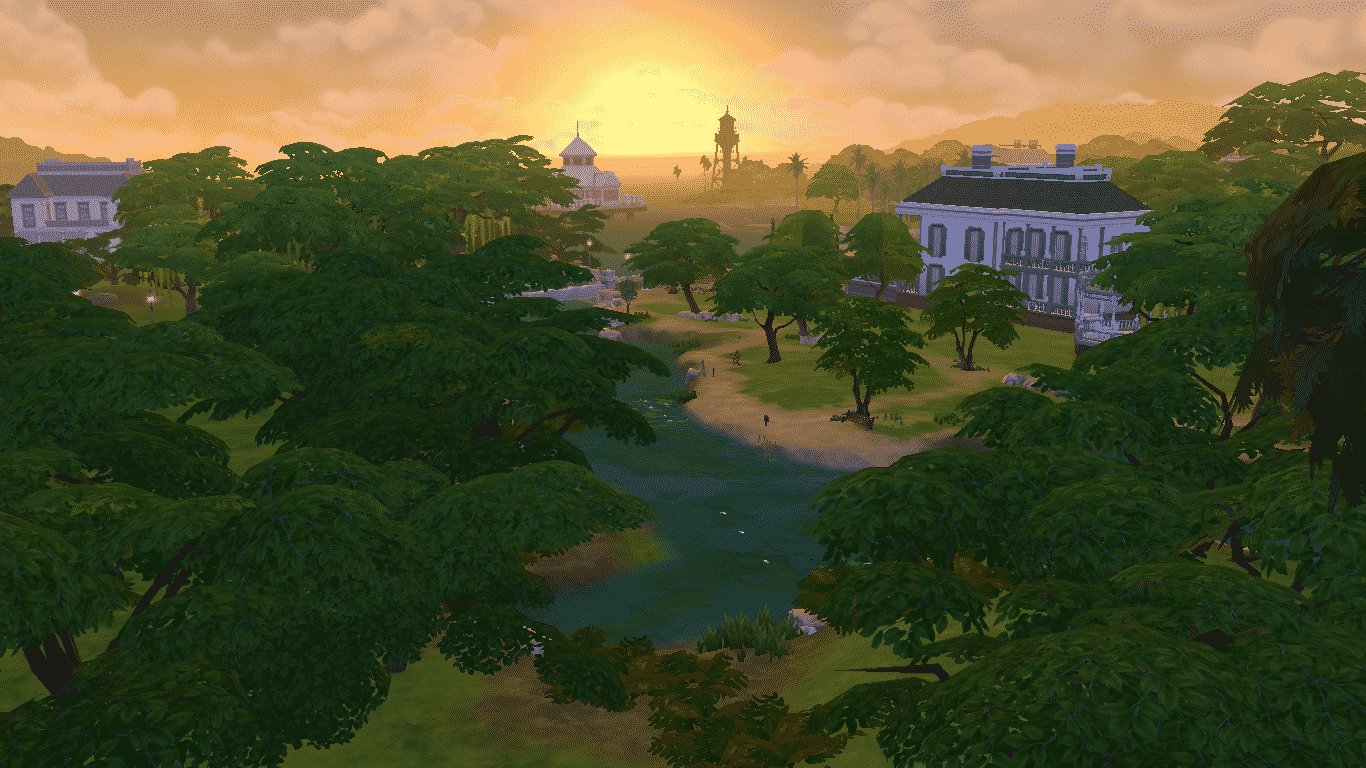
In this comparison, we’re showing you what do 5 different types of Quality Settings look like on a Willow Creek neighborhood – during sunset!

Please note that all of these screens were taken at a same Sim time. Do not pay attention at clouds – the game randomizes them each time you load it up.

(from left to right: Low, Low Medium, Medium, High, Ultra)

09-07-14_6-07 PM 09-07-14_6-09 PM 09-07-14_6-12 PM 09-07-14_6-15 PM 09-07-14_6-19 PM-2

Low

09-07-14_6-07 PM

Sims: Low

Objects: Low

Lighting: Low

Reflections: Low

Visual Effects: Low

Edge Smoothing: Off

3D Scene Resolution: Medium

View Distance: Low

Low Medium

09-07-14_6-09 PM

Sims: Low

Objects: Low

Lighting: Low

Reflections: Low

Visual Effects: Low

Edge Smoothing: Off

3D Scene Resolution: High

View Distance: High

Medium

09-07-14_6-12 PM

Sims: Medium

Objects: Medium

Lighting: Medium

Reflections: Medium

Visual Effects: Medium

Edge Smoothing: Off

3D Scene Resolution: High

View Distance: High

High

09-07-14_6-15 PM

Sims: High

Objects: High

Lighting: High

Reflections: High

Visual Effects: High

Edge Smoothing: Low

3D Scene Resolution: High

View Distance: High

Ultra

09-07-14_6-19 PM-2

Sims: Very High

Objects: High

Lighting: Very High

Reflections: High

Visual Effects: High

Edge Smoothing: High

3D Scene Resolution: High

View Distance: High

The Sims 4 – Expanding and Adding more Neighborhoods is possible!

6

TS4 2014-09-07 17-23-05-85

The Sims 4 Producer Grant Rodiek said on The Sims Official Forums that expanding Neighborhoods and adding more of them in a single World is a possible thing!

When it comes to Loading Screens, Grant said that the frequency of Loading Screens is unlikely to be changed.

Larryad: Is it possible to at least open up the neighborhoods, so that you don’t have to incur a loading screen every time you enter a building within the neighborhood? I know that this has been stated before, but the worlds do need to be bigger. They’re tiny. Overall a great job on the Sims themselves though. I’d also like to see a Sim be able to flop down on a couch, the way they did in Sims 2. Also body hair for men please.

SimGuruGrant: We can potentially make the individual neighborhoods larger. We can also potentially add more neighborhoods to each world. The loading at this point is a fundamental part of our architecture and is unlikely to change.

Capture

Source: SimGoodie & DOTSim

The Sims 4 Tutorial: How to Disable In-Game Tutorials

6

There’s no doubt that one of the most annoying things you’ll encounter in The Sims 4 is in fact, a Tutorial. Wherever you go and whatever you try to do in game, that thing will just follow you around and keep popping out.

TS4 2014-09-07 14-22-01-60 TS4 2014-09-07 14-23-46-52 TS4 2014-09-07 14-23-52-20

For some reason, The Sims Team didn’t include a feature to disable Tutorials in-game, but luckily that doesn’t mean you can’t disable tutorials at all.

To disable them, you’ll need to close The Sims 4 (if you already have it opened). Then, right click on The Sims 4 in your Origin Game Library and select ”Game Properties”.

tutor1

Then, add this command line to the text box:

tutor2

Hit apply and you’re ready to play The Sims 4 with no tutorials!

If you ever need help around the game, you can always open the ”Lessons” tab from the Settings menu.

The Sims 4 Tutorial: Switching Camera Modes

7

Do you find The Sims 4’s Main Camera Mode a bit too hard to control?

TS4 2014-09-07 11-36-31-58

For some reason, that Camera Mode does note come with the Camera Pitch ability. Luckily, they added another, The Sims 3 Camera mode, which basically lets you control and move around the same way you could in The Sims 3.

To change the Camera Mode to The Sims 3, click on the Options button and go to Settings. Now, go to the Controls & Camera Tab and click on the ”The Sims 3 Camera” check button. Select ”Apply Changes” you’ve successfully changed the camera mode.

TS4 2014-09-07 11-36-43-97

Congrats! Now you can look at the Worlds in a much more beautiful way!

TS4 2014-09-07 11-38-01-78

The Sims 4 Tutorial: How to Shape Counters and Cabinets

5

The Sims 4 introduces a new way of customizing Counters and Cabinets.

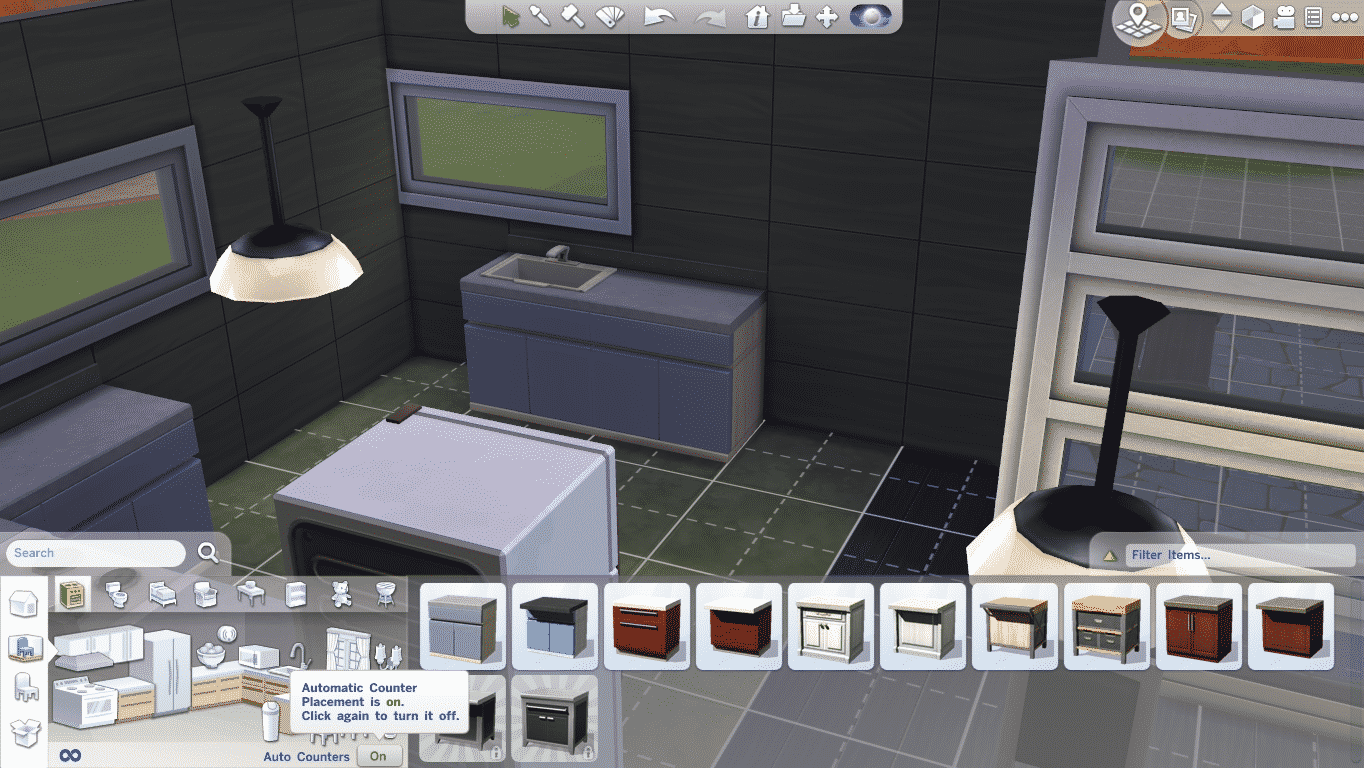
Before we start showing off all the shapes, you’ll need to do one most important step, and that’s disabling Auto-Counter feature.

TS4 2014-09-06 17-12-42-11

After you’ve done that, click on a Counter of your choice and select the color palette. The Counter editor will immediately show up and you’ll be able to purchase and place different kinds of Counters into your room.

TS4 2014-09-06 17-12-53-42 TS4 2014-09-06 17-12-55-87 TS4 2014-09-06 17-12-57-86 TS4 2014-09-06 17-13-01-56 TS4 2014-09-06 17-13-04-71

Island Counters also come with a feature to pull out Rounded Counters!

TS4 2014-09-06 17-13-30-53 TS4 2014-09-06 17-13-32-54

TS4 2014-09-06 17-13-46-96

Cabinets function the same way: you need to disable Auto-Cabinets in order to place individually styled pieces.

TS4 2014-09-06 17-15-30-20 TS4 2014-09-06 17-15-37-68 TS4 2014-09-06 17-15-36-44 TS4 2014-09-06 17-15-35-32 TS4 2014-09-06 17-15-34-16 TS4 2014-09-06 17-15-32-71

We recommend that you place Double Tiled Cabinets on a Medium or High wall.

TS4 2014-09-06 17-16-37-72

The Sims 4 Tutorial: Bonus Content & Rewards!

13

The following content comes from The Sims 4 Limited Edition (Life of the Party Digital Content), The Sims 4 Digital Deluxe/Premium Edition/Collector’s Edition (Life of the Party Digital Content, Up all Night Digital Content, Awesome Animal Hats Digital Content)

Please note that these objects can be recognized with a golden stroke around thumbnails and can be categorized with a ”Purchased” filter.

Life of the Party Digital Content

Life of the Party digital content comes with 2 new outfits (1 for Male, 1 for Female – applies for Teen, Adult and Elder ages), a Tiki Bar and new drinks that you an either make or other from the Bar.

 Outfits

TS4 2014-09-06 12-50-37-49 TS4 2014-09-06 12-57-22-29

Headwear

TS4 2014-09-06 12-51-57-61 TS4 2014-09-06 12-58-57-67

Eyewear

 TS4 2014-09-06 12-59-07-87 TS4 2014-09-06 12-59-35-11

Tiki Flame Bar

TS4 2014-09-06 13-29-55-84

TS4 2014-09-06 13-11-34-45

Up All Night Digital Content

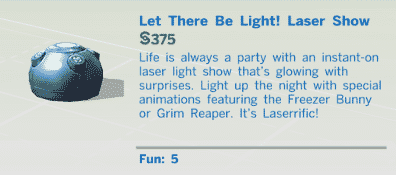
Up All Night Digital Content comes with lots of new outfits, 2 party types, Let there be Light Laser Show object, new drinks and food recipes and new objects.

Female Outfits (4)

TS4 2014-09-06 12-50-31-74 TS4 2014-09-06 12-50-41-62TS4 2014-09-06 12-50-34-39 TS4 2014-09-06 12-50-45-16

Male Outfits (4)

 TS4 2014-09-06 12-57-29-99 TS4 2014-09-06 12-57-27-72 TS4 2014-09-06 12-57-25-78 TS4 2014-09-06 12-57-17-53

Shoes (applies for both Male and Female Sims)

TS4 2014-09-06 12-50-55-90

Male & Female Headwear (3 of each)

TS4 2014-09-06 12-51-53-94 TS4 2014-09-06 12-52-07-15 TS4 2014-09-06 12-52-00-39  TS4 2014-09-06 16-25-39-01 TS4 2014-09-06 16-25-40-94 TS4 2014-09-06 12-58-53-64

Face Paints

TS4 2014-09-06 12-59-22-12 TS4 2014-09-06 12-59-23-88 TS4 2014-09-06 12-54-11-61 TS4 2014-09-06 12-54-14-02

2 New Party Types

TS4 2014-09-06 13-18-07-33 TS4 2014-09-06 13-18-09-71

Let there be Light! Laser Show

The Laser Show object serves it’s function as decoration, although you can Watch it and/or gain a positive moodlet when being around it.

TS4 2014-09-06 13-17-44-15

09-06-14_1-16 PM-2 09-06-14_1-17 PM-2 09-06-14_1-17 PM 09-06-14_1-16 PM-3

New Objects (6)

TS4 2014-09-06 13-11-26-17 TS4 2014-09-06 13-11-28-44 TS4 2014-09-06 13-11-31-07 TS4 2014-09-06 13-11-41-79 TS4 2014-09-06 13-11-43-52 TS4 2014-09-06 13-12-07-72

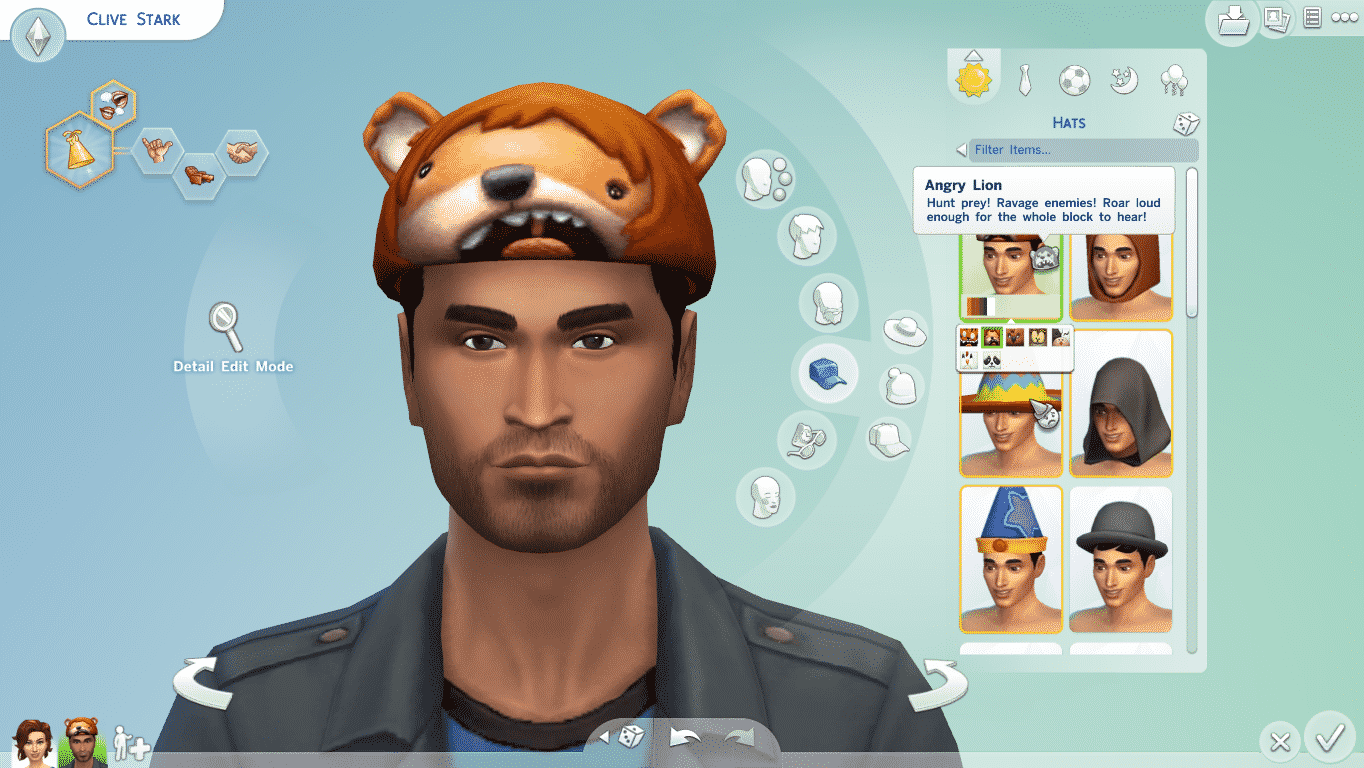
Awesome Animal Hats Digital Content

Each hat carries a different Emotional Aura. Choose your Awesome Animal Hat carefully! (Can be weared by Kids, Teens, Young Adults, Adults and Elders)

TS4 2014-09-06 12-58-32-92 TS4 2014-09-06 12-58-48-89 TS4 2014-09-06 12-58-46-40 TS4 2014-09-06 12-58-43-66 TS4 2014-09-06 12-58-41-23 TS4 2014-09-06 12-58-38-74 TS4 2014-09-06 12-58-36-44 TS4 2014-09-06 12-53-39-03 TS4 2014-09-06 12-53-47-73 TS4 2014-09-06 12-53-50-54 TS4 2014-09-06 12-53-53-72 TS4 2014-09-06 12-53-56-42 TS4 2014-09-06 12-53-59-82 TS4 2014-09-06 12-54-03-00

The Sims 3 Registration Rewards

When registering a certain The Sims 3 addition on Origin, you get a certain Plumbob light statue for The Sims 4. For more information about these rewards, visit TheSims.com/Rewards!

(From left to right: World Adventures, Ambitions, Late Night, Generations, Pets, Showtime, Supernatural, Seasons, University Life, Island Paradise and Into the Future statue!)

TS4 2014-09-06 16-06-34-44

TS4 2014-09-06 13-11-46-41 TS4 2014-09-06 13-11-47-93 TS4 2014-09-06 13-11-49-55 TS4 2014-09-06 13-11-51-91 TS4 2014-09-06 13-11-53-53 TS4 2014-09-06 13-11-55-49 TS4 2014-09-06 13-11-57-08 TS4 2014-09-06 13-11-58-63 TS4 2014-09-06 13-12-00-19 TS4 2014-09-06 13-12-01-55 TS4 2014-09-06 13-12-04-58 TS4 2014-09-06 13-12-02-85 TS4 2014-09-06 13-11-40-11

Digital Soundtrack

To listen to your The Sims 4 Digital Soundtrack, open the folder where you install your Origin Games, then The Sims 4 > Soundtrack.

Capture

The Sims 4 – Official Files for Creating Mods!

1

Blog Post

Hi everyone!

We’ve been busy working on technical documentation to share with you on best practices for Custom Content and Mods and details about how the game works. We’re happy to announce that this can now be found here: TS4_Custom_Content_Guide.zip

The Sims 4 is a large game, so we can’t document everything about it, but we’ve included information about a few key things we thought you’d appreciate.

We hope this accelerates your progress. Please continue to ask questions in the forums, and we will do our best to answer them.

Thanks again for all your hard work and awesome creations.

Please note that we do not pre-screen Custom Content and that players should always exercise caution when adding Custom Content to their game files.

IMPORTANT!

The two example mods, simsmodsquad-maslow.zip and simsmodsquad-novelist.package will not work out of the box because of a couple bugs we recently discovered. So you will need to massage them a bit to get them to work, as follows:

– The game will not currently execute new scripts out of the Mods directory when python is initialized. You can work around this by replacing Maxis-authored scripts to inject your code.

– The game will not currently load tuning files from inside a package file in the Mods dir. You can work around this by as follows:

Add the following to the Resource.cfg in the Mods directory:

DirectoryFiles unpackedmod autoupdate

What this will do is allow loading of loose resource files out of the directory called “unpackedmod”. Extract all the records in simsmodsquad-novelist.package to this new directory with the names of the format 0x<group>!0x<instance>.0x<type>, i.e. “0x005fdd0c!0xed7000a97ea8f032.0x545ac67a”. The game will now recognize the files.

A patch will be released in the near future that will correct both of these issues, at which time the mods will work out of the box. I will let you know when those fixes have been released.

The terms and conditions set out in The Sims 4 End User License Agreement (ea.com/1/product-eulas) and EA’s Terms of Service (ea.com/terms-of-service) are applicable to the use of The Sims 4 product and services and all materials distributed by Maxis that relate to creating Custom Content and Mods for The Sims 4.

The Sims 4 – New Update (Ver 1.0.671.10)

It has been brought to our attention that some of our cute and adorable babies have had difficulty expressing themselves without… well… distorting.  There was an issue with some integrated chipsets causing the poor little ones to appear in their own “unique” way. We have corrected the problem and pulled everyone back together. Thank you for helping us identify, and track down this issue.

EA Help

To download this update, simply open Origin!

Capture

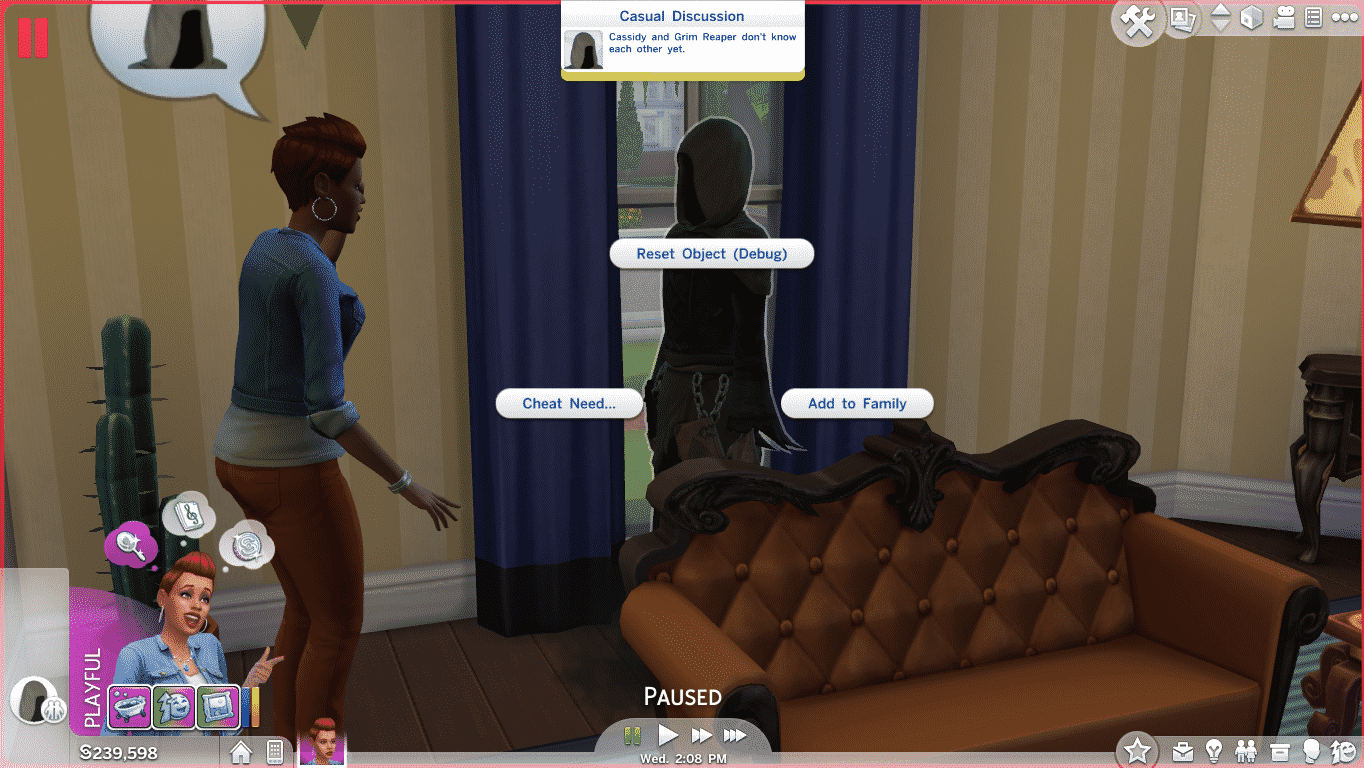
The Sims 4 Tutorial: How to add Grim Reaper to your Household

59

Before reading this Tutorial you’ll need 3 following things:

– At least 2 Sims in your Household.

– enabled ”testingcheats true” cheat. (hit CTRL + Shift + C keyboard buttons to open the cheat console)

– 2 Sim Days of patience.

I started off with Ollie and Cassidy Purdue. Some of them had to die in order for Grim Reaper to appear, so I decided that Ollie will be that victim.

09-06-14_12-30 AM

The most certain death in The Sims 4 is Death by Hunger, so I decided Ollie to starve. It wasn’t an easy task though since I felt really guilty watching Ollie being more and more uncomfortable.

After more than 2 Sim Days, Ollie died. Grim Reaper showed up and took Ollie’s soul.

TS4 2014-09-06 00-35-02-25

After the Grim Reaper finishes his job, hold shift, left click on him and select ”Add to Family”.

TS4 2014-09-06 00-35-47-43

As a Grim Reaper, you can go around town and socialize with other Sims. But, you cannot do most interactions that are related to fulfilling Grim’s needs and emotions.

TS4 2014-09-06 00-42-44-83 TS4 2014-09-06 00-46-28-37 TS4 2014-09-06 01-01-33-17

Extended Loading Time when starting The Sims 4 is being fixed!

0

EA Help posted that they’re currently working on a glitch where it takes a long time to bypass the loading time after starting The Sims 4.

TS4 2014-09-05 23-31-44-62

We’re aware that some players are experiencing extended load times at the The Sims 4 logo or the plumbob screen when loading the game. Our team is currently investigating in order to find a solution.

In the meantime, putting Origin into Offline mode (click the Origin menu and select “Go Offline”) has allowed some of the affected players to be able to load The Sims 4 and access.

Stay tuned for more updates.

EA Help Post

The Sims 4 – Official Warning about Bugs in the game!

4

The Sims 4 Team gave a fair warning about bugs we may encounter in the game!

They added a Lesson called ”Bugs” where they explain what type of bugs we could encounter in the game, as well as their apology if we ever encounter them.

TS4 2014-09-05 20-52-28-78 TS4 2014-09-05 20-52-31-50 TS4 2014-09-05 20-52-33-91

They also added a ”Bunnies” Lesson right underneath the Bugs Lesson. It’s obvious that this is a hilarious Bugs Bunny reference!  :rotfl:

TS4 2014-09-05 20-52-38-21 Capture