Best Buy has recently announced their exclusive offers for the annual Black Friday – a day (or two) where every price drastically falls down!
There’s no exception for The Sims 4 in this case. Best Buy will offer the Limited Edition of this game for 50% off! ($29,99).
This offer will be available at Best Buy starting 27th of November to 29th of November. If you still haven’t got the game and really want to purchase it, now’s the right time!
Click on the picture below for more information about this offer!
This Set has been brought to you by The Sims Resource member – ShinoKCR!
here comes the most popular Kitchen I ever made for Sims. Its not converted, all objects are new made. Set has 3 Coloroptions: Dark wood, white, light wood with white tops.
– Counter1 and Counter 2
– Islandcounter 1 and Islandcounter 2
– Cabinet
– Fridge
– Stove in 2 Variations (one with back splash and one without backsplash
– Rangehood like EA’s and Rangehood on a Wall light (shiftable)
– Kitchentools on wall with matching rail
– Sidetable to snap on left or right side
– Barstool
Click on the picture below to download this Set!
Click Herefor more information on how to install Custom Content!
Mod the Sims member Elias943has converted 126 Floor patterns so far from The Sims 2 to The Sims 4!
These Floor Conversions can be found under the Wood and Linoleum sections in Floor Textures panel after you download & install them (requires Mod The Sims registration).
For more information on how to install Custom Content, Click Here!
Click on the picture below to download Wood Floor Patterns!
Click on the picture below to download Linoleum Floor Patterns!
After releasing a Soundtrack Compilation from The Sims 4, Electronic Arts has decided to release a Compilation of some Simlish Songs from the game as well!
This Set has been brought to you by The Sims Resource member – Severinka_!
Set of bathroom furniture of the 11 items. Furniture in a futuristic style, with interesting, rounded shapes.
Delicate lavender color in combination with white is perfect for a modern style.
The set includes objects:
sink
shelf next to the sink
wall shelves
tub
small chair
bath towel
mirror
toilet water
parfum
plant (grass) in pot
ceramic tiles with flowers
All furniture is made in one color
To accommodate the large shelf, as I have on the screenshot next to the sink, hold ALT
Tiles with flowers combined with basic tiles from EA
Wall shelf has 5 slots, but you can put a small decoration or 3 slots, or on the other 2 slots
Click on the picture below to download this Set!
Click Herefor more information on how to install Custom Content!
This Set has been brought to you by The Sims Resource member – ung999!
This modern and elegant bedroom set has 12 new items:
2 sets of curtains for low and medium wall, each set has 3 pieces: left, right and close
double bed
end table
living chair
coffee table
a decor built-in wardrobe (with gloss surface)
a table lamp
Click on the picture below to download this Set!
Click Herefor more information on how to install Custom Content!
By now, hopefully you’ve heard about the release of POOLS and have had a chance to jump in and experience them in game. If you haven’t yet, I really encourage you login to Origin to update The Sims 4* and check them out. You’ll find that there’s a lot of great stuff to explore, from a brand new “Swimwear” category in Create A Sim to flexible build options in Build Mode and fun Sim interactions – such as my favorite, the ability to Splash Sims sitting on the edge of a pool!
However, as the Build Producer, I thought it would be most helpful to provide you with some of my favorite tips for creating amazing looking pools. I hope you find them useful!!
SimGuruSteph’s 10 Tips
1.) You can build pools on terrain and on different floor-levels. To build a pool on different floor-levels, simply select the pool shape and place it within an existing room.
2.) Similar to room building, once a pool is placed and selected, use the HORIZONTAL ARROWS to resize it, the CURVED ARROWS to rotate it and the MULTI_ARROW button to move it.
3.) If you build floor-level pools don’t forget to add a pathway so your Sims can get to it.
4.) You can add a foundation to floor-level pools. If you remove the walls you can have a pool above the terrain with a little extra height!
5.) When using the Pool Tool, hold CONTROL to quickly delete pools. Note if you hold CONTROL on terrain pools you can easily delete parts of the pool and even add an island.
6.) Want your pool to have different depth? No problem, select the pool and on the context menu chose from the three different depths.
7.) You can build glass pools by simply adding windows to any floor-level pool. It’ll add a touch of opulence and a beautifully lit pool into your home.
8.) Place lights in the pool and set the mood by adjusting the intensity and color.
9.) When your pool or pools are complete, don’t forget to add accents from the “Pool Objects” sort and other decorative objects to pull your look together. Whether it’s a Pool Bar, Trees or Outdoor Lighting it will further enhance the space for your Sims to enjoy. Don’t forget about the Poolside Gnome if you have not found her.
10.) You can share your pool or entire home with pools on the Gallery!
With a big number of possibilities in The Sims 4’s Live Mode, finding the right, fun thing to do in your game may be hard.
Here are 8 ways we prepared for you that will definitely raise your Fun need bar!
1. No cheating!
If you think you’re going to have a good time in your game by pasting the motherlode cheat over and over, you definitely won’t! The Sims 4 is about seeing your Sim succeed or fail with your help and guidance. The progress of leading your Sims to a better, more expensive home is what makes the game fun. The more challenges you give to your Sims the more you’ll remember the story of how your Household went from rags to riches – or conversely!
2. Give your Sims an unique personality.
Giving your Sims the perfect traits like Good, Creative, Active, Outgoing and more just doesn’t feel right. After all, nobody’s perfect! Try to mix things up a bit by giving your Sim some flaws too such as Evil, Clumsy, Childish, Hot-Headed and others.
3. A Full House is a Fun House!
Having only 1 Sim in your Household is too much boring for you and that poor, single Sim. Kick it up a notch by adding more than 4 Sims (8 is a Maximum) into your Households in Create A Sim, or just download some Households from The Gallery and merge them with your existing one.
Controlling multiple Sims isn’t an easy thing – but it can bring you more Simoleons and more company for your Sim. It’s also a known fact that more random things will happen in your filled Home – both good and bad!
4. Nobody likes a do-gooder
Being a good friend, helping out others, following the laws – you’ve probably followed all of these things in Real Life, then where’s the fun in doing all of those things in The Sims as well?
Creating a few enemies and even pranking them is guaranteed to make you laugh. Some Sims may take it as a friendly gesture, but you have to prove them otherwise by doing a few more interactions from the Mean social section!
11 06 14 10 41 PM
11 06 14 10 45 PM
5. Challenges
Simmers are very creative when it comes to thinking of new ways to play The Sims 4. If you’re out of ideas, check out our collection of The Sims 4 Challenges made by other playerse!
6. Fulfill Whims
Fulfilling your Sim’s Whims and Wishes is like gifting a Child a toy they’ve always wanted. That warm feeling in your heart that you’re listening to your Sim’s wants is just amazing.
Depending on your Sim’s emotional state, they’ll get different Whims. The things you and the things you buy all affect your Sim and it might just help him or her out on deciding what they want to wish for next.
7. Know Sims!
Being around other Sims isn’t good enough – you have to know them and their traits as well! The more Sims you know, the more crying shoulders or helping hands your Sim will have. Having Friends that you can rely on is always good to Vent your Anger or Tense Emotional state.
The best way to meet and greet other Sims is to visit other Community Lots.
Community Lot created by Cinderellimouse. You can download it in The Gallery under the ”Lucky Palms Resort’‘ name.
8. Earn Simoleons – at Home
Giving your Sim a Career is only good when you really need a big amount of money in order to purchase something really expensive, but if your Sim wants to gain Skills, raise their Need bars and socialize, the best way is to earn money at Home.
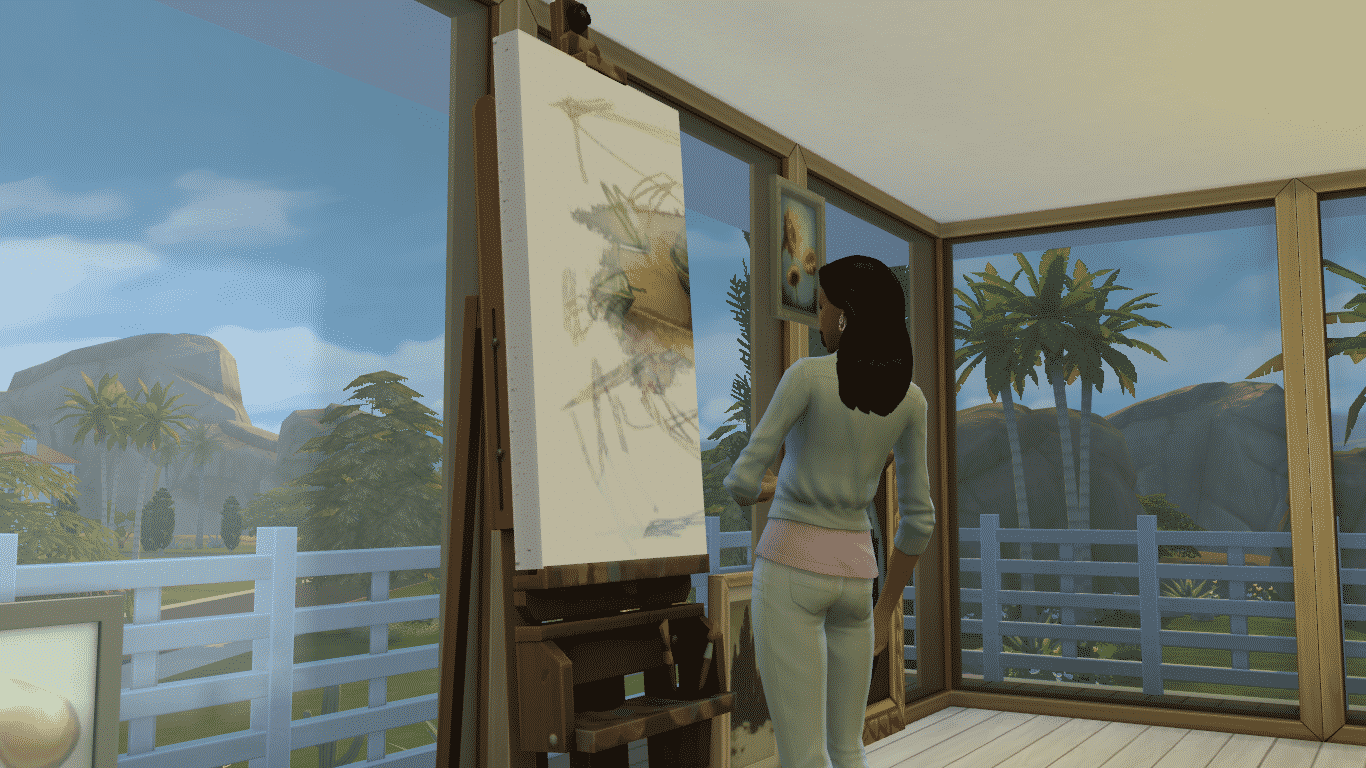
Probably the best way to earn money at Home is to Paint. As your Painting Skill levels up, you’ll create better quality paintings that you can sell for a big amount of Simoleons or just hang them around your rooms to make them prettier.
There are also some other ways of earning money at Home such as Programming, Hacking, Grafting, Gardening, Woodworking and collecting Gems & Collectibles around the Neighborhoods.
It’s a pretty good week to be a Sim. Pools have been added for free to The Sims 4, and they’re cooler than they’ve ever been. How cool? We snuck over to Maxis’ lair to experiment and see exactly how creative we could get.
The results were, well… you’ll need to see them to believe them.
Semi-lazy River. Ever go swimming and then immediately decide you need a sandwich straight away? It’s terrible. You need to get out of the pool, and it’s cold, and you have to walk around while soaking wet, and… yeah. Wouldn’t it be better if you could just swim from the pool to the kitchen? We thought so too! The Sims of this house ended up using this pool as a sort of highway, jumping in and swimming from room to room instead of walking because, let’s be honest – walking is for chumps.
This set has been brought to you by The Sims Resource member – jomsims!
I’m inspired by ron tangler and love iron set sims 3 for this bathroom and of course lemingstone living same serie.
1 oval bathtub texture solid and metal. solid grey and 1 white color. 1 ottomane. 3 colors.1 shower 2 colors and metal texture.1 products deco for bathroom .1 wall shelf deco with towels and bathroom products. 4 paintings. 1 floor wood . 1 sink 2 colors and metal texture. 1 mirror very metal texture. towels deco 6 differents colors with effigy lemingstone. candles decorativ in 3 colors variation. and 1 deco clothes basket 2 colors.
A very modern bathroom with metal texture very realistic.
All items have been tested in the game sims 4
Click on the picture below to download this Set!
Click Herefor more information on how to install Custom Content!