

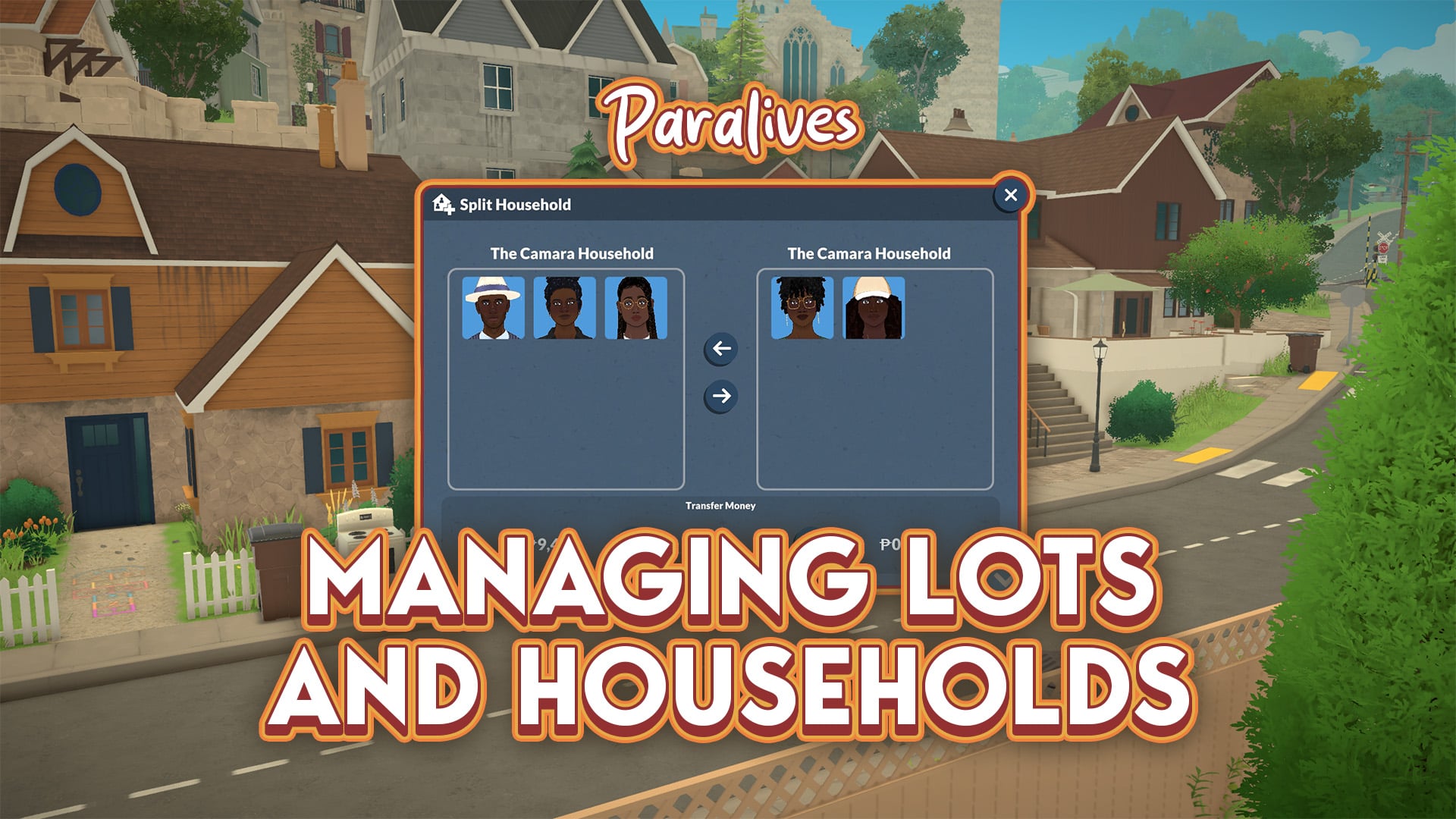
While playing around in Paralives, it is likely you will need to delve into managing households and moving your Paras around. Swapping between households and hopping around the world to view the lives of other Melino residents can be an integral part of Paralives gameplay, especially as you progress through a save file and expand families, add new households, and move out newer generations into their own households! Managing households in Paralives early access is easy and fairly intuitive, once you know what to look for!
💡 Looking for advice on purchasing a new lot in Paralives? Check out our Lots Guide!
Table of Contents
Managing Households and Lots in Paralives
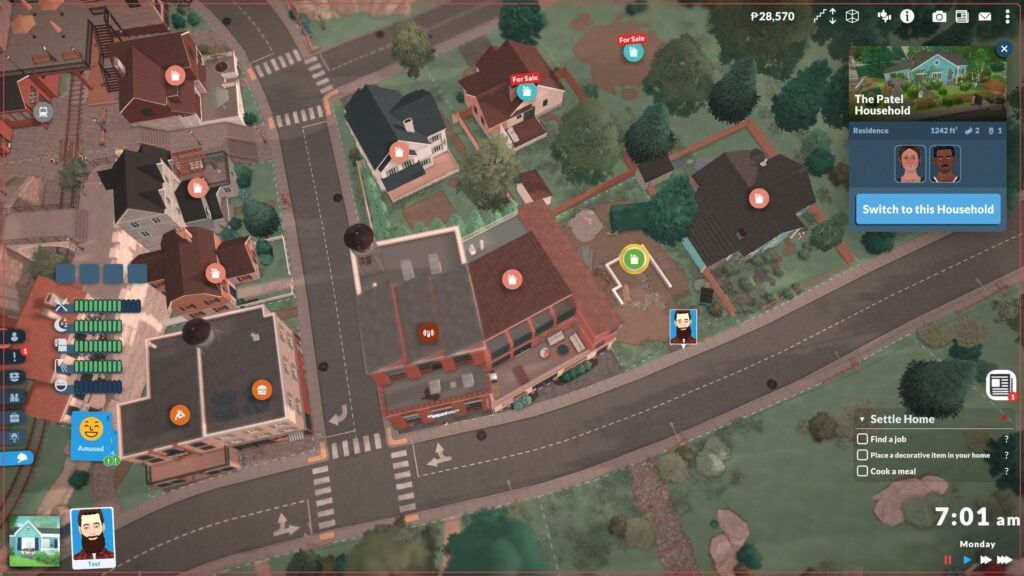

Once you've loaded into a new game, you can choose to create a new family or select one of the premade families in town, already moved into their home lots. If you want to change where a family lives, the members of the household, etc., you first have to zoom out to view the map of the town. If you're feeling like switching to another household at any time, you can zoom out to the town map overview and select an existing moved in household and choose to swap to them. You will have a short loading screen while switching.
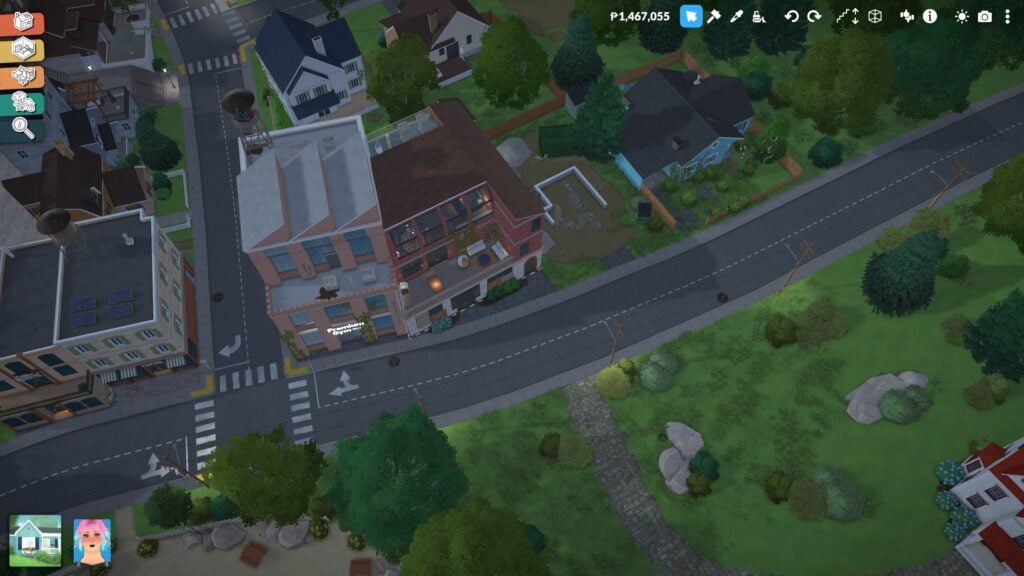
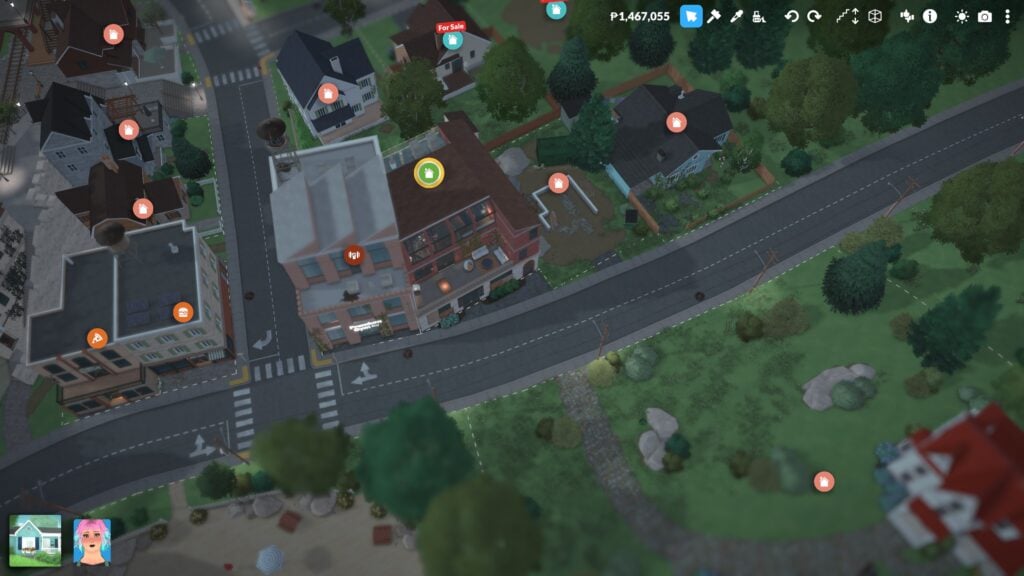
While looking at the map of the town, which the town view will be signified by the slightly hazy filter and icons popping up above each lot to describe their purpose or type, you can click on any household and multiple options will pop up. If you click a household you are not currently playing, you can choose to immediately swap to said household.
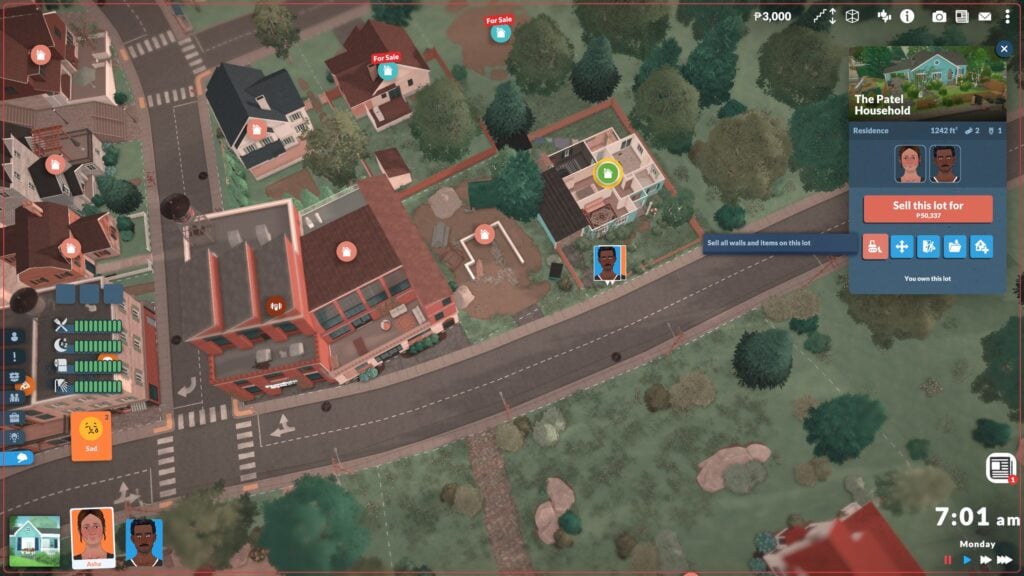
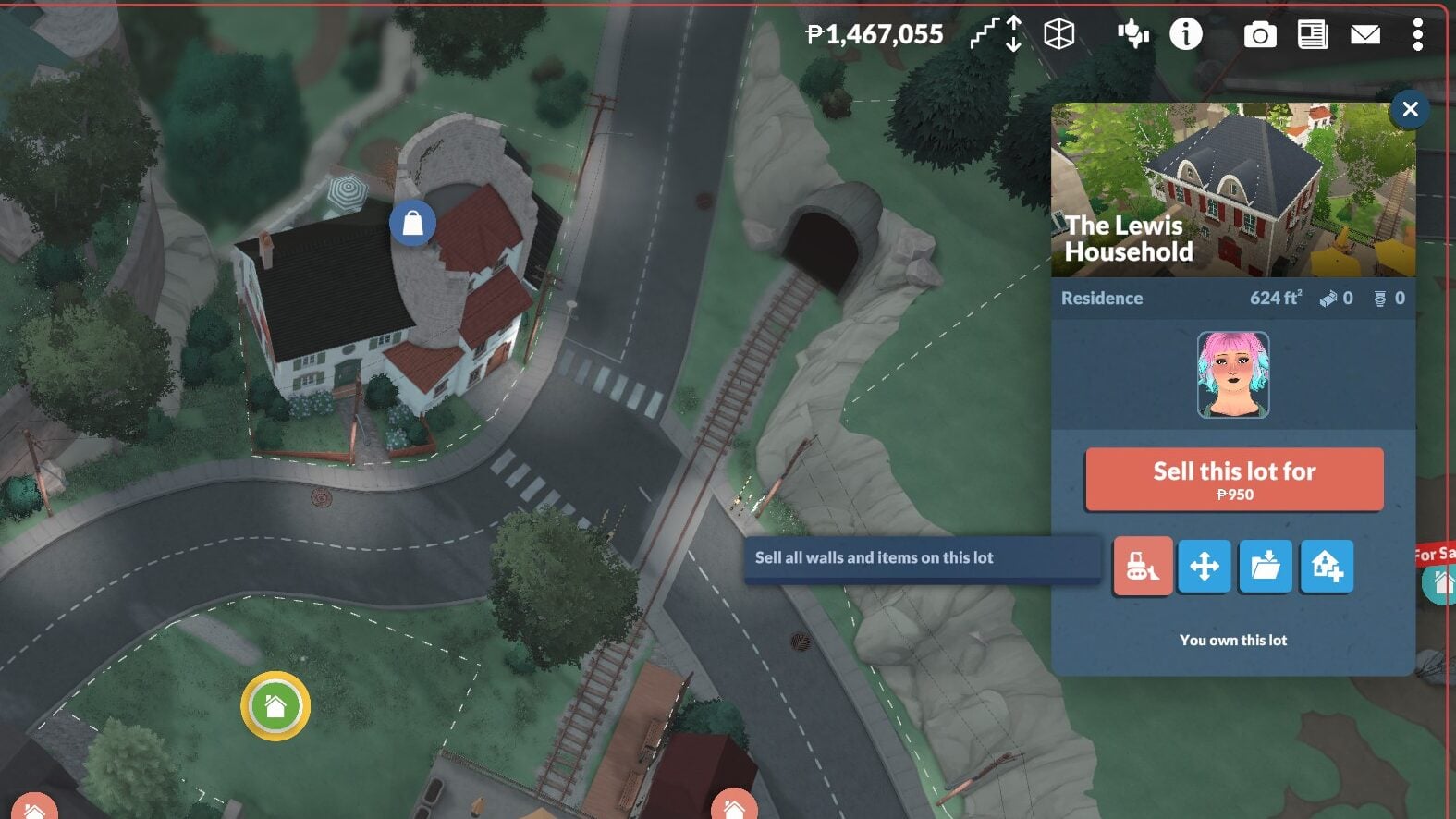
If you click on the home lot of your active family, a new menu will pop up. This menu allows you to Sell all walls and items on lot, move lot, split household, save lot to the library, and place a lot from the library. This is also where you can see the members of a household, the square footage of the lot, the amount of bedrooms and bathrooms, and you can also choose to sell the lot. You do not have to already have a new lot purchased to sell an existing one.
Buying a New Home
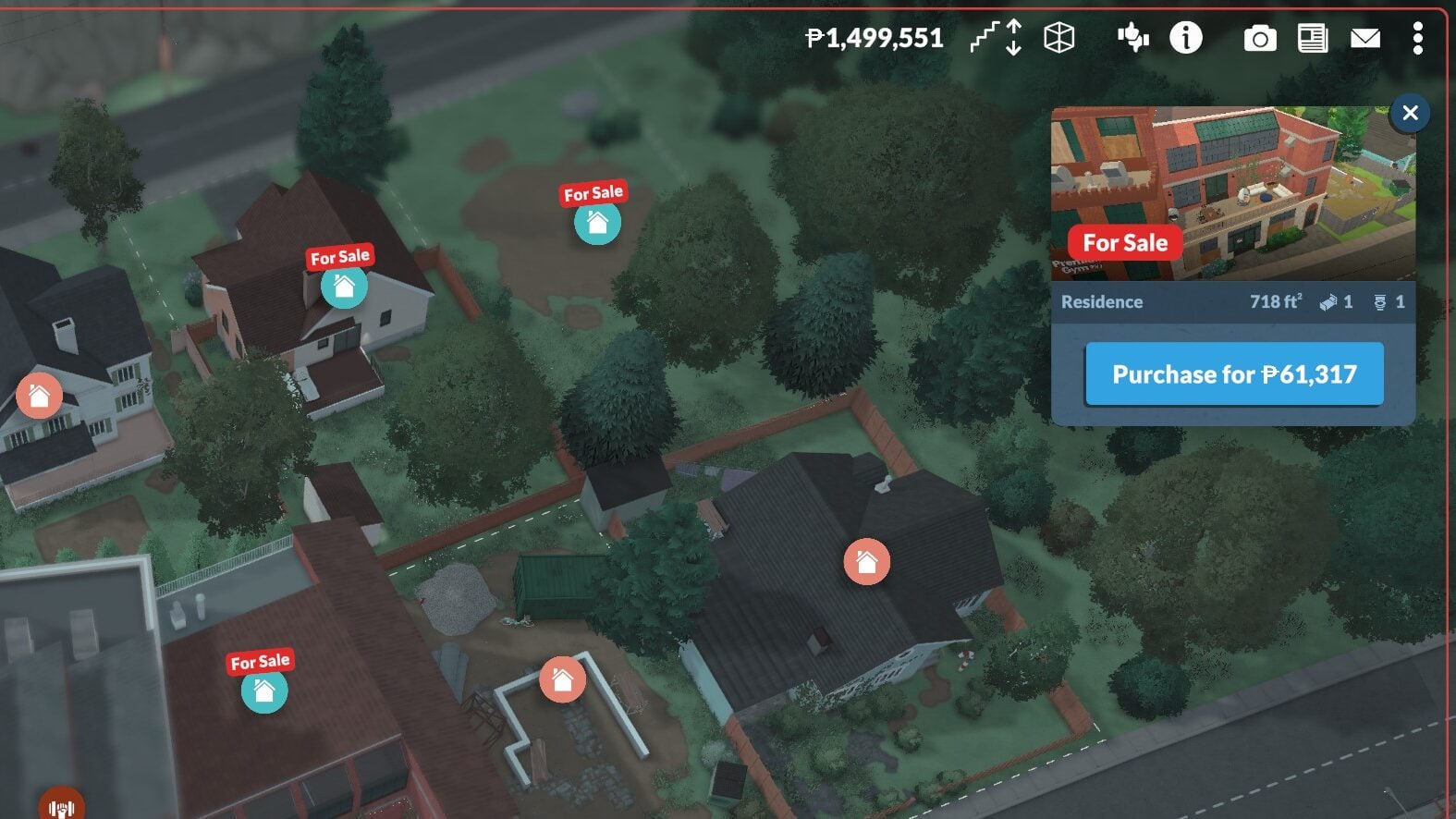
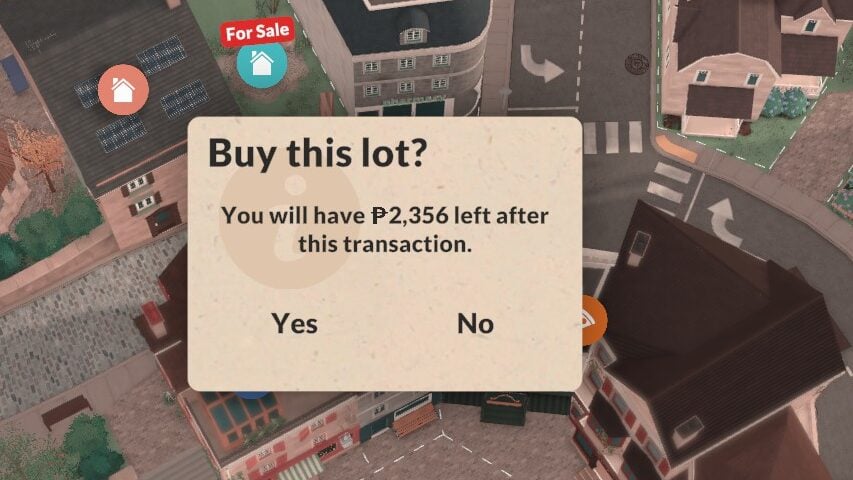
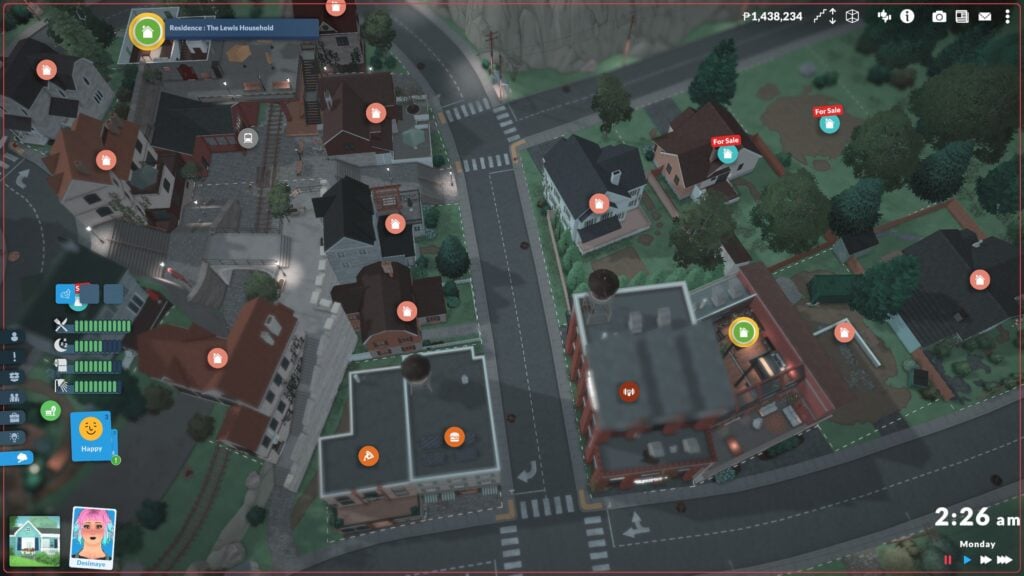
To purchase a new lot, whether you have sold your previous one or not, click on an available home in the town view and select Purchase Lot. The game will provide a popup for confirmation of the purchase, also telling you how many Paradimes (The in-game currency) you will have leftover.
Splitting Households
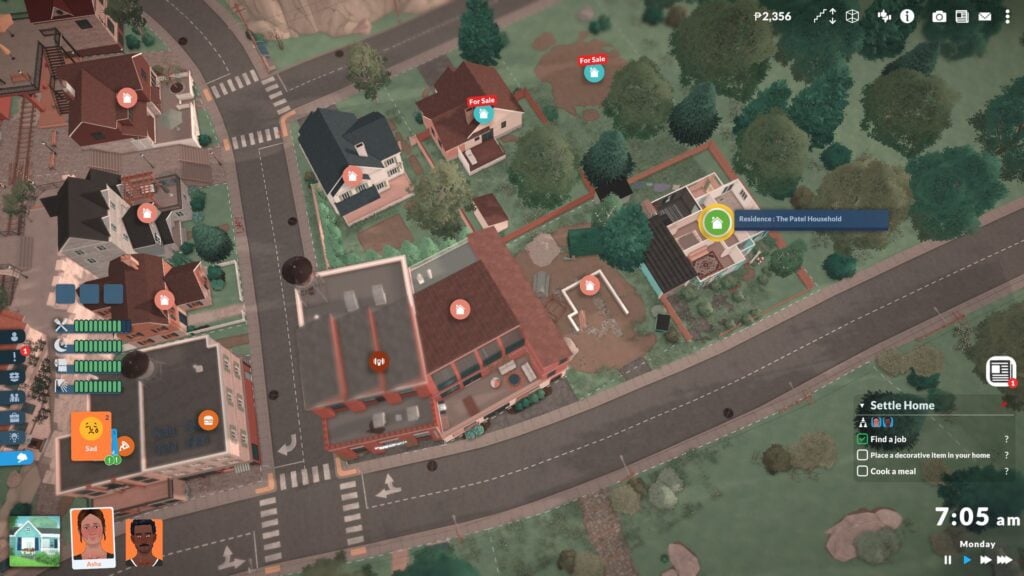
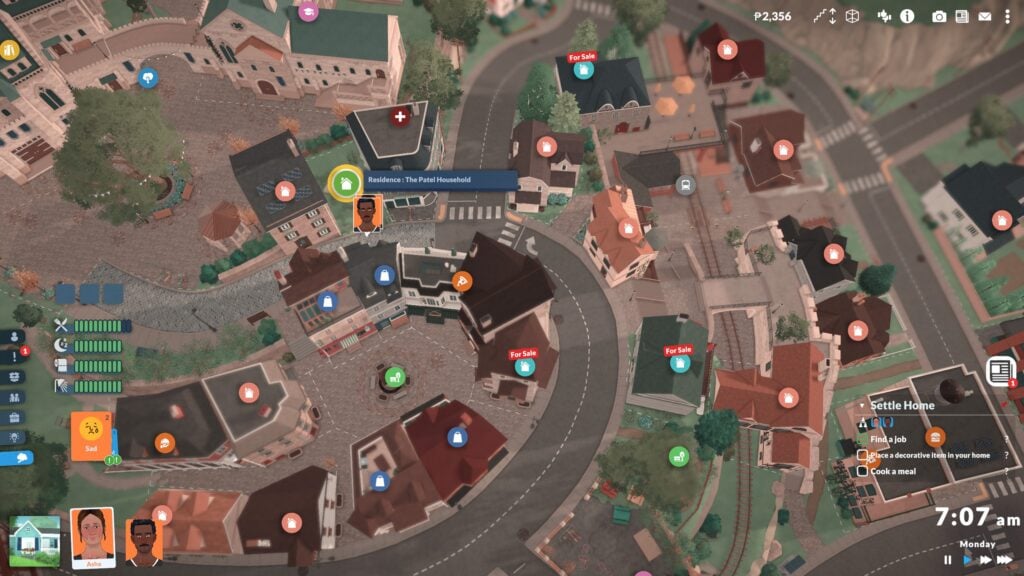
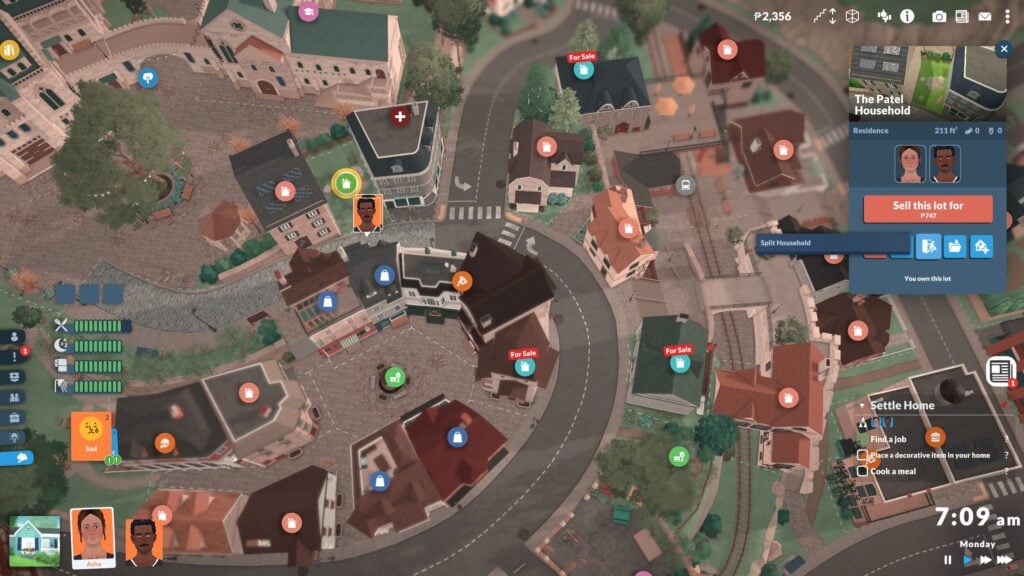
If you want to move certain Paras out of the household or split from the family and play as different members, you can purchase a new lot to move them into. After purchasing a new lot, click on the original home lot and choose Split Household.
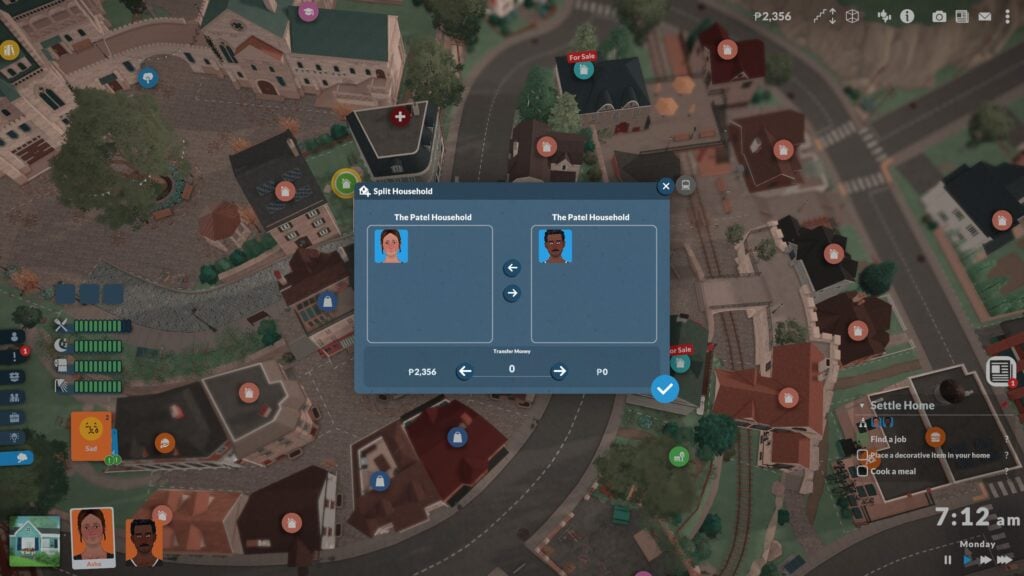
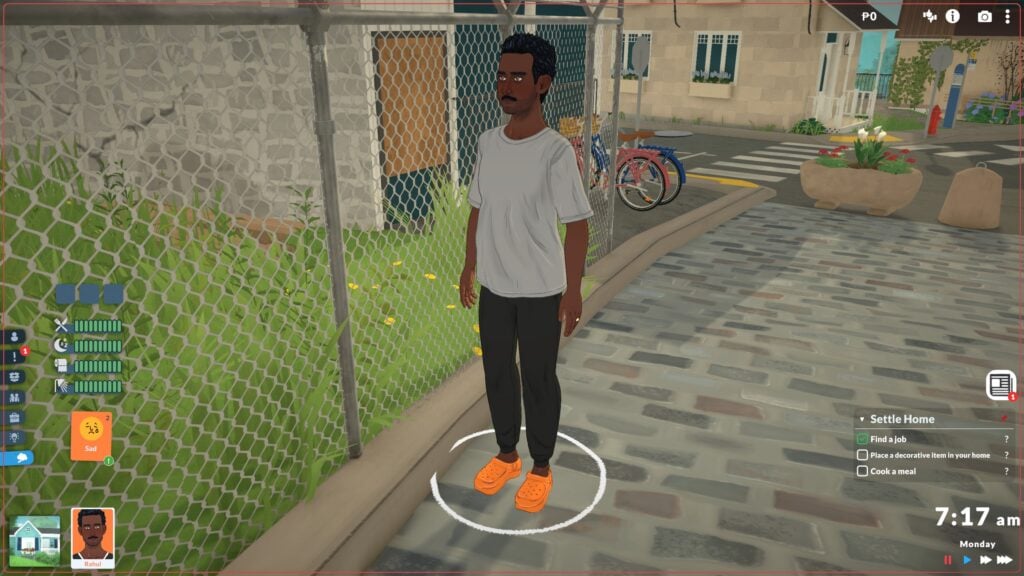
A new menu will pop up, listing the members of the original household with icons and their currently available Paradimes. Move any members you want to move out of the home on to the right side of the menu, transfer any money you want them to have (Though you don't have to), and then choose for them to live in that secondary lot. This will split the household and you can now swap between them and play them separately.
Taking Over
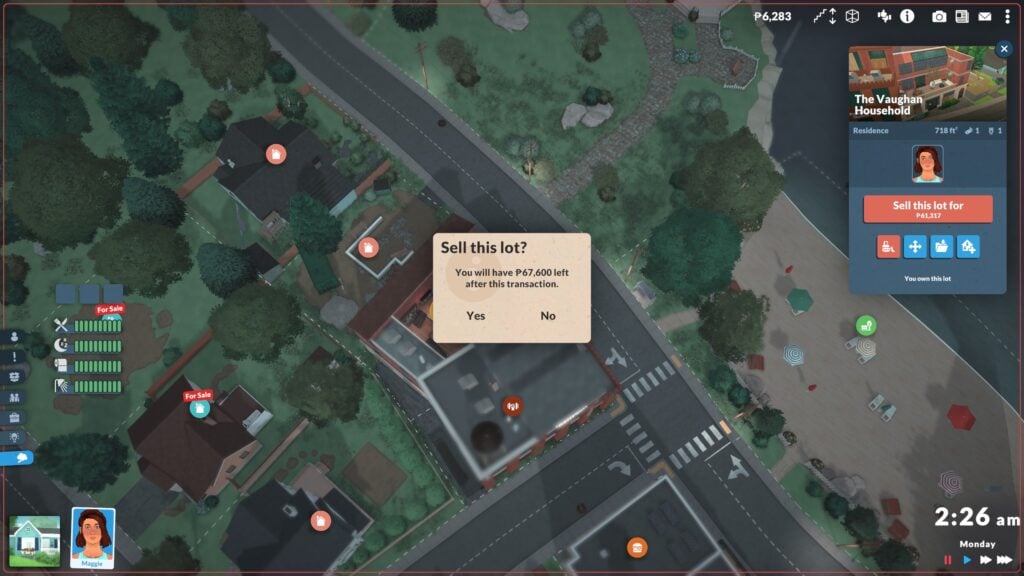
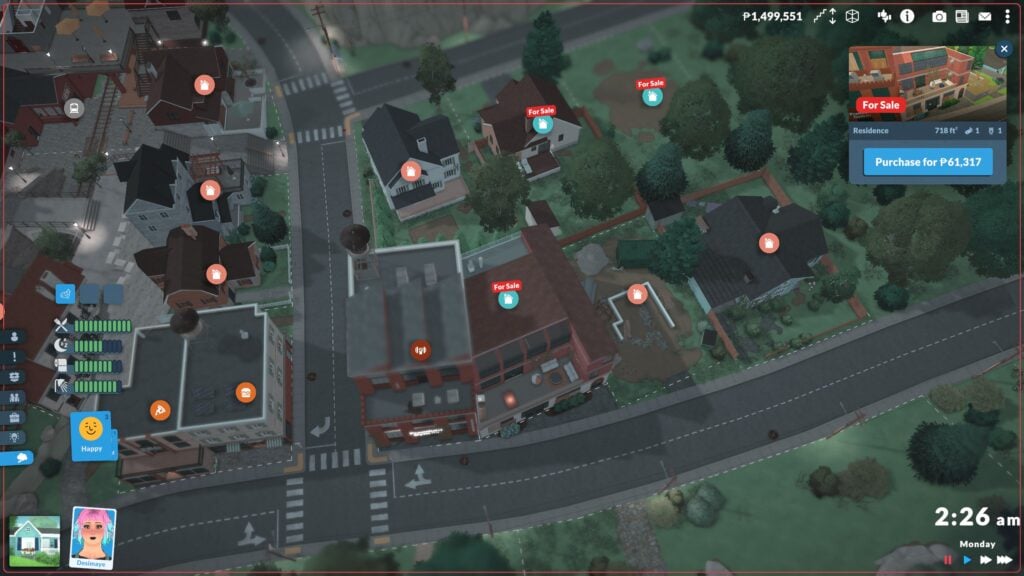
Jealous of a neighbor's advantageous lot or beautiful architecture and want it all for yourself? Living next to a rival and want to make sure they can't live near you again? Those are easy-peasy fixes as well! Swap to said neighbor's household and choose Sell lot. Once that lot is sold, you can easily swap back to your main household and buy that lot right up! No worries about the ramifications of the family not having an actual lot, nor any worries about having two lots all to yourself if you want to!
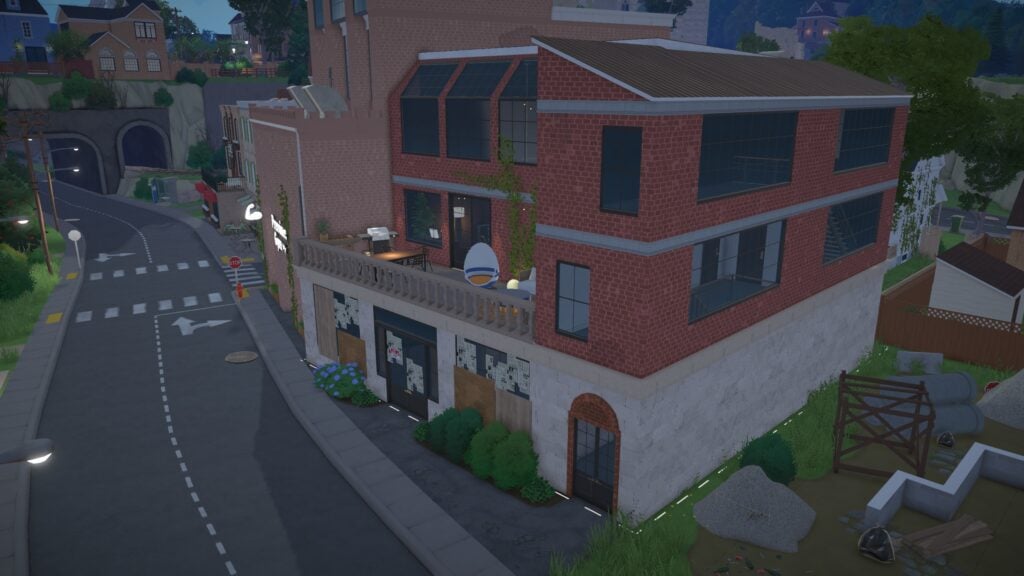
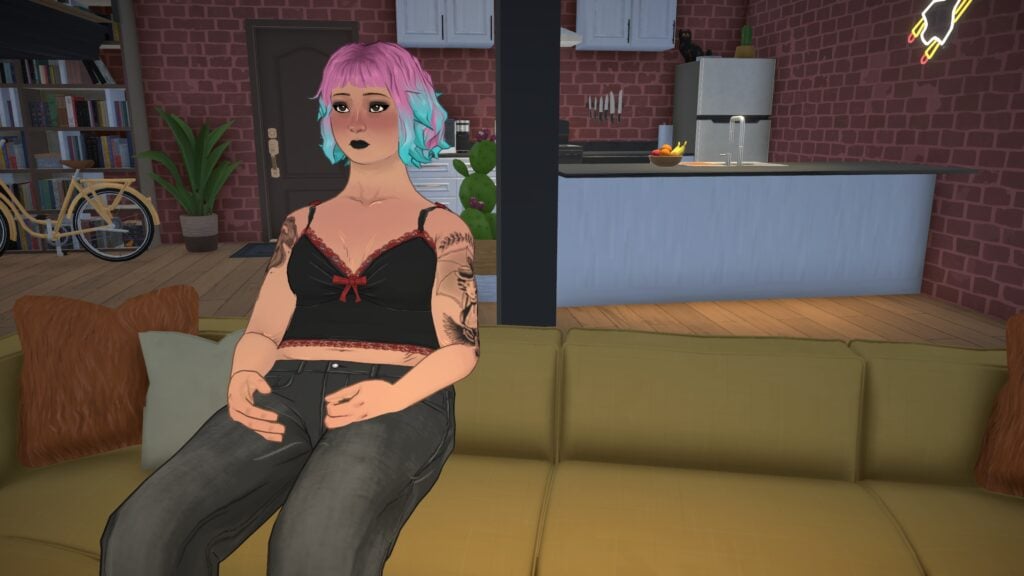
Are there any features with managing households or moving that you'd like to see changes to or new additions to? Let us know, and make sure to keep up with The Sims Community as we'll be covering and creating guides for all the features you can expect to see in Paralives Early Access release on May 25th, 2026!




4 Comments
Can I then own two houses?
Reply to Janet
Same question and the question, if I split household, what’s then? Will the orininal aging while I play the new one? Could I control it somehow? Could I even play both in the same time on their own houses?
Can you merge the lots?
Can we unite households after separating them?
Welcome to Sims Community!
Our community is about connecting people through open and thoughtful conversations. We want our readers to share their views and exchange ideas in a safe space.
In order to do so, we've created a simple set of rules that will improve your experience. Simply put, keep it civil.
Your post will/might be rejected if it contains:
User accounts will/might be blocked if we notice:
So, how can you be a power user?
Thanks for reading our community guidelines. Please note that we're aware of certain issues with Sign In / Log In and Create Account / Email Confirmation issues. We're working behind-the-scenes on a new Account Creation process. Thank you for your patience and remember - freedom of speech is not freedom of reach