Home Blog Page 156

Sims 4 Custom Rigs: Create Your Own Personalized Pose Rigs!

Learn how to make your poses fit your Sims perfectly by making your own rigs!

Finally! A comprehensive Sims 4 custom rigs tutorial for pose creators! If you’re a pose creator, you’ll understand the struggle of creating a pose for your story only to have it not fit your Sims right because they have a smaller or larger body type than the default EA rigs you used in Blender. I had such a hard time finding a tutorial that was simple and easy to understand to help me import my own rigs into Blender. When someone asked me for a tutorial on this recently, I knew I needed to write one. I wanted to help other pose creators, especially new ones, make poses that fit their Sims perfectly for their stories.

Today, I’ll be showing you how to import your own Sims into Blender to create your poses with. Having Sims 4 custom rigs will allow you to make poses to fit a wide variety of body shapes. The screenshots in this article are from Blender 2.7; however, you can still follow along with this tutorial if you are using Blender 3.3. I will point out any differences between 2.7 and 3.3 whenever necessary.

What You Will Need

  • The Sims 4 Base Game
  • A (mostly) CC-free Sim you want to use as your rig
  • A default EA rig (scroll down and expand the Download Sims 4 Blender Rigs section)
  • The Sim Ripper
  • Blender (either 2.7 or 3.3 will work fine)
  • You should already know how to make custom poses for the game. This is not a tutorial on how to make poses or how to use Blender. I am only focusing on creating custom rigs for the purposes of pose creation. If you don’t know how to make poses, this tutorial will be too advanced for you.

Export Your Sim

Before you start the process of making Sims 4 custom rigs at all, it’s recommended that you go in-game and remove any CC on your Sim that isn’t needed for the pose you’re making. Some CC can cause issues with the rigs later on in Blender. This isn’t always the case but the less CC, the better, just to be on the safe side.

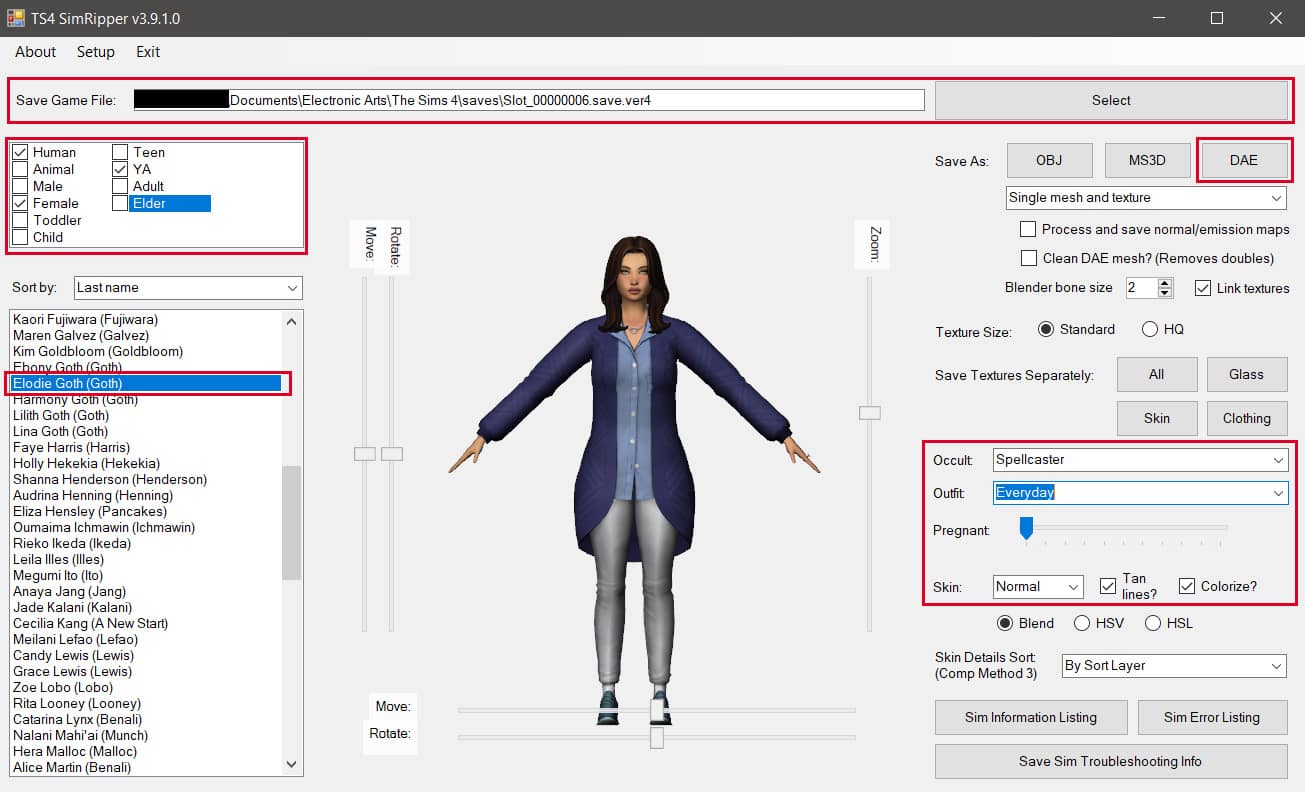
After removing any unnecessary CC from your Sim, save and close the game and open up the Sim Ripper. This program is crucial for making Sims 4 custom rigs. At the top where it says Save Game File, locate the save game you want to export a Sim from and hit Select. Give the program a minute to load all the Sims in that save. It can take quite a while if you have a lot of Sims in that save.

Once the list of Sims loads in the left panel, use the filters in the top left to narrow down the list and help you find your Sim easier. Once you find and select your Sim, be patient. Once again, it takes the Sim Ripper some time to load all the data.
sims 4 custom rigs

Your Sim will appear in the centre with all of their info displayed on the right. You don’t need to worry about most of the stuff displayed here but there are a few settings you might be interested in. I’ll walk you through them now.

  • Occult: If your Sim is an occult with an alternate form, you can switch between their human and occult forms here.
  • Outfit: You can select which of your Sim’s outfits to export here. This is useful when making poses where the Sim is wearing something extravagant like a ballgown and you don’t want limbs to clip through the skirt. You can select that outfit to work with in Blender.
  • Pregnant: This is very useful for maternity poses. Simply slide the slider back and forth to the desired tummy size.
  • Skin: You may not need this for pose purposes but it’s worth mentioning that you can set your Sim’s skin to tanned or sunburned here.

You’re almost ready to create your Sims 4 custom rigs! Select whatever settings here that you think you will need for your pose. When you’re ready, click the DAE button to export the Sim as a .dae file. Save it somewhere you can easily find it. If you get an error message when exporting the .dae file, try temporarily disabling your antivirus shields for a couple minutes. Mine doesn’t get along with the Sim Ripper at all. Always remember to turn your shields back on right after! Antivirus protection is very important!

Create Your Custom Rig in Blender

If you haven’t already, download any of the adult EA rigs from KatVerse’s website. Male or female does not matter; they both use the same rig which is the only thing we’ll be needing. If the Sim you just exported is a child or toddler, then download the rig for that age group. We need the frame of these rigs to create our Sims 4 custom rigs.

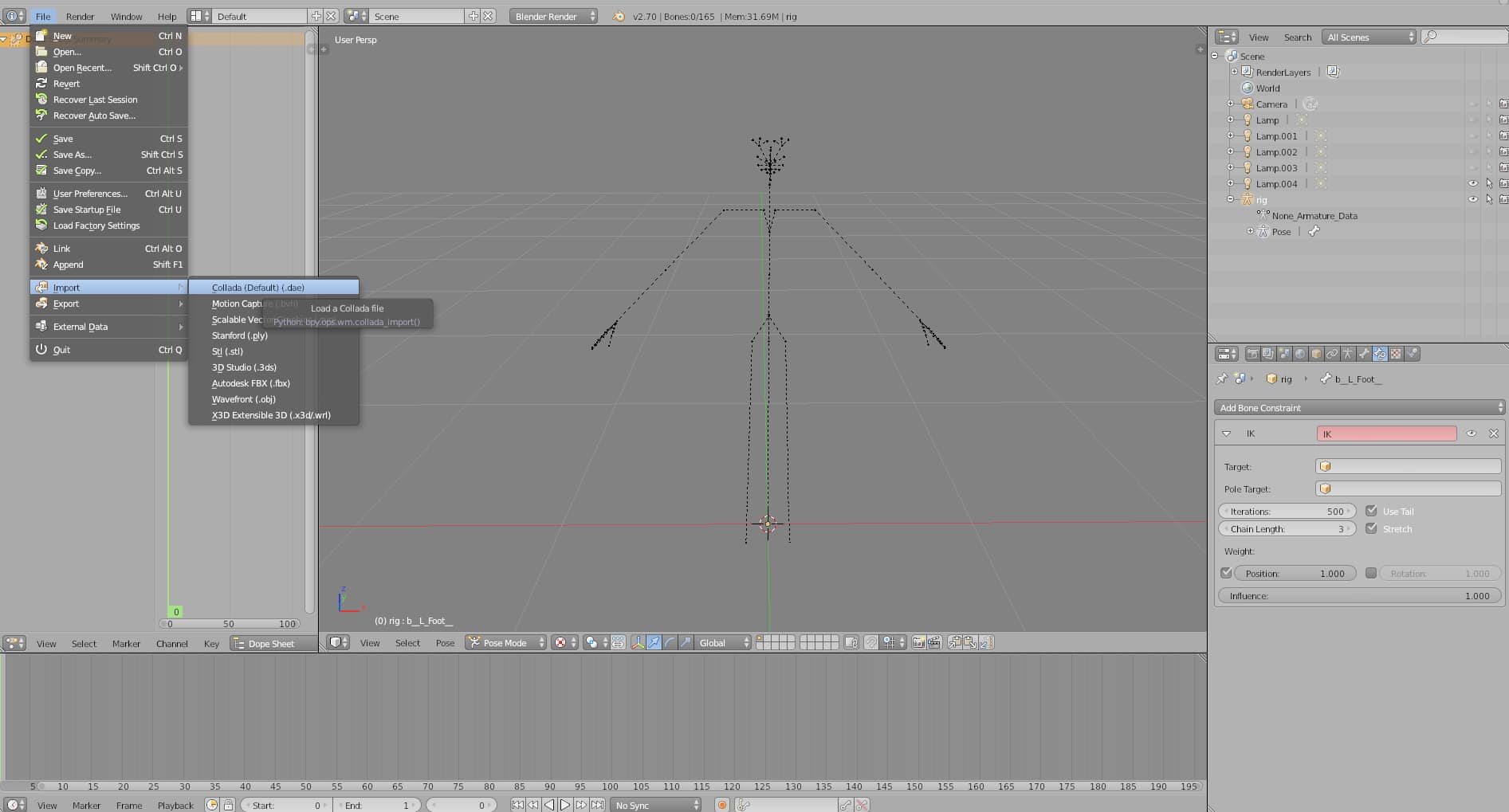
Open up the default rig in Blender and delete everything in the Scene panel except for the camera, lights, and the rig. You should only have the internal frame (or armature as it’s called) left.

Next, go to File > Import > Collada (Default) (.dae) to import the .dae file you exported earlier. Your Sim should be directly over top of the empty frame we had just a moment ago. Believe it or not, you’re already almost done making your Sims 4 custom rigs!
TUTORIAL: How to Make Custom Rigs for Creating Sims 4 Poses

With the Sim now imported, delete their rig in the Scene panel. Make sure you are deleting the correct rig. You want to delete the rig attached to your Sim, not the original one we had. If you aren’t sure, expand the rigs by clicking the + sign next to them. The rig with your Sim’s name underneath it should be the one you delete. This is an important step. You don’t want multiple armatures attached to your Sims 4 custom rigs.

sims 4 custom rigs
In Blender 3.3, the Object Modifiers tab is located along the side instead of along the top

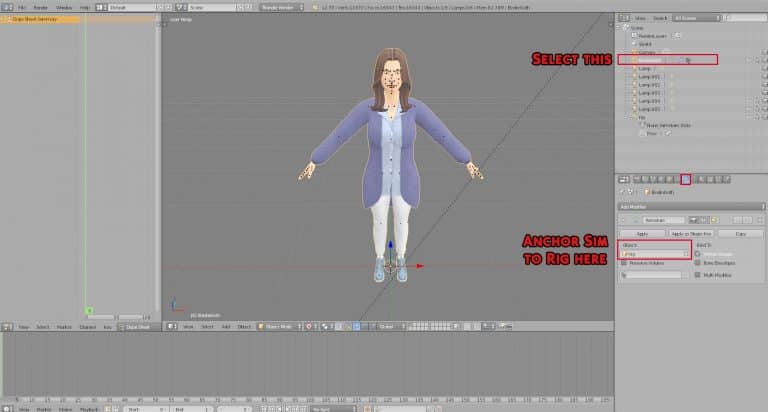
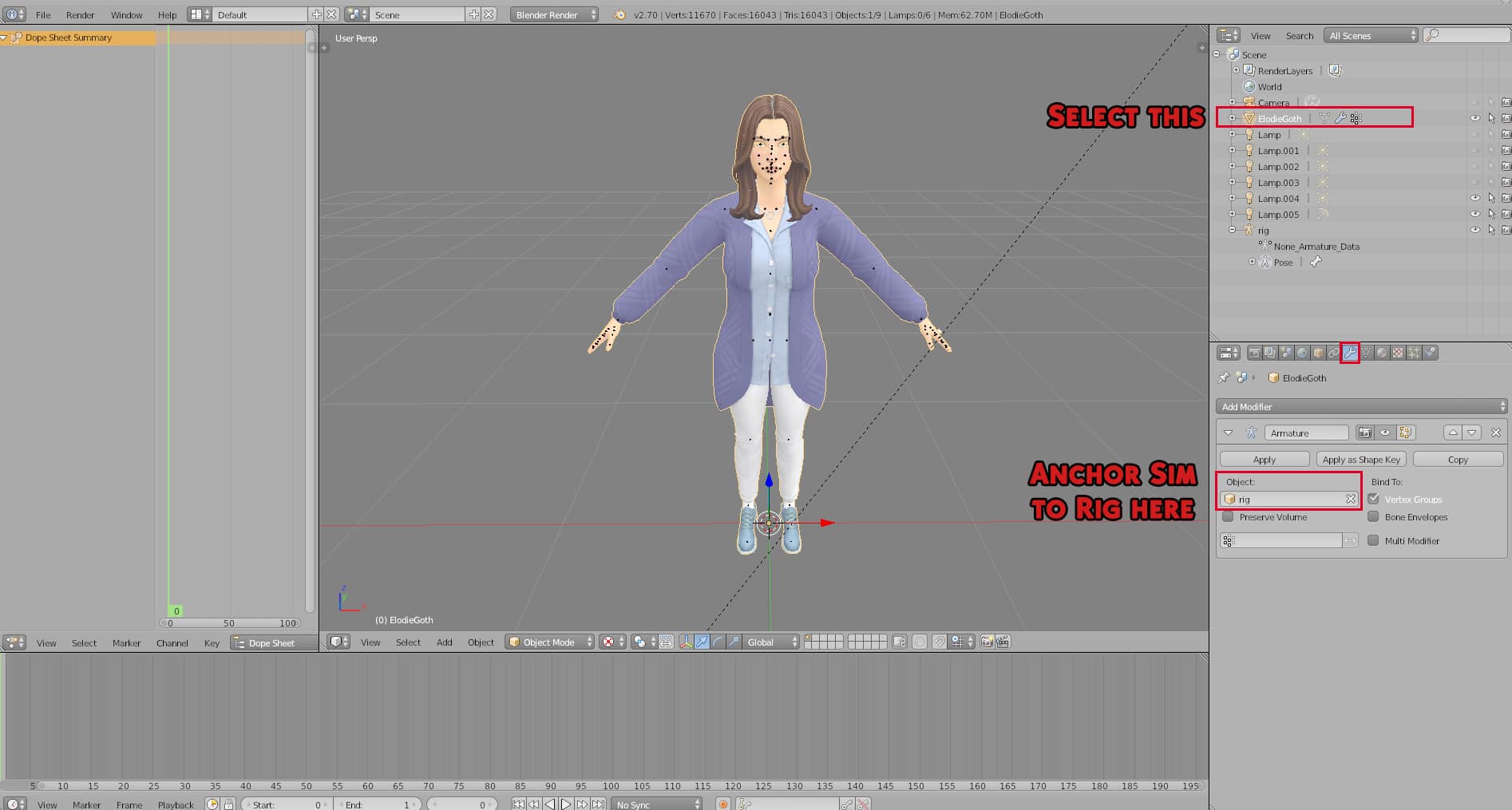
Your Sim’s name should now show up in the Scene panel by itself. Select your Sim’s name in the Scene panel and then select the Object Modifiers tab below the Scene panel. It’s the icon of a little wrench. Under the Object Modifiers tab, select your rig from the Object dropdown menu. This will anchor your Sim to the rig so when you move the rig, the Sim moves with it. This is crucial for having functional Sims 4 custom rigs.
TUTORIAL: How to Make Custom Rigs for Creating Sims 4 Poses

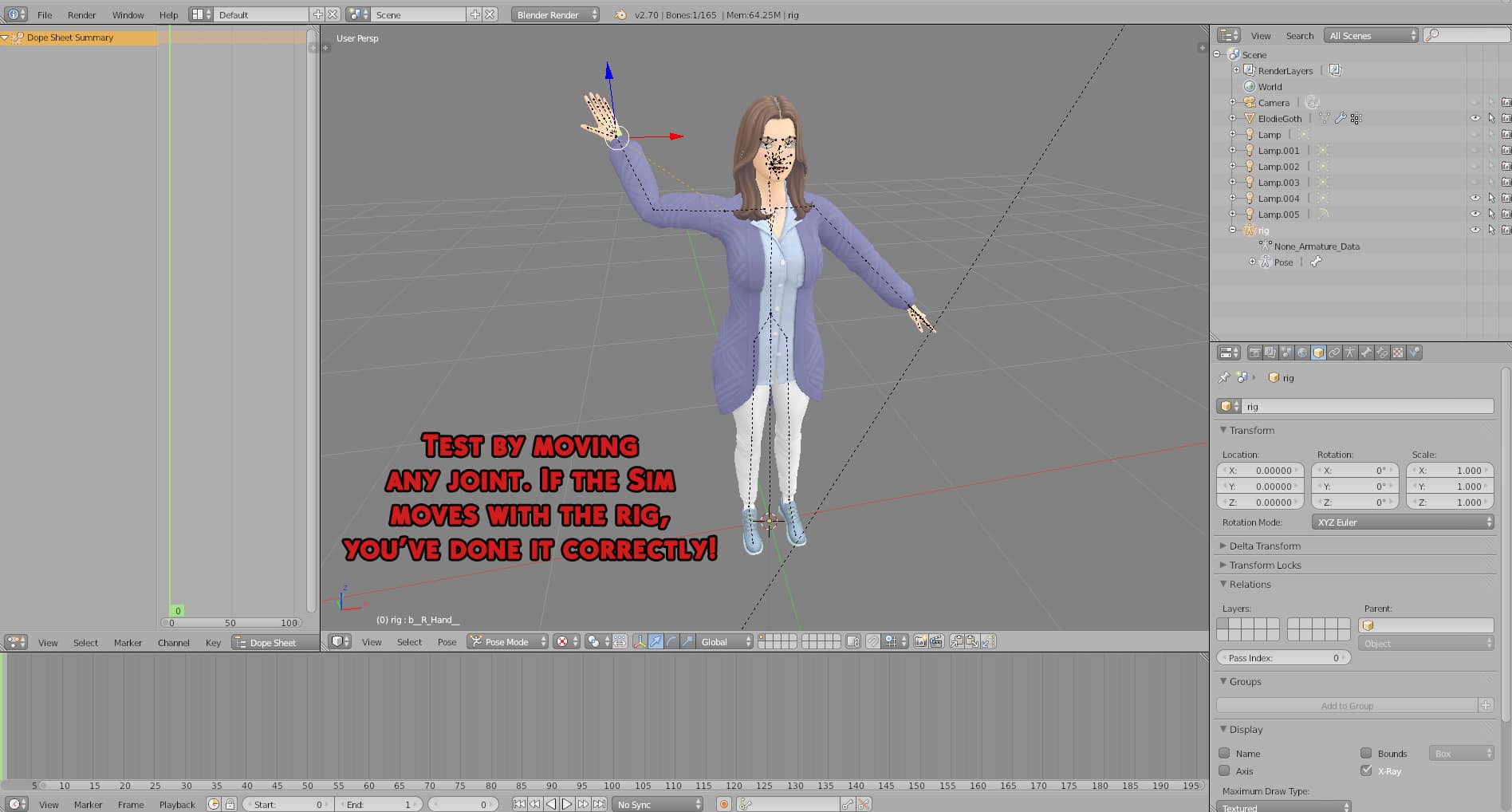
To test that you’ve done this right, move any joint on the rig. If the Sim moves with the rig, you’ve done this step correctly and now have functioning Sims 4 custom rigs to use for your poses!
sims 4 custom rigs

You are basically done but there are a couple things I like to do before saving my Sims 4 custom rigs. These things just save me time later on when I’m making my poses and help me keep things organised in the Scene panel.

First, I like to rename my Sims 4 custom rigs and my Sims. I rename the rig to RIG-SimName and the Sim to OBJ-SimName. This helps me differentiate between the frame and the Sim when I use them for posing in the future. I also make the OBJ-SimName unselectable. You only need to move the frame when making your poses, not the Sim itself. The frame is what creates the pose. The Sim just serves as a visual guide for their body shape. If you’re always accidentally moving the Sim and not the frame, that gets annoying. So make it unselectable by clicking the arrow next to it.

Blender 3.3 Tip: To make something unselectable in the Scene panel, click the funnel shaped icon in the top right corner just above the Scene panel, then choose the arrow icon. This will enable the option to make everything in the Scene panel unselectable the same way you would using Blender 2.7.

TUTORIAL: How to Make Custom Rigs for Creating Sims 4 Poses
You can also click the arrow symbol next to OBJ-SimName to make it unselectable.

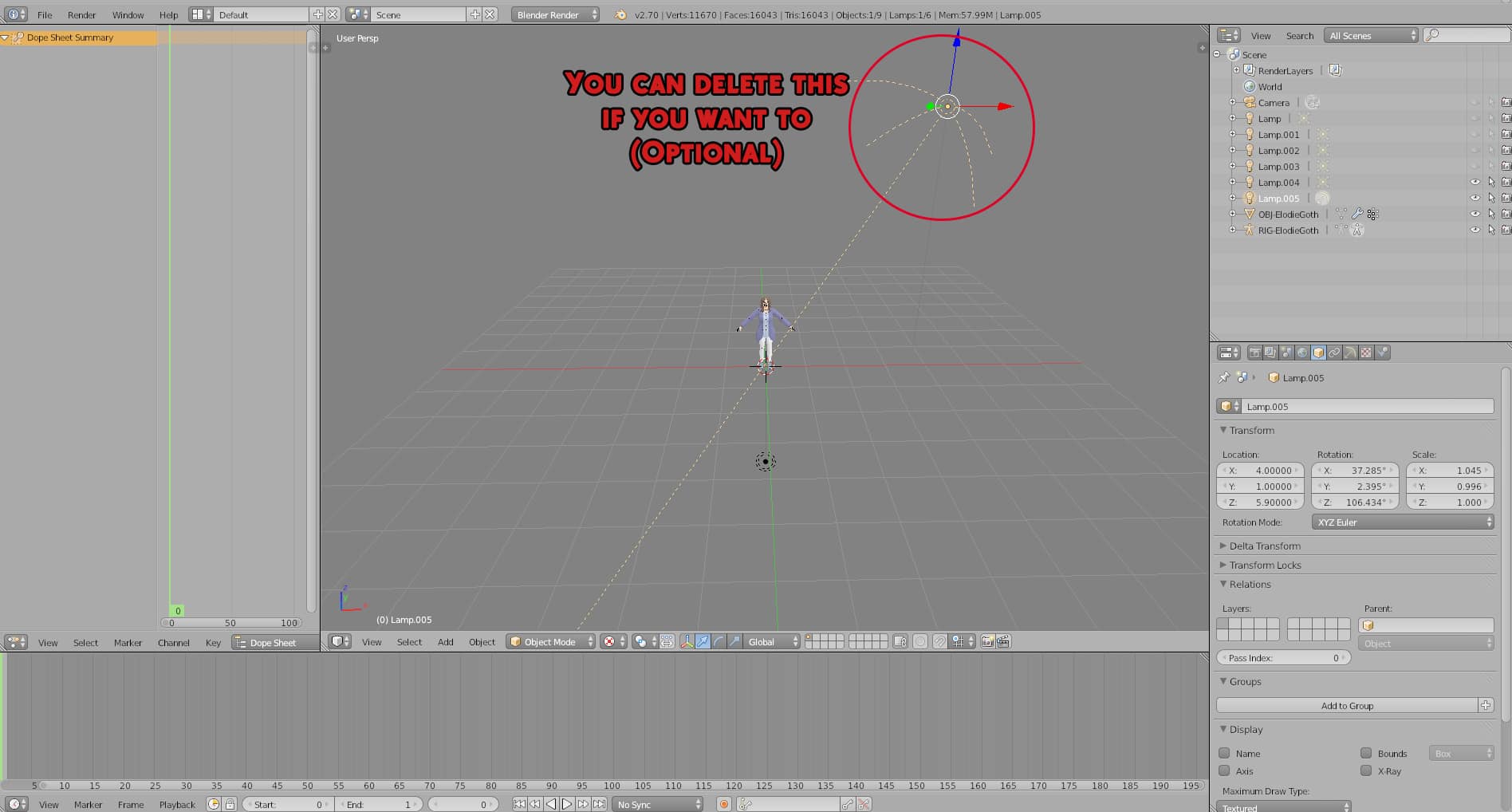
Next, I delete the fan light that gets imported with the .dae file. I just find it really annoying and in the way when using my Sims 4 custom rigs. The existing lights in the scene are a sufficient light source in my opinion. Keep it if you like it but you can delete it if you think it’s annoying, too.
sims 4 custom rigs

And there you go! You now have Sims 4 custom rigs of your own Sims to make sure that your next pose fits them perfectly! I have a folder full of Sims 4 custom rigs of all of my story characters so that I have them on-hand whenever I need to make a pose for them. I hope this tutorial helped you elevate your poses and get them perfect for every Sim, every time!


  • If this tutorial was way over your head and you just want to learn how to make poses to begin with, KatVerse has an entire playlist on YouTube dedicated to the subject. Her tutorials are how I started learning to make poses, so check them out!
  • If you need extra help with any general tools or features of Blender, Surfaced Studio on YouTube is my go-to when I need help navigating specific features of Blender. I recommend starting with his beginner playlist.
  • Special thanks to my friend Jannel, who walked me through the process of creating Sims 4 custom rigs when I was about to pull my hair out over it. Seriously, I could not find a single tutorial that went over this exact process in a simple, easy-to-understand way. That’s why I put together this tutorial; I don’t want other creators to struggle making Sims 4 custom rigs like I did.

Looking for a written tutorial on how to get started making poses? We’ve got you covered!
The Sims 4 Spooky Day Lookbook!

It’s that time of year! Spooky Day is nearly upon us and Simmers will be looking for costume inspiration for their Sims. Krista and I have teamed up again to bring you another lookbook featuring both whimsical and semi-casual costume ideas to get you and your Sims in the mood for a Spooky Party.

Normally, our looks are CC-free but this time we decided to do something a little bit different and incorporate a few of our favourite Maxis Match CC pieces into our looks.

Now let’s get spoopy!

Amicable Acolyte

The Sims 4 Spooky Day Lookbook!

Are you a good witch or a bad witch? Why choose when you can be a little of both? This black and white ensemble tells everyone at your next Spooky Party that you like to embrace both the dark and light side of magic. After all, it requires a careful balance of all three schools of magic to keep the realm from being torn apart.

Hair: Tight Ringlet Curls (Base Game)

Body: Knee-Length Suspenders Dress (Realm of Magic)

Shoes: Curly-Toed Heeled Boots (Spooky Stuff)

Accessories: Wide-Brimmed Witch Hat (Saurus CC) / Earrings & Nails (Base Game) / Leggings (Spooky Stuff)

Makeup: Eyeshadow, Contour, & Highlight (Base Game) / Lips and Eyeliner (Realm of Magic)

Misc: Default Eyes (kellyhb5 CC) / Default Skin (PYXIS CC) / Skin Overlay (AHarris00Britney CC) / 3D Lashes (Kijiko CC)

Dreaming of Harnocks

The Sims 4 Spooky Day Lookbook!

Did your owl get lost on the way to deliver your Harnocks acceptance letter? Yeah. Us too. But if it weren’t for such a terrible mail mixup, we’d definitely be students at Harnocks School of Witchcraft and Wizardry. Right? Okay, maybe we’re just ordinary folk, but we can dream of being magical with this blue, white, and mauve ensemble that tells everyone you wish you were Henry Puffer.

Hair: Side Part Short Afro (Base Game)

Top: Quarter-Sleeved Graphic Shirt (Pufferhead Stuff CC)

Bottom: Ripped Up Jeans (Base Game)

Shoes: Studded Boots with Buckles (Realm of Magic)

Accessories: Wizard Hat & Scarf (Pufferhead Stuff CC) / Glasses & Watch (Base Game)

Misc: Freckles (Base Game) / Default Eyes (kellyhb5 CC) / Default Skin (PYXIS CC) / 3D Lashes (Kijiko CC)

Playing with Fire

The Sims 4 Spooky Day Lookbook!

Who ever told you that faeries were sweet little pixies who went around sprinkling faerie dust on children and dancing on rose petals? Show everyone at your next Spooky Party that the Faire Folke are anything but sweet and cuddly. Woe to the unfortunate soul who wanders blindly into the Land of Fae. He just might be playing with fire… and he’s likely to get burned.

Hair: Island Flowers (Island Living)

Body: Faerie Costume (Spooky Stuff)

Shoes: Strappy Heels (Base Game)

Accessories: Necklace (Pufferhead Stuff CC) / Leggings (Spooky Stuff) / Nails (Base Game)

Makeup: Face Paint (Spooky Stuff) / Lips (Realm of Magic)

Misc: Default Eyes (kellyhb5 CC) / Default Skin (PYXIS CC) / Skin Overlay (AHarris00Britney CC) / 3D Lashes (Kijiko CC)

Vampire Princess

The Sims 4 Spooky Day Lookbook!

While she may look pretty in pink, don’t let the Vampire Princess’s look fool you! 

Hair: Pulled Back Plaits and Floral Slide (Holiday Celebration – Base Game)

Body: Pink Princess Dress (Vampires)

Shoes: Basic Ballet Shoes (Base Game)

Accessories: Heart Earrings (Base Game)

Makeup: Black & Pink Nails (Base Game)

Scary but Cute!

The Sims 4 Spooky Day Lookbook!

Who said toddlers can’t join in with the Spooky Day fun? He may look cute and cuddly but equally at the same time can be quite scary (of course in an adorable way!)

Hair: Side Parted (Base Game)

Body: Bear Hoodie (Toddler Stuff) & Knee Patch Joggers (Eco Lifestyle)

Shoes: Bear Paws (Base Game)

Spellcaster in Orange

The Sims 4 Spooky Day Lookbook!

Mysterious, serious and fun at the same time. This Spellcaster inspired look is bound to have your Sims seeing orange! 

Hair: Long Wavy Hair (Discover University)

Body: Hex Dress (Llazyneiph CC)

Shoes: Platform Heels (Discover University)

Accessories: Witches Hat, Cobweb Tights and Spider Necklace (Spooky Stuff)

Makeup: Eyeshadow, Blush and Lipstick (MAC Cosmetics – Base Game) Eyeliner and Nails (Base Game)


Credits

This post was a collaboration between Krista and SnarkyWitch!

Don’t forget to show us your Spooky Day looks over on social media!

The Sims 4: Let’s Build A Haunted House

Halloween is just a matter of days away, and I thought it would be fun to build a Haunted House. I knew that this wasn’t going to be something easy or as straight forward as I imagined because of what I had in mind for it to look like. I knew that this was something different for me to build, and I was ready for the challenge. Sometimes you just need to change it up and build something outside your comfort zone.

I set about choosing a lot to build my Haunted House. I wanted something that wasn’t too big but not too small. I settled on a 30×20 lot in Newcrest for the time being. It took a few attempts to get a rough shell, but eventually I came up with one that seemed to work. Added a bit of initial terrain manipulation and went from there.

The Sims 4: Let’s Build A Haunted House

At this point I wasn’t overly happy with the roofs. I tried several different combinations and nothing seemed to work how I wanted it to do so. Roofs in The Sims 4 has always been something I’ve struggled with, but I guess I was too used to just using Auto Roofs in the past. Regardless of how they looked at the time, I knew I could come back to them later on.

Slowly but surely the exterior was starting to come together. I ended up spending around an hour tweaking the roof and finding something that worked better than what I first placed down. While I still had a few changes that need to be made, I wanted to leave those until I started to focus on landscaping.

The Sims 4: Let’s Build A Haunted House

Interior

Even though I was looking forward to furnishing my Haunted House, I was worried that it wouldn’t turn out the way I was hoping it would. I was planning to utilize The Sims 4 Get Together, Vampires and Realm of Magic as well as The Sims 4 Paranormal as they obviously have a good selection of items that work perfectly for a Haunted House. While it seems like a quick win with the packs mentioned, I wanted this to be a Haunted House where Sims would be living on a day-to-day basis. This also meant that I would be utilizing the Haunted House Lot Type that came with The Sims 4 Paranormal.

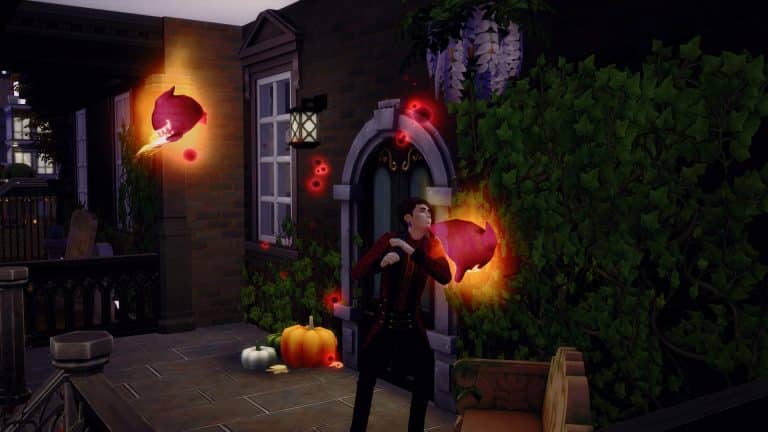
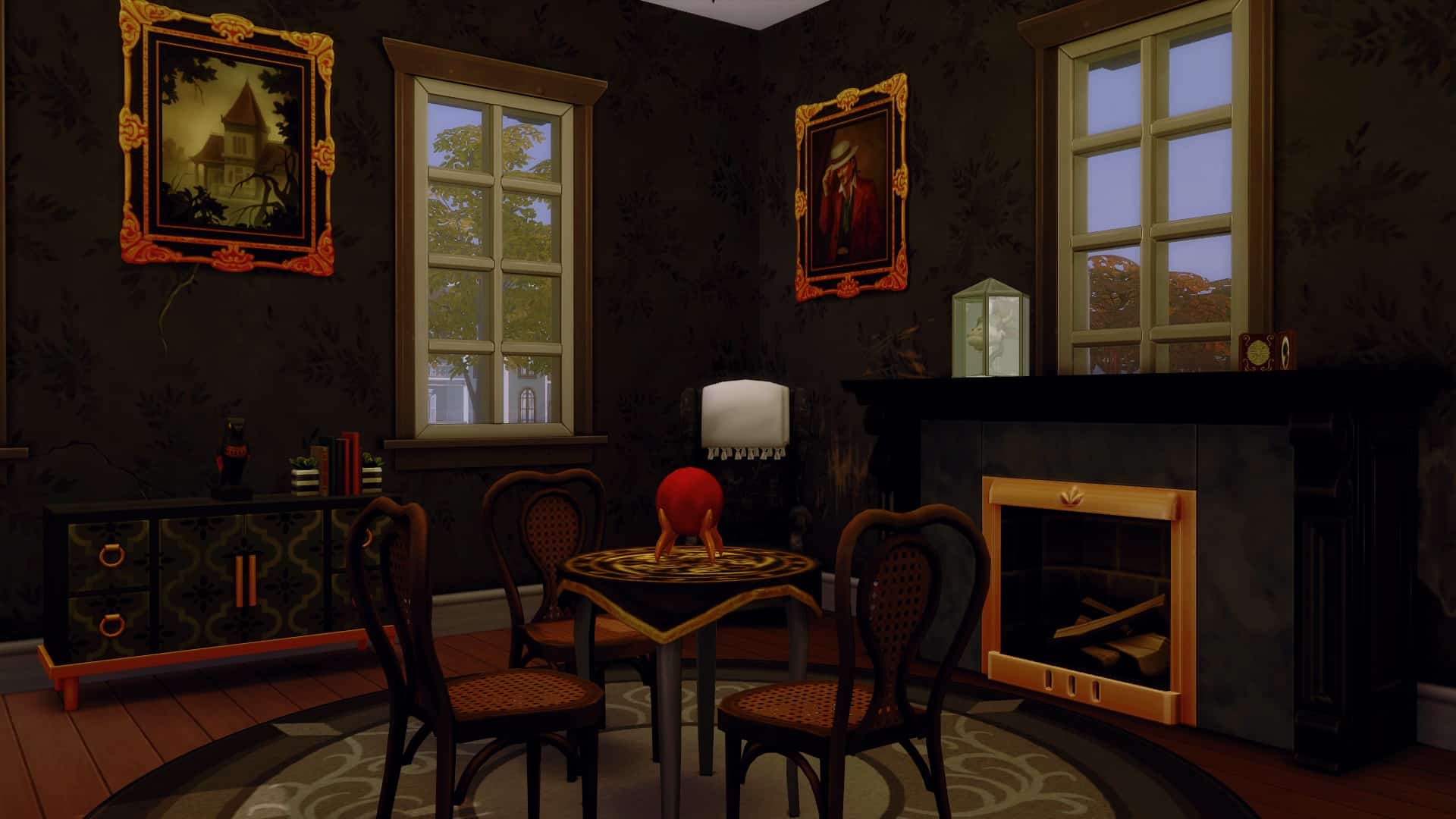
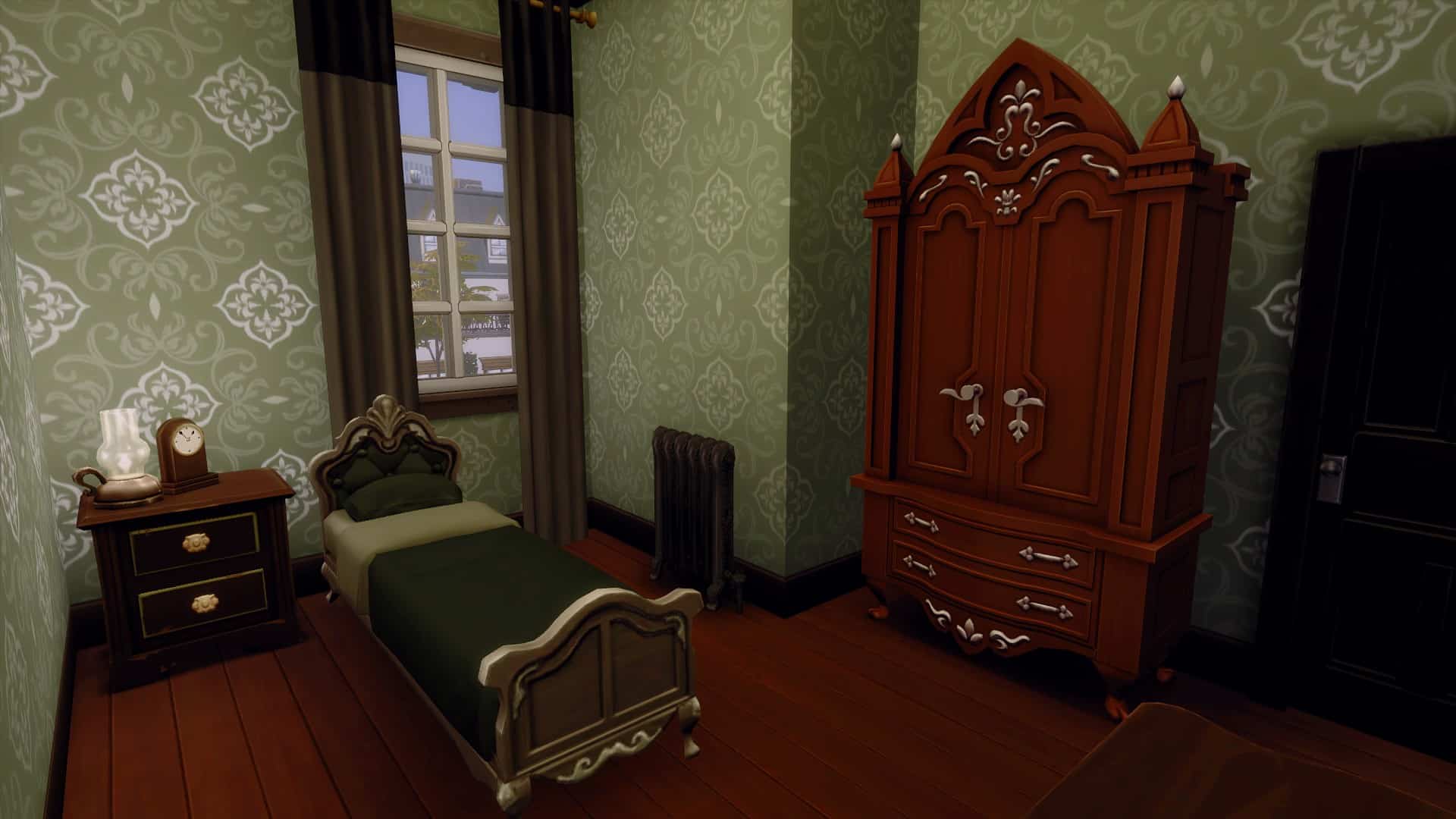
As for the rooms in general, I wanted to try my best to keep them simple but with more of a Victorian feel. I used a lot of darker swatches for the items, with the odd ‘pop’ of colour here and there. I tried to keep the more vibrant colours in either the wall coverings or selected items.

I also used a lot of the Wall Decals from The Sims 4 Vampires Game Pack, as they added another level of detail to the build. While there are Sims currently living here, it helped show the wear and tare from over the years.

Take a look at the gallery below to see how each of the rooms turned out. Click on the individual image to enlarge it.

Landscaping

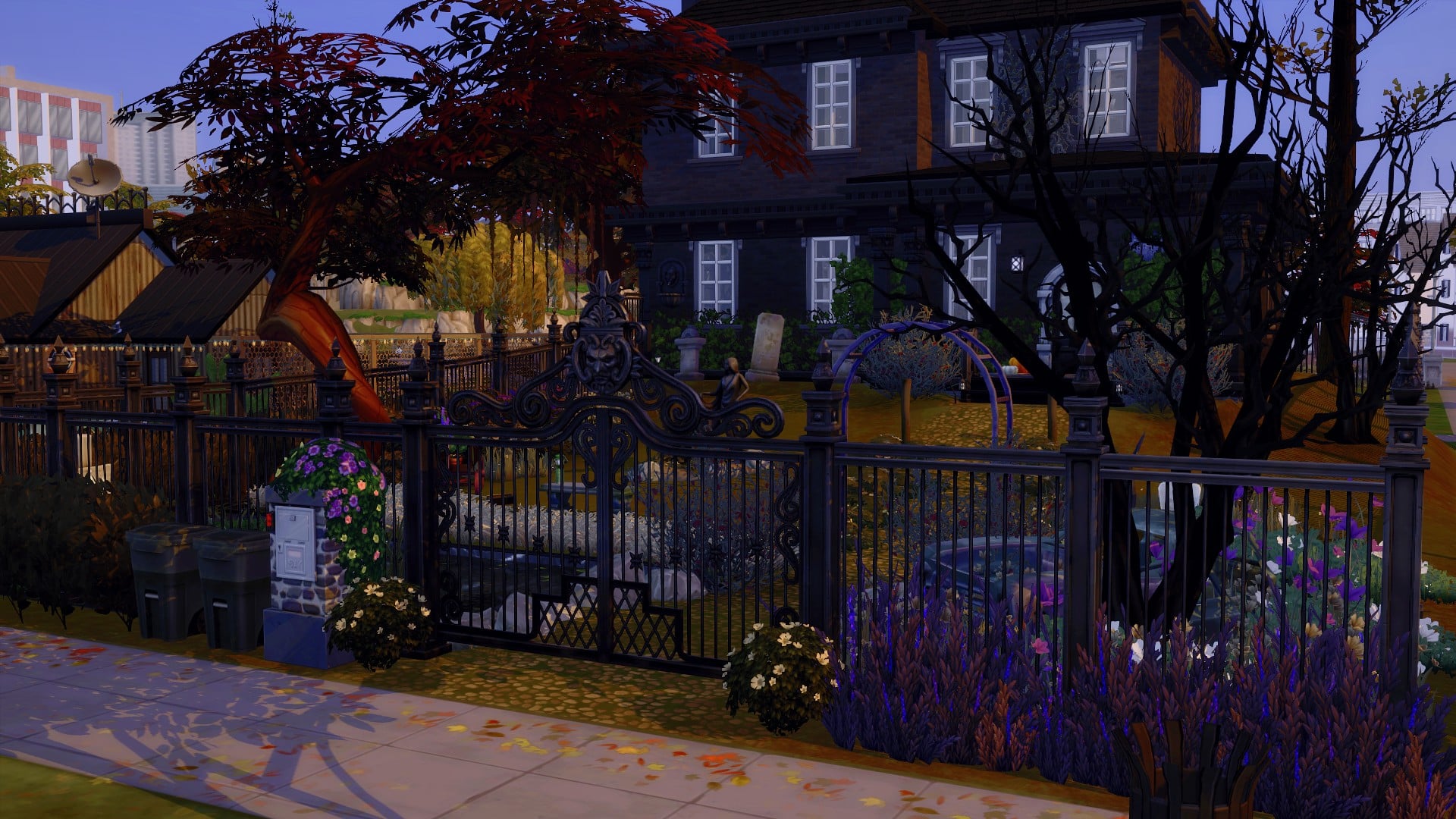
This was the one part of the build I knew I would have lots of fun with, especially with the DEBUG items too. I wanted to make the run-up to the house it’s self feel rundown, spooky and a little cluttered at the same time. Something that I knew would be easy to achieve given the number of objects I could use.

However, what I forgot to take into consideration was the fact I had used Terrain Manipulation and for a moment I was wondering why all my items were floating. Suddenly I remembered and had to rethink how I wanted to do this. After some experimenting and placing probably a few too many plants, I had something that I actually liked. It wasn’t what I originally set out to make, but I was happy with it.

The Sims 4: Let’s Build A Haunted House

Final Thoughts

While there was a lot of trial and error, a lot of moments when things weren’t working out how I wanted or just not going well at all, I think I can say I’m happy with how it turned out in the end. There are definitely things I would change and add if I was to continue with this build or make another version of it. Maybe add a basement or secret rooms.

My biggest challenge with this Haunted House would have been the roof. I mentioned early on in this post that it is something I usually struggle with, and I think it turned out okay in the end. The Terrain Manipulation is another tool that I don’t use very often and still need to work a little more on building my confidence when I do use them.

Overall, I can say I had fun and challenged myself with this build a long the way. I deliberately didn’t set myself a budget for this build, as I knew I would go way over it if I did. Either way, I can’t wait to move my Sims in to experience what it’s like to live in a Haunted House. Who knows, they may even get to meet Bonehilda too!

This lot is available to download from The Gallery!

  • Build Name – The Haunted House
  • Gallery ID – LeeksEverywhere

Let us know what kind of Haunted House you would create in game in the comments below, and don’t forget to tag us if you download this build from The Gallery!

Why not take a look at our Haunted House Community Showcase here for even more spooky builds!

Credits

Reshade – Compass by Intramoon

This Mod for The Sims 4 will add Complex Marriage Outcomes

If you’re a gameplay enthusiast or storyteller who loves creating lots of drama with your Sims, you should check out the WooHoo Wellness and Pregnancy Overhaul mod by Lumpinou! This mod has been around for a while but receives monthly updates with new features. The mod is made up of multiple modules you can install separately so it’s fully customisable to suit your own preferences. Install features you want and discard the ones you don’t; it’s up to you!

The WooHoo Wellness and Pregnancy Overhaul mod is a massive game overhaul that completely changes the way relationships, pregnancy, and family dynamics work in the game. Sims will have realistic and varied reactions to things like pregnancy, cheating, breakups, and more. Some Sims may be excited about a new baby while others may be furious, upset, or have mixed feelings about the situation. Those feelings will inform the way those Sims interact with both each other and the situation. It would take us quite a while to break down every single feature of this mod. It affects the game in very intricate and nuanced ways but the latest module which is currently being released in small batches really caught our attention!

This Mod for The Sims 4 will add Complex Marriage Outcomes
Image Credit: lumpinoumods.com

The module, called Break Up, Make Up, and Everything In Between, + Co-parenting, adds more depth to the process of breaking up in the game. Normally, married Sims always have the Divorce option available under the Mean social category. Choosing that option will instantly make the Sims divorced and any children who happen to witness this interaction between their parents will feel sad about their parents breaking up for a while. That’s basically it. With this module, married Sims can separate for a period of time before either deciding to go ahead with a divorce or get back together.

The video embedded below shows this process in more detail but to summarise, married Sims can request a separation from their spouse. This puts both Sims into the Separated relationship status. While in the Separated status, the Sims have new interactions available to them with their estranged spouse. They can attempt to repair the relationship by promising to change, apologising for their mistakes, and more. They can also call or text their estranged spouse from their temporary living arrangements following the separation. They can also tell other Sims about their separation and those Sims will respond with their opinion on the situation.

https://youtu.be/1mc8FH4HLA4

Getting back together isn’t as easy as saying you’re sorry, though! While separated, Sims can gauge how ready the other Sim is to reconcile. Trying to reconcile too soon while the reconciliation odds are low is likely to fail and hurt the relationship more. It’s going to take consistent effort on your part to repair the damaged relationship. Even if the couple decides to reconcile after the separation, there’s a chance the estranged partner may still refuse to move back in at first if they feel it’s too soon to be living together again.

If the Separated couple has children together, the parents can explain the situation to their kids. The children can have a variety of reactions to the separation depending on how close they are with the parents.

There are also new divorce and custody battle dynamics that will be getting added to this module in phases over the next month or so. Some of the divorce and custody features are not fully implemented yet but will be coming to the mod soon, so keep an eye on Lumpinou’s website for more information. For now, here’s an overview of those upcoming features summarised from Lumpinou’s website.

This Mod for The Sims 4 will add Complex Marriage Outcomes
Image Credit: lumpinoumods.com

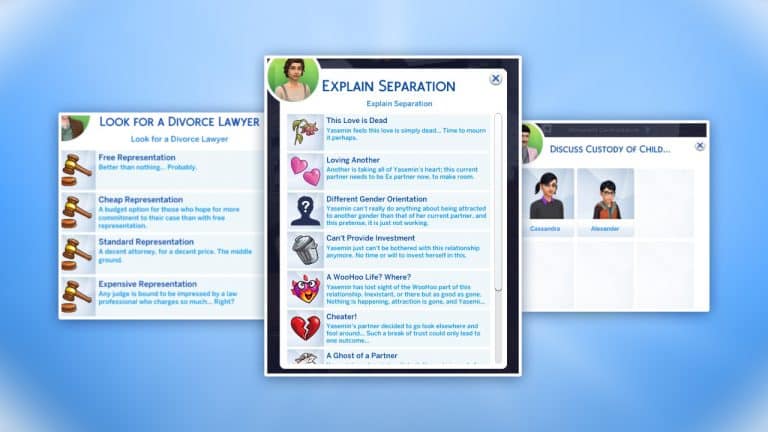
If a couple decides to permanently divorce following a separation, the Sim initiating the divorce will be able to select a reason for why they want a divorce. Some of the reasons seen in the example picture on Lumpinou’s website are This Love Is Dead, Loving Another, Different Gender Orientation, Can’t Provide Investment, A WooHoo Life? Where?, Cheater!, and A Ghost of a Partner.

If the couple getting divorced have children together, one Sim can demand custody of the children. The other partner may agree to the demand or fight them on it. If the other partner chooses to fight for custody of the kids, this will initiate court proceedings. In the case of amicable breakups, Sims can also amicably agree to share custody of the children.

If the Sims cannot amicably agree on custody arrangements for the kids, they will have to fight each other in court for custody. Custody arrangements are determined by the court based on various factors like employment and housing but Sims can also help their chances of winning custody of the kids by hiring a more expensive divorce lawyer. The more expensive the lawyer, the better the odds of your Sim getting what they want. Lumpinou also hints on the website that for evil and mean Sims, they have some not-so-honourable methods available to them to get the other parent out of the picture…

After custody has been decided, kids can visit the other parent and may have good or bad reactions to their visits depending on several factors. Teens are more likely to be annoyed by having to go visit the other parent than children are. Divorced Sims with children will have to learn how to navigate co-parenting their children together regardless of whatever issues they have with each other. As you might imagine, co-parenting can go smoothly or not-so-smoothly depending on how bad the breakup was and how the parents choose to interact with each other.

This Mod for The Sims 4 will add Complex Marriage Outcomes
Image Credit: lumpinoumods.com

While your Sim’s child is staying with their other parent, they may be contacted by the other parent with various situations regarding their kids. They could be phone calls just giving them updates and information about their child or your Sim may have to make some kind of decision. Some example situations Lumpinou describes on the website are the other parent calling them about a school trip for their child and wanting to know if your Sim can pitch in to cover the field trip cost. There is also a situation in which the other parent may have to stay late at work and wants to know if your Sim can take the kids for them that day.

Divorced parents will also need to pay child support for any kids not in their custody. They may be receptive to paying child support or be angry about it. For example, the Sim might feel like the other parent is misusing the child support funds and therefore they’re reluctant to send them any more money.

There’s a few other tidbits of information that Lumpinou goes over on the website but we hope this article has given you a pretty good rundown of what to expect when this module has had all features fully implemented in the coming months! I know I’m excited to play with everything discussed here myself in my own game! Keep in mind all of these features are still in development and may change depending on Lumpinou’s schedule!

The Sims 4 Scenarios: New Information + Official F.A.Q.

0

The Sims Team has just released their official Sims 411 report for the latest Inside Maxis Livestream that they’ve done.

Inside of this report is new information regarding the upcoming feature for The Sims 4 – Scenarios! The team has also included an official Frequently Asked Questions section that shares more about this upcoming feature.

The update for The Sims 4 that includes Scenarios has also been confirmed for a November 2nd release for PC and Console players!

Scenarios – A new way to play

What are Scenarios?

Scenarios are goal-based stories within the game where a player’s choice impacts the outcome. There are many different outcomes to Scenarios and many different ways to achieve those outcomes. That’s right, there’s more than one way to complete a Scenario, just as in real life! You never know how the story will go. How you get there is up to you!

Two Scenarios in the next patch update

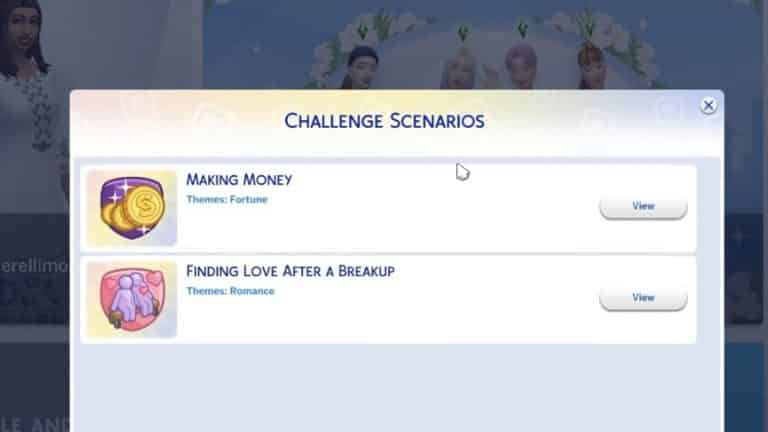
On the day that Scenarios launch, you’ll be able to play two Scenarios: Making Money and Finding Love after a Break up. This first batch of Scenarios have a challenge aspect to them and are called ‘Challenge Scenarios’.

For example, Making Money places your Sim in a situation where they have zero simoleons in their bank account. To complete the Scenario you’ll have to work your way to one million simoleons. How you get there is really up to you! You could choose the noble route and work your way through hard work and dedication or you can get creative and get to a million simoleons in other ways… 😉

How to access and play

Players that download the patch on November 2nd will have access to the brand new Scenarios feature. You’ll be able to access currently available Scenarios via the Main Menu following these easy steps:

  1. Click on the ‘New Scenario’ button on the Main Menu
  2. Choose the Scenario you’d like to try out
  3. Once you’ve selected your Scenario, choose whether you’d like to start a new save, or use an existing save. Please note: In the first version of Scenarios, a Scenario can only be started in a new household. We’re working on bringing existing households into Scenarios for a future update!
  4. Once you’re in CAS, create your household making sure to complete any requirements
  5. Next up, choose your world and lot. Remember, if you’re playing ‘Making Money’ that your household funds will be set to 0 once beginning. So, you may be in for quite the challenge if you choose to start with a bulldozed or unfurnished lot.
  6. Enter live mode, and enjoy!

More Scenarios to come

The party is just starting! There will be more Scenarios with different themes and different styles moving forward. Over time, you’ll notice new Scenarios appearing in the Main Menu. Some Scenarios will be available for a long time while others will be available for a limited time. So make sure to stay connected!

Scenarios FAQ

Where did you get your inspiration from for Scenarios?

We’ve been interested in creating new ways for Simmers to play, and the Scenarios feature was born from this. For our first batch, we looked to our vast community to see how you all have been inspiring others, so we’ve leaned into the concept of challenges as inspiration for this feature.

Can I use an existing household to play Scenarios?

For the first version of the feature you’ll only be able to add Scenarios to a new household in either a new or existing save. We’re working on expanding this out to existing households in the future, stay tuned for more updates.

Will there be more Scenarios in the future?

Yes! More Scenarios, new variations to existing Scenarios as well as new features will be added over time.

How many possible outcomes are there in one Scenario?

There will be several ways that a Scenario can end. We’ve listed a couple of possible outcomes in the description for each Scenario, but there are some that aren’t listed, too.

Can I continue playing with the save file of the Scenario afterwards?

Yes! You’ll be able to continue playing with the save file and the household that you’ve worked on completing the Scenario with.

If you choose a lot without a house will your sim still have 0 Simoleons?

Yes! In Making Money, you’ll be able to start a lot without a house if you’d like. This would be one way to create a more difficult Scenario if you’d like.

Are the challenges timed?

We do keep track of Sim time as you’re playing, so you’ll get to see how much Sim time has elapsed from start to your outcome, however there is no time limit once you’ve started the Scenario. There will be some Scenarios that are only available for a limited time. As long as you’ve started the Scenario before the limited time period has ended, you’ll be able to play the Scenario through to completion.

The Sims 4 Scenarios: New Information + Official F.A.Q.

LEAK: The Sims 4 Blooming Rooms Kit

8

“Sanctuary Vibes” Kit Tease now has an official name!

It seems that the Xbox Store has made another leak.

@ALumia_Italia has found a leak through the official Microsoft Store about the upcoming Kit for The Sims 4.

The Sims 4 Blooming Rooms Kit is coming on November 9th according to the leaked listing. The twitter user has also shared what appears to be an official screenshot from this upcoming Kit. Check it out!

FC7dGllX0AEkhOD

Since the apparent release date for this Kit is close, we can expect official news to come out soon regarding this Kit. Stay tuned on our The Sims 4 Kits Article Category to be the first to know more about this Kit!

The Sims 5 Development is expanding to Maxis Europe

4

Every few months or so a new job listing surfaces on Electronic Arts’ official website giving clues about the development of the next generation Sims Game. Or, how we like to call it until the game officially gets announced – The Sims 5.

We’ve already made several reports about the current plans of the next generation Sims Game, which has already been confirmed to be in development by EA’s CEO Andrew Wilson way back in early 2020. The development of this Sims Game seems to be primarily done by the team from Maxis in Redwood Shores. However, just recently there’s been a confirmation that Maxis is opening up a new Remote Studio in Europe – called Maxis Europe. At first this studio was only looking for developers to work on The Sims 4, but now new job listings have surfaced that confirm that Maxis Europe will also be covering the development of The Sims 5.

Three very strong job opportunities have been published on Maxis Careers, including Character Artist, Animator and Senior Environment Artist for “The Sims”. Since all 3 listings are talking about a position for “The Sims” with all 3 mentioning that the work will be done using brand new tools (including Unreal Engine) we are certain that this is about the next generation Sims Game.

Check out what the job opportunities are looking for. Important parts that talk about responsibilites for the next generation Sims Game have been bolded:

Character Artist, The Sims

Character Artist, Remote in Europe

Maxis is looking for you to be a part of the creative team. We ask that you are motivated and can work well with a cross-disciplinary group.

The Character Artist works closely with the Art Director and Technical Leads to define visual standards and technical specifications of characters for the project. In addition to creating high quality character models and materials, the Character Artist guides junior members of the team and external partners to deliver work that meets the project standards. The ideal candidate proactively seeks opportunities to elevate the game, embraces constructive feedback, and thrives in a highly collaborative environment.

You will report to one of the Maxis Development Directors within the studio.

Key Responsibilities:

  • Work with the Art Director and technical partners to define and refine the look and feel of characters for the project.
  • Work with Technical Art, Engineering and other artists to develop the character creation and integration pipeline.
  • Create high quality character models and materials/shaders including in-game and high-resolution assets.
  • Update style and technical documents for the character art team.
  • Collaborate with Technical Artists to create and improve tools and workflows.
  • Actively participate in milestone planning and reviews.
  • Work within deadlines and display strong time management skills.
  • Provide mentorship for junior team members.
  • Review work from external partners and provide feedback.

Qualifications:

  • Minimum of 5 years of production experience as a character artist.
  • Have served as a Lead Character Artist on a published title and have shipping experience on multiple game titles.
  • Strongly proficient in industry standard software like Maya, ZBrush, Substance Painter/Designer and Photoshop.
  • Strong understanding of scale, proportion, surface properties, and human anatomy.
  • Demonstrated ability in character stylization
  • Knowledge of character setup and rigging.
  • Ability to create shaders/materials using painting and node-based techniques (e.g. Substance Painter and Designer)
  • Knowledge of high-poly to low-poly surface baking
  • Strong written and oral communication skills
  • Passion for making and playing games

Nice to have:

  • Experience working with Unreal Engine and implementing 3D work into the pipeline

Animator, The Sims

Responsibilities

  • Work with Animation Lead and Director to create high-quality keyframe animation with heavy emphasis on full body character acting.
  • Produce content under tight game development deadlines.
  • With guidance from your Lead, collaborate with other essential contributors of the Production process to fulfill Design Goals. Essential contributions include:
  • Work with different technical and art disciplines to solve implementation challenges.
  • Estimate and provide scoping options for content to ensure we can meet production deadlines.
  • Design animation assets and state machines using our proprietary engine.
  • Present implementation strategies alongside other contributors.
  • Use both Maya and art tools to implement animated characters and objects in a proprietary engine.
  • Use proprietary engine and pre-vis tools to technically verify animation content for self and others.
  • Work with other essential disciplines to solve complex game bugs.
  • Maintain and track animation assets related to your implementation designs.
  • Create technical documentation of your implementations.
  • Hold focused discussions concerning technical implementations you have contributed to, to spread knowledge across the animation team.

Qualifications

  • 5+ years of experience as a Gameplay Animator working with and designing animation state machines in a game engine such as Unity, Unreal or similar.
  • Exceptional skill creating keyframe animation with a primary emphasis on full body character acting.
  • Proficient understanding of both game animation and in-engine state machine design.
  • Excellent technical comprehension regarding game animation implementation.
  • Excellent collaborator with a passion for working across diverse groups to find creative solutions.
  • Passion for learning new workflows, processes, and technology.
  • Excellent oral and written communication skills.

Bonus Experience

  • Experience in the Simulation genre of games 
  • Comfortable creating entertaining acting performances for reference for your animations or others.
  • Experience working with motion capture processes
  • Experience with Atlassian Confluence, Jira software, Shotgun or similar tools

Senior Environment Artist, The Sims

We are looking for an experienced Environment Artist. Though your passion is creating beautiful settings, you aren’t afraid of working within a technical pipeline and are comfortable problem solving with Producers, Designers, and Engineers. You are confident enough to run with a task with little oversight but are open to feedback from Art Direction and love collaborating with your peers.

Responsibilities:

  • Work productively with a small environment art team to deliver quality content on schedule that meets technical requirements.
  • Perform as a key contributor of the world production process to create believable and engaging environments for Maxis Studios.

Qualifications:

  • Thorough knowledge of and experience with Zbrush, Adobe Photoshop, and Maya or Max
  • Ability to take direction and feedback well
  • Self-Motivated towards solving creative problems
  • Excellent communication and interpersonal skills
  • Strong work ethic and positive attitude
  • 5+ years of professional environment art experience in a gaming studio using a World Editor
  • Solid understanding and experience using Substance Painter
  • Ability to render stylized textures
  • Experience with terrain sculpting editors
  • Background or education in traditional arts or architecture
  • Shipped at least one AAA title

Your portfolio must demonstrate the following:

  • Experience at creating Environment Art
  • Examples of textured, clean, efficient, low-poly assets
  • A great eye for detail and composition

Now we know that Electronic Arts and Maxis are planning to make this game stylized, yet high in detail when it comes to characters and animations.

Of course for now we only know vague technical details regarding the development of the next generation Sims Game, and that now more than 1 Studio is working on it.

Since the development for a brand new AAA title takes time (and a completely different team), this will have no impact over the current development of The Sims 4 and its upcoming content.

You can catch up on everything we know so far about the next generation Sims Game in our The Sims 5 News Category!

TUTORIAL: How To Make Custom Tattoos for The Sims 4

Have you ever wanted to learn how to create CC for The Sims 4? You’re not the only one! While some CC can be really complex to make, other types of CC are fairly straight forward and simple. Like custom tattoos. There’s really nothing to custom tattoos at all. They’re a very nice, simple introduction to making CC for complete beginners. Today, I’ll be walking you through the process of how to create a custom tattoo for The Sims 4!

What You Will Need

  • The Sims 4 Base Game
  • Sims 4 Studio. You need to make a free account on the forum to access the download.
  • The male and female adult texture files
  • A high quality image you want to make into a tattoo on a transparent background
  • Any image editing software of your choice. I will be using Photoshop CS6 for this tutorial but Paint.NET is a great free alternative.
  • Basic knowledge of how to do things like copy/paste layers and resize layers in your photo editing software. I will not be showing you how to use your photo editing software, since every program is different.

Create Your Package File

TUTORIAL: How To Make Custom Tattoos for The Sims 4

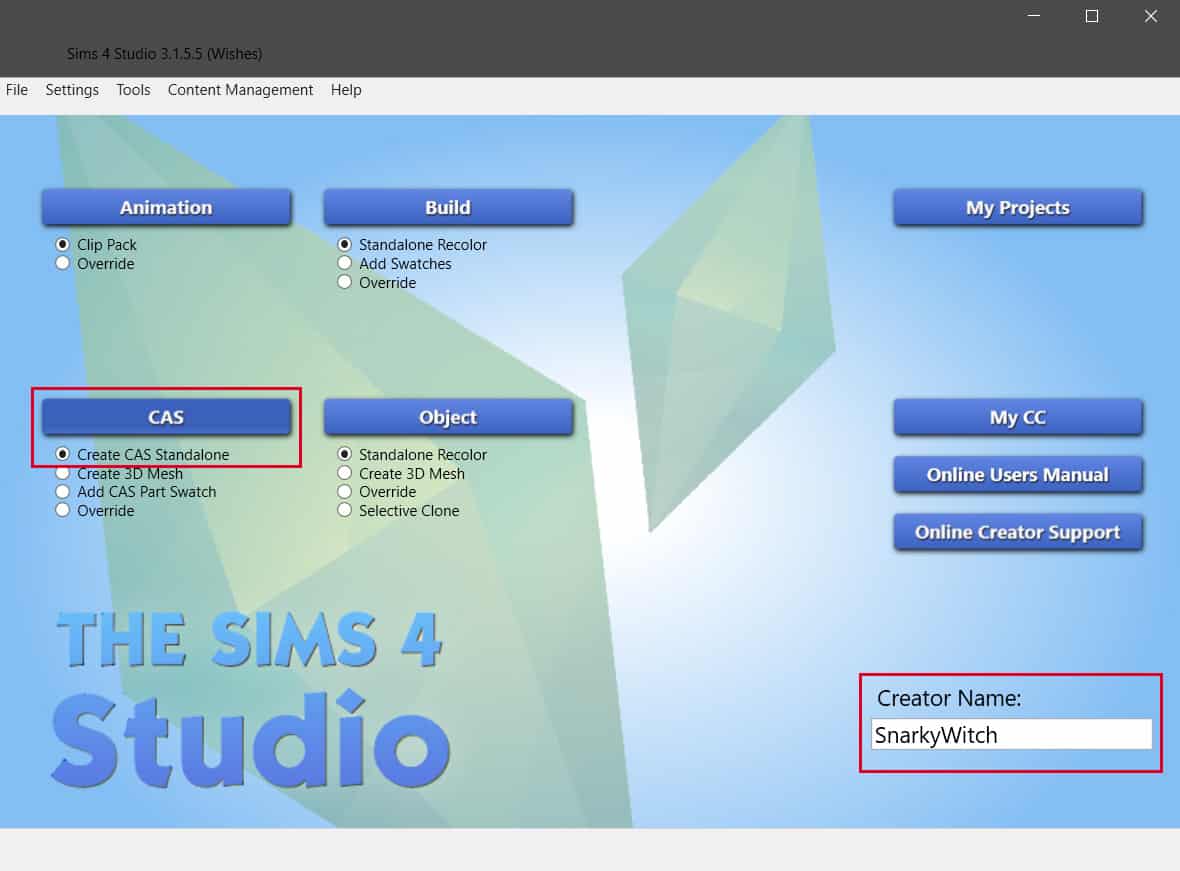
To start with, open up Sims 4 Studio and enter your Creator Name. Make sure Create CAS Standalone is selected in the menu and click the CAS button above it.

Next, select the CAS piece you want to replace with your tattoo. Since we are making a custom tattoo, we will want to select a tattoo to replace. Use the filters at the top to filter for base game tattoos. Always make sure the item you select is base game whenever possible. This makes sure everyone can use the item if you choose to upload it. I’ve chosen one of the lower back tattoos for female Sims.

TUTORIAL: How To Make Custom Tattoos for The Sims 4

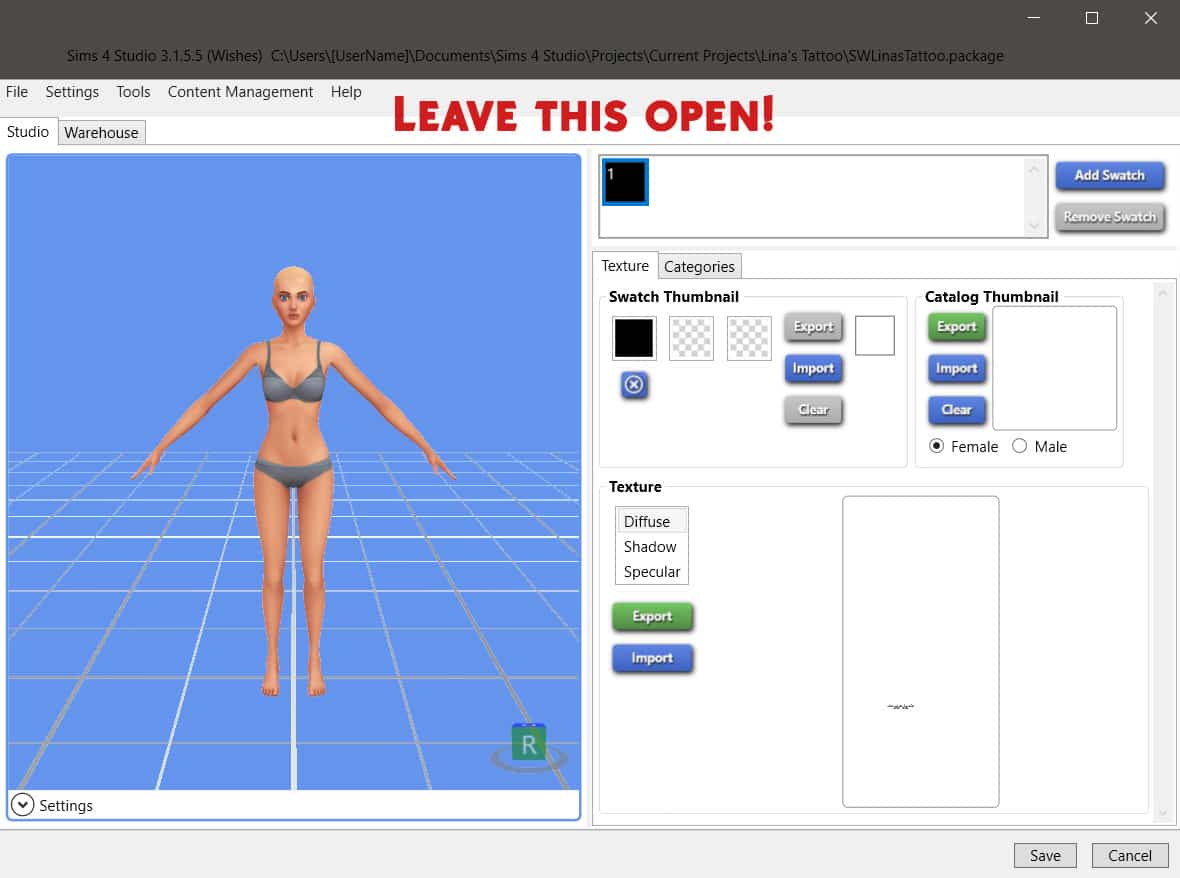
Hit Next after picking your item and it will open up in Sims 4 Studio. We’re done here for now but leave this open because we’ll be going back to it shortly.

TUTORIAL: How To Make Custom Tattoos for The Sims 4

Make Your Tattoo

If you haven’t already, download the texture files linked above in the What You Will Need Section. Open either one of them in your photo editing software. If you are making a tattoo for a male Sim, use the male texture. If you are making a tattoo for a female Sim or a unisex tattoo, use the female texture. Female Sims have more curves so a tattoo that looks good on a male Sim might stretch weird on a female Sim. If a tattoo looks good on a female Sim, it will usually look good on a male Sim as well.

Now open the image you want to use for your tattoo. It is very important that the image is of high quality and on a transparent background. Poor quality images will look blurry in-game and the tattoo should not have a solid background, otherwise that will show up in-game, too. Removing the background yourself can result in fuzzy edges sometimes depending on the complexity of the tattoo. It’s best to just start with a tattoo on a transparent background to begin with.

TUTORIAL: How To Make Custom Tattoos for The Sims 4

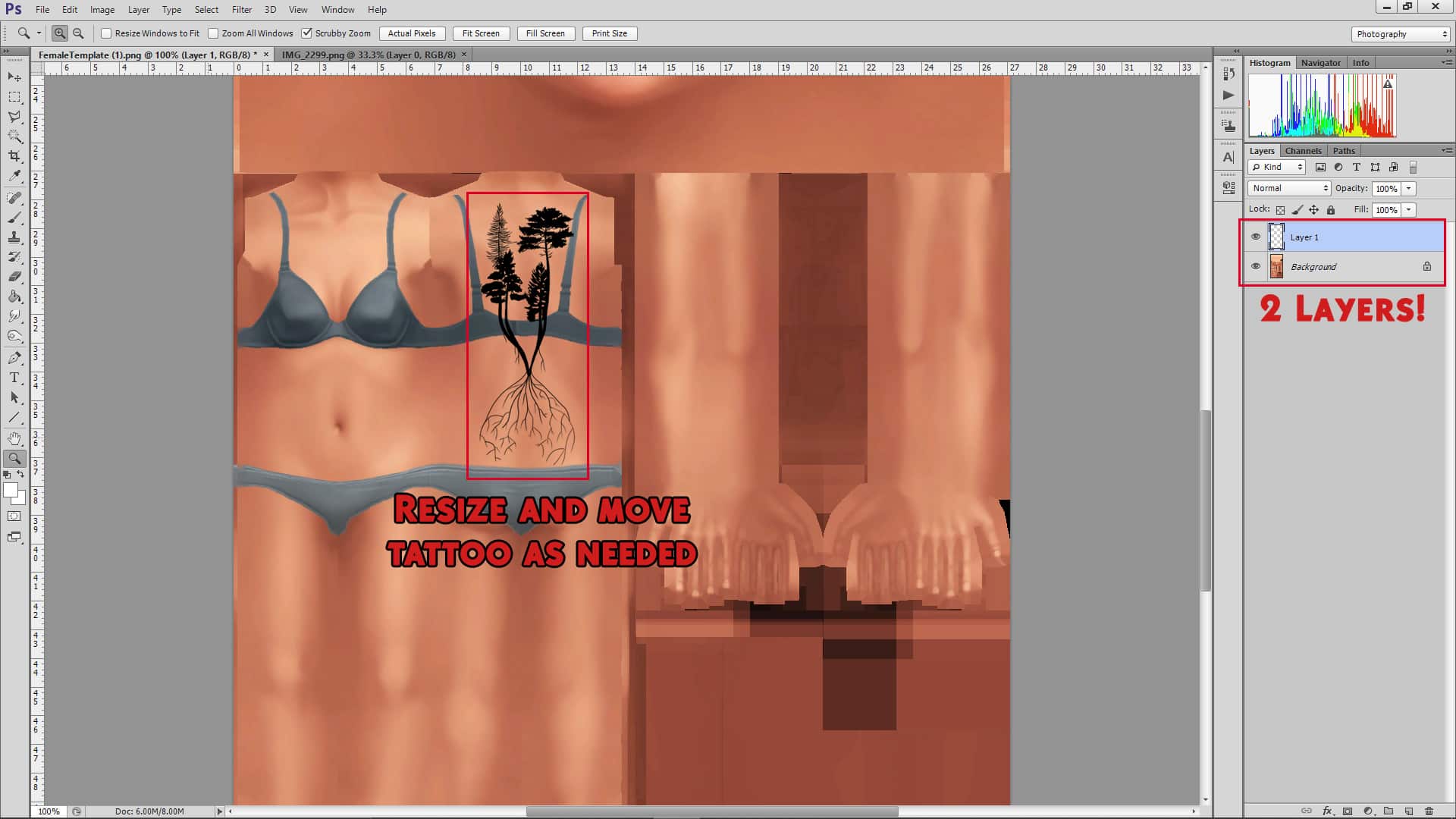
Copy your tattoo and paste it onto your texture file. Make sure the tattoo is on a separate layer above the texture. You need to have the tattoo on a different layer so you can resize it and move it around easily without affecting the texture underneath.

Now it’s just a matter of resizing the tattoo and placing it on the body wherever you want the tattoo to be in-game! Play around with resizing and placement until you think you have something you’re happy with. You can also reduce the opacity a little bit (to around 80% usually) if you want the tattoo to appear slightly faded or blend into the skin better. For this tattoo, I placed it on the back and reduced the opacity to 79%.

Once you’re happy with the placement, hide the texture layer so only your tattoo is visible against a transparent background. Save it as a .png file.

TUTORIAL: How To Make Custom Tattoos for The Sims 4

We’re going to switch back over to Sims 4 Studio now but leave your image editing program open just in case the tattoo does not look the way you want it. It will be easier to go back and adjust size and placement as necessary.

Test Your Tattoo

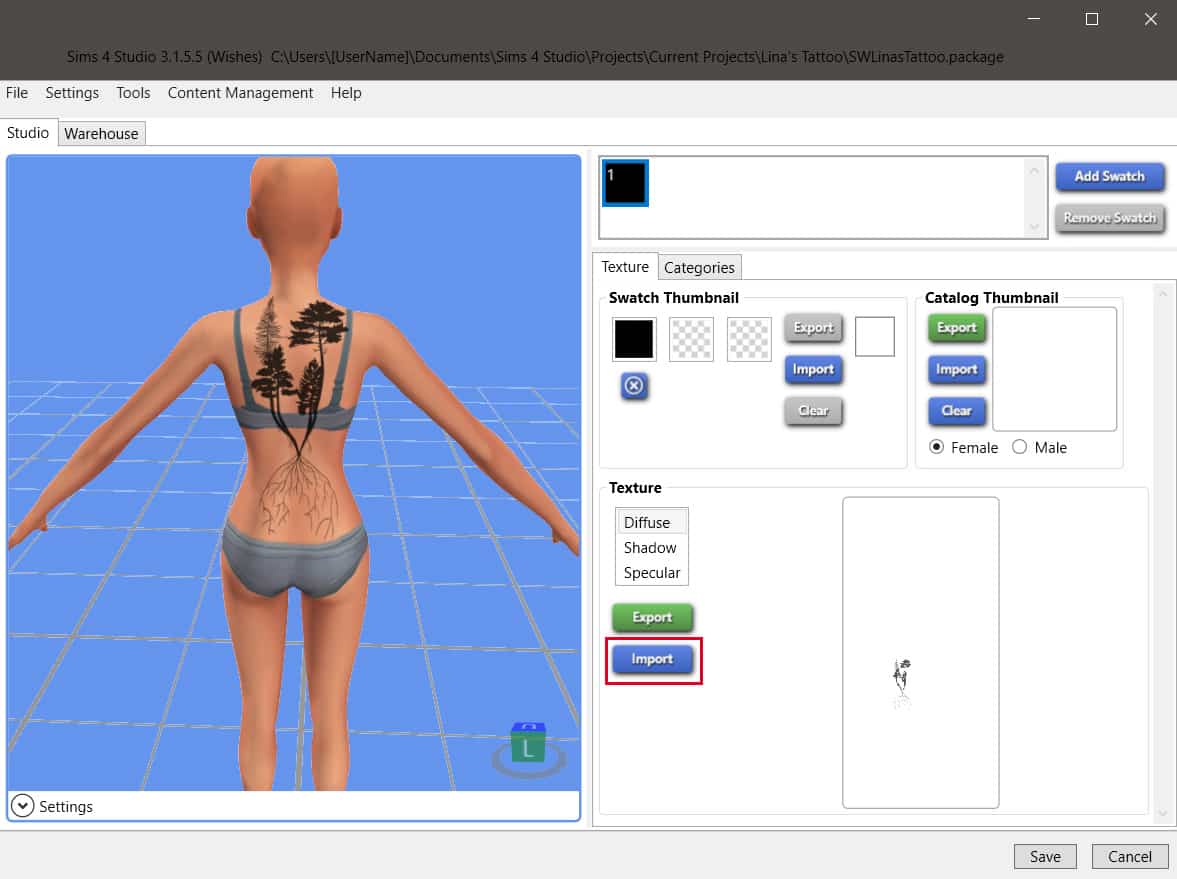
Hop back over to Sims 4 Studio where you should still have your package file opened up. Click the Import tab in the Diffuse Texture section and select your .png file you just saved. If we turn our model around, we can see the tattoo we just made on the model’s back but I’m actually not quite happy with the placement here. I don’t want the trees to be so far up her neck and it looks slightly off-centred to me.

TUTORIAL: How To Make Custom Tattoos for The Sims 4

But that’s okay! That’s why we left our photo editing software open! I just hop back over, adjust the placement some more, save it and import it again and now I am happy with the tattoo placement. Easy peasy!

Once you’re happy with the look of the tattoo, switch to the Categories tab and just double check that everything is to your liking. For my tattoos, I usually make sure they are enabled for both genders but disabled for random. This means that I can put the tattoo on male or female Sims in CAS but townies will not spawn with the tattoo. I also double check the Outfit Type category at the top to make sure the tattoo placement is similar to where it is on the body. I changed this to an upper back tattoo instead of a lower back tattoo since the majority of the tattoo is on the upper back.

Confirm that you are happy with everything and save your package file to your Mods folder.

Run the game and go into CAS with a Sim. Look for your tattoo in the tattoo section and select it to see if it looks okay. My tattoo looks great and I’m very happy with it!

TUTORIAL: How To Make Custom Tattoos for The Sims 4

Some Things to Keep in Mind

  • Tattoos may stretch on plus size Sims depending on the placement of the tattoo but it should not look distorted or pixelated on any body type. If it does, you probably need to use a higher quality image of your design.
  • For the purpose of keeping this tutorial as simple as possible, I did not go over adding extra colour swatches or importing custom thumbnails but these are super easy to do as well if you’d like.
  • Whenever you are using images to create CC, make sure you are allowed to use the image. Do not steal artwork. Pixabay is a good source of high quality images that are free for public, non-commercial use. In my case, I purchased this design from a professional tattoo artist and got her permission to use it in this tutorial. If you would like to check out more of the artists’ work, she can be found on instagram under the handle shaifak!

And there you have it! As you can see, making custom tattoos is super easy and a lot of fun. Until next time, sul-sul Simmers!

The Sims 4 Get Famous is on a FREE Trial this week!

0

The Sims Team has just announced that The Sims 4 Get Famous Expansion Pack is going on a FREE Trial – starting TODAY!

If you’re a PC/Mac player you’ll be able to download The Sims 4 Get Famous (if you don’t have it already) and test it out during the weekend.

The free trial starts today, October 28th and will last until November 1st, 2021 at 10AM Pacific Time.

You can get the Free Trial of Get Famous HERE!

Screenshot 2021 10 28 at 18.56.35

Frequently Asked Questions

ABOUT THE TRIAL

When does The Sims 4 Get Famous Trial take place?

The Sims 4 Get Famous Trial will be available between the following dates and times:

  • Start:
    October 28, 2021
    10:00AM PDT / 17:00 UTC
  • End:
    November 1, 2021
    10:00AM PDT / 17:00 UTC

During this time, you will be able to play as much Get Famous as you like.

What do I need to know about the Get Famous Trial?

There are a few prerequisites to using the Get Famous Trial.

You must:

  • Have the most up to date version of The Sims 4 installed on your PC/Mac
  • Have the most up to date version of Origin installed on your PC/Mac. EA app is not currently supported by the Get Famous trial.
  • Claim the Get Famous Trial through the Origin client, Origin.com or from The Sims 4 Main Menu.

What can I use in The Sims 4 Get Famous Expansion Pack during the Trial?

You will be able to use every part of Get Famous including Del Sol Valley where you can build your Sims aspirations as an actor or livestream your every moment as an influencer until your Sim is the talk of the town with their very own diamond on Starlight Boulevard. If you are more of a creative Simmer then all of the pack content is available to you in CAS and Build mode.

SUPPORTED PLATFORMS & ENVIRONMENTS

Can I run The Sims 4 Get Famous Expansion Pack Trial on my PC/Mac?

If you have the latest version of Origin and your PC or Mac meets The Sims 4 minimum and recommended system requirements then you can take part in the Get Famous Trial

Can I play The Sims 4 Get Famous Expansion Pack Trial on PlayStation or Xbox consoles?

Currently our DLC Trials are only compatible with the Origin client for PC and Mac.

Can I play The Sims 4 Get Famous Expansion Pack Trial with an EA Play subscription?

Yes. If you have an active EA Play or EA Play Pro subscription for PC, you can download The Sims 4 from Origin, claim the Get Famous Trial and play with the pack content.

Can I play The Sims 4 Get Famous Expansion Pack Trial with The Sims 4 Legacy Edition?

No, The Sims 4 Legacy Edition does not support pack Trials. You must have the latest version of The Sims 4 and Origin to take part in the Trial.

Can I play The Sims 4 Get Famous Expansion Pack Trial with The Sims 4 Trial?

Yes. If you do not currently own The Sims 4 and haven’t previously used The Sims 4 Trial, you can claim the 48 hour trial from Origin and the Get Famous Trial and try out everything in one go.

SAVE FILES

Why does it ask me to Restart The Sims 4 when switching between Trial Saves and my existing Saves?

The Sims 4 will ask you if you want to restart your game so that it can include or exclude the Get Famous Trial from your current session.

Selecting to restart when going back to a non-trial save will keep the Get Famous Trial on your PC/Mac for when you want to come back to the trial later. When you want to play with Get Famous again, load a saved game or start a new trial save and you’ll be asked to restart the game so that Get Famous can be included in your session for as long as the trial is available.

Can I use my saves with the Trial?

Yes. If you want to put Get Famous into saved games you have already created, you can. Simply select your Save from the LOAD screen on the Main Menu and when asked if you want to PLAY WITH TRIAL? Select Yes, Start as New Trial Save. Once you do that, The Sims 4 will make a copy of your save to use with the trial and lets you save your progress without affecting your original saved game files.

I created a new Trial save based on my existing save, how do I tell the difference?

If you load an existing save while using the Get Famous Trial, we will copy your save and rename it for you so that it can be identified as a Trial save. Once you have loaded your save, you can hit Save to finish applying the Trial to your save game. If you do not save your session, you will still have a Trial save but it will not use Get Famous and you will be able to use the save without the Trial content.

What happens to my Trial Saved Games when the trial ends?

Your saves created while using the Get Famous Trial will still be available after the trial ends. If you choose to add Get Famous to your collection, you will be able to pick up where your saves left off.

AFTER THE TRIAL

The Trial has ended. Now what?

Get Famous will stay installed on your machine and if you purchase Get Famous, you will be ready to start playing with your content straight away.

If you have decided that you do want to remove Get Famous Trial from your PC/Mac follow these quick steps.

PC Steps

  • Find your The Sims 4 installation directory (Default C:Program Files (x86)Origin GamesThe Sims 4)
  • Look for a directory called EP06
  • Select the directory, Right Click and select Delete
  • This will move Get Famous to your Recycle Bin
  • Right click on Recycle Bin and select Empty Recycle Bin to free up disk space
  • If you decide to purchase Get Famous in the future, you will need to re-download the pack from Origin or EA app.

Mac Steps

  • Find your The Sims 4 Packs directory (usually located in the same place as The Sims 4.app, which is located in ~/Applications by default)
  • Look for a directory called EP06
  • Select the directory, Right Click and select Move to Trash
  • This will move Get Famous to your Trash
  • Right Click on the Trash, and select Empty Trash to free up disk space
  • If you decide to purchase Get Famous in the future, you will need

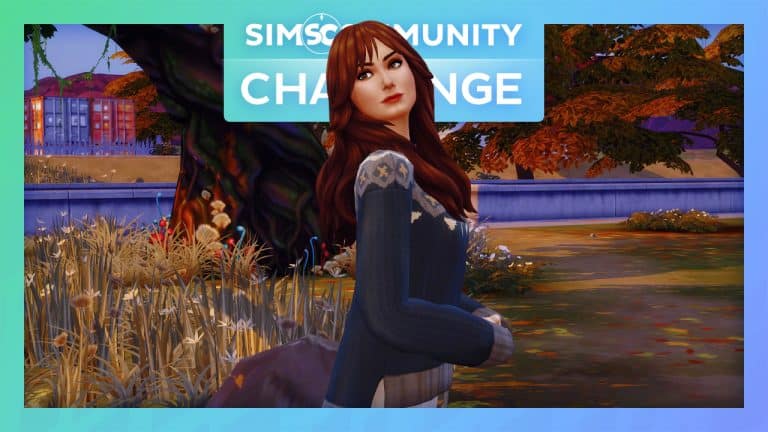
The Sims Community Challenge: November

We’re getting to that time of year when the weather starts to get colder and the leaves are falling. Pumpkin Spice has made a reappearance and cosy nights in wrapped up in your favourite blanket have returned. It can only mean that for many of us we are now entering Fall.

For November, we will be hosting another Create A Sim Challenge and will be following the same format as our October Challenge. You can also check out the October Showcase post here.

Find out everything you need to know below!

Part One

Create the Ultimate Fall Look! This can be for an individual Sim, two Sims or your current family. Any Sim that you want to use! Just no more than eight Sims in total.

Part Two

Take your best Fall screenshot!

The Sims Community Challenge: November

Challenge Rules

  • One entry per person
  • Custom Content is allowed
  • Poses & Reshade may be used for your screenshot
  • Screenshots must be family friendly

Once you have completed both of these steps, you can submit your entries by one of the following ways.

Twitter – upload your image to Twitter using the hashtag #SCFallLook!

Discord – head over to our Discord server and head to the Fall Looks Channel, which you can find under the Announcements & News category. Upload your image with the caption #SCFallLook!

Click the button below to join The Sims Community Discord 

[mks_button size=”large” title=”Sims Community Discord” style=”squared” url=”https://discord.gg/6kRVv4h2je” target=”_blank” bg_color=”#4e62ac” txt_color=”#FFFFFF” icon=”” icon_type=”” nofollow=”0″]

Closing date for entries: Tuesday 9th November 2021 at 10am PST/6pm GMT/ 7PM CET. The Spotlight post will be released a few days after entries have closed. 

If you have any questions, feel free to ask them in the comments below, or head over to our The Sims Community Challenge channel on our Discord server! If you aren’t a member of our Discord Server, you can click here to join.

Good luck, have fun, and we can’t wait to see your Fall inspired creations!

Credits

The Sims 4 Custom Content: World Traveller Aspiration Overview

A custom Aspiration for The Sims 4 that caught my attention recently is the World Traveller Aspiration by KiraSims4Mods. It reminded me of The Sims 3 World Adventures and when you would take your Sims to explore around the world. However, this time it would be some popular locations in The Sims 4 universe instead, some of which I haven’t visited in a long time.

The aspiration itself has four levels to complete, each with four different tasks. As the Custom Aspiration focuses on several different locations in The Sims 4, you will need to own The Sims 4 Snowy Escape, City Living and Island Living expansion packs as well as The Sims 4 Jungle Adventure and Outdoor Retreat.

Once you have created your Sim in Create A Sim or changed an existing Sims Aspiration, you will find the World Traveller Aspiration under the Location Category.

To find out more about Kira’s Custom Aspirations, click here.

With my Sim ready it was time to get started on the Aspiration!

Explore Mt. Komorebi

  • Make a Wish
  • Write a Wish
  • Go Hiking in Mt. Komorebi
  • Perform Snow Activities

The Sims 4 Custom Content: World Traveller Aspiration Overview

Explore San Mysuno

  • Attempt the Spice Curry Challenge
  • Explore Space at GeekCon
  • Buy Object at Flea Market
  • Ask Romance Guru about Romantic Destiny

The Sims 4 Custom Content: World Traveller Aspiration Overview

Explore Sulani

  • Throw a Kava Party
  • Attend a Sulani Fetival
  • Explore the Beach Cave
  • Dive for Treasure

The Sims 4 Custom Content: World Traveller Aspiration Overview

Explore Vacation Worlds

  • Reach Level 2 in Selvadoradian Culture
  • Vacation in Granite Falls
  • Reach Level 5 in Selvadoradian Culture
  • Dance the Rumbasim

The Sims 4 Custom Content: World Traveller Aspiration Overview

Rewards

Once your Sim has completed the World Traveller Aspirations, they will be awarded $2,000, the Great Storyteller and Worldly Knowledge Reward Traits.

  • Great Storyteller – Great Storytellers always succeed at telling bigger and better stories!
  • Worldly Knowledge – These Sims are better at socializing during Social Events and enjoy ordering food from market stalls. They also can “Negotiate a Discount” at market stalls, which gives them an advantage over other bargaining techniques.

Whims

Kira has also included a variety of new Whims for your Sims to earn Aspiration Points from as part of the World Traveller Aspiration. Here are just a few of the new Whims you will find in game.

  • Drink Sakura Tea
  • Ask about Omiscan Ruins
  • Harvest Produce at Festival
  • Go on Vacation in Granite Falls
  • Buy a Flea Market Object

Download & Install

To install this custom aspiration, simply extract all the .package files to Electronic Arts > The Sims 4 > Mods folder. Make sure you have Mods / CC enabled in your game options!

[mks_button size=”large” title=”DOWNLOAD!” style=”rounded” url=”https://kiarasimsfourmodshome.wpcomstaging.com/2021/09/26/world-traveler-aspiration/” target=”_blank” bg_color=”#5eb237″ txt_color=”#FFFFFF” icon=”fa-arrow-down” icon_type=”fa” nofollow=”0″]

Make sure to follow Kira for more great custom aspirations, traits, careers and more via the links below!

The World Traveller aspiration is out now and free to download via the link above.

Is your Sim ready to travel the world on a new adventure? Let us know in the comments below!

The Community Reacts To The Upcoming Scenarios Feature

6

In the latest Inside Maxis Livestream, we were introduced to scenarios. This is a brand-new feature for The Sims 4 that will be landing in game next week for all players.

If you missed the Livestream yesterday or don’t know what these new scenarios are, they are official, pre-made Challenges created by The Sims Team. While, we will be starting with two scenarios next week, these being “Making Money” and “Finding Love After a Breakup.” We will also see a variety of new scenarios, including “limited-time” scenarios, added in the future.

You find out more in-depth information about the upcoming scenarios feature as well as check out the replay from the Inside Maxis Livestream here.

The Community Reacts To The Upcoming Scenarios Feature

If we were to look back to mid-September, The Sims Team revealed the Season of Selves. Along with the image featured above, the community was given an insight into what was planned to be coming to The Sims 4 over the next several months. The image hinted about something that would add dimensions to our Sims’ lives, more ways for us to customize spaces with colour, and unlock new ways to play. While there was a lot of speculation as to what this could be, a number of players thought that we may see the addition of the Colour Wheel in some form or a new feature we haven’t seen before in The Sims 4. This speculation continued up until the most recent Inside Maxis Livestream.

Now that we know that the feature described is in fact the new scenarios, the community appeared to have mixed reactions to the reveal. While a number of players seemed to welcome the new feature, there were many players who remained undecided and some who felt that the new feature would be similar to some of the well-known community created challenges.

Just to recap, during the livestream, the first two scenarios were discussed with “Making Money” being showcased, but we also were told that the next two scenarios would be titled “Too Many Toddlers” and “Perfectly Well-Rounded.” Although we currently don’t know any more information about the latter of the two. It appears that The Sims Team have plans for adding new scenarios on a regular basis going forward.

The Community Reacts To The Upcoming Scenarios Feature

Here’s a look at some of the thoughts and opinions that the community had after the new scenarios feature was announced.

Simsontherope also made an interesting thread sharing his thoughts on Scenarios.

As well as Chani_ZA who also shared her thoughts on yesterday’s announcement in another thread.

With such a variety of different thoughts and opinions on the topic, it will be interesting to see how The Sims Team progress with scenarios, as well as what additional ideas they have for future scenarios.

There are definitely a number of positives, negatives and even just being unsure about scenarios at the moment. This is still a fresh announcement where we all have questions that need answering but are still waiting for many of those answers.

Let us know what you think about the new scenarios in the comments below or over on social media!

The Sims 4: The Best Places to take Halloween Screenshots

With Halloween on the horizon, I thought it would be fun to explore some of my favourite and best places in game to take some spooky screenshots with my Sims!

So get your costumes ready and grab your Sims, it’s time to take some Halloween screenshots!

Forgotten Hollow

While this might seem like an obvious choice, especially at night, Forgotten Hollow is a great starting place. Whether it is outside Vlad’s Mansion or over at the lookout, there are a number of locations where you can take the perfect spooky screenshot!

The Sims 4: The Best Places to take Halloween Screenshots

Glimmerbrook

Again, Glimmerbrook is another obvious choice when it comes to taking screenshots. The world itself is full of magic, mystery and even has a bit of a Twilight feel to it. With the added option of travelling to the Magic Realm, there are countless places you can go to take the perfect shot!

The Sims 4: The Best Places to take Halloween Screenshots

Sylvan Glade

Hidden within the Willow Creek neighbourhood, Sylvan Glade is pretty in pink as well as mystical! The perfect place for taking some less spooky screenshots but still really helps to create fantastic fairy themed screenshots instead!
The Sims 4: The Best Places to take Halloween Screenshots

Windenburg

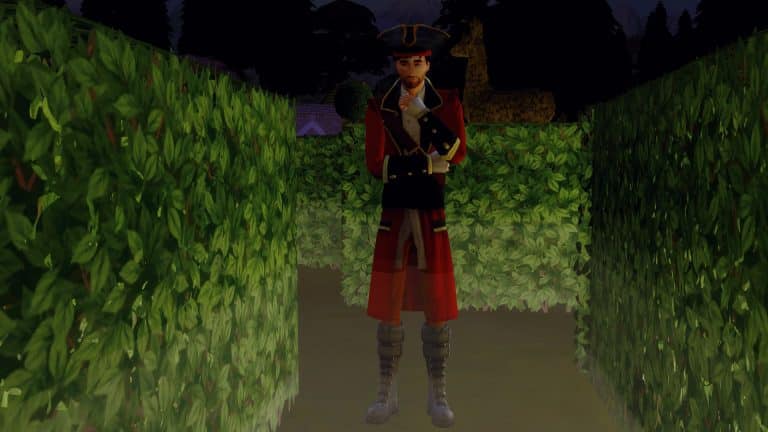
In the dead of night, the Hedge Maze located by the Von Haunt Estate comes to life! With the added fog, it makes the perfect mysterious location! Who knows what or who you might run into while you’re here!

The Sims 4: The Best Places to take Halloween Screenshots

Or why not visit Ancient Ruins or The Bluffs instead?

There are so many places that would be the perfect backdrop for some spooky Halloween photoshoots with your Sims!

Let us know what some of your favourite locations in The Sims 4 are for taking screenshots in the comments below.

Credits

Origin Halloween Sale: Save up to 75% off on select The Sims 4 Games

0

Origin is currently having a huge sale where you can save big on multiple EA franchises – including The Sims 4 and all of its pack types!

Although the sale is up to 75% off – only The Sims 4 Base Game is slashed with this discount. Other Pack Type sales include:

  • The Sims 4 Expansion Packs (5o% off – Cottage Living is 25% off)
  • The Sims 4 Game Packs (25% off)
  • The Sims 4 Stuff Packs (20% off)
  • The Sims 4 Pre-Made Origin Bundles (20% off)

The sale is active right now and is only available for PC / Mac players who play via the Origin platform. You can take advantage of these offers until November 2nd, 2021 at 10AM Pacific Time.

Origin Halloween Sale: Save up to 75% off on select The Sims 4 Games

The Sims 4 to continue adding content from Paid DLC to Base Game

6

In yesterday’s official Inside Maxis Livestream The Sims Team has revealed that they’ll continue their tradition of adding small bits of content from previous DLCs into The Sims 4 Base Game.

This type of think is particularly nothing new and has been practiced by The Sims Team for years now. However it was important for the team to disclose why they’re doing this and how they plan to continue this trend moving forward.

Check out what they had to say in the livestream:

Why does The Sims release content from Packs into the Base Game?

We have heard feedback that there are hairs currently gated behind DLC or a Pack that offer more in representation that those include within the Base Game. We want to make sure that they are available for everybody. We love creating Packs that offer cohesive and immersive scenes and experiences, but we are also commited to ensuring access to our full catalogue of character elements that are for representation purposes. We want to make sure that everybody has a chance to represent themselves in the game. So that is one reason why we do that.

We’re continuing to research and select a small number of hairstyles form previously released Packs. We would be adding them to the game for the benefit of Simmers. It is something we’re balancing out but expect to have more of that soon.

In the Livestream they’ve also revealed that this Toddlers Hairstyle will make its way into the Base Game for free in an upcoming update:

The Sims 4 to continue adding content from Paid DLC to Base Game

Do you prefer small bits of content from previous packs being added for free later or would you prefer the team focuses more on creating unique assets? Let us know in the comments!