Home Blog Page 159

The Sims 4 Incheon Arrivals Kit Lookbook

It’s been a little while since Krista and I did a lookbook but with the launch of two new CAS kits, we knew it was time to collab again! This time, we’re bringing you TWO new lookbooks; one for each kit. We hope our Incheon Arrivals lookbook will give you plenty of inspiration to mix and match the new kits with other add-on packs to create some truly unique styles.

As always, all of our looks have no CC and use only the new kit, the base game, and one other pack. So you don’t need to download anything or own a lot of packs to recreate these looks!

The Sims 4 Incheon Arrivals Kit Lookbook

School Girl Hipster

Outfit

Hair: Shoulder Length with Patterned Extensions (Eco Lifestyle)

Top: Layered Argyle Vest over Blouse (Incheon Arrivals)

Bottom: Plaid Miniskirt (Base Game)

Shoes: Casual Runners (Incheon Arrivals)

Accessories: Newsgirl Cap (Eco Lifestyle) / Square-Rimmed Glasses (Eco Lifestyle) / Knee-High Socks (Base Game) / Nails (Base Game)

Makeup: Eyeliner (Base Game) / Eyeshadow (Base Game – MAC Cosmetics) / Lips (Base Game – MAC Cosmetics) / Highlight (Base Game – peachyfairie)

The Sims 4 Incheon Arrivals Kit Lookbook

Autumn Adventure

Outfit

Hair: Side Sweep (Base Game)

Top: Fluffy Coat & Tee Combo (Incheon Arrivals)

Bottom: Adventure Pouch Pants (Jungle Adventure)

Shoes: Worn-Out Boots (Jungle Adventure)

Accessories: Silver Ring (Base Game) & Explorer Hat (Jungle Adventure)

The Sims 4 Incheon Arrivals Kit Lookbook

Street Chic

Outfit

Hair: Sideswept Volume (Nifty Knitting Stuff)

Top: Layered Jacket, Hoodie, and Tee (Incheon Arrivals)

Bottom: Rolled-Up Jeans (Nifty Knitting Stuff)

Shoes: Casual Runners (Incheon Arrivals)

Accessories: Rectangle-Rimmed Glasses (Base Game) / Earrings (Base Game) / Shark Tooth Necklace (Base Game) / Ankle Socks (Base Game) / Nails (Base Game)

The Sims 4 Incheon Arrivals Kit Lookbook

Everyday Casual

Outfit

Hair: Half-up Bun (Base Game)

Top: Striped Crop Jumper (Tiny Living)

Bottom: Belted Skirt (Incheon Arrivals)

Shoes: Hi-tops (Base Game)

Accessories: Necklace (Tiny Living), White Socks (Base Game)

Makeup: Blush and Lips (Base Game – MAC Cosmetics) &  Eyeshadow & Eyeliner (Base Game)


Credits

This post was a collaboration between Krista and SnarkyWitch!

Don’t forget to show us your The Sims 4 Incheon Arrivals Kit looks over on social media!

The Sims 4 Incheon Arrivals Kit Overview

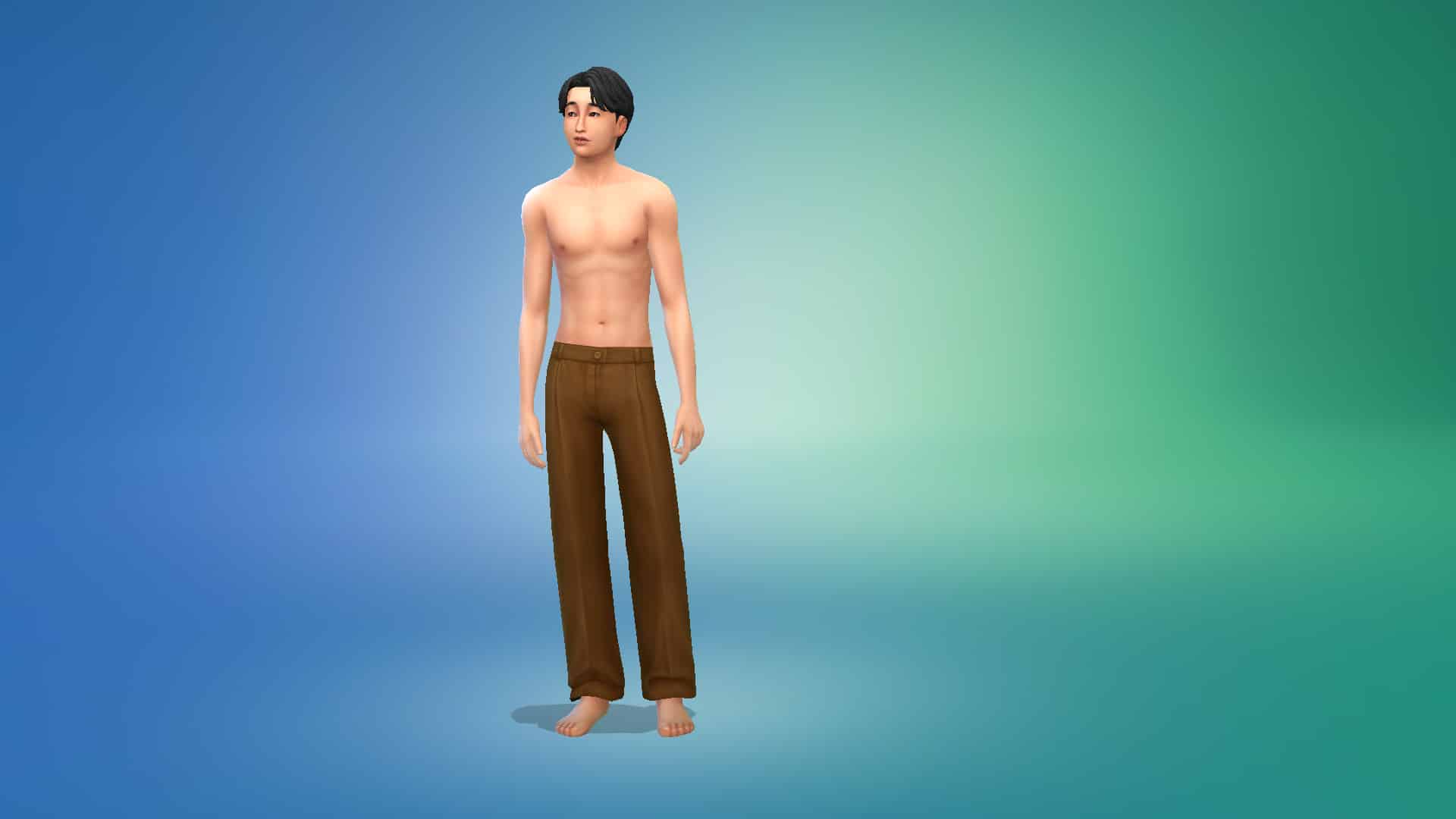
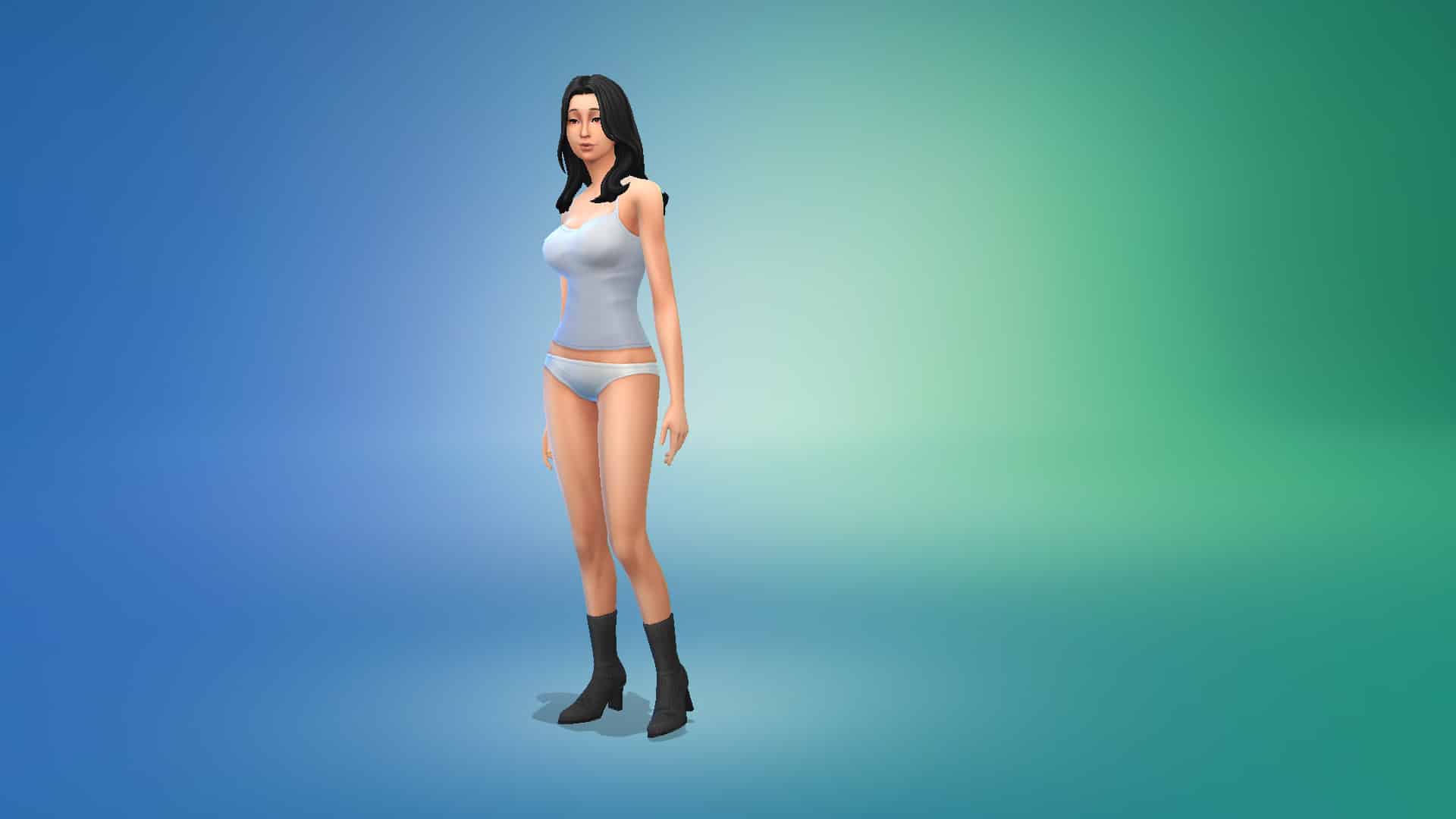
Two new CAS kits for The Sims 4 have launched today, both showcasing different cultures from around the world. The Incheon Arrivals kit shines a spotlight on comfy casual South Korean fashion. The kit was inspired by airport fashion based out of Incheon International Airport, showing off comfy yet stylish looks that celebrities might be seen wearing when travelling to and from South Korea. The kit has both contemporary and traditional South Korean influences, from K-pop inspired looks to blends of traditional South Korean attire mixed in with more modern pieces.

The Incheon Arrivals Kit has a total of 20 clothing items for both masculine and feminine teen-elder Sims. The kit does not contain any pieces for children or toddlers.

Tops (7)

Feminine (4)

Masculine (3)

Bottoms (6)

Feminine (1)

The Sims 4 Incheon Arrivals Kit Overview

Masculine (1)

The Sims 4 Incheon Arrivals Kit Overview

Unisex (4)

Full-Body Outfits (4)

Feminine (2)

Masculine (2)

Shoes (3)

Feminine (1)

The Sims 4 Incheon Arrivals Kit Overview

Unisex (2)

Styled Looks (4)

Feminine (2)

Masculine (2)

The Sims 4 Fashion Street Kit Overview

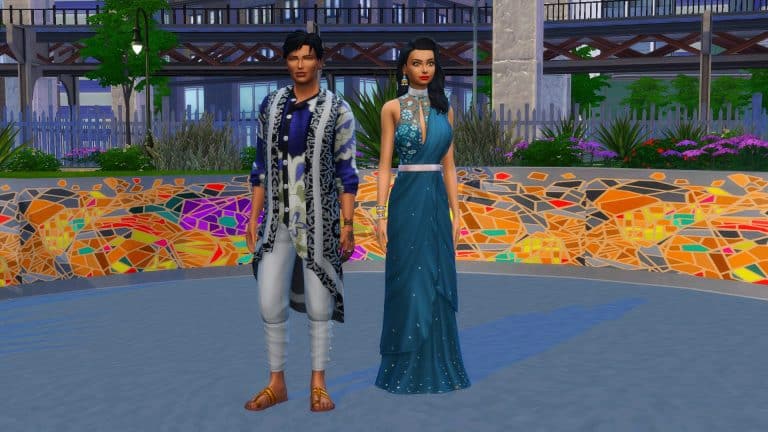
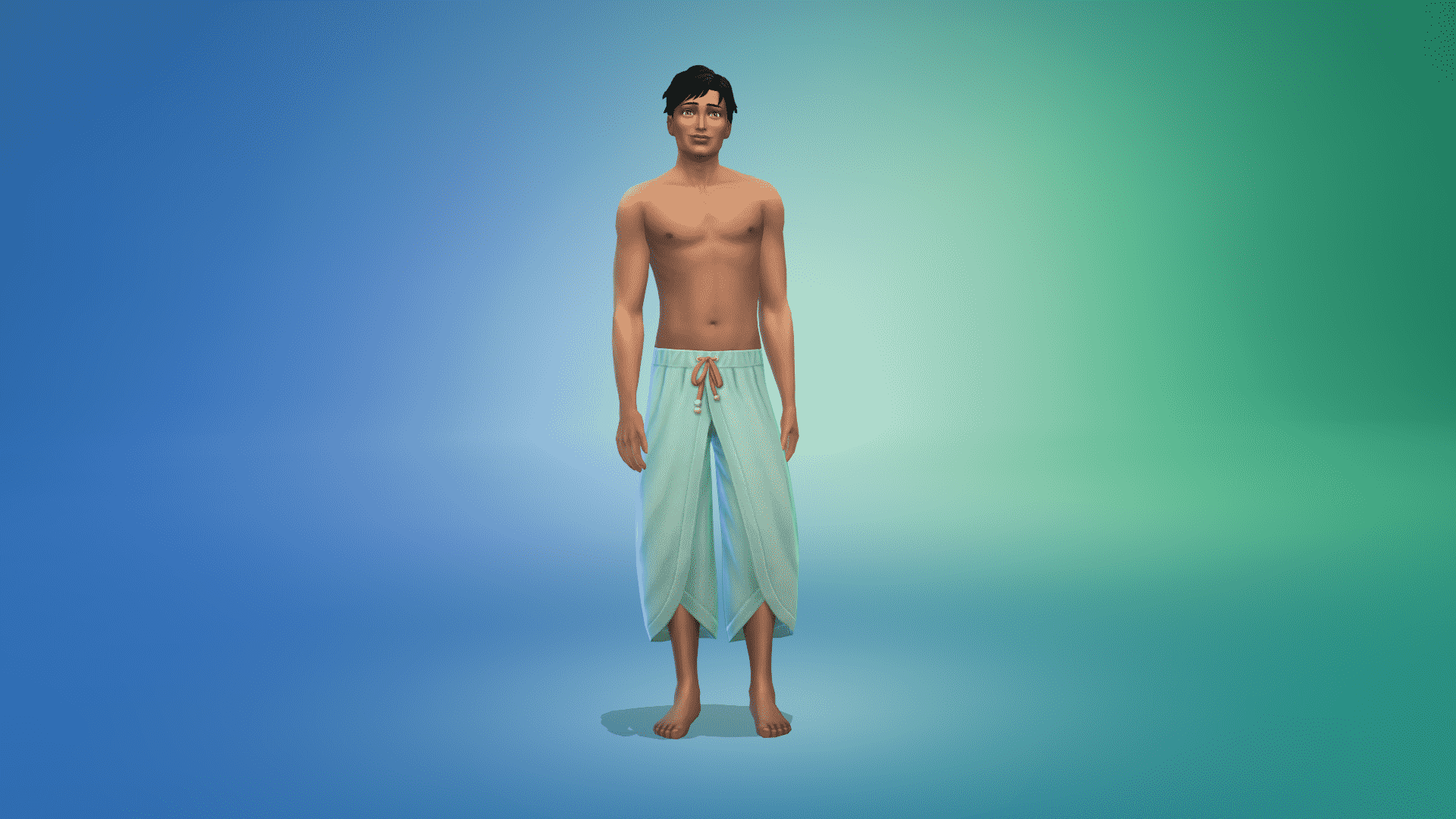
The Sims 4 Fashion Street Kit is one of two new Kit style packs that The Sims team has released today. With a focus on new Create A Sim options, the new Kit features over thirty new clothing options to choose from. Each is item comes in a range of different beautiful swatches inspired by the fashion and culture of Mumbai, India.

Note: The Fashion Street Kit does not contain any options for Child or Toddler Sims.

Tops

Two feminine tops for adults

Three masculine tops

Bottoms

Three feminine bottoms

Four masculine bottoms

Full Body

Three new full-body options for male and female Sims.

Shoes

Two new shoe option suitable for both male and female Sims.

Styled Looks

There are three new Styled Looks that come with this Kit. Two for male Sims and one for female Sims. Colorful Traditions, Ornately Casual & Everyday Elegance.

Accessories

Five new accessories for female Sims. The glasses, earrings and nose ring are also suitable for male Sims.

Tattoos

There are two new unisex Henna hand tattoos that come with the Kit. Each come in several different swatches and designs.

Not sure how to find the new content in your game? Filter for packs and select Kits to see all your content from all your different kits!

The Sims 4 Incheon Arrivals and Fashion Street Kits Now Available!

0

The Sims Team has just released their latest two Create A Sim Kits for The Sims 4 – Incheon Arrivals and Fashion Street Kits!

The Kits are available now on PC, Mac, Xbox One and PS4 and cost $4.99 each – or a price equivalent to your local currency.

You can get the Kits now from these official stores:

The Sims 4 Incheon Arrivals Kit

The Sims 4 Fashion Street Kit

The Sims 4 Incheon Arrivals and Fashion Street Kits Now Available!

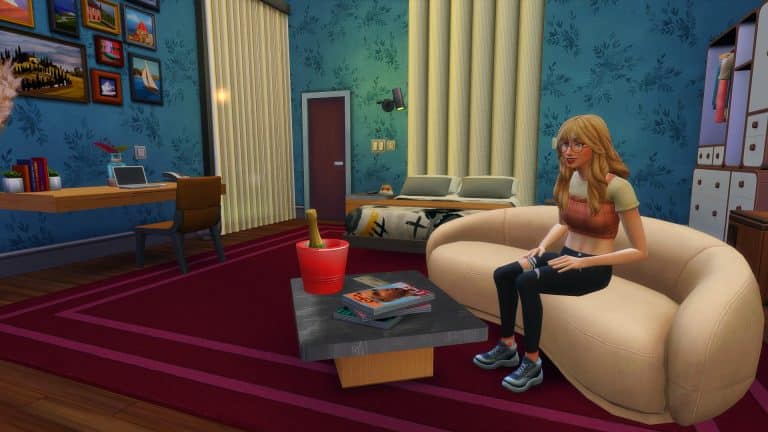
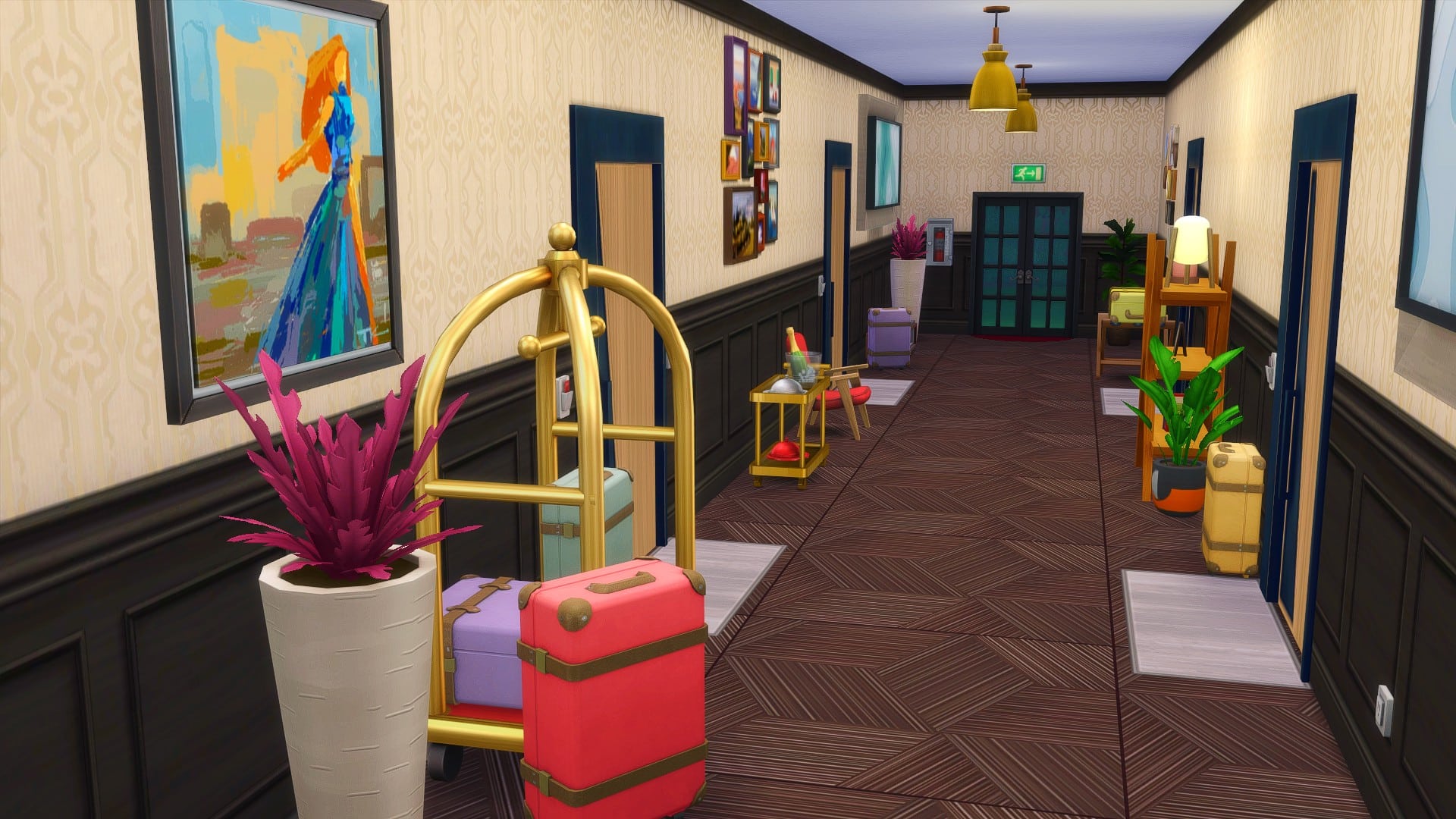
The Sims 4 Custom Content: Hotel Bedroom CC Pack

Having content based around the concept of Hotels in The Sims 4 is something that I’ve seen mentioned many times within the community. While this has been explored in the past in earlier versions of The Sims games, it is something that isn’t fully possible in The Sims 4. Maybe one day we’ll see the option to own and run our own hotels however, that is a topic for another day.

In the meantime, SixamCC is back with a fantastic Custom Content Pack focused around Hotel Bedroom Decor!

The Base Game compatible fan made pack features thirty-eight new items including customizable single and double beds, new carpet floors, decorative light switches, power outlets, key card readers, customizable desk and much more!

You can check out SixamCC’s Tumblr here!

While I was creating my own miniature hotel, I experimented using the Hotel Bedroom CC Pack with a number of packs. While I found that the items from the pack worked well with most of the packs I tried out. I discovered that the modular furniture from Dream Home Decorator worked really well as a  customizable storage solution for Sims to essentially store their clothing in during their stay, as well as the wallpaper from Paranormal Stuff making the room feel super cosy at night. I also used a selection of Custom Content from the Artiu & Birker Series and Charming Chalet CC Packs that are also by SixamCC to bring my build alive.

Each item within the pack comes in a variety of different swatches ranging from neutral to colourful as well as some patterned ones too. Take a look at the gallery below for a closer at the items that come with the Hotel Bedroom pack!

The Sims 4 Hotel Bedroom CC Pack is available now to download on Sixam’s Patreon for Early Access. The pack will be released publicly on 25th October 2021.

To install this custom content pack, simply extract all the .package files to Electronic Arts > The Sims 4 > Mods folder. Make sure you have Mods / CC enabled in your game options!

To download this Custom Content Pack, you can head over to SixamCC’s Patreon.

You can also find more of SixamCC’s creations via the links below!

The Sims 4: Walkthrough of the “Ink For Yourself” Memory Keeper Mod

The modding community for The Sims 4 never fails to impress us. Ravasheen has once again blown us away with a new mod called the Ink For Yourself Memory Keeper & Custom Journal mod! Some players might not know that The Sims 4 does technically have a memory system tied into the Screenshot Manager. You can assign emotions to pictures that you’ve taken in the game and have your Sims reminisce about that memory, taking on the emotion attached to the photo.

However, players were quick to point out that this memory system is clunky to use, not intuitive at all, and really out of the way to get to. So much so that most people don’t even know the feature exists. Ravasheen has taken the basic concept of this feature and integrated it into gameplay in a way that’s more intuitive and easy to access. We were very impressed with how clever this mod is!

So let’s get into how the mod works!

Of course, you will have to install the mod, first. You can get it from Ravasheen’s website. The current version is free to the public but you can also follow Ravasheen on Patreon (no subscription needed to follow Patreon creators) to find out more about future early access versions if you’re interested. If you need help with installing mods, check out our article Getting Started With Mods and CC.

The Sims 4: Walkthrough of the “Ink For Yourself” Memory Keeper Mod

Once the mod is installed correctly, all you have to do is load up the game and go into Build/Buy. Searching the term “diary” in the search bar will bring the journal right up. The journal comes in several different swatches; some from the Parenthood journals and some plain variants. The mod does not require Parenthood to work, however. Everything in the mod is base game compatible.

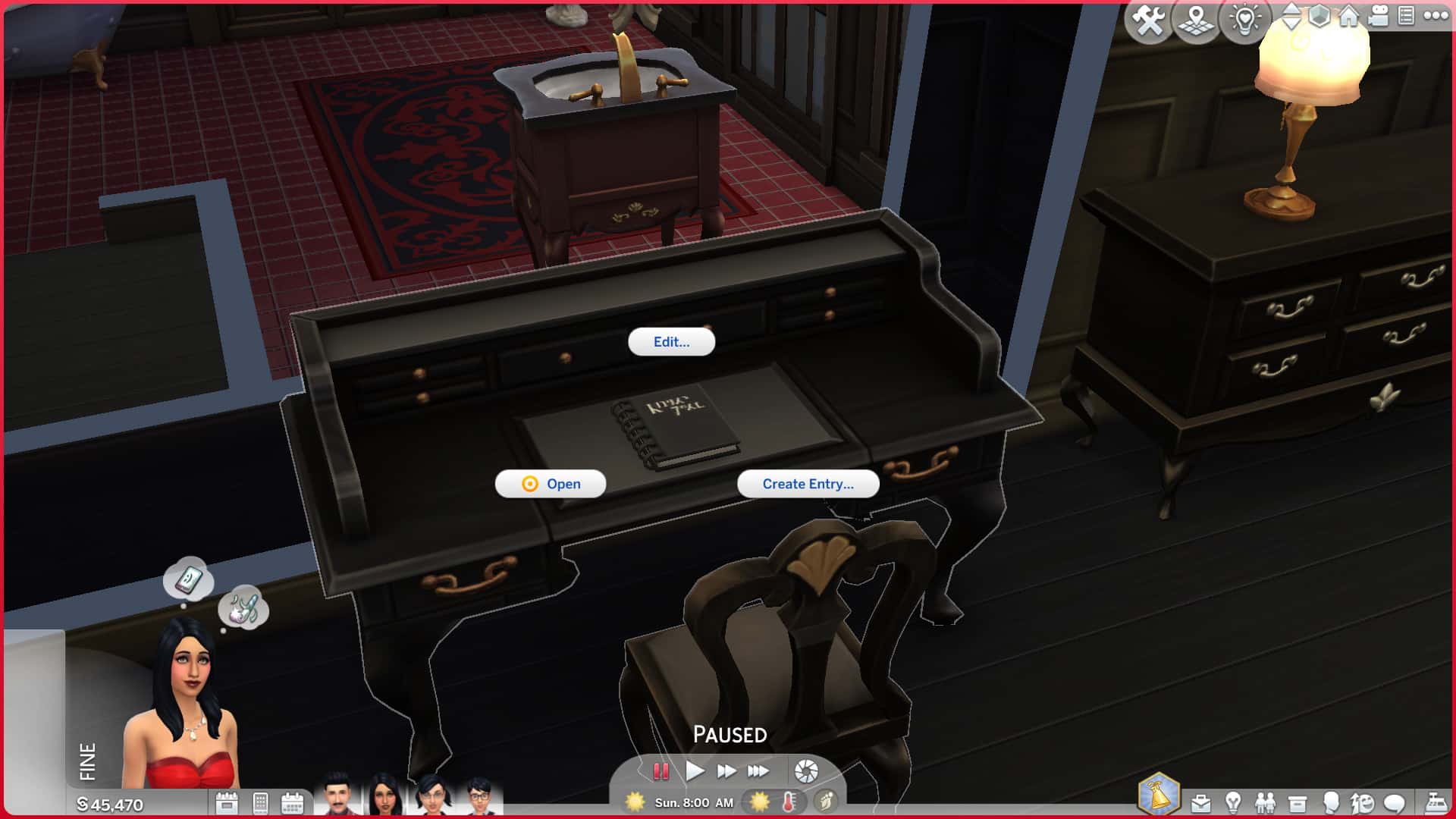
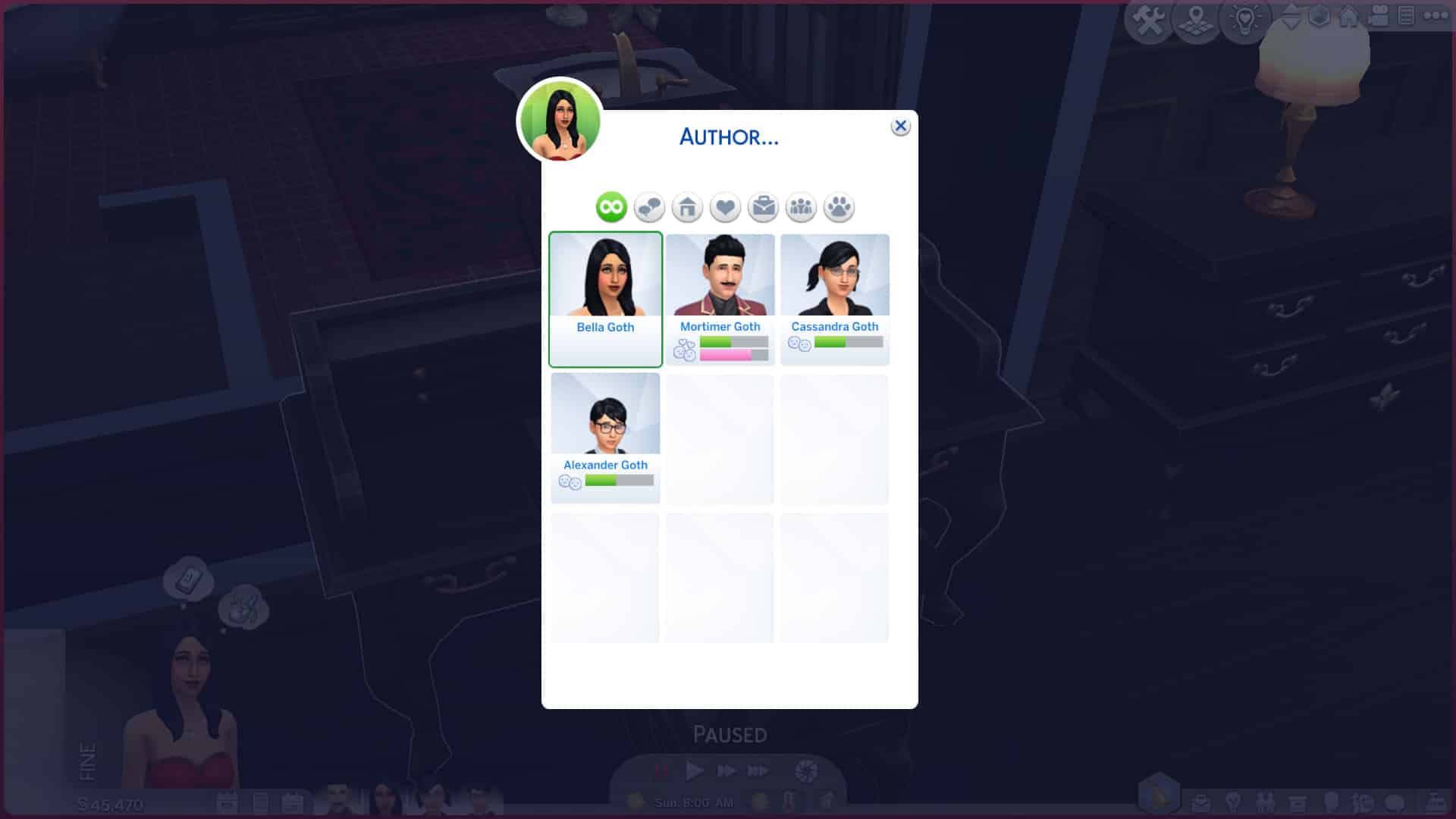
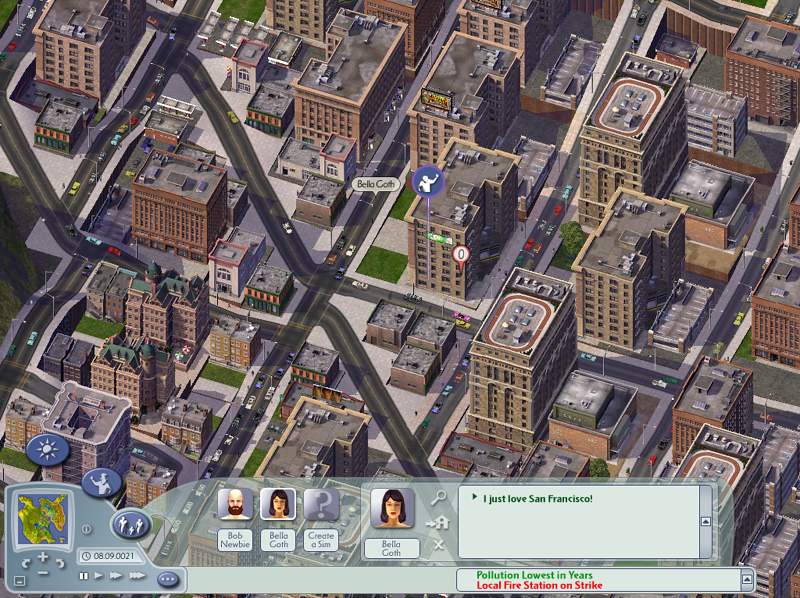
Pick the journal swatch you like best and place it down on any surface. Click on the journal to bring up multiple options. You can choose an author for the journal, edit the journal title and description, and add new entries to the journal. For this example, I used Bella Goth and decided to make a journal detailing the secret true story of exactly what happened to her back in Pleasantview in The Sims 2.

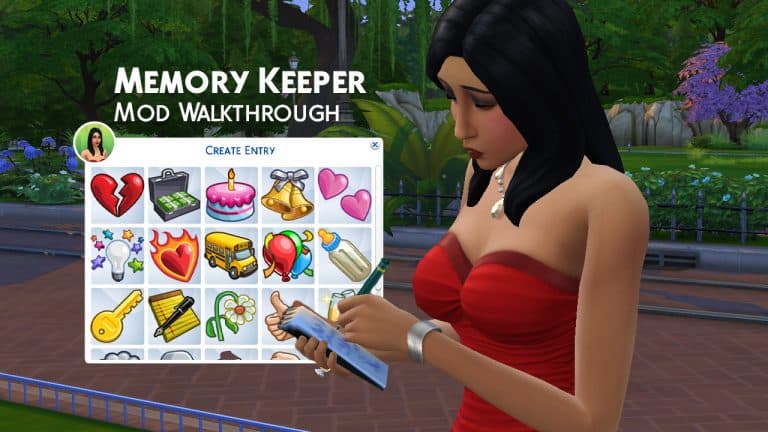
When you add a new entry to the journal, you’ll have to choose an icon from it from a popup list. Ravasheen’s done a good job of providing some icons that relate to many milestones and events in a Sim’s life, such as engagements, weddings, breakups, new babies, and school memories, among some others. Pick the icon that most closely relates to the kind of entry you want to add to the journal.

Once you’ve picked the icon, you can now customize the entry! Give it a title and a description. Below, I’ve picked out a gloomy icon to describe Bella’s account of being abducted in the middle of the night by aliens. When you add a new entry to the journal, the active Sim will do a quick writing animation wherever they’re currently standing. They don’t need to go to the journal to write down their thoughts which is really handy for when you want to jot down a new memory on the go and don’t want to bother carving out time for them to sit down and write a big long entry about it.

The Sims 4: Walkthrough of the “Ink For Yourself” Memory Keeper Mod

After the new journal entry has been created, the journal’s inventory will open, showing you the entry with your chosen icon inside it. You can then hover over it to get a tooltip of the title and description you gave it. You can also choose to read it which will bring up a larger notification of the entry. Whichever Sim wrote the entry will automatically be assigned as the author of that entry but you can change this at any time. In fact, you can go back and edit everything related to this mod. You can change authors, titles, descriptions, icons, and moodlets on both the journal and individual entries whenever you want!

Which brings us to moodlets! After creating a new journal entry, you can click on it in the journal inventory to assign a moodlet to it. You can choose between every emotion in the game. I chose to add a scared moodlet to Bella’s account of being abducted. Once you’ve assigned a moodlet to a journal entry, the entry will have an emotional label attached to it, like “Happy Memory” or “Sad Memory” or “Embarrassed Memory.” Bella’s entry is now a “Scary Memory.” Click any journal entry with a moodlet attached to it to recall the memory. I can now click on this entry to have Bella “Recall a Scary Moment.”

Recalling a particular moment will cause the Sim to do an animation related to that emotion and they’ll gain a small emotional moodlet related to the memory for 4 hours. This is much the same feature as what The Sims 4 added to the Screenshot Manager but much more intuitive and better integrated into gameplay. You don’t have to go searching through a bunch of menus to get to it. It’s always right there in your Sim’s journal you can take anywhere or display anywhere on a surface in your home.

The Sims 4: Walkthrough of the “Ink For Yourself” Memory Keeper Mod

The journal is not the only thing that can be displayed in the home, however! The entries themselves can be dragged onto a wall and displayed like pinned up post-it notes or individual pages ripped out of a notebook. The entries can be read while they’re displayed on the wall, too. Ravasheen even took the time to create many different swatches for the journal entry notes that are related to the icons you pick for your entry. For example, the icons related to kids have child’s scribblings on the note, and the fight icon has big angry letters with lots of underlining and exclamation points! If you decide you don’t like the original icon you picked for your entry or if you want it to have a different appearance displayed on the wall, you can just change the swatch in Build/Buy the same way you’d change the swatch of any other item. Be aware that changing the swatch in Build/Buy will also change the icon it displays when it’s dragged back into the journal. The swatches are linked to the icons.

The Sims 4: Walkthrough of the “Ink For Yourself” Memory Keeper Mod

Your Sims can own as many journals as they want so they can organize different aspects of their lives into each journal. For example, your Sim could have a personal diary of their day-to-day affairs, plus a gardening book to keep track of all their gardening achievements. You could even use the books for weddings and funerals as guest books! Being able to own many different journals that have separate entries attached to them and can be written in by anyone opens up almost endless ways to use the journals.

Some limitations Ravasheen goes over in her livestream walkthrough:

  • Currently, the journals are not locked to the author like the Parenthood journals are. This is because she wanted the journals to be passed down from generation to generation and if the original author dies, then no one else in the future can look back on all those memories.
  • The journals do not have any Parenthood features, like being able to hide them under the mattress or snooping. This is because she wants to keep the mod base game compatible, but she said she’s open to perhaps integrating those features as add-ons.
  • The only way to change the icon of an entry is in Build/Buy by changing the swatch on the entry while it’s displayed on a wall.
  • The journals cannot be deleted or sold. This is by design to ensure that your memories stay safe. It would be heartbreaking to lose generations and generations of memories just because you accidentally deleted or sold your journal while clearing out your inventory or redecorating. Individual entries within the journal can be deleted, though.
  • You cannot open the journal to see the entries inside it while it’s in your Sim’s inventory. This can only be done while the journal is displayed somewhere on the lot. This is a game limitation; you cannot open an inventory inside of another inventory. It would be very difficult to change this without getting into script modding.

So what are our final thoughts on this mod? Well, it’s a really clever way to take an existing game feature that’s pretty useless the way it is, to be honest, and turn it into something that’s actually useful and immersive for gameplay enthusiasts. I loved the concept of memories that The Sims 4 introduced but it was such a hassle to get to and navigate that I never really bothered with it. Having Ravasheen’s journal right there in my game that I can access easily whenever I want and customize to my exact liking is so helpful and fun to play with!

Definitely check out this mod if you’re a gameplay enthusiast, guys. It’s for sure staying in my Mods folder and I can’t wait to start preserving more of the important milestones in my Sims’ lives.

Will Wright’s game about your subconscious, Proxi, is taking shape

0

Back in 2018 we did a news report on Will Wright’s upcoming project called Proxi, a unique mobile experience that lets you turn your real life memories into interactive playgrounds! Just in case you don’t know who Will Wright is, and I’m sure many of you do – he’s the creator of The Sims Franchise and other Simulation Games from Maxis such as Spore, SimCity and numerous “Sim” titles.

Today we have some more exciting news about Proxi, including some of the main features, in-development screenshots and developer livestreams done by the creators of this game!

Just a couple of months ago PCGamesN reported that the team behind Proxi reached out to popular modding sites, including the well known ModTheSims and NexusMods websites. They released a message stating that Proxi is opening a pre-launch community for players where they can collaborate with developers, go behind the scenes and earn special credit for their creations. There was a also a survey included in the message, but it was closed sometime ago.

Have you ever wished you could be immortal?

I’m working on a strange new project where your memories become the gaming landscape…

We’re looking for enthusiastic content creators to help us bring this concept to life. We’re taking applications for a private pre-launch community where members will get the opportunity to go behind the scenes, collaborate with the dev team, and earn credit for their creations!

I look forward to seeing your responses!

– Will Wright

So, what is Proxi anyways?

As described by Will Wright and Gallium Studios, Proxi is a game where you get to create your own personal digital selves through personalized memories – using memory objects created by the official studio AND its player community. Through this players will get a stylized, digitalized version of themselves that you’ll be able to play with, including personalized mini-games that help you gain more insight about your subconscious.

It’s all very ambitious, strange and creative at the same time – and of course that it wouldn’t be a Will Wright game without all those 3 things.

Check out what the team (and Will Wright) have to say about Proxi:

Proxi is an AI simulation game where players first build digital dioramas representing their personal memories using thousands of digital “memory objects” created by Gallium Studios and its player community. Players will eventually be able to construct a digital version of themselves that they can interact and play with, and gain new insights about their subconscious.

This is in some sense a game of self-discovery, a game where we actually uncover the hidden you – your subconscious, your inner ID, and bring it to the surface, bring it to life so you can interact with it, you can play with it, you can learn from it and it can learn about you.”

– Will Wright

Will Wright also shared some of his concepts and in-development look of this mobile experience:

Will Wright’s game about your subconscious, Proxi, is taking shape

At the moment Proxi is still in development, and currently it seems that the team is focusing on creating Memory Objects that help you visualize your memories!

Will Wright’s game about your subconscious, Proxi, is taking shape

There’s also a Development Roadmap on the official Proxi Website, laying out the current plans for the game. The team is currently pushing out their own Creator’s Toolkit and Community platforms, with plans to announce a new “Creator’s Marketplace” soon.

Will Wright’s game about your subconscious, Proxi, is taking shape

Yesterday they announced a pre-release sale event (which just recently concluded), including their collaboration with Forte, a service providing NFT experiences in video games. I wasn’t too keen on this aspect of the game and how it includes NFTs but we’ll have to wait and see for how this will shape the final product of this game.

SAN FRANCISCO–(BUSINESS WIRE)–Forte, an organization building a blockchain platform for video games, today announced the launch of the first NFT presale for Proxi, the new game experience from industry pioneer Will Wright. The presale, which begins Tuesday, September 29 at 9am Pacific time and lasts for 24 hours, offers two distinct packs of NFTs to the community. Each contains a mix of in-game, collectible, and community NFTs that augment the player’s experience of the game. The presale can be accessed at the official Gallium Studios website.

Presale Pack Details

Founder’s Pack — $50

  • 10 unique in-game memory object NFTs
  • One Founder’s Pack commemorative NFT
  • One “Community NFT” that unlocks upcoming community benefits
  • Exclusive community access to Gallium team
  • Special “Founder” identifiers in community channels and in-game

Supporter’s Pack — $10

  • Five unique in-game memory object NFTs
  • One Supporter’s Pack commemorative NFT
  • One “Community NFT” that unlocks upcoming community benefits
  • Special “Founder” identifiers in community channels and in-game

“I’ve always considered the community and their efforts an integral part of my games’ experience,” said Will Wright, Gallium Studio’s Cofounder. “With Forte’s blockchain platform, we now have a secure way to integrate and reward the community’s contributions. Our first presale is a way to officially thank the community and creators for their support with the game.”

“Will has reshaped our idea of what a video game can be time and time again,” said Josh Williams, Forte’s CEO and Cofounder. “With Proxi, he’s not just creating a breakthrough experience, he’s reinventing the very way games can be made by giving the community ownership of the content they create. It’s a privilege for us to work with Will and the rest of the Gallium team, and support their incredible creative vision, starting with this presale.”

Proxi is an AI simulation game where players first build digital dioramas representing their personal memories using thousands of digital “memory objects” created by Gallium Studios and its player community. Players will eventually be able to construct a digital version of themselves that they can interact and play with, and gain new insights about their subconscious.

Forte’s blockchain and NFT platform aims to address the growing misalignment between game developers, players, and fans. It unlocks the creation of new gameplay and world designs that directly support the long-term health of a game through community economics, the organization’s economic framework. In Proxi, Forte’s platform enables the community to own and manage the content they create, and if they choose to, monetize them via an in-game marketplace.


There’s an official Proxi Creator’s Community website that you can register on right now! The website includes Creator Tool Programs for PC and Mac, various tutorials on how to craft your own Memory Objects, Forums and more!

Will Wright’s game about your subconscious, Proxi, is taking shape

The Creator Tools that they’re providing are a bit tech-savvy, which they’ve further explained in their first developer livestream below.

One of the developers also did a cheeky joke on the beginning of the livestream with the “Spore 2” folder.

I’m not getting my hopes up I’m not getting my hopes up I’m no-

Will Wright’s game about your subconscious, Proxi, is taking shape

Other than the fact that the NFT aspect of sharing your memories online is a bit questionable and has yet to prove its value and worth for the game.

The official Frequently Asked Questions page has resolved some of the speculations on whether or not Proxi would be a game that heavily relies on NFTs. The team has replied saying that you won’t have to get involved into the “crypto stuff” in order to enjoy the game’s experience:

  • Is Will Wright making an NFT game?
    Proxi is a game that explores how our memories inform who we are. Players can use various assets (objects, sounds, backgrounds, etc) along with words, or concepts, to create little scenes representing their memories. These assets are fundamentally NFTs on a blockchain which means they carry value, and they are forever attributed to their original creator. Unlike current NFT speculative marketplaces, our assets are designed to give ownership to owners and creators. They are built on the blockchain, and they may have future value, but they are designed to support the gameplay of a creative player community.

  • Is Gallium a cryptocurrency?
    No. Gallium is not its own cryptocurrency, nor can you sell your Gallium; it is purely an in-game currency. However, you can sell items you purchased with your Gallium, or items you created and minted (which requires Gallium) once the in-game marketplace is available.

  • Who is Forte? What is the connection between Gallium Studios and Forte?
    Forte is our trusted platform partner that manages the underlying blockchain technology for our game. The Forte Exchange will enable players to purchase Gallium directly for USD if they choose to. Forte also handles all outside financial transactions.

  • Can I play this game without getting involved in crypto stuff?
    Yes. Crypto applications use ‘Wallets’ which is the way that the blockchain applications securely keep track of who owns what. So, because Gallium, is on a blockchain we use Wallets. However, our game does not require players to participate in crypto currency markets.

  • I’ve read that some game assets are NFTs, on a blockchain, and carry value. Will I be able to buy, sell, trade, gift inside the game?
    Yes. Proxi utilizes blockchain technology to give players proof of verified ownership and transaction history, and for creator attribution – simply put, this means more control for players and creators over the things they buy or make! There are plans for an in-game marketplace to enable players to buy and sell, and allow artists to list and sell their own creations. There are no current plans for exchange of these assets to real currency

  • Will Proxi support outside, secondary marketplaces?
    No. Please be aware that any Proxi items bought or sold outside of our in-game marketplace are outside of our control and can potentially be a high risk for fraud or scams.

  • Will I be able to exchange my Gallium currency for real money?
    Not at this time.

I’m definitely intrigued to see what Will Wright’s genius mind and the talented team at Gallium Studios have in store for us!

You can follow the progress and development insight on Proxi on their official platforms, including:

The Sims 4: How to Make Decorative Nursery Items with No CC!

1

I love The Sims 4 but one thing I don’t love about The Sims 4 is the lack of gameplay for babies. I hate those unrealistic bassinets. I hate that we can’t take our babies anywhere. I hate that all interactions with our Sim babies are tied to that bassinet. When babies can’t interact with anything, what are you supposed to put in their nursery?

A true newborn nursery would have things like changing tables, baby baths, play mats or play pens for tummy time, and a real crib. I don’t know any baby that stays in an old-fashioned bassinet 24/7 in real life, do you?

Since I like to keep all my builds that I share in the Gallery CC-free, I don’t really have the option of using modded objects. Not to mention console players don’t have that option, either. Still, I want to upload baby nurseries that feel like real nurseries, so I set out to start making some non-functional, decorative baby nursery items to help make my newborn Sims’ space feel more like a real newborn nursery. While I desperately wish I did not need to build decorative versions of these things, I did have a lot of fun putting them together and I wanted to share how I made them with you so you can have these things in your nurseries, too.

I’m going to walk you through how to build and customize your own decorative baby changing table with just base game objects and some build cheats. Then I’ll show you some other things I’ve built for my nurseries using similar techniques! You don’t need any CC or mods to make these. Everyone can make custom nursery stuff no matter what platform they play on or how many packs they own.

How to Make a Base Game Decorative Changing Table

The Sims 4: How to Make Decorative Nursery Items with No CC!

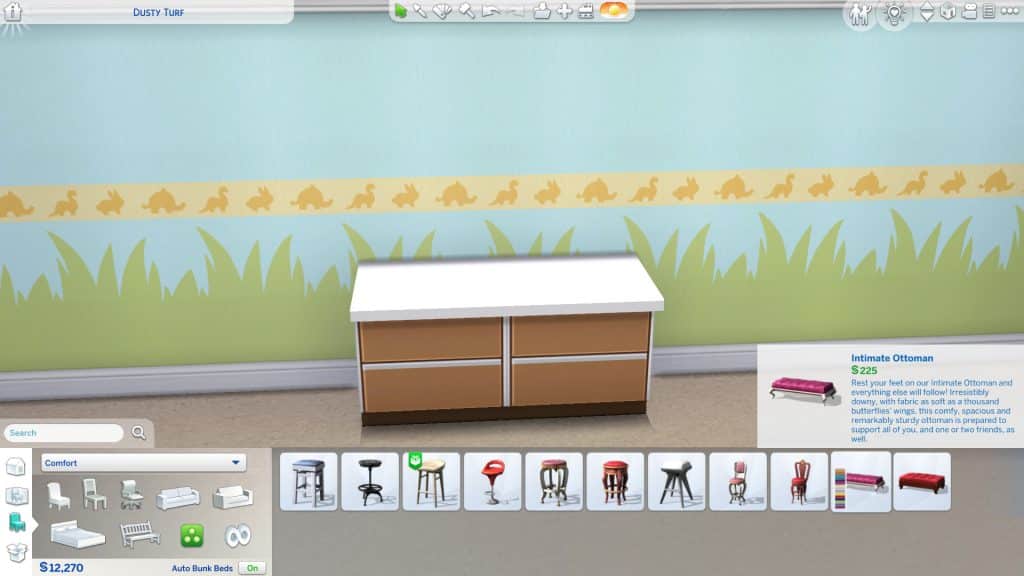
To start with, grab some counters out of Build/Buy. You can use either island counters or regular counters. I picked out some island counters here. Whichever counters you pick, place two side by side like you normally would if you were making a kitchen.
The Sims 4: How to Make Decorative Nursery Items with No CC!

Next, grab a base game ottoman. You can find ottomans in the Misc. section of the Comfort category. I picked the Intimate Ottoman because I liked the pattern and style of the cushions the most, which is the part we need.

At this point, we’re going to need to use building cheats. If you’re on console and worried about your trophies; don’t worry! This cheat will not disable trophies or achievements on console! You can use it as much as you like.

On PC, hit CTRL+SHIFT+C to bring up the cheat bar. On console, hit all 4 back triggers at the same time. Then type bb.moveobjects on into the cheat bar and enter it. You should see a small message underneath telling you that build cheats are now enabled.

Now that build cheats are enabled, we have a lot more freedom to get creative. Size down the ottoman twice so that it will fit nicely into the counter and be a little more “baby-sized.” To do this on PC, press the [ key twice. To do this on console, press press both triggers + left (XBox) or L2 and R2 + left (PlayStation).
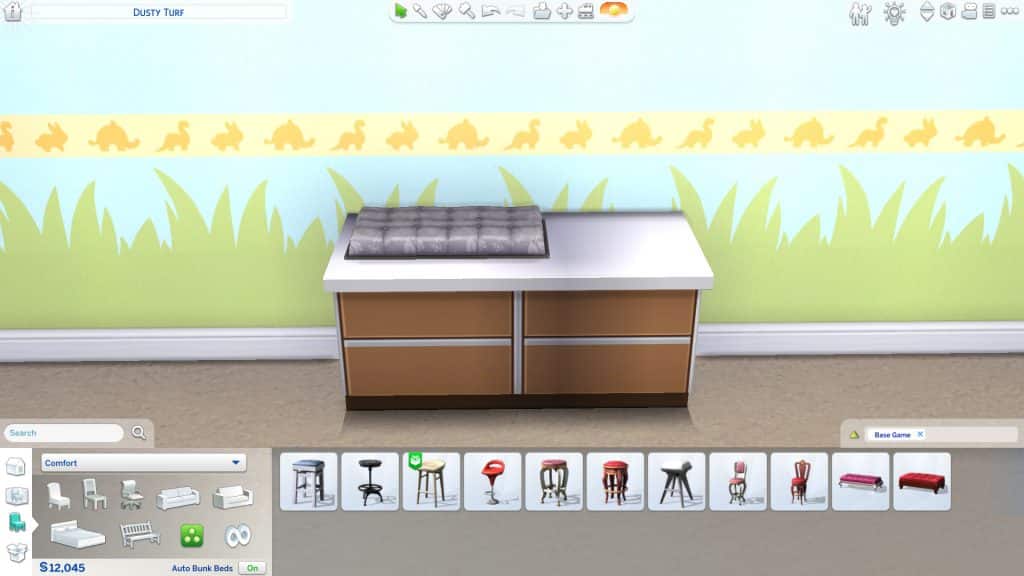
The Sims 4: How to Make Decorative Nursery Items with No CC!

Now we need to move the ottoman inside the counter and raise it up so that just the cushions are showing through the top of the counter. This will create our changing mat for the changing table. To do this, we’ll need to freely move the object outside the limitations of the grid and elevate it.

To freely move objects outside the grid, hold the Alt key while moving a selected object on PC. On console, press LT (XBox) or L2 (PlayStation) twice to toggle between grid, half-grid, and free placement. When you can drag the object around smoothly without it snapping to the grid lines, you are now in free placement mode.

To elevate objects, press the 9 key until you are happy with the height on PC. On console, press both triggers + up/down on the directional pad (XBox) or L2 and R2 + up/down on the directional pad (PlayStation).

Use these two build tools together to place the ottoman inside the counter with just the cushions showing through the countertop, like in the picture above.

The Sims 4: How to Make Decorative Nursery Items with No CC!

Now you have the basic structure of your changing table finished! With the hard part out of the way, you can now move on to decorating your changing table. I like to put some shelving above it with a mix of decor and things that a parent might actually need at a changing table, like tissues/wipes, lotions, and towels. You can also make it look a little more built-in by putting cabinets and other things next to it. At this point, just be creative and build onto the base structure any way you like!

Don’t be afraid to keep using the size cheat, free placement and elevation to get the look you want. I often use them to place large clutter objects on shelves that they won’t snap to otherwise. If you have clutter pieces that are snapping to a counter or table in a placement you don’t like, there’s an easy fix for that, too. Move the surface out of the way and place the clutter first, then slide the surface back underneath it when you’re done.

Other Nursery Ideas

The Sims 4: How to Make Decorative Nursery Items with No CC!

I showed you how to make a decorative baby changing table with just the base game but if you own a variety of add-on packs, you’ll have even more freedom and creativity at your fingertips. Here, I’ve created another decorative changing table with mostly pack content. I used the cube chair from Spa Day as my mat and the modular shelving from Dream Home Decorator really make this setup look unique and practical.

The Sims 4: How to Make Decorative Nursery Items with No CC!

Or how about a baby bath/changing table combo? This corner setup features a sized down bathtub raised up onto the counter, with an adjacent baby mat on the other side, made with the Spa Day cube chairs. The shelving and Laundry Day additions, plus the Discover University divider give the whole thing a nice built-in look.

The Sims 4: How to Make Decorative Nursery Items with No CC!

You don’t have to stop at changing tables, though. With enough creativity and time, you can build almost any custom piece you want to decorate your baby nurseries. Here, I’ve built a baby crib out of the base game and Perfect Patio ottomans, Snowy Escape wall decor, and a mix of Base Game and Toddler Stuff decorative touches.
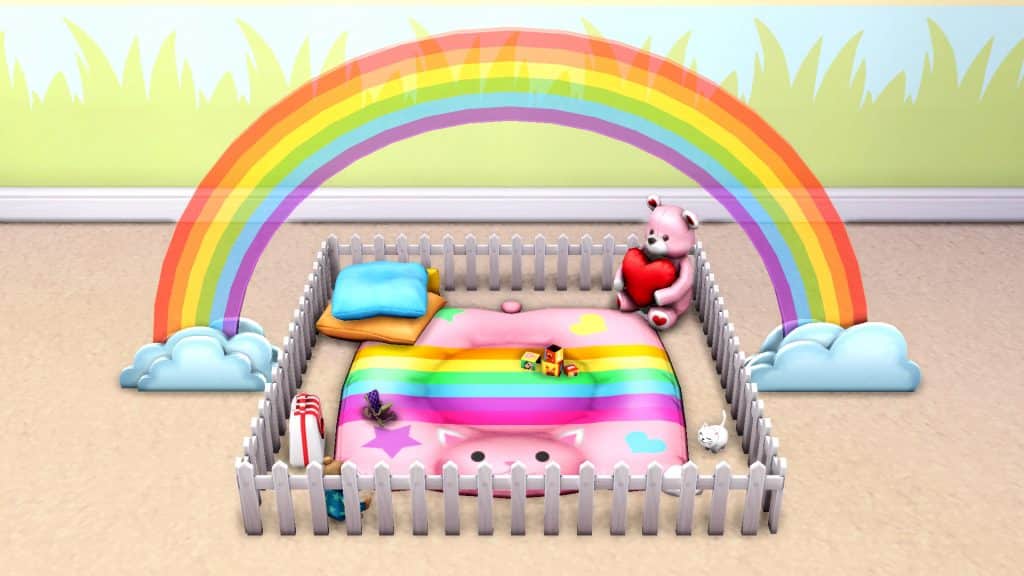
The Sims 4: How to Make Decorative Nursery Items with No CC!

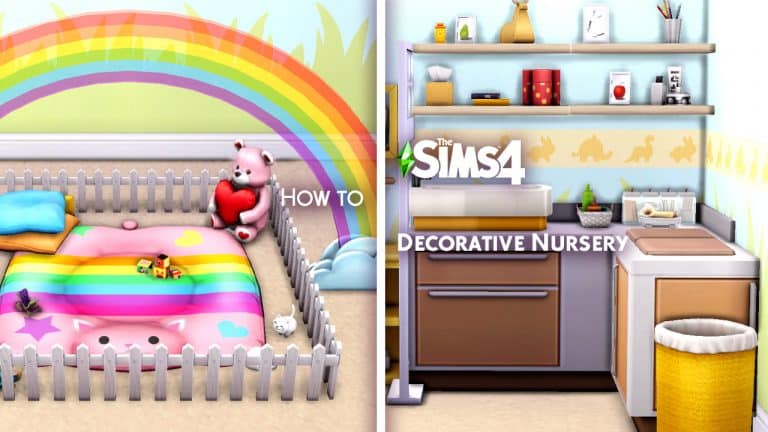
Playmats and playpens can also be created as well. While this particular baby playmat is not functional, it’s very easy to create 100% functional playpens for toddlers with just some carpeting, fencing, and their favourite toys inside. The one I’ve shown here was made with a pet bed from My First Pet Stuff and a debug StrangerVille fence piece that I’ve sized down. The sized down rainbow is from Get Famous, the pillows are from Toddler Stuff, and the teddy bear doctor playset is from Parenthood.

I hope I’ve given you a few ideas for your baby nurseries and if you really love the specific pieces shown in this article, you can download them from the Gallery! They are all 100% CC-free and my ID is SnarkyWitch. Make sure you have bb.moveobjects on enabled before placing these down!

The Sims 4: Create A Sim Look Prompts & Ideas

0

Sims 4 CAS Prompts For Every Occasion!

The idea for this post actually originates from our Discord Server. For the past few months, we have hosted frequent Building Challenges as well as our own Sims Community Challenge. A Few members approached me and asked if we could also do challenges for Create A Sim Challenges, and we thought why not, let’s create a list of Sims 4 CAS Prompts for players!

The Sims 4 CAS prompts below, while they may be inspiration for the Create A Sim Challenge over on Discord, they can be used for anytime you feel you need a little inspiration or a prompt for what to create in your own games.

Seasons & Holidays

  • Spring
  • Summer
  • Autumn/Fall
  • Winter
  • New Years
  • Christmas
  • Easter
  • Valentine’s Day
  • Halloween

The Sims 4: Create A Sim Look Prompts & Ideas

General Sims 4 CAS Prompts

  • First Date
  • Date Night
  • Wedding
  • Pride
  • Movie Night
  • Sports Day
  • Dancer
  • Beach Vacation
  • Camping Trip
  • Girls/Guys Night
  • High School/College/University
  • First Day of School
  • Moving Day
  • Cosy Night In
  • Interview
  • Spa Day
  • Prom Night
  • Graduation
  • Theatre Trip

The Sims 4: Create A Sim Look Prompts & Ideas

Characters & People

We can’t forget taking inspiration from many of our favourite movies, television shows and books. Here are more Sims 4 CAS Prompts!

  • TV Show Character
  • Movie Character
  • Video Game Character
  • Book Character
  • Actor/Actress
  • Musician
  • Celebrity
  • Super Hero
  • Super Villain
  • Cosplay
  • The Sims
  • Disney
  • Harry Potter
  • Pokémon
  • Anime
  • Animal Crossing
  • Stardew Valley
  • Final Fantasy
  • Life is Strange

The Sims 4: Create A Sim Look Prompts & Ideas

Other Sims 4 CAS Prompts

  • Fruit & Vegetables
  • Food & Drink
  • Furniture/Objects
  • Supernatural
  • Animals
  • Solid Colour
  • Historical
  • 1950’s
  • 1960’s
  • 1970’s
  • 1980’s
  • 1990’s
  • 2000’s
The Sims 4: Create A Sim Look Prompts & Ideas

Of course, these Sims 4 CAS Prompts are by no means a definitive list, as there are so many ideas out there. These prompts might not necessarily be one that you chose to use, but you may think of other ideas of a Sim to make to Create A Sim because of one of these prompts.

Looking for building inspiration? We’ve got you covered with over seventy prompts and ideas here!

Let us know if you use any of these prompts by tagging us on Social Media or by joining us over on our Discord Server.

PC & Consoles Sale: Save big on The Sims 4 and Expansion Packs

0

EA is currently having a cross-platform sale for some of their titles – including The Sims 4!

This sale is active across the Origin platform, the Playstation Store and the Microsoft Store – and it includes these following offers:

  • The Sims 4 Base Game (75% off)
  • The Sims 4 Expansion Packs (50% off)
    • The Sims 4 Cottage Living is discounted by 25%
  • 3 Pre-Packed Origin Bundles – 20% off each (offer only available on Origin)

This is the first time that The Sims 4 Cottage Living Expansion Pack has went up for sale, and you can use this opportunity to get it now if you can for 25% off! We assume it might take a month or two before it goes on sale by 50% if we follow the previous Expansion Pack sale patterns.

The offer is available right now and lasts until October 5th, 2021 at 10AM Pacific Time.

PC & Consoles Sale: Save big on The Sims 4 and Expansion Packs

The Sims 4 TUTORIAL: Fixing Group Poses Where Sims Pose in the Wrong Spot

If you’re an avid Sims storyteller or just a big fan of using poses for nice family photos, you might have run into this issue several times before. Like me, you were probably at a loss for what was happening. I realised that this is something that frustrates a lot of pose users and hardly anyone has an answer or solution for it. I couldn’t find an answer for what was happening for a long time and had to figure out what the problem was on my own. I don’t want anyone else to have to go through the trouble I did so I’m going to explain why this issue happens and how to fix it.

The Sims 4 TUTORIAL: Fixing Group Poses Where Sims Pose in the Wrong Spot

The Problem: Even if you use the Sim Teleporter to make your Sims pose in the correct place, they still walk several feet away before posing in the wrong spot.

Cause: Celebrity Sims. If you have a celebrity Sim anywhere on the lot, all the other Sims will walk several feet away to fawn all over the celebrity before they pose, resulting in them posing in the wrong place.

Solutions:

1) Just don’t use poses with celebrity Sims and make sure there are no celebrities nearby when posing your Sims. Easiest solution but not exactly ideal if you like to play with celebrities.

2) Temporarily remove your Sims’ celebrity status with mods or cheats before posing, then give them back their fame once finished. A decent solution but if you use poses a lot, it can become very time consuming to do this and reset all your Sims’ fame perks every single time you want to pose them.

3) Use the TOOL mod to nudge any stray Sims back to their proper places while they’re in their pose. This is my preferred method. It does require you to know the basics of the TOOL mod but I still find it easier and faster than the other two solutions. I’m also going to link you to TwistedMexi’s tutorial that will show you exactly how to use the three features you need for this. They are all quite easy to use.

3a) First, you will need to use the TOOL mod to select your Sim as an active object, as shown at 12:19 of the tutorial.

3b) Next, you will need to nudge your Sim back into place using the gravity pull feature, as shown at 16:15 of the tutorial.

3c) Sometimes, you may need to rotate your posed Sim as well to get them back into place properly. That is covered at 3:25 of the tutorial.

The Sims 4 TUTORIAL: Fixing Group Poses Where Sims Pose in the Wrong Spot

Using those three simple features of TOOL will allow you to fix any group poses that have gone awry due to a celebrity distracting all of your Sims.

I hope this helps you pose lots of Sims together easier!

Need StrangerVille Inspo? Try My StrangerVille World Setup!

As a long-time fan of StrangerVille, it always pained me how little effort went into the lots there. Every building is painfully bare-bones and even though the exterior architecture of the Shady Acres homes are beautiful, the inside is a completely different story. Big open rooms with one or two pieces of furniture plopped down wherever really kills the enjoyment of living in StrangerVille and actually investigating the neighbours.

Obviously, I had to fix this. I went about replacing or renovating every lot in StrangerVille to suit my play style and make the place feel like people actually live there. Today, I’m sharing how I have the world of StrangerVille set up with you. Since I did not build two of the lots, I cannot in good conscience upload the save, but I can show you a map of my StrangerVille and give you all the info needed to place the lots in your own world if you want to!

There is no CC anywhere in this world but I do own every pack and kit and like to use them. If you don’t own all packs and kits, you might need to replace some things here and there.

The World Map

Need StrangerVille Inspo? Try My StrangerVille World Setup!

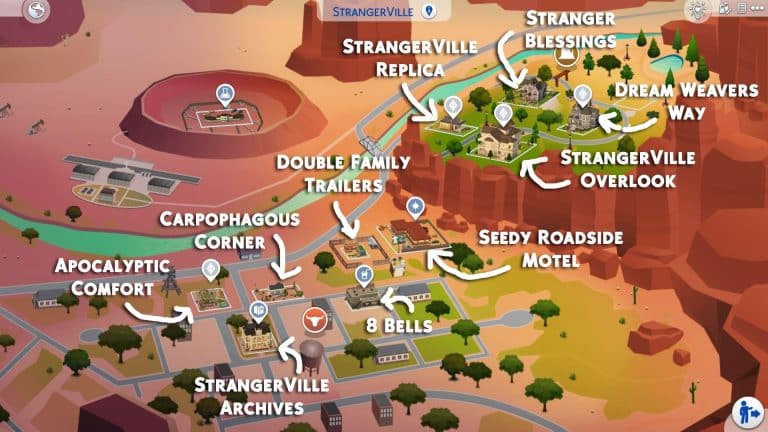
Here’s a world map of my StrangerVille so you can see where I’ve placed all my lots. I’ve done some shuffling around for the premade families and tweaked their bios a bit to fit with their moves but more info on that later on. All credits and lot info will be provided below.

StrangerVille Archives

Need StrangerVille Inspo? Try My StrangerVille World Setup!

Creator: thetideschanging

This lot replaces the default information centre in the heart of town and I absolutely love it. It looks exactly like what I would expect an old historic community building in the heart of a western American town would look. The inside is just as pretty as the outside and yes, it’s fully functional as both a library and as the scientist hangout spot for the StrangerVille Mystery plot.

8 Bells

Need StrangerVille Inspo? Try My StrangerVille World Setup!

Creator: Allisasims

I initially downloaded this adorable lot for the bar but the military office upstairs ended up being a perfect setting for a story I was writing, too! I really fell in love with this place. The bar is a really welcoming spot to hang out, with pool tables and darts and all kinds of fun pub-like activities to enjoy and the military office upstairs adds a touch of realism. After all, the bar is where the military hangs out in StrangerVille. There is also a cute little bookstore attached as well. I just love this place so much.

Double Family Trailers

Need StrangerVille Inspo? Try My StrangerVille World Setup!

Creator: SnarkyWitch (that’s me!)

I love these trailers for the trailer park in StrangerVille. Suitable for a family (or two) to live in. I’ve taken away some things in my base save to make it under 20k so a single Sim can start out in it but the version in the Gallery is a little nicer and priced just under 30k. I just really like the idea of having two trailers on this lot to potentially have more Sims living in StrangerVille. A single Sim can also rent out the second trailer to some roommates for some extra cash, so this lot is really versatile.

Apocalyptic Comfort 2

Need StrangerVille Inspo? Try My StrangerVille World Setup!

Creator: SnarkyWitch

I originally built this for the trailer park so you’ll have some empty space at the back to fill if you place it where I have. This is a tier 3 tiny home made out of two stacked shipping containers.

I needed the plane crash site for my motel, so I have George Cahill living here. His story goes that city council wanted to rebuild the abandoned motel (seen in the background of this shot) to revive the dying tourist industry in StrangerVille but needed George’s land. The only way he’d agree to go is if he was given a new plot of land with the rights to build whatever he wanted on it and a piece of Old Penelope had to be preserved and given to him. George was given some land in the suburbs where he built the apocalypse container home of his dreams, the city built their motel, and the nose and engine of Old Penelope are now popular tourist attractions in George’s backyard!

Carpophagous Corner

Need StrangerVille Inspo? Try My StrangerVille World Setup!

Creator: SnarkyWitch

This was a remodel of the original starter lot in this spot. I turned it into a tier 2 tiny home and it is still a starter. It’s perfect for either a single Sim or a couple. This home is one of the more “normal” ones in StrangerVille so it’s great for a Sim who’s just moved to this town, oblivious to the strange nature of the place.

Seedy Roadside Motel

Need StrangerVille Inspo? Try My StrangerVille World Setup!

Creator: SnarkyWitch

This is a replica of the abandoned motel shell as set dressing in StrangerVille. Perfect to use as a rental and a great place to tell the story of a passing traveler who finds themselves involved with the craziness of StrangerVille. The rooms are in varying stages of grunginess so you can choose between a pretty normal room or some truly horrifying ones. There may or may not be a crime scene in one of the rooms. Just saying…

Alternatively, if you’d rather have a cute little western ranch here than a sketchy motel, I also have a lot called The Ol’ Homestead you can place here. It’s a 100 Baby Challenge home but shouldn’t be too hard to rearrange the layout a little to suit a “normal” family.

StrangerVille Replica

Need StrangerVille Inspo? Try My StrangerVille World Setup!

Creator: SnarkyWitch

This is a replica of the cute little yellow house shell as set dressing in StrangerVille. I designed it for the Sigworths and moved them up to Shady Acres since I needed their original lot to move George into.

Their story goes that Jess rose in the ranks of the military quickly after moving to StrangerVille and after a few promotions, they were able to move to the nicer neighbourhood of Shady Acres. Dylan was hoping the move to a better area would be a fresh start but the odd behaviour Jess started exhibiting when they moved to StrangerVille has followed them up the canyon…

Stranger Blessings

Need StrangerVille Inspo? Try My StrangerVille World Setup!

Creator: SnarkyWitch

This is one of my first builds from when I was really starting to come into my own as a builder. It’s a 100 Baby Challenge house but it shouldn’t be too hard to rearrange the upstairs layout a little to suit a “normal” family if you so desire.

StrangerVille Overlook

Need StrangerVille Inspo? Try My StrangerVille World Setup!

Creator: SnarkyWitch

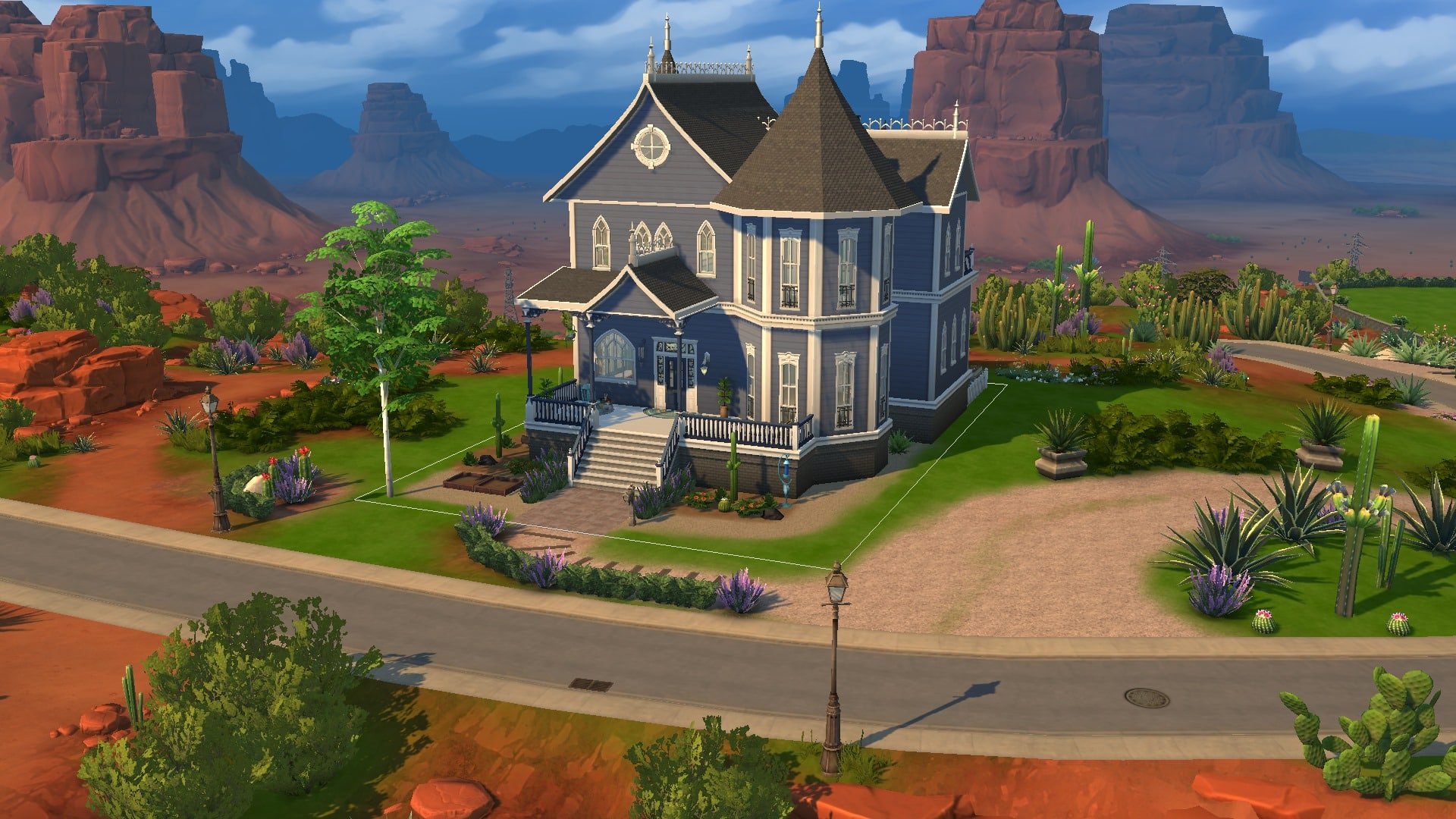
This is a remodeled version of the Roswells’ original home. It got a paint job and the interior’s completely redecorated from top to bottom. I even turned those useless inaccessible attic spaces into usable rooms. I didn’t see any reason to do major exterior construction because the structure itself is beautiful. It just needed a fresh coat of paint, some detailing, and a LOT of work on the inside so that’s what I did. I hope Ted and Meredith like the major interior design upgrade.

Dream Weavers Way

Need StrangerVille Inspo? Try My StrangerVille World Setup!

Creator: SnarkyWitch

This is my remodel of the Eclectic Arts roomies’ original home. It got a paint job, some new windows and trim, and the interior’s been redecorated to suit a group of young artsy hipsters with too much money. Like the Roswell home, I didn’t see any need for major construction on the outside; it was already lovely. I did do some interior construction to add a third bedroom so all the roomies actually have somewhere to sleep and I opened up the living area/foyer a bit by knocking out a wall.

And that’s my StrangerVille! I left one lot blank in Shady Acres in case I feel like building something from the ground up or starting some kind of rags to riches playthrough but all other lots have been rebuilt, replaced, or remodeled. I loved playing in StrangerVille before but it’s a lot more fun living there now that the town doesn’t look abandoned and empty.

Feel free to download all these lots and place them where I have, or take this as inspiration to do your own thing with StrangerVille; it’s entirely up to you!

The Sims 4: Creating A Style Influencer Apartment For My Sim

5

After having my Sim live in the beautiful world of Henford-on-Bagley since the release of The Sims 4 Cottage Living, I decided it was time for a new adventure. It was time to swap from the quiet countryside to busy city. Of course, with my Sim now heading for San Myshuno it was time for a bit of a career change! A few ideas ran through my mind but with the two upcoming Create-A-Sim Kits, the Incheon Arrivals and Fashion Street Kits, I decided it was time for my Sim to take on the Fashion World as a Style Influencer.

First things first when moving to San Myshuno is choosing which District my Sim is going to live in? Living in the Fashion District makes sense, however is slightly expensive to a degree to rent in. The Spice District is appealing, but isn’t quite what my Sim is looking for at the moment, and the apartments in the Arts District and Uptown are definitely out of budget for the time being.

After some consideration, I settled on moving into one of the apartments in 21 Chic Street in the Fashion District.

So it’s goodbye for now, Henford-on-Bagley and hello San Myshuno!

The Sims 4: Creating A Style Influencer Apartment For My Sim

After selling the furniture from my Sims previous home as well, it left my Sim with quite a sizeable amount of money. I say sizeable, it was enough to renovate her new apartment nicely and still have some left over while she makes a start in San Myshuno.

While the apartment I chose isn’t the biggest available in San Myshuno, for the weekly rent it was spacious enough for my Sim. For those who have played The Sims 4 City Living and know the pack well, the apartment I have chosen is the one where you would usually find Penny Pizzazz.

The Sims 4: Creating A Style Influencer Apartment For My Sim

The original layout of the apartment used the main space as a big open-plan living room, office and bedroom, while I wanted to keep the similar idea I was trying to think of ways I could keep this while making each area its own. Not only that, I was wondering what kind of theme I wanted to go for. Did I want something colourful, an industrial feel, or maybe just having something minimalistic?

Here are a couple of screenshots of how the apartment looked before I started renovating the apartment. Plenty of space to work with. The only thing I didn’t screenshot was the bathroom, which is just to the right and out of shot of the first screenshot below.

After setting about renovating the apartment, I initially decided to go with a minimalistic theme. I soon found that it just wasn’t working out how I had imagined it to. After quickly deleting what I had done, I ended up going with a mix of modern and industrial, with pops of colour throughout. As I continued to place each of the items, I found that overall it turned into a mash-up of different themes in the end, but I was loving how it was all coming together. Of course, I couldn’t forget about adding clutter throughout as well, where I could.

I also added a platform into the open sleep/living area, and even though it was just something really simple, I felt helped break the room up a little more. I’ve not really used platforms at all since they were added into the game as I found they would glitch easily, and while I still have the odd problem here and there it worked perfectly on this build.

Now for the after screenshots!

First up is the entrance to the apartment and main living area, followed by the office space. While I did want to try and create a better working area for my Sim for when she is working from home, it did prove difficult with the amount of space I had. Even though it didn’t work out as planned, I did like how it turned out.

The Sims 4: Creating A Style Influencer Apartment For My Sim

The bedroom space I wanted to keep nice and simple, with not too much clutter about. I did add the Trend Board in the bedroom as it was the only place that I could find enough space to place it while there still being enough space for my Sim to move around.

And lastly, the kitchen and dining space. I usually start with the kitchen regardless of what I’m building, but this time around it was actually the last room I renovated. I found it hard to find the right colour scheme that worked but adding the little pop of yellow really helped in the end.

Before anyone mentions that I have forgotten the bathroom, I did renovate it, but it’s so tiny that I just place the bare essentials that my Sim would need in there. While I did try to take screenshots to show what I had done, it was so difficult to get one that would show everything.

I really loved how this came together. There were plenty of challenges along the way, as well as trying to figure out which packs and objects worked well with one another. There are one or two areas that I’m considering changing, but overall I’m loving it. The perfect apartment for an up and coming Style Influence. I honestly can’t remember the last time I played in San Myshuno, but I’m excited to jump back into my main game and see what happens with my Sim as she starts her first steps as a Rag Reviewer!

Look out San Myshuno, the next big thing in the fashion world is coming!

Want to get the hairstyle from the Sim in the screenshots? It’s a part of the “so casual” CC Maxis Match collection by arethabee, and you can get it HERE!

My Experience Revisiting The Sims 3

24

In keeping with my recent itch to scratch the surface of some older Sims games, I found myself booting up The Sims 3 again. Now, I feel obligated to admit that The Sims 3 is easily my least favourite game of the franchise. The graphics are terrifying, the Sims look like freaky deformed potatoes, the animations are robotic and clunky, and much-loved features like the open world and create-a-style only made the game an unstable mess. Not to mention I find a lot of the gameplay people praise it for is actually quite one-dimensional and shallow.

My Experience Revisiting The Sims 3

Now, with that out of the way, we can get to what’s good about it and what made me decide to play it again after all these years. I love The Sims 4 Cottage Living but it made me miss horses all that much more. Horses are, perhaps, the only thing The Sims 3 did really well and I wanted to experience that again. So after jumping through a million hoops to make sure the game would even run at all on my new high-end gaming laptop, I could get it to run… okay. It’s mostly pretty smooth but the open world does still cause it to lag up a bit here and there.

My Experience Revisiting The Sims 3

I made my Simself and started a “legacy” on the largest lot in Sunset Valley, beginning my new life in a tiny shack. My Lifetime Wish was to be an Animal Rescuer so I quickly acquired quite a lot of pets from the shelter. I also started working on my riding skill in order to start adopting wild horses and maybe even tame a unicorn one day. In the process of bringing my equestrian dreams to life, I met a Sim named Gage Briody, fell in love, and married him. His Lifetime Wish was to become a Creature-Robot Cross Breeder… whatever that is. Apparently, it’s the top of the Science career track so he got a job at the lab.

My Experience Revisiting The Sims 3

Soon after, we unexpectedly found out we were having a baby… make that two babies, actually. Yup. Twins. I hadn’t planned on continuing my legacy until much later in life but now I had two daughters. Okay then. Somehow, we managed to raise two kids in our little shack with a bunch of animals and pursue our careers at the same time. Gage gained promotions quickly and I finally adopted my first wild horse and started entering show jumping competitions with him. We sunk most of our money into partnering with local businesses so our daughters wouldn’t need to worry about money in the future.

My Experience Revisiting The Sims 3

Another horse, a cat, two dogs, and a unicorn later, and Gage was a level 8 scientist and I was a level 8 horsewoman. Our twins were teenagers and we decided to pull them out of Smuggsworth Prep School so they could have a normal teenage experience, like prom. We worked hard during the week but made time every Thursday (which was the seasonal holiday) to do something together as a family, like attend the seasonal festivals at the park or have a family beach day. Sometimes we’d catch a movie and then pick out a tasty treat at the Deliciously Indulgent Bakery, a disgustingly overpriced Store venue that I bought anyway because I hate having money, I guess.

So what are my final thoughts on The Sims 3 after spending so much time playing it again? Well it’s definitely a more enjoyable experience if you have the hardware for it and if you’re tech-savvy enough to know how to tweak the game files to allocate more RAM to the game and to make it recognise your graphics card. When the game runs the way it’s supposed to, it can be pretty fun but when it comes down to it, I shouldn’t need 2021 hardware and advanced computer knowledge to be able to run a game from 2009. That alone still pegs The Sims 3 as the worst in the series for me. However, since I do happen to have the hardware and computer know-how to run it, I probably will still continue to play it every now and then when I’m feeling nostalgic.

And I must admit, I’m excited to see where my daughters take their lives when they’re all grown up. I wouldn’t mind seeing a few features of Generations added to The Sims 4, like proms, more after-school activities, and a boarding school system. I do all these in The Sims 4 anyway using some creativity and imagination but integrated gameplay would be pretty nice.

The Sims 4 teases the Third Kit of This Season

9

A few days ago The Sims Team has announced a “Season of Selves”, announcing 4 Kits and multiple Free Content Updates for The Sims 4!

So far we’ve gotten a free update for The Sims 4 with 1200 new color swatches and new CAS items, as well as the announcement of two Fashion Kits – Incheon Arrivals and Fashion Street.

As you can see from the graph below, there are two more Kits left to be announced – one that’s a part of the CAS Kit section and one that’s a Build Kit, which will let you “cultivate your modern sanctuary”.

The Sims 4 teases the Third Kit of This Season

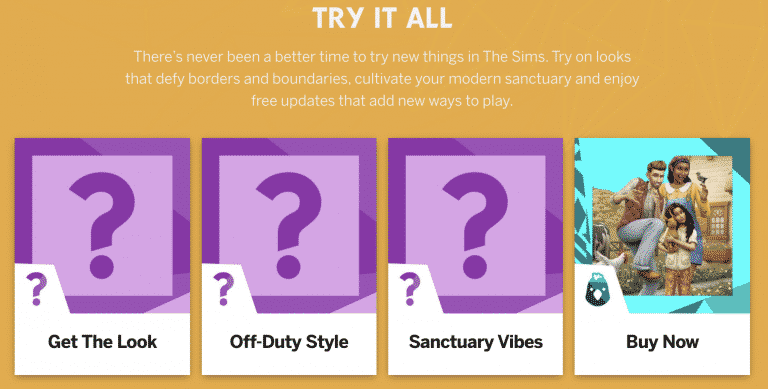
TheSims.com has updated their website with 3 Kit Boxes, featuring “Get The Look”, “Off-Duty Style” and “Sanctuary Vibes”.

With this we can assume that the reveal for the 3rd, “Sanctuary Vibes” Kit is just around the corner after the release of Incheon Arrivals and Fashion Street.

What do you think the Build Kit is specifically about? Let us know in the comments!

The Sims 4 teases the Third Kit of This Season