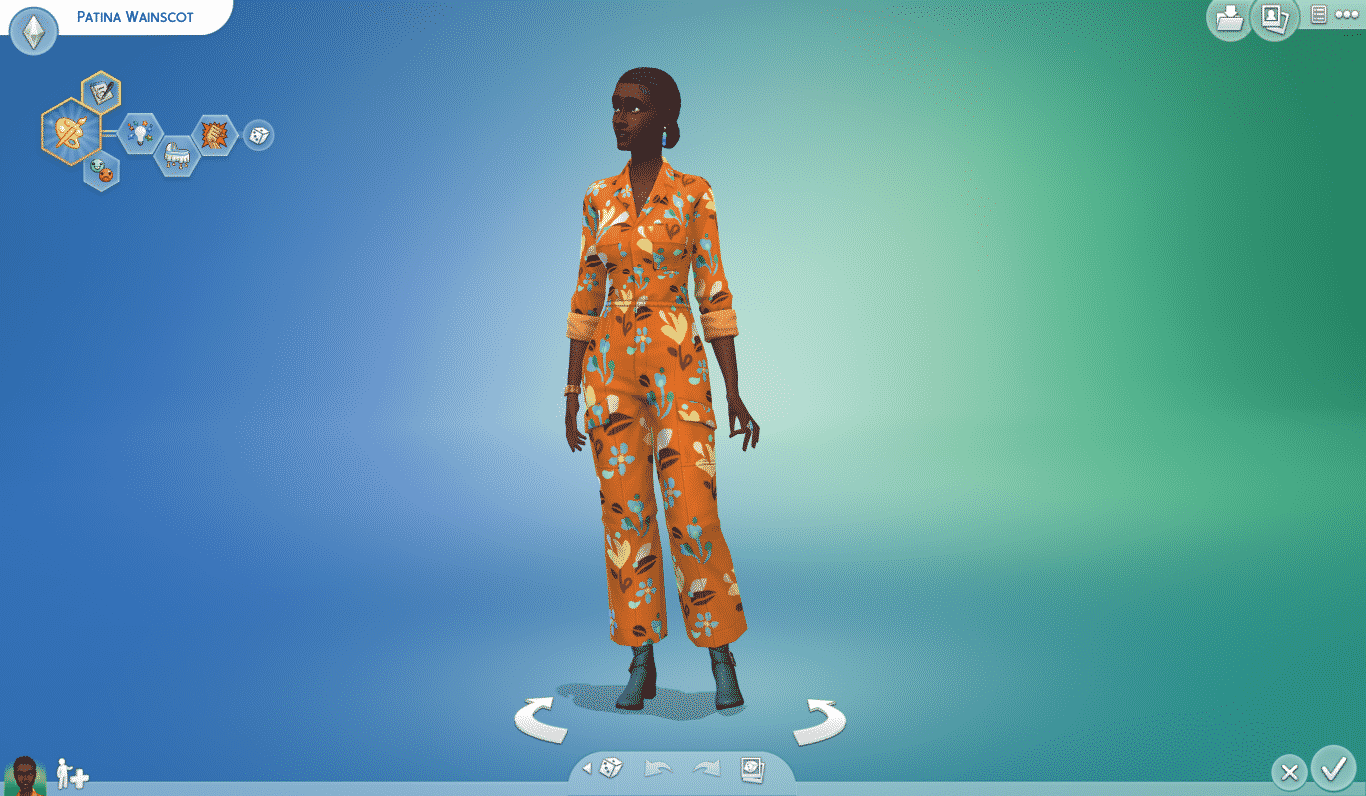
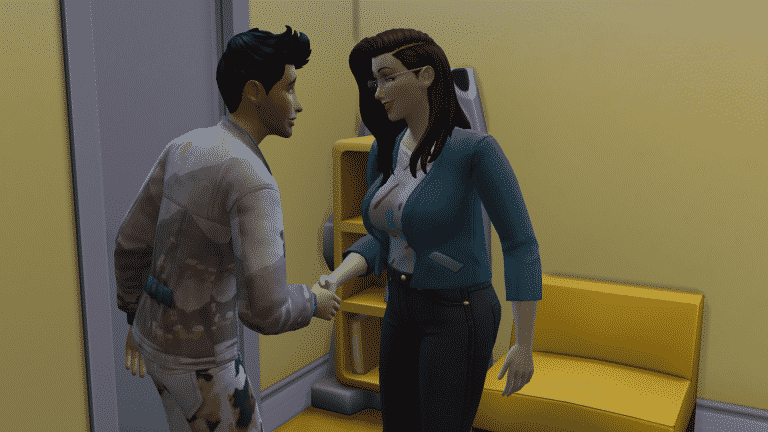
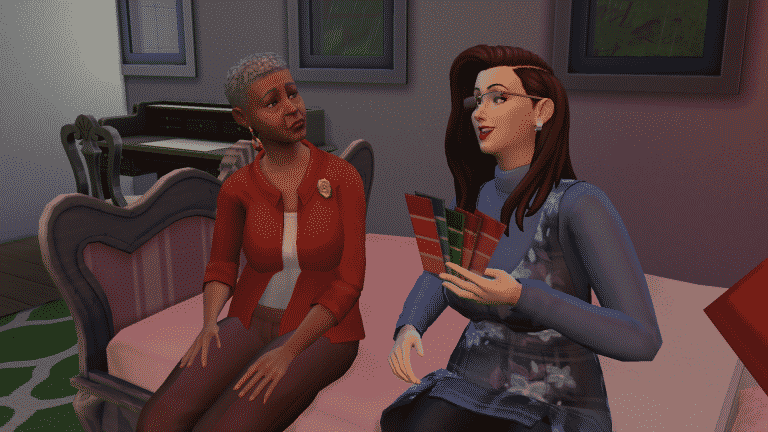
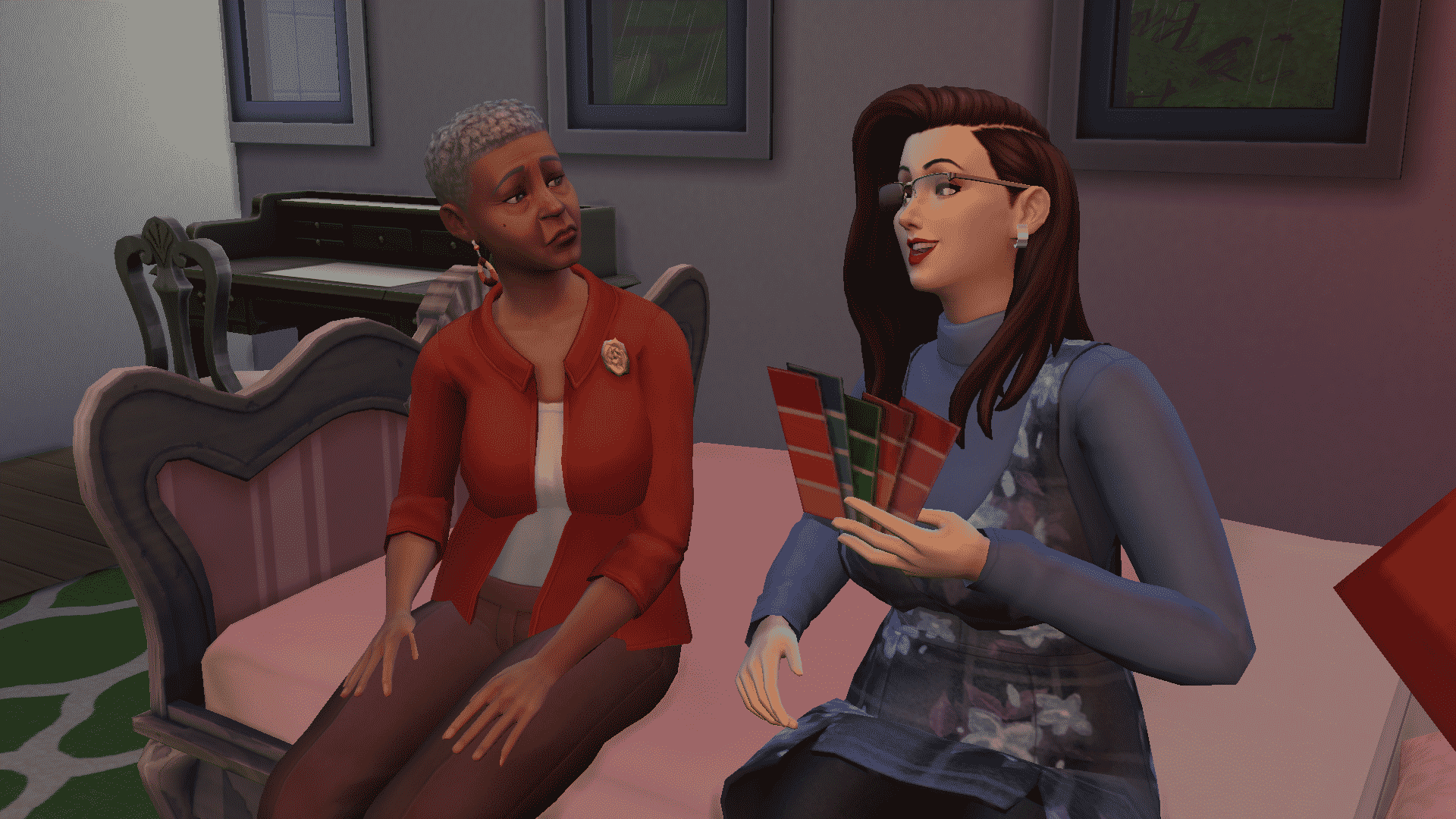
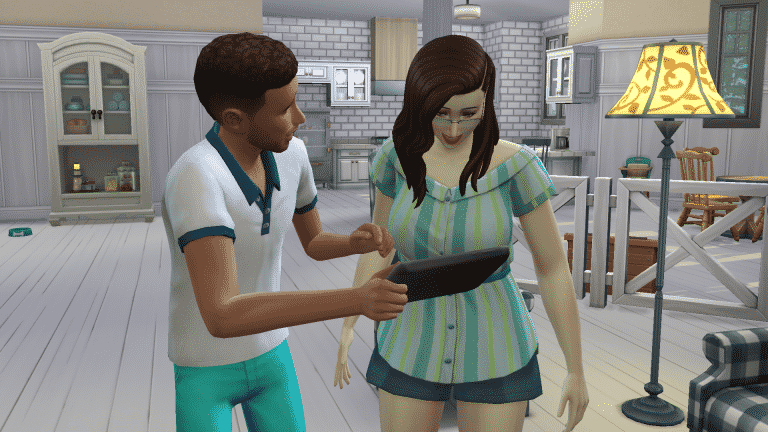
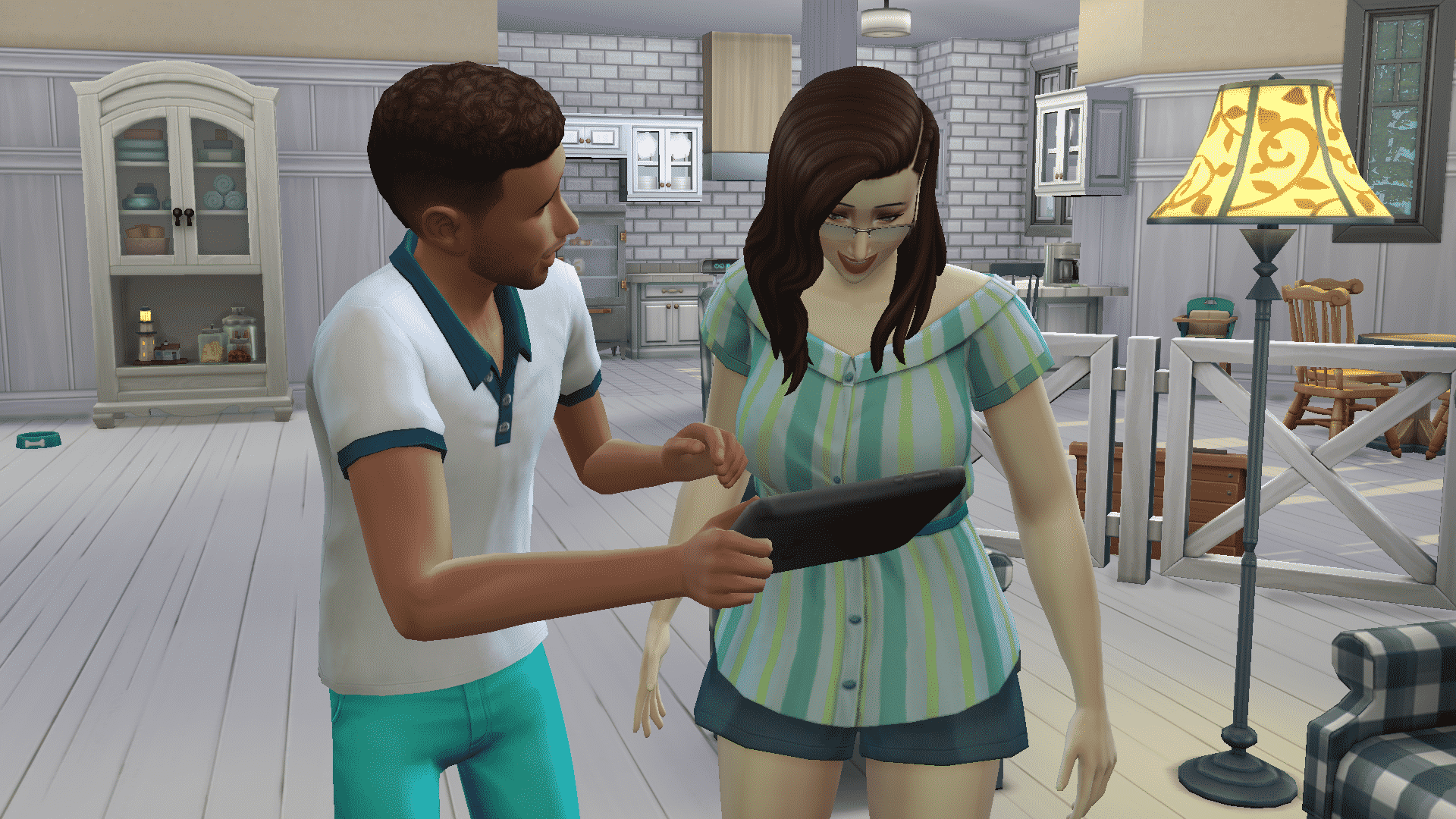
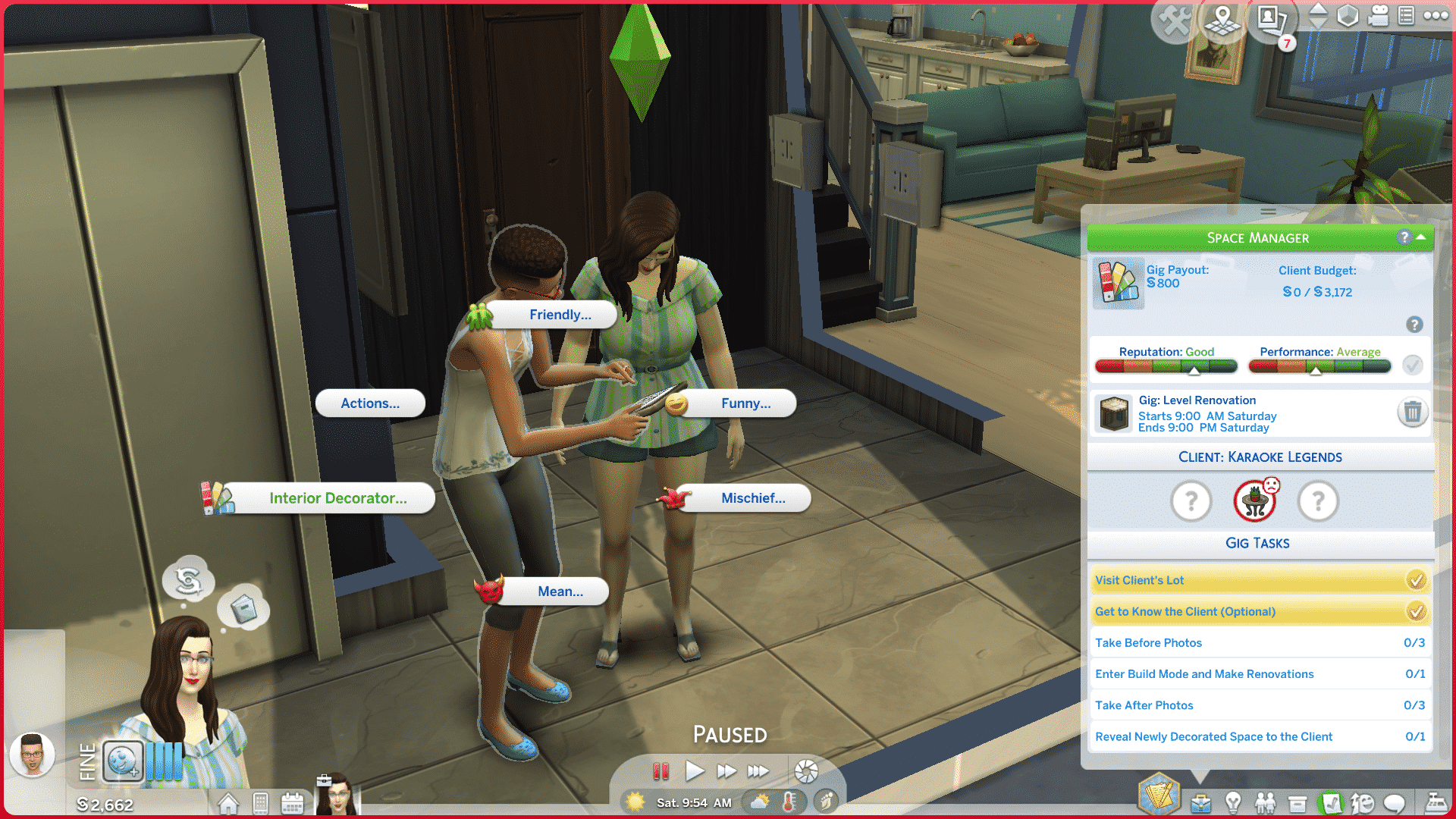
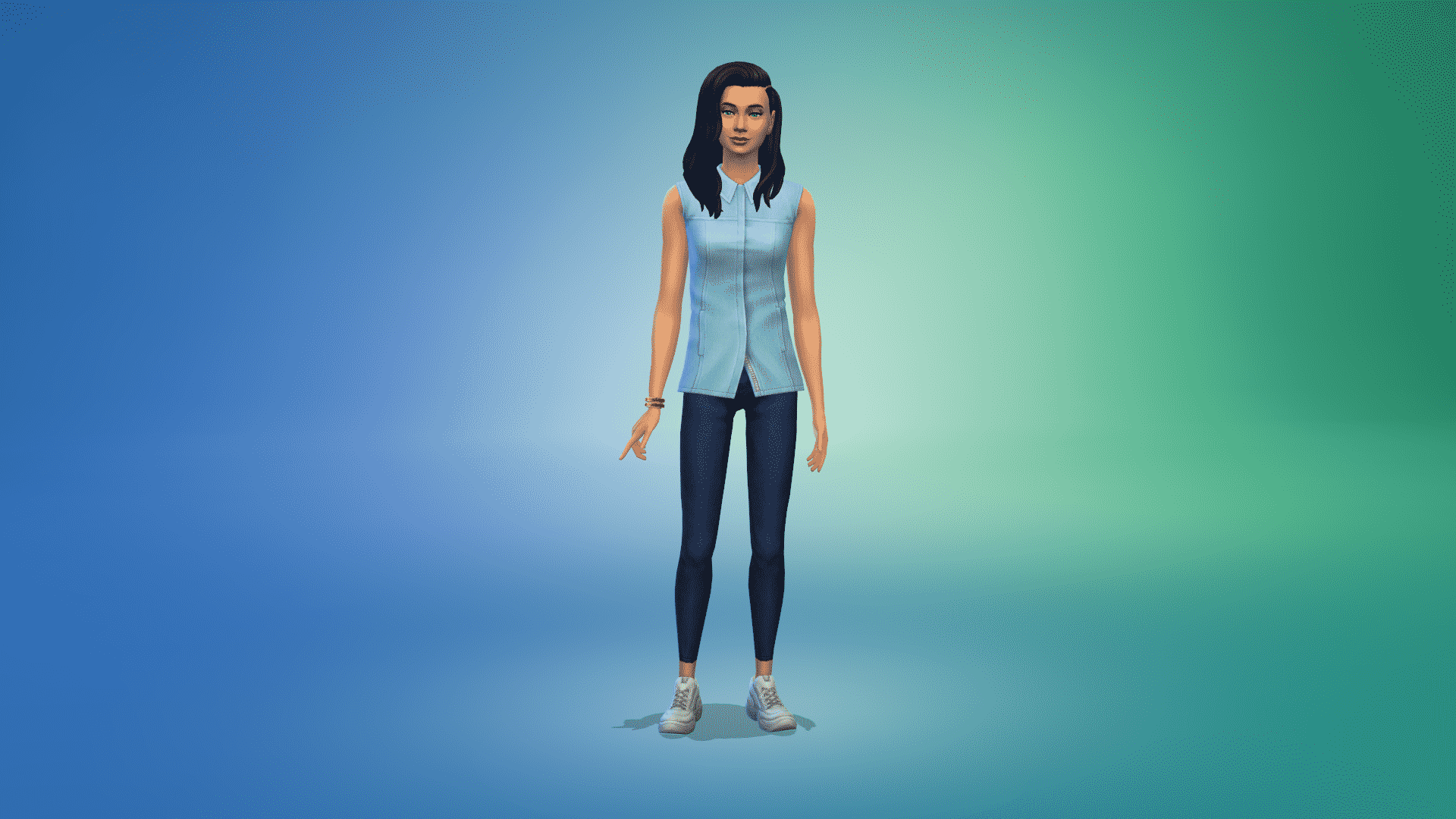
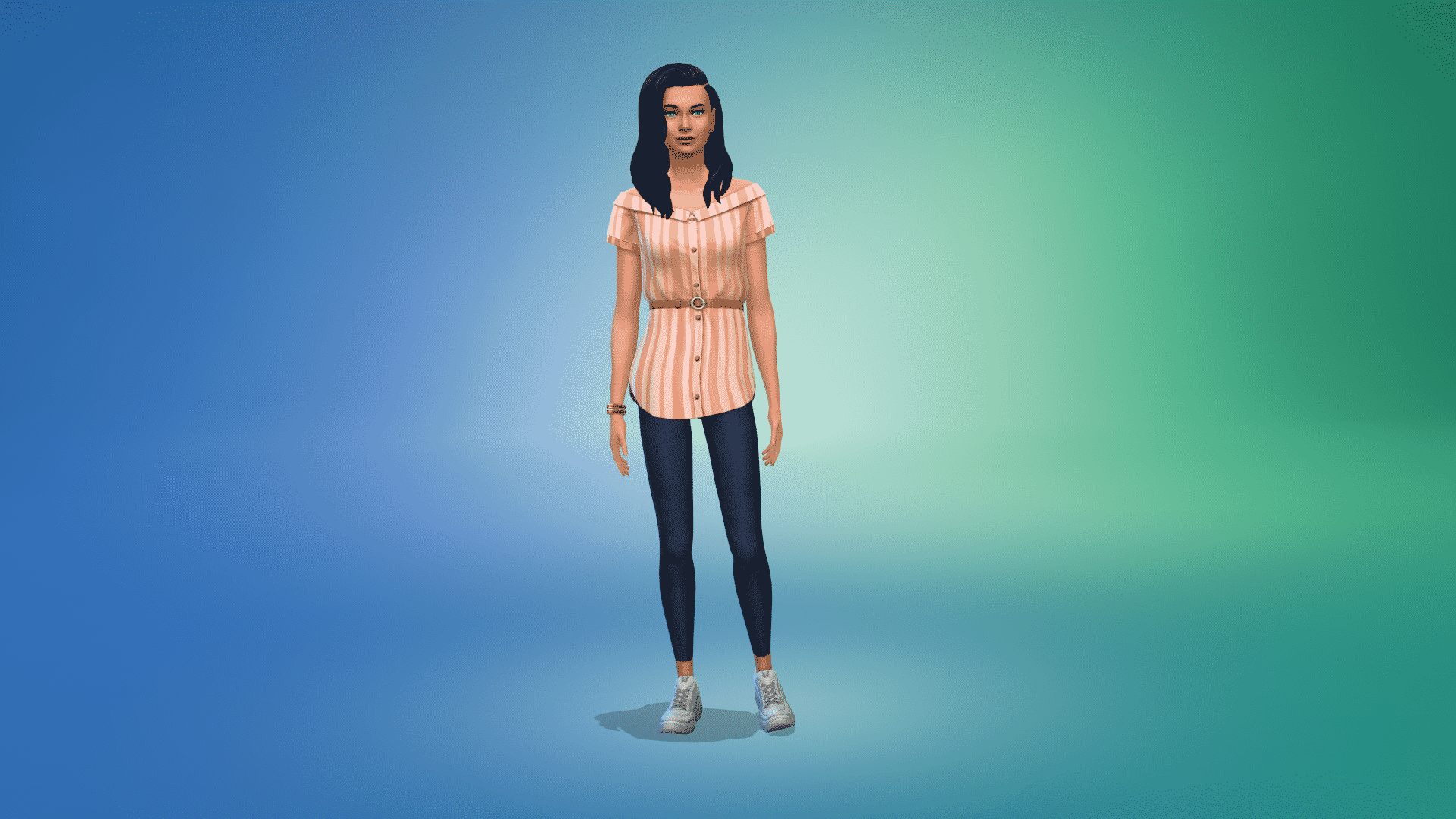
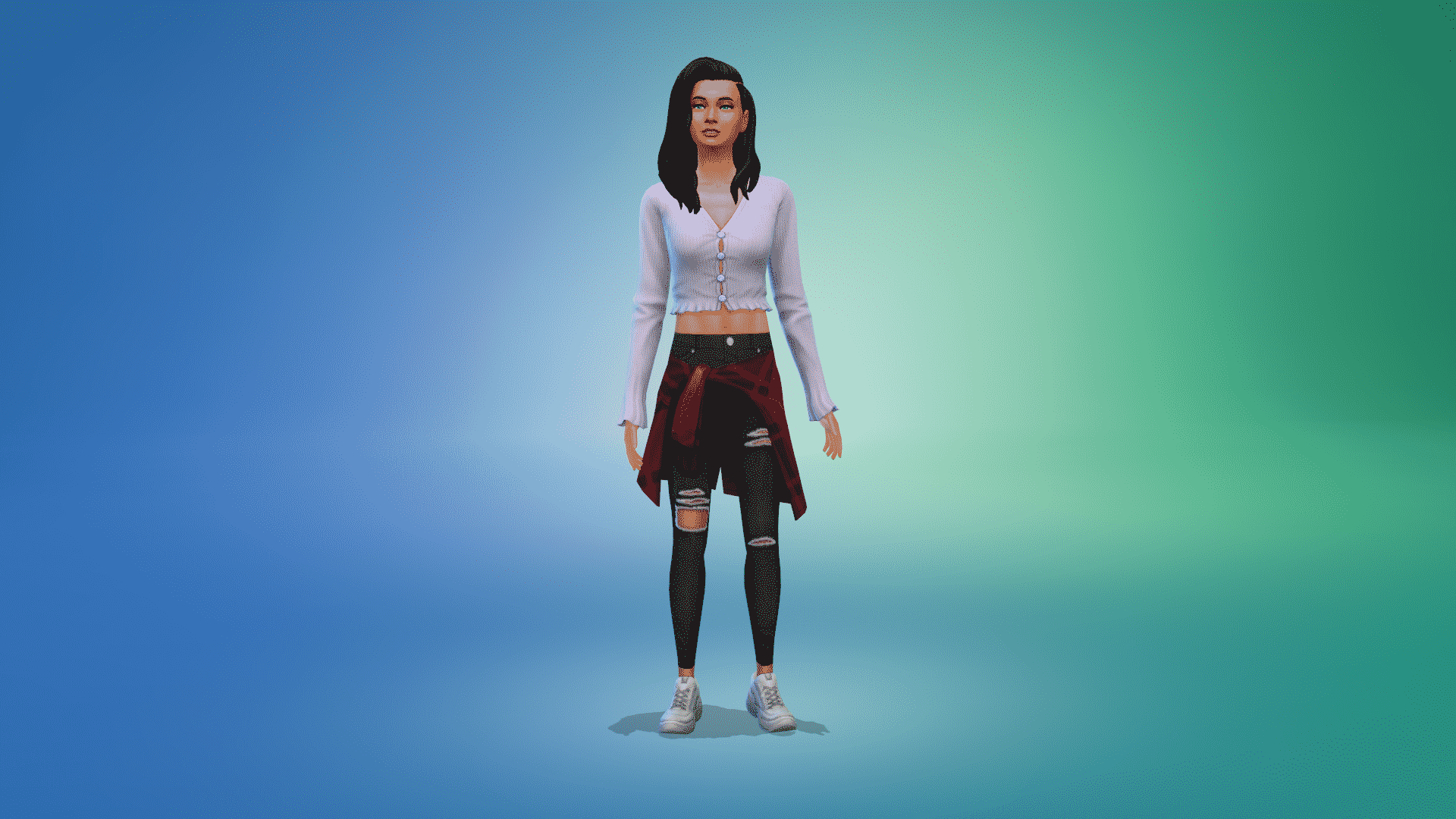
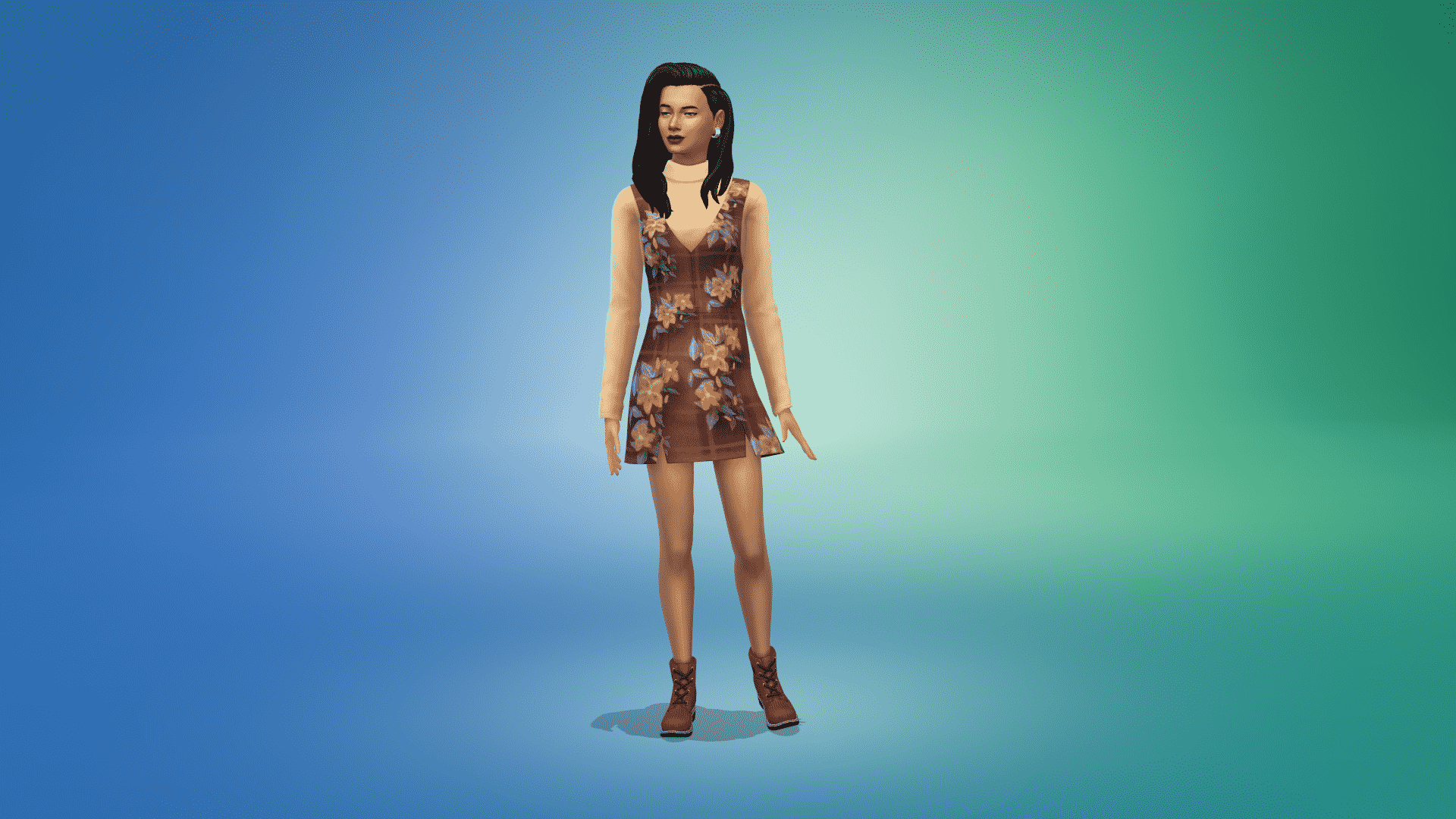
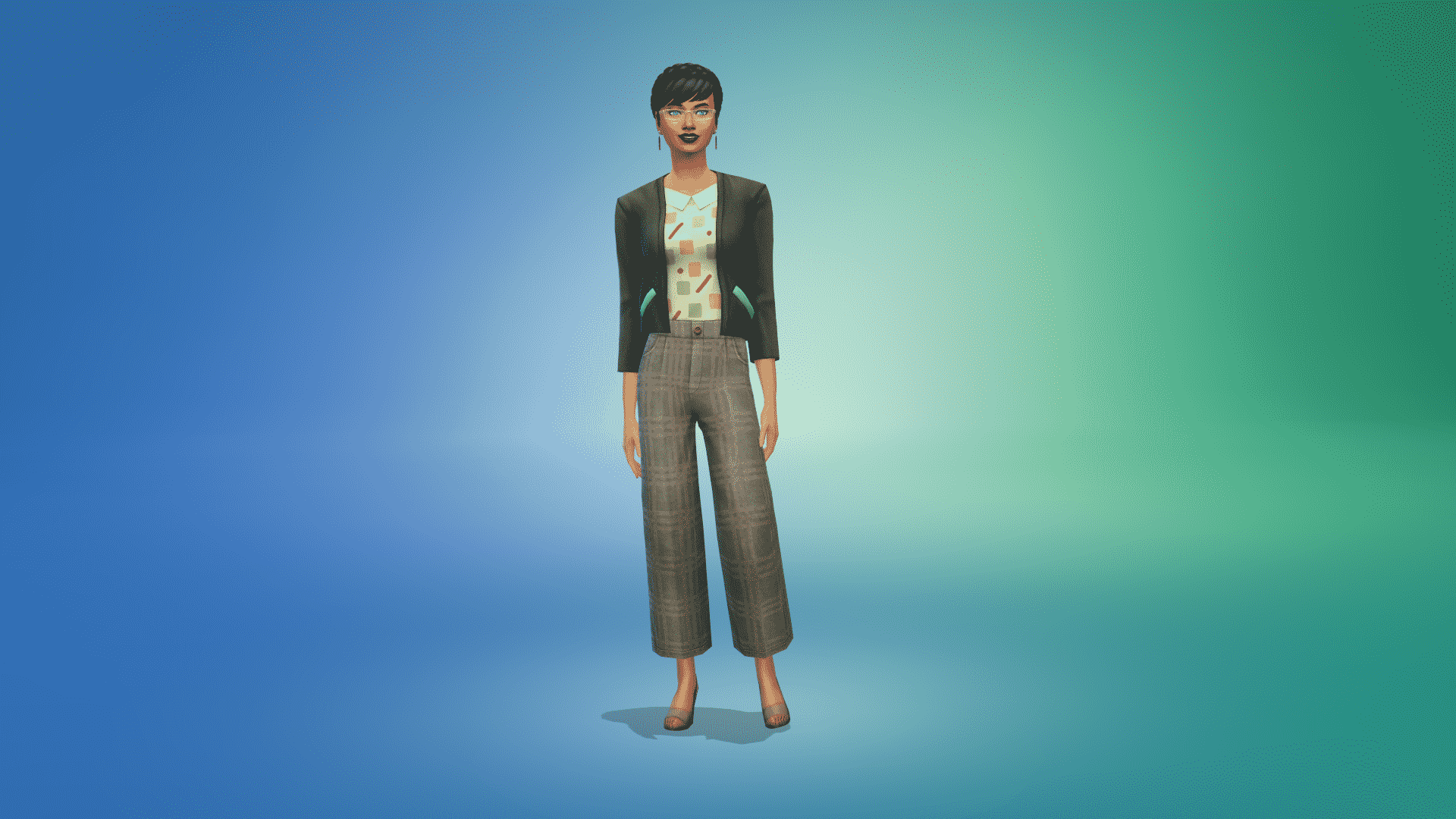
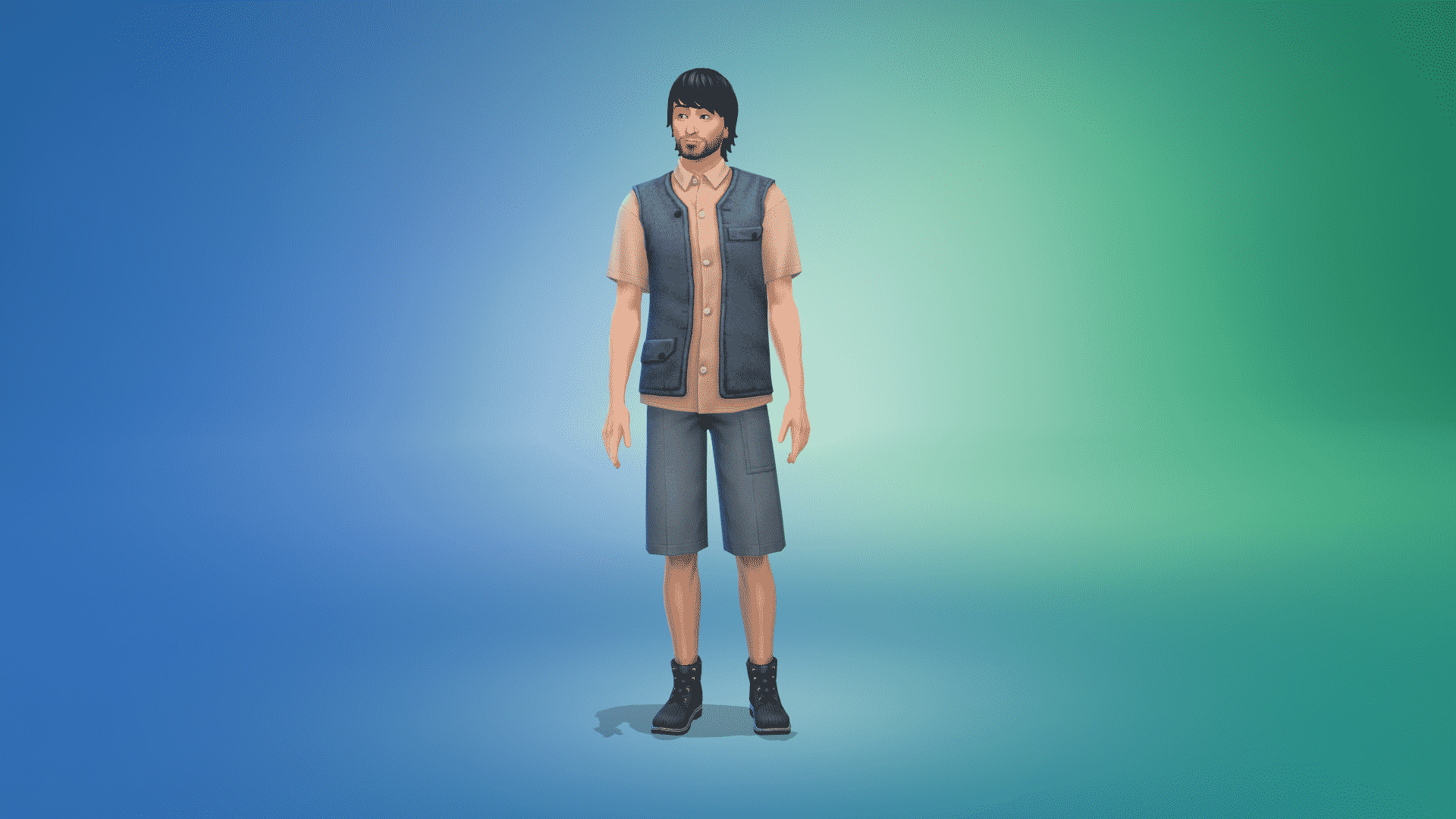
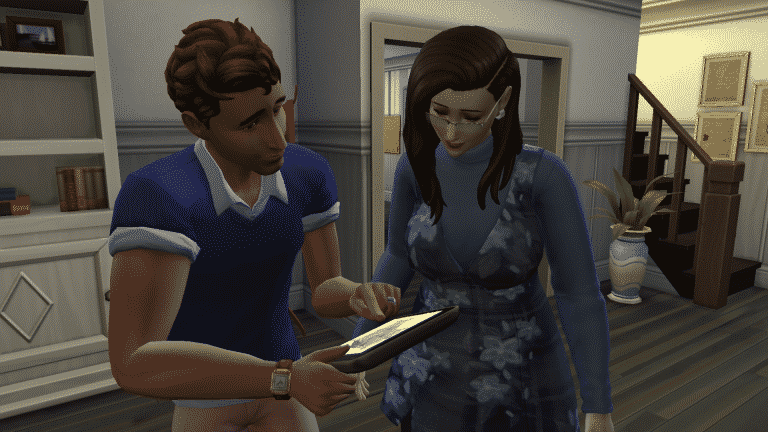
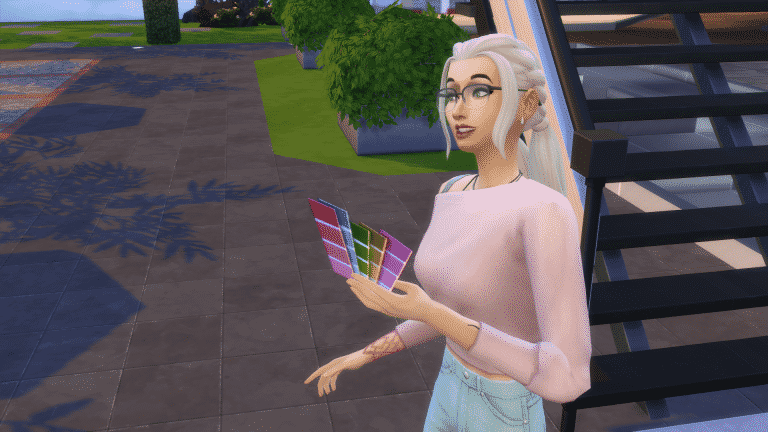
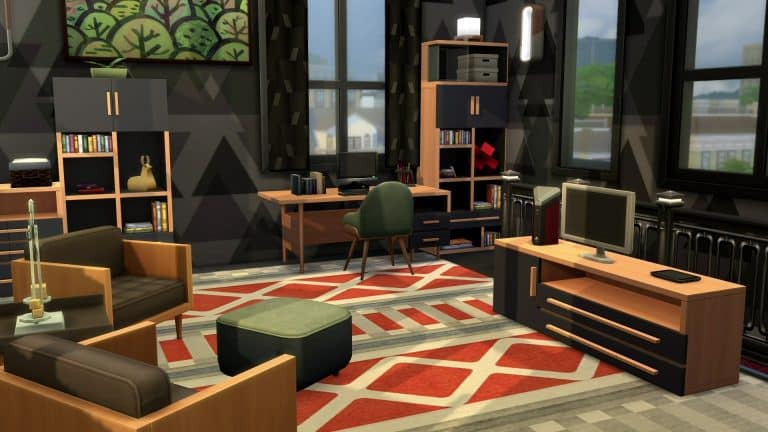
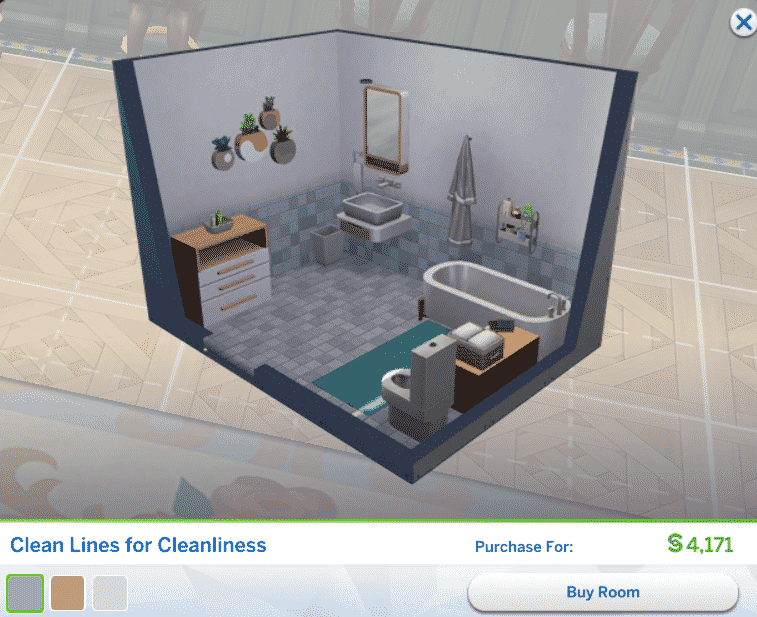
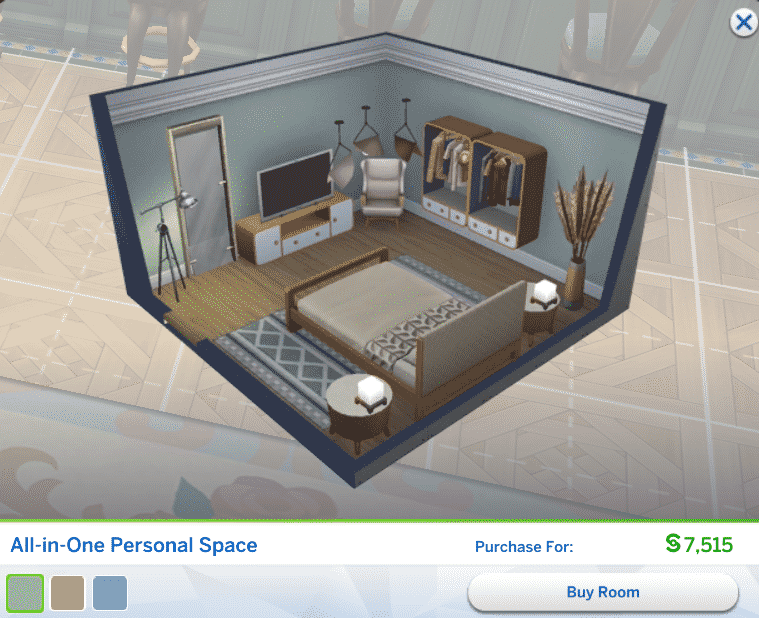
The Sims Team has uploaded the official household used in the official promo material for The Sims 4 Dream Home Decorator Game Pack.
More specifically they’ve uploaded the Decorate With Patina Household, which comes with Patina Wainscot, mostly known for her appearance on the official Dream Home Decorator Boxart and Videos!
You can find this official household on The Gallery right now! Simply search up Maxis under the EA Account ID filter and grab the latest Household!
The Sims 4 Dream Home Decorator Game Pack isn’t one of those Game Packs that bring a whole lot of gameplay considering it focuses more on Build Mode aspects. However, there are still some cheats that will help you advance in your Career quickly and unlock some of the locked CAS outfits that come with this pack!
Please make sure you enter the testingcheats true cheat in the cheat console before entering any of the following cheats. You can open up the cheat console by pressing CTRL + Shift + C on your Keyboard on PC or by pressing R1+R2+L1+L2 on your Console controller.
Interior Decorator Career Cheats
You can quickly promote your Sims in the Interior Decorator Career by using the following cheat:
careers.promote deco
You can use this cheat as much as you want until reaching the final level of the Career. Afterwards using this Cheat
If you want to quickly demote your Sim to a previous Career Level of the Interior Decorator Career you can use the following cheat:
careers.demote deco
Unlock Career CAS Outfits
If you want a quick jump and unlock all of the locked career outfits that come with The Sims 4 Dream Home Decorator you can use the following cheat:
cas.unlockbytag GP10
If you’ve already loaded up a category that includes locked outfits while entering this cheat make sure you exit that category and then open it again so the ouftits can get properly unlocked.
It hasn’t even been a few days since the latest update for The Sims 4 Base Game which added Likes & Dislikes Preferences in Create A Sim (and Live Mode!) and the modding community has already begun with serious work!
Two active modders have begun important work on expanding the possibilities of CAS Preferences in The Sims 4. The first Custom CAS Preferences that are already in works are created by ky-e, who’s also known for their work on the Lifetime Aspirations Overhaul.
ky-e was able to add in an entirely new category of CAS Preferences – Sim Turn-Ons and Turn-Offs. At the moment the creator was able to only play around with the User Interface and add in a new category in the CAS Preferences while also adding in specific Turn-Ons and Turn-Offs icons in Create A Sim.
You can check out some of the previews down below. The creator indicated that they will be soon starting their work on modding in the gameplay aspect.
Gameplay effects will be a later thing, for now I’m having fun just adding in the icons!
Thanks so much for all of the interest everyone!!! Here’s a few more I’ve added since posting.
Will probably do a non-functional pre-release on my Patreon once I add all the turn-ons/offs. Then start working on the gameplay integration!
I’d love to integrate this into a chemistry system one day, but for now I’m planning to give tense/flirty moodlets, and hopefully effect autonomous romance interactions as well!
They’ve also shared some valuable insight on how easily moddable they are:
Here's something fun: since they're just fancy traits, each life stage can have their own unique Likes/Dislikes!
Right now I'm using this to make Turn-Ons/Offs only visible to Teens and up, but maybe Voidcritters would be a good child-exclusive one? Not sure what else yet…
Another modder marlynsims96 was able to add a whole category of Meal Preferences! Currently this mod is still in development but the creator has already added in so many recipes from the game, as you can see down below:
Ooooo i’m about to have so much fun with this! I’ve already added a new meals category to Sims preferences. #sims4#TS4pic.twitter.com/UHLXh9pdiD
The creator almost has their first CAS Preferences mod ready for release and that’s Dessert preferences. You can check out the preview of what they will look like in Create A Sim below:
Last but not least marlynsims96 has shared some of their plans for upcoming CAS Preferences that they want to Mod into The Sims 4:
Yes I’m making mods to add meals, drinks, snacks, deserts, TV channels, movies, seasons, holidays yada yada yada 🙂
The Sims Team has just released their next Game Pack for The Sims 4 – Dream Home Decorator!
The Pack is currently available on official stores for all platforms including PC, Mac, Xbox One, PS4, Xbox Series X and PS5.
Down below you can check out the official stores where you can get the pack. The pack is retailed at the regular price of a Game Pack at $19.99USD – or an equivalent to your local currency.
We’ve also got all the latest coverage and information about the pack. Check out our The Sims 4 Dream Home Decorator Articles for some great insight and tips on this pack!
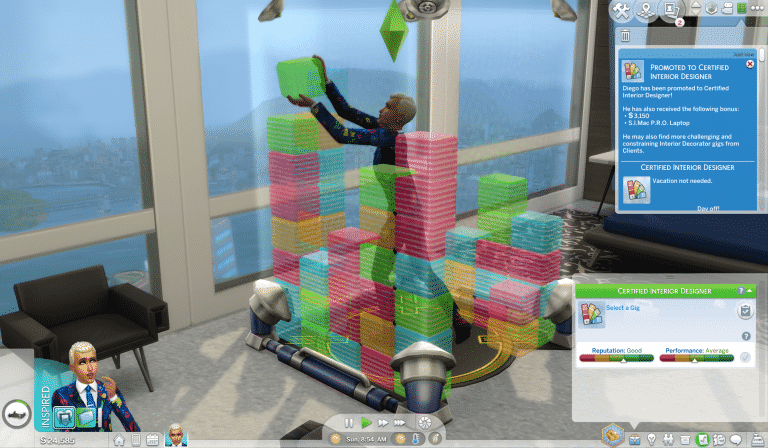
In The Sims 4 Dream Home Decorator, your Sims can embark on an exciting new active career in interior design! One major feature of the Interior Decorator career that makes it unique is reputation. Your Interior Decorator must build their professional reputation alongside performance to get the most out of the career.
Unlike performance, reputation does not reset after every promotion. You carry your reputation with you throughout your entire career. The main way to build reputation is by going to your gigs and doing a good job on them but when you reach higher levels of the career, you’ll be able to build reputation through social media and writing design books as well. Every once in a while, a brand might contact you offering you free goods in the hopes that you will use their products in some of your future renovations. This can also boost your reputation. Your work might even be featured on the Dream Home Decorator Network!
Building up your reputation as an Interior Designer is important if you want to land high profile gigs and clients. It can also be your saving grace if you ever do poorly on a gig. When you start building a good reputation, previous clients may come back to you to do more work for them since they loved what you did for them last time. They can also refer you to their friends, who may contact you about hiring you for a gig. If you have a great professional reputation but for whatever reason completely fail a gig, that client may be more willing to contact you again in the future to offer you a second chance. Reputation can make or break you as an Interior Decorator. Keep your reputation consistently high and enjoy brand perks, client referrals, callbacks, and more challenging and rewarding gigs. You can even get thank you letters in the mail from happy clients you’ve worked for, as well as calls to tell you how much they love the space you designed for them.
TS4 x64 2021 05 28 14 33 15
TS4 x64 2021 05 28 16 15 23
If you own the Get Famous expansion pack, be careful not to get Interior Decorator reputation confused with Get Famous’ reputation system. They are two separate systems that function independently of each other; however, Get Famous is integrated into your professional reputation as an Interior Decorator. Interior Decorators can gain fame from having a good professional reputation. Whenever a brand contacts you about your work, you’ll gain some fame from that recognition. You can use social media to your advantage to build both fame and reputation, too. Post all your before and after photos to Simstagram to get noticed and potentially become a famous Interior Decorator! If you’ve really established yourself in the Interior Decorating world, celebrities might want you to work for them!
Remember, it’s not just about your job performance as an Interior Decorator. Your reputation matters, too. Do well on gigs and use social media to your advantage to gain the attention of big brands and get referrals and callbacks. With Get Famous installed, a high reputation means the chance to work for celebrities or maybe even become a famous Interior Decorator, yourself!
In The Sims 4 Dream Home Decorator, your Sims can embark on an exciting new active career in interior design! For Simmers who aren’t knowledgeable about different décor styles, some of your gigs might feel confusing. What the heck is cosmolux décor, anyway?! Luckily, you don’t need to have watched every home makeover show on earth to become a successful Interior Decorator in the game. There are a few tips and tricks that will help guide you to a good score at least most of the time. There is always a chance for the occasional unhappy client, of course; especially if you are working for a family of Sims whose likes and dislikes clash with each other.
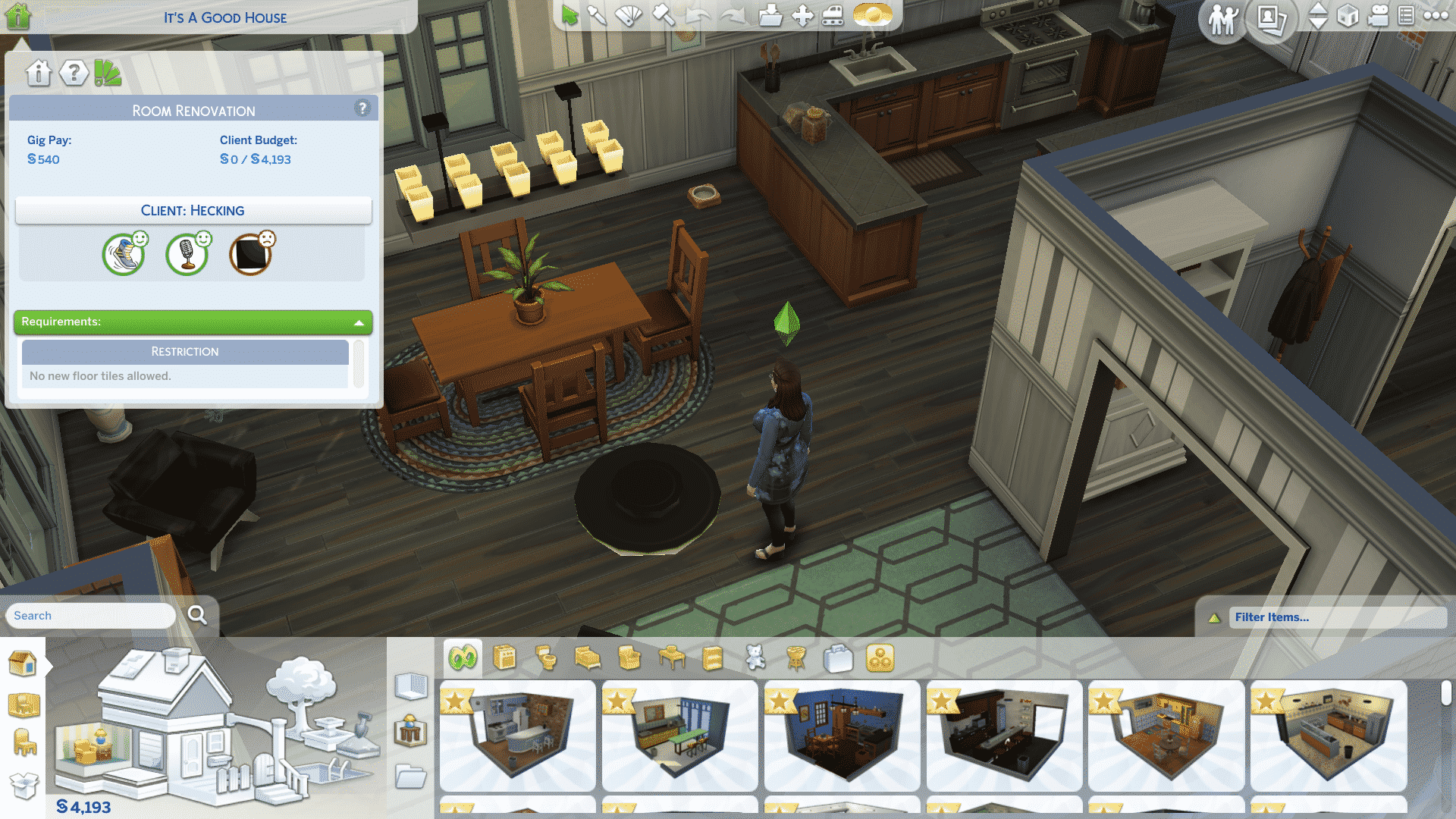
After getting to know the clients and finding out their likes and dislikes, it’s time to send them away so you can work your magic. Remember to take at least three before photos before you go into Build Mode and start gutting everything. Once in Build Mode, open up the gig info tab in the top left corner. You’ll be able to see an overview of the gig and your clients’ likes and dislikes here.
If the client didn’t give you a whole lot to go on, or if their décor preference is something you’ve never even heard of before, don’t worry. You’re not completely in the dark and you won’t have to run to Google to do a bunch of interior design research. Just click on the like or dislike in the gig info tab and everything in the game that fits that style will pop up for you to browse through. This works for all likes and dislikes, including colour and hobbies.
The best part? You can combine these together. Let’s say your client loves contemporary decor and the colour orange. If you click on both those likes, every orange swatch for contemporary objects will pop up for you to look through. This makes finding the perfect piece to pull a room together quick and easy.
Maybe your client didn’t give you enough to go off of and you had to resort to using the friendly socials to find out some extra likes and dislikes that are more useful to you. Those extra likes and dislikes you discovered won’t be clickable in the gig info tab, so how do you hunt down those items specifically? By using filters! Filters (also sometimes called tags) have always been a part of Build/Buy but they’ve been integrated into Dream Home Decorator to be even more helpful. Right above the Build/Buy catalogue on the right hand side of the screen, you can bring up lots of filters to find specific objects. If you’re looking for a décor style, use the Style filter and select the style you’re looking for. You can do this with colour as well.
We know you’ll probably want to go wild with these cool new and improved tools while on a gig but don’t forget to keep an eye on the budget. When in Build/Buy Mode on a gig, the simoleons displayed are your client’s funds that they’ve allocated towards the renovation. If it’s in the negative, it will turn red. You can go over the budget if you really want to. Sometimes, the client won’t mind if they really love your renovation but it’s a risk. They could hate it and be angry with you for spending more than they wanted you to. Try to stay within the budget if at all possible.
Now that you know all the tricks of the trade, go out there and start renovating!
In The Sims 4 Dream Home Decorator, your Sims can embark on an exciting new active career in interior design! While it might be tempting to go nuts as an Interior Decorator and redecorate the whole town to your own personal taste, that’s not going to help you get far in the career. When you’re redecorating someone else’s space, it’s about what they like, not what you like. As an Interior Decorator, the most important part of your job happens before you touch anything in the house; it’s when you’re interviewing your clients before the reno!
When you arrive at a gig, the members of that household will be there for you to interact with. You can send them away immediately and just get to work doing whatever you want to their space but you risk the client hating what you’ve done because you didn’t take the time to ask them what they want. This will result in lower pay and decreased reputation as an Interior Decorator.
Spend some time talking to the clients as soon as you arrive. Use the new Interior Decorator social category on them to discuss what sorts of things they like or don’t like. Any of the available options in this category have a chance at revealing a like or a dislike from clients. You can see what likes and dislikes you’ve discovered by clicking on the job panel.
Sometimes, you’ll end up with bizarre likes and dislikes that don’t really help you very much with your reno. For example, you might be called in to redecorate a kid’s room but the only things you have to work with are that the client hates mixology and mischief, but likes comedy. Not nearly as helpful as colour and décor preferences. When this happens, you can “cheat” a little and find out the client’s colour and décor preferences through the regular Friendly socials. These extra likes and dislikes won’t show up in the job panel so make sure you jot them down somewhere so you can keep them in mind while in Build Mode.
Never rush the clients out too fast. Make sure you take as long as you need to find out all the information about them you can. Once you send them away, you won’t have an opportunity to learn any more of their likes and dislikes.
The main thing to remember as an Interior Decorator is it’s not about you; it’s about the client. Push aside your own personal tastes and preferences and get into the mind of your client. For example, I personally hate mission style décor. I think it’s dark, dingy, and clunky-looking but when I remodeled the master bedroom in the Bjergsens’ house, it turned out that Clara Bjergsen loves mission style décor. I did my best to give her and Bjorn a space in that style. Even though I hated the remodeled look, they loved it so much, they burst into happy tears when they saw it.
A satisfied client makes a successful Interior Decorator!
The Sims 4 Dream Home Decorator comes with over sixty brand new Create A Sim items for all Sims including Child and Toddler Sims. With a variety of choices for everyday wear as well as more professional looking outfits there is something for every one!
Check out every new CAS item below. To zoom in, just click on a picture to get a larger view.
Adult Feminine
Hairstyles (4)
05 30 21 1 37 44 PM
05 30 21 1 37 26 PM
05 30 21 1 39 55 PM
05 30 21 1 39 17 PM
Tops (7)
05 30 21 1 45 01 PM
05 30 21 1 45 07 PM
05 30 21 1 45 13 PM
05 30 21 1 45 29 PM
05 30 21 1 45 35 PM
05 30 21 1 45 51 PM
05 30 21 1 46 02 PM
Bottoms (8)
05 30 21 1 52 21 PM
05 30 21 1 52 26 PM
05 30 21 1 52 31 PM
05 30 21 1 52 36 PM
05 30 21 1 53 03 PM
05 30 21 1 53 13 PM
05 30 21 1 53 19 PM
05 30 21 1 53 24 PM
Full-Body Outfits (7)
05 30 21 1 58 18 PM
05 30 21 1 58 37 PM
05 30 21 1 58 51 PM
05 30 21 1 59 04 PM
05 30 21 1 59 11 PM
05 30 21 1 59 16 PM
05 30 21 1 57 54 PM
Accessories (4)
05 30 21 2 02 21 PM
05 30 21 2 02 30 PM
05 30 21 2 02 53 PM
05 30 21 2 03 18 PM
Footwear (3)
05 30 21 2 08 38 PM
05 30 21 2 08 29 PM
05 30 21 2 08 34 PM
Styled Looks (5)
05 30 21 2 04 25 PM
05 30 21 2 05 08 PM
05 30 21 2 04 49 PM
05 30 21 2 05 36 PM
05 30 21 2 05 46 PM
Adult Masculine
Hair (2)
05 30 21 2 13 36 PM
05 30 21 2 13 42 PM
Tops (5)
05 30 21 2 15 21 PM
05 30 21 2 15 25 PM
05 30 21 2 15 30 PM
05 30 21 2 15 34 PM
05 30 21 2 15 39 PM
Bottoms (2)
05 30 21 2 24 44 PM
05 30 21 2 24 46 PM
Footwear (1)
Styled Looks (2)
05 30 21 2 30 45 PM
05 30 21 2 31 02 PM
Unisex
Career Unlocks (4)
05 30 21 2 48 45 PM
05 30 21 2 48 41 PM
05 30 21 2 44 22 PM
05 30 21 2 43 13 PM
Child
Hairstyles (3)
05 30 21 2 59 25 PM
05 30 21 2 53 54 PM
05 30 21 2 53 48 PM
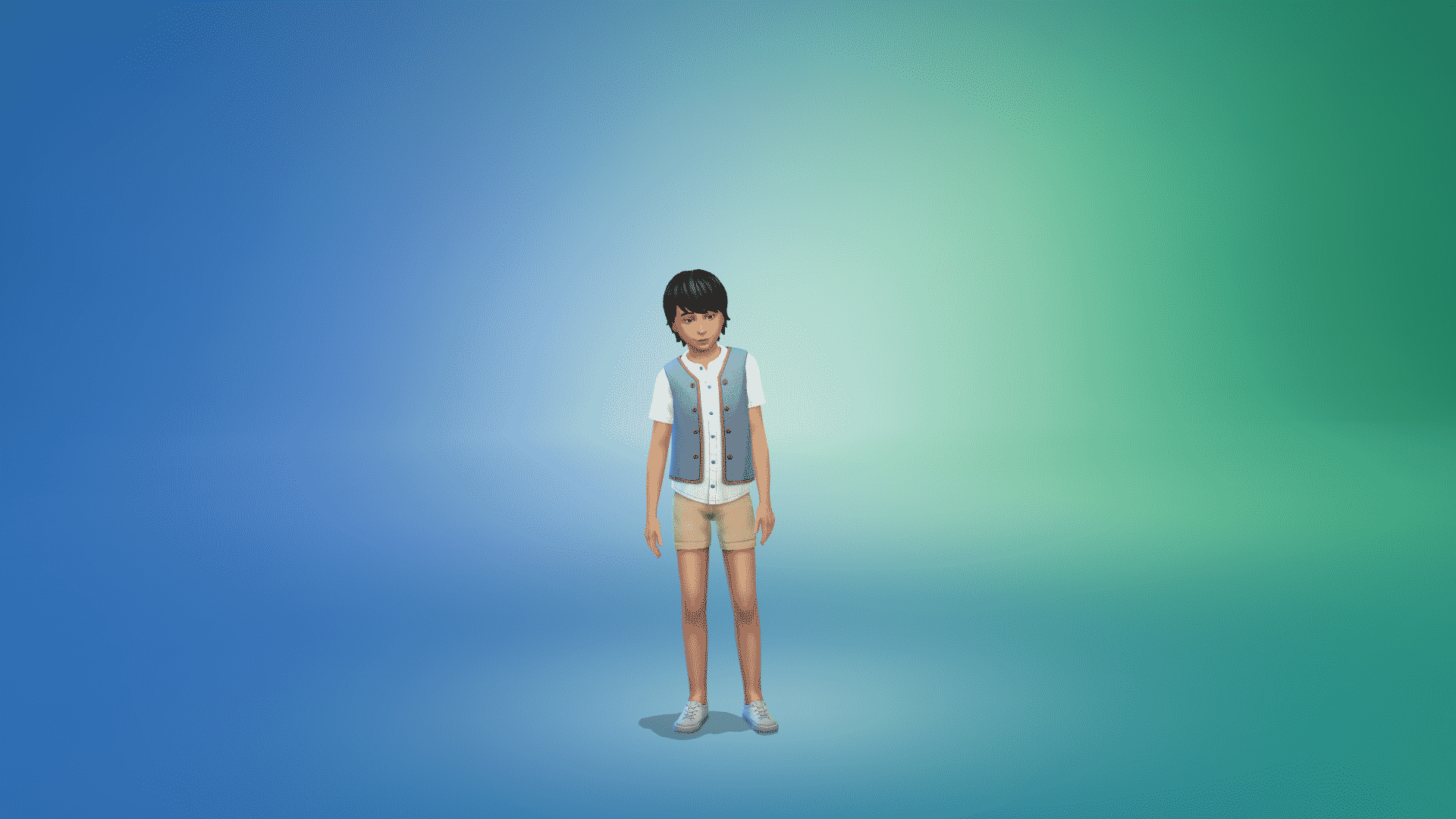
Tops (2)
05 30 21 3 02 41 PM
05 30 21 3 03 14 PM
Note: Both tops that have been added for Child Sims are unisex.
Bottoms (3)
05 30 21 3 04 38 PM
05 30 21 3 04 52 PM
05 30 21 3 04 45 PM
Fully-Body Outfits (1)
Styled Looks (2)
05 30 21 3 25 47 PM
05 30 21 3 25 33 PM
Toddler
Tops (1)
Note: The Top that has been added for Toddler Sims are unisex.
In The Sims 4 Dream Home Decorator, your Sims can embark on an exciting new active career in interior design! As an Interior Decorator, you’ll be completing gigs to build your career performance and professional reputation. It’s important to understand what kinds of gigs you can get as an Interior Decorator because they’ll dictate how much freedom you have to design the home of your client’s dreams.
When you first join the Interior Decorator career, you can look for gigs to take on in the career panel. At first, you’ll only have access to simple room renovations but as you gain promotions and build your reputation, more challenging gigs will open up to you. Eventually, you’ll be able to design an entire level of a Sim’s home, take on commercial jobs, and even add new levels to a building.
You can easily sort between the different types of gigs by clicking the tabs at the top of the gig selection menu.
Guide to Sims 4 Dream Home Decorator Gigs
Types of Gigs
Room Renovation: This is the simplest type of gig that you’ll be starting out with. Clients will ask you to redesign one room in their home for them. Sometimes they will ask you to renovate a specific room in their home, like their child’s bedroom or the kitchen. Other times, they’ll let you pick which room in their home needs the most help.
Room Addition: Room additions allow you to create a brand new space in the home. You’re restricted to the home’s existing foundation, so no making the house itself bigger but you’ll be able to rearrange the interior floorplan to create a brand new room for your clients.
Level Addition: When you become a highly sought after designer, Sims may start requesting an entirely new level to be added to their home. You’ll have lots of freedom on these gigs because you’ll get to design a whole new floor plan from scratch.
Level Renovation: Sometimes clients will want a whole level of their home redone. Depending on the individual gig restrictions, you may or may not be allowed to adjust the floor plan but you’ll have a lot of design choices to make either way.
Gig Restrictions
Each gig will have its own restrictions and it’s not necessarily determined by the type of gig. The same type of gig might have different restrictions. For example, one room renovation might allow you to knock out and build new walls while another room renovation might not allow you to touch the floorplan at all. Even though you can see a lot of information about the gig before you go, you won’t know the specific restrictions for that gig until you arrive and go into Build/Buy.
You can see what restrictions you have at the bottom of the information tab in the top left corner of your screen while in Build/Buy. Sometimes you might be restricted from adding new floor tiles. Other times you might be restricted to editing only the ground floor. If you aren’t able to do something to a house while on a gig, check the gig restrictions. You might be trying to do something you aren’t permitted to do on that gig.
Our Tips
Always read all the information about a gig carefully before accepting it. You’ll be able to select the gigs that work best for you and your build style if you know exactly what you’re getting into beforehand. Some things will be a surprise when you get there, like the clients’ likes and dislikes and the gig restrictions but most other information will be readily available to you right from the gig selection menu.
You’ll be able to see who the clients are, whether it’s a residential or commercial gig, if they live in a house or an apartment, the type of renovation they want done, and their budget. If you really want to let your creativity loose, it’s best to select gigs where the clients have a large budget to work with. Up for a rewarding challenge? Pick a gig with a really tight budget! Hate renovating bathrooms? No problem. Avoid bathroom renovation gigs and focus on different rooms that you like redecorating more.
If you do your research before selecting your gig, you can ensure you’re curating your gigs to get the most enjoyment out of them as a player. When I was playing through the career, I got burnt out fast doing the same types of gigs over and over again. Once I started paying more attention to which gigs I was selecting, I started having a lot more fun because I got to pick and choose what was the most fun for me to redesign.
We’re just a few moments away until the official release of The Sims 4 Dream Home Decorator Game Pack!
The pack is set to release for both PC and Consoles (including Xbox One, PS4, Xbox One X and PS5) on June 1st, 2021 at 10AM Pacific Time.
Considering that there are a lot of time zones to convert we’ve included a countdown that counts to the exact moment until the release of the pack. By the time the counter turns to zero you should expect the pack to come out on the official stores including Origin, Steam, Microsoft Store and Playstation Store.
The Pack is retailed at a regular Game Pack price at $19.99USD, or an equivalent to your local currency.
The Sims 4 Dream Home Decorator pack introduces our Sims to the world of Interior Design. Better still your Sim can be the designer and help bring their clients dreams and wishes alive. Well, at least that is the plan.
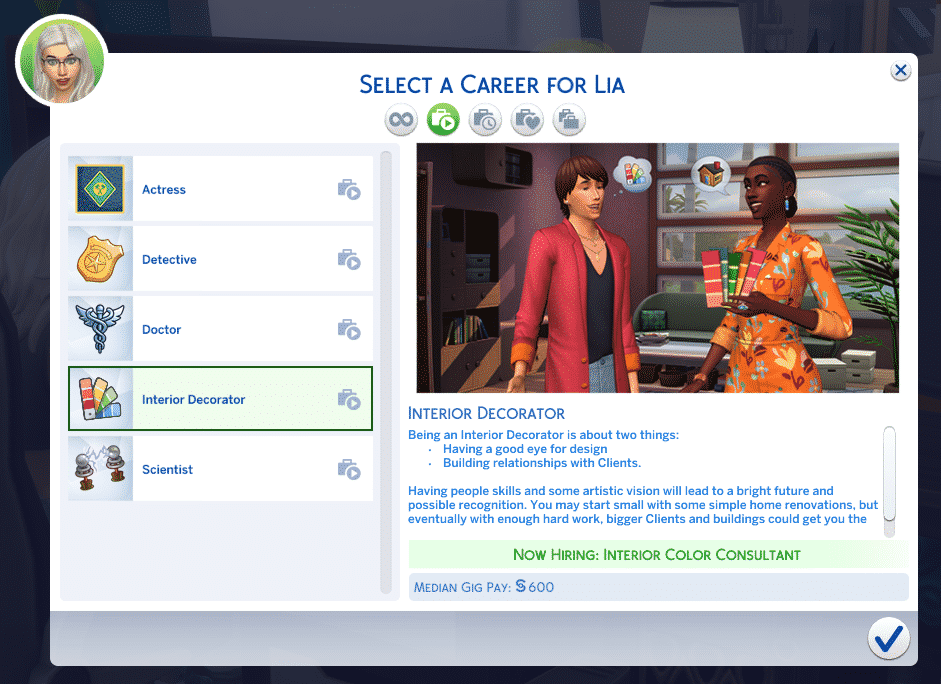
As with any career, your Sim can join the Interior Decorator Career simply by sitting down at a laptop/computer, using their cell phone, or by the job tab on the user interface. The Interior Decorator career can be found under the Professions tab.
The Interior Decorator career is slightly different from the other professions (except for the Actor/Actress profession that comes with Get Famous) where the work is distributed by you choosing which gigs you’d like your Sim to do.
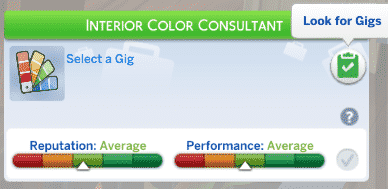
To select your first gig, simply head to the Career Panel and select Look For Gigs.
As you will just be starting your journey as an Interior Decorator, you won’t have many Gigs available to you but as earn promotions you’ll find a bigger variety of Gigs will become available to you.
You’ll notice that there will be a variety of gigs to choose from, starting with Room Renovations and heading up to Level Additions and Renovations. While the majority will be greyed out when you first start, you’ll get an idea of future Gigs you can go for in the future. For the Gigs that are available currently to your Sim, you’ll be given all the information you need such as the client name, budget, pay, gig type, lot type and your start/finish time.
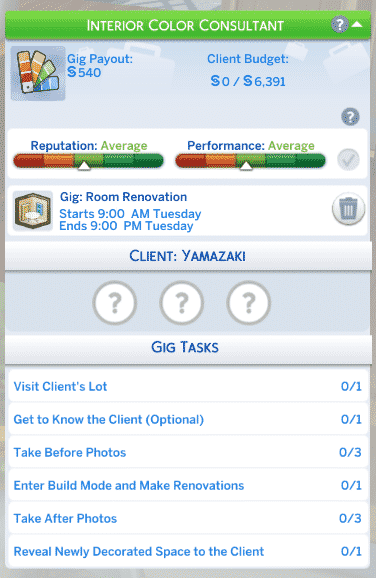
Once you’ve selected your first Gig, you’ll now notice that your Career Panel has changed a little bit.
Here you will find everything that you need to know for each Gig. Even though you’ll get some optional tasks, it’s always recommended that you try to complete them to help your Sim get a better understanding of their client and what their vision is.
If you get stuck and aren’t too sure what to do during a Gig, simply hover other the task, and it will give you an explanation as to how to go about it.
As you complete each Gig you’ve notice that your Reputation and Performance bars will increase. Of course, if things don’t quite go to plan, or you select a Gig and decide to cancel it, that will have a negative impact on both. It will also take longer for you to max out both to earn a promotion.
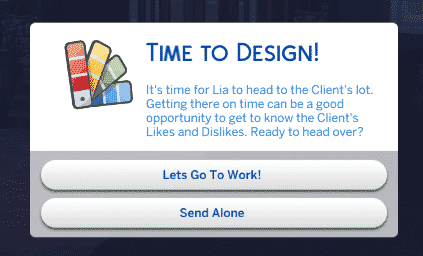
When it is time to start your Gig, you will get a pop-up asking if you would like to go with your Sim or Send Alone. It is up to you which you choose as it will still complete the task of visiting the clients’ lot. Typically speaking, once you’ve accepted a new Gig, it will begin at 9am the following day and run through until 9pm.
As with any career, there are a number of promotions your Sim can earn to become the ultimate Interior Decorator. You’ll also find that pay varies depending on the kind of Gig that you undertake and there is no hourly rate as such in this career.
Below you’ll find details of each level of the Interior Decorator Career starting with the joining level.
Interior Colour Consultant
Interior Design Technician
Space Manager
Decorating Consultant
Building Space Planner
Home Organizer
Home Decorator
Business Interior Designer
Interior Designer
Certified Interior Designer
You’ll notice that your Sim isn’t given any Vacation Days as such as you have the flexibility to chose as and when you complete Gigs.
Career Rewards
As you earn promotions in the Interior Decorator Career, you’ll unlock three exclusive objects within Buy Mode.
Issues of Interior Design Magazine – Unlocked at Level 2
Patterns And Shapes – Modern Rug – Unlocked at Level 5
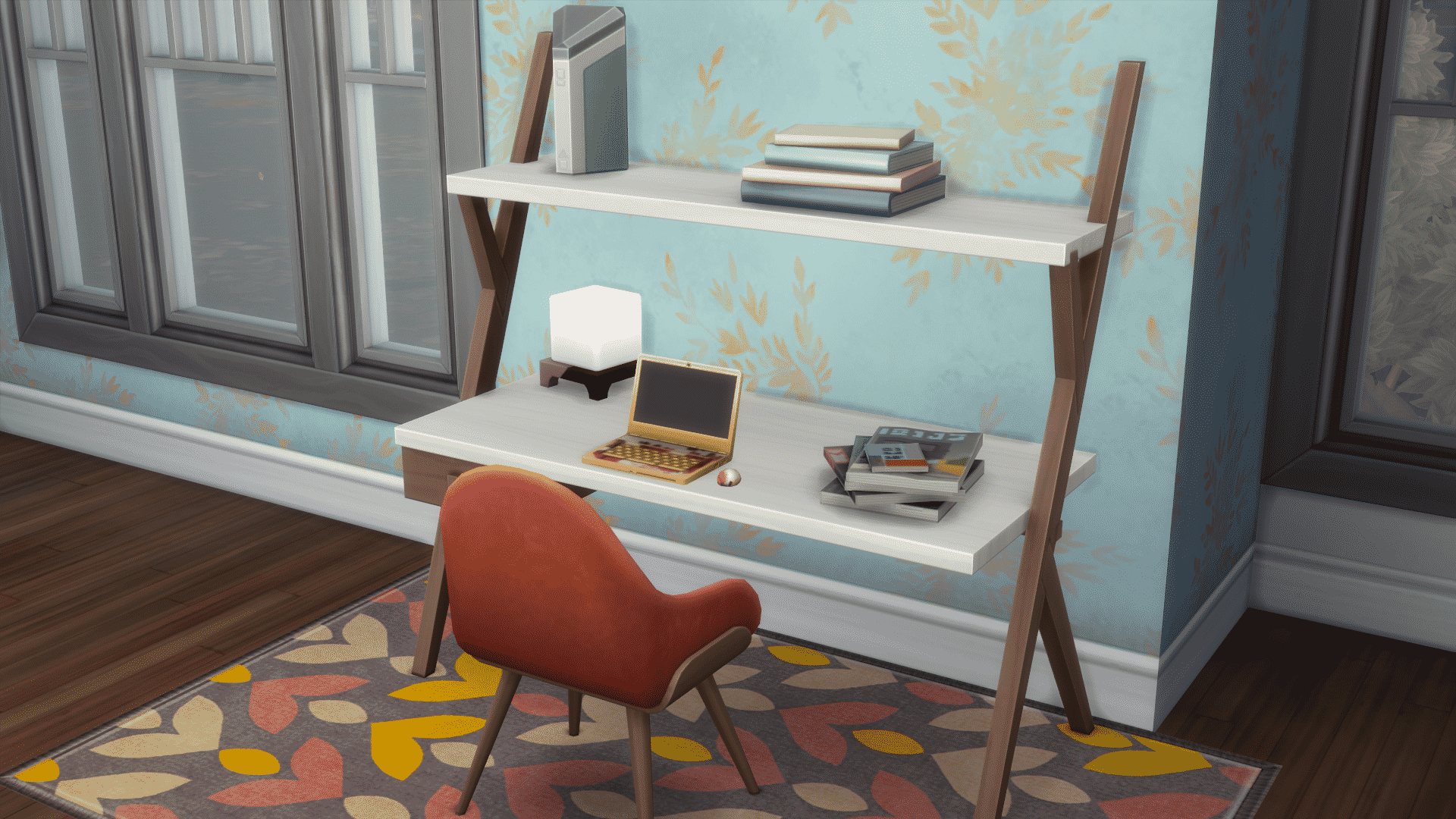
S.I.Mac P.R.O Laptop – Unlocked at Level 10
You will also unlock several new Create A Sim options as well!
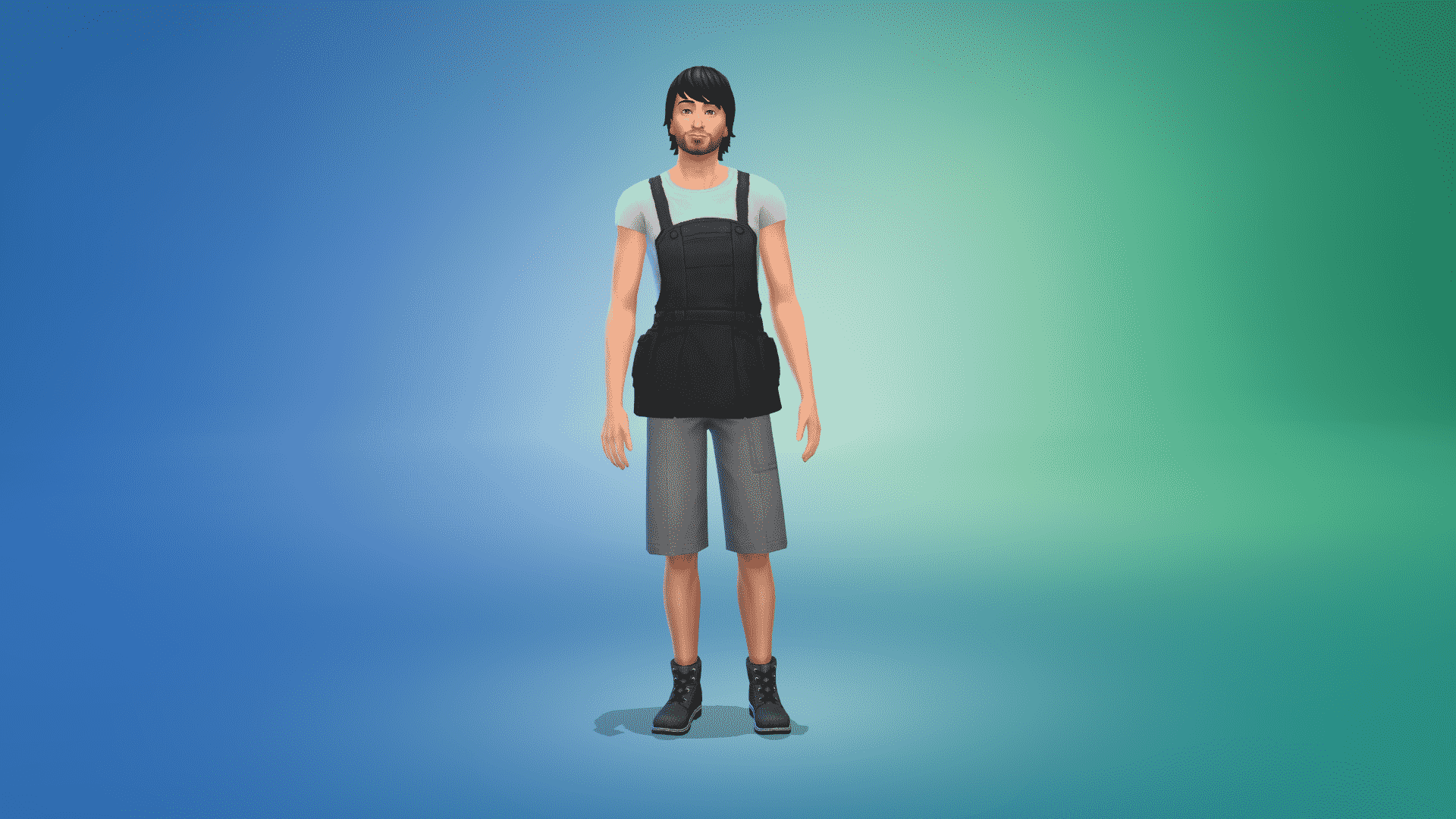
Overalls (2 Styles) – Unlocked at Level 3
Utili-kilt – Unlocked at Level 6
Waist Coat and Shirt Combo – Unlocked at Level 7
All of the new Create A Sim additions are Unisex
05 30 21 2 48 45 PM
05 30 21 2 48 41 PM
05 30 21 2 43 13 PM
05 30 21 2 44 22 PM
What kind of Gigs are you looking forward to exploring with your Sims?
With the recent game update we saw Likes and Dislikes added to the game. In the Base Game you can choose from a variety of different dislikes which cover Colour, Music Genre and Activities, however, The Sims 4 Dream Home Decorator adds another category which is tailored towards Décor Likes and Dislikes.
If you want to know more about the Likes and Dislikes that were added to the Base Game, you can check out this handy article by SnarkyWitchhere.
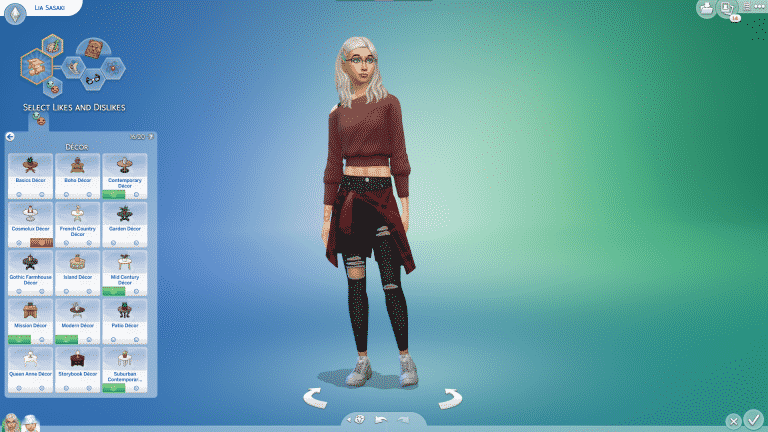
Much like the Base Game likes and dislike, you can hop into Create A Sim and add them the same way. This time you will see four different categories as opposed to three with the fourth being the new Décor category. While Child Sims can have Likes and Dislikes, they will not have the Décor option until later once they become a Teen.
The category comes with fifteen new Likes and Dislikes to choose from and will feed into the twenty that you can choose overall for each Sim. We could even see more Décor styles added in the future too.
Below you’ll find a more in-depth look at each of the Décor Styles and some of the packs that you can use to help bring those styles alive for your Clients and your own Sims.
[table id=88 /]
When you are renovating for a client and are in the Build Buy Catalogue, you can use the Filter Items Menu to filter a specific Style. This will show you many of the items that fall into the Décor styles listed above as well as a couple of smaller decor styles.
Let us know which Décor Styles your Sims are going to love and hate or which styles you can’t wait to try out and build with!
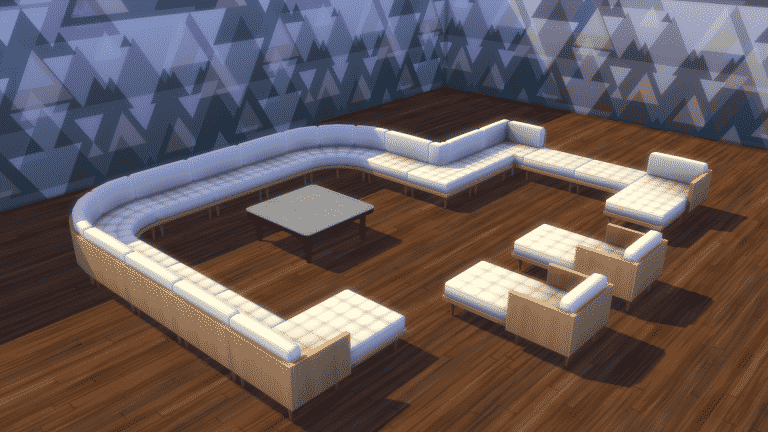
One of the upcoming features in The Sims 4 Dream Home Decorator is the ability to build and create your own Sectional Sofas. This has been something that many Simmers have been wanting to see added to the game for a while now and previously was only doable using cheats and custom content. At this moment in time this feature is currently only available in the Dream Home Decorator Game Pack.
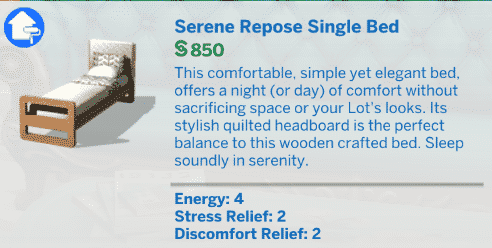
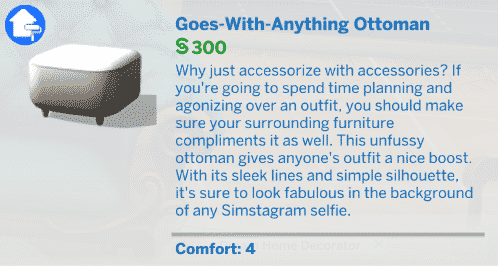
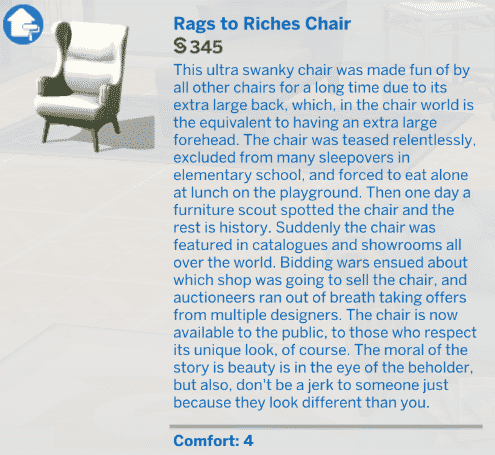
The new game pack comes with ten new seating option split between Sofas and Living Chairs. Four of these can be used to create Sectional Sofas.
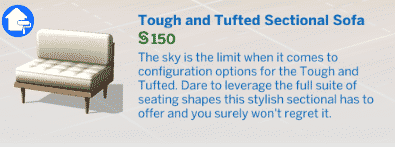
Tough and Tufted Sectional Sofa
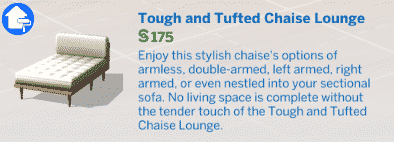
Tough and Tufted Chaise Lounge
A Couch Evolved The Sectional Sofa
A Couch Evolved The Sectional Chaise
At first glance, you might be wondering how you use these work together or more specifically how do you start creating a Sectional Sofa. It’s actually really easy.
On any of four Sectional Sofas in Build Buy Mode where you see the Colour Swatches you’ll now see another option which looks like two cogs. Simply click on there, and it will open up another smaller menu. Here is where you can select a specific piece of the sectional sofa.
It’s important to note that the Sofa’s will have eight options to chose from whereas the Chaise has four different options to choose from. For both, there is an option for a matching/standalone Living Chair and Chaise to pair alongside the rest of your Sectional Sofa.
SofaOptions
ChAISEOptions
But what do the individual pieces look like in game?
Sofas
05 30 21 4 42 40 PM
05 30 21 4 43 33 PM
05 30 21 4 38 56 PM
05 30 21 4 41 05 PM
Chaise
05 30 21 4 45 33 PM
05 30 21 4 46 00 PM
You can place each section one by one, or you can use the Auto Sofas feature that works similarly to how Auto Counters work.
Additionally, you can mix and match between the various Sofa and Chaise styles, so there are plenty of combinations you can create.
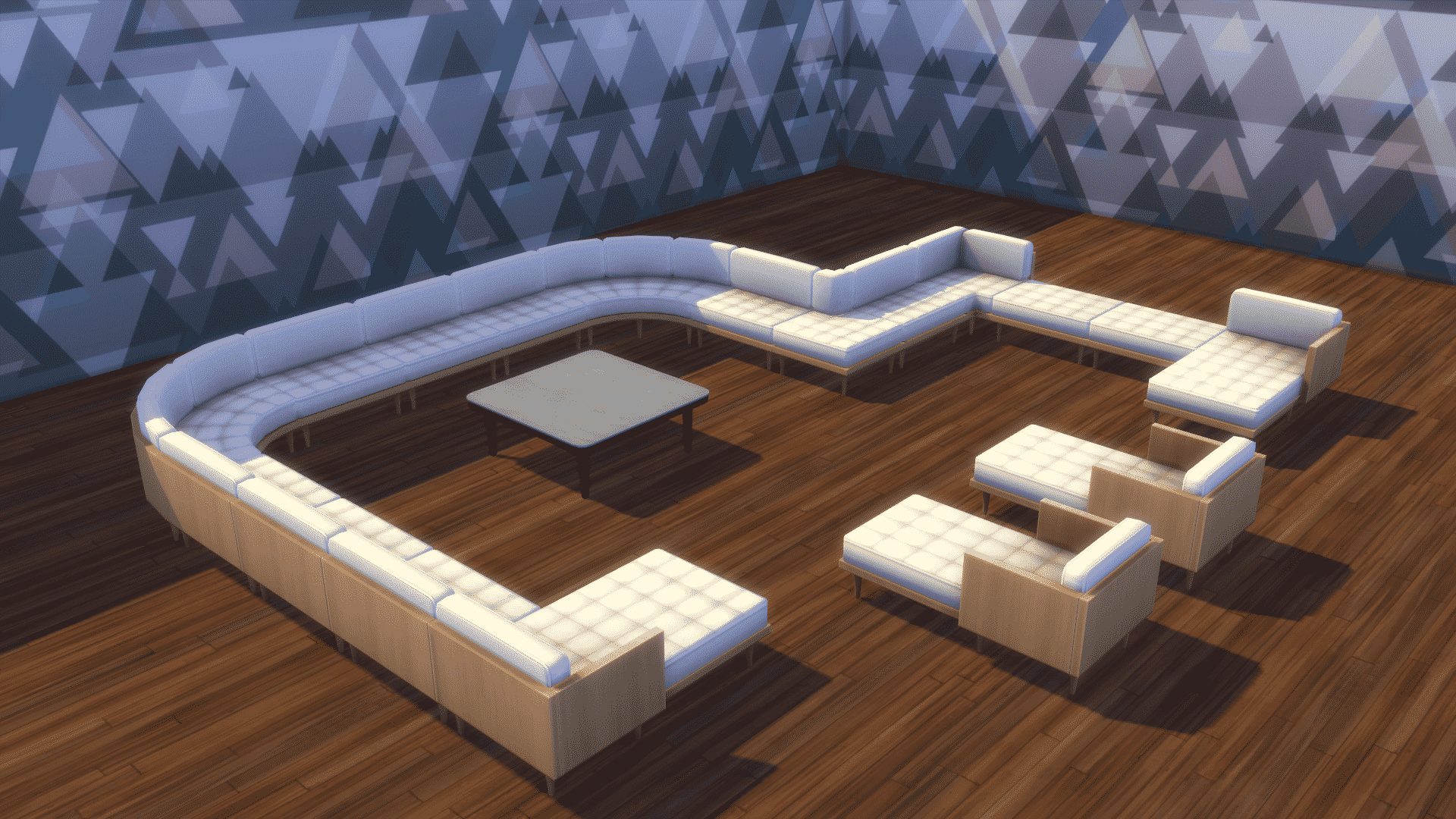
Here are a few examples of how you can use Sectional Sofas in the game!
05 30 21 6 29 11 PM
05 30 21 6 36 24 PM
05 30 21 5 34 55 PM
05 30 21 5 32 23 PM
05 30 21 5 27 27 PM
05 30 21 5 24 50 PM
With countless combinations for Sectional Sofas you can keep it simple and create something that works for your Sims or you can go big and create something completely abstract and random! There really is no limit when it comes to creating Sectional Sofas!
Let us know how you are going to use the new Sectional Sofa features in your game!
Today’s free base game update comes with some exciting new additions to the game, including a new likes and dislikes system! Now your Sims will have their own individual preferences for colours, activities, and music. These preferences will determine how your Sim reacts to various things in their day-to-day life and what they will prefer to do (or not do) when left to act autonomously.
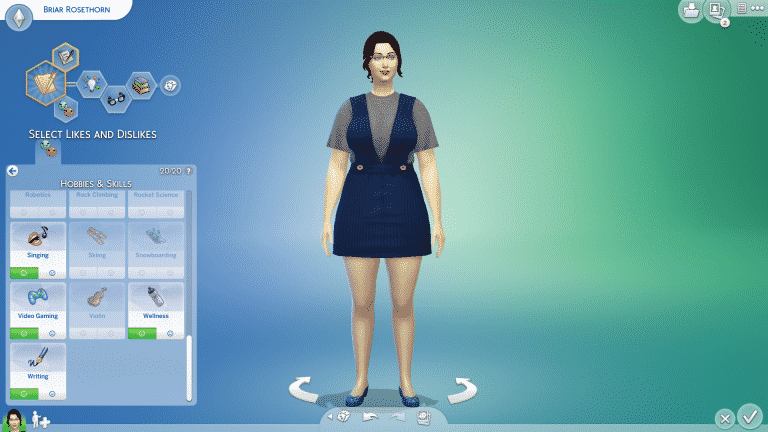
In CAS, you’ll notice a new molecule branching off from the aspiration molecule. This is your likes and dislikes. Click it to open up a menu where you can select from three different categories: colour, music genre, and activities.
You can select what your Sims like and dislike in each category by clicking on either the happy face or sad face below each option. Sims can have multiple likes and dislikes in the same category but make sure you balance them out because they are limited to a total of 20 likes and dislikes combined across all three categories.
Here are all the current likes and dislikes from the base game and all DLC packs listed in the table below:
[table id=87 /]
Even though you are free to max out the number of likes and dislikes your Sim has in CAS, players might want to consider leaving at least a few empty slots. Why? Well, likes and dislikes aren’t restricted to just CAS; Sims can develop new likes and dislikes through gameplay as they go about their lives. This can be a fun way to add some storytelling and variety to your gameplay. It can be a refreshing change of pace to let your Sims take the reins sometimes!
You can always see what your Sim’s likes and dislikes are by going to the Sim Info panel and hovering over the three categories. Don’t be scared of committing to new likes and dislikes; you can change them in CAS anytime you like at the click of a button.
Once you’ve selected your likes and dislikes and entered Live Mode, it won’t be long before you’ll start to notice your Sim’s likes and dislikes influencing what they do and how they react to things. My Simself here likes Wellness. When I had her do a yoga routine, she got a strong positive buff from it and increased fun; however, she also dislikes Electronica music. When I put some on, she made it very clear that this was not her jam and became Tense.
When Sims are doing something they like, they’ll enjoy positive buffs to improve their mood and gain Fun at a faster rate. When they are doing something they dislike, they will become Tense and lose Fun at a faster rate. The longer a Sim is forced to do something they dislike, the more miserable they’ll become. Sims will actively avoid doing activities they dislike as much as possible. For example, a Sim who hates cooking will prefer to grab quick meals and leftovers from the fridge if they can. Similarly, Sims who like an activity will choose to do it more often.
TS4 x64 2021 05 27 13 58 07
TS4 x64 2021 05 27 13 59 44
If your Sim still has some room for more likes and dislikes, there’s a chance they could discover a new like or dislike on their own. If a Sim is doing an activity while in a positive emotion, there’s a chance you may be asked if you want to select that activity as one of your Sim’s likes. Sims can discover new dislikes too in the same way if they are doing an activity while in a negative emotion. As mentioned previously, likes and dislikes can be changed in CAS at any time so don’t agonize over whether to pick yes or no. You can always change your mind later.
Sims can also talk about their likes and dislikes with other Sims. They can ask about other Sims’ likes and dislikes and enthuse or complain about their own likes and dislikes, respectively. The other Sim’s reaction will depend on their likes and dislikes as well. Sims with clashing likes and dislikes will suffer a hit to their relationship when discussing those likes and dislikes with each other.
Our final thoughts on likes & dislikes? We were happy to see this much-requested feature finally make its way to the game in a free update and even happier that they weigh more heavily on gameplay than we thought they would. Most of the buffs we saw related to likes and dislikes had a +2 modifier, which feels like a good middle ground. In most cases, that should be enough to override a lot of mundane, everyday buffs; however big life moments like the birth of a new baby or the death of a loved one will probably override the likes and dislikes buffs. That makes sense; most people probably wouldn’t stop in the middle of witnessing someone die to appreciate a good song on the radio, after all. Or at least we hope they wouldn’t.