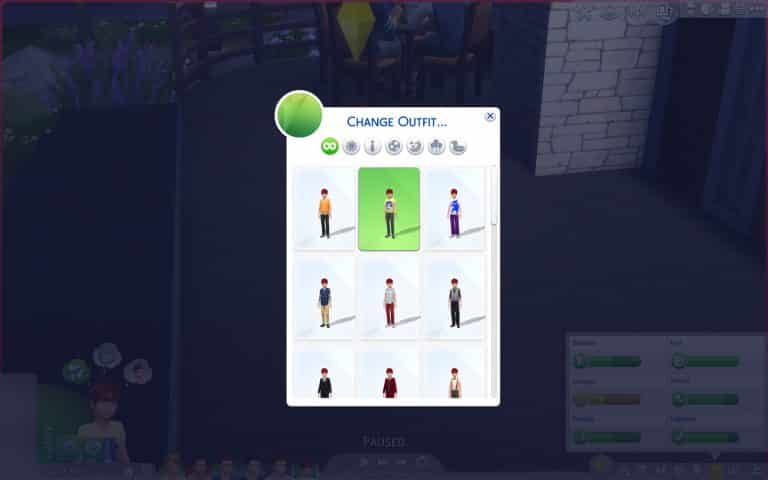
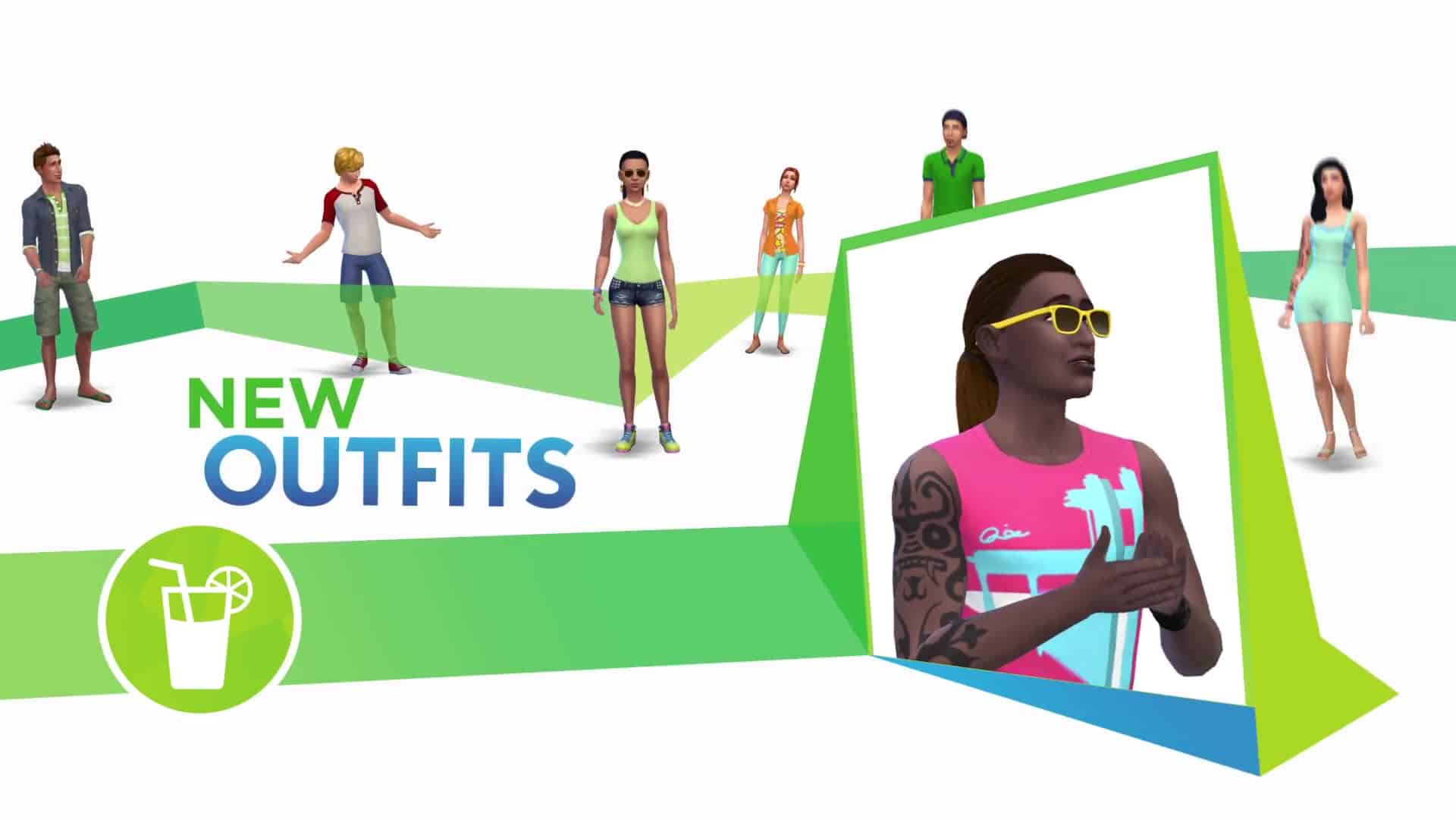
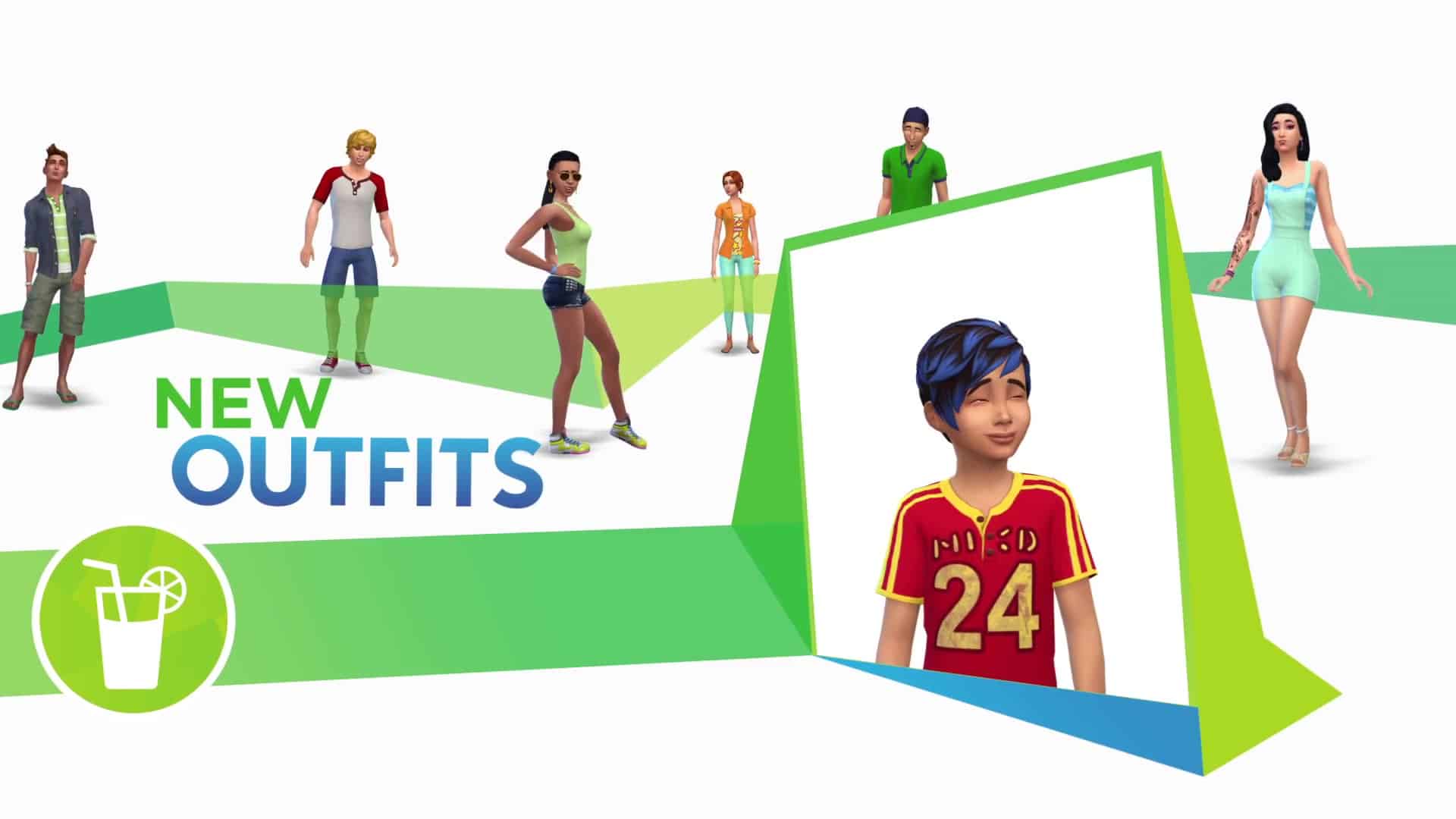
In addition to nannies and new per room lighting options, the July 14th patch has also added an improved outfit picker to make it easier for you to change your sims on the go. Select Change Sim…
…and there you will have access to the revamped picker! You can see your choices more clearly, instead of having to remember what was Everyday 1 or Everyday 2.
You can also filter by outfit category, since each category can have up to 5 different outfit and a single sim can have up to 30 individual outfits across all six categories.
Now it’s easier to make your sim look fly on the fly!
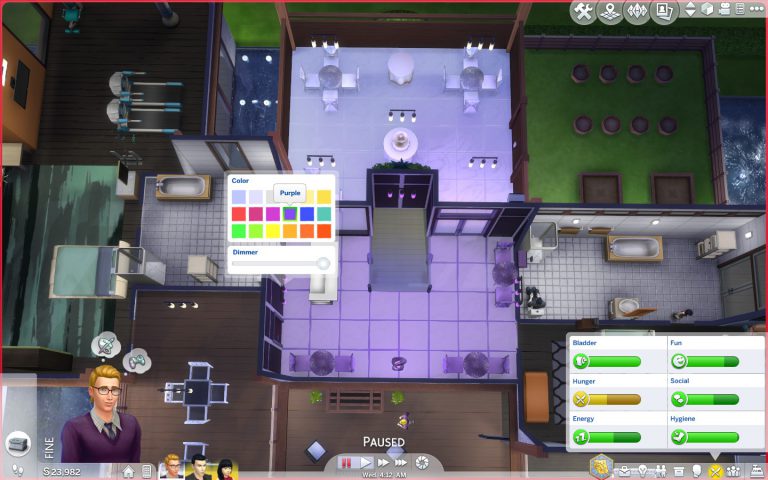
The July 14th patched a couple of extra things, besides NPC nannies. You can now set the lighting per room, in addition to previously being able to set per light and for all lights. When clicking on a light fixture, you get the usual options…
…but now, when you choose your desired option, you also have the brand new possibility of adjusting lighting per room.
The Sims Team has released a brand new Update for The Sims 4, adding nannies and fixing some bugs in the game.
To download the latest version of The Sims 4, simply open your Origin program and if the game doesn’t update automatically, right click on The Sims 4 and select ”Update”.
In case you have Mods or Custom Content, the game will automatically disable them for you after first launching The Sims 4 after the update. To re-enable all your Mods and Custom Content, select the Settings option in the Menu and select Settings. Under the”Other” section you’ll find the ”Enable Custom Content and Mods” option. Check it and restart your game in order for it to take effect!
Patch Notes
Update: 07/14/2016 – PC Version 1.21.32.1020 / Mac Version 1.21.32.1220
Hello Sim fans, Simmers, Simians, and Simsters,
We have a couple of new bits of this and that…
Nannies have arrived!
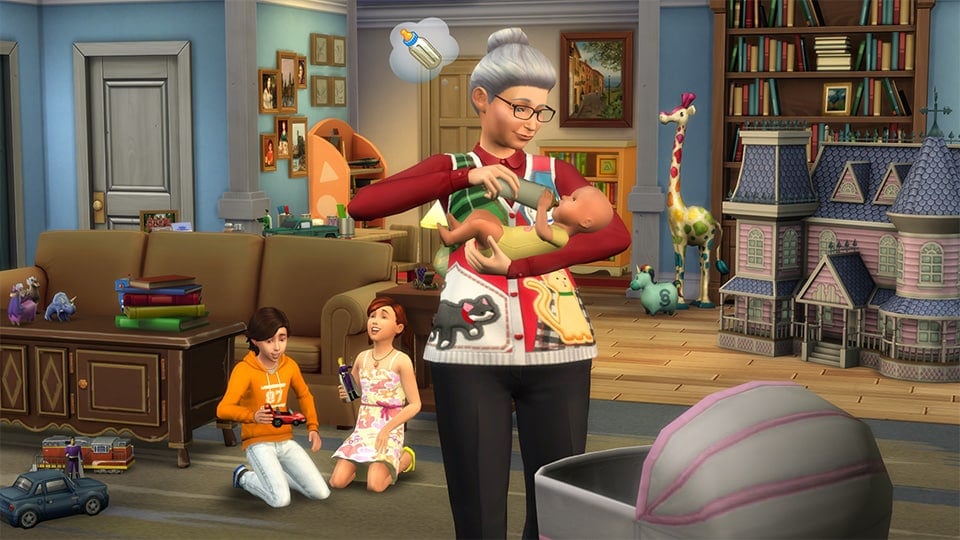
The nanny is now available to hire from the phone (Hire a Service, in the Career/Household menu). The nanny will take care of your little ones when you don’t have time to… they will play, mentor, and care for their needs.
Hired nannies will stay for up to 24 hours, or until dismissed. They do charge an hourly rate, but for the parent with a need for a nap, no price is too high.
Some smaller new’s
Lights can now have their color and intensity modified per room. In addition to the “this light” and “all lights” option, you can now modify lights via the “this room” option.
Changing outfits will now bring up a visual outfit picker to choose your Sims outfit.
Click on the active Sim and choose “Outfits…” and then “Change Outfit…” – this will open up an outfit picker that you can choose from between all your available outfits on that Sim, or filter using the filter options in the dialog.
No longer will you have to say “what was Everyday 4?” – Now you can see what each and every outfit is that you have created for your Sims.
And even smaller than small new’s
You can now use the space bar to cycle between Sims in Create a Sim.
General Issues
You should now be able to complete the ‘Feed a Cowplant’ whim by feeding a Cowplant.
Mounted fish with an emotional décor rating will now be able to have the emotional aura turned on and/or off.
And now… a Grammar Corner moment…
It turns out, that is an invalid use of the ‘and/or’ grammatical conjunction. As much as I believed the ‘/’ was a replacement for ‘or’ (thus resulting in the phrase being ‘and or or’) it is actually x or y or both (or… And or Or or And and Or).
This Grammar Corner moment has been brought to you by The Internet. The Internet, serving brains for over 30 years.
Sounds like a zombie café…
We addressed an issue with “in progress” Sim inventory items (such as the songbook that is in your inventory when you are composing a piece of music) that allowed them to be dragged to the ‘sell this item’ option in the inventory panel, and resulted in a broken inventory state.
Those items will no longer be draggable, and instead have an option that appears when clicked on them to remove them from the Sims inventory (if you so wish).
Woodworking sculptures should now have a proper appearance when placed into your Sims inventory, and will no longer appear as a non-informative star, in a black and white circle.
If your mom told you and your sibling to use the cup on the table,
…and you both poured your OJ into the glass at the same time without realizing the other was also doing so,
…then you might wonder what this has to do with texture space, and the problem caused by cfTop_EP01HoodieShortSleeve and cuShoes_SP07Sneakers.
Let me just say, the hoodie asset will no longer cause the wrong color to appear on the heel of the sneakers asset.
And you should always make sure your sibling isn’t pouring their OJ into your cup.
We have addressed an issue with stacked rugs, where they were not respecting their sort order on non-active (your neighbor’s lot) lots.
Rugs now remember their order no matter how you view them. Unless you are viewing them in a mirror, then they will be reverse vertical order but the same horizontal.
Placing a Drink Tray on your lot will no longer satisfy the ‘Own a Bar’ goal for Sims with the mixologist aspiration.
Curtains will now appear properly lit depending upon their interior or exterior placement, rather than as a result of the orientation of the window they are placed upon.
We fixed an issue that resulted in see through walls.
This had to do with the wallpaper disagreeing with the visibility state of the wall, and thus turning itself and the resulting part of the wall invisible.
We fixed an issue that could result in male children not being able to change their eye color in Create a Sim.
We fixed an issue that was causing the dancing shoes (unlocked at level 5 of dancing) to be non-wearable for some Sims.
Children should now get social motive when being read to by an adult.
Yes it was broken, and we fixed it’s “was broken” state, but then it’s “was broken is fixed” state was broken, and now it’s “was broken was fixed is broken” state is fixed.
In case you were curious… “was broken was fixed was broken is fixed” is the resulting state.
BTW… since we are on the subject, we also re-addressed an issue that was preventing relationship from being gained when chatting with other Sims on the Slablet.
That issue is also “was broken was fixed was broken is fixed.”
Hope you have/had a happy July (if you’ve been following along up to this point… have or had or both July).
Ready for a night on the town? Good news: a new free* Update to The Sims 4 adds a Nanny you can hire! But, wait, why do you need a Nanny? Well, let’s look at a potential situation your Sims could theoretically find themselves in:
You’ve planned for this night… when, where, it’s all figured out. You’ve got the perfect outfit picked out, and well, he’s at least taken off that clown outfit he loves so much. It’s time to go. But oh no! You suddenly remember… you have kids! Five of them! And a baby!
You could just go, you have every other time… the mystical daycare service has never failed you. But where do your kids go, really? Is it safe? Have you ever done a background check on this “so called” daycare service? And if they really are a “daycare” service, why are they available 24 hours a day… 7 days a week?
Doubt creeps in. You start to wonder if you really should go out for a night of fun and frolicking (though you also wonder… have you ever really frolicked?) and leave your children to this so-called wondrous daycare phantom zone.
*ding dong*
What’s that? It’s a doorbell. I think the question you meant to ask was “Who’s that?”
It’s a Nanny!
Available now with an Update to The Sims 4, the Nanny has come to save your sanity! Rejoice! Your night out is still on. The Nanny will take care of your little tykes, mentor their minds, play, read, and care for their needs… while you spend a worry free night (or day, or anytime) out for fun… and yes, frolicking! Frolic my friends… frolic.
Ever since the release of The Sims 4, the Base Game has been getting at least one update per month. The reason for that is that for the first time in The Sims Franchise, a base game has a ‘live service’ foundation.
What does that exactly mean? SimGuruGraham took his time to explain it:
To start with – The Sims 4 has always been what we call a live service. I was a bit surprised to see this blow up on the forums today, as I didn’t say anything that conflicts with our approach to The Sims 4 since the game launched. Nothing about what I said was intended to indicate we’re in the middle of changing the way we operate, or that there’s any new process being introduced that’ll affect you, the players. What I was conveying is that The Sims 4 is the first game that our studio is handling in this manner. The transition I spoke of involved changing our approach to development and to the ongoing support that we provide when we moved from active development on The Sims 3 to The Sims 4.
So, what does being a live service mean then? All it should really mean to you is that The Sims 4 gets more frequent updates to address issues, as well as ongoing free content additions so that players are interested in checking back in and seeing what’s new from time to time. It’s an opportunity for us to have a more engaged community that’s aware of upcoming plans for the content our studio is creating.
The biggest change is for us internally, with the way our studio approaches development. If you look back at The Sims 3, we weren’t nearly as responsive to issues, or nimble with shuffling pack resources as we can be with our current approach. For most of its life, The Sims 3 had one expansion team, and one store team – each group fairly siloed in the content it developed. For a period of time a second expansion team in Salt Lake was added, but the flexible schedule we have currently wasn’t possible then. Back then we would develop our pack, they would develop their pack, and occasionally we would combine our code & assets together. Patches were relatively infrequent on Sims 3 – if there was a problem in an expansion pack, it wasn’t uncommon for it to not be fixed until the update for the following expansion pack. That problem was exacerbated with the addition of the Salt Lake team, where alternating expansion packs between the teams meant it could sometimes take a year for an issue from a pack to be addressed.
Operating as a live service removes a lot of those challenges I described in The Sims 3 for us. We have an expansion team, a game pack team, a stuff pack team, and an engagement team (engagement = the free content in game updates). We all sit together intermingled in the same studio, we develop multiple packs simultaneously between our teams, and our code and assets between those packs are integrated together daily (super important for facilitating simultaneous development of different packs). Some people in the studio even work on a few of those teams at the same time (that’s actually one of the major things we’ve been trying to adjust to and create better development practices for.) We’re able to be far more responsive to unexpected issues that crop up… the most recent example being we released Dine Out in early June, released a patch with fixes for Dine Out in mid June, and then included even more fixes for Dine Out in the Kids Room update that came out in late June. The gallery is an important feature to us as well; maintaining those servers so that they’re always up and running to support sharing between the community requires ongoing attention.
For a producer like myself, treating the game as a live service can be a huge help. When we’re planning a pack, production is like taking oddly shaped puzzle pieces and trying to fill up a box as much as possible without spilling over. In this metaphor, imagine that the box represents our schedule & budget, and we’re filling the box with features and the people that will build them. In the past, the size of that “box” had to remain very rigid – as we filled it up, we couldn’t easily make it larger if we felt it needed a bit more. With our live service approach, all of those resources are much more flexible in how we use them. If we get surprised by an issue and need to get an update out quickly, or if we feel that an upcoming pack could use a bit more added to it, we can divert resources in sensible ways so that we can release great content as well as being responsive to the live game that you’re playing.
On that note, let me also try and dispel some misconceptions… Operating our development with a live service mentality has nothing to do with which types of packs are released or the cadence of their releases. Being a live service also has nothing to do with which themes or features get developed – the selection of content is completely unrelated. Finally, being a live service isn’t related to how you acquire content, or how it’s delivered to you. Your choice to purchase a digital copy, a retail disc, or a retail bundle isn’t impacted by this.
Certainly the biggest change for us compared with past Sims titles is the addition of Game Packs. Stuff Packs evolved to include game play, which means they also draw additional resources when developing them. The engagement team is another brand new thing for us, and they create their own fully realized features to add in free updates. Expansion packs, game packs, stuff packs, engagement features, and other outside factors all impact how we allocate internal headcount (who develops what, and when they do it), and where we fit each of those pieces of content in a yearly release schedule. Adding game packs and engagement features to what you’ve traditionally expected from The Sims has been an ongoing learning experience for us – both in terms of our development process, and in terms of understanding how each of these offerings are valued by players. Relatively speaking, a year and a half is a small sample size to fully see the impact of what are fairly significant changes for us at the studio. We’ll continue experimenting, trying new things, and listening to your feedback, which is why some of you will recall me saying in the past to not look for patterns in the content we release.
Hopefully that helps clarify what a live service is to us!
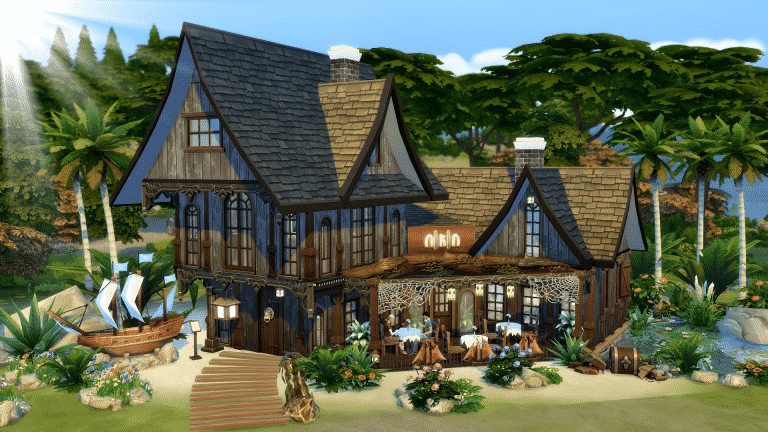
Ahoy me mateys! Are you ready for some good landlubbers dining and amusement? Well first…You’ll have to build some!
In this guide I’ll take you through the structure of my pirate restaurant “The Piece O’ Ate” and show you what I chose to do for gardening, interior, menus and costumes for the staff!
Note: In this I used the game-pack Dine Outand the stuff-pack Spooky Stuff The link for this restaurant is in the bottom of the article!
For debug items press ctrl>shift>c and type in bb.showhiddenobjects. For moving objects freely also type in bb.moveobjects
Let’s begin!
I found myself a nice and “beachy” lot because I think that fits the theme quite well, and built a simple structure of both straight and diagonal walls, like this:
Then I built another floor meeting up with the straight wall in the back, and overlapping one block in the front:
Then, the tricky part…Roofing! I placed down a gabled diagonal roof and used the little circle-blob-thingies to pull it in some. It curves the roof nicely, and gives it a bit more of a”shanty” look: (The little box in the middle was quickly removed, so don’t mind that. It’s not part of the build)
Then a similar roof on the next floor, but this time it’s pulled yet another block over the edge:
I placed another, but smaller gabled roof on that, and then a half-gabled roof on the part remaining:
Then a smaller gabled roof on the first floor roof:
Some dark brown roof trim:
Roof roof roof, boring! It’s limited fun placing roof, and I can guarantee it has caused many an internal argument. So many ideas, so hard to execute!
Let’s get some idea on what it will look like, ey?
In all of the corners I placed brown, wooden pillars. A bit lighter than the roof trim to create some contrast:
Finally! Windows! One of my favorite things to start placing, because that really gives you an idea of what it will all look like! I tested out several types of windows to create an authentic and interesting look. I also placed some chimneys, exterior trims and spandrels (because how else would I be able to brag about now knowing the word spandrel)
A Wrought iron fence around the entire center:
And ALL of the windows:
I love the rather tired looking plank wallpaper from Spooky Stuff, so that’s the one I went for:
I used the driftwood log from the debug-list, enlarged it, and raised it to be the roof trim over the door:
A sign and some ships: (It is a restaurant after all)
I decided to corner it in with more driftwood, pillars and spandrels, yes, spandrels….Spaaandrels! Then I used the debug “hand-crafted” chairs and Spooky Stuff tables with what appears to be a ripped tablecloth. The barrels with flowers are from Dine Out, and they just happened to be perfect for this theme. I also found it very fitting to use some spiderweb and lanterns hanging from the….I know: SPANDRELS!
In the debug list there is a plank, which I enlarged and made a path with. Curvy, of course. I thought it gave it quite a “piratey” touch!
The pictures below are some suggestions on how you can decorate the outside. I felt a strong need for palm trees, and what I consider tropical-looking bushes and flowers.
And of course some crystal blue water!
And and and a treasure chest!
And a ship!
ALL THE PIRATE STUFF!
I also like to make natural-looking flowerbeds, circling bigger flowers with various rocks and green bushes.
UPDATE: The live stream is now over. You can watch the replay down below!
SimGuruDrake confirmed that The Sims Team will be doing a live stream for The Sims 4 Backyard Stuff on Twitch.
The stream starts on July 15th at 1PM PDT / 9PM BST / 10PM CST. In case you miss the stream, we’ll update this post with a Replay once the stream is over.
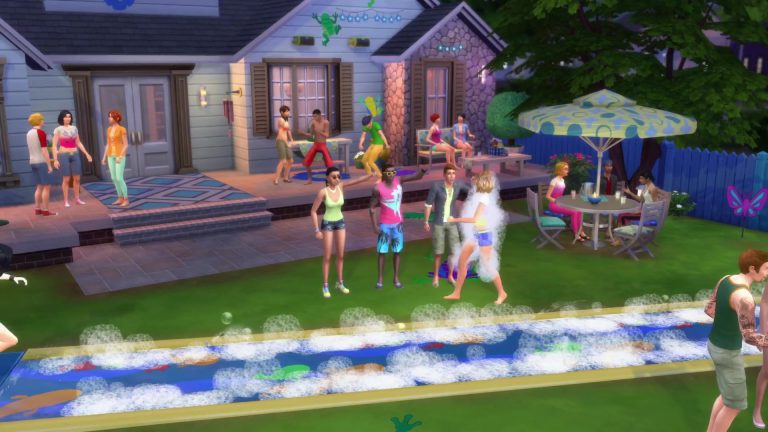
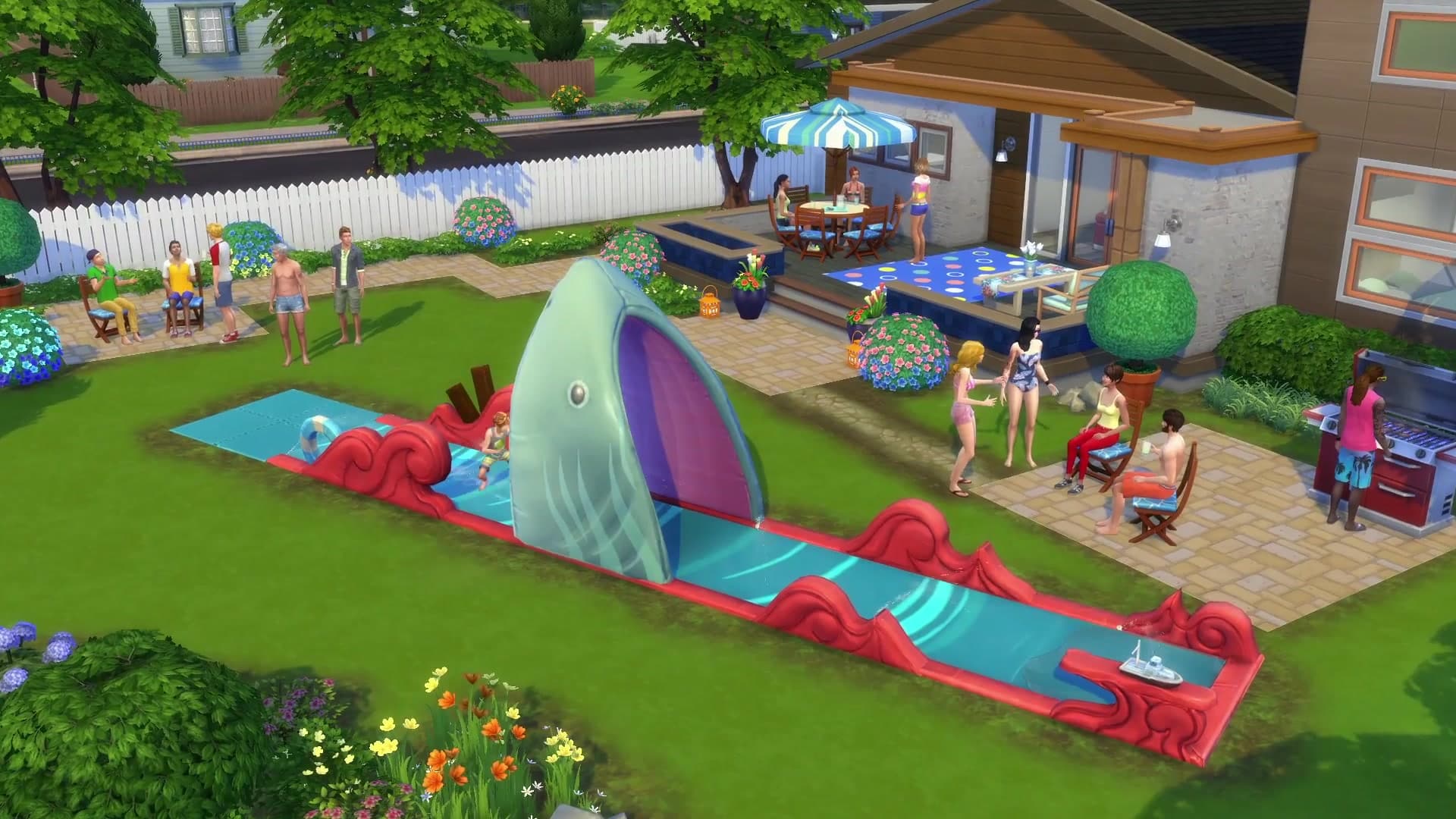
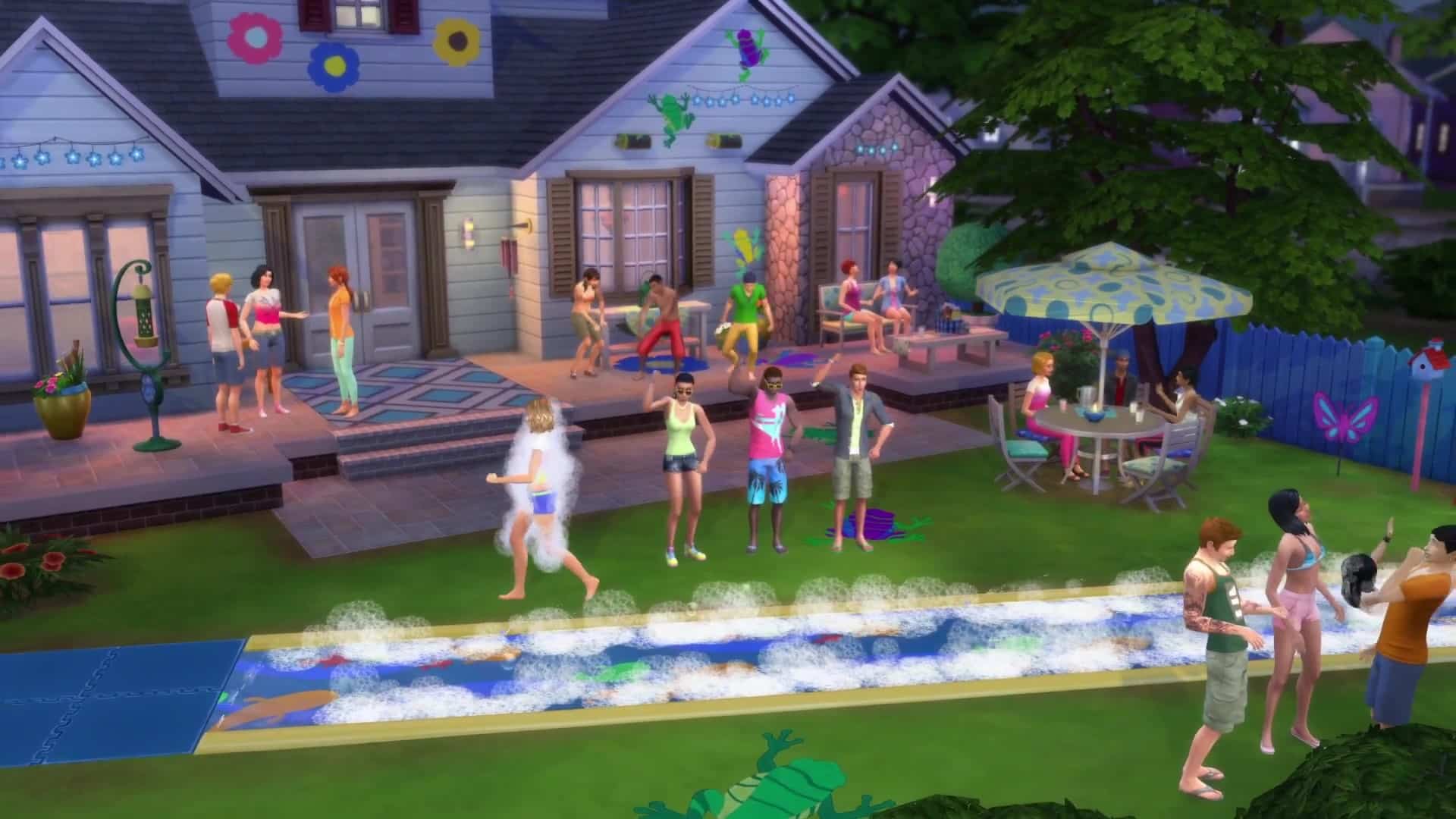
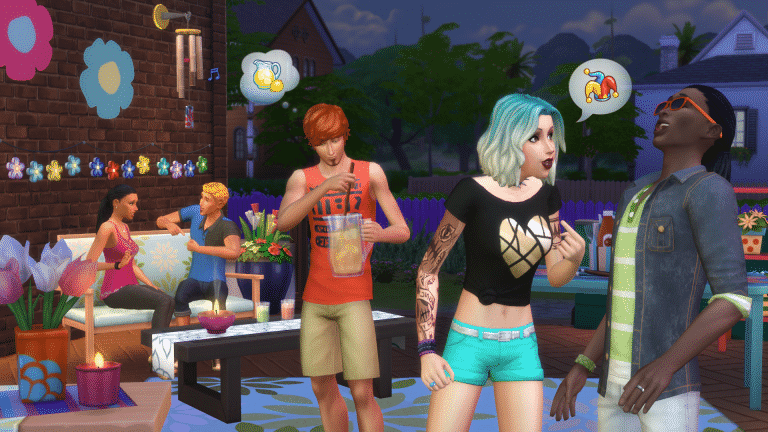
The days are long and the sun is bright; it’s the perfect time for your Sims to enjoy The Sims 4 Backyard Stuff*, coming July 19th!
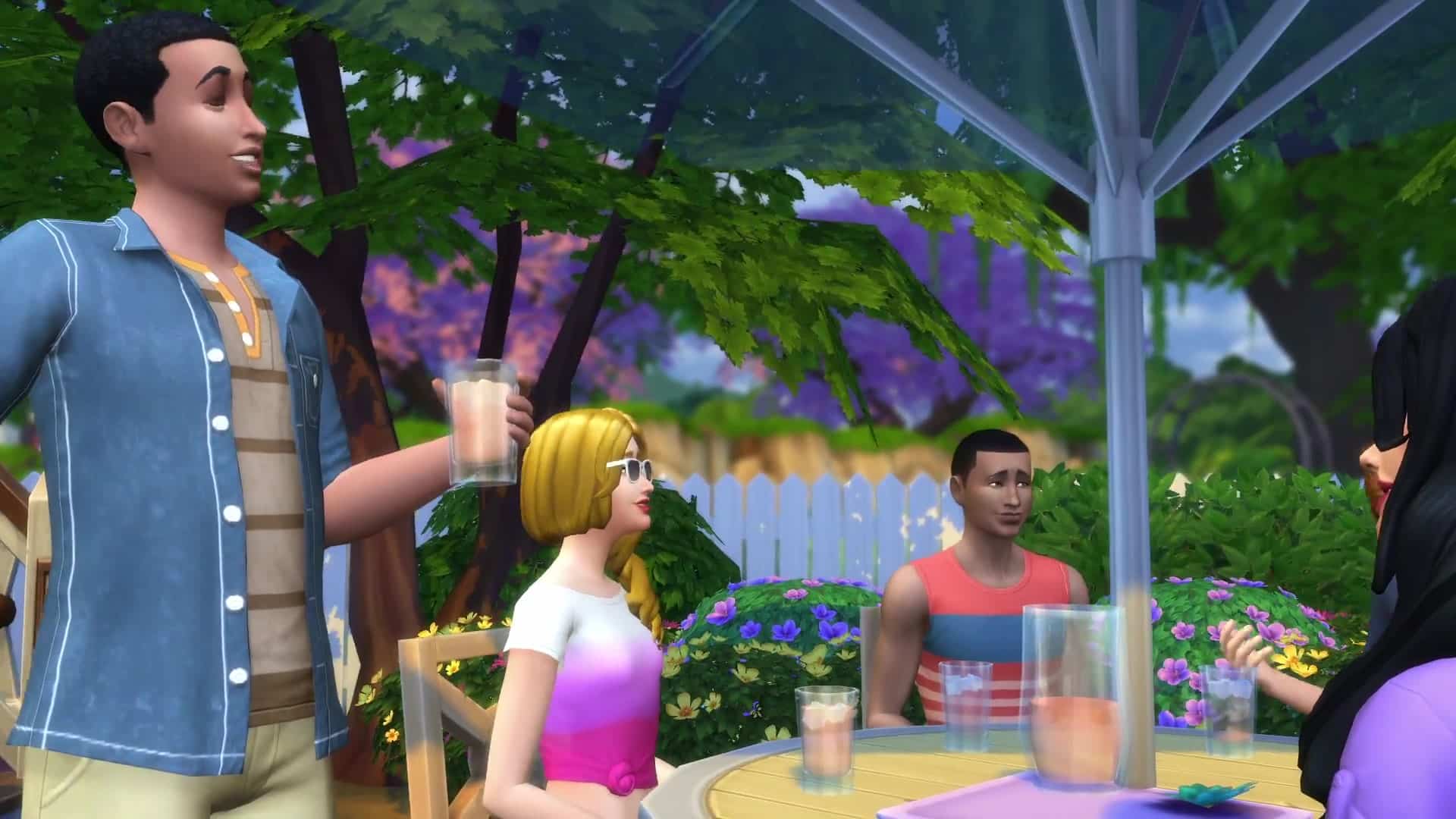
Looking to update your backyard? Additional customisation options for your outdoor spaces await, with bright colours and patterns adding a splash of excitement. You’ll be able to decorate with everything from spinning wind catchers to spitting frog fountains and scented flowers, all helping set a casual backyard vibe. When your Sims’ friends and family drop by for a cookout, they’ll be showing off their stylish new fashions as they sit around the new umbrella table that accommodates meal servings for up to six Sims. An assortment of comfortable clothing comes in vibrant summer prints, and relaxed hairstyles are available in natural and ombre colours.
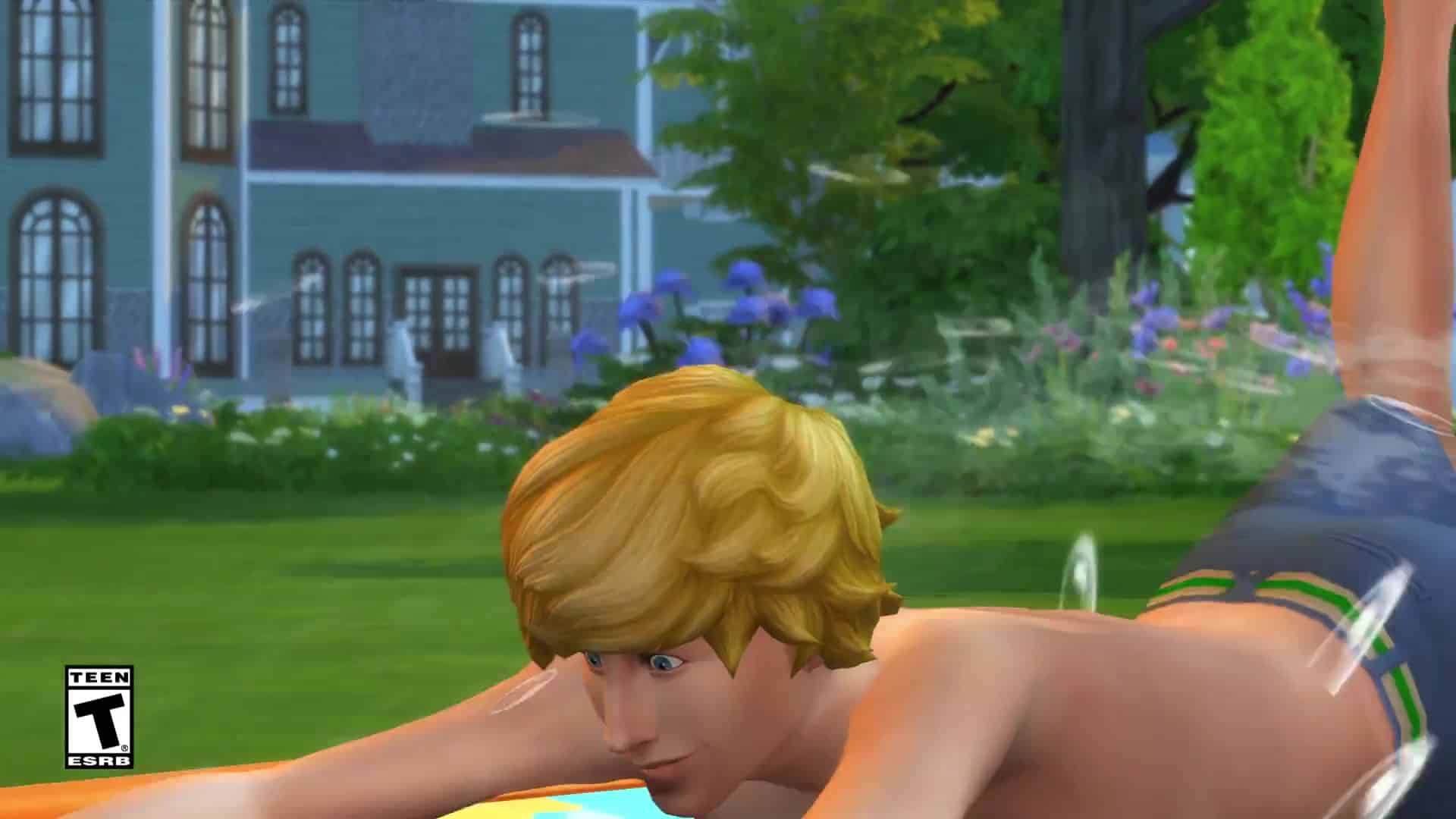
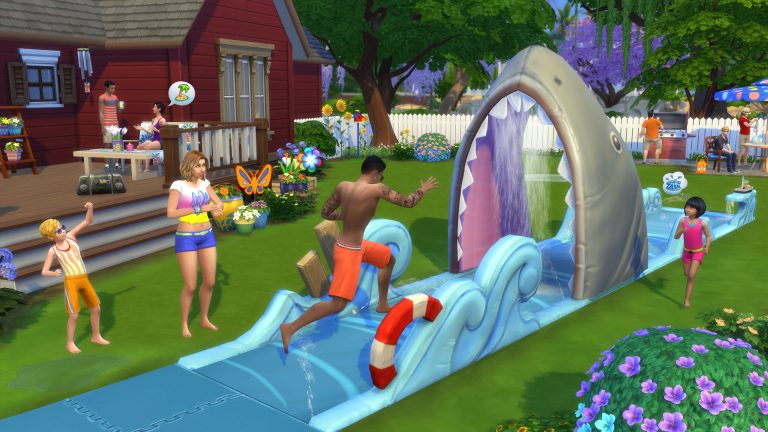
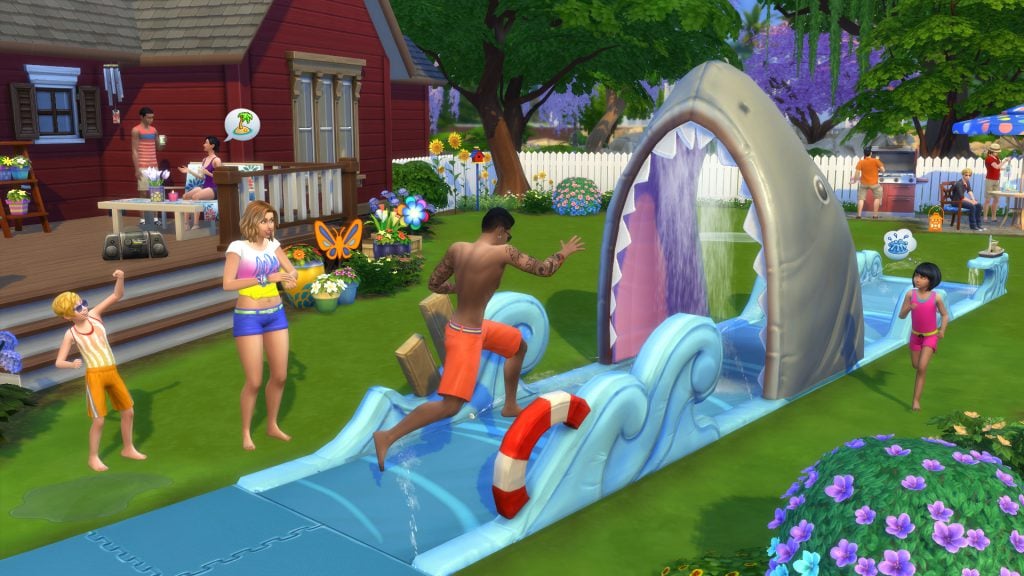
While it’s great to look great, it’s the fun new activities and objects which make for a memorable backyard experience. First, you’ll definitely want to clear space for the Lawn Water Slide. Sims will flip out (sometimes quite literally!) over the fun they’ll have while sliding and performing tricks on a sunny afternoon. All that exercise can build up a real thirst, and the new drink pitcher will definitely help you quench it. Mix up refreshing recipes like lemonade, iced tea, and more, then pour over ice and enjoy.
For a rejuvenating experience in the backyard, you can sit back and tune in to the sound of nature all around you. Place the new bird feeder in your backyard, and you’ll be serenaded by the chirps of bluebirds, cardinals, and finches as they fly in for a bite to eat. You can add the new wind chime to your backyard as well for a soothing Sim-made melody. Choose from bamboo, ceramic, or metallic chimes… pair them together if you like, or even set the length of the rods to adjust the chime’s pitch. It’s guaranteed to be music to your ears (and perhaps a nightmare for your neighbors).
One thing’s for certain, there’s plenty of new fun outside for your entire Sims’ family to delight in when The Sims 4 Backyard Stuff releases on July 19th.
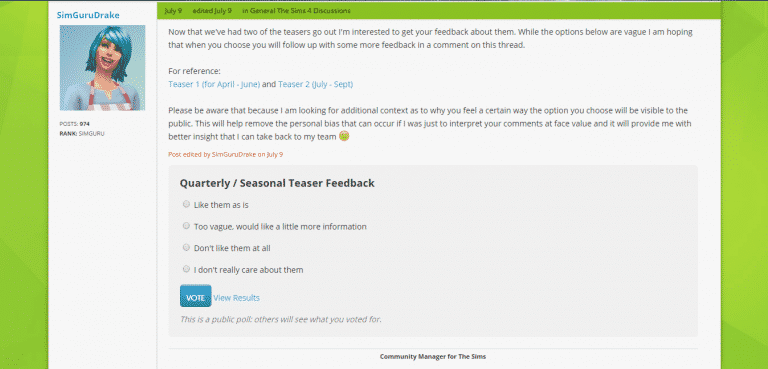
Yesterday SimGuruDrake created a forum post with a poll about Simmer’s thoughts on the two recent quarterly announcements The Sims 4 has had this year. If you missed out on any of these announcements, click here for the first one we received and click here for the most recent one which was posted last week.
If you want to voice your opinion on the quarterly announcements, click this link here!
We are going to explore how to build four different styles of bridges, step by step, so even the uninitiated can understand. Hopefully, we can inspire some ideas on experienced builders as well!
Bridge Style # 1
We have a simple square pool on the ground and we are going to start construction by holding the Ctrlkey on the keyboard while we delineate where our bridge is going to be.
There we go!
Now we are going to use floor titles and fences to create the bridge.
Simple enough. If you just want a simple bridge over a simple pool, you are done, I suppose. But you can make the body of water look more naturalistic by changing the water colour…
…then adding rougher pool trimming…
…some water plants…
…and some terrain paint.
Changing the pool walls and tiles to stone finishes is the last touch.
Our quaint bridge is completed.
Bridge Style # 2
Several steps are the same from the previous bridge, so let’s focus on what is different. We are going to use the basement tool to sink the body of water. We delimit where it’s going to be…
… and then we go down one level and select the newly-created basement.
After that, we go back up and click on the yellow outline to remove the ceiling.
We repeat the process on the other side and, then, proceed to build our natural pool, much like we did in the Bridge Style #1, only, this time, in the basement.
It’s similar to the first bridge, but the water is at a lower level.
You could even use that to create a magnificent entrance to a castle! Or, perhaps, simulate times of drought.
Tip: If you really want to go post apocalyptic, forgo the water altogether!
Bridge Style # 3
We have mastered how to create the surrounding water in the prior styles. Let’s concentrate on Bridge # 3 now. Create a room where you want the bridge to be.
Delete the walls.
Delete the ceiling.
Use the foundation tool to make your bridge as tall as you’d like.
Note: Keep in mind the tool will affect all foundations on the lot.
Add stairs.
Change the foundation finish.
Add railings with the fence tool.
Overhead view.
Bridge Style # 4
For the final style, we won’t need to change the pool itself, since the bridge will be suspended.
Again, we have covered creating the body of water underneath before.
Let’s discuss Bridge #4 now. Build two small rooms, one on each side, to support the bridge.
You can choose how tall the structure is going to be by tweaking wall height.
Tip: You can also experiment with foundations.
I want to set wall height to short, personally.
Go up one level and build a room connecting the two bases.
Delete the ceiling.
Delete the walls.
Note: You can keep the ceiling and walls if you want a more sophisticated bridge.
Add stairs.
Tip: You might also add railings to the stairs if you like, using the same tool.
Once again, we use the fence tool to make the bridge safe and beautiful.
Tip: Add a trim under the bridge for a more polished finish.
Can you see it? It looks much better!
Here’s our bridge!
Let’s extend the pool to make it even better!
If you want a pond under the bridge, make sure to check our tutorial on building a pond-pool HERE.
Do you know how I named this one? “It’s Britney, Bridge”.
Have fun creating bridges to make the exteriors of your buildings and your gardens much more agreeable!
I hope this tutorial was as unabridged as possible!


 …and there you will have access to the revamped picker! You can see your choices more clearly, instead of having to remember what was Everyday 1 or Everyday 2.
 You can also filter by outfit category, since each category can have up to 5 different outfit and a single sim can have up to 30 individual outfits across all six categories.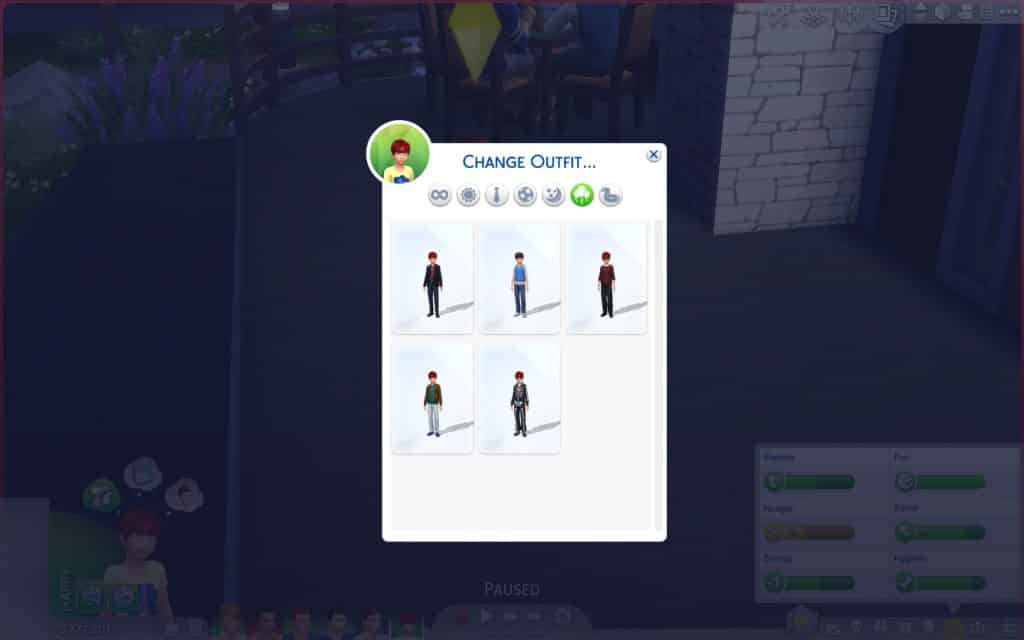

 …but now, when you choose your desired option, you also have the brand new possibility of adjusting lighting per room.

 I hope this piece of news was enlightening!

























 Go up one level and build a room connecting the two bases.
 Delete the ceiling.
 Delete the walls.


