

We’re currently running a Giveaway on Sims Community Social where you can win THREE digital copies of The Sims 4 Movie Hangout Stuff! To enter, simply post a reply on the thread that’s linked in the picture down below. Good luck!

We’re currently running a Giveaway on Sims Community Social where you can win THREE digital copies of The Sims 4 Movie Hangout Stuff! To enter, simply post a reply on the thread that’s linked in the picture down below. Good luck!
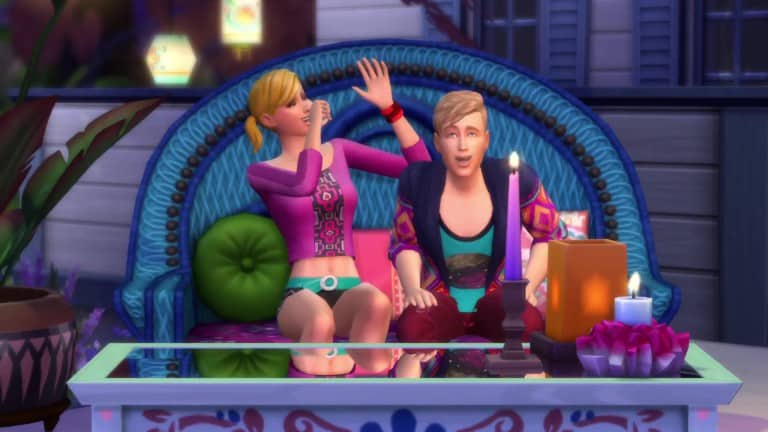
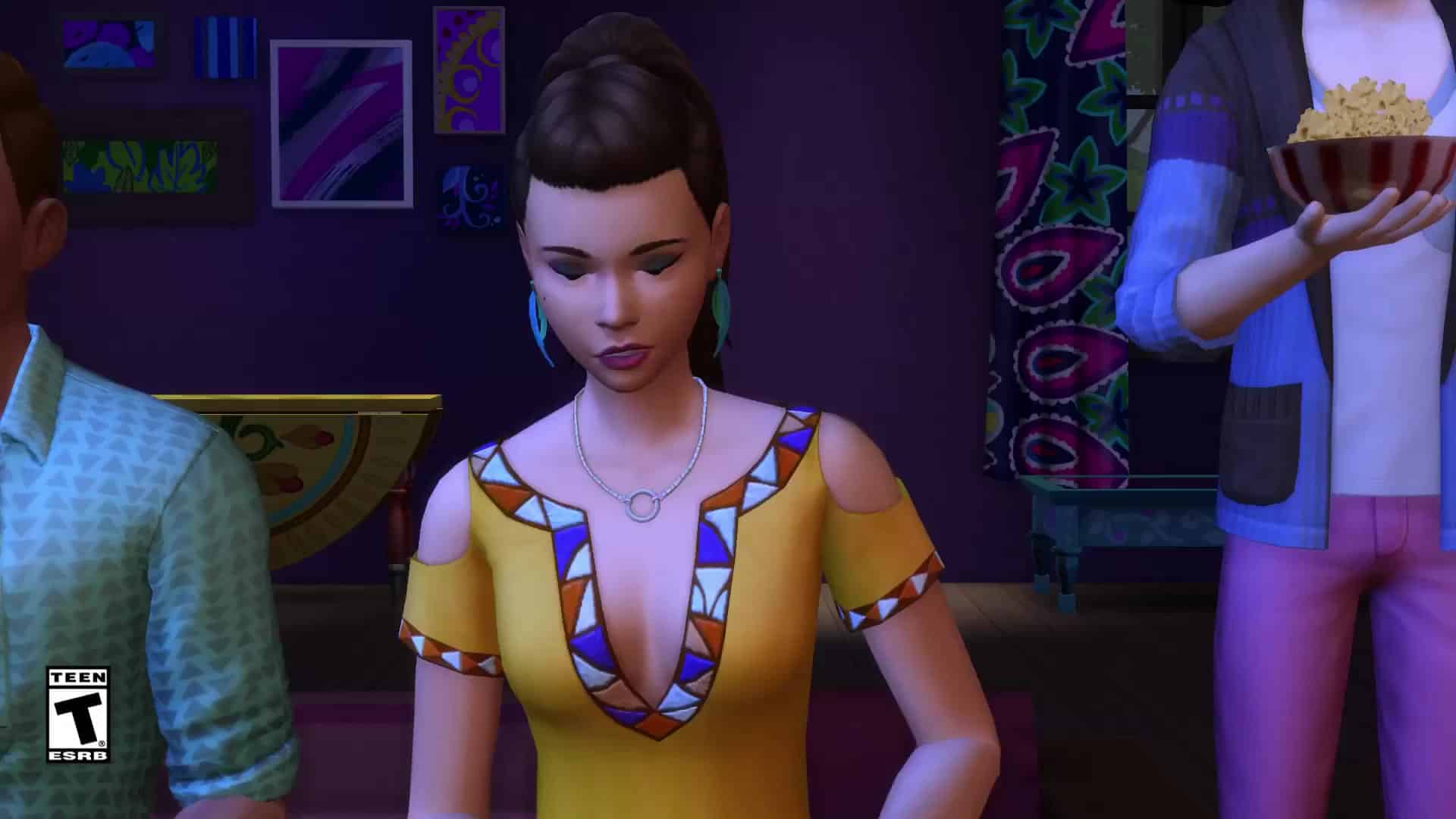
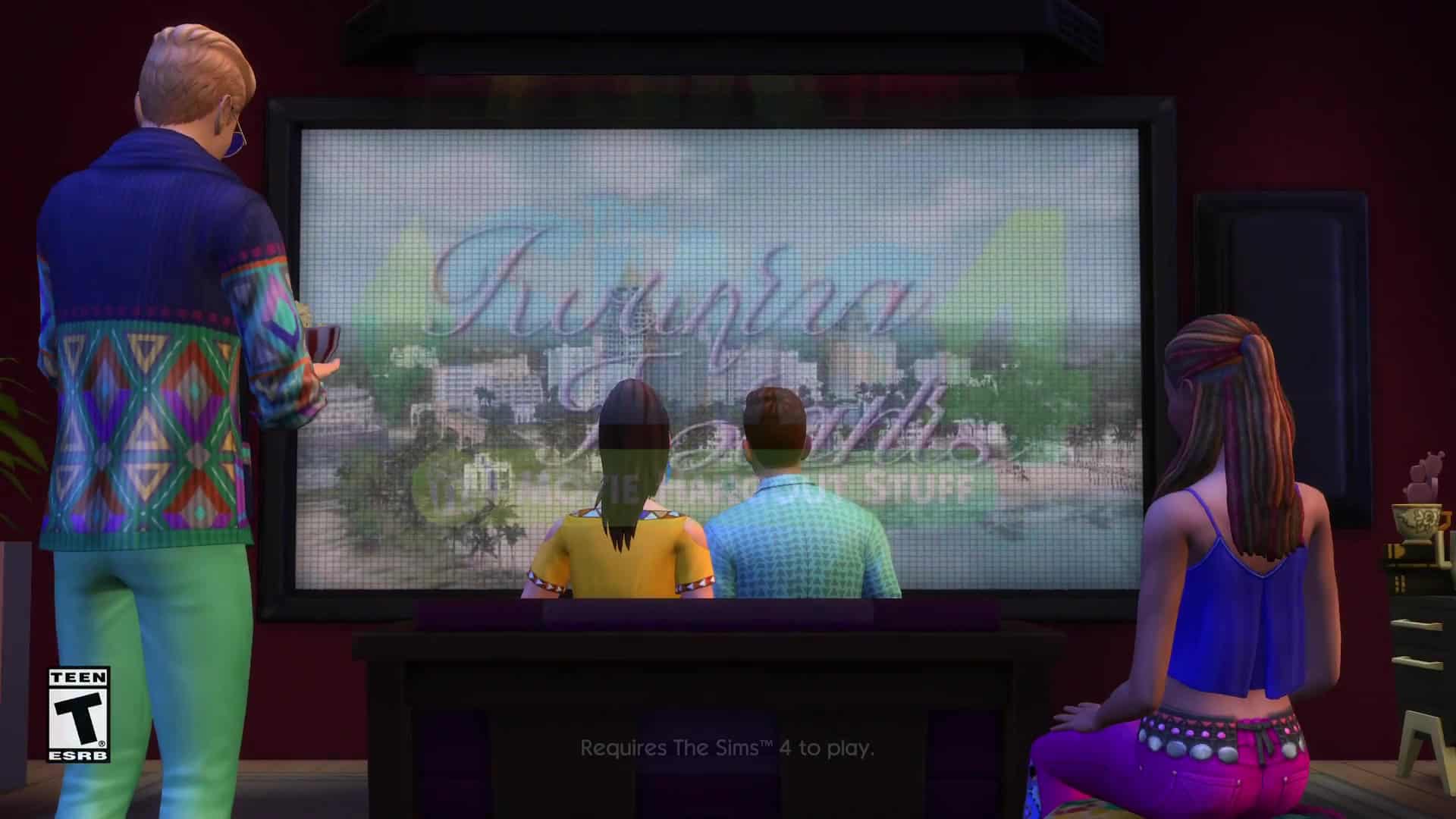
Click on the pictures below to enlarge them!





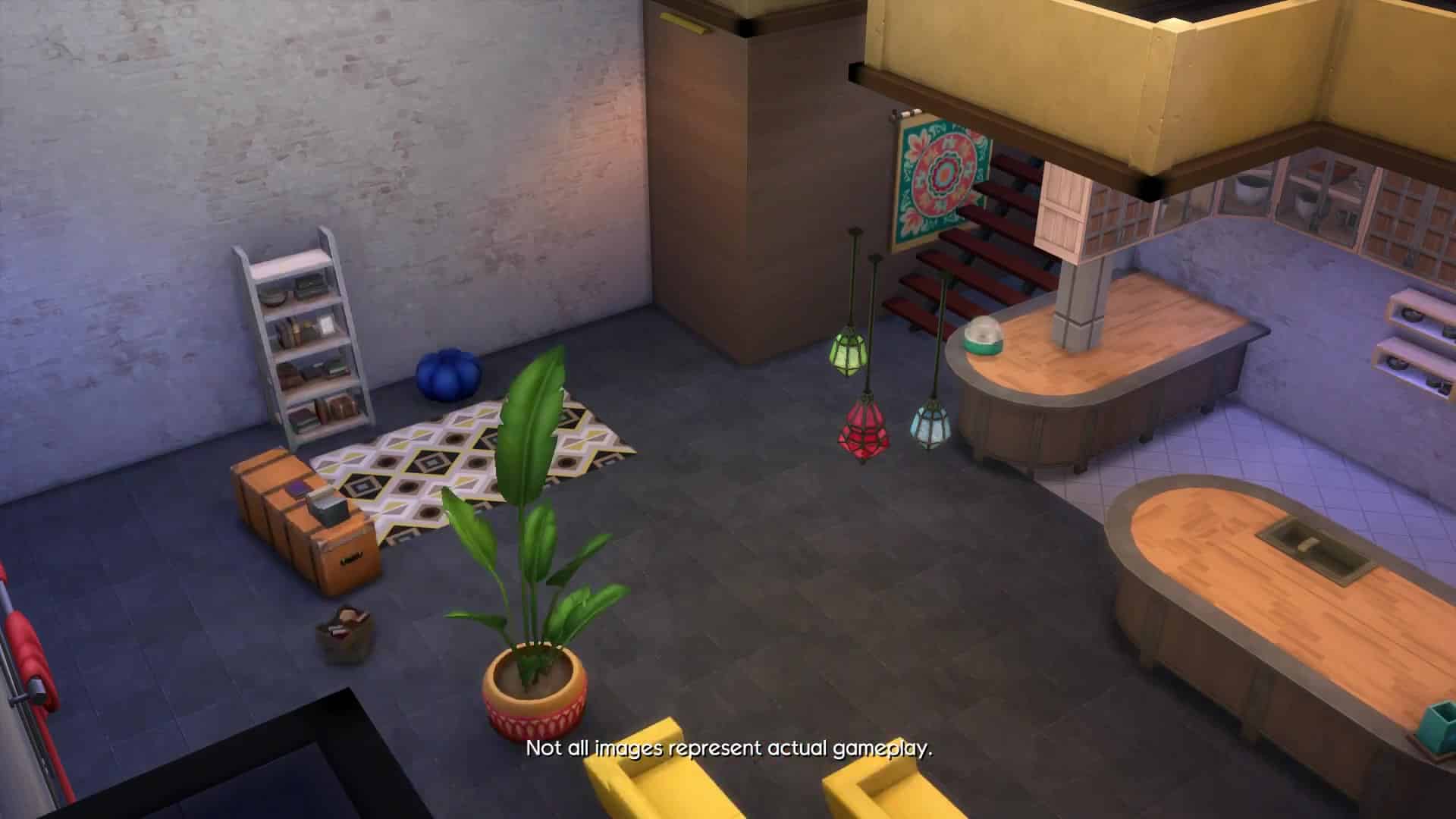





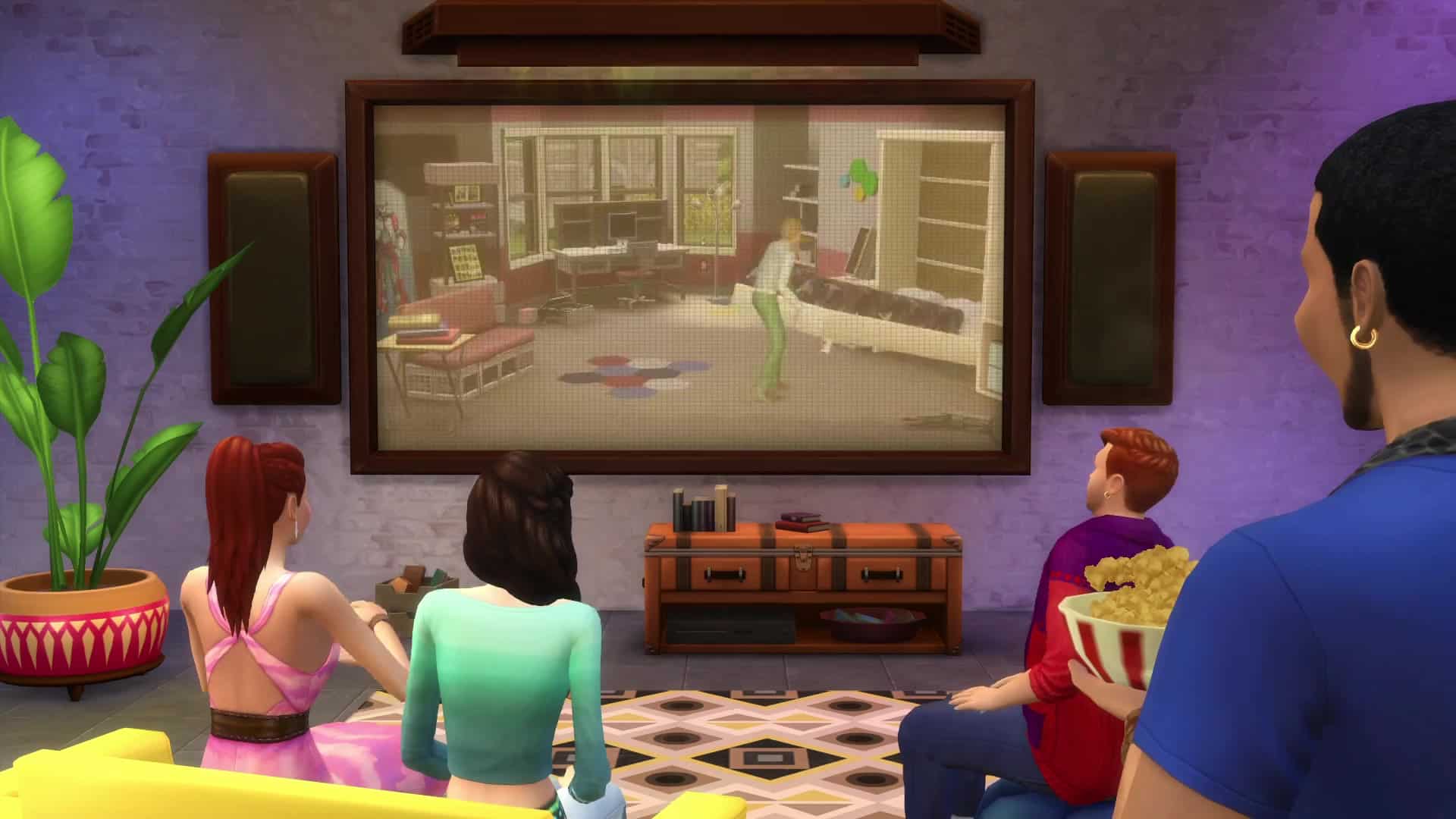



Check out this Box Art Render from the newly-announced Stuff Pack for The Sims 4 – Movie Hangout Stuff!
Provided by EA


Via TheSims.com
Grab the popcorn and invite your friends – The Sims 4 Movie Hangout Stuff Pack* is coming on January 12, and includes the stuff your Sims need to set the stage for a relaxing movie night.
Key to any screening is an awesome screen, and the new Movie Projector Screen fits the bill. This new object is much more than an oversized TV – it’s loaded with ten original films to watch, from action and comedy to romance and horror. There are even two family movies in case your Sim wants to catch a flick with their kids. Each tells a unique tale, and you’ll be captivated alongside your Sims as they gasp in shock, cry over tragedy, and share a good laugh at the perfect punchline.
Movies may be best experienced as a group viewing under a night sky, but that’s not the only way to enjoy the new films. You can always retreat to your den of solitude and watch these flicks on your TV, if you’d rather enjoy a more intimate environment.
Of course no flick can be fully appreciated without an accompanying bowl of popcorn on your lap, and the new Popcorn Popper lets you do just that. Your Sims can pop (and devour) traditional buttered, cheddar, caramel, or kettle. Just beware… popcorn may fly everywhere when they view a jump scare in one of the horror movies!
But we didn’t just want to give you the tools to watch movies (and eat popcorn). The Sims 4 Movie Hangout Stuff also includes new furniture and decorative accents to add a touch of color to your awesome hangout. You can create a great indoor movie lounge, or take it outside and create a totally awesome bohemian atmosphere to watch movies in the breeze.
The Sims 4 Movie Hangout Stuff releases worldwide on January 12 – are your Sims excited to watch some flicks and chill?
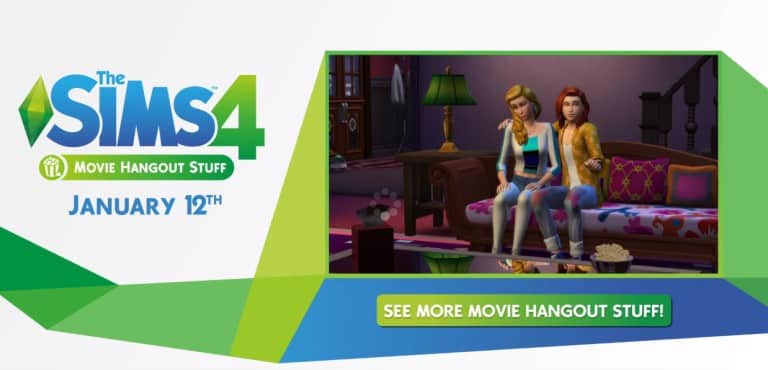
The Sims Team has announced a new stuff pack for The Sims 4 – Movie Hangout!
UPDATE: The latest Sims 3 Update got a small update (lol), addressing the pop up issue. The current version of The Sims 3 is 1.69.43

The Sims Team has released a new game update for The Sims 3 that allows you once again to play with The Sims 3’s Create A World Tool. SimGuruDrake provided more info about this update down below:
Hello everyone!
Today we had a small update to the Origin Client for The Sims 3 that will enable the users who took part in our last Origin client update to now use the updated CAW tool.
I want to reiterate that this version of the CAW tool is ONLY for those who have downloaded the Origin update (that means that in order to use this version of the CAW tool you need to have the previous Origin Client updated PLUS the client update we released today otherwise this tool will not work for you.)
After you download the client update please visit this link to download the updated CAW tool:http://lvlt.thesims3.com//content/global/downloads/caw/ts3caw.exe
If you did NOT take part in the previous update and did not download the update today please use this version of the CAW tool:
thesims3.com/game/tools/worldWe will be updating the tools page on TheSims3.com with this new CAW tool soon and will update this page once it has been.

In the forth addition to the series we will be looking at ways you can get your YouTube channel looking the part! Channel visuals are extremely important, this is what someone see’s the second they find your channel. Video thumbnails are what attracts a suspecting viewer to click on your video over the hundreds and thousands of others uploaded doing the same or a similar thing.
In order to create some snazzy branding for your channel you are going to need some form of photo editor to craft thumbnails, banners and even an icon if you wish. Photoshop is a popular one as it features many useful tools that help to make text, images and backgrounds stand out. In this tutorial I will be taking you through some of the main features of Photoshop that I use on a daily basis to make my channel art. There are some free options as always, PicMonkey is a really good one. I used this when I was starting out and it features some elements that Photoshop doesn’t. Such as free to use fonts (no need to go looking for them), decorative overlays, frames and so much more! I still use this site now and then and I totally recommend it to anyone who is starting out or doesn’t want to pay the price for Photoshop.
Gimp or Paint.net are other good free alternatives, they are more on par with Photoshop in terms of editing capabilities and features, almost identical in fact and make for excellent tools for creating channel art! (The following images have been watermarked to avoid theft, they do not feature on my actual thumbnails, it is only a precaution)

Step 1: After opening the program, click file, new and then a little window like this will pop up. It is ESSENTIAL that it is 1280×720 pixels as these are the dimensions YouTube uses. Any other size will not be accepted by the site. When this is done you will have your blank canvas to get started. Now the fun part! The thumbnail will need a fitting background, I always look through Google images for something that fits the theme of the actual video or sim. In this instance I am creating a thumbnail for a Rocker DJ Create A Sim video. So I searched terms like ‘Grunge background’, ‘Rock background’ ‘punk rocker background’ etc. Once you have selected your chosen background you can now start to think about how you would like the layout to look. Before starting my thumbnail I made sure to take some screenshots in game just after creating my sim. Taking Some close up shots and some further away gives you a good selection to chose from when arranging the items on the canvas. Using pose mods on your sims for thumbnail shots also really help to make your thumbnails distinctive and unique!


Step 2: Once you’ve picked out your chosen images and removed the background etc. You can now start adding all kinds effects to make them stand out more. By right clicking on the layer you want to edit and selecting blending options you will find a little window that has lots of options to edit your image! One of my favourite ones to use is the one titled ‘stroke’ by doing this you can add an outline to your images, helping them to stand out against strong backgrounds. I also like to use the ‘drop shadow’ option to lift my image off the page, this adds great dimension to your thumbnail! Here’s what the two look like when I use them together:


Step 3: Typography! When placing your images make sure to leave room for text, you don’t necessarily need to include The Sims 4 logo in every thumbnail you make, as long as its in the title of the video. However do not leave so much space that there is more background than anything else. Thumbnails appear very small on the YouTube interface so make sure your sims look big and clear to see, same goes for the text, use your space wisely! Fonts like Ariel, Times New Roman or Comic Sans are the biggest NO when it comes to making thumbnails. It looks so uncreative, bland and well… just boring! You want to grab potential viewers attention, that is what thumbnails are for! Dafont is a great place to download and install thousands of fonts for every occasion. For my thumbnail I will be using a font called “bloody”. Take the same steps you did for your images to open the blending options and the same rules apply! Experiment with the different effects to get the look you want. On this occasion I once again used a stroke, this time black and a drop shadow to add dimension. For the colouring I decided to use a gradient using two shades of green to enhance the 3D emboss effect. Now, I cant stress enough about colour coordination. Some colours just do not go together and furthermore too much of the same colour can be overbearing. Pick one or two shades of a colour and stick to it. BUT ensure the text colour is not too similar to the background or it will not stand out enough. I chose green for this thumbnail because there are a lot of grey and black tones, something bright not only stands out but also adds to the whole neon, nightlife theme as she is a DJ sim! Here is how it came out:

If you have any empty space like I do (under the text) instead of filling it with icons or more unnecessary text. Enhance the background to fill the space! One way I like to do this is to find a pattern background, most often I use stripes or a sun burst. Place the layer on top of the background layer and using the little drop list next to the opacity option, I experiment with overlay, screen and lighten to get a slightly faded effect. Sometimes simply lowering the opacity does the trick too if the image is black and white. This leaves us with the finished product!

That’s all for today’s article! I hope this helps some of you when creating your own channel art, the same methods and rules apply for banners and icons. Just experiment and be creative! Next time I will be giving advice to you guys who have already embarked on your YouTube journey and are perhaps considering partnership? I will be exploring the biggest gaming networks out there and what to do when you receive those pesky emails offering you all kinds of nonsense! Dag dag!
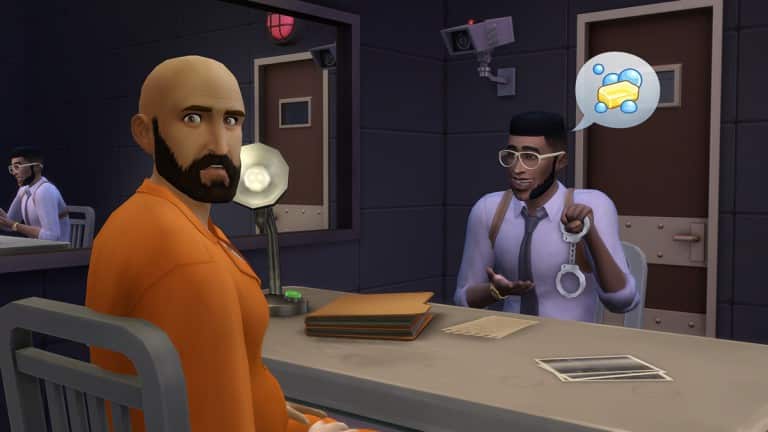
The Sims 4 Marketing Imagery
The Sims 4 is a life simulation game developed in 2014. To help market the release of The Sims 4 and additional expansion packs, I created a series of images to help showcase the diversity of the game-play to potential and ongoing players. The Sims 4 is a user creation focused game focused very heavily around storytelling. Players can build their own houses and characters using tools within the game.
Each image I created for The Sims 4 first involved creation of the set and characters. The characters were then choreographed using console commands (cheats) to force them to play certain animations. Solo frames of each character were then composed, along with the image of the set, in Adobe Photoshop to arrive at the final image.
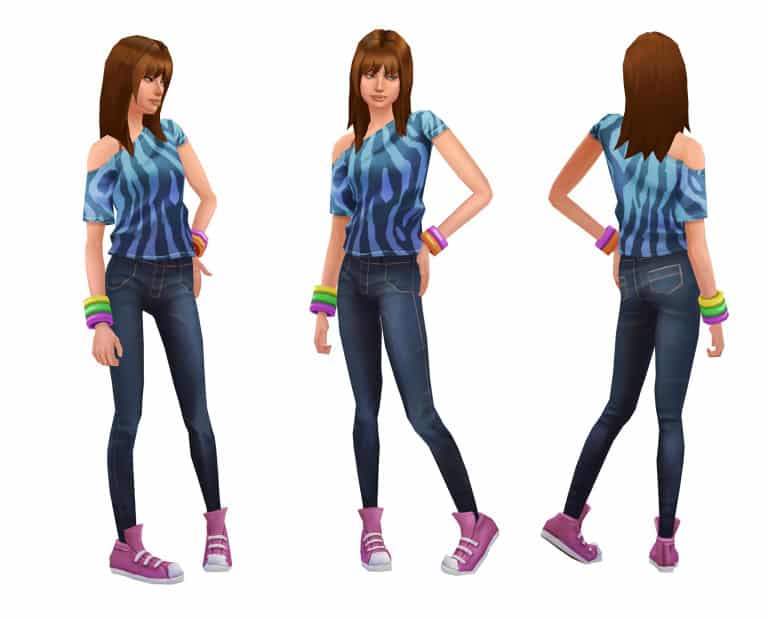
Via Kenneth Toney!
Sims 4 – For this project my main responsibility was to create prototype items such as hair styles, cloths, and accessories. The images you see below are all prototypes. For Sims 4 the art budget was quite low so we had no normal mapping or specular mapping. We had to paint in all the shadows and highlights into the diffuse maps. It ended up looking quite nice and created a new look for the game.
Note: I did not create the faces for this game.
In this article I’ll be teaching you how to extract Music and Soundtrack from The Sims 4. For this process you will need:
After downloading the required tools for extracting music, you’ll need to lay them out specifically. Create a folder that’s meant for extracting music, and extract the Package Editor files there (I advise you to put all those files inside a new folder). Then, create a folder where you’ll extract the EALayer decoder + .package files for decoding.

Open s4pe.exe and select File > Open. Locate where your The Sims 4 game is installed. As you have The Sims 4 installed through Origin, you can figure out where Origin installs your games by going to Origin > Application Settings > Advanced > Downloaded Games.
If, for example, you’re looking for music from The Sims 4 Base Game, go to The Sims 4 > Data > Client. There you’ll see several .package files that are marked with ClientDeltaBuild and ClientFullBuild. ClientDeltaBuild packages contain content that have been patched in The Sims 4 Base Game, while ClientFullBuild packages contain original content from the Base Game. For this tutorial, we’re going to open up ClientFullBuild1. Other packages in the Base Game folder that include Music and Soundtrack are:
At first, you’re gonna see bunch of files with all sorts of tags such as _VID, _AUD, _IMG and so on. What you need to do is filter out the _AUD tag so that other files don’t stand in your way. You can do so by writing _AUD in the Tag field below (and checking the Tag box), checking the Filter Active box and pressing the Set button.
The other thing you need to do is press the Memsize sort button TWICE, so that it lists files from biggest to smallest.

Sadly, you’ll be ”blind” when it comes to knowing which soundtrack you’re extracting. The Package editor cannot locate the names of the files inside the packages. But, you can find a difference between Music/Soundtrack and Sound Effects. Music from The Sims 4 is tagged with the 0x01EEF63A Type tag, while the rest is SFX.
Select all files inside the package that are tagged with the 0x01EEF63A Type tag, right click on one of them and select Export > To file… . As these files require decoding, you’ll want to extract them to the Decoder folder where you extracted those zipped files.

Your Decoder folder should look something like this:

Now that you have all your desired Soundtrack and Music pieces extracted, open up the Start.cmd file and let the command executer do its thing.

After you’re done, feel free to remove unecessary .SNS files.
There really isn’t an easy way to find the names of the music you extracted. The method I use is open The Sims 4, go to Options > Music and find the music files that are matching.
When it comes to the size of these songs, you should consider reducing the quality from 1411kbps to 192kbps. You can use Audacity, Adobe Audition or similar programs to achieve that.
Extracted music files that take up more than 100MB of space are Soundtrack files from Build Mode, Map View or CAS. They cannot be opened using music players and must be extracted once again, but this time using special audio programs such as Audacity and Adobe Audition.
Each The Sims 4 Soundtrack file has 16 layers (8 if you make them Stereo). First Layers contain only 1-2 instruments and they build up as you progress through Layers.

To get the final version of the Soundtrack, I need to extract the file to Layers. Using Adobe Audition you can do by right clicking the file and selecting Extract Channels to Mono Files.

As I want the full, final version of the Soundtrack piece, I need to insert the last 2 layers from the Soundtrack into a Multitrack Session.

From there I’ll make AUD_16 layer stereo balance to right and AUD_15 layer stereo balance to left.

All that’s left is Exporting the Multitrack mix and your Soundtrack piece is ready for listening!


In this article I’ll be teaching you how to extract Soundtrack and Music from The Sims 3. For this process you will need:
After downloading the required tools for extracting music, you’ll need to lay them out specifically. Create a folder that’s meant for extracting music, and extract the Package Editor files there (I advise you to put all those files inside a new folder). Then, create a folder where you’ll extract the EALayer decoder + .package files for decoding.

Open s3pe.exe and select File > Open. Locate where your The Sims 3 game is installed. If you have The Sims 3 installed through Origin, you’ll need to figure out where Origin installs your games by going to Origin > Application Settings > Advanced > Downloaded Games.
If, for example, you’re looking for music from The Sims 3 Base Game, go to The Sims 3 > GameData > Shared > Packages. There you’ll see several .package files that are marked with DeltaBuild and FullBuild. DeltaBuild packages contain content that have been patched in The Sims 3 Base Game, while FullBuild packages contain original content from the Base Game. For this tutorial, we’re going to open up FullBuild1 (which is the only .package in this folder that contains actual Music/Soundtrack).
At first, you’re gonna see bunch of files with all sorts of tags such as _VID, _AUD, _IMG and so on. What you need to do is filter out the _AUD tag so that other files don’t stand in your way. You can do so by writing _AUD in the Tag field below (and checking the Tag box), checking the Filter Active box and pressing the Set button.

Let’s say I want to extract Map View soundtrack. I select all 4 Sims3_Map files, hit the right click and select Export > To file… . As these files require decoding, you’ll want to extract them to the Decoder folder where you extracted those zipped files.

Your Decoder folder should look something like this:

Now that you have all your desired Soundtrack and Music pieces extracted, open up the Start.cmd file and let the command executer do its thing.

After you’re done, feel free to remove unecessary .SNS files.
There really isn’t an easy way to find the names of the music you extracted. The method I use is open The Sims 3, go to Options > Music and find the music files that are matching.
When it comes to the size of these songs, you should consider reducing the quality from 1411kbps to 192kbps. You can use Audacity, Adobe Audition or similar programs to achieve that.
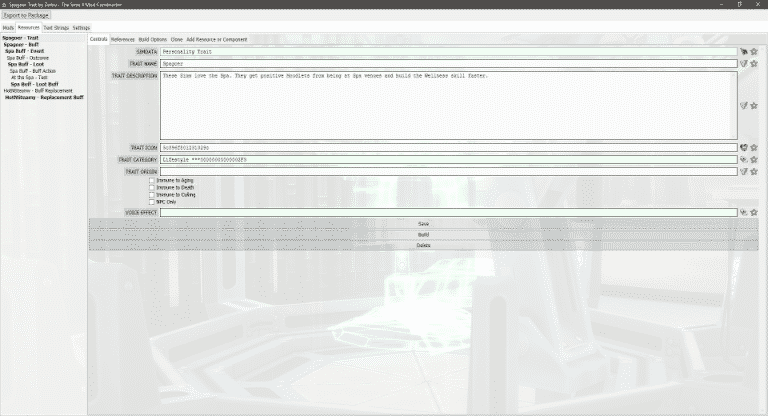
In December 2014, you were brought The Sims 4 Buff and Trait Factory, a tool used to create traits for The Sims 4. It’s finally time for a successor: introducing The Sims 4 Mod Constructor.
(Note: The program is still a work in progress, and the finished version may differ from the screenshots shown in this post)


Mod Constructor, named after the Invention Constructor from The Sims 4 Get to Work, is a program that generates tuning mods without any actual coding required. The first release will focus on traits, but future versions will add support for other types of mods such as social events, aspirations, and maybe even careers and interactions down the line.
While Buff and Trait Factory allowed you to generate simple traits, Mod Constructor allows you to go advanced and access features that were previously limited to advanced modders.


Mods in Mod Constructor are made from a tree of resources and components that interact with each other. The XML code is generated from files which contain the code used by the game, with instruction tags that are parsed based on the content created in Mod Constructor. The resources and components shown in bold have their own XML files, while normal weight components are extensions of other files. You can also add references to components from the game or from other parts of the mod.
If you didn’t understand all that technical stuff, don’t worry – you’ll understand how the program works when you see if for yourself.

Examples of New Features:
Planned Features:
(Features which aren’t added yet, but hopefully will be by the time the program is released)

In this article I’ll be teaching you how to extract Soundtrack and Music from The Sims 2. For this process you will need:
For this step we’ll need to locate the soundtrack package files. Start off by selecting File > Open.

Locate where your The Sims 2 game is installed. If you have The Sims 2 / The Sims 2 Ultimate Collection installed through Origin, you’ll need to figure out where Origin installs your games by going to Origin > Application Settings > Advanced > Downloaded Games.
If, for example, you’re looking for music from The Sims 2 Apartment Life, go to The Sims 2 > Apartment Life > TSData > Res > Sound. There you’ll see several .package categories that include different music, soundtrack and SFX from the game. If you’re interested in Pop soundtrack, select Pop.package and click Open.

After opening your desired .package, you’ll see one or more .mp3 files in the Resource List. For the Pop.package file from The Sims 2 Apartment Life there are 7 Pop songs. Sadly, you won’t be able to see the names of these songs just yet. Select all the soundtrack listed in the Resource List, right click and select Extract. You’ll be prompted to select a folder for extraction. When extracting these songs, make sure you have a specific folder that has no files in it, just for the sake of organizing your files.

Extracted music usually come with unecessary .xml files. Feel free to delete them all from your music folder.

There’s one thing left and that’s determing which song is which. All these music files will have weird code names shown, but there’s a quick way to solve that. Right click on a music file, select Properties and under the Details tab you’ll find the name of the Artist and the Song. Make sure you rename all your music files so that you know which song you want to listen!


The Sims Team shared some fun new Promo Images for The Sims 4, counting down to the New Year!




2015 was a great ride for the Sims Community team! From new The Sims 4 packs to our new site extension, Sims Community Social, there were plenty of things to be excited about!
Before I link you to our 2015 in review page, let me just give a BIG THANKS to all our staff members who give their best to deliver exclusive content and articles and of course, a BIG THANKS to all our readers who continuously motivate us to deliver new content and features.
We wish you all the best in the upcoming 2016; may all your wishes come true!
Click below to check our 2015 in review page!


