Here’s the first video teaser and what to expect from this Sims 4 EP announcement:
The Sims 4 Businesses & Hobbies: Tattoo Parlor Teaser
The first teaser for The Sims 4 Businesses & Hobbies Expansion Pack surfaced across The Sims social networks. Showing a Sim getting a Tattoo in what seems to be a Sim Tattoo Shop!
We don’t know anything else about the next Expansion Pack other than its Business & Hobbies official title. And now the seeming fact that we’ll be able to run our own Tattoo Shops!
Full Reveal Date
The Sims 4 Businesses & Hobbies Expansion Pack will be fully revealed with a Reveal Trailer, Official Assets and The Sims Blog on February 6th, 2025 at 8AM PT / 4PM BT / 5PM CET. Down below you’ll also find the official countdown to the Trailer Premiere!
What are you hoping to see in the official pack announcement? Let us know your thoughts and stay tuned for all the latest Sims 4 Businesses & Hobbies News!
New Sims 4 Content Release lineup to be announced this week. Including the Business & Hobbies EP!
The Sims Team is already looking at a very busy week with switching from The Sims 25th Anniversary Celebrations to The Sims 4 Motherlode Season Roadmap. And we already have a first teaser for the upcoming change!
Check out the first teaser we have for the upcoming Season:
Table of Contents
First The Sims 4 Motherlode Season Teaser
The first teaser for The Sims 4 Motherlode Season was spotted on the official Sims social accounts:
The first Roadmap teaser contains an illustration of a Freezer Bunny running away from a huge Simoleon coin. Take a look:
What to Expect
It’s already been leaked that the next Expansion Pack for The Sims 4 is titled Businesses & Hobbies. The pack’s full announcement day and release date will be revealed on February 6th, 2025. No other information has been shared yet concerning the Expansion Pack information, other that it will have a “Set Up Shop” Preorder Bonus.
Motherlode Season Begin Date
The new Roadmap for The Sims 4 won’t cover just the new Expansion Pack. There are more DLC types and potential Sims 4 Updates that usually get revealed during Roadmap announcements.
To make things easier for you, we’ve included a handy countdown until the beginning of The Sims 4 Motherlode Season. The Season Reveal is expected to happen on February 6th, 2025 by 9AM PT / 5PM BT / 6PM CET.
Countdown to The Sims 4 Motherlode Season Reveal
[janky target_time=”1738861200″ color=”#235c82″]
What do you expect to see get revealed during The Sims 4 Motherlode Season? Join the discussion below and stay in the loop for all things The Sims!
There’s a new update for The Sims 1 and The Sims 2 on Windows PC!
EA and Maxis have just dropped a new Sims 1 and Sims 2 Rerelease Patch for Windows PC players. The newest version of the update brings fixes to The Sims 1 and The Sims 2, as well as promises for future patch resolutions coming soon.
We hope you’ve been enjoying revisiting The Sims and The Sims 2! It’s been super exciting seeing all the joy and enthusiasm from our community for these classic games. We’ve also been focused on the reports of technical issues that some players have had, and have been diligently working to address them. We wanted to say thank you to the community for sharing your detailed reports via the forum to help us improve these games.
– The Sims Legacy Team
February 4, 2025 Patch Notes:
The Sims 1 Patch Notes
Fixed Issues:
Alt+Tab or Alt+Enter can sometimes cause a crash
Alt+Enter can sometimes cause the Windows title bar to be hidden
Alt+Enter can sometimes not toggle between full screen and windowed modes
On some systems, The Sims can appear to launch and then immediately exit (no splash screen displayed)
The Sims should now launch in most situations
In some cases where there is an underlying graphics issue, The Sims will display a message
Some players are unable to click on various parts of the neighborhood map
The travel screen, when traveling between neighborhoods/worlds, can sometimes appear garbled or glitched
The Sims might crash if you are not on the default neighborhood, interact with another Sim, and then save
When using Alt+Enter to cycle window and zoom sizes, the HUD could be clipped. At this zoom level, The Sims will now instead clip from the top of the screen.
In some situations in windowed mode the title bar might not be visible
The Family friends counter could sometimes not be visible
General Notes:
Several players have had problems (e.g. walls, floors, objects not showing up; game not launching; other oddities) that are addressed by updating graphics drivers to the latest versions. Please make sure your drivers are up to date.
The Sims game window is of a fixed size that can’t have its basic properties changed after it has launched. Moving the window from a monitor to another with a different, lesser resolution can lead to unexpected results, possibly even crashes. If you want to run The Sims on that second monitor please use the option “-monitor:<num>” to force it to launch on the other monitor. “0” is your primary monitor, a second monitor is “1” and so on. We are investigating adding this as a menu option in the future.
In some situations, players have noted that music only plays in Live mode. Please check your computer sound options and make sure that everything is properly configured (e.g. on a 5.1 surround system make sure that your center speaker is functioning).
You might be prompted to “Enable the help system” every time you return to a house. This is the game trying to have you complete the tutorial. This will continue to happen until you complete the tutorial.
The Sims 2 Patch Notes
Fixed Issues:
Alt-Tab or Alt+Enter can sometimes cause a crash
Some players on EA App received an error message indicating that certain needed files were corrupt
The game would sometimes crash after creating a family
The game sometimes launched at a small resolution (800×600) and then scaled that small format to fill the entire monitor
In certain situations the game will launch and then immediately show a “DirectX” error, requiring use of the “-w” option to work around the problem
Sometimes a Sim (or multiple Sims) would disappear after the player moves to another lot or neighborhood, or after leaving and rejoining the game despite saving
Sometimes non-adult Sims (children, pets) would disappear
Some interactions that result in a transferable reward (e.g. a dog returns from work) can cause the game to crash
Addressed some infinite loading screen issues
General notes:
Several players have had problems that are addressed by updating graphics drivers to the latest versions. Please make sure your drivers are up to date.
Remember that the “boolProp testingCheatsEnabled” cheat will cause the game to periodically show various dialogue boxes with debugging information in them. The cheat is working as expected.
We are investigating an issue where during certain cinematic events (such as Alien Abduction), the Sim can be reset and the event fails. While we are investigating this, you can work around the issue by making certain there are no other Sims on the lot to observe the event.
While some issues may not be listed here, they may still be in the process of being addressed. Some topics can require an extended investigation on our end, so even though these fixes may be in active review, it’s not a guarantee that we’ll have an immediate fix for it in the upcoming patch.
Thank you for playing these games that are such a storied part of our history – starting 25 years ago! Please continue to share and report any issues on our forums, and join our official Discord community for tips, tricks, and news!
Dag dag,
The Sims Team
Downloading the new Sims 1 and Sims 2 Rerelease Updates on EA App
Stay tuned for more updates and patch drops in The Sims Franchise on Sims Community!
There’s a new Sims 4 SDX Drop for Desktop and Consoles!
Electronic Arts and Maxis have released a brand new The Sims 4 SDX Drop across Desktop and Console supported platforms. The newest content rollout for The Sims 4 SDX introduces new Create A Sim items and Build Mode swatches.
What else is new? Find out in the official Sims 4 Sims Delivery Express notes below:
The New CAS Items and Build Swatches Drop
Table of Contents
How to download and install the latest Sims 4 SDX
With Sims 4 SDX (Sims Delivery Express) you are able to download new CAS Content, Build Mode Content and small bug fixes and improvements into your game. All straight through The Sims 4! Simply open up The Sims 4 and your game should automatically check for new content.
If not, go into Game Options > Sims Delivery and Check for new Content. This method of bringing new Sims 4 SDX content into your game works both on PC and Consoles! Note that you will have to restart your game in order to obtain new content. You can select “Yes, Restart Now” for the game to restart automatically for you.
Official Sims 4 SDX Drop Previews
EA stated that this is “Just one of the free content releases coming this year in The Sims 4”. Meaning that you should expect more Free Content Features to the game soon this year!
What’s your experience like so far installing and playing the latest Sims 4 SDX Drop? Join the conversation below!
Frequently Asked Questions and first steps to completing the event!
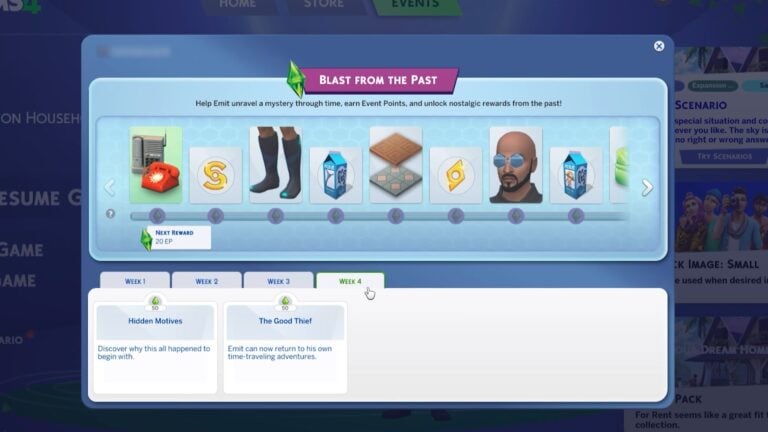
EA and Maxis have released the official guide to The Sims 4 Blast From The Past Event, going live on February 4th at 9AM PT.
Table of Contents
The Sims 4 Blast From The Past Event: Official Introduction
A mysterious figure has blasted into town and needs your help! Someone is “borrowing” from the past, and your help is needed to unravel the mystery through time! You’ll be rewarded for your efforts throughout the Event, with one being the Surprise Birthday Cake. Hide inside and jump out to surprise and delight the gathered Sims with this delicious birthday treat!
How Does it Work?
Open Live Mode with an existing or new Household. After a short wait, A Strange Visitor will appear piquing your curiosity to investigate!
The Event will run for six weeks, with two exciting Quests each week. Your journey begins by discovering who the Strange Visitor is, and learning of the missing objects from the past! As the weeks progress, you’ll continue to dig deeper into the mysteries of time, attempt your own journey through it, and unravel the motives of the time thief! The more Quests you complete, the more Event Points and rewards you’ll earn.
Make sure you’re online. Log in to your EA account.
Enter Live Mode, and you’ll see the first pair of Quests, which start with a pop-up. In Live Mode, you can access the Event Screen by clicking on the Event Icon!
Earn Event Points by completing Quests and Goals. As you earn Event Points, you’ll be able to claim new rewards.
Claim your rewards through the Event Screen in the Main Menu or Live Mode by selecting Claim. Note: You must be in Live Mode to claim Consumable Rewards.
Claimed rewards will be available in Build Mode, Create a Sim, or your Sim’s Inventory. You can filter to view Event rewards with the Event Rewards filter under the Special category in both Create a Sim and Build Mode. For more help with claiming rewards, check out our EA Help article.
Each week, two new Quests will be available. Complete these Quests to earn more Event Points and unlock new rewards!
The Blast from the Past Event will have four weeks of Quests and two extra weeks at the end, so there’s plenty of time to catch up and complete it!
Claim the Blast from the Past Rewards to create a futuristic-inspired Sim who loves to lounge in their inflatable couch, or toss on Dina Caliente’s iconic little black dress and hit the light-up dance floor while listening to some retro classics! Rest assured, your claimed rewards are stored on your EA account, so you do not need to worry about losing them.
Week 1
Relax in your Fun-Fun Inflatable chair! Sport your new Future’s So Bright Sun Glasses while admiring your Retro Deco Phone Set.
Retro Deco Phone Set
Relevart Time Walkers
The Yesterday Set floor tiles
The Future’s So Bright “Sun” Glasses
The Fun-Fun Inflatable Set, Part One
Week 2
Wake up on time with the functional Get Up! Alarm Clock, put on your Emit inspired outfit and Bow Tie while preparing a feast at the Bigger Gatherings Banquet table.
Get Up! Alarm Clock
Be “The Emit” full body outfit
Bigger Gatherings Banquet
The Relevart Neck Stabilizer bow tie
Week 3
Make time for an iconic look by getting dolled up in the Dina Caliente LBD (Little Black Dress) while listening to some New Retro Station Songs or get comfy on your Fun-Fun Inflatable couch, while you contemplate your next “grab” for the Sticky Fingers aspiration.
The Fun-Fun Inflatable Set, Part Two
Dina Caliente’s LBD
New Retro Station Songs
Sticky Fingers aspiration
Week 4
Make sure to celebrate with the Surprise Birthday Cake, and jump out to share the fun! While in a party spirit, don’t forget to get out on The ElectroDance Floor to dance the night away!
Surprise Birthday Cake
The ElectroDance Floor
FAQ
Do I need to log in to my EA account?
A: Yes, by logging into your EA account, you save your Event progress and the rewards you earn from this Event to the account. That way, if you ever need to install The Sims 4 again, you simply need to log back in to gain access to your rewards!
What about SDX releases, I thought those were provided free content and updates!
A: Sims Delivery Express drops aren’t going away, but we’re always looking for new and novel ways to deliver gameplay, as well as objects and clothing to add to your Sims’ lives. You can still expect SDX releases throughout the year as well as new Events to engage with The Sims 4 throughout the seasons.
What if I log in and don’t see the Event?
A: The Event starts on 2/04 at 9 a.m. PST and ends on 3/18. Please make sure you are online and logged into your EA Account. If you still do not see it, you may need to restart The Sims 4 or disable any UI mods you have installed.
The Blast from the Past Event will be available to players until 3/18. While no new quests will be added after 3/04, players can still complete quests and claim any event rewards that they’ve earned but not yet claimed from the Event Screen. Rewards must be claimed by 3/18 or be lost.
Will this be available to Everyone?
A: Yes! The Blast from the Past Event will be available to everyone starting February 4th, and you won’t need any Packs to participate.
What are Event Points?
A: Event Points are a limited-time measurement for the Blast from the Past Event that allows you to claim free rewards. As you earn Event Points, you progress along an experience track and can claim rewards along the way.
How do I earn Event Points?
A: Each Objective in a Quest gives Event Points. Mousing over the Quest will have a tooltip telling you how many points you will earn. Completing the entire Quest nets additional Event Points. Once you have enough, you can claim rewards.
Do I have to spend Event Points?
A: Your Event Points are a cumulative total. When you claim a reward, you still stay at the same Event Point total, so your Event Points aren’t actually “spent.”
What happens if I have leftover Event Points?
A: The Blast from the Past event offers a finite number of rewards. If you claim them all and still have Event Points, don’t worry! Your Event Points cannot be used for anything other than the Blast from the Past Event and will expire when the Event is over.
Can I still complete the Event if I start late?
A: Yes, the event will run for 6 weeks. If you start late, you will have access to all the previous week’s Quests.
Do you plan on participating in the official Sims 4 Blast From The Past Live Event? Let us know in the comments below!
Join The Sims Team as they celebrate the 25th Anniverssary of The Sims Franchise with an official 25 Hour Livestream! The official guest list includes singers Doja Cat and Latto, internet celebrities Trixie & Katyie, Dan & Phil and more. As well as our favorite Sims celebrities – Plumbella, SpringSims, SimTimes and others included in the list below:
The official Sims 25 Livestream begins on February 4th at 2PM PT / 10PM BT / 9PM CET. Or, simply click the play button to the livestream to discover when it begins in your area!
From 100 Baby Challenge to Off The Grid – see some of the most popular Sims 4 Challenges in the community!
Since the Sims 4 was released in 2014, an ever-growing community of sims players have been finding new ways to play in the form of self-imposed Sims 4 challenges. These challenges vary in difficulty and format, but many have become so widely known amongst sims players that they can now be considered iconic!
This article will cover 10 of the most well-known challenges that have been brought to the game by sims players since the inception of the Sims 4.
Table of Contents
Multi-Generational Sims 4 Challenges
The Sims 4 challenges tend to fall into two categories: multi-generational challenges, and single generational challenges. Multi-generation challenges (also known as ‘legacy challenges’) begin with a single sim, and follow them to their death, at which point an heir takes over, and becomes to new focus of gameplay.
10 Generation Legacy
First up in this category of challenges is the classic 10 generation legacy challenge! For this challenge, the player starts with a single sim and must follow their story through them and their heirs for a total of 10 generations.
It’s perhaps no surprise that this is an iconic challenge, as it is programmed into the game! Upon completing the 10th generation, the player will receive an in-game achievement, titling them a ‘Legacy Player’. Though this isn’t perhaps the most challenging of gameplay, many simmers have taken it a step further by making detailed spreadsheets and score systems to keep track of each generation; their aspirations, love interests, heirs and achievements.
Alphabet Legacy
A simple twist on the usual legacy challenge; the founding sim’s name must begin with the letter ‘A’, and each heir that follows must take on the next letter of the alphabet. This challenge spans 26 generations, so requires a little more commitment!
To make the theme more encompassing, each generation may follow the theme of their corresponding letter, where the founding Sim, the letter ‘A’, must be an astronaut, the following generation, letter ‘B’, must be a baker, ‘C’ must be a comedian, and so on.
This challenge will also result in an ‘Alphabet Legacy’ achievement in-game for completing 26 generations.
Decades Challenge
This Sims 4 challenge sees 13 generations of sims make their way through history, from the 1890s all the way to the 2010s! There are various restrictions on this challenge, depending on the level of historical accuracy players wish to contend with. For example, to be fully emerged in the time, the world – buildings and townies – must be altered and adapted periodically so the architecture and fashion suit the time period of the current generation. Technology (except where unavoidable) is strictly prohibited until the appropriate time period. Creative ways of simulating historic events can also be included, such as using a cowplant to determine whether sim returns from serving in a war or not.
Not So Berry Sims 4 Challenge
This challenge encourages players to use careers and colour schemes that may not have otherwise – beginning with mint, each of the ten generations in this legacy represents a different colour and has a unique career and aspirations to achieve. Whilst this challenge may be a little more difficult to follow to a tee if the player does not have all the expansion packs it requires, its variety makes it easy to adapt and can be used as a starting point to explore more aspects of Sims 4 gameplay.
Nightmare Legacy
A chaotic twist on a regular Sims 4 legacy challenge, players must set their sims to ‘short lifespan’ and randomise every new sim’s traits. Whilst it may be a blessing to not have to struggle through the hectic infant and toddler life stages for very long, completing aspirations and saving money for the next generation can be difficult when each sim’s life is so short!
Lengthening or shortening lifespans can also be used as a way to adapt other legacy challenges to suit individual playstyles.
Single Generation Sims 4 Challenges
Single generation Sims 4 Challenges focus on the life of a single sim. They can make their life more difficult, place them at risk of death, or just be a fun starting point to create the founding sim of a legacy challenge!
100 Baby Challenge
This challenge is fairly self-explanatory – the player must make a single sim the parent to 100 babies within their lifetime! Traditionally, this challenge is done by making a sim that can get pregnant and having them try for a baby with every townie possible until they have had a total of 100 babies. These babies must be looked after until they become young adults, at which point they may move out and make room for more babies. To make it more difficult, children must reach a minimum of an A grade in school before they can age up!
Variations on this sims 4 challenge could include having as many twins and triplets as possible, or having science babies or adopting. But whatever the method, the household is sure to be busy, and infants and toddlers must have their needs met or they’ll be taken away and the challenge will be failed!
Black Widow
Jealousy, heartbreak and murder – the black widow Sims 4 challenge is a little darker than some others on this list! The player must start with a materialistic sim who must not have a job of their own. Rather, they must make all their money through seducing and marrying a total of 10 different people, who each meet an untimely demise after getting married.
Although it’s not possible for a sim to commit murder in the game, it’s very possible to ‘accidently’ set the house on fire by leaving cooking on the stove, and to have a sim not escape in time…
The black widow is than left with all the wealth of their late spouse and is free to move on and marry someone else!
Rags To Riches
Often used as the starting point for a legacy sims 4 challenge, players must start their sim on an empty lot with 0 simoleons. The sim can make money in any way they like, but no cheats are allowed! To make this even more difficult, players may start their sim on the largest lot possible – this way, the lot taxes will be higher, and it will be more difficult to build a stash of simoleons over time.
Runaway Teen Sims 4 Challenge
Similarly to the rags to riches challenge, the player’s sim must start with 0 simoleons on an empty lot. However, the sim must be a teen! Teens, unlike adult sims, are not able to get full-time jobs, and must attend school. The goal of this challenge is to survive to young adulthood, build a home, and obtain an A in school!
Alternatively, to play into the storyline of a runaway teen, the sim must skip school (to simulate avoiding being reported as a runaway), not socialise with any adults, and cannot have a part time job either. This makes the challenge much harder, but also offers some good story-telling opportunities, as the player must think about how this sim will deal with the loneliness and financial struggles of living on their own at such a young age.
Off The Grid
By enabling the lot challenge ‘off the grid’, players eliminate most electronics and plumbing from their sim’s day-to-day life. This can make living difficult, as sims won’t be able to use computers, most bathtubs, showers and toilets, or electric lighting! Since off the grid living was introduced as a gameplay feature, this challenge has become popular amongst many sims players, not only for the opportunities it provides sims in finding a new way of living, but its potential in being used alongside other challenges such as the decades challenge to aid historical accuracy.
Challenge Variations
All the sims 4 challenges listed, no matter how iconic, aren’t without room for variation – they can be a fantastic way to find inspiration and discover new ways to play the game, and most importantly, must be fun! Players are free to alter challenges and follow and break rules as they wish.
For example, instead of a 100 baby challenge, a player could have their sim’s goal be only 10 babies, but each one must be raised entirely differently – one raised in isolation, one raised to be a star student, whilst another skips school entirely, and so on. The off the grid challenge could be taken a step further by having the sim grow all their own food as well, which combined with the Seasons expansion pack, could be quite tricky most food does not grow year-round! The rags-to-riches challenge could tell the story of Cinderella, or the black widow challenge could omit killing spouses and instead trap them in a basement to produce paintings which the player’s sim sells to maintain their wealth! Popular variations on legacy challenges include 12 generation zodiac-themed challenge, or the Disney Princess challenge where each generation must follow the stories of Disney princesses.
Whatever the player’s taste, there is sure to be a challenge in this list that suits them – there is a reason they have become so iconic!
Your guide to new gameplay features and items in Arnie’s Luminova Mod Pack!
Like many do in the modern age, I have a few smart devices throughout my home. An Amazon Fire TV with an integrated Alexa assistant (Or, as I call her, “Glorified Lightswitch”), and a few smart plugs here and there. And despite the prevalence of smart tech in our everyday life, the closest we have in The Sims 4 is the ‘Lin-Z Smart Speaker’ that came with an update in 2018… that is until now.
Some of you may know Arnie’s work including his open-world mod Brookheights, World Edit, or the LUX Lights Mod Kit. Arnie is nothing short of a modding genius. He is always bringing something new and exciting to The Sims 4 and loves to stretch the boundaries of the game engine. We previously covered The Sims 4 Luminova Mod Kit’s reveal last month and since then this Mod Kit has entered early access over on Patreon. With the early access period underway, let’s take a look at all the new gameplay features and how you can incorporate this smart tech into your Sims life.
Table of Contents
Catalogue Overview
Take a look below at the objects featured in this Mod Kit.
Object Swatches
Most objects in this Mod Kit come with multiple swatches, including many with animated lights and screens.
Smart Thermostat
Smart Home Panel
Smart Blinds – Fabric (x1)
Smart Blinds – Fabric (x2)
Wall Integrated Blackout Roller Shutters (x1)
Wall Integrated Blackout Roller Shutters (x2)
Privacy Translucent Smart Blind
Smart Air Purifier
Future’o Clock
TV Smart Backlight
(No TV)(With TV)
Neo Smart Hub
Bedside Clock
Smart Switch
Smart TV
Smart Fridge
Gameplay Walkthrough
So you’ve installed The Sims 4 Luminova Mod Kit… what now? If you open up Build/Buy Mode and search “Arnie” in the search bar you will see all the new objects featured in the pack. Let’s take a look at each object in the Mod!
Smart Thermostat
Owners of The Sims 4 Seasons will be familiar with the EcoDisc 51M-5 Thermostat that allows you to set the internal temperature to either a cooler or warmer setting. The Smart Thermostat works the same but features colour-changing light effects that match the temperature you have set and can be controlled with the Smart Home Panel and the Smart Hub.
Smart Panel
The Smart Panel is the first of three smart home hubs you can add to your Sim’s living spaces that allow you to control every aspect of the Mod Kit. From here you can control lights, blinds/shutters, and air purifiers and access everything that is normally available via Lin-Z in the Base Game.
Smart Blinds
The Smart Blinds, as well as the shutters, can be opened and closed either directly by your Sims or all at once via a Hub device. The blinds are fully animated when individually closed, however when commanded to all close at once the animation will not play. The blinds will block out most light and will automatically close at 10 pm and open at 6 am. The blinds and shutters both come in 1-tile and 2-tile variants and fit most windows in the game. The shutters are integrated into the walls and are usable on windows of most sizes including rounded windows.
Smart Air Purifier
The Smart Air Purifier will give your Sim the ‘Fresh as a Breeze’ +1 Happy Moodlet for 10 hours. For players with the Bust The Dust Kit the Air Purifier will clean dust from the room it is placed in. There are two modes: Normal Mode and Quiet Mode.
Future’o Clock
The Future’o Clock is the first of two clocks included in this Mod Kit. You can set an alarm for that room at any time of the day or night and it will wake any sleeping Sims up. You can also control blinds, air purifiers, and thermostats from this clock.
TV Smart Backlight
The TV Smart backlight can be added behind the Smart TV included in the Mod and comes in 5 different fully animated colour variants. Unfortunately, these cannot be turned on and off and do not fit behind any other in-game TV. You can place these anywhere and could be used as a backlight for a bed or bookshelf as well. Make sure to enable ‘BB.Moveobjects on‘ when placing this behind your TV.
Neo Smart Hub
The Neo Smart Hub is the second of three main Hubs available. Similar to the Smart Panel this device can be used to control all devices in your home and has the ‘Ask Neo’ function, allowing you to chat with the AI, similar to how an Alexa or Google Home would work in the real world.
There are several options when interacting with the Neo Smart Sub. You can order services and deliveries, play music, control lights, and also control all of the smart devices available in the Mod Kit.
Bedside Clock
Similar to the Future’o Clock, the Bedside Clock can be placed on many surfaces due to its small object footprint. You can set alarms to wake Sims and it can also be used to control smart devices in the home.
Smart Switch
The third and final smart hub. The Smart Switch is a compact version of the Smart Panel and has all the same functionality, as well as a fully animated screen.
Smart Fridge
And finally, the Smart Fridge. This technologically advanced fridge can be used as a regular fridge with the added bonus of being able to control all smart devices from it. The animated screen on the front is a nice touch, however any smart home interactions your Sim does on it will be done via the phone and not via the fridge.
Release Info
The Sims 4 Luminova Mod Kit is currently available in early access over on Arnie’s Patreon. The Mod is set for public release on February 14th2025, the perfect mod to explore if you don’t have any Valentine’s Day plans.
Make sure to check out Arnie’s amazing trailer for The Sims 4 Luminoiva Mod Kit:
Final Thoughts on The Sims 4 Luminova Mod Kit
Arnie’s modding talent cannot be understated. Back in 2020, Arnie took the Sims community by storm with his excellent open-world mod ‘Brookheights’ and the ‘Farmland’ Mod in 2021. Now he is back and is showing no sign of slowing down with the latest release: The Sims 4 Luminova Mod Kit.
I often find myself forgetting about the existence of the Lin-Z smart speaker that was introduced back in 2018. 7 years and I still find myself rarely using it, or even remembering it exists. In 2025 so many devices in our home are considered ‘smart’, and according to a recent YouGov survey, 30% of adults in the UK use a digital assistant daily. So it’s about time this gets expanded upon in The Sims 4.
The mod kit felt overwhelming at first as I familiarised myself with each object and how they synergised with one another. I quickly found myself testing out the smart blinds and shutters on as many windows as I could and finding new ways to improve my gameplay experience. As with many early access mods, there are a few aspects that I’m sure will be ironed out and expanded on in the public release and future updates. When interacting with the new AI “Neo” Sims will still say Lin-Z and interact with it the same as they would with existing devices in-game. Many may not be aware of the hidden interactions available with Lin-Z once your Sims attain a high relationship with the device. Once reached your Sim can create wakeup routines, and this would be a nice addition to the devices in this mod. Arnie has already gone on record to say he plans to add more features to the Smart TV and have more cross-mod integration with the Plumfruit Mod. I cannot wait to see what Arnie’s modding future holds for us and I can see myself using this Mod Kit in the future.
We will make sure to update this page once the Mod is publically released on February 14th. What are your thoughts on the Kit? Join the discussion below and stay tuned for future updates on The Sims 4 Mods!
Beloved Sims 2 Strangetown, referenced in The Sims 4 StrangerVille, and Life & Death is the OG of Sims conspiracy theory/alien/Grim Reaper-based drama Galore. The Sims lore describes it as:
Truth-seekers move to Strangetown hoping to discover the secrets the town holds. Do aliens live among us? Do missing Sims mysteriously appear here? In this town nothing is what it seems.
The missing Sims? Aliens? The preview image might suggest someone special wearing the iconic red dress, that someone being Bella Goth. While her family still lives in Plesantview, Bella’s presence (or lack of it) looms over The Sims 2 Strangetown. Where is she and how is she connected to the strange townies is better understood if we take a better look at all the residents, but if you’re anxious to know what really happened, Plumbella on YouTube made a video explaining her faith.
Strangetown is the home of five premade families and two bin homeless families, and all of them are chaotic and iconic in their own right – run-of-the-mill family drama, human experimentations, kidnapping, unrequited love, and MURDER! But Sims can always relax in two community lots on The Road to Nowhere, an abandoned “government facility” shopping center, and of course the Strangetown Spa.
Pro tip: Keep an eye on lot addresses and their incredible subtlety. Also, be sure to click the family connections to get a better insight.
Table of Contents
The Sims 2 Strangetown Households
The Beaker household
What experiments are the highly secretive and less than neighborly Loki and Circe Beaker performing on poor Nervous Subject? Will this secrecy affect Circe’s career ambitions?
The Beakers reside in a two-story mansion at 1 Tesla Court. The address implies high-minded intellectual residents, but at what cost? This huge mansion has a tiny room in the basement with a sad single bed, a computer, and a bookshelf. It is also the sad home of Nervous Subject, aka Nyon Specter, whose parentage inspired the Grimborn trait in The Sims 4: Life and Death.
Some of the fun items in this household include The Eclectic and Enigmatic Enegrizer, Simsanto Inc. Biotech Station, SensoTwitch Lie Finder, and TraumaTime “Incision Precision” Surgical Training Station.
Loki BeakerAs soon as he perfects his latest invention, Loki is sure to get the recognition he knows he deserves. In the meantime, he keeps himself busy by trying to assemble a nuclear reactor out of common household items.
Circe Beaker Circe knows 238 different ways to make someone scream, and none of them are nice. She enjoys taxidermy and collecting coat hangers.
Nervous SubjectHis hobbies include twitching and blinking a lot.
.
The Curious family
In search of truth and mystery, the Curious brothers got more than they were “expecting.” Can Pascal, Lazlo, and Vidcund cope with their new roles as cosmic parents?
The Curious Family lot can be found on a hill in 2 Cover Up Road and there’s nothing sketchy about that, especially having read the family description and their personal connections.
All three Curious brothers are scientists, lusting after knowledge with a keen interest in astronomy and botany.
Items of interest on their lot are a potty and a green baby crib.
Pascal CuriousNo matter what happens, Pascal believes there is a logical explanation for everything. In his free time, he practices home psychoanalysis and collects conspiracy theories.
Vidcund Curious Serious and exact, Vidcund strives to fit the universe into a nice tidy package. He has an unnatural fondness for African violets.
Lazlo CuriousNot as studious as his older brothers, Lazlo got his degree in Phrenology. He likes to call phone psychics and spends hours trying to bend forks with his mind.
The Specter Family
Who is buried in Olive Specter’s garden? Will the mysterious, aging outcast leave her fortune to her niece Ophelia, or, as rumored, to an unnamed heir?
13 Dead End Lane is the home of the Specter Family – Olive Specter and her niece Ophelia Nigmos. Olive’s son Nervous lives with the Courious family and who is his father you ask? Not Olive’s late husband Ichabod Specter, who’s buried alongside her other exes: Rigger Mortis, Hugh Thanasia, and Earl E DeMise, to name a few.
Olive SpecterOlive will stop at nothing to get what she wants. She spends her time collecting mushrooms, sharpening sticks, and excavating her yard.
Ophelia NigmosOphelia’s hobbies include hypochondria and monitoring the air quality. She worries about the future… and the past… and the present.
The Smith family
It’s the Smith family from Sims 2! After a fruitful career, Pollination Technician 9 has retired to his favorite planet. But can his son Johnny make friends and fit in, or is this family just too strange for Strangetown?
Located in the quiet lot 101 Road to Nowhere, The Smith household looks pretty average at first. Two parents and two kids, the only thing is that one of the parents is THE Pollination Tech#9 Smith (also known as PT9), whose extensive genealogy implies his hardworking career as a pollination technician. Jenny Smith, on the other hand, comes from a long line of xenophiles, as her maiden name is Curious, and her full siblings include the Curious brothers. The drama unfolds with her half-siblings – Lola and Chloe Smiths (The Singles household, found in the family bin). Those two are Jenny’s half-sisters AND step-daughters, since their father is, of course, Pollination Tech#9 Smith.
Pollination Tech#9 SmithThe only thing PT9 loves more than his lawn is his family. When he is not spending time with his children, he enjoys clipping coupons and staring up at the sky.
Jenny SmithJenny loves having a career, but she wishes she could spend more time with her family, and maybe make some new friends. She really likes green.
Johnny SmithJohnny dreams of being the hero that rides in on a white horse, or at least a cool sports car.
Jill SmithWhen Jill closes her eyes, she sees dolphins. She has her heart set on becoming a deep sea welder someday.
The Grunt Family
Tank has always lived under the hard thumb of his father, General Buzz Grunt. In this domesticated boot camp, can Tank prove his worth to this demanding Dad?
The Grunt Family, led by the authoritarian hand of the family patriarch, General Buzz Grunt, resides on the 51 Road to Nowhere. Their house is almost identical to the house on the 57 Road to Nowhere, but the “Area 51” pun had to be made somewhere.
General Buzz Grunt has many feuding relationships with other residents of The Sims 2 Strangetown. He obviously hates aliens and also Olive Specter (his late ex-wife Lyla Grunt died under mysterious circumstances on her lot) and tries to teach his sons to do the same, using various BootCamp items in the backyard, but it’s only working for his eldest son Tank, since the other two have different ideas.
General Buzz Grant The General likes to have his clocks set to military time. He used to enjoy barbershop quartet singing, but that is classified information.
Tank GrantTank Grunt wants to be just like his old man. He spends his days lifting heavy things, dodging imaginary bullets, and being bigger than the other guy, but deep down inside, he wonders if anyone really knows who he is.
Ripp GrantRipp totally doesn’t care what you think of him. He is going to do whatever he wants to do, which is mostly what everyone else is doing.
Buck GrantMore than anything else, Buck wants to be a pet stylist to the stars. He spends a lot of time wondering why his father never seems to notice him.
Community and Unoccupied Lots of The Sims 2 Strangetown
94 Road To Nowhere
Renowned for its vast swimming pool and soothing baths, the Strangetown Spa is the perfect pit-stop on the journey for truth.
88 Road To Nowhere
Keep it real with a trip to the local shopping center. In this abandoned “government facility” Strangetown Sims find comfort in clothes, food, and entertainment.
57 Road To Nowhere
73 Road To Nowhere
91 Road To Nowhere
Liked our Sims 2 Strangetown overview? Stay tuned for more coming soon to our Sims 2 Guides category!
Make the most out of the new Graphics with Tips & Tricks in Settings, UI and Graphic Overhaul Mods.
The Sims 2 rerelease has truly been a surprise for Simmers both new and old. For many it was a trip down memory lane, for others, it was the introduction to such a poignant moment in The Sims franchise history. Even now, in 2025, The Sims 2 still looks good yet, you may be wondering what can I do to enhance the games’ graphics? Are there any graphic overhauls or lighting mods that can be added to the game? Is there a windowed mode of the game?
Fear not because we’ve got you covered!
Table of Contents
The Sims 2 Rerelease Settings
At launch, your game will run in what it feels are the default graphics settings. Now, there is nothing wrong with this and for many players, it will work just fine. However, as we are now running the game on Windows 10 and 11, a little bit of tweaking may be in order to truly optimize the graphics experience.
Your graphic settings can be found by click on the three dots on the bottom left-hand corner of the user interface. You’ll then want to click onto the monitor icon to bring up the Graphics/Performance Options tab.
Graphics/Performance Options from the Neighbourhood Screen
Now, as you can see in the screenshot above, some options are not available. For this, simply jump into your any Sims 2 rerelease household and go into the same settings again.
Graphics/Performance Options from the Live Mode Screen. Taken in Windowed Mode
While the settings are identical, you will be able to see that you can adjust the shadows and tweak each different graphics settings to meet your needs and work in line with your PC set up.
Now, you will notice that both Screen Size and Refresh Rate are greyed out in both screenshots. When playing in full screen, these will be available to change whereas when you play in Windowed Mode, these graphic settings will not be available.
Playing in Windowed Mode
We’ve just mentioned playing in Windowed Mode, but now you might be curious as to how you do that in The Sims 2 Rerelease. In fact, there are two ways of doing so.
The first, is by simply pushing the ALT and Enter keys together. Easy as that!
The second way is by editing some code. That may seem slightly overwhelming, but we’ve got several easy steps to help guide you through!
Find The Sims 2 shortcut on your desktop. If you can’t find the shortcut, find the Sims2EP9.exe file in The Sims 2 Ultimate Collection > Fun with Pets > SP9 > TSBin, right click and create shortcut.
Right-click on the shortcut and select properties.
Under the Target section of the Shortcut Tab, add -w.
Press Apply and select OK.
By doing this, it will ensure that The Sims 2 rerelease version will always load and play in Windowed Mode, providing you launch it from the desktop shortcut. If you launch the game through the EA App, it will load in full screen.
If, however, you are loading in Windowed Mode and the game doesn’t quite fit, simply double-click on the header bar at the top of the screen, and it will adjust to your screen size.
Graphic Overhaul & Lighting Mods
The great thing about The Sims 2 rerelease is the fact that mods from back in the day still work and for the most part are still compatible. So you may be wondering, are there any lighting mods or graphics overhaul mods for the game?
Gunmod’s Radiance Light System 2.4
Described as a mod that helps enhance the lighting system of The Sims 2 by utilising the physics behind lighting to create what has been known as the most realistic lighting seen in The Sims 2.
Gunmod’s Radiance Light System is a Base Game compatible mod that work with all additional content. The mod originally by Gunmod has continued to be looked after by various modders including dDefinder.
Credit: dDefinder Radiance Light System 2.4 via MTS
Additionally, why not check out GunMod’s Camera Mod too. Experience The Sims 2 in greater detail from new perspectives.
Maxis Match Lighting
Take the vanilla lighting graphics in The Sims 2 rerelease and give them a new lease of life while keeping to the same aesthetic of the game.
Credit: Dreadpirate, Maxis Match Lighting for The Sims 2
The mod by Dreadpirate on Tumblr has been one that has been popular with The Sims 2 players for some time and is easy to follow thanks to the step-by-step instructions!
Enough about Lighting and Graphics overhauls, what about UI Mods? There are certainly some out there you can add to The Sims 2 Legacy Collection!
Clean UI for The Sims 2
Another highly popular The Sims 2 mod is the Clean UI Mod from Greatcheesecakepersona. The mod gives the game a fresh, modern feel while streamlining the overall user interface experience, all while keeping all your essential details on screen!
Credit: Greatcheesecakepersona via Clean UI Flickr Gallery
The mod also adds several new loading screens, The Sims 4 inspired cursors, various fixes and removal of flaws and much more! This mod also comes with some additional UI mods detailed in the full post below.
However, if you’re looking for a dark mode UI, Starship UI is the one for you!
Using the Clean UI as the base that we mentioned above, Simstate has made a dark mode alternative of the mod. This UI Mod adds not just a modern dark mode alternative but six additional loading screens, dark cursors, cleaner UI lines and more!
Not sure how to add mods to The Sims 2 or feeling a little rusty on the process? In fact, it’s as easy as it is to do in The Sims 4.
Once you have downloaded your UI Mods (or custom content in fact) you’ll want to extract the files. On Windows 10 you will need an extraction program to do so, however if you are on Windows 11 you’ll be able to extract using the built-in right-click file options.
Before installing, just double check first that there are no mod-specific rules listed on the creator’s page.
Now that you’ve extracted your files, you’ll want to add the package files to your games. Simply head to Documents > EA Games > The Sims 2 Legacy > Downloads (you may need to create a folder called Downloads initially)
Next, load up your game as usual, and the mods you’ve just installed should be present. For Custom Content, you may need to check that it has been enabled in the game settings.
Then you are good to go!
What are some of your favourite UI Mods or graphics overhauls for The Sims 2?
For all the latest The Sims 2 Legacy Collection news and information, stay tuned to Sims Community!
There are going to be Updates and Fixes for The Sims 1 and The Sims 2 Rereleases.
The Sims 1 and Sims 2 Rereleases are expected to be Updated sometime soon.
EA and Maxis have finally rereleased The Sims 1 and The Sims 2 on PC. And, contracty to their own official release notes, some players can’t even experience the new game stability due to crashes. The Sims 1 is reported to be crashing or booting up to a black screen. While The Sims 2 is still random at crashing as we remember.
Another player on The Sims Forums describe their unlucky experience booting up The Sims 1 on Windows PC:
Player Report on The Sims 1 Crashing
Just bought the birthday bundle to get both the original Sims and Sims 2. I started playing the original Sims and only got maybe an hour in before the game crashed. Booted it up again and had the same issue. My computer is on Windows 11. The first time it crashed while I was creating a family. The second time was while I was in buy mode.
So EA and Maxis released a rerelease who’s main pricing point was fixing several improvements and stability efforts. That unfortunately only ends up in free Quality Assurance testing for EA’s 40USD rerelease bundle until it gets resolved in the next update. But hey, at least we now know that there’s going to be a “next update” for The Sims 1 and The Sims 2.
Read the official announcement:
Official Statement on Sims 1 and Sims 2 Rerelease Issues
Sul Sul Simmers!
We recognize some fans are currently experiencing various issues with The Sims: Legacy Collection and The Sims 2: Legacy Collection. We are currently investigating these issues and hope to have more information on fixes soon.
To help with our investigations, please ensure you’re including screenshots, videos, dxdiags, and (for TS1) vulkaninfo.exe files in your bug reports.
As for myself, I haven’t experienced much issues in The Sims 2 (although I’ve just scratched the surface). However, I am having issues with booting up The Sims 1 to a black screen.
What’s your experience been like with Day 0 of The Sims 1 and The Sims 2 Rereleases? Let us know in the comments below!
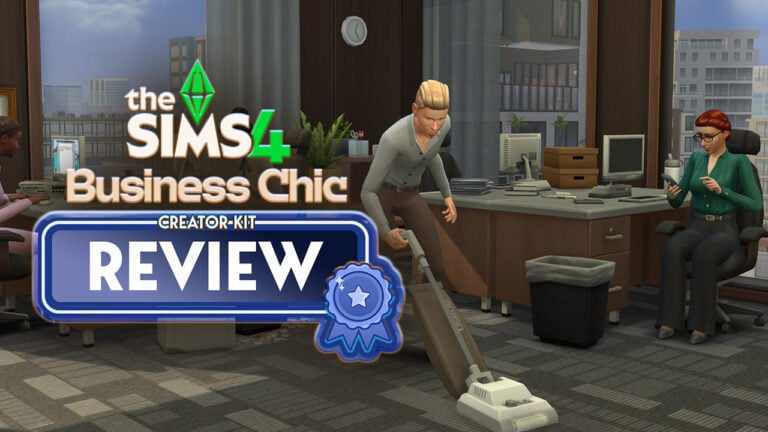
Thursday saw the release of both Pierisim’s Refined Living Room Kit and Madlen’s Sims 4 Business Chic Kit. This still relatively new concept of having CC creators create official kits for the game is welcomed by many like myself. CC creators are often long-time players of the franchise and know the downsides and limitations of the game better than anyone. Despite this, it seems that Business Chic may be a miss-fire when it comes to quality control and diversity.
Is the latest DLC worth the 5 dollar tag? Find out in our latest Kit Review!
Table of Contents
The Sims 4 Business Chic Kit: Features Overview
Business Chic’s Create-A-Sim asset count sits at 24; a median amount when it comes to kit asset counts. Brand new fashionable yet sophisticated threads are available for both male and female frames, including new accessories and shoes. There are, however, no pre-made styled looks with this kit.
Kit Features
Give your Sims a professional edge with chic and stylish outfits from The Sims 4 Business Chic Kit. From tailored suits to elegant dresses, Sims will feel confident and fashionable. Complete the look with sleek shoes and fancy accessories for an extra touch of class. The Business Chic Kit ensures Sims always look up to the task. Created by Madlen.
EA Store
Elevated Evenings – It’s time for your Sims to shine with outfits that showcase their career achievements! Elegant accessories and standout shoes are making sure they don’t go unnoticed, taking their fashion game to the next level!
CAS Preview
CAS Overview
Who better to model these new fits than the Landgraabs? Take a look below.
Accessories
Tops
Bottoms
Full Body
Shoes
Our Review of The Business Chic Kit
The Business Chic Kit is the 40th Kit to be released for The Sims 4. Among the collection of Kits so far there is something for everyone, but I am left wondering exactly who this kit is for. As it stands, we cannot change what our Sim wears to work without the use of cheats (sims.modify_career_outfit_in_cas for those interested). So why is a pack featuring business wear warranted? You could use the clothes included for freelancer careers, or a few pieces for formal wear. But following our Sims into an office environment is not something the game offers in its current state.
Madlen’s kit comes with a great variety of swatches for all pieces, as seen in my in-game images throughout the article, including a beautiful orange tone that isn’t often seen in-game and can be hard to pull in many situations. Recently I praised the Refined Living Room Kit for its brilliant texture work, it is however unfortunate that the same cannot be said for this Kit. There is an ongoing issue within The Sims 4 – clothes will work on skinny Sims, but there is often heavy clipping and texture morphing on plus-sized Sims. A number of the full-body outfits in this Kit fall victim to this, notably, the button texture on the blazer becoming stretched. This is something that I would expect a CC creator to keep in mind when creating clothing for all. This is part of The Sims 4’s ongoing diversity problem. It is important to note that it is possible to adjust textures to match all body types in 3D modelling programs. The texture issues do not stop with the feminine clothing as there is a major warping issue on the crotch of a masculine pair of pants. Another issue with the CAS assets is the tagging. The hoop earrings are tagged as masculine, while the necklace is not despite suiting male Sims. This Kit, like many before it, has a heavier emphasis on feminine clothing leaving the masculine options little in number and uninspired in design. There are only so many button-up shirts and suits needed in the game.
The warped crotchDistorted button textureDistorted button texture
If you are a player similar to me and enjoy taking screenshots in-game to tell stories then this Kit may come in useful for that. However, players opting for a more gameplay-focused approach should consider whether or not these items are something they wish to spend their money on. It is hard to write this review as I love showcasing new content and celebrating the hard work of fellow content creators. But despite that, it would be dishonest to say that I love this Kit.
If you are purchasing The Sims 4 Business Chic Kit via the EA App then make sure to use code MADLENCC at checkout as 5% of your purchase will be given to Madlen as commission.
Official Controls and Hotkeys to make the most out of your Sims 1 and Sims 2 Experience!
EA and Maxis released an official Hotkeys and Shortcuts list for The Sims 1 and Sims 2 Rereleases, available January 31st, 2025 for Windows PCs.
To refresh the memory, there’s now an offiicial controls guide for using your Keyboard and Mouse to play The Sims 1 and The Sims 2. You can find out all the ways to navigate Live Mode, Build Mode, Buy Mode and Character Creation as you go through your gameplay.
Official Sims 1 and Sims 2 Controls
The Sims 1 Hotkeys and Shortcuts
General controls
Alt + Enter
Cycle Screen Resolution Scaling
Esc
Cancel
Ctrl + Shift + C
Toggle cheats window on/off
F1
Live Mode
F2
Build Mode
F3
Buy Mode
F4
Enter camera mode (snapshot)
Enter or Space
Accept dialog
Y/N
Select Yes or No option in dialog
Ctrl + S
Save game
Q
Quit
Alt + F4
Save quit
Ctrl + C
Copy text fields
Ctrl + X
Cut text fields
Ctrl + V
Paste text fields
Ctrl + Z
Undo text fields
Ctrl + Y
Redo text fields
House controls
Page Up/Page Down
Next/previous floor
Home/End
Next/previous wall mode
Tab
Switch floors
Camera movements
+/- or mouse scroll wheel
Zoom in/out
</> or Shift + Arrow keys
Rotate left/right
Right-click and/or drag or Alt + mouse or ↑ / ← / ↓ / →
Move camera
Build/Buy Mode controls
F2 or double left-click Buy Mode button
Toggle sorting objects by type or room
</> or left-click and drag
Rotate objects
Delete
Delete object
Hold Shift + left-click
Place multiple of the same object continually (Buy Mode only)
Z/X
Scroll between pages in catalog
Wall/fence tool: Shift + drag
Create a room/fenced area
Wallpaper/flooring tool: Shift
Fill room with wallpaper/flooring
Left-click and/or drag
Place walls, fences, floor tiles, wallpaper and pools. Drag to place multiple.
Ctrl + left-click and/or drag
Remove walls, fences, flooring, wallpaper, and pools. Drag to remove area.
Terrain tool: Ctrl + left-click
Create or remove curved hills (terrain)
Terrain tool: Shift and or Ctrl + left-click
Inverts direction of tool, can also invert creation of curved hills (terrain)
Grass tool: Ctrl + left-click
Remove grass
Live Mode controls
F1 or double left-click Live Mode button
Hide/show main panel
Left-click Sim or object then left-click or right-click
Select and perform interaction
Left-click + drag + release
Click and drag to select interaction, then release
Left-click another Sim
Select interactions done by active Sim to other Sims
Space or N
Switch to next Sim in Household
Left click Sim portrait or right-click Sim
Switch to (specific) Sim
Right click Sim portrait
Lock camera to Sim
Enter or left-click active Sim portrait
Center camera on active Sim
Ctrl + left-click Sim portrait
Edit Sim biography
P or ~
Pause game
1 /2/3
Regular/fast/ultra speed
Camera mode
F4
Enter Camera Mode (snapshot)
Ctrl + ↑ / ← / ↓ / →
Adjust snapshot area
Drag mouse
Select area to snapshot
Left-click mouse
Take snapshot
Misc shortcuts
A
Toggle anti-aliasing
T
Show framerate in-game
S
Toggle shadows
V
Display build version of the game
F5
Access settings/options in-game
F7
SimsWebCam/Stalker camera (removed in later expansions)
The Sims 2 Hotkeys and Shortcuts
General controls
Alt + Enter
Cycle Screen Resolution Scaling
Ctrl + Z
Undo
Ctrl + Y
Redo
Esc
Cancel
Ctrl + Shift + C
Toggle cheat window on/off
F10
Hide/Show UI (User Interface)
F1
Live Mode
F2
Buy Mode
F3
Build Mode
F4
Story Mode
F5
Options panel
Q
Quit
Alt + F4
Save quit
Ctrl + C
Copy text fields
Ctrl + X
Cut text fields
Ctrl + V
Paste text fields
Ctrl + Z
Undo text fields
Ctrl + Y
Redo text fields
Create a Sim controls
< / > or left-mouse-click+ drag Sim
Rotate Sim
Z / X or + / – or scroll-mouse-wheel
Zoom in/out
Build/Buy Mode controls
< / > or right-clickmouse + drag
Rotate object
Delete
Delete object
Shift + left-clickmouse
Continue placing object
[ / ]
Move object up or down wall
M
Move/shuffle object on shelves
< / > or right-clickmouse + drag
Rotate object
Delete
Delete object
Left-clickmouse + or drag
Use tools, drag to affect area
Ctrl + left-clickor drag mouse
Remove walls etc, drag to remove area
H
Hand
E
Eyedropper
J
Sledgehammer
R
Design tools
Wall tool: Shift + drag mouse
Create room
Wallpaper/flooring tool: Shift + drag mouse
Fill room with wallpaper/flooring
Floor tool: < / >
Rotate floor tile
Ctrl + F
Toggle full/quarter tile mode
Wall tool: Shift + drag mouse
Create room
L
Toggle Day/Night
G
45-degree view
T
Top-down View
Terrain tool: Shift
Invert tool
Grass tool: Ctrl + left-click mouse
Remove grass
Movie Making Mode controls
Tab
Enable movie making mode
V
Start/end video capture
B
Pause/resume video capture
Q
Lower camera height
E
Raise camera height
Z / X or + / –
Adjust focal length
C
Take a snapshot
Live Mode controls
F1 or left-clickmouse on Live Mode button
Hide/show main panels
Right-clickmouse after selection
Cancel interaction
Left-clickmouse + drag and or release
Click and or drag to select interaction, then release
Left-clickmouse active Sim
Select interactions to perform to active Sim
Left-clickmouse another Sim
Select interactions done by active Sim to other Sims
Select interaction menu: Tab
Navigate between dialog pages (pie menu pages)
Space or N
Switch to next Sim in Household
Left clickmouse on Sim portrait or right-click mouse on Sim
Switch to (specific) Sim
Right clickmouse on Sim portrait
Lock camera to Sim
Enter
Center camera on active Sim
P or ~ or Pause Break
Pause game
1 /2/3
Regular/fast/ultra speed
Page Up/Page Down
Next/previous floor
Home/End
Next/previous wall mode
Right clickmouse and/or drag or Alt +mouse
Move
↑ / ← / ↓ / → W / A / S / D
Move left/right/forward/back
Shift + ↑ / ← / ↓ / →
Move faster
Z/X or + / – or scroll mouse wheel
Zoom in/out
Ctrl + right-clickmouse or middle-clickmouse) + drag
Most popular (and helpful) Cheats for The Sims 2 and Sims 1.
The Sims Studio provided an official Sims 1 and Sims 2 Cheats sheets list to celebrate today’s Windows PC Rerelease. These cheats are just the surface of what you can cheat in the game, which is why we call them essential!
The official Cheats Sheet will help you earn instant Simoleons in The Sims, get twin-pregnant in The Sims 2 and quickly level up your Aspiration meter. And also can’t forget those Needs Cheats!
Here are the most helpful Sims 2 and Sims 1 Cheats to get you started in the game:
Table of Contents
The Sims 1 Cheats
To open The Sims 1 Cheats Menu:
Hold down Ctrl + Shift + C.
Type in the cheat code you want to use and select Enter.
Here are the most popular The Sims 1 Cheats. Featuring Gameplay, Autonomy, Additional Build Mode Customization and Options, as well as the most essential of them all. The money cheat rosebud!
autonomy (0-100)
Sets the Sim’s free-thinking or IQ level
bubble_tweak (number)
<Z offset> Sets, in pixels, how far from a Sim’s head the thought bubble appears
draw_all_frames on
Enables draws all frames
draw_all_frames off
Disables draws all frames
draw_floorable on
Enables floorable grid
draw_floorable off
Disables floorable grid
history
Saves family history file. Find where the game is installed under FamilyHistory.txt
interests
Displays the interests of selected Sim
log mask
Sets events logging mask
move_objects on
Turns on ability to move any object
move_objects off
Turns off ability to move any object
nessie
Brings up the Loch Ness monster on the Downtown, Old Town, and Vacation neighborhood view
prepare_lot
Fixes required Lot objects
rosebud
Increases Household funds by 1,000 Simoleons
rotation (0-3)
Rotates camera
set_hour (0-23)
Sets the hour of the day
sim_log begin
Starts Sim logging
sim_log end
Stops Sim logging
sim_speed (-1,000 to 10,000)
Sets gameplay speed
The Sims 2 Cheats
Here’s how you can opet The Sims 2 Cheats Menu:
Hold down Ctrl + Shift +C.
To activate cheats, type boolprop testingcheatsenabled true into the cheat bar and select Enter.
Type in the cheat code you want to use and select Enter.
Here are some of the most popular Sims 2 Cheats you can use in Live Mode, Buy Mode and Build Mode. As well as World and Sim Personality and Gameplay Cheats.
addNeighborToFamilyCheat on|off
Enables adding neighbors to families
ageSimsCheat on/off
Enables/disables Sim aging cheat
aging on/off
Turns on/off the aging of selected Sim
aspiration level (0–5)
Sets the Aspiration level of Sim from 0–5
aspirationPoints
Gives the selected Sim extra Aspiration reward points
autoPatch on/off
Enable/disable checking for available patches through content browser
boolprop testingcheatsenabled true
Enables testing cheats
boolprop lotTerrainLighting on/off
Set to off means Lots won’t light up when highlighted in neighborhood
boolprop locktiles on/off
Set to off to place floor tiles outside Lot
boolprop displayNeighborhoodRoadsWithModel on/off
Set to off to remove bridges from neighborhood
boolprop lotTerrainPaints on/off
Set to off to remove floor painting on Lot
boolprop displayNeighborhoodProps on/off
Set to off to remove props like rocks and towers from neighborhood
boolprop objectShadows on/off
Set to off to remove shadows on objects outside house
boolprop lotWater on/off
Set to off to remove water (ponds) from Lots
boolprop displayNeighborhoodRoads on/off
Set to off to remove roads from neighborhood
boolprop guob on/off
Set to off to remove shadows on objects inside house
boolprop displayNeighborhoodWater on/off
Set to off to remove water from neighborhood
boolprop displayLotImposters on/off
Set to off to remove house graphics from neighborhood
boolprop displayNeighborhoodFlora on/off
Set to off to remove trees/plants from neighborhood
boolprop displayLookAtBoxes on/off
Set to on and blocks appear on Sim’s faces and on parts where Sims look
boolprop carsCompact on/off
Set to on and cars will have more detail in neighborhood
boolprop renderSelectedSimLevel on/off
Set to on and walls will no longer cut away from selected Sim
boolprop allObjectLightsOn on/off
Set to on to light up objects continuously instead of only when used
boolProp displayPaths on/off
Set to on to see the path where the selected Sim walks to
boolprop lotInfoAdvancedMode on/off
Set to on to show Lot information
bloom [R G B X]
Changes color of screen visual. RGB is color [0,1], and X is the bloom amount [0,1]
bugJarTimeDecay on/off
Toggle if bugs in a jar can live forever or not
changeLotClassification low | middle | high
Changes the Lot classification
changeLotZoning
Changes the zoning type of the Lot. Type in cheat code followed by the new Lot type with no spaces, for example: changeLotZoning secretvacationlot will change the Lot type to a secret vacation Lot.Available Lot types: residential, community, greek, dorm, secretsociety, secretvacationlot, hotel, secrethobbylot, apartmentbase, apartmentsublot, secretwitchlot
clearLotClassValue
Clears Lot class value and override flag
deleteAllAwnings
Removes awnings
deleteAllCharacters
Deletes all characters in the current neighborhood—this also only works when in the neighborhood
deleteAllFences
Removes all fences
deleteAllHalfwalls
Removes all half-walls
deleteAllObjects
Removes all objects
deleteAllDoors
Removes all doors that can be deleted when in Build Mode
deleteAllWalls
Removes all walls that can be deleted when in Build Mode
disablePuppyKittenAging on/off
Enables/disables kitten/puppy aging
dumpNPCCount
This shows the NPC type in the neighborhood, by type, in the cheat console
exit
Hide the cheat console window
expand
Expands or contracts the output portion of the cheat console
faceBlendLimits on/off
Turns on/off blending limits
familyFunds
Use familyFunds [familyName] [value] to set the amount of funds. Use familyFunds [familyName] [+/-][value] to add/subtract from current funds.
filmGrain [X]
X is the film grain value [0,1]. Must use ‘boolProp enablePostProcessing true’ first.
forcetwins
Sets pregnant Sim to have a twin pregnancy
help
This displays help for cheats. Type help -all into the cheat bar and hit Enter. This will bring up all known cheats and describe what they do.This also works for individual cheats, for example, type in help motherlode and it will describe what this cheat does.
individualRoofSlopeAngle
Slope Angle in Degrees [15–75] (45 is default)
kaching
Increases Household funds by 1,000 Simoleans
letterBox [X]
Letterbox the screen (add black borders on top and bottom). X is the letterbox value [0,0.4]. Must use ‘boolProp enablePostProcessing true’ first.
lockAspiration on/off
Locks/unlocks the Aspiration score of Sims on the Lot
motherlode
Increases Household funds by 50,000 Simoleans
modifyNeighborhoodTerrain on/off
Toggle neighborhood terrain modification. Use the cursor to select terrain and then press:p to smooth[ to raise] to lower\ to level
motiveDecay on/off
Turns motive decay on/off for all Sims on the Lot
PlumbBobToggle
Toggle the showing of PlumbBob
roofSlopeAngle
Slope Angle in Degrees [15–75] (45 is default)
setHighestAllowedLevel [level]
Sets the highest number of floors that can be built
setHour (0–23)
Sets the hour of the day
setLotLightingFile [filename.txt] or [clear]
Override some of the parameters in the lighting.txt file with filename.txt file present in lights folder, clears if any file is present
setQuarterTilePlacement on/off
Turns quarter tile placement on/off
showHeadlines on/off
Shows/hides all thought bubbles and speech balloons
slowMotion (0–8)
Slows the animation timer (0=normal speed)
stretchSkeleton [Factor]
Stretches skeleton of the selected Sim – factor=1.0 indicates no stretch (factor<1.0 makes shorter, factor>1.0 makes taller
textDebugging [True|False]
Turns text debugging on/off
unlockCareerRewards
Unlocks all career reward objects for the selected Sim
vignette [centerX centerY X]
Blur rendering from specified center (upper left is 0,0, lower right is 1,1). X is the amount of blurring [0,1]. Must use “boolProp enablePostProcessing true” first.
vsync on/off
Enables/disables vertical sync —can improve performance, but will sometimes cause visual artifacts if off
maxmotives
Maximizes all Needs for the selected Sim.
All boolprop cheats that use on/off can also be used with true/false.
Do you plan on using these Sims 1 and Sims 2 Cheats? Let us know how your new Sims gameplay story goes in the comments below!
System Requirements, List Of Improvements and More into one summarized FAQ.
The Sims 1 and The Sims 2 Rereleaseshave just hit the official stores, and we have an official Frequently Asked Questions thread. Detailing exactly what’s new and improved in the latest official rerelease of The Sims 1 and The Sims 2.
The Sims: Legacy Collection includes The Sims, The Sims 4: Throwback Fit Kit, and the following The Sims packs:
The Sims: Livin’ Large
The Sims: House Party
The Sims: Hot Date
The Sims: Vacation
The Sims: Unleashed
The Sims: Superstar
The Sims: Makin’ Magic.
What’s different about the relaunched version of The Sims?
The Sims was re-released to celebrate 25 years of the franchise. This relaunched version of the first game in the franchise is updated to run on modern computers and operating systems.
The gameplay and graphics are the same, but there are some important updates:
it can now run on Windows 10 and Windows 11
it has an updated rendering engine
updates for more versatile pixel resolution scaling on large monitors.
How to scale pixels for The Sims 1
The Sims 1 will still run at its original resolution, but will now scale pixels to make better use of larger monitors while preserving the look and layout of the game.
Press the Alt + Enter keys to cycle through available scale options.
Continuing to press Alt + Enter will scale to the next optimal level before eventually starting back at the beginning.
Stop once you find the scale that works best for your monitor.
At its largest possible smooth scaling size, the game window will black out the parts of the monitor that might be distracting.
Will old The Sims 1 save files work with this version?
Yes, any old save files you still have for The Sims 1 will work with the current version. The save paths for The Sims 1 have changed so you’ll need to copy your save files into the new location.
First, remove current saved files:
Go to My Documents.
Open the Electronic Arts folder.
Click on The Sims folder (this is your save folder) and select Cut.
Paste this folder to a different location and rename it so you know it’s your alternate save file.
To import your old save file:
Rename your old save file folder The Sims.
Go to My Documents.
Open the Electronic Arts folder.
Copy The Sims folder into the Electronic Arts folder.
Will Mods still work with The Sims 1?
Mods capability for The Sims 1 remains the same. Maxis hasn’t tested Mods, and doesn’t support Mods. It’ll be up to individual Mod creators to ensure Mods work with the new version of The Sims 1.
For more info on Mods and The Sims, check out our Policy on Mods.
Minimum PC requirements for The Sims 1 Rerelease (Legacy Edition)
The Sims 2: Legacy Collection includes The Sims 2 Base Game, The Sims 4: Grunge Revival Kit, and the following The Sims 2 packs:
The Sims 2: University
The Sims 2: Nightlife
The Sims 2: Open for Business
The Sims 2: Pets
The Sims 2: Bon Voyage
The Sims 2: Seasons
The Sims 2: FreeTime
The Sims 2: Apartment Life
The Sims 2: Holiday Party Pack
The Sims 2: Family Fun Stuff
The Sims 2: Glamour Life Stuff
The Sims 2: Happy Holiday Stuff
The Sims 2: Celebration! Stuff
The Sims 2: H&M Fashion Stuff
The Sims 2: Teen Style Stuff
The Sims 2: Kitchen & Bath Interior Design Stuff
The Sims 2: Mansion & Garden Stuff.
What’s different about the relaunched version of The Sims 2?
The Sims 2 was re-released to celebrate 25 years of The Sims. This version of The Sims 2 has the same gameplay, but has been updated to run on modern computers and operating systems:
it can now run on Windows 10 and Windows 11
it has an updated rendering engine
it has a more versatile pixel resolution scaling on large monitors
some legacy and community-reported bugs are fixed.
Will old The Sims 2 save files work with this version?
Yes, any old save files you still have for The Sims 2 will work with this current version. The save paths for The Sims 2 have changed so you’ll need to copy your save files into the new location.
First, remove current saved files:
Go to My Documents.
Open the Electronic Arts folder.
Choose The Sims 2 folder (this is your save folder) and select Cut.
Paste this folder to a different location and rename it so you know it’s your alternate save file.
To import your old save file:
Rename your old save file folder The Sims 2.
Go to My Documents.
Open the Electronic Arts folder.
Copy The Sims 2 folder into the Electronic Arts folder.
Will Mods still work with The Sims 2?
Mods capabilities for The Sims 2 remain the same. Maxis hasn’t tested Mods, and doesn’t support Mods. It’ll be up to individual Mod creators to ensure Mods work with the new version of The Sims 2.
For more info on Mods and The Sims, check out our Policy on Mods.
Minimum PC requirements for The Sims 2 Rerelease (Legacy Edition)
We hope you’re in the mood to travel back to the year 2000 with us to celebrate the launch of The Sims! To celebrate with you, we’ve brought The Sims and all packs up to date to make it work more easily with Windows 10 and 11! Revisit your favorite packs or finally play that one you haven’t tried yet.
This release does a lot under the hood to make this 25 year-old game work on your new computer. We thought we’d also make it easier to see all those classic pixels on your monitor! To scale the game to make better use of the screen space available, try using the Alt + Enter key combination to cycle through the different scaling options.
The bulk of the work was to make the first The Sims game compatible with Windows 10/11 from the moment you install it. There are things that you’ll immediately see:
Game now supports the aspect ratio your monitor is set to (not restricted to 4:3)
Different aspect ratios, such as 16:9, gives a wider view of the game
Crisper rendering and visual fidelity from changing how the game scales textures
Fixed several crashes
Improvements and fixes
When The Sims launches it will automatically use the aspect ratio of the main monitor. Unfortunately you can’t change the aspect ratio directly, but you can direct The Sims to launch on a second monitor with a different aspect ratio by using the -monitor:[num] command (“0” is the default monitor).
We hope you’ll enjoy returning to The Sims’ neighborhoods, Vacation Island, Downtown, Studio Town & Magic Town to spend time with all the classic Sims and Sims families as much as we did. Enjoy encountering Bella, Bonehilda, Chip, Miss Crumplebottom and the rest.
Dag dag!
Official The Sims 2 Release Notes
Sul Sul Simmers!
Put down that grilled cheese sandwich and get ready for a trip down memory lane to 2004 with us! We’ve revived The Sims 2 and most of its packs (IKEA Home Stuff excluded) to work easily with Windows 10 and 11! Please note that modern licensing restrictions have required the removal of 1 pack and some of the original songs, but we have included as many as possible.
We thought we’d also make it easier to see all those classic pixels on your monitor! To scale the game to make better use of the screen space available, try using the Alt + Enter key combination to enter and leave full-screen mode. Enjoy that glorious widescreen The Sims 2 view!
There are a few more updates as well to look out for:
GraphicsRules.sgr now supports modern hardware configurations
Fixed a shadow bug that surrounded Sims with a big black square
Wide screen and higher game resolutions are now supported
UI scales better to higher resolutions
Texture memory corruption and “pink soup” are fixed
Dragging The Sims 2 window from one monitor to another works more smoothly
If your computer has a lot of RAM, The Sims 2 is able to use it
Fixed several crashes
Improvements and fixes
We hope you’ll enjoy returning to the Belladonna Cove, Desiderata Valley, Riverblossom Hills, Pleasant View, Strangetown, & Veronaville! Spend time with all the classic Sims and Sim families. The Goths, Greenmans, Smiths, Monty/Capps and more are ready to come back to your screen from 21 years ago.