


Photos 101
It’s important to give your Sims Stories and Creations the right presentation and overview. That’s why taking quality Photos is always a huge plus if you’re expecting more positive feedback on for your creations.
This Article will teach you some important Tips & Tricks for taking Good Photos in The Sims 4. You can get started by pressing the right arrow above!

Getting Started / Indoor Photos
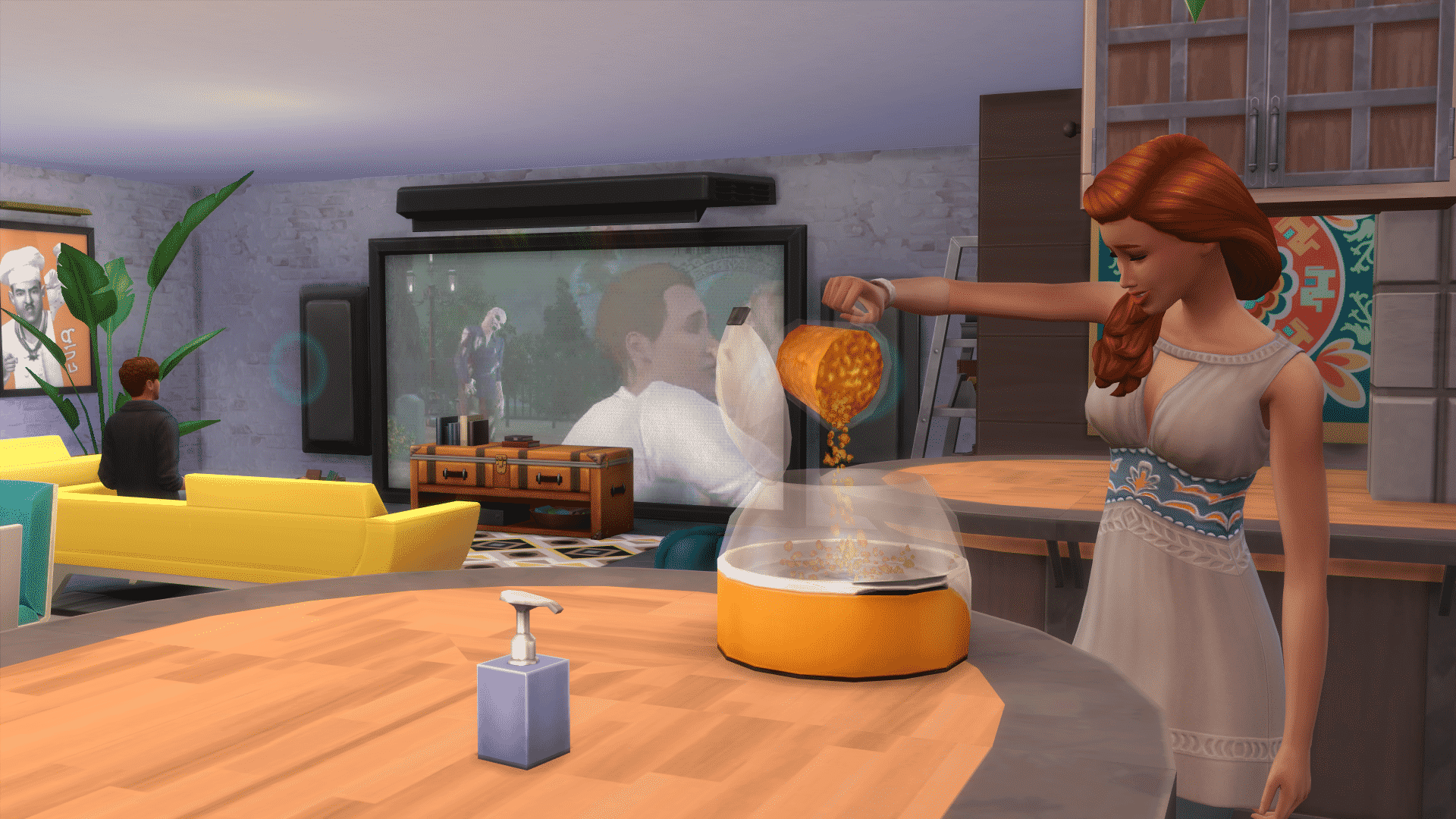
If you’re trying to show a random moment inside your House or just want to showcase a Room you’ve decorated, it’s important to save camera slots so that the game will remember the exact camera angle every time you’re trying to take a photo.
To do so, press Ctrl + 5, 6, 7, 8, 9 or 0 after you’ve set your desired angle, just press 5, 6, 7, 8, 9 or 0 to spawn that angle.

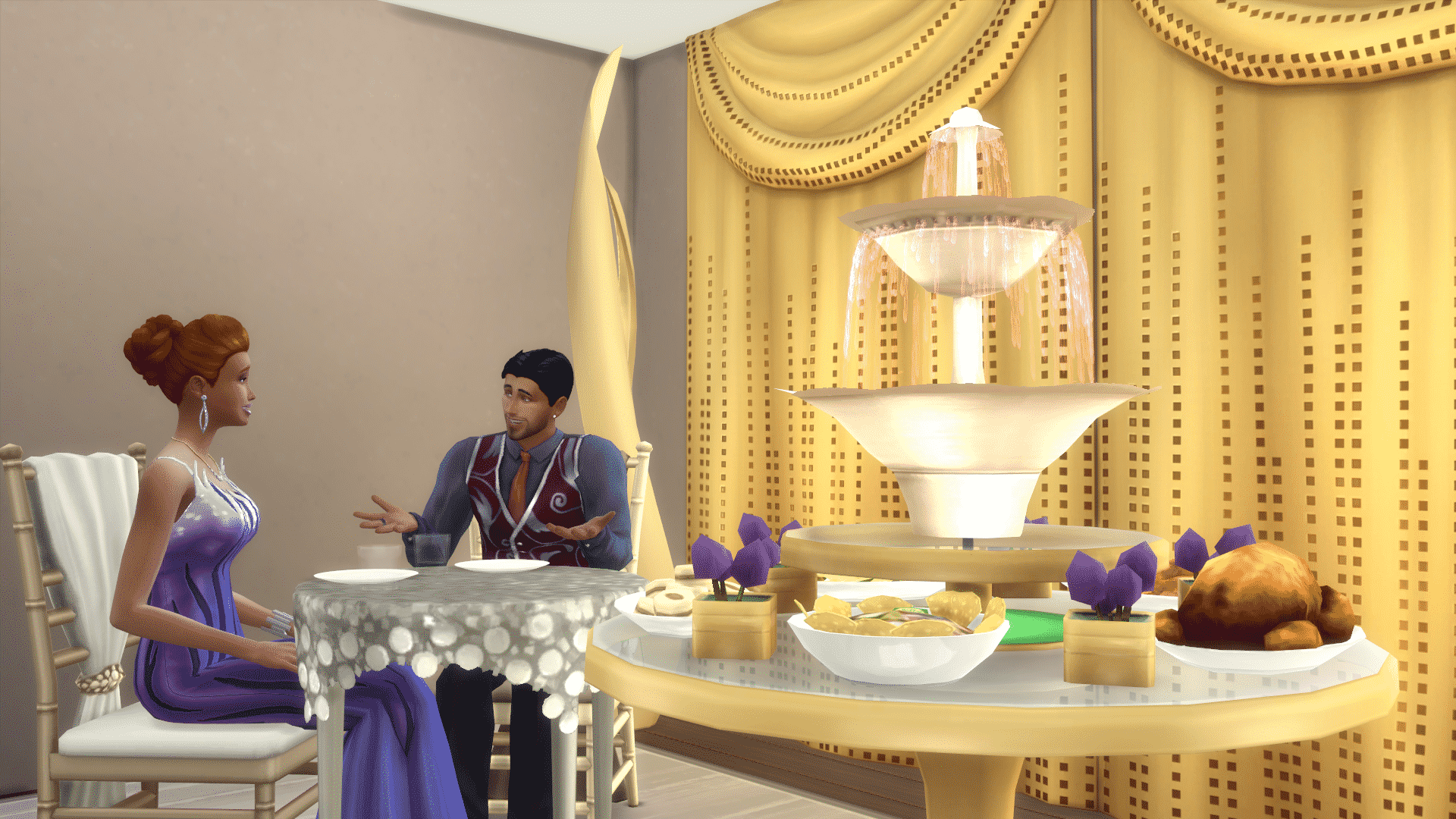
Your photo may be nice, but it’s missing life! Make sure you have your Sims seated somewhere and give them something to do (socializing usually does the trick).

Plumbobs are usually a no for any Sims Photo. You can remove it by typing the headlineeffects off cheat. While you’re at it, you may want to add some props around your Sims to give them more actions to do.

Finally, if you think your Indoor Photo isn’t lit enough, you can boost brightness by adding Invisible Lights. Go to Build Mode, type bb.showhiddenobjects and under Misc Lightings you’ll find Invisible Lights.

Much better!

Outdoor Photos
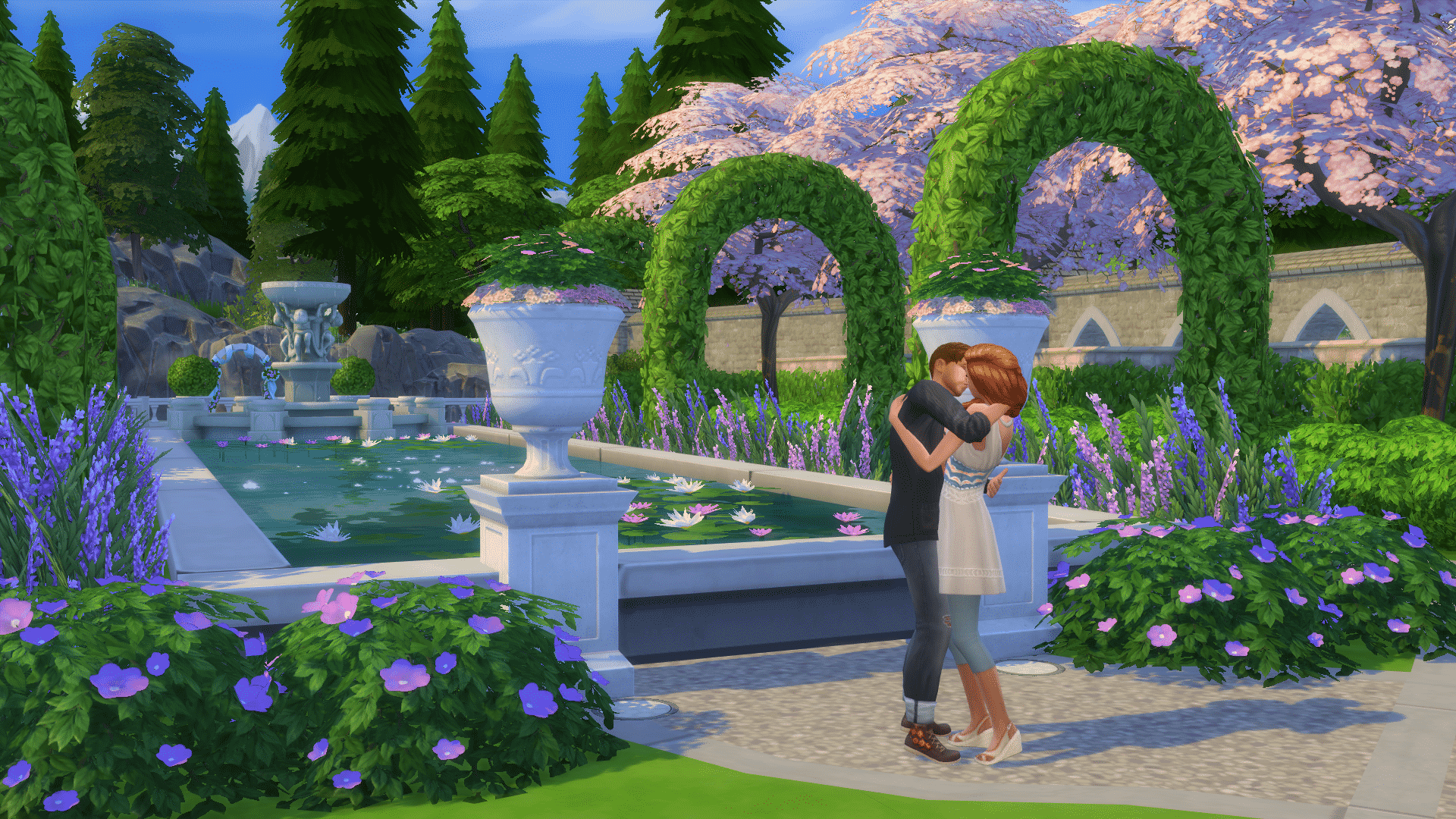
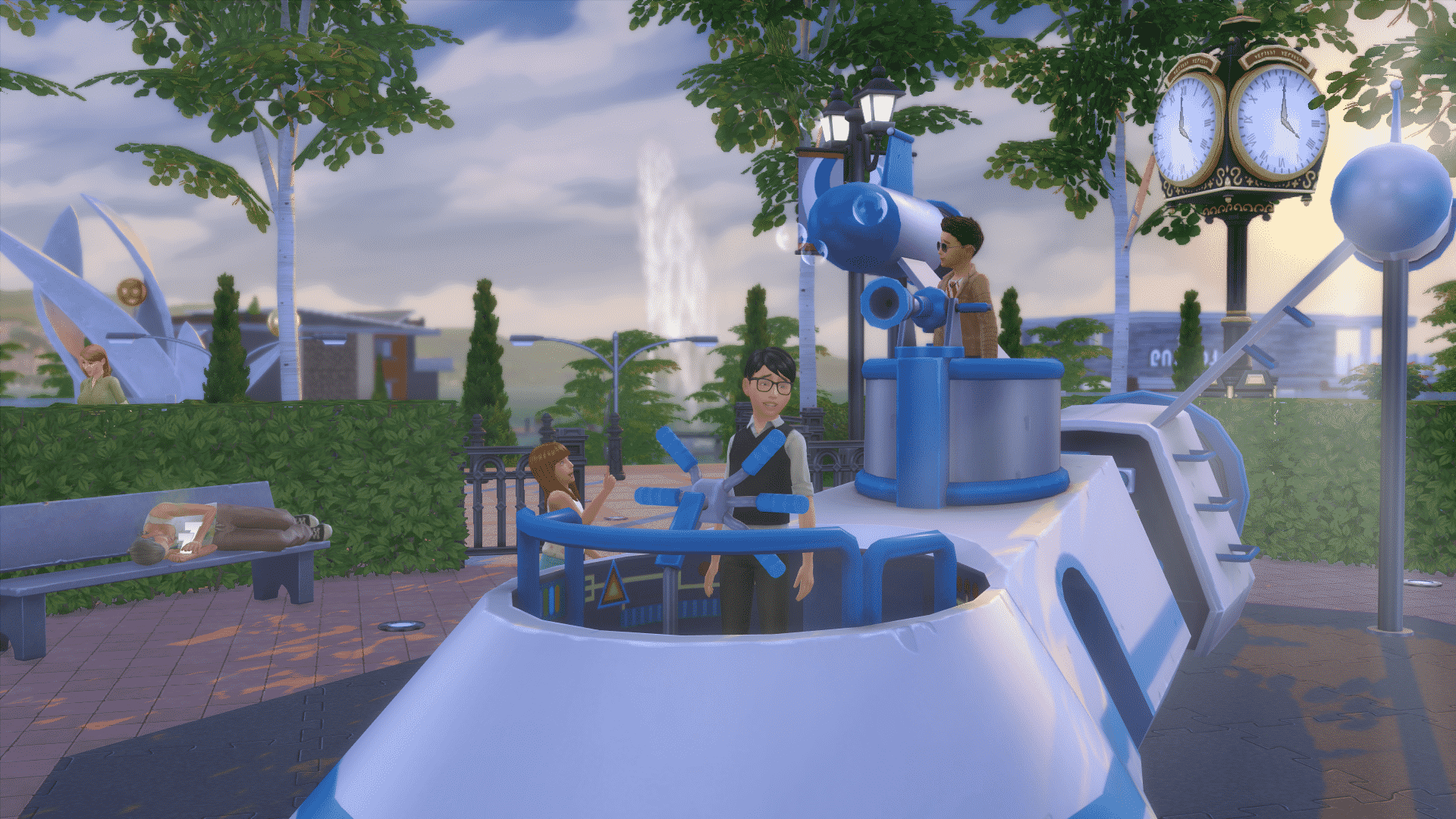
It’s important that you focus on the environment while taking Outdoor Photos. If you want to feature your Sims inside an Outdoor Photo, make sure they don’t take up too much space as you want to focus on the environment.
In case you haven’t noticed, Trees fade as you get closer to them. Luckily, that can be solved!
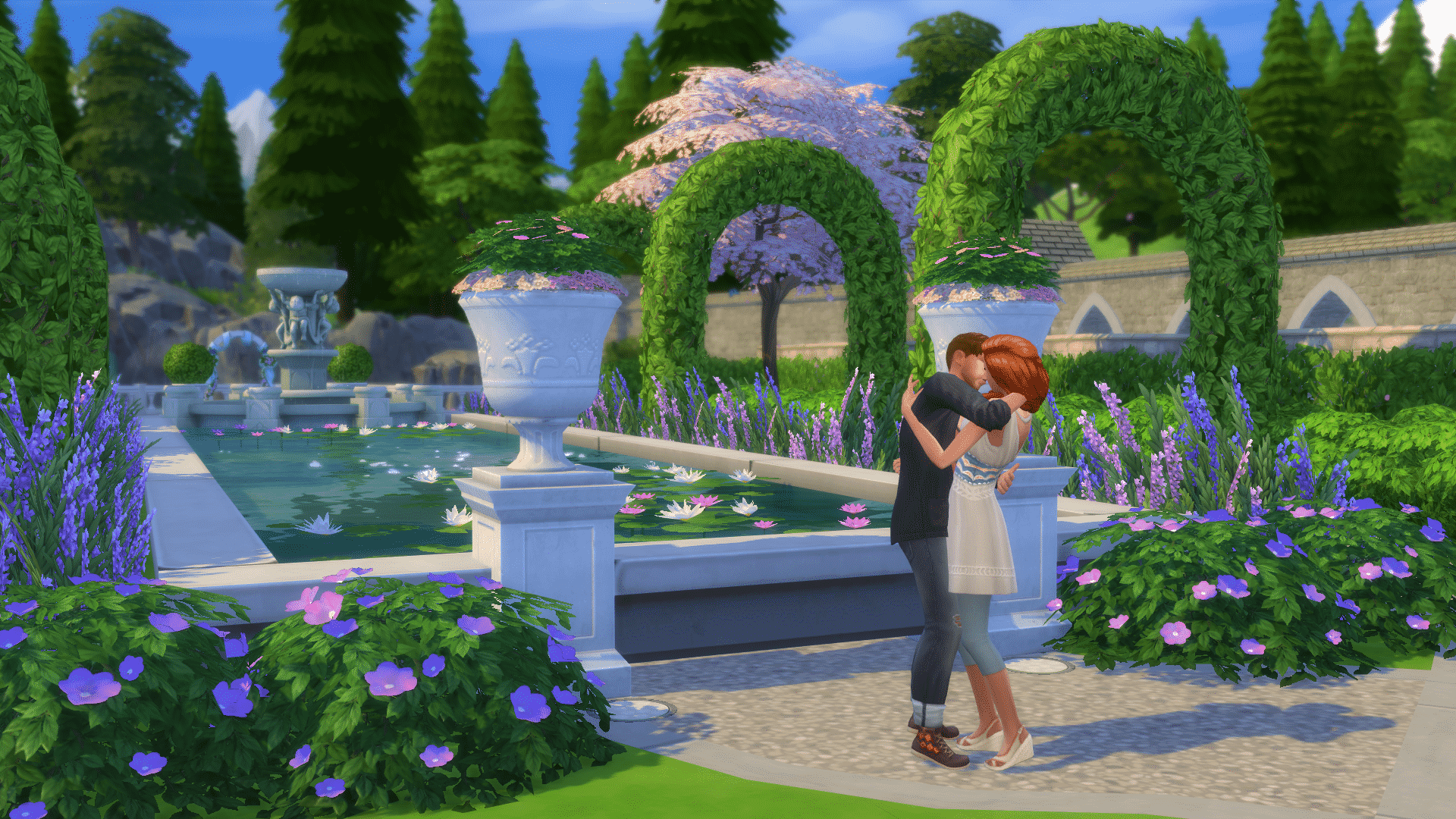
Simply press the TAB button and the UI will disappear while all ”fadable” items will re-appear.
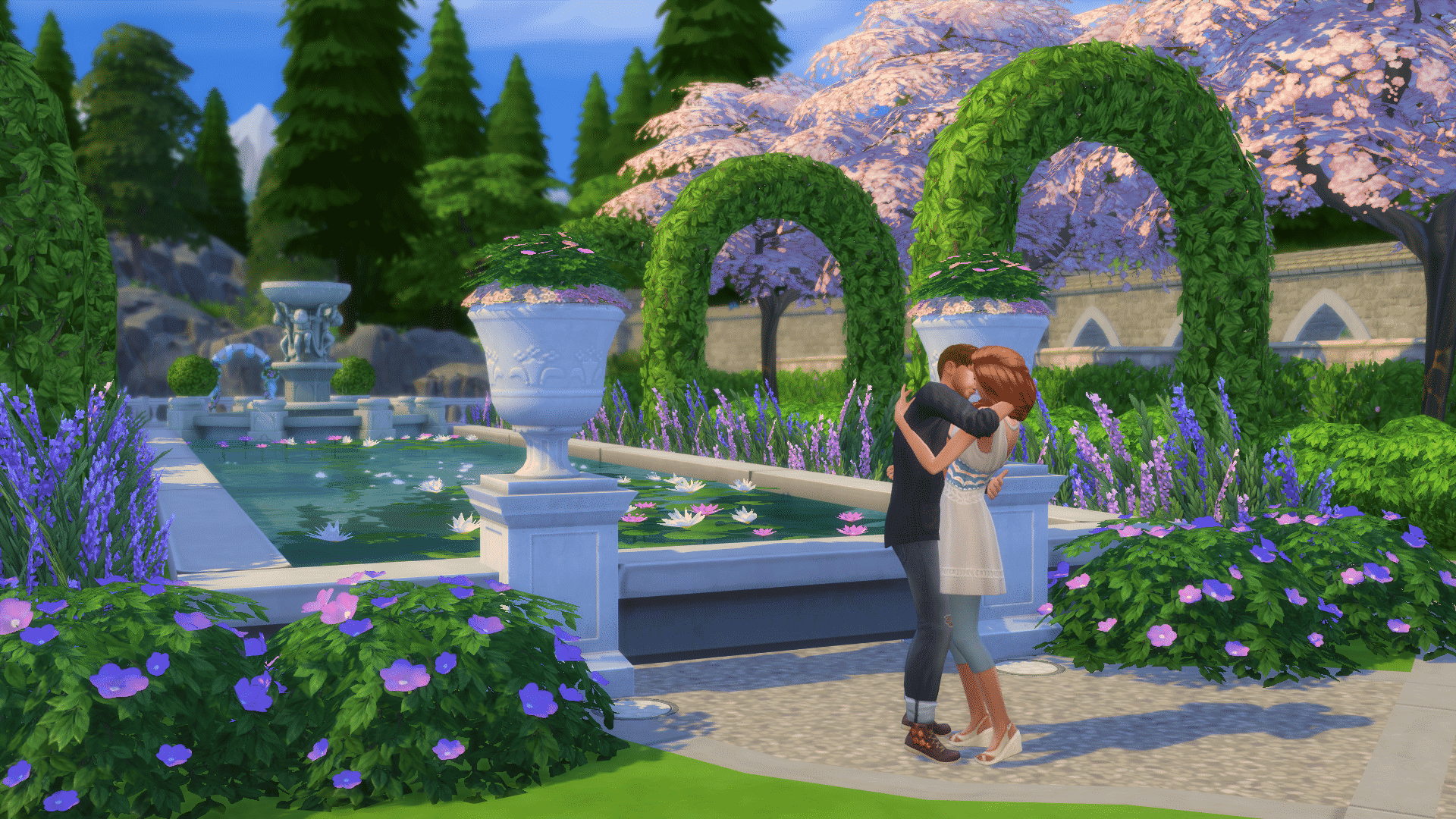
If you want to make your Outdoor Photo more clear, download Shimrod’s No Distance Blur Mod!
Sim Close-Ups
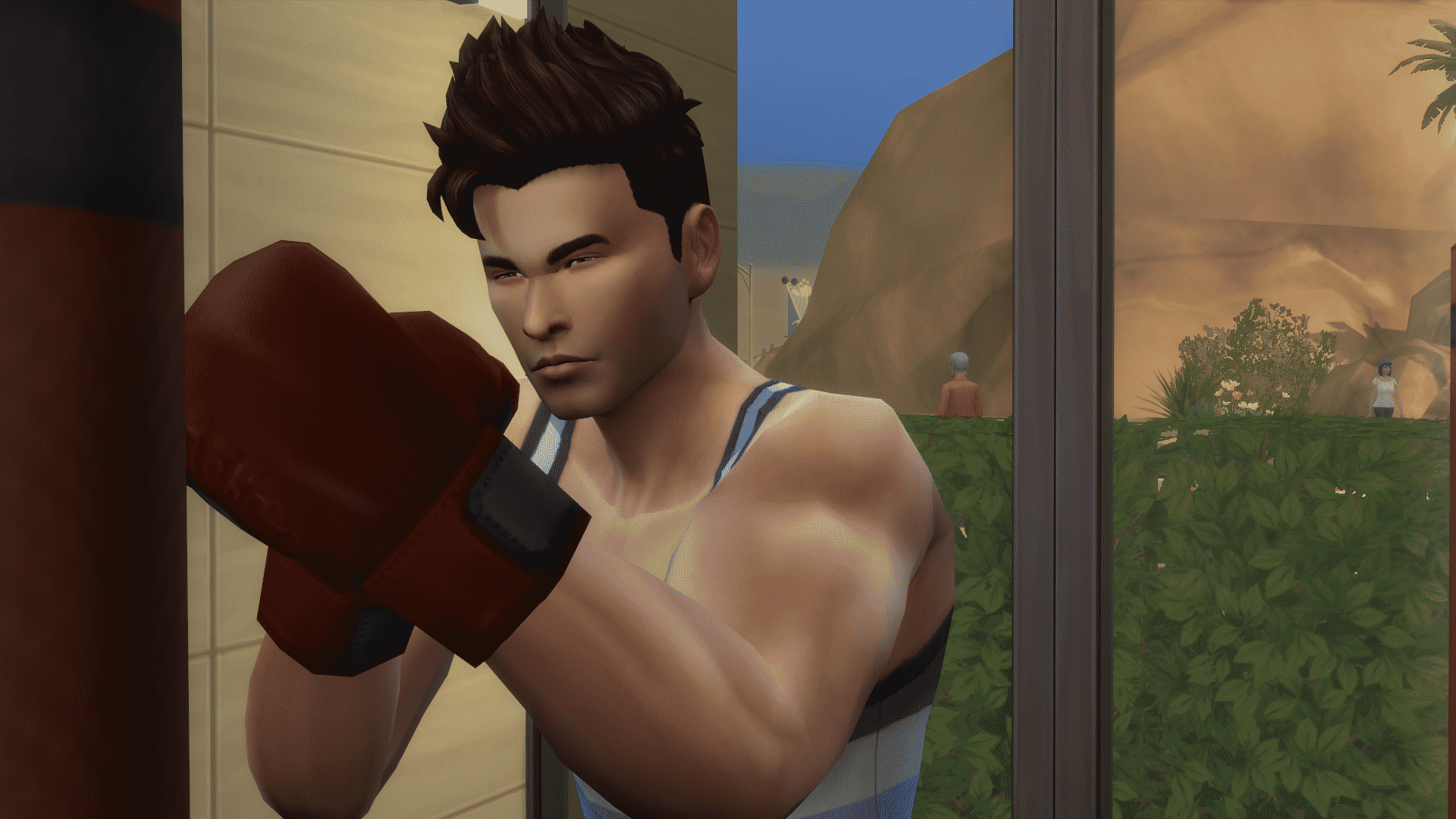
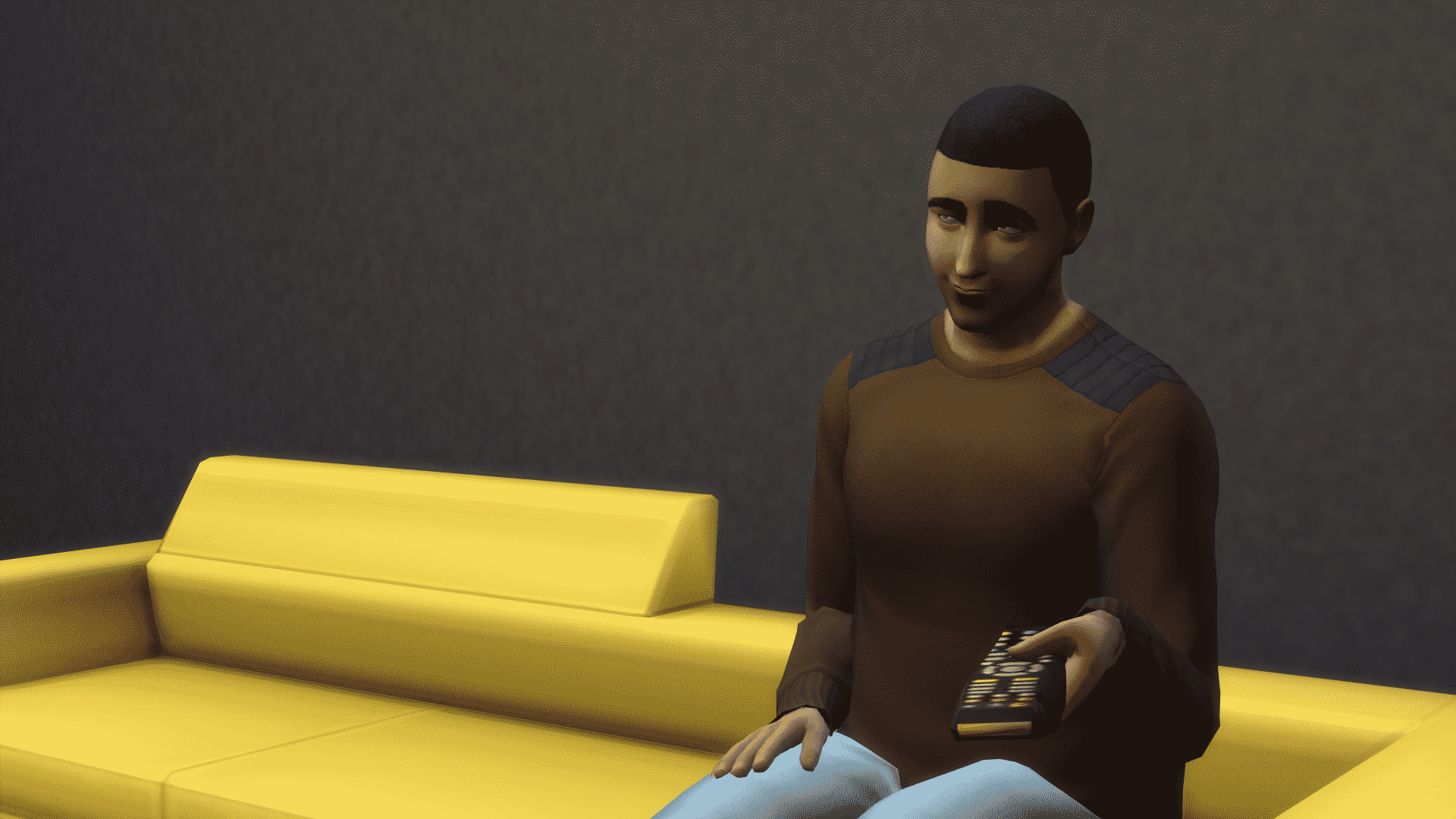
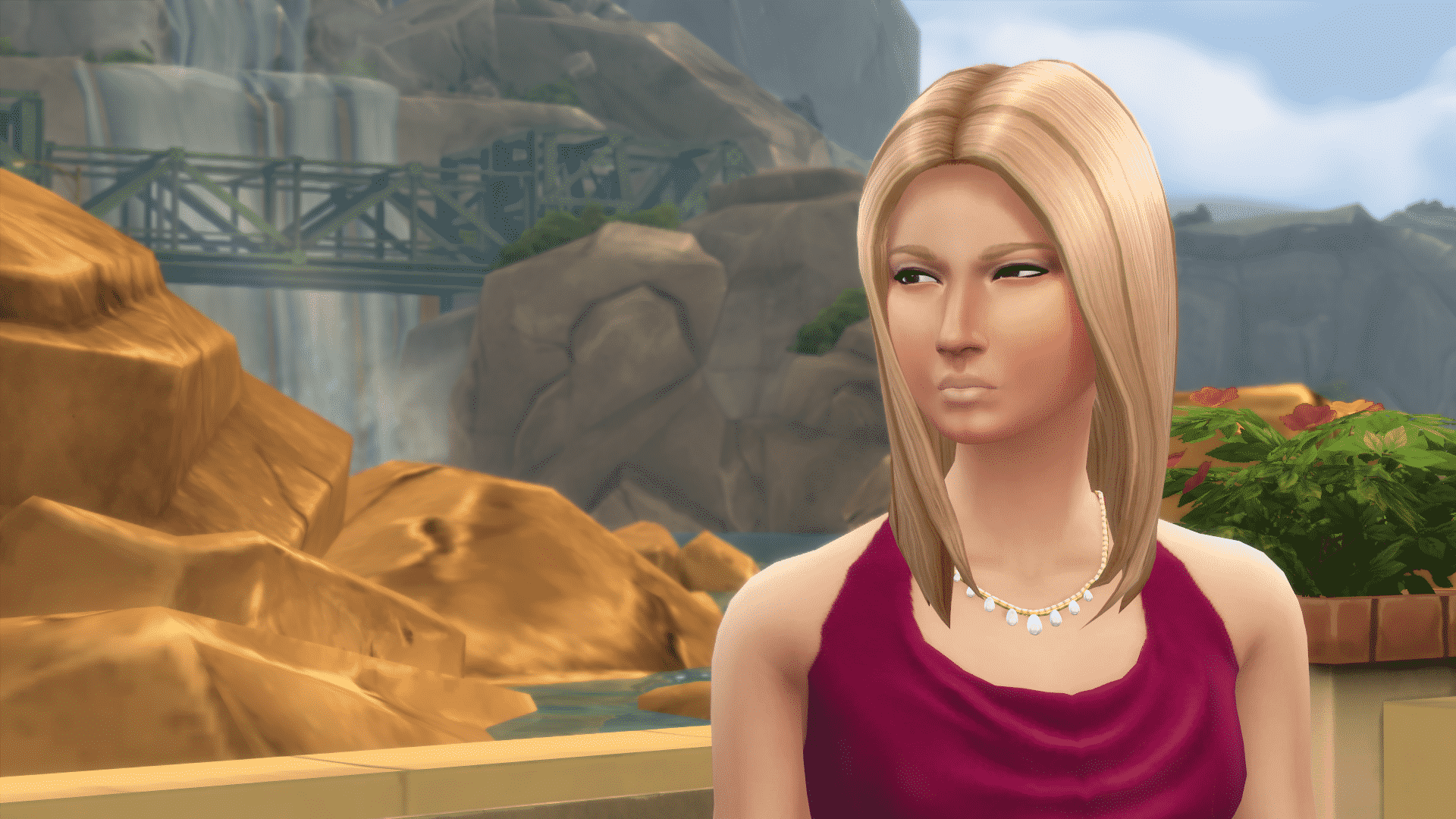
When taking a Close-Up of your Sim, you’ll want to showcase the most characteristic thing about that certain Sim.
In TAB mode, use Q / E to go down and up and A / D to go left and right. For Close-Ups it’s important to use zoom, so scroll your mouse wheel a lot until just a little more of your Sim’s face is shown.
Lot Showcase
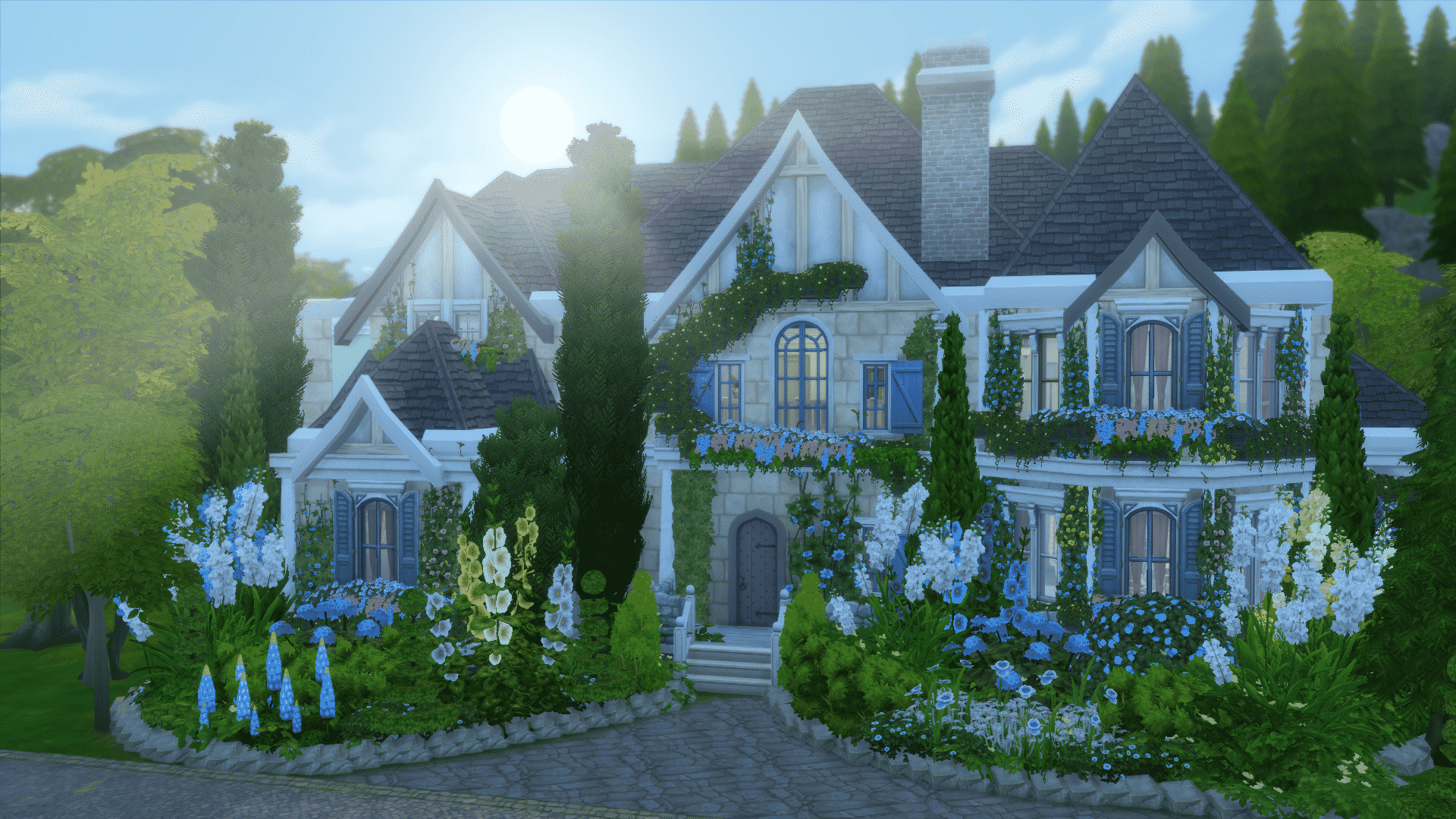
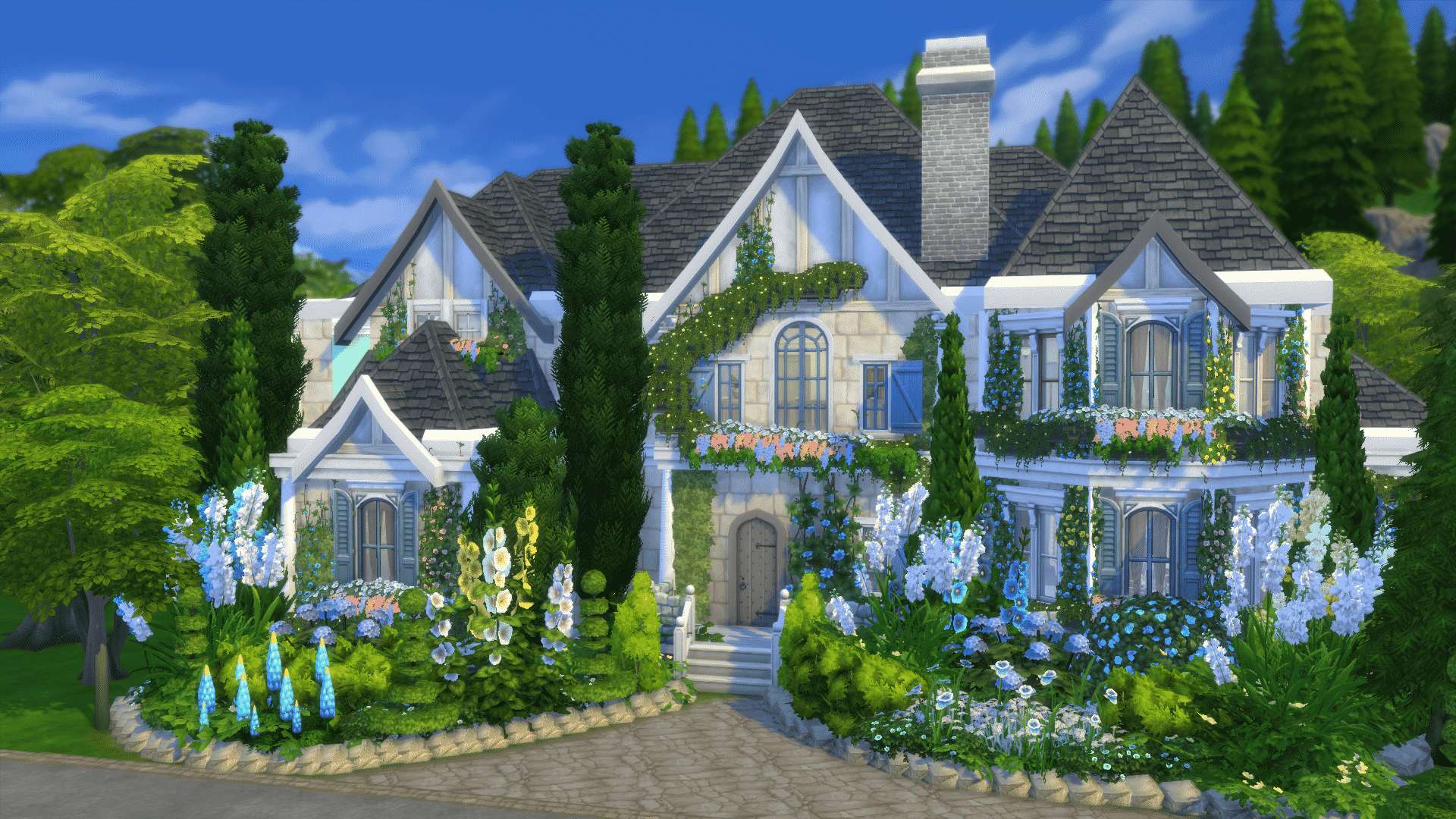
Sometimes Ambient Occlusion and morning light can really ruin your Lot photo!
When taking a photo of your Lot, you’ll want the sun to be facing the side of the Lot that you’re taking a photo of. It will definitely help you bring more attention to little details of your Lot.
Madelin’s Maison by HattySims
Capturing Activities
When you want to take photos of your Sim doing certain activities, you’ll want to capture your Sim in motion of that action. Also, the more activities shown in the background the merrier!
Night Photos
I’m not a huge fan of taking photos in the night as the lighting doesn’t co-operate that much, but when I do it’s mostly for taking emotional photos of my Sims – sad Sims in particular.
Make sure you have your Sim under the streetlight or near a light source for better results.

Selfies
We have a seperate article about the Selfies feature that’s featured in The Sims 4 Get to Work. For more info about it, Click Here!
They really let you tell more personal stories about your Sims and they come packed with a huge variety of poses!


4 Comments
Thanks, this article was really helpful.
After reading this article, I’m confident I’ll be taking better sim pictures 🙂 Thank you!
Thank you for this very helpful article! My Sims screenshots have already improved tremendously!
Is there a way to undo one of my saved photo angle? I use the 9 key to raise an item to my desired height and now when I try to use it for that, it goes to the picture angle that I saved on 9!
Welcome to Sims Community!
Our community is about connecting people through open and thoughtful conversations. We want our readers to share their views and exchange ideas in a safe space.
In order to do so, we've created a simple set of rules that will improve your experience. Simply put, keep it civil.
Your post will/might be rejected if it contains:
User accounts will/might be blocked if we notice:
So, how can you be a power user?
Thanks for reading our community guidelines. Please note that we're aware of certain issues with Sign In / Log In and Create Account / Email Confirmation issues. We're working behind-the-scenes on a new Account Creation process. Thank you for your patience and remember - freedom of speech is not freedom of reach