

The Next Sims 4 Update is Landing on September 22nd, 2026! Be safe, not sorry!
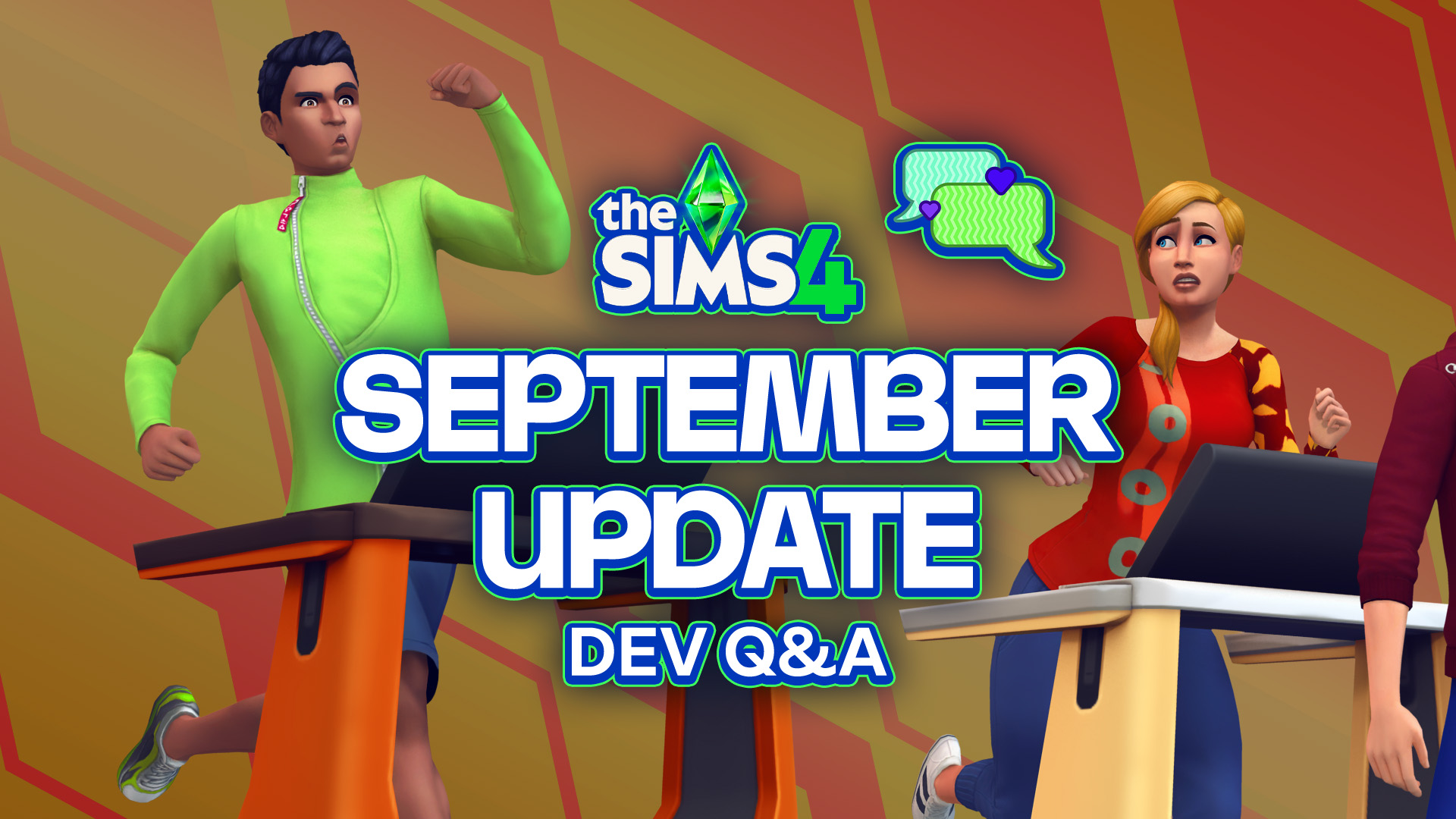
With over 95+ bug fixes and multiple corrections to simulation lag and other errors, this next major Sims 4 Update is going to be a large one. As with any major update, you need to make preparations if you want to make sure your existing game files will be safe, by backing them up and taking proper precautions. Read on for some guided assistance, general tips, and what to expect when the next Sims 4 Update drops September 22nd!
Table of Contents
What is Coming with The Sims 4 September Patch?

As this patch is one of many Sims 4 Updates that have come out in the last year, focusing less on new content and more on bug fixes, the list is fairly heavy. The recent Laundry List from September 15th addresses many questions, and lists the fixes expected to arrive next Tuesday!
TLDR of the Sims 4 September Update Laundry List
- Improved Autonomy: Focus on improving Sims' autonomous behavior, including Sims maintaining eye contact during chats, using bathroom sinks instead of kitchen sinks, and low-energy Sims no longer waking up to do random tasks.
- Bug Fixes & Stability: 95+ bug fixes including 10 significant crash and stability improvements, top community issues from the EA Forums like Married Sims reverting to partners, and Sims getting stuck in interaction queues.
- Relationship Balancing: Tuning to Lovestruck (slower romantic decay, no satisfaction changes for inactive households) and Growing Together (improving dynamic frequency and making low-compatibility Sims realistically avoid one another).
- Looking Ahead: Our October Base Game update will shift its focus toward Food, Dining, and Drink improvements.
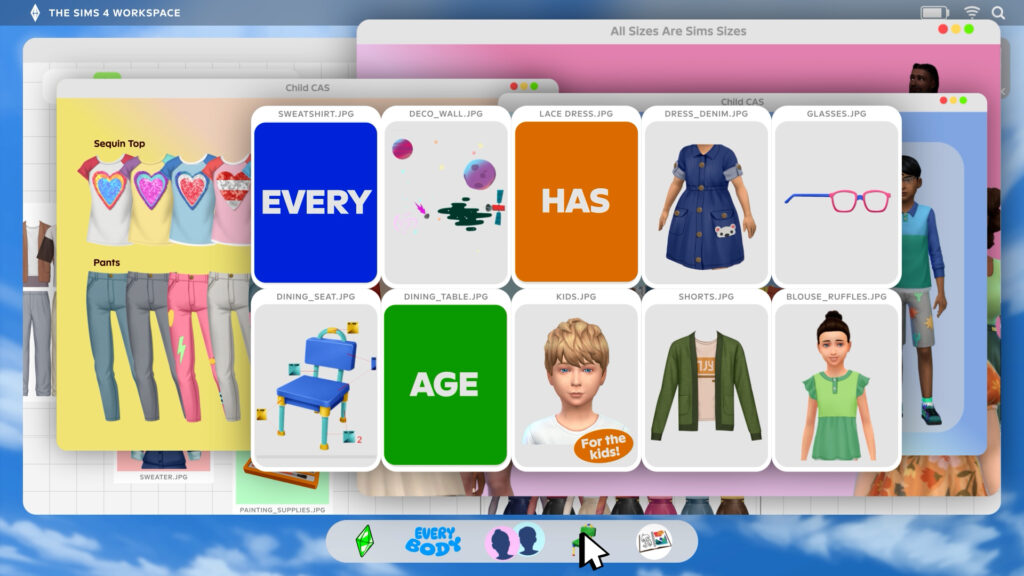
There's also the question of what additional content may arrive with this update; After the free content teaser drop back in August that showcased new clothes, hairs, and build/buy mode items, players have been waiting to see the rest of the content to arrive later this year.
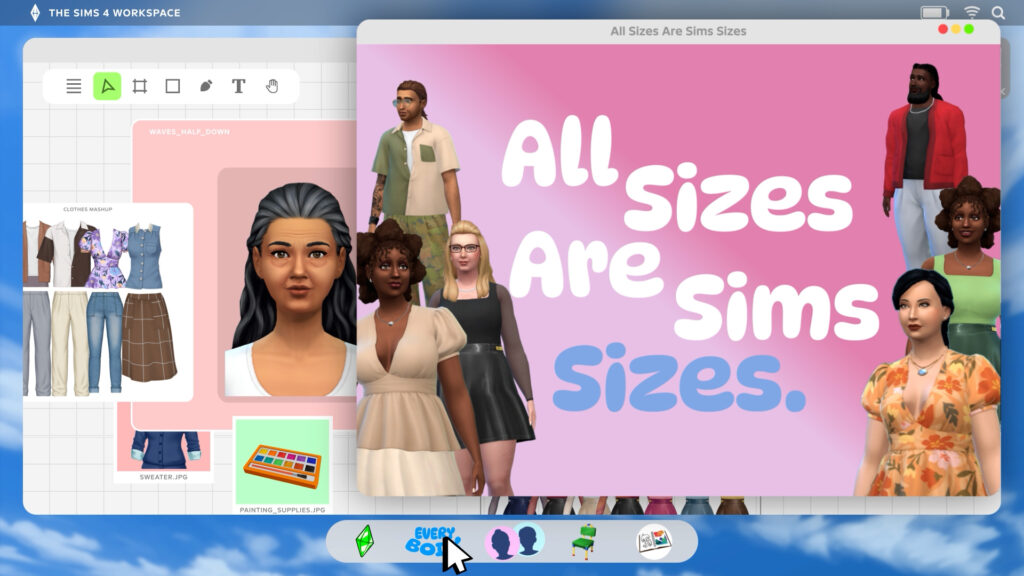
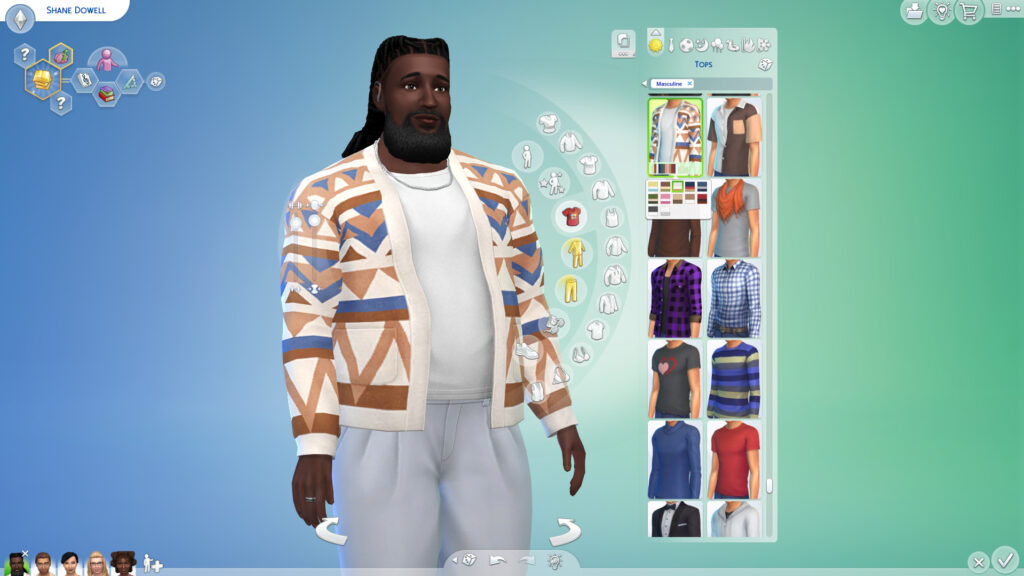
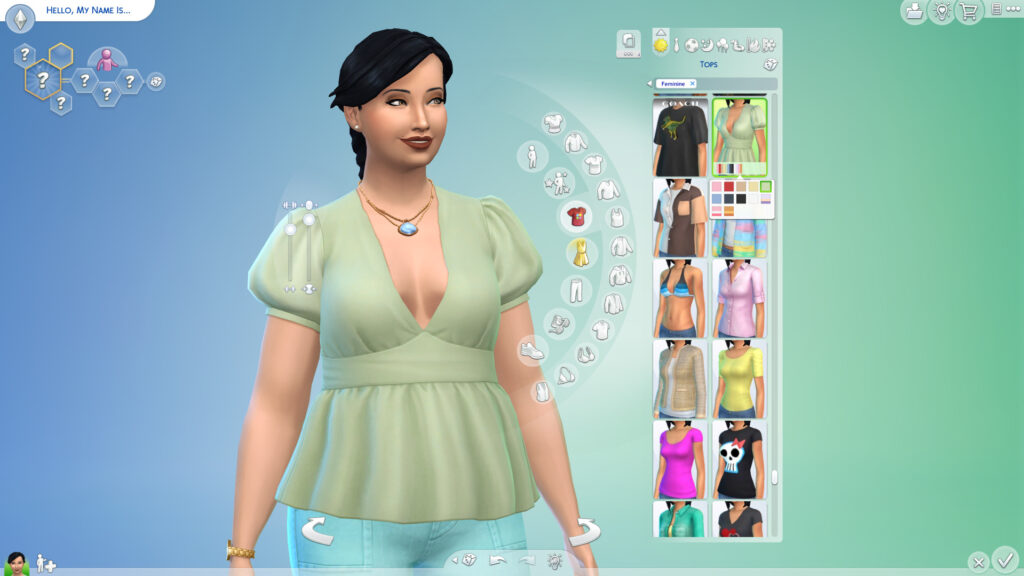
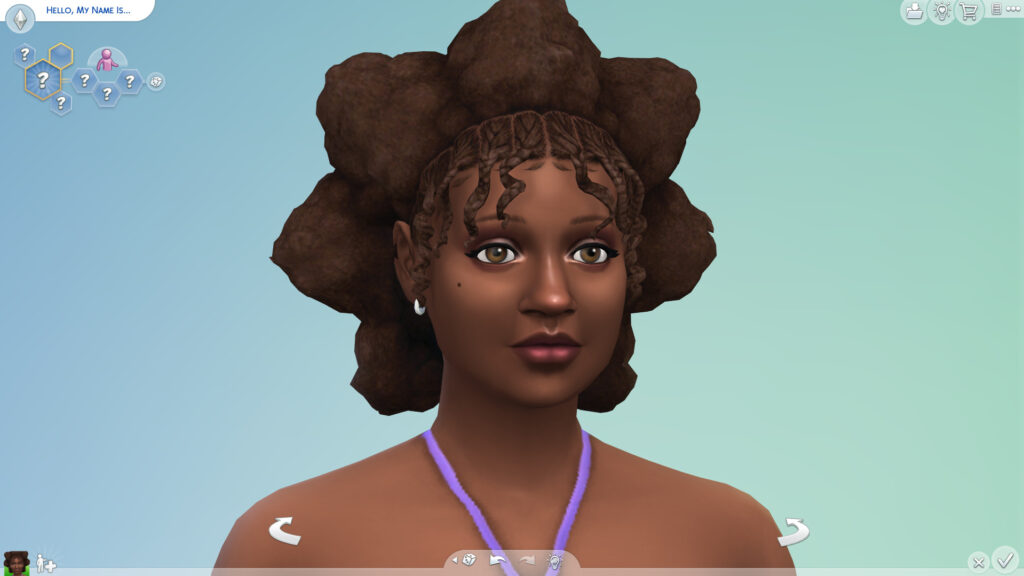
The first drop included an expansion on clothing intended to flatter plus-sized Sims or be more size inclusive, as well as a sculpted afro-textured star-themed hairstyle.
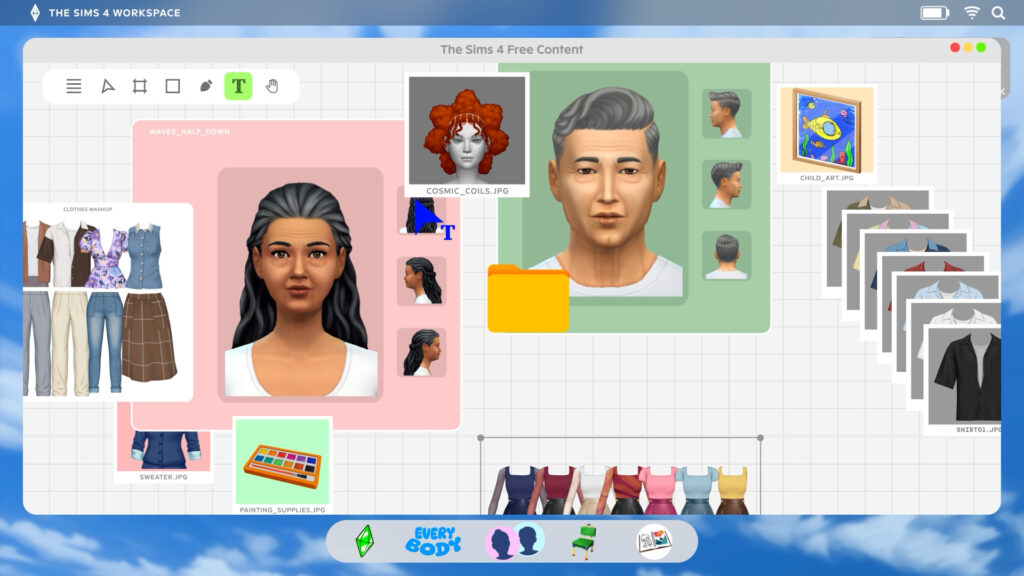
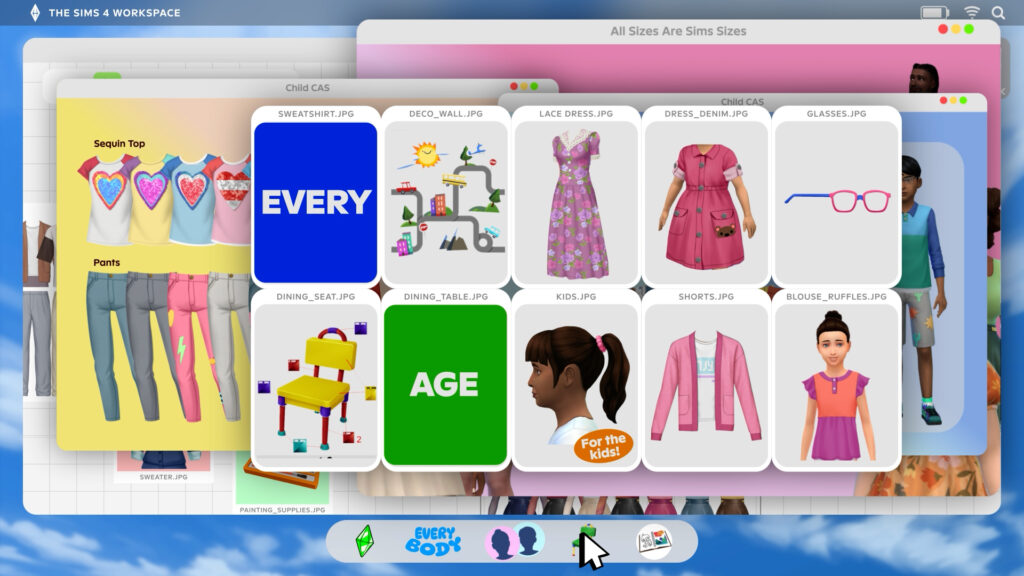
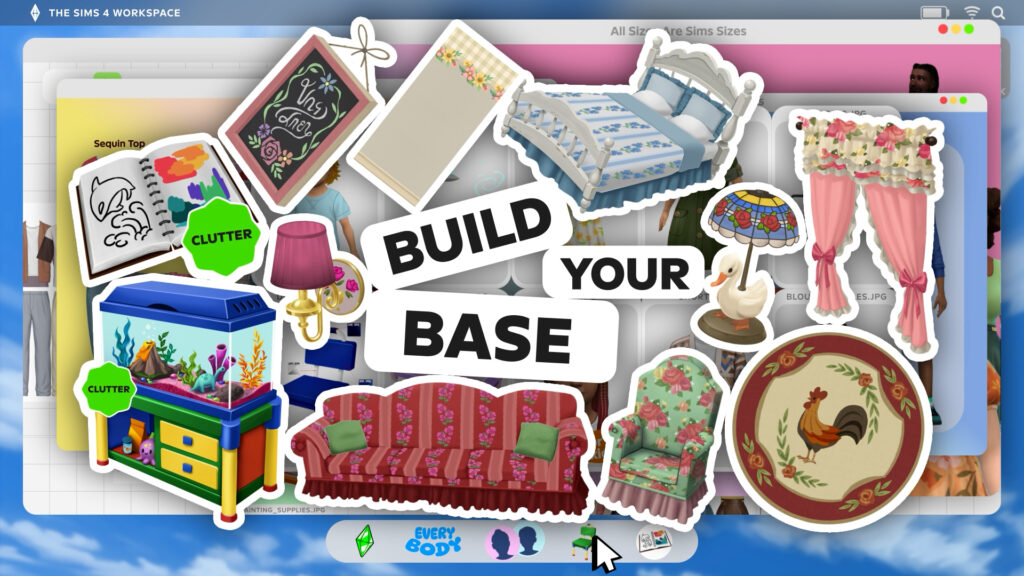
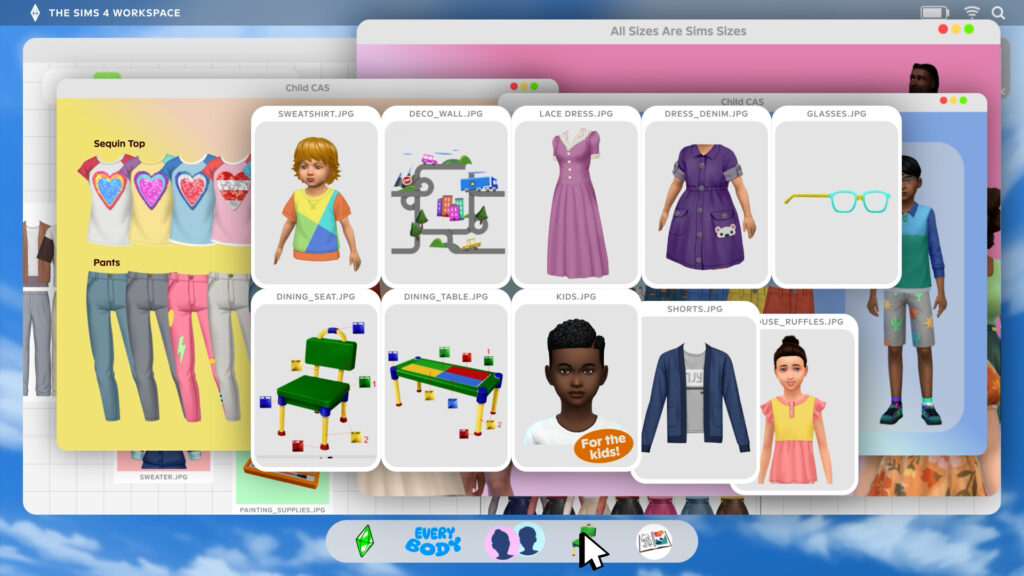
Remaining items we could see released include multiple additional new hairstyles, tons of new CAS content for children, as well as a wide variety of kitschy and stylistically varied build and buy mode items, including a new fish tank, clutter items, bedroom furniture, etc.
Saving your Save Files!
Especially if you are a Mods & Custom Content user and/or you play long-term save files like legacies, challenges, forever saves, etc., an important part of save file health and keeping them safe and playable is to back them up prior to updates.
This is primarily important for those who play with mods and custom content, as mods being disabled after previously being active in a save or mods being broken while active in a save can cause corruption and other issues.
Although creating back ups of files can sound a bit daunting if you're unfamiliar with the concept, it is fairly easy and painless.
Here are the steps for backing up saves:
- Go to your save files folder. This will vary depending on your operating system.
- For Windows PC: C:\Users\[USERNAME]\Documents\Electronic Arts\The Sims 4\saves
- For MacOS: Macintosh HD/Users/User/Documents/Electronic Arts/The Sims 4/saves
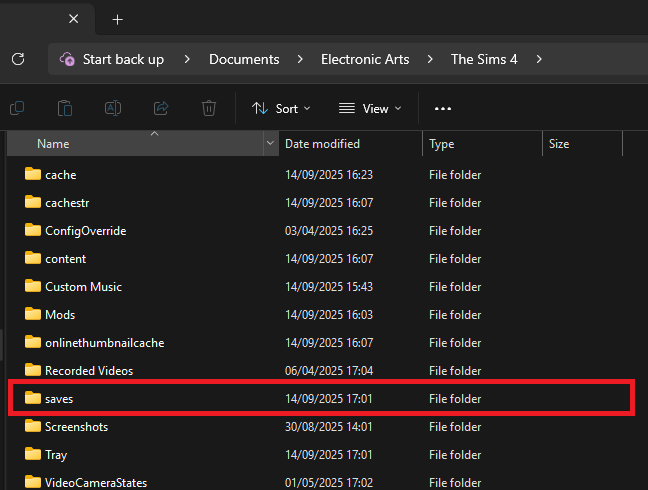
- Copy any save files you want to back up for safe keeping. These will just be numbers so finding them may be slightly difficult, but anything recently played will automatically be at the top. You can also choose to sort files by the date they were last edited, and anything recently saved over should be at the top.
- If you’re not sure, a good practice is to just copy all your saves to a backup folder.
- This can also be done with Your Sims 4 tray files, which are the files that contain the data for anything saved in your library through the Sims 4 Gallery.
- For Windows PC: C:\Users\[USERNAME]\Documents\Electronic Arts\The Sims 4\tray
- For MacOS: Macintosh HD/Users/User/Documents/Electronic Arts/The Sims 4/tray
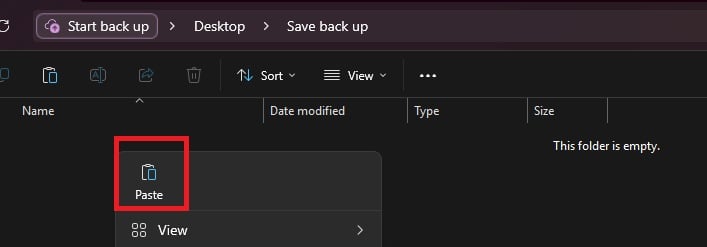
- To back up your files, save them to separate locations. These can be folders on your computer (Like on your desktop or in a separate section of your documents folder), but it is recommended to use separate storage in case of hardware issues. These can include a USB flash drive, external hard drive, a cloud program, etc.
- A good tip is to place them in a folder with the date of the back ups as the folder name.
- If a save needs to be restored to a previous version, you can just copy paste from the folder back into your main Sims 4 Saves folder directly.
Another good rule of thumb is that, if playing with mods or custom content, do not attempt to play save files you care about until creators have posted about the update and the status of their mods. Most major creators post fairly quickly, but be patient!
Mods Folders & The 50/50 Method
The Sims Team confirmed in a message on The Sims Discord that this Sims 4 Update will have an impact on mods:
This update is expected to have an impact on mods and we recommend you back up your saves and manage your mods/CC carefully.
Like most other updates, mods have a chance of breaking, especially if they change a feature that has been adjusted in the update. Custom content is often completely fine, but files can always corrupt or go wrong in some way. This means that, while it may seem tedious, the 50/50 method is the best way to find any issues that have popped up in your game that are stemming from broken or corrupted mods and custom content.
The 50/50 method is a way of organizing and testing mods and custom content to track down a specific file or files that are causing a bug or error in your game, or are causing it to not load or crash. Make sure to back up your saves, mods, and tray folders prior to this!
For a more in-depth guide to the 50/50 method, ThatSimsLady has broken it down previously and provided a guide that walks you through it, but here’s a general diagram from Sims After Dark.
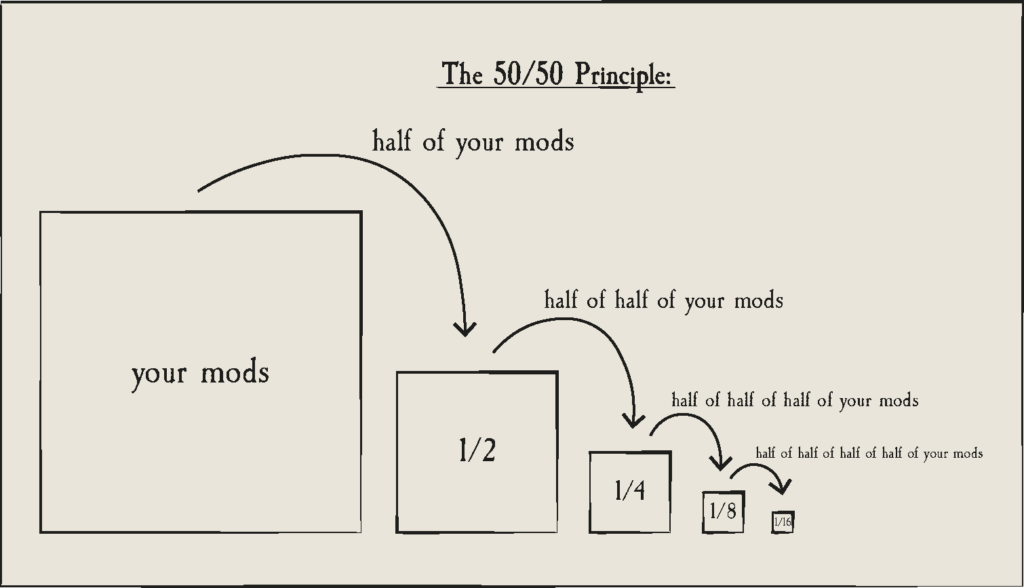
Basically, the 50/50 method is when you split your mods folder down the middle, testing each half (Say, Half A and Half B) individually to rule out issues. For example, if the error or bug in questions persists in Half A but not Half B, then you know that the issue is held in Half A. You can safely sort away Half B and then split Half A and test either half, and so on and so forth.
This should help you track down problematic files fairly easily. And I will say that nobody likes doing the 50/50 method since it can take a long time, especially if you play with loads of mods and custom content, but is a very good way to make sure your game is in healthy condition and none of your saves are at risk.
In most cases, mods that break during updates are UI Mods and Gameplay Mods.
Gameplay Mods generally add or change features in The Sims 4, and many contain two files; .package and .ts4script files. While not always, these mods are prone to breaking with updates and should be removed and separately tested, or only updated/added back in once the creator has said it is safe.
UI Mods are any mods that change the user interface, like the menus surrounding your screen in Live mode and Build mode, or your columns in Create-A-Sim. The most commonly used UI mods include UI Cheats, More Columns in CAS, and any User Interface Replacement mods. While it is not inherent that they will break, they are usually the first to break during any update.
Also, always delete your thumbcache file. It regenerates every time the game launches, and should always be deleted while changing your mods folder in any way, especially if you're doing the 50/50 method.
It is also recommended to test mods with new updates in a completely fresh save file, to avoid corruption but also since certain updates only work with newer saves.
Other Points of Note for Mod Organization & The 50/50 Method
- A good rule of thumb is to keep all mods separate from custom content. Custom content can break, but it is very unlikely since they often don't change anything about the games functions or features, and instead just add new assets.
- You cannot separate mods from their extra files. If you have two files for a mod, like "MODNAME.package" and "MODNAME.ts4script", those two files must always be in the same folder to function.
- Mod dependencies are larger mods that don't do much on their own, but are required for others to function. Many smaller mods require things like Lot51's Core File, the XML injector, Lumpinou's Mood Pack, and many others that must be tested alongside mods that require them.
- These may also need to be updated on their own.
- Some easy ways to organize your custom content and mods include...
- NOTE: Script mods can only be one folder deep, while custom content can go around five folders deep.
- By Type: You can organize by the type of asset, area of the game, etc., and it really just depends on how detailed you want to go.
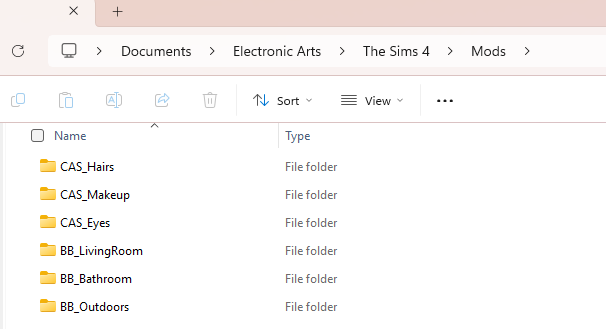
- Ex: Placing hairs in a folder called "Hairs", "CAS_Hairs", "CAS", or even more detailed folders like "Hairs_Infant_Fem" or any variant.
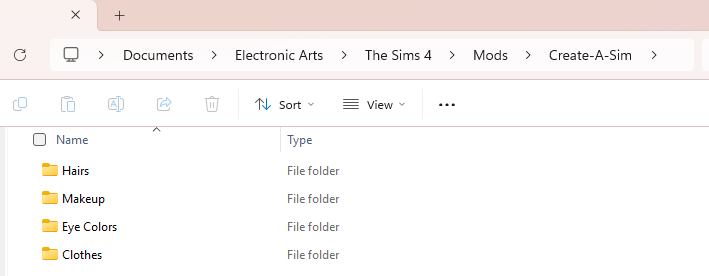
- You can also make an overall "Create-A-Sim" folder, and then add individual folders for things like hair, makeup, etc.
- By Creator: While this can get semi-tricky when creators have collaborations, it can be easier to avoid duplicate mod files by sorting by creator, especially if you have lots of items from a select few.
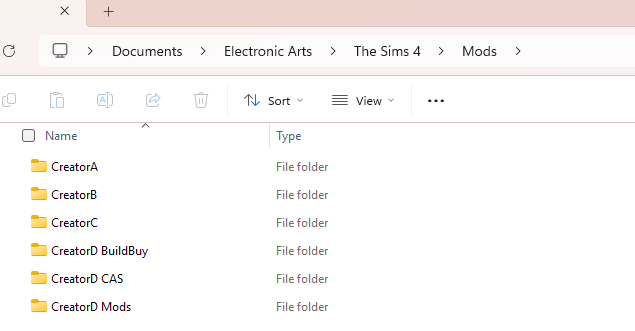
- Ex: "Creator1", "Creator2", "Creator3".
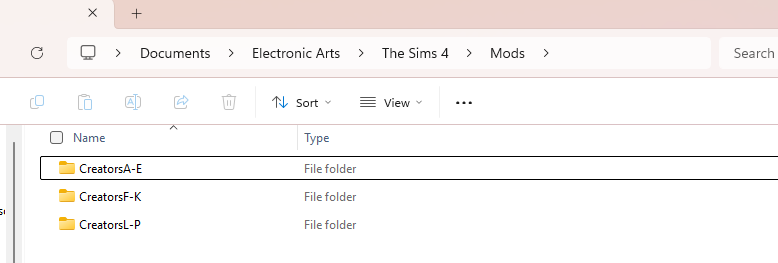
- If you only have a handful of items from a certain creator, you can also alphabetically sort. Like "A-D", and include all creators with names starting with that range of letters.
The biggest point is that your organization method makes sense to you, and you alone! As long as you can find where you put things and troubleshoot your
Countdown to The Sims 4 September Patch Release
The upcoming Sims 4 September Patch is set to release on September 22nd, 2026 at 10AM PT / 7PM CET / 6PM BT across PC, Mac, Xbox and Playstation supported platforms. To make things easier we’ve included a handy countdown below that’ll tell exactly when the latest Patch is available to download.
What do you think is coming next from the free content release? Let us know, and follow Sims Community for all your news about The Sims and other Life Simulation games!



0 Comments
Be the first to comment.
Welcome to Sims Community!
Our community is about connecting people through open and thoughtful conversations. We want our readers to share their views and exchange ideas in a safe space.
In order to do so, we've created a simple set of rules that will improve your experience. Simply put, keep it civil.
Your post will/might be rejected if it contains:
User accounts will/might be blocked if we notice:
So, how can you be a power user?
Thanks for reading our community guidelines. Please note that we're aware of certain issues with Sign In / Log In and Create Account / Email Confirmation issues. We're working behind-the-scenes on a new Account Creation process. Thank you for your patience and remember - freedom of speech is not freedom of reach