Home Blog Page 154

The Sims 4 Modern Menswear Kit: Official Announcement & Assets

12

The Sims Team has shared with us first information about their upcoming Kit for The Sims 4 – the Modern Menswear Kit!

Down below you’ll see the official description, key features, and official assets. This Create A Sim Kit focuses solely on adult Masculine Fashion and is set to release December 2nd, 2021 on PC, Mac and Consoles worldwide!

Check out what this Kit has to offer:

Revolutionize the classics with The Sims™ 4 Modern Menswear Kit*, featuring a thought-provoking, accessible collection designed by Stefan Cooke. Reimagined shapes redefine traditionally masculine fashions, while textiles and patterns elevate each unique piece for today’s style.

Get into the Details

Update your Sim’s closet with trendy wardrobe staples. Fluid shapes add intrigue to any outfit, while zippers, cutouts, and pleats lend everyday outfits a touch of the contemporary.

Experiment with Style

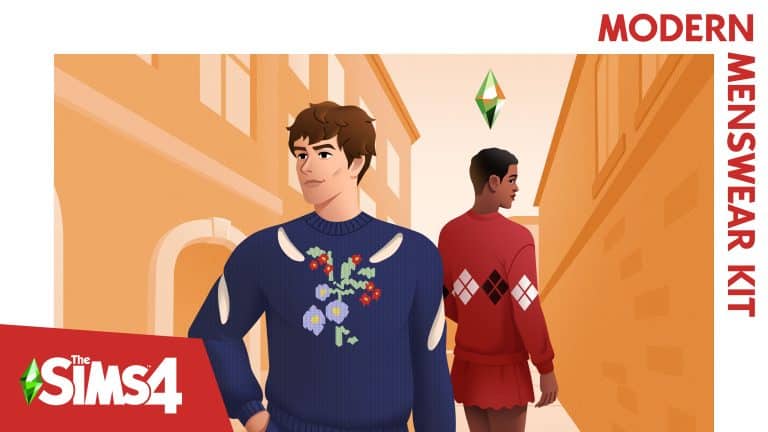
Refined and subversive, these looks reinvigorate the basics. Play with scalloped or pleated skirts and latticed sweaters, or pair a polished shirtdress with iconic loafers to model up-and-coming culture.

Sims4 SP28 Modern Menswear PA Keyart Full RGB 3840x2160

Official Screens

The Sims 4 Modern Menswear Kit: Official Announcement & AssetsThe Sims 4 Modern Menswear Kit: Official Announcement & Assets

Official Boxart

The Sims 4 Modern Menswear Kit: Official Announcement & Assets

Official Logo

The Sims 4 Modern Menswear Kit: Official Announcement & Assets

The Sims 4: Navigating the bb.showliveeditobjects Cheat

Show Hidden World Objects with the Live Edit Objects Cheat for The Sims 4!

Are you a new builder just starting to learn the ropes of advanced building in The Sims 4? Have you ever wondered where all those pro builders get all those items you’ve never seen before for their CC-free builds? How do they do it? It’s not magic. It’s a nifty little cheat called bb.showliveeditobjects. Knowing how to use this cheat effectively will take your builds to the next level!

Enable the Live Edit Objects Sims 4 Cheat

Navigating the bb.showliveeditobjects Cheat in The Sims 4

This cheat is a little quirky. It doesn’t work unless you enable certain other cheats, first. To access the hidden live edit menu items, you’ll have to enter the following cheats in order:

  1. bb.moveobjects on
  2. bb.showhiddenobjects
  3. bb.showliveeditobjects

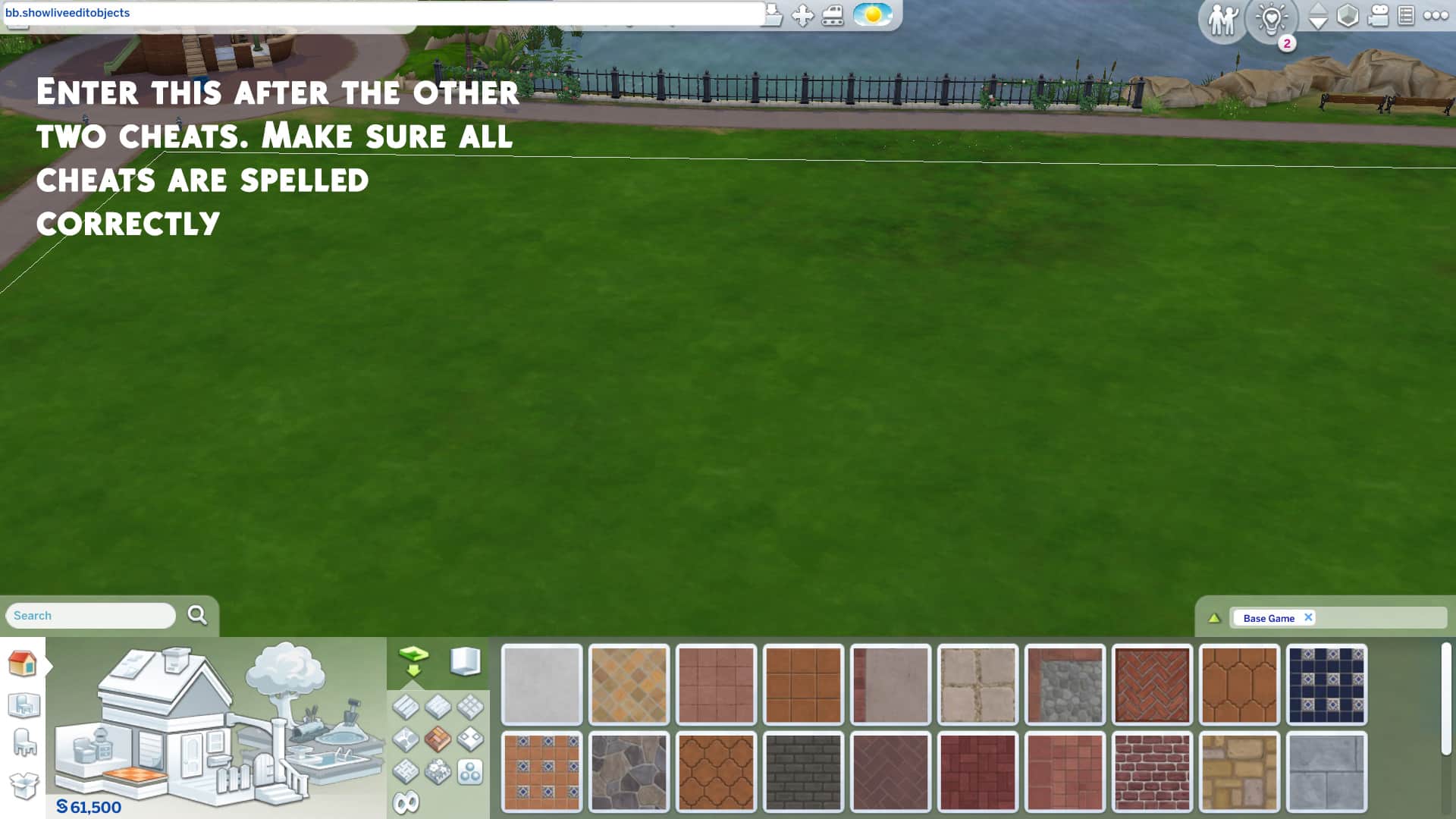
Make sure they’re all spelled correctly. When done correctly, you’ll be able to see a bunch of options called *** DEBUG *** show up when you start typing “debug” in the search bar.

Console players can also use this cheat without worrying about their trophies or achievements. None of these cheats will disable them.

How To Access the Live Edit Menu

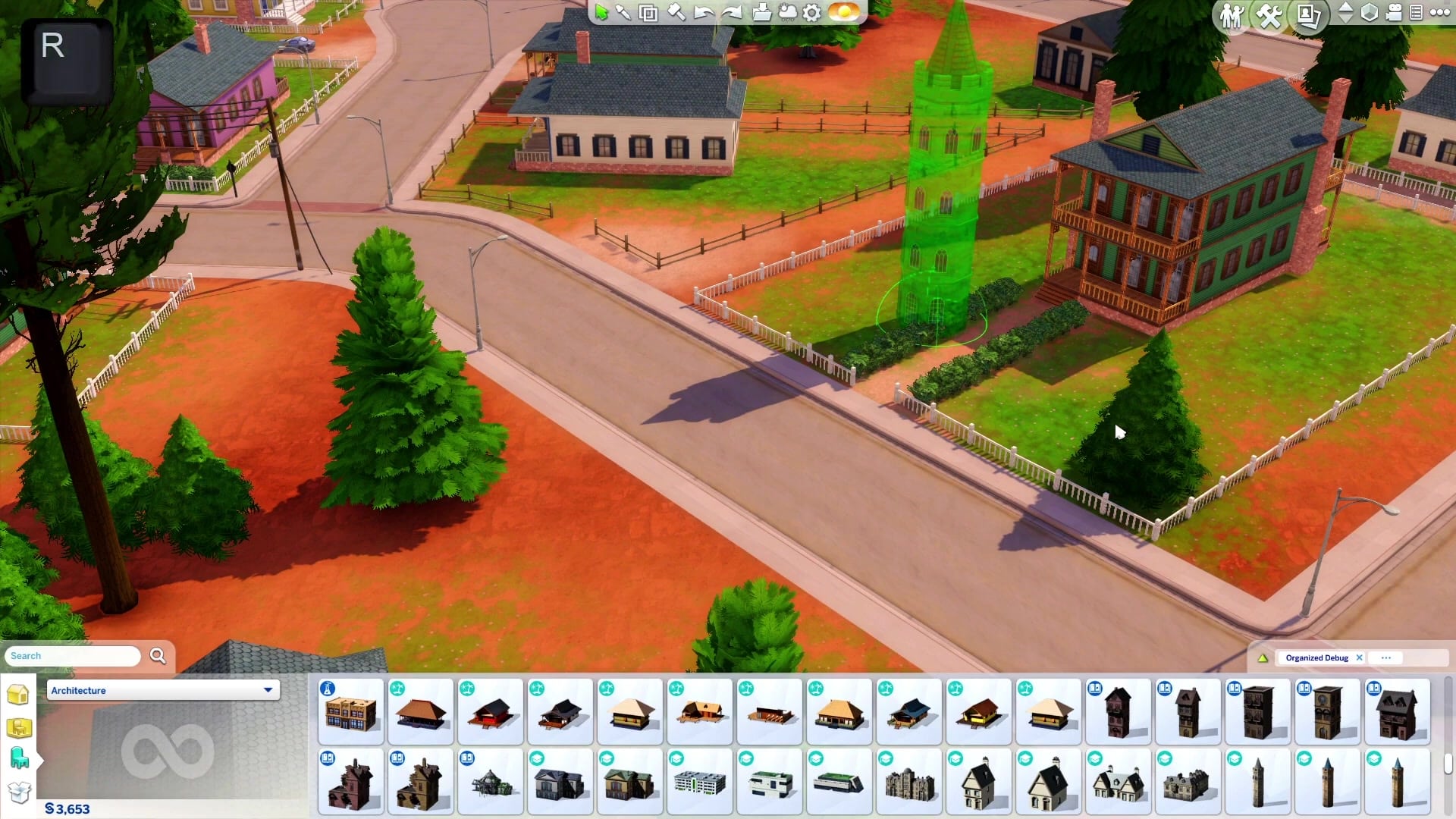
Once you’ve confirmed the cheat is active, the easiest way to access the hidden menu is by typing “DEBUG” into the Build/Buy search bar and hitting Enter. All of the hidden objects in the game will pop up for you to browse through. This menu is also commonly called the debug menu. The debug menu can be very cluttered and confusing to navigate. There are literally thousands of objects in this menu, none of them are organized properly and many of them are just called ** DEBUG ** which makes it difficult to search for exactly what you need. There is a mod that can help with this but if you are not a mod user, you’re going to have to slowly memorize where things are which will naturally happen the more you use this menu.

Live Edit Menu of Items in Build Mode

The Live Edit (or Debug) Menu contains a huge variety of items to help you with your builds. There are so many items that we couldn’t possibly break down every single one but we have broken most of the menu down into categories of items to give you a general idea of the kinds of things you can use.

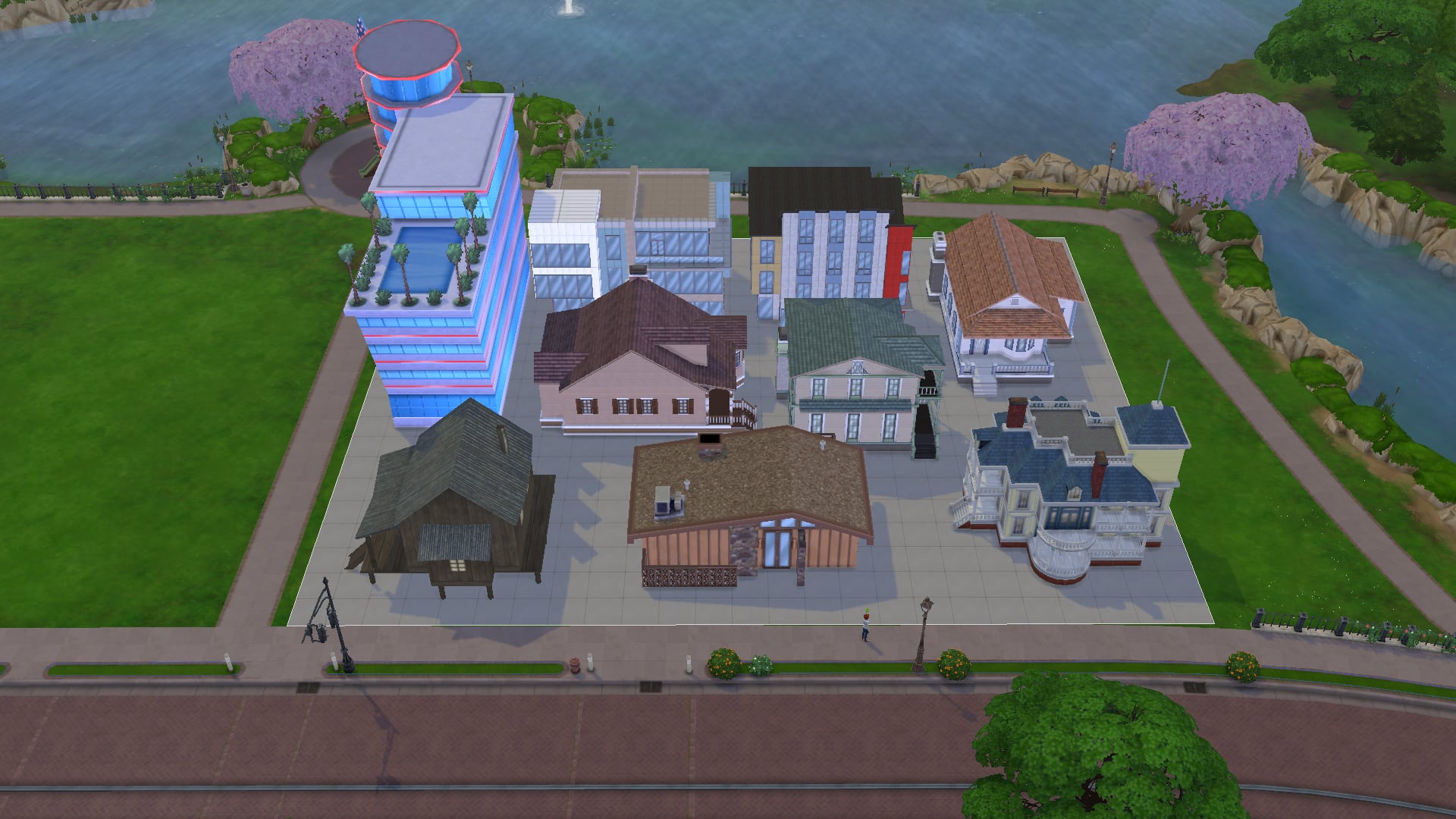
  • Building Shells: If you’re building a diorama of sorts or if you’re recreating one of the building shells and want a reference on the lot to refer to, these can come in handy. These are the empty building shells that the devs use to decorate the non-routable areas of the worlds in the game. Some buildings are small, others are massive. Some have separate foundation pieces that go underneath them.
  • Vehicles: Planes, trains, and automobiles, they’re all here in the debug menu! They are not functional of course but they’re better than sizing up the toy vehicles in the regular Build/Buy menu because they won’t look blurry. You can use these to make your parking lots look more realistic or to place in your Sim’s driveway so it doesn’t look so barren. There are some rusted out and damaged vehicles you can use in apocalyptic builds or run-down builds, too.
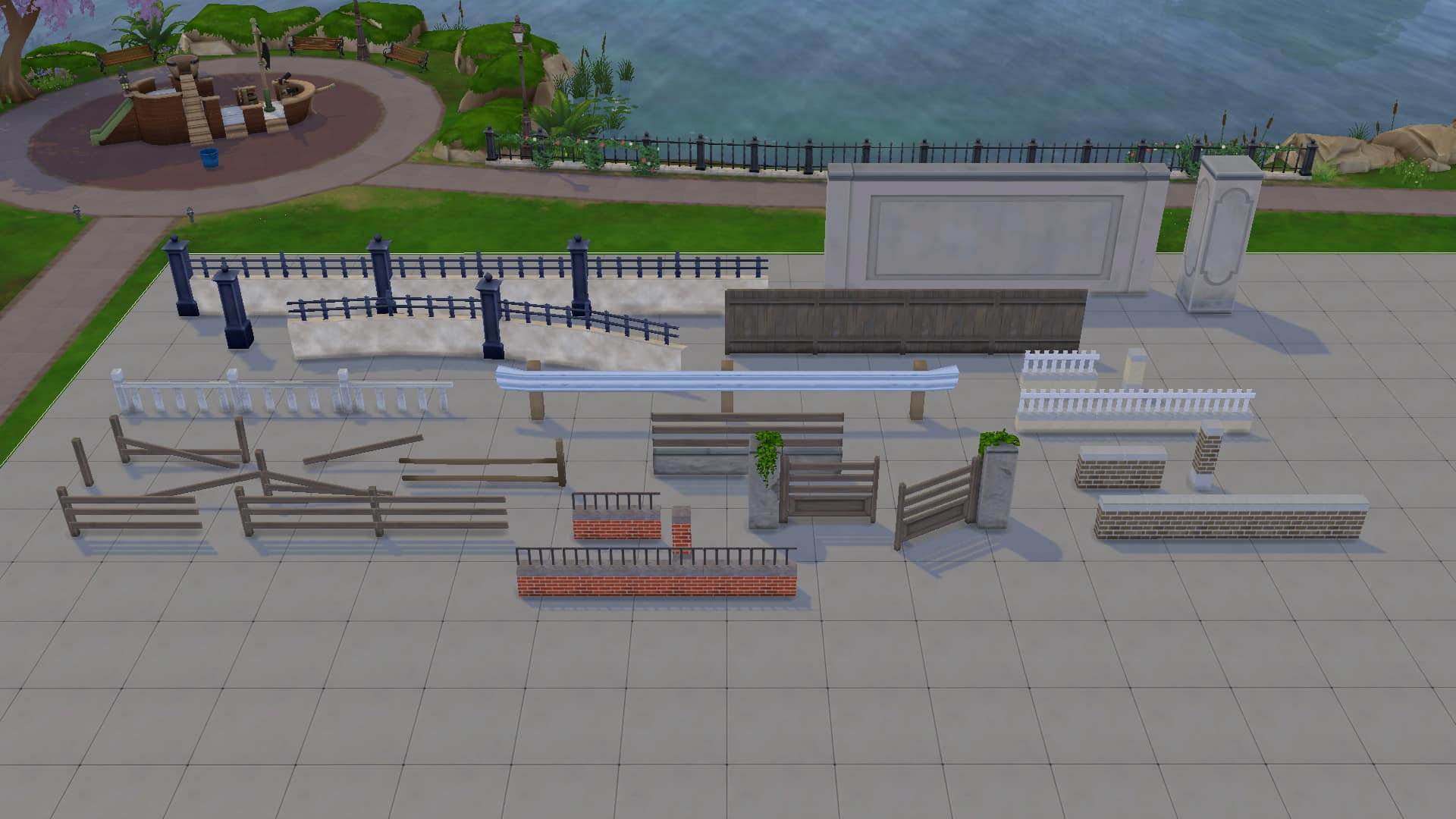
  • Fencing: There are so many fencing and gate options in the debug menu that just look so much better than what we have in the regular catalogue. There’s rounded fence pieces, run-down and broken fence pieces, fancy new fence pieces, wooden fencing, stone fencing, brick fencing. It’s all there and most of it comes with several matching pieces to let you customize the look of your fence.
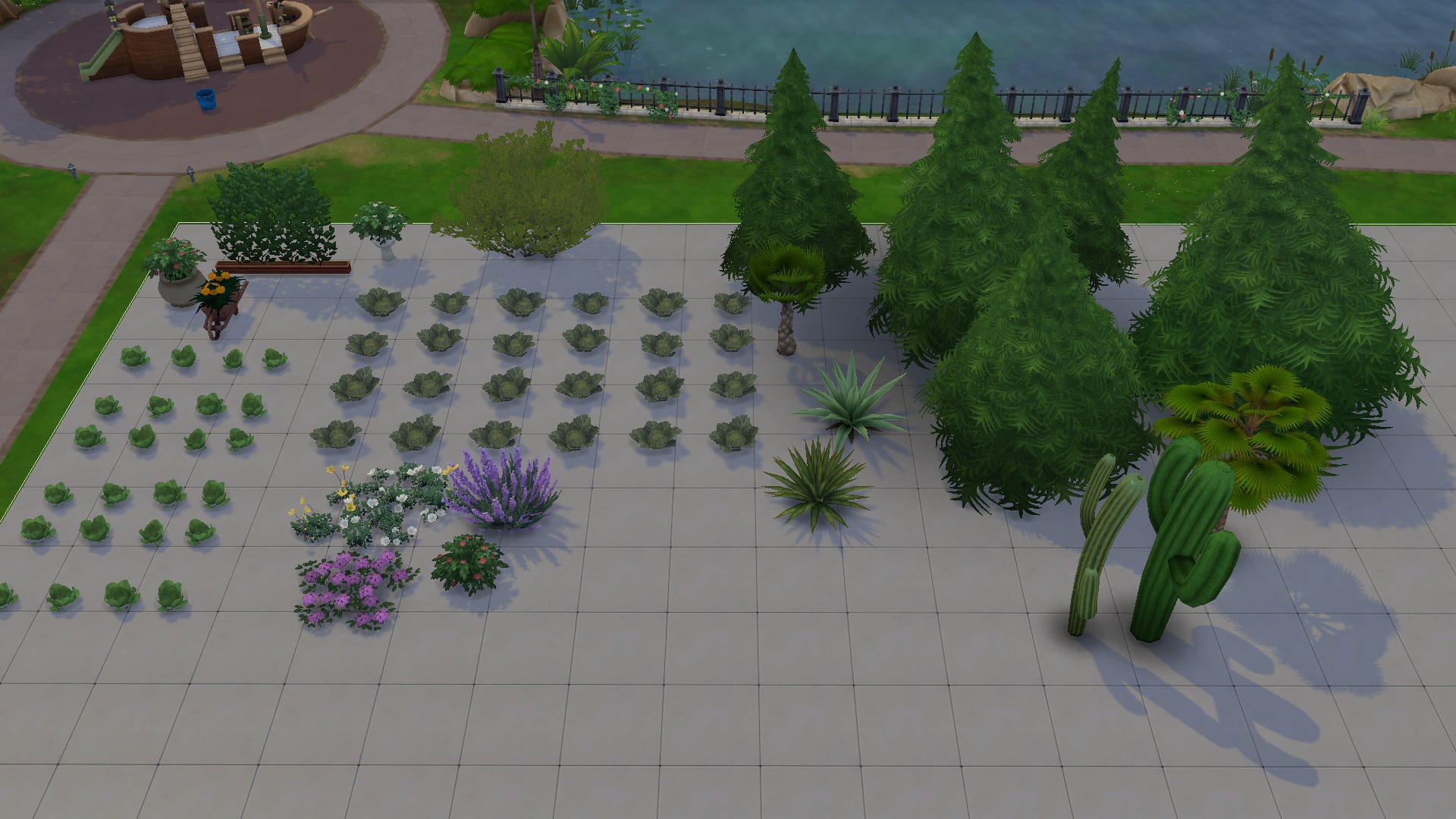
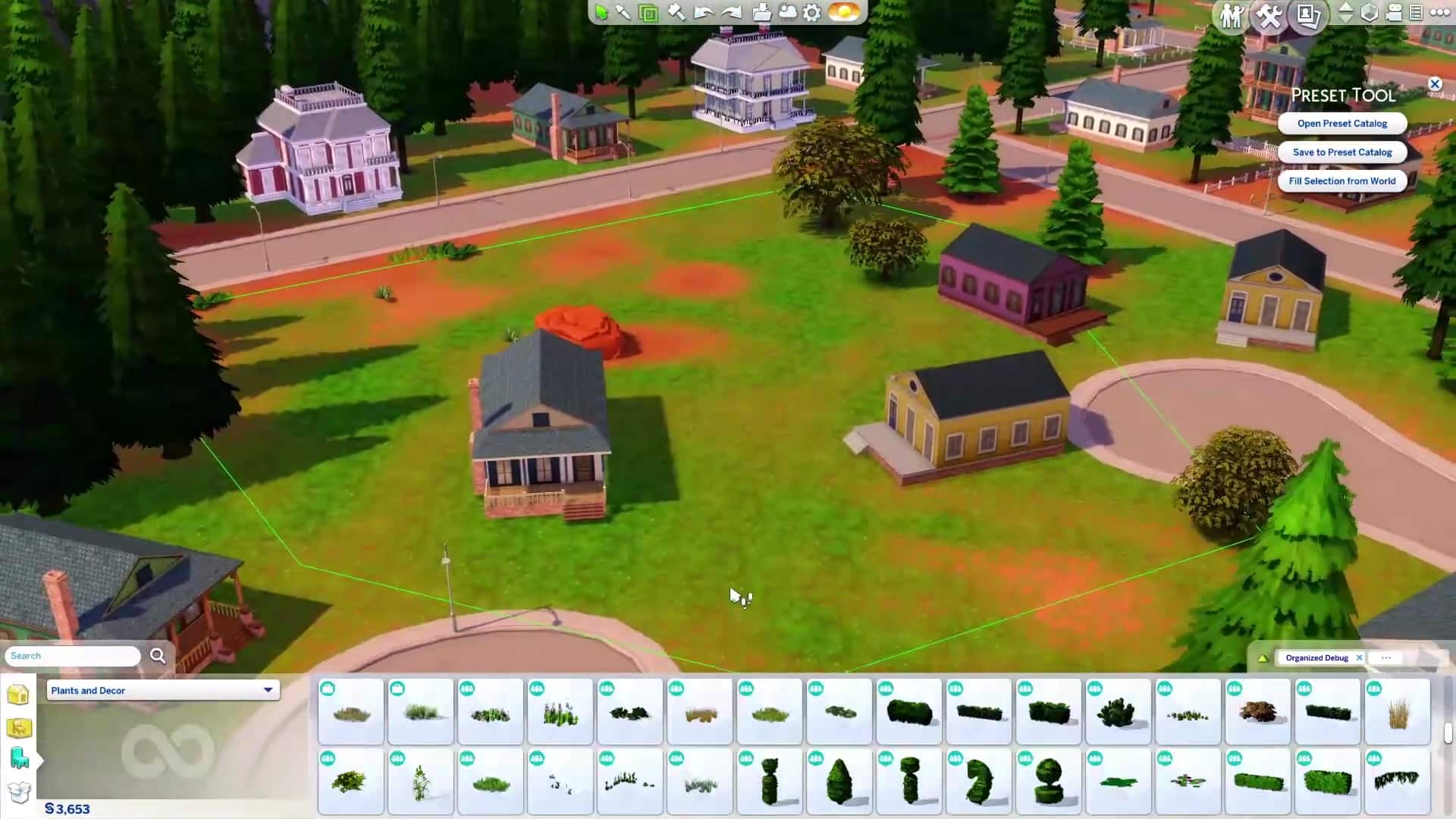
  • Plants: What’s so special about plants? Don’t we already have plants in the regular catalogue? Why yes. Yes, we do but these plants cost $0, making it easy for you to do some elaborate landscaping without bloating the cost of your build. All of the plants in the regular catalogue have a debug version that costs $0 and there are some special plants that aren’t in the regular catalogue, like the Sixam plants and glowing Realm of Magic mushrooms.
  • Outdoor Décor: Benches, tables, lamp posts, telephone boxes, street signs, sculptures and more can be found in the live edit menu! The upside to using these objects is that they’re all free and won’t make your build cost more. The downside is that none of it is usable; it’s just for looks, so if you want Sims to be able to sit down at the benches and tables, it’s better to use the ones in the regular catalogue.
  • Knick Knacks & Clutter: You can really go crazy decorating the inside of your builds with clutter items from the live edit menu! There are so many items that aren’t in the regular catalogue and all of it is free! Go crazy decorating your vanity tables with blush, face powders, lipsticks, eyeliners, and lipsticks! Or add a touch of realism to your kitchen with a used coffee pot in the sink and a bag of coffee sitting next to the coffee machine. For some reason, I’m obsessed with tucking a plunger next to the toilet in all my bathrooms. There’s way more cool clutter pieces than just those so go check out the full catalogue for yourself!

Take a look at just a small assortment of each category of items below! Again, this isn’t everything in the catalogue but we hope this gives you inspiration to go exploring through the catalogue yourself! All of the items shown are from the base game but the more packs you have, the more great stuff you’ll find in the catalogue!

What the Live Edit Objects Can (and Can’t) Do

Using the live edit menu is useful for many different things but it also has some drawbacks. The live edit menu makes it much easier to build elaborate and detailed starter homes since you can go all-out decorating the house and landscaping the yard without spending a single simoleon. It also allows you to add visual interest and realism to your builds by adding things you ordinarily can’t find in the regular catalogue, like cars and certain unique clutter objects.

However, there are some limitations with this cheat, too. The reason many of these objects are in a hidden menu and not in the regular catalogue is because the devs did not apply routing rules to most of these objects. This means that Sims will not see these things as obstacles in their path and are likely to walk straight through things like fence pieces and lamp posts. The objects were originally intended to be used in non-routable areas of the worlds so Sims would not need to route around these things. If you use them on a lot, though, your Sims may not know to walk around things and could walk through them, instead. This doesn’t cause any serious game issues. It just looks funny.

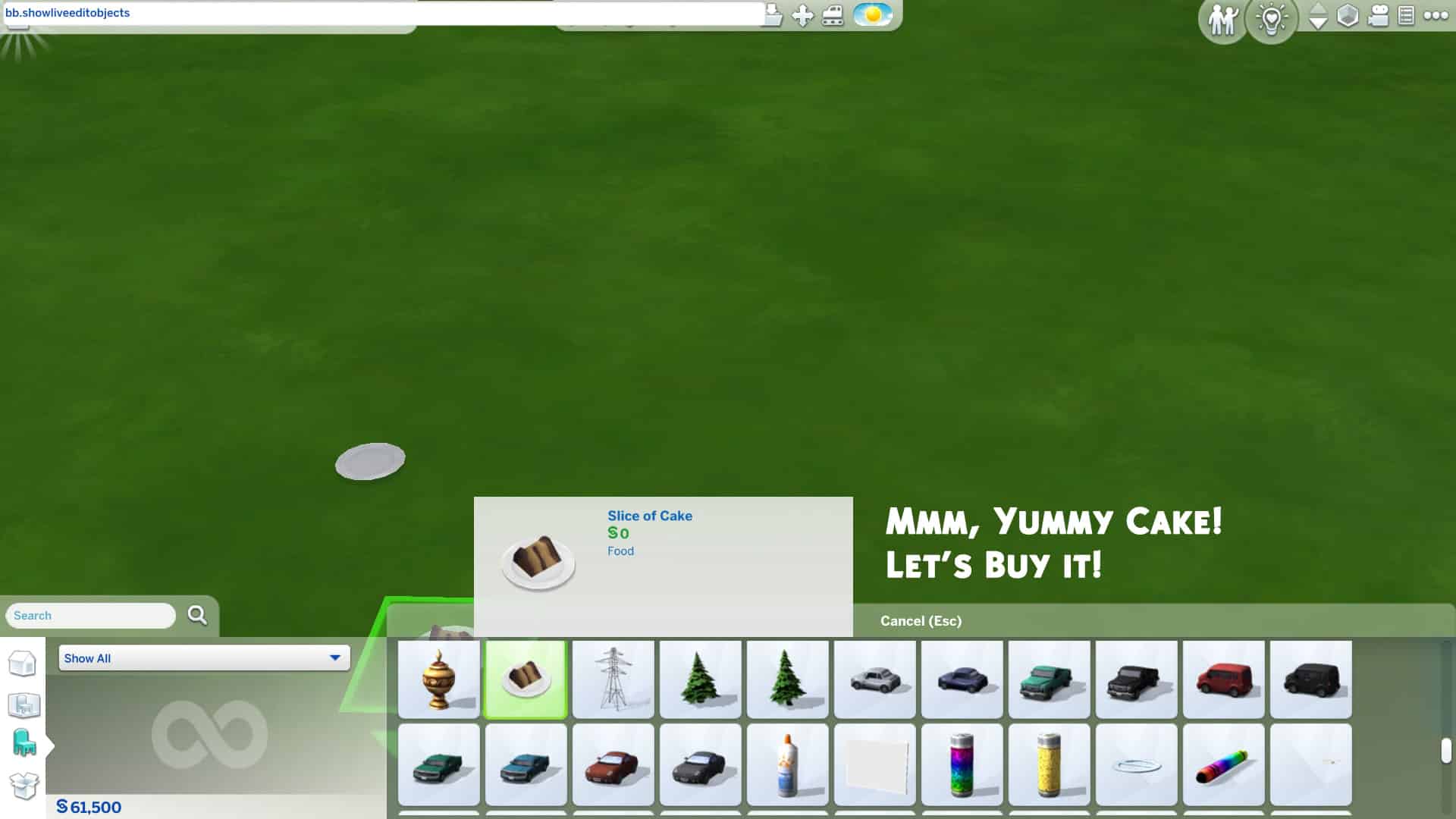
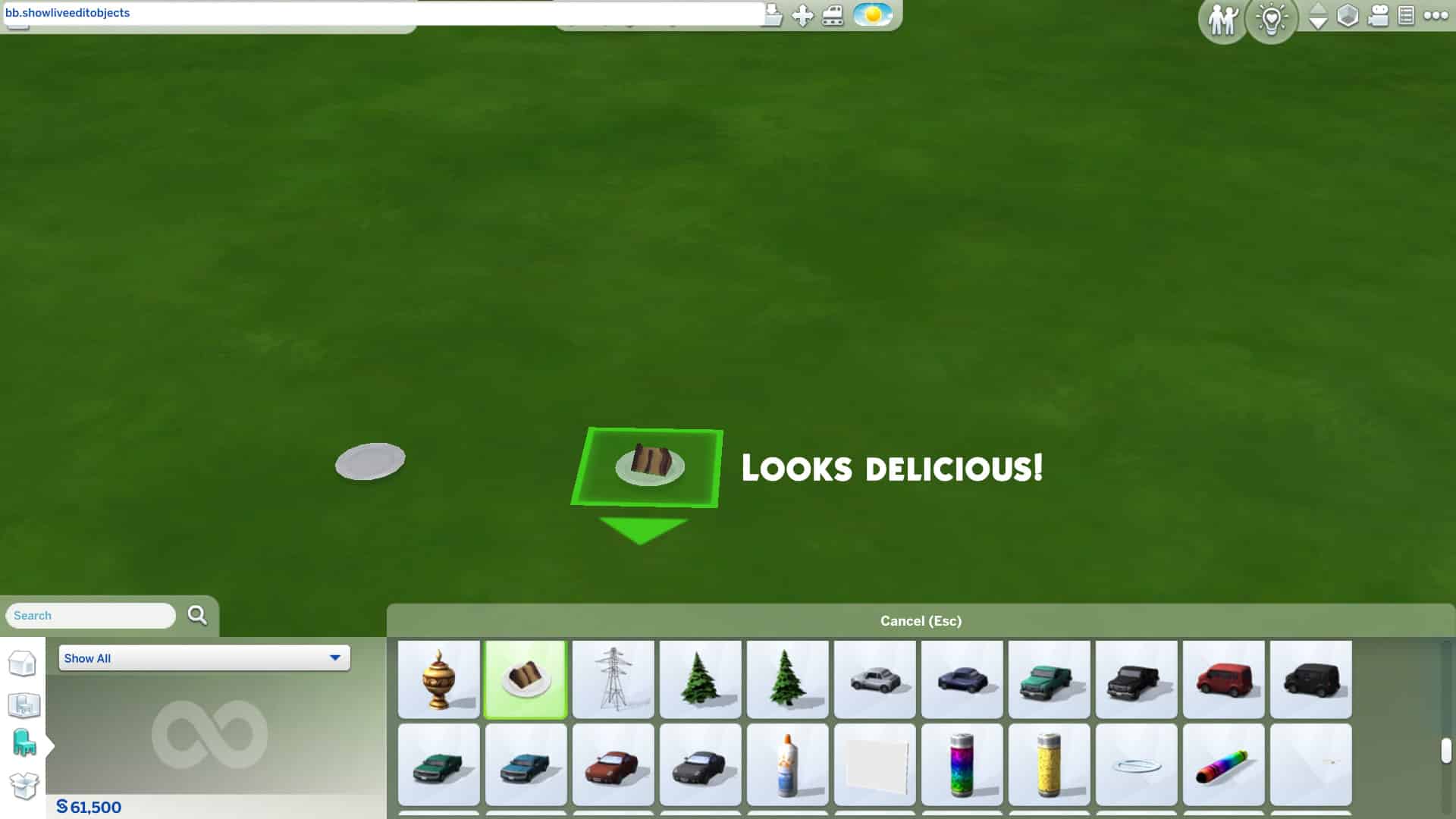
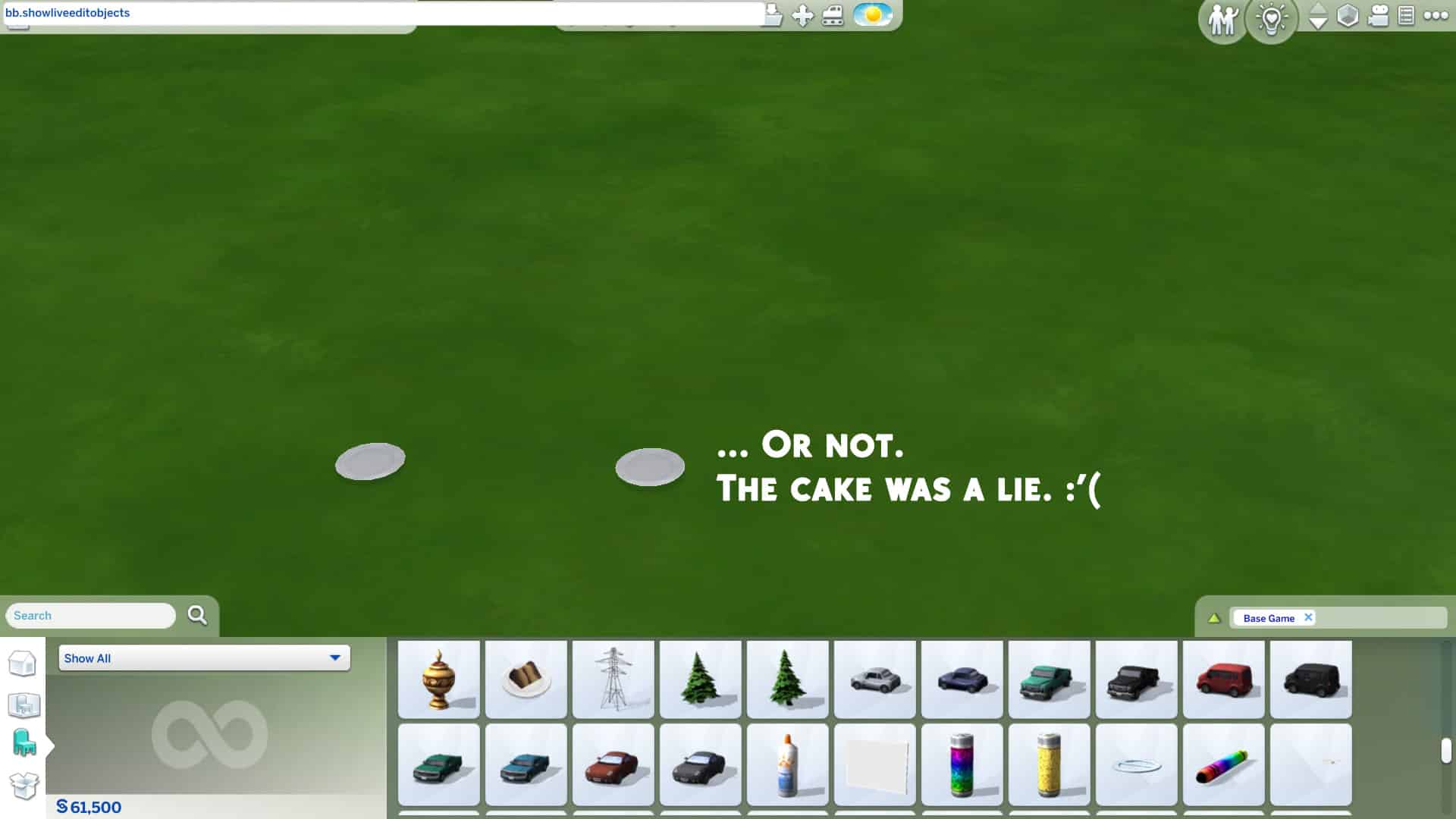
Some of the live edit objects are glitchy when you place them down as well, especially food, drinks and other food-related things like baking trays. Most of the food and drinks disappear when you place them down leaving only an empty plate or cup. Baking trays can’t be clicked on or deleted once placed down. We recommend staying away from food-related things in the live edit menu for the most part and just sticking to decorative clutter and architectural pieces.

As mentioned before, the live edit menu is also very disorganized and almost everything has the same name, making it time consuming to navigate through all the objects. You are also unable to copy live edit objects and most of the objects don’t have swatch variants to cycle through. If you want to place multiple of the same live edit object, you have to find it and pull it out of the catalogue each time.

Tips to Make Life Easier Using the Live Edit Menu

Gallery Builds with Object Unlocks for The Sims 4

If you find yourself using the live edit menu a lot and wasting a lot of time scrolling through so many objects, you can save collections of your favourite pieces to your library as a room and place them down whenever you need them while building. This can help save time and give you quicker access to some of your frequently used go-to items in the live edit menu.

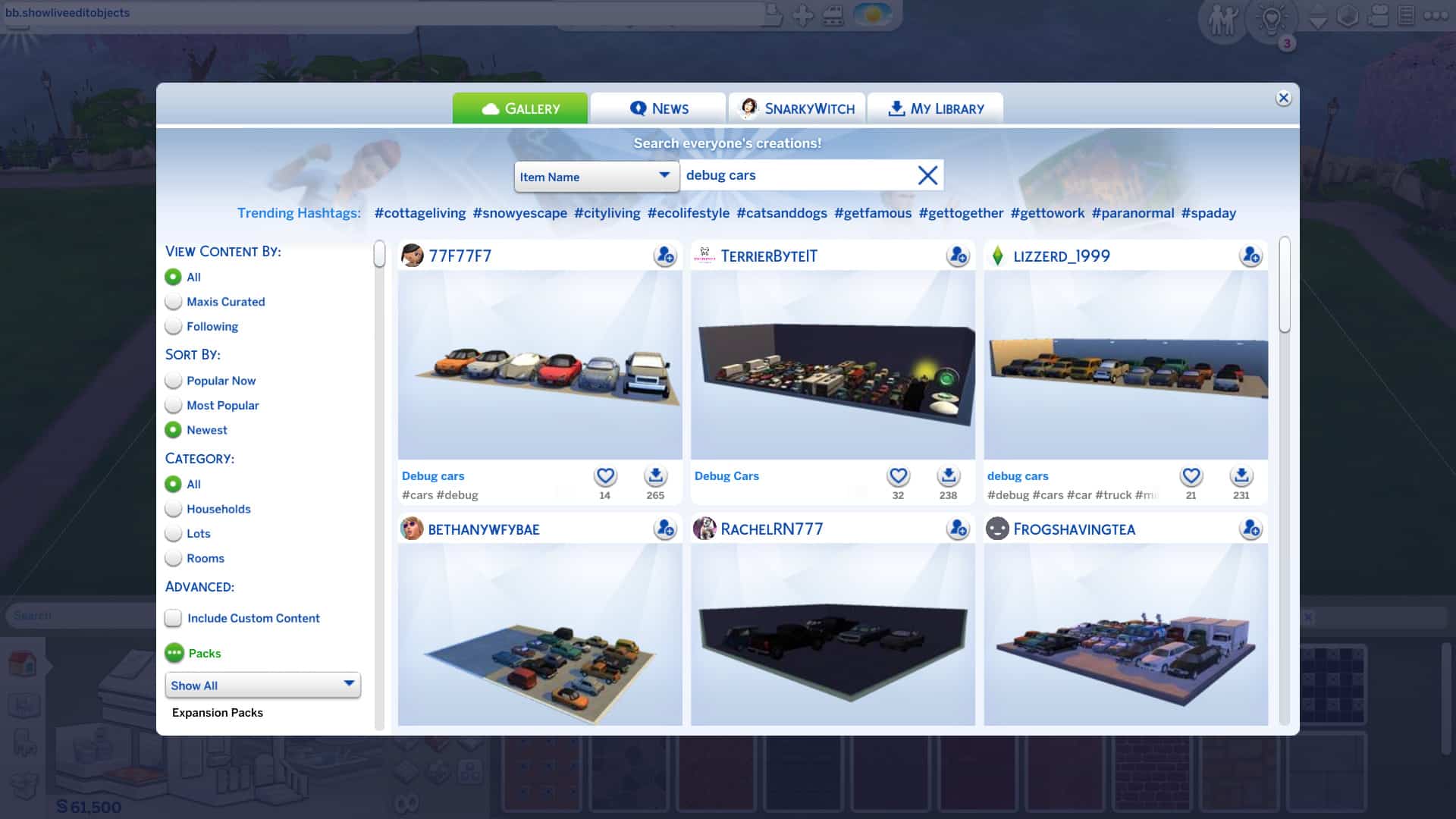
Other Simmers have also done the same thing and uploaded their rooms full of live edit objects to the Gallery! Just search “debug clutter” or “debug cars” or whatever type of debug item you’re looking for in the Gallery and a selection of these items will pop right up for you to download and use in your own builds! I find this really handy because I love using the debug items but I’m a lazy builder and don’t have the patience to scroll around forever.


And that’s the rundown of this amazing cheat! Will you be using the live edit menu in your next build? Let us know in the comments or come chat with us on social media! Feel free to share your creations with us as well! We love to see them!

The Sims 4: RED (Taylor’s Version) Look Book!

0

What’s a Swiftie Simmer to do when Taylor Swift releases the re-recording of the iconic RED album? Create a RED-inspired lookbook, of course! This lookbook is for you, fellow Swiftie Simmers! We’ll be taking a trip down memory lane, recreating just some of Taylor’s best looks from the RED era!

Do you remember these looks all too well? We were there, and we remember them all too well!

RED: Live in Concert

The Sims 4: RED (Taylor’s Version) Look Book!

“I never saw you coming, and I’ll never be the same”

Inspired by Taylor’s opening song, State of Grace from RED Live in Concert. This cool and casual look paired with the song being performed on stage is the perfect look and one that is even a perfect everyday look! 

Hair: Parted Waves (Romantic Garden Stuff)

Top: White Zipped Top (Discover University)

Bottom: Detailed Shorts (Realm of Magic)

Shoes: Red Ankle Boots (Get Together)

Accessories: Feather Detail Hat (Paranormal Stuff)

Makeup: Lipstick, Eyeshadow and Eyeliner (Base Game) Blush (MAC Cosmetics) Medium Red Nails (Spa Day)

We Are Never Ever Getting Back Together… Like EVER!

The Sims 4: RED (Taylor’s Version) Look Book!

“So he calls me up and he’s like ‘I still love yooouuuu,’ and I’m like– I’m just… I mean, this is exhausting, you know? Like we are never getting back together. Like ever.”

Taylor’s high ponytail and thick glasses paired with patterned PJs became everyone’s favourite breakup outfit when she rocked this look in the We Are Never Ever Getting Back Together music video. This fun, silly look that doesn’t take itself too seriously is perfect for such an equally silly, fun song about dumping a loser. We’ve all been there, haven’t we?

Hair: High Ponytail with Fringe (Get Famous)

Body: Patterned Orange Jumpsuit (Dream Home Decorator)

Shoes: Fluffy Bunny Slippers (Base Game)

Accessories: Nails, Glasses, and Striped Socks (Base Game)

Makeup: Eyeshadow, Eyeliner, Blush, and Lipstick (Base Game)

I Knew You Were Trouble

The Sims 4: RED (Taylor’s Version) Look Book!

“He was long gone, when he met me and I realize, the joke is on me, hey!”

After a whirlwind romance with a bad boy, this messy hair, graphic tee and ripped jeans, this I Knew You Were Trouble is a look that many of us will remember from such an iconic song! 

Hair: Ombre Hair (Seasons)

Top: Skull Tee (Base Game)

Bottom: Ripped Jeans (Dream Home Decorator)

Shoes: Laced Up Platforms (Discover University)

Accessories: Layered Necklace (Dream Home Decorator)

Makeup: Nails, Eyeliner and Eyeshadow (Base Game), Lipstick & Blush (MAC Cosmetics/Base Game), Highlighter (The Sims x peachyfaerie – 21st Birthday Update),

Begin Again

The Sims 4: RED (Taylor’s Version) Look Book!

“But on a Wednesday in a café, I watched it begin again.”

This whimsical and heartfelt song about finding love again in an unexpected place following a bad breakup calls for some equally whimsical looks and Taylor does not disappoint. In the Begin Again music video, she shows off several classy outfits but this dreamy flowing chiffon dress with large dangling earrings really takes us to her dreamland and we’re here for it!

Hair: Sideswept Waves (Base Game)

Body: Sheer Purple Dress (Luxury Party Stuff)

Shoes: Lacy Wedges (Cottage Living)

Accessories: Chandelier Earrings (Fashion Street Kit) / Bracelet and Ring (Base Game)

Makeup: Eyeshadow, Eyeliner, Blush, and Lipstick (Base Game)

The Moment I Knew

The Sims 4: RED (Taylor’s Version) Look Book!

“And it was like slow motion, standing there in my party dress, in red lipstick, with no one to impress”

Listening to the album, something stood out about this song and I kept being pulled back to it time and time again. The more I listened to the song the more this outfit came together inspired by. The red accents in the shoes, nails and the lipstick brought this look to life and resonates the lyrics from the song. It was in that moment I knew that this was a look for Taylor.

Hair: Side Parted with Loose Waves (Paranormal Stuff)

Body: Mesh Dress (Cottage Living)

Shoes: Red Buckle Shoes (Cottage Living)

Accessories: Geometric Earrings (Tiny Living) and Watch (Vintage Glamour)

Makeup: Eyeshadow, Eyeliner and Lipstick (Base Game) Blush (MAC Cosmetics) Medium Red Nails (Spa Day)

RED (Taylor’s Version)

The Sims 4: RED (Taylor’s Version) Look Book!

“But loving him was RED…”

Of course we couldn’t do a RED (Taylor’s Version) lookbook without incorporating at least one look from, well, Taylor’s Version! This look inspired by the new album cover shows a mature side of Taylor who’s ready to both embrace the past and move on from it at the same time and we have nothing but respect for her for that!

Hair: Long Waves (Discover University)

Body: Town Coat Layered Over Turtleneck and Blouse (Incheon Arrivals Kit)

Shoes: Leather Work Boots (Base Game)

Accessories: Newsgirl Cap and Jeweled Ring (Base Game)

Makeup: Eyeshadow, Eyeliner, Blush, and Lipstick (Base Game)


Credits

This post was a collaboration between Krista and SnarkyWitch!

  • We Are Never Ever Getting Back Together… Like EVER!, Begin Again, & RED (Taylor’s Version) Looks: SnarkyWitch
  • RED Live in Concert, I Knew You Were Trouble, and The Moment I Knew Looks: Krista
  • Photo Edits: SnarkyWitch
  • Poses: SnarkyWitch [1][2], KatVerse, [1] [2], RatBoySims, CassandraGrusel
  • Taylor Swift Sim: SnarkyWitch
  • Red Convertible in Featured Image: Breeze Motors

Did we forget your favourite RED era look? Recreate your favourites and share them with us on social media!

Creator Spotlight: Aretha

If you follow our content regularly, you may notice there is one Sim who I often use with a custom hairstyle. I’m always being asked about who the creator is. Well it is none other than Aretha! I absolutely love Aretha’s creations and use them throughout my game now!

I first discovered Aretha when I first started getting back into Custom Content, and it was the So Casual collection that caught my attention. From there, I started exploring more and more creations and collaborations from Aretha.

Creator Spotlight: Aretha

Aretha’s custom content covers a vast number of different styles, of which are Maxis Match and work brilliantly with in game items and other pieces of custom content.

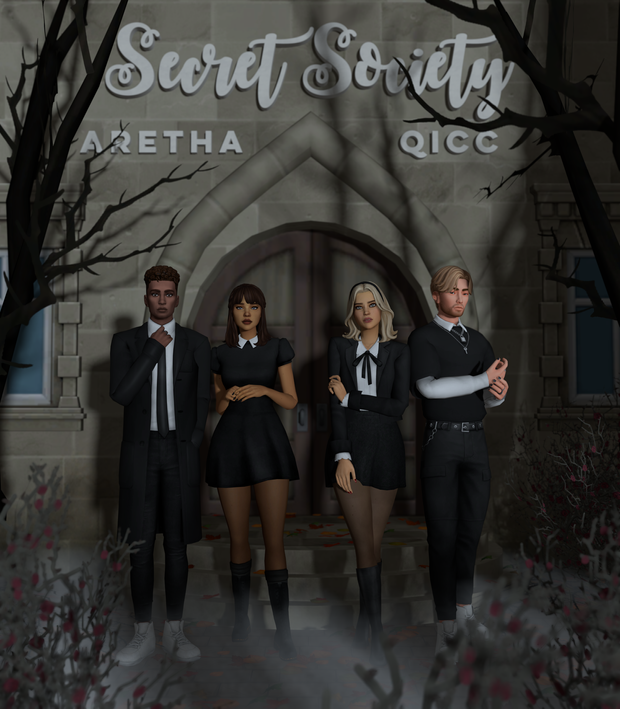
The Secret Society Collection is the most recent release from Aretha and is in collaboration with Quirky Introvert CC. It has a mysterious feel to it and is full of a variety of different Create A Sim items that I know will work amazingly not only in my game but also many other Simmer’s games too!

Creator Spotlight: Aretha

Of course, I can’t forget to mention Aretha’s other collaborations, like the IDORU collection with Serneity or the Midnight Collection featuring Aladdin. Both of these collaborations are excellent custom content packs as well.

Not only are the custom content collaboration packs brilliant, Aretha has a number of sets that are worth taking a look at including the Sunbeam Set, Feels Like SummerPretty Savage and Wildflowers packs. There really is something for everyone!

You can find all of Aretha’s custom content creations here.

You can find and follow Aretha using the links below!

Credits

The Sims Community Challenge: November Showcase

With the season changing and the clocks going back an hour, for many of us, Fall has certainly arrived. There’s no better time to sit down, get cosy and chill out with The Sims than this time of year. Even though our November challenge was short and sweet, many of you shared your Fall Looks with us!

Click here to take a look at what was involved for the November challenge otherwise, you can jump straight in and take a look at all the screenshots below!

To enlarge a screenshot, simply click on the image of your choice!

Thank you to everyone who shared their Fall Looks for our November Challenge. Stay tuned as our December Challenge will be coming soon!

Don’t forget to join in the conversation over on our Discord, where you will also find a variety of Build and Create A Sim Challenges throughout the week alongside our monthly Sims Community Challenge!

Click the button below to join The Sims Community Discord 

[mks_button size=”large” title=”Sims Community Discord” style=”squared” url=”https://discord.gg/6kRVv4h2je” target=”_blank” bg_color=”#4e62ac” txt_color=”#FFFFFF” icon=”” icon_type=”” nofollow=”0″]

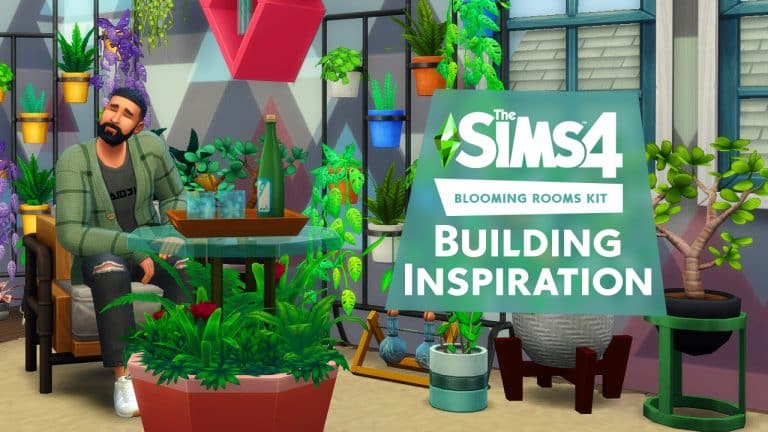
The Sims 4 Blooming Rooms: Building Inspiration

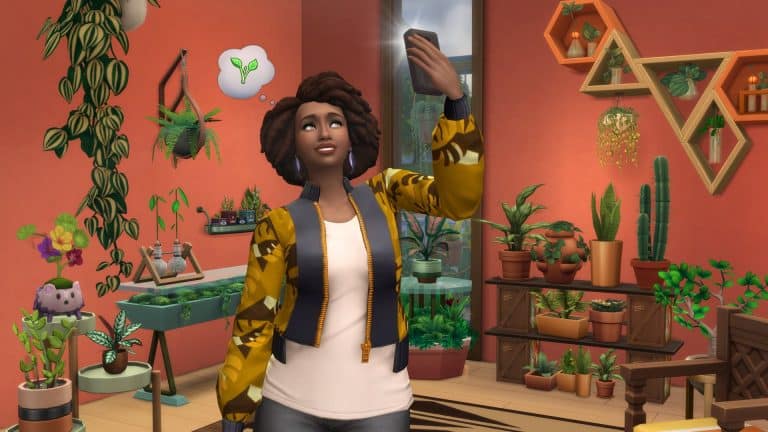
The Sims 4 Blooming Rooms Kit is here, and it is packed full of a variety of colourful new plants and furniture to make your Sims’ homes bloom!

Now, initially I thought, how can you use the new The Sims 4 Blooming Rooms Kit? It’s just a Kit full of plants, really! Well, yes and no but that’s somewhat irrelevant right now. I continued to think about how I could use the new Kit, I did struggle with ideas and other than somewhat incorporating the new items into current builds I didn’t really have any ideas at all.

I headed over to the likes of Pinterest and Instagram and did a bit of searching on Google as well, and it definitely gave me some inspiration. As well as now wanting to buy lots of colourful little plants to put around my own apartment, I now had more inspiration and decided to jump in and start building with the new Kit.

The Sims 4 Blooming Rooms: Building Inspiration

Recently I’ve been playing with the Pancakes Household and decided it was time to renovate their home and add a bit of colour and greenery to it. I love it so far, and I might continue to change the remaining rooms up as well in the next few days. We even had Bjorn Bjergsen pay a visit and hangout with Bob and Eliza during renovations!

Here are a few ideas of how you can use the new The Sims 4 Blooming Rooms Kit!

Living/Dining Room

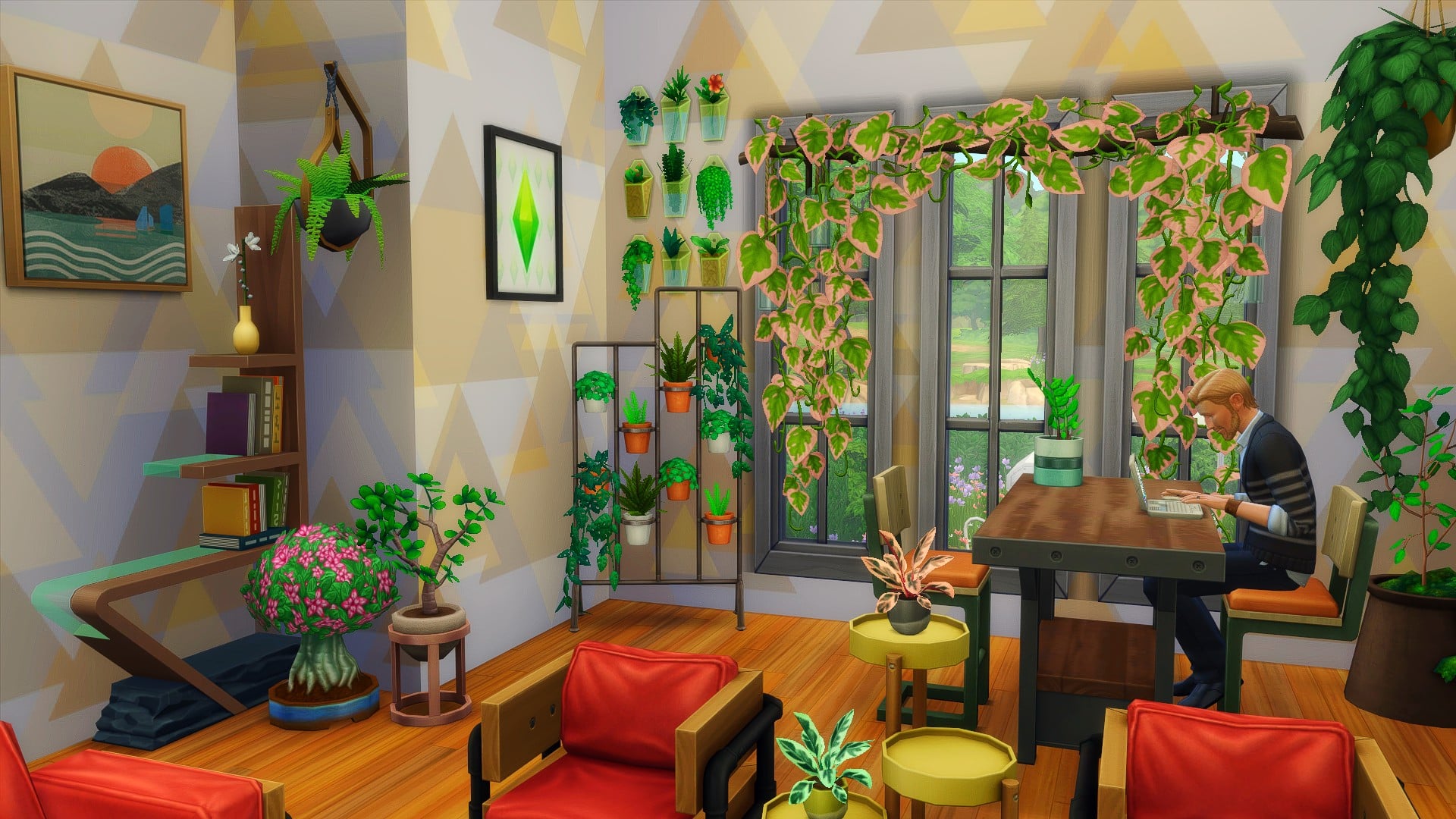
Study

The Sims 4 Blooming Rooms: Building Inspiration

Porch/Patio

After experimenting with the new Kit in these smaller build ideas, I found that the Kit works well regardless of what type of room you are trying to create. While a Kit focused on Plants might not be what many of us were expecting, there is no denying that it does add some lovely new options to our games.

How are you planning on using the new The Sims 4 Blooming Rooms Kit in your game? Let us know in the comments below!

COMMUNITY POLL: Best Game Pack for The Sims 4

2

With the Dream Home Decorator being the last Game Pack for The Sims 4 in 2021, it’s time to rank all of the Game Packs we have so far from most favorite to least favorite!

Down below is a poll with a selection of 10 Game Packs that we have for The Sims 4. Since the number of Game Packs has reached this threshold we’ve set the limit to 2 favorite Game Packs that you can pick.  Don’t worry, the Poll Results will still show correct and rank the packs accordingly!

If you were wondering how the community voted on their favorite Expansion Pack for The Sims 4 (or you want to drop in your vote) you can do so HERE!

[totalpoll id=”103626″]

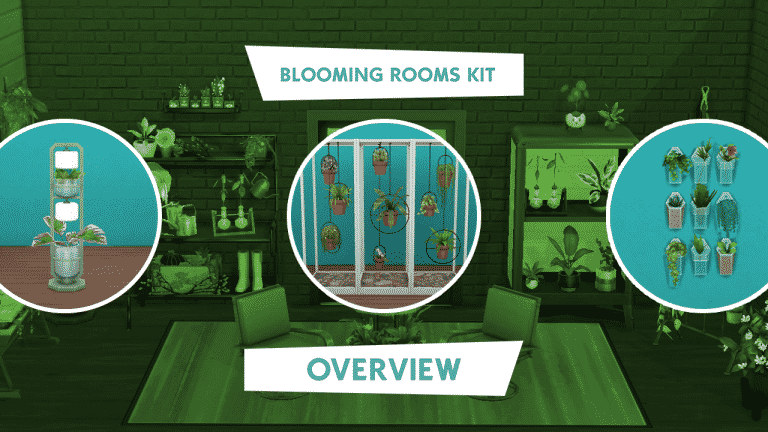
The Sims 4 Blooming Rooms Kit Overview

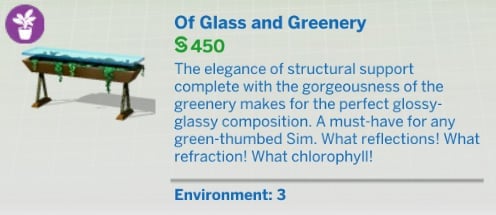
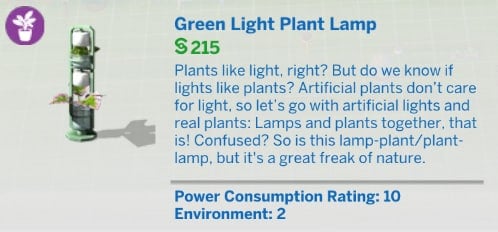
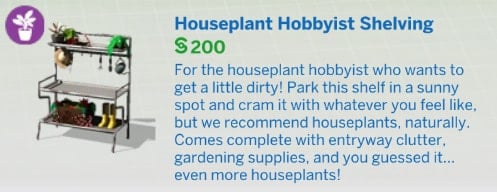
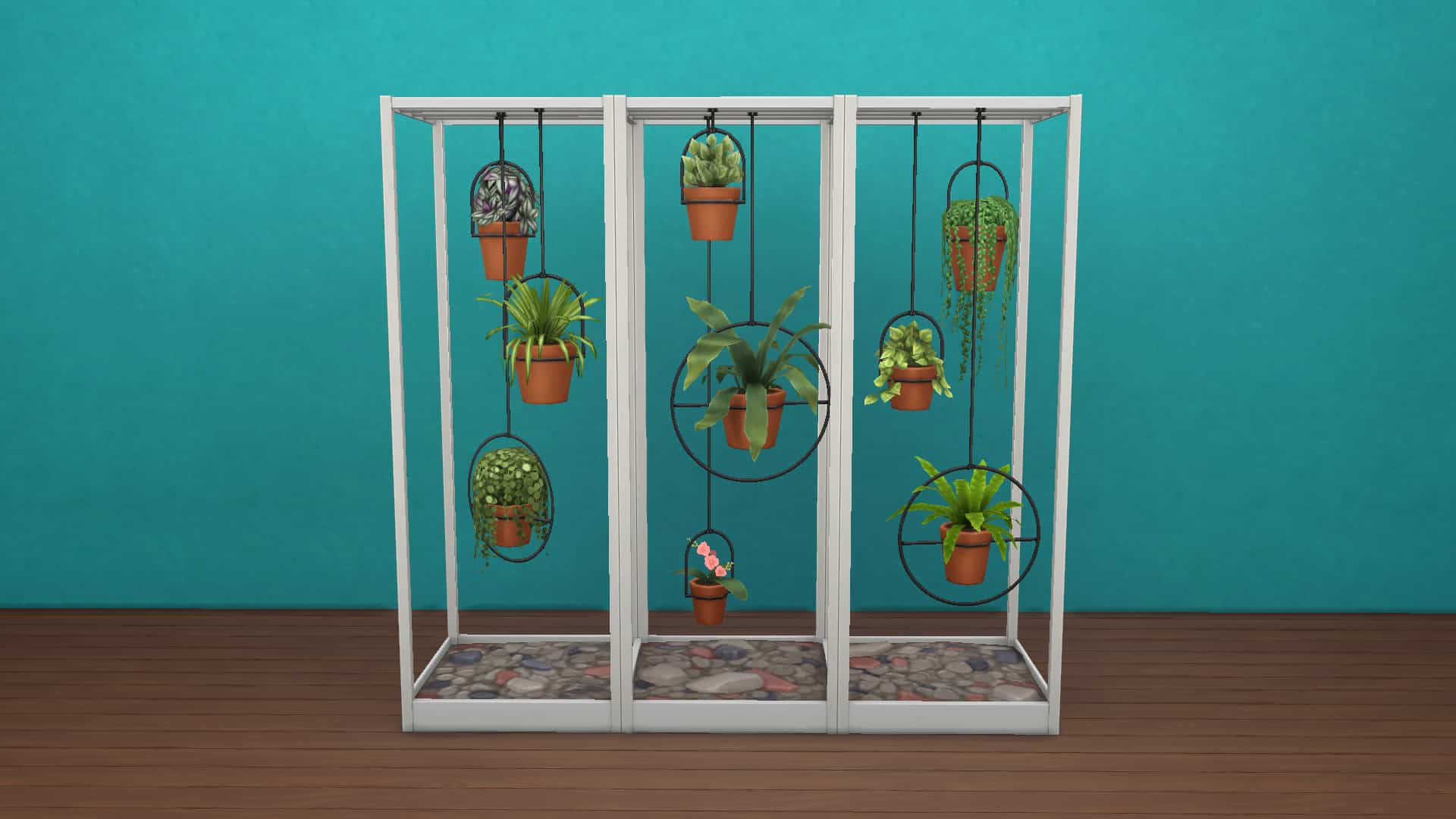
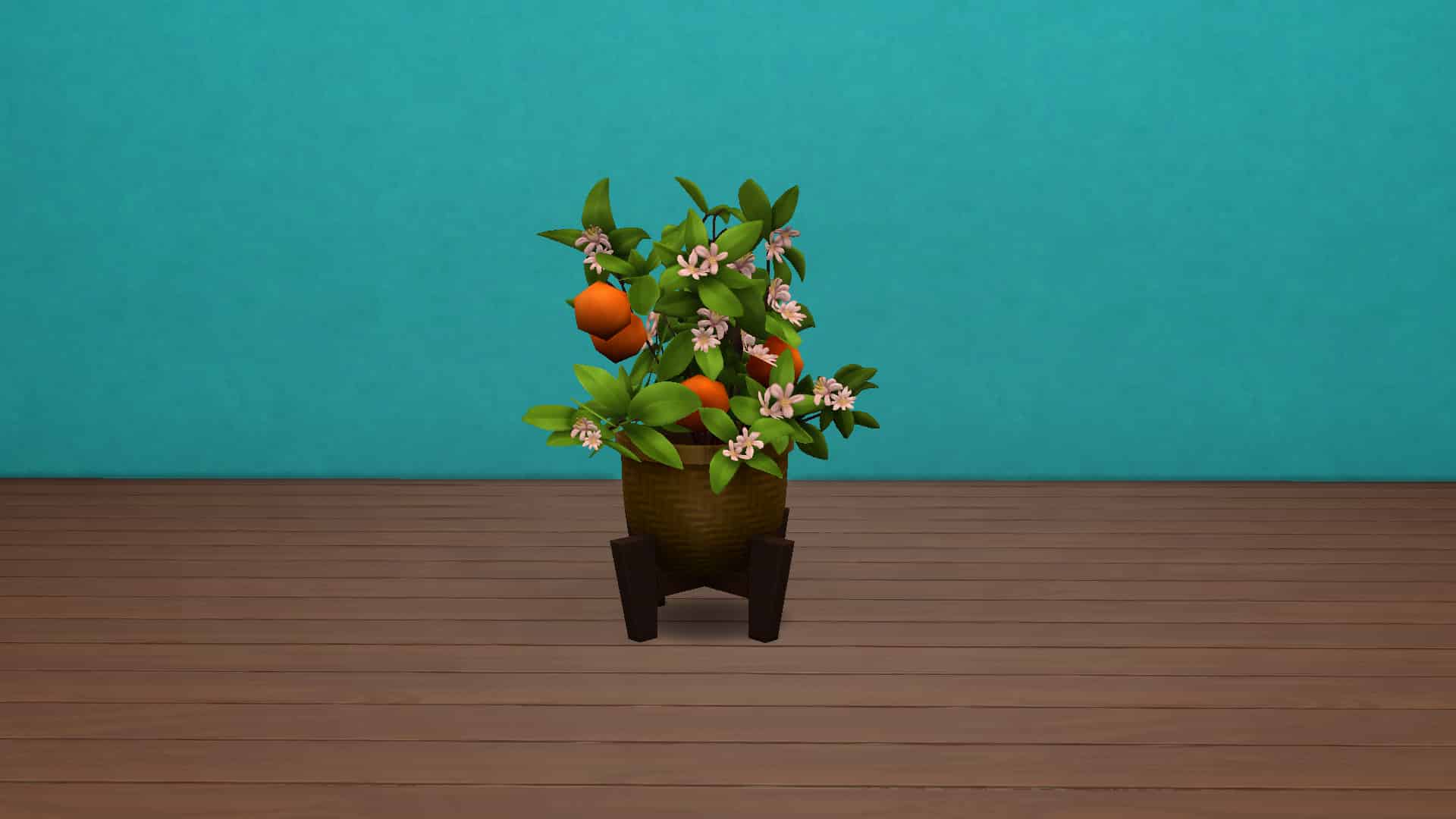
The Sims 4’s latest kit, Blooming Rooms, is yet another Build/Buy kit, this one themed around houseplants. There are a total of 24 plant and plant-like objects in the kit and one styled room.

Catalogue Overview


Styled Room

The Sims 4 Blooming Rooms Kit Overview


In-Game Close Ups


And there you have it! If you like plants, this is the kit for you! Plants, plants, more plants, and some surfaces to put your plants on! If you just can’t get enough plants, the Blooming Rooms Kit is available now on Origin and costs $4.99 USD.

The Sims 4 Blooming Rooms Kit is Now Available!

0

The Sims 4 Blooming Rooms Kit has just started rolling out on multiple online stores!

The latest Kit which focuses on adding new indoor plants is retailed at $4.99 – or a price equivalent to your local currency.

The Blooming Rooms Kit is right now available on official online stores including Origin, Steam, Microsoft Store and Playstation Store. You can get the Kit by following the links below:

The Sims 4 Blooming Rooms Kit is Now Available!

Full Walkthrough of the Functional Loom Mod for The Sims 4

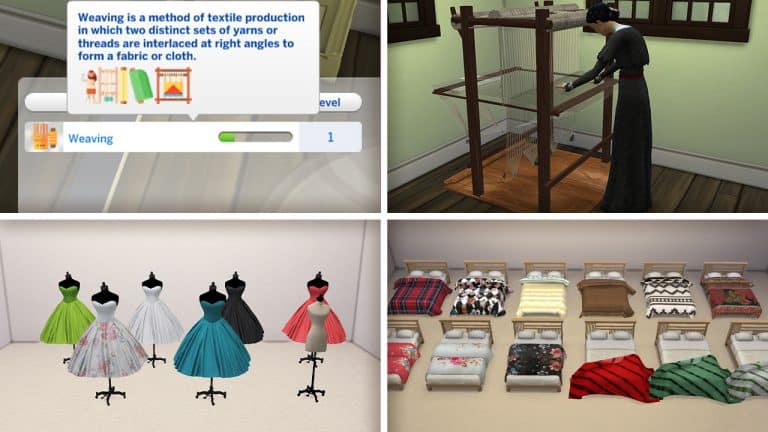
Are you tired of the current skills we have in the game? Have you mastered them all a dozen times over and want something new to do? Do you love to be creative and craft new objects to sell, wear, display, and enjoy? Well you’re in luck because today, I’m showcasing a brand new mod that lets you do all of the above! PiedPiper has created a functional loom that will allow your Sims to weave over 110 new custom craftables, from rugs and table cloths to bed covers, wearable clothes and more!

In addition to the new functional object and 110+ new custom craftables, this mod also adds a custom 10 level skill, a new activity preference, a custom animation, a couple new décor objects, and several new ways to sell what you’ve woven.

Activity Preference

Full Walkthrough of the Functional Loom Mod for The Sims 4

There is a new Weaving activity preference in CAS. When making your Sims, you can choose whether they like or dislike Weaving as an activity. Sims who like or dislike Weaving will get positive or negative moodlets when they weave, just like the other preferences.

Weaving can also be acquired as a like or a dislike through gameplay the same way other preferences can be acquired.

Holiday Tradition and Club Activity

If you own the Get Together expansion pack, Weaving is a club activity under Hobbies. If you own the Seasons expansion, Weaving is also a holiday tradition.

Loom Object

Of course, Sims could not weave without a loom and this mod adds a new, functional loom Sims can use to weave over a hundred different items! You can find the loom in Build/Buy by just searching “loom” in the search bar. The object is called “Leah’s Lovely Loom.” It costs 1,000 and comes in 5 different colours.

The loom requires the Loom Placement object in order to function. PiedPiper explains that since the loom is cloned from the base game coffee maker, it requires a surface to slot onto. The Loom Placement object acts as that surface. So find the item called “Loom Placement” in Build/Buy and place it down first. Then you can place the “Leah’s Lovely Loom” object on top of it.

With the loom placed on its required platform, your Sims are now ready to start weaving! If you also have PiedPiper’s Silk Farm, Silk Processor, and Cotton Processing Add-On, you’ll need to have silk and cotton ingredients in your inventory in order to weave anything on the loom. The only optional ingredients are the llama wool, so players who don’t own Cottage Living can still weave the items. If you do not have the silk and cotton processing mods installed, then you won’t need any ingredients to weave any of the items. We highly recommend installing the other recommended mods to fully immerse yourself in the weaving experience!

Full Walkthrough of the Functional Loom Mod for The Sims 4

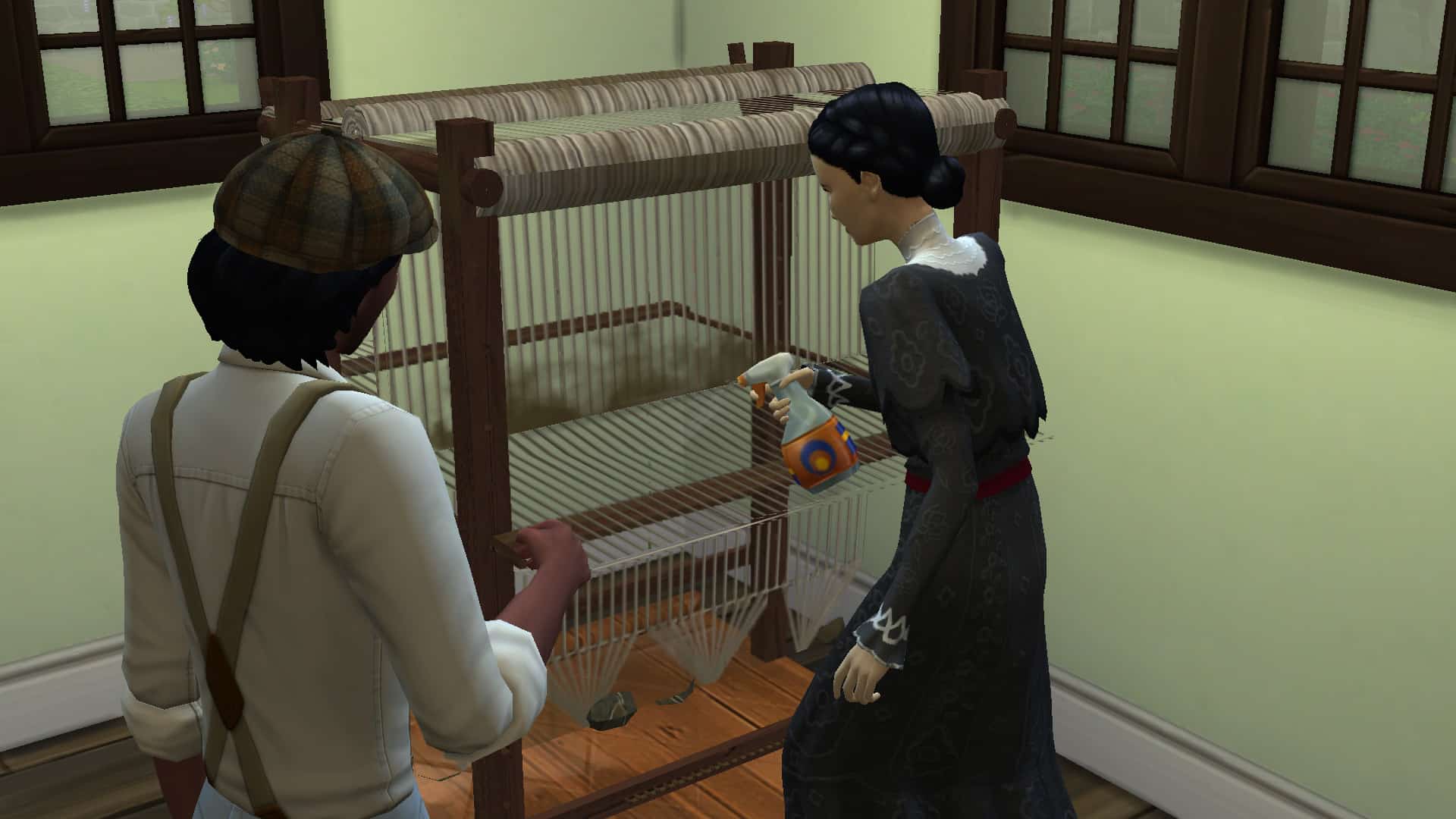
Click on the loom and select Weave Fabric to bring up a list of what you can craft. At first, your Sims will only be able to craft bolts of fabric but as they level up in the Weaving skill, they will unlock more types of items they can weave. When Sims are weaving, they will do a new custom animation on the loom.

A few funny little quirks I noticed when using the loom; when the loom breaks, it sparks as if it’s an electronic and a Sim has to use a screwdriver to fix it. The loom will periodically get dirty and need to be cleaned with a spray bottle. Also, when a Sim finishes weaving a very large item, like a rug, they will carry it whole to the nearest surface to set down, making for some very funny screenshots. None of this was anything that ruined the experience for me; if anything, it gave me a good chuckle.

Selling Your Woven Items

If you want to make a living as a weaver, you can certainly do that. Once you’ve finished weaving an item, your Sim will put it down somewhere nearby unless it’s a wall hanging; then they will put it in their inventory. With the item displayed on the lot somewhere, click it to bring up options to sell. All weavable objects are compatible with the online marketplace, Plopsy, which comes with the Nifty Knitting Stuff pack but PiedPiper has also added custom sales options.

Starting at level 3 of the Weaving skill, your Sims can start selling their woven items at Charity Trading. You will receive immediate payment for the item. As you level up in the Weaving skill, you will unlock two more ways to sell your items for more money than using the charity Trading option.

Full Walkthrough of the Functional Loom Mod for The Sims 4

At Weaving level 6, your Sims will unlock the ability to sell their woven items on Simzon but you’ll need to create an account, first. Click on any computer and under the Order category, you’ll find the option to create a Simzon account. Once you’ve created your account, you can click on your woven items to sell them on Simzon for a bigger payout than selling them via Charity Trading. If you own the Get Famous expansion pack, Sims will also be able to gain fame from selling their items on Simzon! Or, if you’re looking to decorate your house or buy some new clothes without the hassle of weaving, you can also Browse Simzon as a customer to find ready-made woven items to purchase. You can Browse Simzon on the computer under the Order category or on your phone.

After mastering the Weaving skill at level 10, Sims will also be able to sell their woven items directly to a Fabrics Company. Selling to Fabrics Companies will give you the biggest payout for your items but your Sims won’t gain fame for doing this. If your Sim seeks to become a celebrity fashion designer or home fabrics designer, it may be best to continue selling on Simzon, instead. If you just want the largest profits, then sell to a Fabrics Company.

Skill Guide

Full Walkthrough of the Functional Loom Mod for The Sims 4

Here is the full breakdown of each skill level of the Weaving skill and what you unlock at each level.

[table id=98 /]

Full Craftables List

Here is the full breakdown of every weavable item, what skill level it unlocks at, the cost to make, and the ingredients. Keep in mind that you need PiedPiper’s silk and cotton processing mods to see silk and cotton as available ingredients in your game. We only had the silk processing mod installed alongside this mod so only the silk ingredients are listed. Cotton ingredients may also be needed for some recipes. If you do not have the silk and cotton processing mods installed, you will still be able to weave the items. You just won’t need to have the silk and cotton ingredients.

[table id=99 /]

Craftables Overview

Below are pictures of every weavable item that comes with this mod, as well as deco objects that can be purchased from Build/Buy.


CAS Overview

Below you can see all the different wearables on a Sim in CAS. Wearable items can also be displayed in-game as shown in the section above. To have a Sim wear a displayed wearable in-game, click the item to have your Sim put it on.

Final Thoughts

So what are my final thoughts on the Functional Loom mod after exploring it? I am deeply and thoroughly impressed! Just calling it a “functional loom mod” doesn’t do it justice because it’s far more than just a functional object. Not only does it add a new functional object to the game but it also adds a new major skill, a total of 115 custom objects and clothes you can craft, a new animation, a new activity preference, a new club activity, a new holiday tradition, and not one, not two, but THREE different ways to sell your crafted items. The clothes come in both wearable and display forms, plus it’s fully integrated with several other packs like Get Together, Seasons, Nifty Knitting, Cottage Living, and Get Famous. Seriously, can we just rename this mod “Nifty Weaving Stuff?” Because all the content in it warrants a proper stuff pack title.

The clothing having display versions is also super handy for retail lots! You can display tonnes of the custom clothes in your retail store without worrying about the mannequin limit. All the trendy bags and boxes will look amazing on your store shelves as well. Instant high-end boutique! In fact, I really want to do some builds themed around this mod now, so keep an eye out for that soon.

If you’d like to get your hands on this mod, it’s available now for subscribed patrons of PiedPiper and should be released to the public sometime this month.

[mks_button size=”large” title=”Functional Loom (Patreon)” style=”squared” url=”https://www.patreon.com/posts/functional-loom-58334660″ target=”_blank” bg_color=”#bc482b” txt_color=”#FFFFFF” icon=”” icon_type=”” nofollow=”0″]

Don’t Worry – A New The Sims 4 Expansion Pack Is In Development

2

During the recent Maxis Extra Life Livestream where the team were raising funds for the UCSF Benioff Children’s Hospital, The Sims team covered a wide selection of topics as well as jumping into a variety of different games.

While the team discussed elements of design, concepts & modelling and general development of The Sims 4, there was one particular moment during the stream that players may find interesting. This exact moment took place while the team were playing games from Jackbox 6 and there was a moment where everyone introduces each other. The first came from SimGuruJessica.

Now, what was interesting about this moment in particular is that SimGuruJessica introduced herself as Senior Game Designer and Lead Designer on an upcoming The Sims 4 Expansion Pack.

Take a look at the clip of the stream below.

Click here to view the clip

At this moment in time this is purely speculation and no further information is known. It will be interesting to see if and when we do find out more about this potential next expansion, although it is unlikely to be anytime soon. Previously, we reported that for this year, there would only be one expansion pack released. You can read more about that here.

You can watch a full replay of the Maxis Extra Life livestream here.

Let us know what you think the next expansion pack could be about in the comments below!

Creating A World with The Sims 4 Create A World Mod!

TwistedMexi has been working hard on their upcoming Create A World mod that has well and truly captured the communities’ attention! While the mod itself is still in the Alpha stage, TwistedMexi has released a new overview video showcasing the mod in more detail as well as a work in progress world from one of the Alpha Testing members.

During the video, we are given a quick update on how the alpha phase of the mod is progressing and that it is currently progressing well. We also see the installation process for the mod, as well as how to start creating a brand-new world. As the video progresses, we also get a glimpse of the World Builder menu, as well as the catalogue of items that you can use to create your worlds.

Creating A World with The Sims 4 Create A World Mod!

As well as seeing how to start creating your own world, TwistedMexi talks us through the different features and controls that are currently a part of the mod in the alpha stage, but also mentions those that will be coming as the mod development progresses.

Even now, the Create A World mod looks incredible and with more updates on the way, we can’t wait to see what else TwistedMexi has in store for the mod!

Take a look at the video in full below for a closer look at the Create A World mod!

You can find out more about TwistedMexi’s Create A World mod by heading over to their Patreon here.

Don’t forget, you can also follow TwistedMexi and find out more about their other mods via the links below!

Countdown to the release of The Sims 4 Blooming Rooms Kit

0

This countdown is specifically designed for all the plant enthusiasts out there!

The Sims Team is releasing their 8th official Kit for The Sims 4 next week. To be more precise, The Sims 4 Blooming Rooms Kit is set to release on November 9th, 2021 for PC, Mac, Xbox One and PS4.

Just like with previous Kit releases this one is set to release at 10AM Pacific Time. Since we’ve just recently gone through daylight time savings it’s a bit difficult converting and listing all of the time zones. Which is exactly why we’ve included a handy countdown below!

As soon as the timer turns zero The Sims 4 Blooming Rooms Kit should be populated on official online stores including Origin, Steam, Microsoft Store and Playstation Store.

The Blooming Rooms Kit is retailed just like previous Kits at $4.99 – or a price equivalent to your local currency.

[janky target_time=”1636480800″ color=”#52aba2″]

Countdown to the release of The Sims 4 Blooming Rooms Kit

The Sims 4: All Sentiments and their Effects (Packs Included)

0

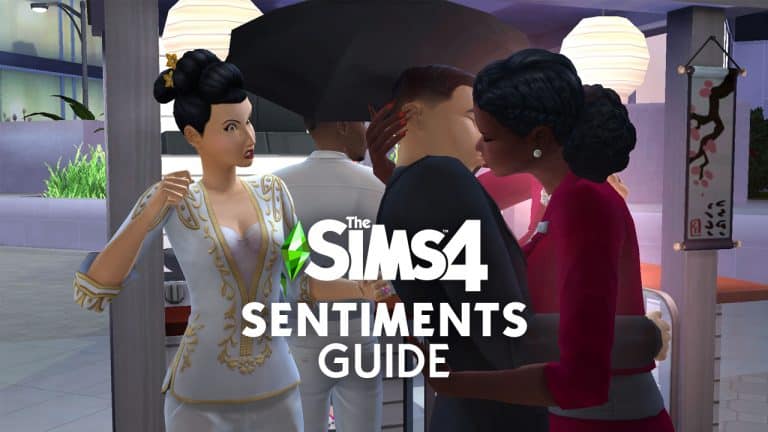
Sentiments are temporary feelings Sims have towards each other based on experiences that those Sims have shared together, both good and bad. They make relationships feel more immersive and realistic. They give you insight into exactly how a Sim is feeling about someone in the present moment. They’re one of the best additions to the base game we’ve seen to date and we’re going to explain all the different types of sentiments and what they do.

General Info

Sentiments can be short term or long term. For example, enjoying a hike together will create a short term positive sentiment. Hikes are a nice way to bond with someone but you probably won’t remember it as much ten years down the road. However, if you catch your partner cheating on you, that is a long term negative sentiment. You aren’t likely to forget a betrayal like that for a very long time.

The Sims 4: All Sentiments and their Effects (Packs Included)
Sims will get moodlets from their sentiments when they are near that Sim.

Sentiments inform the way a Sim will feel and act around the other Sim. For example, if a Sim has the Furious About Cheating sentiment with their partner, they will get pretty powerful angry and/or sad moodlets related to the cheating every time they are around the Sim that cheated on them. They are also more likely to autonomously use Mean or Mischevious socials with that Sim and any attempts at friendly communication will fail much more often. On the flip side, a Sim with the Deeply in Love sentiment with their new spouse will have strong Happy and/or Flirty moodlets around their spouse and be more likely to use Friendly and Romantic socials with them.

There are four types of positive sentiments and four types of negative sentiments but there are many more individual sentiments within these eight types. The positive types are Adoring, Close, Enamored, and Motivating. The negative types are Guilty, Hurt, Furious, and Bitter. There are a total of 30 base game sentiments and 54 sentiments across all DLC packs for a total of 84 sentiments.

A Sim can have up to four (4) sentiments at once for a single Sim. If the Sim gains a fifth (5th) sentiment, then it will replace the weakest of the previous four (4) sentiments. Sentiments are not always mutual! A Sim may have a positive sentiment towards a Sim while the other Sim could have a negative one for the other Sim. This adds a lot of storytelling potential and can make for some interesting social situations.

List of Sentiments

Here is the list of all 84 sentiments in the game and their descriptions. Sentiments with a DLC pack abbreviation in brackets before it indicate that it is exclusive to a DLC pack.

The names and descriptions of each sentiment give you a pretty clear idea of how to trigger that sentiment in-game but keep in mind that doing an action to trigger a sentiment may not always result in your Sims gaining that sentiment. When interacting with and doing activities with other Sims, there is only a chance that they may gain sentiments towards each other. It is not guaranteed to happen 100% of the time for every sentiment.

Legend:

  • SD – Spa Day
  • SE – Snowy Escape
  • DHD – Dream Home Decorator
  • CoL – Cottage Living
  • MWS – My Wedding Stories

Positive Sentiments

[table id=96 /]

Negative Sentiments

[table id=97 /]

Table Info Credit: The Sims Wiki

Other Notes and Observations

The Sims 4: All Sentiments and their Effects (Packs Included)
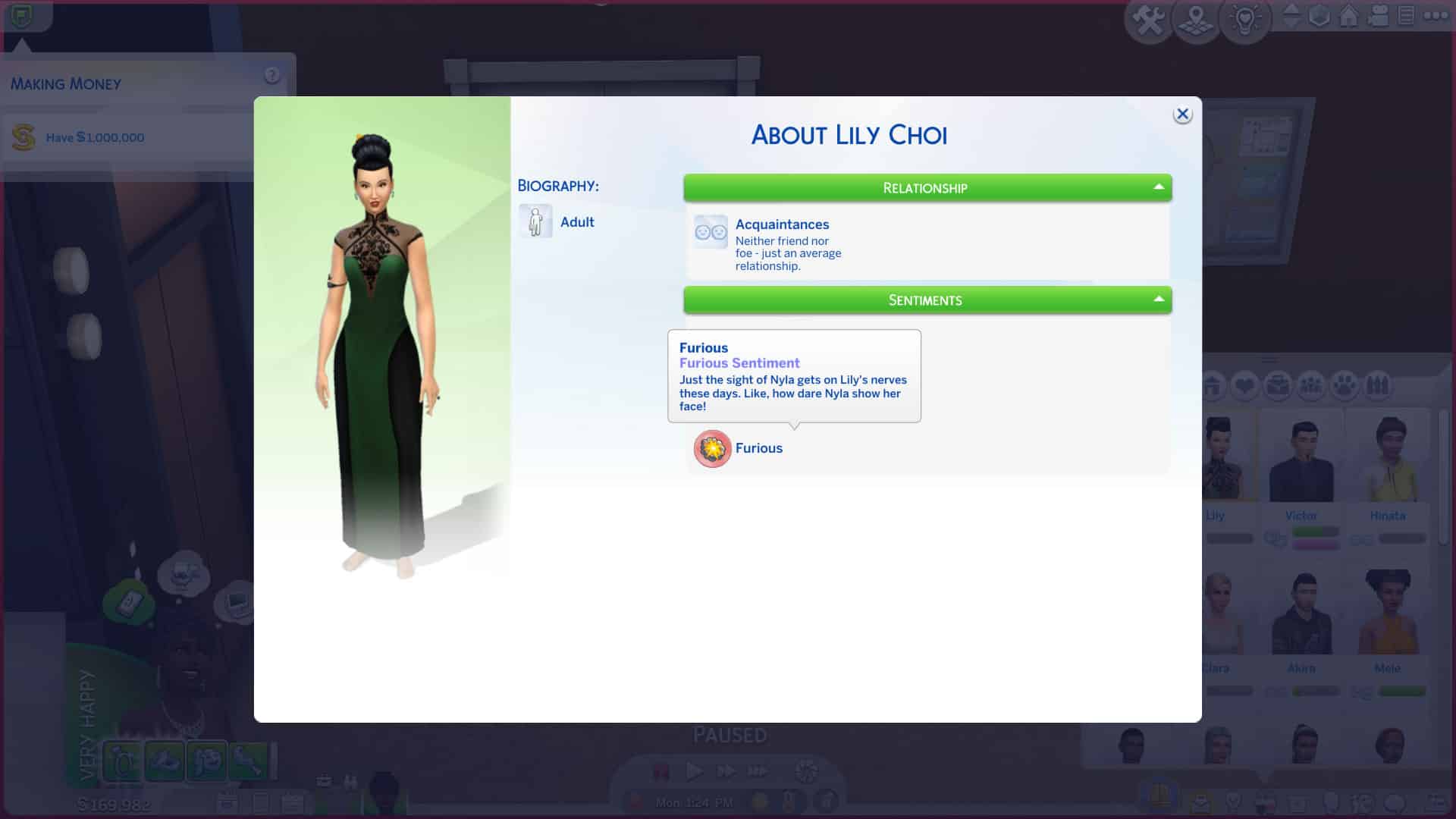
We can see Lily is furious that her now ex-husband cheated on her.

As stated above, you can get a pretty good idea of how to trigger most of the sentiments by reading the sentiment names and descriptions. For sentiments that are more vague, they can usually be triggered through general conversation. For example, the Closer From Happy Memories sentiment pops up quite frequently while having a pleasant conversation with another Sim. I’ve even gotten this sentiment immediately upon giving a friendly introduction to a new Sim. It’s probably the most common sentiment that pops up during gameplay because almost any friendly or funny exchange between Sims can trigger it.

The Sims 4: All Sentiments and their Effects (Packs Included)
Lily can’t stand to be around her ex-husband’s new wife, the woman he cheated on her with.

Other more specific sentiments, like Awed by Lifesaving Hero and Close After a Close Call, require more specific actions. These sentiments can only be triggered by saving a Sim from death. I have received these sentiments on two separate occasions; once was when a Sim was on fire and another Sim extinguished them. The other time, a Sim drowned in the pool and the other Sim used a death flower to convince the Grim Reaper to spare their life. When you save a Sim from death, the Sim who was saved will receive the Awed by Lifesaving Hero sentiment. The other Sim will get the Close After a Close Call sentiment.

The Sims 4: All Sentiments and their Effects (Packs Included)
I used the UI Cheats mod to make Lily furious with Victor’s new wife since I thought that was pretty appropriate.

Again, it’s important to remember that not all sentiments are guaranteed to trigger 100% of the time. In my experience, the “big” sentiments like Deeply in Love after a wedding or Awed by Lifesaving Hero after being saved from death will always trigger but the smaller, less important sentiments like Closer From Happy Memories may not. The smaller sentiments gained through random conversation only have a chance of triggering, while the big sentiments from important life events will almost always trigger when those events occur. The game places more emphasis and importance on large milestones in Sims’ lives, which makes sense. If you just got divorced, you aren’t going to care very much about a funny joke someone just told you because you’re sad about something much bigger.

If you’re a PC player and a savvy mod user, you may be interested in the UI Cheats Extension mod by weerbesu to give you more control over sentiments. The Mod has just recently been updated with new functionality that allows you to attribute (and remove) any Sentiment in the game. You can right-click the Sentiments panel in a Sim’s info page to assign or remove any sentiment you want between those two Sims. This can be very handy for storytelling purposes.

The Sims 4: All Sentiments and their Effects (Packs Included)

Modders are already creating Custom Scenarios for The Sims 4

It hasn’t taken long for the modding community to explore all of the potential there is to Scenarios that have just recently been released to The Sims 4. In fact, just hours after their release modders were able to confirm that creating Custom Scenarios for The Sims 4 is completely possible!

Modder @ChippedSim reported shortly after the update that they were able to implement a Custom Scenario to The Sims 4:

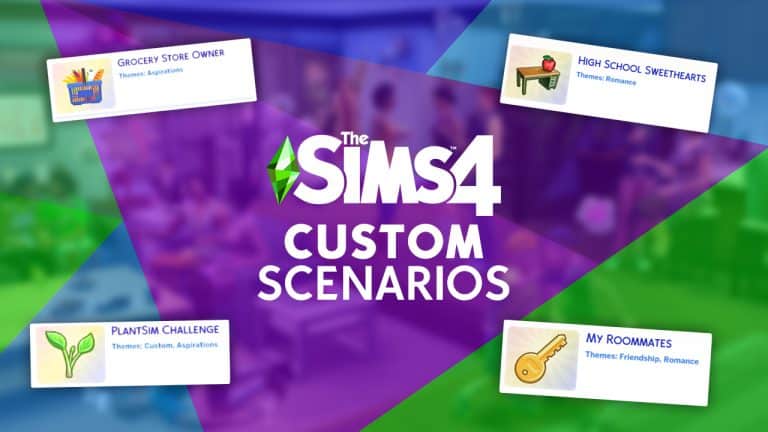
It hasn’t taken a lot for other modders to follow suit with their own iterations of Custom Scenarios. @SrslySimsMods has shared their current development of two Custom Scenarios that they’re working on. One of the Scenarios is focused on the concept of being a Grocery Store Owner:

…while the latter one focuses on bringing back the PlantSim occult, which are for some odd reason still locked away after the limited-time Spring Challenge in 2016:

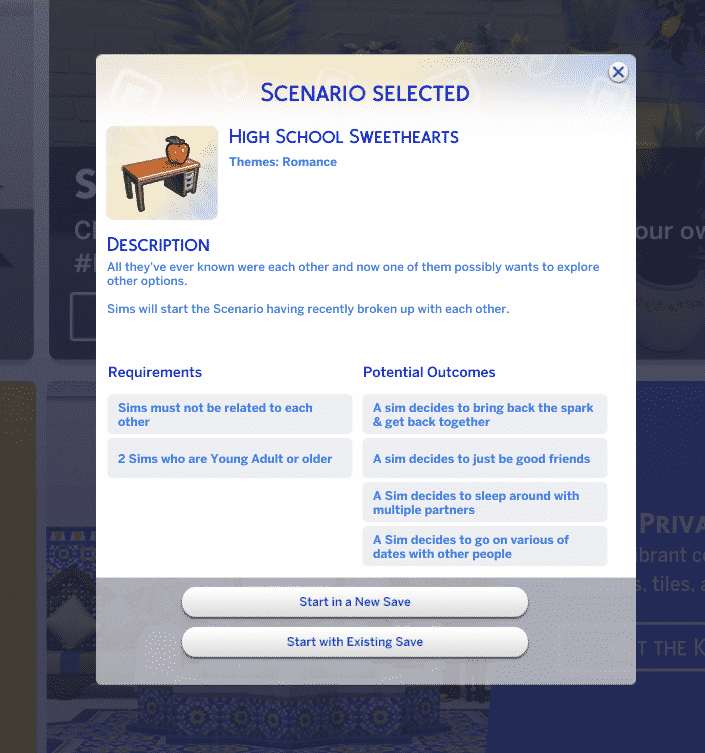
Modder @KawaiiStacie has already been hard at work checking out all the modding options for Scenarios. That’s exactly how their first ever Scenario Mod came to life – High School Sweethearts!

This Custom Scenario comes with a backstory, simple requirements and 4 different potential outcomes:

Modders are already creating Custom Scenarios for The Sims 4

This Custom Scenario can be downloaded right away to your game by clicking the Download button below. The instructions for installing Custom Scenarios are the same as for installing Mods / Custom Content – simply paste the .package file to your Electronic Arts > The Sims 4 > Mods folder. Ensure you have Mods / CC enabled in your Game Options!

[mks_button size=”large” title=”DOWNLOAD!” style=”squared” url=”” target=”_blank” bg_color=”#6cc43c” txt_color=”#FFFFFF” icon=”fa-arrow-down” icon_type=”fa” nofollow=”0″]

KawaiiStacie is already working on another Custom Scenario called My Roomates! You can check out the Scenario Preview below:

The Scenarios Feature is still fresh to the game which is why we should be patient just for a little bit longer to see the full potential of Custom Scenarios. The Sims Team shared with the release of Scenarios that this is only the “first version” of Scenarios, which is giving hope to both the players and the modding community that there will be more complex tools to play with in the future.