Origin continues with the 12 Days of Origin Deals promotion for The Sims 4 Packs!
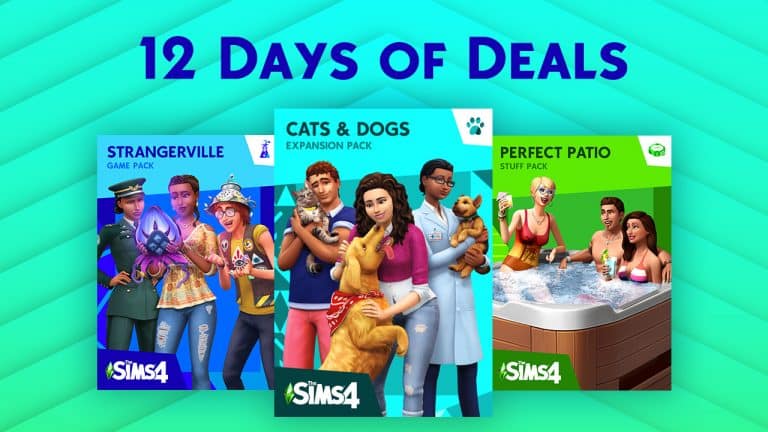
In this round we have a different set of Expansion Packs, Game Packs and Stuff Packs that are 50% off. The packs included for the third sale are:
The Sims 4 Get to Work Expansion Pack (50% off)
The Sims 4 Dine Out Game Pack (50% off)
The Sims 4 Cool Kitchen Stuff Pack (50% off)
The sale is active right now and will last until December 22nd, 2020 at 10AM Pacific Time. It’s not known if the promotion will continue after this period as the 22nd will conclude 12 days of the promotion. Nevertheless, make sure you take advantage of this promotion while the offer still lasts!
Origin is continuing its 12 Days of Origin Deals for The Sims 4 Games!
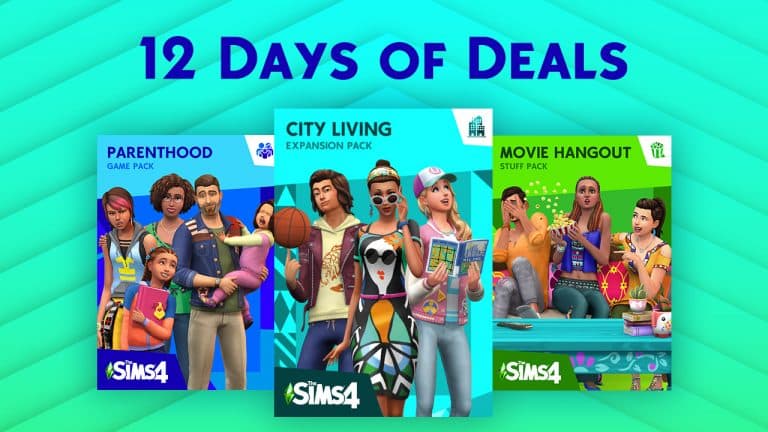
In this round they have a different set of packs included for The Sims 4 – once again 1 Expansion Pack, 1 Game Pack and 1 Stuff Pack all discounted at 50% off. Here are the packs included:
The Sims 4 City Living Expansion Pack (50% off)
The Sims 4 Parenthood Game Pack (50% off)
The Sims 4 Movie Hangout Stuff Pack (50% off)
The deals are active right now and will last until December 18th, 2020 at 10AM PT where a new set of pack deals will go live. Make sure you take advantage of these Origin offers while they’re still up!
The Sims Team has released a small update for The Sims 4 on PC, Mac, Xbox One and PS4!
To download the latest version of The Sims 4, simply open your Origin program and if the game doesn’t update automatically, right click on The Sims 4 and select ”Update”.
In case you have Mods or Custom Content, the game will automatically disable them for you after first launching The Sims 4 after the update. To re-enable all your Mods and Custom Content, select the Settings option in the Menu and select Settings. Under the ”Other” section you’ll find the ”Enable Custom Content and Mods” option. Check it and restart your game in order for it to take effect!
Patch Notes
PC: 1.69.59.1020 / Mac: 1.69.59.1220
Console: Version 1.36
Hello Simmers,
We have an important update for you to address the issues with Genetics, in which skin tones were not being applied appropriately. Thank you for your reports and assistance in tracking down these issues.
Origin is having a special promotion just for The Sims 4 called 12 Days of Deals!
Although Origin hasn’t exactly specified all the details of this promotion, we can expect that throughout the next 12 days different packs will go on sale, mostly in the cycle of 1 Expansion, 1 Game and 1 Stuff Pack.
The offers for these select packs will last until December 14th, 2020 at 10AM PT and is exclusive to the Origin platform. We’ll make sure to keep you posted throughout the next 12 days about new pack deals when they surface!
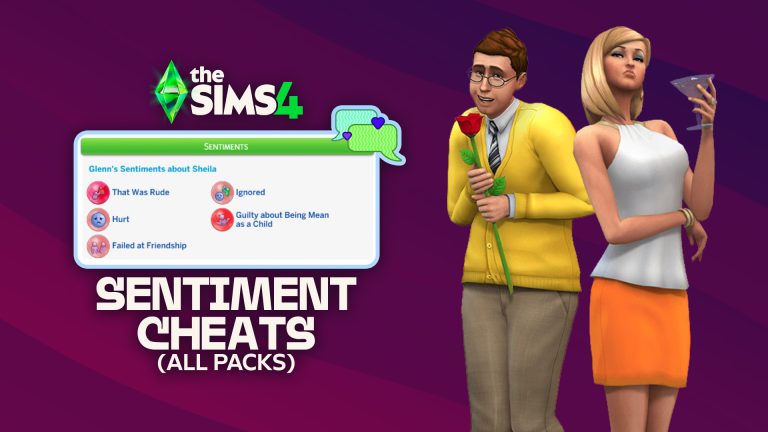
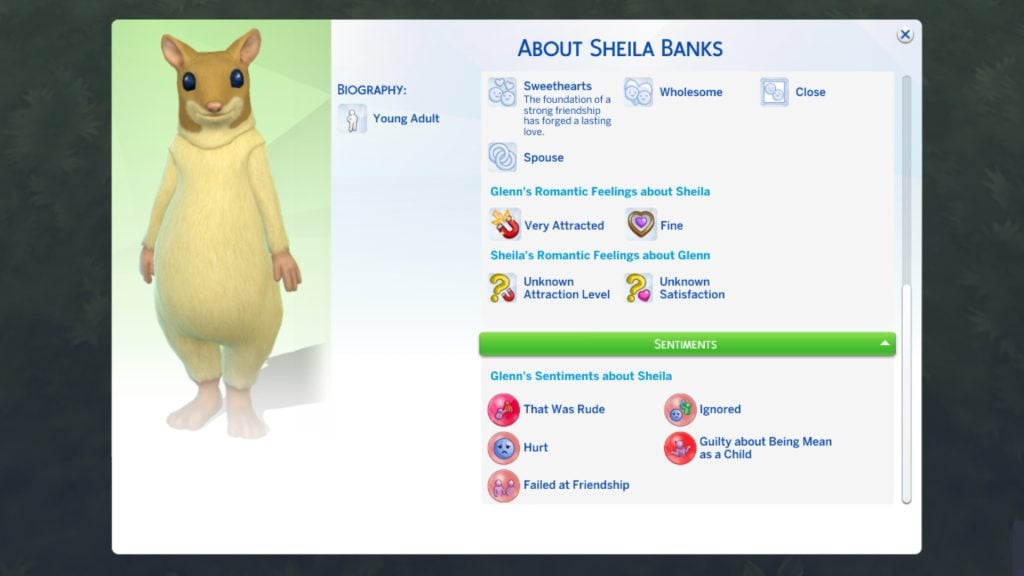
Add or remove Sentiments in The Sims 4 with these Cheats!
Ever wanted to give your Sims in The Sims 4 instant Sentiments without the extra hassle? Well, now you can! These are the Base Game Sentiment Cheats for The Sims 4.
To apply the Sentiment cheats, you’ll have to do some extra steps, considering that these cheats are very complex. Luckily, you won’t be needing any mods or anything – just some extra patience.
[ This guide was updated on 01/12/2026 by Callum Bowyer to include new Sentiment Pack Cheats]
Table of Contents
How to Apply Sentiment Cheats
Open up the cheat console (CTRL + Shift + C on PC / L1+R1+L2+R2 on Consoles)
Make sure you’ve enabled testingcheats true – for consoles it’s necessary to have this cheat because of the Achievements progress
Type in modifyrelationshipfirstname lastname firstname2 lastname2 100 (the firstname lastname instances should be replaced with actual Sims names of who you want the Sentiments to be applied to)
Paste the Sentiments cheat codes from the list below
Before I continue with the full list of Sentiments and their Cheat tags, here’s how the full cheat should look like between two Sims – Raj Rasoya and Geeta Rasoya. The sentiment will be applied only to the Sim whose first and last name you’ve entered first (in this example it’s Raj Rasoya):
Here’s the full list of Sentiment Code tags that you can apply to Sims! Remember, make sure you replace the name tags with actual Sim names and the Sentiment Tag with the Sentiment Cheat Tag listed in the list below! Tip, you can also remove a Sentiment through the cheat by typing -100 instead of 100!
Positive Sentiments
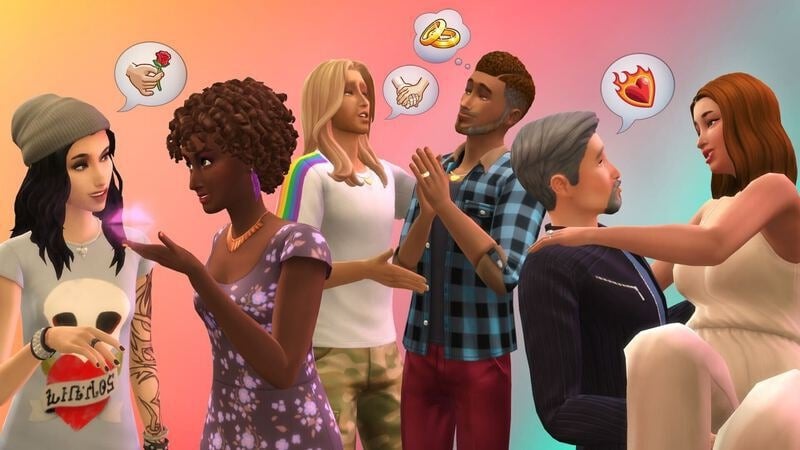
Positive Sentiments are split into 5 categories, including Adoring, Close, Enamored, Motivating, and Crush. If you have The Sims 4 Adventure Awaits installed, then you will also have access to Childhood-specific Sentiments that can only be gained in Childhood, but can be applied using cheats to Sims aged Teen and older.
Negative Sentiments are split into 5 categories, including Bitter, Hurt, Furious, and Guilty. As with positive sentiment categories, negative sentiments also have Childhood-specific Sentiments that can only be gained in Childhood.
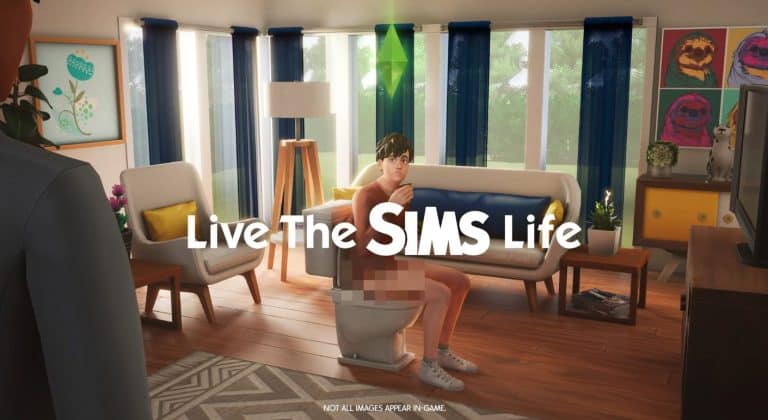
It’s definitely been a while since Electronic Arts has done an in-real-life Marketing Campaign to promote The Sims 4. The last marketing campaign that we had was “You Rule” all the way back in 2014 which…only lasted for a few months before the promotional videos got taken down from The Sims’ official YouTube channel for unknown reasons. Thankfully the progress of this marketing campaign and some of the examples are still up and you can check them out here!
Just a few days ago The Sims official website has listed a new page called “Live The Sims Life”. Inside of this page are 4 different promotional “Live The Sims Life” videos that compare some of The Sims moments to real life. Most of the situations can be done and performed in The Sims 4 however I’m not too sure about the last video where the character jumps into her bedroom pool straight from bed. Huh, maybe it’s just a metaphor.
Anyways, you can check out all the 4 different promotional videos down below!
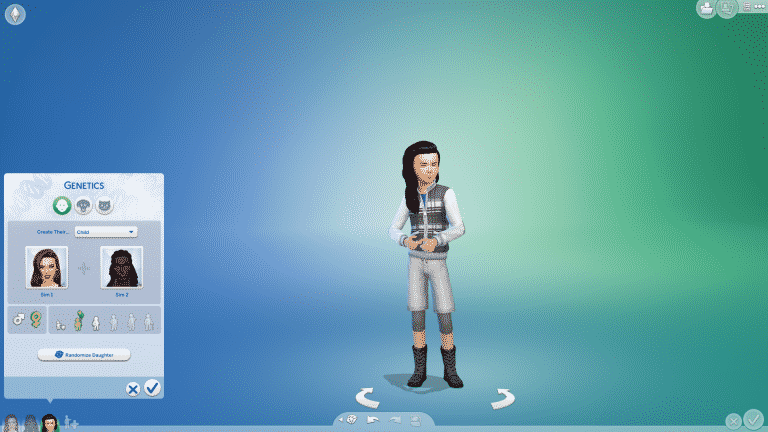
The Sims 4’s new update brought tons of new Skin Tones along with different sliders to make them more dark or pale. However, as pointed out by many members in the community there are a few issues when it comes to Genetics. More specifically, the Skin Tones don’t translate well to the offspring of two Sims with different Skin Tones.
I’ve tested out the Genetics feature in Create A Sim with Sims who have totally different Skin Tones. After pressing the Randomize button for the Child Sim created through genetics the results were always…white. Even after pressing the randomize button 10 times.
The issue also persists in Live Mode if two Sims have a baby together.
The Sims Team has acknowledged the issue and stated the following:
Hi Simmers, we are aware of the genetics selector issue in The Sims 4, and we’re investigating it.
Hi Simmers, we are aware of the genetics selector issue in The Sims 4, and we’re investigating it.🔍
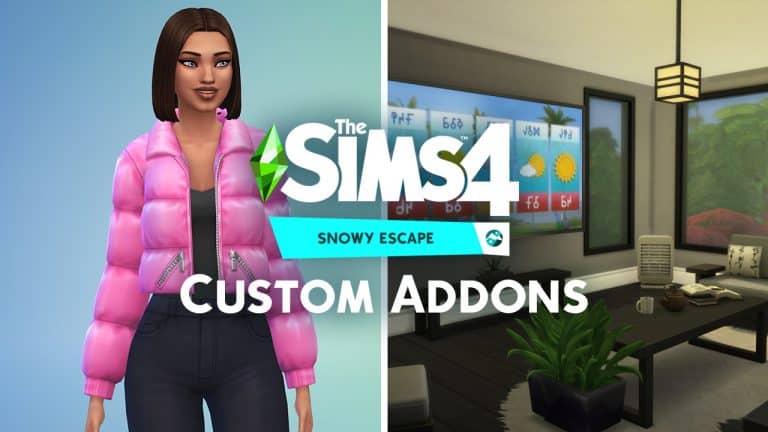
The community has been hard at work over the last couple of days to provide you with some extra content that expands upon the world of The Sims 4 Snowy Escape Expansion Pack.
In this post specifically I’ll be talking about the two great Custom Content Addons that you can add to your game to expand (and improve) your CAS and Build Catalog.
The first set is created by grimcookies that expands the catalog of Create A Sim clothing from The Sims 4 Snowy Escape. The set contains 16 different CAS items that are different variations of the items you already get with Snowy Escape. With this set you’ll get:
3 Adult Male tops
3 Adult Female tops
2 Adult Female skirts
8 Adult Female hairs (3 of which are ombre variants)
My personal favorite (which is also featured in the box art below) is the liberated puffer jacket that doesn’t come with the sweater that has been originally introduced with the pack.
Just like any other CC pack this one can easily be installed by extracting the contents to your save game. More specifically Electronic Arts > The Sims 4 > Mods folder. Make sure you’ve enabled CC / Mods in your game options for the set to appear in your game! This set relies on textures and mesh already created by EA which means you’ll need Snowy Escape in order to use the set.
The other set created by IllogicalSimmer just came out and expands your Build / Buy Catalog with new objects that follow along the theme of Snowy Escape’s already existing objects. The set comes with over 40 different objects that are original creations – however, considering that the items rely a lot on different textures and mesh that Snowy Escape brought with its objects you’ll need the pack in order to have these additional objects.
This set contains over 30 objects, 41 to be specific, if you include each individual separated plant and shelf. It’s weird how the total number of objects turned out exactly the same as my last addon… Just some of the objects included in this addon are sofas (with and without armrests), desks, dining tables, built-in sliding doors and a single bed variant.
As this is an Addon which uses many assets from Snowy Escape Expansion Pack, it requires you to have Snowy Escape for it to work.
Just like with the CAS set, this one can be installed by extracting the content to Electronic Arts > The Sims 4 > Mods folder and enabling CC / Mods in the options.
The Sims 4’s Main Menu went through A LOT of changes ever since the game’s release in 2014. There have been plenty of reasons why the Main Menu changed through the game’s lifespan – the releasement of new packs, new gallery features and showcases and in general the desire to make the menu organized and filled up.
In this post I’ll be showing all the different versions of The Sims 4’s Main Menu for all the User Interface fanatics and graphic designers out there!
2014-2015 Main Menu
The Sims 4’s first Menu was simple. Maybe a bit too simple. It featured a lot of plain white with not much going on except the cool animated splash screen showcasing different features that came with The Sims 4 Base Game. The release of The Sims 4 Outdoor Retreat Game Pack also brought in some new video animations.
You can also check out some of the animations that were featured in the video below:
2015-2017
The Sims 4’s first Expansion Pack (Get to Work) also brought a new Main Menu. It featured an animated splash render of the latest installed pack as well as information boxes on the bottom of the screen that featured Community Highlights, Tips and more. There was also a My Packs category that featured box arts of all the Packs that there are and which ones you own. This design has been similarly implemented on the Main Menu we have today.
2017-2019
With more packs releasing came the need to fit them all together on the Main Menu. In February 2017 shortly after the release of The Sims 4 Vampires Game Pack came a new Main Menu with somewhat similar elements featured on the right side of the screen. On the left was a banner with save game options and a collection of all The Sims 4 Packs. However, as 2019 came the Pack Collection menu became too overpopulated where players then had to scroll to see the entire collection.
2019-2020
In July 2019 there was a huge rebranding of The Sims 4 which changed the look of some of the game’s User Interface elements – including the Main Menu. Online news and information have been displayed on the top center with the latest packs and their trailers showcased on the left. The Your Collection category has been recategorized so that all the packs could fit in properly. However, the Stuff Packs bar kinda became too big with new releases, leading up to the Main Menu we have today.
2020
Probably the most drastic Main Menu change. Online news, pack releases, new challenges and gallery creations are now put up front and center with save game, gallery and game options displayed on the right bar. The Sims Team also reverted back to showcasing the packs as boxarts in the Packs category so that the Main Menu doesn’t keep reminding you constantly of which packs you possibly don’t have. The category features Pack type filters as well as filters for packs you have or don’t have purchased. All the pack reminders regarding the Pack discounts and sales have also moved to this category!
2025
The Sims 4 Main Menu evolution continues almost 11 years after the release of the Base Game. This time releasing just in time for the 25th Anniversary Celebrations, the new Main Menu puts your last played household on the front center of the screen.
You can also expect background changes depending on The Sims 4’s current Roadmap.
Official Sims 4 Main Menu MockupCurrent look of The Sims 4’s Main Menu in 2025
The Sims 4’s Skin Tones and Makeup Sliders update is proving that there’s even more features that The Sims Team could do to improve the Create A Sim experience. Beside the fact that you can officially change the color of your Sim’s Skin Tone and Makeup using the new sliders provided in the game, modders are now exploring the possibility of unlocking the new sliders for hairstyle colors as well!
@aharris00brit and @grnllamas have shown off what they’ve been working on as soon as the update had been released. They’ve made one of their Custom Hairstyles so that the opacity slider changes the color tones as you move the slider left and right.
You can check out the actual custom tool in action down below:
Once the saturation/brightness sliders are compatible with CC, a full hair color wheel should be possible 😭 right now only opacity can change it by layering textures, but soooon. @grnllamas and I thought of making this a few weeks ago and I’m so happy it works pic.twitter.com/ZEgG2ZgeuU
As of now the Custom Hairstyle Sliders would only work if the Hairstyles have been categorized under the Makeup category since the new sliders are only available to be used there. Still, this is a good sign of all the options that we could get either through the modding community or from The Sims Team themselves in the future. After all we all thought that Skin Tone and Makeup Sliders couldn’t be possible and here we are.
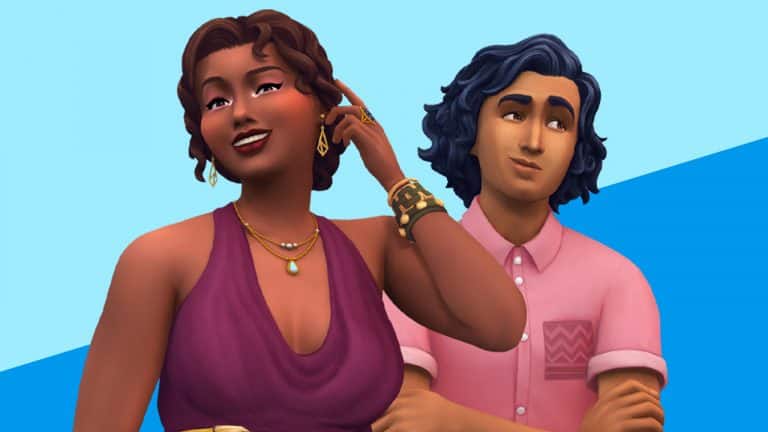
The Sims Team has surprised us a day early with the long-awaited skin tones and makeup update! Today’s update brings over 100 new skin tones and an opacity slider for most makeup in the game!
Skin Tones
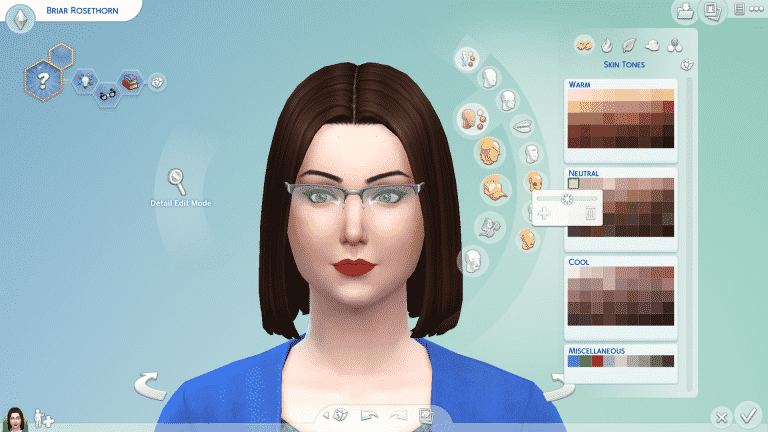
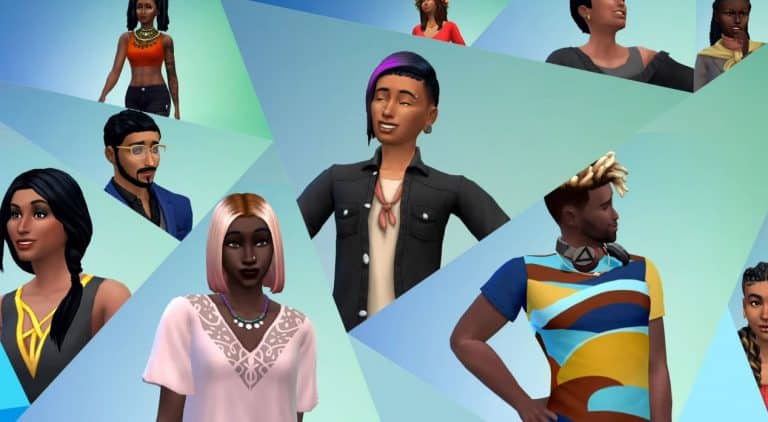
There is now a new category dedicated to skin tones in Create-A-Sim. In the skin tones category, there are a total of 144 skin tones to choose from, broken up into 4 categories; Warm, Neutral, Cool, and Miscellaneous. The Miscellaneous section contains all the occult skin tones.
But that’s not all! Each of the 144 skin tones has a light to dark slider so you can further customize your Sim’s skin to your exact desired shade. When you find a customized skin tone you like and want to use again in the future, just hit the plus sign to save it! No need to struggle to remember your exact customization settings every time you open CAS. Saved skin tones that you no longer want can also be deleted by hitting the trash can icon.
Makeup
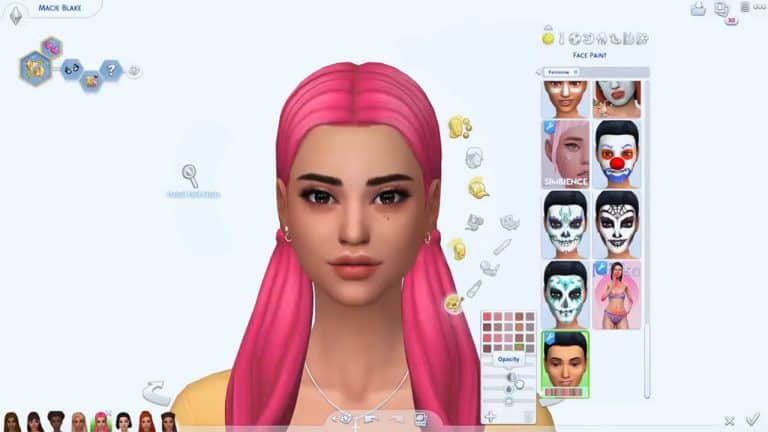
With the addition of the new skin tones and the added customization, makeup has also seen a feature overhaul. Not only can you change the hue and opacity of individual shades, but you can also change the saturation and brightness for them as well.
However, as you explore the new customization features, you will find that some options will not be available and will be greyed out, preventing any changes. We’ve detailed these below.
Eyeshadows
Other than one white eyeshadow shade from Get To Work where the saturation cannot be changed, all eye shadows are fully customizable.
Eyeliner
While most eyeliners are customizable, a number of orange, yellow, bright pink, blue, and black shades are not fully customizable. These were from various packs.
Cheeks
Three of the four Get to Work options do not allow you to change hues.
Both MAC Cosmetic options only allow you to change the opacity.
Base Game option only allows you to change the opacity.
Lips
Get to Work – There are several lip options where you are unable to edit the brightness and/or saturation of the white, green, pink, grey, or blue shades.
Vampires – You are unable to edit the saturation of the black, blue/purple, red, turquoise, or yellow shade. You are also unable to change the brightness of the white shade
MAC Cosmetics – There are several shades across all the options that will not allow full customization.
Base Game – All Base Game options are fully customizable
Face Paint
While most of the face paints are fully customizable, there is a small handful that has either brightness or saturation greyed out on particular shades.
Hair Styles
TS4 x64 2020 12 07 14 15 19
TS4 x64 2020 12 07 14 15 34
TS4 x64 2020 12 07 14 17 35
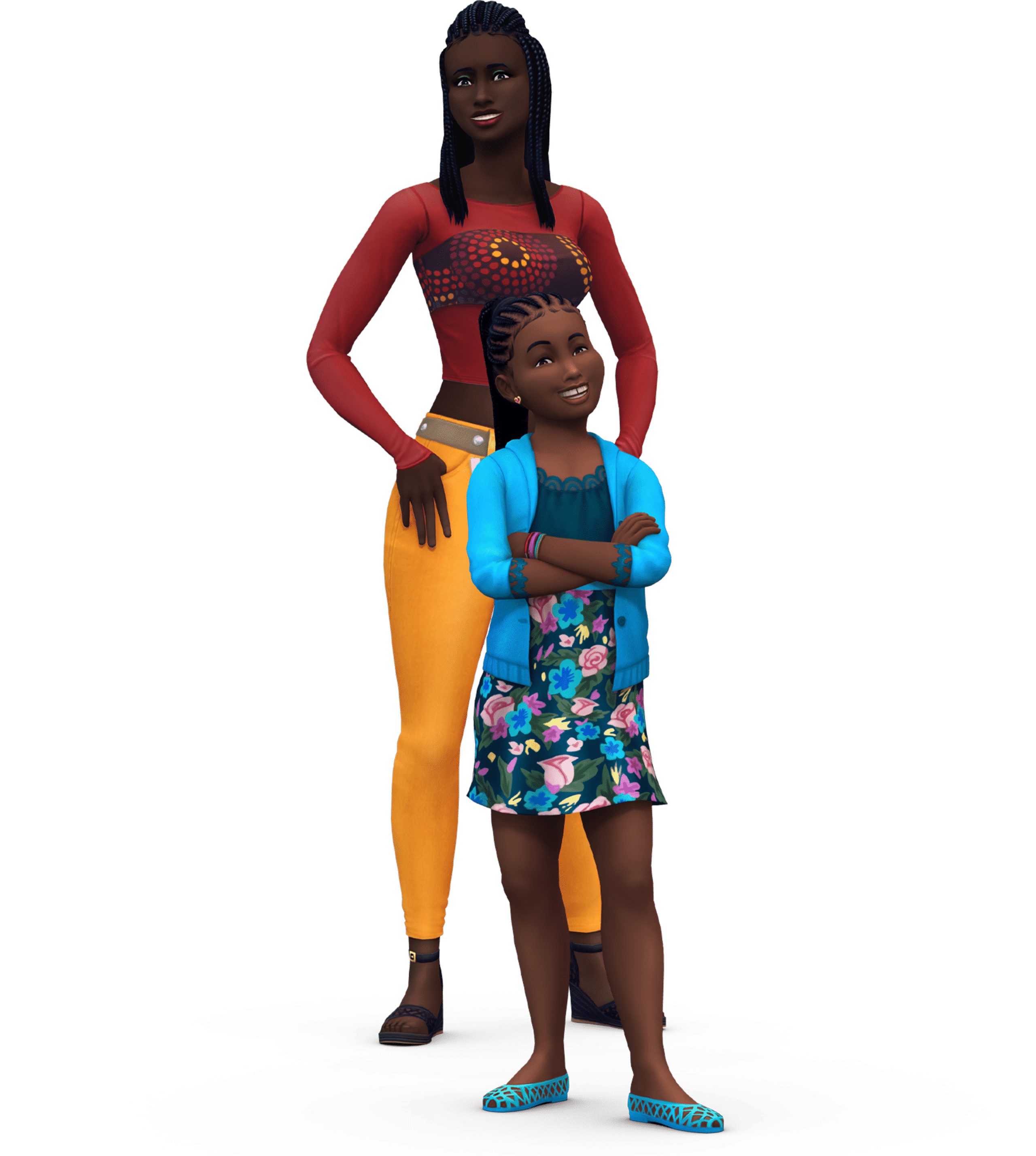
In the spirit of inclusivity, three more African-inspired hairstyles have been updated! There are now two variations of the braided ponytail for female children and an adult male hairstyle has received a more subtle update.
Main Menu
TS4 x64 2020 12 07 14 19 20
TS4 x64 2020 12 07 14 19 29
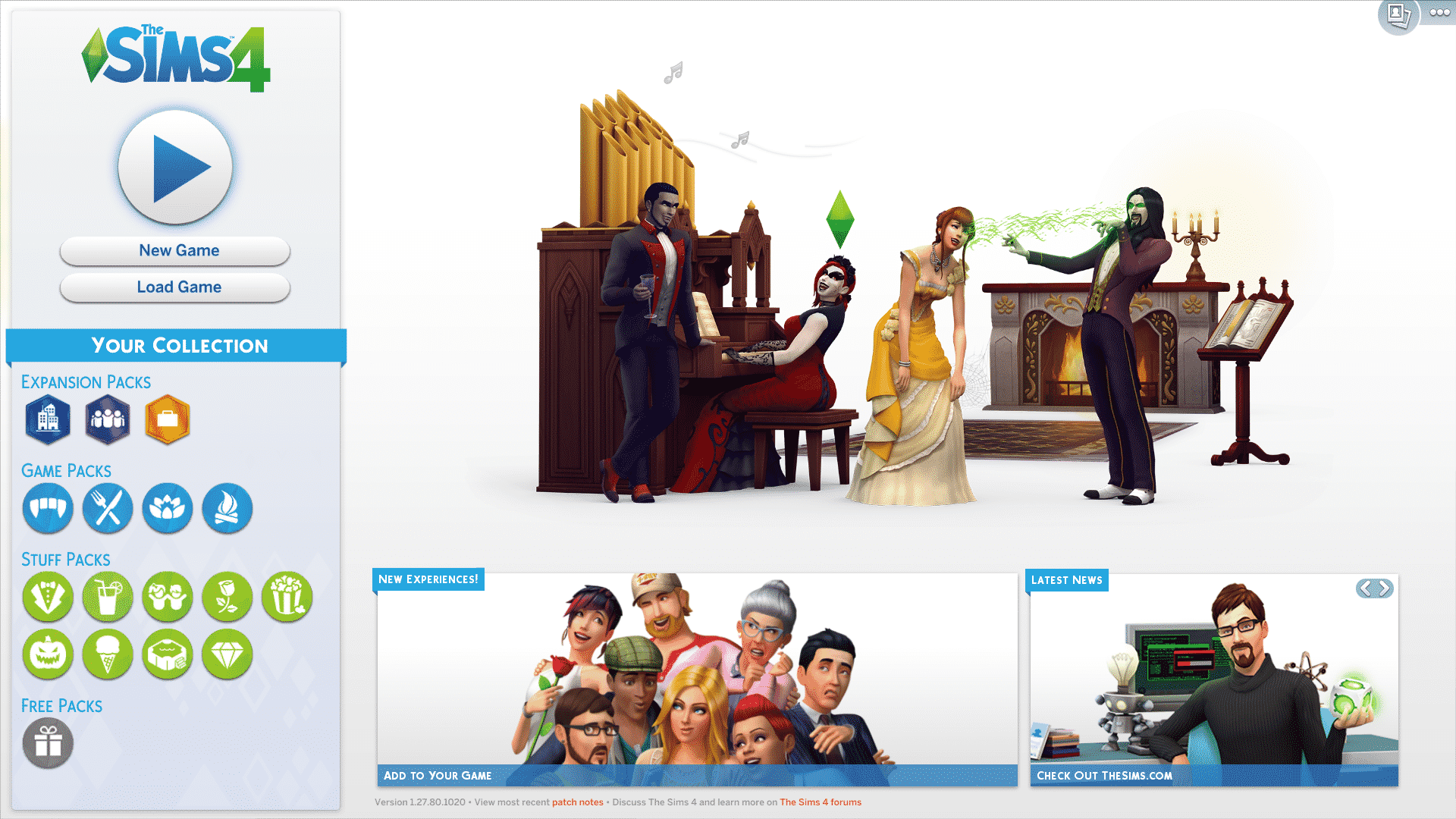
The skin tones and hair aren’t the only things to receive a face lift! The main menu has seen yet another makeover. The new design is much cleaner and doesn’t try to cram as much stuff onto one page anymore. Packs now have their own section in a tab at the top, so no more being taunted by those greyed out icons every time you open your game! If you are actively looking for new packs to purchase, you can see a more detailed overview of each pack in the Packs tab, including the box art. You can also organize your packs by expansions, game packs, stuff packs, free stuff, and packs that you own.
Other Stuff
In addition to these new features, today’s update also brings plenty of bug fixes and small gameplay tweaks. For a full rundown of all the fixes and tweaks, check out the official patch notes here!
The new Skin Tone and Makeup features that have been introduced with The Sims 4’s latest update have been long awaited. Even though The Sims Team explained how these features will work even before today’s update it still wasn’t certain how they will affect the Custom Content community. Today I’ve learned more on how CC Skin Tones and Makeup are being affected with the latest update!
I’ve talked with the community member @littledica to see how his Mods folder is being affected by the latest update. Specifically – all the Custom Skin Tones and Makeup.
When it comes to Custom Skin Tones he explained that…well…they’re not there. At all. Even though there’s now a huge selection of Skin Tones already present in the game, Custom Skin Tones that have been created before the new update won’t show up in the Skin Tones User Interface. This isn’t too bad considering that I expected that Custom Skin Tones would break the entire UI / Game.
Now onto some better news – all of your Custom Makeup that you’ve downloaded before the update will properly show up and work without any issues just like before. Not only that but the new Opacity slider also works without any issues on Custom Makeup!
makeup2
makeup1
Although 3 other sliders (Hue, Saturation and Brightness) will appear unlocked when selecting Custom Content Makeup, moving the sliders from left to right won’t show any difference onto your Sim that you’re customizing.
This update will probably open up the possibility for Custom Content creators to make their Cusotm Makeup work with all 4 sliders. Make sure you keep up with your favorite CC Makeup creators when they release an update regarding the new makeup features!
We’ll also keep you posted on all things CC / Mods and future creations created up by the community.
Want to find out what’s new in The Sims 4’s latest update that just came out for PC, Mac and Consoles? Check out our latest video overview diving deeper into the Patch Notes, the new Main Menu and OF COURSE – the new Skin Tone and Makeup options!