What would a life simulation game be without a milestone as important as marriage?
At level 7, you’ll unlock the ability to get married. You’ll also get a quest to get married shortly after reaching level 7. Getting married in The Sims Mobile isn’t hard, but just like in other Sims games and in real life, you’ll need to spend some time building a meaningful relationship with another Sim.
Don’t worry if you’ve already started a non-romantic relationship story with the Sim you want to marry, you can still marry that Sim as long as you spend enough time doing romantic social interactions with that Sim.
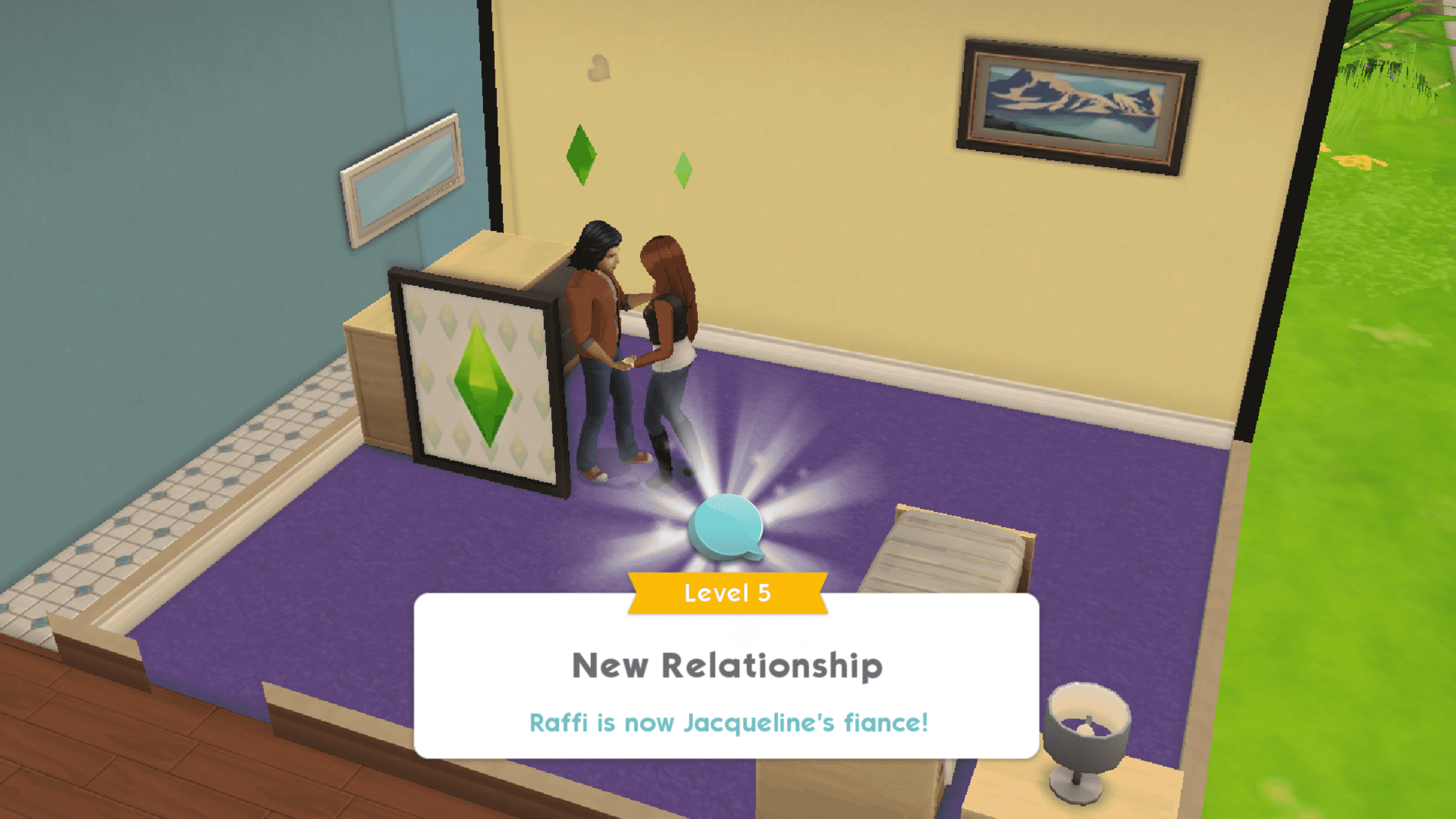
After spending enough time being romantic with the Sim you want to marry, you’ll have the option to start a Proposal event in the Flirty interaction menu. The proposal event works the same way as any other relationship event. Perform event socials to fill the performance bar. Just like other events, your Sim will finish the event on their own, but you can help them finish faster.
Screenshot 20180308 005710
Screenshot 20180308 010146 1
When the Propose event is finished, your Sims will become engaged and you can get married under a wedding arch, but before getting married, you’ll need to complete the wedding collection in the Buy menu. The wedding collection consists of three items; Windowed Rose Lattice, Floral Pillar, and the Wedding Arch. You’ll need one of each to get married.
Once your Sims are engaged and you have the wedding decor set up, it’s time for the big event. If you’ve spent enough time playing with your Sims, you’ll have the ability to throw a wedding party, but don’t worry if the wedding party isn’t available to you, yet. The wedding party is optional; your Sims can still tie the knot without one.
Screenshot 20180308 011027
Screenshot 20180308 011038
After the vows have been said and the rings exchanged, your Sim’s new spouse will move in with your Sim if they don’t already live with your Sim.
Congratulations on your new marriage! We hope your Sims will be very happy together for the rest of their lives!
One of the greatest features of The Sims Mobile is the ability to interact with other players and their Sims. Parties are a great way to do this. Meet new people, make new friends, and earn rewards along the way.
Parties are unlocked when you reach level 6. After getting to level 6, a Sim will invite you to your first party and walk you through the process of attending parties.
Screenshot 20180307 122941
Screenshot 20180307 123021
Open the tab with the blue arrow on the right side of the screen, then tap the icon with the balloons. Select Find Parties.
Several parties that other players are hosting will show up in this tab. You can see the possible rewards from the party and the name of the person hosting the party here. For your first party, select the one the tutorial guides you to, but in the future, you’ll be able to choose any available party you’d like to attend.
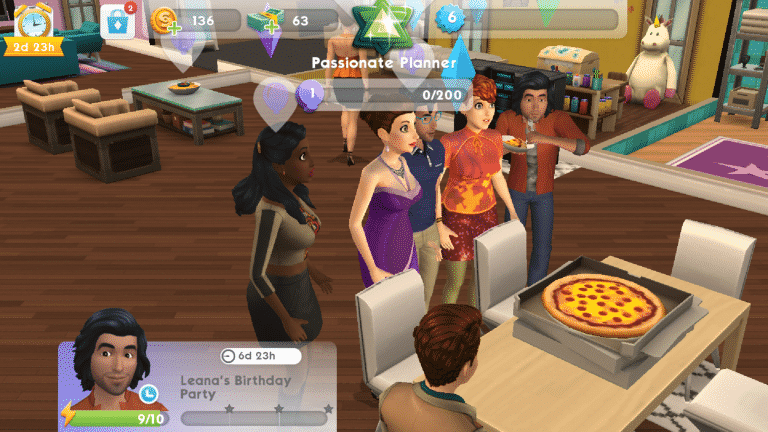
Once you’re at the party, your goal is to perform party actions to help the party go up a level. All Sims attending the party receive the party rewards for gaining new party levels. Socialise with other Sims and interact with objects that have a purple balloon icon above them in order to help raise the party level. This is a great way to meet new players and make more friends. It’s also a good way to give and receive stickers and make more friends for your Sims.
Screenshot 20180307 123035
Screenshot 20180307 123050
Your Sims can attend two parties a day and it’s a good idea to attend them both every day. Doing so will reward your Sims with new friends, simoleons, cake slices (which can be consumed by your Sims to give them more stamina for performing party actions) and Sim Tickets that can be used to expand your Sim’s wardrobe.
It pays to be social in The Sims Mobile, so put your party hat on and go mingle with the masses.
The Sims Team has confirmed that The Sims 4 Get to Work will indeed come to Xbox One and PS4 on March 20th.
They’ve released an announcement blog and a trailer that you can check out below:
Hey, Simmers!
We’re excited to announce that The Sims 4TM Get to Work* expansion pack is coming to Xbox One and PlayStation 4 on March 20, 2018. With three brand new active careers, and so much more, there are plenty of ways for you to build your Sims’ careers and earn Simoleons. There’s loads to discover in The Sims 4 Get to Work, so let’s start with five fun features that will have you clocked in on this pack.
An Emergency Room – of Fun!
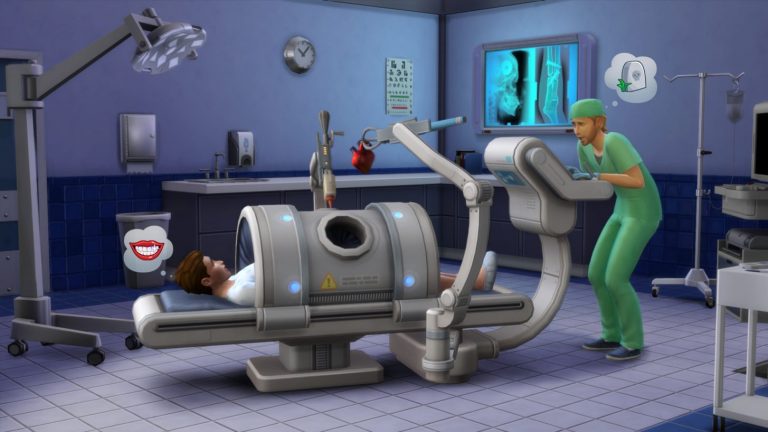
Your Sims can now spend their days saving lives, treating patients, performing emergency surgery, and being an overall hero. Plus, they can even deliver babies. Dr. Sim, report to the operating room, stat!
CSI: Crime Sim Investigation
Grab your badge and become a detective! Study crime scenes, interrogate Sims, and arrest criminals while you work your way from Cadet all the way up to the Chief of Police.
Down to a Science
Scientist Sims spend their days dreaming up crazy inventions and collecting unique specimens for diabolical creations like the Sim Ray. Like every moral scientific dilemma, your Sims can decide to use their inventions to help – or torment – their fellow Sims. Muahaha!
Set Up Shop
Start something awesome like a bakery, clothing boutique, art gallery, or bookstore. Customize every facet of your business with Build Mode, then select what items to sell, manage your employees, and even upsell customers. Cha-ching!
New Career Venues
Unique career venues and neighborhoods like the Hospital, Police Station, and Science Lab are fully stocked with a variety of objects to help your Sims achieve their professional dreams! The Retail District will be the hub for all the businesses you’ve created, and where Sims will flock to spend their hard-earned Simoleans.
BONUS: Close Encounters of the Sims Kind
We can’t keep this one a secret. Aliens have landed and walk amongst us. With this expansion pack, you’ll find out which Sims are truly out of this world, and discover the mysterious alien dimension!
Get ready to rule the workplace and make your Sims seriously successful! The Sims 4 Get to Work is coming out March 20, 2018 on Xbox and PlayStation 4.
With so much to do and experience in The Sims Mobile, it can be hard for a beginner to figure out what to focus on to progress in the game. Lifestyle points, Izzy’s Fashion Shop, careers, relationships, heirlooms, where on earth do you even start?
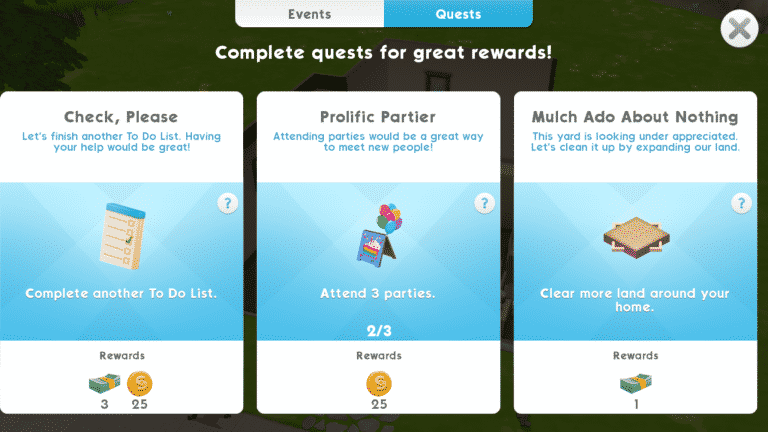
The answer? Quests and daily tasks. Whenever you’re in doubt about what to do next, consult your quest log and daily task list. They’ll always point you in the right direction. Completing quests and daily tasks will help you progress further in the game, so whenever you find yourself not knowing what to do, always default to these.
Quests are what push your Sim’s life forward, so it’s best to focus on those, first, but it’s always a good idea to complete your daily tasks every day to get some cool rewards, like simoleons and cupcakes. Cupcakes replenish your Sim’s energy so they can do much more for much longer.
Access your quests and daily tasks by tapping the To-Do List and Quests icons in the bottom right corner of your screen. These screens will be your go-to throughout the entire game so be sure to return to these screens often. They’ll tell you exactly what you need to do next so you can never go wrong if you’re referring to your quests and daily tasks.
So the next time you’re feeling overwhelmed or lost while playing The Sims Mobile, your quests and daily tasks will be there for you. They’ll point you exactly where you need to go so just follow their lead and both you and your Sims will be well on your way to success.
Oh, and did we mention completing quests and daily tasks will give you some pretty cool rewards? There’s that, too, so pull out your mobile devices and get questing!
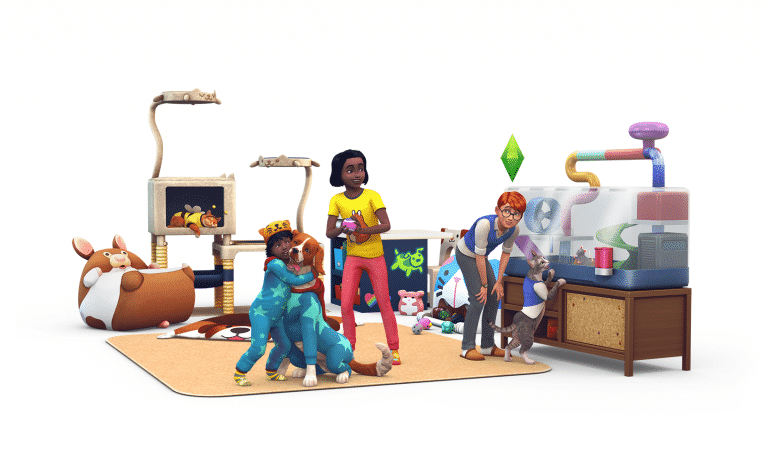
The Sims 4’s latest game update unveiled the official description and key features for The Sims 4 My First Pet Stuff Pack.
Welcome home a new small animal and show off your love for Cats and Dogs with The Sims™ 4 My First Pet Stuff. Teach your Sims how to care for smaller household pets, decorate a home with pet-inspired furniture, and dress pets in your favorite Sims outfits!
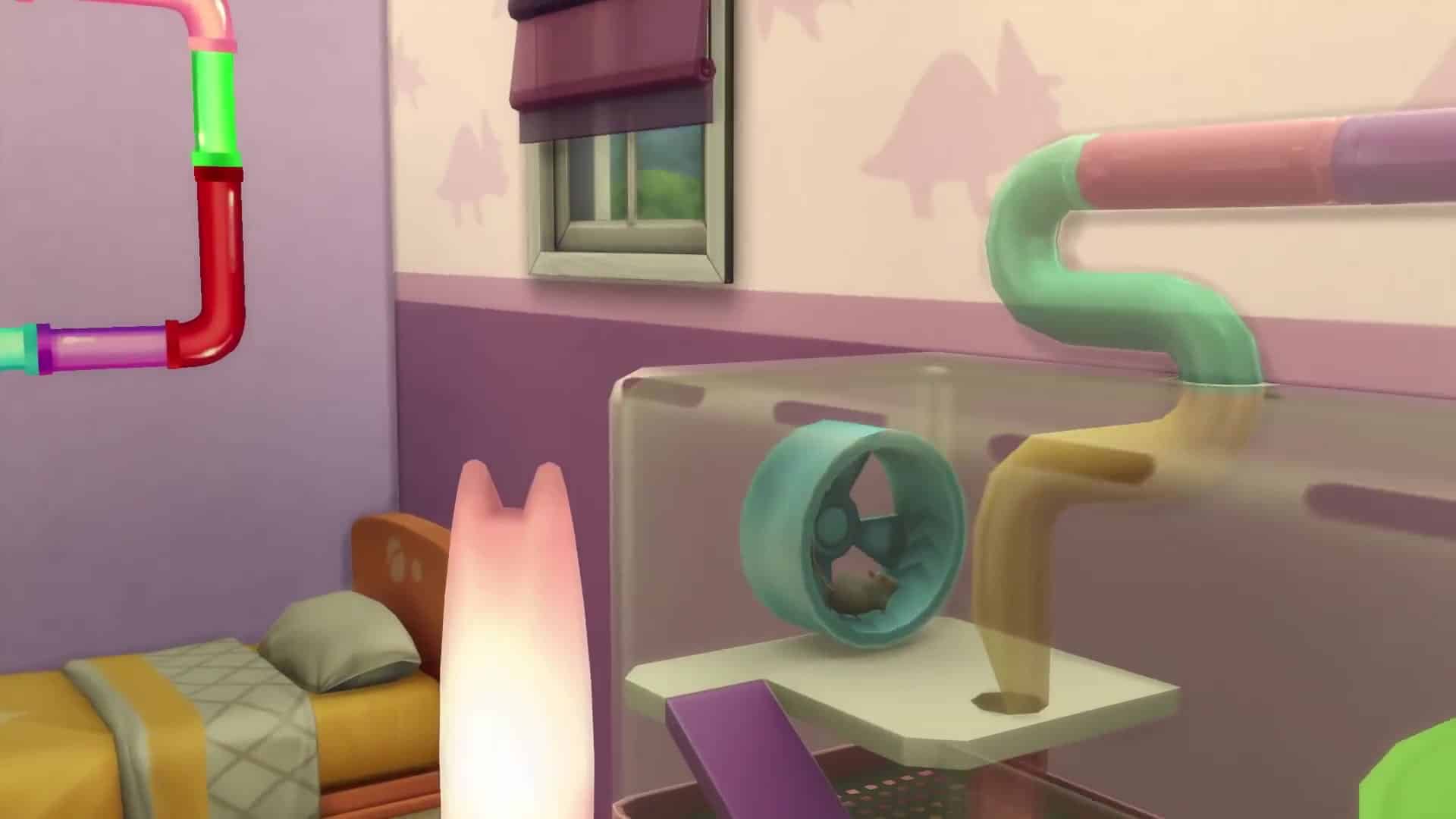
Care for a New Pet: Add a habitat to your household with all-new small pets like a hamster, rat, pygmy hedgehog, or miniature bubalus! Have your Sims name their new pet and learn how to take care of them.
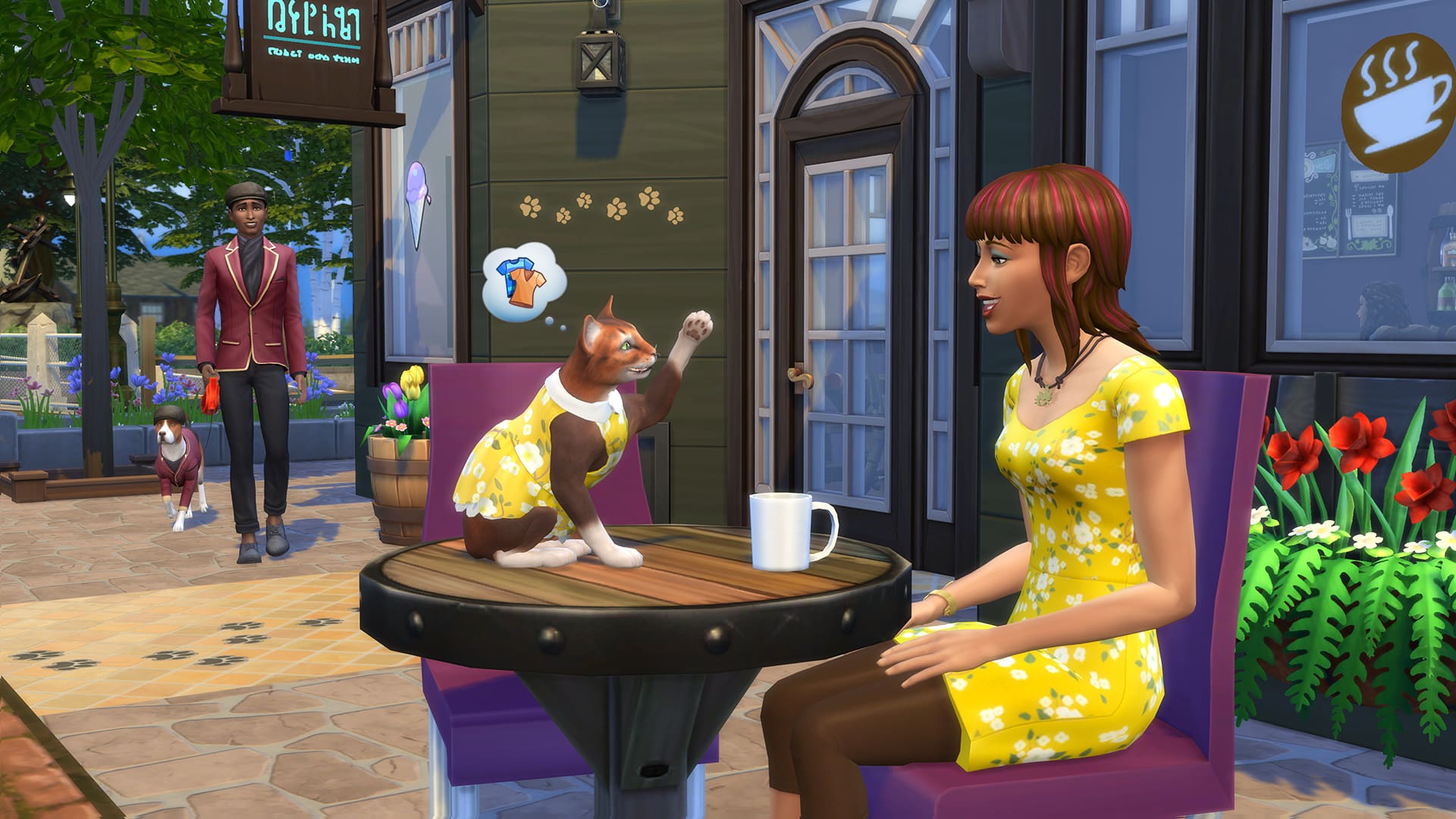
Dress your Cats and Dogs: Show your Sims and their pets are made for each other with matching pet outfits like a comfy robe and purr-fect pajamas. Put a glamorous dress on your feline friend or have your dog don a hat for the right occasion.
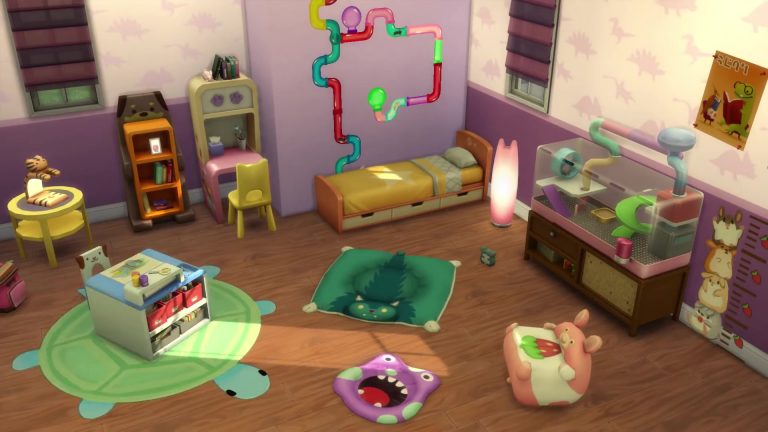
Decorate with Pet Prints: Have Sims decorate their living room with uniquely-designed décor and paw-some pet-inspired furniture for the kids’ room. From cute cat pillows for your Sims to bright beds for your cats and dogs, there is something for everyone.
The Sims Team has released a brand new Update for The Sims 4 on PC and Mac!
To download the latest version of The Sims 4, simply open your Origin program and if the game doesn’t update automatically, right click on The Sims 4 and select ”Update”.
In case you have Mods or Custom Content, the game will automatically disable them for you after first launching The Sims 4 after the update. To re-enable all your Mods and Custom Content, select the Settings option in the Menu and select Settings. Under the”Other” section you’ll find the ”Enable Custom Content and Mods” option. Check it and restart your game in order for it to take effect!
Patch Notes
Version PC 1.41.38.1020 / Mac 1.41.38.1220
Hey Simmers,
Just a small update here for you, while we clean up the hamster cages, and fluff the pygmy fur.
Something new…
In Create a Sim, you can find a new full body outfit based on the one worn by Noctis Lucis Caelum from Final Fantasy XV. The outfit can be found under the full body category, or in the Styled Looks! This outfit can be worn by male and female Sims.
And we have addressed some issues…
General Issues
We fixed an issue that could cause the Set as Front Door interaction to be greyed out inappropriately.
The Defender light that keeps the monster under the bed from appearing will now also work for non-household children.
We fixed a clipping issue that occurred around the legs with the yfBody_DressFlutter.
We have addressed some flow issues with the Save As option that could result in overwriting saves unexpectedly, as well as file naming issues.
Bars can now be found in the Creative sort under Activities and Skills (in Build Mode).
Chicken Nuggets is now an option under Have a Quick Meal on the microwave.
What’s that?
Nuggets.
Nuggets?
Breading, under cooked chicken, and a mushy texture.
…
Can I eat?
I don’t know. Give it a try.
The “Ghostly” achievement text has been updated to clarify how to satisfy it… the text now says “Have a Ghost join your household.”
Get to Work
Sims should no longer pick an Out of Stock sign to read as a book.
Doctors, have you been asked to Deliver a Baby for your daily tasks, only to find that nobody is showing up at the office ready to go? Well, we’ve taken care of that for you! Our baby guarantee states that within the first couple hours on the job, you will be sure to find a pregnancy ready and waiting for your care. No longer do you need to fear losing out on that promotion, the babies are eagerly awaiting upon you!
City Living
The Bubble Blower is now an available club rule option.
Sim Statues will once again wear gold makeup.
Movie Hangout
The Run Run Runnerway table will now properly change color as you choose different swatches.
Vintage Glamour
A hungry Sim that orders a butler to make a meal will now wait a reasonable amount of time before giving up on the butler and making their own meal.
Butlers should no longer hoard How To Serve and Not Be Served books in their inventories.
Many butlers are still anticipating the To Serve Sim novella, but translations are taking longer than expected.
Bowling Night
Ghost sims can now be invited to bowl with you on a bowling lane.
“It is by will alone I set my mind in motion, and the ball down the lane,” the mantra of the ghostly bowler.
Fitness
Earbuds can no longer be salvaged into parts, as this was leaving them in a bad state.
Sims should no longer attempt to stare through walls in order to watch a climber on the Treadmill Rock Climbing Wall.
We’ve added a lead component to most wall materials.
Laundry Day
Sims can now load clothes into their washer and dryer even if there is a shelf above the object.
Warm laundry should no longer kill your Sims.
The playful buff received from wearing warm laundry has been reduced in its strength.
Sims will now autonomously unload the wash tub when they are finished washing.
Laundry left in the wash tub will no longer dry from being ignored.
Is your room clean?
I dunno, I’m waiting to see.
Replacing a washing machine after a fire, should no longer cause the machine to lose all of its functionality.
yfTop_SP13BlouseRuffles can now be worn with many necklaces, and the necklaces will remain visible.
Also, we have fixed various clipping issues with this blouse and long hairs.
Thank you for reading to this point. If you have a moment longer, I hope you make it to the end.
-SimGuruGnome
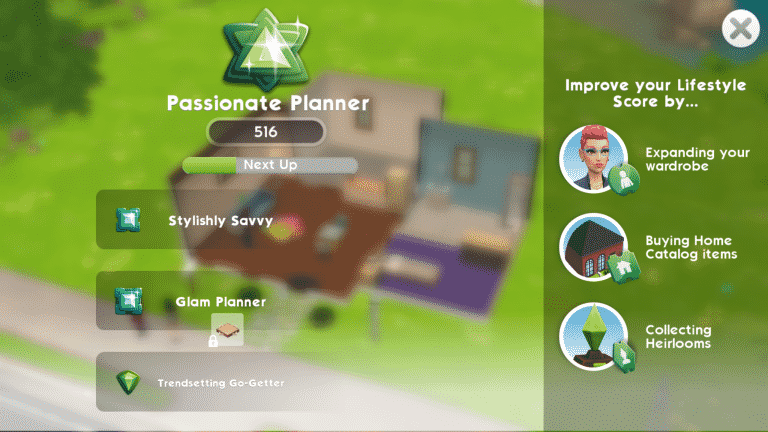
If you want to improve your Sim’s home, you’re going to need to improve your Lifestyle. There are three main ways to earn Lifestyle points; expanding your wardrobe, buying home catalog items, and collecting heirlooms.
Buying new clothes and furniture are the easiest ways to improve your lifestyle. Many of the furnishings in the game are part of collections. It’s to your benefit to finish these collections because having completed collections also contributes to your lifestyle score.
Improving your lifestyle score is essential for significant home upgrades. If you want more land to build on or more rooms for your home, you’re going to need to raise your Lifestyle score. There are a total of 50 Lifestyle levels. Lifestyle levels start at First Furnishings and go all the way up to Toast of the Town.
Not sure what your Lifestyle score is or how close you are to adding that extra bedroom you’ve wanted for a while? Your Lifestyle score can be accessed at any time by tapping the green triangle at the top centre of your screen. On the Lifestyle screen, you’ll be able to see exactly how to earn more Lifestyle points along with your current progress towards your next level and which levels will allow you to expand your property or add a new room to your home. Your Lifestyle is key to your Sim’s quality of life, so make it a priority if you want your Sims to go from rags to riches and live a life of luxury.
So what are you waiting for? You know the saying “You’ve got to spend money to make money,” so get spending those simoleons to start making those Lifestyle points and turn your humble starter home into the Toast of the Town.
Did you just install the highly anticipated game, The Sims Mobile, yesterday? Feeling a little lost? No worries, Sims Community is here with a quick rundown of how to get the ball rolling on your Sim’s first day in the mobile world.
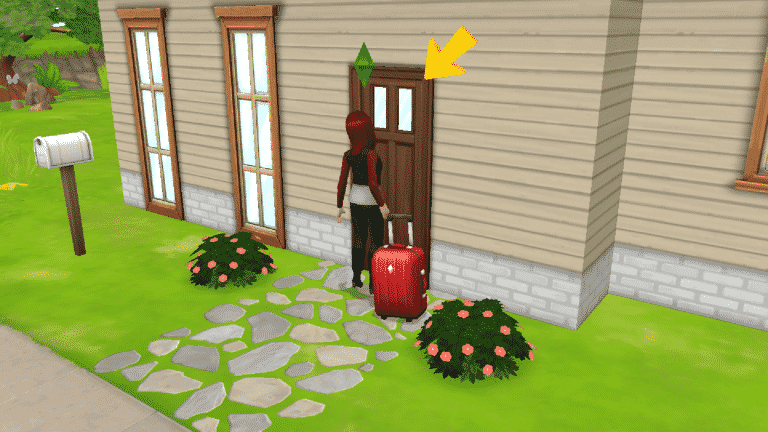
After creating your Sim in CAS, your Sim will be introduced to their new home, which needs some fixing up. With time and simoleons, your Sim’s home will become the envy of all your friends, but for now, tidying up the place will do. After getting the living room in order, you’re introduced to a major component of The Sims Mobile; stories.
Screenshot 20180306 202616
Screenshot 20180306 202947
Almost everything from relationships to career advancement is done through telling stories. You get just a small taste of this when you get to decide which room in your house to fix up next. I chose the bedroom.
Fixing up the bedroom allowed me to finish furnishing it, which is where collections are introduced. Many furnishings for your home are part of collections. Finishing collections and making other improvements to your Sim’s home adds to your Lifestyle score. Reaching higher Lifestyle levels allows you to make major improvements to the home, such as adding rooms and getting more land to build on.
Screenshot 20180306 203012
Screenshot 20180306 203017
Screenshot 20180306 203026
Screenshot 20180306 203128
Fixing up the house also raised my player level. Your player level is the most important level, since gaining new levels not only unlocks new areas, clothes and furnishings, but also unlocks new major game features, like parties, marriage, and children.
Screenshot 20180306 204140
Screenshot 20180306 203153
Once the home is looking presentable, Bella Goth will show up to welcome you to the neighbourhood and introduce your Sim to the mechanics of building relationships with other Sims. It’s not so different from making friends in The Sims 4, except for the events. Use social interactions until milestone events open up, then complete the event to reach a higher friendship status with that Sim.
Screenshot 20180306 203213
Screenshot 20180306 203234
Screenshot 20180306 203300
Now that your Sim has a house and a potential new friend, it’s time to go hunt for a job. How else are you going to earn simoleons to turn your basic starter home into a magnificent estate? Head on over to Parkside and open up the cafe to get your first job as a barista. This is where you’ll get to see stories in action. The only story available is The Way of the Latte, but you’ll find that there will be many situations where you can choose from many different story options.
Screenshot 20180306 203348
Screenshot 20180306 203534
Screenshot 20180306 203738 1
Screenshot 20180306 203816
Starting The Way of the Latte story will hire your Sim as a barista at the cafe and you can begin your first shift. Remember the friendship event you did with Bella not long ago? Career events aren’t too different. Each shift your Sim does at work is an event. Your Sim will finish the event just fine on their own if you decide to go do something else for a while, but they’ll finish much faster with your help. Choose different options marked by the pink stars that pop up around the workplace to finish the event. When your Sim has done enough of these successfully, they’ll have enough confidence to try a risky action. Completing risky actions successfully gives your Sim a lot of stars towards their event progress to finish faster, but your Sim has a chance at failing these risky actions, too, so gauge odds of success carefully.
Screenshot 20180306 203853
Screenshot 20180306 203859
Screenshot 20180306 203943
Completing a shift completed the current story chapter, promoted my Sim to level 2 of the barista career, and unlocked a new fridge for her to use at home. Let’s go home and place it to raise our Lifestyle score a little more.
After your Sim has their house, a job, and a few friends, you might be thinking “Now what?” That’s when your quests and daily task list will come in handy. Whenever you’re not sure what you should be doing next, refer to the quests and task list for direction on what to focus on that day. Your Sim will introduce you to these when you get back home from your first shift.
Screenshot 20180306 204044
Screenshot 20180306 204100
Screenshot 20180306 204123
My Sim wanted to finish fixing up the house, so I went ahead and took care of that by restoring the run-down bathroom. Doing that completed a task on my task list which allowed me to collect a reward. Make sure to complete your task list every day to earn even better rewards.
And that’s it for getting started! After fixing up your new house, getting a job, and making a few friends, you’re all set up to explore the rest of the game. Pay attention to your quests, as these will allow you to progress in the game, but daily task lists are a great way to earn extra rewards and spend some time away from questing when you feel like it.
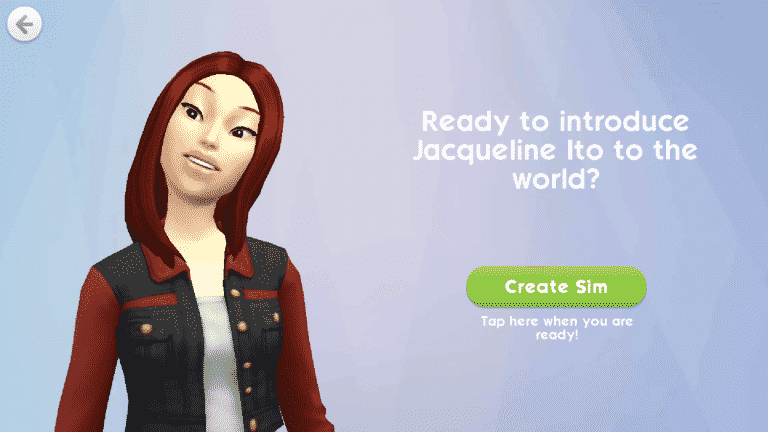
If you’re used to playing The Sims 4, creating a Sim in The Sims Mobile can be a little overwhelming at first. This is because Sim customisation is set up a little differently in The Sims Mobile. The good news is that once you understand where everything is and how the different tools work, creating your perfect Sim in The Sims Mobile is just as easy as it is in The Sims 4.
There are three main categories in CAS; Head, Body, and Style. The Head category deals with facial structure, hairstyle, hair colour and eye colour. The Body category deals with body build, and the Style category has clothes, makeup, and accessories.
The most powerful tool in the Head and Body categories is the detailed edit tool, which allows you to go beyond preset facial features and customise the exact size and shape of just about any physical feature of your Sim using XY axis sliders. If this sounds complicated, don’t worry, it’s not! It only took me a minute or two of fiddling to master these controls!
Every category, from eyes to legs has a detailed edit mode. Tap the pencil icon underneath any body modification category to bring up a set of sliders. The sliders will tell you which parts of the body can be adjusted. Then it’s just a matter of playing around with the slider positions until you’re happy with your Sim’s look. Feel free to spend some time getting the details just right; these new XY axis sliders allow for much more in-depth customisation than the sliders you may have seen in previous installments of The Sims.
Screenshot 20180306 201302
Screenshot 20180306 201913
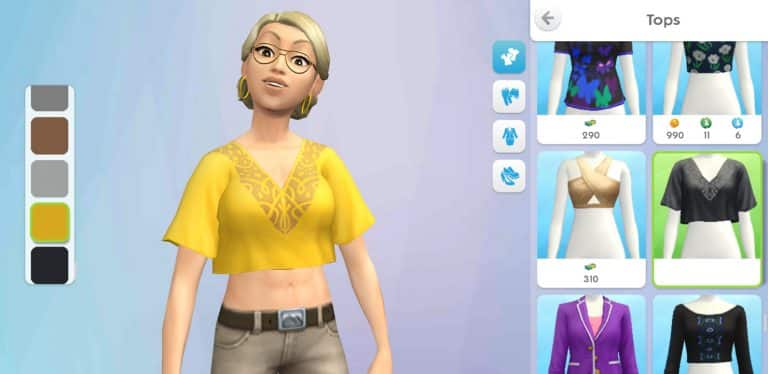
Once you’ve fine-tuned your Sim’s body, tap the Style category to give your Sim some personality with an array of clothes, makeup options, and accessories, all of which have various colour swatches in thumbnails on the left of the screen. You’ll find there are only a handful of options while making your first Sim, but more clothes will be available to your Sims as you level up and progress in the game. Some clothes can be purchased later on with SimCash as well.
Wondering where the traits are? In The Sims Mobile, your Sims develop their personalities as they go through life with a little guidance from you. This means you’ll get to pick traits for your Sims as you play the game and not in CAS. This opens up more possibilities to tell unique stories because you’ll be able to base your Sim’s personality on their actions and decisions so far in the game instead of having to set their entire personality in stone right away.
So dive right into CAS and create your perfect Sim in The Sims Mobile… and don’t forget those nifty sliders!
The Sims Team has just announced that they’ll be doing a livestream for The Sims 4 My First Pet Stuff Pack at 11AM PT / 8PM CET / 7PM BT on Twitch where SimGuruGraham will be answering some of your questions about the pack as well as showcase the new items and gameplay.
As always we’ll be covering all the important information from this livestream as well as capture a YouTube Replay on our channel for those who can’t watch content on Twitch for technical reasons.
Because of its dependency on The Sims 4 Cats & Dogs, we wanted to wait to show it until we could fully discuss it. I’ll be sharing details on how it works shortly here.
Everyone has their own opinions on which packs are worth it. Would you pay $10 for 2 hours of entertainment at a movie? Do you think you’ll get at least 2 hours of enjoyment out of this over all the time you own it? If yes, maybe it’s for you. If no, maybe it’s not for you. 🙂
The Sims 4 My First Pet Stuff can be purchased and played by anyone who only has The Sims 4 base game. If you play it without having The Sims 4 Cats & Dogs installed, here’s a breakdown of how each portion of the pack works…
New Gameplay: If you play The Sims 4 My First Pet Stuff without having The Sims 4 Cats & Dogs installed, you’ll be able to play with all of the new gameplay features that are coming with the pack.
New Objects: If you play The Sims 4 My First Pet Stuff without having The Sims 4 Cats & Dogs installed, you’ll be able to place all of the new objects in the pack. However, pet specific objects that are intended for cats and dogs will not have interactions on them.
New Clothing: If you play The Sims 4 My First Pet Stuff without having The Sims 4 Cats & Dogs installed, you’ll be able to use all of the new clothing coming for Sims of all ages. You will not have access to the new outfits and accessories worn by cats and dogs.
Mostly correct. Like I mentioned, pet specific objects (cat condo, food bowl, litter box, etc) can be placed in your home, but they won’t have interactions unless Cats & Dogs is also installed.
I appreciate that many people are feeling this way. The expansion team decided to focus on more depth for cats and dogs, and to include things that were brand new to the franchise such as Vets. They had to leave some past “pets” features behind to have time to try new things.
The expansion team wanted to add brand new features in Cats & Dogs such as Vets, and to create pets that were more in-depth than anything we’d done in past games. We’re trying to bring people different twists on familiar content, which can mean different sets of features.
Functionally, that’s possible for Cats & Dogs content now. I don’t know what the future holds in terms of very specific cross pack content in other packs though.
Sure – it's hard to break down everything in detail via tweets, but a high level overview is the four new pets, the secret lives they lead, the habitat they live in, the various interactions Sims have with them, the rodent disease that can be caught and spread, and the new death.
Each of the pets shares the same overall behavior, but there's a nice diversity to what they can do. Within their habitat they have their exercise wheel, tunnels, sand bath, bedroom, food dish, and of course their workshop where they do secret rodent stuff 😉
The rodents won't get sick themselves, but there are some new Vet treats that you can feed them (and I should mention, you can get the treats without Cats & Dogs as well).
No, they aren't fully customizable like cats or dogs. You'll select which habitat you want from the build catalog, and you can purchase a new rodent should your existing one die or be released.
We wanted to do a lot with the rodents… it has 4 different rodents, they lead their own secret lives, they have lots of interactive elements in their habitat, you care for and play with them, and there's a new contagious disease you can die from. Pretty packed for a Stuff Pack!
No, unfortunately not. When you set something for sale in a store, it disables all interactions on that thing… rodent or otherwise. We found that by allowing rodents to be sold, they would just slowly die and you couldn't care for them, so we disabled the ability to sell them.
The habitat itself comes in a variety of colors, but they all have the same layout and components… exercise wheel, play tunnels, sand bath, bedroom, food dish, and a workshop for their secret lives 😉
Sometimes that content is free, and sometimes it costs money. Stuff Packs in particular are each meant to appeal to different groups of players. We aren't expecting you to purchase every single one, but to try ones that look exciting to you from a broad selection.
Looking for more details from The Sims 4 My First Pet Stuff Announce Trailer? Look no further! Down below we’ve provided 50 screen captures so you can find all the important details in each frame. Just click on an image of your choice to enlarge it!
The Sims 4 My First Pet Stuff Official Trailer 002
The Sims 4 My First Pet Stuff Official Trailer 004
The Sims 4 My First Pet Stuff Official Trailer 006
The Sims 4 My First Pet Stuff Official Trailer 007
The Sims 4 My First Pet Stuff Official Trailer 009
The Sims 4 My First Pet Stuff Official Trailer 010
The Sims 4 My First Pet Stuff Official Trailer 013
The Sims 4 My First Pet Stuff Official Trailer 019
The Sims 4 My First Pet Stuff Official Trailer 022
The Sims 4 My First Pet Stuff Official Trailer 026
The Sims 4 My First Pet Stuff Official Trailer 030
The Sims 4 My First Pet Stuff Official Trailer 035
The Sims 4 My First Pet Stuff Official Trailer 037
The Sims 4 My First Pet Stuff Official Trailer 039
The Sims 4 My First Pet Stuff Official Trailer 040
The Sims 4 My First Pet Stuff Official Trailer 041
The Sims 4 My First Pet Stuff Official Trailer 042
The Sims 4 My First Pet Stuff Official Trailer 051
The Sims 4 My First Pet Stuff Official Trailer 052
The Sims 4 My First Pet Stuff Official Trailer 057
The Sims 4 My First Pet Stuff Official Trailer 059
The Sims 4 My First Pet Stuff Official Trailer 060
The Sims 4 My First Pet Stuff Official Trailer 064
The Sims 4 My First Pet Stuff Official Trailer 066
The Sims 4 My First Pet Stuff Official Trailer 071
The Sims 4 My First Pet Stuff Official Trailer 075
The Sims 4 My First Pet Stuff Official Trailer 077
The Sims 4 My First Pet Stuff Official Trailer 081
The Sims 4 My First Pet Stuff Official Trailer 084
The Sims 4 My First Pet Stuff Official Trailer 086
The Sims 4 My First Pet Stuff Official Trailer 090
The Sims 4 My First Pet Stuff Official Trailer 094
The Sims 4 My First Pet Stuff Official Trailer 097
The Sims 4 My First Pet Stuff Official Trailer 100
The Sims 4 My First Pet Stuff Official Trailer 103
The Sims 4 My First Pet Stuff Official Trailer 109
The Sims 4 My First Pet Stuff Official Trailer 110
The Sims 4 My First Pet Stuff Official Trailer 111
The Sims 4 My First Pet Stuff Official Trailer 112
The Sims 4 My First Pet Stuff Official Trailer 113
The Sims 4 My First Pet Stuff Official Trailer 116
The Sims 4 My First Pet Stuff Official Trailer 125
The Sims 4 My First Pet Stuff Official Trailer 129
The Sims 4 My First Pet Stuff Official Trailer 131
The Sims 4 My First Pet Stuff Official Trailer 132
The Sims 4 My First Pet Stuff Official Trailer 136
The Sims 4 My First Pet Stuff Official Trailer 138
The Sims 4 My First Pet Stuff Official Trailer 141
The Sims 4 My First Pet Stuff Official Trailer 149
The Sims 4 My First Pet Stuff Official Trailer 155
The Sims Mobile is now finally available worldwide. To celebrate The Sims Team has released a full worldwide release trailer that you can check out above!