Home Blog Page 385

The Sims 4: SimGuruMegs wants your Feedback regarding New Skintones

34

SimGuruMegs is looking for your feedback regarding skintones in The Sims 4.

If you feel like there aren’t enough skintones in the game or you just feel like some important skintones are not included in the game, reply to SimGuruMegs’ tweet down below with your suggestion!

Down below you can take a look at all the skintones we have in the game for now (palette on the right side of the interface)

The Sims 4: SimGuruMegs wants your Feedback regarding New Skintones

The Sims 4 Building Tips: One House, Six Rooftops

The Sims 4 Building Tips: One House, Six Rooftops

In Sims 4 rooftops is an aspect of building that tends to get overlooked by new builders.  While in many ways, building overall is easier in Sims 4, roofing is one that can be a bit of a challenge.  We no longer have an “auto-roof” feature, and roof styles are still a little limited even after 3 expansion packs and 4 game packs.  However, the features that are available are easy to use, and tend to be less finicky than it’s predecessors.

If you’re new to building, this article explores how to take one fairly basic house and make it more interesting with different styles of rooftops that are easy to create.   No custom content is used, and the only cheat turned on is “bb.moveobjects on”.

Some general tips:

  1. Use the cheat code “bb.moveobjects on” to place objects where they are normally restricted by the game.
  2. Don’t forget about the roof trim.
  3. Don’t worry about creating unused rooms to make the tops of the houses more interesting.
  4. Use friezes and build decor liberally.
  5. Be inspired: look up at the roof tops in your real life neighbourhood.

Roof 1 (Gabled):

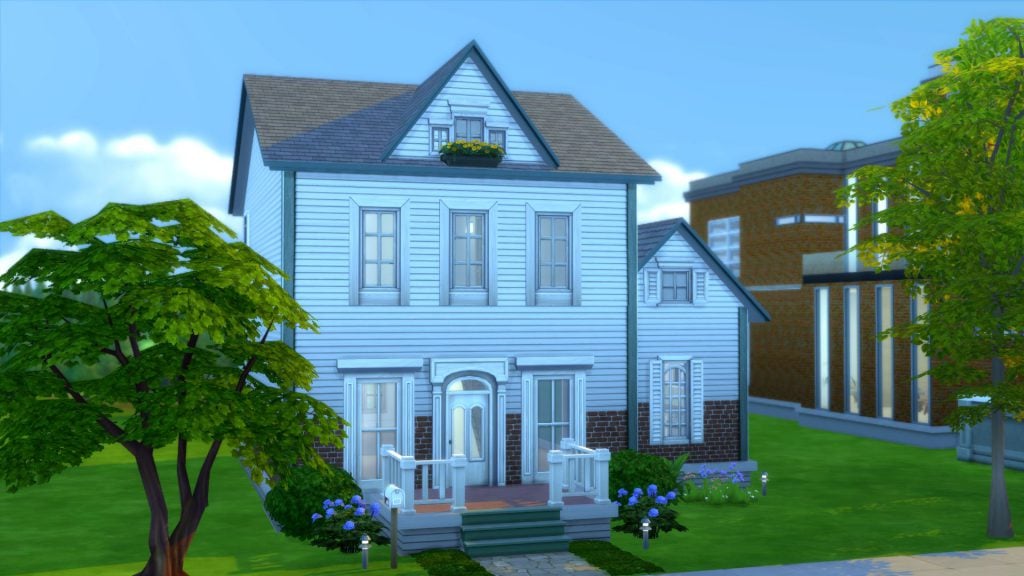
Here’s our base house:

The Sims 4 Building Tips: One House, Six Rooftops

This is a basic 2 bedroom house on a 30×20 lot in Newcrest.  It has the familiar gabled roof, my go-to rooftop for most of my builds.

The layout is a rectangle. Nothing too spectacular.

The Sims 4 Building Tips: One House, Six Rooftops

 Roof 2 (Gambrel):

The Sims 4 Building Tips: One House, Six Rooftops

This really simple adjustment changes the entire look of the house.   This gambrel roof was created by simply using the roof curve function, changing the roof pattern and trim and adding the weather vane roof decor object from Get Together.  The round window makes use of the empty space and is a bit of a contrast to the blocky windows on the levels below it.

sims 4 roof 1

Tip: Windows,weather vanes and finials are like jewelry; when dressing your home, never forget the accessories.

Roof 3 (Dormers):

The Sims 4 Building Tips: One House, Six Rooftops

Roof 3 is another easy roof top.  Build it by turning the existing gable 90° and adjusting it to fit the roof.  Add another smaller gable perpendicular to the large roof to create a dormer.

sims 4 roof 2

Roof 4 (Mansard):

The Sims 4 Building Tips: One House, Six Rooftops

If you like a more classic “Second Empire” look to your home, you can try building a mansard roof.  Do this in game using the half-hipped roof.

  1. Build a smaller room on the roof about one or two squares from the edge of the building
  2. Line up a half-hipped roof against the wall and adjust the length and height.
  3. Copy this roof and use it for the other edges of the building, adjusting the length as needed

Sims 4 Roof Building

Sims 4 Rooftops Mansard Roof

Tip: Use friezes and trims to create interesting roof tops.  Most friezes can be used on the middle and highest wall height and are added to the top of a level.  Exterior trims are only added to the bottom of a level, so you will need to create a “space” above the top level to use these. You might use exterior trims instead of friezes if your upper level is the shortest height, or if you’d just like to use a smaller or less ornate frieze.

sims 4 rooftops difference between friezes and trims

Roof 5 (Modern):

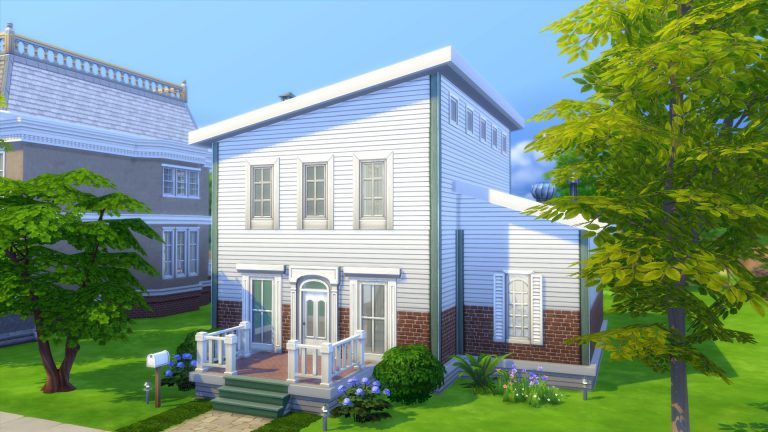
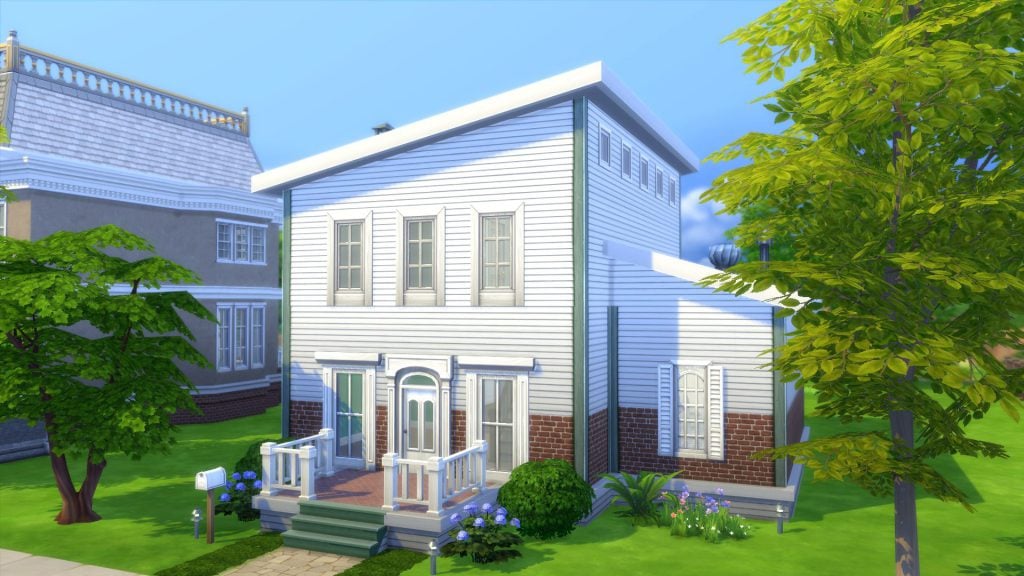
Sims 4 rooftops - a leanto roof

A very easy roof with a big impact. It already makes the house look more modern even though nothing else about the building  was changed.

The Sims 4 Building Tips: One House, Six Rooftops

Roof 6 (A Tower):

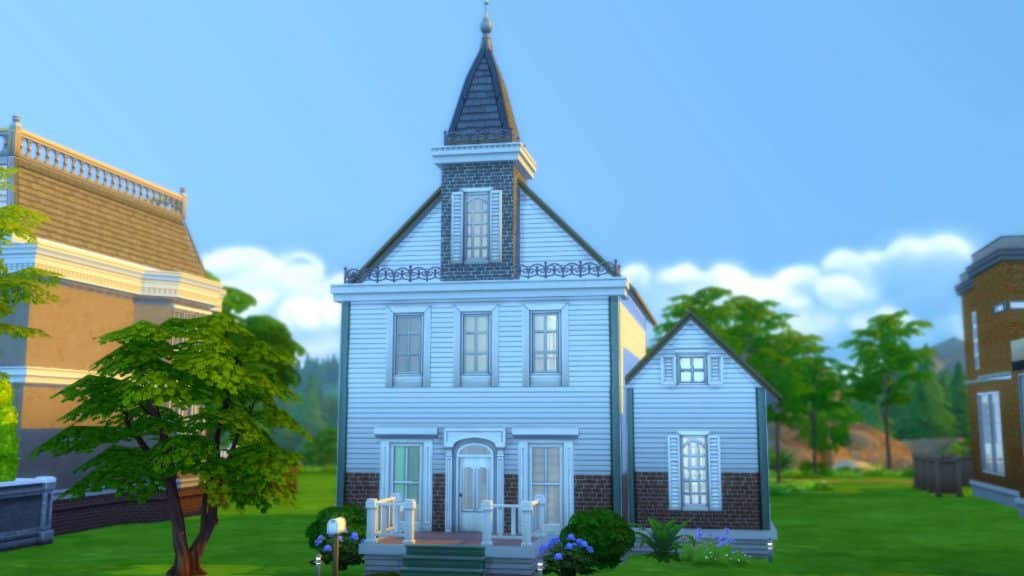
Sims 4 rooftops with a tower

To give your house a little bit of Victorian schoolhouse charm, add a tower!   One of the easiest ways to determine when a building was built or it’s architectural influence is to look at it’s roof top.

The Sims 4 Building Tips: One House, Six Rooftops

  1. Build a square room above your highest level.
  2. Copy this room and stack it above. Delete the ceiling of this room and replace the walls with fencing.
  3. Add a mansard roof. Use the curve tool to adjust the curvature of the roof if you’d like.
  4. Add wall texture, a frieze, and a window.

Of course, all of these are basic examples with self-imposed limitations (e.e. not touching the house at all), but it shows how many looks even the simplest of lots can have.  Once you get comfortable with building, you will find yourself incorporating the roof in the planning stages of your layout.  You’ll also be more comfortable with making adjustments along the way, finding out what works, and what does not.  Soon you’ll be addicted to building and creating elaborate rooftops like the example below.  (I call this lot “So Many Gables”).

The Sims 4 Building Tips: One House, Six Rooftops

Just have fun with your builds and share what you’ve got!  If you have any other fun tips to share, let us know in the comments!

Find the full speed roof building video on Youtube here:  Sims 4 Building Tips – Rooftops

The Sims 4: Announcement Teasers to be replacing ”Excited GIFs”

0

Remember when we all used to stalk SimGuruDrake’s twitter profile in order to find out if we’ll be getting an announcement in the week ahead? Yup, those days of waiting for ”Excited GIFs” are now over!

SimGuruDrake has confirmed that from now on, we’ll be getting announcement teasers! This marketing strategy will apply for all packs from now on:

This means that we should expect the announcement teaser for The Sims 4 Bowling Stuff Pack next monday (March 20th) and the announcement on the next day, considering we only have two weeks left of this quarter.

You can see some of the examples of these announcement teasers down below:

Leona Lewis to be featured in the upcoming Sims 4 Pack? (SPECULATION)

12

Please note that this post is pure speculation until proven otherwise!

Just a few moments ago, Leona Lewis, a famous british pop singer, has made an interesting tweet:

Leona Lewis to be featured in the upcoming Sims 4 Pack? (SPECULATION)

What’s interesting is that the twitter account of Leona Lewis is being followed by the official twitter account of The Sims Team. So far The Sims Franchise didn’t feature Leona Lewis in its simlish soundtrack but that could possibly change with the upcoming The Sims 4 Pack.

If you’ve been out of the loop for the past few weeks, The Sims Team has left a significant chunk of game codes hinting that The Sims 4 Pets could be the next Expansion Pack. Could it be that Leona will have her song recorded in simlish for this pack? Time will tell!

Tip: Patrick

Using The Sims 4 as a Box of Building Blocks: Corner Sink

Hi, I’m Jason Sterling and this is the second in a series of articles about turning standard Sims 4 objects into something other then what they were intended for using the MoveObjects cheat, the “Number 9” height adjuster and the “ALT” button allowing the free sliding placement of objects. This article will focus on building a corner sink. So, to begin I’ll list the “Sims Builder’s Three Best Friends” in-game cheats.

  • bb.IgnoreGamePlayUnlocksEntitlement (IGUE) Unlocks all items tied to in game advancement from the start.
  • bb.ShowHiddenObjects (SHO) Displays all hidden objects for use in building such as ponds, dishes, bottles ect.
  • bb.MoveObjects  (MOO) Allows build/buy items to be freely moved around within the build and activates the height slider that raises objects up and down in the air and on the walls using the number 9 for up and the number 0 for going back down.

If you are new to the Sims 4 or just new to building in the Sims 4, press CTRL/SHIFT/C to open the command box within your game and enter each of the cheats above should you wish to access their features. Now on with the article.

Using The Sims 4 as a Box of Building Blocks: Corner Sink

How Can I Use This in a Way That’s Not Intended?

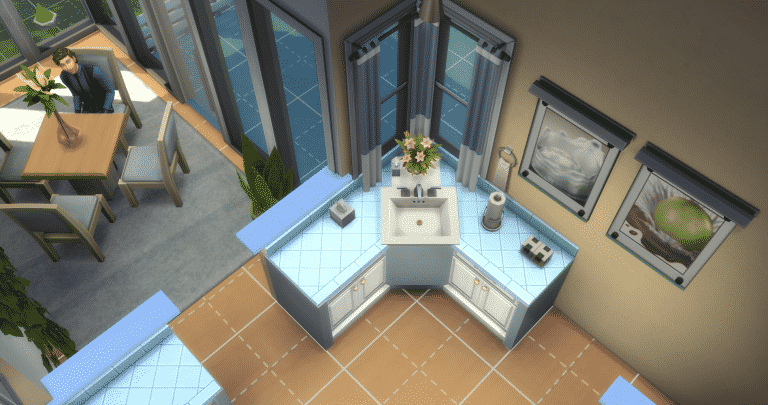
There are many items within the sims  4 that give you the opportunity to combine them through the BB.MoveObjects cheat into something entirely different from what they originally were. I’m going to outline a relatively simple use here to build a corner sink in a traditional kitchen in the home shown above.

Using The Sims 4 as a Box of Building Blocks: Corner Sink

Start by activating the BB.Moveobjects (MOO) cheat and the ShowHiddenObjects (SHO) cheat. Following that REMOVE THE WALLS around the area you are working on. I do this whenever I want to place items in a free floating manner that would normally auto-snap into place on the walls. Such as the bath mirror below.

Then, assemble the items in the list. (Grid Picture #1) I have used these items for this particular look. However, I encourage you to experiment with your own look and ideas.

  • S. Cargeaux Counter (Base Game Item)
  • The Patrician (Pedestle Sink) (Base Game Item)
  • The Source (Bath Mirror) (Base Game Item)
  • Common Upgrade Part (Base Game Item) ONLY AVAILABLE IN BUILD MODE USING SHO
  • Lap Guides from Slousch Co. (Get Together Item)

First, I place the kitchen cabinets in the traditional manner. (Grid Picture #2) Next, I position the sink. It auto-snaps into place as shown. (Grid Picture #3) Take the sink and while holding down the “ALT” button on the keyboard slide it back until it appears as in the picture. This should be the maximum point where the sim can still use it while not being fully extended into the floor space. Lift the sink one level by pressing the “Number 9” on the keyboard and click the sink into place. (Grid Picture 4)

Using The Sims 4 as a Box of Building Blocks: Corner Sink

Once we have settled the sink into place, take “The Source” mirror and position it in front of the sink. (Grid Picture #1) Flip the mirror around so that the back is facing out. (Grid Picture #2) Then, while holding down the “ALT” button, slide the mirror back so that it is positioned to hide the bulk of the sink, leaving only the basin exposed. This gives the appearance of a vessel sink. (Grid Picture #3) Repeat this process twice more to place end caps on the counters that match the new central panel. As a result, we have a more uniform and cohesive look. (Grid Picture #4)

Using The Sims 4 as a Box of Building Blocks: Corner Sink

In addition, I’m going to put in a few cosmetic touches on the new sink to increase it’s realism. First to hide the tile of the counter top I slide in the “Lap Guide” using “ALT”. (Grid Picture #1) Then, lift it into place using the number “9”. (Grid Picture #2) I continue by creating the look of a new drain in the new flat bottom by using the “Upgrade Part”. (Grid Picture #3) Maneuver it as above (using ALT and 9) and align it beneath the sink so that just the very top shows through the slab. Then click it into place. (Grid Picture #4)

Using The Sims 4 as a Box of Building Blocks: Corner Sink

Further, you can add your own touches of clutter if you wish. The project is now complete. We have a great corner sink that functions just as it should. It gives all of us, as builders and players, a new look.

Using The Sims 4 as a Box of Building Blocks: Corner Sink
You can watch a video version of this walk through on my Youtube Channel: https://youtu.be/np3uk4jxZXA

To conclude, I hope you’ve found this build article helpful. Also, I hope you’ll be inspired to take the everyday things in your game and use them as they were not intended. If you have any questions please post them below. As well, please join me next time when I will be breaking from the Sims 4 and spotlighting an intriguing, current builder from the Sims 3.

You can download this build from the Gallery: https://www.thesims.com/en_GB/gallery/8FB7F2D9077C11E78DC8E48ABC225458?category=lots&searchtype=ea_origin_id&sortby=newest&time=all&searchquery=tonysterling&max=50&maxis=false

Lastly, there are additional pictures of the completed build here: https://www.facebook.com/pg/MyWorldofSims/photos/?tab=album&album_id=1207037296078359

Origin On The House: Syberia 2 (FREE)

0

Origin has just put a new game On The House – Syberia 2! This means that you can claim this game completely free.

Simply click on the image below to be directed to the On The House page!

Origin On The House: Syberia 2 (FREE)

The Sims 4: Not So Berry Legacy Challenge

Recently a new legacy challenge has been popping up over Twitter, Tumblr and Youtube. The challenge by AlwaySimming and LilSimsie was created by accident but it turned out to be something pretty exciting.

You’re probably asking yourself what is the Not So Berry Legacy Challenge? Well, it is a ten generation legacy challenge with a focus on bright colours and brand new experiences.

The rules are simple but for each generation you have certain criteria that must be completed first.

  1. Each heir must represent the color of the generation (i.e. hair, makeup, clothing), but brightly colored skin is not necessary (these aren’t actually berry Sims, that’s the joke)
  2. The colors of the spouses don’t matter as they aren’t part of the challenge. Unless otherwise stated you can do whatever you please with them.
  3. Money cheats can be used, but not excessively. Suggestion: use freerealestate for you first home, but no cheats afterward.
  4. You may live wherever you please unless something is specified in the rules of a generation.
  5. Keep the lifespan on normal.
  6. If you play this challenge and want to share it with us, go ahead and post with #notsoberry so we can see!


Here’s a sneak peek at what you need to do to complete Generation One!

Generation One: Mint

You’re a mischievous scientist that really loves the color mint. You’re career driven but still make time for silly pranks and outings with your closest friends. You love luxury and want the best for yourself and your family.

Traits: Vegetarian, Jealous, Materialistic
Aspiration: Chief of Mischief
Career: Scientist

Rules:

Master scientist career

Master mischief and logic skills

Complete elements collection

To see the rules for the Not So Berry Legacy Challenge in full click here.

You can also follow the AlwaySimming and Lilsimsie as they complete the challenge over on their Tumblr accounts dedicated to the challenge. Don’t forget to use #notsoberry on social media to share how your challenge is going.

The Sims 4 Toddler Animations by Chris Ondyak

5

https://vimeo.com/207237074

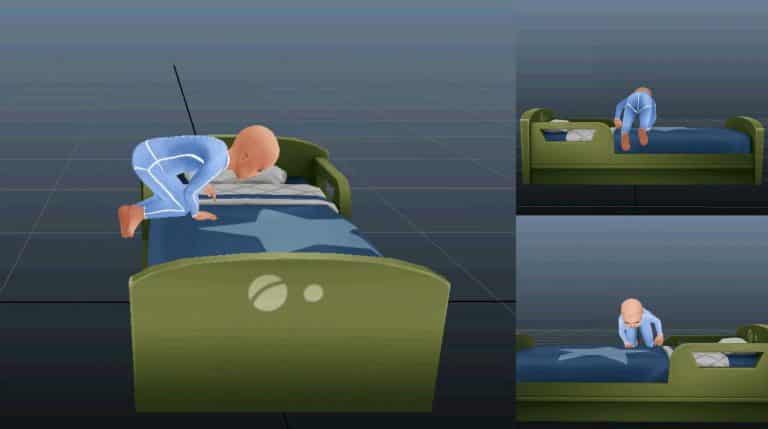
Chris Ondyak published some of the animations work he made for The Sims 4 Toddlers Update. Check it out!

The Sims 4 City Living Apartment Renovations: 19 Culpepper House

Renovation videos for The Sims is something that has always intrigued me. There are so many different ways you can renovate a build no two builds are ever the same. Recently I’ve been looking at a lot of apartment renovations for the apartments in San Myshuno. So here are three of my favourite custom content free renovation videos both of which are for apartment 19 Culpepper House.

First up is Lilsimsie’s Not So Berry legacy challenge Apartment. Featuring lots of minty green colours, plenty of clutter and a balcony that looks out over the gorgeous city of San Myshuno. The apartment is perfect for a small Sim family.

https://www.youtube.com/watch?v=-phEwTraSsY

For more information on the Not So Berry legacy challenge click here.

The second apartment renovation is by Fantayzia.  This apartment renovation removes the old horrible worn down surfaces and appliances and brings the apartment up to date with a modern city feel. Again the apartment is perfect for a small Sim family.

https://www.youtube.com/watch?v=JzLQRrASe8M

The third and final favourite apartment renovation is by SimLicy. Starting with a blank canvas this renovation is full of colour, patterns and clutter. Although there is a lot going on in such a small space everything is perfectly functional. The addition of the third bedroom is perfect if you want your Sim’s family to expand or just want a new roomate.

Have you done any apartment renovations in your game? If so, let us know in the comments below if you have and also let us know what some of your favourite renovation videos are in the comments too.

Building on a Budget: Tips for a Stylish 10k Starter Build

sims 4 build, 10k build challenge, sims 4 build challenge, sims 4 starter home

One of the things I struggle with most while building is money restrictions. Designing an amazing house using all items from the many DLC packs without worrying about how much Simoleons (The Sims’ currency) you’re spending.

I put myself to the test with this build. Not only did I want to spend under 10K Simoleons, which is hard enough for me, but I also wanted to make sure it was trendy, chic, and a starter house that my sim-self would be happy to call home. Also, the lot price has to be factored into the 10k price-tag.

All-in-all, it was a fun experience. I’m trying to experience more build challenges and it was a different build experience since I don’t usually worry about money. Here are a couple of tips I have for building a small starter home using as little money as possible.

Build Inside Out

Okay, follow me here; Usually starting with walls, floor, and a roof would be step number one, however we’re going to leave that until later. I placed my furniture first, then worked my way out, starting in the centre. This helped me visualize the usable layout and could adjust placement without building any walls. Then you can build the walls around everything, using the minimal amount.

sims 4 build, 10k build challenge, sims 4 build challenge, sims 4 starter home

sims 4 build, 10k build challenge, sims 4 build challenge, sims 4 starter home

Enlarge Objects

Have a small TV but want it to look bigger? Select it, press the right bracket key ( ] ) and viola! Instant big screen. I didn’t add a TV in this build (I seriously could afford it), but I did enlarge the curtains on the wall to fit the window, and to take up some space as wall decor.

sims 4 build, 10k build challenge, sims 4 build challenge, sims 4 starter home

Get Creative with Wall Space

One of my favourite things to add to the walls are the arrow decals from Get to Work. Seriously, they look cool. Paintings and framed pieces are pretty expensive, so using these can add some character to a room without breaking the budget. You can also use wallpaper or tile to make the walls seem less boring.

sims 4 build, 10k build challenge, sims 4 build challenge, sims 4 starter home

Debug is Love, Debug is Life

I didn’t use any debug items in this build (I wanted to keep it simple), but most of the items in the debug catalog are priced at zero and will allow you to add some clutter for free! To find debug items you can type in the cheat: bb.showhiddenobjects and filter debug on in the search options.

sims 4 build, 10k build challenge, sims 4 build challenge, sims 4 starter home

Although this took a lot more time to build than I would like to admit, I really love how it turned out! Do you like Sims 4 build challenges? Let me know in the comments some of your favourites!

You can catch my Let’s Plays and Build Casts daily on twitch.tv/holliebb

Builder Spotlight: Breezyblue022

Hi, I’m Jason Sterling. When it comes to building inspiration I often look to our fellow Simmers. The Sims is a world spanning game with seventeen years of development. As such, it has perhaps the most diverse player base of any PC game on the market today. This provides a wealth of opportunity for exploring different styles and ideas through builds. From time to time I’ll spotlight a builder that has struck me with their creative ability. Today that builder is Breezyblue022. Her “Vampire’s Valentine Apartment” is the particular build I fell in love with.

It’s available on the Gallery: https://www.thesims.com/gallery/677F3B89EB1C11E68C719BB546B89220

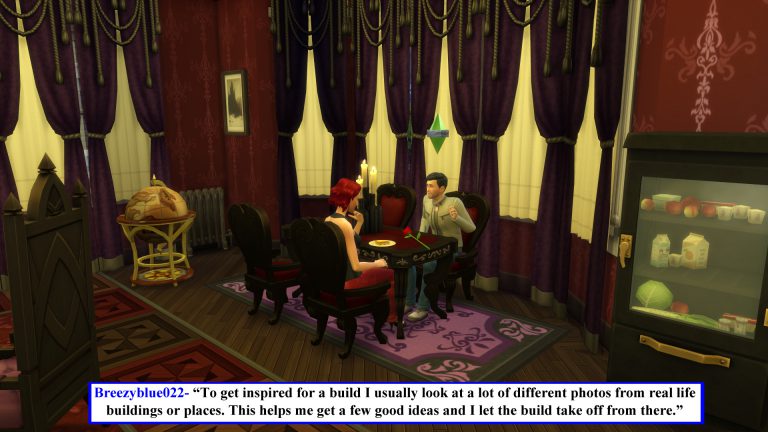
What caught my attention first about this build is the way Breezy has created a large area rug from three separate elements and placed it front and center. So, your eye is immediately drawn into the build. She continues with an intense feel of large scale grandeur throughout the small apartment. That’s an important thing to remember. Small in space doesn’t have to equate to small in style. Also, small spaces can be dark yet still feel very open and roomy. As a result this space works brilliantly. The pictures below will further illustrate this apartment in a thousand visual words. In addition, the text inserts provide a bit of insight about the Simmer who created it.

Builder Spotlight: Breezyblue022

Builder Spotlight: Breezyblue022

Builder Spotlight: Breezyblue022

Builder Spotlight: Breezyblue022

I hope you have enjoyed seeing this example of the talented Sim builder and designer, Breezyblue022. You can see her full range of abilities by looking through her entire Gallery Collection:

[mks_button size=”large” title=”Breezyblue022’s Gallery” style=”rounded” url=”https://www.thesims.com/en_GB/gallery/browse?searchtype=ea_origin_id&time=all&category=all&searchquery=Breezyblue022&sortby=downloads&max=50&maxis=false” target=”_blank” bg_color=”#1e73be” txt_color=”#FFFFFF” icon=”fa-picture-o” icon_type=”fa” nofollow=”0″]

Thank-you for joining me for this spotlight. Do you have some builders you really admire? If so, please post a pic below of their work or a link to their gallery below. They may be in the Spotlight in the future. Next time I’ll take a look at the winning builds of “SimGuruKimmi’s Seafood Restaurant Challenge”.  After that, I’m back to building! Please join me then.

Origin Publisher Sale: Save up to 75%! (The Sims 4 + Expansions Included)

2

Origin is having a new Publisher Sale where you can save up to 75% on all EA titles!

In this sale are included The Sims 4 Base Game, Expansion Packs and Bundle Packs that you can get on Origin. Here are all The Sims games included:

  • The Sims 4 Base Game (67% off)
  • The Sims 4 Get to Work (50% off)
  • The Sims 4 Get Together (5o% off)
  • The Sims 4 City Living (50% off)
  • The Sims 4 Bundle 1 (GTW, Outdoor Retreat, Luxury Party) (20% off)
  • The Sims 4 Bundle 2 (Get Together, Spa Day, Movie Hangout) (20% off)

Make sure you take advantage of this sale! It ends on March 14th at 10AM PDT.

Origin Publisher Sale: Save up to 75%! (The Sims 4 + Expansions Included)

Three Styles of Historical Architecture in The Sims 4

This article will outline characteristics of three architectural styles that were popular in American history.  If you are new to building, knowing about these simple elements and what you can achieve in-game may fine tune the character of your Sims 4 historical lots.

The Sims has always given us tools that  allow us to create homes with distinct architectural details. It’s these details that add realism and a sense of history to the lot and your neighbourhood.  This is no different in Sims 4, and with the addition of packs such as Sims 4 Vintage Glamour and  Sims 4 Vampires, you have more build mode objects and decor to be creative with.

Sims 4 Historical Lots
Some general tips:
  1.  The Cheat code “bb.moveobjects on” and resizing objects with the “[ ]” square brackets are your friends.  Use generously.
  2. Use game items in different ways than they were intended.
  3. Don’t skimp on the details.  You don’t have to be an Architecture student (I’m not). However, even doing quick Google research on the type of house style you want to build can give you great ideas to refine your build.

1. Antebellum ( Neoclassical )

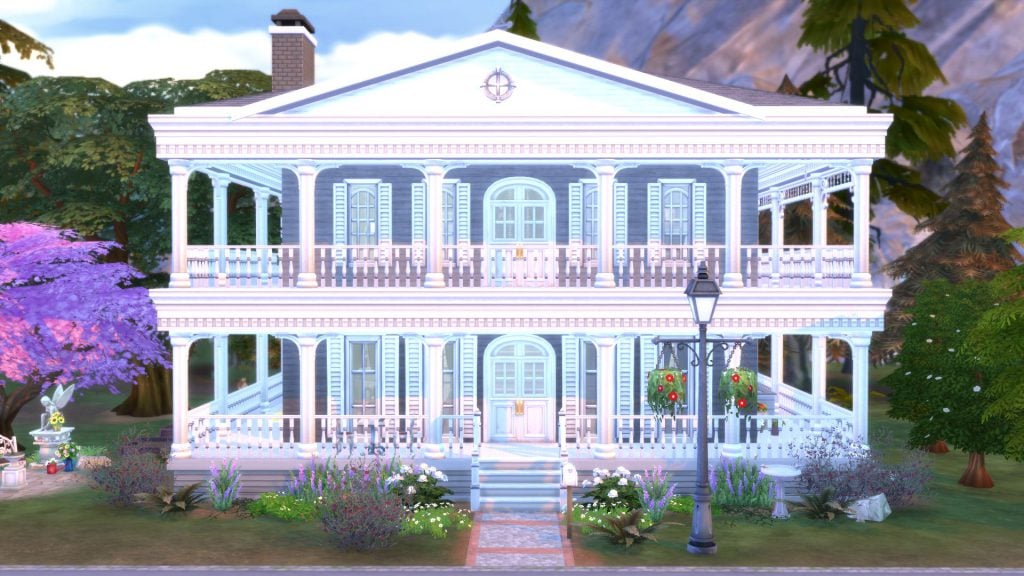
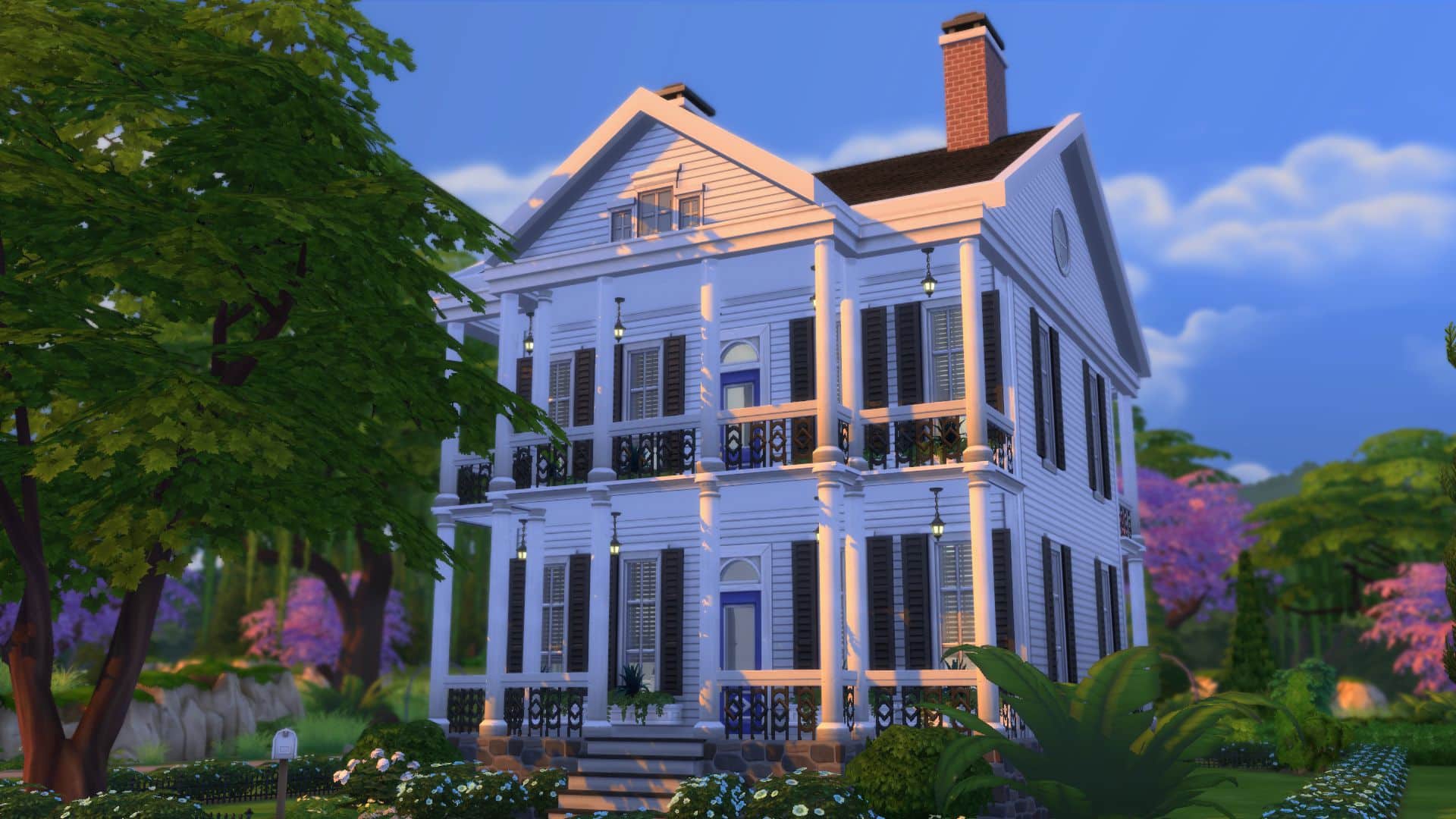
The iconic neoclassical mansions of the American south were built in the post-revolutionary times (early 1800’s) influenced by English and French settlers to the region. The term “Antebellum” is not necessarily an architecture style, but more of the period in America before the American Civil War.  You can see the Antebellum influence in the Sims 4 with lots such as the “Oakenstead” in Willow Creek.

Because of it’s symmetrical layout,  these type of houses may be the easiest to build in the game.

Three Styles of Historical Architecture in The Sims 4
Characteristics:
  • Breezy porches and balconies helped the residents deal with the Southern heat.
  • large sash windows with shutters
  • Greco-roman style columns and pillars were used as a reflection of neoclassical architecture.
  • Mansions were built symmetrically with center front entrances, influenced by ancient Greek and Roman architecture.

Three Styles of Historical Architecture in The Sims 4

Build Objects for an “Antebellum” lot:
sims 4 architectural build objects and decor
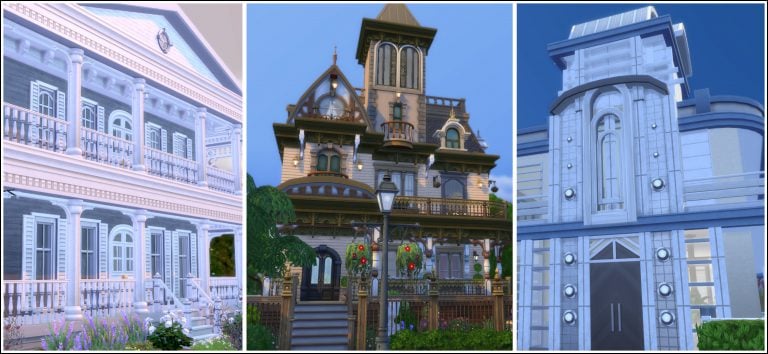
Three Antebellum inspired lots from the Sims Gallery:

[mks_col]

[mks_one_third]

gallery antebellum4
“A Southern Belle” by slawfishnubu

[/mks_one_third]

[mks_one_third]

gallery antebellum3
“American Classic 2” by Ca1911

[/mks_one_third]

[mks_one_third]

gallery antebellum
“N’awlins Haunt” by rostrijodu

[/mks_one_third]

[/mks_col]

Sims Gallery links: “A Southern Belle” / “American Classic 2”  / “N’awlins Haunt” 

2. Queen Anne ( Victorian )

The American “Queen Anne”  is a style of Victorian architecture which rose in popularity near the end of the the 1800’s.    The Industrial Revolution, which overlapped with the  Victorian era, brought about technological advances and improvements to transportation. These allowed the faster transport and production of raw materials and goods.  Decorative elements such as trims and window frames could be pre-fabricated, which in turn made Victorian homes easier, and less expensive to build.  Limited lot sizes in urban areas forced builders to build upwards, which is why you see tall, narrow, multi-storied buildings in this style.  The “Ophelia Villa” in Willow Creek where the Goth family resides, and the “Wolfsbane Manor” in Forgotten Hollows appears to take some Victorian-ish inspiration.

Doing a Sims Gallery search for “Victorian” will bring up plenty of results. It’s easy to see why these  type of houses are so fun to build.  Because these are eclectic in nature, you can be creative with build objects, and it would still work for a Queen Anne house.

Sims 4 Historical Architecture Queen Anne Victorian

Characteristics:
  • Eclectic styles influences by gothic, tudor and medieval architecture, which is why towers and turrets are an iconic part of a Queen Anne build
  • Different dormers and roof types, such as gabled and mansard roofs
  • wraparound front porch
  • Decorative ornamentation, different wall textures
  • Elaborate gardens. Victorians loved their gardens.
Three Styles of Historical Architecture in The Sims 4
Build Objects:

Three Styles of Historical Architecture in The Sims 4

Three Queen Anne inspired lots from the Sims Gallery:

[mks_col]

[mks_one_third]

Sims 4 Historical Buildings Queen Anne
“Dollhouse Victorian” by SpecterCody

[/mks_one_third]

[mks_one_third]

Sims 4 Historical Architecture Queen Anne
“Claret Victorian” by cyprinsims

[/mks_one_third]

[mks_one_third]

Sims 4 Historical Architecture Queen Anne
“‘Queen Anne’ Mansion” by Lapleesa

[/mks_one_third]

[/mks_col]

Sims Gallery links: “Dollhouse Victorian”  /  “Claret Victorian”  / ‘Queen Anne’ Mansion 

3.  Streamline Moderne  (Art Deco)

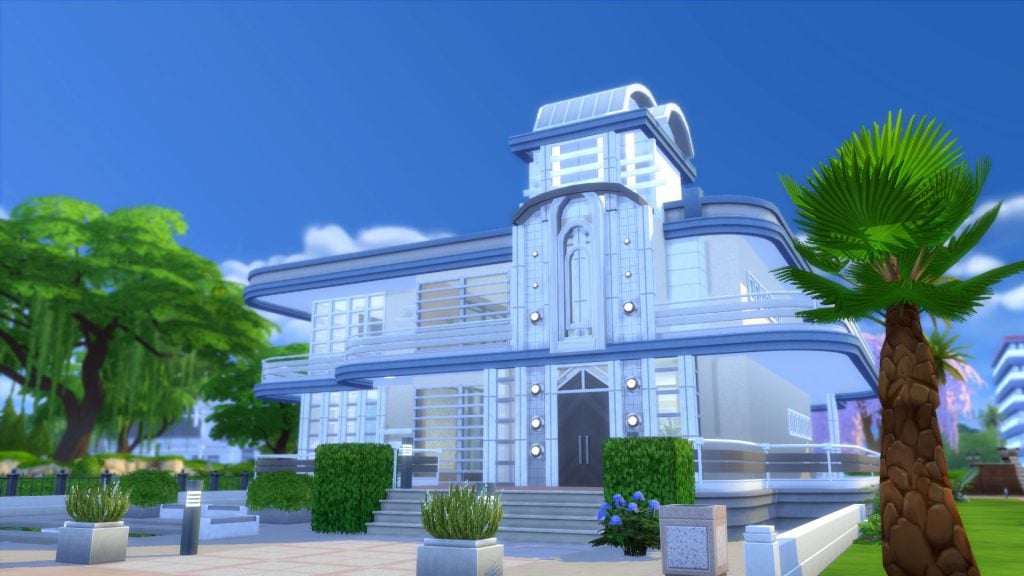
Mid-century “retro” came about from the “Streamline Moderne” or  “Art Moderne” style, which emerged from the tail end of the “Art Deco” movement.  This ultra modern style emphasized a concept of stream-lined motion, and stripped away the ornate details of it’s Art Deco past.  Because it also reflected the economic times of Great Depression, buildings were constructed with inexpensive materials such as glass and cement, and designed with a sense of optimism to a bright future.  Take a look at the “Solar Flares Lounge” and the “Futures Past” museum in Oasis Springs to see Streamline Moderne in the Sims 4.

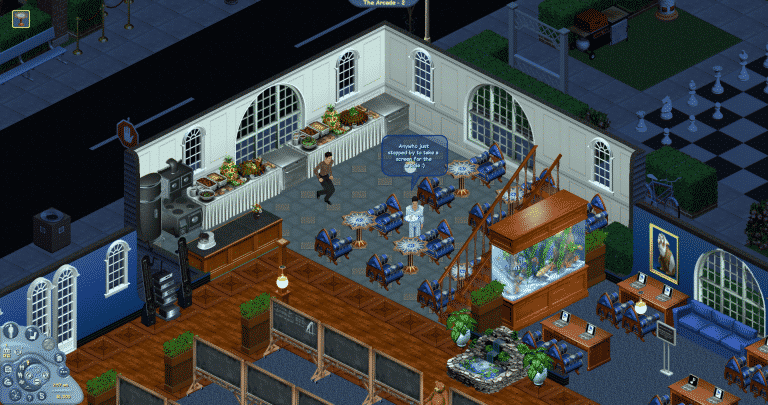
The terms “midcentury”, or “art deco” are popular in the Gallery, though it may take a little more digging to find ones that suit the Streamline Moderne aesthetic. Sims 2 had the “Mansions and Gardens” expansion pack which included art deco build objects, but these are lacking in Sims 4 as of writing this article.  However, you can still create interesting lots.

Sims 4 Streamline Moderne

Characteristics:
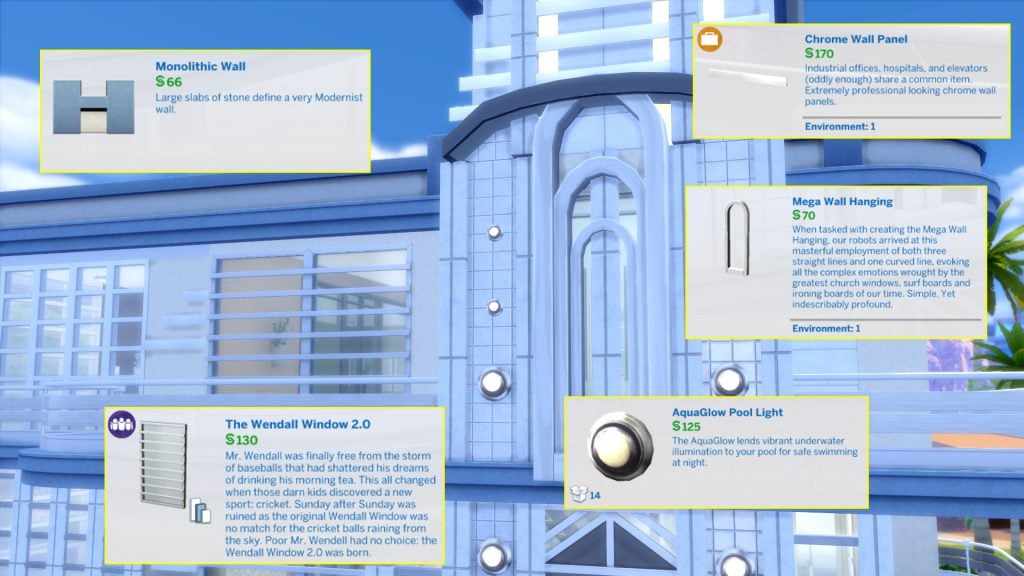
  • Modern materials such as glass, chrome and cement
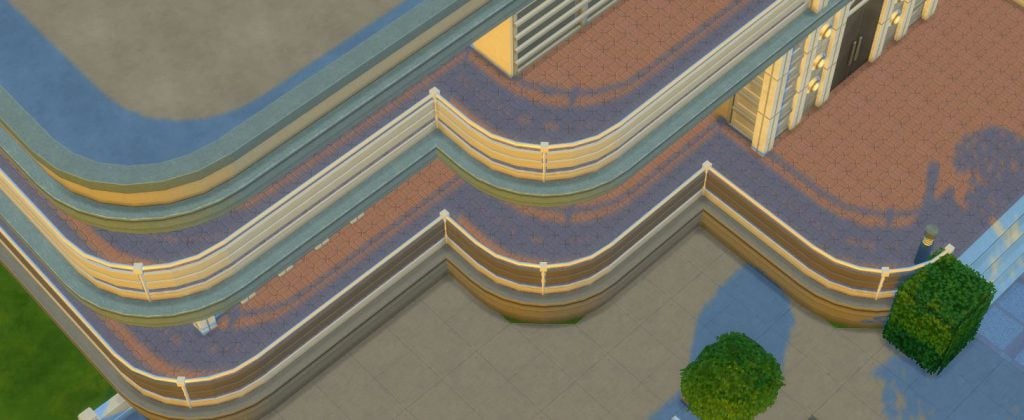
  • Straight horizontal lines to give a sense of motion
  • Curved, “aerodynamic”, corners
  • “futuristic” decor elements

Three Styles of Historical Architecture in The Sims 4

Build objects for a Streamline Moderne lot:

Three Styles of Historical Architecture in The Sims 4

Three Streamline Moderne inspired lots from the Sims Gallery:

[mks_col]

[mks_one_third]

gallery artmodern02
“McAlpin Hotel&Restaurant” by chaoticshelly

[/mks_one_third]

[mks_one_third]

gallery artmodern01
“Art Deco Inspired Mansion” by SweetSputnik

[/mks_one_third]

[mks_one_third]

gallery artmodern03
“Glamorous Cakes And Bakes” by luckyheather

[/mks_one_third]

[/mks_col]

Sims Gallery links: “McAlpin Hotel & Restaurant” / “Art Deco Inspired Mansion” / “Glamorous Cakes and Bakes”

Building  Sims 4 historical lots is a great challenge and may be easier than you think! Give it a try and tell us about it in the comments!

(The example lots can be found on the gallery under my EA id “belledaisies”.)

New FreeSO Update adds new features and bug fixes!

2

FreeSO, a reimplementation of The Sims Online, has released a brand new update which adds new features and bug fixes.

To download the latest update, simply open FreeSO when you’ll be asked to update your game. Select ”Yes” and wait for the update to download and install. You’ll need to restart your game afterwards.

New FreeSO Update adds new features and bug fixes!

One of the best things about the new update is that you can now change the resolution of FreeSO by dragging the corners of the FreeSO window. You can even use the full potential of your computer’s resolution by dragging the FreeSO window to the top corner of your screen.

New FreeSO Update adds new features and bug fixes!

Here are the full patch notes of the latest update:

  • Implement Volume Controls (via options menu)
  • Implement Door Permissions EOD (permissions, code, fee)
  • Optimise smooth zoom.
  • Actually purge old entries from Lot Visits table
  • Optimise monetary transactions slightly.
  • Right control and shift keys work across the board (unified modifiers)
  • Drag-to-resize windowed mode. Maximise and windows snap-to-side also work.
  • Backend work for dynamic resizing
  • Server url in debug options
  • Fix Binding crash (on logout)
  • Fix restaurant plates stacking out of world, in such a way that they created an infinite stack
  • Stop any stackable objects creating infinite stacks in general

For more information on how to install FreeSO, CLICK HERE!

“God is in the Clutter” Building Your Sim’s History Into Your Builds

Hi, I’m Jason Sterling and this is the third in a series of Sims 4 build articles outlining build tips and tricks within the new world of Forgotten Hollow in the Sims 4. I’ll start this article with the “Sims Builder’s Three Best Friends” in-game cheats.

bb.IgnoreGamePlayUnlocksEntitlement (IGUE) Unlocks all items tied to in game advancement from the start.
bb.ShowHiddenObjects (SHO) Displays all hidden objects for use in building such as ponds, dishes, bottles ect.
bb.MoveObjects (MOO) Allows build/buy items to be freely moved around within the build and activates the height slider that raises objects up and down in the air and on the walls using the number 9 for up and the number 0 for going back down.

If you are new to the Sims 4 or just new to building in the Sims 4, press CTRL/SHIFT/C to open the command box within your game and enter each of the cheats above should you wish to access their features. Now on with the article.

“God is in the Clutter” Building Your Sim’s History Into Your Builds

Famous Architect Mies van der Rohe said God is in the Clutter. No, not really. He said “God is in the Details” but I said “God is in the Clutter” and it’s essentially the same thing. We’re like intellectual twins he and I- lol. I’ve also said our history surrounds us and I’ve written this article to explain that. A really great build in my opinion stands out in its “details” and in its “clutter”. I have a process to assist me when placing objects in a build for a sim that follows the three stages of life. I’ll describe them below via illustrations of the evolution of the kitchen in my Apothecary House.

“God is in the Clutter” Building Your Sim’s History Into Your Builds

The first stage most people begin with and some also end with, when building structures is The Present.

It doesn’t need much explaining. I first set up the basic day to day needs for whatever room I am working on. It’s a kitchen so that means cabinets, appliances and someplace to eat. Then some basic flooring and wall coverings. Not bad but not entirely authentic looking. So I’ll place a few items about.

  • Hand towels
  • Salt and pepper
  • Flowers

It’s our sim’s every day space and it’s just like ours, so it comes naturally. This is where some people stop because they are satisfied with the outcome or because they don’t know where to proceed next.

“God is in the Clutter” Building Your Sim’s History Into Your Builds

I though, like many others, proceed to the next step of The Future.

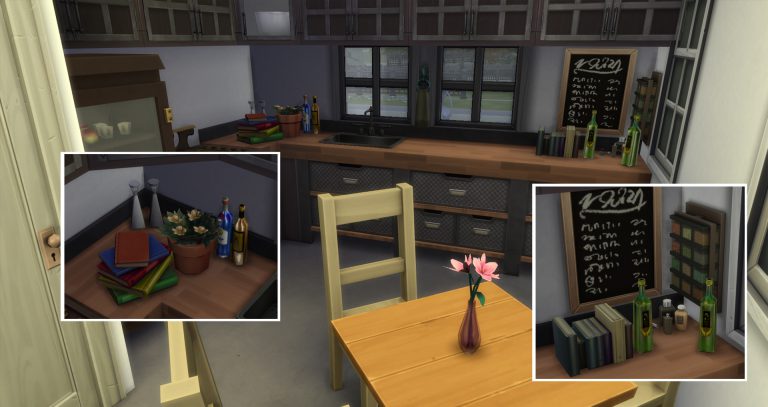
The future is what our Sims are going to do for work and entertainment when we begin playing. My sim is an “Apothecary”- an imaginary job I pretend in the game. Essentially, he’s a gardener. To support the feel of the imaginary career I’ve set up various clutter items that suggest someone creating medicines in their kitchen.

  • Various bottles (found by turning on the SHO cheat and searching “bottles”) for holding elixirs
  • Numerous books for consultation
  • A small plant he’s grafting
  • A chalk board for notes and so on.

“God is in the Clutter” Building Your Sim’s History Into Your Builds

On the other side of the room are his gardening tools. He has children who are definitely part of his future history. So, I’ve placed a toy cat he found in the garden with the shears. There’s a toy duck peeking out from under the chest too, hidden or lost- only his children know, ha! A lot people I believe are finished here. The room works. You have your sim’s “now” and your sim’s “future”.

“God is in the Clutter” Building Your Sim’s History Into Your Builds

However, the last step fulfills the reality of life for me. It’s the Past.

I visually create the past for a brand new Sim. I do it by surrounding my sim with their history. The history of my sim is that he came from Windenberg with just enough money to buy a home in Hollow, expand it and establish his practice. My sim bought a small brick house pictured here in and enlarged it. Since his funds are limited all of his expansions are done in wood and he’s kept what he could of the original structure. You can see that clearly in this exterior shot.

“God is in the Clutter” Building Your Sim’s History Into Your Builds

It’s also evident in the style of the kitchen that was added onto the back of the house. The original exterior brick wall and flag stone of the porch that the kitchen replaced are still there. Next, I chose objects specifically related to Windenberg. I used the sort function of the Buy Catalog to show only objects from Get Together. Then I could easily chose items that have a player association with Windenberg. I picked items like a pennant and a rug from organizations he belonged to and the shelving containing kitchen implements related to coffee- a Windenberg staple. These additions create a greater sense of personality. He’s not just existing right now and in the future but he is also existing, through his surrounding history, before I started him in my game.

“God is in the Clutter” Building Your Sim’s History Into Your Builds

There we are. I have gone from an empty box to a room that’s surrounded by this sim’s history. The history he has already lived, the history he is living and the history he will live. “God is in the Clutter.”

“God is in the Clutter” Building Your Sim’s History Into Your BuildsI hope you’ve enjoyed this article and it helps you surround your sim’s with their history in your future builds. If you ever have any questions please feel free to post below any article. As well, if you have any builds or examples of what you’ve created that run with the theme of an article, please share those with us too! We would love to see them. Please see my next article, coming soon. Thanks for reading.

This build is available on the Gallery: https://www.thesims.com/en_GB/gallery/278A15F6FA8B11E687E95FCC3DBFD9B8?category=lots&searchtype=item_name&sortby=newest&time=all&searchquery=&max=50&maxis=false

Additional pictures of the entire build are available here: https://www.facebook.com/pg/MyWorldofSims/photos/?tab=album&album_id=1194213234027432