

Get ahead with these official tips to stabile performance when performing a Sims 4 Update!
The Sims Team continues to provide more clarity about best ways to maintain and upkeep your Sims games. Their useful Lag Causes for The Sims 4 guide was clear enough to give a player understanding which features might spike a frame drop.
Preparing for the next update is always important, especially if you're someone who uses a lot of Sims 4 Mods and CC. This official guide also acknowledges the 50 / 50 method and shares their way of discovering outdated mods. Including the good reliable Copy > Paste method of backing up your Saves. This time with an official signature!
The next Sims 4 Update is scheduled for January 13th, 2026. See the official tips to get your game files secured below:
Table of Contents

Mods and Game Updates: The Official Guide
Sul Sul, Simmers,
As many of you already know, after any base game update any mods or CC you have installed are disabled as you might need to update some of them to be compatible with the newer version of The Sims 4 you’ve just installed. Below you’ll find steps on how to launch the game “vanilla,” what to look out for when playing with mods, re-enabling mods, and (If something broke) how to use the “50/50” method to find the culprit, along with other best practices.
Updating mods and CC, is it that important?
Did you know that in certain cases using an outdated mod could cause unfixable problems for your save? Some mods may even make changes to your game that persist after the mod is removed, so be sure to check any elements of the game that a mod you used may have affected. If (for example) you used a mod to add Lot traits to your neighbor NPC Sim, removed playmats, or installed any food related mods, are the changes they made still present after removing the mod?
Before you update
- Back up all of your stuff. Copy these 2 directories to a safe spot, like your desktop:
- Documents\Electronic Arts\The Sims 4\Saves
- Documents\Electronic Arts\The Sims 4\Mods
- Documents\Electronic Arts\The Sims 4\Saves
- Note your mod list. Have a lot of mods? A method of organizing your mods may be worth looking into, a simple text file or spreadsheet with the names of your mods and their creators might save you a ton of time later.
- Close the game and your mod manager (if you use one).
After the base game update
- Launch once with no mods or CC (vanilla).
Mods and CC are disabled by design after updates - this is normal. - Hop into Live Mode for a minute.
You’re just checking that the game runs on the new patch version. - Exit the game WITHOUT saving.
Don’t save a modded game while mods are off, or the game will strip most modded content (this mostly impacts mods that have separate .cfg files) - Clear cache: delete localthumbcache.package (in Documents\Electronic Arts\The Sims 4) whenever you change mods.
- Re-enable mods/CC.
Under Game Options - Other - Enable Custom Content and Mods (and Script Mods Allowed if you use them as well), then restart the game.
Start adding content back safely
- Start with the known-good/updated versions. Grab fresh downloads from creators who’ve posted updates, and add back in mods that creators have said are compatible with the new game version. Remember to check for what other mods those mods depend on, though!
- Add in small batches. Drop in a few mods at a time, then launch and test.
- Prioritize gameplay and UI mods. These are most likely to break after patches - verify them first. (UI mods are anything that changes or adds to the game layout, including in Create-a-Sim and Build/Buy mode.)
If something isn’t right: the “50/50” method
- Move all content out of Mods.
- Add back half → test in game.
- Make sure that in that half you include mods those mods depend on. You might want a “half” to be all build/buy and CAS content that doesn’t require a “core” mod, for example.
- Make sure that in that half you include mods those mods depend on. You might want a “half” to be all build/buy and CAS content that doesn’t require a “core” mod, for example.
- If it breaks, the bad file is in that half → remove half of that half and test again. If you’re testing gameplay mods, make sure to not split mods from the ones they depend on.
- If it’s fine, swap in half of the remaining files → test.
- Repeat until you isolate the culprit, now you can look for an update or remove it.
Clues the issue might be mod-related
- Script/gameplay bugs: interactions won’t complete, menus fail to open, Sims get stuck.
- UI glitches: Menus are the wrong colour or distorted, icons are jumbled.
- CC/asset glitches: missing meshes, distorted clothing and faces, floating accessories.
Quick fixes that help a lot
- Test on a fresh save to rule out save-specific issues.
- Turn off the “mod list at startup” if booting your game is slow (uncheck Show at Startup on the mods list screen).
- Repair the game via your launcher if core files seem off (this doesn’t touch your Mods folder, but you may want to back them up again anyway):
- EA app - Library - click on The Sims 4 - Manage - Repair
- EPIC - Library - click on The Sims 4 - click the three dots (...) next to The Sims 4 - Manage - Verify (You’ll also want to follow the steps above on EA app after this as EPIC launches The Sims 4 through the EA app)
- Steam - From your Steam library - right-click the game tile - Properties - Installed Files - Verify integrity of game files
- EA app - Library - click on The Sims 4 - Manage - Repair
Still not working quite right? What to include when asking for help
We’ve got a whole section of the EA Forums dedicated to mods in The Sims 4. Remember when posting in the forum to check the pinned posts first, it’ll probably save you time.
Also be sure to include the info below to get help from the community faster:
- Your game version, launcher, and platform (e.g. Version 1.119.109.1220, EA app, Mac). You can find your game version in the bottom left corner of the main menu.
- A short summary of what changed (e.g. “updated today; added X mod; removed Y”).
- Which mods/CC you’re using (link to your list if possible).
- Make sure any mods you mention are in line with the EA Forum Rules & Guidelines! We’ve got gamers of all ages here.
- Make sure any mods you mention are in line with the EA Forum Rules & Guidelines! We’ve got gamers of all ages here.
- When errors happened, and what happened. If at some point your game won’t launch the next stage, which stage that was helps with finding a solution. The same with what was happening when your Sims stopped behaving.
- Steps already tried (vanilla test, 50/50, cache cleared, repairs, etc.).
- Any error messages or LastException/lastCrash files.
Official Guide to Backing Up Saves in The Sims 4
We know that your saves are more than just Sims; they’re legacies, builds, and finely crafted stories. This is why backing up your saves in The Sims 4 is not only recommended, but essential for your peace of mind. It’s heartbreaking to accidentally overwrite a save folder, encounter a hardware failure, or lose a save file, so we’re here to help you prevent it from happening.
There are other reasons to back up your save files as well. Did your favorite Sim just get attacked by the killer rabbit? Simply restore a backup save like it never happened. Just had your 99th baby in the 100 Baby Challenge? You’ll definitely want a backup save before moving on to baby 100.
How often should I be backing up my saves?
It's best practice to backup your saves regularly, say on a weekly basis as well as prior to any major game changes or in-game events. These might be base game updates, installing a new pack, finishing up an epic build, or even adding mods. This is because you're making changes to The Sims 4 file system structure, which has the chance, even if small, of corrupting a save file.
If you're planning to use a new computer or even are moving the location of that computer, you will also want to back just in case anything happens and you can transfer over all your families and builds to your new PC.
Backing up your save files:
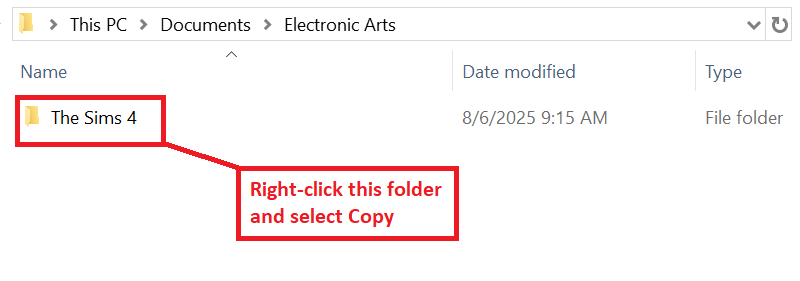
For Windows users:
- Go to My Documents.
- Open the Electronic Arts folder.
- Find The Sims 4 folder.
- Right-click on it and choose Copy.
- Go to your Desktop.
- Additionally, you can copy this folder to a flash drive or Cloud storage.
- Right-click on a free space and choose Paste.
- Right-click on the copied folder and choose Rename.
Change the name of the folder to something you’ll remember like "Sims 4 Backup".
For Mac users:
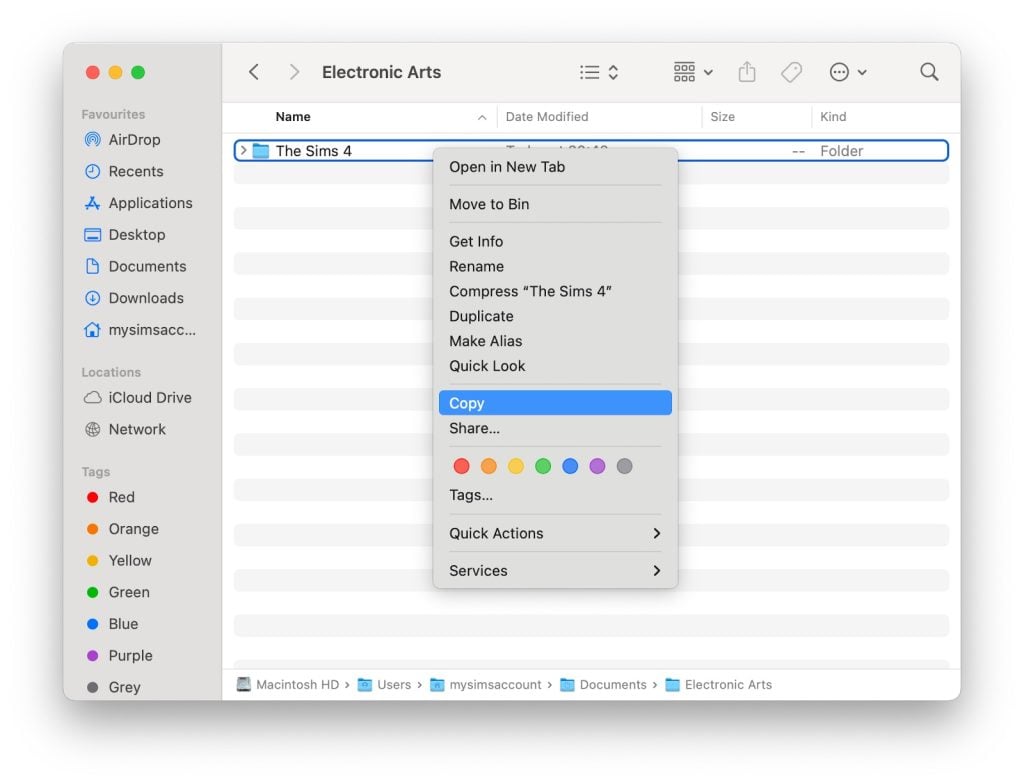
- Open Finder by clicking on the Finder icon on your Dock.
- In the Finder window navigate to your Documents folder.
- Open the Electronic Arts folder.
- Click once on The Sims 4 folder to select it.
- Press Command & C on your keyboard to copy the folder.
- Go to your Desktop.
- Additionally, you can copy this folder to a flash drive or Cloud storage.
- Right click on a free space on the desktop and click on Paste Item to paste your backup folder.
- Rename the folder on your desktop by clicking on it and pressing Return, then entering the new name.
Change it to something you'll remember, like "Sims 4 Backup".
Restoring your save files:
For Windows users:
- Go to My Documents.
- Open the Electronic Arts folder.
- Click on The Sims 4 folder and press Delete.
- Confirm you want to delete the file.
- Empty your Recycle Bin.
- Go to your Desktop.
- Right-click on your backup folder and choose Rename.
- Change the folder name back to The Sims 4.
- Right-click on the folder and choose Copy.
- Go to My Documents.
- Open the Electronic Arts folder.
- Right-click on a blank space in the folder and choose Paste.
For Mac users:
- Open Finder by clicking on the Finder icon in the Dock.
- In the Finder window navigate to your Documents folder.
- Open the Electronic Arts folder.
- Right click on The Sims 4 folder and select "Move to Bin" to delete it.
- Go to your Desktop
- Click on your backup folder.
- Press Return and change the folder name back to The Sims 4.
- Press Command & C on your keyboard to copy the folder.
- Open Finder.
- Open your Documents folder.
- Open the Electronic Arts folder.
- Click on a blank space in the folder and press Command & V to paste your backup folder.
Once the above steps are complete and you've verified your saves are present in game, you can safely delete the backup folder on your Desktop.
Restoring a “.ver” Save File:
Please note that The Sims 4 automatically creates a backup of autosaves that can be found in your save directory as “.ver0”, “.ver1”, etc. as well.
These can be restored via either of the following methods:
Method 1: Use the in-game "Recover Save" feature:
- Launch The Sims 4 and select Load Game from the main menu.
- In the menu that appears, select the save you want to restore.
- Click the Recover Save button, which looks like a floppy disk icon.
- Choose the specific save version you want to restore and click Recover.
- Confirm your choice by clicking Yes.
Method 2: Renaming the save file:
- Exit The Sims 4 completely.
- Navigate to your The Sims 4 saves folder.
- Find the file with the same name as your save, but with the “.ver” extension (e.g., “Slot_00000002.save.ver0”).
- Right-click the .ver file, and rename it by deleting the “.ver” at the end, so it becomes “Slot_00000002.save”.
- If you have multiple “.ver” files, the lower version number (eg, ver0) corresponds to the most recently created backup.
- Launch The Sims 4 and check your "Load Game" menu for the restored save.
If you have any issues with the above processes, you can always reach out in our Technical Issues sections of The Sims forums for PC here, or for Mac here for additional assistance.
Will you be preparing your game for the new Sims 4 update on January 13th or do you keep your game light with custom content? Let us know in the comments below and stay tuned for the next game update!

0 Comments
Be the first to comment.
Welcome to Sims Community!
Our community is about connecting people through open and thoughtful conversations. We want our readers to share their views and exchange ideas in a safe space.
In order to do so, we've created a simple set of rules that will improve your experience. Simply put, keep it civil.
Your post will/might be rejected if it contains:
User accounts will/might be blocked if we notice:
So, how can you be a power user?
Thanks for reading our community guidelines. Please note that we're aware of certain issues with Sign In / Log In and Create Account / Email Confirmation issues. We're working behind-the-scenes on a new Account Creation process. Thank you for your patience and remember - freedom of speech is not freedom of reach