We interrupt our regularly scheduled programming on Sims Community to deliver you breaking news. And giveaways!
Big news and developments for The Sims Franchise are about to unravel at Behind The Sims Summit!
Tomorrow, The Sims 4 Base Game is going completely FREE. In about 24 hours anyone will be able to grab a free copy from Origin / EA App, Microsoft and Playstation Stores. The game will be available for both Console and PC Users.
However, that’s only a fraction of what’s to come. The Sims Team is teasing big things for tomorrow’s Behind The Sims Summit Livestream. There are big rumors about The Sims 5 being announced, among news about the future developments of The Sims 4.
There’s going to be a lot to cover, and we’ll be here throughout the entire event – and after!
Sims Community Coverage for The Sims Summit
The Sims Community Team will give you up-to-speed information regarding news from The Sims Summit. Down to the details!
The Home Page will be updated regularly with breaking news and coverage from Behind The Sims Summit. We’ll soon be publishing a WATCH LIVE page where you can join the Live Discussion throughout Behind The Sims Event – while watching it! Our team will be transcribing important information and screens revealed throughout the event so you can have a timeline of things as they’re being revealed.
Flash Giveaways
Expect Flash Giveaways for each DLC Type throughout this period. If you’re an upcoming player of The Sims 4 you might try your luck in our next 4 rounds. First one coming today!
Behind The Sims Summit is happening October 18th, 10AM Pacific Time. We can’t wait to bring you exciting updates!
Are you a new player wondering how to give your Sim their happily-ever-after? This is the guide for you!
So you’ve made a Sim, moved them into town, made a few friends and got some promotions under their belt. What’s next? Well, some players may want to start thinking about settling down with that special someone. Others might just want to cause as much romantic drama as possible. Either way, we’re going to show you how to do exactly that!
The Basics of Sims 4 Romance
Before you go out looking for a date, there are some things you should know about how romance works. Some Sims may not be available romantically depending on their age, preferences, and sometimes, their relationship status as well. Some Sims who are married may be more reluctant to be romantic with anyone else unless they have the Non-Committal trait or unless they are already very close friends with your Sim.
Romance Options for different Age Groups
Teens, Young Adults, Adults, and Elders can all have romantic partners; however, teens can only be romantic with other teens. Young Adults, Adults, and Elders can all pursue romance with each other. If you don’t have any Romance options with a Sim, hover your mouse over the other Sim to double check that they are not a teen. Likewise, if you are playing a teen Sim and have no Romance options when talking to another Sim, make sure the other Sim is also a teen.
All teen and older Sims also have their own romantic preferences, just like real people. Some Sims are only interested in romance with the same gender, others are only interested in the opposite gender. Some Sims are interested in both genders and others are not interested in romance with anyone at all. Trying to flirt with a Sim who is not interested in your Sim will always result in rejected advances, no matter what you do. If you want to know what a Sim’s romance and WooHoo preferences are, you can ask them under the Romance social category… but you should at least be friends with them, first. Acquaintances will find those questions invasive and refuse to answer you.
If a Sim’s age and preferences are compatible with your Sim, you can pursue romance with them!
Flirting in The Sims 4
All romantic relationships begin with a little flirtatious conversation. So go out and find a Sim to get your flirt on with. Perhaps your Sim is already friends with someone they want to strike up a relationship with. Awesome! It’s much easier to pursue romance with Sims that are already your friends but don’t worry if you’re lacking in the friends department; you can strike up a romance with an attractive stranger under the right conditions.
The most important thing to remember about flirting successfully is that setting the right mood is everything. If you or your partner are in a negative emotional state, things are going to go nowhere fast. Before trying to flirt with that cute Sim at the bar, make sure your Sim’s needs are met and that the environment is ideal for romance. Things like romance music and objects with romantic auras can really set the mood. On the flip side, dirty surroundings are bound to kill the mood instantly so clean up those dirty dishes and puddles!
You can see if your partner’s in a good mood by looking at the conversation tab at the top of the screen. If they are Sad, Angry, Tense, Uncomfortable, Scared, Bored, or Embarrassed, try to find out why and remedy that. Or just try to override those negative emotions with friendly socials that will give them Happy moodlets to counteract their bad mood. It’s just like cheering up a friend with funny banter after a bad day! Flirty is the ideal mood for romance but any positive emotional state is a good starting point for initiating romantic conversation.
Once the mood and the atmosphere are right, start with more lowkey advances. Simply flirt or compliment their appearance until the conversation moves from Pleasant to Flirty. Once the conversation is in Flirty territory, you can start to mix it up with slightly bolder moves, like blowing a kiss or a suave pickup line if your Sim is feeling Confident. Remember not to get too repetitive or the Sim will get bored! Try to use two different socials before using the same social again. For example, you can flirt, compliment appearance, blow a kiss, then flirt again to prevent the conversation from getting stale.
If the conversation shifts from Flirty to Amorous, your Sim is probably in the Flirty emotion by now, which opens up even bolder flirtatious advances, like offering a rose. Flirty-specific socials are indicated with a pink marker and those have a higher chance of success. They also give bigger romance boosts. You can see how strong your romantic connection is with a Sim by looking at the conversation tab up top. If they have both a pink bar and a green bar of relationship with your Sim, you have a romantic interest! If the pink bar is a quarter full and the conversation is Amorous, now’s the time to move in for that first kiss! Maybe you could even ask to become official!
If things go really well and the conversation becomes Steamy, WooHoo (or Messing Around for teens) is definitely on the table. Just make sure there is a spot to get frisky somewhere on the lot!
Casual Hookups
Not everyone is interested in having a traditional monogamous romantic relationship and that’s okay, too! In The Sims 4, you can opt to have “WooHoo Partners” instead of boyfriends, girlfriends, or spouses. If your Sim is solely interested in no-strings-attached WooHoo, they can find a partner with similar interests to hookup with on a regular basis.
To find a WooHoo Partner, strike up a friendship with a Sim. Strangers might be a little wary about becoming WooHoo Partners so it’s best to build up a bit of a platonic relationship, first. Then, under the Friendly social category, choose Ask To Be WooHoo Partners. If the other Sim likes your Sim and has WooHoo preferences that are compatible with your Sim’s, they are likely to accept.
WooHoo Partners can have casual WooHoo with each other whenever they want without romance being involved. When WooHooing under the Friendly social category, Sims won’t gain romantic relationship from WooHoo. You can keep the relationship strictly romance-free.
Teens cannot have WooHoo/Mess Around Partners. They must be in a romantic relationship with another teen in order to Mess Around.
Dating and Relationships in The Sims 4
If you’ve successfully flirted your way into someone’s heart, you can ask them to become your boyfriend or girlfriend. This will put the two of you in an official relationship… but not necessarily an exclusive one! While Sims cannot have more than one fiancé/e or spouse at a time, they can have multiple boyfriends and girlfriends. As many as you want, in fact! Sims can even have multiple boyfriends and girlfriends while engaged or married to someone else. So yes, you can be 100% monogamous… or a player in The Sims 4. Just don’t be surprised if your romantic partners aren’t happy with you if they catch you smooching someone else! Jealousy is very much a factor in The Sims 4.
Of course, once you’re in a relationship with someone, you’ll probably want to go on dates with them. You don’t have to be officially dating someone to go on a date with them. Any Sim with a romantic interest in your Sim may accept being asked out. You can ask a Sim out in person or call them on the phone to ask them out. If they accept, you’ll get to choose the location for the date. Public places like bars, nightclubs, lounges, parks, and museums can be great locations to have fun with your date but Sims don’t exactly understand the concept of personal space. Other Sims may decide to butt into the conversation and become a third wheel on your romantic night out. This can turn a Steamy conversation Awkward and completely kill a date instantly. If you want to guarantee privacy, choose to get cozy at home, instead.
When the date starts, you and your date will arrive together at your chosen location. Pay attention to the goals in the top left corner of the screen. Completing these will give you a higher date score and provide you with reward objects at the end depending on how well the date went. The reward for a gold level date is an ice bucket with a romantic aura! Very useful for setting the mood on future dates!
If at least 24 in-game hours have passed, you are in a relationship with your partner, and you have both high friendship and romance, you can even pop the big question and ask that Sim to marry you! The same rules apply; make sure the atmosphere is right and you’re both in a good mood to ensure your proposal is accepted.
Teens cannot become engaged or get married but they can exchange promise rings. Teens who exchange promise rings become Promised instead of Engaged in their relationship panel but the Promised status does not automatically change to Engaged upon aging up into a Young Adult. You will still have to propose as a Young Adult, even if you promised yourself to your partner as a teen.
Happily Ever After?
If your proposal is accepted, your relationship status will change to Engaged. You can have as long or as short an engagement as you want. You can elope right there on the spot in a spur-of-the-moment rush of excitement, or you can take your time with planning out wedding attire, choosing a venue, and deciding on food, entertainment, and the guest list. Eloping is free but a throwing a wedding will cost you $1,000.
To elope on the spot, simply click the Sim and choose Get Married. You’ll exchange vows and rings right there in whatever clothes you’re already wearing and congratulations! You now have a spouse!
To plan a Wedding Event, choose to Throw a Social Event on the phone and select Wedding. There are goaled Weddings and open-ended Weddings. If you want to complete goals during the wedding and potentially earn rewards, leave the Goaled Event part checked. If you just want to be free to do whatever you want during the wedding, uncheck that box when selecting a Wedding event.
You’ll be prompted to choose the location, the guests, the caterer, and the entertainer. You can select a Sim you already know for free if they are qualified to play instruments or cook at your wedding. If you don’t know any qualified Sims, you can also hire someone for a fee of $100. Cooking all the food yourself ahead of time is also an option. Make sure the location you select has a wedding arch, a fridge, counter, stove, and a musical instrument so everyone can do their jobs!
The only requirement to complete a wedding event is to get married under a wedding arch but if you want to get a higher score on a goaled wedding event, make sure you complete other goals like cutting the cake, making toasts, and socializing with your guests.
Once your Sims are officially married, you’ll be prompted to move in together if you aren’t already living together. We hope this is the start of a lifelong happy union… but if things aren’t working out between your Sim and their spouse, you can divorce them anytime under the Mean socials. This will severely damage the relationship and end the marriage immediately.
Help us choose the best Game Pack for CAS, Build/Buy, and Gameplay!
The Sims 4 recently celebrated its eighth birthday in September and it’s amazing to think about. It’s hard to believe The Sims 4 is just two years shy of being a decade old. The long-running success of The Sims 4 is thanks to all the DLC packsthe game received over the past eight years. It’s why The Sims 4 is still relevant almost a decade later but that doesn’t mean every pack has been good. Some DLC packs are widely loved by the majority of players, but others received harsh criticism.
Which ones will go down in the history books as the best of The Sims 4? Which ones will forever be remembered as colossal flops? That’s up to you! We’ll be running community polls to give you the chance to decide on the best (and worst) expansions, game packs, stuff packs, and kits for The Sims 4!
Best Sims 4 Game Pack
You voted in our expansion pack poll and now we want to know what your favourite game pack is! We know it may be difficult to pick just one game pack; there are quite a few of them and they cover such a wide array of styles and themes, so we’re going to let you pick your top three Sims 4 game packs in each category to make things a little easier.
This is a Sims Community poll. Not affiliated with Maxis or EA.
[totalpoll id=”121738″]
Got more to say? Discuss your favourite Sims 4 packs with other Simmers in the comments!
Please remember to be kind to other players, the game developers, and the Sims Community staff in the comments.Respectful disagreement is healthy but let’s remember there are real people on the other side of the screen.
Did you know about these Cottage Living tips? Now you do!
The Sims 4 Cottage Living is one of the game’s most popular expansions. It has new gameplay that players have been begging for. Farm animals, cottagecore aesthetic, and a farm-to-table lifestyle set in the idyllic English countryside. What more could a nature-lover want, right? Well, it might surprise you to learn about some of these lesser-known Sims tips and tricks about Cottage Living that aren’t exactly hidden, but aren’t outright explained, either. Here’s a few tips you might not have known about The Sims 4 Cottage Living!
Tip #1: Don’t Leave Bessie Behind!
If you move and choose to keep the furniture from your last home, your animals will be transferred to your household inventory when you move. If you want to sell all the furniture and leave it behind, you’ll have to put the animals into your Sim’s inventory before you move. While an animal is outside and standing still, select it and choose Actions – Put in Inventory.
Here’s a Tip: Whether your animals are in the household inventory or your Sim’s inventory, getting them settled in their new home is the same process. Make sure there are sheds and coops on your new property for all your animals. Then click the sheds and coops and select Assign Animal to Shed/Coop. Pick the animals you want to live in that shed or coop and viola! Your beloved animals are properly settled in their new home!
Tip #2: The Sims 4 Cottage Living is a Little Dark…
Okay, maybe you didn’t love Bessie that much after all. Maybe you really need some ground beef for dinner but meat prices at the market have gotten outrageous. Did you know you can have your animals butchered for meat? You can. Sort of.
It’s not as gruesome as it sounds, thankfully. You don’t see your animal’s demise in The Sims 4 Cottage Living, but you can “trade” your animals for a variety of things… including meat. I don’t think I need to explain where the meat comes from, do I?
Tip #3: Waterfall Swimming in The Sims 4 Cottage Living
It’s pretty easy to spot several of the swimming locations in Cottage Living. The swim spots in Finchwick and Old New Henford are obvious, but did you know there’s a third swimmable location in Henford-on-Bagley? And it’s the one with the best view.
You can swim at the base of the majestic waterfall in the Bramblewood! It’s a stunning location and your Sims can even swim right up to the falling water itself! It’s a fantastic spot for pictures or a romantic midnight swim with that special Sim!
Tip #4: Selfies with Sophie
You might have noticed a spiral formation in the Bramblewood with a giant stone snail in the centre but have you ever tried to click on it? If you haven’t, you definitely should because that snail has a name and she loves pictures!
Yes, you can take a selfie with Sophie the Snail in Cottage Living! And with the selfie camera update that came in July of 2022, you can now pick the perfect pose to strike with Sophie! Say “cheese,” Sophie!
Tip #5: Glowing Mushrooms
The Bramblewood is full of wild mushrooms to harvest. Most of them are a mystery until you pick them. Except for one mushroom; the Nightly Mushroom.
Harvesting the Nightly Mushroom in The Sims 4 Cottage Living can be confusing, especially if you own the Seasons expansion. The game doesn’t tell you what season the mushrooms grow in; however, they only grow during Winter. And despite what you might have heard, Nightly Mushrooms can be harvested during the day. Not just at night when they are glowing.
Got any other Sims tips and tricks? Share them in the comments!
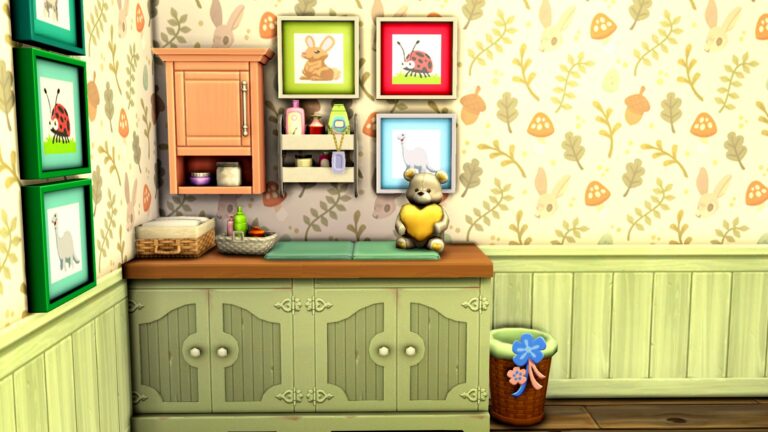
Build a baby-changing table for your little one’s nursery using nothing but some build cheats and your imagination!
As much as I love The Sims 4, I can’t deny that the babies… suck. They’re terrible. They might as well be a houseplant that poops itself and screams. But I deal with them because I love furnishing baby nurseries.
Today, I’m going to show you how to make a decorative baby changing table to help give your newborn nurseries a more realistic touch. It requires no mods or custom content. This can be done with just base game objects, but the more DLC you own, the more options you’ll have to customize the look of your baby changing tables!
Start by finding a surface in Build/Buy. Counters work great and so do some accent tables; just remember to make sure the base is solid because you’ll need to hide part of the changing mat inside it.
Open the cheat console with CTRL+SHIFT+C and type in bb.moveobjects on, then hit Enter.
Next, find some type of cushion seating. I’m partial to the cube chairs from Spa Day but pet beds from Cats & Dogs or a base game ottoman also work well. You may need to size down pet beds and ottomans with the [ key.
Raise the cushion so just the top part is slightly higher than the counter with the 9 key
Hold Alt to freely place the cushion inside the counter, hiding the base of the object inside the counter
The base of your changing table is done! Decorate it however you like with extra shelving, clutter, and whatever else you like! The rest is all up to your imagination!
We spent some time exploring the new Sims 4 Loyal trait in Live Mode!
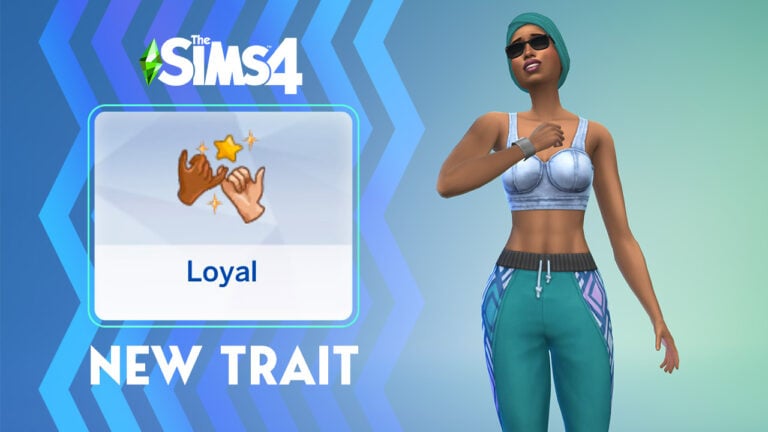
The Sims 4 got a free base game update yesterday that added plenty of goodies, including a new CAS trait! The Loyal trait! We went over the trait description in our update overview but we wanted to see how the trait functions.
So we made two Sims with the Loyal trait in CAS! Then we got them together to see how they would act!
New moodlets for the Loyal trait!
What did we discover? Loyal Sims will have a Happy moodlet called Surrounded by Friends when they are near Sims they are close with. If you have a Loyal Sim, it’s going to be easier to keep them in a good mood by having them spend time with the people they feel close to.
Of course, Simmers were eager to know if this new Sims 4 base game trait actually curbed a Sim’s inclination to cheat on their partners so we tested that, too. Normally, every Sim can be swayed to cheat on their partner if they are Flirty enough or close enough friends with someone. We were happy to see that Loyal Sims are much more reluctant to cheat on their partners. Another Sim attempted to flirt with one of our Loyal Sims and she wanted no part of it. We tried again after the two Sims were good friends and our Sim was Flirty; she still rejected him because she was committed to someone else.
Does the Loyal trait stop Sims from lying? Hm.
The Sims 4 trait description says that Loyal Sims would never lie to their friends or partners which made us curious to know what the game considers a lie. We had our Loyal Sim lie about her career to her partner under the Mischief socials. Weirdly, she did so with no problem and didn’t even get a guilty moodlet from it. We’re not sure if that’s an oversight or if lying is supposed to be some other interaction.
Loyal Sims are very good secret keepers, however! We had a Sim share a deep secret with our Loyal Sim. He had a Confident moodlet called Your Secret’s Safe With Me. Because he is Loyal, he will never spill the tea on people he’s close to. What a cute addition to The Sims 4 traits!
Loyal Sims have new social interactions!
Sims who are Loyal also have a few special social interactions available to them with friends and romantic partners. They have the ability to Promise to Help a friend or partner who’s in a bad mood, which will very quickly soothe any negative moodlets the Sim has. They also have the option to Express Devotion to their romantic partners.
If you were wondering whether Loyal Sims will be quick to rush into marriage… not necessarily. They still require the same amount of time between a first kiss and a proposal as other Sims; however, this doesn’t mean they are any less devoted to their relationship. They are still happy to take that next step when the time is right.
Understandably, the Loyal trait in The Sims 4 conflicts with the Non-Committal trait, so a Sim cannot have both of these traits at the same time. It also means that a Loyal Sim and a Non-Committal Sim are a bad combo.
Loyal Sims will choose to be more affectionate with their partners with free will on, too.
Is there anything you want to add about Loyal Sims? Tell us all about it in the comments!
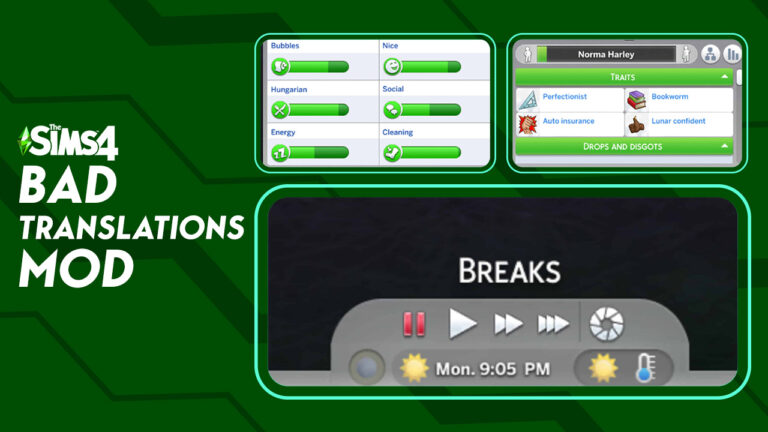
My Sim’s Bubbles and Hungarian Needs are too low! And they have the auto insurance trait!
Bad Translations, a mod by Frankk, transforms the original words (also known as strings) into funnier versions that range from synonyms to completely unrelated words or phrases.
I installed this mod and left it in for a few days. It made me laugh out loud on several occasions. The one that is the most amusing to me is “Bladder” changing to “Bubbles”. The loading screen sayings were also very funny! Although, I did not get to see many of them due to my loading time being so short. My restaurant needed to “shut up” instead of close. I installed the Clean version and there is also an Explicit version.
You’d think this would make the game more confusing, but most the time, it was pretty obvious what the string meant. Or, it was just a fun guessing game! I wouldn’t install it if you are brand new to the game and don’t know where everything is, but as a seasoned player, it didn’t affect my gameplay at all.
Overall, this mod is a lot of fun and I’d recommend everyone playing with it in their game!
Translation Process
Bad translation required Frankk to translate all the game’s text to 1 to 15 languages. Then, he translated the results back to the original language. To achieve the final results, Frankk did the translation process 1 to 3 times.
According to Frankk, “This leads to some text being funnier than the original, unchanged, or mangled beyond recognition.”
Language Warning
The automated process lead to occasional vulgar and sexual language including some spam. (Spam includes suspicious links and/or adult websites.)
After the translation process, the text went through twenty rounds of cleaning. This included detecting and removing sensitive language, spam, and errors. To ensure the quality of the translation, Frankk completed a manual review. Unfortunately, there still is a possibility that Frankk missed some words or phrases. With over 115k strings, it isn’t surprising!
Two Versions Available
Frankk created two versions of Bad Translations; a CLEAN and an EXPLICIT version. The explicit version contains vulgar language that the translator output. The clean version includes the same as the vulgar language without the vulgar language. ONLY INSTALL ONE version of the mod at a time.
If you don’t mind vulgar language, download the Explicit version of the mod. To create this version, Frankk cleaned the strings of spam, errors, and slurs. Other vulgarities like swear words and sex terms remain in the mod.
If you prefer PG language in your game, download the Clean version of the mod. Milder terms replace the vulgar language in the Clean version.
Important Installation Instructions
Download ONE version of the mod.
Place the package file inside your mods
Check that mods and script mods are on in the game settings
Conflicts
This mod will conflict with any mod that also replaces strings.
Shake up your game! Install Bad Translations and get ready to laugh out loud. Literally!
YOU make the decision on the strongest Expansions for CAS, Build/Buy, and Gameplay!
The Sims 4 has been out for eight years now. It’s hard to believe that the latest installment of The Sims series is starting to creep close to being a decade old. If it weren’t for the steady stream of base game updates and DLC packs released for the game over the years, The Sims 4 would not still be as relevant as it is. DLC is largely the reason why the game is still going strong eight years later but not all DLC packs are created equal. Some have definitely been better than others.
Which ones will go down in the history books as the best of The Sims 4? Which ones will forever be remembered as colossal flops? That’s up to you! We’ll be running community polls to give you the chance to decide on the best (and worst) expansions, game packs, stuff packs, and kits for The Sims 4!
Best Sims 4 Expansion Pack
Today, we’re starting off big with expansion packs! We know it may be difficult to pick just one expansion; there are quite a few of them and they cover such a wide array of styles and themes, so we’re going to let you pick your top three expansions in each category to make things a little easier.
This is a Sims Community poll and is not affiliated with Maxis or EA in any way
[totalpoll id=”121484″]
Got more to say? Discuss your favourite expansion packs with other Simmers in the comments!
Please remember to be kind to other players, the game developers, and the Sims Community staff in the comments.Respectful disagreement is healthy but let’s remember there are real people on the other side of the screen.
Worried about the switch to EA App? Let us walk you through the basics!
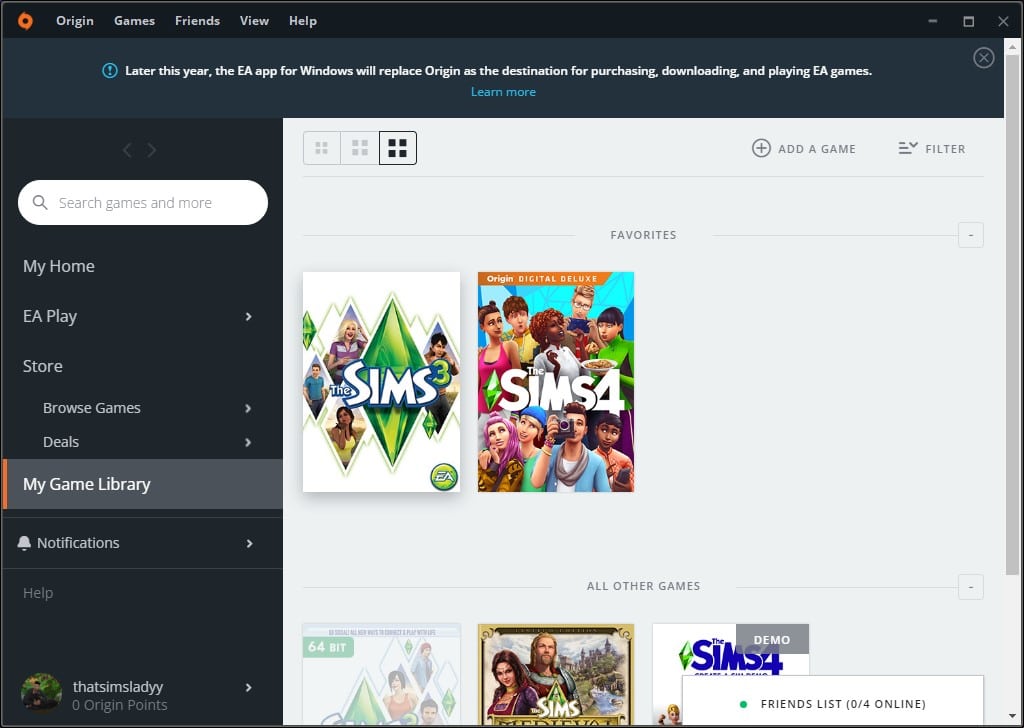
EA will stop using Origin in late 2022 and switch to EA App. What is EA App? EA App is Electronic Art’s new PC Platform where you can play your games. It is available for any players with a (minimum) 64 bit, Windows 7, 8, 10, or 11 computers.
What does that mean for you as a Sims player? Here are the answers to some of your most pressing questions!
Do I need to switch right now?
No, it is currently optional. Later this year, the official switch will happen. It is currently available for all players on a (minimum) 64-bit PC system, running Windows 7, 8, 10, and 11.
Mac OS players will need to continue to use Origin since it is not available yet for their platforms. Steam and Epic will be prompted to download the correct client in order to play their games.
Install the program and it will uninstall Origin and transfer all games.
Do I need to uninstall Origin?
Nope! When installing EA App, Origin will be automatically uninstalled.
Do I need to redownload my games?
Nope! The games will be automatically transferred to EA App without needing to be downloaded.
Will my saves and library transfer?
Yes! These will transfer over to EA App. Although, when updating or transferring to EA App, it never hurts to make a backup of those files.
To backup files, copy and paste you The Sims 4 folder to another place on your computer or a flash drive/external hard drive. This folder is located in Documents > Electronic Arts > The Sims 4
Do I need to make a new account?
Signing into EA App requires the same login credentials as Origin! Use the same login information and you’ll be able to access your games.
What do I do if I don’t know my login credentials? Or if I don’t have access to that email anymore?
The best thing to do is to contact EA Help. Make sure to have your payment information/dates and information about the account so you can prove it is your account.
Can I go play offline?
Yes! There is still an option to Go Offline. Click on the three lines in the top left corner and choose Go Offline.
To play games in Offline Mode, click on the blue play button next to the game.
What if my games do not transfer to the new EA Desktop app?
This is uncommon and will not happen to most people. But if this does happen, make sure to contact EA. Do not buy them again.
EA can be contacted here if the games do not transfer correctly.
Can I repair my game?
Sometimes games need repaired. Repairing games in the EA App is easy! Go to your game’s page and click on the three dots next to the play button. Then, click Repair!
Can I turn off automatic game updates?
Turning off automatic game updates is still possible in EA App! In the top right corner, click on the three lines. Choose Settings from the drop down menu.
Click on the download tab and under the Updates heading, make sure to switch off Update Games Automatically. This is especially important if you plan to use Mods. It allows more time to remove the Mods folder before updating the game. Also, is helpful for more time to backup the Saves and Tray folders.
It is also helpful if you want to wait to update your game.
What do I do if I play through Steam, Epic, or on Mac OS?
As of now, there is no version available or players using Mac OS. This does not mean you won’t be able to play the game at the end of the year. Origin will still be available for those players if a version of EA App isn’t available.
For Steam and Epic, they will provide guidance directly through Steam/Epic. It will make sure you download whatever app is required (EA app or Origin) so you can continue plying your games.
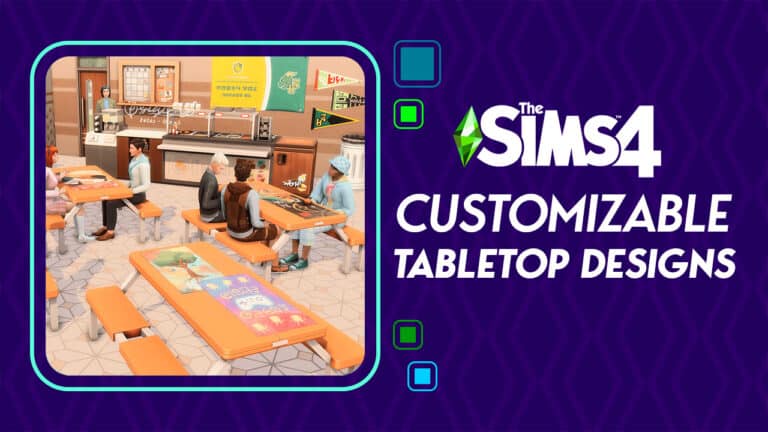
All the ways you can customize your tabletop design!
Ever feel the need to cover up your table just for the looks? Maybe you’ve tried placing a rug over a table, but it just disappears on the floor like this:
So we’re showing you 3 objects in-game you can use to cover your tables!
Before anything make sure that bb.moveobjects is on.
Yoga mats
For the first style, just grab any yoga mat from Spa Day, place it right under the table, and elevate it with Ctrl+9 8 times. Size it down one time by clicking ‘[’. Now you can have a proper tablecloth over any surface.
Sims 4 Yoga Mat Placement
You can use it on your dining tables, on a desk, or on countertops! It makes the tabletop more realistic and detailed.
Tabletop Placement Examples
Murals
If you want something more edgy or artistic, try using this floor mural from City Living. It looks like a plain rectangle made of blue tape in Buy mode but it becomes a beautiful painting that your Sims can make with a certain painting skill level.
Drawing murals in The Sims 4
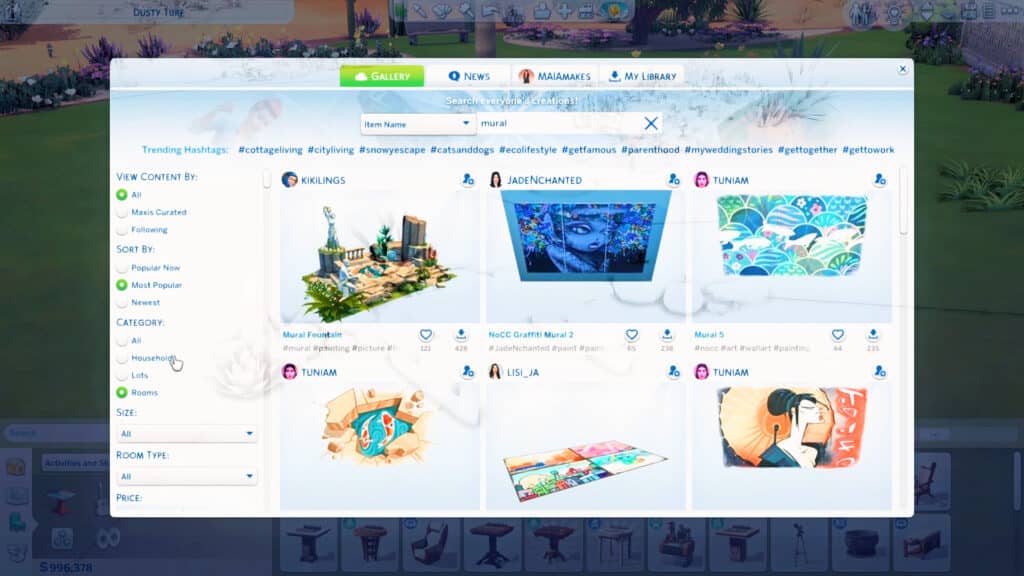
But it takes sooo many hours to paint! So if you want to add it immediately to your table, just go to the gallery and search for ’mural’ (filter by ‘Most Popular’ and ‘Rooms’) and download one with your chosen design.
You can choose to have cultural, nature, figure, or political murals or even optical illusions and graffiti right on your table!
Cultural muralsNature muralsFigure muralsCity muralsGraffitiOptical illusionGraffiti Examples
Elevate it 8 times as well but size it down 3 times to fit on your tabletop.
Placing designs onto a tabletop
Debug Parking Space
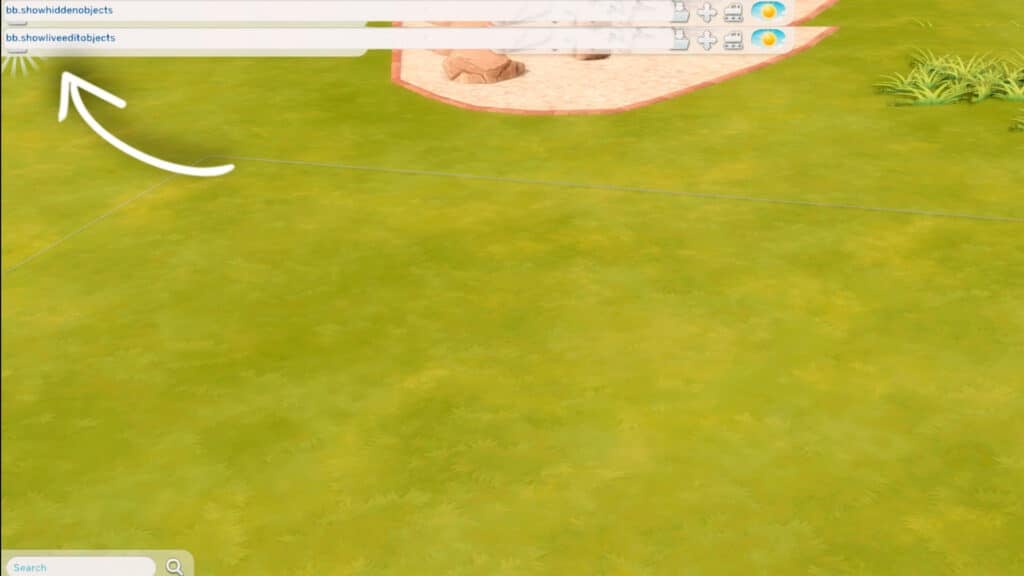
This works and looks similar to the floor murals. Find this item in High School Years’ debug menu by typing in Ctrl+Shift+C to open the cheat bar. Then enter ‘bb.showhiddenobjects’ and ‘bb.showliveeditobjects’. In the search bar, enter ‘EP12seniorSpots’ and you’ll find 8 different items with different designs.
EP12seniorSpots Cheats Placement
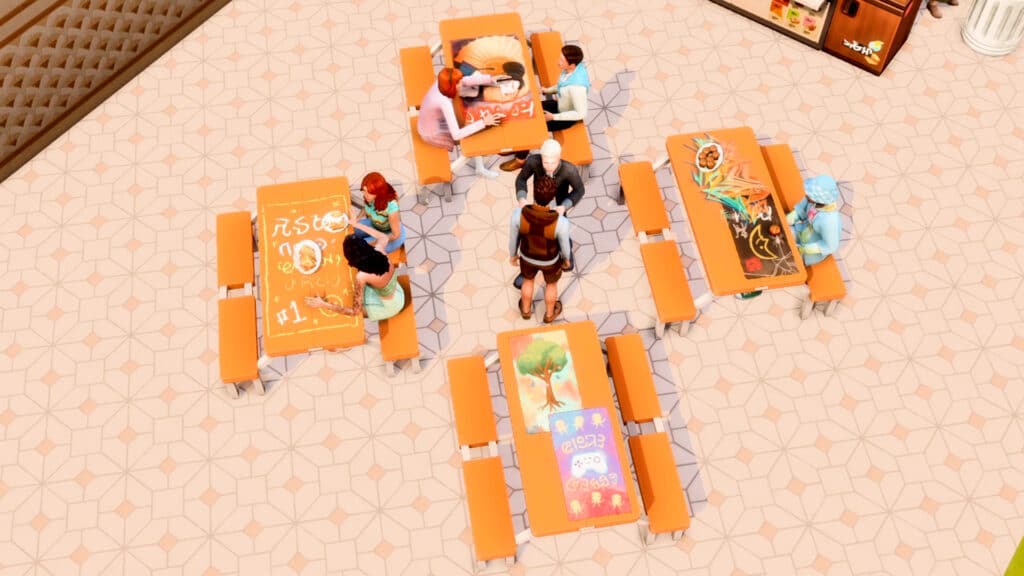
Elevate it 8 times and size it down 3 times too. They’ll look like hand-drawn art on top of your table.
Design Placement
These designs would be perfect in a high school cafeteria or an arts center!
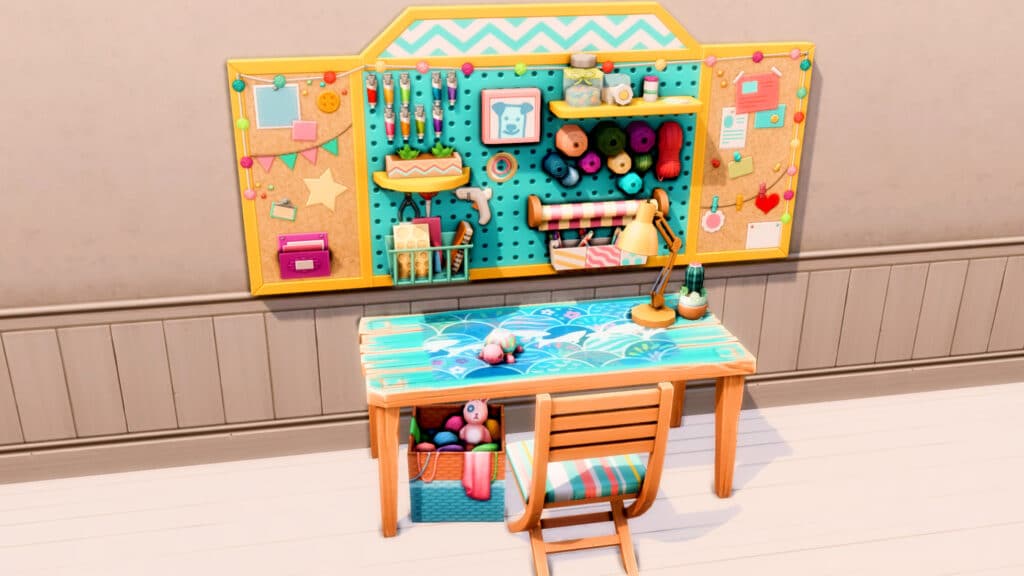
Or if you just wanna add a hand-crafted look to your dining tables and desk space.
Sims 4’s Latest Update has revealed a new look into the upcoming Kits!
ARTICLE UPDATE: New Icons have been found in The Sims 4 Base Game code by LuniverSims. If we’re correct, the new icons could be related to the presentation icons showcased on The Sims 4 Kits Splash Screen after first redeeming the Kit. That is all speculation of course.
We got a quick news for you this time around related to The Sims 4 Kits.
If you’re one of the folks who enjoy this type of DLC then you’re in luck! The update has brought in new information regarding the upcoming two Kits for The Sims 4.
Spotted by The Sims Forums member LeGardePourpre – the update brought in in-game icons of the two new Kits.
As you can see, we can expect the following Kits soon:
The Sims 4 Strawberry Kit
The Sims 4 Morning Coffee Kit
Disclaimer: these are madeup titles for actual new Sims 4 Kits coming.We have no idea what they’re titled yet.
Are you interested in finding out more about the upcoming Kits? Let us know down below and stay tuned for more updates!
The Sims 4 gota free base game update today in preparation for the game going free-to-play later this month. A lot of the new additions are geared towards helping new players find their footing in the game but of course, The Sims Team didn’t forget about us long-time fans. There are some new CAS and Build/Buy goodies for both new and veteran players to enjoy, as well as a new CAS trait!
Emily’s Help Centre
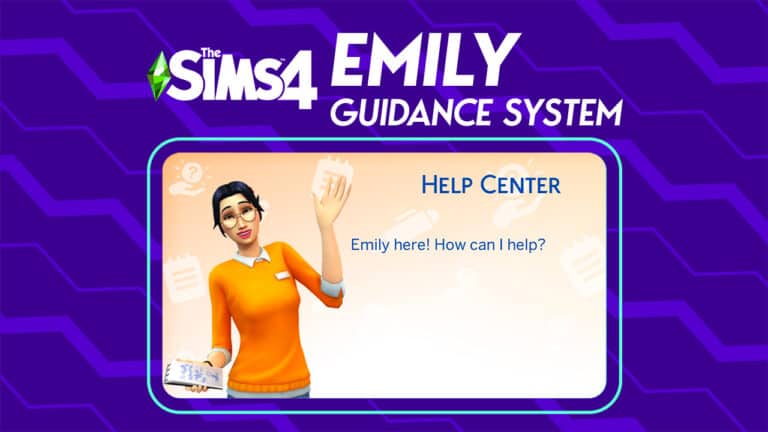
There’s a new tutorial system in place featuring Emily, from The Sims Mobile! As a former Sims Mobile player, I was personally quite excited to see her make her first appearance in The Sims 4. Emily will show up on tooltip popups as you navigate through CAS, Build/Buy, and Live Mode. Her job is to help guide you through the process of starting a new game with a new household.
Emily’s tips and advice are probably not anything new or exciting for experienced players but she provides a lot of helpful info for new players and helps give them a sense of direction when they’re first starting out. Playing through Emily’s introductory tutorial will reward your household with an extra $5,000 to spend at the start of the game. I can definitely see myself opting to play through it just for that reward alone. An extra $5,000 goes a long way when you’re starting out with a new Sim. Emily’s tutorial is not nearly as tedious and heavy-handed as the previous tutorial “scenario” with Alex.
If you need Emily’s help again at any point, you can always click the Help Centre icon in the top right. Emily will pop up again and offer to show you Lessons or walk you through her last tutorial again.
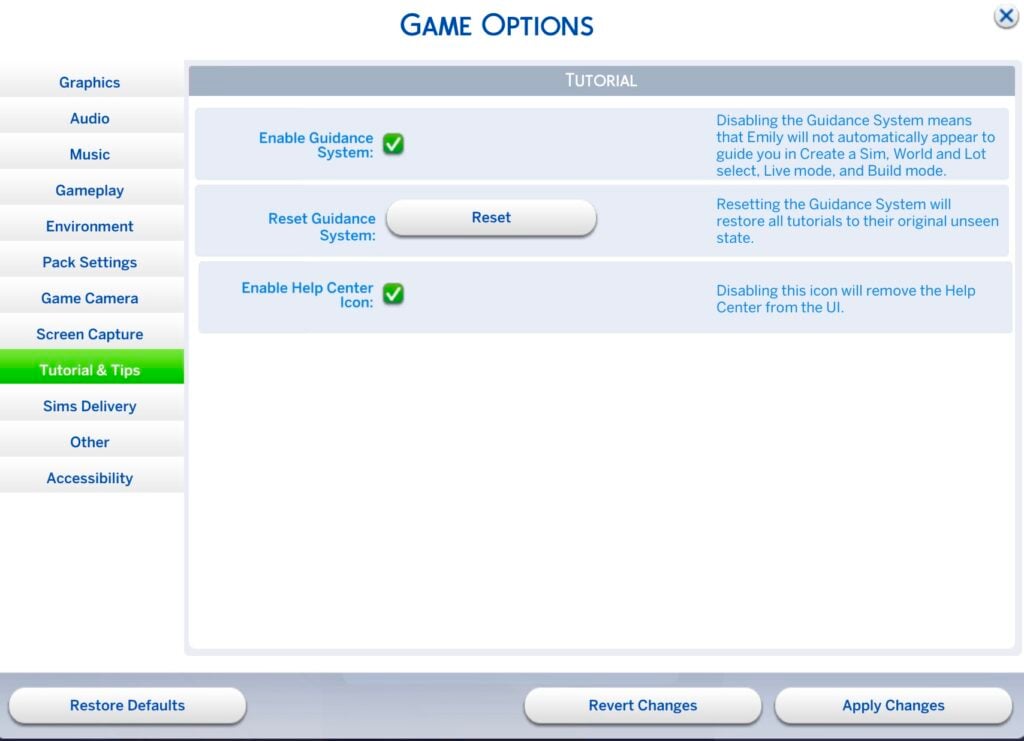
If you don’t want Emily holding your hand, you can disable the entire help system in the game options. You can also reset the help system if you want a full recap from the beginning.
Lessons Overhaul
Speaking of Lessons, this has gotten an overhaul as well. Both new and long-time players may find the new Lessons helpful. Previously, Lessons were kind of an afterthought. They were there but they didn’t give a whole lot of detailed information. In some cases, the Lessons weren’t just vague, but outright inaccurate following game updates over the years.
Lessons have been revisited and improved to reflect more accurate information that is actually helpful to players. The dev team has said they focused primarily on the base game lessons for this update but are planning to revisit pack lessons in the future, too.
The Lessons screen is also much larger and easier to read on all platforms now.
New Trait in The Sims 4: Loyal
There is a new base game trait in CAS! Sims with the Loyal trait take all their relationships seriously, whether friendship, romance, or professional. They would never even think of cheating on their partner or betraying a friend or colleague because they value those relationships too much to put them in jeopardy.
With traits like Non-Committal and Jealous, it’s actually really refreshing to see those toxic traits balanced out with a healthier one that celebrates strong relationships, whether platonic or romantic. Not that we’re not fans of the Non-Committal and Jealous traits; every Simmer likes to stir up some drama every once in a while, right?
CAS Goodies
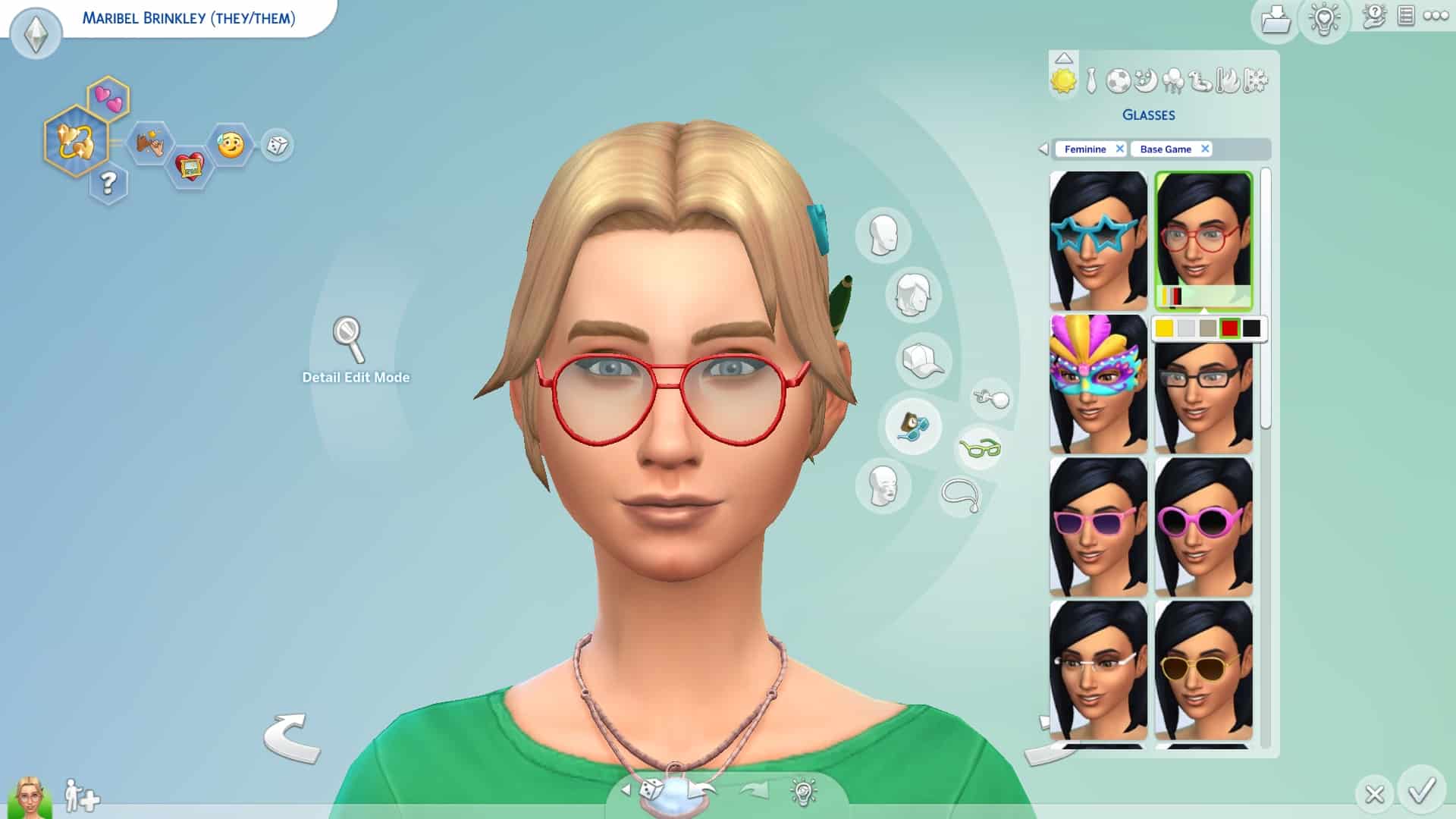
You might have noticed Emily sporting a new hairstyle, glasses, and top. These items aren’t just for Emily! You can find Emily’s hair, glasses, and sweater in the CAS catalogue and use them on your own Sims! Teens-Elders can now sport Emily’s bun with a pencil stuck through it, a pen behind the ear, and several adorable hair clips, as well as her large wire-frame glasses and her sweater with name tag.
Here’s the new hair from two different angles. The hair of course comes in all EA colours.
New The Sims 4 Hairstyle
Here are Emily’s glasses in all swatches.
New The Sims 4 Glasses
And here is her new sweater in all swatches.
New The Sims 4 Sweaters
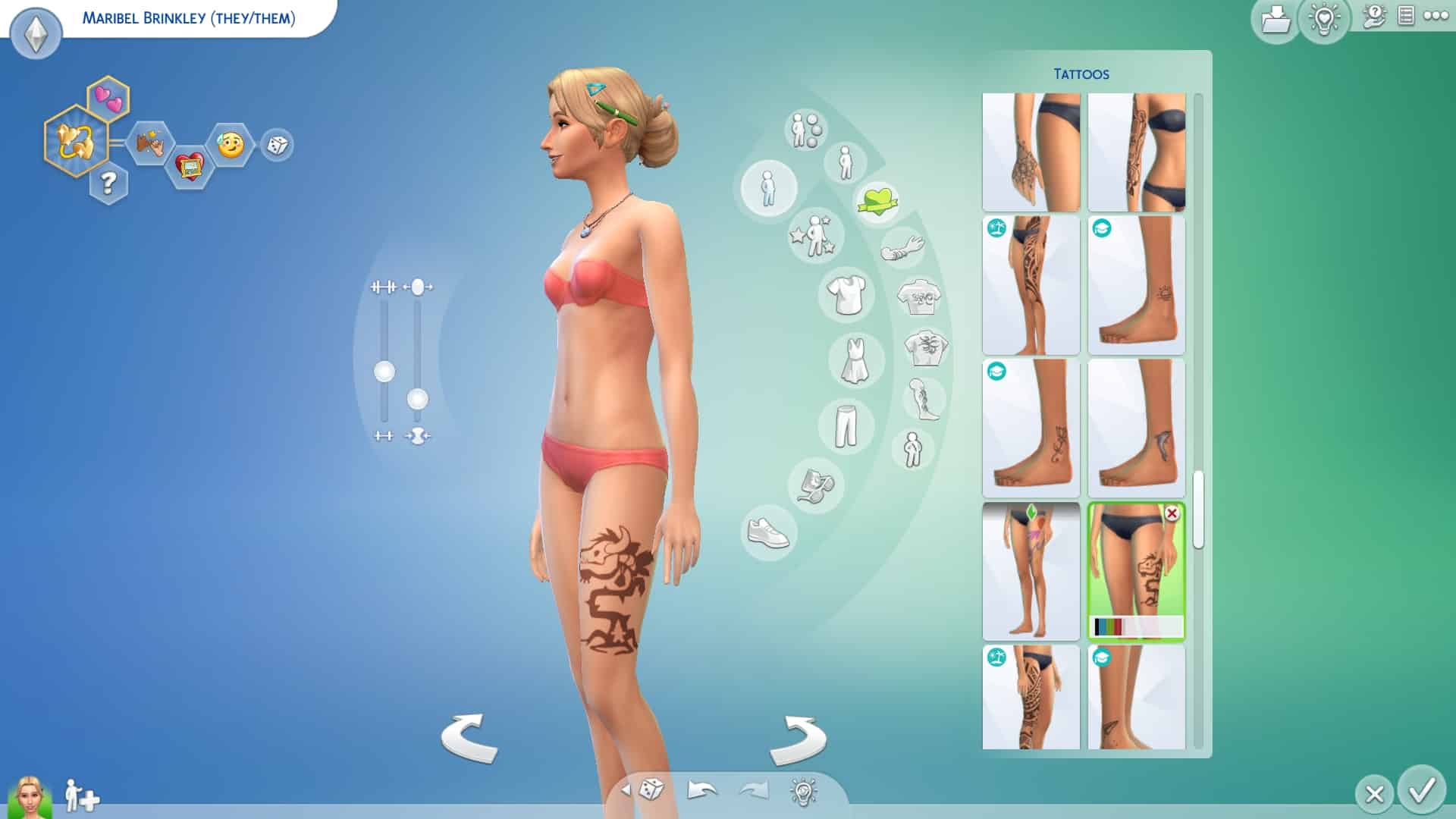
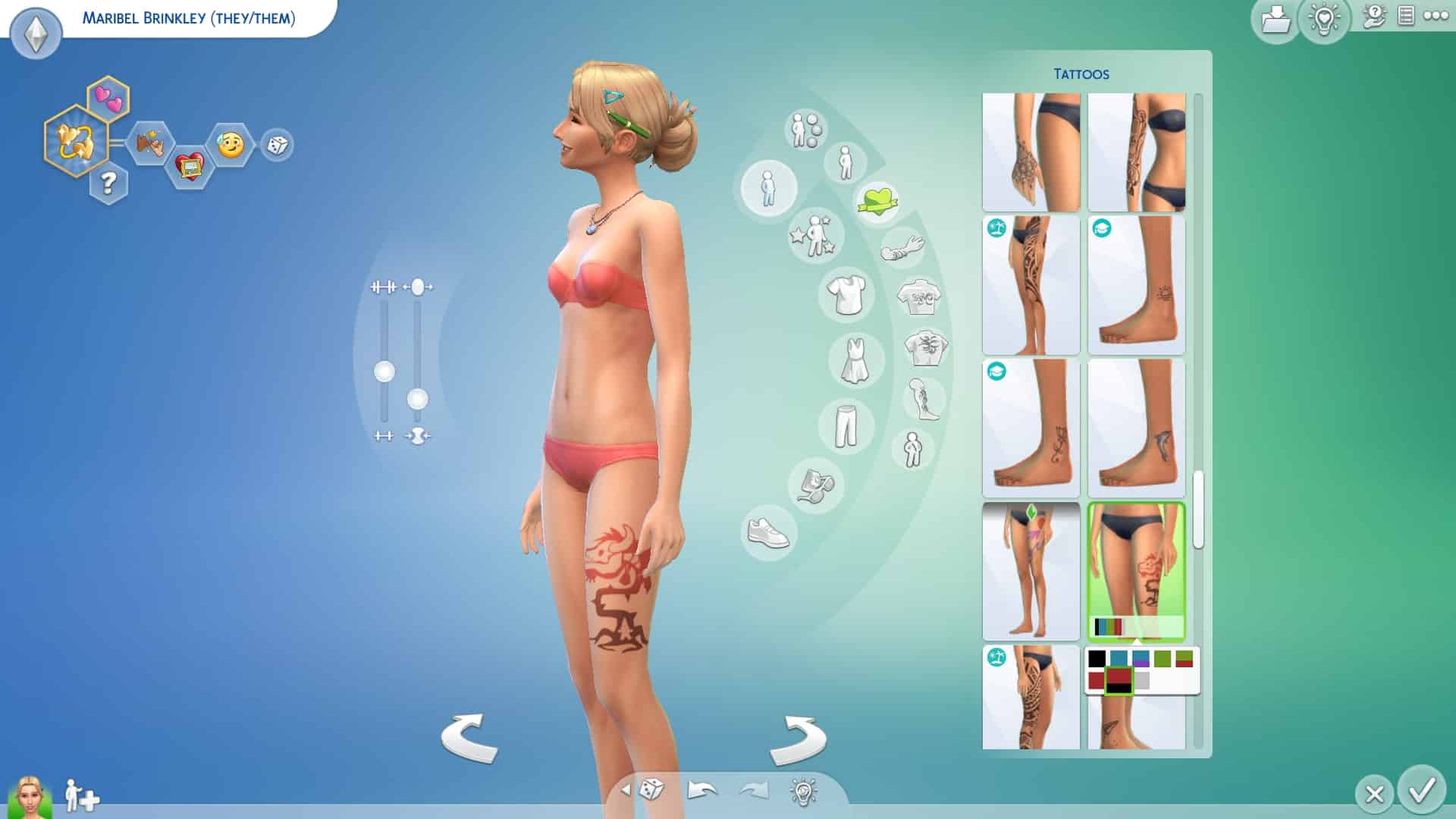
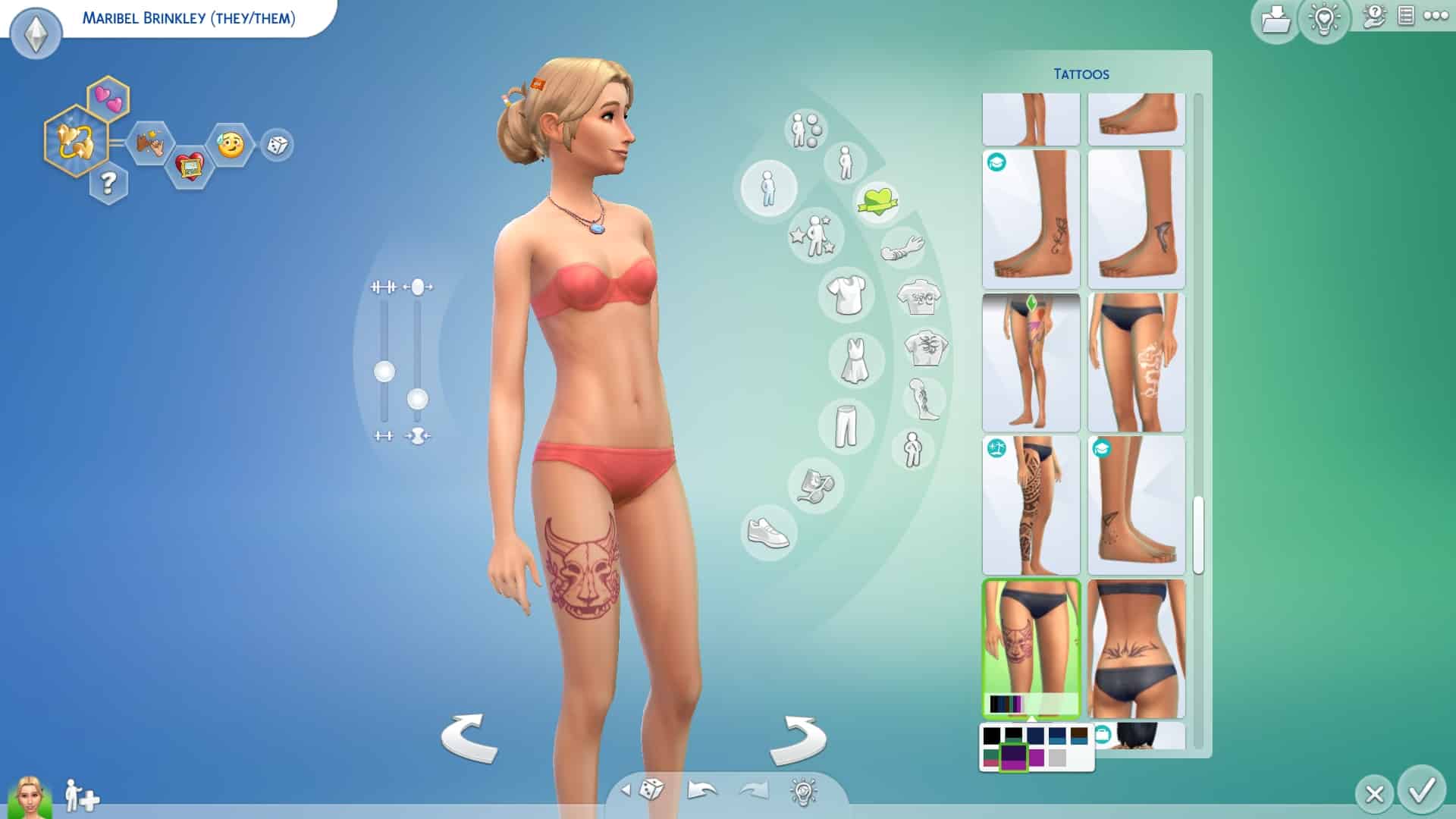
Tattoo enthusiasts rejoice! The base game just got five new tattoos! Sims can now sport two different inner forearm plumbob tattoos; one of which is more abstract. There is a third plumbob tattoo for the back of the neck. Cowplant lovers can also pick out two different cowplant tattoo designs; one for each thigh!
Inner Arm Tattoo #1
#1 New Tattoo
Inner Arm Tattoo #2
#2 New Tattoo
Back of Neck Tattoo
#3 New Tattoo
Thigh Tattoo #1
#4 New Tattoo
Thigh Tattoo #2
#5 New Tattoo
Build/Buy Goodies
Have you ever looked up at your ceiling and thought “This room could really use a giant suspended plumbob with blades of death whirling around it at alarming speeds”? Yeah… me neither, but hey, there is a new plumbob ceiling fan in the base game! It’s new! And it’s free! So that’s a thing.
You can check out all the new ceiling fan swatches below!
New Sims 4 Plumbob Ceiling Fan
Base Game Worlds – UI Revamps
The Sims 4’s latest update also includes a slight revamp to the World Menu icons. Specifically, the worlds that come with The Sims 4 Base Game: Willow Creek, Oasis Springs and Newcrest.
From The Sims Dev:
Yup! We surfaced the descriptions so new users can find them easily and learn about the worlds! Also, the iconography of these starter worlds changed slightly to give Willow Creek and Oasis springs a bit more ‘punch’
This update also comes with a few small optimizations and bug fixes, such as improving Gallery connection stability and multiple scenario bug fixes.
You can check out the full list of bug fixes for both PC and consoles on our patch notes page!
What do you think of the new goodies we got in today’s update? Let us know in the comments! We’d love to see the Sims and homes you create with the new content!
To prepare the Base Game for this big ocassion, EA has dropped a New Update for The Sims 4, covering New Content, Improvements and Bug Fixes.
For new players, The Sims Team has updated the game with a new Guidance System that will walk you through all the important aspects of the game. This includes these aspects within the game:
Create A Sim
Build Mode
Live Mode
World Menu
The Sims 4 Emily’s Guidance System
As you enter specific areas within The Sims 4 you’ll have Emily to walk you through each one!
For those who don’t know – Emily is a LlamaZoom expert who got introduced with The Sims Mobile. Now, she’s here to help new players find their way through the game.
As you go through different sections of the User Interface you’ll have Emily walk you through all the important things for each segment. The new tutorial now also includes topics and content from the latest Sims 4 Updates, which is always great to see.
The new Help Center icon within the User Interface is included in all aspects of The Sims 4. That is, if you’ve decided to leave the Guidance turned on in your Game Options.
The Help Center is a smarter way of getting to know each segment of The Sims 4. For example – you get detailed walkthroughs and Tips as you play different things in the game.
If you start the new Guidance from scratch then you’ll be prompted specifically which areas of each select world are suitable to continue your Sims 4 Guidance. For example – the starter lot in Copperdale where you’ll get to know new steps is marked with an orange icon.
What entails next?
Surprise surprise…it’s Emily again!
Choosing to continue the tutorial in Live Mode will grant you a special gift.
As you walk through the Live Mode tutorial you’ll receive guidance over Camera Controls and Movements. As well as basic Sim Controls and Shortcuts.
Completing the Live Mode Tutorial will grant you 5K Simoleons for your Sims to spend away!
Emily will still choose to show up from time to time. Depending on where you’re headed next.
For example, Build Mode will entail Emily’s fresh new arrival with tips & tricks on Objects, Placement and Tools.
The Sims 4 – New Tutorial Options
The Tutorials & Tips section within The Sims 4 Game Options got a slight revamp. You have the 3 following options:
Enable Guidance System – Have your actions on the screen be followed every step of the way by Emily
Reset Guidance System – This will reset Emily’s Guidance through The Sims 4 back to original, unseen state
Enable Help Center Icon – Have Emily’s Tips & Tricks be displayed on the top, through the Help Center icon.
New Lessons
The Sims 4 Lessons have a whole new look!
Now, there are bigger categories for each segment of The Sims 4, with subcategories divided properly.
The new Sims 4 Tutorial and Emily’s Guidance will help tremendously for the upcoming players of The Sims 4.
Don’t forget – The Sims 4 Base Game is going FREE on October 18th, and we’ll be here every step of the way with Tips, Tricks, Tutorials and more Sims 4 content!
What are your thoughts on the new Sims 4 Tutorial?
There’s a New Update for The Sims 4 on PC and Consoles. Check out the Patch Notes!
The Onboarding Update
The Sims Team has released a brand new update for The Sims 4 on PC, Mac, Xbox and Playstation.
To download the latest version of The Sims 4, simply open your Origin program and if the game doesn’t update automatically, right click on The Sims 4 and select ”Update”. If you play on Xbox and Playstation, you should Check the Game for Updates in case Automatic Updates are off.
In case you have Mods or Custom Content, the game will automatically disable them for you after first launching The Sims 4 after the update. To re-enable all your Mods and Custom Content, select the Settings option in the Menu and select Settings. Under the ”Other” section you’ll find the ”Enable Custom Content and Mods” option. Check it and restart your game in order for it to take effect!
Statement from The Sims Team
Sul Sul!
We’re currently rolling out a base game update with a number of fixes & new content for our soon-to-be & existing Simmers. Once completed, patch notes will go-live. Remember to remove any external game mods & custom content as they may conflict with this update.
Patch Notes
Update 10/11/2022 PC: 1.92.145.1030 / Mac: 1.92.145.1230 Console: Version 1.65
Hello Simmers and soon-to-be Simmers!
With this newest update we are preparing to welcome new players to The Sims 4 with the information needed to get started thanks in part to a collaboration with The Sims Mobile. In addition to new player guidance, we also have a number of fixes for community reported issues and some new Create a Sim (CAS) and Build Mode content.
There is something for everyone whether you have played The Sims 4 for a while or are joining us now, so let’s jump straight in and see what you can expect once you have the update.
-The Sims Team
What’s New?
We have a few new features to talk about in this update that covers new and existing Simmers including a long awaited one for those on console.
Emily Guidance System and Help Center Tips
This new feature brings a new face to The Sims 4 with Emily, who you may recognize from The Sims Mobile. This new system will teach you the basics of playing The Sims 4 and is mainly for new players, but can maybe teach more seasoned Simmers something new. This release of the Guidance System is a starting point to welcome our new Simmers and help them get a start in The Sims 4. We’ll continue to listen to your feedback and suggestions for what else we can share and how we can improve.
When starting a New Game, Emily will show up to offer you some guidance through CAS and if you complete the Live Mode tips, you’ll get a little something added to your Simoleon balance to help you on your way to building your home the way you want.
Anytime you need a refresher, you can call for Tips by using the *NEW* Help Center button in the top right corner of your screen.
If you know your way around The Sims 4, you can go it alone by adjusting the Guidance and Tips system to your liking in Game Options > Tutorial & Tips.
Enable Guidance System – On by default, this setting will have Emily guide you through The Sims 4 unless you turn the option off.
Reset Guidance System – Want to start over and see all the tips again? This is the button for you!
Enable Help Center Icon – Getting stuck? Keep this option enabled. Want to free up that part of your screen for other uses? You can disable it here too.
Emily
Not just a helpful guide for new players in the new Guidance and Tips feature, Emily will also be available to download from the Gallery. You’ll also be able to find Emily’s hair, glasses, and top in CAS and add them to your own Sims.
Lessons
Since The Sims 4 launched, we have had Lessons. Over time as features and the game evolved, some of our Lessons became inaccurate or obsolete. To correct that and bring Lessons up to date with the game you have now, we have spent time reviewing and updating our Lessons content. While we started with the Base Game, we’ll be looking at additional Lessons improvements in the future, including re-reviewing pack Lessons. One improvement, including updated text, is the Lessons panel is now much larger, making it easier to read and navigate at all resolutions, monitor/TV configurations and viewing distances.
During the Guidance System, you’ll be presented with buttons that take you to Lessons but if you prefer, you can call on Lessons at any time by going to the Options Menu and pressing ESC on PC and Mac, the Options button on PlayStation, or the Menu button on Xbox.
Loyal Trait
It’s always a good day when new Traits are added to the Base Game, and today we bring you the Loyal Trait for Teen, Young Adult, Adult, and Elder Sims! Loyal Sims value their relationships and fully commit to them, whether it’s a friendship, a romance, or even work. They avoid cheating of any kind; the trust of their loved ones is too important to risk!
Plumbob Fan and Five New Tattoos
The design came in a dream: colorful plumbobs to suit any Sims’ mood. A design so sharp, so fun, that it couldn’t be contained to only one medium. Enter the Perfect Plumbob Ceiling Fan and three Plumbob inspired tattoos–one for the upper back and two for the inner left forearm. In addition to this, as an ode to everyone’s favorite garden plant, there are two new Cowplant inspired tattoos–one for each thigh.
Console UI Scaling
PlayStation and Xbox players can now adjust how small or large the UI elements are in game by going to Game Options > Accessibility and moving the slider to your preferred size. We’ve recommended maximum and minimum settings but allow you to adjust smaller and larger if you prefer. You’ll be asked if you want to keep the settings after adjusting the size so if you made the UI too large, you can always select Reset to Default (Recommended) to return to the default settings.
Before adjusting your UI Scaling settings, we recommend ensuring you’ve calibrated your system and your TV/monitor beforehand.
On PlayStation, from the PlayStation Home screen go to Settings > Sound and Screen > Display Area Settings. From there you can adjust the markers to align with the corners of your screen.
On Xbox, you can do this in-game by going to Game Options > Other > Adjust Margins and following the on screen instructions so the markers align with the edges of your screen.
In both cases, once correctly calibrated, the UI elements in Live Mode should sit flush against the edges of your screen. Now you’re ready to scale your UI.
Gallery Connection
We have made some changes to the way the game connects to the Gallery. Instead of automatically connecting when the game starts, you’ll connect on demand. Once you are finished in the Gallery, a connection will remain for a period of time allowing you to return without having to reconnect.
The main purpose of this change is to ensure everyone can access the Gallery even during peak use, and that those that aren’t using the Gallery aren’t connected.
The Sims 4 Bug Fixes
Base Game
Curious about why you may have not seen the outcome of your Stuck In Their Shadow scenario? We were too, and have fixed an issue where the scenario would not progress in some branches, or show your outcome. We will continue to investigate any further cases of this issue occurring.
Starting the Aliens Stole My Parents scenario with an existing household that contains adults will see the aliens abduct their target regardless of whether the adult was in a social interaction or not.
Having Leonardo and Sofia play with stuffed animal toys should now complete the goal of playing with toys in the Parenting Predicaments scenario.
Improvements to ymHat_SDX005Durag to address blotches and unexpected folds
Applying clothing swatches should no longer switch the feminine frame to masculine frame when applied.
Feminine frame Sims can wear the different color variants of ymBottom_Pants_Jeans without part of their torso becoming invisible.
Changing from a full body outfit to new pants on a female child Sim ensures the Sim is properly dressed and waiting for whatever new outfit you select.
No-one expects it but if a Sim is killed by something from deep space they will get the Death by Meteorite trait in the Family Tree along with a representative icon depicting their untimely end.
Custom pronouns are respected in the “Level up in motor skill,” “Level up in handiness skill,” and “Level up in Gardening skill” whims including sessions after restarting the game.
Some pranks can be funny, but less so if they keep happening like the toilet pranks were. We have dialed back the pranking so your Sims can have a little more confidence their rest stop won’t end with a broken toilet.
A number of text, spelling and grammatical updates across the game.
Consoles
During the Aliens Stole My Parents scenario, it wasn’t possible to read the entire description. This has been resolved with some new found alien technology we got in exchange for some Sim parents we are calling a “scroll bar.”
Snowy Escape
Festival decorations are wonderful, but they aren’t zero cost. The Carp Streamers now cost 25 Simoleons to add to the celebration of the Festival of Youth.
Cottage Living
When you live in a small village like Henford-On-Bagley, you get to know everyone on a first name basis. So seeing random NPCs working in the local pub was a shock for everyone. Now, only pre-made NPCs will start off behind the bar and other local businesses.
yfHair_EP11BunTwists_Black thumbnail shows the correct hair color and the swatches have been organized.
Hero of Henford errand completes after winning the competition at the Finchwick Fair even if you bribe the Mayor.
Win a Competition at the Finchwick Fair and Give a Golden Egg to Agatha Crumplebottom both complete once the criteria have been fulfilled.
Sometimes you can’t get away to fish in the ocean, in a river, or a local barrel of fish and all you have is a pond stocked with fish. With bait on the line, your Sims will be able to cast their line into the pond and maybe they’ll get a bite or two.
High School Years
Siblings can attend prom together, now just as friends.
Werewolves
Werewolves with a particular sexual orientation will only accept a fated mate with another werewolf that is compatible.
True love can be hard to find, especially if you tend to howl at the moon. It doesn’t mean you shouldn’t be selective though. Werewolves will now be more selective over who they accept as their fated mate while flirting with other werewolves.
Werewolves can have a real hunger, especially if they have Voracious Hunger. That hunger shouldn’t mean they eat top secret lab doors or space rockets though. Other items werewolves should no longer add to the menu are dolphins, motherplant, motherplant pit, and high school whiteboards.
Pack Leaders should not have to report to the Pack Leader regardless of how strict the werewolf pack hierarchy is. Pack leader leads!
Non-werewolf Sims will not devour raw meat even if a werewolf housemate has hunted it and put it in the refrigerator for later. Real question is, why were they taking their housemates food in the first place?
Alpha Rank werewolves worked hard to get to where they are so they should no longer be Bottom of the Pack or become furious from it.
Sims can sit cross legged on the Hasty Replacement Palette Bed just like they can on other beds.
Foxes that found themselves on the receiving end of a werewolf rampage can rest a little easier as Werewolves on a rampage should no longer pick a fight with foxes. Truce?!?!
Sniff and Introduce interaction is no longer available on human toddler Sims who you haven’t met before.
When a werewolf goes from High to Extreme Fury level, the needs icon should no longer change to a llamacorn
Vampires who Explore Underground Tunnels no longer activate the Lost adventure moment. That’s reserved for lost human Sims.
Bonehilda and Sims with the Blessing of Bones buff will not allow werewolves to carry out Cursed Bite on them.
Spa Day
Nail polish swatches now show what color they will make your Sims’ nails, which is pretty useful when accessorizing.
Massages correctly count towards the Become a Spa Regular goal in the Self-Care Specialist aspiration.
Are you looking to expand your Werewolves-inspired clothing for your Sims? Then fear not as Solistair has you covered!
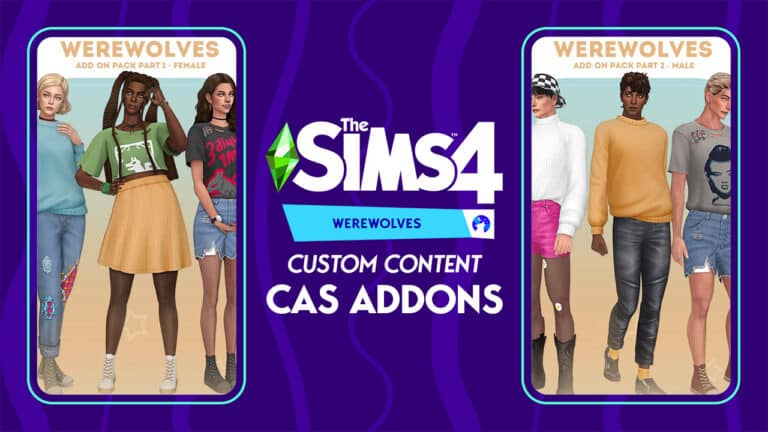
The Sims 4 Werewolves – Feminine CAS Addons
In this first of two parts, Solistair has created a variety of Create a Sim add-ons for your Female Sims. The fifteen-piece, Base Game compatible set consists of nine tops, four bottoms, one accessory, and one shoe option. Each item comes in the default EA Swatches and several of the items come in an additional twenty colour options using the Hibiscus Swatches.
The Werewolves Add-on Pack Part One – Female is available now for early access via Solistair’s Patreon and is publicly available right now for everyone!
Take a look at part two of this collection from Solistiar, where it focuses more on Male Create a Sim items!
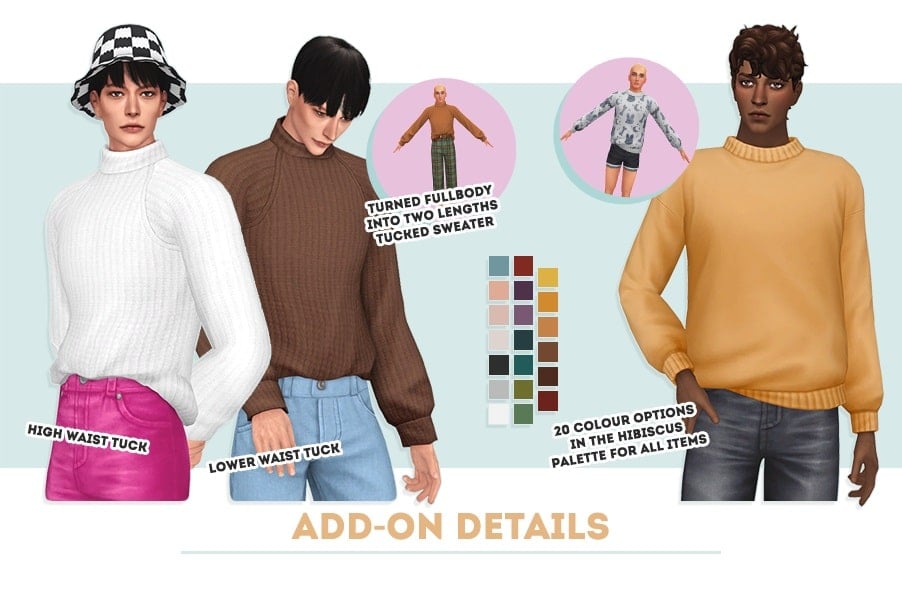
In the second part of this collection, Solistair again has created a mixture Create a Sim add-ons for your Male Sims. An additional fifteen items, all of which are Base Game compatible consists of nine tops, four bottoms, one accessory, and one shoe option. As with part one of this collection, each item comes in the default EA Swatches and several of the items come in an additional twenty colour options using the Hibiscus Swatches.
The Werewolves Add-on Pack Part Two – Male is available right now to everyone via Solistair’s Patreon.
Here is a closer look at the second part of the collection!
This two part collection really does allow you to create even more outfit options inspired by The Sims 4 Werewolves Game Pack. Mix and Match each of these items with your existing content to make some incredible looks and be the talk of Moonwood Mill when it comes to fashion!