Home Blog Page 297

Origin Sale: Up to 60% off on select The Sims 4 Titles

Origin is currently having a summer sale where you can save big on select Sims 4 games! Those include The Sims 4 Base Game, Expansion Packs, Bundles and the Backyard Stuff Pack.

Here’s all The Sims 4 games and their offers that you can take advantage of:

Make sure you take advantage of this offer before it’s too late! It ends on July 19th at at 10AM PDT.

Origin Sale: Up to 60% off on select The Sims 4 Titles

The Sims 4 for Xbox One is now available on EA Access

0

EA Access, a subscription service exclusive to Xbox One gaming platform has now added The Sims 4 to its list of over 50 video game titles! For $4.99 a month / $29.99 a year you’re able to enjoy The Sims 4 Base Game as well as over 50 other games which are a part of the EA Access vault.

EA Access subscription service is exclusive to Xbox One only. Check out their info page for more information about this service!

The Sims 4 for Xbox One is now available on EA Access

The Sims Mobile: The Surgeon Career is already unlocked (for some)

2

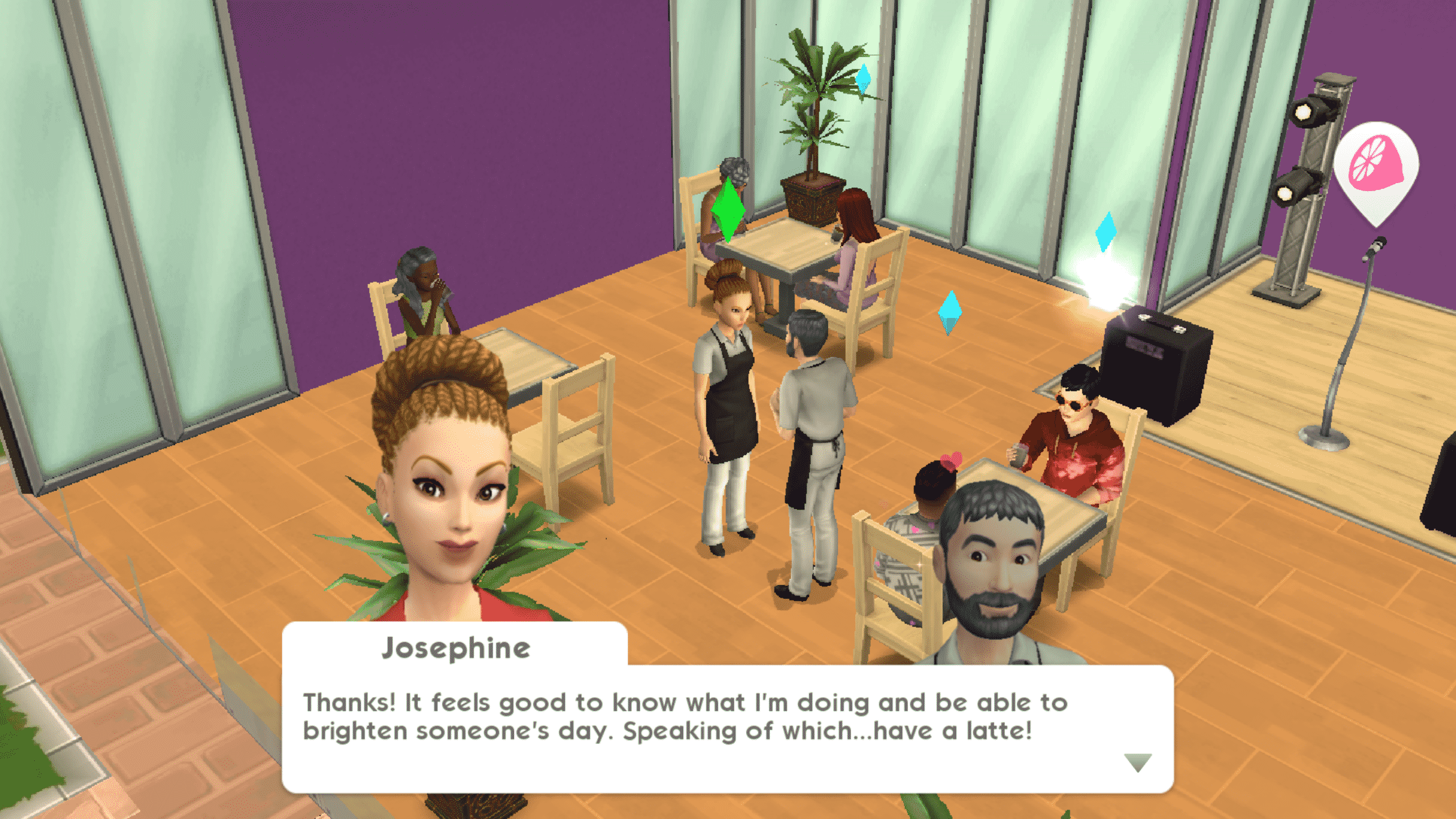
Yesterday The Sims Mobile team has announced that they’ll soon be releasing a new Surgeon Career. However, after the latest minor update that was deployed last night (which was only around 27MB) I was able to get my hands on the Surgeon Career, and it seems that not everyone was able to do the same.

As soon as I downloaded the new update I restarted the game and immediately was greeted with a small “Surgical Precision” Quest. The whole objective of this quest is to place a new Surgery Table in the Hospital Venue which I was able to do so. However, there are numerous reports of people not able to even access the latest quest.

The Sims Mobile: The Surgeon Career is already unlocked (for some)

There’s a new “Surgeon Career” Items Collection that you can access while in the Hospital Venue in Build Mode. It features 2 new items: the Surgery Table and the Surgery Light while the X-Ray Machine and the Illuminated X-Ray have only been recategorized from the Medical to the Surgery Career.

The Sims Mobile: The Surgeon Career is already unlocked (for some)

You’re able to join the Surgeon Career by pressing the briefcase icon above the Surgery Table. After that all you have to do is pick “The Mysterious Benefactor” Story and you’re all set to play with the new Surgeon Career

While the Surgeon Career is still not available to plenty of players, some have reported that they’re able to play with it under mysterious circumstances. I don’t know what it takes to fully unlock this career and is there something beyond the mini-quest to unlock it but we’ll keep you posted as soon as this career is fully (and officially) out!

The Sims 4 Seasons Gallery Spotlight: Houses (Part 2)

The Sims 4 Seasons Gallery Spotlight: Houses (Part 2)

In this Spotlight, we’re featuring all sorts of homes built with The Sims 4 Seasons Expansion Pack, as well as some other packs.

Hover over the pulsing plumbobs to see screenshots of marked areas. Pulsing plumbob that’s on the left bottom corner contains all the info (and download link) of the lot.

To see more of our previous Gallery Spotlights, CLICK HERE! To check out the first part of our Seasons Houses Gallery Spotlight, CLICK HERE!

[ult_hotspot main_img=”id^76651|url^https://simscommunity.info/wp-content/uploads/2018/07/07-10-18_10-34-05-PM.jpg|caption^null|alt^null|title^07-10-18_10-34-05 PM|description^null”][ult_hotspot_items icon_type=”custom” icon_img=”id^39525|url^https://simscommunity.info/wp-content/uploads/2015/09/plumbob2.png|caption^null|alt^null|title^plumbob2|description^null” img_width=”38″ tooltip_custom_color=”” tooltip_custom_bg_color=”rgba(255,255,255,0.01)” tooltip_width=”400″ tooltip_position=”right” enable_bubble_arrow=”off” tooltip_continuous_animation=”on” hotspot_position=”82.8125,44.29447852760736″]

The Sims 4 Seasons Gallery Spotlight: Houses (Part 2)

[/ult_hotspot_items][ult_hotspot_items icon_type=”custom” icon_img=”id^39525|url^https://simscommunity.info/wp-content/uploads/2015/09/plumbob2.png|caption^null|alt^null|title^plumbob2|description^null” img_width=”38″ tooltip_custom_color=”” tooltip_custom_bg_color=”rgba(255,255,255,0.01)” tooltip_width=”400″ tooltip_position=”right” enable_bubble_arrow=”off” tooltip_continuous_animation=”on” hotspot_position=”56.90502183406113,70.30674846625767″]

The Sims 4 Seasons Gallery Spotlight: Houses (Part 2)

[/ult_hotspot_items][ult_hotspot_items icon_type=”custom” icon_img=”id^39525|url^https://simscommunity.info/wp-content/uploads/2015/09/plumbob2.png|caption^null|alt^null|title^plumbob2|description^null” img_width=”38″ tooltip_custom_color=”” tooltip_custom_bg_color=”rgba(255,255,255,0.01)” tooltip_width=”400″ tooltip_position=”right” enable_bubble_arrow=”off” tooltip_continuous_animation=”on” hotspot_position=”35.002729257641924,69.8159509202454″]

The Sims 4 Seasons Gallery Spotlight: Houses (Part 2)

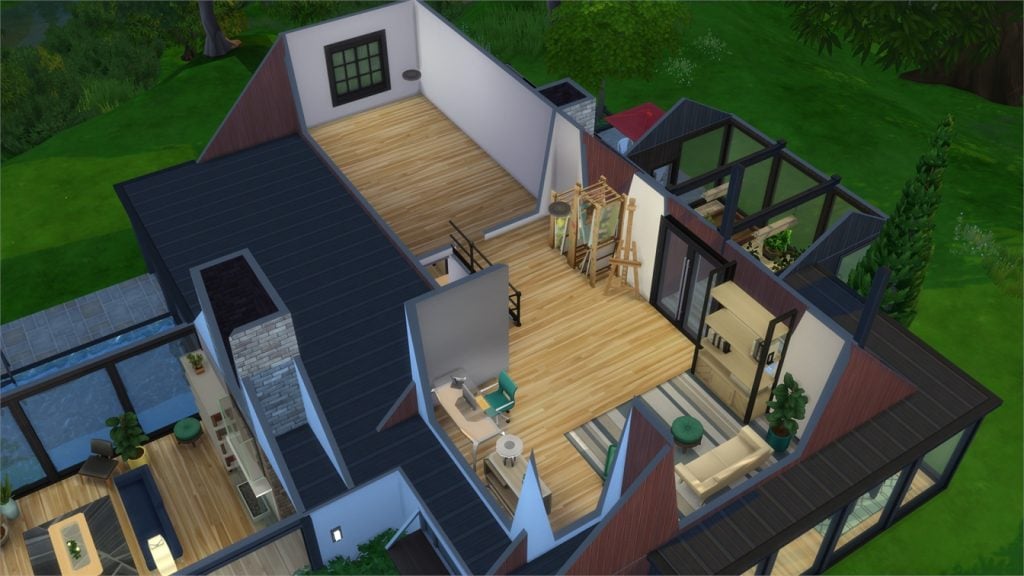
[/ult_hotspot_items][ult_hotspot_items icon_type=”custom” icon_img=”id^39525|url^https://simscommunity.info/wp-content/uploads/2015/09/plumbob2.png|caption^null|alt^null|title^plumbob2|description^null” img_width=”52″ tooltip_custom_color=”#1e73be” tooltip_custom_bg_color=”#ffffff” tooltip_width=”450″ tooltip_position=”right” tooltip_continuous_animation=”on” hotspot_position=”89.61858624454149,3.190184049079755″ tooltip_custom_border_size=”border-style:solid;|border-width:2px;border-radius:5px;|border-color:#81d742;”]

Modern House (Download Here)

by SpecterCody

Value: §152,686
Size: 30×20
Lot Type: Residental Lot[/ult_hotspot_items][/ult_hotspot][ult_hotspot main_img=”id^76655|url^https://simscommunity.info/wp-content/uploads/2018/07/07-10-18_10-38-57-PM.jpg|caption^null|alt^null|title^07-10-18_10-38-57 PM|description^null”][ult_hotspot_items icon_type=”custom” icon_img=”id^39525|url^https://simscommunity.info/wp-content/uploads/2015/09/plumbob2.png|caption^null|alt^null|title^plumbob2|description^null” img_width=”38″ tooltip_custom_color=”” tooltip_custom_bg_color=”rgba(255,255,255,0.01)” tooltip_width=”400″ tooltip_position=”right” enable_bubble_arrow=”off” tooltip_continuous_animation=”on” hotspot_position=”45.414847161572055,39.263803680981596″]

The Sims 4 Seasons Gallery Spotlight: Houses (Part 2)

[/ult_hotspot_items][ult_hotspot_items icon_type=”custom” icon_img=”id^39525|url^https://simscommunity.info/wp-content/uploads/2015/09/plumbob2.png|caption^null|alt^null|title^plumbob2|description^null” img_width=”38″ tooltip_custom_color=”” tooltip_custom_bg_color=”rgba(255,255,255,0.01)” tooltip_width=”400″ tooltip_position=”right” enable_bubble_arrow=”off” tooltip_continuous_animation=”on” hotspot_position=”32.33487991266376,38.77300613496932″]

The Sims 4 Seasons Gallery Spotlight: Houses (Part 2)

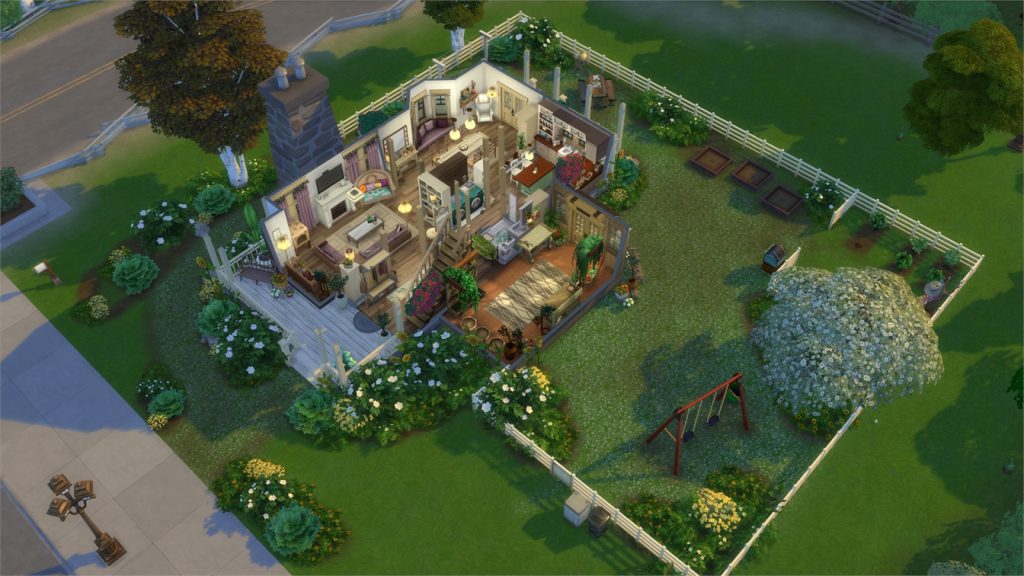
[/ult_hotspot_items][ult_hotspot_items icon_type=”custom” icon_img=”id^39525|url^https://simscommunity.info/wp-content/uploads/2015/09/plumbob2.png|caption^null|alt^null|title^plumbob2|description^null” img_width=”52″ tooltip_custom_color=”#1e73be” tooltip_custom_bg_color=”#ffffff” tooltip_width=”450″ tooltip_position=”right” tooltip_continuous_animation=”on” hotspot_position=”89.61858624454149,3.190184049079755″ tooltip_custom_border_size=”border-style:solid;|border-width:2px;border-radius:5px;|border-color:#81d742;”]

Gardener’s Dream Home (Download Here)

by simlicy

Value: §138,389
Size: 30×30
Lot Type: Residental Lot[/ult_hotspot_items][/ult_hotspot][ult_hotspot main_img=”id^76658|url^https://simscommunity.info/wp-content/uploads/2018/07/07-10-18_10-42-13-PM.jpg|caption^null|alt^null|title^07-10-18_10-42-13 PM|description^null”][ult_hotspot_items icon_type=”custom” icon_img=”id^39525|url^https://simscommunity.info/wp-content/uploads/2015/09/plumbob2.png|caption^null|alt^null|title^plumbob2|description^null” img_width=”38″ tooltip_custom_color=”” tooltip_custom_bg_color=”rgba(255,255,255,0.01)” tooltip_width=”400″ tooltip_position=”right” enable_bubble_arrow=”off” tooltip_continuous_animation=”on” hotspot_position=”67.14997270742357,61.717791411042946″]

The Sims 4 Seasons Gallery Spotlight: Houses (Part 2)

[/ult_hotspot_items][ult_hotspot_items icon_type=”custom” icon_img=”id^39525|url^https://simscommunity.info/wp-content/uploads/2015/09/plumbob2.png|caption^null|alt^null|title^plumbob2|description^null” img_width=”38″ tooltip_custom_color=”” tooltip_custom_bg_color=”rgba(255,255,255,0.01)” tooltip_width=”400″ tooltip_position=”right” enable_bubble_arrow=”off” tooltip_continuous_animation=”on” hotspot_position=”47.22980349344978,61.84049079754601″]

The Sims 4 Seasons Gallery Spotlight: Houses (Part 2)

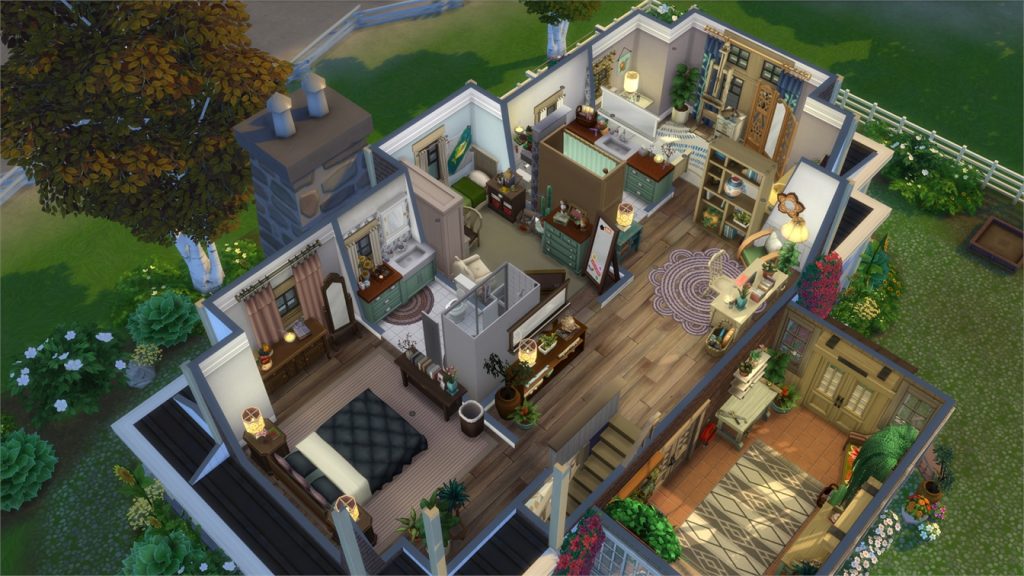
[/ult_hotspot_items][ult_hotspot_items icon_type=”custom” icon_img=”id^39525|url^https://simscommunity.info/wp-content/uploads/2015/09/plumbob2.png|caption^null|alt^null|title^plumbob2|description^null” img_width=”52″ tooltip_custom_color=”#1e73be” tooltip_custom_bg_color=”#ffffff” tooltip_width=”450″ tooltip_position=”right” tooltip_continuous_animation=”on” hotspot_position=”89.61858624454149,3.190184049079755″ tooltip_custom_border_size=”border-style:solid;|border-width:2px;border-radius:5px;|border-color:#81d742;”]

Summer Home (Download Here)

by PeachesPlace

Value: §137,276
Size: 30×20
Lot Type: Residental Lot[/ult_hotspot_items][/ult_hotspot][ult_hotspot main_img=”id^76661|url^https://simscommunity.info/wp-content/uploads/2018/07/07-10-18_10-45-22-PM.jpg|caption^null|alt^null|title^07-10-18_10-45-22 PM|description^null”][ult_hotspot_items icon_type=”custom” icon_img=”id^39525|url^https://simscommunity.info/wp-content/uploads/2015/09/plumbob2.png|caption^null|alt^null|title^plumbob2|description^null” img_width=”38″ tooltip_custom_color=”” tooltip_custom_bg_color=”rgba(255,255,255,0.01)” tooltip_width=”400″ tooltip_position=”right” enable_bubble_arrow=”off” tooltip_continuous_animation=”on” hotspot_position=”57.140420305676855,46.25766871165644″]

The Sims 4 Seasons Gallery Spotlight: Houses (Part 2)

[/ult_hotspot_items][ult_hotspot_items icon_type=”custom” icon_img=”id^39525|url^https://simscommunity.info/wp-content/uploads/2015/09/plumbob2.png|caption^null|alt^null|title^plumbob2|description^null” img_width=”52″ tooltip_custom_color=”#1e73be” tooltip_custom_bg_color=”#ffffff” tooltip_width=”450″ tooltip_position=”right” tooltip_continuous_animation=”on” hotspot_position=”89.61858624454149,3.190184049079755″ tooltip_custom_border_size=”border-style:solid;|border-width:2px;border-radius:5px;|border-color:#81d742;”]

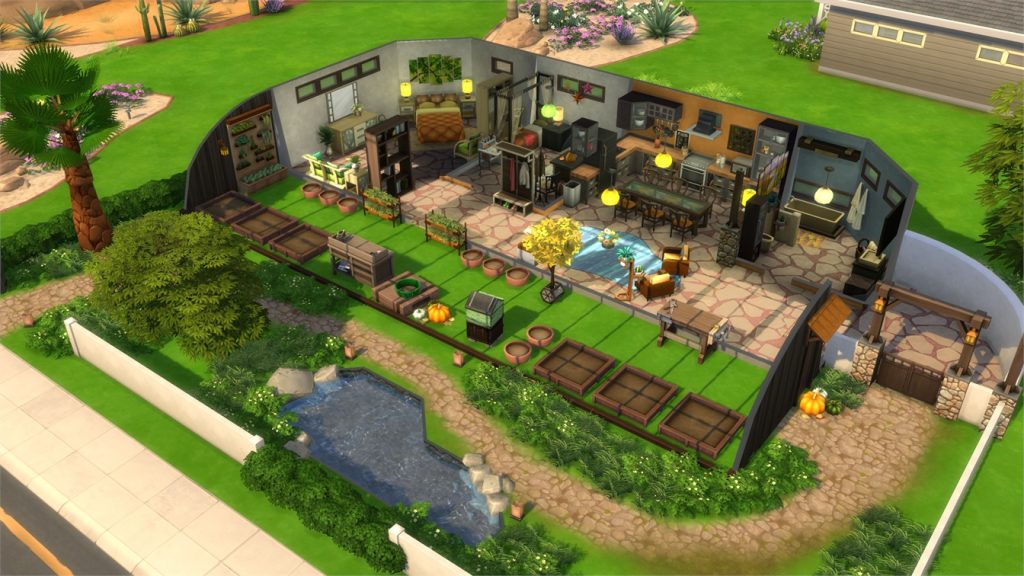
Earthship (Download Here)

by PeachesPlace

Value: §57,892
Size: 30×20
Lot Type: Residental Lot[/ult_hotspot_items][/ult_hotspot]

The Sims Mobile: Surgeon Career Update Coming Soon

1

The Sims Mobile Team has just published a brand new teaser for an upcoming update for The Sims Mobile.

According to them, the latest update will bring a whole new career to the game – the Surgeon Career!

Market Square Hospital is hiring surgeons! Stay tuned for more info on this new career.

The Sims Mobile: Surgeon Career Update Coming Soon

The Sims 4: New Update + Patch Notes! (July 10th, 2018)

The Sims 4: New Update + Patch Notes! (July 10th, 2018)

The Sims Team has released a brand new Update for The Sims 4 on PC and Mac!

To download the latest version of The Sims 4, simply open your Origin program and if the game doesn’t update automatically, right click on The Sims 4 and select ”Update”.

In case you have Mods or Custom Content, the game will automatically disable them for you after first launching The Sims 4 after the update. To re-enable all your Mods and Custom Content, select the Settings option in the Menu and select Settings. Under the”Other” section you’ll find the ”Enable Custom Content and Mods” option. Check it and restart your game in order for it to take effect!

Patch Notes

Update: 07/10/2018 – PC 1.44.88.1020/ Mac 1.44.88.1220

Hi Simmers!

We have another update for you to improve some of the issues found after the release of Seasons and the June update. Take a look at the notes to see what has changed. Thanks for your support and be sure to enjoy the fantastic summer weather from time to time!

Let’s get into the patch notes!
-SimGuruGrant aka Grant Rodiek

The Sims 4

  • We addressed an issue where the game would lag when placing wall patterns on blocks that were touching roofs.
  • The Reset Object cheat is now available to the community again. You could say that we reset it.
  • Sims no longer route fail when trying to enter a room on foundation level 1 that doesn’t have a stair. They just step up like a big kid, now.
  • Neat Sims are no longer uncomfortable when near a fire place that has assorted upgrades.
  • The lid for the GrillWise by GrillMania has been returned.

Get to Work

  • The Lice Cold Retail Freezer can now hold harvestables for you to sell.

Cats & Dogs

  • Cats and dogs should no longer fill your Sims’ queue with interactions. We want the pets to be friendly, but perhaps not that friendly.

Jungle Adventure

  • Emotion berries now provide emotions again, which is a berry good thing.

Seasons

  • Thermostats now have their interactions available when placed on Commercial and Vacation lots.
  • You can no longer use the Woo interaction with Bee Swarms to, *cough* woohoo with a relative.
  • Patchy the Scarecrow will no longer change into a human.
  • We addressed an issue where roof decorations on some lots didn’t look appropriate for the Mac.

Learning Your Tools: The Sims 4 MorphMaker (Create your own CAS Sliders)

The Sims 4 MorphMaker Tutorial

The Sims 4 MorphMaker allows you to make sliders and presets for Create-a-Sim! This tutorial requires you to have general knowledge of Blender. This tutorial was written for Windows users.

The program was created by CmarNYC over at ModTheSims!

Programs Needed:

Navigation:

  • Section 1 – Installing & Setting Up
  • Section 2 – Making a Slider for Create-a-Sim
  • Section 3 – Making a Preset for Create-a-Sim

Learning Your Tools: The Sims 4 MorphMaker (Create your own CAS Sliders)Installing & Setting Up

Step 1

Download TS4 MorphMaker at ModTheSims.

You will only need the first file in the download, as pictured below. You do not need the source code.

Learning Your Tools: The Sims 4 MorphMaker (Create your own CAS Sliders)

Step 2

Using a program like WinRAR or 7-Zip, unzip the file you just downloaded.

Place the new folder somewhere that you can get to it easily. Like your desktop.

Step 3

Now we need to install Blender 2.75. If you already have this version of Blender installed, you can skip this step.

You can find direct download links for Blender 2.76 here: 64 bit or 32bit

Install whichever version is required for your computer.

Learning Your Tools: The Sims 4 MorphMaker (Create your own CAS Sliders)

Making a Slider for Create-a-Sim

In this section we will be going over how to make a custom Slider for The Sims 4 Create-a-Sim. We will be going step by step in creating a up and down slider for female butts!

The sliders are the Sims shape modifiers, what you use to make your Sim body shape more unique!

Step 1

Open the TS4MorphMaker folder, and launch the application.

Step 2

When the program starts, you will be on the ‘Create DMaps‘ tab.

Select the gender you want to work with.

In this tutorial we will be using Adult Female.

Next select Skintight, then click Export OBJ.

Save this file to your desktop, and name it ‘YAF_Skintight‘.

Next select Robe, then click Export OBJ.

Save this file to your desktop, and name it ‘YAF_Robe‘.

Learning Your Tools: The Sims 4 MorphMaker (Create your own CAS Sliders)

Step 3

Next we need to open up Blender 2.75

Then we need to import the ‘YAF_Skintight.obj‘, as pictured below.

Make sure your view window is empty before importing the file.

Learning Your Tools: The Sims 4 MorphMaker (Create your own CAS Sliders)

Step 4

Now you should have your model in the view window.

Select the model until it is highlighted, as pictured below.

Learning Your Tools: The Sims 4 MorphMaker (Create your own CAS Sliders)

Once the model is highlighted, go into ‘edit mode‘. 

Step 5

This is where you will alter the base mesh for whichever slider you are wanting to make.

In this tutorial we will be making a slider to raise and lower the butt. So I have selected that area to alter, as pictured below.

Learning Your Tools: The Sims 4 MorphMaker (Create your own CAS Sliders)

Now that we have the area selected, we need to make a raised version.

NOTE: I use proportional editing when moving the vertices. This way everything connected stays shapely and the changes made are seamless.

To make the raised version, we need to move the selected area up on the Z axis.

You can move them by dragging the ‘Blue Arrow‘ up or by using G ‘Grab’ then Z ‘Selecting Z axis’ then use the ‘up arrow keys‘. I prefer the grab method, so I can count how far I have moved the the selected vertices.

I have moved the selected vertices up by 15 using the grab method, as pictured below.

Learning Your Tools: The Sims 4 MorphMaker (Create your own CAS Sliders)

Step 6

Now that we have our altered mesh we need to ‘export the .obj‘ and give it a new unique name. We will call this ‘YAF_SkinTight_ButtUP‘.

How to ‘export as .obj‘ pictured below:

Learning Your Tools: The Sims 4 MorphMaker (Create your own CAS Sliders)

Step 7

Next we need to make a lowered version. So that we have both up and down points for the sliders in game.

NOTE: Make sure that you move the vertices back to their original points before making the other direction version.

You can Ctrl+Z ‘Undo’ the changes made, or reopen the ‘YAF_Skintight.OBJ‘ and start fresh.

To make the lowered version, I have moved the selected vertices down by 15 using the grab method, as pictured below.

Learning Your Tools: The Sims 4 MorphMaker (Create your own CAS Sliders)

Step 8

Now that we have our second altered mesh we need to export the .obj and give it a new unique name. We will call this version ‘YAF_SkinTight_ButtDOWN‘.

Step 9

Now we need to repeat steps 3-8 for the ‘YAF_Robe‘ model. This is optional via the MorphMaker program.

If you do decide to do the robe models, be sure to create both Up and Down versions.

Giving them unique names also when you save them.

I have called mine ‘YAF_Robe_ButtUP.obj‘ and ‘YAF_Robe_ButtDOWN.obj‘.

Step 10

In total we now have the following 6 files on our desktop:

  1. YAF_Skintight.obj
  2. YAF_Robe.obj
  3. YAF_SkinTight_ButtUP.obj
  4. YAF_SkinTight_ButtDOWN.obj
  5. YAF_Robe_ButtUP.obj
  6. YAF_Robe_ButtDOWN.obj

Step 11

Now we need to upload our files into MorphMaker.

First we will be getting the DMaps for the ‘ButtUP’ version.

Learning Your Tools: The Sims 4 MorphMaker (Create your own CAS Sliders)

Once your files are uploaded. Make sure that the correct age and gender are selected. As well as the DMap Size for your creation.

If everything is correct, click ‘Create DMaps‘.

NOTE: This will take some time, just wait until it finishes. You will be able to tell the progress by the green bar and text on the right side of the program.

Once it has finished processing it will ask you to save 2 DMap files.

I have named mine:

  • DMap_ButtUP_One
  • DMap_ButtUP_Two

Next, we have to repeat the process for the Down version.

Simply change the files for ‘Morphed Skintight‘ and ‘Morphed Robe Mesh‘ to the ‘ButtDOWN‘ obj files. Once you have those changed, click ‘Create DMaps’ again.

Once it has finished processing it will ask you to save 2 DMap files again.

I have named mine:

  • DMap_ButtDOWN_One
  • DMap_ButtDOWN_Two

Step 12

Now we need to add the modifiers for our new sliders.

Step 12 a

Navigate to the ‘Add/Edit Sim Modifiers‘ tab in MorphMaker.

Click ‘Add New Sim Modifier‘. A new modifier will pop up in the view window.

Under ‘Unique morph name‘, give the morph a name. (Starting with your Creator Name.)

We will call this ‘YAF_ButtUP‘.

Next we need to upload the DMap Shape and DMap Normals.

  • DMap Shape = DMap_ButtUP_One
  • DMap Normals = DMap_ButtUP_Two

After you have the DMaps uploaded, make sure that the ‘Age/Gender‘ are selected for your project.

We are doing female in this tutorial, so I will select ‘Teen-Elder‘ and ‘Female‘.

Next we need to change the ‘Region‘, this corresponds to the area you edited on the mesh. Since we edited the butt we will change it to ‘BUTT‘.

Once you are done, click ‘Save Sim Modifier‘. You will know it is saved when the ‘Sim Modifier Name’ changes in the view window to your unique one.

Step 12 b

Repeat step 12 a for the ‘YAF_ButtDown‘. Replacing the UP DMaps with the Down ones.

Once you are done you should have two new modifiers, as pictured below.

Learning Your Tools: The Sims 4 MorphMaker (Create your own CAS Sliders)

Step 13

Now that the modifiers are done, we need to edit the hotspot controls.

Navigate to the ‘Add/Edit HotspotControls (Sliders)‘ tab in MorphMaker.

You should now see a cloned HotSpotControl ready to edit.

The first thing we need to do is make a ‘Unique Name‘. (Once again, Starting with your Creator Name.)

Next we need to change the ‘Cursor Style‘. We  want to change this to ‘HorizontalAndVerticalArrows‘. Because the slider for the butt extends out by default, and our slider slide up and down.

Double check that the ‘Age‘ category has all of the correct selected states. These will be the sameAge/Gender‘ you used in previous steps.

Now in the ‘Slider‘ list window you will see two sliders.

  • Profile_right, Profile_left
  • Back

Step 13 a

Select ‘Profile_right, Profile_left’

On the right you will see ‘Sim Modifiers‘. There will be 4 modifiers:

  • Left
  • Right
  • Up
  • Down

We need to add our modifier for the up and down ones we created earlier.

On the ‘UP‘ line click ‘Change‘.

In the drop down select the ‘UP‘ modifier. As pictured below.

Learning Your Tools: The Sims 4 MorphMaker (Create your own CAS Sliders)

Click ‘Save‘ when you are done.

On the ‘Down‘ line click ‘Change‘.

In the drop down select the ‘Down‘ modifier. Then ‘Save‘.

Your ‘Sim Modifiers’ list should now look similar to the following:

Learning Your Tools: The Sims 4 MorphMaker (Create your own CAS Sliders)

Once you are done click ‘Save Slider‘.

Step 13 b

Go back to the ‘Sliders‘ list that you selected in step 13a, but select ‘Back‘. repeat the same steps as above to add the ‘Up and Down Sim Modifiers‘ again. Once you are done click ‘Save Slider‘.

If you have finished both ‘Sliders‘ (‘Profile_right, Profile_left‘ and ‘Back‘.) then select ‘Save HotSpotControl‘.

You will know your ‘HotSpotControl‘ saved when the name of the Slider changes in the left side of the window, as pictured below.

Learning Your Tools: The Sims 4 MorphMaker (Create your own CAS Sliders)

Step 14

If everything is correct, and you are finished click ‘Save as New Package‘.

Navigate to your TheSims4 Mods folder:

DocumentsElectronic ArtsThe Sims 4Mods

Save your .package with a unique name so you know what it is.

You are Done! You’ve made a new slider for The Sims 4!

You can now go in game and check out your new slider!

Here is the Butt slider we made with this tutorial:

Learning Your Tools: The Sims 4 MorphMaker (Create your own CAS Sliders)

You can download the female butt slider we created in this tutorial Here!

Storytelling in The Sims Mobile

When I started playing The Sims Mobile, I wasn’t thinking about using it for storytelling. It didn’t look like a suitable platform for telling stories, especially compared to The Sims 4. You can’t cheat, everything is locked behind levels, and the game is more focused on leveling up than giving players a sandbox to do whatever they want with.

However, when my laptop died, I started going through serious Sims 4 withdrawals and began looking for other ways to get creative and tell my stories. As I played The Sims Mobile more and more, I started to realise just how much I could do with it. The in-game story chapters served as inspiration for more in-depth plots with my Sims and I started experimenting with ways to tell my stories from my phone. I learned how to adapt to a new method of storytelling. That’s when I started becoming really invested in my Sims Mobile family.

That’s why I’ll be sharing what I’ve learned about telling stories with The Sims Mobile with you; to help all the storytellers out there get the most out of their mobile gaming experience.

Basic Screenshot Tips

Before we get started on the complex stuff, let’s start with the easy stuff. How to take screenshots in The Sims Mobile in the first place. Your screenshots won’t be the cinematic masterpieces you’re used to capturing with The Sims 4, but you can still learn to work with what you have and make the most of it.

Find out how to take screenshots on your phone

Every phone is different. You’ll have to find this out on your own. I have a Samsung Galaxy S6 and I take my screenshots by pressing the power button and the home button at the same time.

The UI is here to stay

Storytelling in The Sims Mobile
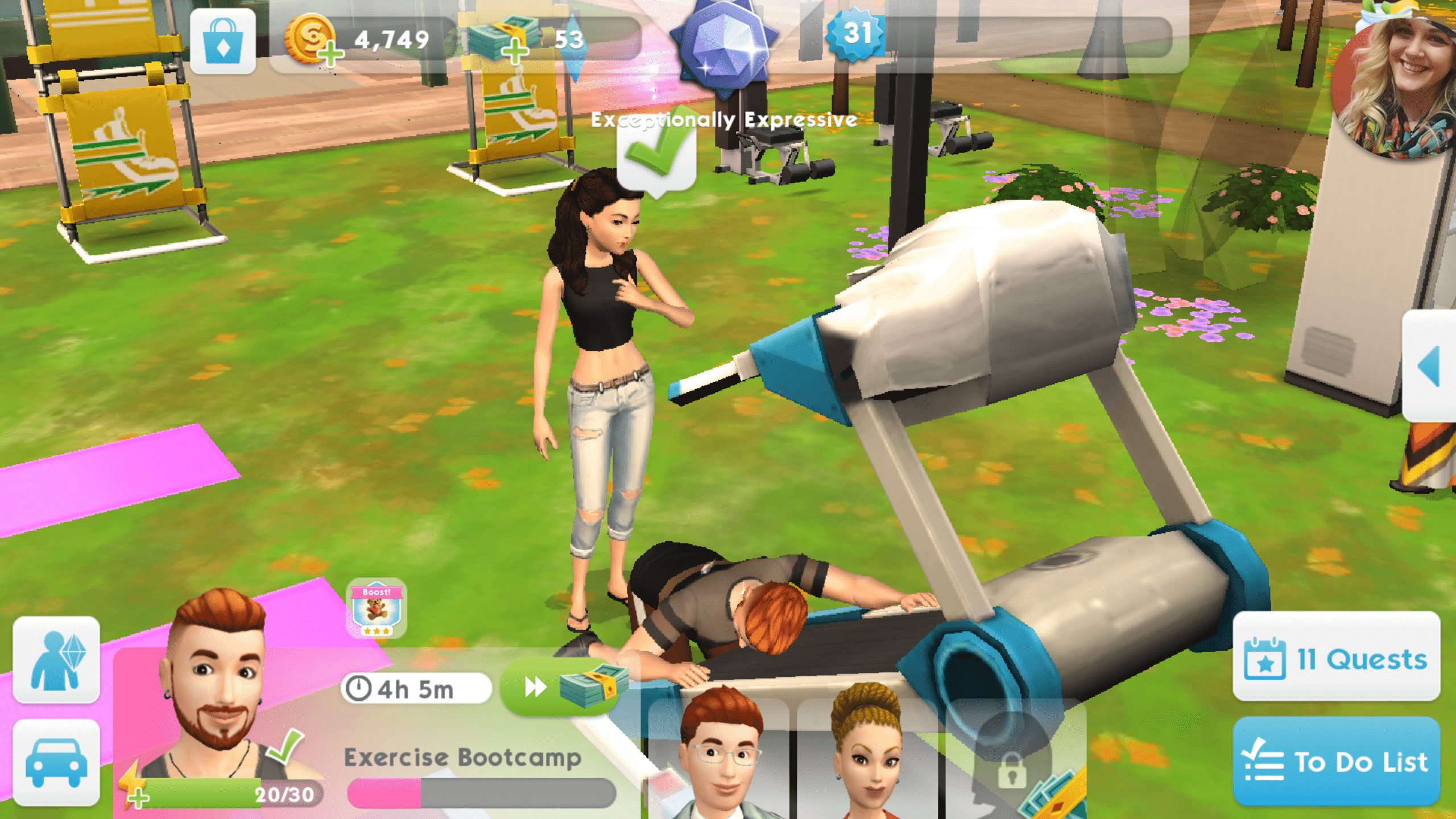
The UI might look distracting in this shot, but since there is something interesting happening, it’s easier to look past it to the story being told in the picture.

Sorry, guys. There’s no way to get rid of the UI in The Sims Mobile. You’ll just have to deal with that, but don’t let that deter you. If you’ve got a good story going on, your readers will learn to ignore the UI and focus on what’s happening in the photo.

Walls? Who needs ’em!

Storytelling in The Sims Mobile
This shot has been taken from an angle that gives the illusion of full walls.

Another limitation is not being able to pull up the walls to take screenshots. All walls are permanently cutaway style in The Sims Mobile, but this isn’t that big of a deal. Sometimes you can angle your shots just right so that it’s not noticeable. You can also build your house in a way that allows for as much wall space to be visible as possible for your screenshots. Other times, there’s just no getting around the fact that some of your walls won’t show up, but again, don’t sweat it. Learn to work with The Sims Mobile instead of fighting against it.

Be an opportunist

Storytelling in The Sims Mobile
This shot had to be taken quick in the middle of an action. It can take several tries to get the perfect picture.

You can’t pause in The Sims Mobile. Everything happens in real time, so you’re going to have to get good at spotting photo opportunities and being quick enough to snap a screenshot at precisely the right moment. Be aware of everything going on around your Sim and be prepared to snap a picture at any given moment. It’s always better to have too many pictures to choose from for your story than not enough.

Okay, What Now?

So you’ve got the screenshot thing down, but what about actually telling your stories? How do you come up with interesting content in a game that doesn’t leave a lot of room to dilly dally as you please? Well, you’ll need to dust off your imagination. Stop thinking about what you can’t do in the game and start thinking about how to manipulate the game to suit your purposes. I’m not talking about hacks. I’m talking about learning how to use the game in new ways.

For example, in my current story, one of my Sims had an accidental pregnancy with his one-night-stand. She showed up at his house with the baby, dumped the baby on him and took off. You might ask how that’s possible in The Sims Mobile. Well… it isn’t, but I made it possible with the power of imagination.

Storytelling in The Sims Mobile
You can always set up your shots to tell the story you want, even if it didn’t happen that way in the game. Think outside the box!

All I did to pull this story off was have my Sim start a romance with another Sim outside the household, invite her over and then have a baby with her via the bassinet like normal. Once the baby was born, I placed the bassinet next to the couch in the living room and directed the two Sims to chat on the couch for a screenshot that made it look like the mother brought the baby over and is telling the father about the child.

Telling stories in The Sims Mobile is all about you and your own imagination. Always ask yourself what you can do to make your ideas come to life, whether those features are in the game or not. Where there’s a will, there’s a way.

Stuck? Let the Stories Guide You

Storytelling in The Sims Mobile
Getting to level 16 can be tough but make the journey part of the story.

You might have a hard time coming up with ways to tell unique stories at first, especially when you first start playing the game and everything is locked behind levels. You’ll spend the first 16 levels just trying to gain enough experience to unlock all the major game features, but don’t let that discourage you. You can always work these early struggles into your story. The Sims Mobile is perfect for legacy-style stories in particular so starting from humble beginnings meshes with the traditional legacy story well.

Storytelling in The Sims Mobile
Use these quirky story chapters to your advantage if you’re feeling stuck.

Don’t forget that The Sims Mobile has its own stories! Every relationship, hobby, and career in the game is a story with chapters and witty dialogue sequences. If you’re ever stuck for ideas, you can use these stories as a springboard. I was inspired to do a generation with two warring brothers when I discovered the Sibling Rivalry relationship story and it’s provided my story with plenty of drama that all sprang from that initial spark of inspiration.

I hope these tips and tricks have inspired you to start telling more elaborate stories in The Sims Mobile!

The Sims 4: SimGuruGrant teases “Good Stuff” for this week

2

SimGurus are back from their time off during the 4th of july week and it seems SimGuruGrant can’t wait to talk about some exciting stuff this week.

He published a tweet on Twitter saying that The Sims Team has some “good stuff” planned for this week as well as that they’ll be around, probably meaning that they’ll be more active on social networks and provide us with new tweets, information and progress on the current bugs, fixes and possibly plans for the future like they always do.

The “good stuff” that SimGuruGrant teased for this week could be plenty of things – a new pack announcement, a free content update or just a regular update fixing some of the current bugs.

One thing’s for certain – we’ll keep you updated as soon as new info about this week’s “good stuff” surface!

The Sims 4: SimGuruGrant teases “Good Stuff” for this week

The Sims 4 Seasons: Perfectly Capturing Lightning Strikes Video Tutorial

0

Wonder how you can capture the perfect lightning strike screenshot in The Sims 4 Seasons? It’s not that easy finding the right moment with The Sims 4’s regular capture feature, which is why we’ve created a handy video tutorial that you can check out above!

The Sims 4 Seasons Challenge: Gameplay for All Four Seasons!

Now that The Sims 4 Seasons has been released worldwide for several weeks, more and more amazing content taking advantage of the new pack is popping up across the web! Tumblr user frecklesandpixels is no exception and has created a brand new legacy challenge inspired by all four seasons.

Named the ‘Spring into Summer & Fall into Winter‘ Challenge, this four generation legacy challenge aims to help players explore new gameplay, social interactions, holiday creation, and more!

The Sims 4 Seasons Challenge: Gameplay for All Four Seasons!

For rules, gameplay pictures, and more – follow frecklesandpixels on her Tumblr account here!

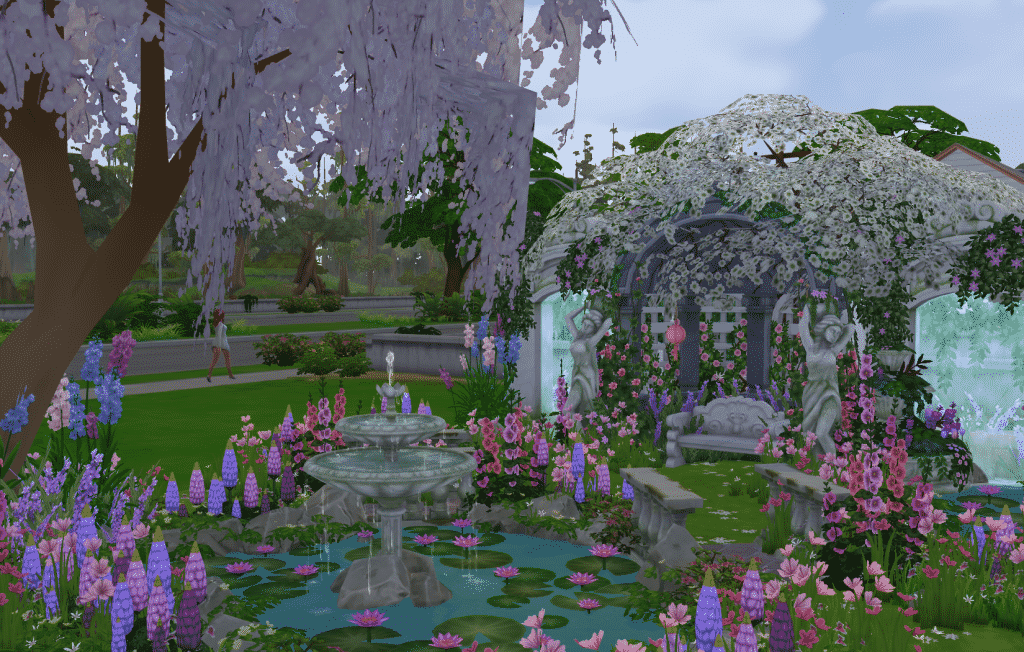
The Sims 4 Seasons: Bring Your Garden to Life

If you’re anything like me you definitely struggle at one certain aspect of build mode in pretty much every Sims game, the garden! I’m not sure why but I’ve always lacked a landscaping skill until recently when I started to experiment more as my houses just didn’t look alive enough.

I’ve picked a few ideas that you can do that will spruce up your virtual gardens and make your sims a lot more happy, below are just some of them ways.

Green house

With the Seasons patch we gained the ability to create glass roofs, as I’m sure most people are aware. These aren’t just pretty but they are functional, they can be used to create a realistic looking greenhouse for your sims plants. Even with a foundation you can create. Realistic looking greenhouse, delete the flooring and use a brick foundation for a more realistic effect.

The Sims 4 Seasons: Bring Your Garden to Life

Tree clusters

This is something I started doing a while ago but gives big empty plots of land a bit of life, it’s rare to see just a single tree growing in an area so plant a few, even use different types. Bring these areas to life by sizing down some long grass and planting it around the trees, throw in some flowers to add a bit of colour and don’t forget about the terrain paints, use a mud and grass textures to add a bit of realism.

The Sims 4 Seasons: Bring Your Garden to Life

Natural ponds

Obviously the game doesn’t have the ability to create actual ponds but there are ways around this, of course you can use the debug section to get one of the ponds located in parks around the game or you can make your own using the pool/fountain tool and get creative with rocks and plants. There are some truly fantastic examples of these in the community.

The Sims 4 Seasons: Bring Your Garden to Life

Flower beds

There are quite a few ways to accomplish flower beds, you can use foundations or raised platforms for a more luxurious feel or you can go the simple route and use rocks or wood planks to section your garden and fill them with beautiful flowers and bushes. They really add that realistic feeling to homes and make them way more inviting and interesting. Remember that you can never use too much foliage. A good tip is that if you size down the rocks it creates a much better aesthetic.

The Sims 4 Seasons: Bring Your Garden to Life

Romantic area

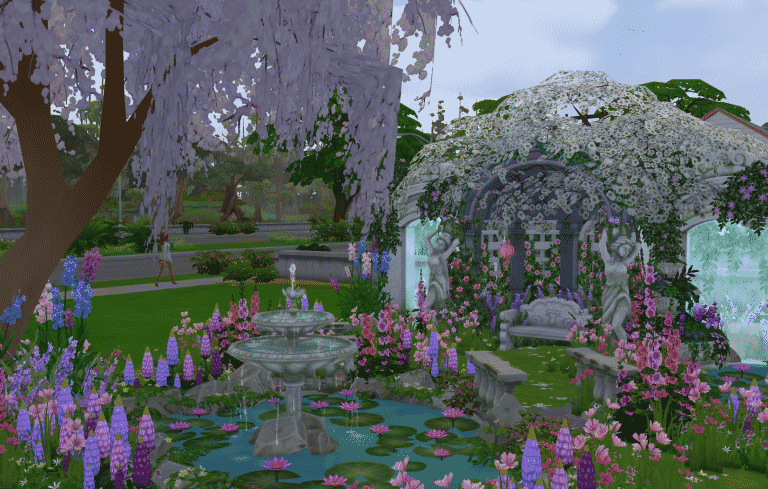
Let’s face it there’s nothing more romantic than a garden with a nice pond and a snug seating area surrounded by flowers, and thankfully we’ve got the Romantic Garden pack to help create a great atmosphere. Sometimes it’s easy to overlook this pack as it’s drowned out by more popular packs but some of the items are absolutely stunning and offer some great opportunities for a beautiful garden.

The Sims 4 Seasons: Bring Your Garden to Life

The Sims 4 Console: How to take Pro Screenshots

Want to know how to remove the User Interface and find the perfect angle when taking screenshots / videos in The Sims 4 for Console? We give you all the tips in the video above!
The Sims 4 is joining EA Access on Xbox One

Good news for Xbox One gamers! EA has just announced that The Sims 4 Base Game is joining the EA Access subscription service which is exclusive to Xbox One.

In case you don’t know what EA Access is, it’s a subscription service which gives you access to more than 50 video game titles for $4.99 a month / $29.99 a year. It’s similar to Origin Access except it has a different collection of games that are available on Xbox One.

At the moment we don’t know when exactly The Sims 4 is joining EA Access other than that it’s “Coming Soon”.

The Sims 4 is joining EA Access on Xbox One

The Sims 4 Console: Full Packs List (Unreleased, Released, Announced and Rumored)

It’s been less than a year since The Sims 4 for Xbox One and PS4 has released and there’s already a dozen of packs that are currently out. The Sims Team tends to release new packs for The Sims 4 Console every month with sometimes releasing even 2 packs at a time.

Considering that retailers tend to list packs for The Sims 4 Console before the official announcement and that even SimGurus often tease upcoming releases we’ve decided to make a complete list of all DLCs that are currently out for The Sims 4 Console, as well as which packs have been announced, rumored and have yet to be announced.

The Sims Team confirmed that they plan to bring the entire collection of packs from PC / Mac onto the Console version. However, they cannot bring over all the packs simultaneously as it takes some time to port over and make all features accesible for console players.

Expansion Packs

  • The Sims 4 Get to Work Expansion Pack – RELEASED
  • The Sims 4 Get Together Expansion Pack – RUMORED (Link 1)
  • The Sims 4 City Living Expansion Pack – RELEASED
  • The Sims 4 Cats & Dogs Expansion Pack – ANNOUNCED (Coming July 31st)
  • The Sims 4 Seasons Expansion Pack – NOT ANNOUNCED

Game Packs

  • The Sims 4 Outdoor Retreat Game Pack – NOT ANNOUNCED
  • The Sims 4 Spa Day Game Pack – NOT ANNOUNCED
  • The Sims 4 Dine Out Game Pack – RELEASED
  • The Sims 4 Vampires Game Pack – RELEASED
  • The Sims 4 Parenthood Game Pack – RELEASED
  • The Sims 4 Jungle Adventure Game Pack – NOT ANNOUNCED

Stuff Packs

  • The Sims 4 Luxury Party Stuff Pack – RELEASED
  • The Sims 4 Perfect Patio Stuff Pack – RELEASED
  • The Sims 4 Cool Kitchen Stuff Pack – RELEASED
  • The Sims 4 Spooky Stuff Pack – NOT ANNOUNCED
  • The Sims 4 Movie Hangout Stuff Pack – NOT ANNOUNCED
  • The Sims 4 Romantic Garden Stuff Pack – RELEASED
  • The Sims 4 Kids Room Stuff Pack – RELEASED
  • The Sims 4 Backyard Stuff Pack – RELEASED
  • The Sims 4 Vintage Glamour Stuff Pack – RELEASED
  • The Sims 4 Bowling Night Stuff – NOT ANNOUNCED
  • The Sims 4 Fitness Stuff Pack – NOT ANNOUNCED
  • The Sims 4 Toddler Stuff Pack – RELEASED
  • The Sims 4 Laundry Day Stuff Pack – RUMORED (Link 1)
  • The Sims 4 My First Pet Stuff Pack – NOT ANNOUNCED

Make sure you bookmark this page as we’ll be regularly updating it with new information every time there’s a new announcement, leak or a rumor about the upcoming Console release!