Home Blog Page 333

How to Create Inlaid Flooring in The Sims 4

2

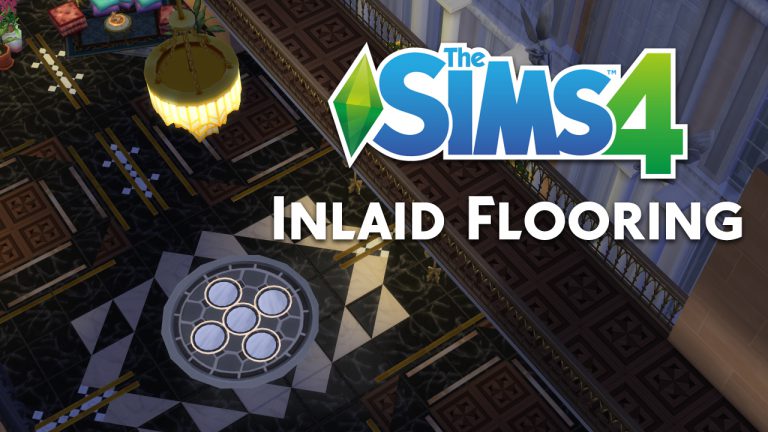
Hi, I’m Jason Sterling. One of my favorite aspects of building in the Sims 4 is the ability to up and now down, size objects. As well as lift them up and down within a space. You can use this for a wealth of decor opportunities. I have one such opportunity below, creating inlaid flooring.

How to Create Inlaid Flooring in The Sims 4

You will need this cheat:

  • bb.MoveObjects  (MOO) This allows build/buy items to be freely moved around within the space. The cheat also activates the height slider to raise objects up and down using the number 9 for up and the number 0 for going back down. Press CTRL-SHIFT-C to open a dialog box in the upper left of the window while in the game. You then type the cheat written in bold within the dialog box and press enter.

Simple Flooring Tutorial

We’ll start with the simple example below. This style does not use the above cheat. Instead you only need to know that pressing “CTRL” and “F” at the same time will change your square flooring tile into the triangle shaped piece you can see in picture #1. The center inset picture is the flooring tile placed in the normal fashion. The new finished result is shown outlined in red as part of the greater, finished floor in picture #4. In picture #4 you can see the simpler application of the triangle shaped tile in the floor used to create a large pattern.

How to Create Inlaid Flooring in The Sims 4

Complex Flooring Tutorial

You will need to know both the “CTRL F” and the MOO cheat when creating more detailed examples. In addition, you will need to raise items by pressing “Alt” and “9” at the same time while holding the item. You will also need a room below where you are creating the inlaid floor. The highly detailed floors begin like the simpler floor above. Create a layout using the triangle and standard square shaped pieces of floor. Keep in mind the areas where you want to use medallions or inset lines in the floor and leave room for their placement.

The floor is not difficult to create. Picture #1 shows the layout of the items in the room below that give the appearance of inlaid straight lines and the large medallion in the floor above. The lines in this example are created by using the top of a framed painting. Hang the painting on the wall and lift it using “Alt and 9” so that it just breaks the floor above. Then, while holding alt only, you can raise or lower the frame slightly. Do this until just the barest amount shows through the floor above. This can be a tedious process but you only need to do this with one line. All the following lines can be placed using the “copy” feature. You can copy the wall with the pictures attached to it. Then you can place the wall wherever you wish the line to appear above. Picture #2

I used the same process to create the medallion. First, choose the items you’d like to use. Then enlarge or shrink them to sufficient size. Raise them into place and overlap/ intersect them as needed for the design. The items I chose for this medallion are in picture #3: “The Brunch With Vetta Dining Table”, the “Rory’s Orrey” (Mirrored End Table from Glamour Stuff) and the “Potted into the Corner” vase used to create a frame for the end table. It takes trial and error, as you try different combinations, to create an inlay like the medallion. I think, that in the end, the effect is worth the effort. Picture #4

How to Create Inlaid Flooring in The Sims 4

Further Inspiration

Lastly, this set of pictures is purely for inspiration. The technique used is the same as the floor directly above but in a far more restrained manner. The pictures also illustrate playing with various items to create the inlaid line effect. I used the “Picture Perfect Art Lighting” in this case. I have used it both in standard size and enlarged.

How to Create Inlaid Flooring in The Sims 4

As always, I hope this brief tutorial will inspire you to experiment with the Sims 4 in build mode. You can post any questions you have below or you can contact me directly via Twitter @JasonSterling70 or on the Sims Forum JasonAnthonySterling. You can see me building in action on both Jason Sterling on Youtube  and  Jason Sterling on Twitch.
The Sims 4 Cats & Dogs Gallery Spotlight: Residental Lots

The Sims 4 Cats & Dogs Gallery Spotlight: Residental Lots

In this Spotlight, we’re featuring Residental Lots built using The Sims 4 Cats & Dogs Expansion Pack, as well as some other packs included.

Hover over the pulsing plumbobs to see screenshots of marked areas. Pulsing plumbob that’s on the left bottom corner contains all the info (and download link) of the lot.

To see more of our previous Gallery Spotlights, CLICK HERE!

[ult_hotspot main_img=”id^69275|url^https://simscommunity.info/wp-content/uploads/2017/11/11-26-17_6-04-05-PM.jpg|caption^null|alt^null|title^11-26-17_6-04-05 PM|description^null”][ult_hotspot_items icon_type=”custom” icon_img=”id^39525|url^https://simscommunity.info/wp-content/uploads/2015/09/plumbob2.png|caption^null|alt^null|title^plumbob2|description^null” img_width=”38″ tooltip_custom_color=”” tooltip_custom_bg_color=”rgba(255,255,255,0.01)” tooltip_width=”400″ tooltip_position=”right” enable_bubble_arrow=”off” tooltip_continuous_animation=”on” hotspot_position=”59.88673580786026,36.809815950920246″]

The Sims 4 Cats & Dogs Gallery Spotlight: Residental Lots

[/ult_hotspot_items][ult_hotspot_items icon_type=”custom” icon_img=”id^39525|url^https://simscommunity.info/wp-content/uploads/2015/09/plumbob2.png|caption^null|alt^null|title^plumbob2|description^null” img_width=”38″ tooltip_custom_color=”” tooltip_custom_bg_color=”rgba(255,255,255,0.01)” tooltip_width=”400″ tooltip_position=”right” enable_bubble_arrow=”off” tooltip_continuous_animation=”on” hotspot_position=”32.669213973799124,39.14110429447853″]

The Sims 4 Cats & Dogs Gallery Spotlight: Residental Lots

[/ult_hotspot_items][ult_hotspot_items icon_type=”custom” icon_img=”id^39525|url^https://simscommunity.info/wp-content/uploads/2015/09/plumbob2.png|caption^null|alt^null|title^plumbob2|description^null” img_width=”52″ tooltip_custom_color=”#1e73be” tooltip_custom_bg_color=”#ffffff” tooltip_width=”450″ tooltip_position=”right” tooltip_continuous_animation=”on” hotspot_position=”89.61858624454149,3.190184049079755″ tooltip_custom_border_size=”border-style:solid;|border-width:2px;border-radius:5px;|border-color:#81d742;”]

Pretty Pets Home (Download Here)

by HatsyYT

Value: §110,986
Size: 30×20
Lot Type: Residental Lot[/ult_hotspot_items][/ult_hotspot][ult_hotspot main_img=”id^69278|url^https://simscommunity.info/wp-content/uploads/2017/11/11-26-17_6-06-21-PM.jpg|caption^null|alt^null|title^11-26-17_6-06-21 PM|description^null”][ult_hotspot_items icon_type=”custom” icon_img=”id^39525|url^https://simscommunity.info/wp-content/uploads/2015/09/plumbob2.png|caption^null|alt^null|title^plumbob2|description^null” img_width=”38″ tooltip_custom_color=”” tooltip_custom_bg_color=”rgba(255,255,255,0.01)” tooltip_width=”400″ tooltip_position=”right” enable_bubble_arrow=”off” tooltip_continuous_animation=”on” hotspot_position=”63.53711790393013,54.601226993865026″]

The Sims 4 Cats & Dogs Gallery Spotlight: Residental Lots

[/ult_hotspot_items][ult_hotspot_items icon_type=”custom” icon_img=”id^39525|url^https://simscommunity.info/wp-content/uploads/2015/09/plumbob2.png|caption^null|alt^null|title^plumbob2|description^null” img_width=”38″ tooltip_custom_color=”” tooltip_custom_bg_color=”rgba(255,255,255,0.01)” tooltip_width=”400″ tooltip_position=”right” enable_bubble_arrow=”off” tooltip_continuous_animation=”on” hotspot_position=”39.10343886462882,55.828220858895705″]

The Sims 4 Cats & Dogs Gallery Spotlight: Residental Lots

[/ult_hotspot_items][ult_hotspot_items icon_type=”custom” icon_img=”id^39525|url^https://simscommunity.info/wp-content/uploads/2015/09/plumbob2.png|caption^null|alt^null|title^plumbob2|description^null” img_width=”52″ tooltip_custom_color=”#1e73be” tooltip_custom_bg_color=”#ffffff” tooltip_width=”450″ tooltip_position=”right” tooltip_continuous_animation=”on” hotspot_position=”89.61858624454149,3.190184049079755″ tooltip_custom_border_size=”border-style:solid;|border-width:2px;border-radius:5px;|border-color:#81d742;”]

Hideaway House (Download Here)

by SophSimss

Value: §113,362
Size: 30×20
Lot Type: Residental Lot[/ult_hotspot_items][/ult_hotspot][ult_hotspot main_img=”id^69281|url^https://simscommunity.info/wp-content/uploads/2017/11/11-26-17_6-08-17-PM.jpg|caption^null|alt^null|title^11-26-17_6-08-17 PM|description^null”][ult_hotspot_items icon_type=”custom” icon_img=”id^39525|url^https://simscommunity.info/wp-content/uploads/2015/09/plumbob2.png|caption^null|alt^null|title^plumbob2|description^null” img_width=”38″ tooltip_custom_color=”” tooltip_custom_bg_color=”rgba(255,255,255,0.01)” tooltip_width=”400″ tooltip_position=”right” enable_bubble_arrow=”off” tooltip_continuous_animation=”on” hotspot_position=”69.55171943231441,64.66257668711657″]

The Sims 4 Cats & Dogs Gallery Spotlight: Residental Lots

[/ult_hotspot_items][ult_hotspot_items icon_type=”custom” icon_img=”id^39525|url^https://simscommunity.info/wp-content/uploads/2015/09/plumbob2.png|caption^null|alt^null|title^plumbob2|description^null” img_width=”38″ tooltip_custom_color=”” tooltip_custom_bg_color=”rgba(255,255,255,0.01)” tooltip_width=”400″ tooltip_position=”right” enable_bubble_arrow=”off” tooltip_continuous_animation=”on” hotspot_position=”50.50491266375546,65.03067484662577″]

The Sims 4 Cats & Dogs Gallery Spotlight: Residental Lots

[/ult_hotspot_items][ult_hotspot_items icon_type=”custom” icon_img=”id^39525|url^https://simscommunity.info/wp-content/uploads/2015/09/plumbob2.png|caption^null|alt^null|title^plumbob2|description^null” img_width=”52″ tooltip_custom_color=”#1e73be” tooltip_custom_bg_color=”#ffffff” tooltip_width=”450″ tooltip_position=”right” tooltip_continuous_animation=”on” hotspot_position=”89.61858624454149,3.190184049079755″ tooltip_custom_border_size=”border-style:solid;|border-width:2px;border-radius:5px;|border-color:#81d742;”]

Simple Brindleton (Download Here)

by Kimmsterr

Value: §117,811
Size: 30×20
Lot Type: Residental Lot[/ult_hotspot_items][/ult_hotspot][ult_hotspot main_img=”id^69284|url^https://simscommunity.info/wp-content/uploads/2017/11/11-26-17_6-09-47-PM.jpg|caption^null|alt^null|title^11-26-17_6-09-47 PM|description^null”][ult_hotspot_items icon_type=”custom” icon_img=”id^39525|url^https://simscommunity.info/wp-content/uploads/2015/09/plumbob2.png|caption^null|alt^null|title^plumbob2|description^null” img_width=”38″ tooltip_custom_color=”” tooltip_custom_bg_color=”rgba(255,255,255,0.01)” tooltip_width=”400″ tooltip_position=”right” enable_bubble_arrow=”off” tooltip_continuous_animation=”on” hotspot_position=”60.53152292576419,54.355828220858896″]

The Sims 4 Cats & Dogs Gallery Spotlight: Residental Lots

[/ult_hotspot_items][ult_hotspot_items icon_type=”custom” icon_img=”id^39525|url^https://simscommunity.info/wp-content/uploads/2015/09/plumbob2.png|caption^null|alt^null|title^plumbob2|description^null” img_width=”38″ tooltip_custom_color=”” tooltip_custom_bg_color=”rgba(255,255,255,0.01)” tooltip_width=”400″ tooltip_position=”right” enable_bubble_arrow=”off” tooltip_continuous_animation=”on” hotspot_position=”36.66757641921398,54.233128834355824″]

The Sims 4 Cats & Dogs Gallery Spotlight: Residental Lots

[/ult_hotspot_items][ult_hotspot_items icon_type=”custom” icon_img=”id^39525|url^https://simscommunity.info/wp-content/uploads/2015/09/plumbob2.png|caption^null|alt^null|title^plumbob2|description^null” img_width=”52″ tooltip_custom_color=”#1e73be” tooltip_custom_bg_color=”#ffffff” tooltip_width=”450″ tooltip_position=”right” tooltip_continuous_animation=”on” hotspot_position=”89.61858624454149,3.190184049079755″ tooltip_custom_border_size=”border-style:solid;|border-width:2px;border-radius:5px;|border-color:#81d742;”]

Only Cats&Dogs * NoCC (Download Here)

by 96LangerLui99

Value: §102,641
Size: 20×20
Lot Type: Residental Lot[/ult_hotspot_items][/ult_hotspot]

Platonic Romance in The Sims 4? It’s Possible!

4

Thanks to the separation of the friendship and romance bars in The Sims 4, many Simmers are aware of the wide variety of relationships Sims can have with each other. These relationships can sometimes be hilariously strange, like romantic partners who can’t stand each other as friends, or the classic “friends with benefits” dynamic.

But did you know about the possibility of platonic romance? In other words, a romance that has no WooHoo-ish aspect to it. This relationship dynamic also works well for best friends who are very comfortable being affectionate with one another but aren’t interested in becoming a romantic couple.

Platonic Romance in The Sims 4? It’s Possible!

It’s actually quite easy to create this unique relationship in the game with no mods or cheats. Simply take a pair of Sims who are close friends or BFFs, get them into the appropriate mood for flirtation, and start using some of the lighter romantic socials, like Ask if Single, Compliment Appearance, and Flirt.

So what’s the trick here? How do you keep things innocent and sweet without taking it too far? Eventually, two options will open up in the Romance category once the romantic relationship bar is high enough; First Kiss and Ask to be BF/GF. Do not initiate either of these socials. In fact, pretend they’re just not there in the pie menu at all. Continue using the other romantic socials, instead.

The technical explanation behind this is the First Kiss and Ask to be BF/GF socials are considered milestone socials. Sims won’t initiate either of these socials autonomously because both of these socials change the relationship status. Once the First Kiss has happened, Sims stop being friends and become Romantic Interests. The First Kiss social also opens up more serious romantic socials, like Kiss, Make Out, and WooHoo. Never initiating a First Kiss never opens up these more heated romantic socials. Asking a Sim to be your boyfriend or girlfriend, of course, changes the relationship to a romantic one rather than a friendship.

Platonic Romance in The Sims 4? It’s Possible!

So, in practice, if you have a pair of friends with a high romance bar who’ve never shared a First Kiss or asked to become a couple, they can be completely in love and display gestures of affection towards each other but remain close friends.

This is a great gameplay tip for storytellers or any Simmers looking to explore more unique relationships between their Sims.

The Sims Mobile is now soft-launched in Ireland and Australia

2

After The Sims Team released their page to Pre-Register for The Sims Mobile release we received information that the game has soft-launched in Ireland. However, just a few days later we discovered that the game has also soft-launched in Australia!

In case you don’t know here are all the areas that have The Sims Mobile available for download:

  • Brazil
  • Spain
  • Ireland
  • Australia

Stay tuned on our The Sims Mobile News Category to be the first to know when the game launches worldwide!

The Sims Mobile is now soft-launched in Ireland and Australia

The Sims 4 Cats & Dogs: Breeding for Profit

You asked and we delivered! By popular request, we’re going to walk you through the process of breeding and selling kittens and puppies in The Sims 4 Cats & Dogs! Be the cat or dog breeder you’ve always dreamed of being, at least in the world of The Sims.

Mating

The Sims 4 Cats & Dogs: Breeding for Profit

I made a Sim named Emilie Lake and gave her two cats and two dogs. As you might be able to guess, they are one of each gender because we are going to be breeding these lovable furballs to turn a profit. Emilie is a snob but also both a dog and cat lover. That seems suitable for someone who breeds cats and dogs for a living.

With a little bit of “freerealestate” magic, I moved them into their new home. Emilie immediately encouraged her cats and dogs to breed. It’s important to note here that your Sim must be friends with both pets in order to successfully encourage them to mate with each other. If your Sim is not friends with one or both animals, the mating will likely be unsuccessful. This wasn’t a problem for Emilie since she started out friends with all of her pets.

Pregnancy

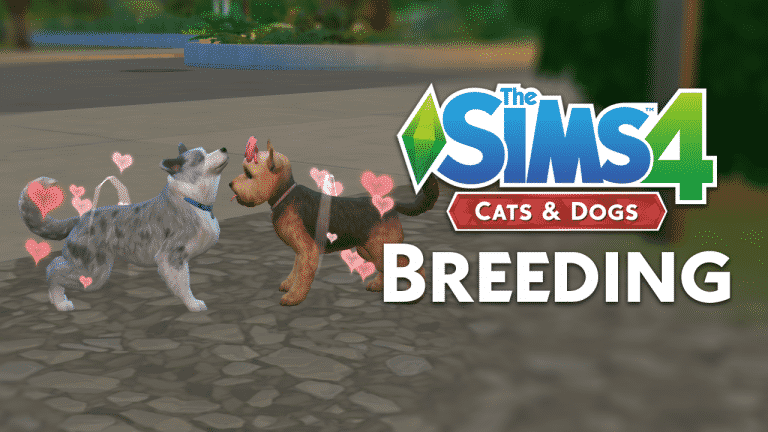
Her female cat, Libby, got pregnant right away but her Yorkie, Domo, took a few tries to conceive. Just like with Sims, a pregnancy isn’t always guaranteed when trying to grow your family. When a mating is successful, your pets will affectionately rub noses as hearts surround them. Your Sim will get a Happy moodlet from a successful mating. If it is unsuccessful, the pets will act aggressively with each other and your Sim will become sad from a failed mating.

After a successful mating, you’ll know within a few in-game hours if your cat or dog has conceived a litter of kittens or puppies. If a few hours have passed with no conception notification, try encouraging your pet to mate again. It may take some time, but perseverance does eventually pay off.

You won’t notice any changes in your cat or dog while she’s pregnant. I didn’t see a significant change in weight in Libby or Domo while they were pregnant. The good news is pet pregnancies are much shorter than Sim pregnancies. Only one day after getting pregnant, Libby and Domo went into labour. The labour notification for cats and dogs is the same one that pregnant Sims get.

Birth

After receiving the Gone Into Labour! notification for your cat or dog, keep an eye on her for a time. It will be a couple in-game hours before she gives birth. When the birth happens, your cat or dog will lie down and you’ll receive a notification that a kitten or puppy has been born. You’ll be able to name the new kitten or puppy. Libby had two kittens, one boy and one girl. Domo had three puppies, all girls. Using the Breeding Ground lot trait will help your pets give birth to larger litters. Cats and dogs can have one to three babies per litter.

Fun Fact: Amusingly, a pet giving birth to three babies awards your household with the Triple Play achievement. If your household number reaches eight from a new cat or dog entering the household, you’ll also get the Full House achievement.

Kittens and puppies have a tendency to inherit the traits of their parents, so it’s a good idea to pay attention to the traits of your cats and dogs if you plan on breeding them. Although this hasn’t been confirmed, traits may affect the price of any kittens or puppies you sell. One of Emilie’s kittens had some undesirable traits it inherited from its father and it sold for a little bit less than the other kitten and puppies.

Selling your Kittens and Puppies

Once the kittens or puppies have been born, you can sell them via the phone. In the phone tab, select Hire A Service. Sell Pet should be one of the options. Only kittens and puppies can be sold. If you want to get rid of an adult or elder cat or dog, you’ll have to put them up for adoption, instead. When you choose Sell Pet, you’ll be able to pick the kitten or puppy you want to sell. You can only sell one kitten or puppy at a time.

The Sims 4 Cats & Dogs: Breeding for Profit

After confirming the sale, you’ll receive a sum of simoleons and a pet adoption agent will come to the house with a pet carrier to pick up the kitten or puppy. The price varies, but I received somewhere between §350-§400 for each pet. Other players report receiving over §500 per pet, so breeding cats and dogs for profit is definitely a viable option in The Sims 4 Cats & Dogs.

Pro Tip: If your Sim has the Cat Lover or Dog Lover trait and they sell a kitten or a puppy, they’ll be slammed with a hefty +4 Sad moodlet, called A Fuzzy Goodbye. This moodlet lasts a full 24 hours, so it’s not ideal to give these traits to your Sim if they plan on being a cat or dog breeder for a living.

Become a Professional Breeder? Yup!

And that’s it! As you can see, breeding and selling cats and dogs in The Sims 4 is a pretty easy, straightforward process. It’s also extremely lucrative! If you’re wondering whether your Sim could make a comfortable living as a cat or dog breeder, the answer is a definite yes!


Please be advised that while breeding cats and dogs for profit can be fun in The Sims, Sims Community strongly condemns the exploitation of animals in the real world. The pets in The Sims are immune to the harmful effects of irresponsible breeding, but our furry friends in the real world are not. #AdoptDontShop

The Sims 4: Simdew Valley Challenge

Guide to SimDew Valley

Challenge created by Tichery

Inspired by ConcernedApe and his amazing game Stardew Valley.

First I would like to say I have been working on this challenge during my live streams and offline as well for over a year. This is the Original Simdew Valley Challenge inspired by the game Stardew Valley created by ConcernedApe that was released February of 2016. This is a work in progress and I will continue to create rules for this on my twitch channel here as well as updating the Google Document here.  As new Expansions are added these rules will be updated. 

I wish to give thanks my community and especially the following for helping me build houses/community lots as well as flesh out these rules.

As well as my Justified Gaming Stream Team Family. Without the support of these people this challenge would not have been made.

Setup

The Sims 4: Simdew Valley Challenge

1-Bulldoze all lots in the Sims worlds as you will need to either download my builds or make your own for the Pelican Town. My Origin is Tichery As an alternative you can also download the blank world save made by SrslySims here. You will still need to bulldoze Brindleton Bay until the save file is updated by SrslySims.

All CC used will be listed at the end of this document.

2- Make your sim any way you wish male/female and the traits and aspiration you want.

3- Download the starter farm or build your own remember that unlike SDV (Stardew Valley) you will need to  provide a bathroom for them. When downloading the houses and placing them Elliot’s Cabin and Willy’s Bait Shop should be placed in Brindleton Bay. The other lots can be places as you wish. Please enable bb.moveobjects when placing them. There is no CC in most of the builds unless listed on the building description on the gallery.

4-Residence from SDV these can be downloaded from my gallery or make your own.

5-Use free real-estate to get into the house and then reduce your money to 500 Simoleons.

6- You cannot use cheats except for those mentioned.

7- All rules for the previous generation must be followed as well in reference to jobs and earning money.

8- Turn aging off also turn off fill empty houses. 

9- No services can be hired to help with taking care of your home and family.

The Sims 4: Simdew Valley Challenge

Tasks to complete before Marriage

1-Your first Sim will need to meet all the residence from SDV there are 2.

2- In order to marry you must have a friendship to 100% and a total of 5000 Simoleons as you will need to have a wedding. 

3- You must upgrade your house with a master bed and a full kitchen. ( this means enough counter space for a microwave, coffee-maker, sink, dish rack, and meal prep.)

4-You will be aging up your children as you complete certain tasks via the birthday cake.

5- You cannot have a job you must make all money from farming, fishing, foraging, painting etc.

6- Sim must make enough money to upgrade the house with a specific room for each eligible Sim for marriage. See list below 

7-You must have at least a cat or dog I recommend that you add a Fox and Racoon as well. Randomize the traits with the randomizer here

The Sims 4: Simdew Valley Challenge

8- Your Farm must have at least one to three cowplants these are available as a recipe from gardening or fishing from the park in Oasis Springs.

9- Before your Sims Child can age up to a Young adult you must finish all the collectables. You can check your progress by looking at the collections list. To access this click inventory then click on the diamond icon at the top left of the window that opens. These will need to be placed into the Museum. You must also clean up and renovate the Community Center making it a place where your Sims can gather.

10- The Pets must be fully trained in all their skills dogs must know all tricks and cats must be fully trained in not being on counters etc.

The Sims 4: Simdew Valley Challenge

Progression/aging

In order to progress you must age your children up artificially with a birthday cake. The following conditions must be met for each life stage. Randomize your Sims traits with this tool.

First Stage Infant– This lasts 3 Sim days

Second Stage Toddler– Your toddler must max out all their skills and your Adult Sims must gain level 2 in Cooking, Parenting, charisma, handiness, painting and gardening must all be at least level 4. Your Adult Sim must find all the my sims statues. 

Third Stage Child- Your child must be an A student. They must max out at least  Your Adults must max out their parenting skills. The adults must also get their skills at least a lvl 6 or higher. The Adult Sims must find all the frogs in the Sims worlds. ( For those who don’t have all the packs you can collect what you do have)

Fourth Stage Teen- Your teen must not have a job outside of the house. They must maintain an A grade. They must max out their handiness skill, as well as meet all the SDV residence. Their Gardening, painting, writing, cooking, charisma skills must be maxed out. 

Fifth Stage Young Adult- Your Sims will be able to take over the farm at this point and you could turn this into a Legacy by turning aging on and proceeding as a regular legacy as created by Pinstar. Or if you wish this is the end of the Challenge.

The Sims 4: Simdew Valley Challenge

List of Eligible SDV Villagers 

The villagers as they become part of your family will need to max out their skills that are listed above as well as they skill tied into their hobby area as listed below.

The Sims 4: Simdew Valley Challenge

Bachelors

Alex- you must build Alex a gym when adding him to the household. Alex’s outside area will have a workout machine perhaps the new Fitness Rock climbing wall. Skill to max Fitness.

Elliot- Build a writting room with a coffee station bookcases and a PC. Elliot’s outside area will have small gardening pots and a bench where he can read books. Skill to max Writing.

Harvey- Build a workbench and hobby room. Harvey’s outside area will have small gardening pots and a bench where he can read books. Skill to max Woodworking.

Sam- Build a music room with keyboard, books and a PC. Sam’s outside area will have a treadmill or you can provide him with a small firepit and a couple chairs. Skill to max Fitness

Sebastion- A PC and tabletop games like a foosball table or don’t wake the Llama. Sebastion’s outside area will have a Rocketship. Skill to max Rocket Science.

Shane- A gaming and weight room with a excerise maching and a PC. Shane’s outside activity will be to play with his pet dog/cat. Skill to max Vet.

Bachlorettes

Abigail- Gaming room with a PC and a Motion Gamepad. Abigail’s outside area will have a guitar so she can play. Skill to max Guitar.

Emily- Build a crafting room wood working bench, books and a Painting easle. Emily’s outside area will have a meditation bench and yoga mat. Skill to max Wellness.

Haley- Photography Studio and wall of photos with PC. Haley’s outside area will have take pictures and paint from reference. Skill to max Painting.

Leah-  Build a wood working workbench, and a painting easle. Leah’s outside area will have another woodworking bench. Skill to max Woodworking.
Maru-  Build a PC room with a robot and a experiment area. Maru’s outside area will have a tinkering area place a Rocketship to build. Skill to max Rocket Science.

Penny- Build a reading room with a lot of books. Penny’s outside area will have a meditation bench and yoga mat. Skill to max Wellness.

The Sims 4: Simdew Valley Challenge

Please comment below and let me know how you are enjoying this challenge.

The Sims 4 Console: New Update + Patch Notes! (November 21st, 2017)

The Sims 4 Console: New Update + Patch Notes! (November 21st, 2017)

The Sims Team has released a brand new Update for The Sims 4 for Console devices – Xbox One and PS4! The latest Update fixes the issue with save games.

Update: 11/21/2017 – v1.02

Saves are better now.
-SumGuruCleaningLady

The Sims now has its own Official Merch Store!

6

The Sims Team, in cooperation with Threadless have created their very own official Merch Store! This Merch Store provides so much – from clothing (T-Shirts, Tank Tops, Hoodies, Sweatshirts & more) to cool accessories.

November 21, 2017 –Best-selling life simulation game The Sims™ and global artist community shop, Threadless, teamed up to launch an exclusive product line that brings fans an official The Sims merchandise store for the first time ever. Starting today, fans can purchase t-shirts, cell phone cases, notebooks, mugs, and more, featuring 17 unique The Sims designs through the Threadless shop .

For over 17 years, The Sims has brought players the power to play with life and express themselves through video games. Through Sims, players create and control everything from hairstyles, skin color and outfits, to Sims’ homes, hobbies, and career aspirations. By supporting an online community of artists, Threadless shares that same passion for giving people the power to create and shape their image in real-life.

The Sims and Threadless partnershipcollaboration is a match made in creative-expression heaven,” said Jake Nickell, CEO, Threadless. “We are two brands that deeply believe in people having the power to show the world who they are and who they want to be, whether that world is virtual or real. We’re looking forward to bringing the Threadless audience a new avenue to bring their Sim’s world to life. We are thrilled that The Simsfans will be able to explore the branded shop, as well as other artist’s awesome artful products on our website.”

Developed byIn addition to brining fans official The Sims merchandise, Maxis,  also launched two fan-requested The Sims 4 games launched earlier this month. Available for PC and Mac players, The Sims 4 Cats & Dogs* is the furriest expansion yet, where players can design their purrrfect pet with unique features and personalities, while discovering new activities to enjoy in the coastal shores of Brindleton Bay. The Sims 4base game is also available to Xbox One and PlayStation® 4 players, bringing the iconic game players know and love to new platforms.


Check it out!The Sims now has its own Official Merch Store!

The Sims 4: ModifyRelationship Cheat has been updated!

16

Some of you probably noticed that the ModifyRelationship cheat doesn’t function properly ever since the latest big update for The Sims 4.

SimGuruNick posted a tweet about this saying that the cheat still works – it was just renamed and needs a LTR_ prefix to the “Friendship_Main / Romance_Main” part of the cheat.

FOR SIMS: If you want to add a relationship between Sims, use the following code:

FRIENDSHIP: modifyrelationship <yoursimFirst> <yoursimLast> <TargetsimFirst> <TargetsimLast> <+amount> LTR_Friendship_Main

ROMANCE: modifyrelationship <yoursimFirst> <yoursimLast> <TargetsimFirst> <TargetsimLast> <+amount> LTR_Romance_Main

FOR SIMS + PETS: If you want to add a relationship between Sims and Pets use the following code:

FRIENDSHIP: modifyrelationship <yoursimFirst> <yoursimLast> <TargetPetFirst> <TargetPetLast> <+amount> LTR_SimToPet_Friendship_Main


For more cheats visit our The Sims 4 Cheats Page!

The Sims 4 Cats & Dogs Mod Spotlight

In this post we are going to showcase some of the latest Mods made for The Sims 4 Cats & Dogs Expansion Pack!

Before you continue, please note the following:

  • EA does not pre-screen Custom Content /Mods and players should always exercise caution when adding Custom Content to their game files.
  • Make sure your mods are up to date. For a full list of broken and fixed mods CLICK HERE!
  • After each The Sims 4 Update your game will automatically disable Mods and Custom Content. You can re-enable them by going to Game Options > Other > Enable Custom Content and Mods.

You can find more of our Mod Spotlights HERE!


Playable Pets Mod

Gives you full control over your Cats and Dogs!

The Sims 4 Cats & Dogs Mod Spotlight

Praise Vet Employee All You Want

This mod removes the restrictions on praising your Vet Employees.

The Sims 4 Cats & Dogs Mod Spotlight

All Perks Free (Updated for Vet Clinic)

Unlocks all Vet Clinic Perks making them free!

The Sims 4 Cats & Dogs Mod Spotlight

Pet Sale Price Increase

This Mod lets you sell your Cats and Dogs for a higher price!

The Sims 4 Cats & Dogs Mod Spotlight

Vet-Hire Who Ever!

This mod will allow you to hire Sims for your Vet Clinic regardless of their skill level.

The Sims 4 Cats & Dogs Mod Spotlight

The Sims Mobile: New Clip

1

The Sims Mobile has shared a new clip on their Instagram to promote the ability to Pre-Register for the game’s release. Check it out!

Origin Black Friday Sale (Save Up to 75%)

7

Origin is currently having a huge Black Friday Sale where you can save up to 75% on many popular games, including The Sims 4 Base Game, Expansion Packs, Game Packs and Bundles.

Here are the prices of each Sims 4 game + pack type during this sale:

  • The Sims 4 Base Game ($9.99)
  • The Sims 4 Expansion Packs ($15.99) (Cats & Dogs not included in the sale)
  • The Sims 4 Game Packs ($14.99)
  • The Sims 4 Bundles ($29.99)

The sale ends on November 28th at 10AM PT. Make sure you take advantage of this offer while it lasts!

Origin Black Friday Sale (Save Up to 75%)

You can now Pre-Register for The Sims Mobile and get Bonus Content

1

The team from The Sims Mobile has just shared some more news about the game. Although we still don’t know when’s the exact release time of this game you do now have the ability to pre-register for the worldwide release, giving you bonus content once the game is out! Here’s what you get by pre-registering:

Receive an early bird gift, including A Mid-Flutter’s Dream Top, Artist’s Mood Tee, and a Burst Your Bubble Rug, when you play within the first 15 days of official release.


Here’s how to pre-register:

For iOS

Go to The Sims Mobile website and enter your details such as birthday, mobile number and country.

For Android

Go to the official Google Play product page and select “Pre-Register”.


You can now Pre-Register for The Sims Mobile and get Bonus Content

Create Three Legged Pets in The Sims 4 Cats & Dogs with this Mod

6

One of the top questions by the community once The Sims 4 Cats & Dogs was announced is if we’ll be able to create three-legged pets in the game. Although The Sims Team didn’t want to get involved with this sensitive aspect, modder Wyattssims came to the rescue with a mod that lets you create your three legged companions in the game.

Create Three Legged Pets in The Sims 4 Cats & Dogs with this Mod

The mod comes in two variations:

You can find these in Create A Pet’s clothing section where both mods are treated as a clothing piece that you can select. Both mods are purely cosmetical and will not influence your gameplay or animations in the game.

To install these extract the zipped content to Electronic Arts > The Sims 4 > Mods folder. Make sure you have Mods / CC enabled in your game options!

Simmers show off their cute moments in The Sims 4 Cats & Dogs

The Sims 4 Cats & Dogs Expansion Pack has been out for a few days already – just enough to give Simmers time to prepare some cute screenshots and moments that they’ve captured in their game.

We asked Simmers on twitter to show off their adorable, lovely and funny moments from the game. Here’s what we got:

Share with us YOUR cute The Sims 4 Cats & Dogs Screenshots by tweeting us @TheSimCommunity!