Home Blog Page 454

The Sims 4: Do We Need Toddlers?

SIMS4_Logo_Final_rgb

Ever since The Sims 4’s inception, the Simming community has been upset with the absence of toddlers in the life stages. Many were simply outraged at the fact a whole part of a Sim’s upbringing was missing, but do we really need it? Since I only began playing the Sims in the third generation, I can only base my experience and opinions on the past 2 generations.

I would like to refer to myself as an expert in creating legacy families. If anyone has ever watched me play the Sims, they would quickly say I have mastered the art of woohoo and baby making. In my 3 years of playing the game, I have learned how useless both the baby and toddler stages were to me. The whole point of the series is to “Play with life” which includes having children, growing into adulthood, and repeating the process with every new generation. Of course to start a new generation, you need to have a baby. As much as I didn’t like them, they were definitely necessary in the circle of life, so this stage can certainly not be avoided, unless you’re only starting families through adoption. Once the babies have outgrown their bassinets, the terrible two’s begin, and I mean terrible. In the Sims 3, my toddlers would constantly cry not just for their basic needs but for no reason at all. It was an exhausting experience for both me and my Sims.Screenshot-4

Before the Generations expansion pack (EP), just like infants, toddlers were not able to add much to the gameplay. They had very few social interactions they could use before the EP release. Once the Generations EP was added into the mix, the toddlers were still very limited in what they could do at that life stage. Every other stage, including the equally forgotten elder stage, got a revamp of their social interactions. School suddenly became very interesting for both elementary and high school kids. Weddings had more excitement with bachelor/ette parties, and elders were able to reminisce about the good old days of it all. After the addition of other EP’s, like Seasons, the toddlers were able to only do slightly more but only in conjunction with an adult. One example of this allowed adults to play with toddlers in the ocean.Screenshot-6 As a player who loves to get the most out of every stage in life, I feel as though the infants and toddlers always got the least amount of time during game development. The highlight of the toddler stage was the ability to teach them how to speak, how to walk, and how to use the potty. This milestone was the same for every toddler and did not vary no matter the change in personality traits. It didn’t add to what I saw the Sims could be, a place where no one story can match another. Later on I discovered toddlers had the same results with toys. I purchased the “Tiny Prodigies Early Learning” set from the Sims 3 store and quickly found out that all it did was speed up the highlights of being a toddler. The premium content, “Local Motion Toddler Walker” and “Head Start Playpen”, simply allowed the toddlers to learn to speak and walk on their own. tiny

It was very heartbreaking to come to terms with the fact my toddlers were virtually useless. My toddlers couldn’t play with one another unless in the “Head Start Playpen”. Even when they were able to talk to one another, toddlers couldn’t build relationships with each other. This took a huge toll on the stories many Simmers tried to create, since many sincerely wanted some Sims to be friends since early childhood. That idea also eliminated the possibility of sending them to preschool to learn the basics of a specific skill. (Toddlers could play with blocks or a xylophone to increase skills, but it was never made clear which skills they would attribute to and the amount of what they learned played a huge part in whether they received any credit at all towards their skill building as a child.)

In the end, I wasn’t able to raise my toddlers to be mischievous, friendly, or insane if I wanted to. It almost felt like I didn’t have any control over my babies or toddlers. This trend seemed to continue once the fourth generation of Sims was released. Infants were now placed in very basic bassinets and could not be removed from them. Of course this helped in the ceasing of babies being left on the floor in the Sims 3. Now that the infants are more attached to the crib, it’s almost as if they are being treated like objects the children and adults can use from time to time. It was a very nice touch to add breast feeding as an interaction, but almost all of the other options for a baby are repeated choices from the Sims 3. Seeing how in the Sims 4 infants already have limited mobility and gameplay options, it seems as if the studio agrees that a toddler stage is somewhat redundant. There aren’t many possible outcomes your infant or toddler could have once the stage is complete which only means the studio feels it is more reasonable to spend time on the stages Simmers play with the most, child-elder. Since this decision is permenant, I’m ok with not having toddlers. It was a stage of life that wasn’t going to offer much in gameplay and story telling. If toddlers were ever somehow able to join the game, I would like so much more from that stage. Comment below on what things you would’ve liked your toddler Sims to do.


The Sims 4 Challenge Guide: Ultimate Survival

A guide to The Sims 4 Ultimate Survival Challenge

created by ApelsinOriental

Getting started on any type of challenge with the Sims 4 can be daunting to say the least. However, Challenges can help you learn the game mechanics and just how capable your Sims really are.  This is a little know challenge that was written by ApelsinOriental. For this challenge you will need to have Outdoor Retreat Game Pack. Ultimate Survivor Challenge is very fun and really highlights the Outdoor Retreat Game Pack items.

Outdoor Retreat

I recommend you not only thoroughly read the rules of your challenge, but print them or have the webpage with the rules open for easy reference. When you’re ready to begin the Ultimate Survivor challenge you will want to make a new game. To do this click on the plus sign at the top right corner of the main menu in the game. With this challenge you can play it in conjunction with the Runaway Teen challenge or make a new Sim for the challenge. There are of course no use of cheats or mods to aid in the game play advancement or to make Simoleons. Your main goal is to survive and make $50,000 in Simoleons that you will use to build a house. For now you will start out with no real house ( no walls) or electricity. You can’t travel to other areas to collect things only what is accessible from your house by walking. This also means no job all Simoleons are earned from collecting, painting, sculpture, and gardening.

The Setup

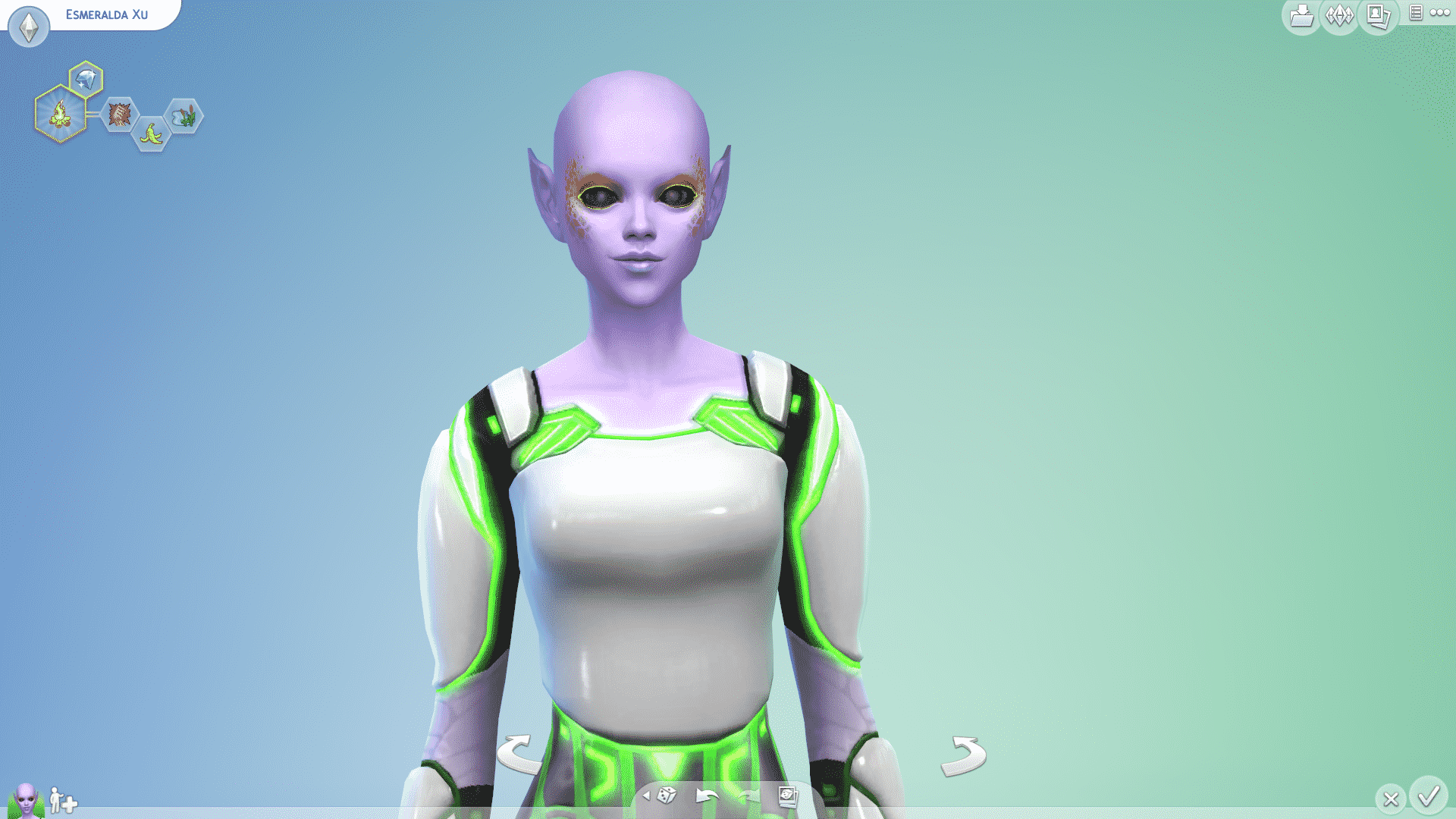
Make a new Sim, this will give you the opportunity to use the outfits and hairstyles from Outdoor Retreat Game Pack. You also may want to consider creating an Alien, if you have the Get to Work expansion pack, for a better story telling experience. Such as your Sim was from Sixam and crashed here. As a result they now need to learn to survive. If story telling is apart of how you like to play then by all means get creative.

09-03-15_6-17 PM-3 09-03-15_6-21 PM

When creating your Sim you may want to give them the Loves the Outdoors trait. This will help you as they will be outside throughout the challenge. Giving them the Aspiration of Outdoor Enthusiast may make collecting and fishing helpful as well. This helps when you need to gather items within the area to sell for more Simoleons. Carefully consider the other two traits as well use traits that will compliment the aspiration/trait combo. For more fun go completely opposite with the traits to see what happens. Don’t forget to save your Sim to your library.

When you get into the world you will need to buy and build up the lot Oakenstead, this is a 50 x 50 lot. Unlike the Legacy challenge by Pinstar you cannot just pick a 50 x 50 lot, it must be Oakenstead. This lot has many items that can be harvested and collected, plants, rocks and fish respawn regularly. Sell everything you gather from this area.

“Building” your lot; First bulldoze the lot, you will need to remove everything from this lot. The bulldozer icon is on the toolbar at the top center of the screen. After you have removed all the items, map icon on the toolbar at the top right side of the page. You can also click on the click on the three dots at the top right hand side of the screen and choose Manage Worlds.

09-02-15_1-07 AM

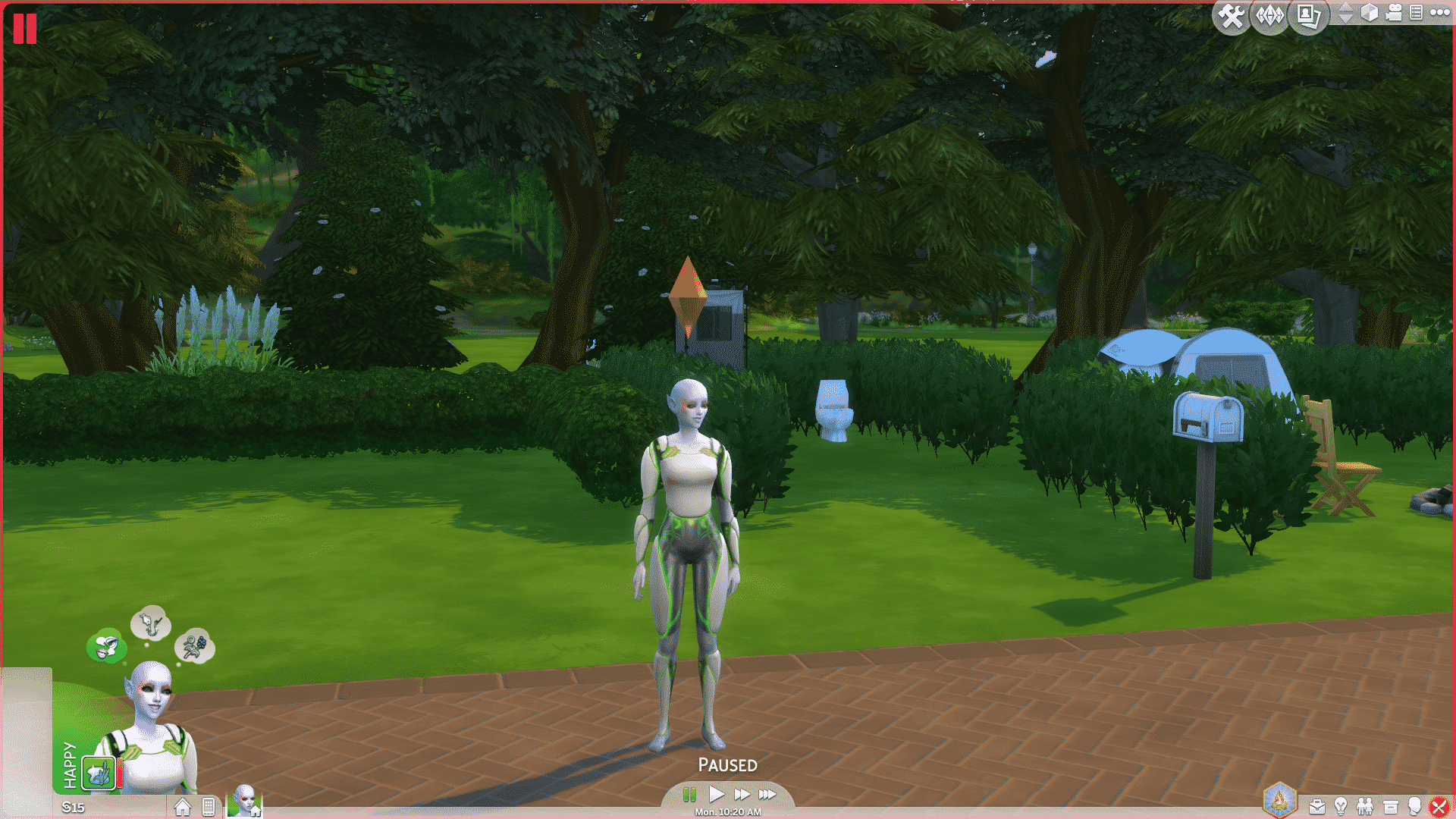
Now you are ready to actually build your area. Buy the cheapest tent, the cheapest toilet, cheapest outdoor shower, and a fire with some chairs. Then buy flowers and trees with your remaining Simoleons. You must spend them all or as close as possible, I ended up with $15 Simoleons.

Once all these items are in place you can begin the challenge, your main goal is to survive and earn $50,000 Simoleons in reserve that you will build a home with. Once you have those funds in reserve and you start to build I would recommend you use the following cheats: bb.showhiddenobjects, bb.ignoregameplayunlocksentitlement, bb.moveobjects to really build a spectacular home, especially if you chose to have an alien as your survivor.

09-02-15_11-53 AM

Well now that you have your challenge set up and ready to play enjoy this gameplay. Relax it’s supposed to be fun, when you have fun with a challenge and realize it isn’t as daunting as you first thought you will want to do more. With the Alien aspect of the Sims 4 you might consider that your Sims home would include a rocket ship to get them home to Sixam. Another great story telling avenue for those who like to play Sims as a story.

09-04-15_12-12 AM

Here is a picture of my sim Esmeralda Xu and her camp site. I chose to block off room areas and make it look like a wilderness area. I also created an area that will be a garden eventually.  Well good luck Simmers and enjoy your challenges.

Happy simming,

Tichery~

The Sims 4 Room Design – Colorful Ballroom

Hello everyone, today I figured with the new hype about this “mystery” stuff pack; I’d shine some light on one that’s been out for a while, Luxury Party. I don’t know about you, but the build items that came with this pack are some of my favorites. While I was building this beauty, picking the decor was my first choice. I wanted to find the colors I wanted to go with before I started adding in wallpaper, flooring and wall decorations.

09-07-15_1-47 PM

When I build, I love using colorful items that will make a room just pop, so when this pack came out I was so happy with its content. It offers some of the fanciest things in the bright colors everyone loves to see in builds.

09-01-15_8-15 PM

It offers some great wall fixtures which also can be used as lights as you see here behind the bar, plus I added that little palm tree neon sign from the base game that I’m pretty much obsessed with using…

09-01-15_8-15 PM-2

… and of course what would  a ballroom be without a buffet table and stereo to dance too?

09-01-15_8-16 PM-2

If you would like to download this and tweak it to how you want it, you can find it on The Gallery  

I sincerely hope you enjoyed this Colorful Ballroom Design/Build Guide. I hope to see your own creations shared on The Sims Community Social later on! <3

The Sims 4 Maxis Match CAS: Summer CC Showcase!

maxismatchCCaugustfavourites

For all the maxis match CC lovers out there, here are some personal Create-A-Sim favourites from August!

 All links found on tumblr.com, and credit to all creators for the images

Hairstyles

 WildlyMiniatureSandwich’s Recolours of FallenStar1119’s Becca Hair

This gorgeous hair is a mashup of two existing Maxis hairs. This recolour by WMS includes all base game hair colours and several brand new, vibrant ones. These are just recolours though, so you will need the mesh from the link found on WildlyMiniatureSandwich’s page for these to work.

WMS_beccahairrecolours

downloadbutton

Kiara24’s Long Flipped Hair Conversion for Girls

Personally my favourite hairstyle from the Cool Kitchen Stuff pack, if you were upset about it not being for children, problem solved. Here it is!

Kiara24longflipconversion

downloadbutton

WildlyMiniatureSandwich’s Conversion ‘Libellule’

This conversion is from male to female and all ages, it’s always nice to have some variety for our short haired sims! It comes in all the maxis hair colours plus extra.

WMS_Libellule_genderconversion

downloadbutton

Primadonna Sim’s Cool Kitchen Hair Edit

If you feel like the side pony from Cool Kitchen was a little too high on top, this edit reduces that and is a new standalone hair, with all the original maxis textures.

primadonnasimscoolkitchenmeshedit

downloadbutton


Skin Details

MadMono’s Face Skin Blend

This facial skin blend has two nose options and is eyelid free, so you can use it with any eye shape.

madmonoskinblend

downloadbutton

Simtzu’s Rensims Nose Bulb Conversion

This is a conversion for the nose shadow part of a TS2 face kit by Rensims, it’s available for children to elders and both genders.

simtzurensimsnosebulb

downloadbutton

Clothes

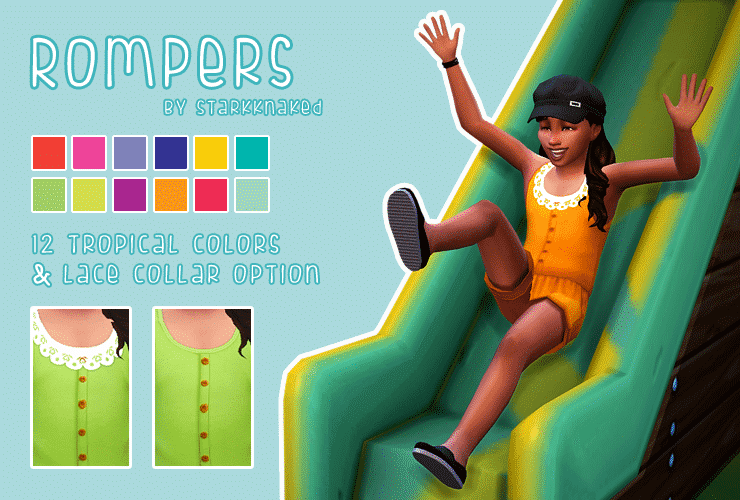
Starkknaked’s Rompers for Kids

This is a mashup of two maxis items to make one full romper, in various bright colours for our mini sims. It also has a lace collar option and is enabled for males and females.

rompersbystarkknaked

downloadbutton

MarvinSims’ Cozy Wool Sweaters

It’s getting colder as we enter into Autumn, so what better to get your sims in the mood than some cozy looking sweaters? These are slightly less maxis match-like, however they are done so well and I think they still fit in the game nicely!

marvinsimssweaters

downloadbutton

And here is a little add-on for these!

Grazeness’ Autumn Sweaters Recolour

9 Recolours of MarvinSims’ Sweaters

grazenessautumnsweatersrecolourgrazenessautumnsweatersrecolourpalette

downloadbutton

LazyOwlette’s Plaid Shirts

And finally here are 12 swatches of a lovely new plaid shirt for our ladies.

lazyowletteplaid

downloadbutton

Thanks for checking this out and feel free to let us know what you want to see!

Sims 3 to Sims 4 Object Conversion Tutorial

Sims 3 to Sims 4 Object Conversion Tutorial
Today I written a beginners tutorial for converting objects from Sims 3 to Sims 4. For this tutorial you will need to have The Sims 3 installed on your computer and any expansions and stuff packs you would like to convert. I will be walking you through the conversion steps in sections, I will refer to other sections as I go so please follow this guide step by step. This tutorial is set up so that any creator at any skill level may follow easily.
You can find a forum thread here where you can ask any questions you may have about this guide.
For this tutorial you are going to need the following programs:
Be sure to download and install these programs, if you have any questions on installing please ask.
Sections are as follows:
  • Section One – Exporting TS3 Textures & Meshes with TSR Workshop
  • Section Two – Exporting Sims 4 Meshes with Sims 4 Studio
  • Section Three – Converting Sims 3 Meshes to Sims 4 with Blender
  • Section FourImporting Meshes into Sims 4 Studio & Tags


Sims 3 to Sims 4 Object Conversion Tutorial 
In this first section I will be teaching you how to how to ‘Export’ Sims 3 meshes and textures from TSR Workshop. If you have not already please download and install TSR Workshop.
So, let’s get started.
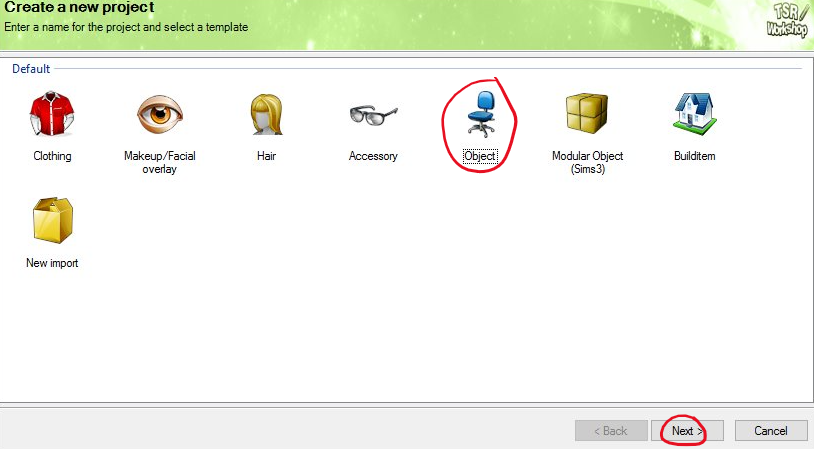
1. ‘Run’ TSR Workshop.
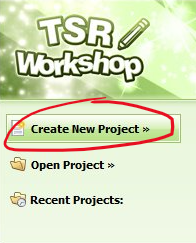
2. Click ‘Create New Project’ .
706cdd5d98e082a14b60fdf1823f8349
 
3. Click ‘Object’. Then click ‘Next’.
cc68b2ee387d6cbab99255a0f2bea1f5
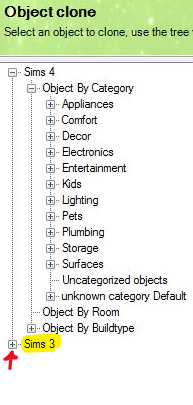
4. Scroll down until you see ‘Sims 3‘. ‘Click’ on the ‘+’ beside the word ‘Sims3’.
(Don’t click on the text, the program may crash.)
1de7124c8deb5cd5e14529d0067ec8fc
 
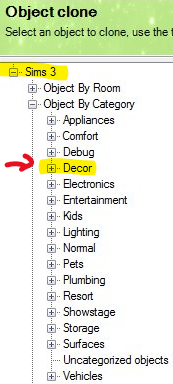
5. The first item we are going to convert is a decor item. Under ‘Sims 3’ scroll until you see Decor. Then
‘Click Decor’.
8c5b0463a4058dfaa89223851591ac23
 
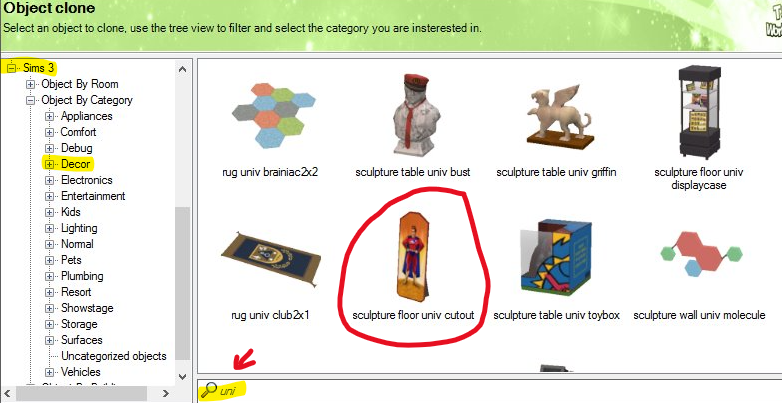
6. We are going to convert the ‘University Life’ floor cutout for this tutorial.
To search for this item, next to the ‘Magnifying Glass’ type in ‘Uni’. You will now see the ‘Floor Cutout’.
‘Click Sculpture floor univ cutout’ then click ‘Next’.
7e515ba10dc8d5014542b2ff6255f81e
7. On the next page, you will see ‘Project Name’, ‘Title’, and ‘Description’. Just ignore this page, ‘Click Next‘.
8. Once you see ‘Finished’ at the top of the page ‘Click Ok’.
 
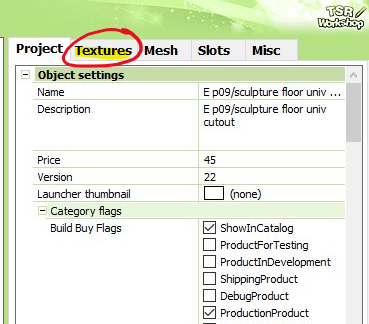
9. Now you should have a new screen with the ‘Model’ in the ‘View Window’. On the right side of the screen there is a Navigation bar with 5 tabs. ‘Click Textures Tab’.
d6cd59cf794bd1d1aa98d79b085b18b6
 
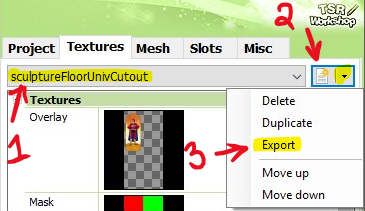
10. Under the ‘Textures’ tab, at the top you should see a drop down window and a box next to it with an icon of a piece of paper with a gold star and a drop down arrow.
-The first dropdown box is your textures. ‘Texture Box’
-The second icon is where your export button is located. ‘Icon Box’
11. Under the ‘Texture Box’ select the first texture in the list.
(You should see three textures listed in this box for this item.)
Next, click the arrow next to the ‘Icon Box’ and ‘Select Export’.
3c29cb7c2cb7717ee2db92e83ef23e39
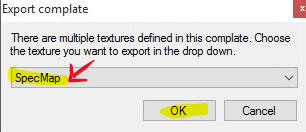
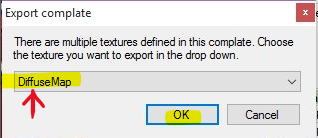
12. Now you have a pop up window, make sure it says “DiffuseMap’ in the drop down box. ‘Click Ok’
32785a4d0f1c008db95bc70315319430
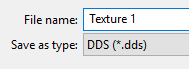
Next, name your texture. Save as .dds file. Then ‘Click Save’.
I recommend saving it to your desktop.
(This is where I will save all items from this point forward unless mentioned otherwise.)
9f1e22596e9d585b815a84e92abdd0ea
 
13. Repeat steps 11 and 12 for the other textures in the drop down menu.
13a. You will need to do one last step under the ‘Textures Tab’. Export any of the textures again, instead of saving ‘DiffuseMap’ save as ‘SpecMap’. Name your spec map “Spec Map’‘ or something to distinguish the difference from the other textures you extracted.
db67b3f403b7e0c1240957b04790853a
14. Now that we have all of our textures and specular saved to out desktop. We need the mesh.
‘Click’ the “Mesh Tab’ next to the ‘Textures Tab’.
97a87be1cf6934ed9f17ca7c88da8f9f
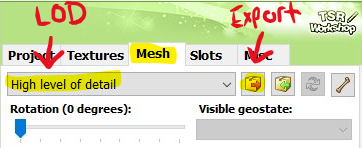
15. Under the mesh tab you will see a drop down menu that says “High Level of Detail’ this is your ‘LOD box’. Next to the LOD box is a icon with a box and a red arrow, this is your ‘Export’ button.
8a279cdb68dce36f90f287b73784d49d
In the LOD box ‘Select High level of detail’ and ‘Click Export’ as pictured above.
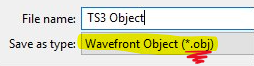
Name your LOD, save as Wavefront Object (.obj)
(Be sure to save as .obj file, or you will not be able to open the mesh in Blender.)
4037004b1154024977bbbedfb0870373
16. You now have all that you need from TSR Workshop!
On your desktop (or where you saved the files) you should have:
  • 3 .dds texture files
  • 1 .dds specular file
  • 1 .obj mesh file
You can now close TSR Workshop if you have all the above files saved.
Sims 3 to Sims 4 Object Conversion Tutorial
In this section I will be teaching you how to how to ‘Export’ Sims 4 Meshes from Sims 4 Studio. If you have not already please download and install Sims 4 Studio. You will need to register for the site before you can download.
 
For this tutorial section we will be continuing for section ones decor item. We will be extracting the base game pedestal mesh.
For this tutorial I am using version: 2.5.1.6 (Joy) Open Beta Version
 
So, let’s get started.
1. ‘Run’ Sims 4 Studio
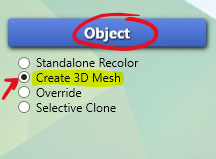
2. Under the ‘Object Button’ in the middle of the screen ‘Select Create 3D Mesh’. Then ‘Click Object’.
eadc0aed5ae692d040066f1036eb3ddc
3. The next window that opens has a ‘Search’ bar at the top with a lot of icons listed underneath.
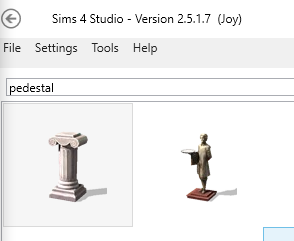
In the ‘Search Bar’ type in “pedestal” (without parenthesis)
The first icon should be: Roman Pedestal, from TS4 base game.
‘Select’ the pedestal and ‘Click Next’
74d91d91b48c4fb6e2f4188ee04927cb
4. Next, a pop up save window will appear. You will want to name this .package file and save it in your MODS folder.
I have named my .package TS3 cutout conversion.
Mods Folder Location: (Documents Folder >  Electronic Arts > The Sims 4 > Mods)
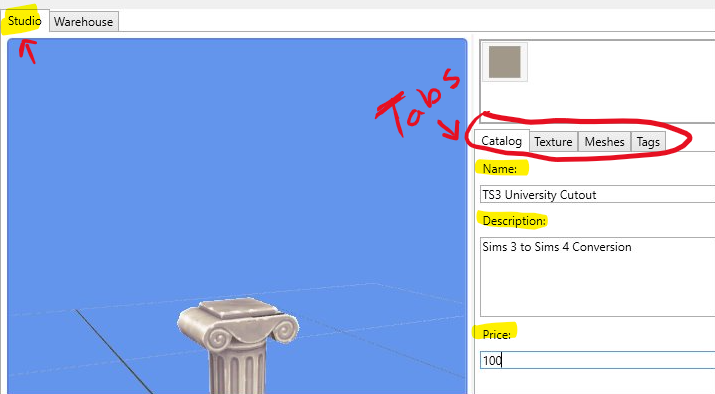
5. Now that you saved your new creation in your MODS folder. You should have a popup window with TS4 ‘Roman Pedestal’ in the display window. (If you do not see the display window ‘Click Studio’ on the top left of the screen.)
On the right side of the screen there are 4 tabs: Catalog | Texture | Meshes | Tags
‘Click Catalog Tab’ if you are not on that tab already.
This is where we will put a Name, Description and Price to our new creation.
9d5914ebfc26134b888562baa6caf772
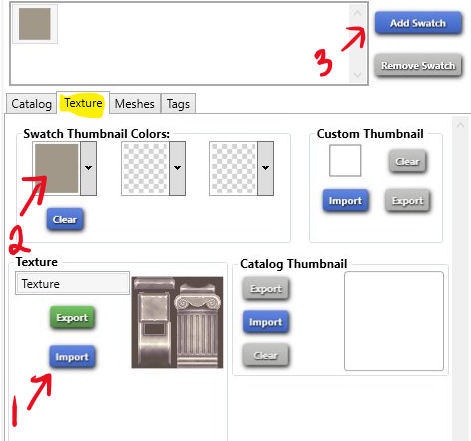
6. After you have put our new creation info in, ‘Click Texture Tab’
Under the ‘Texture Tab’ It should look like this:
fe7fede5d06563a5deab205df2cba98b
6a. First, Click ‘Import’ find your first texture .dds file select it and ‘Click Open’.
Now you should see the texture of the TS3 cutout on your pedestal.
Next, Right click the box with the “Swatch Thumbnail Colors” and this will create an eyedropper tool. With the eyedropper tool select a color on the model (I choose red).
6b. Click “Add Swatch” pictured above. Repeat step 6a for all other textures.
(There are 3 included with the TS3 Cutout from Section 1)
 
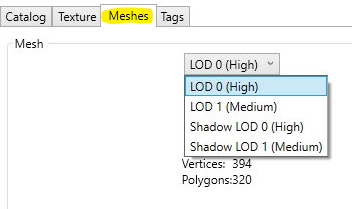
7. Now that we have all of our TS3 textures on our TS4 pedestal ‘Click Meshes Tab‘.
5273aa5a6020c95b3d4f8c82e9b6c7e0
Now you will see a drop down menu that says ‘LOD 0 High’ select it and ‘Click Export Mesh’
Save the blender file to your desktop.
(I named mine ‘0 Pedestal Blend’)
8. You have now extracted your Sims 4 mesh!
On your desktop (or where you saved the files) you should have
From Section One:
  • 3 .dds texture files
  • 1 .dds specular file
  • 1 .obj mesh file
From Section Two:
  • Blender File
You can now minimize Sims 4 Studio, don’t close it we will be returning to it in a later section.
Sims 3 to Sims 4 Object Conversion Tutorial 
In this section I will be teaching you how to how to import your Sims 3 mesh into blender and convert it to Sims 4. If you have not already, please download and install Blender.
For this tutorial section we will be continuing for section ones decor item and section two’s pedestal mesh.
For this tutorial I am using version: Blender 2.75a
So, let’s get started.
1. ‘Open’ your TS4 blender file you saved in Section two.
In the blender ‘Preview Window’ you should see the Pedestal mesh with our TS3 texture on it.
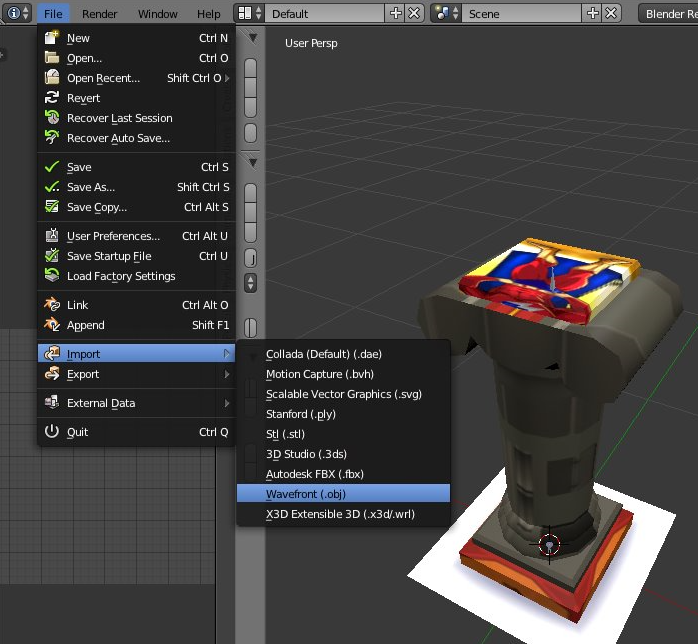
ffadf02ca89f726d897e328722bf2db8
Next, Go up to ‘File’ > ‘Import’ > ‘Wavefront (.obj)
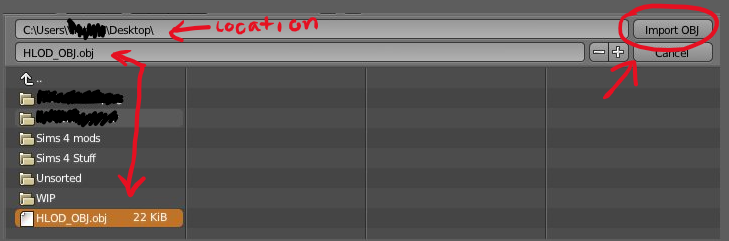
A save window will open once you click ‘Wavefront (.obj)” find your TS3 .obj file we saved to our desktop in section one.
‘Select’ your ‘Obj’ then ‘Click Import OBJ’
4eae1ca21d3ae7310cecc52b54db8ce0
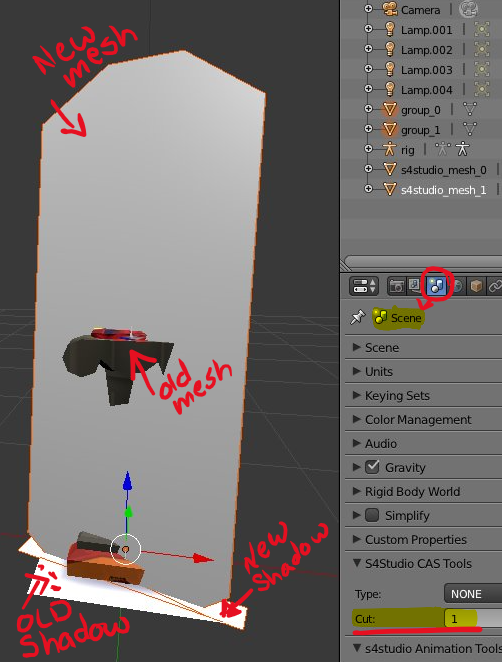
2.Now you should have your new mesh on top of the old pedestal mesh.
In the picture below is how your view window should look. I have pointed out in red where the items are that are important.
You have the
  • Old Pedestal Shadow
  • Old Pedestal Mesh
  • New Cutout Mesh
  • New Cutout Shadow
add7680c91d61193d7906cf4045b2ffc
3. First, ‘Right Click’ the pedestal. On the right side of the screen you will see Cut: 1
(Remember this number)
Next, ‘Right Click’ the new mesh. Under the cut, it will be blank. Change the Cut number to 1 ‘Press Enter’.
(So the new mesh and the pedestal mesh both have the same cut number)
4, Lets ‘Right Click’ the pedestal shadow. On the right side of the screen you will see Cut: 0
(Rememver this number)
Next, ‘Right Click’ the new shadow. Under the cut, it will be blank. Change the Cut number to 0 ‘Press Enter’.
(So the new shadow and the pedestal shadow bot have the same cut number)
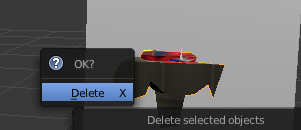
5. Now we need to get rid of the old mesh..
‘Right Click’ the pedestal the item will have an orange glow once it is selected. press ‘X’ on your keyboard then ‘Left Click’ Delete. (As pictured below)
16bd54f23b2cb197992c0dd1e019d4b3
6. Now we need to get rid of the old shadow.
‘Right Click’ the pedestal shadow now. press ‘X’ on your keyboard then ‘Left Click’ Delete.
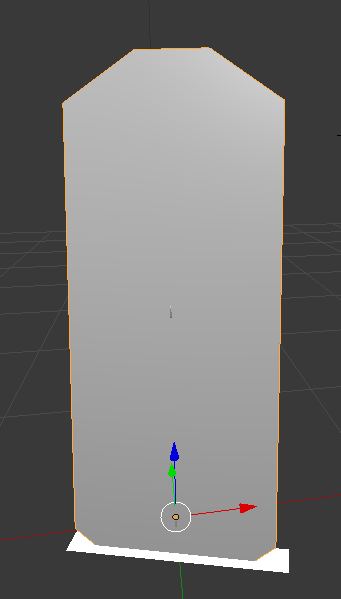
7. Now your view window should look like the photo below
ce914fdead150a416b13162cfddef323
To double check, ‘Right click’ the new mesh, make sure it has the cut number 1. then ‘Right Click’ the new shadow, make sure it has the cut number 0.
If both the mesh and shadow have their cut numbers. You can now save your new blender file.
To Save: File > Save As > overwrite your old blender file
8. Now we have the mesh exported we need to also get the shadow LOD.
‘Right Click’ on the new mesh, change the cut number to 0. (Now your Mesh and Shadow have the same Cut number.)
Next, save your shadow LOD.
To Save: File > Save As > Save as ‘Shadow LOD’
You are now done with blender!
See that was not to bad! Blender is not that scary.
On your desktop (or where you saved the files) you should have
From Section One:
  • 3 .dds texture files
  • 1 .dds specular file
  • 1 .obj mesh file
From Section Two:
  • Blender File
From Section Three:
  • New Blender File
  • Shadow LOD Blender File
You can now exit blender. You will not be needing it again for this tutorial.
Sims 3 to Sims 4 Object Conversion Tutorial
In this section I will be teaching you how to import your new mesh into Sims 4 Studio and explaining how to use tags and finish up your object to be used in game!
So, let’s get started.
1. ‘Open’ Sims 4 Studio
(You should still have this program minimized from section two.)
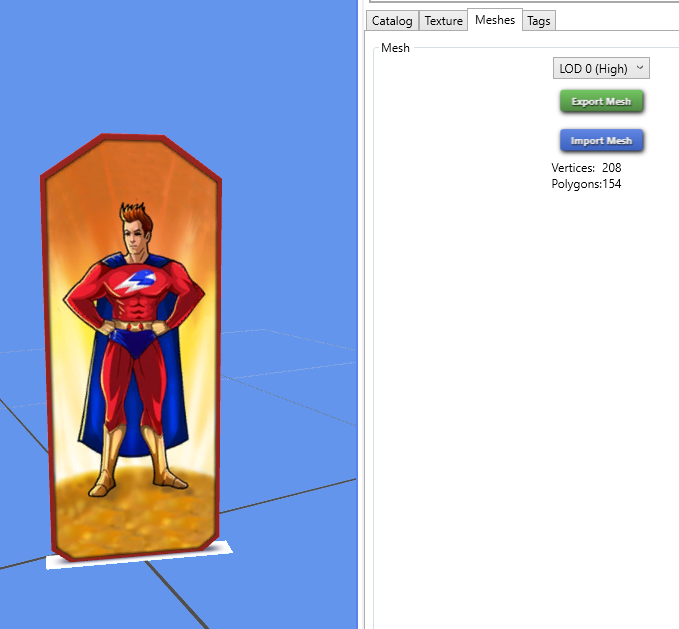
2. Under the ‘Meshes Tab’ make sure you have LOD 0 (High) Selected.
‘Click Import Mesh’
A save window will open. Find your new blender file you saved in the previous section.
‘Select Blender file’ then ‘Click Open’
You should now see the new mesh in the preview window as pictured below
17bfb616f8d01d4f680d46871ea0af86
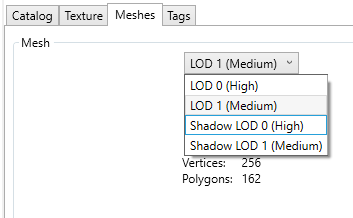
3. Now we need to ‘Click’ the drop down and select the next LOD
‘Select LOD 1 (Medium)’ then ‘Click Import Mesh’
The save window will open again, find the same mesh and import it for LOD 1 as you did in previous step.
So now, LOD 0 and LOD 1 both have the new mesh imported.
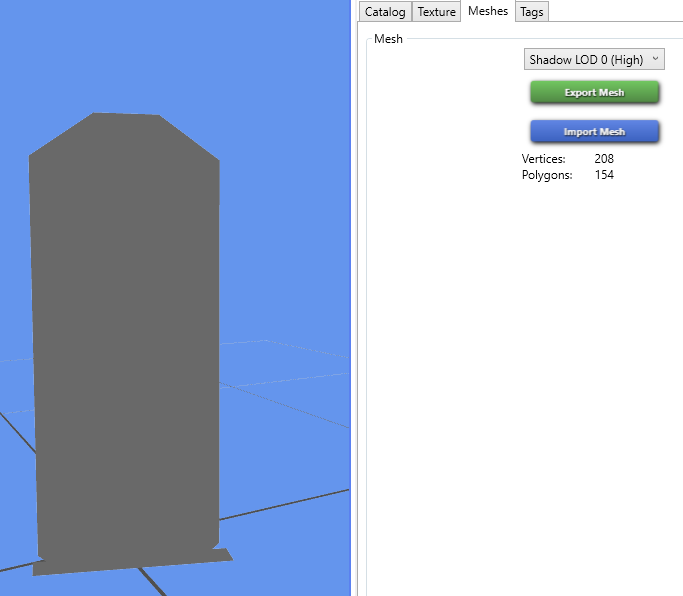
4. Next we need to import our shadow LOD
317b7ee0d27d561f785476bb02a8f822
Under the ‘Meshes Tab’ make sure you have Shadow LOD 0 (High) Selected.
‘Click Import Mesh’
A save window will open. Find your shadow blender file you saved in the previous section.
‘Select Blender file’ then ‘Click Open’
Repeat this step for Shadow LOD 1 (Medium).
Once you have imported both of your Shadow LODs. Your preview screen should look like this
0cff3056764828a9684679a892991caa
5. Select the LOD drop down one last time and Select LOD 0 (High) ‘
So you can see the texture on the mesh.
6. Next to the meshes tab ‘Click Tags’
The tags section is how your item will be tagged in the game. So for this item we want to have a Decor Sculpture. But we also need to get rid of the tags for the original pedestal.
Below I am going to explain the Tags visible.
  • Colors : This is where you can choose what colors you item will show up tagged in your game. So for this item we have three swatches. The three colors I choose were Red. Green, and Grey. So under the colors tag I would put a check next to those three colors. (If you do not want to tag colors uncheck all the boxes) Once you have your color tags the way you want them ‘Click Apply To All Swatches’
  • Surfaces: This is no longer a surface item. ‘Un-Check Miscellaneous’ Under surfaces ‘Click Apply To All Swatches’
  • Function: This tab tells you how an Item will function. This is no longer a functioning item. ‘Un-Check Pedestal’ under function ‘Click Apply To All Swatches’
So now that we have removed all of the old tags, we need to tag our new decor items.
Scroll down until you see Decorative ‘Select Decorative’ a drop down will appear ‘Check Sculpture’ and ‘Check Decoration (Misc)’ ‘Click Apply To All Swatches’
Now this means my item will show up in game under Sculptures and Miscellaneous Decor.
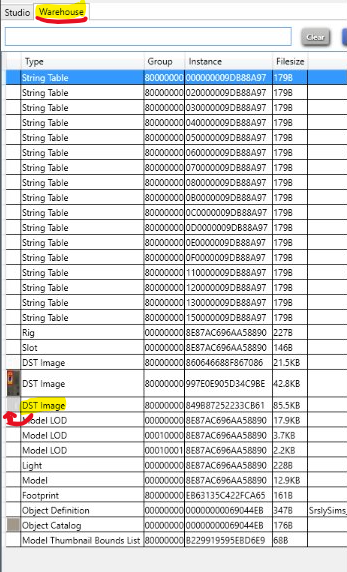
7. In the top left corner under “File” will be the ‘Warehouse Tab’
‘Select Warehouse Tab’
Scroll down until you see DST Image, it will have a grey thumbnail beside it.
a78d38d1108f42fae2c30f5f03666cd5
‘Select DST Image’ once selected on the right will be a grey image. This is your Specular.
On the bottom right you will see “Export” and “import”. ‘Select Import’.
Find your SpecMap you saved from section one.
‘Select SpecMap’ then ‘Click Open’
Now you should have a new specular in the preview window.
8. In the bottom right hand corner of Sims 4 Studio ‘Click Save’
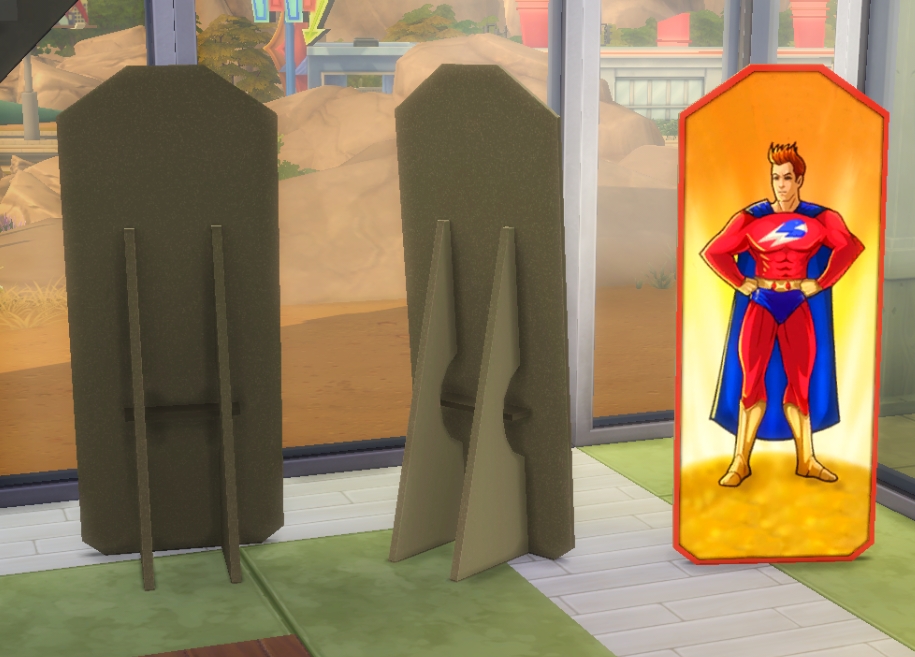
You item is now finished and saved! You can now go check it out in game.
Your finished product should look like this:
57584bddae49031f19fd41fb3c2ede8e

Tutorial: Split-Leveling in The Sims 4

SIMS4_Logo_Final_rgb

With Sims 4 we lost a tool that – hopefully EA will bring back – let us manipulate our terrain to our hearts content, which resulted in some amazing split-level homes.

“But we don’t have Constrain Floor Elevation!” You say, distressed. 

Fear not, dear Simmer, for there is another way we can simulate a split-level in TS4. This can only be done on the first level of a home because it uses the foundation. I made a cute little bedroom and office nook:
SL 12

Step one, create the room you want to split-level set your foundation height.
SL 01 SL 02

Step two, make a wall dividing the two areas – the one you want to split-level and the one you want to leave foundation height.

SL 03

Step three can go one of two ways. You can:

A) Use the sledgehammer tool to delete the floor:

SL 04 SL 05

B) Select the room, click the floor itself, and then click ‘remove floor’:

SL 06 SL 07 SL 08

And there you have it! Your split level room. You can remove the walls and add stairs now!

Note that the lower portion of your room will no longer be recognized as a room, just walls that meet up. If it isn’t a room, it also means it doesn’t have a roof either. It’s very easy to add one. Just take a simple room preset and place it on the level above.

SL 10 SL 11

Now you have a split-level room and a roof for that room! Split-level to your heart’s content!


The Sims 4: Cool Kitchen Review

coolkitchenlogo

Cool Kitchen is the third stuff pack release, and possibly one of the most talked about packs yet. It promises the best furnishings to make the coolest of kitchen spaces, clothes to match, and an all new frozen delight feature. If you’re undecided about investing in this pack, here are a few things you can consider.

2.2

Build/Buy Mode

Let’s begin with what we get in the build/buy section. For starters we get a whole lot of new kitchen clutter, such as;

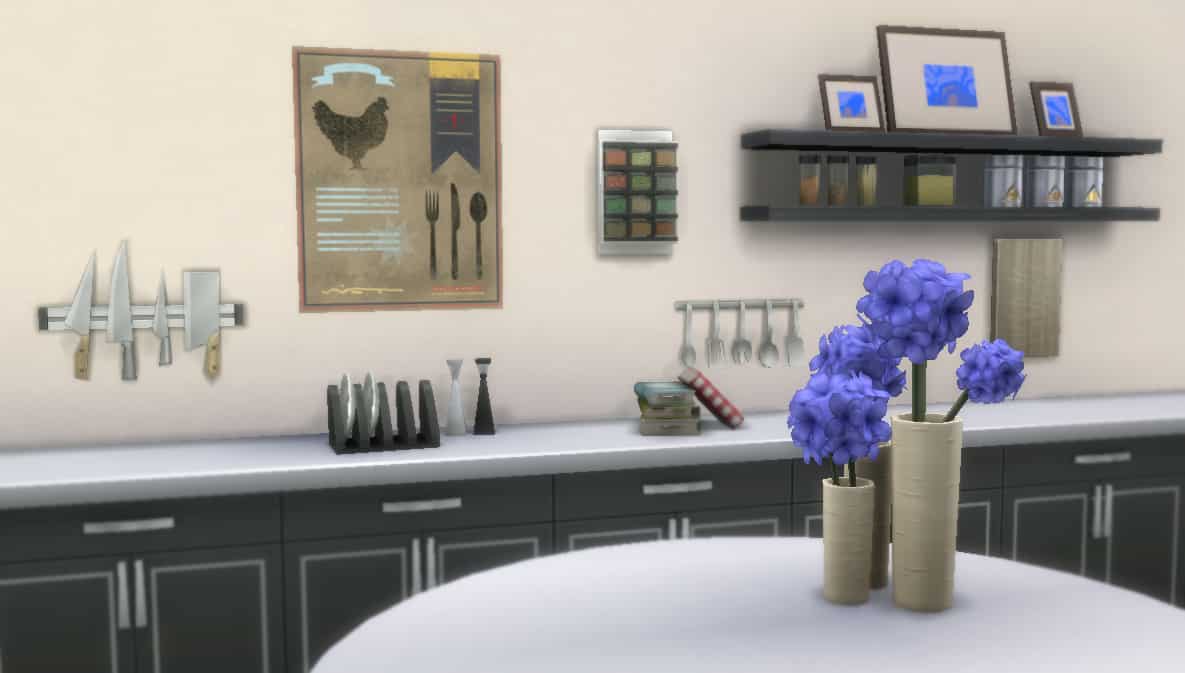
  • A new spice rack
  • A plate holder
  • A poster with various different options
  • Cook books
  • A wall holder for knives, and others.

All of which are extremely fitting and tie everything together perfectly. Sometimes it’s the little things that can make a room feel complete, and these certainly do so. I just love the new flowers, and with these new decorative items my sims kitchens will never be bare again!

clutter1 clutter2

Yet as for the main items, we seem to get only one new option each. For example, 1 new stove, 1 new style of counter/island, 1 fridge, etc.

Honestly this was a little underwhelming. Despite this, the items themselves being appealing and great new items for a rather stylish looking kitchen (I shall be using these in many of my future sims houses!).

I do feel there could have been a couple more different options, instead of 1 new counter/fridge/etc. perhaps 2 or 3 would have been better, as we may find ourselves having very similar looking rooms each time we build. It’s always nice to have more variety.

build1 build2

Create-A-Sim

Getting into the new CAS items, right off the bat there are a lot more than I expected from this pack. We have a few new hairs for women, a couple for men, and a myriad of clothing options for both.

The hairstyles are absolutely lovely in my opinion, my favourites being the side flip and little bun shown below, which I just know I will use frequently. The bun fits rather nicely into the kitchen theme – keep that hair back when cooking, people!

5.2 6.2

What’s interesting about the CAS items in this pack is there seems to be a little more focus on the adult females. They get 5 hairstyles whereas males only get 2. The clothing options are fairly balanced between them however, and I must say that although at first I wasn’t too keen on most of the items, they grew on me after a while of playing around with the colour options. Some give off a slight 80’s or 90’s vibe with certain colour combinations, which is pretty cool if you ask me. If you like what you see below, maybe this pack is for you.

90svibe2

 Aside from the one full outfit each, which is possibly my favourite as it is the most relevant, I’m not sure whether the other clothing items fit in with the theme of the pack very well. The skirt for example reminds me of Into The Future, and I’m struggling to see how it works in a kitchen. That being said, however random they may seem, they are certainly a wonderful addition to any sims wardrobe! Below are just a few examples and some of my favourite, more neutral combinations so far.

casfavourites2

And you may have already heard, but it is indeed true that there are no new children’s items whatsoever. Now I’m not sure why, but it is certainly on the disappointing side for those of us who love to play with families! Our cute little mites may need to wait until the next pack for fresh new looks, but how sweet would it be to see them in aprons making a mess in the kitchen, trying (and maybe failing) to make ice cream, or bake cookies with their parents? Potential idea, EA?

Ice Cream

icecream2

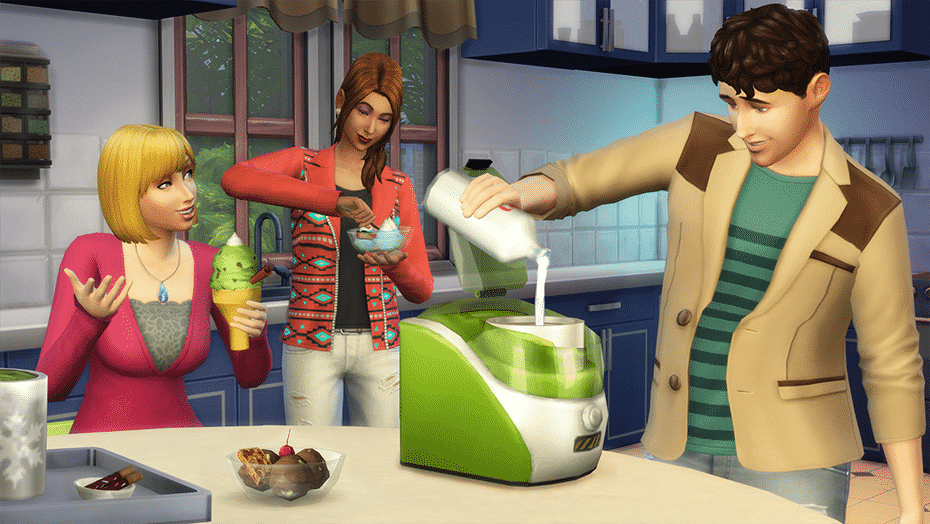
I don’t know many people who don’t like ice cream, and that goes for sims too. This is by far the best thing in this pack and it does seem that this was their main focus. This little thing has an impressive combination count of potentially over 2000 (correct me if I’m wrong); 30 flavours, 10 garnishes and 8 toppings, with the option of “none” for both of those too. Here are some personal favourite combo’s so far:

  • Chocolate Ice Cream + Orange Slices + Caramel Syrup
  • Mint Chocolate Chip + Waffle Pieces + Chocolate Sauce
  • Twin Roses + Peppermint Sticks + Whipped Cream

Not only do these creations look yummy, they also give your sim different moodlets depending on their traits and the flavour/combination of the ice cream. I hear sims who love the outdoors have a liking for the flower garnish – how pretty!

10

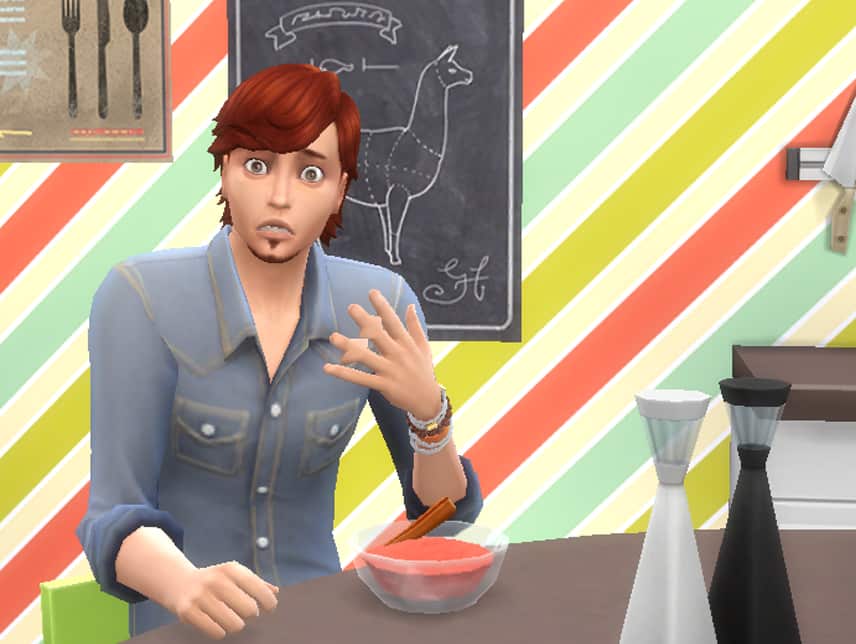
There are also secret reactions/moodlets for special flavours, for example “Plant Matter” and “Dragon’s Breath”. These are extremely fun to play around with, just make sure you have a sim who’s decent at cooking, or you’ll be spending a while leveling their skill so you can experiment! There are some very, very interesting things that may happen to your sim, and they’re rather interesting to deal with!

Take caution when eating multiple bowls of Dragon’s Breath… Just so you know.

dragonsbreath2plantmatter2

This aspect alone bumps up the value for money in this pack, although there is a little limitation with the new build/buy items, they do still make very beautiful, homey kitchens.

Overall I feel it’s definitely worth getting this pack if you’re interested in and excited about the ice cream feature. The amount of combinations mixed with the different moodlets and special effects and outcomes make this extremely fun to play around with. How long the fun and intrigue lasts however, is up to the way you play. Otherwise, the few items we get in CAS and the build/buy mode may not have been worth the price alone, especially seeing as there is really only one outfit that, in my eyes, fits in with what this pack is supposed to primarily be for.  And there is only one new style available for the kitchen items, where I feel there could be one or two more as this should have been a very important factor – considering the title of the pack. I also think it is worth noting again that there are no new items for children at all, if you’re one to be excited about new stuff for kids (seeing as there isn’t much already), don’t count on this pack to provide anything for your little tikes.

SCORE: 7/10

With everything said and done, I do still very much enjoy this pack and the items in it. It’s very fun to experiment with, and although some items do not seem to fit the theme or there are too few options, they are still very pretty and I will continue to use them in my game.

Feel free to let us know what you think about this pack too, and any interesting happenings you’ve encountered in your ice cream exploration. Or what your reasons are for not purchasing, if that is the case. Have a great day, everyone!

The Sims 4: 7×7 Restriction Challenge!

The Sims 4 7×7 Restriction Challenge!

By FrazySimming

In the simming community we like a good challenge and this is one that will certainly test your creativity and build mode skills! Think you could give it a good go? Here are the rules:

The Sims 4: 7×7 Restriction Challenge!
FrazySimming is a simmer in the community that creates content on Youtube showcasing his Create A Sim & Building skills. He came up with this awesome challenge so if you give it a go be sure to give him credit!

Rules:

  • Max floor plan is 7×7
  • Everything has to be functional
  • It has to be made for 3 Sims or more
  • Each sim Must have their own room unless you include a married
    couple
  • You cannot build more than 3 floors
  • Once something has been placed it can only be changed once
    (Includes colours, windows, Wallpapers and flooring)
  • If you have a garden it counts as a floor whether its on roof or
    ground
  • Max fund is 23,000 Simoleons

The build has to have a bedroom, bathroom & kitchen.

You can:

  • Edit the walls as long as it stays in the 7×7 limit
  • Take as long as you want
  • Move the floor plan around as long as it stays 7×7

To make it harder: 

  • It has to be for 4 sims instead of 3
  • Limit your Max funds to 18,000
  • Once something has been placed it can’t be moved at all
  • You have 15 mins to do it

The Sims 4 meets Lego! (Fan Art)

3

Ever wondered what would it look like if your favorite The Sims 4 Characters became Lego figures? SC Social member HazzaPlumbob is here to answer that!

With a help from photo-editing softwares, he managed to recreate some of the most memorable Sims from TS4 as Lego figures.

[vc_gallery type=”nivo” interval=”0″ images=”38364,38363,38362,38361,38360,38359,38358,38357,38356,38355″ onclick=”link_image” custom_links_target=”_self” column_number=”3″ grayscale=”no” choose_frame=”default” images_space=”gallery_without_space” img_size=”large”]

Simmers Q&A: Five Minutes with EmSims81

0
Today we are talking to the lovely Emma who is taking part in The Sims Community Q&A! You may know her better as EmSims81 from Twitter where she loves to tell all her awesome sims stories & shares her fantastic screenshots but she doesn’t stop there! EmSims regularly helps out other simmers with tips and tricks and has recently taken part in the drifter challenge! I would personally have to say she is one of the most cheerful simmers I have ever met and brings a ray of sunshine into the sims community! I took 5 minutes to ask Emma all about her sim lifestyle:
A
Hello EmSims81! First things first, how long have you been playing The Sims and what got you started?
A
Hello Sim Serendipity and fellow Simmers thank you for asking me to do this Q&A with you for The Sims Community, I’m very excited about it! I have been playing The Sims for around 15 years now and I still love it so much!  A family member brought The Sims around for me to play not too long after it was released all those years ago now and I have been addicted ever since! lol!
A
Which do you feel has been the best Sims release for you so far? (This includes all generations of The Sims since 2000) 
A
I will always have a special place in my heart for The Sims, 2 and 3 but I think my personal favorite is The Sims 4. I love how the Sims are more realistic in The Sims 4 with all the Emotions players can experience through their Sims. The Emotions make playing the game so much fun!
A
Are you excited about the next expansion pack – The Sims 4 Get Together? If so what bits have appealed to you from the information released so far and what we have seen in the trailer?
A
I’m so excited for Get Together! It looks so amazing! I’m most looking forward to seeing what the new EP brings to game play with the new social groups and I can’t wait to see more of the new world Windenburg! Plus, the new Clothes, Hairstyles and Objects too!
A
Em Sims 1
A
We know a lot of people enjoy your tweets and follow your Sim stories, what was your inspiration and what made you begin your twitter journey and share your content with the world?
A
Thank you so much, I’m so glad fellow Simmers enjoy my tweets and the stories I share from my Sims! I have been playing The Sims for many years now but I wasn’t sure about social media and then one day I thought why not give it a try! So I did! I just love to take screenshots of my Sims in their everyday lives and share these moments with my followers on Twitter. I guess it’s the photographer in me! I love to make sure everything is just perfect and that the Screenshot tells the story I want it too! I think my inspiration is my love for The Sims 4, I really enjoy it so much!I’m always so touched by all the wonderful comments I get from all the lovely Simmers. I have met so many nice Simmers and I enjoy talking to everyone! I always have moments of where I’m like I can’t believe fellow Simmers love my screenshots as much as I do! But I’m so thankful they do!
A
The Sims 4 has just celebrated its one year anniversary and is releasing new and exciting content frequently, what would you personally like to see in the future and why?
A
I can’t believe The Sims 4 has been out for a year already! Happy Birthday to The Sims 4! I would really love to see more EPs in the future like a supernatural one, I think given the emotions it would make for such amazing game play! If we had Vampire Sims or Werewolves Sims they would be so fantastic in The Sims 4 plus maybe lots of new objects and build items too! I would also love a Seasons EP, I think given how beautiful the Worlds are now can you imagine what they would look like with all the Seasons? They would be even more beautiful! I would also like a few more traits added like a Vegetarian Trait etc and also a few more aspirations would be so great too!
A
CHECK OUT SOME OF EMSIMS LATEST SIM STORIES IN THIS SLIDESHOW GALLERY
A
A
EmSims81 Quick Fire Questions
A
Hot or Cold – Cold
Ice Cream or Ice Lolly  – Ice Cream, Soya Ice Cream of course as I’m a Vegan!
Books or Magazines – Books, I’m such a Bookworm!
Spring or Summer – Spring
Cake or Crisps – Crisps I guess although I don’t really eat any of both them!
A
If your not following Emma already on Twitter head over to her page here: https://twitter.com/EmSims81/
A
If you would like to be the next simmer to take part in the Simmers Q&A be sure to get in touch with me using the comment box below or you can catch me on Twitter at: https://twitter.com/serendipity_sim

The Sims FreePlay: Glitz & Glam Update

A new update is available for The Sims FreePlay which features the all new Sunset Mall, your sims can now look even more fabulous with EA Mobile adding over 600 new clothes and make up items! Sunset Mall opened its doors with positive reviews and included below is a list of new things you can do with this glitz and glam update:

– Sunset Mall’s luxurious additional floor is open for business. Complete the Pretty Little Planters quest to unlock amazing new fashions.
– Let your tiny tot explore the wonders of Wumples Play Center while you relax and do some window shopping!
– Find your perfect shade for the season with stylish makeup options for your Sims at the Makeup Kiosk!
– Become a makeup master as part of the Makeup Artist Hobby and unlock the Ultimate Beauty Vanity.
– Rifle through the new Bargain Center which is brimming with great deals waiting to be found as part of the Fashion Hunter Hobby.
– Feel the thrill of flying with the state-of-the-art Indoor Skydiving Center.
– Catch the latest flicks with your friends or a hot date at Sim Town Cinema.
– Capture the moment with a friend! Take memorable snaps in the Photo Booth.
– Dream big and make a wish in the opulent Coin Fountain.

Take a closer look with this gameplay teaser video:

Let us know what you think of this new update! Will your mobile sim be getting a make over?

If you haven’t yet played The Sims FreePlay it’s available to download today from the App Store™, Amazon AppStore, Google Play™ and Windows Phone Store. Or simply follow this handy link here: THE SIMS FREEPLAY EA MOBILE

Celebrating Simmers! – The Sims 4 is having a giveaway…

1

The Sims 4 is looking to further celebrate it’s one year anniversary by having not just one giveaway but TWO GIVEAWAYS! It will run under the hashtag #simmersgiveway and I have included all the details below from Sim Guru Drake if you would like to enter!

The first giveaway will be running from today, Wednesday Sept 2, 2015 and end Friday Sept 4, 2015 where they will be giving away 20 bundles of swag, each bundle may include a The Sims 4 Steelseries headset and a The Sims 4 Get Together shirt.

The second giveaway will start from Saturday Sept 5, 2015 and end Monday Sept 7, 2015 where they will be giving away 20 bundles of swag, each bundle may include a The Sims 4 hardcover moleskine notebook signed by SimGurus, The Sims 4 lanyard, and a The Sims 4 USB flashdrive slap bracelet.

Simply head over to this link here for full details: CELEBRATING OUR SIMMERS – THE SIMS 4 GIVEAWAY

Also be sure to check out the Terms & Conditions here: EA TERMS OF SERVICE

Some fantastic goodies on offer here and its super easy to enter!

Let us know if you are taking part and which of the goodies you like the sound of! Happy Simming!

The Sims 4 Anniversary Infographic

1

You’ve Made 92,800,000 Sims in The Sims 4’s First Year!

And Many More!

Wow, time really flies when you’re playing with life! It was one year ago this week that The Sims 4 released worldwide, and I’d like to thank everyone who’s played the game so far and joined us in the world of The Sims. We had a blast making the game, and every day we as developers are in awe of your creativity as players.

You’ve played a lot of The Sims 4 in the last twelve months, so much so that we’ve put together an infographic to show off the mind-blowing numbers. Almost 93 million Sims created? 235 million WooHoos?! You’ve been really busy this year! Check out more awesome stats at the bottom of this blog.

But releasing The Sims 4 was only the beginning – we’ve spent the last year listening to your feedback and delivering new gameplay experiences. We saw that you wanted new job options, so we released an Update with new Careers for your Sims to enjoy. When you told us you wanted more space for your Sims to live, work and play, we added the world of Newcrest. You told us you wanted more building options, so we released an Update in July with locked doors and half walls.

Your feedback and passion have made the first year of The Sims 4 a great one – and will help make the next year even better! We have so much great stuff planned, including The Sims 4 Get Together Expansion Pack*.

Again, I can’t tell you enough how much we at Maxis appreciate your support for The Sims 4. We’ve had a really, really exciting year. The Sims 4is going to keep getting bigger and better every month, and we love having you along with us on this journey.

TS4_Anniversary_infographic_Final_EN

The Sims 4 – A Year in Review (+ Timeline)

A year ago the most polarizing iteration of The Sims was released – The Sims 4. Some loved it, some hated it, everyone was vocal about it. The reason for these extreme opinions was mostly due to the vast differences between The Sims 4 and the previous versions. But that’s the key theme for Sims 4 – change. And ever since its release, the game has undergone a plethora of changes and additions already in its first year. Other Sims games grew in terms of content through a stream of expansions, stuff packs, worlds, and store sets, but Sims 4 is evolving outside of the typical game releases.

Gameplay Patches

The Sims has always had patches. They’ve most often come right before a new stuff pack or expansion pack, and when they did, they would include basic features introduced in the newest expansion for everyone whether or not they bought the game. This changed in Sims 4.

TS4_347_POOLS_05_001

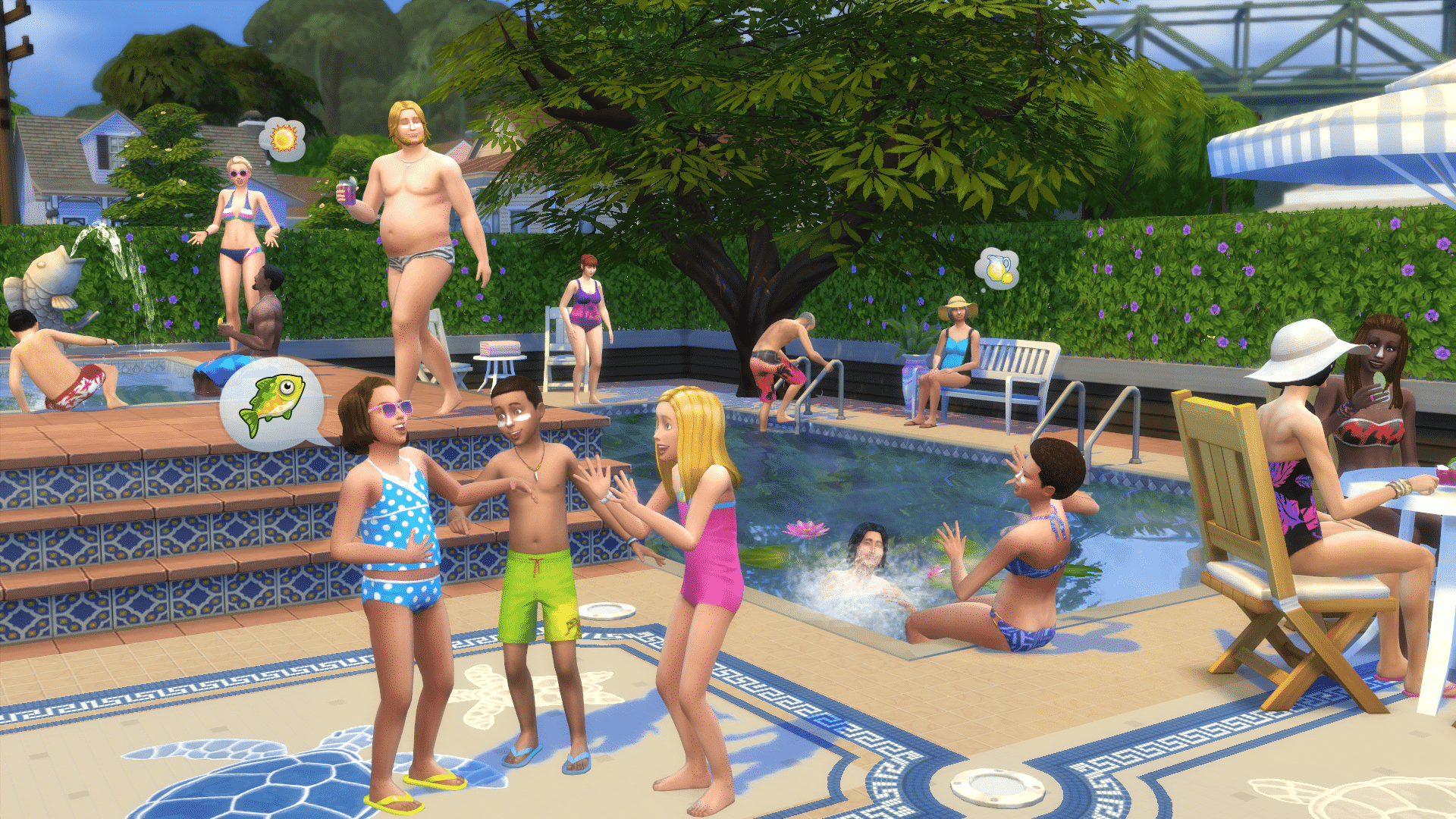
Patches now come out monthly, so not only are bugs and issues fixed at a much quicker rate, but new gameplay is included as well, outside of being introduced in an expansion. This started in October with the inclusion of ghosts. It was then introduced the following two months would add pools and two new careers. These are aspects that were added in without being tied to a future expansion, like basements being added into Sims 3 after being designed for World Adventures’ tombs.

Other gameplay features added to Sims 4 via patches have been family trees, lockable doors, half walls, basements, a new world, and dishwashers. And they won’t stop there, as they shouldn’t as the game is still lacking critical features of past versions, such as toddlers.

Game Revamps

This is something they’ve done for Sims 4 that they’ve never done in previous iterations. Sims 4 has seen several tweaks, updates, changes, and revisions from the initial release build. These have ranged from small tweaks such as the redesign to the loading screen to big gameplay revisions like we saw with the changes to aspiration and career requirements. These changes were made so the gameplay surrounding them were more fluid and less of a grind to complete them.


TS4-2015-04-13-14-20-36-64 CELX5gxWgAAd5v9

All of these changes were made based on player requests, so it proves the team is actively listening and shaping the game based on player expectations and desires. As much as the cynics doubt it, our voices are heard.

Game Releases

Add-ons are a staple in the Sims series. It wouldn’t be a Sims game if your shelf wasn’t lined with expansions and stuff packs by the end of the series. Sims 4 introduced a new type to the mix in game packs. These fall in between stuff packs and expansion packs as they can include new items, create-a-sim parts, gameplay, locations, music, and more, but not to the scale of an expansion.

This allows the team to introduce gameplay aspects they wouldn’t have been able to previously because it’s not a concept worthy enough for a full-blown game, as we’ve seen with the Spa Day game pack. It’s an interesting concept and includes a ton of stuff and gameplay, but it’s not a theme they could design a whole game around.

IMG_20150713_231553

Since its release, The Sims 4 has seen the inclusion of one expansion, two game packs, and three stuff packs with a second expansion announced for release later this year. Executive Producer Rachel Franklin said there will be something for Sims 4 every month, however it wasn’t clear if she was including patches in that timeline, or if it was strictly game releases.

Games that Mesh

It’s also worth mentioning that most of the game releases we’ve seen thus far have continued to build a framework for future games. Outdoor Retreat introduced vacation worlds and renting lots. This allows the team to easily create new vacation worlds as the coding is already in place. Get to Work included the business system, which we’ve already seen affect future game release potential, such as opening an ice cream shop with the Cool Kitchen stuff pack. It also opened up tons of gameplay potential with the active careers system. The upcoming Get Together expansion includes the club system that can easily adapt to future releases, such as being a member of a dog lovers club in a potential Pets expansion.

TS4_530_SP3_01_003a_930x524.png

This shows that not only do the games they’re creating open up tons of gameplay possibilities for the future, but they blend together into one seamless gameplay experience. In the past, with Sims 3 for instance, each expansion and stuff pack felt like a standalone experience. This was further fixed in Sims 4 by allowing the sims to travel between worlds, so they can experience everything no matter where they live.

Game Pricing

*Prices listed below are USD, yours may vary.

Sims 4 features new price points compared to the past games. Stuff packs are now down to $10, half the previous price point, while, for the first time, introducing at least one new gameplay item per pack. Previous stuff packs only included reskinned items that were already available in game. Game packs introduce a massive assortment of gameplay features for $20. This price can be compared to both The Sims 3 stuff packs, that only included re-themed items and clothing, and The Sims 3 store worlds that only included a world, new items and clothing, and one new gameplay item. If you wanted the gold edition of each world, which included one or two extra gameplay items, the price doubled to $40. Game packs are definitely more bang for your buck.

While it had a rocky start and still lacks some key parts, The Sims 4 is shaping up to be a wildly successful and worthy entry into the series. If you haven’t taken the plunge yet, now is the time to do it before the amount of add-ons becomes potentially overwhelming to new players.

[icon_timeline timeline_style=”jstime” timeline_line_style=”dotted” timeline_line_color=”#81d742″ time_sep_bg_color=”#1e73be” timeline_layout=”timeline-custom-width” custom_width=”500″ tl_animation=”tl-animation-slide-out”][icon_timeline_sep time_sep_title=”The Sims 4 Timeline” line_width=”1″ line_radius=”5″ font_size=”36″][icon_timeline_feat time_title=”The Sims 4 was born!” icon_type=”noicon” img_width=”48″ icon_size=”32″ icon_color=”#de5034″ icon_style=”square” icon_color_border=”#dbdbdb” icon_border_size=”1″ icon_border_radius=”500″ icon_border_spacing=”50″ time_read_text=”Read More” arrow_position=”top” title_font_size=”24″ icon_color_bg=”#ffffff”]September 2nd, 2014

SEbox

The Sims 4 is the highly anticipated life simulation game that lets you play with life like never before. Control smarter Sims with unique appearances, personalities, behaviors, and emotions. Experience new levels of creativity when you sculpt Sims with the powerful Create A Sim and design beautiful homes with tactile, room-based Build Mode. Use The Gallery to browse, share, and download new content without ever leaving your game. Control the mind, body, and heart of your Sims and explore your new gameplay possibilities in vibrant neighborhoods that bring your stories to life.

TS4_218_CAS_PWT_BLOG_SHOT_01_006 TS4_HERO_HOUSE_001 TS4_347_POOLS_02_004

[/icon_timeline_feat][icon_timeline_item time_title=”Ghosts Update” icon_type=”noicon” img_width=”48″ icon_size=”32″ icon_color=”#de5034″ icon_style=”circle” icon_color_bg=”#ffffff” icon_color_border=”#dbdbdb” icon_border_size=”1″ icon_border_radius=”500″ icon_border_spacing=”50″ time_read_text=”Read More” title_font_size=”24″]October 1st, 2014

TS4_328_GHOST_UPDATE_01_4k_FLAT

[/icon_timeline_item][icon_timeline_item time_title=”Pools Update” icon_type=”noicon” img_width=”48″ icon_size=”32″ icon_color=”#de5034″ icon_style=”circle” icon_color_bg=”#ffffff” icon_color_border=”#dbdbdb” icon_border_size=”1″ icon_border_radius=”500″ icon_border_spacing=”50″ time_read_text=”Read More” title_font_size=”24″]November 4th, 2014

poolsrender

[/icon_timeline_item][icon_timeline_item time_title=”Careers Update” icon_type=”noicon” img_width=”48″ icon_size=”32″ icon_color=”#de5034″ icon_style=”circle” icon_color_bg=”#ffffff” icon_color_border=”#dbdbdb” icon_border_size=”1″ icon_border_radius=”500″ icon_border_spacing=”50″ time_read_text=”Read More” title_font_size=”24″]December 16th, 2014

careersupdate

[/icon_timeline_item][icon_timeline_item time_title=”Holiday Celebration Free Pack” icon_type=”noicon” img_width=”48″ icon_size=”32″ icon_color=”#de5034″ icon_style=”circle” icon_color_bg=”#ffffff” icon_color_border=”#dbdbdb” icon_border_size=”1″ icon_border_radius=”500″ icon_border_spacing=”50″ time_read_text=”Read More” title_font_size=”20″]December 16th, 2014

TS4_holiday_render01

[/icon_timeline_item][icon_timeline_item time_title=”Outdoor Retreat Game Pack” icon_type=”noicon” img_width=”48″ icon_size=”32″ icon_color=”#de5034″ icon_style=”circle” icon_color_bg=”#ffffff” icon_color_border=”#dbdbdb” icon_border_size=”1″ icon_border_radius=”500″ icon_border_spacing=”50″ time_read_text=”Read More” title_font_size=”20″]January 13th, 2015

TS4_OutdoorRetreat_Render1

[/icon_timeline_item][icon_timeline_item time_title=”Genealogy Update” icon_type=”noicon” img_width=”48″ icon_size=”32″ icon_color=”#de5034″ icon_style=”circle” icon_color_bg=”#ffffff” icon_color_border=”#dbdbdb” icon_border_size=”1″ icon_border_radius=”500″ icon_border_spacing=”50″ time_read_text=”Read More” title_font_size=”24″]February 3rd, 2015

TS4_440_GENEALOGY_1k_White

[/icon_timeline_item][icon_timeline_item time_title=”Mac OS Integration” icon_type=”noicon” img_width=”48″ icon_size=”32″ icon_color=”#de5034″ icon_style=”circle” icon_color_bg=”#ffffff” icon_color_border=”#dbdbdb” icon_border_size=”1″ icon_border_radius=”500″ icon_border_spacing=”50″ time_read_text=”Read More” title_font_size=”24″]February 20th, 2015

img_mac_launch_faq

[/icon_timeline_item][icon_timeline_item time_title=”Basements Update” icon_type=”noicon” img_width=”48″ icon_size=”32″ icon_color=”#de5034″ icon_style=”circle” icon_color_bg=”#ffffff” icon_color_border=”#dbdbdb” icon_border_size=”1″ icon_border_radius=”500″ icon_border_spacing=”50″ time_read_text=”Read More” title_font_size=”24″]March 26th, 2015

Basement Image[/icon_timeline_item][icon_timeline_item time_title=”Get to Work Expansion Pack” icon_type=”noicon” img_width=”48″ icon_size=”32″ icon_color=”#de5034″ icon_style=”circle” icon_color_bg=”#ffffff” icon_color_border=”#dbdbdb” icon_border_size=”1″ icon_border_radius=”500″ icon_border_spacing=”50″ time_read_text=”Read More” title_font_size=”20″]March 31st, 2015

TS4_434_EP01_BOP_02_004_1k

[/icon_timeline_item][icon_timeline_item time_title=”Luxury Party Stuff Pack” icon_type=”noicon” img_width=”48″ icon_size=”32″ icon_color=”#de5034″ icon_style=”circle” icon_color_bg=”#ffffff” icon_color_border=”#dbdbdb” icon_border_size=”1″ icon_border_radius=”500″ icon_border_spacing=”50″ time_read_text=”Read More” title_font_size=”24″]May 19th, 2015

ts4_515_sp01_fountain_01_004b_4k_flat

[/icon_timeline_item][icon_timeline_item time_title=”Newcrest World Update” icon_type=”noicon” img_width=”48″ icon_size=”32″ icon_color=”#de5034″ icon_style=”circle” icon_color_bg=”#ffffff” icon_color_border=”#dbdbdb” icon_border_size=”1″ icon_border_radius=”500″ icon_border_spacing=”50″ time_read_text=”Read More” title_font_size=”24″]June 11th, 2015

newcrest1

[/icon_timeline_item][icon_timeline_item time_title=”Perfect Patio Stuff Pack” icon_type=”noicon” img_width=”48″ icon_size=”32″ icon_color=”#de5034″ icon_style=”circle” icon_color_bg=”#ffffff” icon_color_border=”#dbdbdb” icon_border_size=”1″ icon_border_radius=”500″ icon_border_spacing=”50″ time_read_text=”Read More” title_font_size=”24″]June 16th, 2015

perfectpatioren1

[/icon_timeline_item][icon_timeline_item time_title=”Half Walls + Door Locks Update” icon_type=”noicon” img_width=”48″ icon_size=”32″ icon_color=”#de5034″ icon_style=”circle” icon_color_bg=”#ffffff” icon_color_border=”#dbdbdb” icon_border_size=”1″ icon_border_radius=”500″ icon_border_spacing=”50″ time_read_text=”Read More” title_font_size=”20″]July 9th, 2015

TS4_570_HALF_WALLS_01_001a

[/icon_timeline_item][icon_timeline_item time_title=”Spa Day Game Pack” icon_type=”noicon” img_width=”48″ icon_size=”32″ icon_color=”#de5034″ icon_style=”circle” icon_color_bg=”#ffffff” icon_color_border=”#dbdbdb” icon_border_size=”1″ icon_border_radius=”500″ icon_border_spacing=”50″ time_read_text=”Read More” title_font_size=”24″]July 14th, 2015

spadayrenderboxart

[/icon_timeline_item][icon_timeline_item time_title=”Dishwashers Update” icon_type=”noicon” img_width=”48″ icon_size=”32″ icon_color=”#de5034″ icon_style=”circle” icon_color_bg=”#ffffff” icon_color_border=”#dbdbdb” icon_border_size=”1″ icon_border_radius=”500″ icon_border_spacing=”50″ time_read_text=”Read More” title_font_size=”24″]August 6th, 2015

dishwashers

[/icon_timeline_item][icon_timeline_item time_title=”Cool Kitchen Stuff Pack” icon_type=”noicon” img_width=”48″ icon_size=”32″ icon_color=”#de5034″ icon_style=”circle” icon_color_bg=”#ffffff” icon_color_border=”#dbdbdb” icon_border_size=”1″ icon_border_radius=”500″ icon_border_spacing=”50″ time_read_text=”Read More” title_font_size=”24″]August 11th, 2015

kuchnia

[/icon_timeline_item][/icon_timeline]