EA has made updates to Sims 4 Base Game System Requirements ahead of the game going free.
The Sims 4 Base Game has a new set of system requirements.
The latest change has been spotted by @lowpolypancake on Twitter, who spotted a bump in System Requirements. The latest EA Help Article now has a new set of System Requirements, with updates primarily to CPU and System Storage. These changes have been announced quietly on EA Help a few days before The Sims 4 has been set to go free.
Check out the new System Requirements for The Sims 4:
Hard drive (free space): At least 50 GB of free space with at least 1 GB additional space for custom content and saved games.
Disc drive: DVD-ROM drive required for installation from disc only, for physical copies of the game.
Graphics card (video): 128 MB of Video RAM and support for Pixel Shader 3.0
Supported Graphics cards: NVIDIA GeForce 6600 or better, ATI Radeon X1300 or better, Intel GMA X4500 or better
DirectX version: DirectX 11 Compatible
Input: Keyboard and mouse
Internet connection online requirements: Required for game activation and optional for game updates
Recommended
Operating system: 64-bit Windows 10
Processor: Intel Core i5 (4 cores) or faster, AMD Ryzen 5 or better
Memory (RAM): 8 GB RAM
Hard drive (free space): At least 50 GB of free space with at least 1 GB additional space for custom content and saved games
DVD drive: DVD-ROM drive required for installation from disc only
Graphics card (video): 1 GB of Video RAM, NVIDIA GTX 650, AMD Radeon HD 7750, or better
Direct X version: DirectX 9.0c Compatible
Input: Keyboard and mouse
Internet connection: Required for game activation and optional for game updates
Sims 4 System Requirements – Mac
These are the requirements for The Sims 4 base game, no expansions included.
Minimum
Mac OS version: Metal required. macOS X 10.11 (El Capitan)
Processor: Intel Core 2 Duo 2.4GHz Processor or better
Memory (RAM): At least 4 GB RAM
Hard drive (free space): At least 15 GB of free space with at least 1 GB additional space for custom content and saved games.
Graphics card (video): NVIDIA GeForce 9600M GT, ATI Radeon HD 2600 Pro or better. Video RAM of 256MB or better.
Input: Keyboard and mouse
Internet connection: Internet connection required for product activation
Recommended
Mac OS version: macOS X 10.11 or later
Processor: Intel Core i5 or better
Memory (RAM): 8 GB
Hard drive (free space): At least 18 GB of free space.
Graphics card (video): NVIDIA GTX 650 or better
Input: Keyboard and mouse
Internet connection: Internet connection required for product activation
How can I tell if my Mac meets those requirements?
Use About this Mac to check how your Mac matches up with the minimum and recommended requirements.
For comparison, these were the previous SIms 4 System Requirements on Windows. You can definitely tell that Storage Requirements got a huge requirement upgrade:
Help us choose the best Sims 4 Stuff Packs for CAS, Build/Buy, and Gameplay!
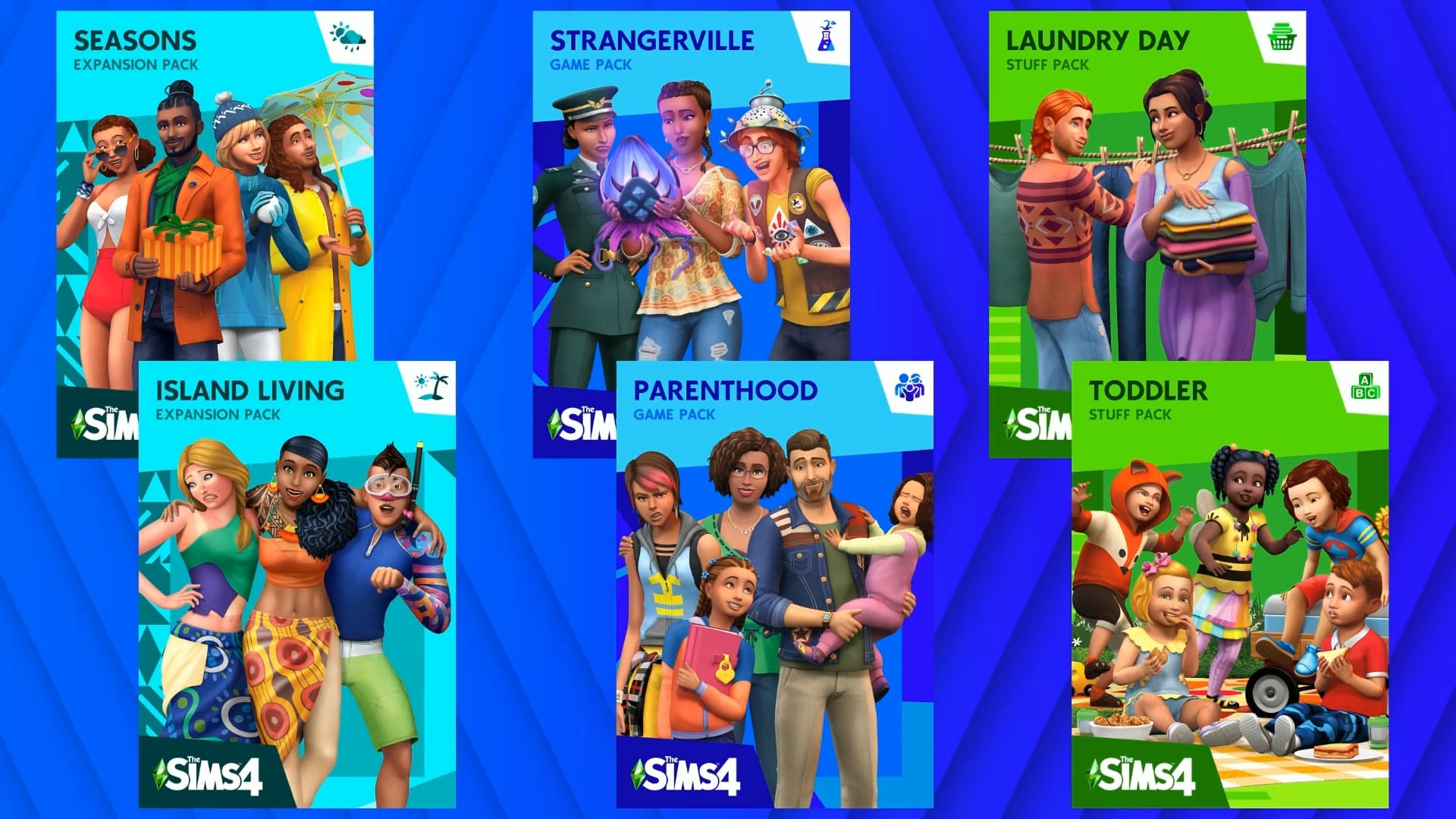
The Sims 4 celebrated its eighth anniversary in September and it’s incredible to think about. We can hardly believe The Sims 4 is nearing a decade old. No one can deny that the long-running success of The Sims 4 is thanks to all the DLC packsthe game received over the years. DLC has kept The Sims 4 relevant almost a decade later but that doesn’t mean every one has been among the best Sims 4 packs. Some DLC packs are widely praised by the majority of players, but others received harsh critiques.
Which ones will go down in the history books as the best of The Sims 4? Which ones will forever be remembered as colossal flops? That’s up to you! We’ll be running community polls to give you the chance to decide on the best (and worst) expansions, game packs, stuff packs, and kits for The Sims 4!
Vote for Your Favourite!
You voted in our expansion and game pack polls and now we want to know what your favourite stuff pack is! We know it may be difficult to pick just one; there are quite a few of them and they cover such a wide array of styles and themes, so we’re going to let you pick your top five Sims 4 stuff packs in each category to make things a little easier.
This is a Sims Community poll. Not affiliated with Maxis or EA.
[totalpoll id=”121789″]
Got more to say? Discuss the best Sims 4 stuff packs with other Simmers in the comments!
Please remember to be kind to other players, the game developers, and the Sims Community staff in the comments. Respectful disagreement is healthy but let’s remember there are real people on the other side of the screen.
BIG News about The Sims Franchise are coming. Join The Sims Summit LIVE with Sims Community!
Behind The Sims Summit is the first ever livestream from EA and Maxis of this proportion.
The team has announced that they’ll be sharing big news about The Sims 4 future releases, and the future of The Sims Franchise in general. Rumors about The Sims 5 are also making valid rounds, with talks about a possible announcement during the Summit.
Behind The Sims Summit will begin at 10AM PT / 6PM BT / 7PM CET. You can find out exactly when the stream begins by pressing the play button on the livestream below!
Live Reporting from The Sims Summit
Sims Community is doing LIVE Reporting for Behind The Sims Summit!
Our team members Krista and xNikini will be doing reporting as the livestream goes. You’ll get to find out about important announcements and reveals as they go. Considering The Sims Summit has a lot of topics to go through, you’ll also have an excellent timeline overview of things as they get discussed and revealed!
Join the Live Discussion of Behind The Sims with the Sims Community Team!
What to expect during the Livestream
The Sims Team vaguely hinted that we could be seeing new announcements for multiple things. First being The Sims 4 and the current majority of content drops through Sims Delivery Express and Base Game Updates.
With The Sims 4 going free to play, our team is more dedicated than ever to developing new and meaningful The Sims 4 experiences for our players and we will continue to develop and release packs, kits and Sims Delivery Express drops into the foreseeable future. We’ll be sharing more about what’s in the works during a special-edition stream, Behind The Sims Summit on October 18, 2022 at 10 am PDT via The Sims YouTube and Twitch channels, also available on demand!
And that is just one segment of the livestream. The Sims FreePlay and The Sims Mobile will also be making appearances. With The Sims 5 currently trending in the community as a project that’s likely going to get announced as well.
Take a sneak peek at the big show that The Sims is preparing!
Behind The Sims Summit Livestream is happening in less than 24 hours, and select creators (and hosts) have shared the sneak peek at what’s to come!
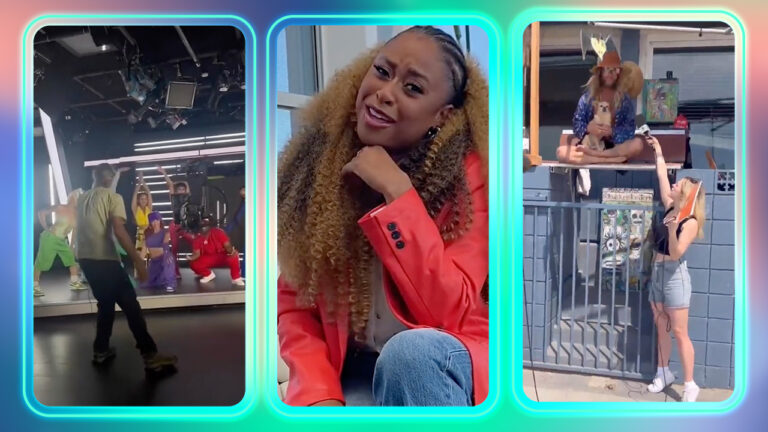
Creators across the world are revealing their guest appearances and segments that they have at The Sims Summit. To everybody’s surprise – EA really stepped up with the livestream. Backup dancers, street interviews and professional hosts are just a few things that we should expect.
Here’s all the previews we have of the upcoming event. We’ll keep this article updated as new previews surface – stay tuned!
Hosted by Phoebe Robinson
Phoebe Robinson announced that she’ll be hosting Behind The Sims Summit with a video. There’s also a sneak peek at where they’ve filmed the show!
Celebrate Behind The Sims Summit and win a Sims 4 Expansion of your choice!
The Sims Summit is just a few hours away and we are getting ready to deliver all things The Sims to you!
With The Sims 4 Base Game going free on October 18th, we think it’s the perfect time to celebrate.
Without further ado, let’s begin with the Flash Giveaway! Psst… – this one is really quick.
Win The Sims 4 Expansion of your choice!
We are giving away 1 out of 5 Expansion Packs for The Sims 4. Expansion Pack and platform of your choice of course.
The Sims Summit has sparked quite a lot of rumors in the community and we want to know:
What do you think will be announced at Behind The Sims Summit?
That’s it. Leave your answer in the comment section down below and 5 people will be chosen through random.org!
Drop your entry in the conversations below!
Five random comments will be picked out using random.org. The winners will be announced here in the Comments Section on October 21st at 1PM Pacific Time / 10PM Central European Time.
The comments section closes down on October 18th at 9AM PT / 6PM CET.
Please note:
Be respectful and follow the Sims Community House Rules linked below.
You need to be a member of Sims Community in order to leave a comment! The Sign Up button can be found right above the comments.
Not more than 1 comment!
Your comment might be saved for manual approval. Don’t worry, we will manually approve your comment in a few hours in case you’re waiting!
Make sure you leave your correct information when registering to Sims Community through OpenWeb. Your correct e-mail is needed so we can contact you with the inquiry about your preferred platform for the pack of your choice!
Do not share your personal email and data in the conversation!
Sims 4 Base Game is becoming a tool for many players with the game going free. If they want to unlock additional experiences, worlds, items and content they have Paid DLC.
The Base Game going free is an excellent thing for CC Creators and Modders alike who share their passion with the community and deliver free CC and Mods to the players. With everyone getting a copy who knows what talent will come next?
When is Sims 4 going free?
The Sims 4 Base Game will become available for PC, Mac, Xbox and Playstation Players on October 18th, 2022.
The set time for The Sims 4 launching for everyone is 10AM Pacific Time / 6PM British Time / 7PM Central European Time.
Or, you know, there’s also a handy countdown below. As soon as the timer turns zero you’ll be able to claim The Sims 4 Base Game as a free one!
Countdown to The Sims 4 Going Free
[janky target_time=”1666112400″ color=”#00580a”]
How to claim The Sims 4
After the counter turns zero, you’ll be able to claim The Sims 4 for free immediately from the following services:
The Sims 4 Base Game is full of new things to discover and learn. Play The Sims 4 the way its meant to be played and learn all the Tips & Tricks. Cheats, Guides, Walkthroughs and more – all in one handy place!
The Sims 4 Base Game becoming accessible for everyone is only a part of what’s to come. Stay tuned on Sims Communityfor News & Updates from The Sims Summit!
We interrupt our regularly scheduled programming on Sims Community to deliver you breaking news. And giveaways!
Big news and developments for The Sims Franchise are about to unravel at Behind The Sims Summit!
Tomorrow, The Sims 4 Base Game is going completely FREE. In about 24 hours anyone will be able to grab a free copy from Origin / EA App, Microsoft and Playstation Stores. The game will be available for both Console and PC Users.
However, that’s only a fraction of what’s to come. The Sims Team is teasing big things for tomorrow’s Behind The Sims Summit Livestream. There are big rumors about The Sims 5 being announced, among news about the future developments of The Sims 4.
There’s going to be a lot to cover, and we’ll be here throughout the entire event – and after!
Sims Community Coverage for The Sims Summit
The Sims Community Team will give you up-to-speed information regarding news from The Sims Summit. Down to the details!
The Home Page will be updated regularly with breaking news and coverage from Behind The Sims Summit. We’ll soon be publishing a WATCH LIVE page where you can join the Live Discussion throughout Behind The Sims Event – while watching it! Our team will be transcribing important information and screens revealed throughout the event so you can have a timeline of things as they’re being revealed.
Flash Giveaways
Expect Flash Giveaways for each DLC Type throughout this period. If you’re an upcoming player of The Sims 4 you might try your luck in our next 4 rounds. First one coming today!
Behind The Sims Summit is happening October 18th, 10AM Pacific Time. We can’t wait to bring you exciting updates!
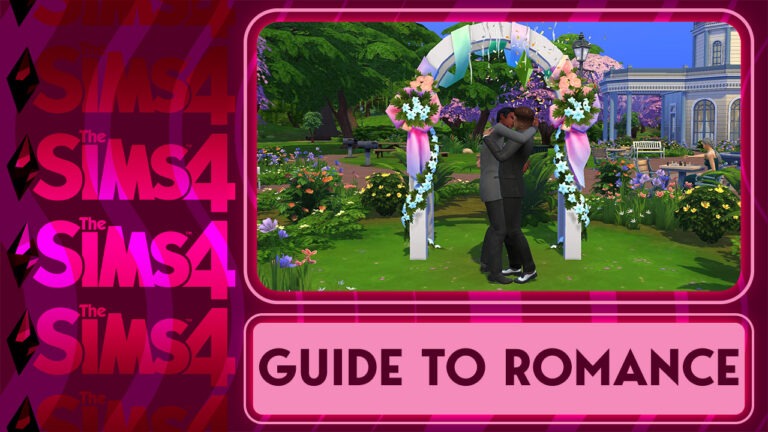
Are you a new player wondering how to give your Sim their happily-ever-after? This is the guide for you!
So you’ve made a Sim, moved them into town, made a few friends and got some promotions under their belt. What’s next? Well, some players may want to start thinking about settling down with that special someone. Others might just want to cause as much romantic drama as possible. Either way, we’re going to show you how to do exactly that!
The Basics of Sims 4 Romance
Before you go out looking for a date, there are some things you should know about how romance works. Some Sims may not be available romantically depending on their age, preferences, and sometimes, their relationship status as well. Some Sims who are married may be more reluctant to be romantic with anyone else unless they have the Non-Committal trait or unless they are already very close friends with your Sim.
Romance Options for different Age Groups
Teens, Young Adults, Adults, and Elders can all have romantic partners; however, teens can only be romantic with other teens. Young Adults, Adults, and Elders can all pursue romance with each other. If you don’t have any Romance options with a Sim, hover your mouse over the other Sim to double check that they are not a teen. Likewise, if you are playing a teen Sim and have no Romance options when talking to another Sim, make sure the other Sim is also a teen.
All teen and older Sims also have their own romantic preferences, just like real people. Some Sims are only interested in romance with the same gender, others are only interested in the opposite gender. Some Sims are interested in both genders and others are not interested in romance with anyone at all. Trying to flirt with a Sim who is not interested in your Sim will always result in rejected advances, no matter what you do. If you want to know what a Sim’s romance and WooHoo preferences are, you can ask them under the Romance social category… but you should at least be friends with them, first. Acquaintances will find those questions invasive and refuse to answer you.
If a Sim’s age and preferences are compatible with your Sim, you can pursue romance with them!
Flirting in The Sims 4
All romantic relationships begin with a little flirtatious conversation. So go out and find a Sim to get your flirt on with. Perhaps your Sim is already friends with someone they want to strike up a relationship with. Awesome! It’s much easier to pursue romance with Sims that are already your friends but don’t worry if you’re lacking in the friends department; you can strike up a romance with an attractive stranger under the right conditions.
The most important thing to remember about flirting successfully is that setting the right mood is everything. If you or your partner are in a negative emotional state, things are going to go nowhere fast. Before trying to flirt with that cute Sim at the bar, make sure your Sim’s needs are met and that the environment is ideal for romance. Things like romance music and objects with romantic auras can really set the mood. On the flip side, dirty surroundings are bound to kill the mood instantly so clean up those dirty dishes and puddles!
You can see if your partner’s in a good mood by looking at the conversation tab at the top of the screen. If they are Sad, Angry, Tense, Uncomfortable, Scared, Bored, or Embarrassed, try to find out why and remedy that. Or just try to override those negative emotions with friendly socials that will give them Happy moodlets to counteract their bad mood. It’s just like cheering up a friend with funny banter after a bad day! Flirty is the ideal mood for romance but any positive emotional state is a good starting point for initiating romantic conversation.
Once the mood and the atmosphere are right, start with more lowkey advances. Simply flirt or compliment their appearance until the conversation moves from Pleasant to Flirty. Once the conversation is in Flirty territory, you can start to mix it up with slightly bolder moves, like blowing a kiss or a suave pickup line if your Sim is feeling Confident. Remember not to get too repetitive or the Sim will get bored! Try to use two different socials before using the same social again. For example, you can flirt, compliment appearance, blow a kiss, then flirt again to prevent the conversation from getting stale.
If the conversation shifts from Flirty to Amorous, your Sim is probably in the Flirty emotion by now, which opens up even bolder flirtatious advances, like offering a rose. Flirty-specific socials are indicated with a pink marker and those have a higher chance of success. They also give bigger romance boosts. You can see how strong your romantic connection is with a Sim by looking at the conversation tab up top. If they have both a pink bar and a green bar of relationship with your Sim, you have a romantic interest! If the pink bar is a quarter full and the conversation is Amorous, now’s the time to move in for that first kiss! Maybe you could even ask to become official!
If things go really well and the conversation becomes Steamy, WooHoo (or Messing Around for teens) is definitely on the table. Just make sure there is a spot to get frisky somewhere on the lot!
Casual Hookups
Not everyone is interested in having a traditional monogamous romantic relationship and that’s okay, too! In The Sims 4, you can opt to have “WooHoo Partners” instead of boyfriends, girlfriends, or spouses. If your Sim is solely interested in no-strings-attached WooHoo, they can find a partner with similar interests to hookup with on a regular basis.
To find a WooHoo Partner, strike up a friendship with a Sim. Strangers might be a little wary about becoming WooHoo Partners so it’s best to build up a bit of a platonic relationship, first. Then, under the Friendly social category, choose Ask To Be WooHoo Partners. If the other Sim likes your Sim and has WooHoo preferences that are compatible with your Sim’s, they are likely to accept.
WooHoo Partners can have casual WooHoo with each other whenever they want without romance being involved. When WooHooing under the Friendly social category, Sims won’t gain romantic relationship from WooHoo. You can keep the relationship strictly romance-free.
Teens cannot have WooHoo/Mess Around Partners. They must be in a romantic relationship with another teen in order to Mess Around.
Dating and Relationships in The Sims 4
If you’ve successfully flirted your way into someone’s heart, you can ask them to become your boyfriend or girlfriend. This will put the two of you in an official relationship… but not necessarily an exclusive one! While Sims cannot have more than one fiancé/e or spouse at a time, they can have multiple boyfriends and girlfriends. As many as you want, in fact! Sims can even have multiple boyfriends and girlfriends while engaged or married to someone else. So yes, you can be 100% monogamous… or a player in The Sims 4. Just don’t be surprised if your romantic partners aren’t happy with you if they catch you smooching someone else! Jealousy is very much a factor in The Sims 4.
Of course, once you’re in a relationship with someone, you’ll probably want to go on dates with them. You don’t have to be officially dating someone to go on a date with them. Any Sim with a romantic interest in your Sim may accept being asked out. You can ask a Sim out in person or call them on the phone to ask them out. If they accept, you’ll get to choose the location for the date. Public places like bars, nightclubs, lounges, parks, and museums can be great locations to have fun with your date but Sims don’t exactly understand the concept of personal space. Other Sims may decide to butt into the conversation and become a third wheel on your romantic night out. This can turn a Steamy conversation Awkward and completely kill a date instantly. If you want to guarantee privacy, choose to get cozy at home, instead.
When the date starts, you and your date will arrive together at your chosen location. Pay attention to the goals in the top left corner of the screen. Completing these will give you a higher date score and provide you with reward objects at the end depending on how well the date went. The reward for a gold level date is an ice bucket with a romantic aura! Very useful for setting the mood on future dates!
If at least 24 in-game hours have passed, you are in a relationship with your partner, and you have both high friendship and romance, you can even pop the big question and ask that Sim to marry you! The same rules apply; make sure the atmosphere is right and you’re both in a good mood to ensure your proposal is accepted.
Teens cannot become engaged or get married but they can exchange promise rings. Teens who exchange promise rings become Promised instead of Engaged in their relationship panel but the Promised status does not automatically change to Engaged upon aging up into a Young Adult. You will still have to propose as a Young Adult, even if you promised yourself to your partner as a teen.
Happily Ever After?
If your proposal is accepted, your relationship status will change to Engaged. You can have as long or as short an engagement as you want. You can elope right there on the spot in a spur-of-the-moment rush of excitement, or you can take your time with planning out wedding attire, choosing a venue, and deciding on food, entertainment, and the guest list. Eloping is free but a throwing a wedding will cost you $1,000.
To elope on the spot, simply click the Sim and choose Get Married. You’ll exchange vows and rings right there in whatever clothes you’re already wearing and congratulations! You now have a spouse!
To plan a Wedding Event, choose to Throw a Social Event on the phone and select Wedding. There are goaled Weddings and open-ended Weddings. If you want to complete goals during the wedding and potentially earn rewards, leave the Goaled Event part checked. If you just want to be free to do whatever you want during the wedding, uncheck that box when selecting a Wedding event.
You’ll be prompted to choose the location, the guests, the caterer, and the entertainer. You can select a Sim you already know for free if they are qualified to play instruments or cook at your wedding. If you don’t know any qualified Sims, you can also hire someone for a fee of $100. Cooking all the food yourself ahead of time is also an option. Make sure the location you select has a wedding arch, a fridge, counter, stove, and a musical instrument so everyone can do their jobs!
The only requirement to complete a wedding event is to get married under a wedding arch but if you want to get a higher score on a goaled wedding event, make sure you complete other goals like cutting the cake, making toasts, and socializing with your guests.
Once your Sims are officially married, you’ll be prompted to move in together if you aren’t already living together. We hope this is the start of a lifelong happy union… but if things aren’t working out between your Sim and their spouse, you can divorce them anytime under the Mean socials. This will severely damage the relationship and end the marriage immediately.
Help us choose the best Game Pack for CAS, Build/Buy, and Gameplay!
The Sims 4 recently celebrated its eighth birthday in September and it’s amazing to think about. It’s hard to believe The Sims 4 is just two years shy of being a decade old. The long-running success of The Sims 4 is thanks to all the DLC packsthe game received over the past eight years. It’s why The Sims 4 is still relevant almost a decade later but that doesn’t mean every pack has been good. Some DLC packs are widely loved by the majority of players, but others received harsh criticism.
Which ones will go down in the history books as the best of The Sims 4? Which ones will forever be remembered as colossal flops? That’s up to you! We’ll be running community polls to give you the chance to decide on the best (and worst) expansions, game packs, stuff packs, and kits for The Sims 4!
Best Sims 4 Game Pack
You voted in our expansion pack poll and now we want to know what your favourite game pack is! We know it may be difficult to pick just one game pack; there are quite a few of them and they cover such a wide array of styles and themes, so we’re going to let you pick your top three Sims 4 game packs in each category to make things a little easier.
This is a Sims Community poll. Not affiliated with Maxis or EA.
[totalpoll id=”121738″]
Got more to say? Discuss your favourite Sims 4 packs with other Simmers in the comments!
Please remember to be kind to other players, the game developers, and the Sims Community staff in the comments.Respectful disagreement is healthy but let’s remember there are real people on the other side of the screen.
Did you know about these Cottage Living tips? Now you do!
The Sims 4 Cottage Living is one of the game’s most popular expansions. It has new gameplay that players have been begging for. Farm animals, cottagecore aesthetic, and a farm-to-table lifestyle set in the idyllic English countryside. What more could a nature-lover want, right? Well, it might surprise you to learn about some of these lesser-known Sims tips and tricks about Cottage Living that aren’t exactly hidden, but aren’t outright explained, either. Here’s a few tips you might not have known about The Sims 4 Cottage Living!
Tip #1: Don’t Leave Bessie Behind!
If you move and choose to keep the furniture from your last home, your animals will be transferred to your household inventory when you move. If you want to sell all the furniture and leave it behind, you’ll have to put the animals into your Sim’s inventory before you move. While an animal is outside and standing still, select it and choose Actions – Put in Inventory.
Here’s a Tip: Whether your animals are in the household inventory or your Sim’s inventory, getting them settled in their new home is the same process. Make sure there are sheds and coops on your new property for all your animals. Then click the sheds and coops and select Assign Animal to Shed/Coop. Pick the animals you want to live in that shed or coop and viola! Your beloved animals are properly settled in their new home!
Tip #2: The Sims 4 Cottage Living is a Little Dark…
Okay, maybe you didn’t love Bessie that much after all. Maybe you really need some ground beef for dinner but meat prices at the market have gotten outrageous. Did you know you can have your animals butchered for meat? You can. Sort of.
It’s not as gruesome as it sounds, thankfully. You don’t see your animal’s demise in The Sims 4 Cottage Living, but you can “trade” your animals for a variety of things… including meat. I don’t think I need to explain where the meat comes from, do I?
Tip #3: Waterfall Swimming in The Sims 4 Cottage Living
It’s pretty easy to spot several of the swimming locations in Cottage Living. The swim spots in Finchwick and Old New Henford are obvious, but did you know there’s a third swimmable location in Henford-on-Bagley? And it’s the one with the best view.
You can swim at the base of the majestic waterfall in the Bramblewood! It’s a stunning location and your Sims can even swim right up to the falling water itself! It’s a fantastic spot for pictures or a romantic midnight swim with that special Sim!
Tip #4: Selfies with Sophie
You might have noticed a spiral formation in the Bramblewood with a giant stone snail in the centre but have you ever tried to click on it? If you haven’t, you definitely should because that snail has a name and she loves pictures!
Yes, you can take a selfie with Sophie the Snail in Cottage Living! And with the selfie camera update that came in July of 2022, you can now pick the perfect pose to strike with Sophie! Say “cheese,” Sophie!
Tip #5: Glowing Mushrooms
The Bramblewood is full of wild mushrooms to harvest. Most of them are a mystery until you pick them. Except for one mushroom; the Nightly Mushroom.
Harvesting the Nightly Mushroom in The Sims 4 Cottage Living can be confusing, especially if you own the Seasons expansion. The game doesn’t tell you what season the mushrooms grow in; however, they only grow during Winter. And despite what you might have heard, Nightly Mushrooms can be harvested during the day. Not just at night when they are glowing.
Got any other Sims tips and tricks? Share them in the comments!
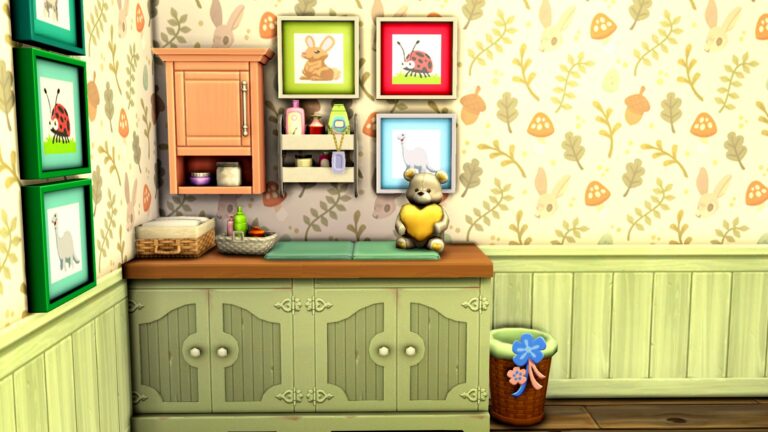
Build a baby-changing table for your little one’s nursery using nothing but some build cheats and your imagination!
As much as I love The Sims 4, I can’t deny that the babies… suck. They’re terrible. They might as well be a houseplant that poops itself and screams. But I deal with them because I love furnishing baby nurseries.
Today, I’m going to show you how to make a decorative baby changing table to help give your newborn nurseries a more realistic touch. It requires no mods or custom content. This can be done with just base game objects, but the more DLC you own, the more options you’ll have to customize the look of your baby changing tables!
Start by finding a surface in Build/Buy. Counters work great and so do some accent tables; just remember to make sure the base is solid because you’ll need to hide part of the changing mat inside it.
Open the cheat console with CTRL+SHIFT+C and type in bb.moveobjects on, then hit Enter.
Next, find some type of cushion seating. I’m partial to the cube chairs from Spa Day but pet beds from Cats & Dogs or a base game ottoman also work well. You may need to size down pet beds and ottomans with the [ key.
Raise the cushion so just the top part is slightly higher than the counter with the 9 key
Hold Alt to freely place the cushion inside the counter, hiding the base of the object inside the counter
The base of your changing table is done! Decorate it however you like with extra shelving, clutter, and whatever else you like! The rest is all up to your imagination!
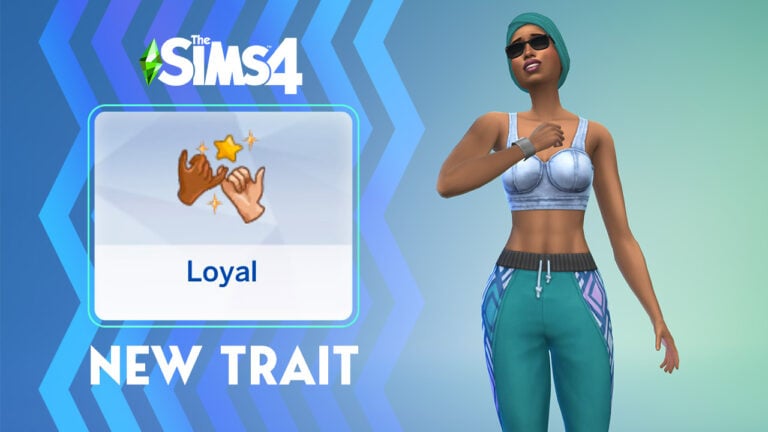
We spent some time exploring the new Sims 4 Loyal trait in Live Mode!
The Sims 4 got a free base game update yesterday that added plenty of goodies, including a new CAS trait! The Loyal trait! We went over the trait description in our update overview but we wanted to see how the trait functions.
So we made two Sims with the Loyal trait in CAS! Then we got them together to see how they would act!
New moodlets for the Loyal trait!
What did we discover? Loyal Sims will have a Happy moodlet called Surrounded by Friends when they are near Sims they are close with. If you have a Loyal Sim, it’s going to be easier to keep them in a good mood by having them spend time with the people they feel close to.
Of course, Simmers were eager to know if this new Sims 4 base game trait actually curbed a Sim’s inclination to cheat on their partners so we tested that, too. Normally, every Sim can be swayed to cheat on their partner if they are Flirty enough or close enough friends with someone. We were happy to see that Loyal Sims are much more reluctant to cheat on their partners. Another Sim attempted to flirt with one of our Loyal Sims and she wanted no part of it. We tried again after the two Sims were good friends and our Sim was Flirty; she still rejected him because she was committed to someone else.
Does the Loyal trait stop Sims from lying? Hm.
The Sims 4 trait description says that Loyal Sims would never lie to their friends or partners which made us curious to know what the game considers a lie. We had our Loyal Sim lie about her career to her partner under the Mischief socials. Weirdly, she did so with no problem and didn’t even get a guilty moodlet from it. We’re not sure if that’s an oversight or if lying is supposed to be some other interaction.
Loyal Sims are very good secret keepers, however! We had a Sim share a deep secret with our Loyal Sim. He had a Confident moodlet called Your Secret’s Safe With Me. Because he is Loyal, he will never spill the tea on people he’s close to. What a cute addition to The Sims 4 traits!
Loyal Sims have new social interactions!
Sims who are Loyal also have a few special social interactions available to them with friends and romantic partners. They have the ability to Promise to Help a friend or partner who’s in a bad mood, which will very quickly soothe any negative moodlets the Sim has. They also have the option to Express Devotion to their romantic partners.
If you were wondering whether Loyal Sims will be quick to rush into marriage… not necessarily. They still require the same amount of time between a first kiss and a proposal as other Sims; however, this doesn’t mean they are any less devoted to their relationship. They are still happy to take that next step when the time is right.
Understandably, the Loyal trait in The Sims 4 conflicts with the Non-Committal trait, so a Sim cannot have both of these traits at the same time. It also means that a Loyal Sim and a Non-Committal Sim are a bad combo.
Loyal Sims will choose to be more affectionate with their partners with free will on, too.
Is there anything you want to add about Loyal Sims? Tell us all about it in the comments!
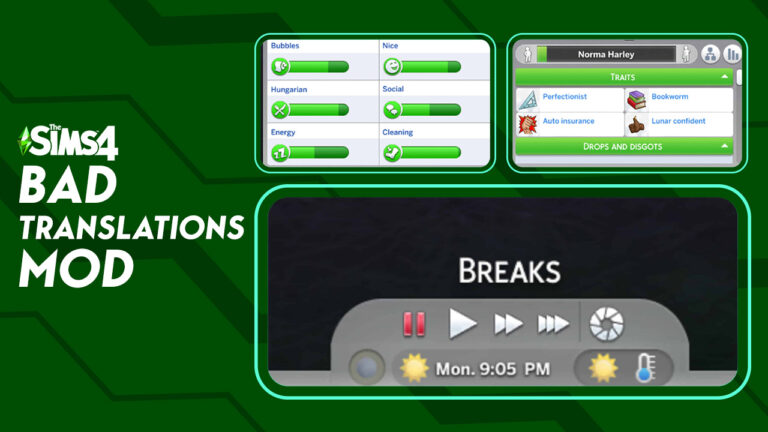
My Sim’s Bubbles and Hungarian Needs are too low! And they have the auto insurance trait!
Bad Translations, a mod by Frankk, transforms the original words (also known as strings) into funnier versions that range from synonyms to completely unrelated words or phrases.
I installed this mod and left it in for a few days. It made me laugh out loud on several occasions. The one that is the most amusing to me is “Bladder” changing to “Bubbles”. The loading screen sayings were also very funny! Although, I did not get to see many of them due to my loading time being so short. My restaurant needed to “shut up” instead of close. I installed the Clean version and there is also an Explicit version.
You’d think this would make the game more confusing, but most the time, it was pretty obvious what the string meant. Or, it was just a fun guessing game! I wouldn’t install it if you are brand new to the game and don’t know where everything is, but as a seasoned player, it didn’t affect my gameplay at all.
Overall, this mod is a lot of fun and I’d recommend everyone playing with it in their game!
Translation Process
Bad translation required Frankk to translate all the game’s text to 1 to 15 languages. Then, he translated the results back to the original language. To achieve the final results, Frankk did the translation process 1 to 3 times.
According to Frankk, “This leads to some text being funnier than the original, unchanged, or mangled beyond recognition.”
Language Warning
The automated process lead to occasional vulgar and sexual language including some spam. (Spam includes suspicious links and/or adult websites.)
After the translation process, the text went through twenty rounds of cleaning. This included detecting and removing sensitive language, spam, and errors. To ensure the quality of the translation, Frankk completed a manual review. Unfortunately, there still is a possibility that Frankk missed some words or phrases. With over 115k strings, it isn’t surprising!
Two Versions Available
Frankk created two versions of Bad Translations; a CLEAN and an EXPLICIT version. The explicit version contains vulgar language that the translator output. The clean version includes the same as the vulgar language without the vulgar language. ONLY INSTALL ONE version of the mod at a time.
If you don’t mind vulgar language, download the Explicit version of the mod. To create this version, Frankk cleaned the strings of spam, errors, and slurs. Other vulgarities like swear words and sex terms remain in the mod.
If you prefer PG language in your game, download the Clean version of the mod. Milder terms replace the vulgar language in the Clean version.
Important Installation Instructions
Download ONE version of the mod.
Place the package file inside your mods
Check that mods and script mods are on in the game settings
Conflicts
This mod will conflict with any mod that also replaces strings.
Shake up your game! Install Bad Translations and get ready to laugh out loud. Literally!
YOU make the decision on the strongest Expansions for CAS, Build/Buy, and Gameplay!
The Sims 4 has been out for eight years now. It’s hard to believe that the latest installment of The Sims series is starting to creep close to being a decade old. If it weren’t for the steady stream of base game updates and DLC packs released for the game over the years, The Sims 4 would not still be as relevant as it is. DLC is largely the reason why the game is still going strong eight years later but not all DLC packs are created equal. Some have definitely been better than others.
Which ones will go down in the history books as the best of The Sims 4? Which ones will forever be remembered as colossal flops? That’s up to you! We’ll be running community polls to give you the chance to decide on the best (and worst) expansions, game packs, stuff packs, and kits for The Sims 4!
Best Sims 4 Expansion Pack
Today, we’re starting off big with expansion packs! We know it may be difficult to pick just one expansion; there are quite a few of them and they cover such a wide array of styles and themes, so we’re going to let you pick your top three expansions in each category to make things a little easier.
This is a Sims Community poll and is not affiliated with Maxis or EA in any way
[totalpoll id=”121484″]
Got more to say? Discuss your favourite expansion packs with other Simmers in the comments!
Please remember to be kind to other players, the game developers, and the Sims Community staff in the comments.Respectful disagreement is healthy but let’s remember there are real people on the other side of the screen.
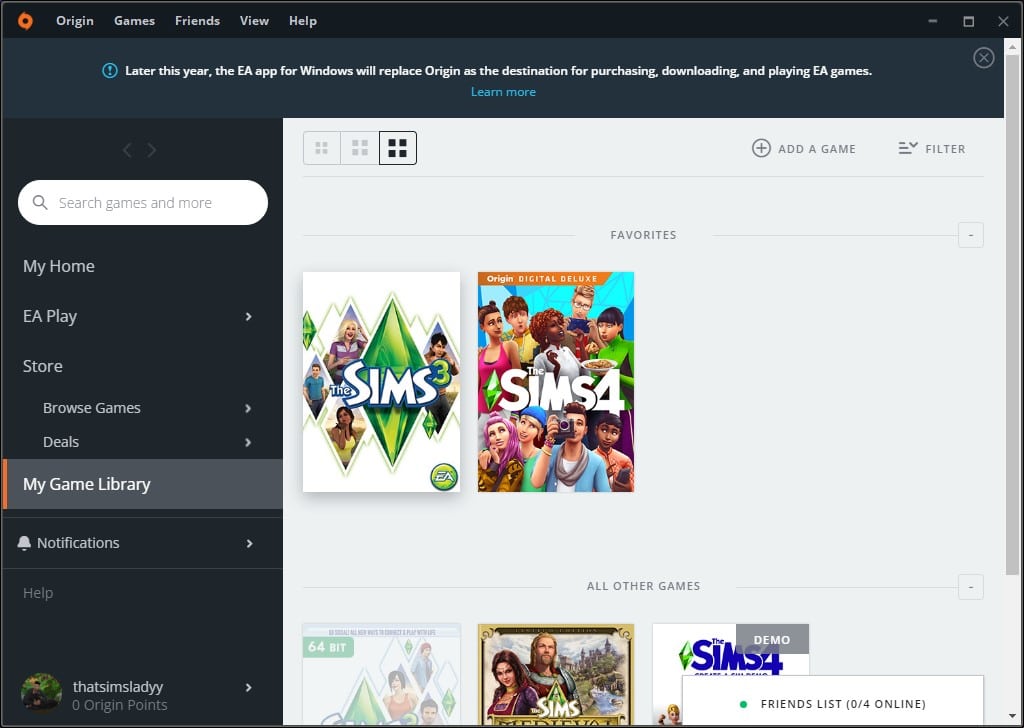
Worried about the switch to EA App? Let us walk you through the basics!
EA will stop using Origin in late 2022 and switch to EA App. What is EA App? EA App is Electronic Art’s new PC Platform where you can play your games. It is available for any players with a (minimum) 64 bit, Windows 7, 8, 10, or 11 computers.
What does that mean for you as a Sims player? Here are the answers to some of your most pressing questions!
Do I need to switch right now?
No, it is currently optional. Later this year, the official switch will happen. It is currently available for all players on a (minimum) 64-bit PC system, running Windows 7, 8, 10, and 11.
Mac OS players will need to continue to use Origin since it is not available yet for their platforms. Steam and Epic will be prompted to download the correct client in order to play their games.
Install the program and it will uninstall Origin and transfer all games.
Do I need to uninstall Origin?
Nope! When installing EA App, Origin will be automatically uninstalled.
Do I need to redownload my games?
Nope! The games will be automatically transferred to EA App without needing to be downloaded.
Will my saves and library transfer?
Yes! These will transfer over to EA App. Although, when updating or transferring to EA App, it never hurts to make a backup of those files.
To backup files, copy and paste you The Sims 4 folder to another place on your computer or a flash drive/external hard drive. This folder is located in Documents > Electronic Arts > The Sims 4
Do I need to make a new account?
Signing into EA App requires the same login credentials as Origin! Use the same login information and you’ll be able to access your games.
What do I do if I don’t know my login credentials? Or if I don’t have access to that email anymore?
The best thing to do is to contact EA Help. Make sure to have your payment information/dates and information about the account so you can prove it is your account.
Can I go play offline?
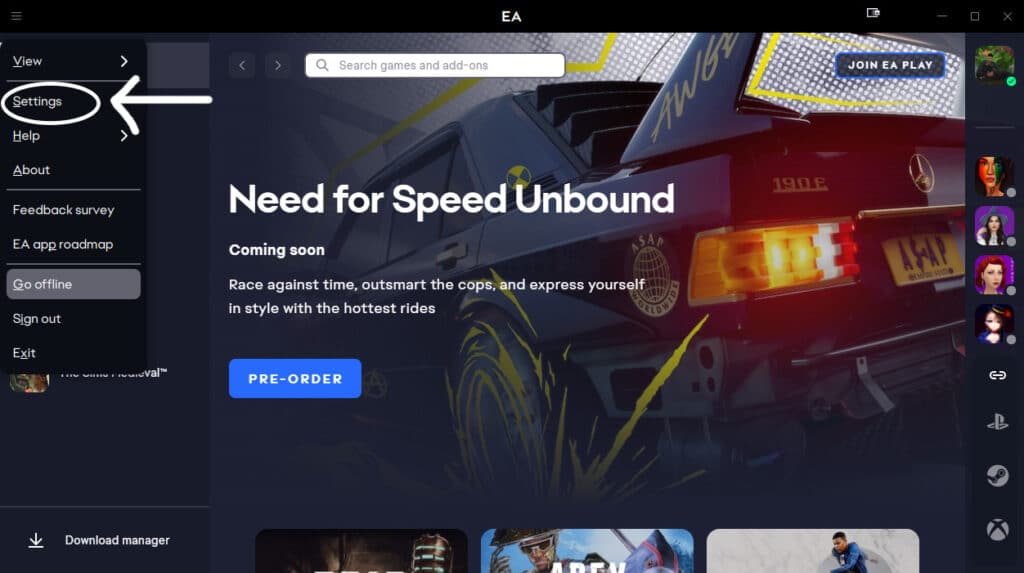
Yes! There is still an option to Go Offline. Click on the three lines in the top left corner and choose Go Offline.
To play games in Offline Mode, click on the blue play button next to the game.
What if my games do not transfer to the new EA Desktop app?
This is uncommon and will not happen to most people. But if this does happen, make sure to contact EA. Do not buy them again.
EA can be contacted here if the games do not transfer correctly.
Can I repair my game?
Sometimes games need repaired. Repairing games in the EA App is easy! Go to your game’s page and click on the three dots next to the play button. Then, click Repair!
Can I turn off automatic game updates?
Turning off automatic game updates is still possible in EA App! In the top right corner, click on the three lines. Choose Settings from the drop down menu.
Click on the download tab and under the Updates heading, make sure to switch off Update Games Automatically. This is especially important if you plan to use Mods. It allows more time to remove the Mods folder before updating the game. Also, is helpful for more time to backup the Saves and Tray folders.
It is also helpful if you want to wait to update your game.
What do I do if I play through Steam, Epic, or on Mac OS?
As of now, there is no version available or players using Mac OS. This does not mean you won’t be able to play the game at the end of the year. Origin will still be available for those players if a version of EA App isn’t available.
For Steam and Epic, they will provide guidance directly through Steam/Epic. It will make sure you download whatever app is required (EA app or Origin) so you can continue plying your games.