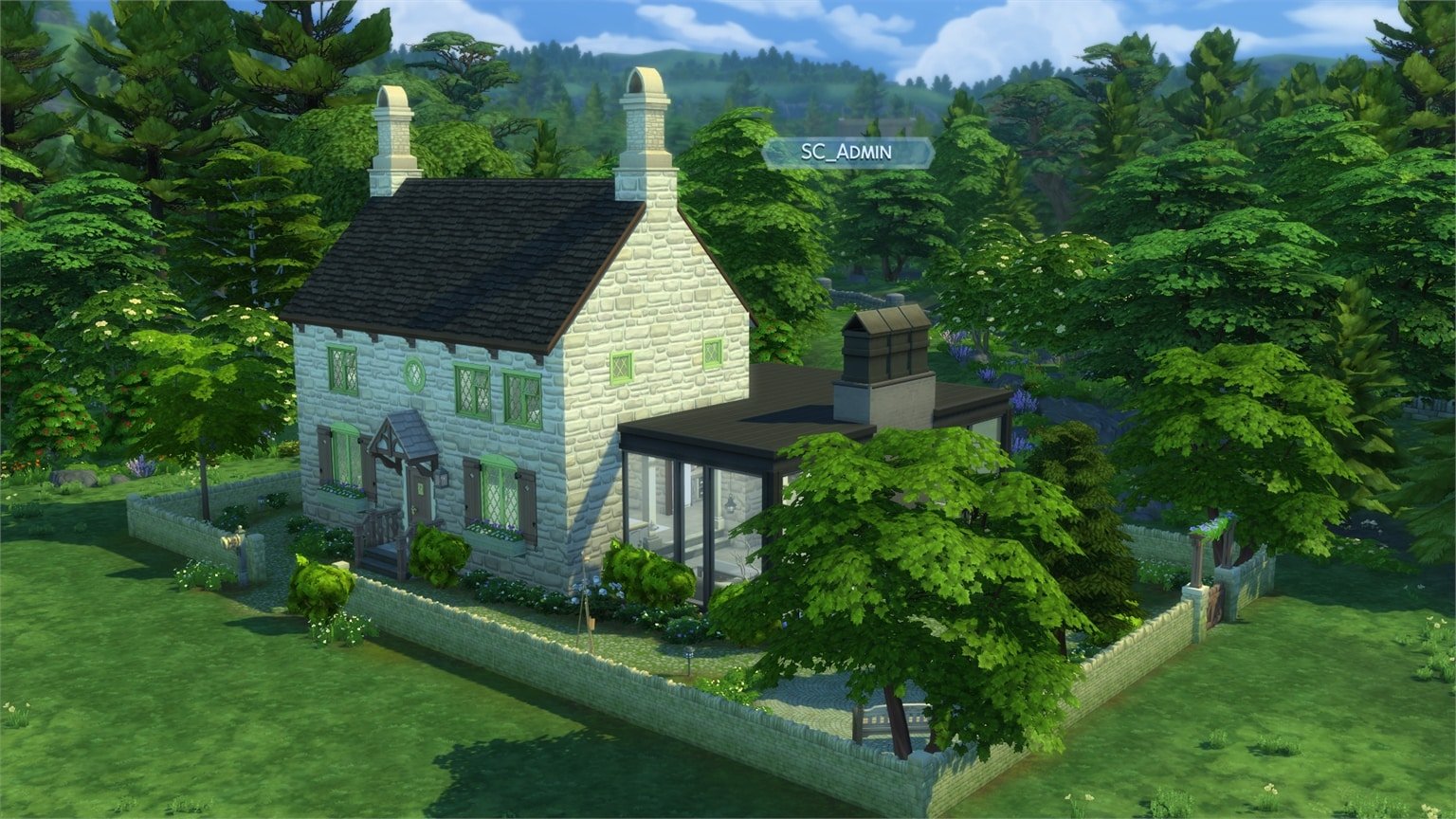
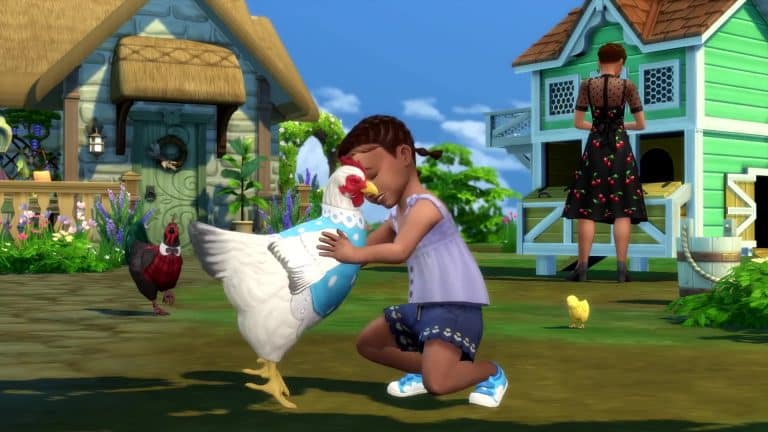
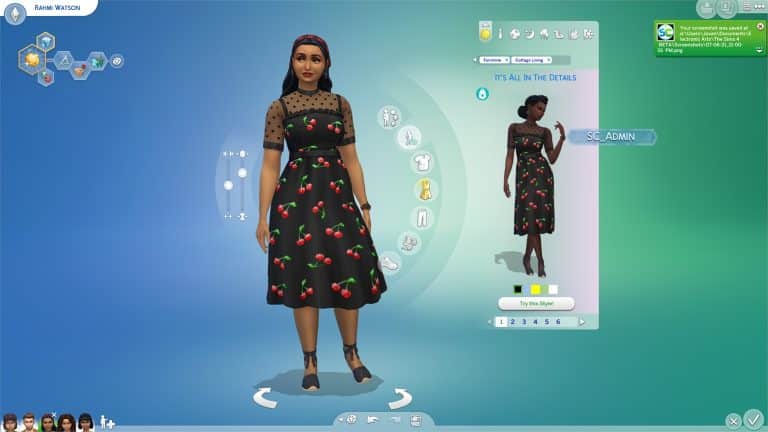
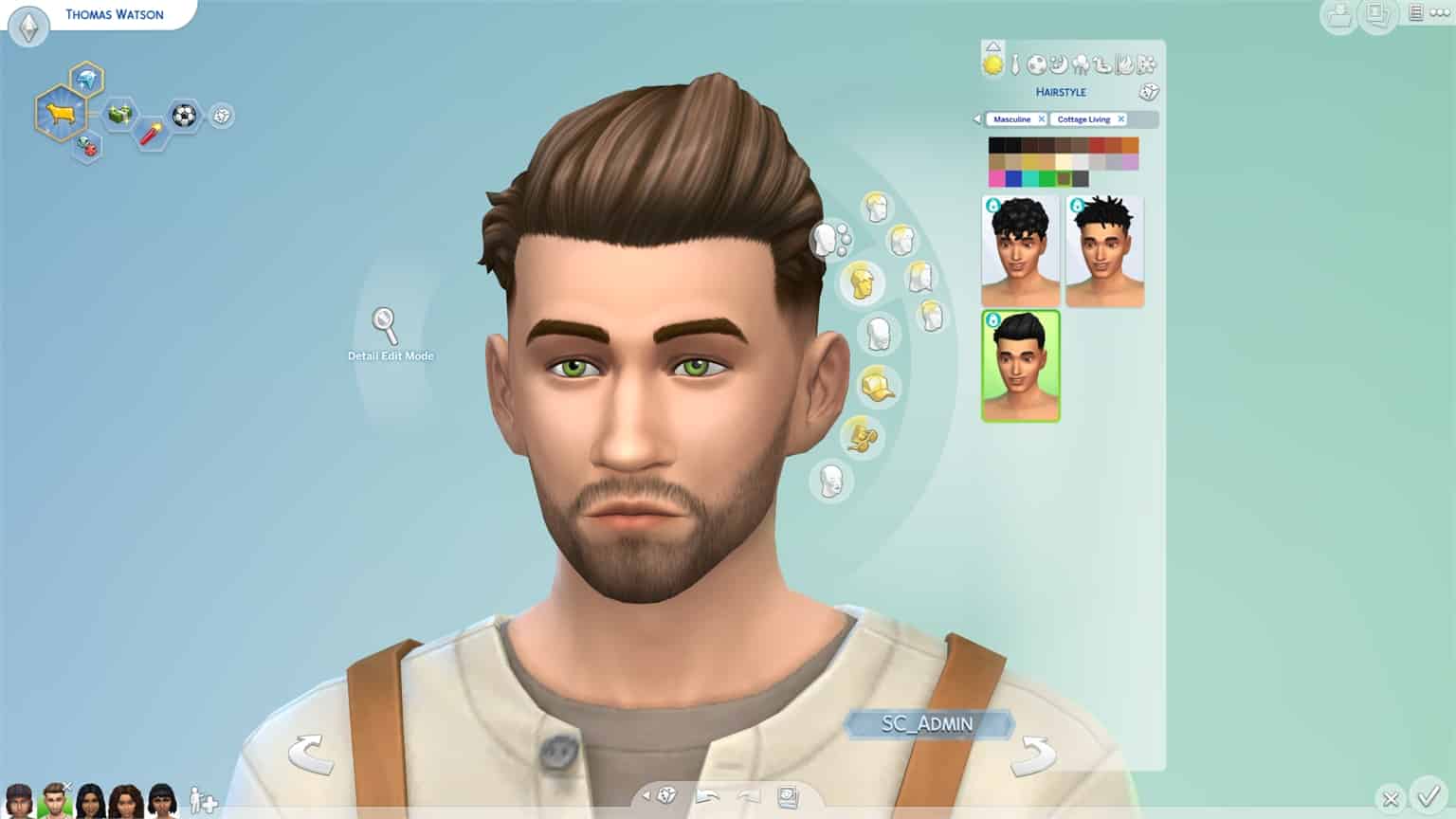
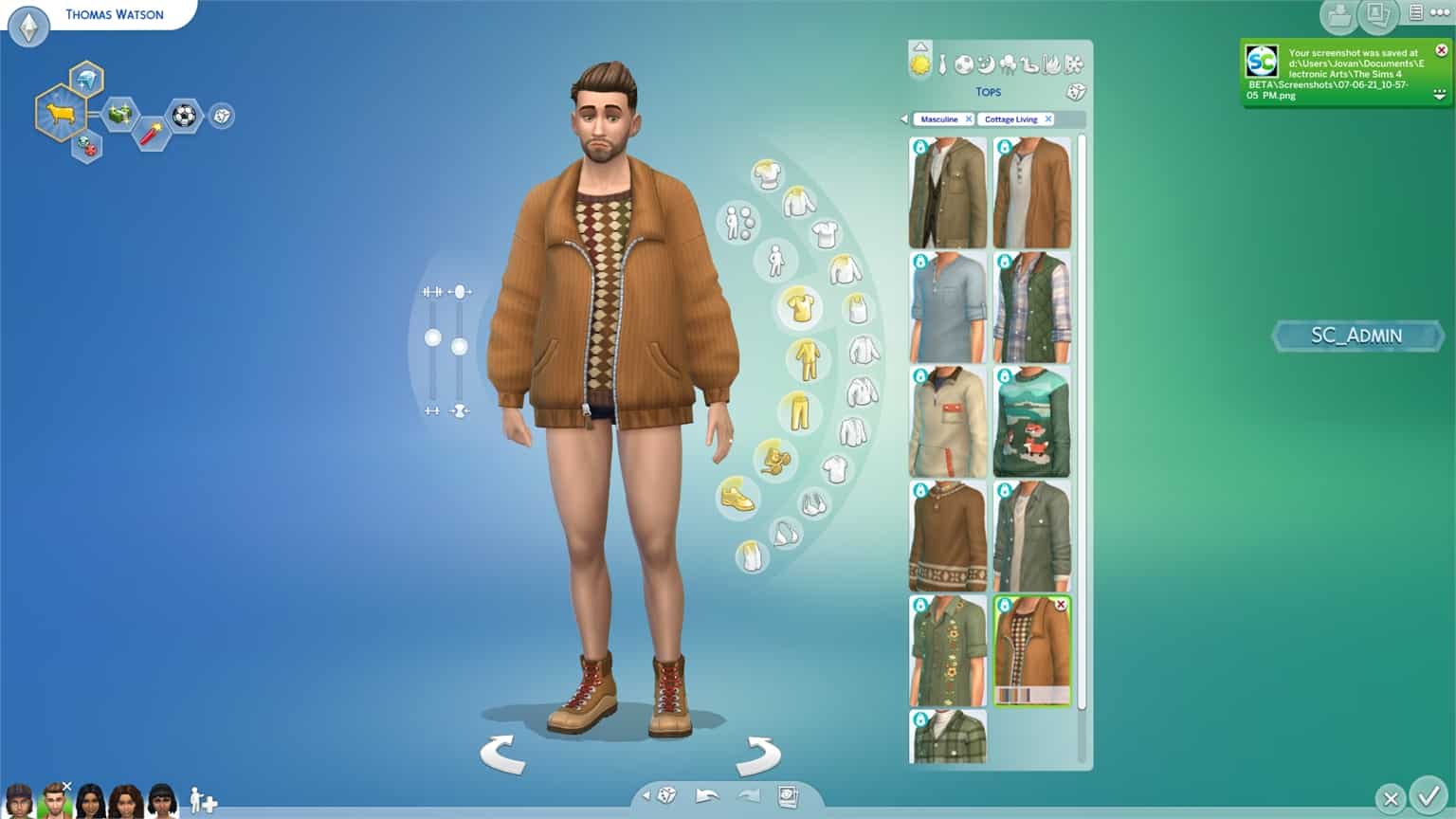
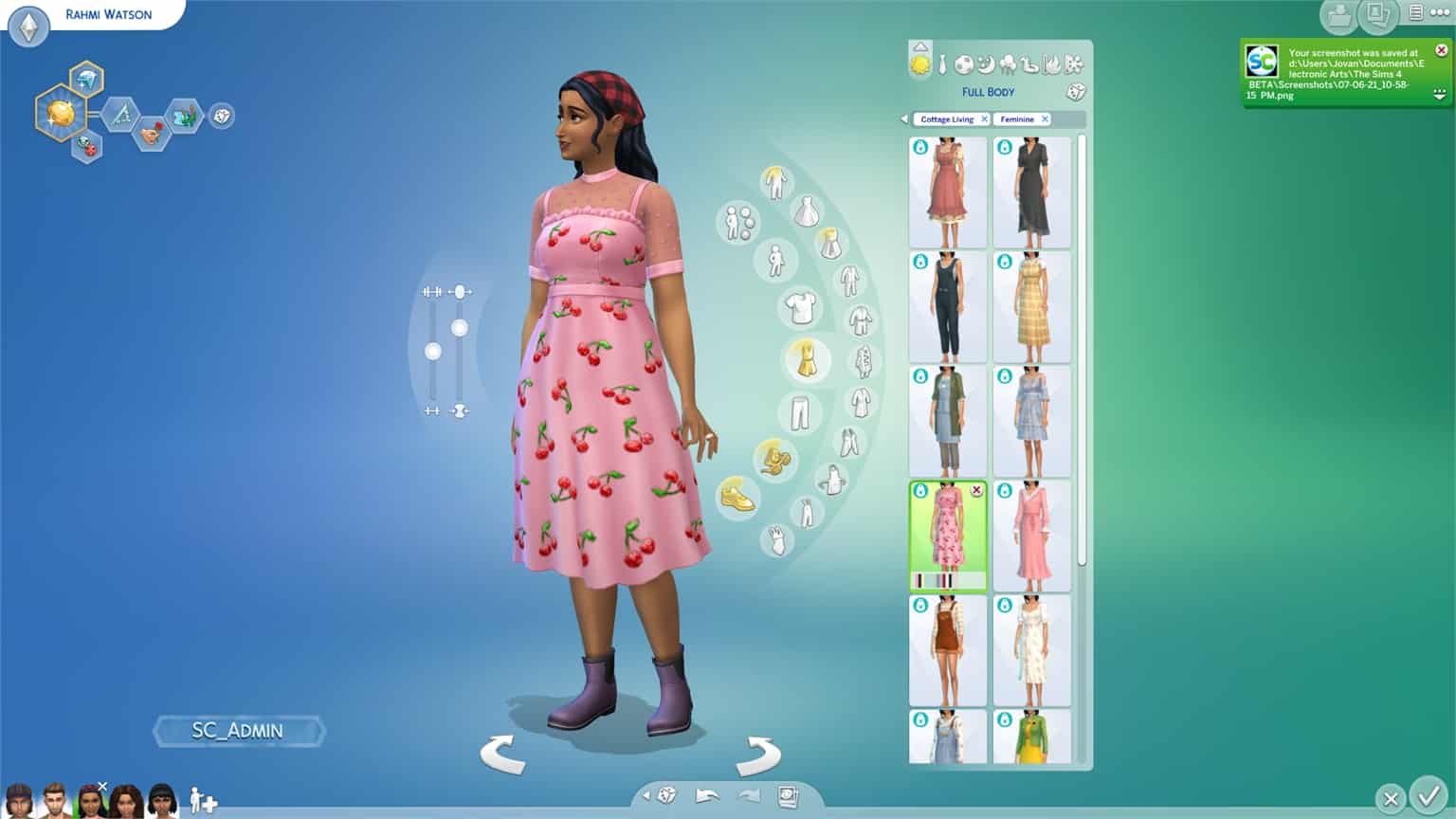
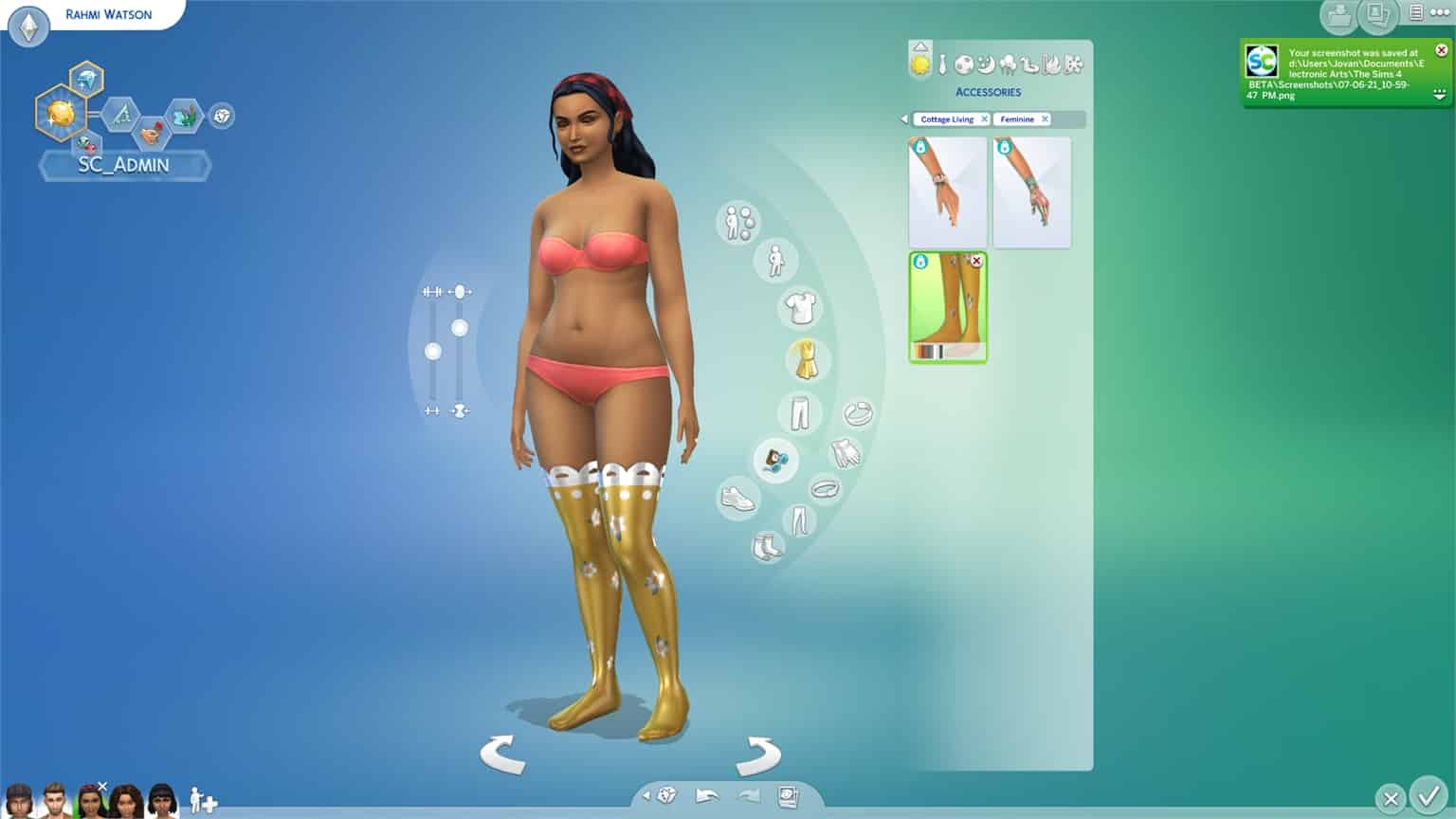
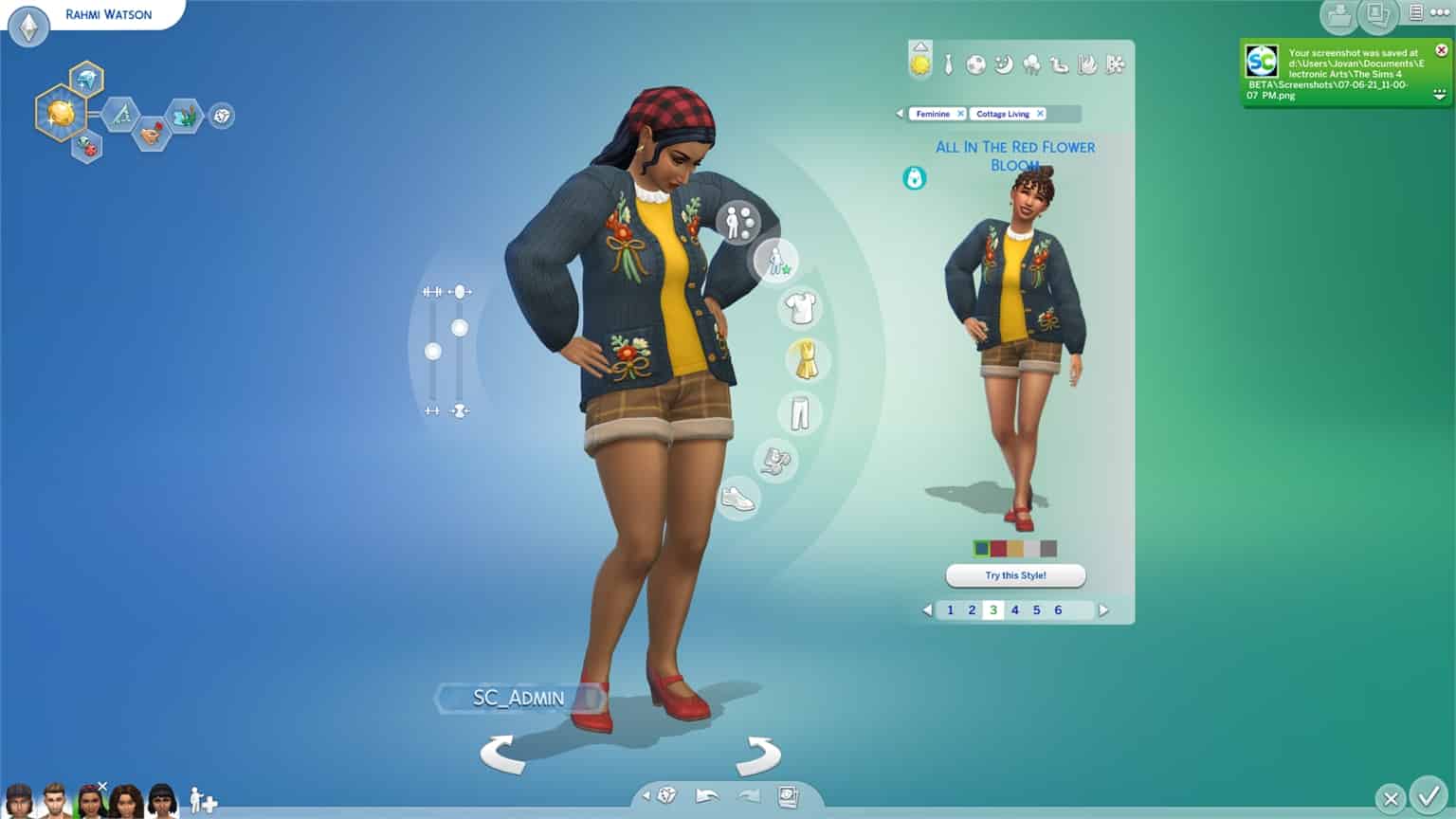
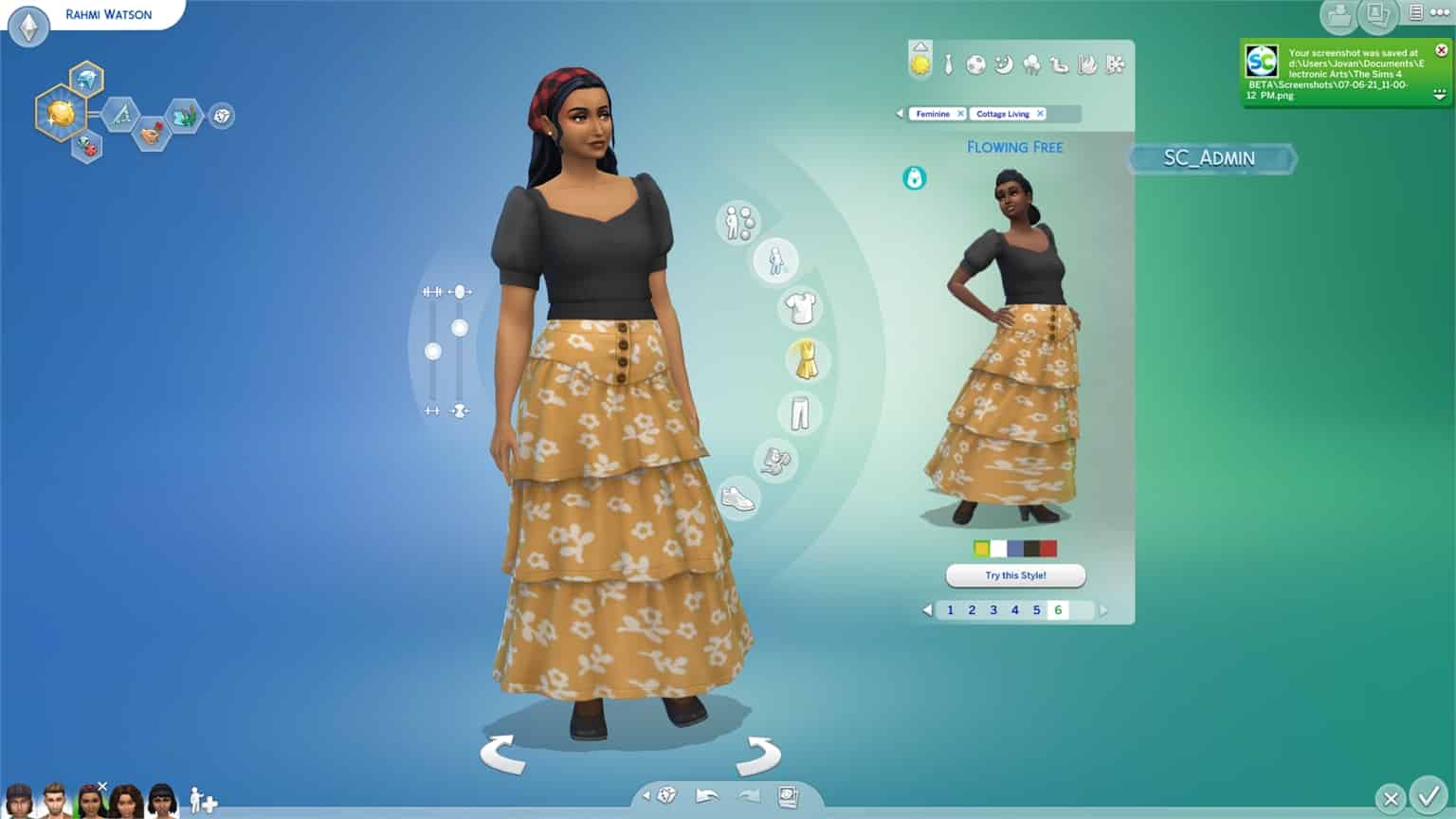
Over the last couple of days I’ve gotten a chance to play The Sims 4 Cottage Living Expansion Pack and showcase the pack, its features and of course – all of the objects included!
In this video overview of Cottage Living’s Build Mode I’ve gone through every single object including new Kitchen objects, Animal Sheds and Chicken Coops, Chairs, Decorative Phone Boots and well, literally everything. In the video I’ve also gone through each color variant there is.
After 26:10 in the video you’ll see a full rundown of BuyDebug and Live Edit Objects. There are so many hidden objects included in this pack so make sure you check it all out!
The Sims 4 Cottage Living Expansion Pack finally lets you purchase groceries (or order them via phone!).
I’ve dived deep into this new feature thanks to the Early Alpha. Please note that because it’s early version things are subject to change!
Groceries are finally making a comeback to The Sims 4! Whether you’re mising basic ingridients such as Sugar and Flour or you’re out of Fruits and Vegetables, you’ll be able to restock your fridge almost instantly with two new ways of getting Groceries, which I’ll explain below.
This feature is extremely useful if you’re playing with the new Simple Living Lot Challenge and are missing a few ingridients and food in your fridge and inventory!
Purchasing Groceries
There are two ways you can get groceries – by purchasing them from a Grocery Market Stall or by ordering the groceries online.
You can directly Purchase (or Sell) groceries at the Grocery Market Stall found in Finchwick Neighborhood, right in the city centre.
At the stall you’ll be able to purchase fresh groceries including:
Cooking Books
Fish
Fruit
Ingredients
Vegetables
There are new set of groceries added every day so make sure you check up the shop regularly! If you have multiple Packs installed that bring in new types of groceries they also might get listed!
The Grocery Shop also lets you sell any groceries you have in your Sim’s inventory. Simply click on the stall and select “Sell…” and choose the groceries from your inventory that you want to sell immediately.
Is your Sim feeling confident enough to ask for a lower price on groceries? They can Haggle with the Grocery Shop Owner and get a discount!
Ordering Groceries
There are three ways you can order groceries directly to your home: via phone or by simply clicking the Fridge and selecting Order a Delivery. You can order the groceries via phone > Order a Delivery > Grocery Delivery.
You’ll get the same Grocery Shop Menu with a similar selection of groceries that can be delivered to your lot.
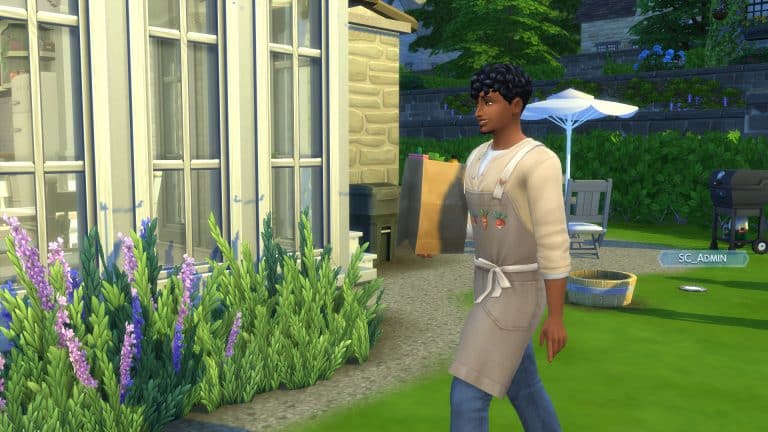
After you finish your order a deliverer will come to your home – in a mater of just a few Sim seconds! They’ll find your entrance doorway and knock on your door until you choose to Accept the Delivery. The deliverer will then place down the groceries on the nearest surface in your home.
You’ll be able to choose whether to put the Grocery Bag in your inventory or Unload the Bag. Unloading the bag will put ingredients in either the fridge and/or your Sim’s inventory, depending or not some groceries need the fridge to remain fresh.
Zoomers Food Delivery
You might’ve noticed that there’s another new Food Delivery service called Zoomers Food Delivery!
The Zoomers Food Delivery allows you to order local specialties and food. The more packs you have installed the more local specialties you’ll also be able to order!
Similarly to Grocery Delivery, the Zoomers Food Deliverer will arrive at your doorstep with the food bag. You’ll have to accept the delivery so that the deliverer can place down the Food box to the nearest surface. Just like with groceries select Unload Delivery Bag, drag the food out of your Sim’s inventory and enjoy your meal!
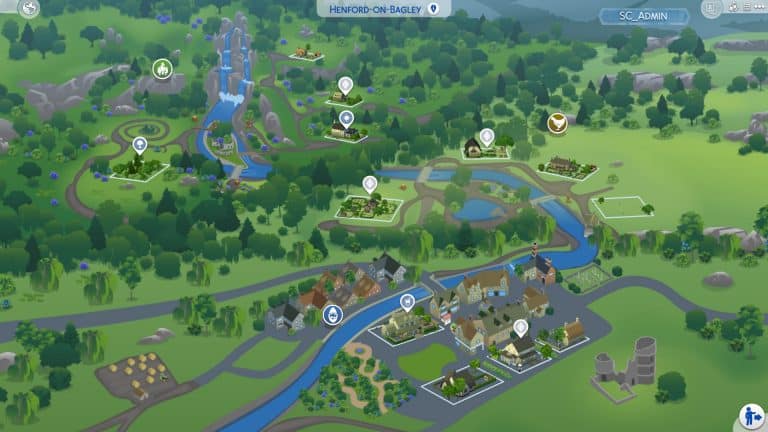
For these last couple of days I’ve gotten a chance to tour of Henford-on-Bagley – a brand new world coming with The Sims 4 Cottage Living Expansion Pack!
In this overview you’ll see a full rundown of the new world, its lots, lot sizes and households included in the world. The software that I captured is Early Alpha so things are subject to change!
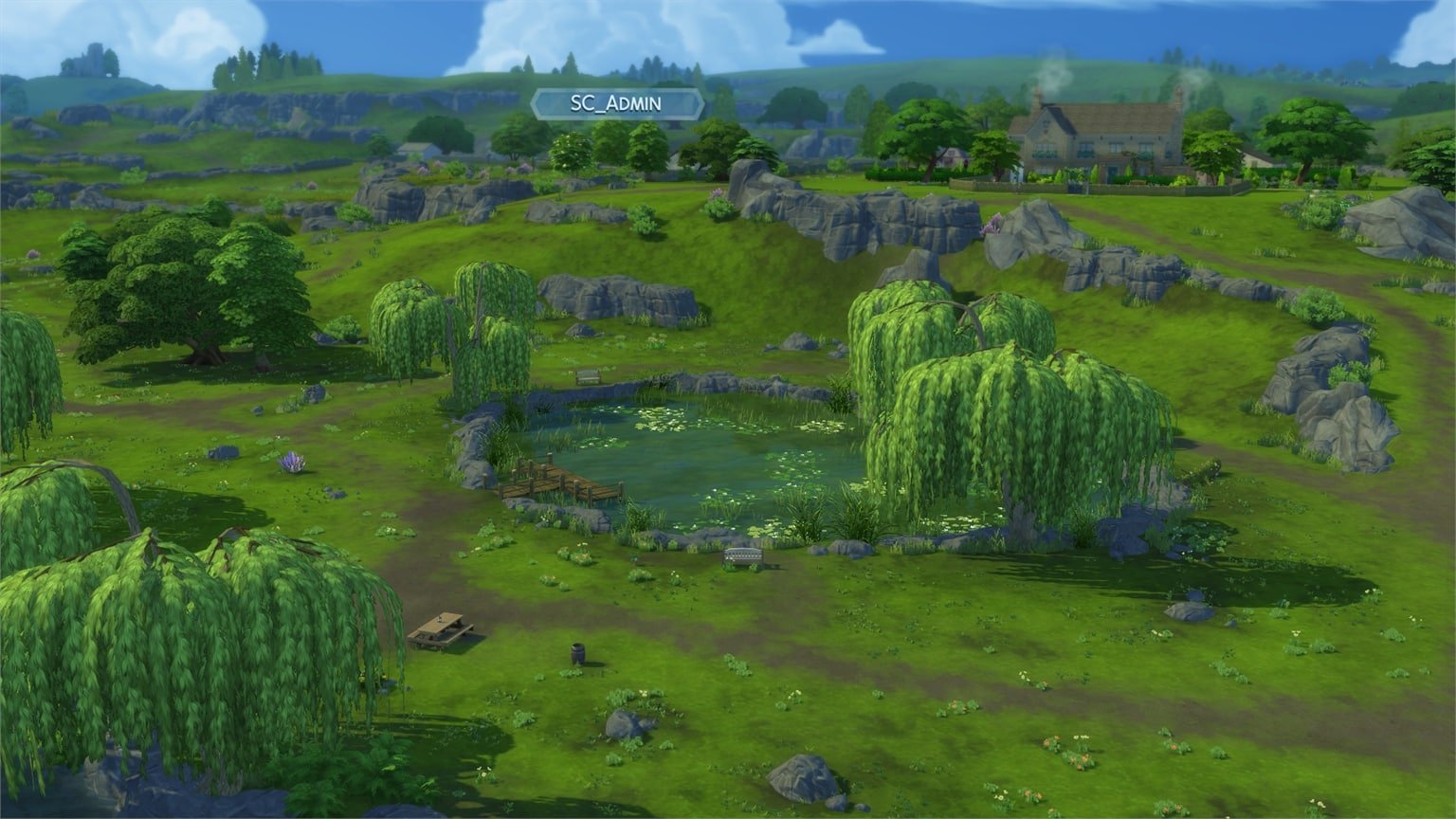
From the natural beauty of Cordelia Falls to the clear, brisk currents of the River Bagley, the mingling of earth and water makes Henford-on-Bagley a lovely place to visit but perhaps an even lovelier place to live. Villagers here connect with the history of the land while finding friendship in the the furry and feathery creatures that inhabit the woods. So what if the average neighbor is a little more gossipy? You couldn’t ask for a better place to grow, tend, and nurture a more natural life.
Welcome to Henford-on-Bagley! This new world consists of 3 different neighborhoods. Down below you can check out the full breakdown of all the neighborhoods and their lots:
The Bramblewood
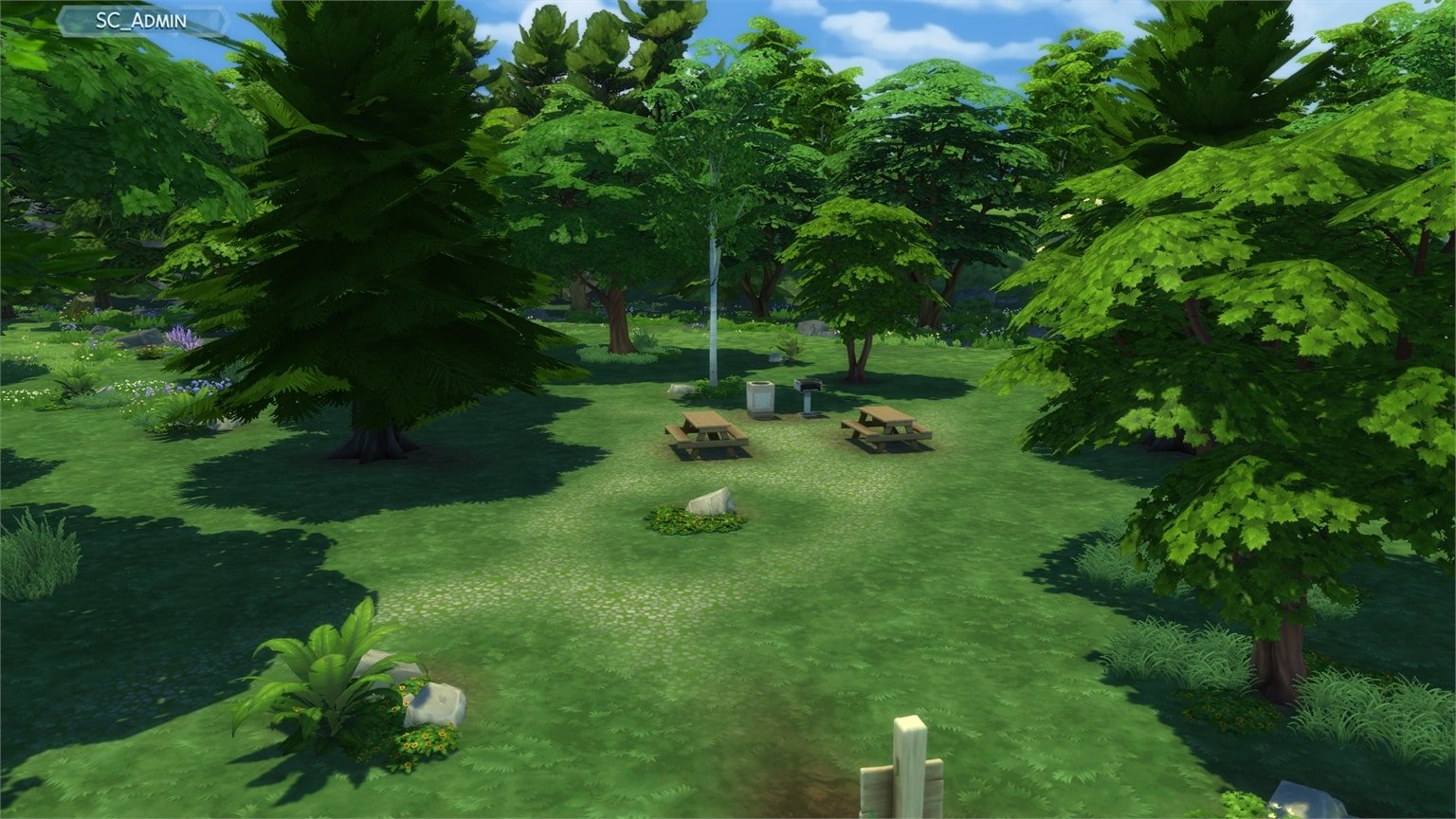
The natural beauty of these woods have long provided a picturesque place for many wild birds, rabbits, and foxes to call home. Whether secreting a small surprise under Sophie the Snail, bringing an easel to paint the serene Cordelia Falls, foraging for wild mushrooms, or finding romance among the ruins of the Isle of Volpe, any Sim would be transformed by a day in the Bramblewood.
The Bramblewood also has two homes each for wild rabbits and wild birds. You can see where they’re located in the map below:
Finchwick
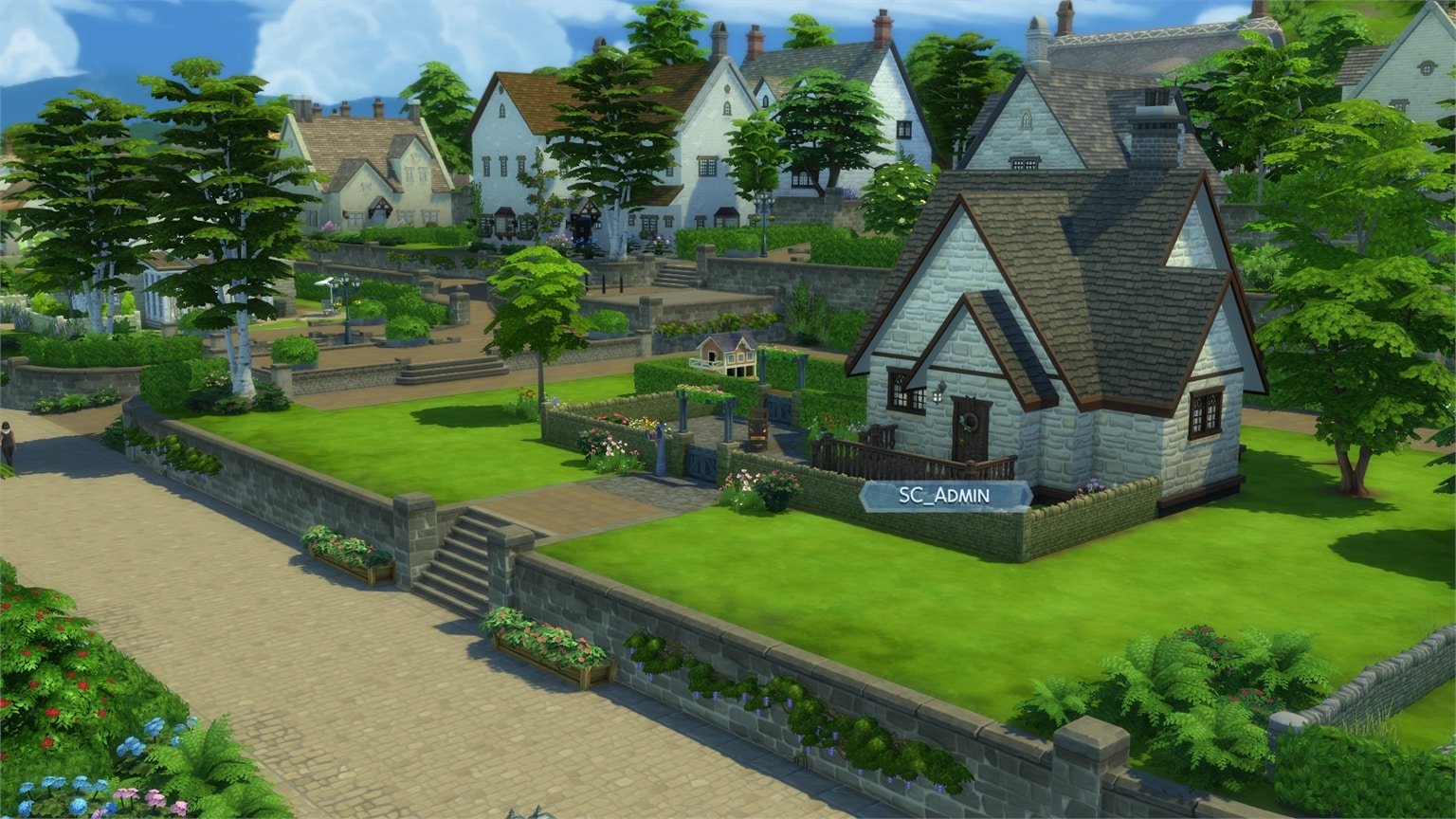
Nestled along the River Bagley, the old mill village of Finchwick prides itself on its bustling and close-knit community. Its historic square features a pub and quaint stalls amid a flowering garden, perfect for a little window shopping. Tourists and locals alike flock to the weekly village fair, where Finchwick’s Mayor makes a special appearance to judge entries and gossip about the latest happenings.
An area that boasts rolling hills, lush estates, and a small community garden, Old New Henford is perhaps best known for its historical naming woes. Initially known as Little Henford, the neighborhood renamed itself New Henford in an attempt to escape its diminutive origins. However, in neglecting to inform national mapmakers, they ceased to officially exist for a two-week period. When told that to be reinstated would require yet another name change, residents chose Old New Henford, which beat out the other choice – New New Henford – by a single vote.
I’ve gotten a chance to play the upcoming version of The Sims 4 and test out the brand new Water Tool Feature that’s coming to Build Mode for FREE! In this article I’ll be showcasing all the water tool possibilities, what it takes to create a pond, showcase the new water objects and also take a look at minor feature improvements for Terrain Paint as well!
Please note that the version of The Sims 4 I got to play is an early version and features are subject to change.
The first thing you’ll notice is a small revamp of the Build Menu on the bottom left – with a new Terrain Tools icon that now also include the new Water Tool, as well as a category for Outdoor Water Decor.
The Water Tool
With the water tool you are able to create ponds in your own lot! This tool co-operates with the Terrain Tools, meaning that you’ll have to deepen the terrain in order to fill it with water. Something like this, or however you want to deepen the terrain:
All the way on the bottom of the Terrain Tool categories you’ll find the Water Tool category. Inside there are different brush sizes, a Water Depth Map Option and tools including Raise Water, Lower Water, Fill to Height and Remove Water.
Down below you can check out what each tool does and how it looks like in the game:
Raise Water – raises water to the surface level that you’ve selected.
Lower Water – lowers water to the surface level that you’ve selected.
Fill to Height – Fills the water to the height of the square that you’ve set. You can increase the height of the square by pressing Ctrl + ] or lower it by pressing Ctrl + [.
Remove Water – Instantly removes water from the terrain you’ve selected.
water2
water3
water4
water5
FUN FACT: Did you know that you can have multiple ponds at multiple water levels? That’s right! As long as there’s terrain that cuts the water in half at a certain terrain level you’ll be able to create each pond at a different water level!
Remember – each pond on your lot can be placed at a different water level. Terrain and pond holes that you’ve deepened seperately one from another are especially easy to manipulate with their water level. Creating different water levels with the pond you’ve seen above can get a little…challenging.
The Water Depth Map allows you to quickly see in Build Mode which areas are approachable and interactable with water interactions in Live Mode.
Outdoor Water Decor
There’s now a new category added to Build in the House User Interface – marked with a log. Inside you’ll find 3 new categories for Pond Tools and 2 categories for fountains and pools, including:
Water Styles
Pond Objects
Fountain Decorations
Pool Objects
Pond Effects
Water Styles
There are 6 water styles coming with the Base Game, including:
Ordinary Chlorinated Pool Water
Dreaming of Water
Pond Scum
Mossy Water
Leafy Water
Pond Water
water8
water9
water10
water11
water12
water13
Pond Objects
The Pond Objects Category includes objects such as the log, grass, lily pads, fountains, sculptures and fishing signs!
There are two versions of fishing signs included: one which allows you to stock the Pond with your own Fish and the other sign comes Pre-Stocked with basic Fish types.
You’ve heard that correctly – you can stock your own Ponds with your own fish that you’ve discovered and caught!
Clicking the Fishing Sign in live mode will allow you to Stock the Pond with the Fish you’ve caught. From there you’ll be able to manage which Fish can be in the Pond and used for fishing – either by yourself or other Sims who visit the lot.
Pond Effects
Because for some reason fish don’t appear visually after you stock the pond, you’ll be able to fill in the Pond with effects found in the Pond Effects category!
In this category you’ll find the following effects for placing down. Please note that visual effects will only start appearing after you enter Live Mode:
Dragonfly Swarm
Tadpoles
Country Fish
Mosquitoes
Fireflies
Mr. Ducksworth
Mallard Ducks
Pair of Swans
Unidentified Submerged Object
Gator Benjamincollis
Terrain Tool & Paint – New Brush Sizes
The upcoming update for The Sims 4 also includes new Brush Sizes for Terrain Tools and Terrain Paint! There are no longer 5 brush sizes but a slider that consists of 8 different sizes, meaning you can make the brush as small as a single tile piece…
…or as big as almost your entire lot!
These new sliders will especially come in handy for everyone who uses Terrain Paint, because now you can go into much greater detail!
What are your thoughts on the new Water Tools coming to The Sims 4? Let us know in the comments!
Over the last couple of days I’ve gotten a special opportunity to check out the early alpha copy of The Sims 4 Cottage Living Expansion Pack!
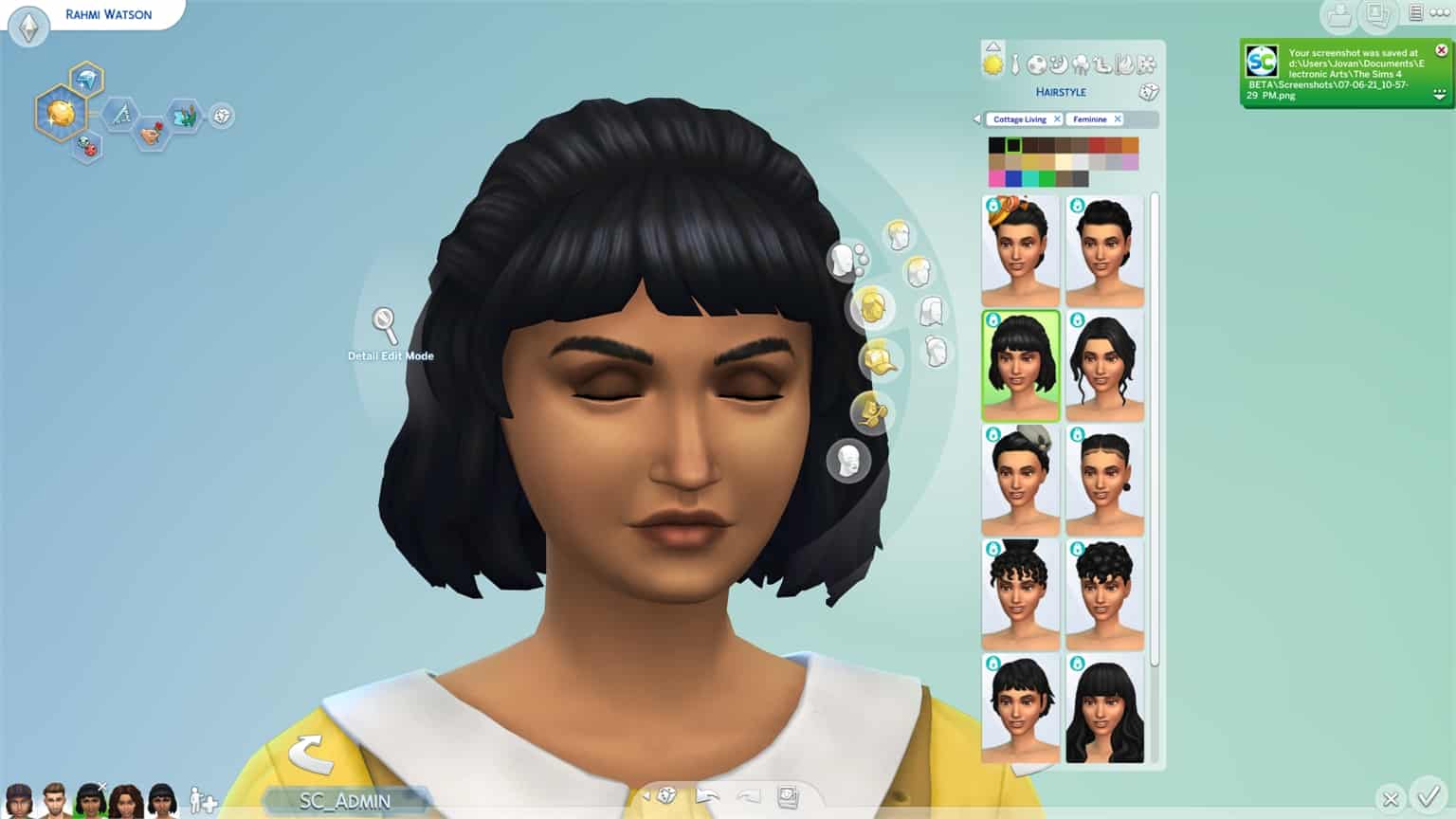
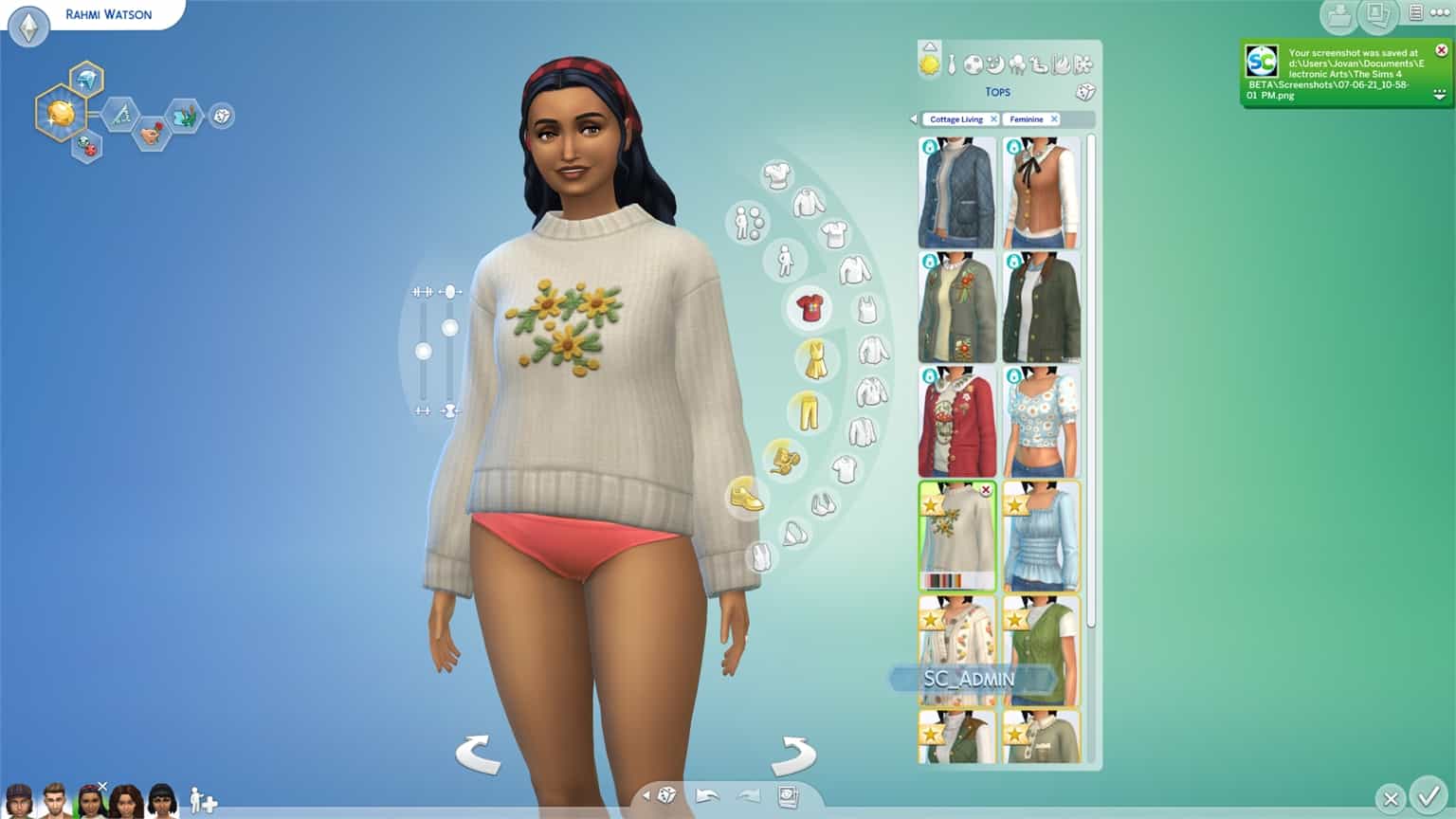
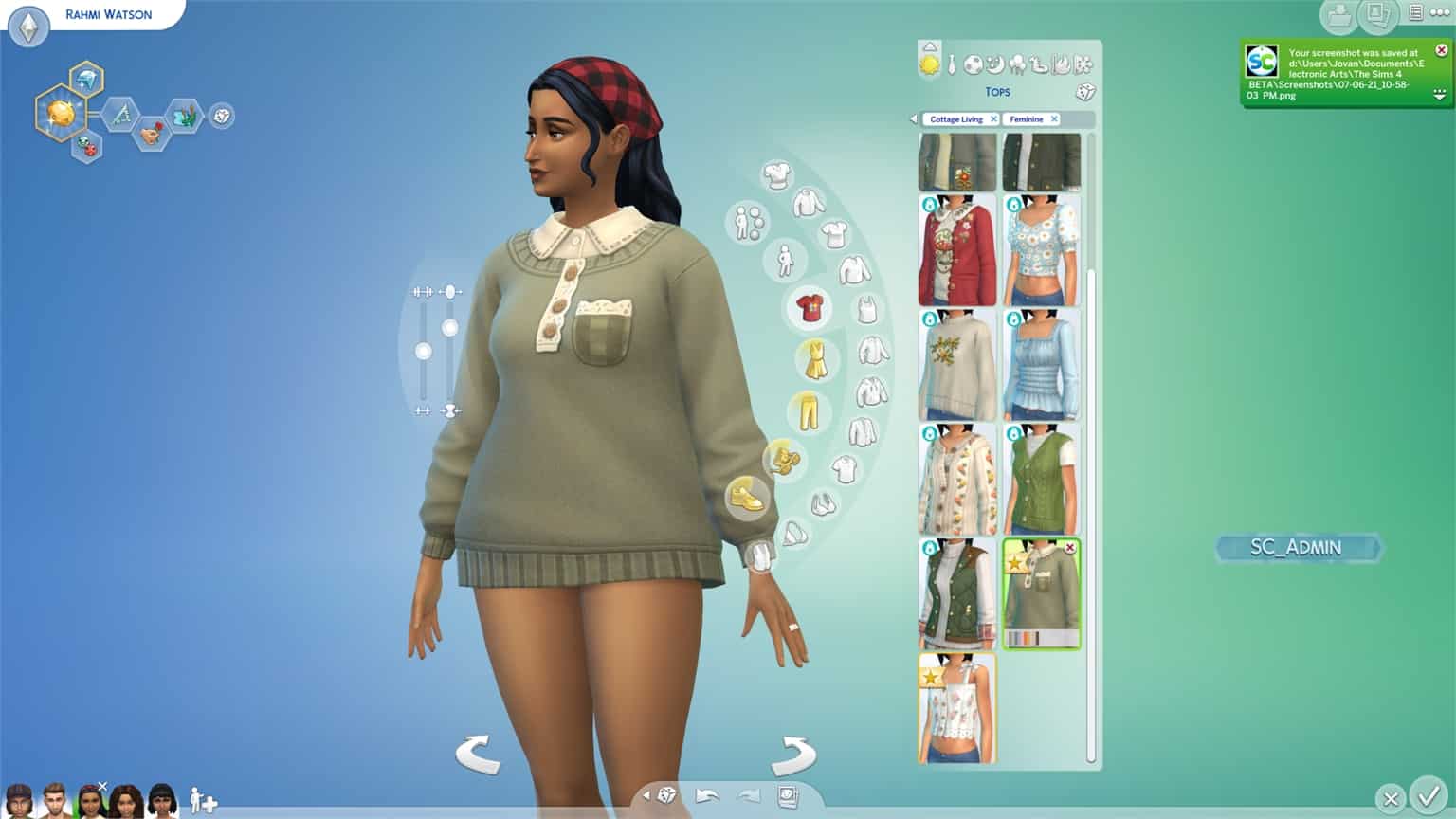
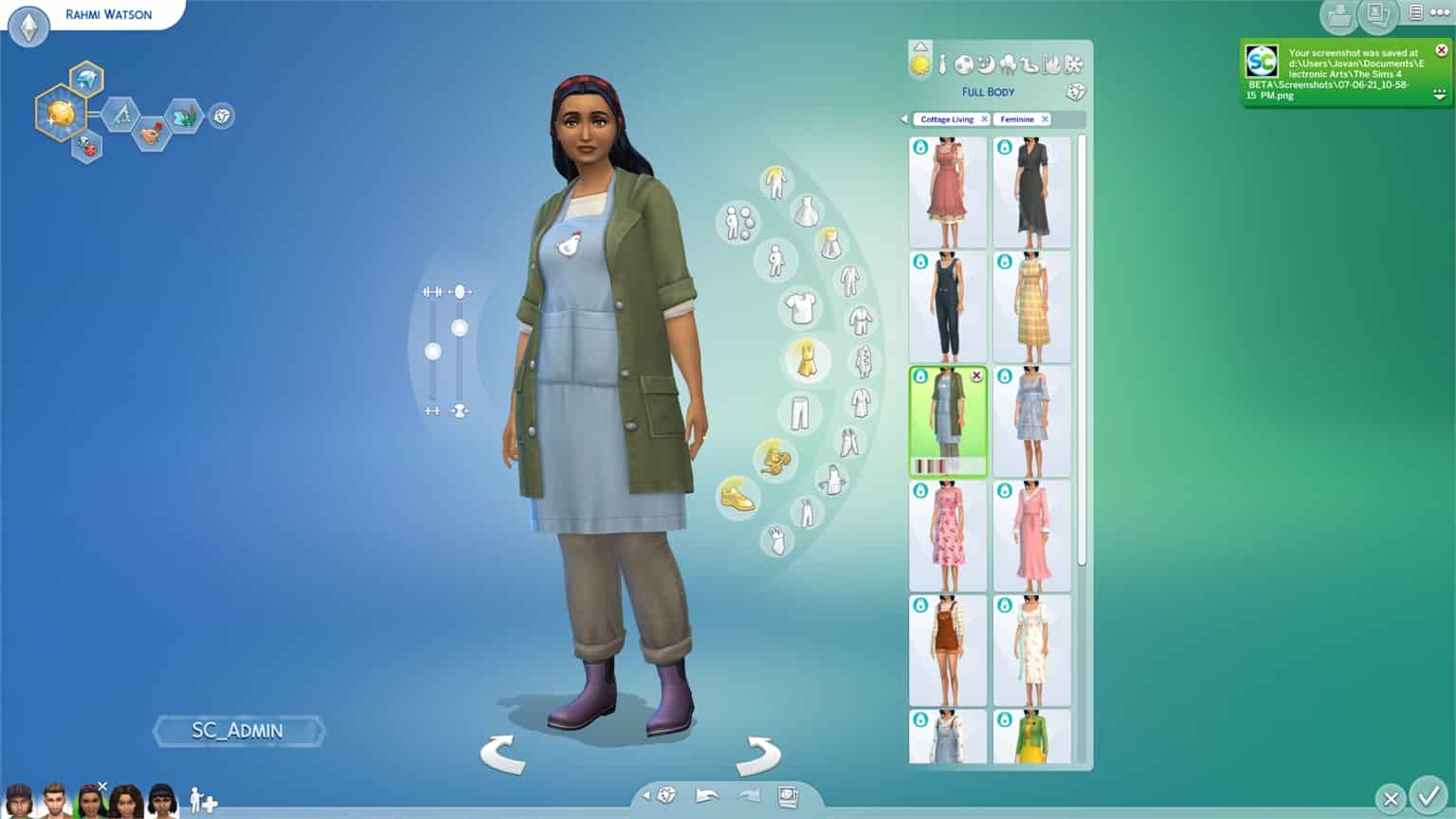
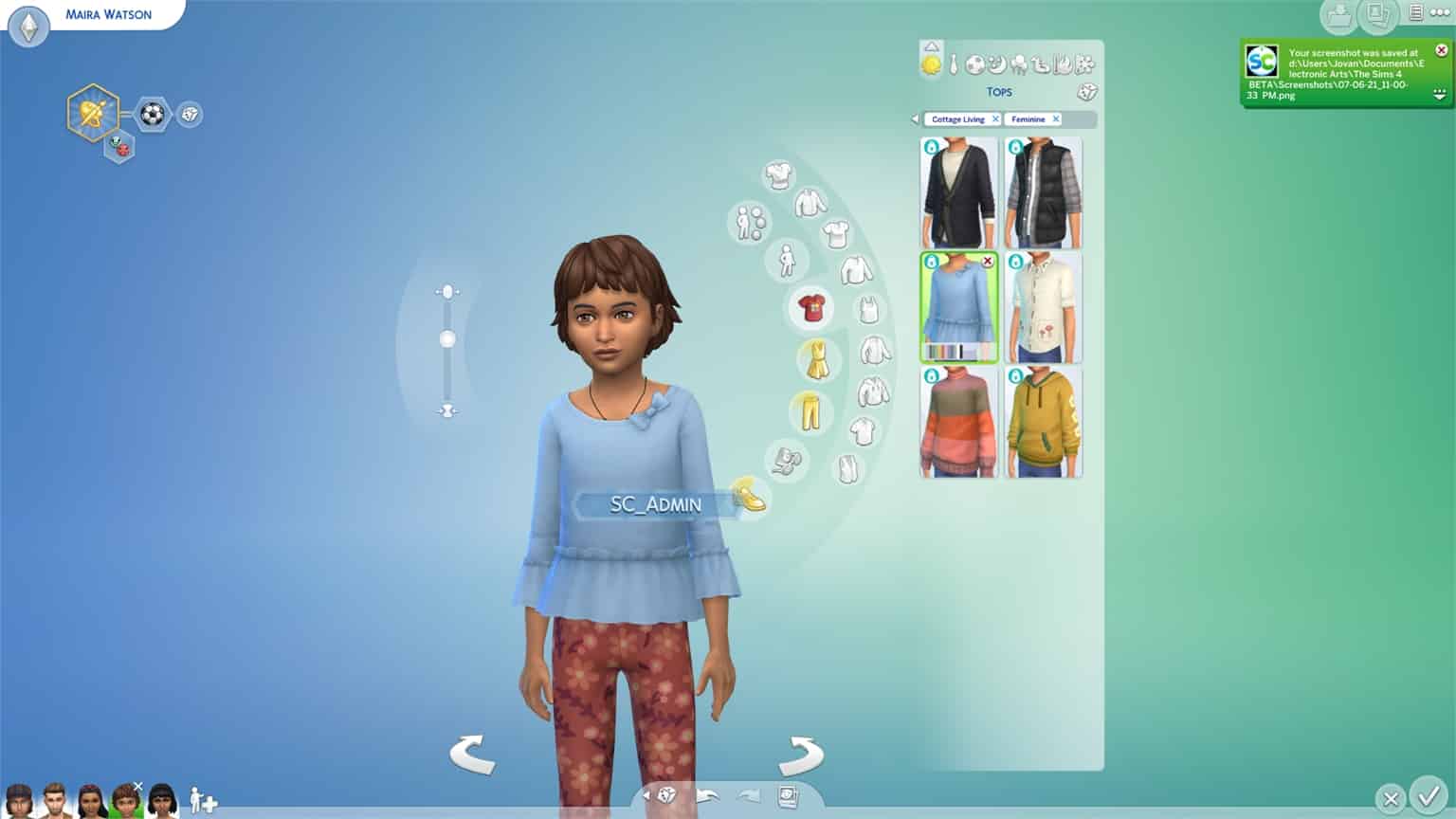
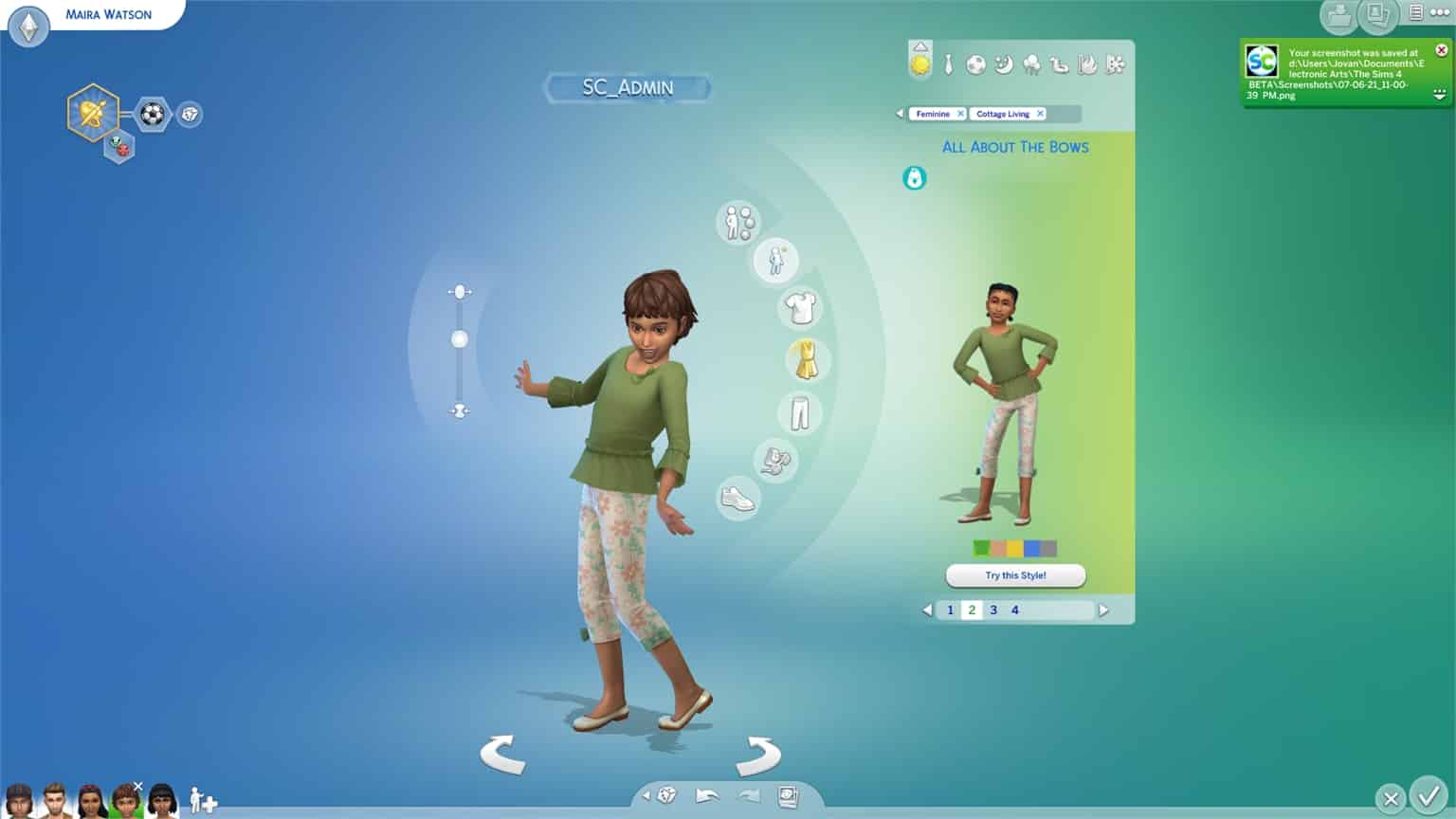
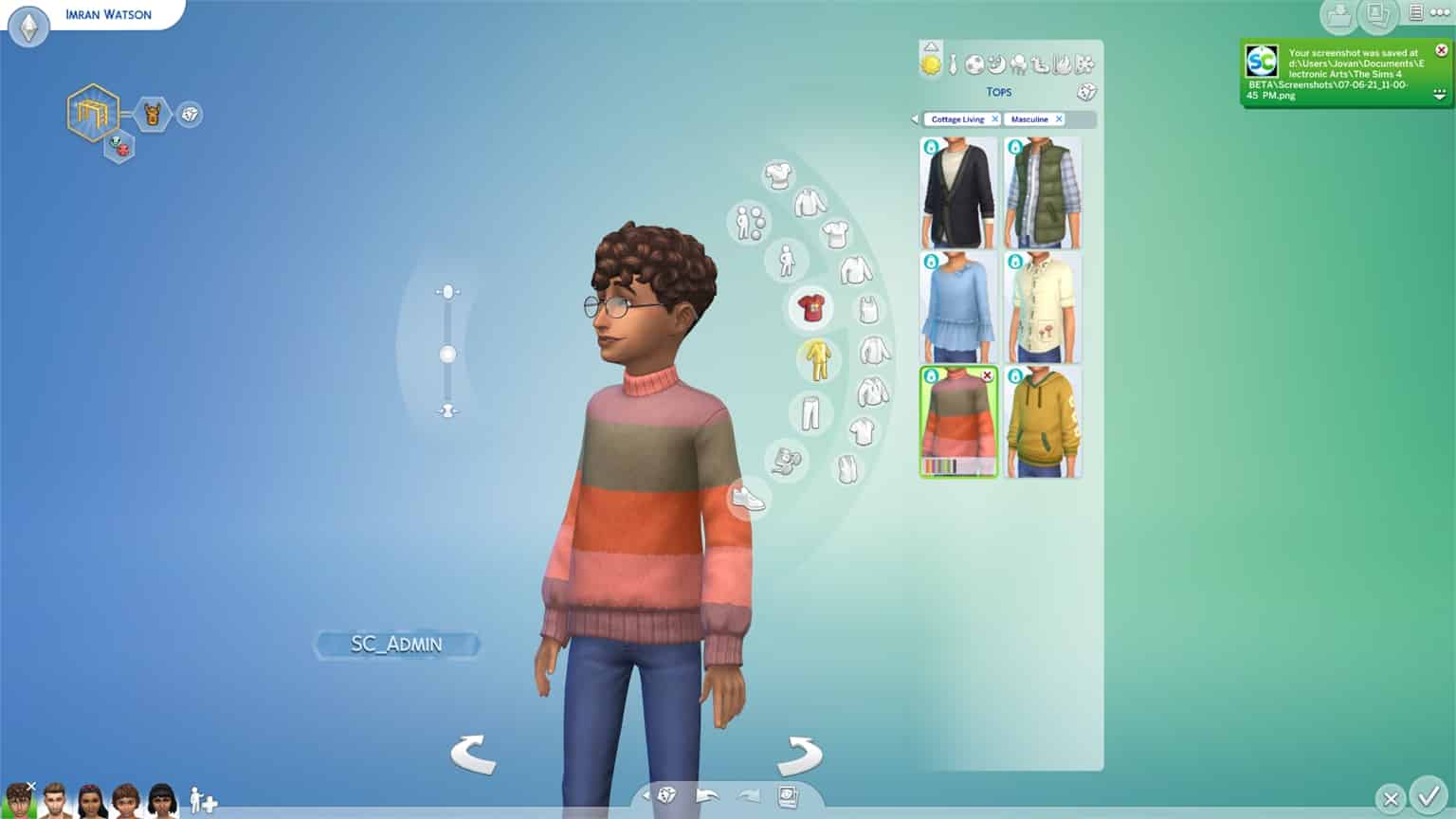
During this period I’ve managed to check out the full catalogue of Create A Sim items that come with this pack. There are new CAS items for each age in the game, and I’m especially impressed at the hair conversions done for Children and Toddlers!
Down below you can check out the full rundown of all of the new Create A Sim items, for each fashion preference, category and age. I’ll be doing a deep dive into seperate swatches in an upcoming CAS Review video so stay tuned!
Before you check out the CAS preview, please note that this is Early Alpha software, meaning that the game is not final yet. You might see some issues specifically with one of the feminine adult bottoms, as well as the issue with a specific pair of leggings looking “glossy”.
New Aspiration
Country Caretaker – Country Caretakers want to tend the countryside and befriend all animals and critters!
New Traits
Lactose Intolerant – These Sims will become sick if they eat dairy, but will feel great if they have avoided it for a while.
Animal Enthusiast – These Sims are obsessed with animals, and will seek their company often. They will have an easier time caring for animals and getting closer to them.
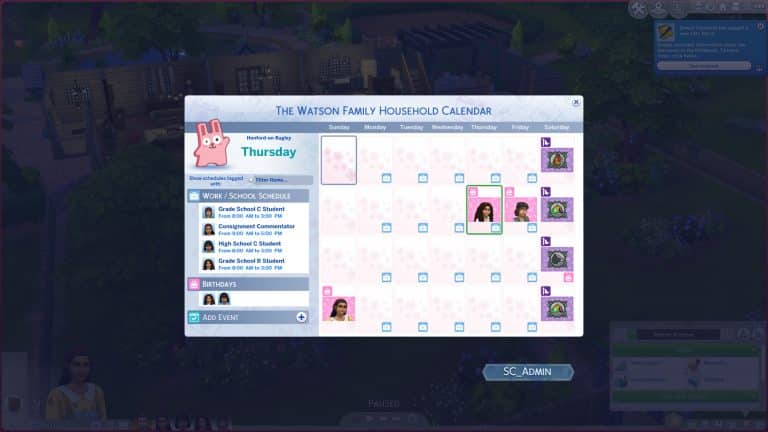
The Calendar, a feature which was first introduced with The Sims 4 Seasons Expansion Pack is getting integrated into The Sims 4 Base Game for FREE!
I’ve played with the calendar while getting my hands on The Sims 4 Early Alpha and here’s what’s included in the Base Game version, as well as which improvements have been made.
The Base Game version of The Calendar will display things like Work Schedules, School Schedules, Birthdays, Events you’ve made and Festivals happening in the world, assuming you have packs installed that bring in new Festivals.
The Calendar allows you to create an Event like Parties, Birthdays, Weddings and more up to two weeks in advance!
You’ll notice that in The Calendar User Interface there’s a new Filter Category. This will ESPECIALLY come in handy if you have multiple Packs installed since a lot of festivals and events have been added to The Sims 4 over the last couple of years. With these filters you’ll have an easy overview of schedules that you care about the most.
Looking forward to a specific festival or an event? You’ll be able to save multiple ones as your Favorite and keep track of it in the calendar through the Favorites filter!
Features from The Sims 4 Seasons such as The Weather Report, Holidays and creating your own Holiday are still exclusive to the Expansion Pack. You’ll be able to keep track of your favorite Holidays by favoriting them!
We’ve gotten a chance to play with The Sims 4 Cottage Living Early Alpha Access, and with the pack we’ve also gotten the upcoming version of The Sims 4 Base Game!
In this video I’m showcasing all of the new Features coming in this month’s The Sims 4 Base Game Update including new Water Tools, Group Activities, The Calendar and so much more!
There’s going to be a seperate article as well in the near future going into detail with all of the new additions. Stay tuned on our website!
The Sims Team is doing an official livestream for The Sims 4 Cottage Living Expansion Pack!
In this livestream they’ll be showcasing the pack and do a deep dive of the pack’s Gameplay, World, Build and Create A Sim!
The livestream is set to begin at 11AM PT / 8PM CET / 7PM BT. If you’re confused about the time zones don’t worry – the countdown to the stream is included in the livestream linked below.
Don’t go just yet after the livestream’s over! Just one hour after the livestream we will begin rolling out exclusive coverage for The Sims 4 Cottage Living (and the upcoming Base Game update as well) so stay tuned on our website!
We all know The Sims 4 has many different occult types; aliens, vampires, mermaids, spellcasters, and servos have all made their way into the game. Occult fans with generational play styles are probably used to getting either one type of occult or the other when having two different occult types Try for a Baby. This is because The Sims 4’s genetic system is 50/50; offspring have a 50/50 chance of inheriting one trait or the other from each parent with a small 10% chance of a genetic mutation occurring, resulting in a random physical trait.
But sometimes things go either horribly wrong or horribly right with blending occults, depending on how you look at it. Sometimes, you end up with a Sim that is more than one occult type. This isn’t supposed to happen. It is a glitch and man… are these hybrid Sims ever glitchy and yet, so much fun even in all their bizarre brokenness.
I became obsessed with creating and playing with hybrid Sims a few years back and decided to bring one of my old saved Sims back from the deep recesses of my library to showcase just how wonderfully messed up they are.
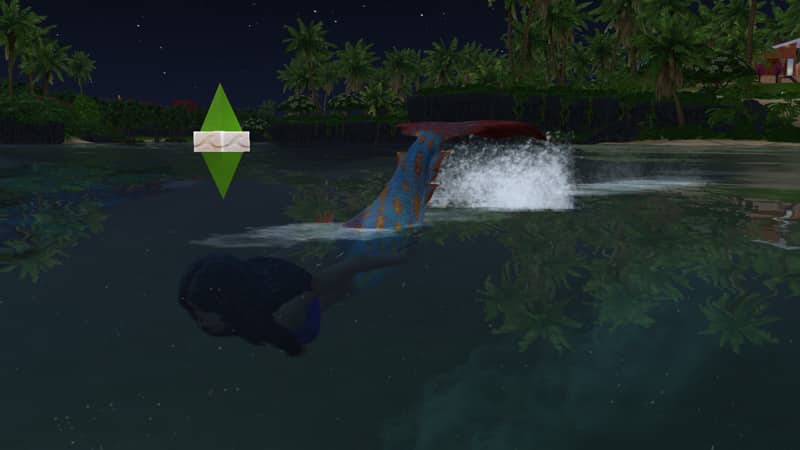
Vivienne Faye is a vampire, mermaid, and an alien who can use powers from all three occult types. Sounds pretty amazing, right? Well, yeah but hang on a minute. Vivienne is also very, very glitchy. She’s lots of fun to play and in all my time playing with her, she’s never done any kind of damage to my save file so she is safe to play with; however, she has some quirks.
Vivienne has the thirst and vampire energy motives for vampires, as well as the hydration motive for mermaids. She also burns in the sun, but she does not have a vampire skill tree. This means Vivienne is forever stuck as a weak, fledgling vampire because she can’t learn any vampire powers. She can protect herself from the sun by calling rainstorms as a mermaid, though.
Vivienne has a mermaid tail when in the water but her mermaid form doesn’t show up in CAS so it’s not editable. Same goes for her alien form. She can switch into it in Live Mode but it can’t be edited in CAS. The only secondary form that shows up for her in CAS is her vampire dark form. In fact, editing her in CAS at all is kind of a major headache.
In-game, Vivienne is lots of fun to play, though! She has all of an alien’s special powers, all of a vampire’s basic abilities like drinking from Sims and dark meditation, and all of a mermaid’s abilities as well! This makes her really versatile and quite powerful… as long as you keep her out of the sun. That Call Rainstorm ability is really handy for a mermaid-vampire-alien hybrid who burns in the sun but has to swim and can’t learn any vampire abilities.
07 07 21 4 55 06 PM
07 07 21 4 56 16 PM
I wanted to push Vivienne one step further. I created Vivienne before spellcasters came to the game and wondered if she had a child with a spellcaster, if I could get a Sim that was an alien-vampire-mermaid-spellcaster hybrid! The idea was so crazy, I just had to try it.
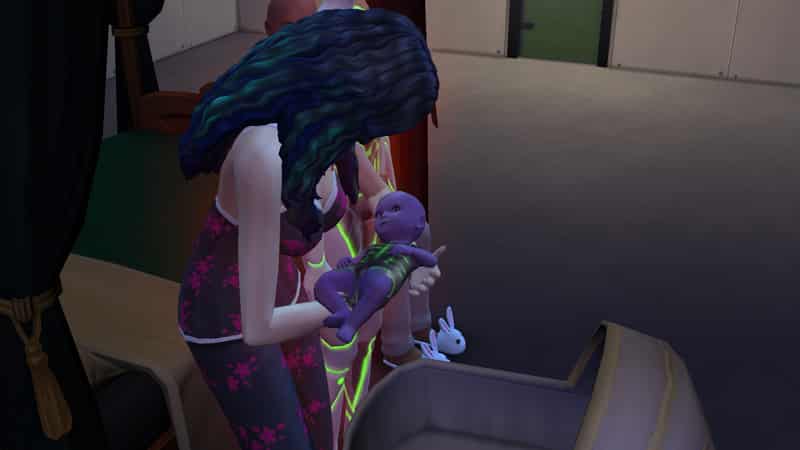
With a few cheats, I plopped a spellcaster in the household and sped up the procreation process to give them an almost instant, but naturall-born baby girl. Elle. I aged up Elle immediately and… was a tad disappointed.
It turned out Elle had both alien and spellcaster abilities but I could find no trace of mermaid or vampire in her anywhere at all. Maybe a Sim can only be up to three occults at once or maybe the devs have partially stamped out the ability to create hybrids. I mean, I can’t really blame them. They’re a complete and total mess but they’re still a fun mess.
07 07 21 5 09 16 PM
07 07 21 5 22 41 PM
So how do you create a hybrid Sim yourself? There’s really no tried and true formula for it. The best way is to just keep mixing occults with each other and breed any hybrids you get with more occults and hybrids. It’s really a trial and error process. Experiment and see what happens! Just be warned that your hybrids will be messy and glitchy. If you’re okay with that, then carry on!
If you want Vivienne Faye to play with, she’s in my Gallery under the ID SnarkyWitch.
Did you know about these unofficial collections in The Sims 4?
The Sims 4 secret collections, you say?! Yes, it’s true! The Sims 4 has one of the most expansive lists of collections in the series. Sims can collect everything from plants to frogs to space aliens! And with more packs comes more collections to complete and either sell or display.
But there are some highly collectible items in the game that aren’t listed in the collections panel. They are “unofficial” collections, meaning there’s no way for your Sims to track their progress with the collection but they are still a series of similar items that can be collected, nonetheless.
Table of Contents
The Sims 4 Secret Collections Guide
Let’s take a look at some of The Sims 4 secret collections! None of the following collections are listed in the game’s collection panel, making them all secret collectibles… until now! We’ll show you exactly where and how to collect these neat items!
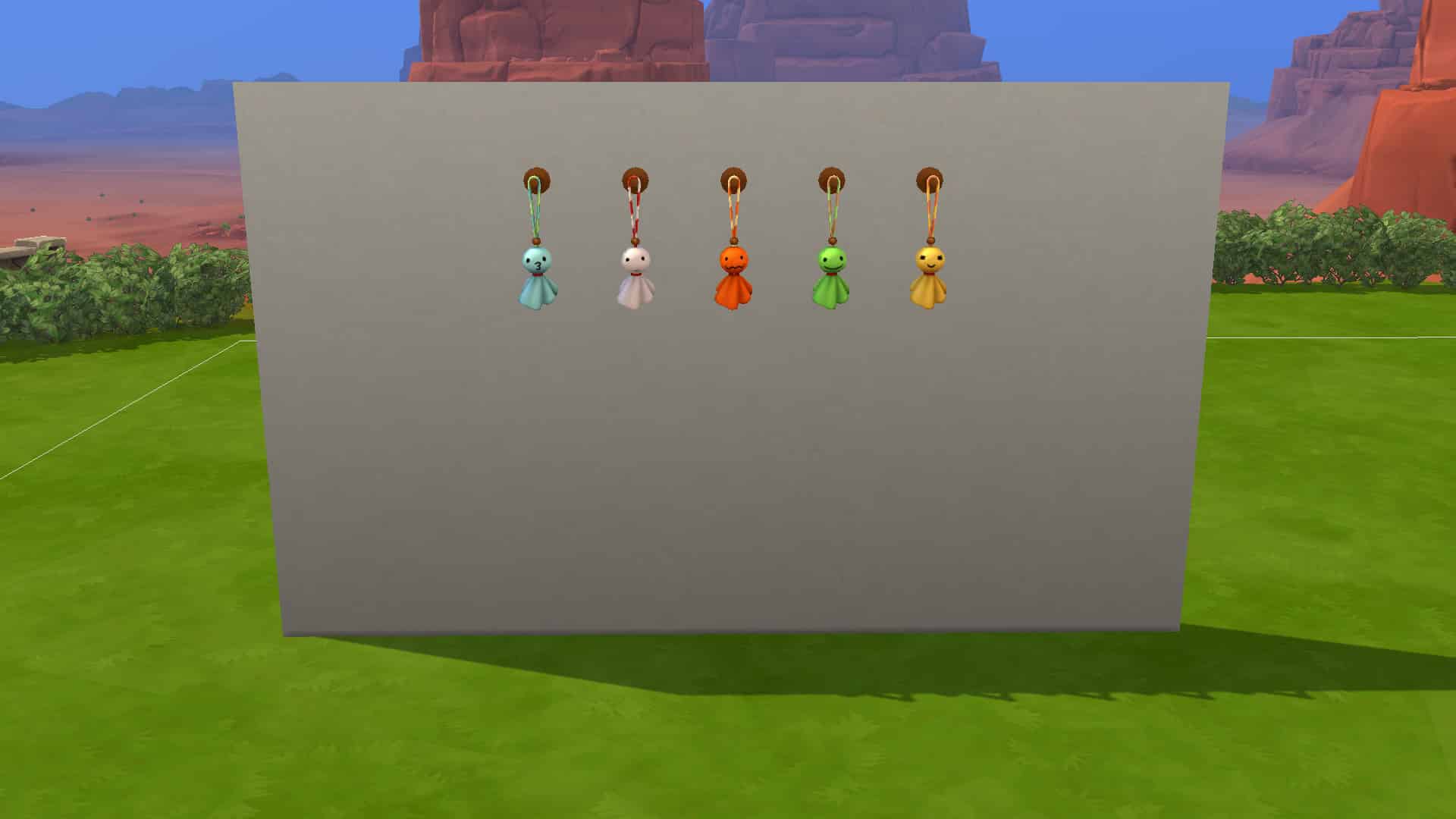
Underwater Photos
There are a total of 10 underwater photos to collect for players who own Island Living. Purchase an underwater camera at any diving buoy in Sulani and start taking pictures of the marine life! These Sims 4 secret collections are bound to make your walls more beautiful!
Spirit Dolls
Another one of The Sims 4’s secret collections is spirit dolls. They can be found in the Snowy Escape expansion. There are 5 spirit dolls to collect and Sims can find them by interacting with any spirits they come across while hiking or on mountain excursions in Mt. Komorebi.
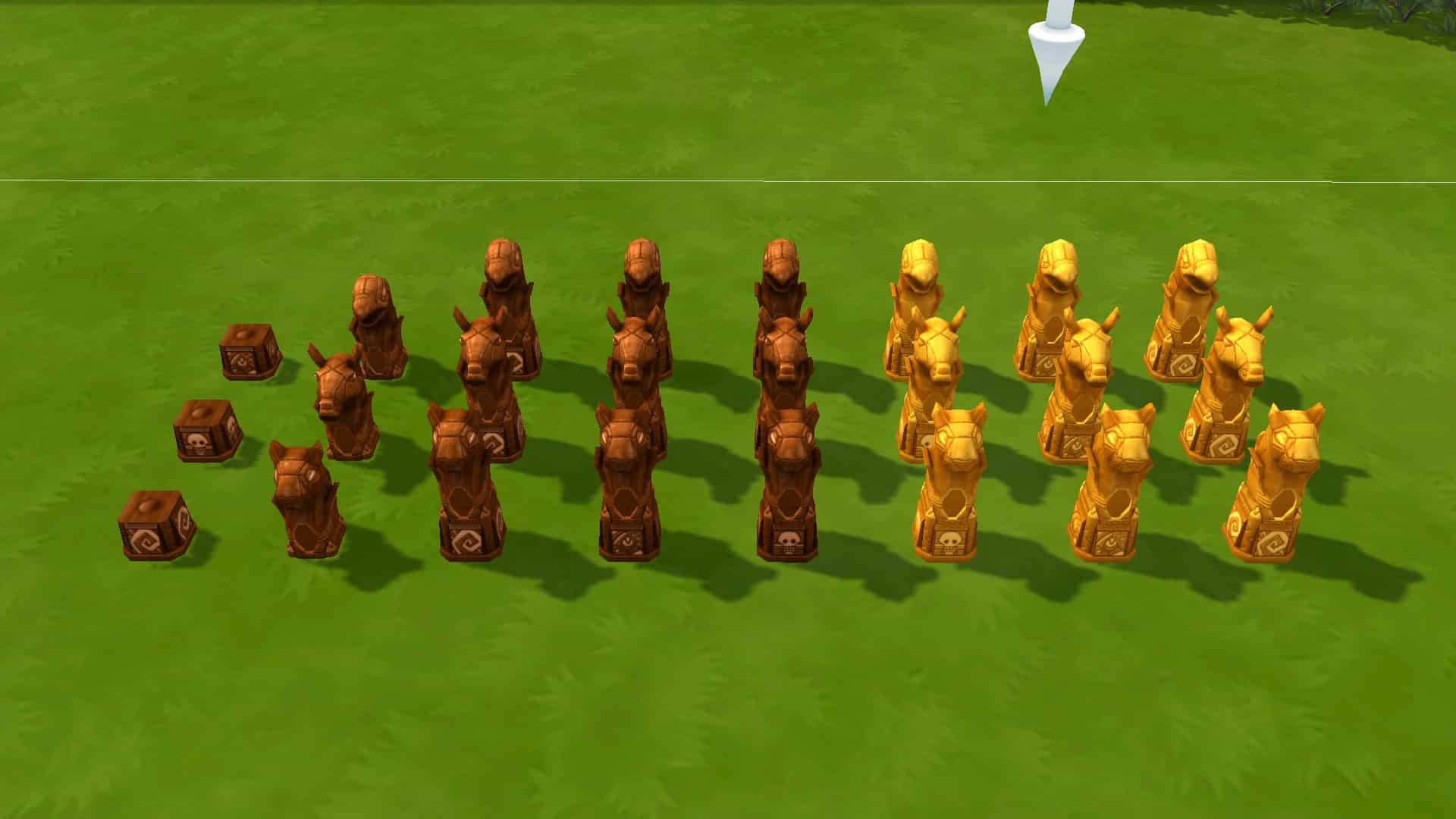
Relics
Players who own the Jungle Adventure pack will find more Sims 4 secret collections. There are 3 relic bases and three types of relics in seven varieties each. These pieces can be mixed and matched to create different types of relics. Once assembled, the relic pieces need a refined crystal to become activated. Be careful when using them! Not all of them do something good! They also break after 2 or 3 uses. You can find these relics in treasure chests found in Selvadorada, especially inside the temple.
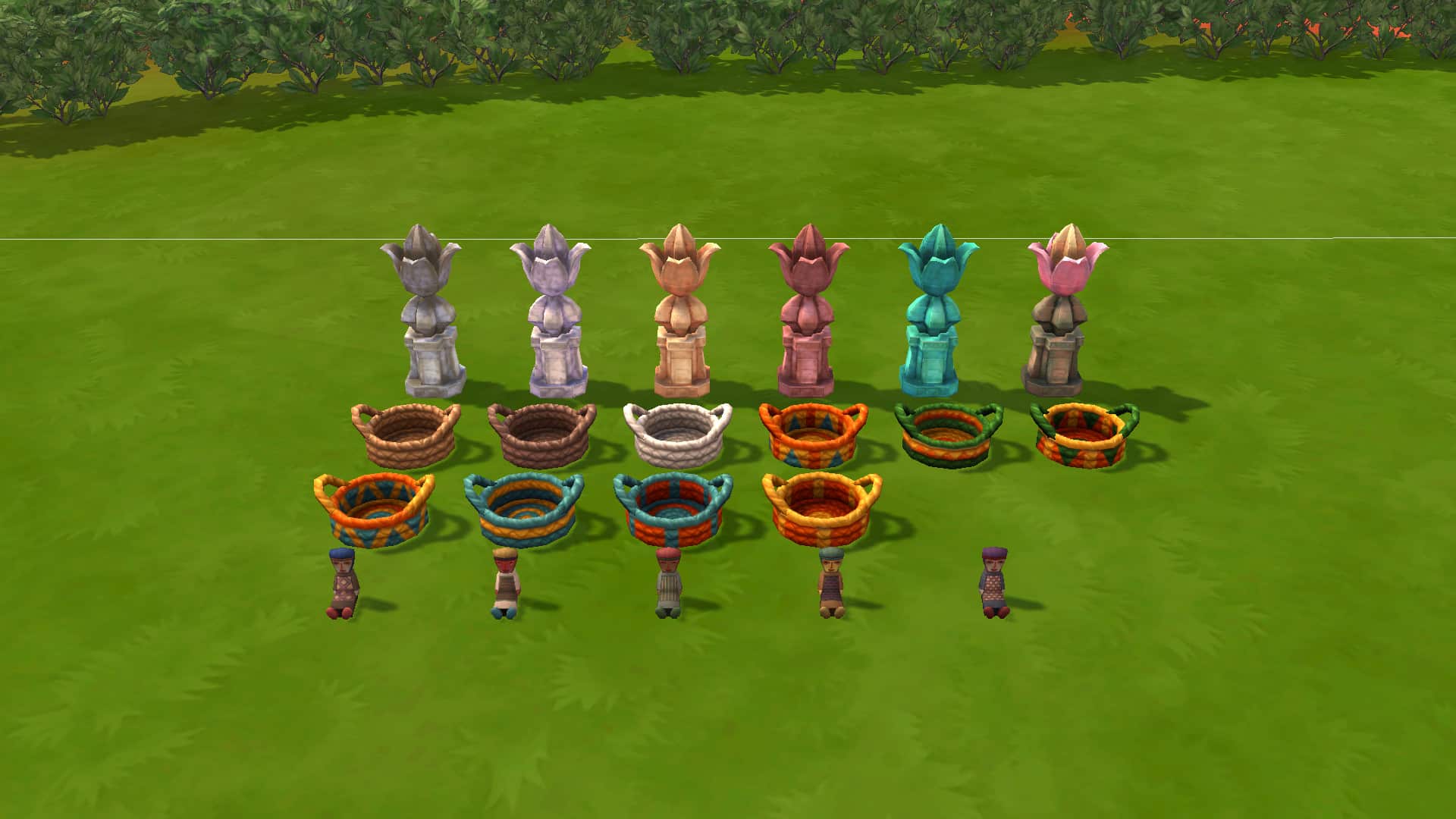
Jungle Souvenirs
Another one of Sims 4 hidden collections from Jungle Adventure! The market tables in Selvadorada are the only place you can acquire these unique trinkets. None of them do anything special; they’re just fun pieces of décor you can use to decorate your home. There are 5 Omiscan dolls, 10 woven baskets, and 6 lotus statues.
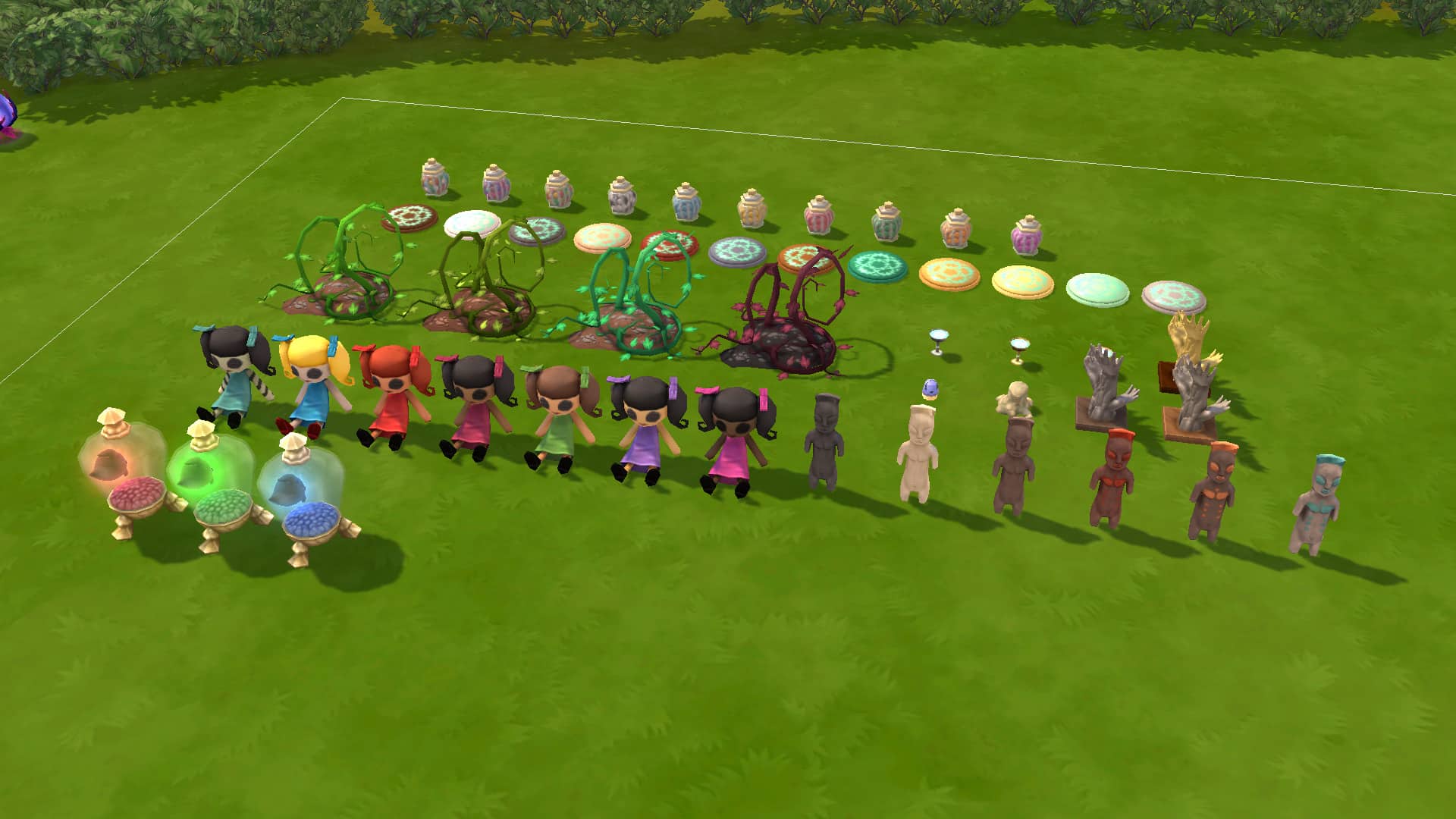
Paranormal Rewards
The Paranormal Stuff pack contains another one of The Sims 4 secret collections! While you probably don’t want to keep those cursed objects that pop up around a haunted house, you can earn benign versions of these objects as rewards from the Paranormal Investigator career. Happy specters can also drop some of these objects around a haunted house. There are 3 Specter Buddy Jars, 6 bizarre totems, 7 Hello Dahlia dolls, 3 clay hands, 3 specter sips, 1 ectocake, 4 strange overgrowth, 12 soul pieces, and 10 candy jars! That’s a lot of paranormal goodies!
Knittable Toys and Décor
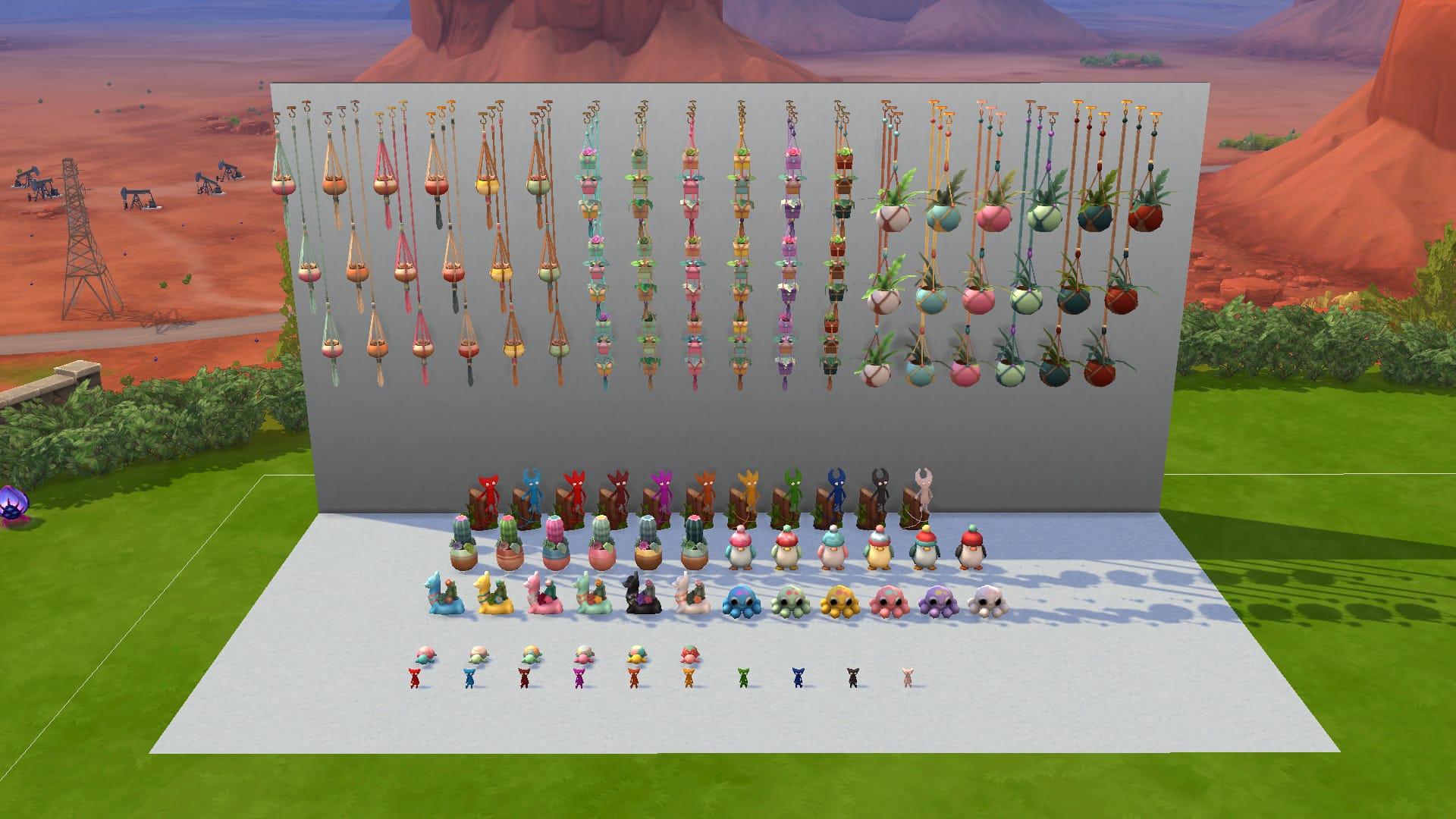
Another one of The Sims 4 secret collections that aren’t official collections are all the knittable toys and décor from Nifty Knitting Stuff! There are a total of 3 types of planters to knit in 3 different wall heights and in 6 different colours each.
There are also 2 types of table planters in 6 colours each, 3 types of toy-like decor in 6 colours each, a playable Yarny toy for children in 10 colours, and a special Yarny statue in 11 colours that magically moves about the house. Sims need to knit all of these items themselves or purchase them on Plopsy. The only way to unlock the Yarny Statue to knit is by completing the Lord/Lady of the Knits aspiration.
Carved Pumpkins
Want some more spooky Sims 4 secret collections? Look no further than Spooky Stuff! If your Sim doesn’t have high Handiness skill, you might not want to keep these carved pumpkins from Spooky Stuff around for too long; they rot after some time but with high enough Handiness skill, Sims can carve all 9 of these designs in 4 different pumpkin colours and even preserve them so they stay fresh forever! To start making them, purchase a pumpkin carving station from Build/Buy.
StrangerVille Rewards
StrangerVille has a small assortment of Sims 4 secret collections. There are 10 different military badges that can be displayed in their own display case, a piece of the Mother Plant in 3 different colours, and 5 different posters. The posters can only be acquired from the Curio Shop in StrangerVille. To get a piece of the Mother Plant, solve the mystery of StrangerVille and defeat her. Join the military career to earn all of the military badges.
Celebrity Awards
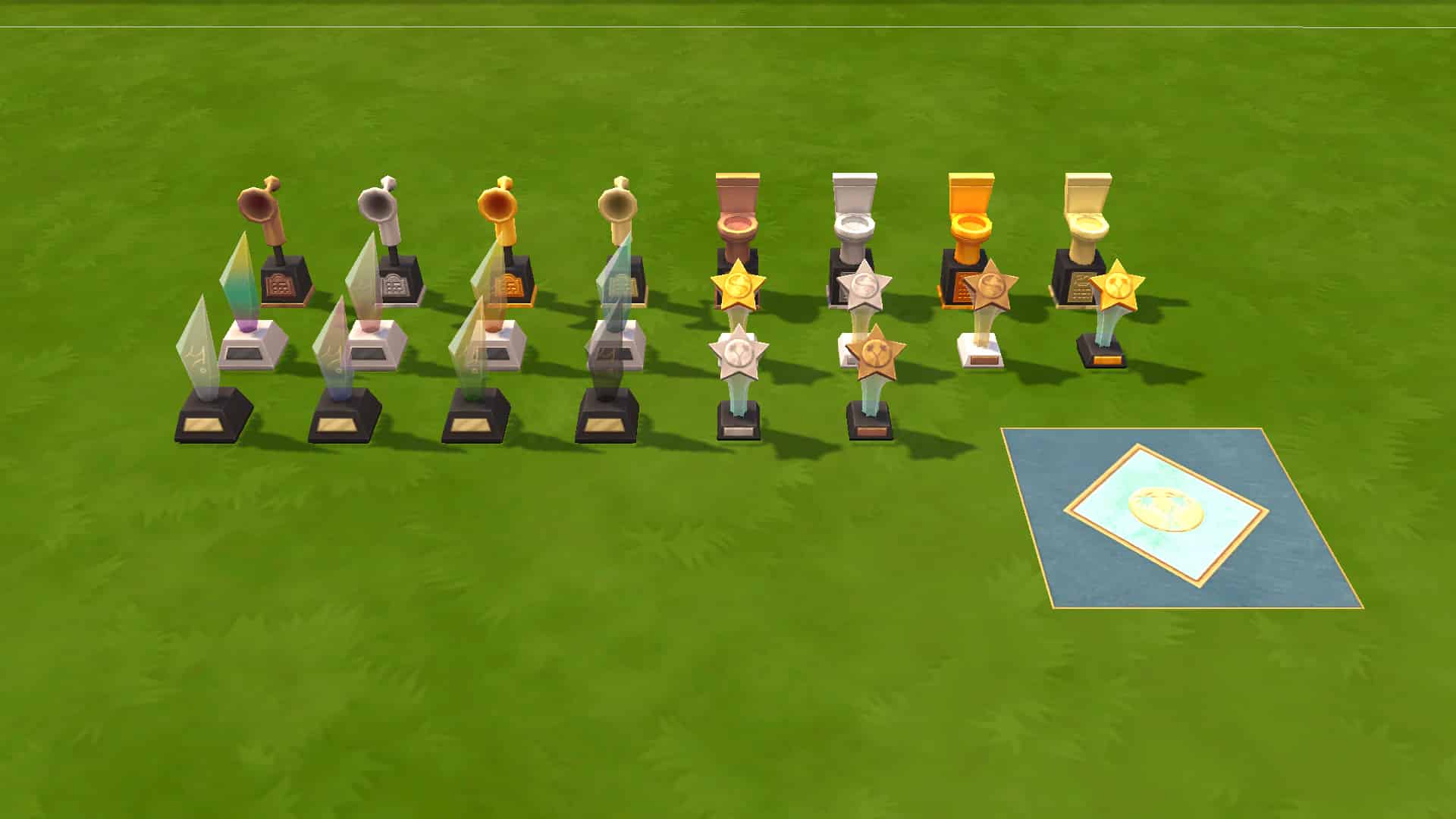
In The Sims 4 Get Famous, celebrity Sims have quite a few different awards they can earn from doing a variety of things. There are awards for Drama Club, winning a Starlight Accolade, hosting Meet & Greets, Charity Events, Lampoon Parties and more. There are 6 types of awards to collect. 4 of them come in 4 colours each. 2 come in 3 colours each. There is also a celebrity tile your Sims can use to hold a ceremony on the walk of fame.
All of the above collections are available in the Gallery under the ID SnarkyWitch if you really want to get your hands on them right away and skip all the hard work!
Looking for information on The Sims 4’s official collections? No problem! Check out our ultimate collections guide!
I’ve always wanted to try my hand at using TwistedMexi’s T.O.O.L mod, but have always found myself feeling a little lost with where to start. The times that I have tried to use it, I’ve felt either overwhelmed or somewhat confused with how things work when really, it should be fairly straight forward. After experimenting and playing around with the mod, I should feel a bit more confident in what I’m doing, but for some reason it just wasn’t clicking for me.
I’ve followed a few tutorials in the past and felt like I was finally understanding what I was doing, but then I would take several steps back and start to struggle again. That was until I came across Kate Emerald’s tutorial the other day.
Following Kate’s tutorial step by step I finally started to understand what I was doing and rather than trying to rush through and learn everything, I just took my time. Slowly but surely it’s started to come together, and I was finally understanding how the T.O.O.L mod works and how I can use it in game myself.
You can check out Kate Emerald’s tutorial below.
To find out more about TwistedMexi’s T.O.O.L mod, you can follow the link below. You’ll find all the information you need about the Mod as well as how to install it.
The Sims 4 has been around for over seven years now and if you’re a long-time player, you probably already know about at least most of these secret areas in The Sims 4, but many players are still just discovering the game late in its life cycle. Newcomers to The Sims 4 might not be aware that The Sims 4 has several secret areas that aren’t accessible from the map; players need to go out of their way to find them while playing in Live Mode.
So here area all the secret areas in The Sims 4 you can visit and how to get there!
Sylvan Glade
Ever noticed this funny-looking tree in Willow Creek’s starter neighbourhood? This tree stands out from all the other trees in the area but it’s not just there for decoration. That tree is the key to finding Willow Creek’s secret area, the Sylvan Glade.
To access the Sylvan Glade, walk up to the tree and view it twice. A new option to water it will appear. Water it three times and a new option to compliment its leaves will appear. Compliment it twice and the tree will reveal an opening in its trunk! Now you can choose to explore the tree!
When you enter the tree, you’ll get a series of choose-your-own-adventure pop ups where you’ll have to pick between two options. There are right and wrong answers here. Picking a wrong answer will result in your Sim leaving the tree. To successfully make it to the Sylvan Glade, choose the following answers:
Follow the Sound
Follow Downstream
Enter the Mist
Travel to Glade
Your Sim will travel to a new, hidden lot called the Sylvan Glade! This area is a beautiful and colourful forest clearing with a rainbow over a waterfall. There are rays of sunlight beaming down and if you unpause the game and pay attention to the edges of the area, you can hear faint tinkling laughter and see little orbs of light floating around. There are also pairs of eyes that will peek out at you from time to time.
This area has a pond and a waterfall for fishing and rare plants grow in this area. If you’re wanting to complete your fish, frog, or gardening collection, you’ll want to pay a visit to the Sylvan Glade to get those rarer collectibles.
There is a tiny lot here that is uneditable; however, you can make it editable by using the bb.enablefreebuild cheat. Now you can build whatever you want here but remember, you’ll have to go through the tree in Willow Creek to visit again. It remains hidden on the map even after you discover it.
Forgotten Grotto
In Oasis Springs, there are two locations that have a boarded-up cave. The area behind the Desert Bloom park and the area behind the Affluista Mansion lot where the Landgraab family lives. Both of these cave entrances lead to the same place; the Forgotten Grotto.
In order to remove the boards and access the cave, your Sim will need to have their Handiness skill maxed out at level 10. Click the cave to pull the boards off the cave entrance, then explore the cave.
When you enter the cave, you’ll get a series of choose-your-own-adventure pop ups where you’ll have to pick between two options. There are right and wrong answers here. Picking a wrong answer will result in your Sim leaving the cave. To successfully make it to the Forgotten Grotto, choose the following answers:
Take Wide Path
Climb Ladder
Step onto the Ledge
Travel to Grotto
Your Sim will arrive in a watery cave grotto with beautiful crystal formations embedded in the walls of the cave. The area is dim but a beam of light coming from an opening adds a touch of warmth. This area has a small lake for fishing and plenty of rocks containing metals, crystals, fossils, and MySims trophies. If rare fish are what you’re after, you must visit the Forgotten Grotto because there are certain types of rare fish that can only be caught at this location. It’s a good place to finish your metal, crystal, fossil, and MySims collections, too.
There is a tiny lot here that is uneditable; however, you can make it editable by using the bb.enablefreebuild cheat. Now you can build whatever you want here but remember, you’ll have to go through one of the caves in Oasis Springs to visit again. It remains hidden on the map even after you discover it.
Sixam
This area is only accessible to players who have the Get To Work expansion pack installed.
Sixam is an ethereal alien planet that can be visited by both alien and human Sims alike! There are two ways to get to Sixam; through the Scientist career and through the Rocket Science skill.
If your Sim is in the Scientist career, they can invent a Wormhole Generator when they reach level 6 of their career. When they max out the career at level 10, they can upgrade the Wormhole Generator with the ability to travel to Sixam!
If your Sim is not in the scientist career, they can still travel to Sixam if they’re willing to put a lot of time and simoleons into the Rocket Science skill. Purchase a rocket launch pad from Build/Buy for 5,000 simoleons, then start constructing the rocket for an additional 1,000 simoleons. When your Sim maxes out their Rocket Science skill at level 10, they will be able to upgrade the rocket with a Wormhole Generator! This upgrade opens up the ability to fly to Sixam using the rocket.
When your Sim arrives in Sixam, they will find themselves in a completely different world. Glowing alien vegetation surrounds them and a gigantic moon lights the area. In the distance, traces of an alien city can be seen. This area contains a wide variety of collectibles that can only be found here, including a brand new Geode collection. Make sure to collect everything you can from the plants, rocks and geode deposits in the area.
There is a tiny lot here that is uneditable; however, you can make it editable by using the bb.enablefreebuild cheat. Now you can build whatever you want here but remember, you’ll have to go through a Wormhole Generator to visit again. It remains hidden on the map even after you discover it.
Hermit’s House
This area is only accessible to players who have the Outdoor Retreat game pack installed.
The Hermit’s House can only be found if your Sims go on vacation to Granite Falls. After getting set up in whichever rental property you choose, go to the map mode and travel to the Granite Falls Forest national park lot.
There is a cave entrance covered in vines here but it is very hard to spot in such a densely forested area. The best way to locate it is to pause the game and pan the camera along the rocky edges of the area while zoomed in quite close. When you find the cave, send your Sim there and have them explore it.
When you enter the cave, you’ll get a series of choose-your-own-adventure pop ups where you’ll have to pick between two options. There are right and wrong answers here. Picking a wrong answer will result in your Sim leaving the cave. To successfully make it to the Hermit’s House, choose the following answers:
Step Forward
Go Through Web
Ignore the Object
Travel Towards the Sim
Your Sim will arrive at a large forest clearing with new fishing spots and a large circular wild garden with Granite Falls plants growing in it. There is also a small cabin here where the Hermit lives. If your Sim is doing the Outdoor Enthusiast aspiration, they’ll have to visit this area to befriend the Hermit. There are also rare insects, fish, and plants exclusive to Outdoor Retreat that can only be found in this area of Granite Falls.
There house here is uneditable; however, you can make it editable by using the bb.enablefreebuild cheat. Now you can build whatever you want here but remember, you’ll have to go through the cave in the Granite Falls Forest to visit again. It remains hidden on the map even after you discover it.
The Magic Realm
This area is only accessible to players who have the Realm of Magic game pack installed.
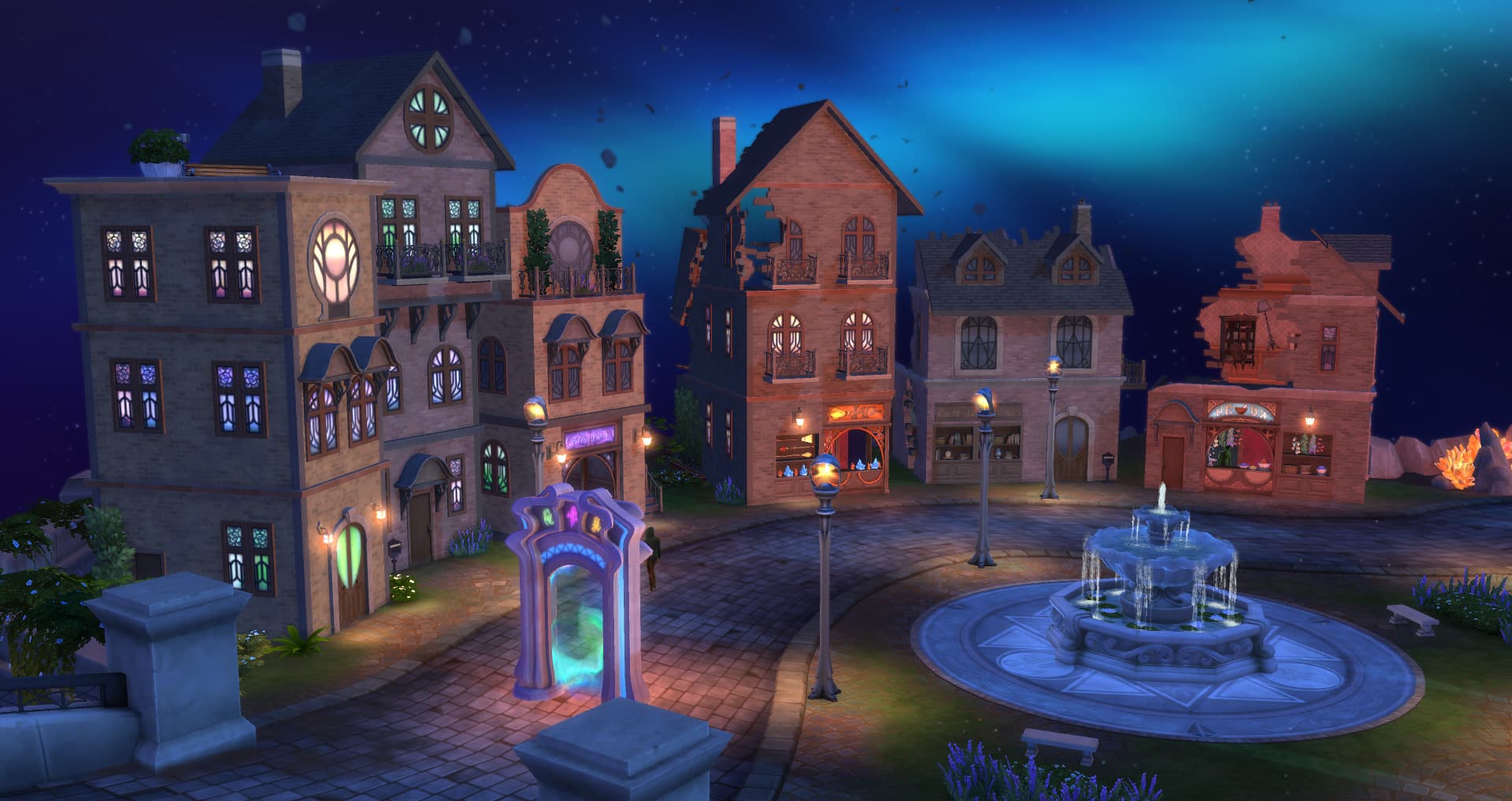
The Magic Realm is probably one of the more well-known secret areas in the game since it was heavily advertised in the Realm of Magic promotional trailers but it is technically a hidden world; it is not accessible from the map and players must find their way there through in-game exploration.
In case you didn’t already know about The Magic Realm, you can find this magical place by travelling to Glimmerbrook. Follow the footpath behind the empty starter lot in this world until you come to a waterfall with a mysterious portal coming out of the water. Enter the portal to travel to The Magic Realm! If your Sim is a spellcaster, they can also reach The Magic Realm using the Glimmerstone in their inventory or by transportalating there after learning the Homewardial spell.
There is lots to do in The Magic Realm but you won’t be able to take full advantage of the amenities here unless your Sim is a spellcaster. If you’re interested in that, talk to any one of the three Sages at Magic HQ to begin your spellcaster journey. Assuming your Sim is a spellcaster, they’ll be able to shop at Caster’s Alley for potion ingredients, magical artifacts like wands, brooms, and familiars, and magical spellbooks to learn new spells and potions. They can also duel other spellcasters at the dueling grounds and use any of the cauldrons available at Magic HQ. There are of course magical plants that can be harvested from here as well, and some fishing spots but there are no magical varieties of fish.
The Magic HQ lot is uneditable; however, you can make it editable by using the bb.enablefreebuild cheat. Now you can build whatever you want here but remember, you’ll have to use the portal, a Glimmerstone, or the Homewardial spell to visit again. It remains hidden on the map even after you discover it.
Mt. Komorebi Upper Mountain
This area is only accessible to players who have the Snowy Escape expansion pack installed.
WARNING!
There is currently a very serious glitch affecting this portion of Snowy Escape. Players who attempt to visit the onsen or start a mountain excursion get kicked out to the world selection screen with no way to play their family again. Attempting to do so just keeps sending you back to the world selection screen. We do not recommend trying to access the onsen or start a mountain excursion until this glitch is resolved. It can destroy your entire save.
When you visit Mt. Komorebi, you might think “Wait a minute. Where’s the mountain?!” Well, the summit of Mt. Komorebi is a pretty dangerous place to get to so the only way your Sim will be able to access it is by going on a mountain excursion.
To start a mountain excursion, travel to the onsen bath house in the Yukimatsu district of Mt. Komorebi and use the cell phone to start a social event. Choose mountain excursion and then choose all the people you want to bring with you. The excursion will begin at the bath house and you’ll have to make your way up the rock wall behind the big ski slopes.
Pay attention to the excursion goals and complete them to gain access to the next area of the mountain. Your Sims will traverse through several hidden areas along the mountain, going from Mt. Komorebi Base Camp to The Croft Icefall and finally to the Mt. Komorebi Peak, which rises high above the clouds and has the most breathtaking views!
There is a tiny lot at the peak that is uneditable; however, you can make it editable by using the bb.enablefreebuild cheat. Now you can build whatever you want here but remember, you’ll have to go on another mountain excursion to visit again. It remains hidden on the map even after you discover it.
Did you know about all of these hidden areas? Which ones surprised you? Let us know in the comments or come chat with us on social media!
Every now and then my YouTube feed decides to throw a few surprises into my homepage, and recently it has been videos from the very start of The Sims 4’s era. Initially I thought it was just a one off as I had been watching the E3 Streams from this year and older announcement videos as well as my normal The Sims videos from various creators.
First up, I was given the E3 2014 Gameplay presentation for The Sims 4.
I actually remember watching this reveal live and was honestly so surprised at how different The Sims 4 looked at the time, but also how excited I was that there was a new game on the horizon. Even watching the reveal of The Sims 4 now, you can see some of the things that changed, mainly from when that was shown to when the game launched a few months later. The most notable changes was with the user interface.
Of course, the first time that we saw The Sims 4 was actually the previous year at Gamescom in 2013. This was when SimGuruJill showed us the pre-alpha version of The Sims 4 Create A Sim. Even now, it’s interesting to see just how far the Base Game has come since that moment.
After watching both of the presentations, I decided to take a look at a few more of the pre-release videos that were used to help promote the games upcoming launch. It felt somewhat nostalgic looking back at the videos prior to The Sims 4 release. For me, it was around the same time that I started to get back into The Sims properly again.
There was a real feeling of excitement seeing Sims becoming smarter and giving you the more ways to make your stories come to life and be just that little more weird than they were before.
The more I browsed through the pre-launch videos the more I remember thinking about what I would explore first in game and what I wanted to do. The feelings of anticipation and wanting the game to launch sooner than its September date were very real as well. I couldn’t wait to jump in and create my own weirder stories!
I really enjoyed looking back at all of the video but The Sims 4 Academy videos were my favourite ones. They were only short videos but covered a few not so much random topics, but not necessarily topics that would come to mind straight away when thinking about The Sims. However, they were always delivered in a way that really embraced the new weirder side of The Sims 4. Lesson 6 was the funniest one out of all the Academy videos in the way it was done.
I couldn’t help but also think about how The Sims 4’s launch overall was pretty positive and well-received except we were missing Pools, Ghosts and Toddlers to start with. Now while these were added at a later date it did feel a little peculiar that there were missing at launch. Even now, looking back at each of the releases and updates we’ve had, it’s amazing to see just how far The Sims 4 has come since it was first revealed in 2013. While yes, there are still aspects of the game that need revisiting and there are still a number of features many Simmers would love to see added into the game The Sims 4 really has come a long way.
Let us know what you initial thoughts were from when you first discovered The Sims 4 in the comments below!
Those of us who love to play through many generations of Sims will know this frustration; after about four or five generations, the game starts deleting Sims from the in-game family tree, leaving you with no way to look back on your progress with your family. The in-game family tree also does not show the entire tree at once; it only shows the active Sim’s direct lineage.
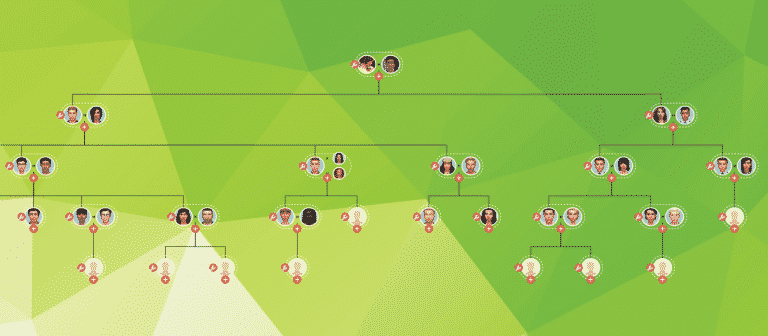
I’m going to teach you how to use a really easy and intuitive family tree tool called The Plum Tree App to document your Sims’ family trees. The best part of this tool is that it’s designed for The Sims, so it’s much easier to use than a genealogy website designed for real people.
Even though The Plum Tree App is set up for The Sims 4, you can use it for any Sims game you want! Just manually put in your Sims’ traits and other info instead of using the preset ones for The Sims 4.
Just Getting Started
Navigate to theplumtreeapp.com and create a free account. You need to have an account to be able to save and keep track of your family trees.
Once you have your account set up, you will be able to start creating family trees. In the same section where you created your account, select Create Tree. As you can see in the screenshot below, I have many family trees already saved on my account, but we are going to start a new one for this tutorial so you can see how it all comes together.
When you create a new tree, you’ll be taken to the following screen where you will be able to name your family tree and give it a description. Be as creative or as straight-to-the-point as you like! Whenever you’re satisfied with what you’ve written, select Create Tree. Don’t worry, you can always go back and edit this later on, so don’t agonize over it too much.
Adding Sims and Their Partners
Okay, here’s where things might start to look daunting, but it’s really not, I promise! In very simple terms, your family tree is made up of nodes and people. The nodes are the empty circles you will see when you add a new spot on the tree for a Sim. When you first create your tree, you have one empty node on the screen.
Each node must be assigned a person. These are the actual Sims that make up your family. Click the Edit button and then click People in Tree to create your first person in your tree.
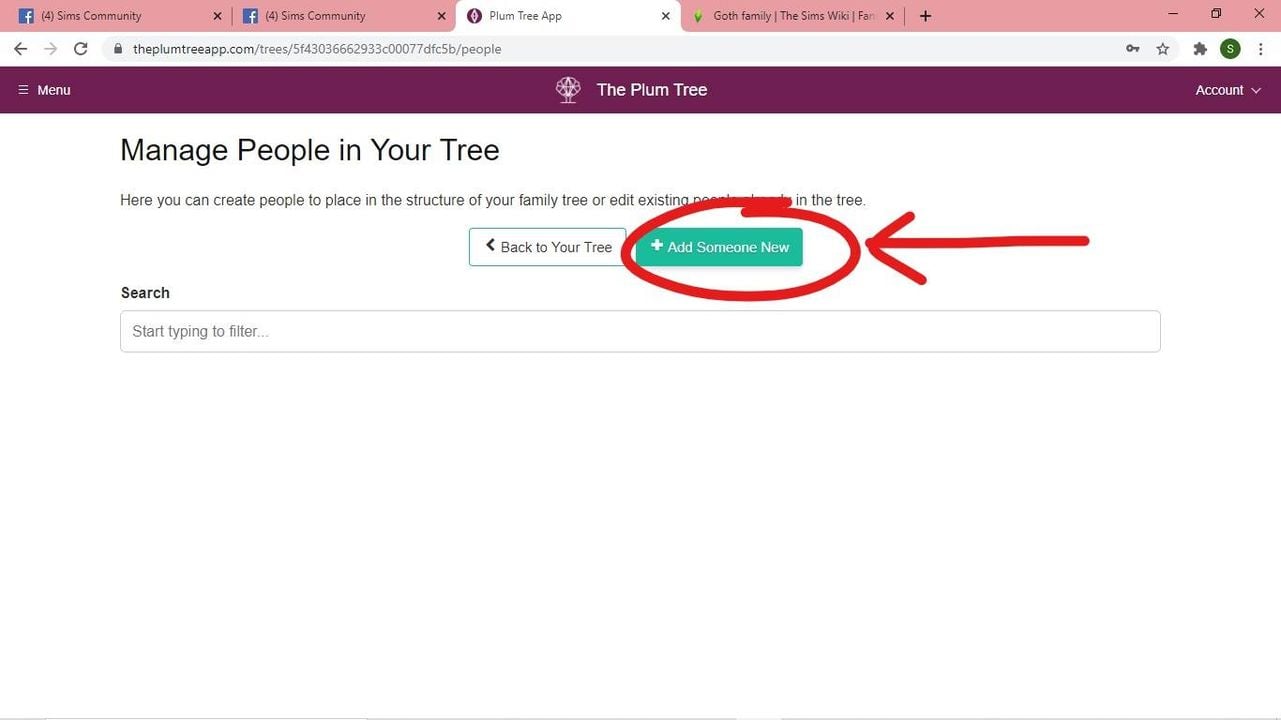
When you choose People in Tree, you will be taken to a screen that lists everyone in your tree. This is where you want to go whenever you need to add a new Sim to the family or when you need to update some info about an existing Sim in the tree. Right now, we don’t have anyone in our tree, so let’s select Add Someone New.
Whoah, there is a lot on the Sim creation screen, isn’t there? No worries, let’s break everything down by numbers.
118358551 1874317402704785 1207190680010725262 n
118366122 1874317676038091 1069062793919778900 n
Your Sim’s picture. This is the portrait that will show up on the tree. Click Upload Image to upload a picture of your Sim from your computer. After you’ve uploaded a picture, click Crop Image if you’re not satisfied with the placement and drag a square around the part of the picture you want displayed. You can also just leave the picture as-is if you like.
Type in your Sim’s full name here.
This is a bio section for you to write anything you like about your Sim. It’s not for factual info like traits and aspirations (those have their own sections). This is more for you to get creative and describe their life and the kind of person they are. You can also just leave this blank if you’re not interested in writing bios or if you have writer’s block. It’s optional.
List your Sim’s traits here. This section will auto-complete traits as you type, including reward traits and traits from DLC packs. If your Sims have custom/modded traits, you can add these in manually, too!
List your Sim’s aspiration here. This section will auto-complete aspirations as you type, including hidden aspirations and aspirations from DLC packs. If your Sims have custom/modded aspirations, you can add these in manually, too!
Put your Sim’s life state here. Are they a regular Sim? A vampire? Mermaid? Spellcaster? Alien? Servo? Ghost? That info goes here. You can even add your Sims’ cats and dogs to the family tree!
This section allows you to add any extra information you want to include. To give you some ideas, I like to use this section to list things like careers, degrees, maiden names, and occult powers/weaknesses (if applicable). It’s totally up to you how to use this section. You can also completely ignore it if you like!
Once you’re satisfied, click Create Person and voila! You have a new Sim to add to your tree! Let’s go back to the tree and assign them to a node!
Mortimer now appears in the list of people but he still needs to be assigned to a node to show up on the tree. Click Back to Your Tree.
Click the wrench icon beside the empty node to add Mortimer to the tree.
This next screen is simpler than the person creation screen, but it’s still important, so here’s another breakdown below.
Set Node Person. This is where you will assign a Sim to the node. Once a node has been assigned a person, that person’s portrait will show up on the tree and you will be able to click on them to bring up all the information you put in for them on the person creation screen.
Set Node Partners. This is where you will assign romantic partners of your Sim. You can add as many partners as you want for a Sim. You can also set each partner as a current partner, an ex, or a spouse.
Set Node Parents. This is where you can assign parents to your Sims. In most cases, you can already see a Sim’s parents by looking at the tree, but this section becomes important when your Sims have children with multiple partners, or when a Sim is adopted by a relative and it’s not immediately apparent by looking at the tree who is a child of whom. I’ll go over this in more detail later, but for now, make sure you are always assigning parents here and indicate whether they are biological or adoptive parents.
To sum it all up, add your Sim the way we just added Mortimer and assign them to a node using the wrench symbol. To add your Sim’s spouses and/or romantic partners, first create the spouse/partner on the People in Tree screen the exact same way we created Mortimer. Then click the wrench icon on your Sim’s node and use the Set Node Partners tool to add them. Adding a partner this way will create a new node on the tree next to your Sim with their partner’s portrait.
Adding Children
Adding children to your family tree is very easy and follows the same basic principles. First create the child from the People in Tree screen the same way we created Mortimer. Then assign them to a node.
I’ve gone ahead and added Bella as Mortimer’s spouse using the same steps detailed above for adding spouses/partners to the tree. Now I want to add Cassandra and Alexander.
The first thing I need to do is create Cassandra and Alexander’s profiles via the People in Tree screen. Every time you want to add a new person to the tree, you must add their profile first. Again, do this in the exact same manner we added Mortimer.
Next, I need to make sure there are nodes to assign them to. I am going to click the plus sign below Mortimer and Bella to create two new nodes for Cassandra and Alexander.
Click the plus sign to add children, then add them to the node using the wrench and the Assign Node Person tool as outlined previously.
Click the plus sign to add children, then add them to the node using the wrench and the Assign Node Person tool as outlined previously.
Now our Goth family tree is complete! Well, their Sims 4 version, anyway. Now that our family tree is looking good, we should save it and then share it for everyone to see!
Saving and Publishing your Tree
Saving your tree and publishing it is easy peasy! Just select the Actions tab at the top of your family tree and select Save Tree to save it to your account. You’ll be able to leave and come back to your tree anytime. Just make sure you don’t forget your account username and password!
To share your tree with the Simming world, select Publish Tree. On the next screen, make sure your tree is set to Public. If you would like to add your tree to the website’s gallery where other Simmers can browse for it, feel free to go ahead and enable that, too. Make sure to copy the link to your tree on this screen before you hit SaveSettings. Then you can post the link to your tree wherever you like!
Creating Non-Nuclear Families
But wait! We’re not finished, yet! I already know what you’re thinking: “Yo Snarky Witch, this ain’t the 1950s anymore!” You’re absolutely right.
Although the Goths are a pretty easy tutorial example because they are a traditional nuclear family, we all know that in both real life and in The Sims, families rarely follow a traditional nuclear family structure. How do you deal with things like divorces, step-children, and half-siblings? Well the good news is that The Plum Tree App is more than equipped to handle these things, too.
Since I’ve already covered how to add people to the tree and assign them to a node, as well as what all the tools on the node screen are for, I’m not going to go step-by-step in this section. Apply what you’ve learned previously in the tutorial to follow along here.
Divorces and Exes
Since the Plum Tree App allows you to add as many partners to a single Sim as you want, adding exes is pretty easy.
On the node edit screen for your Sim, open the Set Node Partners tool. Select Add Partner, then add exes and set them as such.
To add a current partner as well as ex-partners for the same Sim, just select Add Partner again and do the same, but set them as a current spouse or partner.
Step-Children
Step-children of your Sims can be added to the tree as well. They are added the same way any other children are added. You will just need to customize their parent details.
Click the plus sign below your Sim and their spouse’s nodes to add your Sim’s step-child. Click the wrench on the step-child’s node and select Set Node Parents. Add your Sim’s spouse as the child’s biological parent. Do not list your Sim in this section. The step-child should only have one parent listed here; your Sim’s spouse.
If your Sim has adopted their step-child, you can add your Sim as their step-child’s adoptive parent. If not, you can leave this blank.
On the tree, step-children will show up alongside biological children, but if you scroll over any of the children, it will highlight their biological/adoptive parents and grey out everyone else. You can also differentiate which children belong to whom by clicking on their portrait. Their parents will be listed in their profile.
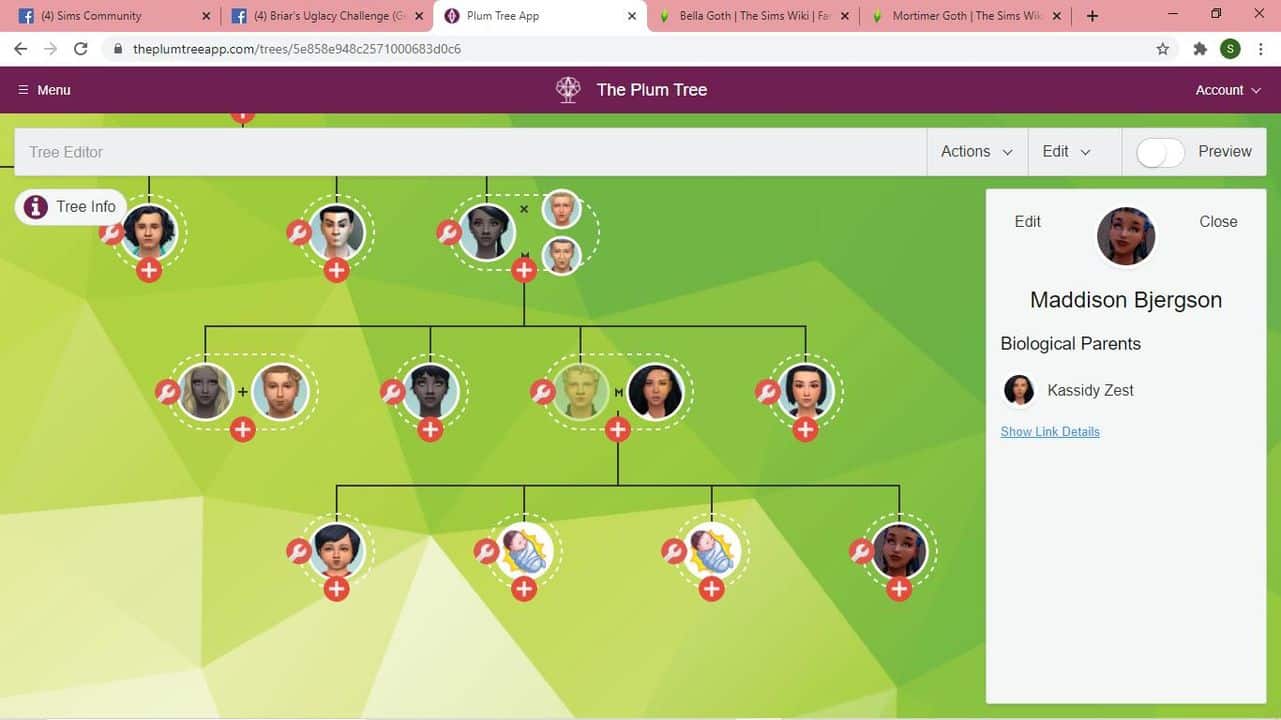
My Sim has a step-daughter. I have set his wife as her parent, but not my Sim. When I click her portrait, we can see that my Sim is her step-father by his greyed out portrait and by her parent details in her profile.
My Sim has a step-daughter. I have set his wife as her parent, but not my Sim. When I click her portrait, we can see that my Sim is her step-father by his greyed out portrait and by her parent details in her profile.
Half-Siblings
Half-siblings are also easy to do and work in a similar way to step-children. Make sure you have added all your Sim’s partners, then add all the children the way you normally would.
When you add the children, make sure to specify which two Sims are their parents in their parent details. When you view the tree, you will be able to see which children are half-siblings by clicking their portraits to see who their parents are.
An example of half-siblings from my 100 Baby Challenge. We can see this Sim’s father is Vlad. If we start scrolling over his siblings, it will highlight different Sims above as their father, so we know many of these children are half-siblings.
An example of half-siblings from my 100 Baby Challenge. We can see this Sim’s father is Vlad. If we start scrolling over his siblings, it will highlight different Sims above as their father, so we know many of these children are half-siblings.
Extended Family Trees
Okay, so we’ve covered traditional nuclear families as well as non-traditional families with multiple partners, step-children, and half-siblings, but what about extended family trees? What if you want to add the parents and grandparents of your Sims’ spouses, for example? Is there a way to connect different lineages into one giant family tree that covers all the spouses’ genealogy, too, as well as the genealogy of our own Sims?
Well, sadly… no. That is The Plum Tree App’s one and only limitation. You cannot add parents and grandparents of spouses/partners, so you can’t have different family trees connecting in that way, but as you can see, this is still a very versatile tool that will allow you to customize both your traditional and non-traditional Sims families exactly the way you want them.
And that’s everything you need to know to get started making amazing family trees to document those legacies! It’s also great for keeping track of which Sims are the parent of which children in those 100 Baby Challenges!
Did you find this tutorial helpful? Let us know in the comments or come chat with us on social media!