Home Blog Page 263

We’re attending EA Play 2019

2

I am truly excited to announce that Sims Community has been invited to attend this year’s EA Play Event!

EA Play, an annual event hosted by Electronic Arts is an opportunity for players to get their hands-on experience on EA’s latest titles. As announced by EA, this year’s event won’t be having a specific press conference but rather a series of multiple livestreams that’ll be covering multiple games and communities, as well as breaking news, gameplay reveals and insight from the developers.

This June I’ll be travelling all the way to Hollywood, Los Angeles to bring you coverage about your favorite game – The Sims!

We’ll keep you posted on all the latest information as they become available. Make sure you follow us on the following outlets to be up-to-date on all things EA Play 2019:

We’re attending EA Play 2019

The Sims Mobile Developers are moving to The Sims 4 Team

UPDATE: SimGuruBeth has also announced her switch to The Sims 4 Team!


With the official announcement that The Sims Mobile’s development is moving all the way to Australia at the Firemonkeys Studio, many have been left wondering what’s going to happen with the current developers / SimGurus that have worked on The Sims Mobile at EA Redwood. Although we haven’t received an official announcement yet, we are seeing a few SimGurus slowly but surely making a switch to The Sims 4 / Maxis HD titles.

As soon as the unofficial report came out about the big switch, SimGuruFelix, UI / UX developer made an announcement that he’ll be switching to The Sims HD Team. More specifically, to The Sims 4:

Just a few days ago there’s been an announcement that SimGuruFrost, who previously worked as a Community Manager for The Sims Mobile is getting a new role as a Community Manager for The Sims 4 and the Game Changers for that game:

We also have SimGuruAzure who seems to have updated her Twitter bio from stating that she’s working on The Sims Mobile to “Producer at Maxis”. Previously she worked as a developer on The Sims 4 from day one, then she switched to The Sims Mobile Team and now it seems she’s back working on The Sims 4 again.

The same goes for SimGuruGibson who recently updated his Twitter bio to “Gameplay Engineer for The Sims 4”.

There’s still a few Sims Mobile SimGurus that haven’t updated their profiles yet nor have they made an announcement about their new home. But, it seems that, now that The Sims Mobile will be handled by a whole new team, the current Mobile Gurus will switch to Maxis HD titles / The Sims 4.

Please note that the fact that The Sims Mobile developers are switching to a new team *doesn’t* mean they’ll also be switching the development process and practices to The Sims 4.

The Sims Mobile Officially Announces transition to the Firemonkeys Studio

A few weeks ago we reported on an unofficial report from Kotaku that The Sims Mobile will be making a huge transfer from Maxis Mobile in Redwood City, California to the Firemonkeys Studio in Melbourne, Australia. The Sims Mobile Team hasn’t confirmed nor denied this information – until now…

They’ve shared the following statement on their Twitter account:

To our mobile Simmeres, we have some updates on the future of The Sims Mobile. The Maxis studio has made the decision to move development of The Sims Mobile to the Firemonkeys studio. The Firemonkeys have extensive and longstanding experience with The Sims having developed The Sims FreePlay for nearly a decade. Maxis & The Firemonkeys have worked closely to make this transition as smooth as possible and we’re all very excited about the future of The Sims Mobile. We continue to value and appreciate all the passion and enthusiasm you bring into this game! Maxis will continue to invest in The Sims on PC & Console and the Firemonkeys team will continue to expand The Sims universe through The Sims FreePlay & The Sims Mobile.

Moving forward, you will continue to be abple to play The Sims Mobile as you do now. Given this transition, content updates will be delayed so please be patient as the Firemonkeys team ramps up and embraces The Sims Mobile.

The Sims Mobile Officially Announces transition to the Firemonkeys Studio


This means that The Sims Mobile will still be up and running, however, we can’t expect any new content, updates nor events until The Sims Mobile fully makes a transfer to EA Firemonkeys.

According to the statement The Sims Mobile has a long future ahead thanks to the fact that Firemonkeys have a long experience of developing Mobile games. Until then you’ll be able to play with what The Sims Mobile currently has to offer as well as The Sims FreePlay and its current (and upcoming) content.

The Sims 4 Console: How To Set Up Keyboard & Mouse Controls

The most recent patch for The Sims 4 on console brought the addition of being able to play with a keyboard and mouse. While a keyboard and mouse is the more traditional way of playing The Sims, for console players it is a very much welcomed feature. Not only that it also opens up more freedom and flexibility when creating builds on console.

Note: You will still need your PlayStation 4/Xbox One controller to press X/A when you first load into The Sims 4

PlayStation 4

  • Simply plug in your keyboard and mouse in and the PlayStation 4 should automatically recognise both devices.
  • Load up your game and you are good to go.
  • If you want to change the response time or delay rate of either of the two devices you can hop over into Settings -> Devices -> Keyboard or Mouse and make changes there.

Xbox One

  • Simply plug in your keyboard and mouse in and the Xbox One should automatically recognise both devices.
  • Load up your game and you are good to go.
  • If you want to change the sensitivity of the mouse you can hop over into Settings -> Kinect & Devices -> Mouse and make changes there. Xbox One automatically detects the keyboard and does not offer any further settings within the console settings screens.

Don’t forget, once you are in game you can also change some of the game’s camera settings to suit your playstyle.

The Sims 4 Console: How To Set Up Keyboard & Mouse Controls

Now, if you have played The Sims 4 or any earlier The Sims games on PC/Mac before, playing with a keyboard and mouse on console is pretty much how you would expect it to be. The controls, shortcuts and accessing the cheat box is also the same.

However, if you are new to playing The Sims 4 on console using a keyboard and mouse to play the game it is really easy to adjust to using the different control layout. When you hover over certain tools, the game will also tell you the correct shortcut for when you are using keyboard and mouse too.

Overall it is really straightforward to set up keyboard and mouse controls for The Sims 4 on console and it only takes a few moments to do too!

The Sims 4 Console Sale: Save up to 75% off on select Games!

Both Playstation and Microsoft are throwing a huge Spring Sale on select The Sims 4 Games including the Base Game, some Expansion Packs, Game Packs and Bundles.

The sale offers are a bit different between Xbox One and PS4 which is why you can find the exact offers currently available down below!

Xbox One Offers

  • The Sims 4 Base Game ($12.00 – $8.00 with Xbox Gold)
  • The Sims 4 Base Game Deluxe Party Edition ($15.00 – $10.00 with Xbox Gold)
  • The Sims 4 Bundle – Get to Work, Dine Out, Cool Kitchen ($30.00 – $25.00 with Xbox Gold)

Playstation 4 Offers

  • The Sims 4 Base Game ($12.00 – additional 10% off with PS Plus)
  • The Sims 4 Base Game Deluxe Party Edition ($15.00)
  • The Sims 4 Cats & Dogs ($24.00 – additional 10% off with PS Plus)
  • The Sims 4 Get to Work ($24.00 – additional 10% off with PS Plus)
  • The Sims 4 City Living ($24.00 – additional 10% off with PS Plus)
  • The Sims 4 Parenthood ($12.00 – additional 10% off with PS Plus)
  • The Sims 4 Dine Out ($12.00 – additional 10% off with PS Plus)
  • The Sims 4 Vampires ($12.00 – additional 10% off with PS Plus)
  • The Sims 4 Bundle – City Living, Vampires, Vintage Glamour ($30.00 – additional 10% off with PS Plus)
  • The Sims 4 Bundle – Get to Work, Dine Out, Cool Kitchen ($30.00 – additional 10% off with PS Plus)

These offers are currently available and will last until April 23rd at 5PM CET!

The Sims 4 Console Sale: Save up to 75% off on select Games!

The Sims 4 Pufferhead Fanmade Custom Stuff Pack Now Available!

A few days ago we wrote about the announcement from a talented custom content creator MLys who decided to create a fully fledged Custom Stuff Pack for The Sims 4. Well, we finally have the good news – this Custom Stuff Pack is now available for download and yes, just like all other custom content that properly follow The Sims 4’s Terms Of Service, it’s completely FREE!

This Custom Stuff Pack is fully Maxis Match, meaning that the CAS and Build Items inside of this pack completely match The Sims 4’s unique art style. There are a dozen of items that you’re able to download in one .zip file and you also have an option to download items from this pack individually.

Installing this pack is really easy. Simply extract the .zip file of this Custom Stuff Pack (or the individual .package item that you’ve decided to download) inside the Electronic Arts > The Sims 4 > Mods folder. Make sure you’ve enabled Custom Content / Mods in your Game Options!

This pack has been tested and is fully compatible with The Sims 4’s latest version. Considering that it doesn’t bring any new gameplay elements and only objects there’s a really small chance of these items being broken with new updates.

Are you ready to introduce your Sims to the world of magic fandom? Click the download button below!

[mks_button size=”large” title=”DOWNLOAD!” style=”rounded” url=”https://mlysmakescc.weebly.com/pufferhead.html” target=”_blank” bg_color=”#1e73be” txt_color=”#FFFFFF” icon=”fa-arrow-down” icon_type=”fa” nofollow=”0″]

The Sims 4 Pufferhead Fanmade Custom Stuff Pack Now Available!

The Sims 4 PC/Mac: New Update + Patch Notes (19th April, 2019)

The Sims team have just released a small patch that addresses some issues found in this week’s earlier patch for PC & Mac players.

To download the latest version of The Sims 4, simply open your Origin program and if the game doesn’t update automatically, right click on The Sims 4 and select ”Update”.

In case you have Mods or Custom Content, the game will automatically disable them for you after first launching The Sims 4 after the update. To re-enable all your Mods and Custom Content, select the Settings option in the Menu and select Settings. Under the” Other” section you’ll find the ”Enable Custom Content and Mods” option. Check it and restart your game in order for it to take effect!

UPDATE: 4/19/19 – PC 1.51.77.1020 / Mac 1.51.77.1220

Hi Simmers,

We wanted to swiftly address some unintentional issues that popped up following the 4/16 game update.

  • Fixed an issue where custom text was not always displaying properly in-game.
  • Fixed an issue where NPC invites to festivals or to residences were sending Sims to an incorrect destination.
    • There is still a lingering issue regarding invites to events in Get Famous, such as the talent showcase, and celebrity sightings. We are continuing to investigate those for a future update.
  • Fixed an issue where Mac players on certain older versions of OS X were unable to launch the game. As a result, we rolled back a fix that was done for Mac players on 64-bit systems that eliminated a false error message which said, “The Sims 4 is not optimized for your Mac and needs to be updated.

-SimGuruGraham

The Sims 4: SimGuruLyndsay teases a new Black Color Swatch for Doors

4

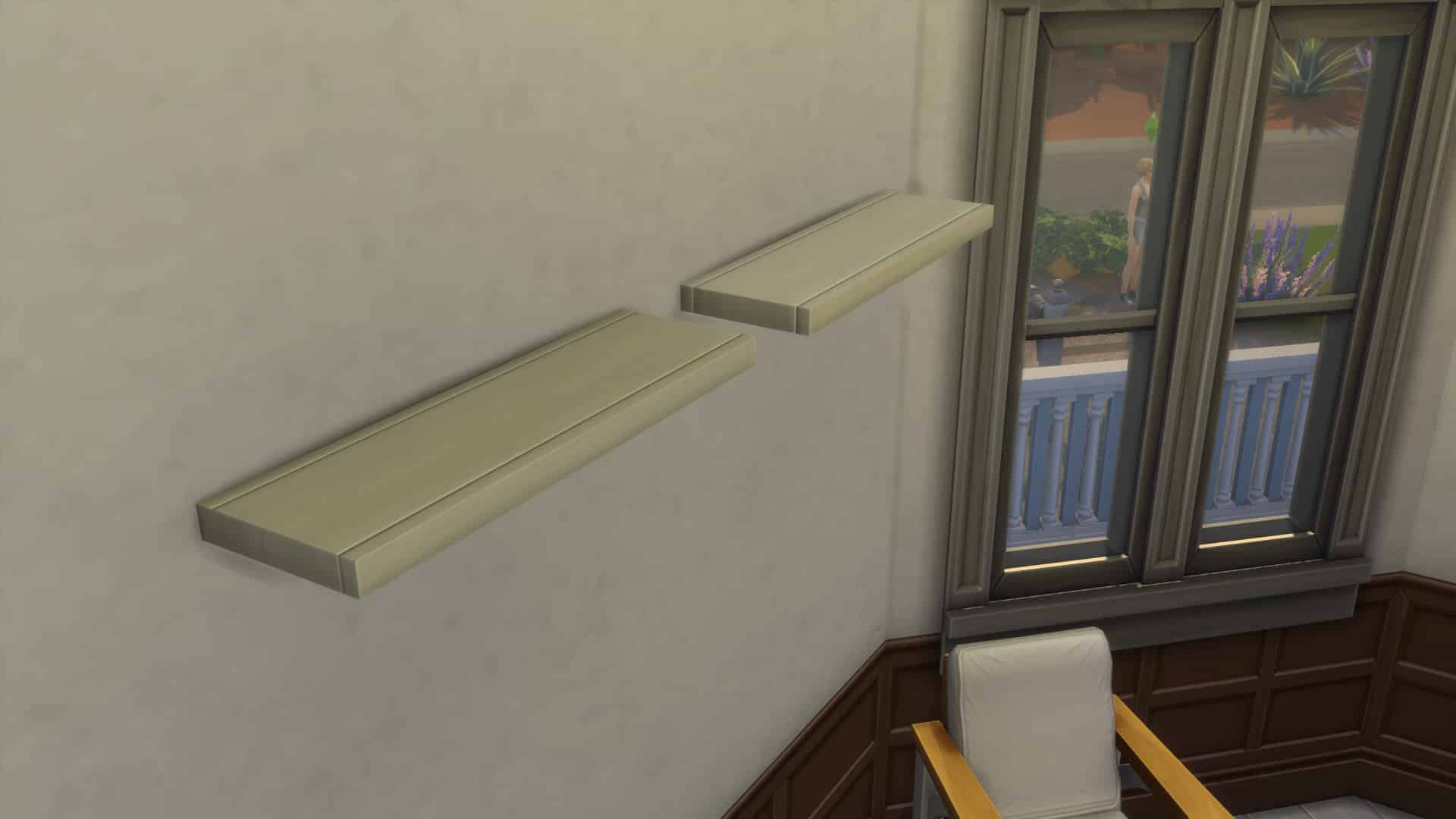
You may have heard of the Plain White Shelf. Now get ready for the simple Black Doors!

SimGuruLyndsay has shared a tweet on her profile showcasing the new black color swatch for one of the doors that we have in The Sims 4 Base Game. It’s not known when we’ll be getting this swatch (or maybe some new ones as well) in the future but it’s good to know they’re making new swatch additions for items we already have!

The Sims 4: SimGuruLyndsay teases a new Black Color Swatch for Doors

The Sims 4 Spa Day Out Now on Xbox One and PS4

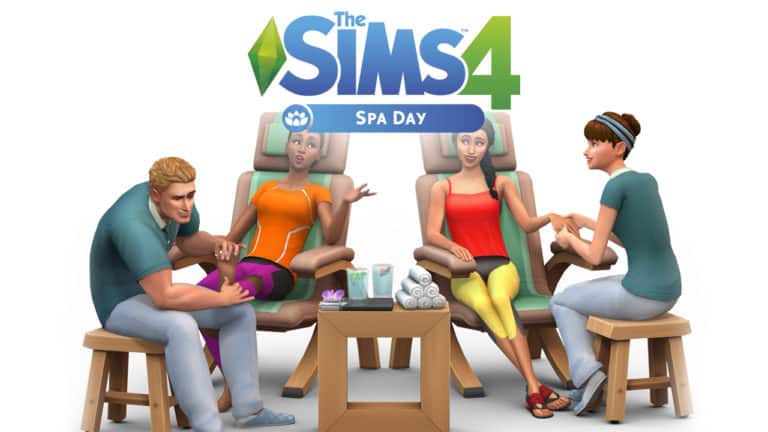
The Sims 4 Spa Day Game Pack has finally been released for Xbox One and PS4 players!

Down below we’ve listed the official store links where you’ll be able to get the pack from:

The Sims 4 Spa Day Out Now on Xbox One and PS4

SimGuruFrost Steps into Community Manager Role for The Sims 4

Earlier today, @SimGuruLyndsay announced on Twitter that The Sims Team has a new Community Manager. @SimGuruFrost, who previously worked on The Sims Mobile prior to Firemonkeys Studio’s acquisition of the title, will be stepping into the role of Community Manager for The Sims 4. @SimGuruLyndsay also mentioned in her tweet that @SimGuruFrost will be working with the Game Changers program.

The tweet was met with a warm welcome for @SimGuruFrost from the Simming community, but also some concern over what @SimGuruKate‘s position is within The Sims Team now. @SimGuruLyndsay assured Simmers that @SimGuruKate is still with The Sims Team and will be working behind the scenes, focusing primarily on bringing new announcements and Maxis Monthly content to the fanbase.

We wish both @SimGuruFrost and @SimGuruKate all the best in their new roles on The Sims Team!

The Sims 4: Custom Content Text Strings to be Fixed in the next Update

Ever since The Sims 4’s latest update for PC / Mac many Custom Content users have reported seeing broken text and missing interactions on Custom Content items and custom interactions added with Mods / CC.

Thankfully SimGuruGraham has issued a statement on The Sims Forums saying that they’ll be fixing this issue in the upcoming update. Until then he also provided a temporary workaround for Custom Content creators that don’t want to wait until the next update arrives:

Hi all,

Those of you who play with mods or custom content may have noticed that some custom text (names, descriptions, etc) that is part of a mod/CC have either gone blank, or switched to displaying “**DEBUG**” (on game version PC 1.51.75.1020 / Mac 1.51.75.1220). This was an unintentional side effect of the 4/16 update. The Sims 4 team is planning on releasing another update in the near future specifically to address this issue, which will restore the text as it was displayed previously.

Technical info:

The issue we’ve identified is that any user-generated content authored using strings in string tables with non-zero group ids will show up in-game as blank. Changing string tables to use 0x00000000 for group id can be used as a temporary workaround for creators who do not want to wait until the next update. The next update will not cause conflicts with this workaround. Long term, we do recommend that mod/cc creators have the top bit set to avoid conflicts with Maxis created content.

Thanks!

-SimGuruGraham

The Sims 4: All About the Freelancer Career

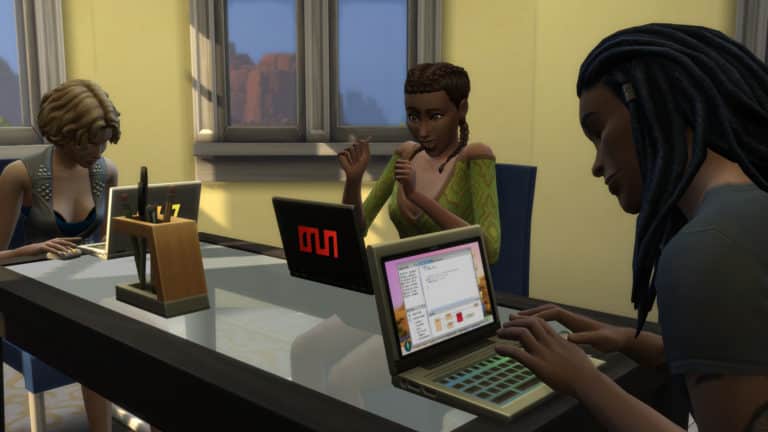
The latest patch for The Sims 4 on PC & Mac saw the addition of the brand new Freelancer Career added to the Base Game. The self-employed career allows your Sims to follow one of three pathways including Digital Artist, Programmer and Writer.

Getting started as a Freelancer is easy. Simply get your Sim to join the career like they would any other via a computer or by your Sims cell phone.

The Sims 4: All About the Freelancer Career

Once you have selected the Freelancer Career you will then be asked to choose a particular Agency. This is where you will decide whether your Sim is a Freelance Programmer, Freelance Artist or Freelance Writer.

The Sims 4: All About the Freelancer Career

Don’t worry! If you decide you want to change the kind of Freelancer that your Sim is, simply go to your Sims cell phone and under the work tab you will find an option to “Change Freelancer Trade.”

But how do you get work as a Freelancer?

If you have played The Sims 4 Get Famous expansion pack, it is exactly the same way. If not you simply just have to check for Gigs. This can be done by going to the Career panel and selecting the clipboard or again via the work panel on your Sims cell phone.

The Sims 4: All About the Freelancer Career

With each of the three Freelancer Trades, the kinds and types of Gigs your Sim has available to them all depends on their skill level. This is displayed at the bottom of each Gig. Those that are highlighted are currently available to your Sim. Those that are greyed out are currently unavailable to your Sim as they do not have a high enough skill needed for that gig. The higher the required skill the higher the payout will be for that Gig.

Agencies & Gigs

Each agency offers your Sim a variety of Gigs all tailored to your Sims chose Freelance Trade and skill level. Paywise, Gigs can range from a hundred Simoleans to a few thousand Simoleans. New Gigs are added at 9 am every Sim day so there is always plenty to choose from.

Here are a few examples from each agency to some of the different kinds of Gigs that are included in the new Freelance Career.

Computer Experts (Freelance Programmer)

[table id=62 /]

Fighting Words (Freelance Writer)

[table id=61 /]

Electrified Artists (Freelance Painter)

[table id=60 /]

Completing Gigs & Tasks

Once you have selected a Gig, all the information that you need will be under the Career panel of the user interface. It will tell you when the Gig is due by as well as specific tasks your Sim needs to carry out in order to complete the Gig. Your Sims is usually given around four to five days to complete a gig.

If you get stuck on how to complete a task you can hover over the task and it will let you know what you need to do.

The Sims 4: All About the Freelancer Career

Remember, your Sim does not need to wait until the due day/time to hand it in. Keep in mind that a client could reject your Sims work or even want you to make edits to the work your Sim has done. If this happens simply start the task(s) again and then hand in the Gig again.

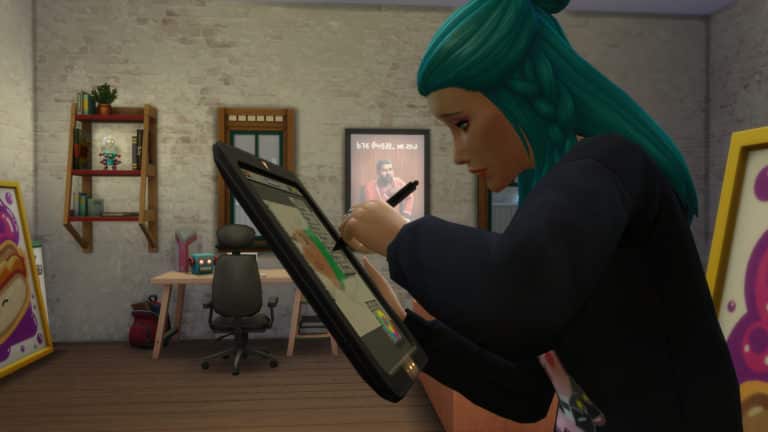
If your Sim has work is rejected, simply use the Sketchpad to edit Paintings or the computer to edit books and then resubmit the work. As a Freelance Programmer, you may find that certain tasks will fail or files could corrupt and you just need to get your Sim to complete that particular task again until they are successful.

The Sims 4: All About the Freelancer Career

However, if your Sim fails to complete a Gig on time not only can it have an effect on your Sims overall performance but will also leave your Sim with an angry client and of course they won’t have been paid.

On the other hand, if your Sim gets ahead, completes the Gig early and their work is of a high standard, there is a chance that they may get a small bonus alongside their payment for the Gig.

There are no restrictions as to how often your Sim has to pick up Gigs. It really is up to you when and how often they work. There will always be Gigs available for your Sims to choose from.

Career Rewards

Of course, no career within The Sims would be complete without a few new Career Rewards!

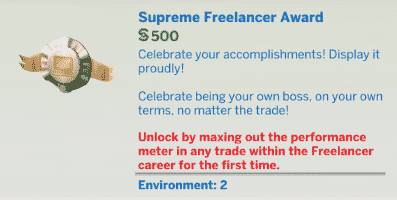
Supreme Freelancer Award ($500) – Unlocked by maxing out the performance meter in any trade within the Freelancer career for the first time.

FreeRoad Portable Computing Device ($1650) – Unlocked by maxing out the performance meter in the Freelancer career as a Freelance Writer for the first time.

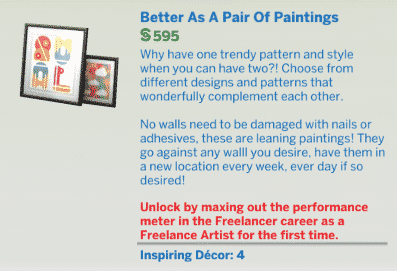
Better As A Pair Of Painting ($595) – Unlocked by maxing out the performance meter in the Freelancer career as a Freelance Artist for the first time.


The Sims 4: All About the Freelancer Career

The Freelance career is definitely a welcomed addition to the selection of careers that we already have in The Sims 4. There really is so much to explore in each of the three different Freelance Trades. Not only that, the new career adds even more variety and flexibility to your Sims everyday lives without having to leave their house.

Let us know what you think of the new Freelance Career and even what trades you would love to see hopefully added to the career in the future.

The Sims 4 Console: Mouse + Keyboard Update Video Overview

2

The Sims 4 for Xbox One and PS4 has received a long-awaited update, adding Mouse + Keyboard Support, the Lunar New Year Content and some other things to the table.

Check out our video overview for the full rundown!

Everything added in today’s The Sims 4 Content Update (April 16th, 2019)

The Sims 4 for PC / Mac received a pretty big update today with new clothing, objects, a brand new career and some other minor additions so let’s get started!

Create A Sim

There are 9 new clothing pieces added in Create A Sim, with 8 more focused towards a Freelance vibe while the 9th addition is the Moschino Freezer Bunny Hoodie Top for both Feminine and Masculine Sims.

Here are all of the new CAS items:

Feminine

Masculine

Build Mode

Build Mode has been upgraded with 11 new objects that will make any freelancer help focus more easily on their work behind the monitor / sketch pad.

Laptops

Laptops are no longer exclusive to The Sims 4 StrangerVille Game Pack. All you have to do is max out the performance meter in the Freelancer career as a Writer for the first time and you’ll be able to unlock the FreeRoam Portable Laptop from Build Mode!

Everything added in today’s The Sims 4 Content Update (April 16th, 2019)

Freelancer Career

Probably the biggest addition with this update, the Freelancer Career comes with 3 different trades / branches that you’ll be able to pick immediately after choosing the Career: Digital Artist, Programmer and Writer.

As a Freelancer you’ll get to perform various Gigs that have a certain set of tasks and a due date. However, completing each gig successfully will give you a set amount of Simoleons!

We’ll be doing an in-depth look of the Freelancer Career very soon. Stay tuned!

Everything added in today’s The Sims 4 Content Update (April 16th, 2019)

StrangerVille World Objects Unlocked

If you own The Sims 4 StrangerVille Game Pack you’re now able to place down cacti, flowers, shrubbery, vehicles and more that have been featured in the world of StrangerVille!

Everything added in today’s The Sims 4 Content Update (April 16th, 2019)

The Immaculate Shelf White Preset

The Immaculate Shelf, a Sims 4 Base Game object that’s been present in the game for 5 years now has FINALLY received a white preset. Hooray!

Everything added in today’s The Sims 4 Content Update (April 16th, 2019)

Main Menu Render Picker

The Sims 4 Main Menu Render now lets you pick which render you want to be displayed on the Menu. You’re able to choose from Expansion Packs, Game Packs and the Base Game that you own and have installed.

Everything added in today’s The Sims 4 Content Update (April 16th, 2019)

Video Overview

Want to check out all of these new things in action? Check out our video overview:

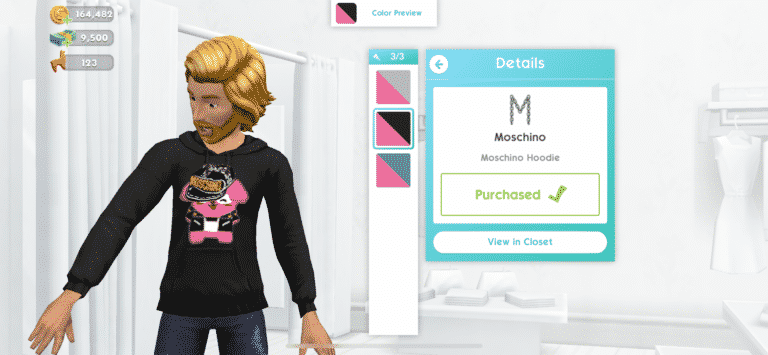
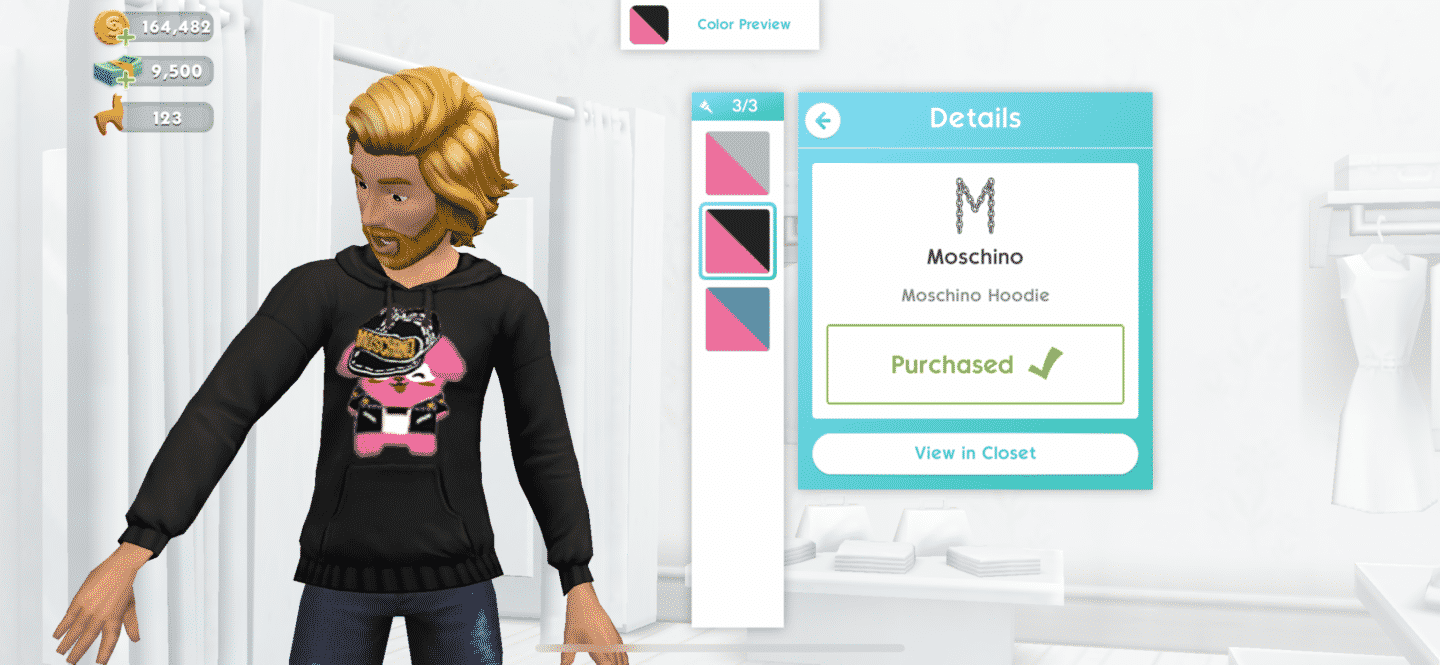
Moschino Hoodie added to The Sims Mobile

Today The Sims Team has added a brand new Moschino hoodie for both The Sims 4 and The Sims Mobile.

Simply fire up The Sims Mobile and you’ll be downloading a small, 20-something MB update for the game that will add the Freezer Bunny Moschino Hoodie into your game.

You’ll be able to find the hoodie easily by going into your Closet / Shop and finding it under the Moschino brand.

IMG 5932

The hoodie can be found in 3 different presents – Black, White and Blue with all of the presets automatically being added into your closet.

IMG 5933