Home Blog Page 295

Community Thoughts: Lacking Makeup Options in The Sims 4 and how it can be improved

Ever since The Sims 4’s release in 2014 the community always felt like the game could do more in terms of makeup options that we get in Create A Sim. We’ve gotten a few extra options with Get to Work, Luxury Party and Get Together but in the last 3 years there hasn’t been anything done or added to the current catalog of makeup that would improve the experience of stylizing our Sims.

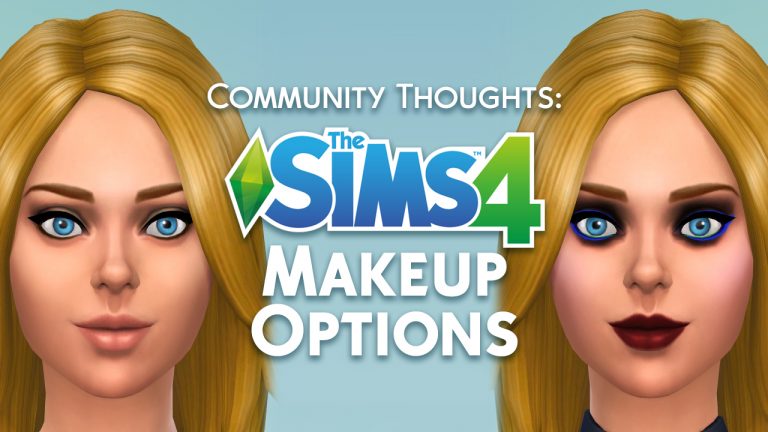
Other than the fact that we don’t get enough makeup categories that would help stylize specific parts of our Sims’ faces, the makeup we have right now is lacking to make our Sims stand out. Makeup offered with The Sims 4 Base Game is either too subtle or too visually striking. It’s especially hard to put makeup on Sims with darker skin tones. For example, there are only 5 presets for the “normal” Blush makeup option while there are 35 different skin tones in the game. The 5 blush presets only look good for some skin tones and even for those skin tones it’s hard to give the player full control over the makeup they’re wearing considering that some prefer to give their Sims certain levels of subtle makeup.

Community Thoughts: Lacking Makeup Options in The Sims 4 and how it can be improved

Those are just the lacking blush options that we have. There’s also lipstick, eyeshadow and the eyeliner makeup items that need improvement.

Makeup trends have changed tremendously in the world over the last few years. We know that The Sims 4 has its own universe of its own fashion rules but The Sims Team often knows how to hit the jackpot when it comes to adding trendy (and traditional) hairstyles and outfits that are inspired from real world. You can even see Concept Art from The Sims 4 that we occasionally post on our website which proves the point that the team uses references from the real world as an inspiration for The Sims 4 universe. Why doesn’t The Sims Team use today’s makeup trends to improve their lacking catalog of makeup in The Sims 4? We still don’t have an answer to that question but we did ask our Twitter followers about what they think about the current makeup options and features in the game and how they think it could be improved.

Here are their thoughts:

What are your thoughts on the current makeup options and how do you think they can be improved? Let us know in the comments!


The Sims FreePlay: Chic Boutique Live Event Walkthrough

0

Want to know what it takes to complete the latest Chic Boutique Live Event in The Sims FreePlay? Check out our detailed walkthrough video!

The Sims FreePlay: Upcoming Events Dates

1

The Sims FreePlay Team has published a list of dates for the upcoming events that are coming to The Sims FreePlay. Other than the Chic Boutique Live Event and the Back to the Wall Discovery Quest, other events that you see below are reruns of the previous events that have already been released to The Sims FreePlay before.

Check out all the dates below:

Event Dates:

  • Chic Boutique Live Event: 10-day event starting July 17 (AEST)
  • Musical Expression Hobby Event: 7-day event starting July 22 (AEST)
  • Fishing Hobby Event: 7-day event starting July 29 (AEST)
  • Back to the Wall Discovery Quest: 7-day event starting August 1 (AEST)
  • Survivalist Hobby Event: 10-day event starting August 5 (AEST)
  • Dream Closet Live Event: 7-day event starting August 9 (AEST)
  • Boutique Hair Hobby Event: 7-day event starting August 18 (AEST)
  • Streetwear Hobby Event: 9-day event starting August 19 (AEST)

The Sims FreePlay: Upcoming Events Dates

The Sims FreePlay: Chic Boutique Update Now Available!

0

The Sims FreePlay has a brand new update available for iOS and Android devices! Simply open up your App Store and make sure you download the latest update for FreePlay to get the latest Live Event and some new features as well.

What’s New

Style is in season in SimTown! Make some seriously sleek design statements in the latest update. You can:

  • Build a beautiful fashion boutique for your Sims in the Chic Boutique Live Event
  • Style your store with dazzling mirrors, luxe fitting rooms, and plush lounges
  • Fit out your storefront with a variety of display units, mannequins, and merchandise, including shoes, handbags, and coats that your Sims can try on
  • Create feature walls for your Sims’ homes with the Back to the Wall Discovery Quest
  • Play with the all-new interior windows feature – make atriums, indoor greenhouses and more

Plus, unlock brand-new maternity clothing for your pregnant Sims. Thanks for playing!

The Sims 4: Another Expansion / Game Pack has been confirmed for 2018

20

UPDATE: EA Poland tried to explain the Instagram Story (that they deleted that you can see below) and what they “really meant”. They explained in a series of stories below that the new Expansion Pack that they meant was Cats & Dogs for Consoles.

However, they still didn’t elaborate why did they answer “YES” to Game Packs as well and why they deleted the Instagram Story. It looks like they’re trying to cover up the fact that there’s actually going to be one more Expansion and Game Pack for The Sims 4 this year!

  • You asked us yesterday, if a new Expansion is coming…
  • We answered…YES
  • This July…
  • Cats & Dogs for Xbox One and PS4

EA Poland shared an interesting piece of information about what’s to come for The Sims 4 in 2018. The Sims Poland’s Instagram account revealed that we should be expecting another Expansion / Game Pack for this year!

Here’s what they said in an instagram story post that’s been quickly deleted afterwards:

Instagram Question: Will there be another game pack or an expansion in 2018?

The Sims Poland: YES.

The Sims 4: Another Expansion / Game Pack has been confirmed for 2018


This means that 2018 will be a second year where The Sims 4 might get two Expansion Packs. The last time we got two Expansion Packs was back in 2015 with Get to Work in Spring and Get Together in Fall. Considering that The Sims 4 Seasons Expansion Pack has been released in Spring that leaves plenty of space left for another Expansion Pack this year, as well as a Game Pack.

As there won’t be any more quarterly teasers for The Sims 4 you should stay tuned to our website as we’ll keep you updated about the latest leaks, speculation and official information about the upcoming content for the game!

What do you think that the next Expansion Pack and Game Pack are? Let us know in the comments!

Tip: @PurplCheshire

The Sims Mobile: Surgeon Career Pack Video Overview

0

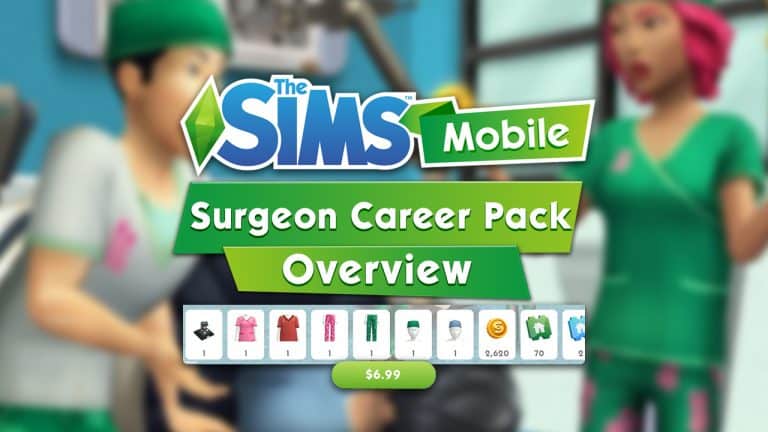
Want to know what’s included in the latest limited-time offer for The Sims Mobile? Check out our video above and find out what The Surgeon Career Pack has to bring!

The Sims Mobile: Surgeon Career Now Available

1

The Sims Mobile Team has just released a Surgeon Career to players worldwide!

To unlock the Surgeon Career you need to have the Medical Injector Heirloom in your inventory. Considering it’s a rare heirloom it might take you a few retirements / Luxe Heirloom Chests to get this heirloom. If you played The Sims Mobile during its pre-release period before the worldwide launch then the chances are that you already might have this heirloom in your inventory!

The Sims Mobile: Surgeon Career Now Available

Another way to obtain the Medical Injector Heirloom is to purchase it along with other exclusive items that you get with the Limited Time Surgeon Career Pack, which is priced at $6.99USD. This pack is currently available for the next 13 days.

After obtaining the Medical Injector heirloom you get a quick, two-step quest after which you’ll be able to unlock the Surgeon Career!

The Sims Mobile: Surgeon Career Now Available

After completing the quest all you have to do is place down the Surgery Table in the Hospital Venue, start The Mysterious Benefactory Story and you’re good to begin your Surgeon Career journey. Good luck!

Cities: Skylines + Full range of DLCs are now available on Origin

3

Cities: Skylines – a city simulation that took the masses in 2015 and began expanding ever since is now available on Origin – through both the Origin Access subscription service (as a standard edition base game) and as a game that you can fully purchase through Origin.

Not only that, but this city builder simulation also has a complete range of Expansion Packs and DLCs ported over to Origin! (total of 19 different Cities: Skylines games)

Interested in owning Cities: Skylines through Origin? Check out the full collection here!

Cities: Skylines + Full range of DLCs are now available on Origin

Origin Sale: Up to 60% off on select The Sims 4 Titles

Origin is currently having a summer sale where you can save big on select Sims 4 games! Those include The Sims 4 Base Game, Expansion Packs, Bundles and the Backyard Stuff Pack.

Here’s all The Sims 4 games and their offers that you can take advantage of:

Make sure you take advantage of this offer before it’s too late! It ends on July 19th at at 10AM PDT.

Origin Sale: Up to 60% off on select The Sims 4 Titles

The Sims 4 for Xbox One is now available on EA Access

0

EA Access, a subscription service exclusive to Xbox One gaming platform has now added The Sims 4 to its list of over 50 video game titles! For $4.99 a month / $29.99 a year you’re able to enjoy The Sims 4 Base Game as well as over 50 other games which are a part of the EA Access vault.

EA Access subscription service is exclusive to Xbox One only. Check out their info page for more information about this service!

The Sims 4 for Xbox One is now available on EA Access

The Sims Mobile: The Surgeon Career is already unlocked (for some)

2

Yesterday The Sims Mobile team has announced that they’ll soon be releasing a new Surgeon Career. However, after the latest minor update that was deployed last night (which was only around 27MB) I was able to get my hands on the Surgeon Career, and it seems that not everyone was able to do the same.

As soon as I downloaded the new update I restarted the game and immediately was greeted with a small “Surgical Precision” Quest. The whole objective of this quest is to place a new Surgery Table in the Hospital Venue which I was able to do so. However, there are numerous reports of people not able to even access the latest quest.

The Sims Mobile: The Surgeon Career is already unlocked (for some)

There’s a new “Surgeon Career” Items Collection that you can access while in the Hospital Venue in Build Mode. It features 2 new items: the Surgery Table and the Surgery Light while the X-Ray Machine and the Illuminated X-Ray have only been recategorized from the Medical to the Surgery Career.

The Sims Mobile: The Surgeon Career is already unlocked (for some)

You’re able to join the Surgeon Career by pressing the briefcase icon above the Surgery Table. After that all you have to do is pick “The Mysterious Benefactor” Story and you’re all set to play with the new Surgeon Career

While the Surgeon Career is still not available to plenty of players, some have reported that they’re able to play with it under mysterious circumstances. I don’t know what it takes to fully unlock this career and is there something beyond the mini-quest to unlock it but we’ll keep you posted as soon as this career is fully (and officially) out!

The Sims 4 Seasons Gallery Spotlight: Houses (Part 2)

The Sims 4 Seasons Gallery Spotlight: Houses (Part 2)

In this Spotlight, we’re featuring all sorts of homes built with The Sims 4 Seasons Expansion Pack, as well as some other packs.

Hover over the pulsing plumbobs to see screenshots of marked areas. Pulsing plumbob that’s on the left bottom corner contains all the info (and download link) of the lot.

To see more of our previous Gallery Spotlights, CLICK HERE! To check out the first part of our Seasons Houses Gallery Spotlight, CLICK HERE!

[ult_hotspot main_img=”id^76651|url^https://simscommunity.info/wp-content/uploads/2018/07/07-10-18_10-34-05-PM.jpg|caption^null|alt^null|title^07-10-18_10-34-05 PM|description^null”][ult_hotspot_items icon_type=”custom” icon_img=”id^39525|url^https://simscommunity.info/wp-content/uploads/2015/09/plumbob2.png|caption^null|alt^null|title^plumbob2|description^null” img_width=”38″ tooltip_custom_color=”” tooltip_custom_bg_color=”rgba(255,255,255,0.01)” tooltip_width=”400″ tooltip_position=”right” enable_bubble_arrow=”off” tooltip_continuous_animation=”on” hotspot_position=”82.8125,44.29447852760736″]

The Sims 4 Seasons Gallery Spotlight: Houses (Part 2)

[/ult_hotspot_items][ult_hotspot_items icon_type=”custom” icon_img=”id^39525|url^https://simscommunity.info/wp-content/uploads/2015/09/plumbob2.png|caption^null|alt^null|title^plumbob2|description^null” img_width=”38″ tooltip_custom_color=”” tooltip_custom_bg_color=”rgba(255,255,255,0.01)” tooltip_width=”400″ tooltip_position=”right” enable_bubble_arrow=”off” tooltip_continuous_animation=”on” hotspot_position=”56.90502183406113,70.30674846625767″]

The Sims 4 Seasons Gallery Spotlight: Houses (Part 2)

[/ult_hotspot_items][ult_hotspot_items icon_type=”custom” icon_img=”id^39525|url^https://simscommunity.info/wp-content/uploads/2015/09/plumbob2.png|caption^null|alt^null|title^plumbob2|description^null” img_width=”38″ tooltip_custom_color=”” tooltip_custom_bg_color=”rgba(255,255,255,0.01)” tooltip_width=”400″ tooltip_position=”right” enable_bubble_arrow=”off” tooltip_continuous_animation=”on” hotspot_position=”35.002729257641924,69.8159509202454″]

The Sims 4 Seasons Gallery Spotlight: Houses (Part 2)

[/ult_hotspot_items][ult_hotspot_items icon_type=”custom” icon_img=”id^39525|url^https://simscommunity.info/wp-content/uploads/2015/09/plumbob2.png|caption^null|alt^null|title^plumbob2|description^null” img_width=”52″ tooltip_custom_color=”#1e73be” tooltip_custom_bg_color=”#ffffff” tooltip_width=”450″ tooltip_position=”right” tooltip_continuous_animation=”on” hotspot_position=”89.61858624454149,3.190184049079755″ tooltip_custom_border_size=”border-style:solid;|border-width:2px;border-radius:5px;|border-color:#81d742;”]

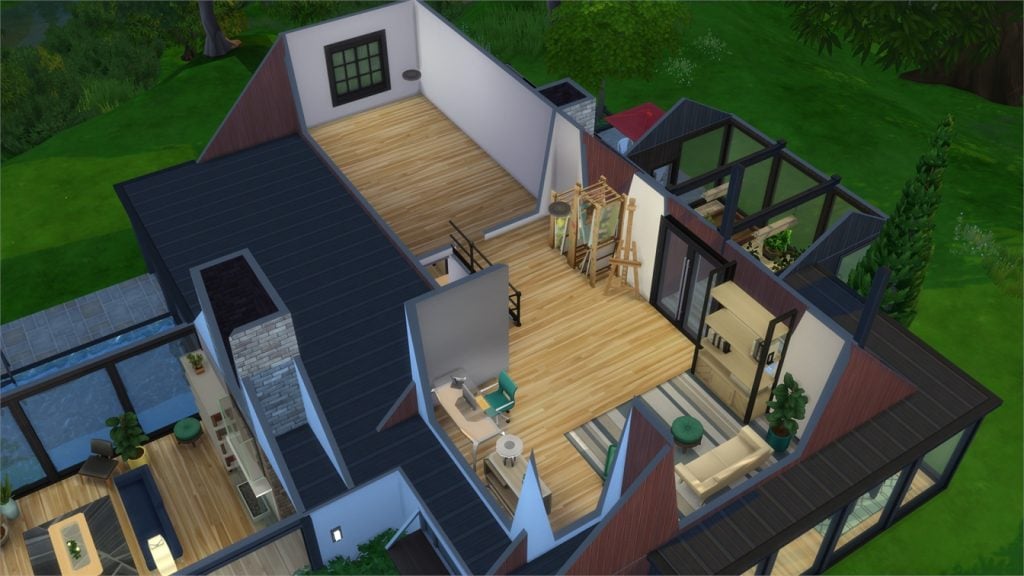
Modern House (Download Here)

by SpecterCody

Value: §152,686
Size: 30×20
Lot Type: Residental Lot[/ult_hotspot_items][/ult_hotspot][ult_hotspot main_img=”id^76655|url^https://simscommunity.info/wp-content/uploads/2018/07/07-10-18_10-38-57-PM.jpg|caption^null|alt^null|title^07-10-18_10-38-57 PM|description^null”][ult_hotspot_items icon_type=”custom” icon_img=”id^39525|url^https://simscommunity.info/wp-content/uploads/2015/09/plumbob2.png|caption^null|alt^null|title^plumbob2|description^null” img_width=”38″ tooltip_custom_color=”” tooltip_custom_bg_color=”rgba(255,255,255,0.01)” tooltip_width=”400″ tooltip_position=”right” enable_bubble_arrow=”off” tooltip_continuous_animation=”on” hotspot_position=”45.414847161572055,39.263803680981596″]

The Sims 4 Seasons Gallery Spotlight: Houses (Part 2)

[/ult_hotspot_items][ult_hotspot_items icon_type=”custom” icon_img=”id^39525|url^https://simscommunity.info/wp-content/uploads/2015/09/plumbob2.png|caption^null|alt^null|title^plumbob2|description^null” img_width=”38″ tooltip_custom_color=”” tooltip_custom_bg_color=”rgba(255,255,255,0.01)” tooltip_width=”400″ tooltip_position=”right” enable_bubble_arrow=”off” tooltip_continuous_animation=”on” hotspot_position=”32.33487991266376,38.77300613496932″]

The Sims 4 Seasons Gallery Spotlight: Houses (Part 2)

[/ult_hotspot_items][ult_hotspot_items icon_type=”custom” icon_img=”id^39525|url^https://simscommunity.info/wp-content/uploads/2015/09/plumbob2.png|caption^null|alt^null|title^plumbob2|description^null” img_width=”52″ tooltip_custom_color=”#1e73be” tooltip_custom_bg_color=”#ffffff” tooltip_width=”450″ tooltip_position=”right” tooltip_continuous_animation=”on” hotspot_position=”89.61858624454149,3.190184049079755″ tooltip_custom_border_size=”border-style:solid;|border-width:2px;border-radius:5px;|border-color:#81d742;”]

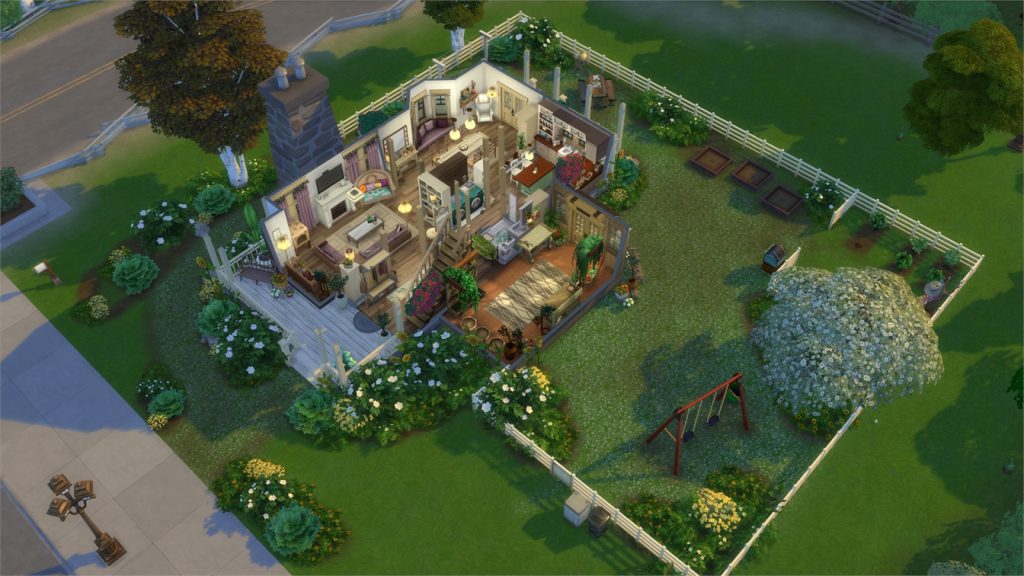
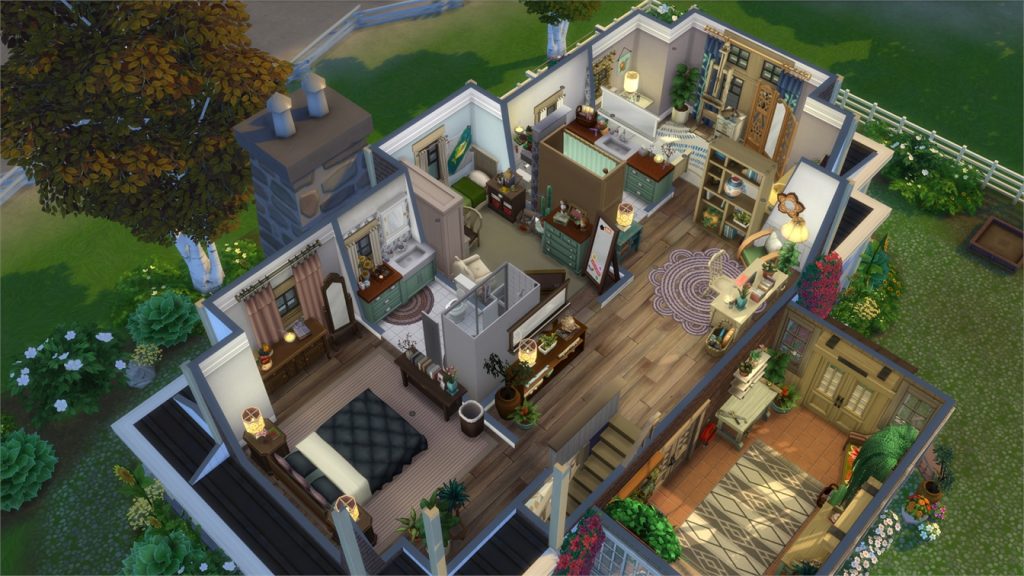
Gardener’s Dream Home (Download Here)

by simlicy

Value: §138,389
Size: 30×30
Lot Type: Residental Lot[/ult_hotspot_items][/ult_hotspot][ult_hotspot main_img=”id^76658|url^https://simscommunity.info/wp-content/uploads/2018/07/07-10-18_10-42-13-PM.jpg|caption^null|alt^null|title^07-10-18_10-42-13 PM|description^null”][ult_hotspot_items icon_type=”custom” icon_img=”id^39525|url^https://simscommunity.info/wp-content/uploads/2015/09/plumbob2.png|caption^null|alt^null|title^plumbob2|description^null” img_width=”38″ tooltip_custom_color=”” tooltip_custom_bg_color=”rgba(255,255,255,0.01)” tooltip_width=”400″ tooltip_position=”right” enable_bubble_arrow=”off” tooltip_continuous_animation=”on” hotspot_position=”67.14997270742357,61.717791411042946″]

The Sims 4 Seasons Gallery Spotlight: Houses (Part 2)

[/ult_hotspot_items][ult_hotspot_items icon_type=”custom” icon_img=”id^39525|url^https://simscommunity.info/wp-content/uploads/2015/09/plumbob2.png|caption^null|alt^null|title^plumbob2|description^null” img_width=”38″ tooltip_custom_color=”” tooltip_custom_bg_color=”rgba(255,255,255,0.01)” tooltip_width=”400″ tooltip_position=”right” enable_bubble_arrow=”off” tooltip_continuous_animation=”on” hotspot_position=”47.22980349344978,61.84049079754601″]

The Sims 4 Seasons Gallery Spotlight: Houses (Part 2)

[/ult_hotspot_items][ult_hotspot_items icon_type=”custom” icon_img=”id^39525|url^https://simscommunity.info/wp-content/uploads/2015/09/plumbob2.png|caption^null|alt^null|title^plumbob2|description^null” img_width=”52″ tooltip_custom_color=”#1e73be” tooltip_custom_bg_color=”#ffffff” tooltip_width=”450″ tooltip_position=”right” tooltip_continuous_animation=”on” hotspot_position=”89.61858624454149,3.190184049079755″ tooltip_custom_border_size=”border-style:solid;|border-width:2px;border-radius:5px;|border-color:#81d742;”]

Summer Home (Download Here)

by PeachesPlace

Value: §137,276
Size: 30×20
Lot Type: Residental Lot[/ult_hotspot_items][/ult_hotspot][ult_hotspot main_img=”id^76661|url^https://simscommunity.info/wp-content/uploads/2018/07/07-10-18_10-45-22-PM.jpg|caption^null|alt^null|title^07-10-18_10-45-22 PM|description^null”][ult_hotspot_items icon_type=”custom” icon_img=”id^39525|url^https://simscommunity.info/wp-content/uploads/2015/09/plumbob2.png|caption^null|alt^null|title^plumbob2|description^null” img_width=”38″ tooltip_custom_color=”” tooltip_custom_bg_color=”rgba(255,255,255,0.01)” tooltip_width=”400″ tooltip_position=”right” enable_bubble_arrow=”off” tooltip_continuous_animation=”on” hotspot_position=”57.140420305676855,46.25766871165644″]

The Sims 4 Seasons Gallery Spotlight: Houses (Part 2)

[/ult_hotspot_items][ult_hotspot_items icon_type=”custom” icon_img=”id^39525|url^https://simscommunity.info/wp-content/uploads/2015/09/plumbob2.png|caption^null|alt^null|title^plumbob2|description^null” img_width=”52″ tooltip_custom_color=”#1e73be” tooltip_custom_bg_color=”#ffffff” tooltip_width=”450″ tooltip_position=”right” tooltip_continuous_animation=”on” hotspot_position=”89.61858624454149,3.190184049079755″ tooltip_custom_border_size=”border-style:solid;|border-width:2px;border-radius:5px;|border-color:#81d742;”]

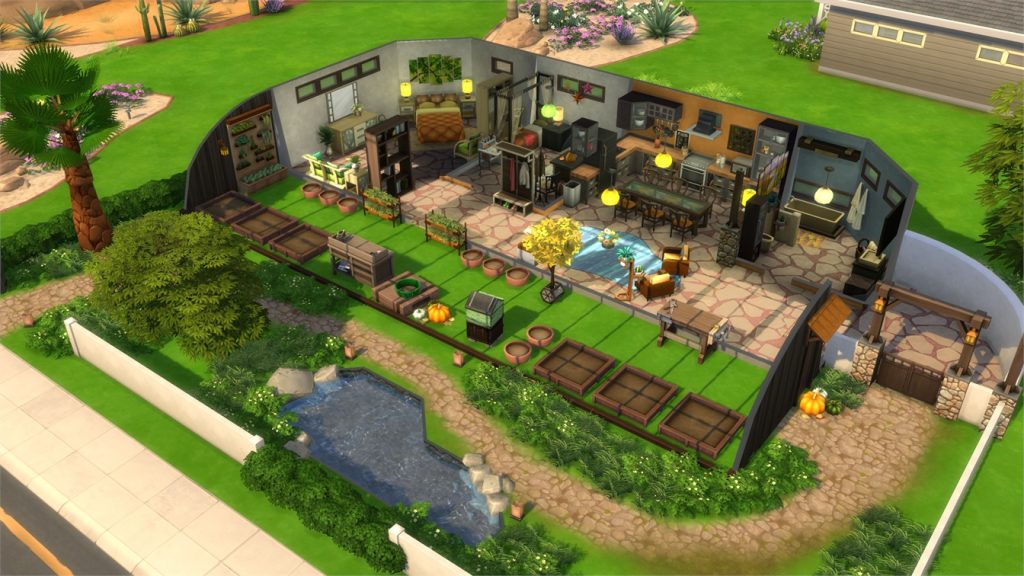
Earthship (Download Here)

by PeachesPlace

Value: §57,892
Size: 30×20
Lot Type: Residental Lot[/ult_hotspot_items][/ult_hotspot]

The Sims Mobile: Surgeon Career Update Coming Soon

1

The Sims Mobile Team has just published a brand new teaser for an upcoming update for The Sims Mobile.

According to them, the latest update will bring a whole new career to the game – the Surgeon Career!

Market Square Hospital is hiring surgeons! Stay tuned for more info on this new career.

The Sims Mobile: Surgeon Career Update Coming Soon

The Sims 4: New Update + Patch Notes! (July 10th, 2018)

The Sims 4: New Update + Patch Notes! (July 10th, 2018)

The Sims Team has released a brand new Update for The Sims 4 on PC and Mac!

To download the latest version of The Sims 4, simply open your Origin program and if the game doesn’t update automatically, right click on The Sims 4 and select ”Update”.

In case you have Mods or Custom Content, the game will automatically disable them for you after first launching The Sims 4 after the update. To re-enable all your Mods and Custom Content, select the Settings option in the Menu and select Settings. Under the”Other” section you’ll find the ”Enable Custom Content and Mods” option. Check it and restart your game in order for it to take effect!

Patch Notes

Update: 07/10/2018 – PC 1.44.88.1020/ Mac 1.44.88.1220

Hi Simmers!

We have another update for you to improve some of the issues found after the release of Seasons and the June update. Take a look at the notes to see what has changed. Thanks for your support and be sure to enjoy the fantastic summer weather from time to time!

Let’s get into the patch notes!
-SimGuruGrant aka Grant Rodiek

The Sims 4

  • We addressed an issue where the game would lag when placing wall patterns on blocks that were touching roofs.
  • The Reset Object cheat is now available to the community again. You could say that we reset it.
  • Sims no longer route fail when trying to enter a room on foundation level 1 that doesn’t have a stair. They just step up like a big kid, now.
  • Neat Sims are no longer uncomfortable when near a fire place that has assorted upgrades.
  • The lid for the GrillWise by GrillMania has been returned.

Get to Work

  • The Lice Cold Retail Freezer can now hold harvestables for you to sell.

Cats & Dogs

  • Cats and dogs should no longer fill your Sims’ queue with interactions. We want the pets to be friendly, but perhaps not that friendly.

Jungle Adventure

  • Emotion berries now provide emotions again, which is a berry good thing.

Seasons

  • Thermostats now have their interactions available when placed on Commercial and Vacation lots.
  • You can no longer use the Woo interaction with Bee Swarms to, *cough* woohoo with a relative.
  • Patchy the Scarecrow will no longer change into a human.
  • We addressed an issue where roof decorations on some lots didn’t look appropriate for the Mac.

Learning Your Tools: The Sims 4 MorphMaker (Create your own CAS Sliders)

The Sims 4 MorphMaker Tutorial

The Sims 4 MorphMaker allows you to make sliders and presets for Create-a-Sim! This tutorial requires you to have general knowledge of Blender. This tutorial was written for Windows users.

The program was created by CmarNYC over at ModTheSims!

Programs Needed:

Navigation:

  • Section 1 – Installing & Setting Up
  • Section 2 – Making a Slider for Create-a-Sim
  • Section 3 – Making a Preset for Create-a-Sim

Learning Your Tools: The Sims 4 MorphMaker (Create your own CAS Sliders)Installing & Setting Up

Step 1

Download TS4 MorphMaker at ModTheSims.

You will only need the first file in the download, as pictured below. You do not need the source code.

Learning Your Tools: The Sims 4 MorphMaker (Create your own CAS Sliders)

Step 2

Using a program like WinRAR or 7-Zip, unzip the file you just downloaded.

Place the new folder somewhere that you can get to it easily. Like your desktop.

Step 3

Now we need to install Blender 2.75. If you already have this version of Blender installed, you can skip this step.

You can find direct download links for Blender 2.76 here: 64 bit or 32bit

Install whichever version is required for your computer.

Learning Your Tools: The Sims 4 MorphMaker (Create your own CAS Sliders)

Making a Slider for Create-a-Sim

In this section we will be going over how to make a custom Slider for The Sims 4 Create-a-Sim. We will be going step by step in creating a up and down slider for female butts!

The sliders are the Sims shape modifiers, what you use to make your Sim body shape more unique!

Step 1

Open the TS4MorphMaker folder, and launch the application.

Step 2

When the program starts, you will be on the ‘Create DMaps‘ tab.

Select the gender you want to work with.

In this tutorial we will be using Adult Female.

Next select Skintight, then click Export OBJ.

Save this file to your desktop, and name it ‘YAF_Skintight‘.

Next select Robe, then click Export OBJ.

Save this file to your desktop, and name it ‘YAF_Robe‘.

Learning Your Tools: The Sims 4 MorphMaker (Create your own CAS Sliders)

Step 3

Next we need to open up Blender 2.75

Then we need to import the ‘YAF_Skintight.obj‘, as pictured below.

Make sure your view window is empty before importing the file.

Learning Your Tools: The Sims 4 MorphMaker (Create your own CAS Sliders)

Step 4

Now you should have your model in the view window.

Select the model until it is highlighted, as pictured below.

Learning Your Tools: The Sims 4 MorphMaker (Create your own CAS Sliders)

Once the model is highlighted, go into ‘edit mode‘. 

Step 5

This is where you will alter the base mesh for whichever slider you are wanting to make.

In this tutorial we will be making a slider to raise and lower the butt. So I have selected that area to alter, as pictured below.

Learning Your Tools: The Sims 4 MorphMaker (Create your own CAS Sliders)

Now that we have the area selected, we need to make a raised version.

NOTE: I use proportional editing when moving the vertices. This way everything connected stays shapely and the changes made are seamless.

To make the raised version, we need to move the selected area up on the Z axis.

You can move them by dragging the ‘Blue Arrow‘ up or by using G ‘Grab’ then Z ‘Selecting Z axis’ then use the ‘up arrow keys‘. I prefer the grab method, so I can count how far I have moved the the selected vertices.

I have moved the selected vertices up by 15 using the grab method, as pictured below.

Learning Your Tools: The Sims 4 MorphMaker (Create your own CAS Sliders)

Step 6

Now that we have our altered mesh we need to ‘export the .obj‘ and give it a new unique name. We will call this ‘YAF_SkinTight_ButtUP‘.

How to ‘export as .obj‘ pictured below:

Learning Your Tools: The Sims 4 MorphMaker (Create your own CAS Sliders)

Step 7

Next we need to make a lowered version. So that we have both up and down points for the sliders in game.

NOTE: Make sure that you move the vertices back to their original points before making the other direction version.

You can Ctrl+Z ‘Undo’ the changes made, or reopen the ‘YAF_Skintight.OBJ‘ and start fresh.

To make the lowered version, I have moved the selected vertices down by 15 using the grab method, as pictured below.

Learning Your Tools: The Sims 4 MorphMaker (Create your own CAS Sliders)

Step 8

Now that we have our second altered mesh we need to export the .obj and give it a new unique name. We will call this version ‘YAF_SkinTight_ButtDOWN‘.

Step 9

Now we need to repeat steps 3-8 for the ‘YAF_Robe‘ model. This is optional via the MorphMaker program.

If you do decide to do the robe models, be sure to create both Up and Down versions.

Giving them unique names also when you save them.

I have called mine ‘YAF_Robe_ButtUP.obj‘ and ‘YAF_Robe_ButtDOWN.obj‘.

Step 10

In total we now have the following 6 files on our desktop:

  1. YAF_Skintight.obj
  2. YAF_Robe.obj
  3. YAF_SkinTight_ButtUP.obj
  4. YAF_SkinTight_ButtDOWN.obj
  5. YAF_Robe_ButtUP.obj
  6. YAF_Robe_ButtDOWN.obj

Step 11

Now we need to upload our files into MorphMaker.

First we will be getting the DMaps for the ‘ButtUP’ version.

Learning Your Tools: The Sims 4 MorphMaker (Create your own CAS Sliders)

Once your files are uploaded. Make sure that the correct age and gender are selected. As well as the DMap Size for your creation.

If everything is correct, click ‘Create DMaps‘.

NOTE: This will take some time, just wait until it finishes. You will be able to tell the progress by the green bar and text on the right side of the program.

Once it has finished processing it will ask you to save 2 DMap files.

I have named mine:

  • DMap_ButtUP_One
  • DMap_ButtUP_Two

Next, we have to repeat the process for the Down version.

Simply change the files for ‘Morphed Skintight‘ and ‘Morphed Robe Mesh‘ to the ‘ButtDOWN‘ obj files. Once you have those changed, click ‘Create DMaps’ again.

Once it has finished processing it will ask you to save 2 DMap files again.

I have named mine:

  • DMap_ButtDOWN_One
  • DMap_ButtDOWN_Two

Step 12

Now we need to add the modifiers for our new sliders.

Step 12 a

Navigate to the ‘Add/Edit Sim Modifiers‘ tab in MorphMaker.

Click ‘Add New Sim Modifier‘. A new modifier will pop up in the view window.

Under ‘Unique morph name‘, give the morph a name. (Starting with your Creator Name.)

We will call this ‘YAF_ButtUP‘.

Next we need to upload the DMap Shape and DMap Normals.

  • DMap Shape = DMap_ButtUP_One
  • DMap Normals = DMap_ButtUP_Two

After you have the DMaps uploaded, make sure that the ‘Age/Gender‘ are selected for your project.

We are doing female in this tutorial, so I will select ‘Teen-Elder‘ and ‘Female‘.

Next we need to change the ‘Region‘, this corresponds to the area you edited on the mesh. Since we edited the butt we will change it to ‘BUTT‘.

Once you are done, click ‘Save Sim Modifier‘. You will know it is saved when the ‘Sim Modifier Name’ changes in the view window to your unique one.

Step 12 b

Repeat step 12 a for the ‘YAF_ButtDown‘. Replacing the UP DMaps with the Down ones.

Once you are done you should have two new modifiers, as pictured below.

Learning Your Tools: The Sims 4 MorphMaker (Create your own CAS Sliders)

Step 13

Now that the modifiers are done, we need to edit the hotspot controls.

Navigate to the ‘Add/Edit HotspotControls (Sliders)‘ tab in MorphMaker.

You should now see a cloned HotSpotControl ready to edit.

The first thing we need to do is make a ‘Unique Name‘. (Once again, Starting with your Creator Name.)

Next we need to change the ‘Cursor Style‘. We  want to change this to ‘HorizontalAndVerticalArrows‘. Because the slider for the butt extends out by default, and our slider slide up and down.

Double check that the ‘Age‘ category has all of the correct selected states. These will be the sameAge/Gender‘ you used in previous steps.

Now in the ‘Slider‘ list window you will see two sliders.

  • Profile_right, Profile_left
  • Back

Step 13 a

Select ‘Profile_right, Profile_left’

On the right you will see ‘Sim Modifiers‘. There will be 4 modifiers:

  • Left
  • Right
  • Up
  • Down

We need to add our modifier for the up and down ones we created earlier.

On the ‘UP‘ line click ‘Change‘.

In the drop down select the ‘UP‘ modifier. As pictured below.

Learning Your Tools: The Sims 4 MorphMaker (Create your own CAS Sliders)

Click ‘Save‘ when you are done.

On the ‘Down‘ line click ‘Change‘.

In the drop down select the ‘Down‘ modifier. Then ‘Save‘.

Your ‘Sim Modifiers’ list should now look similar to the following:

Learning Your Tools: The Sims 4 MorphMaker (Create your own CAS Sliders)

Once you are done click ‘Save Slider‘.

Step 13 b

Go back to the ‘Sliders‘ list that you selected in step 13a, but select ‘Back‘. repeat the same steps as above to add the ‘Up and Down Sim Modifiers‘ again. Once you are done click ‘Save Slider‘.

If you have finished both ‘Sliders‘ (‘Profile_right, Profile_left‘ and ‘Back‘.) then select ‘Save HotSpotControl‘.

You will know your ‘HotSpotControl‘ saved when the name of the Slider changes in the left side of the window, as pictured below.

Learning Your Tools: The Sims 4 MorphMaker (Create your own CAS Sliders)

Step 14

If everything is correct, and you are finished click ‘Save as New Package‘.

Navigate to your TheSims4 Mods folder:

DocumentsElectronic ArtsThe Sims 4Mods

Save your .package with a unique name so you know what it is.

You are Done! You’ve made a new slider for The Sims 4!

You can now go in game and check out your new slider!

Here is the Butt slider we made with this tutorial:

Learning Your Tools: The Sims 4 MorphMaker (Create your own CAS Sliders)

You can download the female butt slider we created in this tutorial Here!