

The Sims Mobile Team has released a brand new update for the game, addressing a few issues related to events and marriage.
Version 9.2.1
Check out our latest update, where we’ve made some Sim-tastic improvements. Thanks for playing!
The Sims Mobile Team has released a brand new update for the game, addressing a few issues related to events and marriage.
Version 9.2.1
Check out our latest update, where we’ve made some Sim-tastic improvements. Thanks for playing!
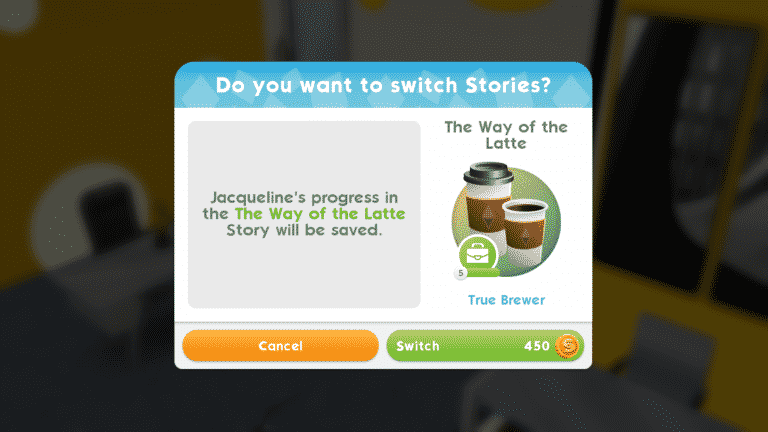
When you reach the top of a 10-level career and finish its story, you’ll receive a quest to switch to a new career. Changing careers allows your Sim to explore new interests, unlock new objects, and play through a new story.
Changing careers is a simple process, but you’ll need some simoleons in your pocket and at least one other career venue unlocked.


Send your Sim to a new career venue and tap the pink icon inside the venue. Then choose the career story it offers you, just like you would to start a new career for the first time. Since your Sim already has a career, a confirmation screen will pop up, asking you if you’d like to leave that career to join this new one. It costs some simoleons to switch careers, but if you have the funds, you can accept the change.
Ta-da! Your Sim has left their old career behind and started a brand new career!
Your Sim will start at level 1 of their new career, no matter what level they were at in their previous career. Any story progress from your Sim’s previous career will be saved when you switch careers. This means if you decide this new career isn’t right for your Sim after all, they can return to their old career without having to start from the bottom again. They’ll pick up where they left off.


Don’t be afraid to hop around to different careers with a single Sim. Your Sims have room to explore different career paths since career progress stays preserved after switching careers. Reach level 10 in several careers with a single Sim if you’d like, or just play through the first couple story chapters in several careers until you find the perfect fit.
Just don’t forget to have some simoleons on hand when you want to switch careers.

The Sims Team released a brand new update for The Sims 4 for Xbox One and PS4. We’re taking a closer look at the new features and improvements in the video above. Check it out!
The Sims Mobile‘s first worldwide event is now live and we can’t wait to dive right in and show you how to make the most of it.
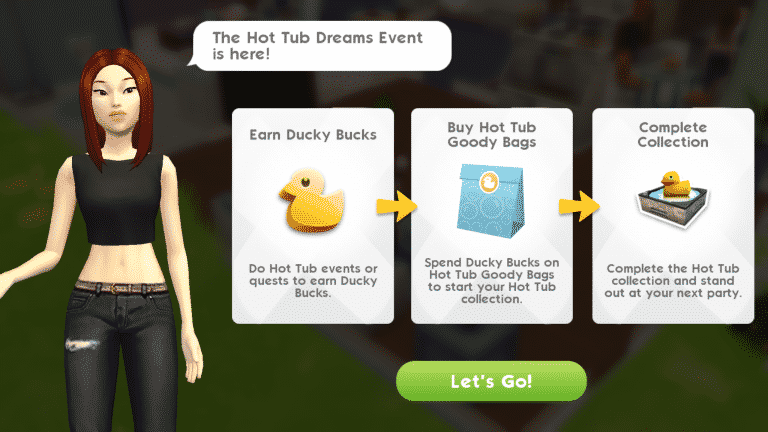
The main objective of the new Hot Tub Dreams event is to complete special event quests to earn Ducky Bucks, which can be exchanged for Hot Tub Goody Bags. The Goody Bags contain a variety of cool poolside fashions, furnishings, and of course, a hot tub. Buy as many Goody Bags as you can during the event to complete the collection. Just like many other aspects of The Sims Mobile, you can use SimCash to help you in the event, but SimCash isn’t necessary to play the event.
To start the event, tap the hot tub icon in the top right corner of your screen. You’ll be given a quick breakdown of how the event works. Tap Let’s Go on the info screen to be taken to the event screen.


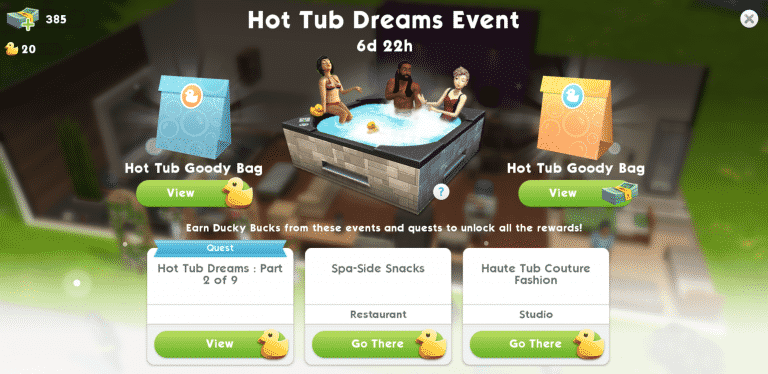
This screen will allow you to buy Goody Bags with either Ducky Bucks or SimCash. The bottom of the screen will also have a breakdown of what you need to do to progress in the event. Whenever you’re not sure what to do next in the event, refer to this screen. The event screen can be accessed at any time by tapping the hot tub icon in the top-right corner of your screen.
Tap the tab with the blue quest banner to be taken to your quests. You’ll see that there are nine parts to the quest. The first two parts are simple and quick to finish. Your Sims can do them at home if they have a bed and a TV.


Part three of the quest introduces you to events which might throw you off a bit, but don’t worry. These quests are just as straightforward. They just require more time. If you’re not sure where to go to start an event quest, return to the event screen and tap “Go There” on the event you’d like to go to. Once you’re at the location, tap the ducky icon to start the event. These events work the same way as any other event. Your Sims can finish them on their own, but you can help them finish faster by having them perform various event tasks. Finishing these events will also finish the quest associated with it. Both the event and the quest will pay out Ducky Bucks when completed so event quests are a great way to earn lots of Ducky Bucks.

Goody Bags cost 50 Ducky Bucks, so when you have enough Ducky Bucks, return to the event screen and tap on View under the Goody Bag icon. You can also tap the golden Goody Bag to buy one with SimCash if you’d like. You’ll be able to see all the different rewards you can win and their rarity. Tap the Ducky Buck icon to exchange 50 Ducky Bucks for a Goody Bag, which will open immediately to reveal the prize inside.


And that’s all there is to it. Follow the limited time quests and complete Hot Tub events to earn Ducky Bucks. Exchange your Ducky Bucks for Goody Bags. Open Goody Bags to reveal event prizes. Play as often as you can during the event to open lots of Goody Bags to complete the entire Hot Tub collection.
Make sure to update your game. Go to The Sims Mobile‘s page in the Google Play Store (Android) or the App Store (iOS) and select Update.
The Sims Mobile has just launched its first ever Worldwide Event!
The Hot Tub Dreams Event lasts for 7 days. During those 7 days you can collect ducks by doing quests and events in the Restaurant and the Fashion Studio. With ducks you’ll be able to purchase Hot Tub Goody Bags which will surprise you with new objects.


The Sims Team has released a brand new Update for The Sims 4 for Console devices – Xbox One and PS4!
Update: 03/15/2018 – v1.05
Mighty Simmers, on the Ides of March I present to you another exciting update! A turning point in your Simming journey, and control by which you do it. In agreement with Julius Caesar — experience is the teacher of all things.
What’s New?
We heard that the camera and virtual cursor movement was too quick, so we put the speed of the controls in your hands with new camera and virtual cursor speed adjustments. Change to your liking in the Game Options. Not only can you select how fast the cursor moves, you can adjust how much it accelerates to get the control scheme more to your liking.
Someone also told us in quiet whispers that you like to place multiples of things without having to select it from the Build / Buy window each time. Be really quiet about it; but now you can use our new and improved clone stamp feature to place the same object over and over and over and over.
General Issues
- Sometimes the UI got a little ahead of itself. Sometimes the part of the game you thought you were controlling wasn’t necessarily the thing the UI thought you wanted to control. So, we sat the UI down and told it to do as it is told. That means you should find yourself having to back out of UI elements less often. Unless you enjoy backing out of them, of course.
- The Grim Guitar now gets its own limelight on the Main Menu. You can check out how cool it is without even needing to load into a World. Plus, if you haven’t linked your account you can do that from the Main Menu to claim the Grim Guitar for yourself.
- Talking of the UI, there were some sneaky UI elements that chose to remain hidden until you found them. Those hidden bits of UI should now only show when you want them to.
- While we want you to know that adjusting the Sim count can affect your game, we won’t lock you behind a warning screen when you set it to Unlimited anymore.
- Some things can be so good that they name it twice, but that shouldn’t count the songs you write. While we aren’t dismissing the quality of your songs, we think you should only need to name them once before you can license them.
- Transferring Sims between households is great, but we heard that being limited to just the played households didn’t give you the options you’d like. Well, now you can show un-played households during transfers.
- If you worked through the Personality Panel tutorial, you might be wondering how it ends. Well with the addition of Tip 7 of 7 you can complete your tutorial journey.
- When navigating the Options Menu, the number of options could be overwhelming, with little to no information about what the options did. We found the tool tips for the Options hiding away and have put them back in their place, so now you can see what each option will do before you adjust it.
- Rotating roof tops might be limited to musical chimney sweeps but the ghost previews are not something everyone should see, so we dealt with them accordingly.
- Placing your family into a lot can be a tough choice and the first lot you pick might not be the one you want. Backing out of the lot will now let you pick another lot rather than deselecting your entire family.
- My Library felt a little too small with a limit of just 50 items, which feels more like a book shelf than a library. We knocked together some more shelving space from our neighborhood flat pack store and now it truly is a My Library to be proud of!
- When you are super proud of your creations, you want to describe them in detail for My Library to show. You can now scroll those extra-long descriptions rather than reading just the first part on replay.
- Whims can be so whimsical but that doesn’t mean you don’t want to pin them, all of them at times. Now you can do exactly that.
- Talking of Whims, if your Sim is out exploring the world or working you won’t get the hover tips for their Whims until they return to the active lot.
Dine Out
- Business decisions are important and occasionally you might get cold feet and want to backout. Previously the Sims selling you a business wouldn’t let you back out of your purchase. The authorities didn’t appreciate this, so now you can back out on the World selection screen if the purchase doesn’t feel right.
- Purchasing a restaurant in Live Mode will no longer cause graphical issues.
- Sims can now plan a social event while dining without causing you to watch the UI panel with no way out.
- Editing your Host Outfit in CAS no longer leaves the menu active on screen.
City Living
- City apartments will no longer obstruct your view of the city when you decide to leave the apartment view.
- When you move to the big city you generally want to take your kids with you, at least until they reach adulthood, without losing functionality. While we addressed the functionality problem, we can’t help your kids get a job and move out even if they are in their 30’s.
- Sims can answer the call to work in the city without leaving you stuck answering the phone unless you have a chatty boss.
- Tooltips will no longer appear over the UI icons allowing you to see what you are selecting.
- The Spire Apartment no longer hides a secret hidden UI, we know you appreciate your Sims secrets, but this wasn’t one of them.
Learnings from PC and Mac will continue to make their way into your hands, and various cleaned up bits and bobs from PC and Mac are now yours.
My friends go off and learn, grow, and conquer. Enjoy!
-SimGuruCleaningLady
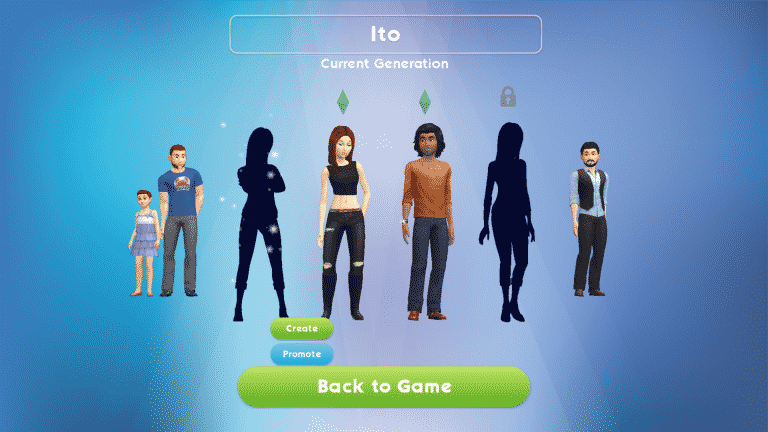
One of the most important things to know about The Sims Mobile is that households do not work the same way as they do in The Sims 4.
When you start the game, you have two possible household slots for Sims, with two more being purchasable with SimCash. This might lead some players to think that you’re forced to spend real money to have a household of more than two Sims, but this is not true. Your Sims can have multiple children and grow large families even with just two household slots.

The household slots represent Sims that are playable by you, not necessarily Sims that live in the home. More than four Sims can live in the home at a time, but you can only directly control up to two of them. If you choose to spend SimCash, you can control up to four of them, but this is not necessary to play the game the way it was intended.
Here’s a breakdown of how household slots work when it comes to marriage and children:
When your Sim gets married, their spouse will move into the house with you. If you have a free household slot, you will have the option to make their spouse playable in the family portrait. Making your Sim’s spouse playable will use up a free household slot.
If you do not have any free household slots available when your Sim gets married, you will not be able to make their spouse playable, but they will still move into the home. Your Sim can still interact with them the same way they interact with any other Sim. You just cannot directly control the spouse’s actions.

The exception to this is marrying a Sim that is being played by another player. Read on to find out how relationships with other players’ Sims work.
TIP: After unlocking the second household slot, the game will prompt you to create a new Sim to move into the household as a playable Sim. This Sim will take up the second household slot. Many players prefer having their initial Sim marry this second Sim. Your second Sim is already playable and living in the house, so marrying them is the most straightforward choice.
Children cannot be made into playable Sims until they become adults, so even if you have an extra household slot free when you have a baby, you won’t be able to assign them that slot. This means you don’t need to have any available household slots in order to have children. It also means you can have more than two children if you’d like.


When a child becomes an adult, you’ll be able to promote them to a playable Sim through the family portrait. Promoting an adult child will take up a household slot and that child will become playable. If you have no available household slots for them, you will have to wait until your current Sims become elderly and retire in order to free up a household slot.

Extra adult children that you don’t want to make playable or have hanging around can be moved out, instead. If you have more than four children, you’ll have no choice but to move out some of them when they become adults, since you cannot have more than four playable Sims at a time.
Understanding how relationships with other players’ Sims work is very important. They don’t follow the same rules as NPC Sims do.
Your Sims can marry the Sims of other players, but since these Sims belong to another player, this means they will have to leave that player’s household to join yours. When you ask another player’s Sim to move in with you, the other player will receive a request, asking them if they would like to send their Sim to your household. If the other player accepts, the Sim will leave the house and they will lose control of the Sim. By asking another player’s Sim to move in with you, you are essentially asking that player to transfer ownership of that Sim to you.
If you accept a request to have your Sim move away to someone else’s household and have no other Sims left in your household, you’ll be taken to the CAS screen and see a notification informing you that a long lost cousin has come to live in the home. You will be able to customise this Sim to your liking just like any other Sim in your playable household.

All of that can seem confusing, so to break it all down more simply:
Thank you to our reader, Erick, for providing some helpful information about building relationships with other players’ Sims.
Many Simmers will remember the terrifying and deadly Guinea Pig Disease from The Sims: Livin’ Large. Well fast forward to the new My First Pet Stuff stuff pack and the deadly disease is back. Appropriately named Rabid Rodent Fever this article will take you through the various stages of the disease, what you can do to protect your Sims from becoming a victim of it and how to ultimately avoid death!
So your Sims have recently purchased a new friendly family rodent and you’re excited to have them in your home but you may be wondering how does Rabid Rodent Fever occur and how do you prevent your Sims from getting it. The simplest way to put it is if you don’t look after your little friend and don’t clean their cages then they will bite you and then it is a matter of Sim hours until your Sim starts to show symptoms.
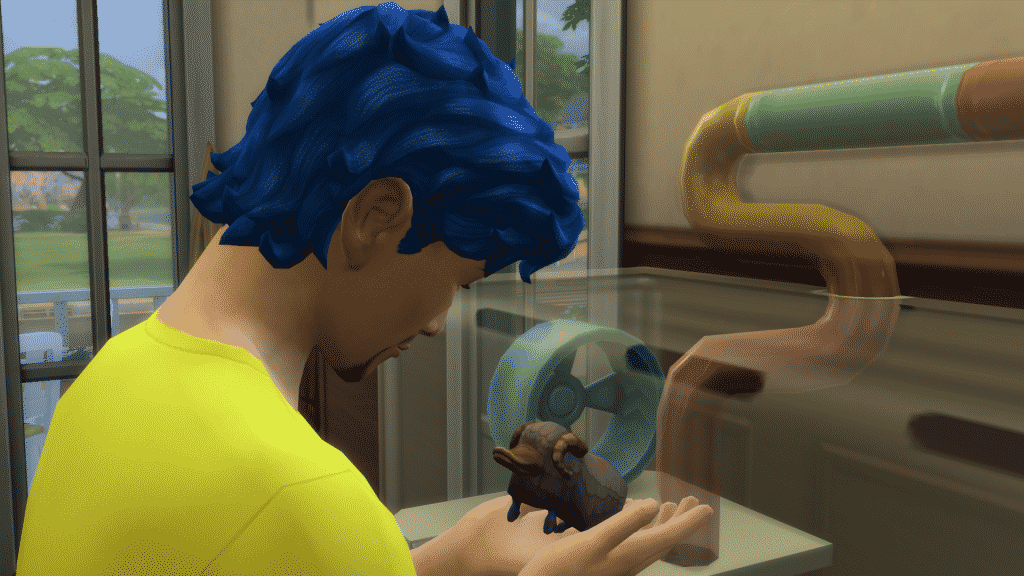
Waiting for your rodent’s cage to become dirty can take a while. Once the cage is dirty, I found that the easiest way to get bitten by your rodent friend is to have a negative relationship with them and then to interact with them by playing with them. It can sometimes take a few interactions with your pet before you become bitten.
Now that you’ve been bitten by your pet you start the waiting game. You’ll initially get a Tense +1 moodlet stating that you’ve been bitten and it usually lasts for around two Sim hours before turning into a Transmissible Rodent Disease.
Once the Tense moodlet has run out you are presented with a new Uncomfortable +1 moodlet and also a notification stating that your Sim has contracted a serious sickness. This new moodlet will last for twenty-four hours before turning into the next stage of the fever. At this stage, it is important to note that if your Sim heads over to the computer they can research about Rabid Rodent Fever and help prevent it and find a treatment. You’ll also notice that your Sim will be coughing and sneezing and their needs still managable.

Although day two is very similar to the first twenty-four hours of the disease you will notice that your Sim is more uncomfortable and this is due to the Uncomfortable +2 moodlet. You will also notice that your Sims bladder and hygiene needs will decreaser a lot quicker than normal. You Sim will notcibly be coughing, sneezing and have some dizzy spells.
 Day Three:
The final twenty-four hours you will find that your Sim is highly contagious and other Sims (Teen, Young Adult, Adult and Elder) can contract the deadly disease. There is still time to treat any Sims that have the disease whether this is via the computer or visiting a Vet Clinic. Without treatment a visit from our favourite Grim Reaper is certain!
Your Sims will still be sneezing, coughing, feeling dizzy, feeling very hot and being sick. Their needs will be tricky to control and you’ll find them in the bathroom very often.
 Aftermath:
The Death its self is pretty horrifying the first time, to be honest. You’ll get the notification that your Sim has passed away due to Rabid Rodent Fever and you will then find them foaming at the mouth before falling to the floor. You will, of course, get a visit from the Grim Reaper. Grim may allow you to come back as a somewhat terrifying Ghost Hamster who will also be foaming at the mouth. Don’t worry though you’ll be able to turn your Sim back into a ‘Normal Ghost Sim’ by drinking the inoculation serum that you can purchase via the computer.
The Sims Mobile has a brand new update! The latest Sims Mobile update fixes a few issues as well as prepares simmers for the upcoming Hot Tub Dreams Event which starts this Thursday.
WHAT’S NEW – Version 9.2.0
Beginning March 15, play the Hot Tub Dreams Event! Complete quests and participate in events to get Hot Tub Goody Bags filled with exclusive hot tub items and swimwear. Stand out at your next party or even when friends drop by your house. Plus, we’ve made some behind-the-Sims updates to keep the party going. Thanks for playing!

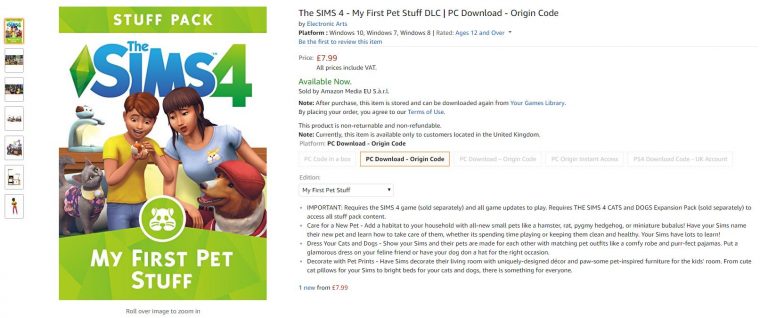
If you live in United Kingdom and already have in plan to get The Sims 4 My First Pet Stuff Pack then we have some good news. Despite the fact that Origin in the UK has been affected by the recent price changes it seems that Amazon UK is currently offering this Stuff Pack £2 cheaper – meaning that you can get it for £7.99 on Amazon instead of £9.99 on Origin.
Click below to get the game via Amazon UK!

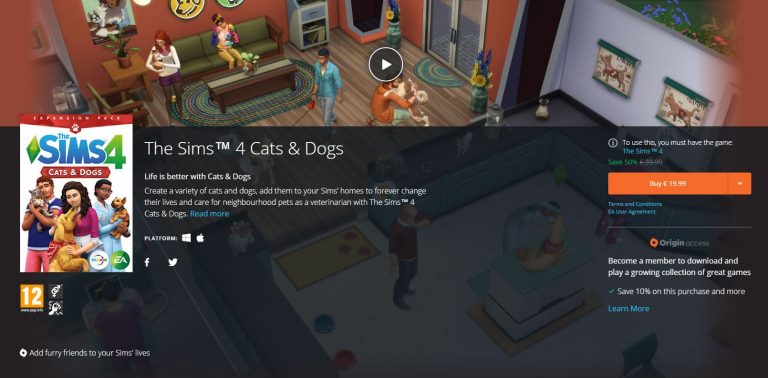
The Sims Team is putting The Sims 4 Cats & Dogs Expansion Pack on sale on Origin as a way to promote the launch of The Sims 4 My First Pet Stuff Pack.
The Sims 4 Base Game Plus Cats & Dogs Bundle is also on sale for 50% off.

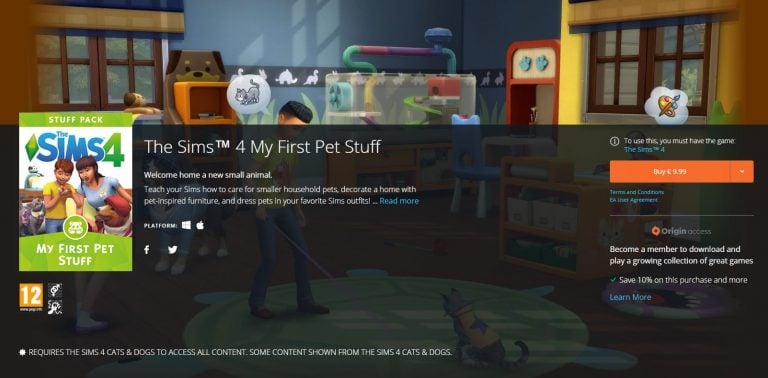
The Sims 4 My First Pet Stuff Pack has been released! You can now get it on Origin by clicking the image below.


SimGurus have confirmed that The Sims 4 for PS4 and Xbox One is about to get an update, which is supposed to fix plenty of issues that are currently present in the game.
We can expect The Sims 4 Console’s new update to release this week, considering that the game needs to be prepared for the launch of Get to Work Expansion Pack for Consoles.
A new update is coming soon! We cleaned up lots of issues, but please reach out to @SimGuruNick about specific issues that are bugging you.
— SimGuruCleaningLady (@SimGuruCleaning) March 12, 2018
Good news for PlayStation 4 and Xbox One owners, a new update is coming soon. https://t.co/bYG7Qm4MwA
— SimGuruLegacy (@SimGuruLegacy) March 12, 2018
Yep, the new roofs are in the new console update along with a whole lot more.
— SimGuruLegacy (@SimGuruLegacy) March 13, 2018
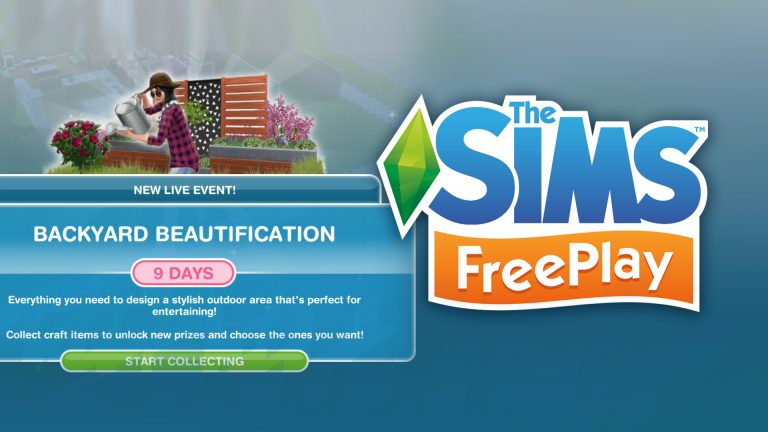
In our latest video we take you through The Sims FreePlay’s latest Live Event – Backyard Beautification!

Silas Hite, the genius mastermind behind The Sims Mobile Soundtrack has uploaded all of his music he made for the game to his Soundcloud profile.
In case you don’t know Silas has also worked on plenty of original soundtrack pieces for The Sims 2 as well which is why Mobile’s soundtrack may give you plenty of nostalgic feels.
You can listen to the soundtrack down below!
