Home Blog Page 381

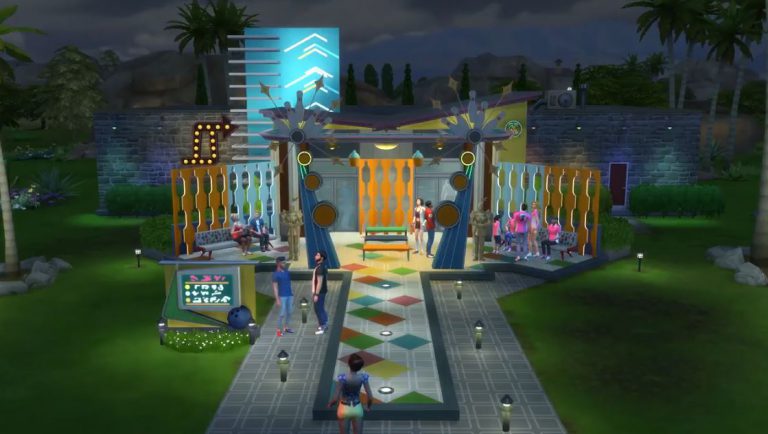
The Sims 4 Bowling Night Stuff: Giving Your Lanes the Bowler Disco Look

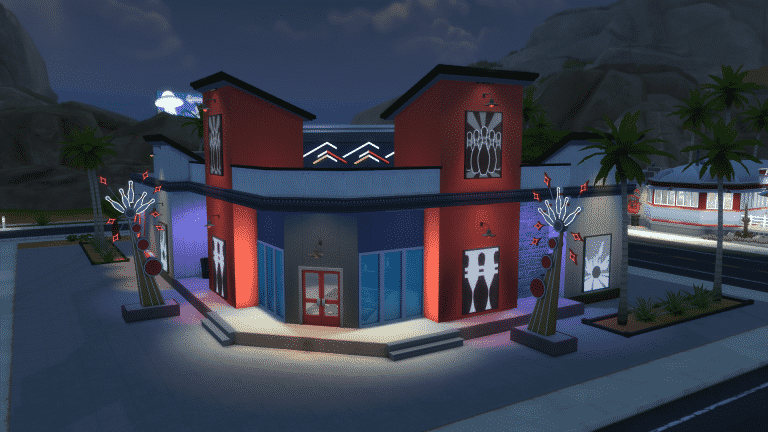
Hi, I’m Jason Sterling. I’ll start this article about creating a Bowler Disco look with the “Sims Builder’s Three Best Friends” in-game cheats.

  • bb.IgnoreGamePlayUnlocksEntitlement (IGUE) Unlocks all items tied to in game advancement from the start.
  • bb.ShowHiddenObjects (SHO) Displays all hidden objects for use in building such as ponds, dishes, bottles ect.
  • bb.MoveObjects  (MOO) Allows build/buy items to be freely moved around within the build and activates the height slider that raises objects up and down in the air and on the walls using the number 9 for up and the number 0 for going back down.

If you are new to the Sims 4 or just new to building in the Sims 4, press CTRL/SHIFT/C to open the command box within your game and enter each of the cheats above should you wish to access their features. Now on with the article.

The Sims 4 Bowling Night Stuff: Giving Your Lanes the Bowler Disco Look

How Can I Use This in a Way That’s Not Intended?

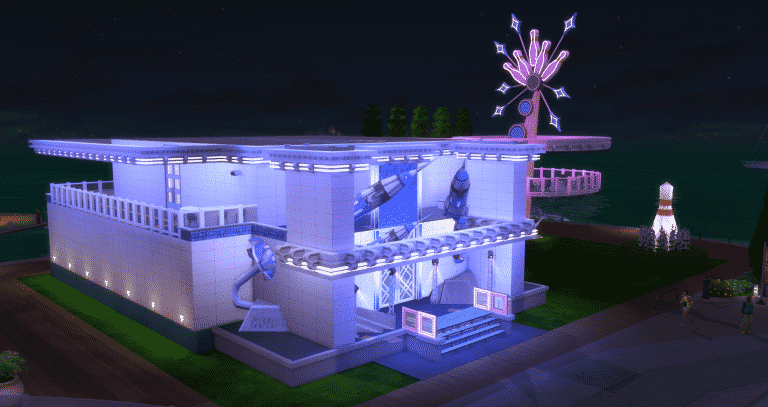
There are many items within the sims  4 that give you the opportunity to combine them through the BB.MoveObjects cheat into something different from what they originally were. I’m going to outline a relatively simple construction use here to build the disco banquette seating in my new RockIt Bowler Disco pictured above. We’ll be using the Glowstone Lamp included with the base game to create a Neon Lighting effect on this seating. This build can be done as a BASE GAME ONLY project. I provide alternate material suggestions in the list below for the non-base game items I am using. There is also a picture at the end of the article showing the base game only version of this seating.

Start by activating the BB.Moveobjects (MOO) cheat. Following that if you have any walls near the construction area REMOVE THEM. I do this whenever I want to place items in a free floating manner that normally auto-snap into place on the walls, such as the Glowstone Lamp below.

The Sims 4 Bowling Night Stuff: Giving Your Lanes the Bowler Disco Look

Next, assemble the items in the list. (Grid Picture #1) These are what I have used for this particular look. However, I encourage you to pursue your own look and ideas.

  1. The Harbinger Island Flat Front and Curved Corner versions (Base Game Item)
  2. Glowstone Lamp (Base Game Item)
  3. Straight Arrow High Back Plush Booth (Dine Out Item) / Squarely There Modern Sofa (Substitute Base Game Item)
  4. Illuminating Pillar (City Living Item) / You can substitute any column here you like or play around with standing light sources or leave it out completely.
  5. Seema Bar Stool (Bowling Night Item) / Any bar stool can be substituted here, although I personally would use The Celestial from the base game.

Place the six Plush Booths in a standard manner on the grid, three back to back as shown. (Grid Picture #2) Next, position the Harbinger Islands as shown. There will be a slight protrusion of the booths through the bar at each corner. While holding down “Alt” slide the booth back just enough to hide the protrusion. You don’t have to do this if the bleed through does not bother you. (Grid Picture #3) Then place the barstools. (Grid Picture 4)

The Sims 4 Bowling Night Stuff: Giving Your Lanes the Bowler Disco Look

You apply the lighting next. First, increase the size of the Glowstone Lamp by pressing the “]” button a single time while holding it. Then, while holding “Alt”, slide the light into the booth until it appears aligned with the island. Lift the lamp up by pressing the number “9”. Once you have the correct height maneuver it until it appears visually correct as shown. Repeat this for the remaining three islands. (Grid Picture #1)  Do the same procedure for the bar seating at each end. Here, you only raise the light until the upper panel is showing above the surface of the island. (Grid Picture #2) Next, slide the Glowstone lamps along the floor until they are nearly completely inserted into the booth to create a glowing strip. It’s not necessary to hold “Alt”. (Grid Picture #3) Place the columns as shown. (Grid Picture #4)

The Sims 4 Bowling Night Stuff: Giving Your Lanes the Bowler Disco Look

To finish,  you go into live mode and choose the color you’d like for the lighting. In this case I’ve chosen blue. There is a quick trick you can use to color all the lighting at once, while leaving the rest of the room unchanged. Draw a room around the arrangement as in the picture below. Then enter live mode- Click on any of the lights on the arrangement- Click “Set Color and Intensity”- Click “This Room”- Chose the color- Enter build mode and remove the walls.

The Sims 4 Bowling Night Stuff: Giving Your Lanes the Bowler Disco Look

Finally, here is a picture of this concept as a smaller, two section set up and executed using the BASE GAME ONLY. I really like the sofas in this configuration. In fact, I use a modified version of this for ultra-modern homes. It also works well in Sci-Fi builds. I’ve dropped the lights on the end cap island seating and instead added extra strips to the flat front island inserted into the booths. I placed half walls to create a higher back for the seating and to seal the gap between the two sides. You can also do both versions shown in this tutorial as single sided seating. I’ve left off the columns. Instead, I’ve added the “Perfect Picture Art Lighting” to the half walls. You can shade these in a different color from the rest of the lighting for a mixed effect.

The Sims 4 Bowling Night Stuff: Giving Your Lanes the Bowler Disco Look

You have finished the project. As a builder or a player we have a great new seating style decked out in a neon look and perfect for our new Bowler Disco or any nightclub set up.

The Sims 4 Bowling Night Stuff: Giving Your Lanes the Bowler Disco Look

You can watch a video version of this tutorial on my Youtube Channel: https://youtu.be/DJUnKUW0fxA

Hopefully you’ve found this build article helpful and even more so I hope you’ll be inspired to take the everyday things in your game and use them as they were not intended. Do you have any pictures you’d like to share of your bowling alley or any questions? Please post them in the comments below and please join me next time.

If you like this build and would like to see its fully completed form it’s available on the Gallery: https://www.thesims.com/en_AU/gallery/9B8775AB168311E78D4917952A7A4D81?category=lots&searchtype=ea_origin_id&sortby=newest&time=all&searchquery=&max=50&maxis=false

There are also additional pictures of the completed RockIt Bowler Disco build here: https://www.facebook.com/pg/MyWorldofSims/photos/?tab=album&album_id=1226760004106088
The Sims 4 Bowling Night Stuff Gallery Spotlight

The Sims 4 Bowling Night Stuff Gallery Spotlight

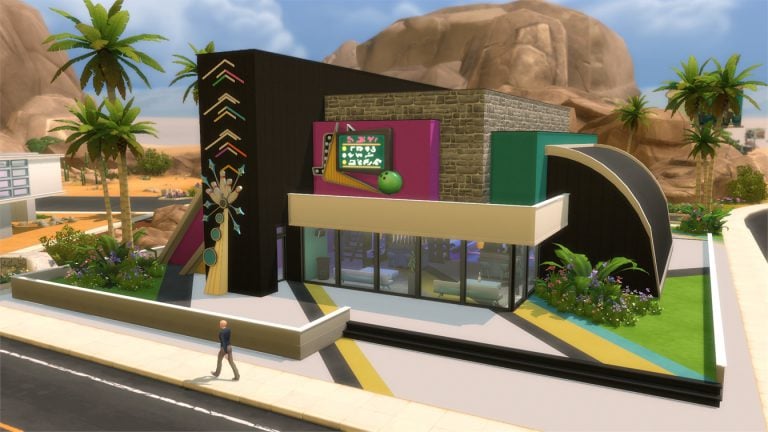
In this Spotlight, we’re featuring venues that have been built using The Sims 4 Bowling Night Stuff Pack (and some other packs as well).

Hover over the pulsing plumbobs to see screenshots of marked areas. Pulsing plumbob that’s on the left bottom corner contains all the info (and download link) of the lot.

To see more of our previous Gallery Spotlights, CLICK HERE!

[ult_hotspot main_img=”id^59887|url^https://simscommunity.info/wp-content/uploads/2017/04/04-01-17_4-31-31-PM.jpg|caption^null|alt^null|title^04-01-17_4-31-31 PM|description^null”][ult_hotspot_items icon_type=”custom” icon_img=”id^39525|url^https://simscommunity.info/wp-content/uploads/2015/09/plumbob2.png|caption^null|alt^null|title^plumbob2|description^null” img_width=”38″ tooltip_custom_color=”” tooltip_custom_bg_color=”rgba(255,255,255,0.01)” tooltip_width=”400″ tooltip_position=”right” enable_bubble_arrow=”off” tooltip_continuous_animation=”on” hotspot_position=”58.082217261904766,33.84369765494137″]

The Sims 4 Bowling Night Stuff Gallery Spotlight

[/ult_hotspot_items][ult_hotspot_items icon_type=”custom” icon_img=”id^39525|url^https://simscommunity.info/wp-content/uploads/2015/09/plumbob2.png|caption^null|alt^null|title^plumbob2|description^null” img_width=”38″ tooltip_custom_color=”” tooltip_custom_bg_color=”rgba(255,255,255,0.01)” tooltip_width=”400″ tooltip_position=”right” enable_bubble_arrow=”off” tooltip_continuous_animation=”on” hotspot_position=”28.66908482142857,34.13421273031826″]

The Sims 4 Bowling Night Stuff Gallery Spotlight

[/ult_hotspot_items][ult_hotspot_items icon_type=”custom” icon_img=”id^39525|url^https://simscommunity.info/wp-content/uploads/2015/09/plumbob2.png|caption^null|alt^null|title^plumbob2|description^null” img_width=”52″ tooltip_custom_color=”#1e73be” tooltip_custom_bg_color=”#ffffff” tooltip_width=”450″ tooltip_position=”right” tooltip_continuous_animation=”on” hotspot_position=”89.61858624454149,3.190184049079755″ tooltip_custom_border_size=”border-style:solid;|border-width:2px;border-radius:5px;|border-color:#81d742;”]

Rock ‘N’ Bowl (Download Here)

by sakuraleon

Value: §98,263
Size: 40×30
Lot Type: Bar[/ult_hotspot_items][/ult_hotspot][ult_hotspot main_img=”id^59890|url^https://simscommunity.info/wp-content/uploads/2017/04/04-01-17_4-34-10-PM.jpg|caption^null|alt^null|title^04-01-17_4-34-10 PM|description^null”][ult_hotspot_items icon_type=”custom” icon_img=”id^39525|url^https://simscommunity.info/wp-content/uploads/2015/09/plumbob2.png|caption^null|alt^null|title^plumbob2|description^null” img_width=”38″ tooltip_custom_color=”” tooltip_custom_bg_color=”rgba(255,255,255,0.01)” tooltip_width=”400″ tooltip_position=”right” enable_bubble_arrow=”off” tooltip_continuous_animation=”on” hotspot_position=”66.40625,60.42190117252931″]

The Sims 4 Bowling Night Stuff Gallery Spotlight

[/ult_hotspot_items][ult_hotspot_items icon_type=”custom” icon_img=”id^39525|url^https://simscommunity.info/wp-content/uploads/2015/09/plumbob2.png|caption^null|alt^null|title^plumbob2|description^null” img_width=”52″ tooltip_custom_color=”#1e73be” tooltip_custom_bg_color=”#ffffff” tooltip_width=”450″ tooltip_position=”right” tooltip_continuous_animation=”on” hotspot_position=”89.61858624454149,3.190184049079755″ tooltip_custom_border_size=”border-style:solid;|border-width:2px;border-radius:5px;|border-color:#81d742;”]

Bowling Fever (Download Here)

by Costa

Value: §98,605
Size: 40×30
Lot Type: Nightclub[/ult_hotspot_items][/ult_hotspot][ult_hotspot main_img=”id^59892|url^https://simscommunity.info/wp-content/uploads/2017/04/04-01-17_4-36-58-PM.jpg|caption^null|alt^null|title^04-01-17_4-36-58 PM|description^null”][ult_hotspot_items icon_type=”custom” icon_img=”id^39525|url^https://simscommunity.info/wp-content/uploads/2015/09/plumbob2.png|caption^null|alt^null|title^plumbob2|description^null” img_width=”38″ tooltip_custom_color=”” tooltip_custom_bg_color=”rgba(255,255,255,0.01)” tooltip_width=”400″ tooltip_position=”right” enable_bubble_arrow=”off” tooltip_continuous_animation=”on” hotspot_position=”68.88485863095238,62.000104690117254″]

The Sims 4 Bowling Night Stuff Gallery Spotlight

[/ult_hotspot_items][ult_hotspot_items icon_type=”custom” icon_img=”id^39525|url^https://simscommunity.info/wp-content/uploads/2015/09/plumbob2.png|caption^null|alt^null|title^plumbob2|description^null” img_width=”38″ tooltip_custom_color=”” tooltip_custom_bg_color=”rgba(255,255,255,0.01)” tooltip_width=”400″ tooltip_position=”right” enable_bubble_arrow=”off” tooltip_continuous_animation=”on” hotspot_position=”37.36514136904761,61.932056113902846″]

The Sims 4 Bowling Night Stuff Gallery Spotlight

[/ult_hotspot_items][ult_hotspot_items icon_type=”custom” icon_img=”id^39525|url^https://simscommunity.info/wp-content/uploads/2015/09/plumbob2.png|caption^null|alt^null|title^plumbob2|description^null” img_width=”52″ tooltip_custom_color=”#1e73be” tooltip_custom_bg_color=”#ffffff” tooltip_width=”450″ tooltip_position=”right” tooltip_continuous_animation=”on” hotspot_position=”89.61858624454149,3.190184049079755″ tooltip_custom_border_size=”border-style:solid;|border-width:2px;border-radius:5px;|border-color:#81d742;”]

Southport Industrial Bowl (Download Here)

by SpringSims

Value: §85,251
Size: 30×20
Lot Type: Bar[/ult_hotspot_items][/ult_hotspot][ult_hotspot main_img=”id^59895|url^https://simscommunity.info/wp-content/uploads/2017/04/04-01-17_4-38-51-PM.jpg|caption^null|alt^null|title^04-01-17_4-38-51 PM|description^null”][ult_hotspot_items icon_type=”custom” icon_img=”id^39525|url^https://simscommunity.info/wp-content/uploads/2015/09/plumbob2.png|caption^null|alt^null|title^plumbob2|description^null” img_width=”38″ tooltip_custom_color=”” tooltip_custom_bg_color=”rgba(255,255,255,0.01)” tooltip_width=”400″ tooltip_position=”right” enable_bubble_arrow=”off” tooltip_continuous_animation=”on” hotspot_position=”53.352864583333336,62.00272194304858″]

The Sims 4 Bowling Night Stuff Gallery Spotlight

[/ult_hotspot_items][ult_hotspot_items icon_type=”custom” icon_img=”id^39525|url^https://simscommunity.info/wp-content/uploads/2015/09/plumbob2.png|caption^null|alt^null|title^plumbob2|description^null” img_width=”52″ tooltip_custom_color=”#1e73be” tooltip_custom_bg_color=”#ffffff” tooltip_width=”450″ tooltip_position=”right” tooltip_continuous_animation=”on” hotspot_position=”89.61858624454149,3.190184049079755″ tooltip_custom_border_size=”border-style:solid;|border-width:2px;border-radius:5px;|border-color:#81d742;”]

Spare Me (Download Here)

by wrathofcath

Value: §82,772
Size: 30×20
Lot Type: Bar[/ult_hotspot_items][/ult_hotspot]

FreeSO has a new text-to-speech feature for April Fools and it’s hilarious!

0

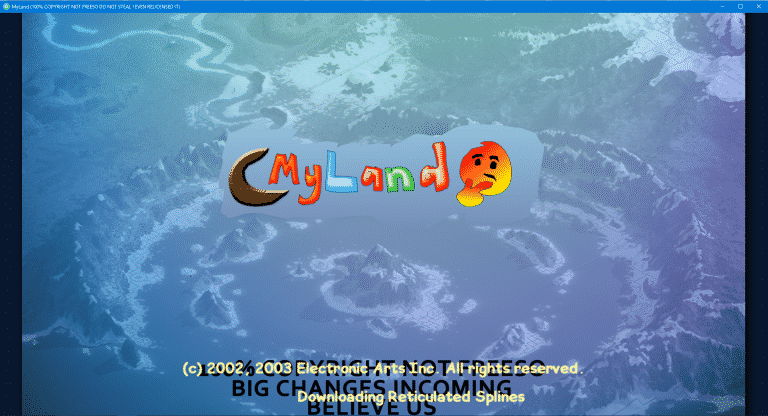
FreeSO, a fanmade project which is focused on reviving The Sims Online and its features has released a new update for April Fools which is just hilarious!

Other than changing the entire project’s name from FreeSO to MyLand, there’s another feature which makes the entire game a l0t more interesting.

FreeSO has a new text-to-speech feature for April Fools and it’s hilarious!

When loading up a lot filled with other Simmers, you’ll notice that all chat messages written on the lot are now converted to actual speech. You can write your own message by pressing the enter button!

Here’s a video example recorded by Vixella:

For more information on how to install FreeSO (or in today’s case, MyLand), check out our tutorial!

The Sims 4’s Second Quarter of 2017 has begun!

34

The Sims 4’s Second Quarter of 2017 has begun!

It’s finally April, which means that the first quarter of 2017 is behind us! Before I continue speculating what we might get in the next quarter, let’s take a look back at all the things we received in the last 3 months:

  • The Sims 4 Toddlers Update
  • The Sims 4 Vampires Game Pack
  • The Sims 4 Bowling Night Stuff Pack

All in all, it was a really nice quarter which brought a lot of simmers back to the game thanks to the long-awaited toddlers update. Still, that’s not all what the first quarter of 2017 has brought.

Along with The Sims 4 Toddlers Update we also got some big clues that The Sims 4 Pets is in development. We don’t know exactly when the pack could be announced/released but we do hope that it’ll be a similar pattern just like with The Sims 4 Vampires Game Pack when a lot of clues / game icons were leaked in a patch just a month before the pack’s announcement.

The Sims 4’s second Quarterly Teaser of 2017 could be released any day now. Just like with previous quarterly teasers, there isn’t exactly a specific day when The Sims Team releases them just like they do with general pack announcements (tuesday) or game updates (thursday). Here’s a timeline of previous quarterly teasers releases:

Starting today, we can expect a quarterly teaser for The Sims 4 content that’ll be releasing from April to June. I surely hope that The Sims Team will continue delivering their promise that 2017 will be a great year for The Sims 4.

What do you expect from this quarterly teaser? Let us know in the comments!

(April Fools) The Sims 3: NEW UPDATE! (Bug Fixes + Minor Improvements)

After 4 years of waiting for The Sims 3 to become fully functional with all released content such as Expansion Packs, Stuff Packs and Store Content which we all paid for and expected to run well, The Sims Team has finally released a statement apologizing for making us wait 4 years to finally play the game without any issues. Here’s what they said:

Sul Sul Simmers!

We’re truly sorry for making you all wait 4 years to play The Sims 3 without encountering “The Sims 3 has stopped working” every 30 minutes. We’ve been so hard at work to deliver you new content for The Sims 4 that we forgot that there are still people who’d want to play The Sims 3 every now and then.

We’re releasing a new update for The Sims 3 today that’ll fix many issues and improve some things, including:

  • We’ve made sure that you no longer can install mods that fix the gameplay of The Sims 3 and do all the work for us. In case your game is broken or you’re experiencing bugs and glitches that prevent you from enjoying the game, report to us and we’ll try to fix it……..in a matter of few years.
  • The Sims 3’s “Expansions & Stuff” section of the launcher will no longer encourage you to only play a few packs instead all of them. Feel free to enable all packs!

(April Fools) The Sims 3: NEW UPDATE! (Bug Fixes + Minor Improvements)

  • Some users reported that they’ve been loading Sims University and Oasis Landing since the release of University Life / Into the Future, hoping that they would eventually load it. This update cuts down the loading time from 10 years to only 5 years. Hang in there Simmers, only 1 year to go!
  • We’ve made some small changes to The Sims 3 Main Menu.

(April Fools) The Sims 3: NEW UPDATE! (Bug Fixes + Minor Improvements)

  • We’ve cut down the “The Sims 3 has stopped working” crashes from every 30 minutes to every 2 hours!
  • Isla Paradiso no longer stutters every 3-4 seconds. We’ve solved this issue by removing all Sims from the world!

The update can be downloaded by opening your The Sims 3 Game Launcher. You can also download it manually HERE!

The Sims 4 Bowling Night Stuff: Promo Release Trailer

0

The Sims Team released a promotional release trailer for The Sims 4 Bowling Night Stuff. Check it out!

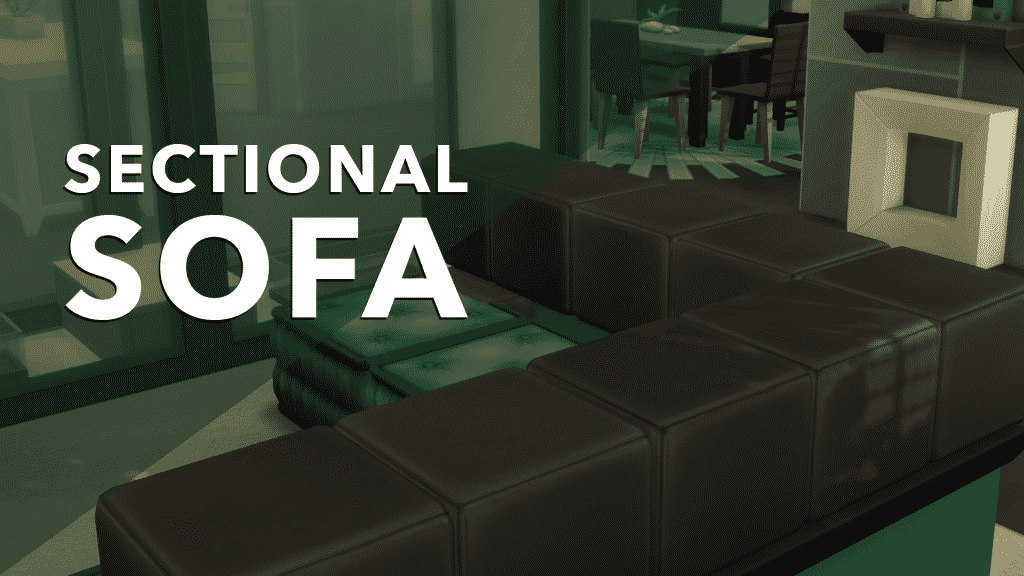
The Sims 4 Creative Construction: DIY Sectional Sofa

sims 4 build, sims 4 sectional sofa, sims 4 building, sims 4 design

Hello Simmers!

Welcome to the first instalment of a series that I’m going to call ‘Creative Construction’ while building in The Sims 4.

Custom content exists and is a huge part of the way some people play the game, which help to add specific objects not available in The Sims 4 to date. That’s great, but what about people who don’t want to mod in new meshes and want to keep their game strictly vanilla? Well, you’ve come to the right place! Each post in this series is a mini-tutorial which will show you how to combine items and create something not available in the game!

Sectional Sofa

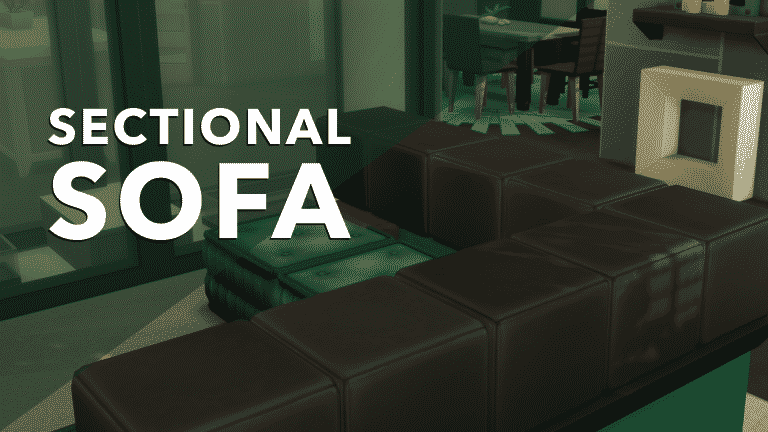
For some reason The Sims 4 does not yet have a sectional sofa in the game; not the base game or any of the downloadable content. I, for one, would love to see a more versatile piece for our Simmies to sit on. Follow these steps, and you can create something that’s passable!

Make sure to have the bb.moveobjects cheat enabled!

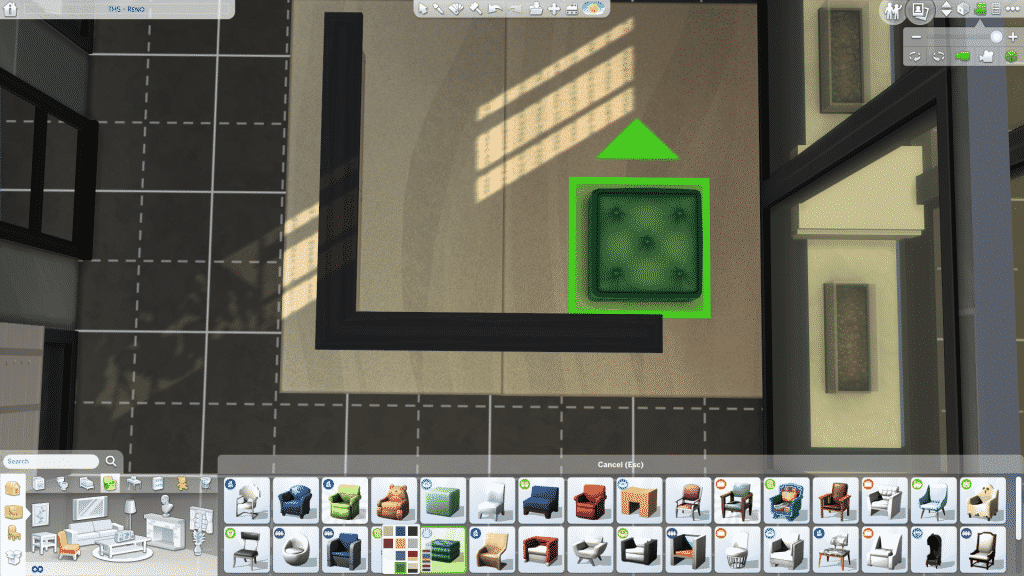
Use the wall tool to create a right angle. This will be the walls of your couch. Change your wall height by clicking on the half wall icon found under the wall tool. You can also change the wall trim by clicking on the icon below.

sims 4 build, sims 4 sectional sofa, sims 4 building, sims 4 design

The Sims 4 Creative Construction: DIY Sectional Sofa

Find the Pillow Fluff cushion from the City Living EP and place it along the wall, leaving a half square of room in between. Use the ALT key when dragging to allow placing outside of the snapping floor grid. Place all along the walls. This is the seat.

sims 4 build, sims 4 sectional sofa, sims 4 building, sims 4 design

sims 4 build, sims 4 sectional sofa, sims 4 building, sims 4 design

Find thePeaceful Pouf Ottoman from the Spa Day GP and place it up against the wall, and use the ( 9 ) key to move it above the Pillow Fluff cushion. Double these up (one resting on the floor and one on top) on either end to hide the corners. Repeat until you cover the length of the walls.

sims 4 build, sims 4 sectional sofa, sims 4 building, sims 4 design

sims 4 build, sims 4 sectional sofa, sims 4 building, sims 4 design

sims 4 build, sims 4 sectional sofa, sims 4 building, sims 4 design

Add some wall covering (paint, wallpaper, panel, etc.) and you’re ready to have a movie night!

sims 4 build, sims 4 sectional sofa, sims 4 building, sims 4 design

sims 4 build, sims 4 sectional sofa, sims 4 building, sims 4 design

Try it out! Feel free to tweet me a screenshot of your creations!

Check out my livestreams daily on twitch.tv/holliebb

Starting Your First Retail Store in The Sims 2 Open for Business

When open for business first came out, I immediately wanted to build the store of my dreams. But being only 12 when the expansion came out, I really didn’t know much about building or even running a sim business.

Well, being 23 now, I have finally started getting the concept of building a successful retail business and what essential items you need to make your first store in Sims 2 Open for business a very successful one. These are some tips that I use throughout the game to get up and running when I first create a store.

Starting Your First Retail Store in The Sims 2 Open for Business

Don’t overdo it!

When you first start your retail store, don’t go big and flashy right off the bat. If you have bought a community lot, start out small. I like to use the Corner Shop in Bluewater Village. This is super small store and really limits what you can do. But, this will do you plenty of good when you first start up your business.

Always think about curb appeal.

Sims love flashy things. They are like humans (duh!) and love flashy and shiny things. Make the storefront and entrance shine! You want to attract potential customers, and by doing so, you will increase your revenue in the long run. But, like I have said, don’t overdo it. You want to find the balance of not enough and too much curb appeal.

Focus on the Business Perks

When starting your business, look to see what the business perks are and how they will relate to your business. I love using the “Wholesale” perk track, just because I can restock the items at a much lower cost and sell them at a higher cost. I love doing that because I get more profit that way. Don’t let those perks go to waste. The same with The “Cash” perk track. Those are easy ways to get money fast.

Starting Your First Retail Store in The Sims 2 Open for Business

Sell Sell Sell!

When your main sim opens a business, have them solely focus on selling. This is the main part of having a store in the first place. What I usually do is make sure my store is totally stocked BEFORE I even open it. Then, when I open the store, I let all the items run out. Once my store has been cleaned out and I have made all the sales, I close the store. Any remaining customers will leave or line up at the register. This way I can cash all my customers out in one sweep. Once all customers are cashed out, I can restock and open the store back up at a later date.  This is a technique that I use when I have a one person family running a business. It makes money for the store and builds skills up quicker.

Don’t Hire Outside Help…. to start

I don’t like to hire employees to help out in the beginning. Because each hour they need to get paid and I lose out on money that I could be using to expand my business. I focus on making sure I have a steady flow of income coming into the store. THEN I can start hiring outside help. Once the store is big enough, I can start having employees come in and start working for me. Having a tiny store and having 5 employees is a waste of time and money. So, start small, but plan big!

Starting Your First Retail Store in The Sims 2 Open for Business

These are just some ideas to help you start a business. The one thing to remember is: Start small, but plan big for the future of your store!

The Sims 4 Bowling Night: First Thoughts

Are you ready to hit your Sim’s local bowling hangout because we sure are as the wait for the next stuff pack for The Sims 4 is finally over!

The Bowling Night Stuff pack was released earlier today and it has been received extremely well by the community but here is what I think about the new stuff pack so far.

Create A Sim

There is a good balanced variety of new Create A Sim items for both male and female Sims and of course a few additions for child Sims. The Sims team went for a rockabilly feel for the CAS in this pack. It doesn’t feel unbalanced against the rest of the game either when compared against build/buy objects. I must add that there are some of my favourite CAS items in this pack not just for female Sims but CAS as a whole.

The Sims 4 Bowling Night: First ThoughtsBuild/Buy Mode

Full of new chairs, tables, decorative items and of course bowling hangout essentials ranging from the alleys themselves to memorabilia displays and trophy cabinets there is plenty of items here that will bring your bowling hangout to life. Not only that I feel that many of the items will also work well with existing packs like City Living and Get Together.

Continuing with build/buy mode there are two new pre-styled rooms which are full of colour just like you would expect from an actual bowling alley. My first mission is to try and create my local Bowling Alley on a small scale in game!

The Sims 4 Bowling Night: First ThoughtsGameplay

The pack comes with the new bowling skill which both child and adult Sims can build up to a maximum level of five. Of course along the way many Sims will overcome bowling fails, feel frustration as well as excitement as they become better bowlers. The animations that The Sims Team have created to help show these emotions is a lovely touch. I especially love the new little celebration dance that Sims do from time to time. With every level your Sim has a chance to unlock a new bowling ball.

Moonlight Bowling I must say I love as well. It really does remind me of my local bowling alley every time I visit there. Another detail I thought was a great touch was the bumpers coming up for child Sims.

The Sims 4 Bowling Night: First ThoughtsIn the game library is a pre-built bowling hangout that you can drop straight into your game. This is the same build that the SimGuru’s showcased in the Bowling Night Twitch stream last week. Also if you search MaxisCreator_01 in the gallery you will find the Bowl More Alley and the Rockin’ Rollers Household both of which you can add to your game.
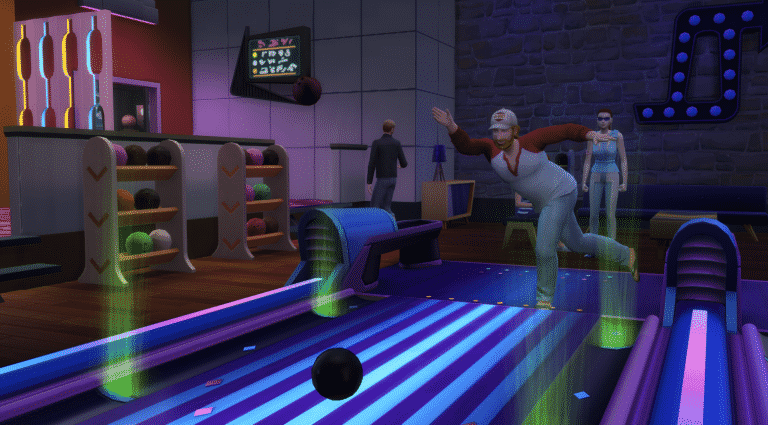
For fans of the original The Sims games you may recognize a handful of the tracks played. They are none other than some of The Sims House Party tracks from the disco radio station!

Overall Thoughts

Although I was very unsure about this pack when it was originally announced I do really like this pack so far and what it brings to the game. In all honesty I think it’s a great addition to the game. For me this pack brings back some memories of The Sims 2 and The Sims 3 and not just in regards of gameplay.

Bowling Night Stuff also opens up more ideas and possibilities for builds both community and residential lots and I feel the pack integrates with other existing packs like City Living and Get Together which I mentioned earlier.

It will be interesting to see what The Sims team have in store for the game next. A new quarterly trailer is due to be released soon with many fans hoping to see Pets or Seasons make an appearance in some form in that trailer.

The Sims 4 Bowling Night Stuff Pack is available now for purchase from Origin.

The Sims 4 Bowling Night Stuff: Bowling Skill Cheat + Debug Cheats

6

UPDATE: If you enter the testingcheats true cheat on and shift + click on your Sim you’ll unlock the debug “Cheat Bowling…” option which comes with 2 options: Always Throw Tricks and Never Fail. The Always Throw Tricks option will force your Sim to perform various tricks when throwing a ball, while the Never Fail option will try to keep your ball on the lane.

The Sims 4 Bowling Night Stuff: Bowling Skill Cheat + Debug Cheats

If you want to level up your Sim’s Bowling Skill to Level 5 in a matter of seconds, you can do so by entering the following cheat: stats.set_skill_level Skill_Bowling [1-5] (add a skill level from number 1 to 5 instead of the brackets). Make sure you’ve entered the testingcheats true cheat first!

For more skill cheats, check out our The Sims 4 Cheats page.

The Sims 4 Bowling Night Stuff: Bowling Skill Cheat + Debug Cheats

The Sims 4 Bowling Night Stuff: New Objects + Venue Overview

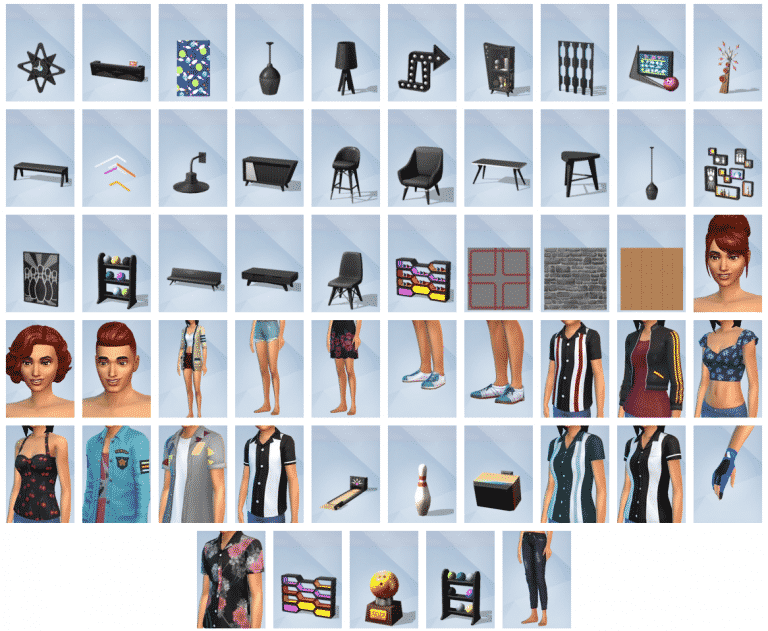
The Sims 4 Bowling Night Stuff comes with more than 30 items in Build Mode, including new objects, new wallpapers and a new flooring. There’s also a new Bar Venue called Oasis Springs Dust Bowl with 30×20 dimensions that you can find pre-installed in your Gallery library.

New Objects

Styled Rooms

New Venue

The Sims 4 Bowling Night Stuff: CAS Overview

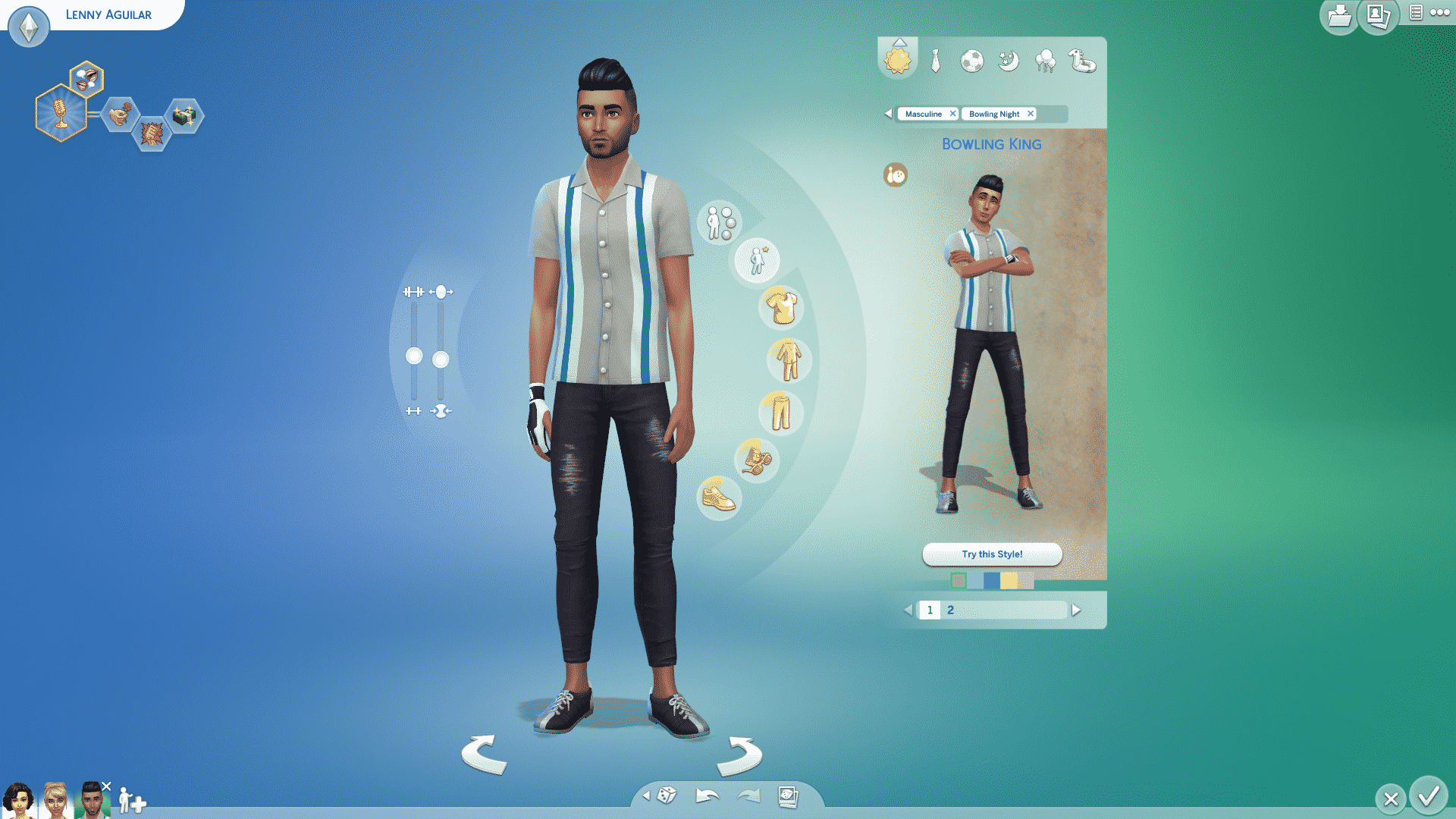
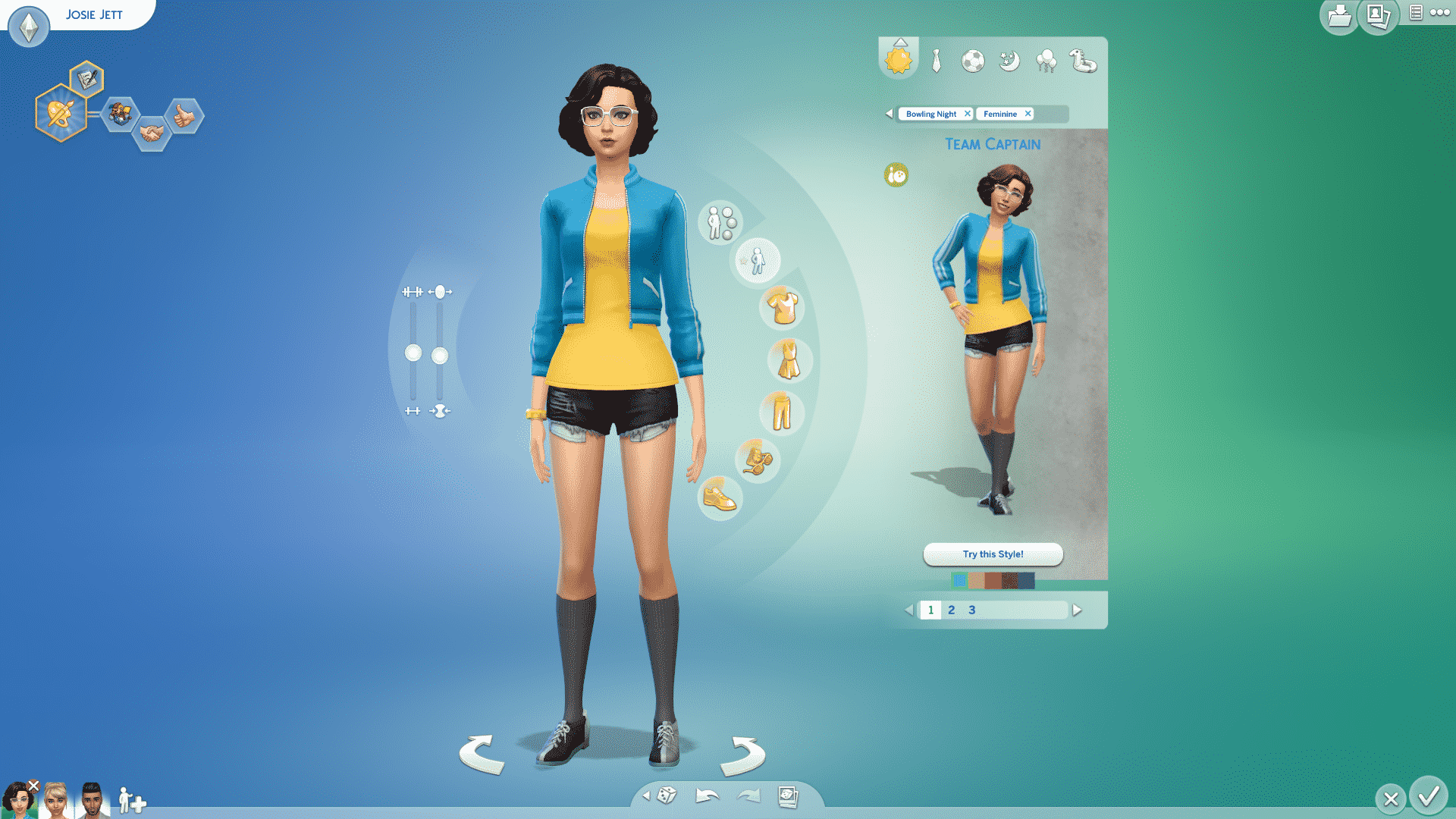
The Sims 4 Bowling Night Stuff comes with around 30 new Create A Sim items for Children and Adults (nothing new for Toddlers because, well, they cannot bowl). These CAS pieces mostly revolve around the retro theme which fits right in with the rest of the pack.

Down below you can see all the CAS items. To zoom in, simply click on an image of your choice!

Adult Male

Hairstyles (1)

The Sims 4 Bowling Night Stuff: CAS Overview

Tops (5)

The Sims 4 Bowling Night Stuff: CAS Overview The Sims 4 Bowling Night Stuff: CAS Overview The Sims 4 Bowling Night Stuff: CAS Overview The Sims 4 Bowling Night Stuff: CAS Overview The Sims 4 Bowling Night Stuff: CAS Overview

Bottoms (1)

The Sims 4 Bowling Night Stuff: CAS Overview

Accessories (1)

The Sims 4 Bowling Night Stuff: CAS Overview

Shoes (1)

The Sims 4 Bowling Night Stuff: CAS Overview

Styled Looks (2)

The Sims 4 Bowling Night Stuff: CAS Overview The Sims 4 Bowling Night Stuff: CAS Overview

Adult Female

Hairstyles (2)

The Sims 4 Bowling Night Stuff: CAS Overview The Sims 4 Bowling Night Stuff: CAS Overview

Tops (6)

The Sims 4 Bowling Night Stuff: CAS Overview The Sims 4 Bowling Night Stuff: CAS Overview The Sims 4 Bowling Night Stuff: CAS Overview The Sims 4 Bowling Night Stuff: CAS Overview The Sims 4 Bowling Night Stuff: CAS Overview The Sims 4 Bowling Night Stuff: CAS Overview

Bottoms (3)

The Sims 4 Bowling Night Stuff: CAS Overview The Sims 4 Bowling Night Stuff: CAS Overview The Sims 4 Bowling Night Stuff: CAS Overview

Outfits (1)

The Sims 4 Bowling Night Stuff: CAS Overview

Accessories (1)

The Sims 4 Bowling Night Stuff: CAS Overview

Shoes (1)

The Sims 4 Bowling Night Stuff: CAS Overview

Styled Looks (3)

The Sims 4 Bowling Night Stuff: CAS Overview The Sims 4 Bowling Night Stuff: CAS Overview The Sims 4 Bowling Night Stuff: CAS Overview

Children

Tops (2)

The Sims 4 Bowling Night Stuff: CAS Overview The Sims 4 Bowling Night Stuff: CAS Overview

Shoes (1)

The Sims 4 Bowling Night Stuff: CAS Overview

Styled Looks (1)

The Sims 4 Bowling Night Stuff: CAS Overview

The Sims 4 Bowling Night Stuff: Official Lot and Household

The Sims Team released an official Lot and Household that you’ve seen in promotional material for The Sims 4 Bowling Night Stuff. As always, these creations can be downloaded by searching the MaxisCreator_01 Origin ID in The Gallery OR by simply clicking the download links down below:

The Sims 4 Bowling Night Stuff: List of New Items

0

TheSims.com website published a full list of new items that come with The Sims 4 Bowling Night Stuff.

If you’re looking for a more in-depth overview of all the new objects that come in this pack, stick around on our website as we’ll be posting full overviews in the next few hours!

The Sims 4 Bowling Night Stuff: List of New Items

The Sims 4 Bowling Night Stuff Now Available on Origin!

0

The Sims 4 Bowling Night Stuff is now available for purchase on Origin! Click below to be directed to the origin purchase page.

The Sims 4 Bowling Night Stuff Now Available on Origin!