The Sims Official Twitter account has posted two new renders of The Sims 4: Get Together.


The Sims Official Twitter account has posted two new renders of The Sims 4: Get Together.

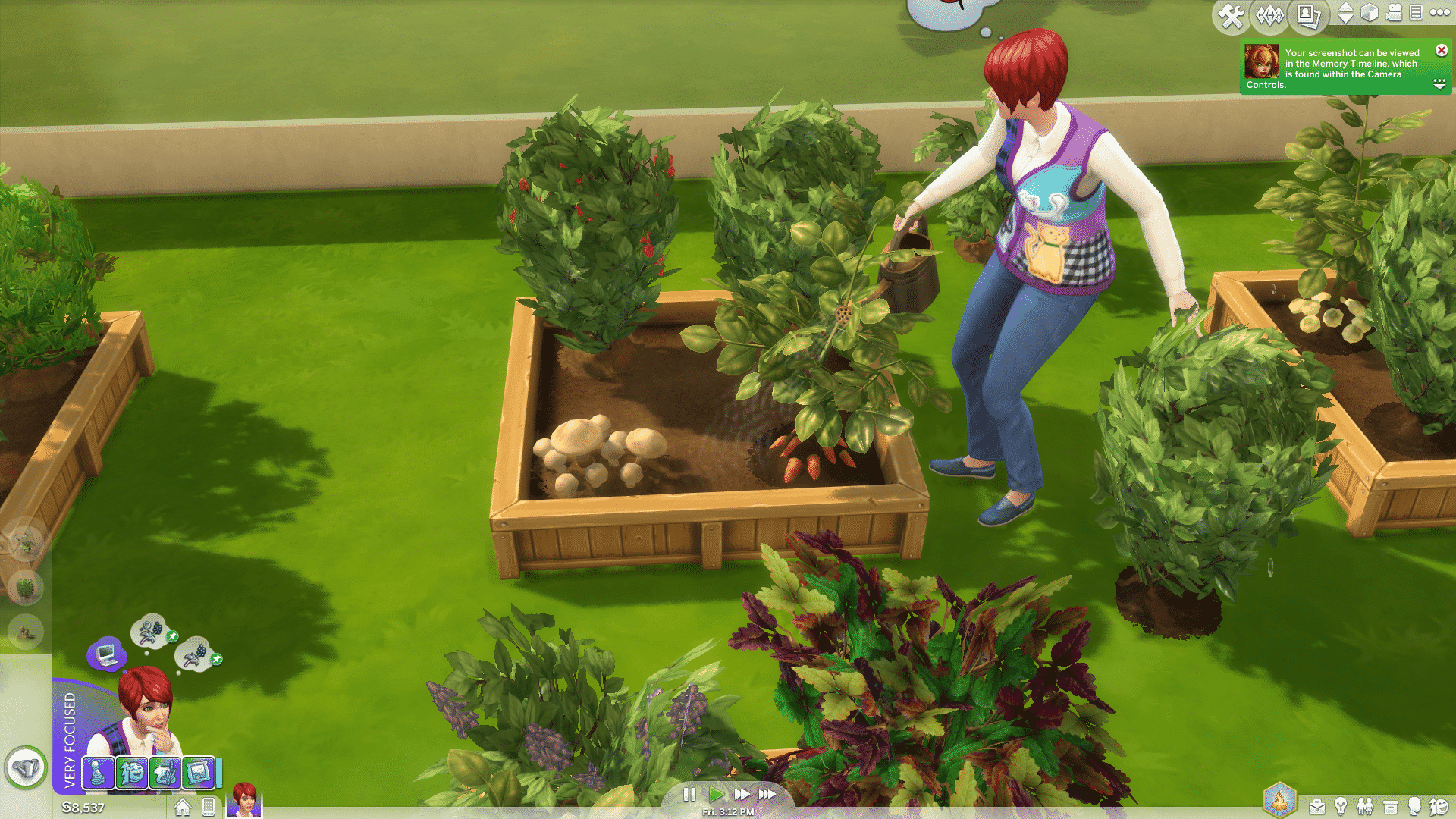
One great skill for your Sims to master is the gardening skill. This skill is used to produce many plants that you can later splice together to create other more exotic plants. For example the Strawberry and Snapdragon plants splice together make the Dragon Fruit plant. Then you take a Dragon Fruit splice and graft that to a Strawberry plant you will get the elusive Cowplant berry. This is of course used to grow a cowplant, every Sims household can use a Cowplant, for the pesky visitor who just won’t leave?

To get started on your Sims gardening skill you have two choices either go around the area and gather different plants by harvesting the already mature fruits, Vegetables or flowers. Or you can buy a planter box/pot then click on it and choose buy seeds, you can also buy seeds via the computer. These seeds packets don’t need to be planted in a planter box/pot they can go directly into the ground. When you purchase the seed packets they will automatically show up in your inventory simply click on the packet to open and reveal what seeds you got.

The following plant types are available in the seed packs:
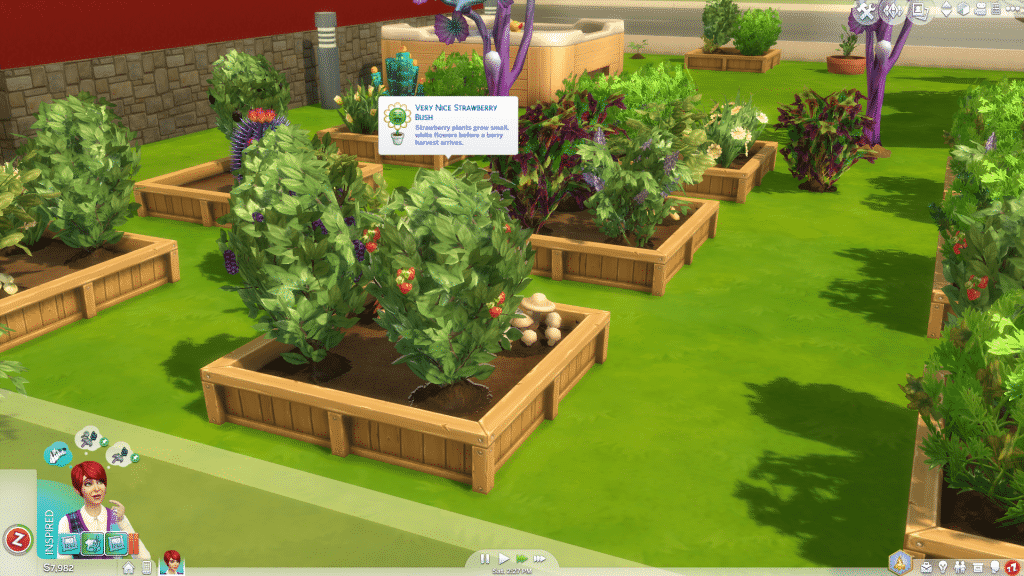
Plants can be grown in the planter boxes or Gardening Pots. Gardening Pots can be used both indoors and out but only hold one plant. Planter Boxes can only be used outdoors and hold up to four plants or one tree. You can also plant directly into the ground. When ready to plant open your inventory, click and drag the plant to the pot/box/ground. When you click on a plant and choose to plant it your Sims will plant all plants placed in that area. Then you will need to water them, keep a close eye on your plants as they do need lots of attention.
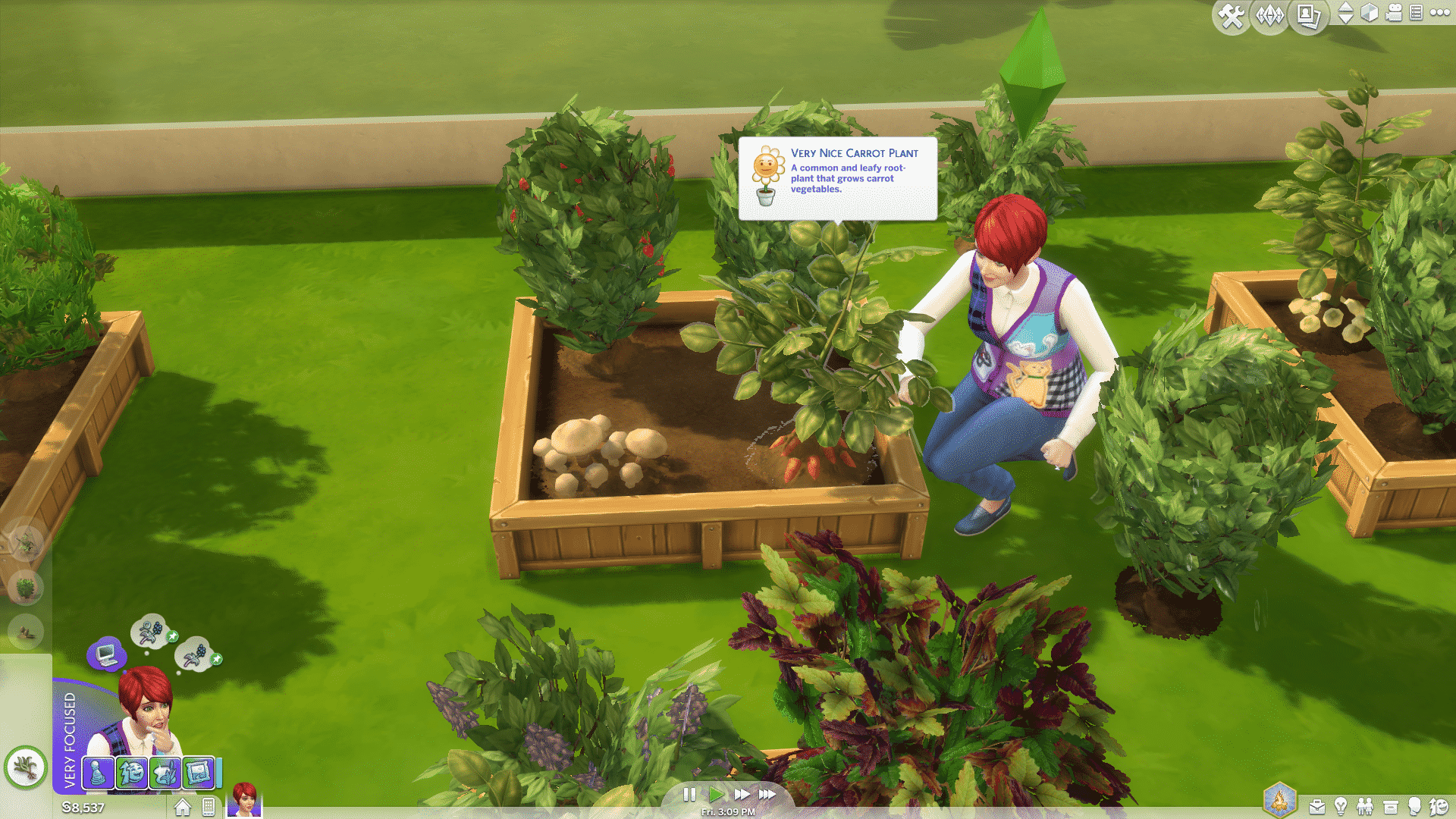
The first seed packets you can buy are Starter fruits, vegetables, flowers and herbs. Later you will be able to buy Farmer versions of these seed packets. Hovering your mouse over a plant will show you the progress of it’s evolution by way of a flower with petals as well as it’s health. If the flower is green your plant is happy and healthy. However if it is red, orange or yellow act quickly as that plant is in need of some tender loving care. When you hover the mouse over the plants and the flowers in the box that opens has all the petals it’s time to Evolve that plant to a new level. This is also indicated by a “sparkle” around the plant. This sparkle will also happen when the plant’s fruits or flowers are mature and ready to harvest. When you’re ready to Evolve or Harvest that plant just click on the plant and choose the option from the pie menu that opens up.

The following interactions are available when leveling up in the Gardening Skill:
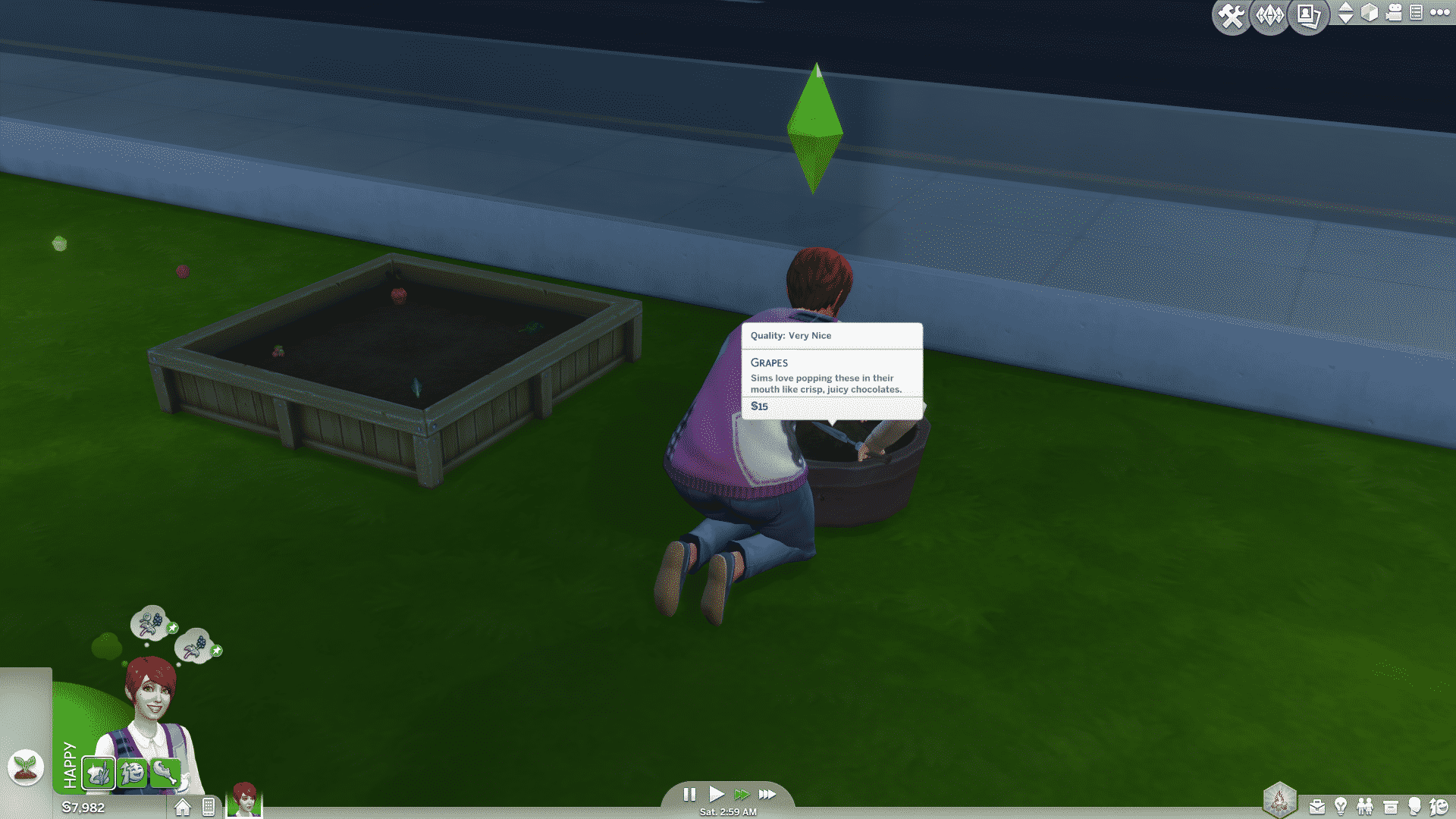
At Level 3 of the gardening skill you will be able to Fertilize your garden. Higher level fish are the very best fertilizers you can use. However during the lower levels of gardening you can use other plants you have harvested to fertilize. So be sure to increase your Fishing Skill as well. To Fertilize simply choose it from the pie options and then choose a plant or fish to fertilize your garden. Plants that are fertilized will not grow faster necessarily, but jump in quality faster. Getting to Perfect Quality Plants quickly means using the Fertilize option as often as it is available.
You can make money with Gardening by investing in a Microscope which costs $1630. Click on a Plant and select the option to take a Microscope Sample. This will give you a slide of the plant that will give you the ability to analyze it with the Microscope. You can then create a print from this sample that can be worth hundred of Simoleons. That should help pay for the Microscope pretty quickly. As a bonus it will help increase your Sims Logic skill level as well.

I hope that this will help your Sims gain more insight and skill in the garden. After they are maxed out in the gardening skill it’s time to tackle the Herbalism Skill. Until then Happy Simming.

The Sim Supply shared this really cool tutorial on how to create Skylight Roofs using the glass awnings from The Sims 4 Get Together. Check it out!

Here’s a look at 5 new carpets and 8 new flooring tiles in Get Together. 🙂

Deligracy shared a 13-minute video of unedited gameplay of The Sims 4 Get Together, showing off some Club features. Check it out!

Celebrate Black Friday and Cyber Monday with the Origin Store and save up to 75% on today’s hottest games! Included in this sale are best-selling titles, such as The Sims 4 Standard Edition & Deluxe Edition, The Sims 4 Get To Work, Dragon Age, Battlefield 4, FIFA 16 and Battlefield Hardline.
Sale ends on Nov 30th at 9pm PST.
Click the picture below to start saving!



During The Sims 4 Get Together Preview Event in Cologne, Germany, Crinrict was able to find out more about the New Aspiration and Traits that come with this Pack.
There’s a new aspiration which can be found under popularity: Leader of the Pack. There’s also two new traits for adults: Dance Machine and Insider. Insider is also available to kids.
Moreover, SimCookie clarified a bit further what comes with these new Traits and where can you find the new Aspiration:
A whole new aspiration is added in the popularity section “Leader of the Pack“. That’s not all, there are also two new character traits, “Insider“, Sims like going out with their group and be surrounded by friends. Then there’s the “Dance Machine” trait, it unlocks a new dance interaction. These traits are accompanied by new animations!

Among many other features that are coming, changing and upgrading for free in the next The Sims 4 Update, Map View is also one of those features!
Down below you’ll see an updated map of Willow Creek, Oasis Springs and Windenburg (from Get Together): As you can also see, some new buttons and UI icons can be found in the Map overlay.
Thanks to Crinrict for the screens!


SimCookie has confirmed that among The Vamps (Wake Up) and Tori Kelly (Expensive) simlish soundtrack, you’ll also be hearing Carly Rae Jepsen’s Run Away With Me and Zedd’s Beautiful Now in Simlish Soundtrack for The Sims 4 Get Together! Great choice The Sims Team 😀


Crinrict attended a Get Together event in Germany, and with some info about Get Together that she brought (that you can see here), she also shared some juicy new info about what should we expect in the upcoming Update that should release sometime before Get Together, which is due Dec 8 in US.
There’s a few things coming with the patch itself. This means you won’t need to buy the expansion pack to get these, just update your game.
Lot Type: Pool
2 of 6 pool colors (not 100% sure)
GUI and map changes
The existing groups and their behavior was revamped and improved
New interaction on the fridge and bar: Hire Caterer
Some new greetings
Several bug fixes (details unknown)
Map view
- Buttons that were in the pop-up menu at the same spot have been moved to the lower right
- Household manager has a new icon
- Household manager icon can also be found next to the family in the lower left corner
- I think change lot type was removed from map view
Live Mode
- Conversation window at the top has been revamp
- Screenshot manager, settings for video and photo can now be found next to the speed buttons
- Easy switch from Sims 3 to Sims 4 camera mode and back in the upper right corner added
- Button for clubs added to the lower right corner
Hey guys!
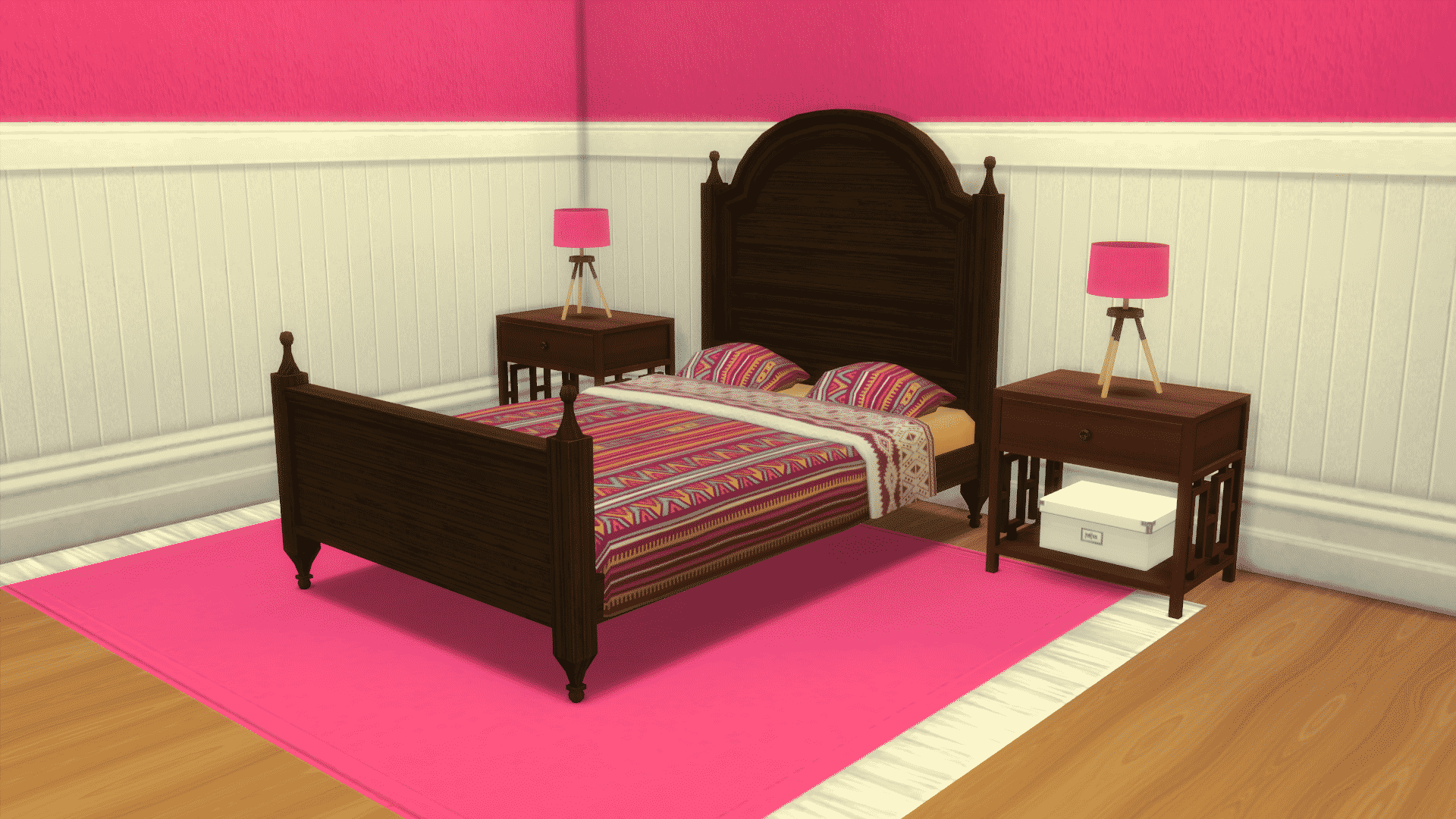
Today I wanted to talk to you about how I separate mattresses from their frames. I have watched countless videos and read many tutorials but I could not figure out how to do it. Then a dear friend came to my rescue and showed me how she does it. So, I’m dedicating this article to my friend Ami as a thank you for her help.
Before we get started, I want to make something very clear. If you release these items using this tutorial and Annachibi’s bed frames then you must provide her credit. Do not release separated beds that use her frames as a base without giving her credit.
Organize! You guys should know by now how big I am on keeping everything nice and neat. Make yourself a folder called “Working CC”. Then inside that folder you will keep all your goodies. I suggest making a folder called “Bed Frames” and then in there you will have a folder with all of Annachibi’s frames. You will also create folders for every bed you separate. For this tutorial, I’m going to show you how to separate the Sims 3 Cape Cod Double Bed that I converted and now need to separate. Because they are both packages, I made sure to put the Sims 3 bed package in it’s own folder so I wouldn’t get confused.
Place the package of the bed you want to separate and all of Annachibi’s frames into the mods folder found inside the Sims 4 Studio folder. C:Users****DocumentsSims 4 StudioMods it should be in that folder. Open Sims 4 Studio (S4S) and then select “create 3D mesh” found under the objects button. Click load and let it do it’s thing. Once it is done, then you will type in the name of the package you want to separate. Usually, you can just type in the first few letters and it will find it. I did a search for Cape and found my bed.

Once you have found the bed you will export the mesh and the texture. Put them into your folder that you made for this project and label them something that makes sense. It’s important to label everything right so you don’t get mixed up.
Now you will open this bed in blender and export it as an object. Remember, this is the package of the bed you are wanting to separate.

Go back to S4S and once again select “create 3D mesh” but this time you will be opening up Annachibi’s frame. Type in her name in the search bar and select a bed that looks like the one you are wanting to separate. Export the mesh and remember to name it something that makes sense.

Go back to Blender and open Annachibi’s frame mesh. Import the .obj mesh of the bed you are wanting to separate so it is on top of Annachibi’s frame. You will see the frame like in the 3rd image below. The fifth image shows how the frame looks with the mesh of the one you are wanting to separate on top of it.


To navigate with Blender, press down the middle roll wheel on your mouse to scroll around. You hold down the right button to highlight something (it will have an orange outline).
Write down the cut number of Annachibi’s frame (it should be 0) and then select it so you can delete it. You will be left with a white blob. Next you have to delete the mattress, pillows and sheets so you are left with just the frame. You do that by right clicking on each item to highlight in orange and then pushing your delete button. After you are done with that, you will delete the shadow of the bed you are using for your base. First, right down the cut number (it should be 1) and type that into the shadow cut number of your bed that you are separating. Finally, you will right click on the leg shadows (the small circular shadows) and then select scale so you can make them really small and hide them under the bed.
Screens to explain this process:


Once you are done with all that, save your mesh. You do that by click “save as” and then naming it whatever and then select “save as blender file” in the upper right corner area.

Go back to S4S and create yet another package. This will be your final one so label it something that makes sense. Import the mesh you just made in blender into the LOD High under the mesh tab. It’s going to look really crazy because of the LOD but you’ll fix that next. After you have imported the mesh, it will look like the below and that will tell you did it right. BE SURE to click on every LOD! Otherwise when you zoom out, it will morph into something ugly. You can also go in and fix the bumps and shininess at this point by changing them in the warehouse tab (that is another tutorial).


Now you will fix the shadows by going back to Blender. Right click on the big shadow box (cut number 1) and delete it. Select save as and name it whatever (I usually name it something like CapeCodBedShadow). Then you will go back to S4S and import this into as shadows for your bed frame. Remember to do this for every Shadow LOD. You will know you did this right because it will look like the below:


Import the texture you exported of the bed you wanted to separate. Then save it and test it in your game. If all went right, then you should be able to place it and put a mattress on top.
Congratulations! You just separated your first bed frame. I choose to leave my items at high LOD counts. There are tutorials out there showing you how to lower these for the medium and lower LODs. If you have any questions, please reach out to me at the Sims Community and I’ll be happy to try and help.
Download the bed frame I converted and used for this tutorial:

Recolors are allowed. Please tag me because I’d love to see what you did.
-Don’t use my swatches and claim as your own.
-Don’t reload my items to a paysite.
-Don’t remove my credit from the description.
-Link back to me here if you recolor as the person who converted them.
-Link back to me here if you include them in your build package.
Download (click the words)

Hello everyone! Here is another Sims 4 Maxis Match CC post, it is rather late so I decided to include stuff from September, October and November. There are lots of Create A Sim items to show you, and I hope you see something you like!

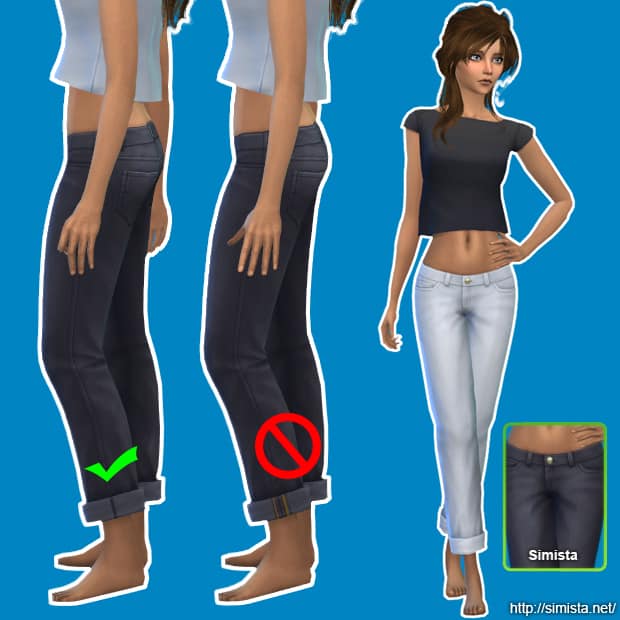

“The mesh is a slightly edited version of a Luxury Party Stuff mesh (I mostly edited the UV map because there was some weird stuff going with the straps of the original dress), but I used Jennisims’ extracted mesh to make sure it was BG compatible”



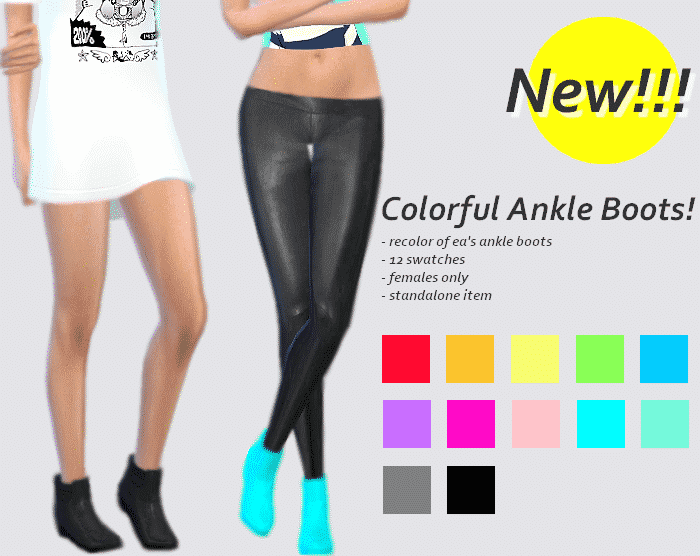
” These are my favorite boots by EA in the game, I just never liked the color swatches, so I decided to make these the other day. This item has a custom thumbnail and it won’t override the original ankle boots.”

“I really love this sweater from the base game but I’ve always wanted some nice recolors of it. So for first clothing recolor I chose it. I used a pattern from Squid Fingers for the sweater & colors from Eversims.”

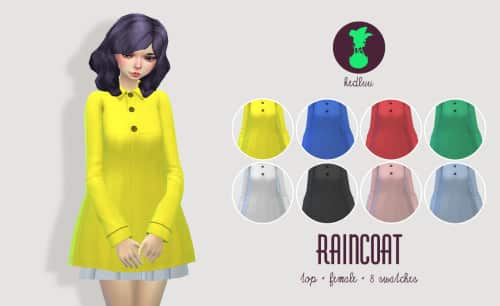
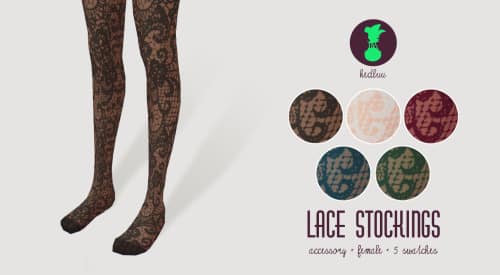
“As a big thank you [for 1000 followers] I bring you a set of 5 items: A raincoat, a dress, thigh-highs, lace stockings and some high heel boots.”





“This “Half Moon” hair is my first attempt at frankenmeshing, so there might be some imperfections here and there, but all in all, it looks pretty solid and ok. It’s a combination of the spiky hair that came with Luxury Party Stuff and my Not-So-Tidy hairstyle that you can get here.”




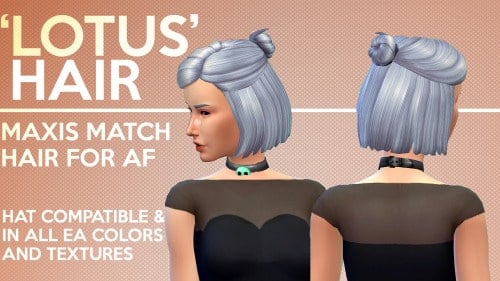
I hope you found something that you like here, I know I did. Let us know what you think and feel free to share your favourite custom content over on our forums! Thanks for reading, guys!


Hello again and welcome to another week of The Sims Video Spotlight, featuring awesome video content from our community!
Our first video today is this small modern house build, one bedroom one bathroom. I really love the idea that everything is on the top floor, it’s definitely a little quirky and a tight space but great!
Next here is a build series in which a different section of a house is built each time. This is another modern feeling home with, in my opinion, a very slight industrial twist while being cozy at the same time.
https://www.youtube.com/watch?v=bF6Smz8cnWc
Our Create A Sim video this week is this beautiful lady inspired by Autumn! The custom content unfortunately isn’t listed in the description but GamingMermaid’s CC Finds Tumblr page is, so feel free to go and have a look!
Here is something a little different, I don’t know about you but I loved playing The Sims (1) and this gives me so much nostalgia as well as being really entertaining. It’s one of my favourite things to watch recently!
If Let’s Plays are your thing, here you go! I love all of The Sims’ games but The Sims 3 is my favourite to watch other people play as there is so much to it. This is based around the Island Paradise expansion pack and has an interesting backstory that I really recommend listening to. I included this as it’s different to other Let’s Plays I have seen. There aren’t many people playing single fathers out there!
Lastly today is a very relaxed custom content video, in which LifeSimmer scrolls the internet to find content that she likes. It’s a great way to introduce people to things they may not have otherwise found.
That’s all this week, I hope you found something you like, thanks for reading guys and as always go ahead and leave the content creators a like if you enjoy their videos!

Sims Community Social launched in July 2015 and ever since then we give our best to give you the ultimate Social Network experience! Since our announcement, we made lots of changes and upgrades, so let’s run down what’s new (and old) on Sims Community Social and why you should join one of the biggest Social Networks designed specifically for simmers!