Beloved Sims 2 Strangetown, referenced in The Sims 4 StrangerVille, and Life & Death is the OG of Sims conspiracy theory/alien/Grim Reaper-based drama Galore. The Sims lore describes it as:
Truth-seekers move to Strangetown hoping to discover the secrets the town holds. Do aliens live among us? Do missing Sims mysteriously appear here? In this town nothing is what it seems.
The missing Sims? Aliens? The preview image might suggest someone special wearing the iconic red dress, that someone being Bella Goth. While her family still lives in Plesantview, Bella’s presence (or lack of it) looms over The Sims 2 Strangetown. Where is she and how is she connected to the strange townies is better understood if we take a better look at all the residents, but if you’re anxious to know what really happened, Plumbella on YouTube made a video explaining her faith.
Strangetown is the home of five premade families and two bin homeless families, and all of them are chaotic and iconic in their own right – run-of-the-mill family drama, human experimentations, kidnapping, unrequited love, and MURDER! But Sims can always relax in two community lots on The Road to Nowhere, an abandoned “government facility” shopping center, and of course the Strangetown Spa.
Pro tip: Keep an eye on lot addresses and their incredible subtlety. Also, be sure to click the family connections to get a better insight.
Table of Contents
The Sims 2 Strangetown Households
The Beaker household
What experiments are the highly secretive and less than neighborly Loki and Circe Beaker performing on poor Nervous Subject? Will this secrecy affect Circe’s career ambitions?
The Beakers reside in a two-story mansion at 1 Tesla Court. The address implies high-minded intellectual residents, but at what cost? This huge mansion has a tiny room in the basement with a sad single bed, a computer, and a bookshelf. It is also the sad home of Nervous Subject, aka Nyon Specter, whose parentage inspired the Grimborn trait in The Sims 4: Life and Death.
Some of the fun items in this household include The Eclectic and Enigmatic Enegrizer, Simsanto Inc. Biotech Station, SensoTwitch Lie Finder, and TraumaTime “Incision Precision” Surgical Training Station.
Loki BeakerAs soon as he perfects his latest invention, Loki is sure to get the recognition he knows he deserves. In the meantime, he keeps himself busy by trying to assemble a nuclear reactor out of common household items.
Circe Beaker Circe knows 238 different ways to make someone scream, and none of them are nice. She enjoys taxidermy and collecting coat hangers.
Nervous SubjectHis hobbies include twitching and blinking a lot.
.
The Curious family
In search of truth and mystery, the Curious brothers got more than they were “expecting.” Can Pascal, Lazlo, and Vidcund cope with their new roles as cosmic parents?
The Curious Family lot can be found on a hill in 2 Cover Up Road and there’s nothing sketchy about that, especially having read the family description and their personal connections.
All three Curious brothers are scientists, lusting after knowledge with a keen interest in astronomy and botany.
Items of interest on their lot are a potty and a green baby crib.
Pascal CuriousNo matter what happens, Pascal believes there is a logical explanation for everything. In his free time, he practices home psychoanalysis and collects conspiracy theories.
Vidcund Curious Serious and exact, Vidcund strives to fit the universe into a nice tidy package. He has an unnatural fondness for African violets.
Lazlo CuriousNot as studious as his older brothers, Lazlo got his degree in Phrenology. He likes to call phone psychics and spends hours trying to bend forks with his mind.
The Specter Family
Who is buried in Olive Specter’s garden? Will the mysterious, aging outcast leave her fortune to her niece Ophelia, or, as rumored, to an unnamed heir?
13 Dead End Lane is the home of the Specter Family – Olive Specter and her niece Ophelia Nigmos. Olive’s son Nervous lives with the Courious family and who is his father you ask? Not Olive’s late husband Ichabod Specter, who’s buried alongside her other exes: Rigger Mortis, Hugh Thanasia, and Earl E DeMise, to name a few.
Olive SpecterOlive will stop at nothing to get what she wants. She spends her time collecting mushrooms, sharpening sticks, and excavating her yard.
Ophelia NigmosOphelia’s hobbies include hypochondria and monitoring the air quality. She worries about the future… and the past… and the present.
The Smith family
It’s the Smith family from Sims 2! After a fruitful career, Pollination Technician 9 has retired to his favorite planet. But can his son Johnny make friends and fit in, or is this family just too strange for Strangetown?
Located in the quiet lot 101 Road to Nowhere, The Smith household looks pretty average at first. Two parents and two kids, the only thing is that one of the parents is THE Pollination Tech#9 Smith (also known as PT9), whose extensive genealogy implies his hardworking career as a pollination technician. Jenny Smith, on the other hand, comes from a long line of xenophiles, as her maiden name is Curious, and her full siblings include the Curious brothers. The drama unfolds with her half-siblings – Lola and Chloe Smiths (The Singles household, found in the family bin). Those two are Jenny’s half-sisters AND step-daughters, since their father is, of course, Pollination Tech#9 Smith.
Pollination Tech#9 SmithThe only thing PT9 loves more than his lawn is his family. When he is not spending time with his children, he enjoys clipping coupons and staring up at the sky.
Jenny SmithJenny loves having a career, but she wishes she could spend more time with her family, and maybe make some new friends. She really likes green.
Johnny SmithJohnny dreams of being the hero that rides in on a white horse, or at least a cool sports car.
Jill SmithWhen Jill closes her eyes, she sees dolphins. She has her heart set on becoming a deep sea welder someday.
The Grunt Family
Tank has always lived under the hard thumb of his father, General Buzz Grunt. In this domesticated boot camp, can Tank prove his worth to this demanding Dad?
The Grunt Family, led by the authoritarian hand of the family patriarch, General Buzz Grunt, resides on the 51 Road to Nowhere. Their house is almost identical to the house on the 57 Road to Nowhere, but the “Area 51” pun had to be made somewhere.
General Buzz Grunt has many feuding relationships with other residents of The Sims 2 Strangetown. He obviously hates aliens and also Olive Specter (his late ex-wife Lyla Grunt died under mysterious circumstances on her lot) and tries to teach his sons to do the same, using various BootCamp items in the backyard, but it’s only working for his eldest son Tank, since the other two have different ideas.
General Buzz Grant The General likes to have his clocks set to military time. He used to enjoy barbershop quartet singing, but that is classified information.
Tank GrantTank Grunt wants to be just like his old man. He spends his days lifting heavy things, dodging imaginary bullets, and being bigger than the other guy, but deep down inside, he wonders if anyone really knows who he is.
Ripp GrantRipp totally doesn’t care what you think of him. He is going to do whatever he wants to do, which is mostly what everyone else is doing.
Buck GrantMore than anything else, Buck wants to be a pet stylist to the stars. He spends a lot of time wondering why his father never seems to notice him.
Community and Unoccupied Lots of The Sims 2 Strangetown
94 Road To Nowhere
Renowned for its vast swimming pool and soothing baths, the Strangetown Spa is the perfect pit-stop on the journey for truth.
88 Road To Nowhere
Keep it real with a trip to the local shopping center. In this abandoned “government facility” Strangetown Sims find comfort in clothes, food, and entertainment.
57 Road To Nowhere
73 Road To Nowhere
91 Road To Nowhere
Liked our Sims 2 Strangetown overview? Stay tuned for more coming soon to our Sims 2 Guides category!
Make the most out of the new Graphics with Tips & Tricks in Settings, UI and Graphic Overhaul Mods.
The Sims 2 rerelease has truly been a surprise for Simmers both new and old. For many it was a trip down memory lane, for others, it was the introduction to such a poignant moment in The Sims franchise history. Even now, in 2025, The Sims 2 still looks good yet, you may be wondering what can I do to enhance the games’ graphics? Are there any graphic overhauls or lighting mods that can be added to the game? Is there a windowed mode of the game?
Fear not because we’ve got you covered!
Table of Contents
The Sims 2 Rerelease Settings
At launch, your game will run in what it feels are the default graphics settings. Now, there is nothing wrong with this and for many players, it will work just fine. However, as we are now running the game on Windows 10 and 11, a little bit of tweaking may be in order to truly optimize the graphics experience.
Your graphic settings can be found by click on the three dots on the bottom left-hand corner of the user interface. You’ll then want to click onto the monitor icon to bring up the Graphics/Performance Options tab.
Graphics/Performance Options from the Neighbourhood Screen
Now, as you can see in the screenshot above, some options are not available. For this, simply jump into your any Sims 2 rerelease household and go into the same settings again.
Graphics/Performance Options from the Live Mode Screen. Taken in Windowed Mode
While the settings are identical, you will be able to see that you can adjust the shadows and tweak each different graphics settings to meet your needs and work in line with your PC set up.
Now, you will notice that both Screen Size and Refresh Rate are greyed out in both screenshots. When playing in full screen, these will be available to change whereas when you play in Windowed Mode, these graphic settings will not be available.
Playing in Windowed Mode
We’ve just mentioned playing in Windowed Mode, but now you might be curious as to how you do that in The Sims 2 Rerelease. In fact, there are two ways of doing so.
The first, is by simply pushing the ALT and Enter keys together. Easy as that!
The second way is by editing some code. That may seem slightly overwhelming, but we’ve got several easy steps to help guide you through!
Find The Sims 2 shortcut on your desktop. If you can’t find the shortcut, find the Sims2EP9.exe file in The Sims 2 Ultimate Collection > Fun with Pets > SP9 > TSBin, right click and create shortcut.
Right-click on the shortcut and select properties.
Under the Target section of the Shortcut Tab, add -w.
Press Apply and select OK.
By doing this, it will ensure that The Sims 2 rerelease version will always load and play in Windowed Mode, providing you launch it from the desktop shortcut. If you launch the game through the EA App, it will load in full screen.
If, however, you are loading in Windowed Mode and the game doesn’t quite fit, simply double-click on the header bar at the top of the screen, and it will adjust to your screen size.
Graphic Overhaul & Lighting Mods
The great thing about The Sims 2 rerelease is the fact that mods from back in the day still work and for the most part are still compatible. So you may be wondering, are there any lighting mods or graphics overhaul mods for the game?
Gunmod’s Radiance Light System 2.4
Described as a mod that helps enhance the lighting system of The Sims 2 by utilising the physics behind lighting to create what has been known as the most realistic lighting seen in The Sims 2.
Gunmod’s Radiance Light System is a Base Game compatible mod that work with all additional content. The mod originally by Gunmod has continued to be looked after by various modders including dDefinder.
Credit: dDefinder Radiance Light System 2.4 via MTS
Additionally, why not check out GunMod’s Camera Mod too. Experience The Sims 2 in greater detail from new perspectives.
Maxis Match Lighting
Take the vanilla lighting graphics in The Sims 2 rerelease and give them a new lease of life while keeping to the same aesthetic of the game.
Credit: Dreadpirate, Maxis Match Lighting for The Sims 2
The mod by Dreadpirate on Tumblr has been one that has been popular with The Sims 2 players for some time and is easy to follow thanks to the step-by-step instructions!
Enough about Lighting and Graphics overhauls, what about UI Mods? There are certainly some out there you can add to The Sims 2 Legacy Collection!
Clean UI for The Sims 2
Another highly popular The Sims 2 mod is the Clean UI Mod from Greatcheesecakepersona. The mod gives the game a fresh, modern feel while streamlining the overall user interface experience, all while keeping all your essential details on screen!
Credit: Greatcheesecakepersona via Clean UI Flickr Gallery
The mod also adds several new loading screens, The Sims 4 inspired cursors, various fixes and removal of flaws and much more! This mod also comes with some additional UI mods detailed in the full post below.
However, if you’re looking for a dark mode UI, Starship UI is the one for you!
Using the Clean UI as the base that we mentioned above, Simstate has made a dark mode alternative of the mod. This UI Mod adds not just a modern dark mode alternative but six additional loading screens, dark cursors, cleaner UI lines and more!
Not sure how to add mods to The Sims 2 or feeling a little rusty on the process? In fact, it’s as easy as it is to do in The Sims 4.
Once you have downloaded your UI Mods (or custom content in fact) you’ll want to extract the files. On Windows 10 you will need an extraction program to do so, however if you are on Windows 11 you’ll be able to extract using the built-in right-click file options.
Before installing, just double check first that there are no mod-specific rules listed on the creator’s page.
Now that you’ve extracted your files, you’ll want to add the package files to your games. Simply head to Documents > EA Games > The Sims 2 Legacy > Downloads (you may need to create a folder called Downloads initially)
Next, load up your game as usual, and the mods you’ve just installed should be present. For Custom Content, you may need to check that it has been enabled in the game settings.
Then you are good to go!
What are some of your favourite UI Mods or graphics overhauls for The Sims 2?
For all the latest The Sims 2 Legacy Collection news and information, stay tuned to Sims Community!
There are going to be Updates and Fixes for The Sims 1 and The Sims 2 Rereleases.
The Sims 1 and Sims 2 Rereleases are expected to be Updated sometime soon.
EA and Maxis have finally rereleased The Sims 1 and The Sims 2 on PC. And, contracty to their own official release notes, some players can’t even experience the new game stability due to crashes. The Sims 1 is reported to be crashing or booting up to a black screen. While The Sims 2 is still random at crashing as we remember.
Another player on The Sims Forums describe their unlucky experience booting up The Sims 1 on Windows PC:
Player Report on The Sims 1 Crashing
Just bought the birthday bundle to get both the original Sims and Sims 2. I started playing the original Sims and only got maybe an hour in before the game crashed. Booted it up again and had the same issue. My computer is on Windows 11. The first time it crashed while I was creating a family. The second time was while I was in buy mode.
So EA and Maxis released a rerelease who’s main pricing point was fixing several improvements and stability efforts. That unfortunately only ends up in free Quality Assurance testing for EA’s 40USD rerelease bundle until it gets resolved in the next update. But hey, at least we now know that there’s going to be a “next update” for The Sims 1 and The Sims 2.
Read the official announcement:
Official Statement on Sims 1 and Sims 2 Rerelease Issues
Sul Sul Simmers!
We recognize some fans are currently experiencing various issues with The Sims: Legacy Collection and The Sims 2: Legacy Collection. We are currently investigating these issues and hope to have more information on fixes soon.
To help with our investigations, please ensure you’re including screenshots, videos, dxdiags, and (for TS1) vulkaninfo.exe files in your bug reports.
As for myself, I haven’t experienced much issues in The Sims 2 (although I’ve just scratched the surface). However, I am having issues with booting up The Sims 1 to a black screen.
What’s your experience been like with Day 0 of The Sims 1 and The Sims 2 Rereleases? Let us know in the comments below!
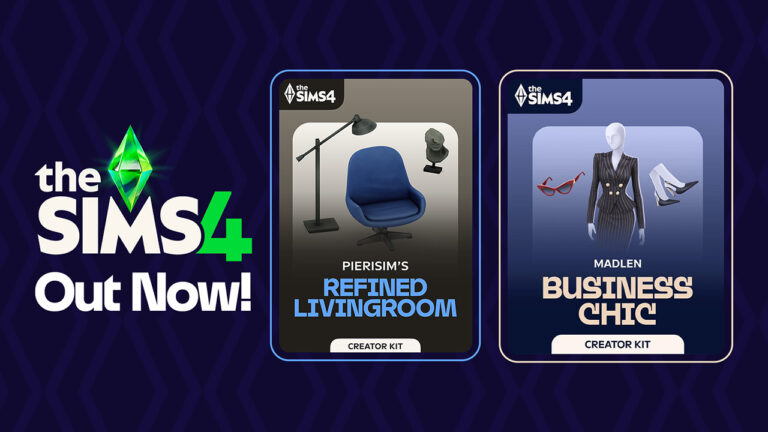
Thursday saw the release of both Pierisim’s Refined Living Room Kit and Madlen’s Sims 4 Business Chic Kit. This still relatively new concept of having CC creators create official kits for the game is welcomed by many like myself. CC creators are often long-time players of the franchise and know the downsides and limitations of the game better than anyone. Despite this, it seems that Business Chic may be a miss-fire when it comes to quality control and diversity.
Is the latest DLC worth the 5 dollar tag? Find out in our latest Kit Review!
Table of Contents
The Sims 4 Business Chic Kit: Features Overview
Business Chic’s Create-A-Sim asset count sits at 24; a median amount when it comes to kit asset counts. Brand new fashionable yet sophisticated threads are available for both male and female frames, including new accessories and shoes. There are, however, no pre-made styled looks with this kit.
Kit Features
Give your Sims a professional edge with chic and stylish outfits from The Sims 4 Business Chic Kit. From tailored suits to elegant dresses, Sims will feel confident and fashionable. Complete the look with sleek shoes and fancy accessories for an extra touch of class. The Business Chic Kit ensures Sims always look up to the task. Created by Madlen.
EA Store
Elevated Evenings – It’s time for your Sims to shine with outfits that showcase their career achievements! Elegant accessories and standout shoes are making sure they don’t go unnoticed, taking their fashion game to the next level!
CAS Preview
CAS Overview
Who better to model these new fits than the Landgraabs? Take a look below.
Accessories
Tops
Bottoms
Full Body
Shoes
Our Review of The Business Chic Kit
The Business Chic Kit is the 40th Kit to be released for The Sims 4. Among the collection of Kits so far there is something for everyone, but I am left wondering exactly who this kit is for. As it stands, we cannot change what our Sim wears to work without the use of cheats (sims.modify_career_outfit_in_cas for those interested). So why is a pack featuring business wear warranted? You could use the clothes included for freelancer careers, or a few pieces for formal wear. But following our Sims into an office environment is not something the game offers in its current state.
Madlen’s kit comes with a great variety of swatches for all pieces, as seen in my in-game images throughout the article, including a beautiful orange tone that isn’t often seen in-game and can be hard to pull in many situations. Recently I praised the Refined Living Room Kit for its brilliant texture work, it is however unfortunate that the same cannot be said for this Kit. There is an ongoing issue within The Sims 4 – clothes will work on skinny Sims, but there is often heavy clipping and texture morphing on plus-sized Sims. A number of the full-body outfits in this Kit fall victim to this, notably, the button texture on the blazer becoming stretched. This is something that I would expect a CC creator to keep in mind when creating clothing for all. This is part of The Sims 4’s ongoing diversity problem. It is important to note that it is possible to adjust textures to match all body types in 3D modelling programs. The texture issues do not stop with the feminine clothing as there is a major warping issue on the crotch of a masculine pair of pants. Another issue with the CAS assets is the tagging. The hoop earrings are tagged as masculine, while the necklace is not despite suiting male Sims. This Kit, like many before it, has a heavier emphasis on feminine clothing leaving the masculine options little in number and uninspired in design. There are only so many button-up shirts and suits needed in the game.
The warped crotchDistorted button textureDistorted button texture
If you are a player similar to me and enjoy taking screenshots in-game to tell stories then this Kit may come in useful for that. However, players opting for a more gameplay-focused approach should consider whether or not these items are something they wish to spend their money on. It is hard to write this review as I love showcasing new content and celebrating the hard work of fellow content creators. But despite that, it would be dishonest to say that I love this Kit.
If you are purchasing The Sims 4 Business Chic Kit via the EA App then make sure to use code MADLENCC at checkout as 5% of your purchase will be given to Madlen as commission.
Official Controls and Hotkeys to make the most out of your Sims 1 and Sims 2 Experience!
EA and Maxis released an official Hotkeys and Shortcuts list for The Sims 1 and Sims 2 Rereleases, available January 31st, 2025 for Windows PCs.
To refresh the memory, there’s now an offiicial controls guide for using your Keyboard and Mouse to play The Sims 1 and The Sims 2. You can find out all the ways to navigate Live Mode, Build Mode, Buy Mode and Character Creation as you go through your gameplay.
Official Sims 1 and Sims 2 Controls
The Sims 1 Hotkeys and Shortcuts
General controls
Alt + Enter
Cycle Screen Resolution Scaling
Esc
Cancel
Ctrl + Shift + C
Toggle cheats window on/off
F1
Live Mode
F2
Build Mode
F3
Buy Mode
F4
Enter camera mode (snapshot)
Enter or Space
Accept dialog
Y/N
Select Yes or No option in dialog
Ctrl + S
Save game
Q
Quit
Alt + F4
Save quit
Ctrl + C
Copy text fields
Ctrl + X
Cut text fields
Ctrl + V
Paste text fields
Ctrl + Z
Undo text fields
Ctrl + Y
Redo text fields
House controls
Page Up/Page Down
Next/previous floor
Home/End
Next/previous wall mode
Tab
Switch floors
Camera movements
+/- or mouse scroll wheel
Zoom in/out
</> or Shift + Arrow keys
Rotate left/right
Right-click and/or drag or Alt + mouse or ↑ / ← / ↓ / →
Move camera
Build/Buy Mode controls
F2 or double left-click Buy Mode button
Toggle sorting objects by type or room
</> or left-click and drag
Rotate objects
Delete
Delete object
Hold Shift + left-click
Place multiple of the same object continually (Buy Mode only)
Z/X
Scroll between pages in catalog
Wall/fence tool: Shift + drag
Create a room/fenced area
Wallpaper/flooring tool: Shift
Fill room with wallpaper/flooring
Left-click and/or drag
Place walls, fences, floor tiles, wallpaper and pools. Drag to place multiple.
Ctrl + left-click and/or drag
Remove walls, fences, flooring, wallpaper, and pools. Drag to remove area.
Terrain tool: Ctrl + left-click
Create or remove curved hills (terrain)
Terrain tool: Shift and or Ctrl + left-click
Inverts direction of tool, can also invert creation of curved hills (terrain)
Grass tool: Ctrl + left-click
Remove grass
Live Mode controls
F1 or double left-click Live Mode button
Hide/show main panel
Left-click Sim or object then left-click or right-click
Select and perform interaction
Left-click + drag + release
Click and drag to select interaction, then release
Left-click another Sim
Select interactions done by active Sim to other Sims
Space or N
Switch to next Sim in Household
Left click Sim portrait or right-click Sim
Switch to (specific) Sim
Right click Sim portrait
Lock camera to Sim
Enter or left-click active Sim portrait
Center camera on active Sim
Ctrl + left-click Sim portrait
Edit Sim biography
P or ~
Pause game
1 /2/3
Regular/fast/ultra speed
Camera mode
F4
Enter Camera Mode (snapshot)
Ctrl + ↑ / ← / ↓ / →
Adjust snapshot area
Drag mouse
Select area to snapshot
Left-click mouse
Take snapshot
Misc shortcuts
A
Toggle anti-aliasing
T
Show framerate in-game
S
Toggle shadows
V
Display build version of the game
F5
Access settings/options in-game
F7
SimsWebCam/Stalker camera (removed in later expansions)
The Sims 2 Hotkeys and Shortcuts
General controls
Alt + Enter
Cycle Screen Resolution Scaling
Ctrl + Z
Undo
Ctrl + Y
Redo
Esc
Cancel
Ctrl + Shift + C
Toggle cheat window on/off
F10
Hide/Show UI (User Interface)
F1
Live Mode
F2
Buy Mode
F3
Build Mode
F4
Story Mode
F5
Options panel
Q
Quit
Alt + F4
Save quit
Ctrl + C
Copy text fields
Ctrl + X
Cut text fields
Ctrl + V
Paste text fields
Ctrl + Z
Undo text fields
Ctrl + Y
Redo text fields
Create a Sim controls
< / > or left-mouse-click+ drag Sim
Rotate Sim
Z / X or + / – or scroll-mouse-wheel
Zoom in/out
Build/Buy Mode controls
< / > or right-clickmouse + drag
Rotate object
Delete
Delete object
Shift + left-clickmouse
Continue placing object
[ / ]
Move object up or down wall
M
Move/shuffle object on shelves
< / > or right-clickmouse + drag
Rotate object
Delete
Delete object
Left-clickmouse + or drag
Use tools, drag to affect area
Ctrl + left-clickor drag mouse
Remove walls etc, drag to remove area
H
Hand
E
Eyedropper
J
Sledgehammer
R
Design tools
Wall tool: Shift + drag mouse
Create room
Wallpaper/flooring tool: Shift + drag mouse
Fill room with wallpaper/flooring
Floor tool: < / >
Rotate floor tile
Ctrl + F
Toggle full/quarter tile mode
Wall tool: Shift + drag mouse
Create room
L
Toggle Day/Night
G
45-degree view
T
Top-down View
Terrain tool: Shift
Invert tool
Grass tool: Ctrl + left-click mouse
Remove grass
Movie Making Mode controls
Tab
Enable movie making mode
V
Start/end video capture
B
Pause/resume video capture
Q
Lower camera height
E
Raise camera height
Z / X or + / –
Adjust focal length
C
Take a snapshot
Live Mode controls
F1 or left-clickmouse on Live Mode button
Hide/show main panels
Right-clickmouse after selection
Cancel interaction
Left-clickmouse + drag and or release
Click and or drag to select interaction, then release
Left-clickmouse active Sim
Select interactions to perform to active Sim
Left-clickmouse another Sim
Select interactions done by active Sim to other Sims
Select interaction menu: Tab
Navigate between dialog pages (pie menu pages)
Space or N
Switch to next Sim in Household
Left clickmouse on Sim portrait or right-click mouse on Sim
Switch to (specific) Sim
Right clickmouse on Sim portrait
Lock camera to Sim
Enter
Center camera on active Sim
P or ~ or Pause Break
Pause game
1 /2/3
Regular/fast/ultra speed
Page Up/Page Down
Next/previous floor
Home/End
Next/previous wall mode
Right clickmouse and/or drag or Alt +mouse
Move
↑ / ← / ↓ / → W / A / S / D
Move left/right/forward/back
Shift + ↑ / ← / ↓ / →
Move faster
Z/X or + / – or scroll mouse wheel
Zoom in/out
Ctrl + right-clickmouse or middle-clickmouse) + drag
Most popular (and helpful) Cheats for The Sims 2 and Sims 1.
The Sims Studio provided an official Sims 1 and Sims 2 Cheats sheets list to celebrate today’s Windows PC Rerelease. These cheats are just the surface of what you can cheat in the game, which is why we call them essential!
The official Cheats Sheet will help you earn instant Simoleons in The Sims, get twin-pregnant in The Sims 2 and quickly level up your Aspiration meter. And also can’t forget those Needs Cheats!
Here are the most helpful Sims 2 and Sims 1 Cheats to get you started in the game:
Table of Contents
The Sims 1 Cheats
To open The Sims 1 Cheats Menu:
Hold down Ctrl + Shift + C.
Type in the cheat code you want to use and select Enter.
Here are the most popular The Sims 1 Cheats. Featuring Gameplay, Autonomy, Additional Build Mode Customization and Options, as well as the most essential of them all. The money cheat rosebud!
autonomy (0-100)
Sets the Sim’s free-thinking or IQ level
bubble_tweak (number)
<Z offset> Sets, in pixels, how far from a Sim’s head the thought bubble appears
draw_all_frames on
Enables draws all frames
draw_all_frames off
Disables draws all frames
draw_floorable on
Enables floorable grid
draw_floorable off
Disables floorable grid
history
Saves family history file. Find where the game is installed under FamilyHistory.txt
interests
Displays the interests of selected Sim
log mask
Sets events logging mask
move_objects on
Turns on ability to move any object
move_objects off
Turns off ability to move any object
nessie
Brings up the Loch Ness monster on the Downtown, Old Town, and Vacation neighborhood view
prepare_lot
Fixes required Lot objects
rosebud
Increases Household funds by 1,000 Simoleons
rotation (0-3)
Rotates camera
set_hour (0-23)
Sets the hour of the day
sim_log begin
Starts Sim logging
sim_log end
Stops Sim logging
sim_speed (-1,000 to 10,000)
Sets gameplay speed
The Sims 2 Cheats
Here’s how you can opet The Sims 2 Cheats Menu:
Hold down Ctrl + Shift +C.
To activate cheats, type boolprop testingcheatsenabled true into the cheat bar and select Enter.
Type in the cheat code you want to use and select Enter.
Here are some of the most popular Sims 2 Cheats you can use in Live Mode, Buy Mode and Build Mode. As well as World and Sim Personality and Gameplay Cheats.
addNeighborToFamilyCheat on|off
Enables adding neighbors to families
ageSimsCheat on/off
Enables/disables Sim aging cheat
aging on/off
Turns on/off the aging of selected Sim
aspiration level (0–5)
Sets the Aspiration level of Sim from 0–5
aspirationPoints
Gives the selected Sim extra Aspiration reward points
autoPatch on/off
Enable/disable checking for available patches through content browser
boolprop testingcheatsenabled true
Enables testing cheats
boolprop lotTerrainLighting on/off
Set to off means Lots won’t light up when highlighted in neighborhood
boolprop locktiles on/off
Set to off to place floor tiles outside Lot
boolprop displayNeighborhoodRoadsWithModel on/off
Set to off to remove bridges from neighborhood
boolprop lotTerrainPaints on/off
Set to off to remove floor painting on Lot
boolprop displayNeighborhoodProps on/off
Set to off to remove props like rocks and towers from neighborhood
boolprop objectShadows on/off
Set to off to remove shadows on objects outside house
boolprop lotWater on/off
Set to off to remove water (ponds) from Lots
boolprop displayNeighborhoodRoads on/off
Set to off to remove roads from neighborhood
boolprop guob on/off
Set to off to remove shadows on objects inside house
boolprop displayNeighborhoodWater on/off
Set to off to remove water from neighborhood
boolprop displayLotImposters on/off
Set to off to remove house graphics from neighborhood
boolprop displayNeighborhoodFlora on/off
Set to off to remove trees/plants from neighborhood
boolprop displayLookAtBoxes on/off
Set to on and blocks appear on Sim’s faces and on parts where Sims look
boolprop carsCompact on/off
Set to on and cars will have more detail in neighborhood
boolprop renderSelectedSimLevel on/off
Set to on and walls will no longer cut away from selected Sim
boolprop allObjectLightsOn on/off
Set to on to light up objects continuously instead of only when used
boolProp displayPaths on/off
Set to on to see the path where the selected Sim walks to
boolprop lotInfoAdvancedMode on/off
Set to on to show Lot information
bloom [R G B X]
Changes color of screen visual. RGB is color [0,1], and X is the bloom amount [0,1]
bugJarTimeDecay on/off
Toggle if bugs in a jar can live forever or not
changeLotClassification low | middle | high
Changes the Lot classification
changeLotZoning
Changes the zoning type of the Lot. Type in cheat code followed by the new Lot type with no spaces, for example: changeLotZoning secretvacationlot will change the Lot type to a secret vacation Lot.Available Lot types: residential, community, greek, dorm, secretsociety, secretvacationlot, hotel, secrethobbylot, apartmentbase, apartmentsublot, secretwitchlot
clearLotClassValue
Clears Lot class value and override flag
deleteAllAwnings
Removes awnings
deleteAllCharacters
Deletes all characters in the current neighborhood—this also only works when in the neighborhood
deleteAllFences
Removes all fences
deleteAllHalfwalls
Removes all half-walls
deleteAllObjects
Removes all objects
deleteAllDoors
Removes all doors that can be deleted when in Build Mode
deleteAllWalls
Removes all walls that can be deleted when in Build Mode
disablePuppyKittenAging on/off
Enables/disables kitten/puppy aging
dumpNPCCount
This shows the NPC type in the neighborhood, by type, in the cheat console
exit
Hide the cheat console window
expand
Expands or contracts the output portion of the cheat console
faceBlendLimits on/off
Turns on/off blending limits
familyFunds
Use familyFunds [familyName] [value] to set the amount of funds. Use familyFunds [familyName] [+/-][value] to add/subtract from current funds.
filmGrain [X]
X is the film grain value [0,1]. Must use ‘boolProp enablePostProcessing true’ first.
forcetwins
Sets pregnant Sim to have a twin pregnancy
help
This displays help for cheats. Type help -all into the cheat bar and hit Enter. This will bring up all known cheats and describe what they do.This also works for individual cheats, for example, type in help motherlode and it will describe what this cheat does.
individualRoofSlopeAngle
Slope Angle in Degrees [15–75] (45 is default)
kaching
Increases Household funds by 1,000 Simoleans
letterBox [X]
Letterbox the screen (add black borders on top and bottom). X is the letterbox value [0,0.4]. Must use ‘boolProp enablePostProcessing true’ first.
lockAspiration on/off
Locks/unlocks the Aspiration score of Sims on the Lot
motherlode
Increases Household funds by 50,000 Simoleans
modifyNeighborhoodTerrain on/off
Toggle neighborhood terrain modification. Use the cursor to select terrain and then press:p to smooth[ to raise] to lower\ to level
motiveDecay on/off
Turns motive decay on/off for all Sims on the Lot
PlumbBobToggle
Toggle the showing of PlumbBob
roofSlopeAngle
Slope Angle in Degrees [15–75] (45 is default)
setHighestAllowedLevel [level]
Sets the highest number of floors that can be built
setHour (0–23)
Sets the hour of the day
setLotLightingFile [filename.txt] or [clear]
Override some of the parameters in the lighting.txt file with filename.txt file present in lights folder, clears if any file is present
setQuarterTilePlacement on/off
Turns quarter tile placement on/off
showHeadlines on/off
Shows/hides all thought bubbles and speech balloons
slowMotion (0–8)
Slows the animation timer (0=normal speed)
stretchSkeleton [Factor]
Stretches skeleton of the selected Sim – factor=1.0 indicates no stretch (factor<1.0 makes shorter, factor>1.0 makes taller
textDebugging [True|False]
Turns text debugging on/off
unlockCareerRewards
Unlocks all career reward objects for the selected Sim
vignette [centerX centerY X]
Blur rendering from specified center (upper left is 0,0, lower right is 1,1). X is the amount of blurring [0,1]. Must use “boolProp enablePostProcessing true” first.
vsync on/off
Enables/disables vertical sync —can improve performance, but will sometimes cause visual artifacts if off
maxmotives
Maximizes all Needs for the selected Sim.
All boolprop cheats that use on/off can also be used with true/false.
Do you plan on using these Sims 1 and Sims 2 Cheats? Let us know how your new Sims gameplay story goes in the comments below!
System Requirements, List Of Improvements and More into one summarized FAQ.
The Sims 1 and The Sims 2 Rereleaseshave just hit the official stores, and we have an official Frequently Asked Questions thread. Detailing exactly what’s new and improved in the latest official rerelease of The Sims 1 and The Sims 2.
The Sims: Legacy Collection includes The Sims, The Sims 4: Throwback Fit Kit, and the following The Sims packs:
The Sims: Livin’ Large
The Sims: House Party
The Sims: Hot Date
The Sims: Vacation
The Sims: Unleashed
The Sims: Superstar
The Sims: Makin’ Magic.
What’s different about the relaunched version of The Sims?
The Sims was re-released to celebrate 25 years of the franchise. This relaunched version of the first game in the franchise is updated to run on modern computers and operating systems.
The gameplay and graphics are the same, but there are some important updates:
it can now run on Windows 10 and Windows 11
it has an updated rendering engine
updates for more versatile pixel resolution scaling on large monitors.
How to scale pixels for The Sims 1
The Sims 1 will still run at its original resolution, but will now scale pixels to make better use of larger monitors while preserving the look and layout of the game.
Press the Alt + Enter keys to cycle through available scale options.
Continuing to press Alt + Enter will scale to the next optimal level before eventually starting back at the beginning.
Stop once you find the scale that works best for your monitor.
At its largest possible smooth scaling size, the game window will black out the parts of the monitor that might be distracting.
Will old The Sims 1 save files work with this version?
Yes, any old save files you still have for The Sims 1 will work with the current version. The save paths for The Sims 1 have changed so you’ll need to copy your save files into the new location.
First, remove current saved files:
Go to My Documents.
Open the Electronic Arts folder.
Click on The Sims folder (this is your save folder) and select Cut.
Paste this folder to a different location and rename it so you know it’s your alternate save file.
To import your old save file:
Rename your old save file folder The Sims.
Go to My Documents.
Open the Electronic Arts folder.
Copy The Sims folder into the Electronic Arts folder.
Will Mods still work with The Sims 1?
Mods capability for The Sims 1 remains the same. Maxis hasn’t tested Mods, and doesn’t support Mods. It’ll be up to individual Mod creators to ensure Mods work with the new version of The Sims 1.
For more info on Mods and The Sims, check out our Policy on Mods.
Minimum PC requirements for The Sims 1 Rerelease (Legacy Edition)
The Sims 2: Legacy Collection includes The Sims 2 Base Game, The Sims 4: Grunge Revival Kit, and the following The Sims 2 packs:
The Sims 2: University
The Sims 2: Nightlife
The Sims 2: Open for Business
The Sims 2: Pets
The Sims 2: Bon Voyage
The Sims 2: Seasons
The Sims 2: FreeTime
The Sims 2: Apartment Life
The Sims 2: Holiday Party Pack
The Sims 2: Family Fun Stuff
The Sims 2: Glamour Life Stuff
The Sims 2: Happy Holiday Stuff
The Sims 2: Celebration! Stuff
The Sims 2: H&M Fashion Stuff
The Sims 2: Teen Style Stuff
The Sims 2: Kitchen & Bath Interior Design Stuff
The Sims 2: Mansion & Garden Stuff.
What’s different about the relaunched version of The Sims 2?
The Sims 2 was re-released to celebrate 25 years of The Sims. This version of The Sims 2 has the same gameplay, but has been updated to run on modern computers and operating systems:
it can now run on Windows 10 and Windows 11
it has an updated rendering engine
it has a more versatile pixel resolution scaling on large monitors
some legacy and community-reported bugs are fixed.
Will old The Sims 2 save files work with this version?
Yes, any old save files you still have for The Sims 2 will work with this current version. The save paths for The Sims 2 have changed so you’ll need to copy your save files into the new location.
First, remove current saved files:
Go to My Documents.
Open the Electronic Arts folder.
Choose The Sims 2 folder (this is your save folder) and select Cut.
Paste this folder to a different location and rename it so you know it’s your alternate save file.
To import your old save file:
Rename your old save file folder The Sims 2.
Go to My Documents.
Open the Electronic Arts folder.
Copy The Sims 2 folder into the Electronic Arts folder.
Will Mods still work with The Sims 2?
Mods capabilities for The Sims 2 remain the same. Maxis hasn’t tested Mods, and doesn’t support Mods. It’ll be up to individual Mod creators to ensure Mods work with the new version of The Sims 2.
For more info on Mods and The Sims, check out our Policy on Mods.
Minimum PC requirements for The Sims 2 Rerelease (Legacy Edition)
We hope you’re in the mood to travel back to the year 2000 with us to celebrate the launch of The Sims! To celebrate with you, we’ve brought The Sims and all packs up to date to make it work more easily with Windows 10 and 11! Revisit your favorite packs or finally play that one you haven’t tried yet.
This release does a lot under the hood to make this 25 year-old game work on your new computer. We thought we’d also make it easier to see all those classic pixels on your monitor! To scale the game to make better use of the screen space available, try using the Alt + Enter key combination to cycle through the different scaling options.
The bulk of the work was to make the first The Sims game compatible with Windows 10/11 from the moment you install it. There are things that you’ll immediately see:
Game now supports the aspect ratio your monitor is set to (not restricted to 4:3)
Different aspect ratios, such as 16:9, gives a wider view of the game
Crisper rendering and visual fidelity from changing how the game scales textures
Fixed several crashes
Improvements and fixes
When The Sims launches it will automatically use the aspect ratio of the main monitor. Unfortunately you can’t change the aspect ratio directly, but you can direct The Sims to launch on a second monitor with a different aspect ratio by using the -monitor:[num] command (“0” is the default monitor).
We hope you’ll enjoy returning to The Sims’ neighborhoods, Vacation Island, Downtown, Studio Town & Magic Town to spend time with all the classic Sims and Sims families as much as we did. Enjoy encountering Bella, Bonehilda, Chip, Miss Crumplebottom and the rest.
Dag dag!
Official The Sims 2 Release Notes
Sul Sul Simmers!
Put down that grilled cheese sandwich and get ready for a trip down memory lane to 2004 with us! We’ve revived The Sims 2 and most of its packs (IKEA Home Stuff excluded) to work easily with Windows 10 and 11! Please note that modern licensing restrictions have required the removal of 1 pack and some of the original songs, but we have included as many as possible.
We thought we’d also make it easier to see all those classic pixels on your monitor! To scale the game to make better use of the screen space available, try using the Alt + Enter key combination to enter and leave full-screen mode. Enjoy that glorious widescreen The Sims 2 view!
There are a few more updates as well to look out for:
GraphicsRules.sgr now supports modern hardware configurations
Fixed a shadow bug that surrounded Sims with a big black square
Wide screen and higher game resolutions are now supported
UI scales better to higher resolutions
Texture memory corruption and “pink soup” are fixed
Dragging The Sims 2 window from one monitor to another works more smoothly
If your computer has a lot of RAM, The Sims 2 is able to use it
Fixed several crashes
Improvements and fixes
We hope you’ll enjoy returning to the Belladonna Cove, Desiderata Valley, Riverblossom Hills, Pleasant View, Strangetown, & Veronaville! Spend time with all the classic Sims and Sim families. The Goths, Greenmans, Smiths, Monty/Capps and more are ready to come back to your screen from 21 years ago.
EA talks details about the new rereleases in their official blog.
It’s official. EA has just announed The Sims 1 and The Sims 2 Rereleases, AVAILABLE NOW!
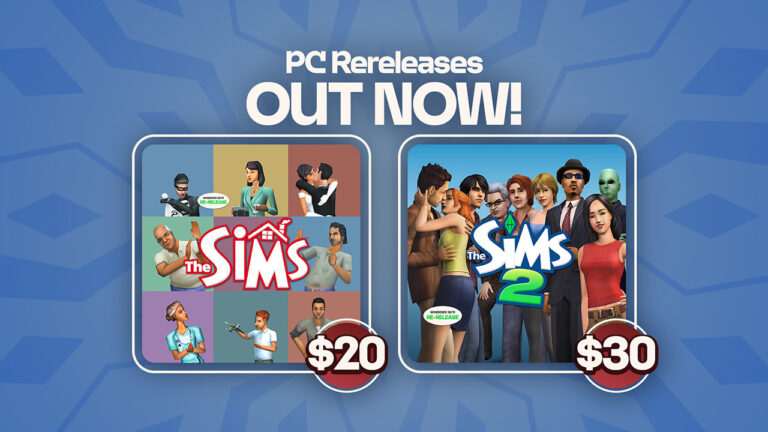
The Sims 1 Rerelease is available with all 7 Packs for $19,99, The Sims 2 Legacy Collection with all most Stuff Packs (IKEA missing) and EPs for $29,99 – and both Rereleases together for a special Birthday Bundle for 40USD!
We have a full FAQ Thread list on Sims 1 and Sims 2 Rerelease System Requirements and Feature Improvements. Check it out here!
Take a look at the official blog announcing the return:
It’s hard to believe that it has been 25 years since The Sims made its debut, but we’re so grateful to have shared this incredible journey with so many of you. No one does life like The Sims, and as we gear up for next week’s celebrations, what better way to kick things off than with a cultural comeback?
That’s right – we’re taking it back to where it all began with the launch of The Sims 25th Birthday Bundle! You’ve been asking for it, and we’re thrilled to finally return to the days when we first reimagined the ways people play with life.
To celebrate our legacy and honor the incredible fans that have been with us along the way, we’re re-releasing two fan-favorite titles that contain familiar neighborhoods and beloved characters – such as the sneaky burglar, unpredictable genie, and Sunny the Tragic Clown – that started it all. Rediscover the nostalgia and magic of the classics that welcomed so many of you into our amazing community.
The Sims 25th Birthday Bundle includes The Sims and The Sims 2, featuring all the iconic characters, music, and gameplay you know and love, plus bonus content! You can also purchase The Sims: Legacy Collection* andThe Sims 2: Legacy Collection** separately. We’re so excited for you to play, create, and relive the fun across re-releases of these beloved games, rolling out globally on Windows 10 and 11 beginning on January 31, 2025.
Hit The Mother Lode with The Sims: Legacy Collection
Party like it’s Y2K all over again with The Sims: Legacy Collection! Picture this: baggy jeans are all the rage, bedazzled flip phones are the “it” item, and everyone’s favorite pop star has chunky highlights.
Build an entire neighborhood of Sims and take control of their lives – whether you build them up or cause mayhem is completely up to you. Shape every aspect of your Sims, from their personalities and appearances to their careers, friendships, swoonworthy romances, and more.
Return to the original Create-a-Sim to design your Sims, choose their outfits, and allocate personality points to determine what makes them tick. From there, it’s time to welcome them into their humble abode. Select from pre-built homes or construct their dream house from the ground up. Appease your Sims with comfortable rooms and nice furnishings – maybe even throw in a hot tub or heart bed to shake things up.
In The Sims, you can run your Sims’ lives or ruin them. Lead your Sims to happiness by fulfilling their needs, pursuing careers, making friends, and finding romance.
… Or let chaos unfold, the choice is yours!
*The Sims: Legacy Collection includes The Sims and the following bonus content: The Sims: Livin’ Large, The Sims: House Party, The Sims: Hot Date, The Sims: Vacation, The Sims: Unleashed, The Sims: Superstar, The Sims: Makin’ Magic,along with The Sims 4: Throwback FitKit.
Fulfill Your Sims’ Dreams with The Sims 2: Legacy Collection
Are you ready to break generational curses or keep the cycle going? What legacy will your Sims leave behind? With The Sims 2: Legacy Collection, craft new stories as you guide your Sims over a lifetime and determine which traits and characteristics will be passed down through generations. Your Sims now have a purpose, and it’s up to you to decide if you’ll help them achieve their dreams or let chaos reign supreme once again.
In The Sims 2, your Sims inherit physical and personality traits from their elders, offering endless storytelling possibilities as you build family legacies and evolve their family trees. Use Create-a-Sim to design unique Sims from head to toe, with a variety of hairstyles, facial features, and stylish outfits. Then, build dream homes and design entire neighborhoods – the creativity is limitless!
Destiny awaits your Sims as they pursue aspirations: Is it their life’s ambition to be popular, become filthy rich, find romance, have a large family, or obtain ultimate knowledge? It’s all in your hands!
Will your Sims be left at the altar or inherit a fortune and become fabulously wealthy? Witness the big moments that make every Sim’s life uniquely memorable and capture them with The Sims 2’s movie-making feature. Create the cast, set the stage, take control of the camera, and record your own Sims films in action!
**The Sims 2: Legacy Collection includes The Sims 2 and the following bonus content: The Sims 2: University, The Sims 2: Nightlife, The Sims 2: Open for Business, The Sims 2: Pets, The Sims 2: Bon Voyage, The Sims 2: Seasons, The Sims 2:FreeTime, The Sims 2: Apartment Life, The Sims 2: Holiday Party Pack, The Sims 2: Family Fun Stuff, The Sims 2: Glamour Life Stuff, The Sims 2: Happy Holiday Stuff, The Sims 2: Celebration! Stuff, The Sims 2: H&M Fashion Stuff, The Sims 2: Teen Style Stuff, The Sims 2: Kitchen & Bath Interior Design Stuff and The Sims 2: Mansion & Garden Stuff, along with The Sims 4: Grunge RevivalKit.
The Sims 25th Birthday Bundle includes The Sims: Legacy Collection* and The Sims 2 Legacy Collection*. The Sims 25th Birthday Bundle retails for $39.99SRP and will be rolling out globally on Windows 10 and 11 beginning on January 31, 2025 on PC via EA app™, Epic Games Store, and Steam®. The Sims: Legacy Collection is available to purchase separately for $19.99 SRP and The Sims 2: Legacy Collection is available to purchase for $29.99 SRP.
EA Play Pro*** members on the EA App can celebrate with unlimited access to The Sims: Legacy Collection and The Sims 2: Legacy Collection starting January 31st.
More information including official features, assets and coverage to follow soon. Stay tuned!
A detailed look at every object In Pierisim’s Refined Living Room Creator Kit!
It’s only been two weeks since the release of thelast three kits, but The Sims 4 shows no sign of slowing down as we gear up for the 25th anniversary of the franchise.
As with Cozy Kitsch and Sweet Slumber Party, The Sims 4 Refined Living Room Kit is part of Maxis’ partnership with CC creators. This time the team has partnered with one of my personal favourite creators Pierisim! If you haven’t seen his work before I’d thoroughly recommend it. This kit gives all simmers, even those on consoles, the chance to have a taste of what Pierisim has to offer.
Table of Contents
The Sims 4 Refined Living Room Kit: Features Overview
The Kit is packed with 24 Buy Mode items, and 1 new wall paneling for your Sim’s living spaces. The Kit leans into contemporary design with elements of mid-century modern, Scandinavian, and sleek minimalism thrown into the mix.
Kit Features
Hand Picked – You’ve done your research and you’ve finally found the perfect items. Every time you step into your living room, you can feel that this space has been made by you and for you.
Items Preview
Object Overview
Take an in-depth look at each item’s description.
Object Swatches
Ancient Bust
Bragging’s Bookend
By My Side Table
Cloudy Lamp
Contrasted Rug
Divider Screen of Elegance
Off the Grid Calculator
Old Carved Sideboard
Pedestal from the Old Times
Perfect Stacking Masterpiece
Perfectly Preserved Antique Vase
Precise Strokes from Random Shapes
Shadow of the Day
Shelly The Bowl
Sleek Bookcase
Small Paradise
The Collection
The Duo
The Laying Rock
Three Pieces Sofa
Two Pieces Loveseat
One Piece Armchair
Up and Down Lamp
Vintage Leather Armchair
Woody’s Wallpaper
Our Review of The Refined Living Room Kit
If you are not familiar with Pierisim’s work I can sum it up in one word: outstanding! And that is the same word I would use to describe this new Creator Kit. Every object has been meticulously modelled and textured, with the most impressive pieces being the ‘Three Pieces Sofa’, ‘Two Pieces Loveseat, and the ‘One Piece Armchair’. The detailed texture of the armchair puts the textures of the 2014 Base Game to shame.
Every object bar two comes in matching swatches in both neutral and brighter tones, something that is often missing in packs released by Maxis. While the large number of swatches is nice to see, a larger variety of swatches would have been appreciated as the majority of swatches are almost indistinguishable white, grey, black, and beige tones. Another nice touch is the functionality of the ‘Sleek Bookcase’, ‘The Collection’, and ‘Bragging’s Bookend’, the latter being perfect for tiny homes and tight spaces.
Another notable achievement of this pack is the rare inclusion of a complete furniture set, consisting of a couch, loveseat, and armchair. CC creators genuinely understand the building experience from a player’s perspective, unlike the Maxis team, which must work within strict release deadlines set by EA.
While the attention to detail is impeccable, it falls short when considering object ratings and their impact on a Sim’s motives. The beautiful “One Piece Armchair” is priced at §235 Simoleons, a mid-range cost for armchairs with all packs installed. Yet, despite its price, it only offers a comfort rating of 3. This may be an oversight by Maxis as often is the case with some Kits. Something that confused me was ‘Woody’s Wallpaper’. Although it closely resembles my favorite wall paneling from the Book Nook Kit, this is actually a wallpaper. It took me a while to find in the catalogue as I would have presumed this would be under ‘Paneling’. This feels like a strange oversight, as a wood-textured wallpaper comes across as rather tacky despite the kit’s clear intention of aiming for an upscale aesthetic.
This kit may not be to everyone’s taste, and I can see myself using many objects in my builds, the diligently crafted items had me in awe the moment I began building with them. I would like to see a pause in modern styled Kits and it’s a shame that Pierisim was not asked to create something similar to their Oak House collection which has been my go to CC for rustic builds for years. I for one am glad that Creator Kits have continued into 2025 as it showcases some of the incredible work of Simmers from around the globe. It also gives console players and those who play CC free a chance to use other Simmers custom creations in their games. If you are purchasing the Kit via the EA App then make sure to use code PIERISIM at checkout as 5% of your purchase will be given to Pierisim as commission.
Yes, it will cost money! How much? We still don’t know.
The final teaser for The Sims 1 and The Sims 2 Rereleases is here. And it’s both a confirmation for all these reports on leaks we’ve done so far, along with the rumored fact that these rereleases will have to be purchased.
It’s finally confirmed: Sims 1 and Sims 2 are coming back!
The Sims Official Website had posted its final teaser for the upcoming rereleases for The Sims 1 and The Sims 2. They posted two buttons for purchasing the 25th anniversary edition of The Sims 1 and The Sims 2 Games, with the following message:
The Sims™ & The Sims™ 2 Are Back
Purchase Legacy Collections featuring re-releases of these beloved titles along with numerous packs.
UPDATE: Shortly after this article was posted, the website got updated again with a new message leading to the promotional Sims Y2K Website. I’m guessing someone at the team got too excited to get the message out?
Message from The Sims Social
The Sims Social team shared an extra message hinting at tomorrow’s release, stating:
At the moment the two buttons lead to a 404 page. But we might just know exactly when these two amazing Rereleases are coming.
The Sims 2 and Sims 1 Rereleases are set to come out on January 31st at 16:00 UTC on EA App first. With Steam possibly joining the fun very quickly afterwards. Join the countdown here and find out when the games come out in your area!
As we reported before – the rerelease of The Sims 1 and The Sims 2 is only for Windows 10 and Windows 11 PCs. There is no information or confirmation if these game rereleases will be made available for Mac.
“All Packs” or “Numerous Packs”?
The insider Kotaku confirmation about “all expansions” being featured in The Sims 1 and Sims 2 Rereleases got the community speculating again. This time if there’s going to be some packs missing, considering the wording in the leaked promotional message on the website says “numerous packs”. As opposed to the previous expectation of “all packs”.
The speculation stems on if EA and Maxis were able to get the original licensing rights for The Sims 2 IKEA Home and Sims 2 H&M Fashion Stuff Packs to have them featured in the rereleases. Nothing’s certain yet on the fate of these two packs.
Want to know what to expect from The Sims 1 + Packs and The Sims 2 + Packs Rereleases? Check out our Game Collection Guides on each Sims entry:
Refined Living Room and Business Chic Sims 4 Kits hit the digital shelves!
It’s been a busy month for The Sims 4 Kits Releases. On January 16th The Sims Team did their second ever triple Kit release, featuring Secret Sanctuary, Casanova Cave and Comfy Gamer Kits.
Today, two new Sims 4 Creator Kits hit the Sims 4 Kits release lineup, featuring a Create A Sim Kit (Business Chic) created by Madlen and a Build Mode Kit (Refined Living Room) done entirely by Pierisim. Each Kit is retailed at $4.99USD – or a price equivalent to your local currency. Here’s a list of all the official stores from which you can get these Sims 4 Creator Kits:
Give your Sims a professional edge with chic and stylish outfits from The Sims 4 Business Chic Kit!
From tailored suits to elegant dresses, Sims will feel confident and fashionable. Complete the look with sleek shoes and fancy accessories for an extra touch of class. The Business Chic Kit ensures Sims always look up to the task! Created by Madlen.
Kit Feature:
• Tailored for Success – It’s time for your Sims to shine with outfits that showcase their career achievements! Elegant accessories and standout shoes are making sure they don’t go unnoticed. Taking their fashion game to the next level!
Kit Items Preview
Kit Screenshots
The Sims 4 Refined Living Room Kit
Embrace elegance and sophistication with The Sims 4 Refined Living Room Kit. With a clever mix of modern and retro furniture you can create the perfect base. Add extra personality with unique and chic decor pieces. And voilà! You’ll have a living room worthy of a design magazine. Created by Pierisim.
• Hand Picked – You’ve done your research and you’ve finally found the perfect items. Every time you step into your living room, you can feel that this space has been made by you and for you.
Kit Items Preview
Kit Screenshots
Do you plan on getting the new Sims 4 Creator Kits? Let us know in a fun community poll down below:
[totalpoll id=”156380″]
We’ll be keeping you posted with our two new Sims 4 Kits Reviews very soon on Sims Community. Stay tuned! 💜
We are just two days away until the official rerelease of The Sims 2 and The Sims 1 games on Windows. As suggested in the full leak, these two games are getting new compatibility updates through a form of a rerelease. At the moment, the price remains unknown for both of these games, and it seems EA themselves are still waiting on the right time to make the price announcement.
After posting some memes yesterday on their IG account, The Sims Team continues the fun of Nostalgia Now with a brand new website. Featuring promotional pages, fun sound boards, webcam effects and more. Take a look!
Table of Contents
The Sims 2 and Sims 1 Rerelease Promo Site
The new official website from Maxis is called the-sims-y2k.com. After booting up the website, you’ll immediately be greeted with a classic User Interface from the good old days, with several new pages to explore.
Here’s what each section of this website brings:
Sim Urself
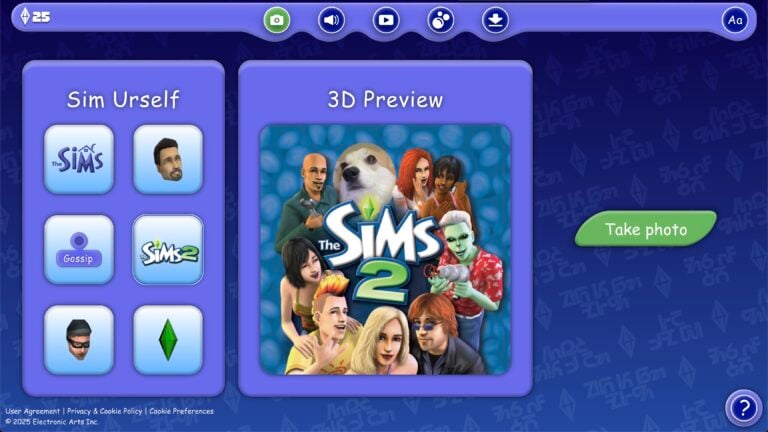
Here you can use your browser camera to add iconic characters from The Sims 1 and The Sims 2 around you. You can choose six premade templates, including official covers, Sims 1 Plumbob, Sims 2 Interactions and The Sims 1 burglar.
And above The Sims 2 logo is a cutie pie named Lizzie!
Simsboard
Essentially a soundboard – this Sims retroactive page lets you choose from over a dozen different sound effects. Each displaying a unique character from The Sims 1 and The Sims 2!
Simsvision
Remember when you’d get a mini camera popup in The Sims 1 and The Sims 2 letting you know there’s some dangerous activity happening around your lot? This has been recreated in the Simsvision section, where you can snoop on different Sims 1 households.
Meme Jacuzzi
Press the refresh button to get a new Sims 1 or Sims 2-inspired meme!
Wallpapers
And lastly – there’s a Downloads section where you can get Sims 1 and Sims 2-inspired wallpapers for Desktop and Smartphones!
Fun fact: if you press the Text button on the top right corner, all the language will be translated into Simlish. How cool is that?!
Simsider Issue 1
Along with the new promotional website is also the first issue of the official “Simsider” magazine created by Maxis. Featuring some fun games, lore and tidbits from TS1 and TS2. Check out the cover!
The fun continues inside of the magazine. We put together all 10 pages of the first Simsider issue for your enjoyment!
The Sims 1 and The Sims 2 Rereleases are hitting the PC Windows shelves on January 31st, 2025. Make sure you stay tuned on all the latest news and guides for the upcoming rereleases here on Sims Community!
The InZOI release for the game’s early access is fast approaching, and we’ve got you covered with everything that we know so far!
Most importantly, the InZOI release is on 28th March 2025 on PC (via Steam) with planned console releases to follow at a later date. While there is no confirmed date for the console release, it will certainly be released on both PlayStation 5 and Xbox consoles.
Table of Contents
via Krafton
What is InZOI About?
If you haven’t heard about InZOI, or its release, here’s a quick recap to get you up to speed.
InZOI is an upcoming life simulation game from Krafton. Previously, Sims Community first reported about the game back in November 2023 and from that moment, the anticipation for the game has only grown.
The game has been described as one that will allow you to live out your dreams. Control every single possible aspect of your ZOI’s life in a level of detail never seen before in a life simulation game.
Created in Unreal Engine 5, the upcoming life simulation game offers players a highly detailed gameplay experience with features never seen before in a life simulation game. Taking customization and experiences to a whole new level.
The Early Access InZOI Release
As previously stated, InZOI is scheduled to launch its early access period on PC (via Steam) on 28th March 2025.
We’ve created a handy countdown to show exactly when it will be launching too!
Countdown to InZOI Release (Early Access) on PC
[janky target_time=”1743116400″ color=”#235c82″]
System Requirements
Are you curious to see what the recommended and minimum specifications are for InZOI? Well, you’re in luck as the team behind the game has already got this information ready ahead of the InZOI release for early access launch so that players can be prepared.
Minimum Specs
Requires a 64-bit processor and operating system OS: Windows 10/11 Processor: Intel i5 10400, AMD Ryzen 3600 Memory: 12 GB RAM Graphics: NVIDIA RTX 2060 (8G VRAM), AMD Radeon RX 5600 XT DirectX: Version 12 Network: Broadband Internet connection Storage: 60 GB available space
Recommended Specs
Requires a 64-bit processor and operating system OS: Windows 10/11 Processor: Intel i7 12700, AMD Ryzen 5800 Memory: 16 GB RAM Graphics: NVIDIA RTX 3070 (8G VRAM), AMD Radeon RX 6800 XT DirectX: Version 12 Network: Broadband Internet connection Storage: 75 GB available space
While the game is initially launching on PC, there will be an InZOI release for both PlayStation 5 and Xbox at a later date. The team have confirmed that there is currently no planned release for platforms such as Nintendo Switch or mobile platforms.
Feature Highlights
Now, you might be wondering what makes InZOI tick. What makes it stand out as a new and upcoming life simulation game? Well, here are some of the upcoming features you’ll be able to find in the game when the game enters early access in March!
Create the Perfect ZOI
Your character in InZOI will be known as a ZOI and with that are very customizable.
Players will be able to customize hundreds of different options to fine tune the perfect ZOI. From name, age, outfits, personality and more, there truly are endless possibilities when it comes to creating your character. So get creative!
We’ve previously been given a sneak peek into character creation ahead of the InZOI release via a limited time character creation demo last year. Here we also saw the introduction of Canvas, an online gallery-style feature where you can share your ZOI’s and builds.
With so much detail and choice, this truly is a character creator we’ve not yet seen in a life simulation game before.
Additionally, players can also import images to create various textures and models when the game enters early access. This will provide another level of customization when it comes to creating ZOI’s.
Build Mode
Let’s talk build mode!
In the previews we’ve seen so far, the InZOI build mode has something for every level of builder. Whether you are creating a simple starter home for your ZOI or taking on a more extravagant build project.
Not only that, it has features to create so many unique spaces and pieces of furniture to name a few. Players will be able to use AI features to help decorate their homes. From what we know so far, this will primarily help players decorate their homes, but more so to help create various textures. It appears this will work mainly on walls, floors and posters.
Via InZOI
Open World Exploration
One aspect of InZOI that stands out from other current life simulation games is that the game is an open world. No rabbit holes, no loading screens, just a variety of locations waiting to be explored.
Currently, there are several locations planned for InZOI including the following:
Dowon: A city inspired by urban South Korea
Bliss Bay: A city inspired by the beaches of the United States
Cahaya: A holiday resort inspired by Indonesia
With an open world in InZOI comes the opportunity to customize it too. Be it aspects of the surrounding environment or even the weather. The possibilities are endless!
Day to Day Life & Activities
One thing that is noticeable about InZOI as it approaches its early access release, is the amount of things you can do with your ZOI. From completing everyday tasks such as cooking and cleaning around your home to meeting up with friends, going to the gym and more! Even going to work is much more interactive than we’ve seen in other life simulation games.
Jobs & Careers
Talking of jobs, the official InZOI Discord has shared just some of the many careers that you can get involved in. You’ll also find that different areas will offer different opportunities to your ZOI’s too.
Here are some of the jobs/careers available in the Dowon location:
Convenience Store Worker
Deli Worker
Firefighter
K-Pop Trainee
K-Pop Entertainment
And over in Bliss Bay, these are some of the jobs/careers you’ll be able to check out:
Amusement Park Worker
Surf Shop Worker
Furniture Store Employee
Fast Food Restaurant Employee
There certainly is a lot for ZOI’s check-out already with these jobs and careers.
Interaction With Other ZOI’s
Get to know other ZOI’s on a much more personal level in this InZOI release. Find out what makes them tick, their dreams, their fears and everything in between. Create deep connections with other ZOI’s and build relationships with those you click with.
Naturally, interactions and life events with other characters can have both positive and negative effects, which can lead to others reacting in ways that as people are only natural.
via InZOI
Here’s a quick look at some more upcoming features in InZOI’s release that have got players talking:
Transportation: explore the world via various modes of transport, including cars!
Experience activities through your ZOI’s eyes in first person mode
Experience a variety of life events, including marriage and romance. The game also supports same-sex marriage
Control your ZOI via WASD controls or point-and-click methods
Now, it goes without saying, that there are also many features many of us would like to see in InZOI. Over on the official Discord server, there are plenty of ways to see how the game is developing. This is shown through the wish list of features players would like to see, as well as Kjun’s Concerns.
Kjun is the Producer and Director of InZOI and shares regular insightful updates on different areas of the game with the community, getting involved in the conversation. These are really insightful forum posts that are worth checking out.
InZOI and the use of AI
One hot topic surrounding InZOI is the game’s use of AI. Krafton and the InZOI team have been open about the use of AI in the game as it approaches its early access launch. While the life simulation community has some concerns, transparency has helped settle some of those.
You can read more about InZOI’s statement on the use of AI here.
Additionally, at the recent Consumer Electronics Show (CES) in Las Vegas recently, a new trailer featuring InZOI in collaboration with NVIDIA showcased some new and intriguing features.
NVIDIA and InZOI teamed up to showcase how NVIDIA ACE is being used to help create Smart-ZOI’s in InZOI.
NVIDIA ACE has been described as a suite of technology that utilises generative AI to create more realistic NPC Characters, interactive avatars and digital humans.
Partnering with InZOI to create Smart ZOI’s brings a whole new dimension to non-playable characters. This appears to be a feature players can toggle on and off as they please. Smart ZOI’s will be able to adjust and react to more complex behaviours in real-life situations. As showcased in the video, at the end of each day, your ZOI will evaluate their day and that will influence their behaviour for the next day. With this, you’ll see truly personalized and unique characters throughout the game.
It also introduces a new Thoughts System. A feature that gives you the insight into what ZOI’s are thinking as they are performing tasks throughout the day. These newly showcased features offer players the opportunity to create exciting and diverse cities for players to explore.
So, what do you think of InZOI so far? Will you be picking it up when it enters early access in March? Let us know your thoughts and feeling about the game in the comment section below!
Stay up to date with all the latest news and information from InZOI and across the life simulation genre right here on Sims Community!
The official title of the next Sims 4 Expansion Pack has leaked.
We’re a few days away until the full reveal and release of the next Expansion Pack! And now, we already now know the name of the 18th EP release for The Sims 4 with the latest leak.
Image above is purely illustrative! We don’t have any official images or renders as of now.
The Sims 4 Businesses & Hobbies
Thanks to @anadius who uncovered this information within the EA App files, The Sims 4 Businesses & Hobbies is the official name of the next Expansion. Take a look:
Businesses & Hobbies Expansion Pack + Set Up Shop (bonus content if you buy early) Got that info 8h ago but wanted more details. There’s still nothing.
This report matches entirely with The Sims Team’s 25th Anniversary Roadmap. Which suggested that a new The Sims 4 Motherlode Season Reveal is set for February 6th. According to the previous Roadmap release, we’ll know the exact Pack announcement and Pack release date on Feb 6th.
Right now, there’s still no official features, screenshots or cover from The Sims 4 Businesses & Hobbies Expansion Pack. We should expect more as we approach The Sims 4 Motherlode Season on February 6th. During which the full reveal of this Expansion Pack is expected. Get ready and join the countdown here!
What do you think about The Sims 4 Business & Hobbies Expansion Pack theme? Join the discussion below and stay tuned for all the latest news on the next expansion!
Each Sims 4 Event and Roadmap Season will now give a new backdrop!
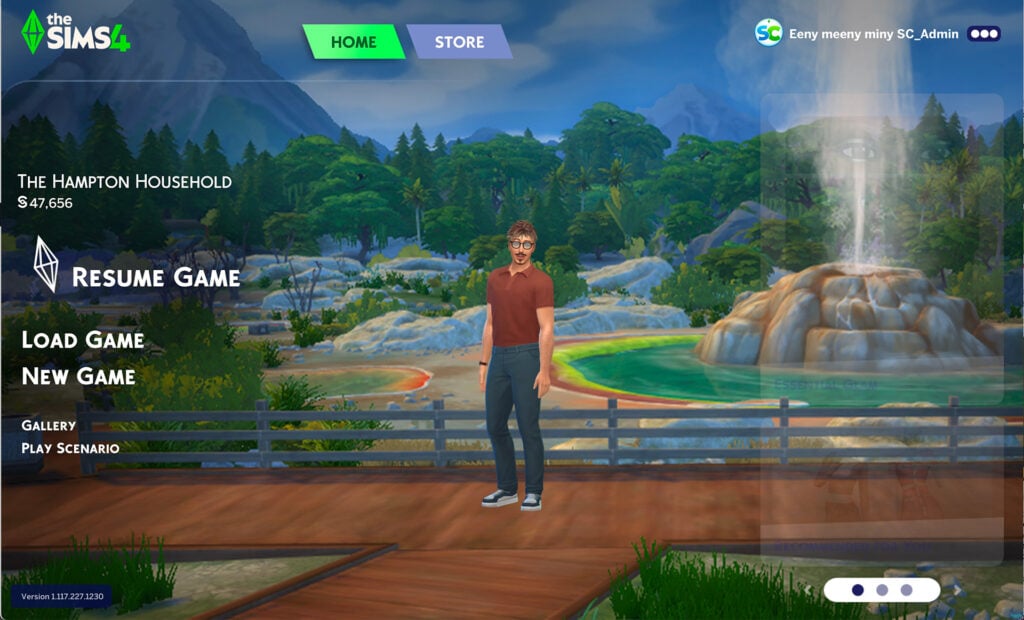
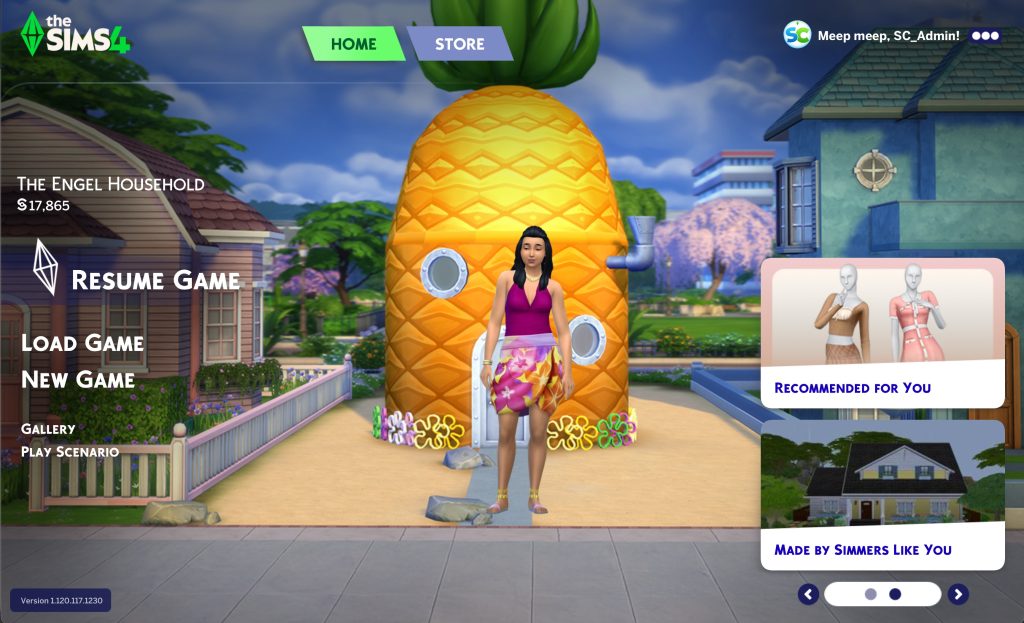
Two weeks ago The Sims 4 Main Menu got a brand new refresh. Featuring a new User Interface Menu, updates to the branding and your last played household now in the front center of your screen.
Table of Contents
Dynamic Update to The Sims 4 Main Menu
If you opened up your game in online mode today, you might’ve noticed something different placed around The Sims 4 Main Menu backdrop.
Take a look:
The Sims Team placed down several new objects from the upcoming Sims 4 Blast From The Past Event. Teasing its start date for February 4th, 2025. If you take a look on the right, you’ll also notice a computer screen featuring the new render from Nostalgia Now season. Hinting at the upcoming Sims 1 and Sims 2 Rereleases coming this Friday!
February 4th, 2025 Main Menu Update
The Sims 4 Main Menu got another Update on February 4th, 2025 to celebrate 25 years of The Sims Franchise:
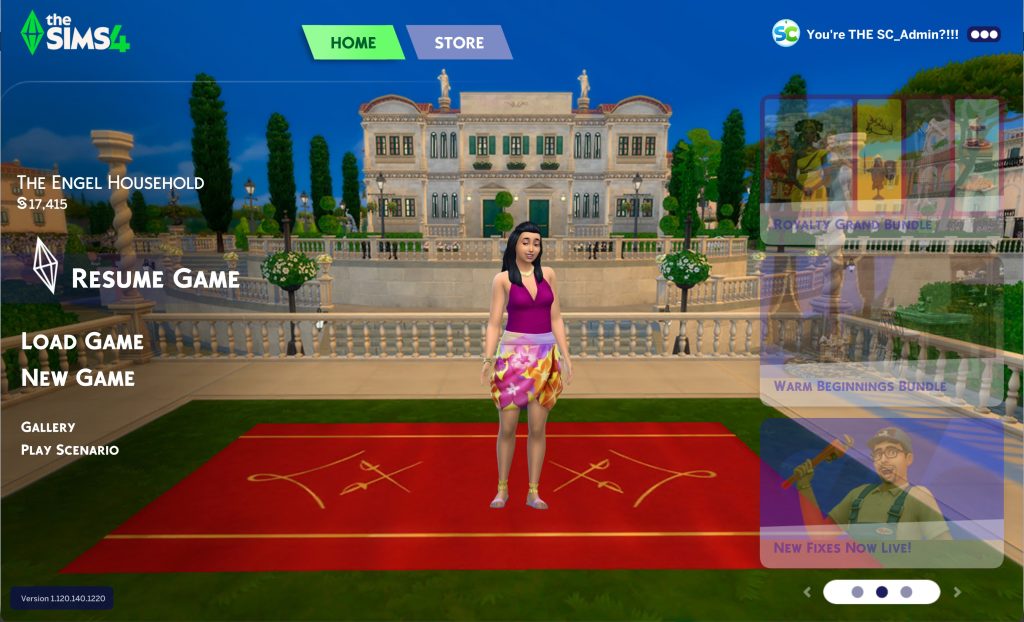
The new backdrops are loaded straight from EA’s servers after you open up your game online. Meaning that you should expect new teasers, items and more showing up on your Sims 4 Main Menu regularly. These dynamic updates are expected to happen with new Sims 4 Live Events and Sims 4 Roadmap reveals.
March 6th, 2025 Update
To help celebrate the launch of The Sims 4 Businesses & Hobbies Expansion Pack, The Sims Team updated the Main Menu background again. Featuring elements from the latest EP release.
The Sims 4 Dynamic Main Menu turns 1 year now! We’re already moving on to the next backdrop, inspired by the next Expansion Pack release titled The Sims 4 Royalty & Legacy!
Don’t like it? There’s a Mod for PC / Mac simmers!
There’s a unique solution to this occurence for PC / Mac players if you don’t like to be surprised with new Sims 4 Main Menu backdrops every now and then. Creator @lunar_britney just released an update to their Sims 4 Main Menu Readjusted Mod, which should now also remove any dynamic backdrops happening on your screen.
Unfortunately for all PC / Mac players who play on the EA App, they won’t be able to check out their dynamic Sims 4 Main Menu until the EA Servers are back online. As of now, logging into EA App and connecting to EA servers is still causing an issue.
It seems the servers are slowly coming back online!
What are your thoughts on The Sims 4 Main Menu getting dynamic? Join the disussion below!