We’ve got all the important screens right here for you!
A new gameplay trailer for The Sims 4 Growing Together dropped today and it was full of brand new information! The trailer expanded on milestones and compatibility mentioned in previous promotional footage and showed off a new family dynamic feature. We also get quite a few new scenic shots of the new world, San Sequoia.
As always, Sims Community was there to capture all the best screens from the gameplay trailer! We’ve compiled over 95 screenshots from The Sims 4 Growing Together for you (98 to be exact). You can see all the new milestones, compatibility, and family dynamic features for yourself in these screens!
The Sims 4 Growing Together Screens
Check out the screenshots below for a good look at San Sequoia, some of the new Build items and CAS assets coming with this expansion, as well as new meaningful features for families! The gameplay shown off in the trailer was subtle but we think it will have a big impact on the way Sims interact with each other! Growing Together is definitely Generations 2.0, which boasted a similar style; less stuff and more meaningful relationships. We’re here for it!
The Sims 4 Growing Together launches on PC/Mac and consoles on March 16th, 2023. Players who purchase the expansion before April 27th will receive the Outdoor Playtime digital bonus content. The Outdoor Playtime digital bonus content includes a new swing set, a toddler slide, and a wearable infant carrier.
Are you ready for the new expansion next month? Have you done anything to prepare your saves for infants and Growing Together? Tell us all about it in the comments! Indeed, we’d love to hear about your plans for all the new content!
It’s been a couple of weeks since The Sims team revealed the trailer for Infants during the Behind The Sims Community Livestream. Jam packed full of exciting new content, many players have been eager to experience this new life stage in-game.
Even though we don’t know how much Infants and Toddlers will differ, it’s been incredible to see players react to the upcoming content online. There really is a huge buzz surrounding the new additions to The Sims 4. Luckily, there isn’t too much longer to wait!
The reveal trailer did give us a much more detailed look as to what to expect when Infants are added to the game. You can take a look at both the reveal trailer and behind the scenes clip below!
However, do you remember spotting these details during both segments of the livestream?
The Adorable Onesie
The opening scene to the reveal trailer showing us our first look at Infants. There’s no denying that not only does she look incredibly comfortable, but also cute in her onesie as she sleeps.
New Objects for Infants
Even in this image, we get an idea of some of the new Build and Buy Mode objects. From new Decor items to fit all of your Infants needs, wall decor, toys and more!
New Infants Create A Sim Options
Of course, there will be a range of brand-new clothing for our Infant Sims! From adorable dresses to sweet sleep options, little formal suits, bears and more!
Breastfeeding Infants
Your Sims will be able to breastfeed infant Sims in the new update!
Messy Fun and Food
Experience dinner time with some added mess, or make it fun while your Infant discovers new foods!
Playtime Fun Time
Cute hats, adorable outfits and fun play mats! Take playtime outside with your younger Sims as they learn through playing with different toys and interacting with other Infant Sims.
Infants and other Sims
It looks like not only can other Sims play and interact with Infant Sims, but it also looks like you’ll be able to possibly develop their skills through various interactions.
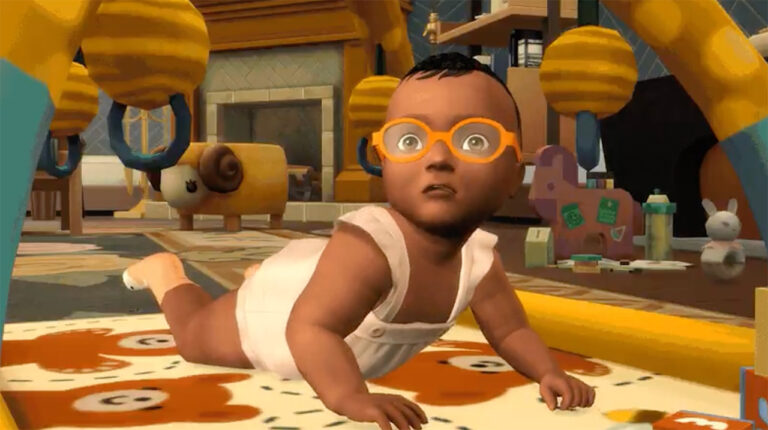
Infants being Infants
It’s completely normal for Infants to have the odd moment of burping and things like that. After all, they are still young and learning. It appears that Infant Sims will be exactly the same too!
Infant Chaos
A birthday party with Infants, in The Sims 4 what could possibly go wrong?
Everything in this screenshot is relatable for so many people and our Sims, but did you notice the Llama wearing a bow in the background?
Behind The Scenes of The Sims 4 Infants
Even the behind the scenes clip that was shown to us during the Behind The Sims livestream gave us a different perspective to Infants. We even got a glimpse of some more gameplay of the new The Sims 4 Infants in action!
With it being a behind the scenes segment, it’s important to keep in mind that some of what was showcased is subject to change before the release in March.
Playhouse or Dolls House?
The Sims 4 has seen its fair share of dolls houses over the years. However, during the Behind The Scenes segment, we got a quick look at what could potentially be a playhouse for Infant Sims to interact and play with!
A Closer look at Infants in Create A Sim
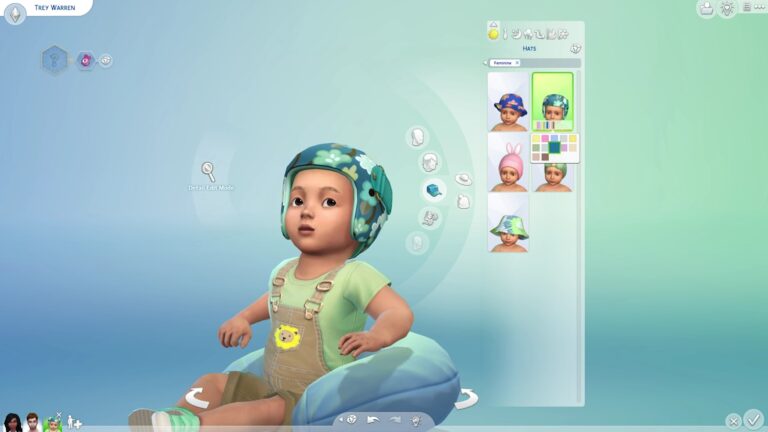
Additionally, during the behind the scenes segment we got another look at not only how they developed Infants in The Sims 4 to act in Create A Sim but also a closer look at some of the more options coming in too!
Stinky Diapers are still a thing!
Just like in real life, even your Sims will have to get used to changing more stinky diapers with Infant Sims.
Are you excited about the addition of Infants to The Sims 4? Let us know in the comments below and which part of the Infants reveal was your favourite!
Don’t forget that Infants are coming to The Sims 4 on 14th March 2023 across all platforms!
The Sims team have announced the long awaited gameplay trailer for The Sims 4 Growing Together Expansion Pack is dropping tomorrow!
On February 23rd, 2023 at 8am PT/ 4pm GMT / 5pm CET, the community will be able to get a closer glimpse at what’s to come in the upcoming pack!
The Sims 4 Growing Together Gameplay Trailer
You can catch the reveal of the gameplay trailer over on YouTube. Don’t forget to hit the Notify Me button to catch the trailer live when it’s released!
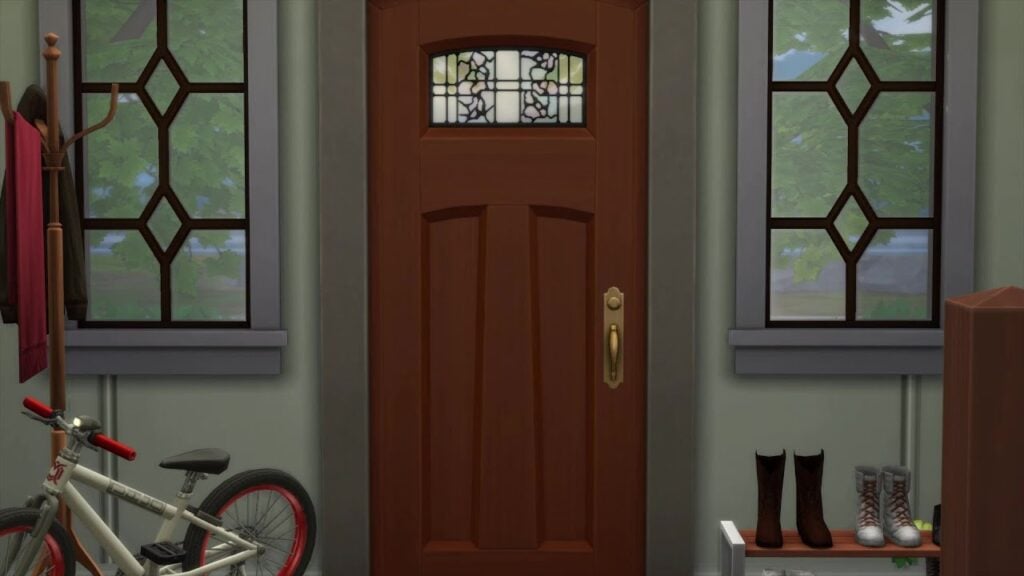
The YouTube Premiere currently focuses on just the front door of the Michaelsons home. A tweet originally shared by The Sims team earlier today also has us thinking as to who this Visitor could be!
Now, with a number of possibilities as to who this visitor could be, we will have to wait until tomorrow to find out more! We wonder who it could be!
The Sims 4 Growing Together is launching on 16th March 2023, shortly after the infants update a few days prior.
There is definitely plenty to come for The Sims 4 and with both the update and expansion. This is definitely going to an expansion to consider if you love telling stories through The Sims 4. Additionally, if you love the family game play experience or even building family homes. This pack has so much to offer, and the gameplay trailer is certainly going to showcase even more when it drops tomorrow!
Let us know what you are looking forward to in the upcoming expansion. Alternatively, what you are hoping to see featured in the gameplay trailer?
Honour your Sims of the past with this funeral home!
With the Growing Together expansion pack launching next month, legacy players are no doubt excited to start playing through generations with more content. One rather sad aspect of legacy saves is that previous generations eventually grow old and pass on, handing the torch down to the next generation. It’s been this way since The Sims 2. Death is a part of life and generational players are going to need somewhere to lay their previous generations to rest. This need inspired us to build a funeral home in The Sims 4!
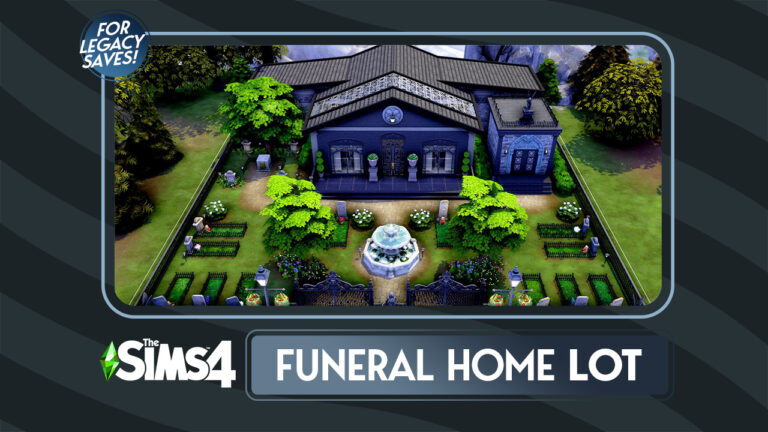
Welcome to Eternal Rest Funeral Home in The Sims 4
Viewing room
Eternal Rest Funeral Home is not just a funeral home for The Sims 4! It is also a cemetery, a mausoleum, and a morgue. It also sits on a fairly small 30×30 lot. Real estate is tight in The Sims 4 and single function venues just aren’t a smart use of limited space. Your Sims will not only be able to gather here for funerals and viewings, but they will also be able to lay their loved ones to rest. For you storytellers out there, the morgue can be a great backdrop for all kinds of stories.
Morgue
You might be thinking that a 30×30 lot couldn’t possibly fit that many urns and tombstones. It’s true that the outdoor cemetery has just 21 plots; however, enter the mausoleum and you will find four basement levels that can hold up to 135 Sims. In total, you’ll be able to lay up to 156 Sims to rest at this Sims 4 funeral home. This should be plenty of space for a 10 generation legacy challenge but if it’s not, the lower levels can be expanded.
Outdoor cemetery
Why a Funeral Home?
Four basement levels of catacombs to lay Sims to rest
Why have a funeral home at all when we don’t have funerals in The Sims 4 (and it doesn’t look like they are coming in Growing Together, either)? Functionally, having dozens of ghosts on your home lot is a nuisance. You may still want to have Great Grandma Ethel’s spirit around but her nightly activities break everything in the house. Place her urn or tombstone on a different lot and she can stick around without disrupting the whole house every night. For the sentimental Simmers, it’s important to give friends and family an opportunity to say goodbye when a loved one passes. This lot gives them an opportunity to do that.
Download this funeral home by clicking the button below! Or follow SnarkyWitch in the Gallery and look for Eternal Rest Funeral Home!
Open up limitless possibilities with the MoveObjects cheat!
The MoveObjects cheat, sometimes called MOO, is a powerful tool for any Sims 4 builder. This cheat for The Sims 4 build mode will unlock almost endless possibilities for players. Use this cheat to create custom furnishings, unlock the ability to use other build cheats, and place objects in places you ordinarily can’t. Both PC/Mac players and console players can use this cheat. Console players don’t need to worry about disabling their trophies or achievements, either. This cheat does not disable trophies and achievements on console!
Activate the MoveObjects Build Mode Cheat in The Sims 4
PC/Mac
Open the cheat bar by pressing CTRL+SHIFT+C simultaneously.
Type in the cheat bb.moveobjects on
Press Enter. The game will notify you that MoveObjects is now enabled. If it doesn’t, try typing in the cheat again and double check your spelling.
To disable the cheat, open the cheat bar again and type in bb.moveobjects off
Console
Open the cheat bar by pressing all four back triggers simultaneously.
Type in the cheat bb.moveobjects on
Press X (PlayStation) or A (Xbox). The game will notify you that MoveObjects is now enabled. If it doesn’t, try typing in the cheat again and double check your spelling.
To disable the cheat, open the cheat bar again and type in bb.moveobjects off
Using the MoveObjects Build Mode Cheat in The Sims 4
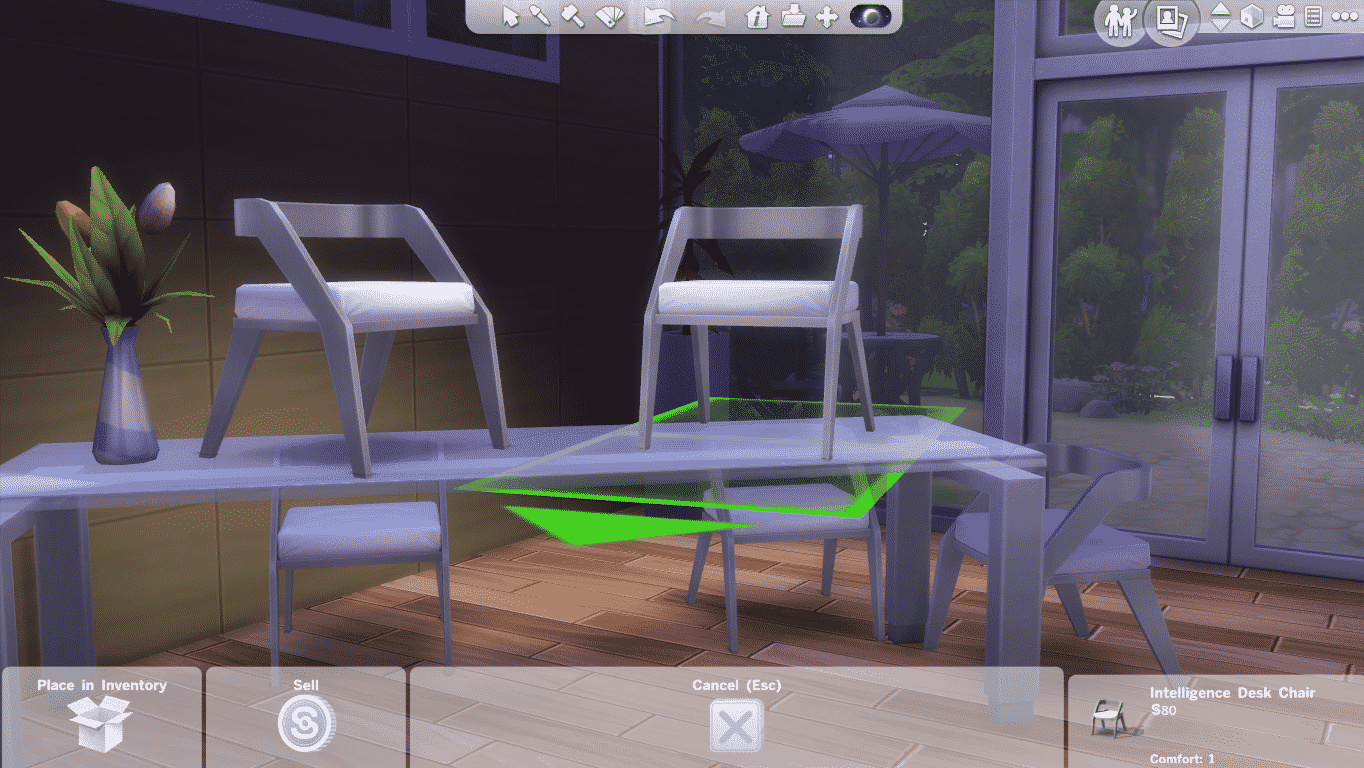
What can you do with this Sims 4 cheat in build mode? Almost anything! The MoveObjects cheat removes the laws of physics when building. Essentially, it allows you to place objects overlapping each other, make objects bigger or smaller, raise objects high up into the air, and place objects in areas you normally wouldn’t be able to! It’s an extremely powerful and versatile cheat!
Here are five ways this build cheat can help you create stunning builds!
Create Custom Furnishings
This custom headboard was created by embedding this bed’s headboard into an accent table. Clutter, shelving, and a painting pull the whole look together and the bed is still functional.
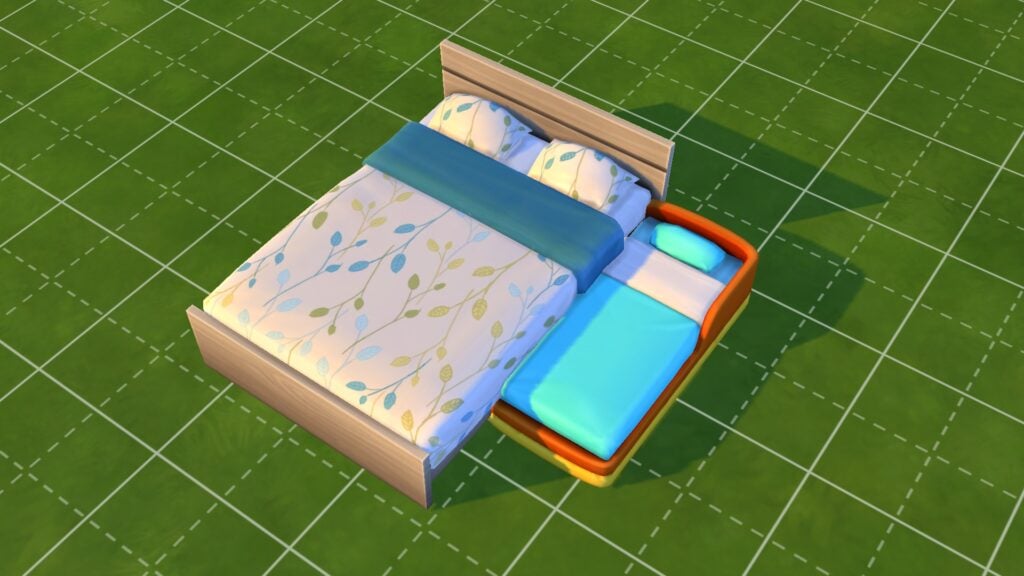
Being able to overlap objects means you can create all kinds of custom furnishings. Embed end tables and countertops into a bed’s headboard to create a custom headboard with item slots. Place a toddler bed right up against a double bed to create a pullout bed. Create beautiful table designs and make larger tables by overlapping tables. Basically, if you can dream it, you can do it!
To help with precise item placement, PC/Mac players can hold down the Alt key with an object selected to freely place it outside the grid lines. For console players, toggle between full tile, half tile, quarter tile, and free placement with the L2 (PlayStation) and LT (Xbox) buttons with an object selected.
Clutter Without Limits
Add clutter to the tops of fridges and microwaves to make a home feel more lived in.
In the real world, most people have stuff sitting on top of their microwaves and fridges but in The Sims 4, these objects don’t have item slots to place things on. This isn’t a problem with the MoveObjects build mode cheat! You can place small objects on any surface even if that surface has no item slots!
The MoveObjects cheat opens up the ability to raise objects up or lower them back down to their starting height. On PC/Mac, move an object up with the number 9 key until it is at the height you want. To lower it back down, press the number 0 key. For console players, press L2 + R2 (PlayStation) or both triggers (Xbox) simultaneously with an object selected and use the up and down directional buttons to raise or lower the object as needed.
This also works with wall décor that ordinarily can’t have its height adjusted, such as mirrors!
Infinite Item Slots
1. Clutter up a surface2. Pull items off surface3. Move surface out of the way and place items4. Place surface back underneath items
You can add extra clutter items to any surface with existing item slots, too. The following trick will let you clutter up surfaces without having the items snap to a slot on the surface. This still allows Sims to use the surface and gives you more freedom with placement.
Place whatever objects you want on whatever surface you want and allow it to snap to an item slot. Then pull the items off the surface. They will retain the same height when you do. Temporarily move the surface out of the way and then place all the objects in the empty space where the surface however you would like them to be arranged. Then slide the surface back underneath the objects. You can place as many things as you want on any slottable surface this way.
Resize Objects
This sized down dollhouse is still functional and can now fit in smaller rooms!
Having the MoveObjects build mode cheat activated in The Sims 4 will also let you scale objects to be bigger or smaller! Use this to help you create your custom furnishings or make small decorative objects look bigger and grander in more lavish builds. You can even make those huge dollhouses smaller so they’ll fit in tiny spaces!
On PC/Mac, just use the square bracket keys [ and ] to scale objects up or down. The left bracket makes the object smaller and the right bracket makes the object larger. On console, press L2 + R2 (PlayStation) or both triggers (Xbox) simultaneously with an object selected and use the left and right directional buttons to make the object larger or smaller. Left makes the object smaller. Right makes the object larger.
No Place is Off Limits!
Want to put fountain sprinklers inside a pool? Go ahead! Place columns at the edge of a staircase? Absolutely! Put a giant toilet on the roof of your house? Um… we guess so. Basically, what we’re trying to get at is you can truly place objects anywhere you want with this cheat. We’ve seen Simmers place lounge furniture inside shallow fountains, create stairs in pools, and create ponds with debug objects floating in the waters. Just remember to keep functionality in mind when using this cheat. Depending on where you place an object, Sims may not be able to use it anymore. We recommend playtesting any lots you build with MOO, especially if you plan to share it on the Gallery.
Be Free with the MoveObjects Build Mode Cheat in The Sims 4!
We’ve given you all the building blocks you need to expand your skillset with the MoveObjects cheat in The Sims 4. Whether you’re a PC/Mac or console player, you should have plenty of build ideas now, but the best way to discover all the ways this cheat can be used is by building! Use the cheat and see where your creativity takes you!
Take a first listen at Project Rene / The Sims 5 Sountrack!
Wondering what the sound of the next generation Sims Game is? We have a first look into the current soundtrack of Project Rene, which we also call The Sims 5 for the time being.
Folks who were able to Playtest Project Rene also got a chance to hear the new soundtrack included within.
The Sims 5 / Project Rene Soundtrack
The Playtest of Project Rene featured 3 different music pieces, with a somewhat different sound direction than what we would usually hear in The Sims 4 for example. Some community members have compared the soundtrack to sound similarly to the likes of The Sims 1 and The Sims 3 Soundtrack.
Parts of the soundtrack pieces from Project Rene are now available on YouTube, thanks to TwoSimsLight TV. Take a first listen below!
The soundtrack that you’ve listened above might not be featured in the final release. Project Rene / The Sims 5 is still figuring out some of the core possibilities and routes the game could go. So the soundtrack might get a rework in the meantime.
The Sims 5 – development future ahead
Things are looking ambitious with possibilities for both single-player and multiplayer simmers. The latest episode of Behind The Sims revealed a more clear goal behind mending these two player groups together:
One thing to keep in mind is that Project Rene is not an MMO. It is not this public shared space where everything you do is always with other people. You could play on your own, on your terms. And then again, when you want on your terms, you can invite others to come and play with you. That’s the structure where we’re pursuing. We think it’s really cool and perfect for The Sims.
New Preview of Project Rene shown during Behind The Sims: Episode 1
The next generation Sims Game still has a long way to go. It was revealed in an interview with SimGuruGrant that the final release of Project Rene / The Sims 5 is still years away. However, Maxis and EA are switching things up this time by making the road to the release a more transparent process.
What do you think about the Project Rene Soundtrack? Join the discussion below and stay tuned for more news soon!
SimGurus have shared new teasers for The Sims 4 Growing Together. Check them out!
There are new teasers to cover for The Sims 4 Growing Together. Including a new preview into one of the new gameplay objects!
Puzzle Gameplay Preview
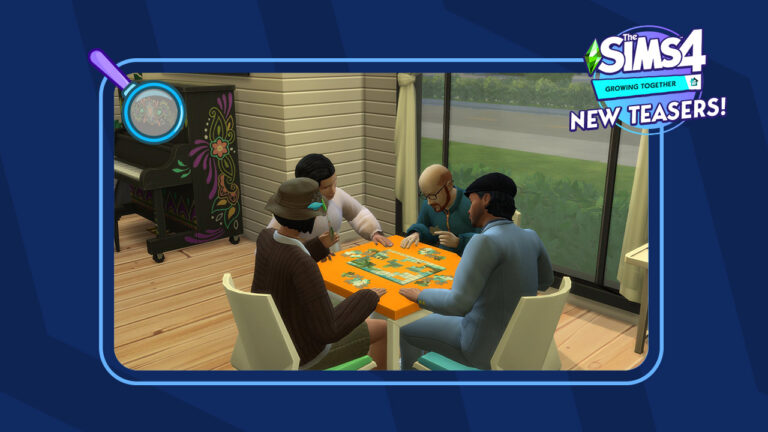
SimGuruNinja is back with another live preview from the world of San Sequoia! In the latest screenshot you can spot 4 Sims trying to solve a Puzzle set piece. Playing Puzzles is a part of the new gameplay features included with the new Activity Table Games.
Check out the new screenshot from Sims 4 Growing Together down below, featuring a colorful new look at the new Piano!
Playing Puzzles – A New Activity Table Game in The Sims 4 Growing Together
Another form of a different Table Game was shown in the reveal trailer for The Sims 4 Growing Together:
Beside the new Activity Table objects coming with The Sims 4 Growing Together, it’s been confirmed that existing Activity Tables in The Sims 4 Base Game will also allow you to play the new games.
The new icons could be related to the upcoming Social Dynamics Feature. Or Milestones. Don’t hold our word for it yet – our guess is as good as yours!
There’s more info to come for Growing Together as we approach March 4th, when The Sims Team will do a new Community Livestream showcasing the Pack and Infants Update. We’ll keep you posted throughout with new updates from The Sims Team!
What do you think about the new Sims 4 Growing Together teasers? Join the discussion below and stay tuned for more updates on the upcoming Expansion Pack!
The Get To Work expansion pack may be the oldest expansion pack for The Sims 4 but it still stands the test of time! With three new active careers, a new occult type, and a fleshed out retail system, there is plenty of content for Simmers to explore and enjoy! Although, you can speed up your progress in this expansion pack with the help of some Sims 4 cheats!
So we’re going to break down all the cheats available in The Sims 4 Get To Work! We’d also like to thank our good friend Carl over at Carl’s Sims 4 Guide for providing some of the info in this article!
Activate Sims 4 Cheats
To use most of the following Sims 4 cheat codes, you will first need to activate cheats! Here’s how to do that on all platforms!
PC/Mac
Open the cheat bar by pressing the CTRL+SHIFT+C keys simultaneously.
Type in testingcheats true
Press Enter to activate the cheat.
Hit CTRL+SHIFT+C again to get rid of the cheat bar.
All cheat codes listed in this article are activated in the same way.
Console
Open the cheat bar by pressing all four back triggers simultaneously
Type in testingcheats true
Confirm that you wish to activate this cheat with X (PlayStation) or A (Xbox). Activating this cheat will permanently disable trophies/achievements on that save, so make sure you are okay with this!
Hit all four back triggers again to get rid of the cheat bar
All cheat codes listed in this article are activated in the same way.
Career Cheats
Get To Work comes with three new careers; Doctor, Scientist, and Detective. Because these are active careers, these jobs do not have differing specialty branches. Of course, there are Sims 4 cheats to speed your way to the top of these careers or go back down a level.
careers.promote adult_active_scientist – Give your Scientist Sim a promotion
careers.demote adult_active_scientist – Give your Scientist Sim a demotion
careers.promote detective – Give your Detective Sim a promotion
careers.demote detective – Give your Detective Sim a demotion
careers.promote doctor – Give your Doctor Sim a promotion
careers.demote doctor – Give your Doctor Sim a demotion
Sims 4 Cheats: Skills
Originally, Get To Work added two new skills to The Sims 4; Baking and Photography. Later, Photography became a base game skill, so technically, Get To Work only comes with the Baking skill now. Don’t worry; we still have the Photography skill Sims 4 cheat for you!
Baking is a major 10-level skill, so replace X with a number between 1-10. Photography is a minor 5-level skill, so replace X with a number between 1-5. The number you specify will set the skill to that level.
stats.set_skill_level major_baking X – Set your Baking skill level (1-10)
stats.set_skill_level minor_photography X – Set your Photography skill level (1-5)
You can also use these Sims 4 cheats to lower your Sim’s skill level if you want to. Just replace X with any number that is lower than your Sim’s current skill level.
Retail Perk Cheats
If you own a retail business in The Sims 4 Get To Work, you’ll want to gain retail perks that will help you run your business more efficiently. Obviously, earning retail perks ordinarily requires a lot of time and effort. Why not cheat your way to success, instead, with the following Sims 4 cheats?
bucks.unlock_perk StorePlacard_1 true – Placard: My First Simoleon
The Sims 4 Get To Work does not come with any new CAS or aspiration traits but it does come with a hidden career reward trait! The Sickness Resistance trait is gained by reaching level 8 in the Doctor career. This trait makes your Sim less likely to get sick and if they do get sick, they recover much faster than other Sims. If you want the trait without having to become a Doctor, there are Sims 4 cheats for it.
Also, for console players, trait cheats can be used without enabling testingcheats. This means these cheats won’t disable your trophies or achievements.
traits.equip_trait Trait_Doctor_SicknessResistant – Gives your Sim the Sickness Resistance trait
traits.remove_trait Trait_Doctor_SicknessResistant – Removes the Sickness Resistance trait from your Sim
Sims 4 Cheats for Aliens
This baby has an alien mother and human father. She is not an alien. She has a human bassinet and human clothes.
If you want your Sim to be abducted by aliens, the base chances are slim. The best way to improve the odds is by joining the Scientist career and discovering inventions that will attract aliens to your lot. Although, if you don’t want to become a Scientist to get abducted, the following Sims 4 cheat will allow you to purchase these inventions from the secret Build/Buy catalogue.
Console players will be happy to know that the following cheat does not require them to enable testingcheats. This means that using this cheat will not disable their trophies or achievements.
bb.showhiddenobjects – Unlocks hidden items in the Build/Buy catalogue
With this Sims 4 cheat active, search Build/Buy for the following objects and place them on your lot:
Out of this World Desktop
Satellite Dish
Obviously, both of these objects increase your odds of abduction each night. Select the Satellite Dish and choose Contact Aliens. The dish will send out a signal to attract aliens to your home lot. The effect only lasts for 24 hours so make sure to keep doing this daily until your Sim gets abducted.
Cheat with Logic!
You can also increase your odds of abduction by using the Search for The Truth interaction on a telescope or observatory. This interaction is only unlocked at level 7 of the Logic skill, so here is the Sims 4 cheat to raise your Logic skill to the required level.
stats.set_skill_level major_Logic 7 – Raises the Logic skill to level 7 which unlocks the Search for the Truth interaction on telescopes and the observatory.
Nevertheless, remember! These cheats only increase your odds of abduction! They do not guarantee it. You could have bad luck and not be abducted for quite a while even while using these methods to increase the odds. Also, even if your Sim does get abducted, there’s no guarantee they will return pregnant with an alien. Only male Sims can return from an abduction pregnant with an alien baby. Moreover, According to Carl, there is only a 25% chance that any abduction of a male Sim will result in an alien pregnancy. So if these Sims 4 cheats aren’t working, just keep trying!
30+ new objects coming next month in The Furniture Showroom Collection!
SixamCC has revealed a brand-new The Sims 4 Custom Content Pack!
This exciting new custom content collection is a compilation of various ideas that didn’t seem to fit into other collections. However, this is where the idea of The Sims 4 Furniture Showroom came from. Multiple small custom content pieces bundled together in this unique compilation.
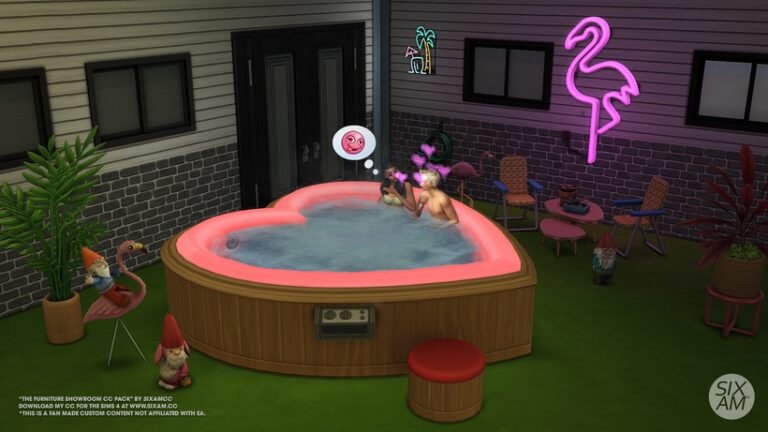
The creator also wanted to recreate the much loved and iconic heart-shaped Bed and Hot Tub from the original The Sims game. Inspired by the nostalgia of the original game, and the Pass The Spark music video from Anitta. The WooHoo Custom Content Collection is perfect for Valentine’s Day!
Alongside the nostalgic new objects, you will find several more mini custom content collections. These include a motel style patio, a sun-room, eclectic reading area, mini study and bathroom. Each of the collections brings its own unique charm to custom content pack overall!
Let’s take a closer look at what comes in this Sims 4 custom content collection!
The Sims 4 Custom Content: Furniture Showroom Preview
38 items, all the custom content is base game compatible.
Comfort: 3 Chairs, Sofa chair, Heart-shaped Bed.
Build: 1 Wallpaper, 3 Carpet Floors.
Decorative: 2 Plants, Painting, Circle Wall Sculpture, Ceiling fan (3 Sizes), Mirror.
Plumbing: Sink, Bath Tub, Heart-shaped Hot Tub (base game and functional).
Storage: Empty Bookcase (functional).
Surface: 2 Dining Table, 3 Coffee Tables, Mini Stand Table.
Image gallery of Sims 4 Furniture Showroom Custom ContentPack
Object Showcase
Objects showcase of the Boho Baby CC Set by SixamCC
This upcoming Custom Content Pack from SixamCC is currently available for Early Access as part of their Tier 1 content on Patreon. The public release for this collection has been set for 28th March 2023.
Stay tuned for an in-depth review of this Sims 4 Custom Content collection here on Sims Community!
These CC-free family homes are perfect to prepare for infants and Growing Together!
With infants coming to The Sims 4 in a free base game update and a new family-themed expansion pack on the horizon, you might find yourself in need of a Sims 4 family house for your growing household! Luckily, the Simming community is full of talented builders and there are no shortage of cozy and elaborate family homes in the Gallery to choose from. We’ve pulled ten of our favourite builds from the Gallery to show off today! Maybe one of them is the perfect home for your Sims family!
[listicle]
The Sims 4 Family House Builds
All the builds in this article are fully furnished and have 3 or more bedrooms. None of these builds have any custom content. There are also several base game only homes to choose from in the list.
Sims 4 Family House: Brown Riverside Home
Creator: MaggieAnnWig
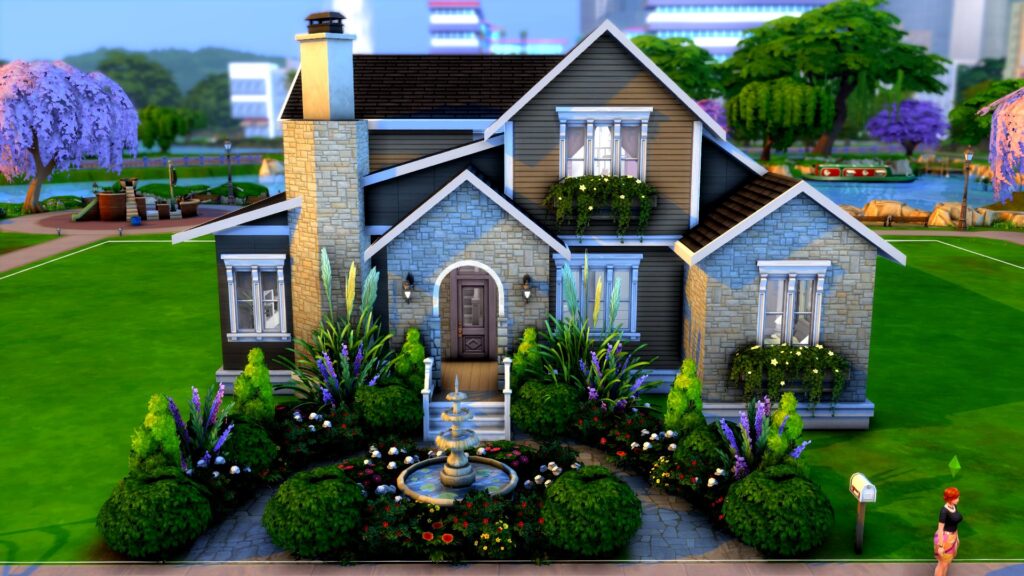
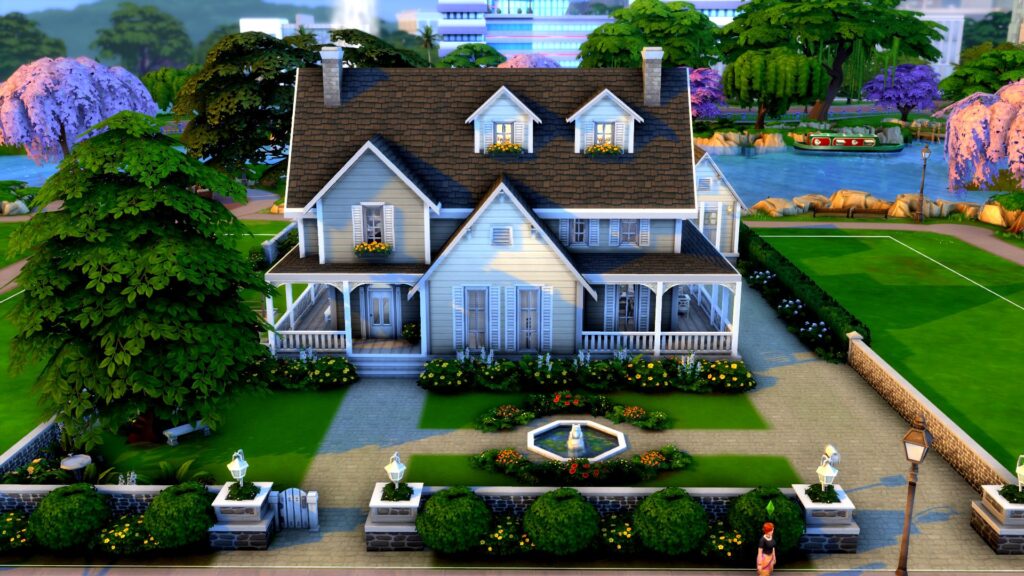
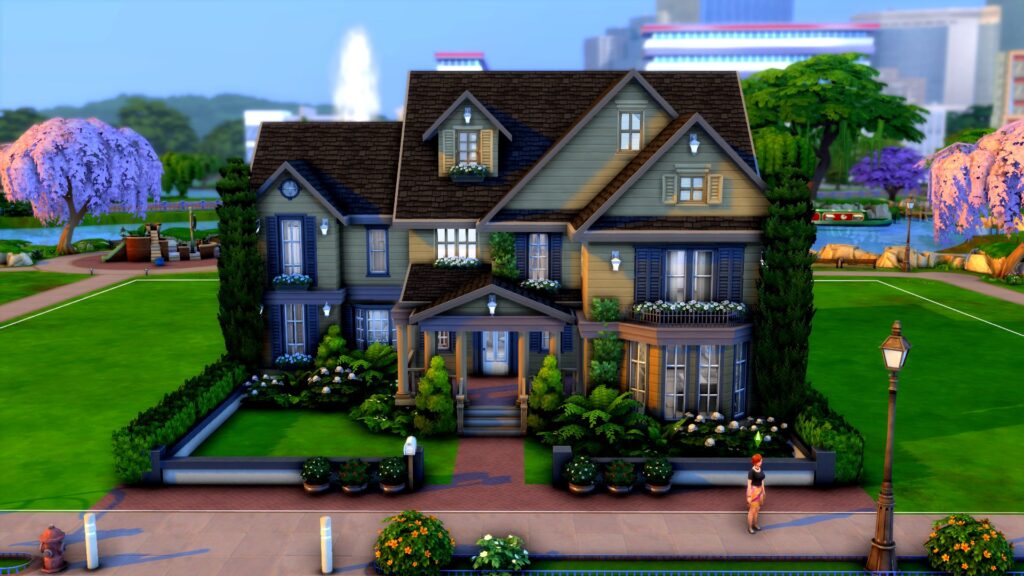
This lovely base game home is perfect for a growing family. There is plenty of space inside in spite of it’s small lot size and we are in love with the gorgeous front gardens. The octagonal chimney, window boxes, and archway entrance adds sophistication and class to an otherwise cozy suburban build.
We just love all the details in this warm, inviting build! The little fountain out front, the fence pillars, the wraparound porch, and the garden shed out back all make us feel like we’re right at home! So when are your Sims moving in? Ours already have the moving truck packed!
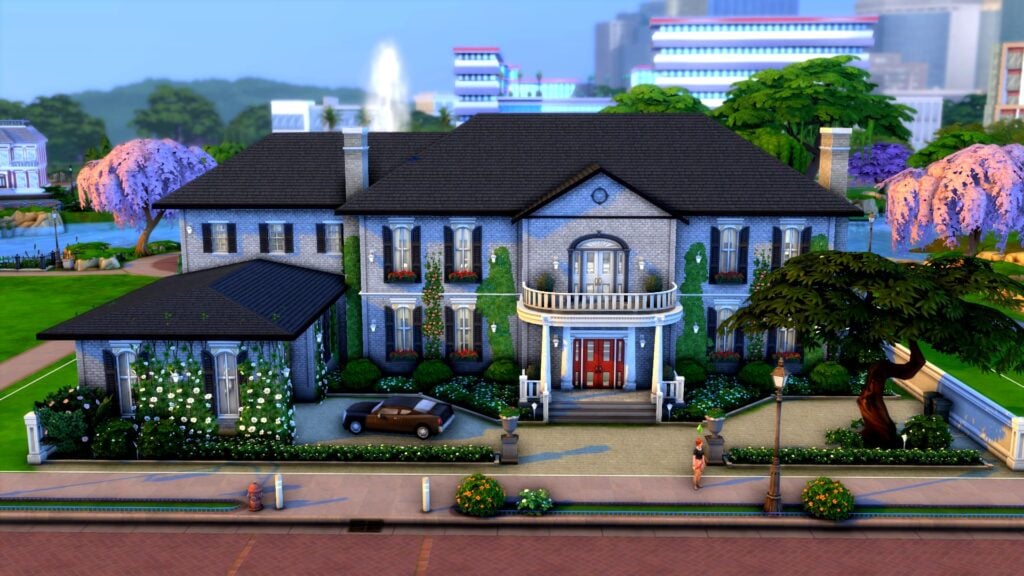
Maybe you envision a more stately home for your prestigious Sims family. Say no more! This regal manor can accommodate a large family of Sims and tells the whole neighbourhood that you’re a family of high social standing! We adore the ivy-covered garage with a classic car out front and the checkered marble floors all throughout the foyer and halls of this lavish build!
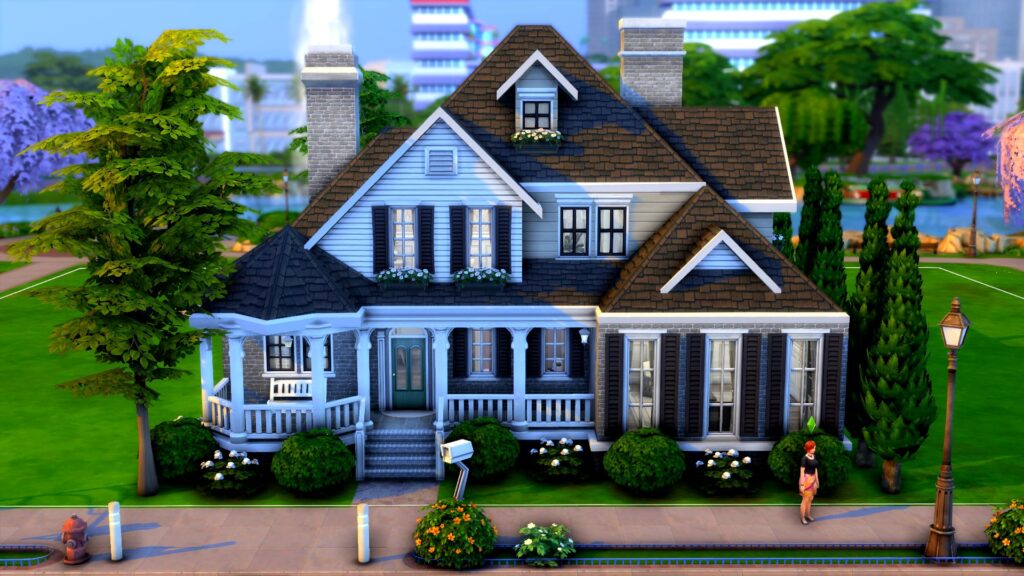
If this house was any cuter, we’d be a puddle of “aww” on the floor! Just look at that adorable octagonal porch section with a cozy bench. The window boxes and shuttered windows add a cozy vibe to the whole home. It’s also a base game home so you don’t need any DLC packs to download it!
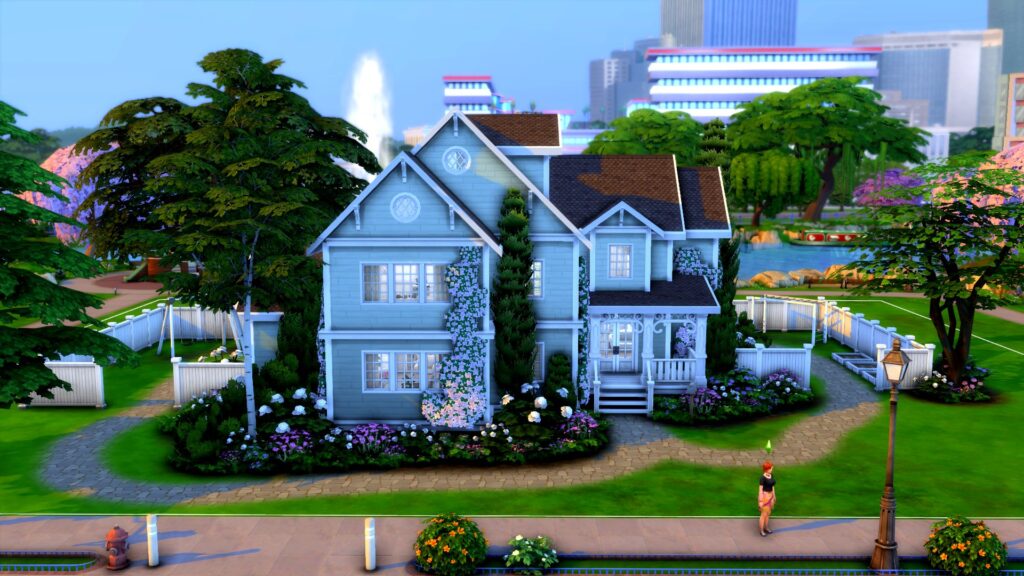
The yard really sold us on this place but the build itself is gorgeous, too. We love the creeping foliage up the front of the home and all of the small architectural details. That huge backyard has plenty of activities to keep your little ones occupied.
Although this house is a bit… haunted, it doesn’t use any DLC pack items so you can still download it as a regular Residential build even if you don’t own the Paranormal Stuff pack. Despite its dark exterior, this home is still stunning in every way. It can accommodate a full household of Sims in style and comfort!
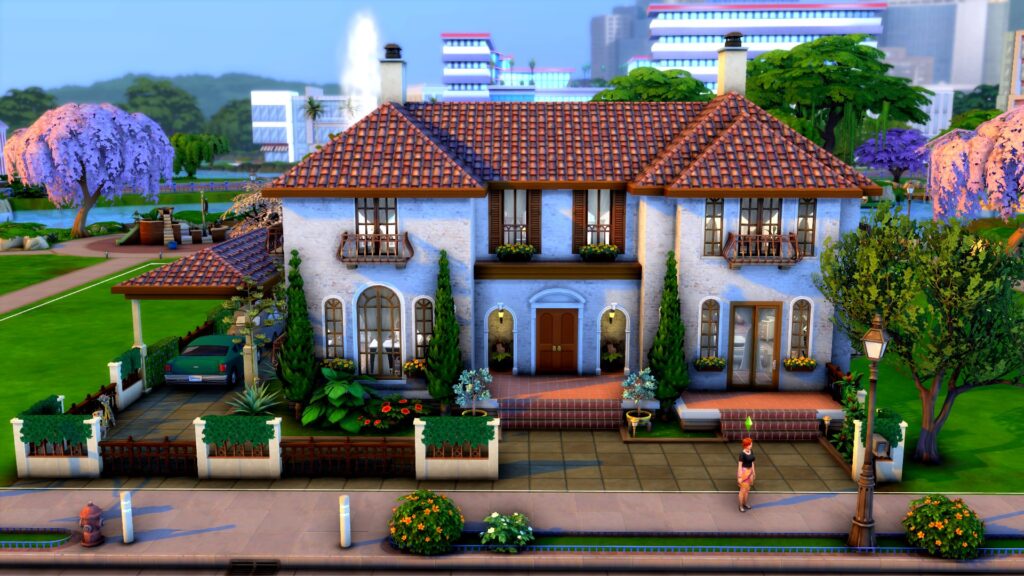
Looking to grow a family in Tartosa? This gorgeous Mediterranean build is perfect for you! Ceramic roof shingles, tiled floors, and warm, inviting colours make this build a beautiful and inviting place to put down roots for many generations to come.
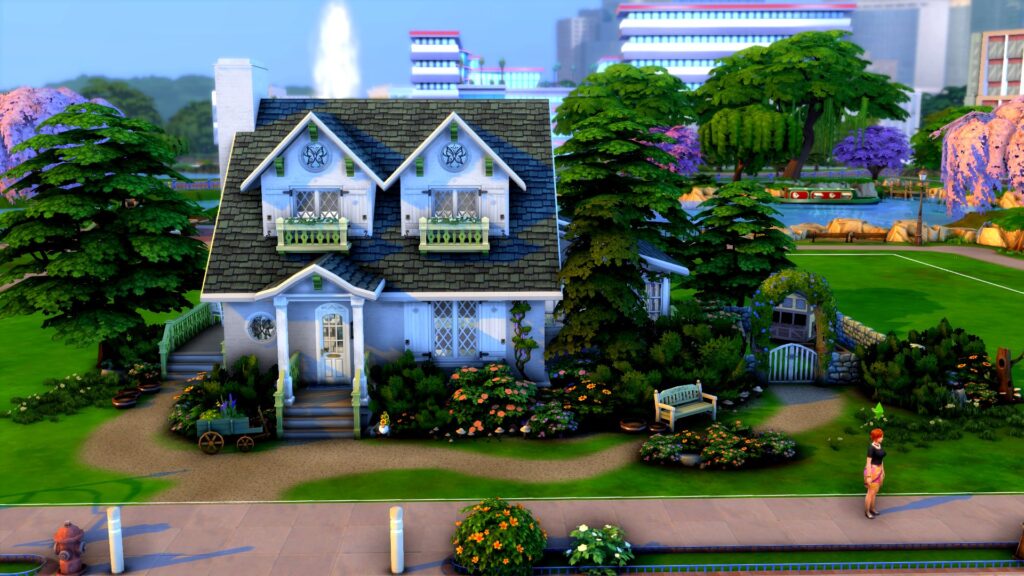
So you’re a humble farmer who needs a big family to help run the farm, huh? No problem! This Henford cottage has everything you need to live off the land while providing for a big family. It’s small and modest, but definitely cozy. What a great place for family bonding!
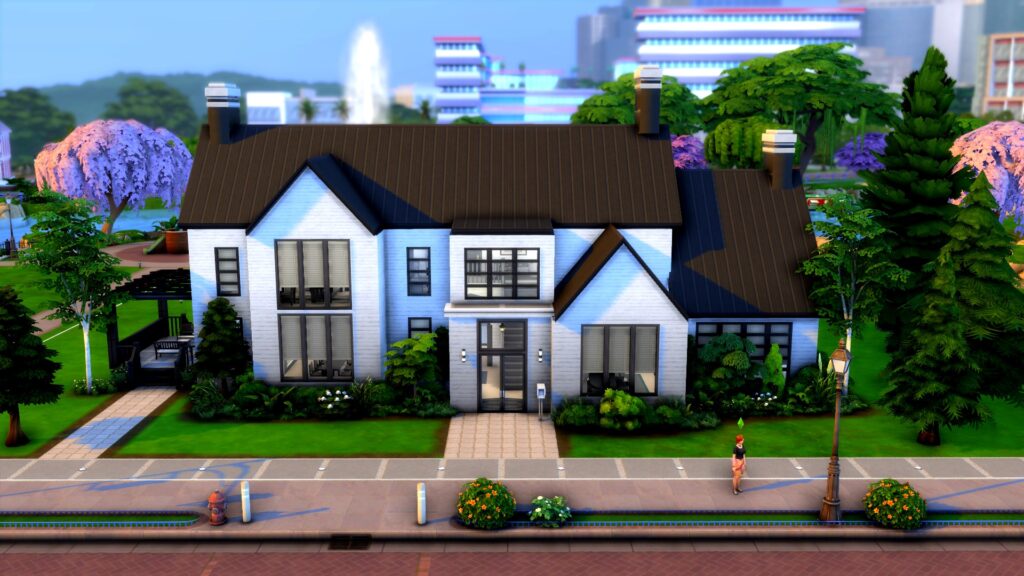
For Simmers with more modern tastes, this build is right up your alley! Clean lines, large windows, and a minimalist black and white design will create harmony and balance in your growing family. If you only own the base game, you’re in luck because this is another base game only home!
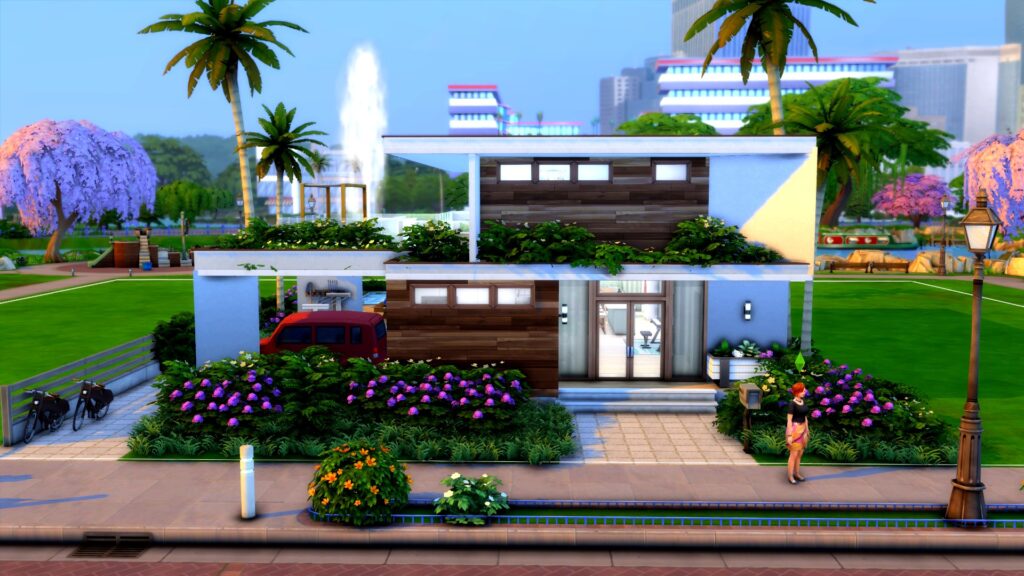
Last but certainly not least, we have this gorgeous eco-conscious home for a family concerned about their eco footprint. Green roofing, reclaimed wood, solar panels, and lush foliage will all help your Sims family live in harmony with Mother Nature without sacrificing modern comforts.
Disney is celebrating one hundred years of magic this year. and with many characters, worlds, stories, and more created over the years, why not celebrate this milestone by incorporating The Sims 4 and Disney together? With a wide variety of themes and stories that can be used for inspiration, there really is something for everyone!
The Sims 4 & Disney
It’s worth noting that The Sims had a crossover with a well-known Disney-owned franchise in the past. The Sims 4 Journey to Batuu Game Pack was released in late 2020 and introduced players to the world of Star Wars.
Your Sims have the power to choose which of the three factions will get to control Batuu. Choose between joining the Resistance, the First Order, or the Scoundrels by completing missions and challenges. Unlock rewards, and new outfits, master building your own Droid or Lightsaber and explore the world of Batuu. Who gains the overall authority of Batuu, is down to you and your Sim! You might even run into some familiar faces as well!
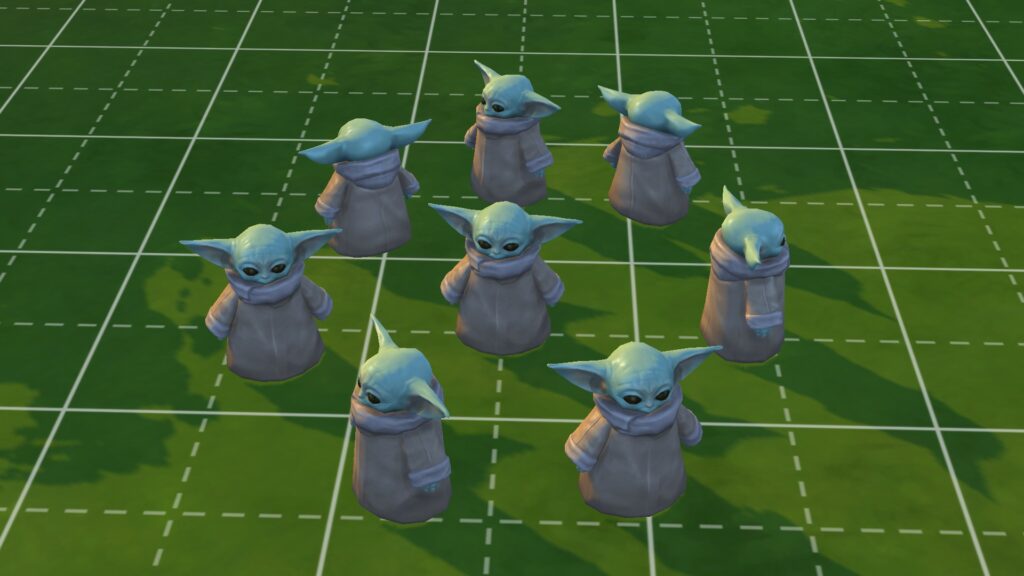
If you don’t own The Sims 4 Journey to Batuu Game Pack, you will also find some Star Wars-themed content in the Base Game. While they are mainly in the form of Full Body Create A Sims Costumes of well-known characters, you’ll also find The Child statue that you can use to decorate your Sims homes with too!
However, we are not here to primarily talk about The Sims 4 Journey to Batuu but Disney in general!
The prompts and ideas you find in this post can be used for gameplay, storytelling, building, and Create A Sim. With so much to choose from within the Disney Universe, there really is no end of ideas!
Additionally, this is just a handful of ideas from a selection of Disney Characters, television shows, movies, and more! There are plenty more out there to discover!
Toy Story – Buzz, Woody, Jessie, Andy, Rex, Bo Peep, Mr & Mrs. Potato Head, and Hamm
The Incredibles – Helen Parr, Bob Parr, Violet, Dash, Edna Mode, Frozone, Jack-Jack, and Syndrome
Up – Carl & Ellie Fredicksen, Russell, Charles Muntz, Dug & Kevin
Coco – Ernesto de la Cruz, Miguel, Mama Coco, Mama Imelda Rivera
Disney Princesses & Villains
Ariel
Mulan
Snow White
Jasmine
Rapunzel
Pocahontas
Ursula
Cruella de Vill
Scar
Maleficent
Gaston
Hades
Madrigal Encanto Kids Household by PlaySimsWithDee / Encanto Showcase
Disney Movies & Television Shows
Encanto
Beauty and the Beast
Lilo & Stitch
Robin Hood
The Little Mermaid
Frozen
Raya & The Last Dragon
Big Hero 6
Wreck it Ralph
Winnie the Pooh
Peter Pan
The Princess Diaries
Disney Channel Movies & Television Shows
High School Musical
Hannah Montana
The Suite Life of Zack & Cody
Lemonade Mouth
Descendants
Camp Rock
Wizards of Waverly Place
The Lizzie McGuire Movie
Shake it Up
Liv & Maddie
Gamora, Doctor Strange & Scarlet Witch by SirSim
Marvel & Star Wars
The Avengers: Iron Man, Captain America, Thor, Hulk, Black Widow, Dr. Strange, Scarlet Witch, Thanos, Vision, Hawkeye, Loki
Guardians of the Galaxy: Star-Lord, Gamora, Rocket, Groot, Mantis, Drax
Ms Marvel/Kamala Khan
Moon Knight/ Mr Knight
Hawkeye/ Clint Barton, Kate Bishop
Ant-Man and Wasp
Spider-Man & MJ
America Chavez & Wong
Luke Skywalker
Princess Leia
Anakin Skywalker
Padmé Amidala
Kylo Ren
Obi-Wan Kenobi
Boba Fett
Rey
Yoda
Grogu (Baby Yoda)
Disney Locations
Magic Kingdom & the Disney Castle
Galaxy’s Edge – Star Wars
East High – High School Musical
Wonderland – Alice in Wonderland
Casa Madrigal – Encanto
The Waverly Sub Station – Wizards of Waverly Place
The Hundred Acre Wood – Winnie the Pooh
Disney Castle by KateEmerald
This is by no means a finalized list of characters, television shows, movies, or locations. There are so many out there to explore and draw inspiration from for your The Sims 4 and Disney gameplay or building experiences.
Now, let’s take a look at some of the creations that our super-talented Sims Community has created! Be it
The Sims 4 & Disney Inspired Community Content
The Disney Princess Challenge
A popular challenge within The Sims 4 is the Disney Princess Challenge. Inspired by the Princesses of Disney and their movies, this challenge follows the original legacy challenge with some slight variants. Chose between following the story of each Princess or just allow the game to unfold before you while still following the challenge rules.
Do you want to find out more about the Disney Princess Challenge? Click here to read more!
The Sims 4 Disney Themed Custom Content
With everything from outfits inspired by various Disney characters, Build Mode objects, and custom Poses there is plenty of The Sims 4 custom content out there. There’s so much that it would be hard to list every single piece right here.
The best way we have found to find the perfect pieces of Disney-inspired Custom Content for The Sims 4 is using Tumblr.
Try using one of the following searches to help find your perfect Custom Content:
The Sims 4 Disney CC
The Sims 4 Disney Poses
The Sims 4 Disney Clothing
The Sims 4 Disney Mods
The Sims 4 Disney Gallery Content
The Gallery is an amazing place to find incredible creations from fellow players! From individual Sims to full households. Disney-inspired rooms to the Cinderella Castle The Sims 4 Gallery is the one-stop place for all your in-game Disney needs!
Elsa’s Ice Palace by Rubinrot97
There are a variety of search terms you can use to discover different Gallery Creations. The filters will also allow you to search for your desired specification as well as just households, lots, or rooms too!
While just searching Disney as the Item Name in The Gallery will return plenty of results, you can also search specific characters, movies, or television shows to further refine your searches.
So why not celebrate one hundred years of Disney magic in The Sims 4 by using the prompts above as the inspiration for your next story? Maybe even your next build? However, you decide to play, have fun and enjoy the magic!
Are you looking for more building ideas and inspiration? Take a look at over seventy different inspirational prompts here!
Check out new previews of the infants update and new info on upcoming expansion pack!
If you just can’t wait until March to get more information on the infants update and Growing Together expansion pack, you’re in luck! The Sims official Twitter account and SimGuruNinja have been teasing players with some sneak peek footage and screenshots of upcoming content! New tweets show off content from both The Sims 4 Growing Together and infants, which are arriving in a free base game update shortly before the expansion release.
The Sims Twitter account shared some new footage from The Sims 4 Growing Together where a child Sim loses a tooth! This was seen in the reveal trailer but what’s most interesting about this new footage is the text overlay! We suspected losing baby teeth was part of the new milestone feature but that wasn’t officially confirmed until this tweet! Now we know for sure! Losing baby teeth is a new milestone! And let’s not forget about being able to customize the baby teeth of our infants in The Sims 4!
The Sims also captioned the video with a quip about Tooth Beary vs. Molar Bear. This isn’t the first time a bear has been referenced in regards to teeth. We’re pretty sure the tooth fairy is going to be a bear in the expansion pack. Is this a hint at a faerie pack? Your guess is as good as ours.
San Sequoia Preview
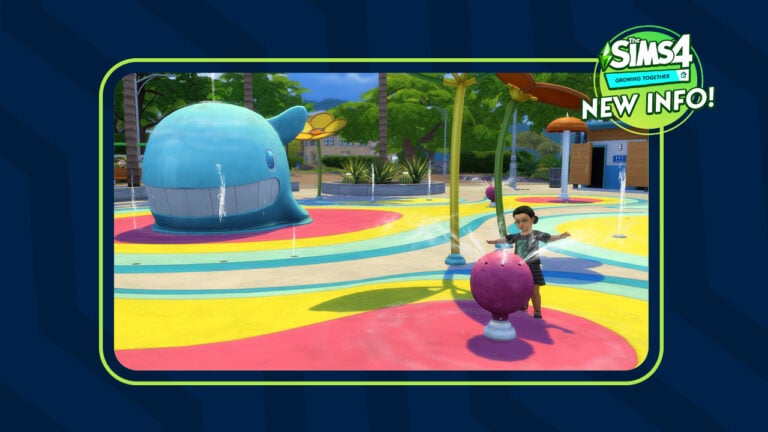
SimGuruNinja, one of the producers on The Sims 4, also shared a screenshot of a toddler (but no infants, sadly) playing at the water park in San Sequoia! San Sequoia is the new world shipping with The Sims 4 Growing Together. This area looks like it’s an interactive part of the world but not an editable lot. Nevertheless, we’re still hyped to have more reasons to explore around our home lot. But enough about San Sequoia! Let’s talk about infants in The Sims 4!
Spend family time at the new lot venue type coming with The Sims 4 #GrowingTogether – The Rec Center! 🥳
It has table games like Simbles & puzzles 🧩, art classes 🎨, & space for events like baby showers & sleepovers.
There is a new lot type in The Sims 4 Growing Together! The rec centre will have table games, art classes, and host social events like sleepovers and baby showers! Yup, two new social events also confirmed!
& don’t worry, Grandpa! The only music playing on these speakers is the new “Soul” radio station! 🎶 pic.twitter.com/wDik6yNQqT
A new elder-approved radio station is also confirmed! Please welcome the Soul genre to The Sims 4!
New Likes & Dislikes
Another preview from SimGuruNinja showcases the new Soul Radio Station in CAS Preferences coming with Growing Together. Included with it is also a teaser of the upcoming Likes & Dislikes cap upgrade, switching to 50 in total that you can assign to your Sim.
Naturally, we know players are very excited for infants in The Sims 4! SimGuruNinja’s new profile picture on Twitter features an infant crying and clutching his head. Look at those cute little infant curls! Look at those adorable infant teeth! We can’t wait to play with these adorable bundles of joy in March!
These tricks of the trade will turn you into a building pro, no matter your skill level!
The Sims 4 makes building easier than ever for players but it still has some limitations that can be frustrating when you have a specific vision in your head. Luckily, Simmers are some of the most creative people on earth and have found ways to get around a lot of these limitations. Here are 13 Sims 4 build cheats, tips, and “hacks” that can help you elevate your building, whether you’re a pro or a novice!
Sims 4 Build Cheats for Both Novices and Pros!
Before you try out any of these, make sure you pull up the cheat console with CTRL+SHIFT+C and type in the bb.moveobjects on cheat. Many of these tricks require this cheat to be active, first. For advanced builders, you may also find the bb.showhiddenobjects and bb.showliveeditobjects cheats useful for widening your catalogue of items.
[listicle]
Split-Level Basements
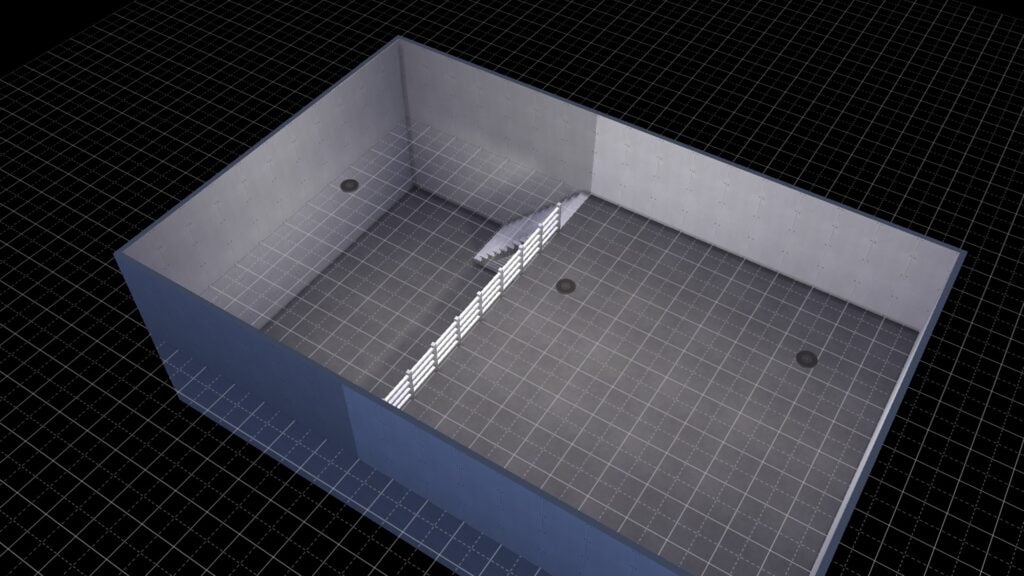
Build two basement levels on top of each other and split the top level into two rooms. Delete the floor in one room and replace the dividing wall with fencing. Pop in some stairs and there you go!
Best Build Cheat: Free Placement
This trick is super easy to use. Hold down the ALT key while you have an object selected to move it freely outside the grid lines! You can create all kinds of great custom furnishings with this one!
Wall Corner Trim
Did you know there are wallpapers in The Sims 4 that auto-apply trim to outside corners? Well now you do! You’ll find these special wall coverings in both the base game and in several DLC packs.
Quarter Grid Snap
You can toggle between full tile, half tile, and quarter tile grid snap placement by hitting the F5 key with an object selected! This will let you get precise placement every time!
Our Favourite Build Cheat? Scale Objects!
If you want to make an object smaller, hit the [ key with the object selected. Likewise, if you want to make an object larger, hit the ] key with the object selected. This Sims 4 build cheat works best with décor. Many functional objects stop working when scaled up or down too far.
Free Rotation
Similar to free placement, just hold the ALT key with an object selected and move your mouse around to rotate it a full 360 degrees instead of snapping to 45 degree angles.
Place Half Tile Flooring
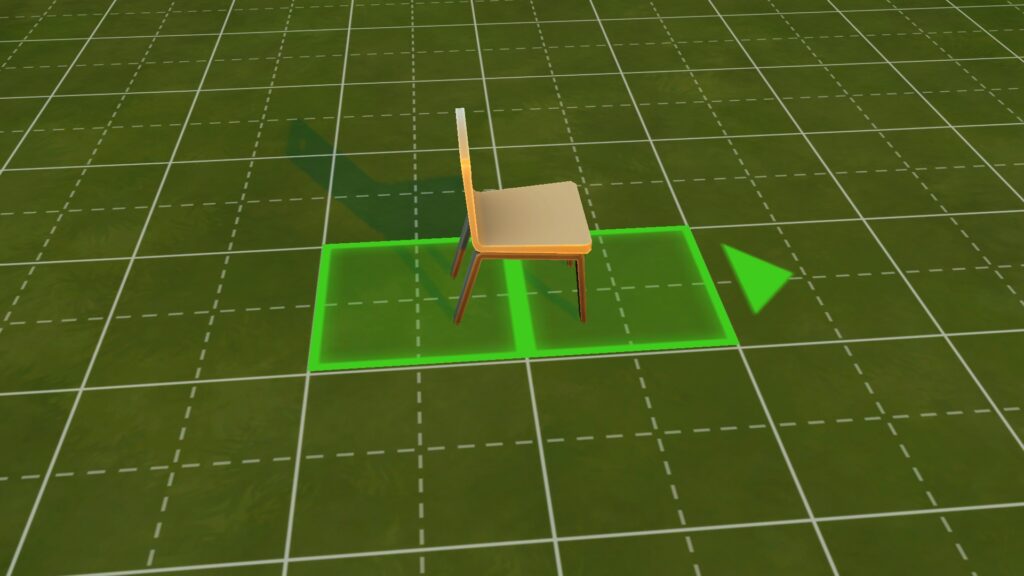
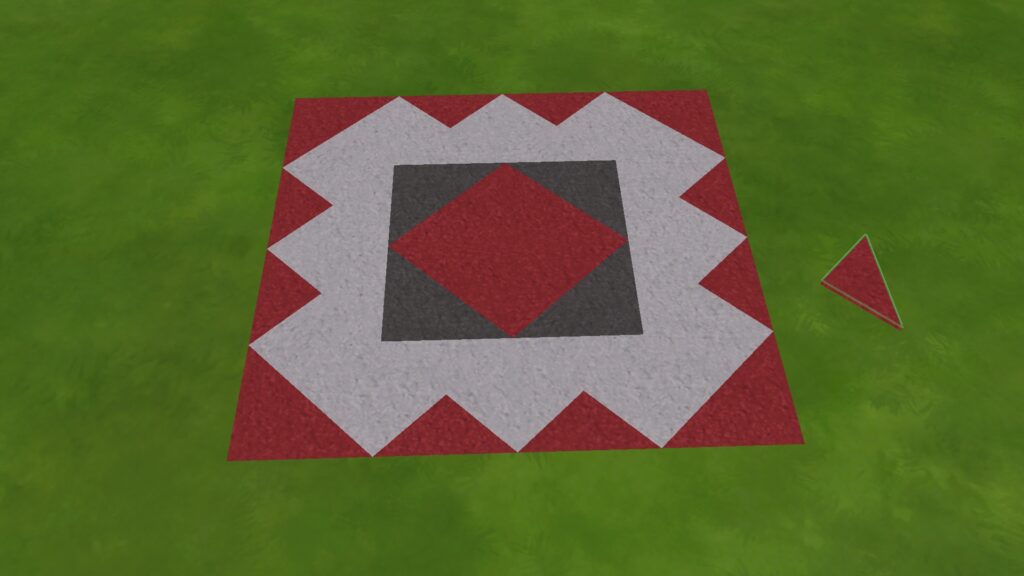
You can create your own custom floor designs by hitting CTRL+F with some flooring selected! This allows you to place triangle-shaped tiles instead of square ones.
Incognito Build Cheat: Hidden Basements!
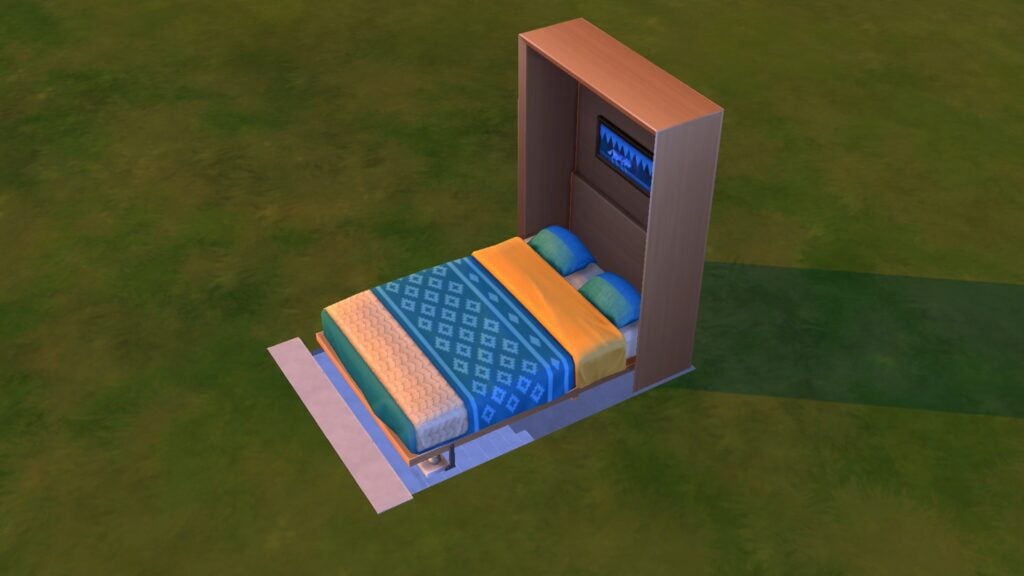
This Sims 4 build cheat requires the Tiny Living stuff pack. Build a basement with a staircase. Place a murphy bed over the opening by putting it on the basement level and using the 9 key to raise it up to ground level. Then have a Sim pull the bed down to conceal the entrance. You’ll want to disguise the bed with foliage or walls, of course. We recommend debug objects since these items often don’t have footprints and aren’t seen as obstacles by Sims.
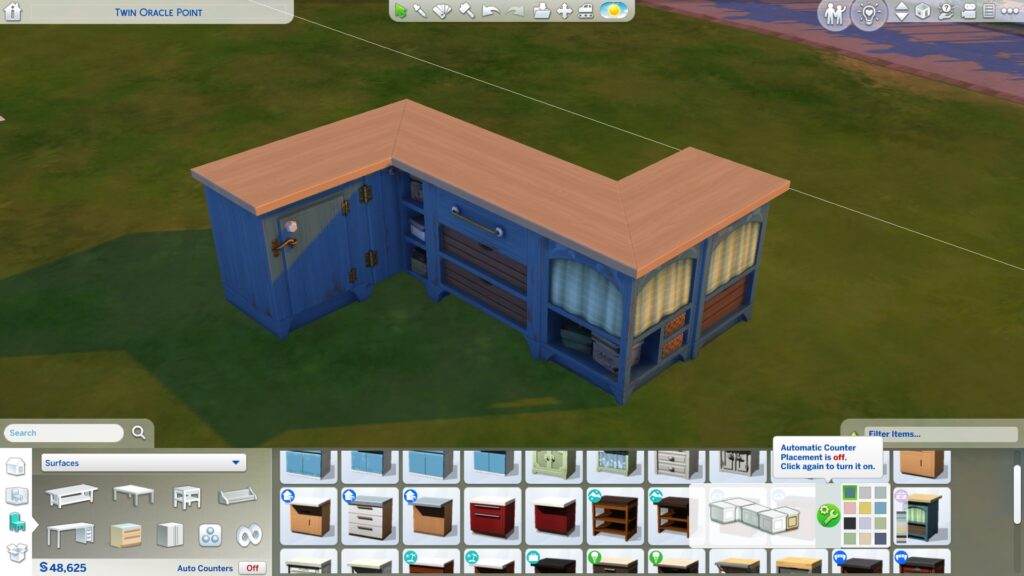
Counter Customization
Create more unique counter setups by toggling auto-counters off! This lets you mix and match counter designs as you please!
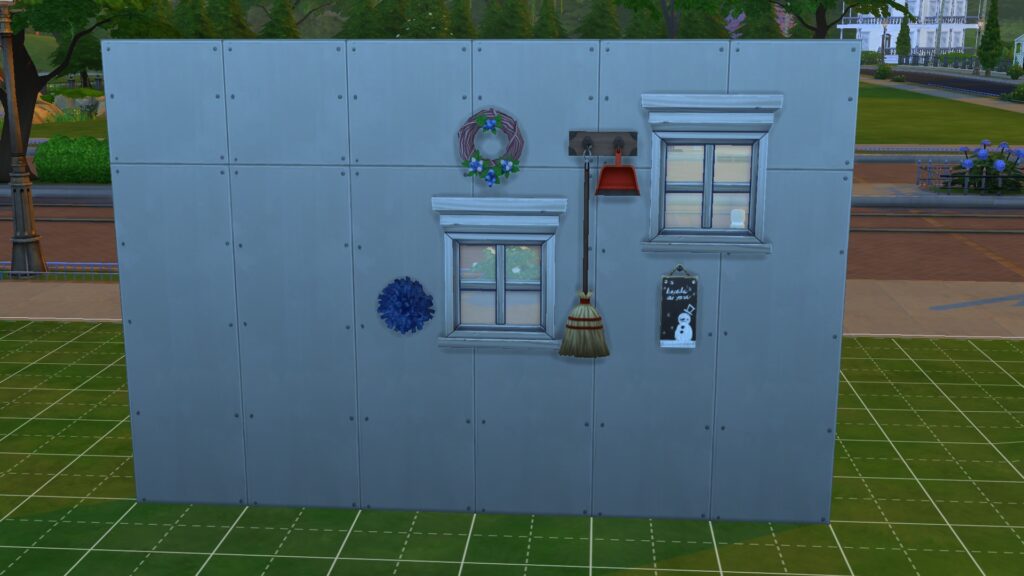
Move Objects Freely on Walls
Similar to free ground placement, just grab any window or wall decoration and hold ALT to freely move it around! You can also use the 0-9 keys to move things directly up or down.
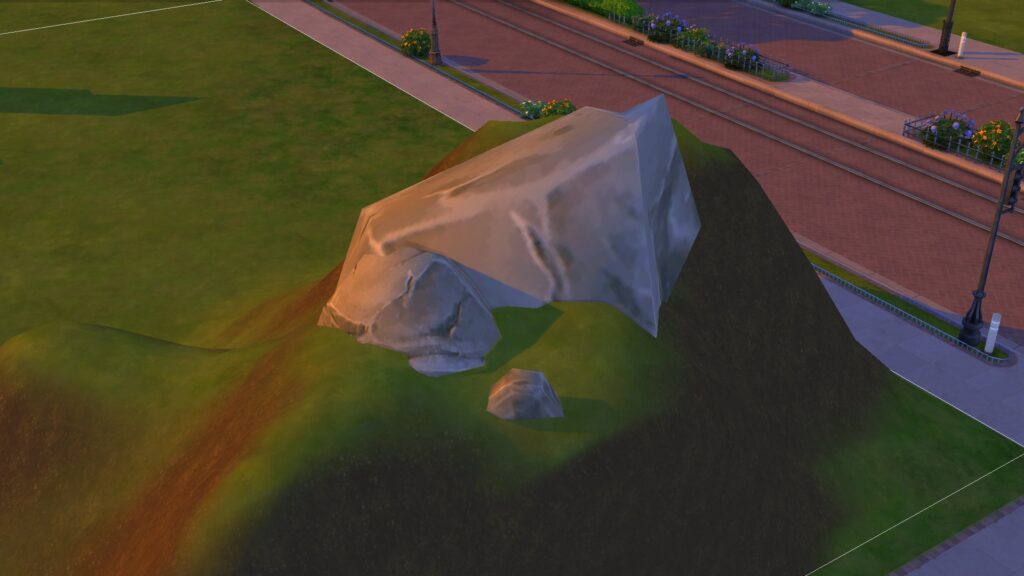
Lesser Known Build Cheat: Embed Objects in Terrain
It’s annoying when objects like rocks and foliage sit on top of raised terrain, isn’t it? Fix that with this Sims 4 build cheat: Put a room on a hillside; the room’s foundation will be embedded into the hill. Then place any rocks or foliage on the foundation. When you delete the room, the objects will stay embedded in the terrain.
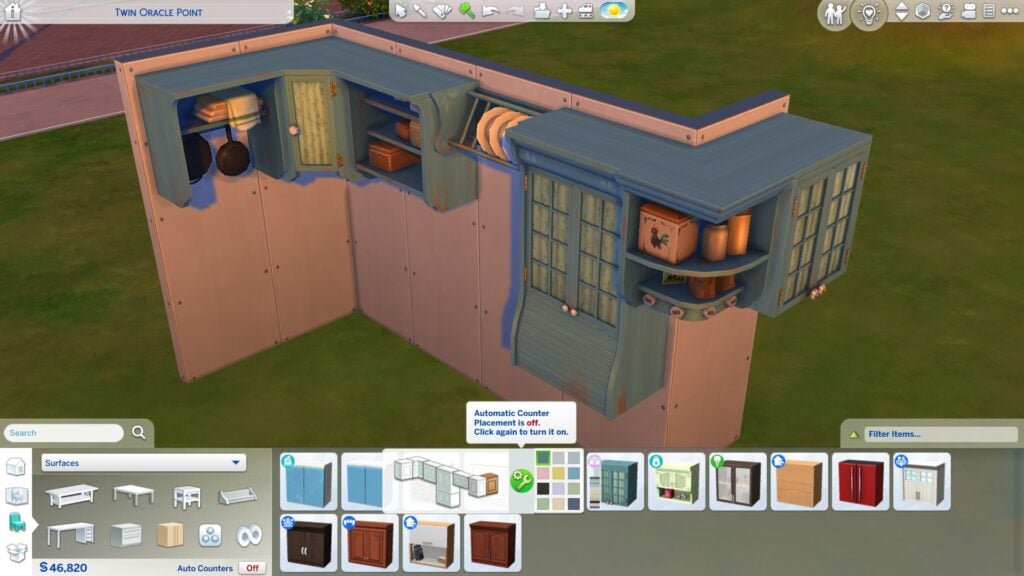
Cabinet Customization
Just like counters, cabinets can also be customized more by toggling auto-cabinets off! This will let you pick different styles of cabinets to create unique kitchens.
Taller Windows and Doors
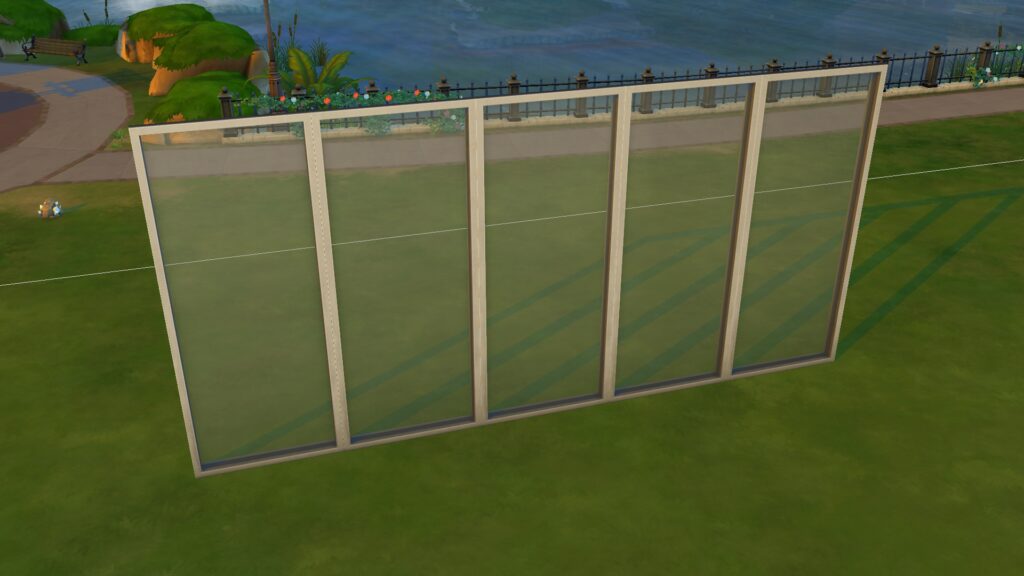
You can make tall windows and doors look even taller by placing them on the tallest wall height, then lowering the wall height again! This opens up seamless design options which is great in modern builds.
Ultrasounds, stretch marks, birth complications and more!
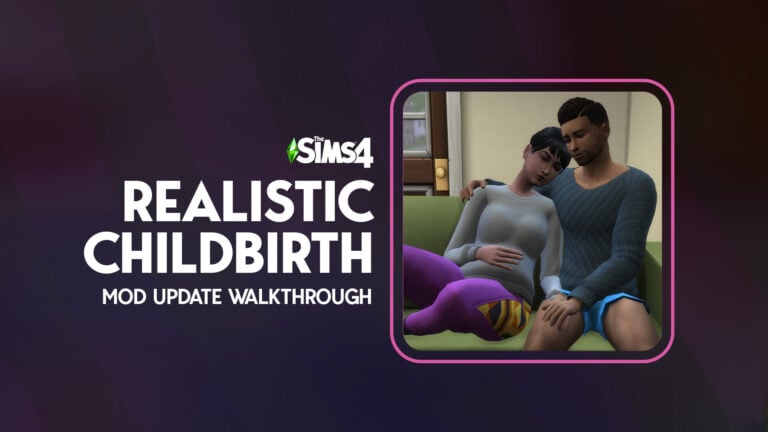
The Realistic Childbirth Mod by PandaSama is one of my absolute favourite mods for The Sims 4. I never miss a chance to cover new developments and updates for it and the latest update is an exciting one! Pregnant Sims can now announce their pregnancy to their partner, cuddle and nap with their partner, have ultrasounds done at the hospital, get stretch marks and c-section scars, and even experience birth complications! Of course, there are toggles for many of these features in case some of these things are too upsetting for Simmers.
Let’s dive right into everything the latest mod update has to offer!
Sims 4 Childbirth Mod: Ultrasound Update
The latest update for The Sims 4 Childbirth Mod comes with lots of new features, from the beginning to the end of pregnancy!
Sims 4 Childbirth Mod: Pre-Labour
Pregnancy Announcements
I’ve always disliked the Maxis “Share Big News” interaction. It’s just too silly and goofy-looking and the other Sim is always happy about the pregnancy, no matter what. It’s predictable and boring. Panda apparently thinks so, too, because she’s added a custom interaction for this moment!
After finding out your Sim is pregnant, they can click on their partner and Share Pregnancy News. If neither Sim has the Hates Children trait, they will be happy about the pregnancy, but if one or both Sims does have the Hates Children trait, they will be very upset about the news!
Napping Together
Pregnant Sims can now take a quick nap with their partner or good friends on a couch! Just click the couch and select Nap Together. The Sims must have at least +30 Friendship or +30 Romance to be able to do this.
As always, the animation is super adorable. Panda always outdoes herself with every new animation she makes. This latest Sims 4 childbirth mod update is no exception.
Cuddling
Pregnant Sims can cuddle with their partner on a double bed now, too. This is another romantic interaction, so click on your Sim’s partner and look for the Pregnancy Cuddle interaction under the Romance social category.
The pregnant Sim’s partner will rub the pregnant Sim’s belly while cuddling on the bed and it is positively adorable, like we expected. Sims who do not have the Hates Children trait will also receive positive moodlets from this heartwarming interaction.
Ultrasound Examinations
Pregnant Sims can go to the hospital to have ultrasound examinations done anytime during their pregnancy! To do this, just have your Sim call the obstetrician through the cell phone and choose to have an ultrasound done!
Once you arrive at the hospital, you will need to use the bb.enablefreebuild cheat to go into the Build/Buy catalogue and place down the custom ultrasound scan object. Search the term “Ultrasound Machine” to bring it up right away if you can’t find it in the catalogue. Make sure you place the ultrasound machine somewhere accessible with nothing blocking access to it.
Go back into Live Mode and click on the ultrasound object to have your ultrasound done! If your Sim brought their partner with them, they will join your Sim for the ultrasound autonomously. You can also switch control to them and tell them to join by clicking on the pregnant Sim if they don’t go on their own for whatever reason.
When the scan is finished, your Sim will have a copy of the ultrasound in their inventory. The ultrasound can then be shown to other Sims, framed, and displayed either on a wall or a surface.
Getting an ultrasound scan unlocks the ability to Share Pregnancy News with family and friends under the Friendly social category. Make sure the ultrasound is in your Sim’s inventory or the interaction will be greyed out and unclickable in the social pie menu.
Sims 4 Childbirth Mod: Active Labour
Birth Complications
Sims who choose to give birth at home may experience a birth emergency in the new Sims 4 childbirth mod update. Their labour can stall. There is a 10% chance that a pregnancy with a single baby will have a stalled labour at home. If the Sim is pregnant with multiple babies, this chance increases to 30%.
If your Sim may be experiencing a stalled labour, you will receive an orange notification. The notification will instruct you to continue monitoring the situation and if labour does not start progressing again, your Sim could require an emergency c-section at the hospital.
During a stalled labour, your Sim’s dilation will slow down; however, the situation can resolve itself sometimes. The labour can speed up again after an hour. You can also have a midwife check on the baby to help get the labour going again, too. The midwife will tell your Sim if they are having a medical emergency and need a c-section.
If your Sim does need to have an emergency c-section, you’ll be prompted to go to the hospital but if you don’t want this, you can click the X to just ignore the notification. The labour will progress normally again and there are no negative consequences if you just decide to cancel the whole emergency situation.
If you choose to go to the hospital, your Sim will travel to the hospital lot. When they arrive, they’ll receive an epidural and be prepped for a c-section immediately. If they aren’t immediately tended to, you can ask one of the doctors to perform the c-section.
Unassisted Birth
If you want to give birth at home but don’t want a birthing partner to assist you with the delivery, your Sims can give birth unassisted in this Sims 4 childbirth mod update. To give birth without any assistance, place a baby bassinet anywhere on the lot and click it. Choose Unassisted Birth.
Your Sim will kneel down and give birth on their own wherever they were standing when you issued the command. They won’t go to the bassinet.
The unassisted birth animation only supports one baby; if your Sim is pregnant with multiples, all the babies will still join the family.
Sims 4 Childbirth Mod: Post Labour
Stretch Marks and Surgery Scars
Sims will now get stretch marks in their third trimester in this Sims 4 childbirth mod update! By default, the stretch marks will slowly fade over a period of 3 days after birth but you can make them permanent in the mod settings if you want to.
Sims who give birth via c-section will have post-surgery scarring. The scars will slowly fade over a period of 4 days.
And if you were tired of seeing that ugly red flashing heart above your Sim’s head during labour, you’re in luck! That eyesore? Gone! Your Sims will have subtle sparkles around their feet, instead.
For Simmers who are sensitive to scarring and birth emergencies, Panda added the option to toggle off stretch marks, scarring, and birth emergencies in the mod settings. Just SHIFT+Click your Sim with the testingcheats true cheat enabled and you’ll find the toggles under Childbirth Settings.
Sims 4 Childbirth Mod Information
All of the features described in this article are part of the latest update. This update will be free for everyone on February 10th, 2023. The previous version of the mod supports home births and is free to download right now.
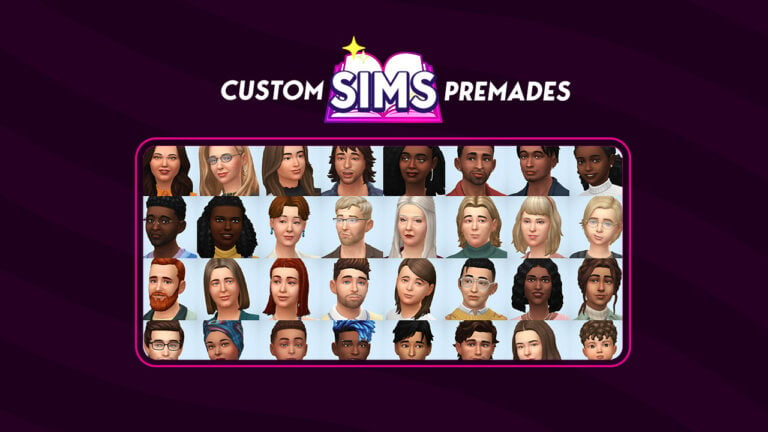
If you’re tired of seeing the same old Maxis townies in your saves, you’re in luck! A very talented Sim creator and builder named SimsOnTheRope is on a mission to populate The Sims 4 with better townies. These townies are far more diverse than what Maxis gives us and far more detailed. They come with existing skills, careers, lifestyles, additional reward traits, likes/dislikes, pronouns, sexual orientations and more! Each household even has a recommended home you can download for them if you’re not inspired to build one or search for one yourself.
The Sims 4 Townies: 9 New Households
SimsOnTheRope created 9 households with a total of 32 Sims to place in your worlds. These Sims 4 townies have no CC but do use some DLC packs. Conveniently, both tray files and Gallery links are provided. This means players can choose whether they want to install manually or go through the Gallery.
You can download these Sims 4 townies straight from the Gallery by searching the ID simsontherope!
If you prefer to put the files in your Tray folder manually, just click the button below to be taken to the download page! You can download them all or head to SimsOnTheRope’s tumblr to find links to download each household individually.