Home Blog Page 213

The Sims 4 introduces Age-Locked Rooms with Platforms

Presented by EA Game Changers

Okay. You’ve probably heard about Platforms coming to The Sims 4 and some of their great possibilities.

Creating platforms to create your own staircase module all the way to the top? Yup, that’ll be possible.

10 30 20 1 12 11 PM

Going deep down into the ground to create in-ground seperated platforms? Of course!

3

With so many platforming possibilities you’ll be able to flesh out your lot and give it more dimension than ever before. However, did you know that platforms also introduce height-sensitive rooms?

With the latest update Sims will begin to notice how much space they have above them and if they’ll be able to fit into rooms that don’t match their height. This limitation was especially important because platforms can be placed wherever you want, even inside closed down spaces.

This means that with platforms you’ll be able to create rooms inside your home that are both exclusive to children and toddlers!

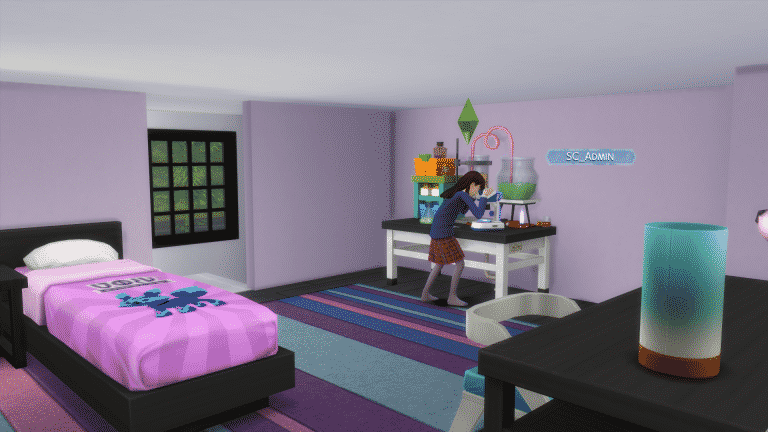
I tested this feature out by elevating one of the children rooms in my game. I elevated the room, added a staircase so my Child Sim could properly enter her own bedroom and tested out the space. All of the objects inside the elevated room were completely usable for the Child Sim!

1 2

However, the same thing couldn’t be said for her parents who tried to access the room as well. The new update added a small new animation that lets you know when Sims can’t access a place that doesn’t fit their height. Surprise surprise – the parents couldn’t interact with any of the objects in the room nor were they able to obey my “Go Here” interactions.

1 1

With platforms you’ll be able to create a real-life dollhouse for your Children and Toddlers to play in – and I can’t wait to check them out once the update goes live in the next few days because I simply suck at building.

Huge thanks to Steph0Sims for letting me know about this neat feature!

What’s coming in The Sims 4’s November Update

Presented by EA Game Changers

The Sims 4 will have a huge new patch released a few days before the release of The Sims 4 Snowy Escape Expansion Pack!

Over the last couple of days I got an opportunity from EA to test out not only the new Expansion Pack but all of the new additions that are coming to The Sims 4 for free!

I’ve also done a video overview of the next update if you want to check it out down below:

So, without further ado, let’s break down everything that’s coming in the next update:

Platforms

Platforms are an exciting new feature coming to Build Mode that help you elevate your space and give your interiors (and exteriors as well) more dimensions! The first thing that you’re gonna notice when selecting the Walls & Empty Rooms category in Build Mode are a range of new Platform Features. You’ll be able to place down your own Platforms using the Platform Tool or place down some of the pre-existing ones. Those also include diagonal, octagonal, triangular and round platforms (that come in 3 different sizes!).

What’s coming in The Sims 4’s November Update

You’ll also be able to stack platforms one on top of another – the only limitation is the wall height (and yes, that means that you’ll be able to make platforms even higher in areas with bigger walls).

10 30 20 1 07 11 PM

An easier way to elevate your platforms without unecessarily having to stack them over and over again is using the “Raise Platform” tool that shows up upon selecting the platform of your choice. Once again, the sky (or in this case, the wall) as well as the dirt are your limits

2

When it comes to the functionality of Platforms they can be used as stairs as long as each platform is elevated by one bar level.

10 30 20 1 12 11 PM

Speaking of stairs, yes, you’ll also be able to place them down along platforms that are higher up!

10 30 20 1 13 43 PM

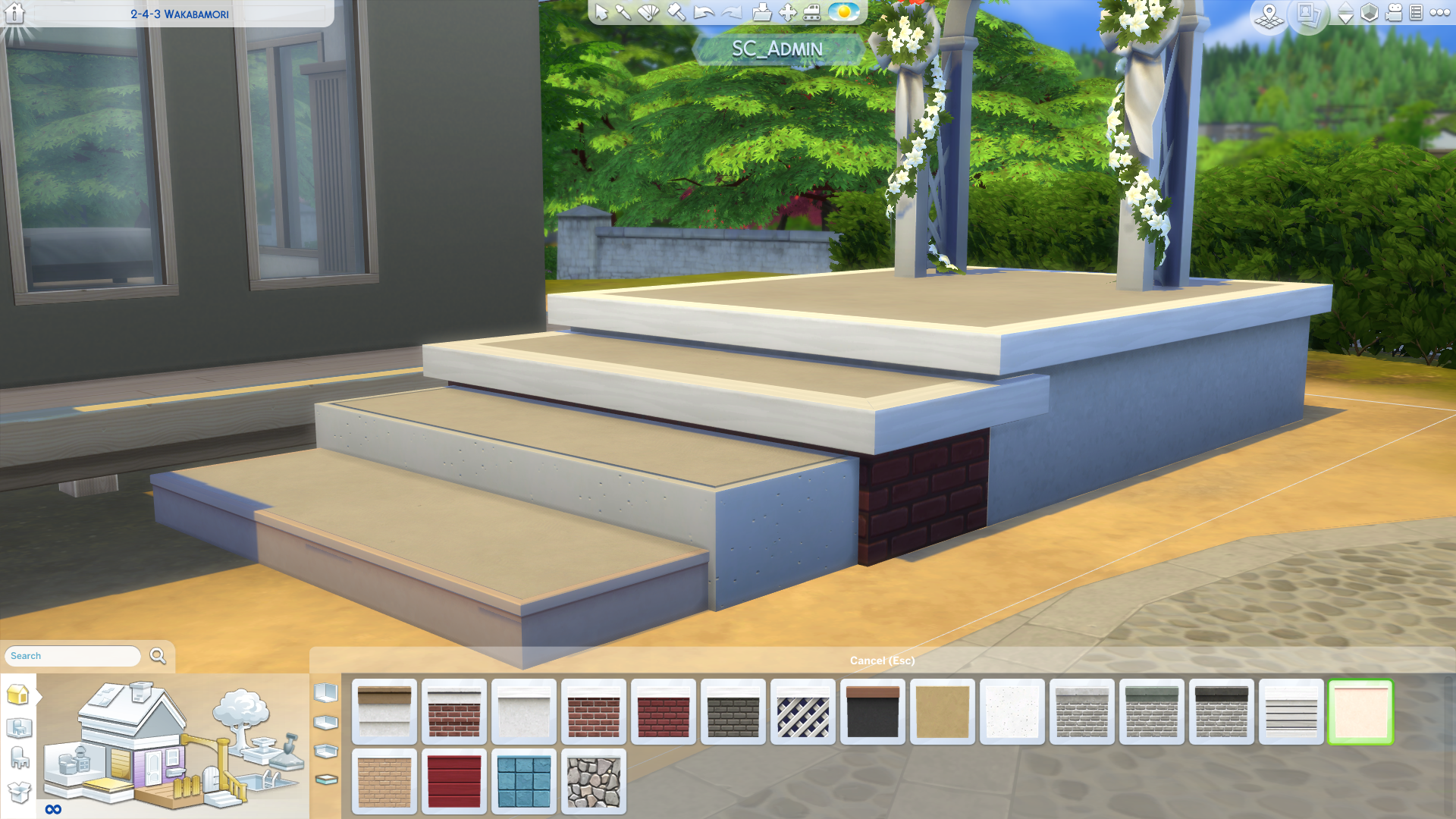
If you want to decorate your platform’s exterior there’s a whole new “Platform Trims” category where you can choose different trims of your choice. Platforms are unique and therefore you won’t be able to use wallpapers on them to decorate the exterior – only the trims!

10 30 20 1 14 54 PM

Half Walls Upgrade

Say goodbye to the limited category of half walls! The Sims Team has unlocked up to 19 different half wall sizes that you can place down!

10 30 20 1 18 33 PM

Each half wall size fits perfectly to each platform bar level, meaning that if you’re not satisfied with the current collection of platform trims you can place down a half wall around the platform and decorate the exterior with a wallpaper of your choice.

Vacations and Rental Lots

Rental Lots are no longer exclusive to The Sims 4 Outdoor Retreat and The Sims 4 Jungle Adventure Game Pack! With the latest update you can select any lot from any world and turn it into a Rental Lot.

10 30 20 1 25 41 PM

This opens up the possibility of sending your Sims to a Vacation into any world that has a Rental Lot placed down. To take a vacation, click on the Phone, select Take A Vacation and choose which Sims you want to send. The game will then open up all the Worlds that currently have a Rental Lot. Select for how many days you want to stay on your vacation and enjoy your stay!

While living on a vacation lot you won’t be able to access Build Mode on your Rental Lot. Thankfully any necessities you might need for your Sims (and their younger ones) can be purchased through the mailbox / phone. Food, Toddler Beds, Lounge Chairs – it’s all there!

Screenshot 187

This is a perfect opportunity for you to revisit Sulani from The Sims 4 Island Living and send your Sims off to vacation there!

Sim Info Panel

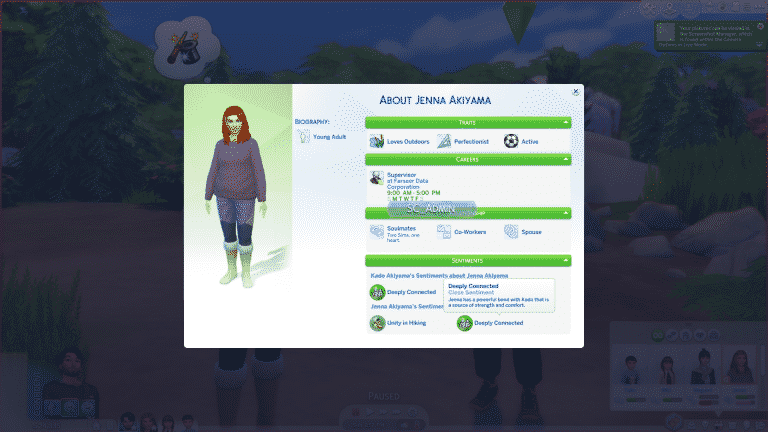
There’s a new Sim Info Panel that displays all the information your selected Sim has about another Sim. You can access the new Sim Info Panel by opening Relationships menu and selecting a Sim of your choice.

Sentiments

Sentiments are how a Sim feels about another Sim based on recent past experiences. There are Positive and Negative Sentiments, which can influence a Sim’s Mood and behavior when the other Sim is around! These are discovered naturally through gameplay and will fade over time. The amount of time it takes for a Sentiment to fade depends on if it is a Long-Term or Short-Term Sentiment.

New experiences together can also make existing Sentiments fade more quickly or more slowly. Positive Sentiments are easily eroded by very negative experiences, and a successful apology goes a long way towards healing any Negative Sentiments. The colored backdrop behind a Sentiment icon indicates how far it is along in the fading process.

A Sim may have up to four Sentiments about another Sim at a time. If a Sim acquires more than four Sentiments about a particular Sim, the least important Sentiment will be replaced.

Sentiments are a powerful new addition to relationships that influence your Sim’s emotional state depending on Sims they’re surrounded by. Their emotions will only be influenced by other Sims if they’re around Sims with who they’ve built Sentiments with.

For example, doing an activity such as taking a hike (from The Sims 4 Snowy Escape) will build a positive, strong sentiment.

10 30 20 1 35 02 PM

However, not all Sentiments will appear as mutual. It all depends who initiated a certain set of interactions that made the sentiment appear.

A cleaner overview of all the sentiments that you’ve built can be found in the Sim Info Panel.

Screenshot 189

You can also keep track of your Sentiments when socializing with another Sim. There’s a new Sentiment Icon at the top of the relationship bar that extends the Sentiments UI:

10 30 20 1 39 03 PM

Sentiments can be built between Sims of all ages. Scolding your toddler for making a mess might leave that toddler feeling hurt – giving them a negative Hurt Sentiment. That toddler will not only get a strong negative moodlet when being around that Sim but also try to avoid them until they make amends (or until the sentiment fades away). This is just an example of course – this particular sentiment can occur between all Sims!

There are sentiments that are exclusive to The Sims 4 Snowy Escape but a lot of sentiments are included within the Base Game. Things like adopting a child, getting into a fight, cheating, death – all cause a unique sentiment between two Sims.

We didn’t get a specific list of all the new sentiments but I was able to track all of them in the game files. The end of each file name in the image below represents a unique new sentiment – however they do not represent all of the ways you can earn those sentiments.

We’ll be doing a seperate article and video regarding sentiments and how you can unlock them on Sims Community so stay tuned!

What’s coming in The Sims 4’s November Update

Nasolabial Creases in CAS

A small face details feature has been added into Create A Sim and those are Nasolabial Creases! There are 4 different ones to choose from:

The Sims 4: November Update Video Overview

0

Over the last couple of days I got an opportunity to play The Sims 4 Snowy Escape Expansion Pack! During this playtime I’ve also got a chance to see what’s coming for free in the upcoming Base Game Update for The Sims 4!

In the video above I’m showing all the new Build Tools, explaining Vacations, showcasing the new Sentiments feature and more!

Stay tuned to Sims Community both here and on our YouTube Channel for more exclusive coverage about the upcoming content!

LIVESTREAM REPLAY: The Sims 4 Snowy Escape Deep Dive

1

UPDATE: The livestream has ended! You can catch the replay down below.

The Sims Team will be doing a special livestream of The Sims 4 Snowy Escape Expansion Pack!

During the livestream we can expect that they’ll dive deep into different segments of the pack including the new World, Build, CAS and Gameplay!

The livestream is set to begin at 11AM PT / 7PM CET / 6PM BT. We’ve also included a countdown down – the livestream should begin when the countdown turns 0!


Here are the Game Changers Who Helped Bring Mt. Komorebi to Life!

8

Over the past few months, some of the Simming community’s most influential Game Changers have been hinting at a secret project they’ve been working on. Now, that secret has finally been revealed! Today, James Turner, Deligracy, SimLicy, and lilsimsie have all posted videos to their YouTube channels to show off this top secret project.

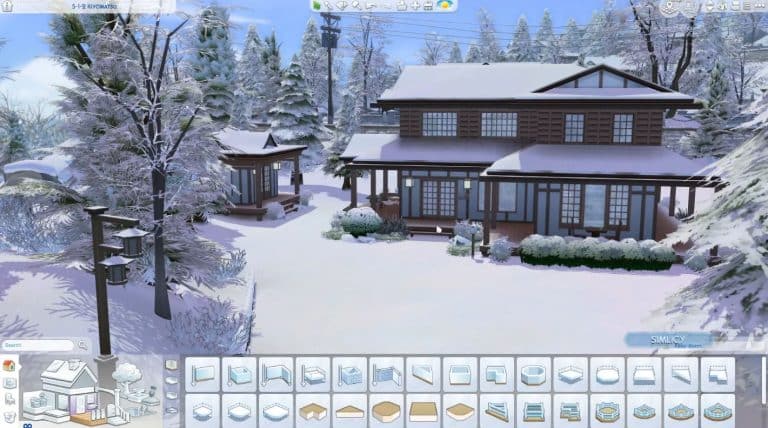
EA teamed up with these Game Changers and asked them to build every lot in the world of Mt. Komorebi for the upcoming Sims 4 expansion pack, Snowy Escape. After years and years of complaints about poorly done EA builds shipping with the DLC packs, the team finally decided to hand the reins over to some of the community’s most accomplished builders. In fact, not a single lot in the world was built by anyone at EA!

Of course, James Turner, Deligracy, SimLicy, and lilsimsie all had certain restrictions and limitations they needed to comply with for this project, which they go over in more depth in each of their videos. In addition to the standard build limitations, their work was also reviewed and critiqued by EA’s cultural team to make sure that each lot was an authentic and respectful representation of both traditional and contemporary Japanese architecture.

You can check out their videos down  below for all the details that went into this large scale collaboration with The Sims Team!

The Sims 4 Snowy Escape: New Screens

1

SimGurus have shared some new screenshots featuring elements from The Sims 4 Snowy Expansion Pack!

Well, mostly content from Create A Sim. Still, you can check out the new screens below!

The Sims 4: First Look at the Skin Tones & Makeup Sliders coming this December!

5

The Sims Team released an official blog post talking more about their BIG upcoming update for The Sims 4 which addresses Skin Tones and Makeup. Not only will we be getting more than 100 new Skin Tones to choose from but there’s now also new sliders to accompany the tones – along with new sliders for makeup as well!

Check out the preview below:

A few weeks ago, we shared some of our plans for updating skin tones and diversity options in The Sims™ 4, and it’s time for us to check in again! Our team has been hard at work on this important initiative. Find out what to expect over the next couple of months ahead.

Where We Are Now

On October 6, we launched a PC base game update* that improved issues with some of the existing darker skin tones. Specifically, we addressed the color banding that appeared on Sims’ cheeks and foreheads, which created a streaked and inconsistent appearance, and fixed discoloration along the nose tip. Doing so allowed us to create a consistent tone across the whole of the body, allowing for the shadows and details to be more visually distinct. (You can read about the specifics below to see whether the update applies on your computer.) We also tweaked the male afro and braids base game hairstyles to reflect the detail, texture, and style of their real life counterparts. Console players will notice those changes reflected in the November 10 update.

These improvements are just the first step in our plans to give you the tools you deserve to express and represent yourself.

An Important Update Hits This December

On December 8, we will be adding over 100 new skin tones to The Sims 4. Every skin tone will have a value slider to unlock thousands of more customizable options. In addition, we’ll make compression improvements to make both new and existing skin tones display better, including strengthening the quality of suntans and sunburns.

The Sims 4: First Look at the Skin Tones & Makeup Sliders coming this December!

Our December update also includes the introduction of four makeup sliders to more freely complement all skin tones. The hue slider lets you control your color, while the value slider lets you adjust brightness. You’ll be able to adjust transparency with the opacity slider, and control how much color is in your makeup with the saturation slider. This will ensure your chosen makeup looks just right on your selected skin tone.

Lastly, three more base game hairstyles will see improvements in the December update. These include two children’s hairstyles—the braided ponytail with baby hairs and the braided ponytail without baby hairs—and the flat-top texture hairstyle.

The Sims 4: First Look at the Skin Tones & Makeup Sliders coming this December!

More to Come

It’s our goal to ensure the representation in The Sims 4 is more inclusive. To do so, we’ve been working with consultants, including prominent community members like Game Changers Mia ZaffEbonixSimsRaoXmiramira, and CatherineGames. They’ve been advising us in our endeavors to create a more inclusive game for everyone. It was their suggestion to add additional hairstyles without baby hairs in the December update, which is why there are three rather than the two we previously announced.

Going forward, we’re committed to continuing to improve The Sims 4 to give you the game you deserve. We can’t wait to see what you’ll create in the future, and we’re so grateful to have you on this journey with us.

Thank you!

We are working on this hair, too. We want to make sure we are getting it right, so we don’t have a date for when this will be updated just yet. 💚

— The Sims (@TheSims) October 29, 2020

The Sims 4 Console: How To Set Up Remote Play Features For Smart Devices

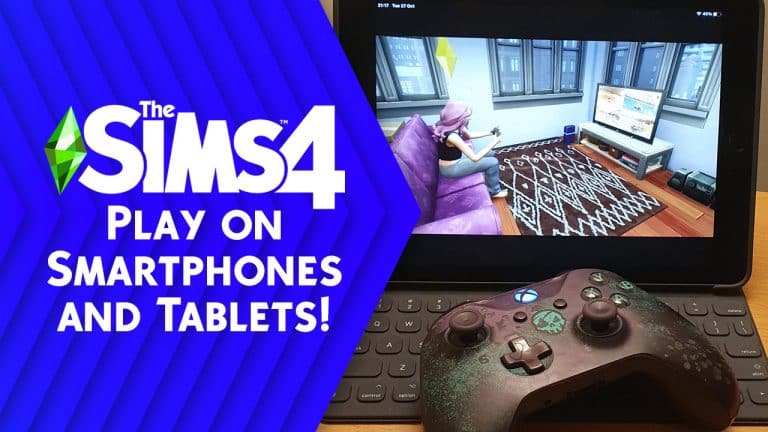
A topic that has popped up a handful of times recently over in the Sims Community Facebook group is how are people playing The Sims 4 on their iPads, tablets, or mobile phones? Now, you might be thinking, you can only get The Sims Mobile or The Sims Freeplay on mobile devices and not The Sims 4. While yes this is correct, you are actually able to play The Sims 4 (providing you already own the game on console) by using your respective consoles remote play features.

Below you will find a step by step guide on how to set up remote play features for your Xbox One or PlayStation 4.

Note: For this article, we tested out both apps on a 2017 iPad Pro. Both apps are available on Apple and Android devices. For full device compatibility, check the app for details.

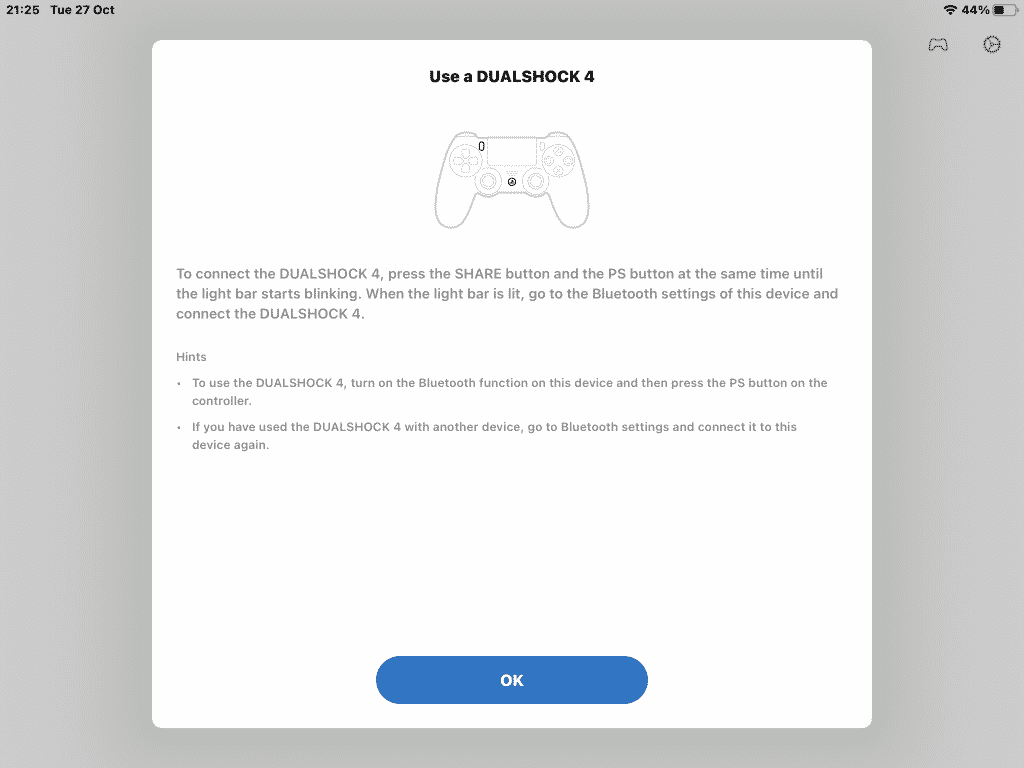
First things first, you’ll need to head over to either the Apple App Store or Google Play Store and download either the Xbox App or PS Remote Play App onto your device.

Xbox One

  • Turn on your console like normal.
  • Once you have signed in to your account head over to the top right of the app and look for the icon that looks like an Xbox and tap on it.

The Sims 4 Console: How To Set Up Remote Play Features For Smart Devices

  • You’ll then be presented with a small pop-up menu with several different options and you will want to select remote play on the device.

The Sims 4 Console: How To Set Up Remote Play Features For Smart Devices

  • From there, follow the on-screen instructions. You’ll then be asked to select the enable option displayed on your television/monitor to allow remote play access.
  • You’ll need to pair your controller and to do this simply head back into your smart device settings. Go to Bluetooth and you’ll need to search for your Xbox Controller. On your controller, press the small pairing button for a few seconds until the Home button flashes. The pairing button is located to the right of the LB button.
  • Once you have paired your controller to your smart device, return to the Xbox App (you may have to repeat the first few steps to relaunch remote play)
  • You will be presented with your Xbox Dashboard and you will be ready to play and launch The Sims 4 like normal. You can turn off your television/monitor (not the console) and play on your smart device instead.

The Sims 4 Console: How To Set Up Remote Play Features For Smart Devices

  • Once you have finished playing, simply hold down the Home button and select stop streaming. You can then return to using your Xbox One like normal.

Note: You may be asked to update your Xbox Controller’s firmware when you connect first set up remote play. It is very straightforward and easy to do. Simply follow these steps.

  • Follow the on-screen instructions.
  • Once you have the screen with the Xbox Controller on it, select the button with the three dots on it.
  • Select the Update Firmware option from the left-hand side of the screen to update your controller.
  • Once updated, Check your controller has paired with your Smart Device in your device’s Bluetooth settings.
  • Return to your Xbox Home Screen and relaunch the Xbox App on your device.

The Sims 4 Console: How To Set Up Remote Play Features For Smart Devices


PlayStation 4

  • Turn on your console like normal.
  • Once you have signed in to your account and pair your controller following the on-screen instructions.

The Sims 4 Console: How To Set Up Remote Play Features For Smart Devices

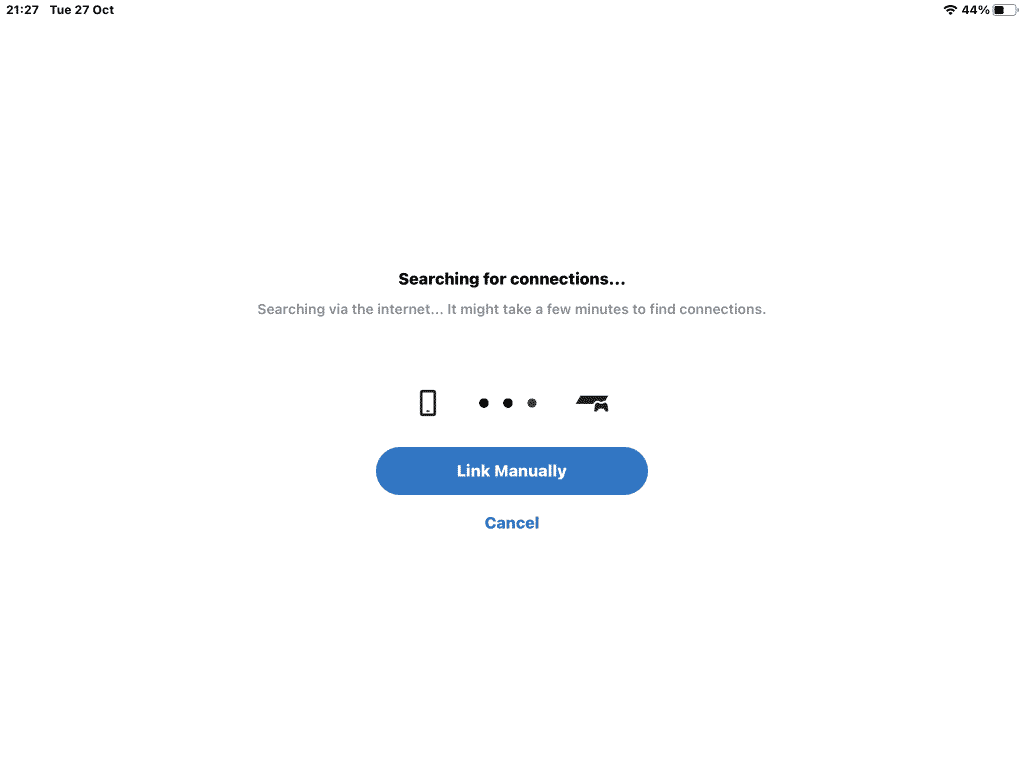
  • Once you have successfully paired your controller, you will then need to connect to your console.  This should be done automatically but there is an option to do it manually if needed.

The Sims 4 Console: How To Set Up Remote Play Features For Smart Devices

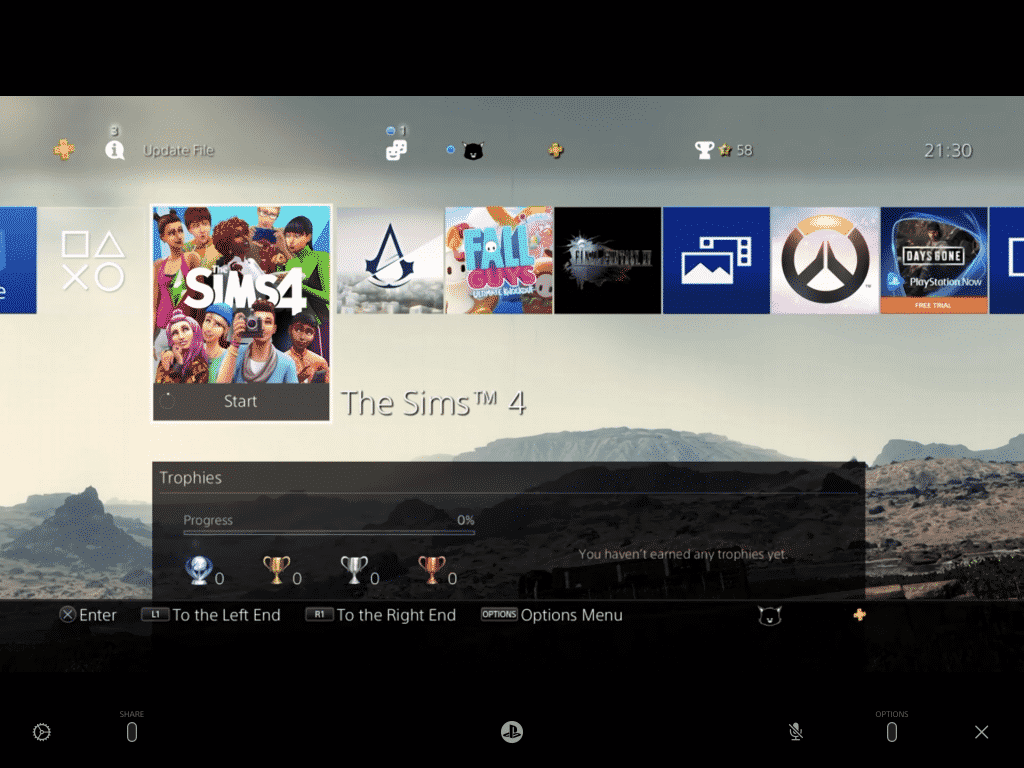
  • Now that you have connected to your PlayStation you should see your normal home screen on your smart device. You can turn off your television/monitor (not the console) and play on your smart device instead.

The Sims 4 Console: How To Set Up Remote Play Features For Smart Devices

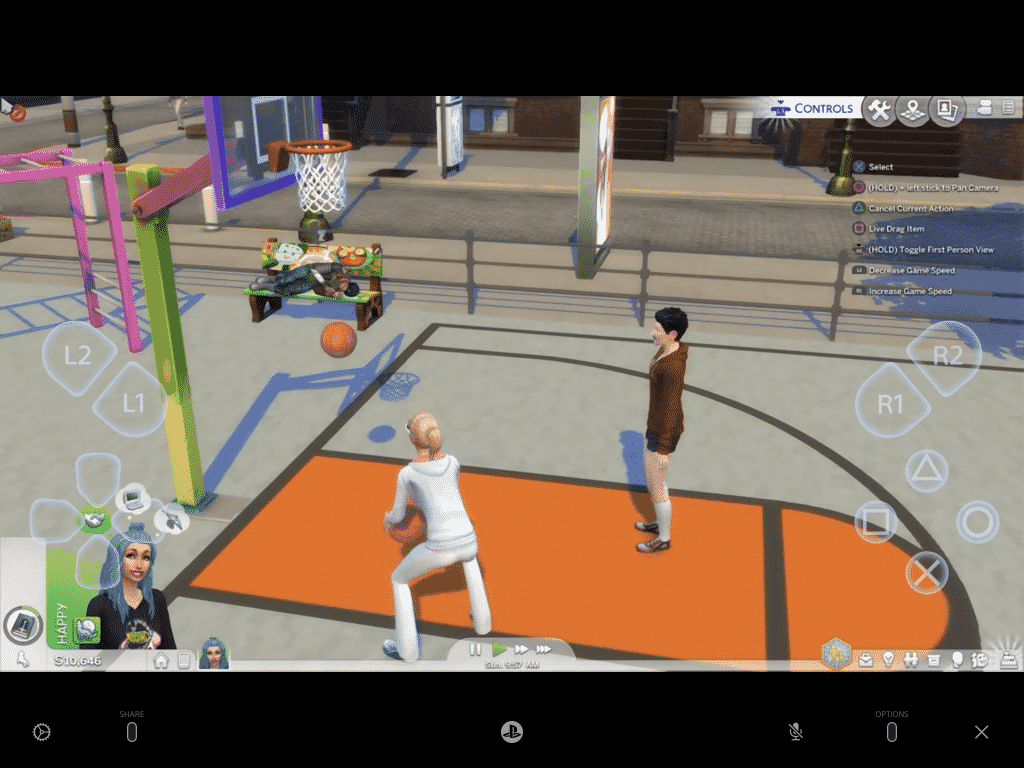
  • The PS Remote Play App also features an on-screen controller that you can also use when playing The Sims 4. However, if you don’t wish to use it, the controller interface will fade away after a few seconds and you can use your controller as normal.

The Sims 4 Console: How To Set Up Remote Play Features For Smart Devices

  • When you have finished playing, simply leave the app or shut down your console until the next time you go to play.

Don’t forget, if you own a PS Vita you can also use the Remote Play features on there too!

Both the Xbox app and the PS Remote Play app are straightforward to set up on your smart device. While there are other ways you can mirror your displays to a smart device, using the respective app for your console for direct streaming, provides the same smooth experience as if you were playing using a television/monitor to play.

To download the free apps follow the links below!

Xbox – Android/Apple

PS Remote Play – Android/Apple

The Sims 3 Mac 64bit Release is out now on Origin!

The long-awaited compatibility release of The Sims 3 for Mac OS computers is finally out now!

You can download this version of The Sims 3 on Origin if you have a Mac OS device. If you’ve already registered The Sims 3 in your Game Library then a new version should pop out with a “64bit” tag on top of the Box Art. The Base Game along with all of the Expansion Packs and Stuff Packs should be updated to work with the latest 64bit & Metal version!

Please note that currently there are some issues in the main menu that people have reported on. EA is currently working on them and we’ll keep you posted as soon as they get resolved!

Hey stressed out simmers!

WOW! What a day! You remember in the before-times, this morning, when the day looked like it was just going to be a super cool? Wow. That was a lifetime ago.What has happened? Great question! We opened the flood gates! And the downloads came, and the Internet held its collective breath, and then a few minutes later people with REALLY GOOD connections started reporting that they were getting some weird “incomplete install” error and they couldn’t get any father. THEN EVERYONE ELSE started reporting this problem too! Lo, the game team collectively sucked in our breath and said “uh-oh.”

Well it’s been a super exciting six hours since then. Super. Exciting. But we know what happened and we think we know how to fix it. There’s even a good chance you won’t have to re-download things. I don’t have an ETA for this fix other than “as fast as we absolutely can.” I’ll put out more updates as soon as I can.

Thanks for your patience everyone! It’s been really fantastic watching the humor and wit and enthusiasm the whole community of players has had as were worked to figure this out. You’re all just fantastic.

Frequently Asked Questions

I already own The Sims 3 on Mac, how do I get the new 64-bit version?

The Sims 3 for macOS, 64-bit will automatically be applied to your EA Account and available to install from My Library at no additional cost.

I plan to purchase The Sims 3, which versions will I get?

Purchasing The Sims 3 through Origin will provide you access to previously existing versions on Windows PC and Mac as well as the new version for macOS.

I own The Sims 3 on disc, how do I get the new version?

To get the new version of The Sims 3 for macOS, 64-bit, you will need to register your game with EA and download the 64-bit version of The Sims 3 from Origin. You can register your game and packs at www.thesims3.com by logging in with the same account you use with Origin (EA Help). For any registration or account related issues, please contact EA Support by visiting https://help.ea.com/contact-us

I already registered The Sims 3 on the website but I don’t see it in Origin, what do I do?

If you have already registered The Sims 3 and any packs on www.thesims3.com but do not see it in My Library in Origin, ensure you log in to Origin using the same email and password you use on www.thesims3.com. The same applies for using The Sims 3 website, login using the same details you use in Origin to see all of your owned content. Do not try to re-register your code in Origin or on the website as it will inform you that the code has already been redeemed since it is already applied to your EA Account. For any registration or account related issues, please contact EA Support by visiting https://help.ea.com/contact-us

Is this a Remaster or Remake of The Sims 3?

This new version is a compatibility release which adds support for 64-bit, Apple’s Metal graphics API, and makes the application a fully native macOS app. It is not a Remaster or Remake of The Sims 3.

Is changing from 32-bit to 64-bit the only thing that has changed?

No. This update of The Sims 3 also switches from OpenGL to Apple’s Metal graphics API, changes significantly how data is managed with the game service, where files are stored within the macOS file system, and has been updated to be a native macOS application.

Will the new version of The Sims 3 on Mac be delivered as an update?

No, due to the changes, The Sims 3 for macOS, 64-bit is seen as a different game by Origin. That means you will need to install rather than update.

I have Save Game files, can I continue my progress in the new version?

Your Save Game files are compatible with the new version of The Sims 3 and you will be able to continue where you left off. Before uninstalling any version of The Sims 3, we always recommend backing up your Save Game files.

Can I go back to the old version of The Sims 3?

Yes, if your macOS supports 32-bit applications (support for 32-bit was dropped by macOS in the Catalina release in 2019, but earlier versions of macOS that still support 32-bit applications might still run on your Macintosh), you can install either release of The Sims 3 from My Game Library in Origin. However, if you have macOS Catalina (10.15.x, released in 2019) or later, which only supports 64-bit applications, you will only be able to use the new release of the game.

Can I install the older macOS version and the new macOS version together?

No, you will only be able to have one version of The Sims 3 installed at a time.

I own both a new and an old Mac, can I still play on both?

Yes, in My Library you will see both the older and newer versions of The Sims 3. Simply install the version of the game which suits the Mac you are using.

I have The Sims 3 DLC and/or content from The Sims 3 Store. Do I need to re-purchase them if I use the new version?

No, all of your existing packs, Worlds and purchases from The Sims 3 Store stay with you. To install your Packs, you will need to download them once you have installed the new version of The Sims 3. You can do this by selecting The Sims 3 (64-bit & Metal) from My Game Library in Origin and selecting each Pack type and clicking the Download button. For content purchased from The Sims 3 Store, login at TheSims3.com and go to Store > My Store Account > Purchase History and you will see your purchases ready for download.

I want to use the new version of The Sims 3 on my Mac. What specs do I need?

You will need a Mac which has support for Apple’s Metal graphics API and be on macOS High Sierra (10.13.x, released in 2017) or later. For Minimum and Recommended specs, you can find them listed below and on The Sims 3 (64-bit & Metal) page on Origin.com.

MAC SYSTEM REQUIREMENTS

MINIMUM SPECS:

OS: Metal required. macOS® X 10.13 (High Sierra)

CPU: Intel Core 2 Duo 2.4GHz Processor or better

RAM: At least 4 GB RAM

HARD DRIVE: At least 15 GB of free space with at least 1 GB additional space for custom content and saved games

VIDEO: NVIDIA GeForce GTX 680, AMD Radeon RX 560, Intel Iris Plus Graphics 640 or better

INPUT: Keyboard and Mouse

ONLINE REQUIREMENTS: Internet connection required for product activation.


RECOMMENDED SPECS:

OS: macOS® X 10.13 or later

PROCESSOR: Intel Core i5 or better

VIDEO CARD: NVIDIA GeForce GTX 680, AMD Radeon RX 560, Intel Iris Plus Graphics 640 or better

MEMORY: 8GB RAM

HARD DRIVE: 18 GB of Hard Drive space

Apple has recently announced that the Mac platform is moving to ARM based CPUs. Is this release of The Sims 3 for macOS, 64-bit optimized for this new architecture?

This release of The Sims 3 for macOS, 64-bit  is optimized for macOS running on Intel x86 CPUs. It is not optimized for the Apple ARM CPU architecture.

I don’t want to see two versions of The Sims 3 in My Game Library, what can I do?

If you want to keep your My Game Library tidy, you can hide the version of The Sims 3 which you do not use by highlighting The Sims 3 and right click and select Hide. You can view your hidden games at any time and unhide them where necessary by using the Hidden Games filter in My Game Library.

When will The Sims 3 for Windows be updated to 64-bit?

The Sims 3 for Windows PC works on both 32-bit and 64-bit versions of Windows. We do recommend players on The Sims 3 version 1.67 or earlier update to version 1.69, which is available to download through Origin if you have registered your game and packs against your EA Account.

The Sims 3 for macOS is in my Origin library, but I can’t download it! Is something wrong?

Nope, nothing is wrong. Beginning on October 20 we began adding the entitlement for this version of the game to all Origin accounts that own any release of The Sims 3. This means that the game is showing up in your library, but that the game itself is not yet available for download. This is expected! The game will be available for download soon.

EA releases two exclusive The Sims 4 Halloween Bundles on Steam

0

If you’re on Steam and you’ve been looking to save up on The Sims 4 Packs then The Sims Team has the perfect bundles for you!

EA has released two new Halloween Bundles exclusively on Steam that save up to 30% off on the total pack price. There are two seperate bundles: the Halloween Bundle and the Coven Bundle, each containing a somewhat different set of The Sims 4 Packs. Here’s a breakdown of each Bundle, what they include and how much you save up on the total price:

The Sims 4 Halloween Bundle (30% off on total price)

EA releases two exclusive The Sims 4 Halloween Bundles on Steam

  • The Sims 4 Vampires Game Pack
  • The Sims 4 Strangerville Game Pack
  • The Sims 4 Realm of Magic Game Pack
  • The Sims 4 Spooky Stuff Pack

The Sims 4 Covens Bundle (25% off on total price)

EA releases two exclusive The Sims 4 Halloween Bundles on Steam

  • The Sims 4 Get Together Expansion Pack
  • The Sims 4 Vampires Game Pack
  • The Sims 4 Realm of Magic Game Pack

13 Things We Love from The Sims 4 Snowy Escape Gameplay Reveal!

The highly anticipated gameplay trailer for The Sims 4 Snowy Escape dropped today, providing us with lots more information about all the features briefly seen in the initial reveal trailer. Below, we’ve compiled a list of some of our favourite features we spotted in the trailer, both confirmed and speculative.

Festivals

13 Things We Love from The Sims 4 Snowy Escape Gameplay Reveal!

In the trailer, we can see Sims enjoying some festivities going on in Mt. Komorebi. Festivals are a confirmed new feature discussed in the official blog post. Festivals were initially introduced with City Living but many players have been asking for more variety when it comes to the festivals. The City Living festivals have become a bit repetitive over the past four years, so it will be refreshing to see some new ones.

Cave Exploration?

13 Things We Love from The Sims 4 Snowy Escape Gameplay Reveal!

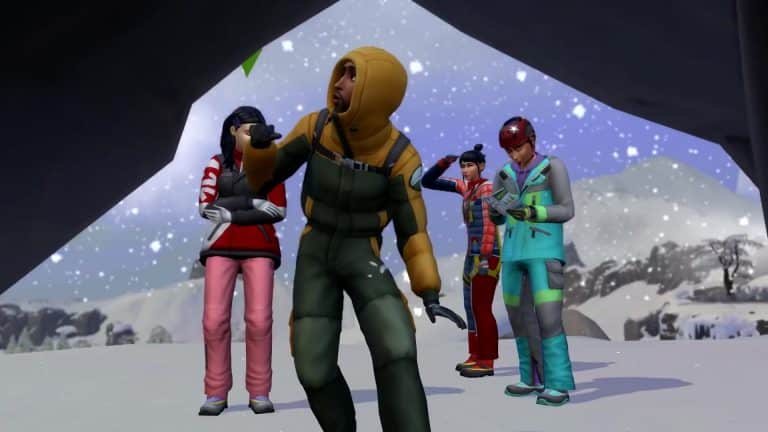
Cave exploration is not a confirmed feature, but in the trailer, we can definitely see some Sim-sized openings in the mountains and one Sim bravely venturing forth into one of these dark caverns. Sims Online has reported that these spots are in fact WooHoo locations, but we’d be quite surprised if that was their only purpose.

Hiking

13 Things We Love from The Sims 4 Snowy Escape Gameplay Reveal!

Hiking appears to be more interactive than we previously anticipated! We can see Sims actually taking a walk in a group together in the nature of Mt. Komorebi and the narrator talks about hiking being a new activity. In the past, modders have added hiking activities to the game; however, these excursions had Sims disappear off the lot in a rabbithole for a period of time. It seems like we’ll be able to follow our Sims through these hiking trails which is great news!

New Greetings

13 Things We Love from The Sims 4 Snowy Escape Gameplay Reveal!

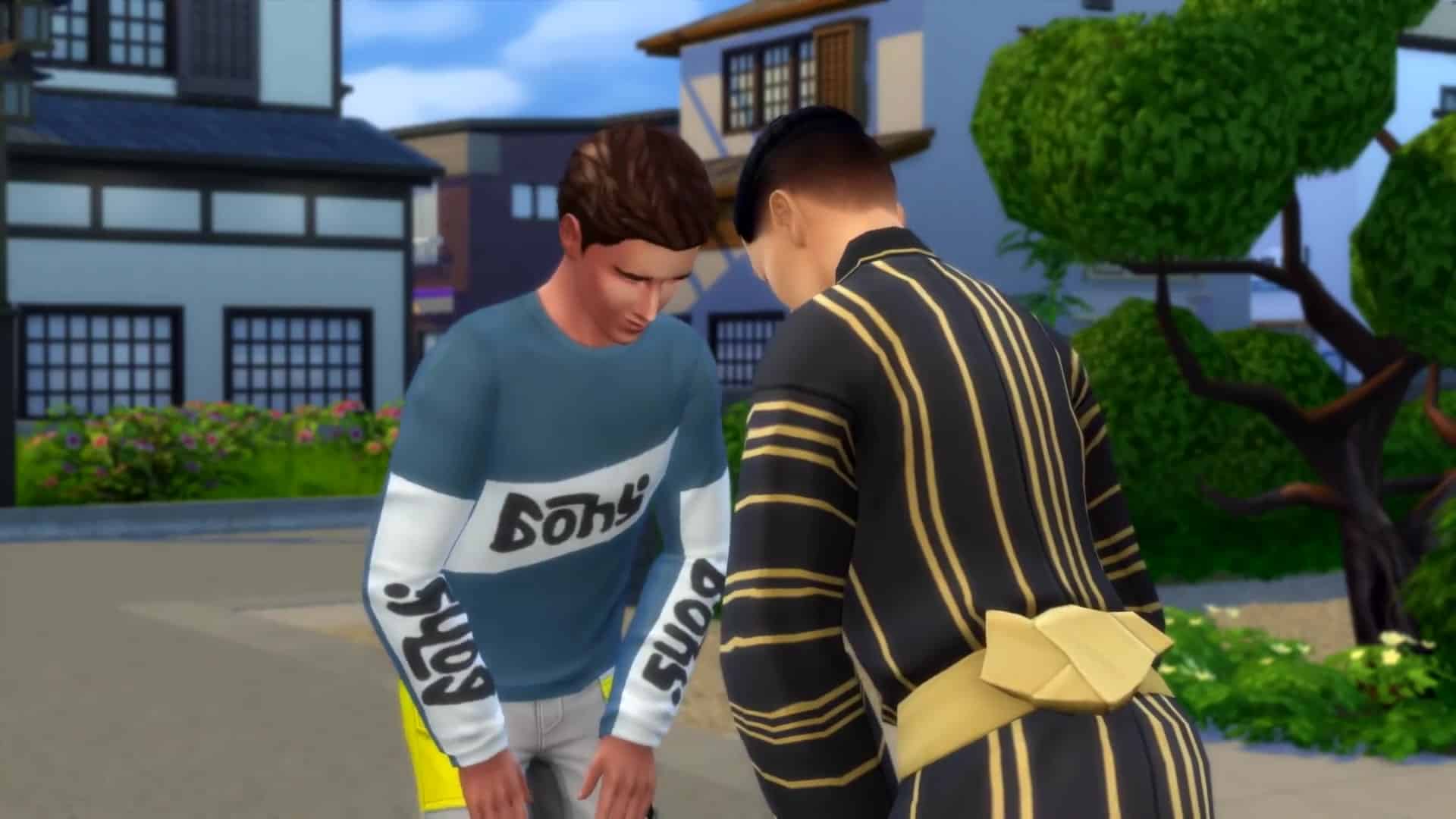
It’s not surprising to see two Sims bowing to each other in a Japan-inspired pack. Bowing is a common greeting in Japan and is a sign of mutual respect between two people, so it’s nice to see that social custom in the game, as well. It’s both a fun and respectful new way to interact with other Sims.

Bare Feet Indoors

13 Things We Love from The Sims 4 Snowy Escape Gameplay Reveal!

One feature some players noticed from the reveal trailer was Sims being in socks or bare foot indoors. The gameplay trailer features this more prominently. Most people take their shoes off when they enter someone’s home, so it always struck us as odd that our Sims were always walking around the house in their footwear to begin with, but removing one’s shoes before entering a building has even more significance in Japanese culture, so we’re happy to see this small but important detail come to the game.

New Disposal Bins

13 Things We Love from The Sims 4 Snowy Escape Gameplay Reveal!

We couldn’t help but spot some new disposal bins outside a home in one shot of the trailer. Eco Lifestyle was primarily focused on living green and being more aware of how we dispose of everyday items, but these new colour-coded bins seem to hint at proper waste disposal being implemented somehow in Snowy Escape as well. It also looks like the bins are part of the editable lot and not just set dressing in the common space.

Customizable Platforms

13 Things We Love from The Sims 4 Snowy Escape Gameplay Reveal!

Another confirmed feature coming to the game is customizable platforms! These new platforms can be resized, stacked on top of each other, and have varying degrees of height to open up a whole new way to build! This will be useful not only for recreating integral aspects of Japanese design, but also for all kinds of advanced architectural techniques seen in many types of modern homes around the world.

Floor Seating

13 Things We Love from The Sims 4 Snowy Escape Gameplay Reveal!

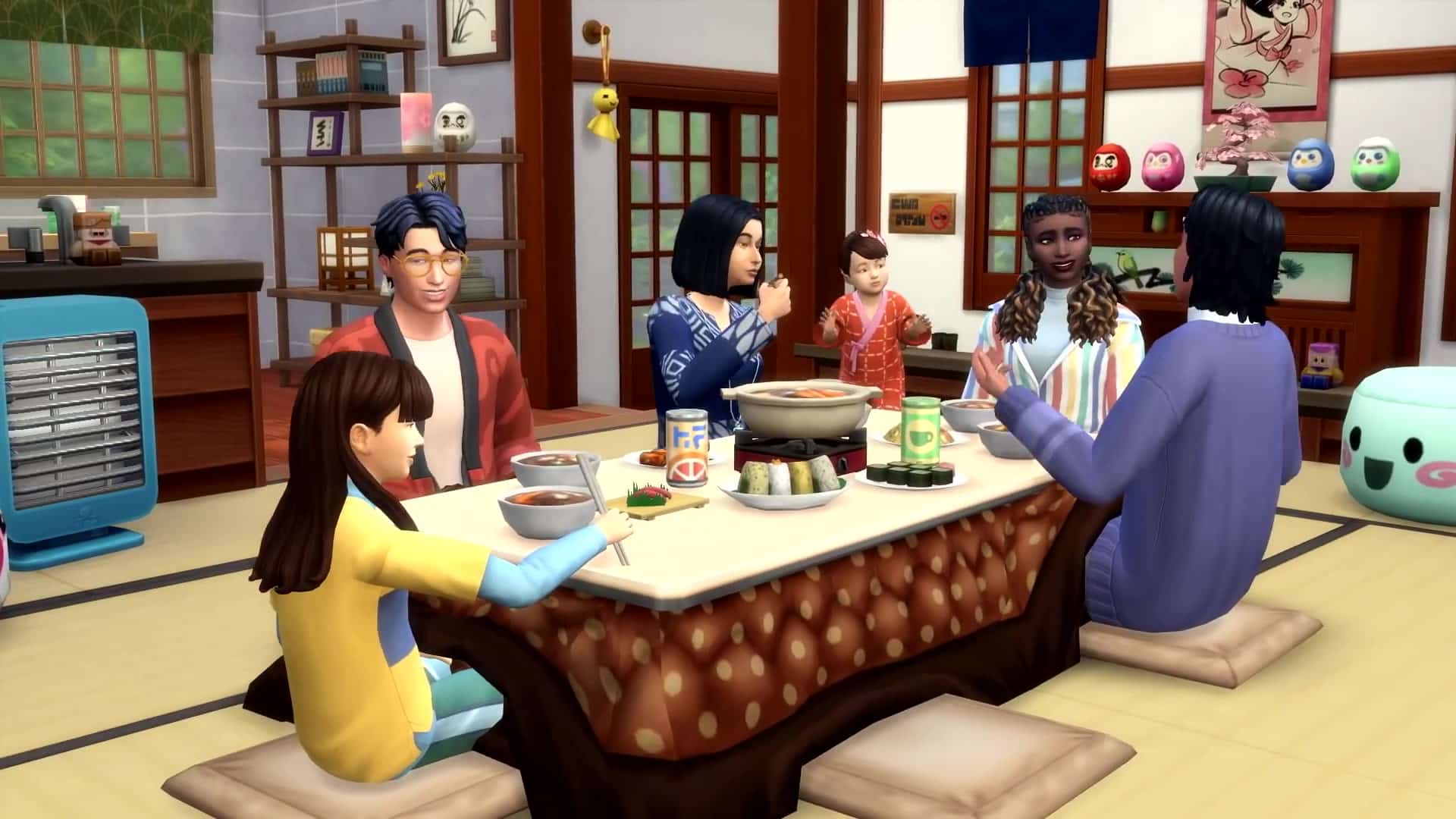
Some new floor seating and low dining tables are a perfect compliment to the Japanese architecture and interior design featured in this pack. This will surely make for some warm and inviting family dinners or gatherings among close friends.

Lifestyles

13 Things We Love from The Sims 4 Snowy Escape Gameplay Reveal!

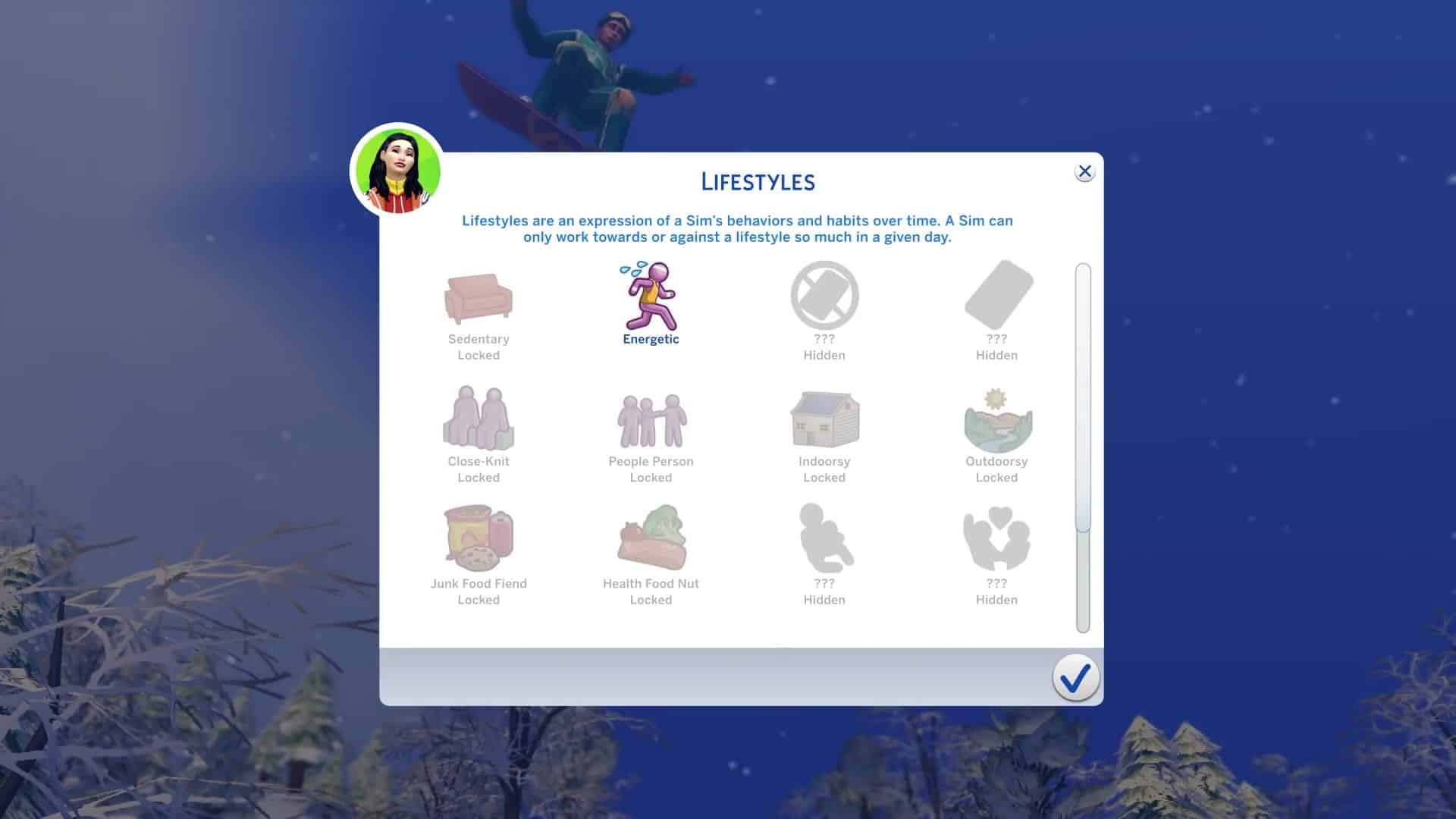
We catch a glimpse of one of Snowy Escape‘s most anticipated new features; Lifestyles! As our Sims embark on new adventures and take up new hobbies and activities, they have the potential to pick up a new Lifestyle surrounding their interests. This gives us all types of The Sims 2 Freetime vibes and honestly? We’re living for it!

School Uniforms

13 Things We Love from The Sims 4 Snowy Escape Gameplay Reveal!

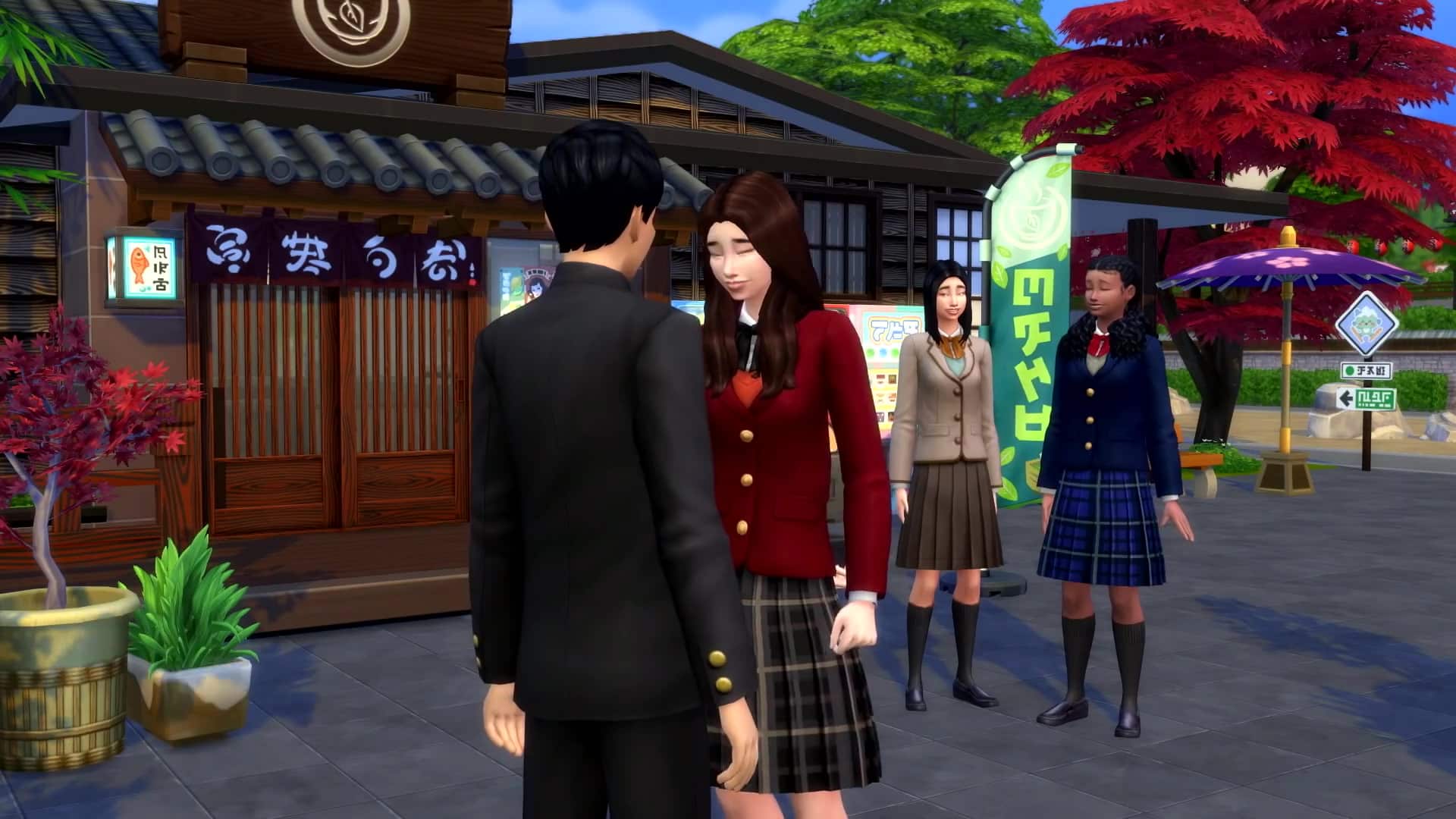
What looks to be a group of teenagers attending school in Mt. Komorebi are wearing some traditional Japanese school uniforms! Personally, the lack of school uniforms was something this author has always been bothered by. I attended a high school that had uniforms somewhat similar to the ones depicted in this trailer and have always mixed and matched different clothing pieces to recreate school uniforms for my younger Sims. It is so exciting to see proper school uniforms in the game! Could this also be a hint for more teen-focused gameplay in the future? Hmmm…

Koi Fountains

13 Things We Love from The Sims 4 Snowy Escape Gameplay Reveal!

We can see koi fish swimming around in shallow waters in the gameplay trailer, which is a feature confirmed in the official blog post. We will be able to add koi fish to our decorative fountains in Snowy Escape, making our outdoor spaces feel much more alive with the beauty and grace of nature!

Zen Skill?

13 Things We Love from The Sims 4 Snowy Escape Gameplay Reveal!

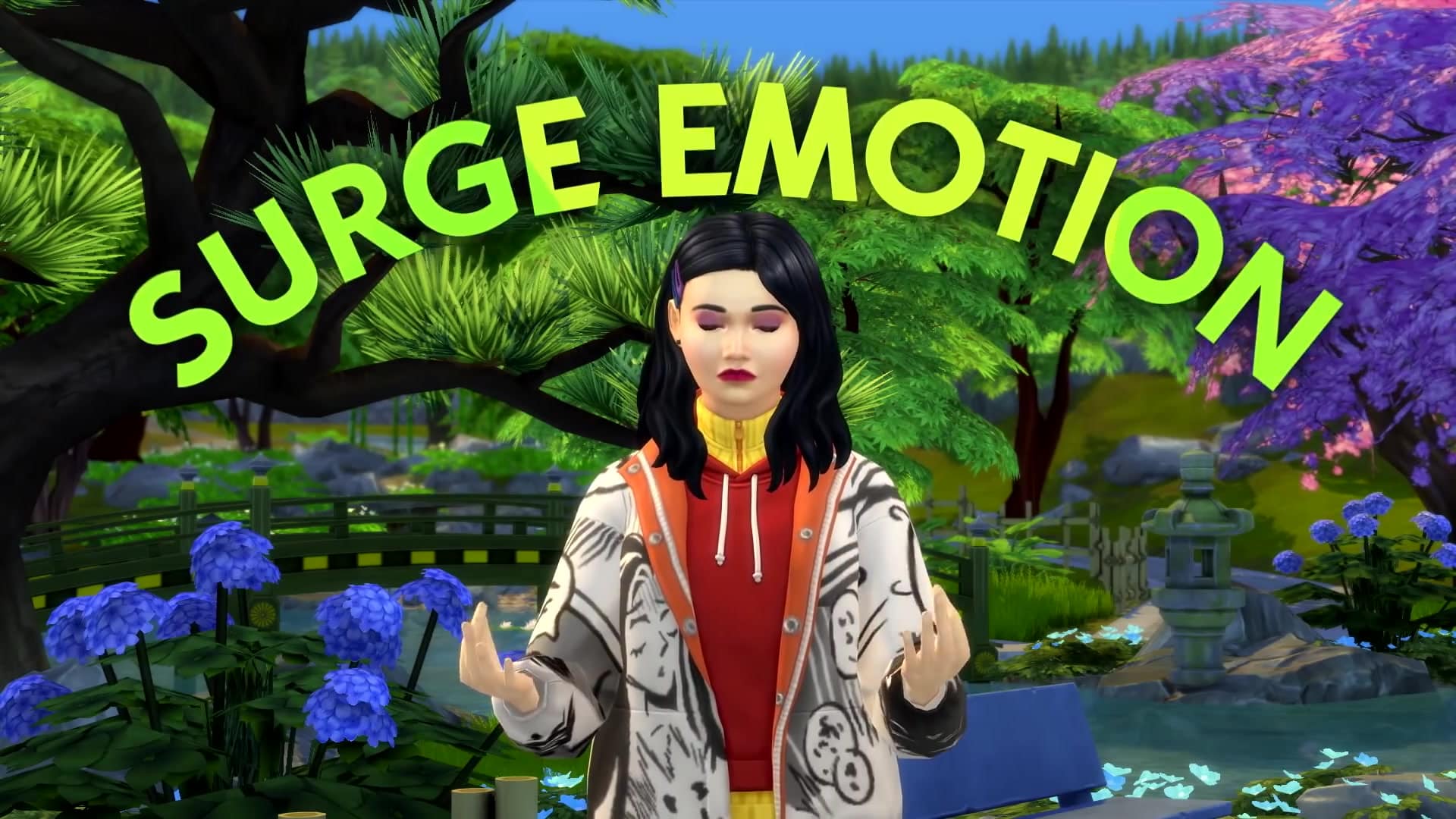
There has been a lot of talk about “finding your zen” in the trailers and blog post for Snowy Escape, and the narrator talks about being able to tune out distractions in order to control emotions better. We’re still not entirely sure how this zen aspect is going to function in-game, but this definitely looks like new gameplay we will be able to explore, whether through a skill or some other type of practice.

Respectful Tourism

13 Things We Love from The Sims 4 Snowy Escape Gameplay Reveal!

The narrator talks a lot about being respectful towards Mt. Komorebi’s culture; keeping selfies to a minimum in order to fully experience everything the world has to offer and to be mindful of the rules in place while visiting the bath houses. It makes us wonder if our Sims will be able to go the opposite route and get up to some tourist mischief in Mt. Komorebi? Maybe we’re reaching a little too much here, so we’ll just have to wait and see.


What was your favourite part of the gameplay trailer? Let us know in the comments or come chat with us on social media!

The Sims 4 Snowy Escape comes to PC, Mac, PS4, and Xbox One on November 13th, 2020.

Missed the trailer? No problem! You can watch it right here!

The Sims 4 Snowy Escape: New Deaths and Woohoo Locations

3

With the reveal of  The Sims 4 Snowy Escape gameplay trailer, a whole mountain of new information has been released. In an exclusive livestream, some new information about new deaths and Woohoo locations has been shared.

The Sims 4 Snowy Escape comes with not one but two brand new deaths. One of which makes a return after being featured in earlier The Sims games!

Death by Vending Machine
When an item it stuck and you make an attempt to take it out, it can cost you your life

Death by Falling
When you fall off the cliff during rock climbing there’s a chance it’s not just an injury… Don’t go climbing in icy weather conditions.

The Sims 4 Snowy Escape: New Deaths and Woohoo Locations

But let’s not forget that there are also two brand new Woohoo spots for your Sims to explore! If they are up to the challenge of course.

Woohoo in Hot Springs
You can woohoo in the hot springs in the Onsen Bathhouse or place a hot spring on your lot.

Woohoo in the Ice Cave
During the moutain excursion you can come across an ice cave. It might be sealed and frozen over or it might be available to your Sims.

The Sims 4 Snowy Escape: New Deaths and Woohoo Locations

What do you think of the new death and Woohoo options?

Credit: Sims-Online

Breakdown of all the new Neighborhoods and Lots in The Sims 4 Snowy Escape

2

The Sims Team released an interactive map of Mount Komorebi – a new world coming with The Sims 4 Snowy Escape Expansion Pack!

Within the interactive Map they’ve revealed details regarding the 3 new Neighborhoods and Lots within them. We’ve gathered all the information from the Map that you can see down below into a breakdown of all the Lots and Information for each new Neighborhood. Check it out!

ts4 map asset ep10 map main

Wakaba Neighborhood

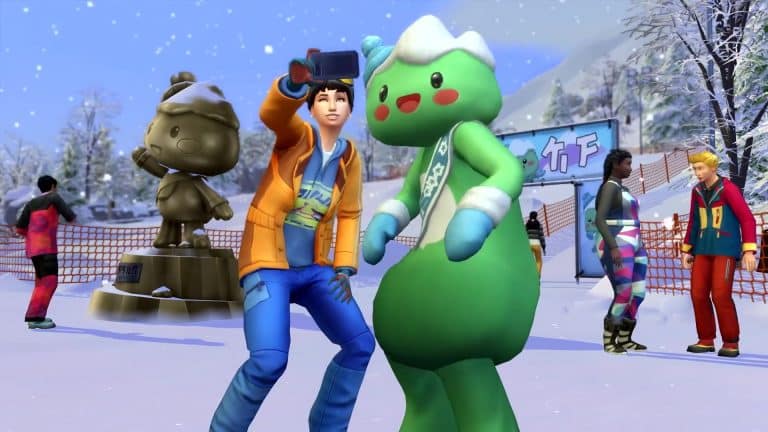
Like its namesake, Wakaba is young, new, and bright as the leaves of a tree in early springtime. This small town is up-and-coming in the region, home to beautiful, sleek new homes and an attractive town center featuring Mt. Komorebi’s official mascot: Yamachan. Tourists of all ages can enjoy the Festival of Youth, or simply take in the neighborhood’s natural beauty.

2-5-1 WAKABAMORI

Breakdown of all the new Neighborhoods and Lots in The Sims 4 Snowy Escape

2-4-3 WAKABAMORI

Breakdown of all the new Neighborhoods and Lots in The Sims 4 Snowy Escape

2-4-1 WAKABAMORI

Breakdown of all the new Neighborhoods and Lots in The Sims 4 Snowy Escape

2-4-2 WAKABAMORI (Rental)

Breakdown of all the new Neighborhoods and Lots in The Sims 4 Snowy Escape

HAZAKURA LOUNGE

A swanky hotspot for both locals and tourists, Hazakura Lounge is the perfect place to grab a drink, meet locals, and watch local musicians take the stage.

Festival of Youth

Each neighborhood hosts its own festival! In Wakaba, enjoy the Festival of Youth, where children can join Yamachan on a Voidcritter Hunt. The Festival of Lights in Senbamachi honors the dead with dazzling displays and wishes for the living, while the Festival of Snow in Yukimatsu stuns with snow sculptures and games. Check out festival-exclusive outfits and collectibles from the vending machines.

Senbamachi Neighborhood

Senbamachi, the town of a thousand leaves, is the oldest in the region. Many locals enjoy the town’s connection to nature, especially with the bamboo forests surrounding the town and unique spritely creatures that make a home in their leaves. It’s said that if you walk the local trails long enough, you’re bound to meet the guardians of the trees who reward those who love and respect their dwelling.

Breakdown of all the new Neighborhoods and Lots in The Sims 4 Snowy Escape

6-4-1 HANAMIGAWA

Breakdown of all the new Neighborhoods and Lots in The Sims 4 Snowy Escape

5-3-1 SHINRINYOKU

Breakdown of all the new Neighborhoods and Lots in The Sims 4 Snowy Escape

5-6-1 SHINRINYOKU

Breakdown of all the new Neighborhoods and Lots in The Sims 4 Snowy Escape

IZAKAYA IPPAI Bar

Izakaya Ippai is the perfect place to meet up with friends, play a game of cards, or chat with the locals of Senbamachi.

Breakdown of all the new Neighborhoods and Lots in The Sims 4 Snowy Escape

HANAMIGAWA KOEN Park

Hanamigawa Koen is a beautiful natural space that belongs to everyone! The land was donated to the town by families who wanted to preserve a little bit of the sweeping, surrounding natural beauty in the heart of Senbamachi.

Graveyard

Many Sims pause to mourn or offer a gift in the graveyard while on a hike. And sometimes, just sometimes, Sims might encounter spirits like kodama or other forest spirits! (Just try not to get cursed.)

MOUNTAIN TEMPLE

This beautiful temple inspires many Sims to stop and reflect in its shadow. Swing by on a hike to take a selfie with this landmark or make a wish at the ema board.

Breakdown of all the new Neighborhoods and Lots in The Sims 4 Snowy Escape

BAMBOO FOREST

The bamboo forest is an incredibly scenic destination for Sims on a hike. Listen to the sound of the trees rustling together, and keep an eye out for wildlife like bats, Japanese hornets, and denkimushi. (Make sure to carry spray repellents just in case!)

Breakdown of all the new Neighborhoods and Lots in The Sims 4 Snowy Escape

CLIMBING WALLS

Many Sims start building their mountain climbing skills at the easiest rock wall in Yukimatsu, then visit the course in Senbamachi to continue improving. Good climbers often venture out on a mountain climbing excursion to the peak once they’re comfortable clinging to these cliffsides.

Breakdown of all the new Neighborhoods and Lots in The Sims 4 Snowy Escape

YUKIMATSU Neighborhood

The true beauty of the countryside can be seen from Yukimatsu, named for its snow-covered pines. Located on the slopes of Mt. Komorebi, this area offers gorgeous vacation rentals, a variety of snow sports, untamed wilderness, and a peaceful Onsen Bathhouse getaway. Whether it’s relaxation in a hot spring, seeing the sights of the Snow Festival, or an exhilarating climb to Mt. Komorebi’s highest peak, this year-round snowy wonderland has something for everyone.

Breakdown of all the new Neighborhoods and Lots in The Sims 4 Snowy Escape

5-1-1 KIYOMATSU (Rental)

Breakdown of all the new Neighborhoods and Lots in The Sims 4 Snowy Escape

5-1-2 KIYOMATSU (Rental)

Breakdown of all the new Neighborhoods and Lots in The Sims 4 Snowy Escape

SUTEFANI ONSEN BATHHOUSE

The Sutefani Onsen Bathhouse is the perfect place to unwind after an exciting day on the mountain. The natural hot springs have rejuvenating properties that will get any weary (or bruised!) adventurer back into the action in no time.
Breakdown of all the new Neighborhoods and Lots in The Sims 4 Snowy Escape

GONDOLA

Take this up to the top to reach the trails and start a mountain-climbing excursion to the peak of Mt. Komorebi! It’s much easier than trudging uphill through the snow.

SNOW SLOPES

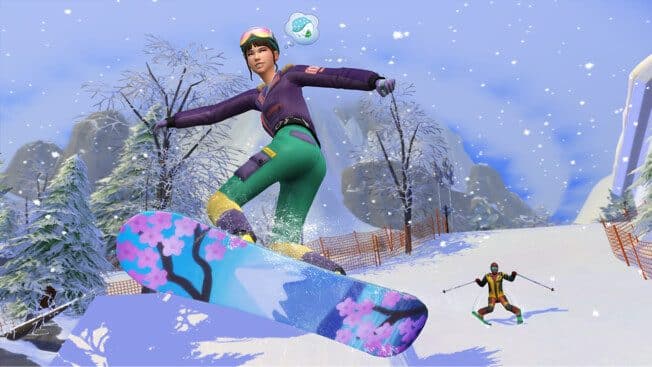
The snowy slopes at the base of the mountain offer plenty of fun. Stick to the bunny slope for sledding, or choose one of the four different trails at the top of the gondola for skiing and snowboarding. (Most beginners stick to the bunny slope as well while they learn to stay on their feet.)

Breakdown of all the new Neighborhoods and Lots in The Sims 4 Snowy Escape

HIKING TRAILS

Venture out onto the hiking trails in Senbamachi and Yukimatsu to see all the natural beauty that surrounds the town itself. Stop at any of the points of interest or merely take it all in on a mindful walk or energetic stroll.

The Sims 4 Snowy Escape: First Look at the Mt. Komorebi World Map

2

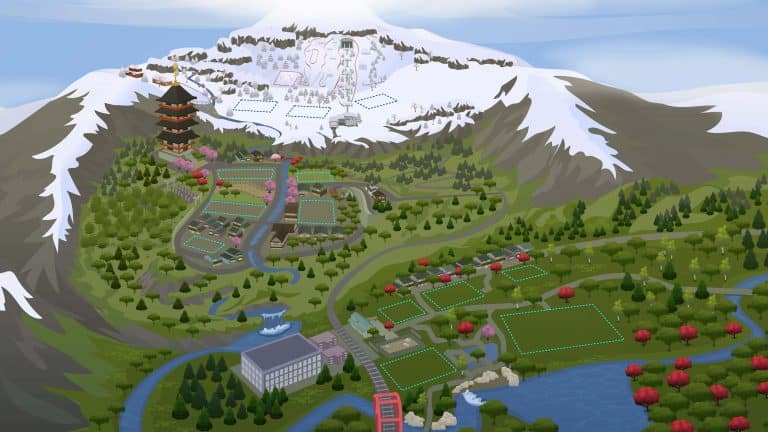
The Sims Team has released their first look at the world map of Mount Komorebi – a new World coming with The Sims 4 Snowy Escape Expansion Pack!

Check out the first look below (without the lots):

ts4 map asset ep10 map main

Next The Sims 4 Update will let you Vacation in ANY World!

6

ScreenRant has revealed some more information about the next update for The Sims 4!

In an exclusive preview The Sims Team confirmed to ScreenRant that the next update for The Sims 4 will allow you to send your Sims to vacation in ANY World. This feature will be functional thanks to the Rental Lots being unlocked for any World now, not just Vacation Worlds.

Mount Komorebi is both a vacation destination world and a residential world. When players take a vacation there, as in other vacation worlds, they will need to stay in a rental property. As part of the free base-game update that comes with this pack, players can now take a vacation to any world, not just the vacation worlds, though rental properties will not be available for families vacationing in the residential worlds right now.

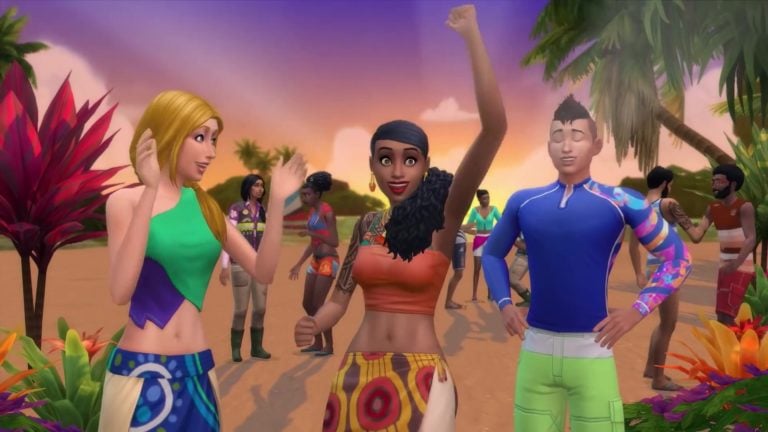
This means that Mount Komorebi won’t be the only exotic place for your Sims to Vacation in. If, for example, you have The Sims 4 Island Living Expansion Pack installed you’ll be able to create your own Rental Lot and send your Sims to vacation in the world of Sulani!

The Sims 4™ Island Living Official Reveal Trailer 135

However, the next update won’t let you turn Vacation Worlds like Granite Falls (from Outdoor Retreat) and Selvadorada (from Jungle Adventure) into Residental Worlds.