We all know the struggle. We spend hours and even days customising our Sims 4 saves just the way we like them. We make over all the premade Sims to suit our tastes. We build up Newcrest just the way we want it. We set up our clubs and edit our homes and community lots with the latest pack content. Then… we decide we want to start a new save file and have to start the whole tedious process all over again. Even if you save all your Sims and lots to your library to plop down, it can still take a long time to import everything.
What if I told you there’s a better way? What if you could have just one base save file already set up exactly the way you want it that you could use every time you want to start a new game? I’m here to show you how to do exactly that.
But First…
Before we get started, it’s important to understand something about how The Sims 4 saves your data. It jumbles all your save files into one folder. To make matters worse, these files have computer jargon names that make it impossible to tell which save files are which. This. Drives. Me. Insane. I hate having it all messily jumbled into one folder.
In order to have a base save, you will need to know which files belong to which save. There is no easy way to do this except by a lengthy process of elimination, which I will go over at the end of the tutorial, but for the immediate purposes of setting up our base save as quickly as possible, follow these steps:
Make a folder in your Documents called The Sims 4 Backups
Inside The Sims 4 Backups, make a folder called Starting
Go to Documents > Electronic Arts > The Sims 4 > saves and copy everything in there
Paste the files into your newly created Starting folder under The Sims 4 Backups
Go back to Documents > Electronic Arts > The Sims 4 > saves and delete everything in that folder. Don’t worry about losing your saves, you just backed up all your saves in Step 4, remember?
Your backup folder should look like this, with all your save files inside the Starting folder:
Building Your Base Save
Now that your saves folder is empty and all your saves are backed up somewhere else, we can begin with a clean slate. It’s time to create our base save. This is the longest, but probably the most fun part of the tutorial. It may take you days or even weeks to set up your base save exactly the way you want it, depending on how particular you are, but it will be worth it in the end when you have a save file you can always use instead of redoing everything all the time.
Run The Sims 4
You will only have the option to start a new game since your saves folder is currently empty
Start a new game and begin setting it up exactly the way you want it. This is entirely up to you and your own personal preferences, but here are some ideas of things you might want to change or add:
Build or place all the lots you want in the empty Newcrest world
Give all the premade Maxis Sims makeovers to suit your personal taste. I recommend not using CC on these Sims. If you ever get rid of your CC or if it breaks, the next time you start your game, all your Sims will look strange. Same goes for your lots. This is a base save, remember. You want to be able to just load it and go without having to redo your Sims and lots all the time.
Add pets to the premade Maxis households if you have Cats & Dogs installed
Set up your clubs the way you want them if you have Get Together installed. Add whatever clubs you like and edit existing clubs to your liking.
Edit existing lots to include content from later packs that you have installed. I have a laundromat in my game and have added pools and rock climbing walls to my gyms, for example. I’ve also put buffet tables in my clubs and bars.
I’m Finished! What Now?
Awesome! Now it’s time to put your newly created base save somewhere safe in your backups so you can always go grab it whenever you need it.
Whenever you are finished setting up your save exactly the way you want it, save and exit the game. Go back to Documents > Electronic Arts > The Sims 4 > saves. All the files in this folder belong to your base save. Copy everything in this folder.
Go to Documents > The Sims 4 Backups. Create a new folder called Saves
Inside this Saves folder, make a new folder called Base Save
Inside the Base Save folder, make a new folder and title it with the current date. Why date all the files inside your Saves folder? Two reasons: 1) As we get new pack content, you’ll want to edit your base save to include it. 2) Dating each version of your saves gives you multiple backups. If you ever run into trouble with your current version, you will always have a previous version you can fall back on.
Inside your dated folder, paste all the files you copied from Documents > Electronic Arts > The Sims 4 > saves
Whenever you edit your base save, save it in a new dated folder under your Base Save folder.
Now that you have your new base save backed up, return to Documents > Electronic Arts > The Sims 4 > saves and delete everything in that folder. No worries, you just backed up your base save in the previous step.
From now on, whenever you want to start a new game, instead of clicking New Game, copy the files from your most recent Base Save version and paste them into Documents > Electronic Arts > The Sims 4 > saves. When you run the game, select Load Game and select your base save.
Your new folders should be set up like this:
Screenshot 8
Screenshot 5
HELPFUL TIP: Always copy, never cut! If you cut your base save files into your game, then you’ll lose the files in your backups which you will need to copy whenever you want to start a new game with your base save.
Dealing With Your Other Saves
The base save tutorial is effectively finished now, but I promised I’d show you how to separate all your saves in the future. This is important because if you don’t do this, your base save files will get lost in the mess of all your other saves, making all the effort of creating a base save in the first place pointless.
Do you remember how you made a folder called Base Save under your Saves folder in your backups? We’re going to do that for all of your saves now, but we’ll have to separate them first. This is a lengthy process of elimination.
Copy (DO NOT CUT) all the files in Documents > The Sims 4 Backups > Starting
Paste it into your empty saves folder under Documents > Electronic Arts > The Sims 4 > saves.
Run the game. You should have all your old saves again when you select Load Game.
Load one of your saves.
ALT + TAB to minimize the game and open up Documents > Electronic Arts > The Sims 4 > saves
Delete everything in that folder EXCEPT THE SCRATCH FOLDER. DO NOT DELETE THE SCRATCH FOLDER. Don’t panic, you have backups of all your saves in your Starting folder, don’t you? Of course you do.
ALT + TAB back into the game and save it. Save it three times just for good measure. I’m paranoid about the game not saving stuff properly so I always save three times.
ALT + TAB back out of the game. Open up Documents > Electronic Arts > The Sims 4 > saves. You should see significantly less files here now which means only the save you just loaded should be here. Copy everything in this folder, INCLUDING THE SCRATCH FOLDER!
Go to Documents > The Sims 4 Backups > Saves and make a new folder for this save. Title it something you will easily recognise, like The Smith Legacy. Anything that will make it clear to you what save it is.
In your new folder, make another folder with the current date and paste everything into that folder.
ALT + TAB back into the game and exit the game, then go back into Documents > Electronic Arts > The Sims 4 > saves and delete everything in that folder since you just backed it up. The scratch folder should be gone now. This is normal. The game is supposed to “hide” this folder whenever the game is not running in order to prevent people from tampering with it. In case it wasn’t obvious yet, it’s a very important folder.
Repeat this entire process from step one for all your saves. By the time you have finished, you should have a backup saves folder that looks like this:
These folders are just the names of my own saved games. Your folders will obviously be different. The only folder that should be the same here is the Base Save folder.
Whenever you want to play one of your saves in the future, copy all the files (and the scratch folder if it is there) from your most recent backup of that save and place it into your game. When you are finished playing, save and exit the game like normal, then copy all your save files (and the scratch folder if it is there, but it usually won’t be if the game is not running) to a newly dated backup in the appropriate folder. Go back and delete the save files in your game after backing them up.
If you want to start a new game, do the exact same thing, but with your Base Save folder.
If you do this whenever you want to switch saves or start a new game, you will always keep all of your saves separate from each other. You will always know which save is which and you will be able to use your base save easily whenever you start a new game.
YO SNARKY, WHY YOU SO OBSESSED WITH THE SCRATCH FOLDER? The scratch folder is ironically named. Even though its name suggests it’s just junk files, it is actually a crucial component of your saved games. This folder contains all of the data for your lots in your current saved games. If you were to delete this folder and then load your game again, all of your lots would be gone, replaced with the default Maxis lots. This can utterly destroy some people’s games and stories if they’ve spent a lot of time customising their own lots.
Thank You
Thank you to Tatiana for initially showing me how to separate all my saves and create a base save of my own. She has an older tutorial on Sims Community where she covers some of this, however, the main focus of that tutorial was keeping your Sims 4 folder organised in general. I decided to write up an article dedicated specifically to creating a base save since it was requested by someone in the the Sims Community Facebook Group.
If you’d like to check out Tatiana’s tutorial, you can find it here: Keeping Your The Sims 4 Folder Tidy: Saves. Although there is a lot of overlap in our tutorials, she covers some useful things that I do not. She also goes more in-depth into exactly how to organise all of your backups.
A few moments after The Sims Mobile Official Twitter Page has posted a mysterious screenshot showcasing a new area SimGurus have started hinting at the brand new update on their profiles.
The first SimGuru to post a hint about the new update was SimGuruMiriam, a Game Designer for The Sims Mobile. Her tweet was a picture of two water bottles standing in front of the camera. Water…in front of the camera…well, you get my point.
Beside the fact that he’s standing near water which is a dead giveaway, he also included a lab coat emoji which could hint at one of the unreleased careers for The Sims Mobile that have been uncovered last year.
Are you excited to find out what the hints are all about? Stay tuned to our Sims Mobile News Category for all the latest news and updates!
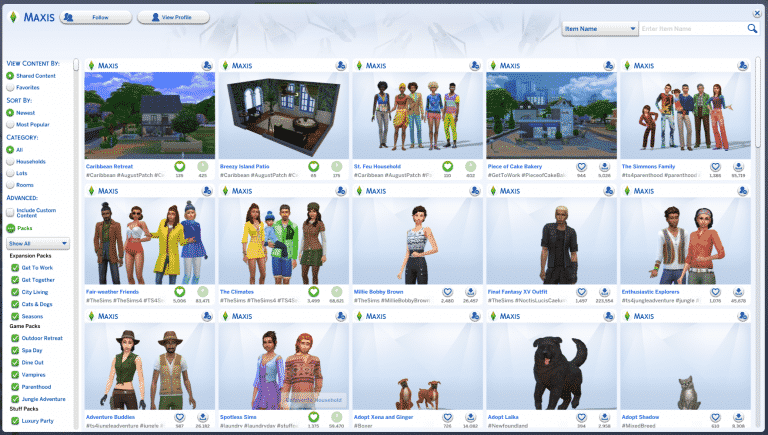
MaxisCreator_01, the EA Origin ID that contains all the official creations for The Sims 4 Packs including Households, Rooms and Lots from promotional material and livestreams has changed it’s name to Maxis!
If you’ve gotten used to searching for official creations under the MaxisCreator_01 name don’t worry – The Gallery will automatically redirect you to the Maxis account.
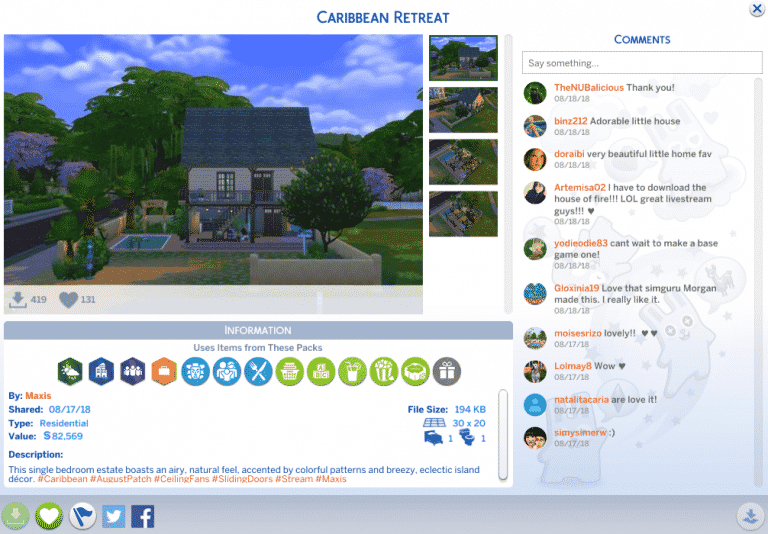
Have you watched the latest Sims 4 official livestream and thought about wanting that Carribean Retreat home built by one of the developers all for yourself? Don’t worry – now you can get it!
The Sims Team has uploaded 3 official creations that they’ve built including a Household, a Room with only Base Game items + Caribbean Update Content and a House which contains that room + items from multiple packs that you can check out below.
Want to download these creations? Click the download links below!
A few weeks ago SimGuruKate announced that The Sims Team will be doing plenty of more livestreams on their Twitch channel. Their Twitch channel, other than doing surprise livestreams for Updates and Packs, will feature two segments: Guru Garage and Maxis Monthly (More on that here!)
Today the first Guru Garage Livestream has been announced! This livestream is going to be 2 hours of pure gameplay by the developers of The Sims 4 including SimGuruRomeo, SimGuruKate and some other Gurus.
The livestream will focus specifically on Get Together and Clubs. Set your calendars for August 31st at 8PM CET / 7PM BT/ 11AM PDT!
The Sims Mobile has posted a teaser for a brand new neighborhood! We’re guessing that it’s Waterfront considering that it’s been unavailable since the launch of the game and it’s definitely about time that we get our hands on it!
They posted a teaser saying: Who’s down for a road trip?
Right now we have no official confirmation if it’s Waterfront or not but stay tuned to our Sims Mobile News Category for all the latest news and updates!
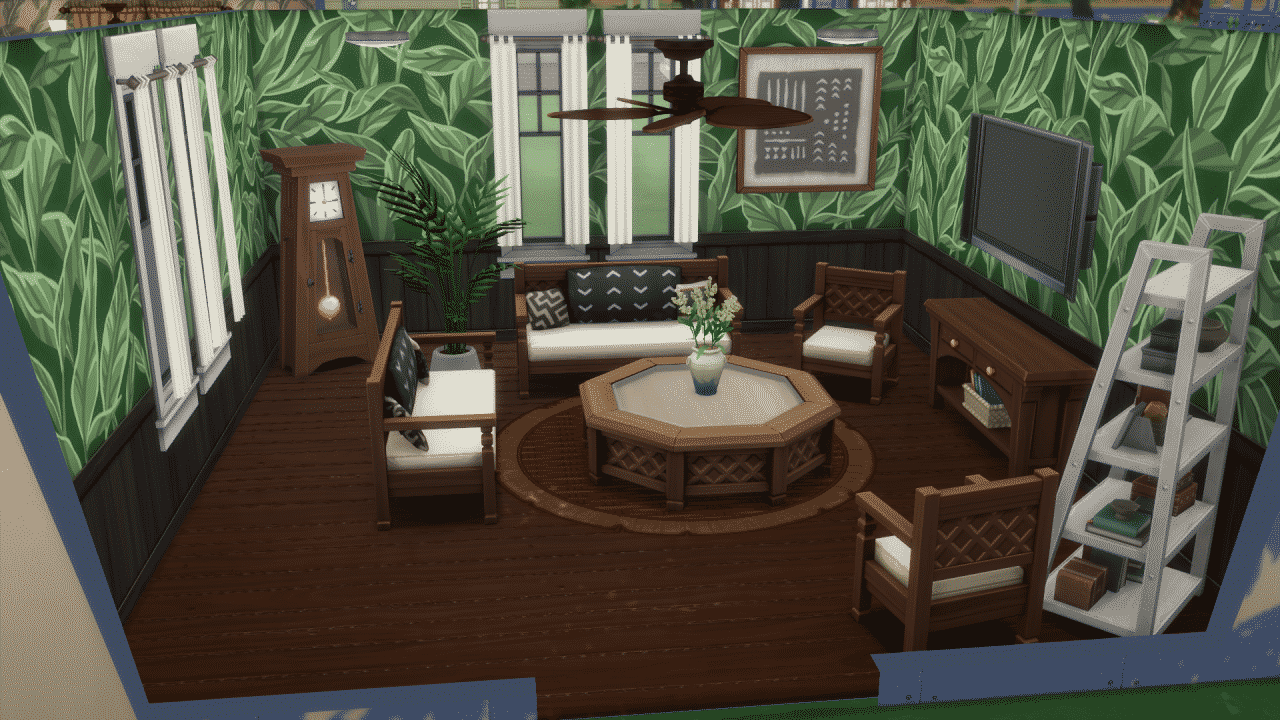
The latest update for The Sims 4 brought ceiling fans to the game. Although they don’t bring any new functionality they rotate, making your indoors a little more animated.
The developers haven’t added any light options to ceiling fans but luckily there’s an easy trick that lets you combine and customize the ceiling fan with multiple lights that we have in the game.
By entering the bb.moveobjects cheat you’re able to overlap and mix multiple objects into one. With this cheat you’re easily able to combine ceiling lights with ceiling fans. One thing to note about ceiling lights is that they come in all shapes and sizes and therefore it’s sometimes for the best that you resize them if they’re too big for the ceiling fan. This can be done by simply pressing Shift + [ on your keyboard!
Down below you can see 14 Ceiling Lights that go great together with Ceiling Fans. Some of the lights mentioned below are featured in certain packs!
1) Torcher Inc. Fiat Luxe Pendant Lantern
The Sims 4 Base Game
2) Canonical Cone
The Sims 4 Cool Kitchen Stuff Pack
3) Mason Jar Lighting – Low Hanging
The Sims 4 Parenthood Game Pack
With this ceiling light it is recommended that you use it for medium and high walls.
Updates and improvements to The Sims 4 Base Game still seem to be in full force.
SimGuruGrant has tweeted this, just an hour before the release of the Caribbean Content Update that brings new themed objects and clothing for your Sims:
We have a feature we’re planning to release in the near future. Today and tomorrow we’re conducting research on it to see how it works, what we need to tweak, and how to make it the best. Just peeling back the layer a little on how we do some things.
Unlike the Content Update that we’ve received yesterday, this mysterious Update that we’re getting for The Sims 4 soon™ seems to be adding an entirely new functionality in the game considering that Grant describe it as “a feature”.
We don’t know what it is or when exactly it’s coming. All that we know right now is that it’s in a phase of research and that it’s coming “in the near future”.
It’s no secret that anything we get on The Sims 4 for PC and Mac will eventually get transferred over to The Sims 4 for Xbox One and PS4 as well. However, the biggest question remains: when?
One of the biggest updates for The Sims 4 this year is the Caribbean Content update, bringing new hairstyles, makeup, outfits and objects. Simmers who play exclusively on Xbox One and PS4 are dying to know when the update is coming to consoles. Although we didn’t get a specific date / time exactly when, SimGuruLegacy did confirm that the Caribbean Content Update will be featured in the next update for The Sims 4 Console.
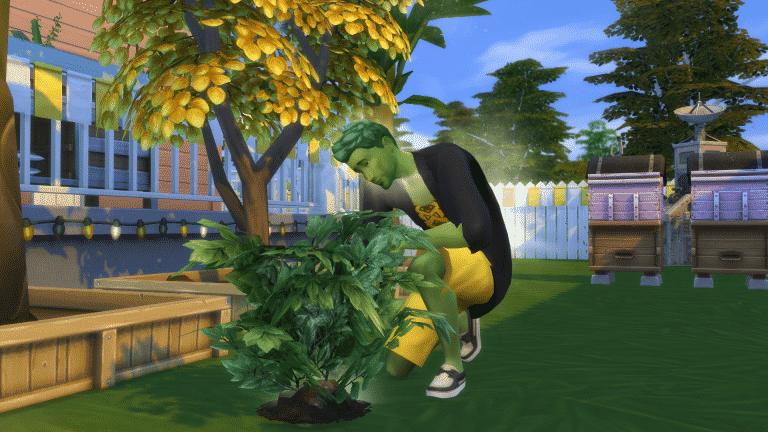
PlantSims. Yes, they’re a thing in The Sims 4 Base Game.
They were originally introduced with a Challenge that lasted for 21 days. During that period you were able to ask for Magic Beans from different townies around your neighborhood that you would later place on a Magic PlantSim stump. Watering that Stump will give you access to a rabbithole portal that, after entering, will result in your Sim having a forbidden PlantSim fruit. Eating the forbidden fruit will grant your Sim a temporary PlantSim condition that lasts for 5 days. During that period your Sim’s Bladder need will be replaced with Water while Hunger will revolve around getting enough Vitamin D (aka standing enough in the sun).
Although PlantSims could still do a few feature upgrades The Sims Team added an interesting twist with The Sims 4 Seasons that will encourage you to interact with plants even more.
The Sims Team took in consideration that not every day is going to be a sunny day in your world. That’s why they added the “Absorb Solar Energy from Plant” interaction which will feed your PlantSim.
This interaction comes particularly in handy when it’s cloudy outside which will stop raising your Sim’s hunger need. What’s interesting is that PlantSims will have their Water need taken care of during rainy weather – all you have to do is send them outside!
Absorbing Solar Energy will impact positively on your PlantSim’s hunger. However, each time you use this interaction on a certain plant will make that plant smaller and smaller…until it turns into a seed.
Be careful and make sure you use this interaction on a plant that’s not your favorite.
SimGuruMorgan has shared a concept art piece of the new hairstyle that we got with the latest update for The Sims 4 that features new Caribbean Themed content.
Check out the “finished” result that we have in the game for comparison:
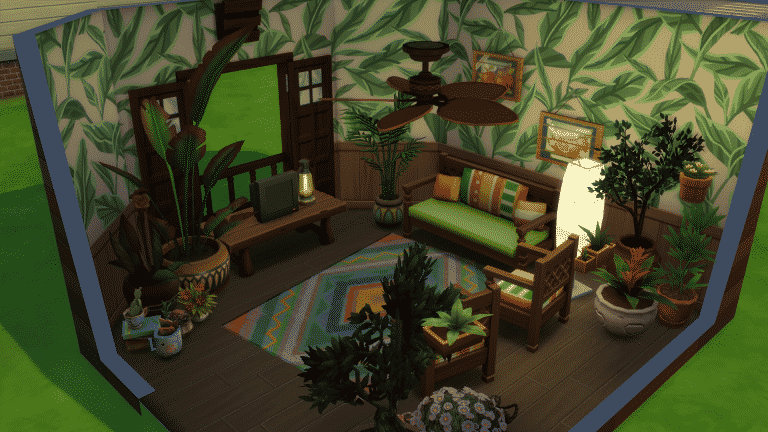
Simmers have already been hard at work to deliver some amazing rooms featuring items that have been introduced with the latest update for The Sims 4. Here are some of the best Caribbean Themed Rooms, as well as rooms that simply feature new objects that we could find in The Gallery so far!
Click on each name of the creation to be directed to the download page. Please note that some of these creations contain content from Sims 4 Packs.
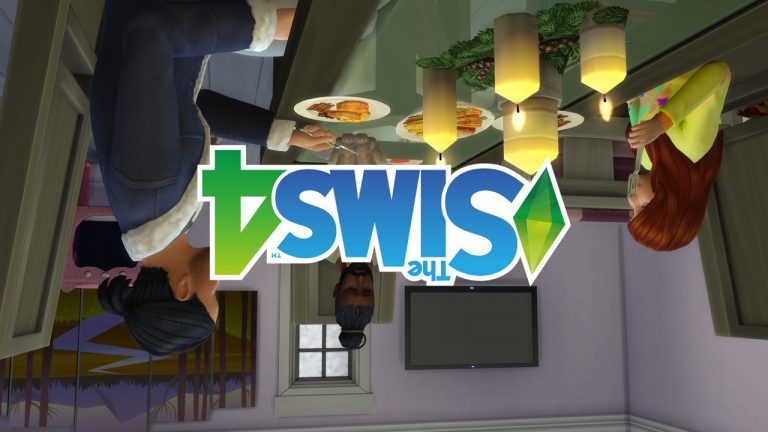
Mac players are reporting a strange issue after the latest update for The Sims 4 which should fix blurry screenshots. Apparently, each new screenshot taken after the update will make it go upside down:
@SimGuruNick So it looks like screenshots are clear again, but I have another issue now. See attached screenshot for details … I’m on a Mac if it helps. No Mods. 😂
Tried in a new save, same thing ! @BluebellFlora1@TitiaDoowop Do you see this too ? pic.twitter.com/PXro6Vi0Ya
SimGuruNick has confirmed that this indeed is an issue and that will hopefully be fixed in the upcoming update:
Screenshots upside down? This is a Mac-specific issue that we have confirmed and our team is working on. It *should* be fixed in our next patch (keyword is “should”). Thanks everyone for the reports! 🙂
Want to know everything that’s included with The Sims 4’s latest update? Watch our latest video as we dive into the new Hairstyles, Clothing, Makeup and Objects, including the Ceiling Fans and Sliding Doors!