Home Blog Page 303

The Sims 4 Seasons: The Seasons Chooser Menu

The Sims 4 Seasons: The Seasons Chooser Menu

In The Sims 4 Seasons Expansion Pack there are 2 ways to pick a season that you want to dive in: the first way is through live mode and the second way is through the seasons chooser menu. However, the seasons chooser menu is presented to you only when starting up a new game or loading up your old save game that you’ve played before installing The Sims 4 Seasons.

The Sims 4 Seasons: The Seasons Chooser Menu

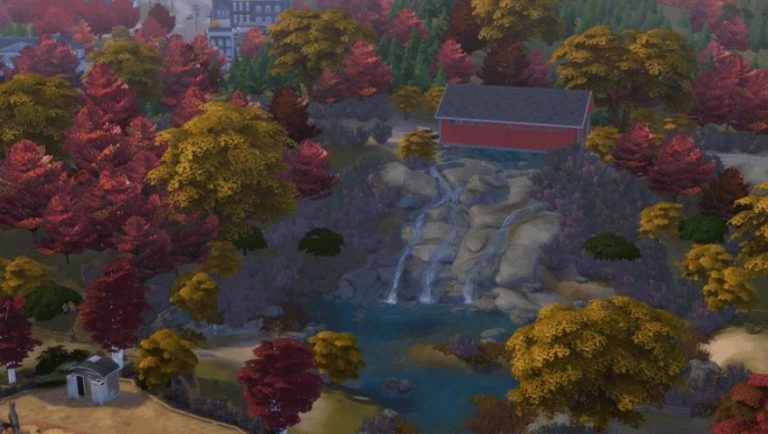
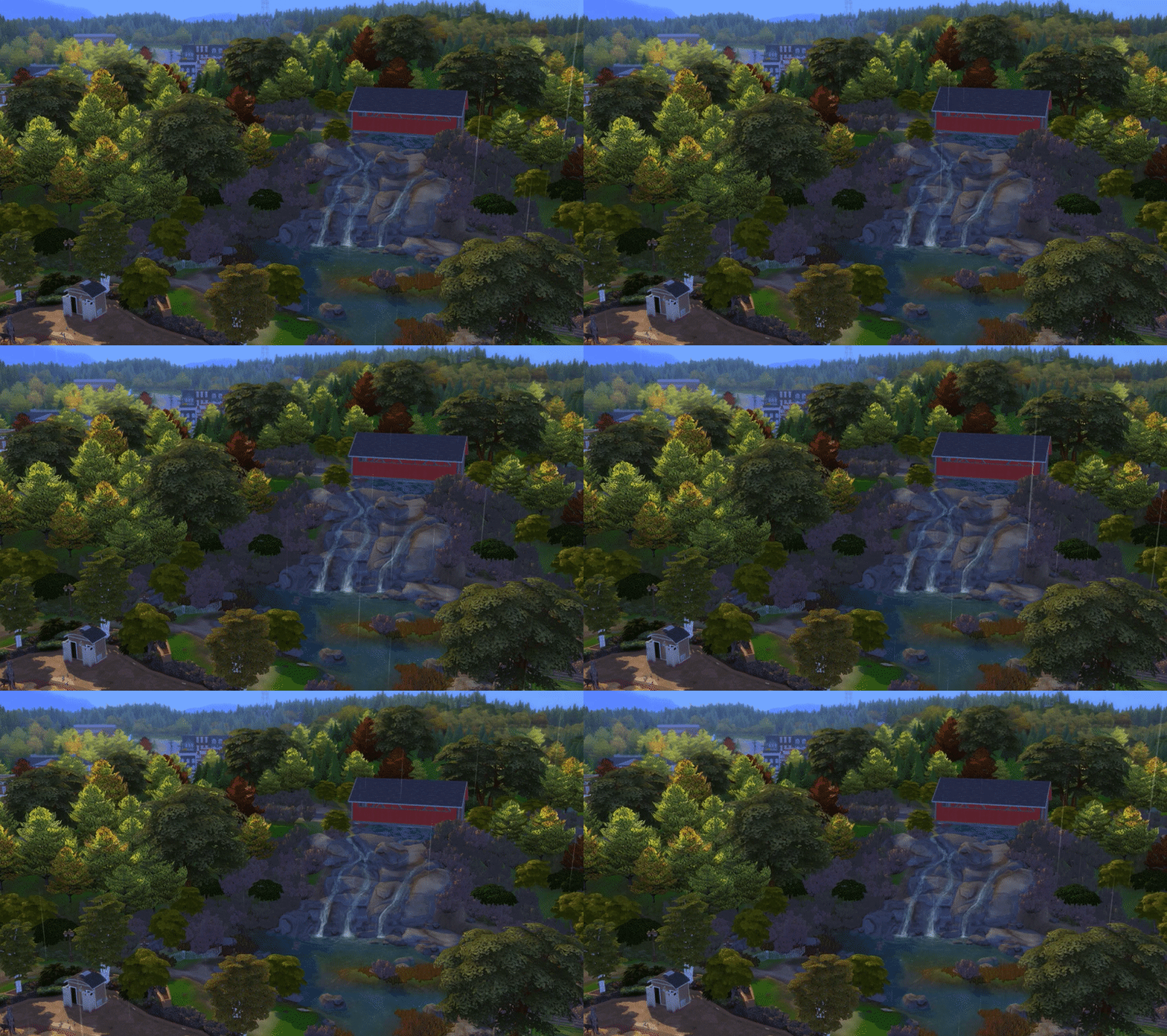
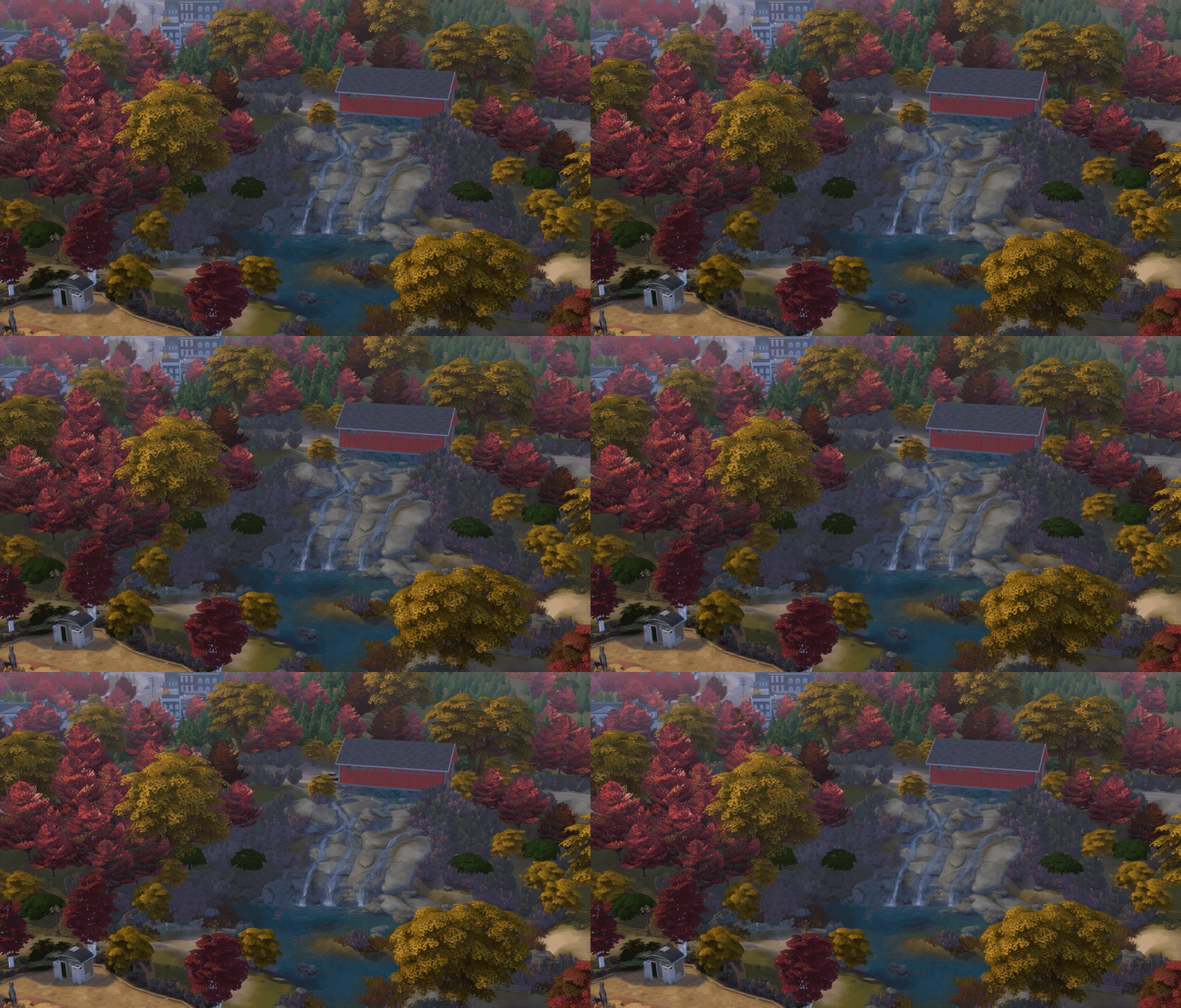
The Seasons Chooser Menu features 4 plumbobs with different color variations representing each season. There are special animations that you get after clicking each season! Check them out below:

The Sims 4 Seasons: List of Impressions & Gameplay Videos from EA Play

0

The Sims 4 Seasons: List of Impressions & Gameplay Videos from EA Play

During EA Play Capture Sessions that took place on June 9th and June 10th, Sims Game Changers had an opportunity to record and capture plenty of footage for The Sims 4 Seasons Expansion Pack.

Down below we’ve made a list of all the videos and articles that have been published by Sims Game Changers. After each event atendee adds new footage we’ll update this post so make sure you have this post bookmarked for new footage and info!

Articles

Videos

Perfect your Picture: Get the most out of your The Sims 4 Screenshots!

0

One of the best parts about The Sims is that there’s a huge space online for you to share your in game escapades with thousands of people! However, sometimes it takes just a little magic to get your screenshots to really pop, and make them extra special. If you’re not familiar with anything beyond pressing ‘c’ in game – don’t fret! There’s a huge assortment of excellent tutorials and templates to teach you how to do anything you possibly could want to.

Getting The Shot

So you’ve got your moment, and your game is paused. The best way that I’ve found to get the perfect shot is to make sure I’m in Camera Mode (press the TAB key while in Live Mode, paused or unpaused), using the W A S D keys to move about and take shots from every angle. It may seem excessive, but the more variety you have, the more likely you’ll get one shot that is just right!

Perfect your Picture: Get the most out of your The Sims 4 Screenshots!

TIP! The Sims 4 has really unique and fun facial expressions! Make the most of this and capture your sims making silly, sad, or angry faces. It really helps to get the tone of the image across without much effort! You can also use Instant Mood potions, or mods, to get your sim in the right mood for their great expressions.

Edit To Perfection

When it comes to editing, the sky’s the limit with possibilities. If you like the traditional Sims 4 look, you can’t go wrong with incorporating speech bubbles, thought bubbles and moodlets! Here’s some great resources with excellent templates for any mood, thought or conversation. Using templates, you can write whatever you want and aren’t restricted to actual in-game notifications and moodlets, making it great for storytellers wanting to add some personality into their shots.

Perfect your Picture: Get the most out of your The Sims 4 Screenshots!

For the more dedicated of us, you can easily up your screenie game by tweaking your image in a photo editor. Some lovely simmers have shared some easy to use documents that you can just drag and drop onto your shots to spruce them up without needing to touch a thing!

If you’re a Photoshop savant, don’t be afraid to make your own! Play with saturation, brightness, curves, and your screenshot will be picture perfect in no time.

TIP! For a Maxis Match style editing, play with brightness and saturation. The more colourful, the better – and you can do this in free programs such as Gimp as well!

The most important thing is to remember to have fun and experiment – spend time to familiarise yourself with your programs, play around with settings and utilise the community’s numerous tools to make your screenshots unique!

The Sims 4 Seasons: Embargo Lift + New Footage and Q&A Livestream

2

The embargo for content and information that we’ve captured for The Sims 4 Seasons Expansion Pack during EA Play is finally lifting in just a few hours! We’ve already prepared plenty of new videos on our YouTube Channel as well as a few posts for the website talking and showcasing the new Seasons features.

However, that won’t be all for today. I also planned up a Seasons Livestream where I’ll be showcasing hours of footage that I captured during the event and try to cram it up into a 1-hour long livestream. This is also a good opportunity for you to ask questions about certain features that we might have answers to.

Don’t worry – this won’t be the only livestream for The Sims 4 Seasons. This wednesday we’ll be fully getting our hands on an early access copy of The Sims 4 Seasons, with all Expansion, Game and Stuff Packs installed. It’s going to be a jam-packed livestream with plenty of overviews, showcases and of course gameplay that you DON’T want to miss!

There’s also going to be lots of new footage from other Game Changers as well! CLICK HERE to check out the list of all EA Play attendees that will publishing their footage starting today.


The Sims FreePlay: Special Announcement Livestream

0

The Sims FreePlay Team will be doing a special announcement livestream in less than an hour – telling us more about the upcoming update as well as giving us an opportunity to ask the developers of Sims FreePlay our questions.

You can watch the livestream below!


Preparing for The Sims 4 Seasons

Months and months of speculation have led to this very moment – The Sims 4 Seasons, one of the most anticipated Expansion Packs for The Sims 4 is coming next week! We totally understand if you get lost with the pack after installing it considering it’ll bring new gameplay to each world and everything we have in the game so far!

Here are some tips to help you focus for The Sims 4 Seasons’ release on June 22nd:

Check on your recent households

I don’t know about you but personally my Sims 4 game is FULL of save games and households that I haven’t checked on for months. It’ll be a good idea if you brush through some of your older saves and prepare your households for blizzards and thunderstorms.

It’s time to unfurnish

Love the house that you’ve built but feel like your interior could use a little Seasons twist? Unfurnish your home so you can be ready when the time comes for adding new bedroom & kitchen items as well as holiday objects such as the christmas tree, menorahs and more!

Remove (only some) of your roofs

The big new update for The Sims 4 is going to bring glass roofs to the game. If you feel like your rooms need more space then remove the roofs and prepare to add plenty of sunshine to your interior.

…or create something entirely new!

Don’t feel like revisiting your old Sims? That’s totally fine! Create a new household and make sure they’re fans of the outdoors because they’ll be spending a lot of time outside once The Sims 4 Seasons comes out.

Build a house from scratch and focus on adding a huge area for gardening – both indoors and outdoors. The new gardening features that Seasons will bring will keep your Sims occupied for hours!

Add a twist to Challenges

Feel like challenges for The Sims 4 that we have so far could use a little Seasons twist? Revisit some of the challenges we have now and think of a way you could incorporate weather, gardening and even scarecrows into one (or multiple) challenges.

We have plenty of Challenges that you can check out on our Challenges Forum!


We know you don’t like doing technical stuff for The Sims 4 but trust me – you’ll be thankful knowing that your game is fully prepared for Seasons.

Clear your Cache Files

Cache files help speed up the loading of thumbnails and more little things in The Sims 4. However, it might be a bit too overwhelming for both the game and your PC if you haven’t cleared your cache in a while. To make sure The Sims 4 runs smoothly for The Sims 4 Seasons, make sure you clear your cache files as explained in this post!

Prepare your Mods

The Sims 4 Seasons will change the way graphics and the environment function and look like in the game. Also, there’s going to be a few new outfit categories added that might potentionally break CC and Mods that you already have.

To make sure your game doesn’t break with all the Mods / CC that you might have, regularly check on the original sources of your mods and see if they’ve been active recently to make sure they’ll be putting out an update for their mods / checking if their mods are compatible for the upcoming Sims 4 patch.

The Sims 4 will automatically disable your mods after the update but it’s best if you check if every mod will be functional after the upcoming Sims 4 update.

Back Up your Save Game

The Sims 4 Seasons is a gamechanger and therefore it is not guaranteed if it’ll work perfectly for everyone. Before installing the upcoming game update or the expansion pack itself it’s best if you back up your save game in case things go wrong.

Make sure you meet the System Requirements

PC SYSTEM REQUIREMENTS

MINIMUM SPECS:
OS: 64 Bit Required. Windows 7 (SP1), Windows 8, Windows 8.1, or Windows 10
CPU: 1.8 GHz Intel Core 2 Duo, AMD Athlon 64 Dual-Core 4000+ or equivalent (For computers using built-in graphics chipsets, the game requires 2.0 GHz Intel Core 2 Duo, 2.0 GHz AMD Turion 64 X2 TL-62 or equivalent)
RAM: At least 4 GB RAM
HARD DRIVE: At least 3 GB of free space (15 GB if installing with The Sims™ 4) with at least 1 GB additional space for custom content and saved games
VIDEO: 128 MB of Video RAM and support for Pixel Shader 3.0. Supported Video Cards: NVIDIA GeForce 6600 or better, ATI Radeon X1300 or better, Intel GMA X4500 or better.
DIRECTX: DirectX 9.0c compatible
SOUND CARD: DirectX 9.0c Compatible
INPUT: Keyboard and Mouse
ONLINE REQUIREMENTS: Internet connection required for product activation

RECOMMENDED SPECS:
OS: 64 Bit Windows 7, 8, 8.1, or 10
PROCESSOR: Intel core i5 or faster, AMD Athlon X4
VIDEO CARD: NVIDIA GTX 650 or better
MEMORY: 4 GB RAM
HARD DRIVE: 18 GB of Hard Drive space

MAC SYSTEM REQUIREMENTS

MINIMUM SPECS:
OS: Mac OS® X 10.7.5 (Lion)
CPU: Intel Core 2 Duo 2.4 GHz Processor or better
RAM: At least 4 GB RAM
HARD DRIVE: At least 3 GB of free space (15 GB if installing with The Sims™ 4) with at least 1 GB additional space for custom content and saved games
VIDEO: NVIDIA GeForce 9600M GT, ATI Radeon HD 2600 Pro or better. Video RAM of 256MB or better.
INPUT: Keyboard and Mouse
ONLINE REQUIREMENTS: Internet connection required for product activation

RECOMMENDED SPECS:
OS: Mac OS® X 10.9 or later
PROCESSOR: Intel Core i5 or better
VIDEO CARD: NVIDIA GTX 650 or better
MEMORY: 8 GB RAM
HARD DRIVE: 18 GB of Hard Drive space

MORE to The Sims Mobile: Version 11.0 Update Overview

Hey Simmers,

Looking for more details of the new major update for the Sims Mobile? Here you go!

MORE to The Sims Mobile: Version 11.0 Update Overview

If you haven’t downloaded the new update, hit the button!

After the 80MB+ update from Google Play Store or Appstore, an additional in-game update is required.

MORE to The Sims Mobile: Version 11.0 Update Overview

It is considered quite a big update with the size of 324MB, make sure you have good internet connection because great things are coming!

The update came with heaps of cool new items, new features such as Heirloom Store and Surprising Choice.

Heirloom Store

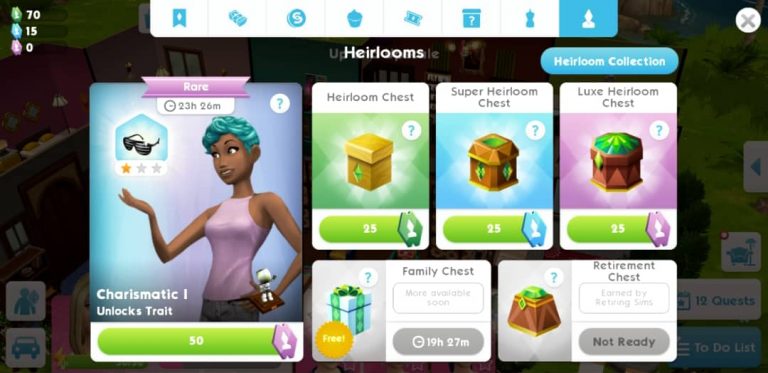
Main part of the game is Heirloom, which we can use to unlock stories, hobbies and traits. Good thing is, there are more ways to earn heirlooms now!

MORE to The Sims Mobile: Version 11.0 Update Overview

The Sims Mobile has added to the heirloom store the FAMILY CHEST which you can receive heirloom tickets and other rewards (Simoleons, Simcash, Cupcakes, Fashion Gems) daily, and the most amazing thing is, it’s FREE! In addition, the Retirement Chest is now available for you once your sim is retired.

Unlike the previous version where you have limited heirlooms appear every once in a while, you can now acquire heirlooms anytime by purchasing the Heirloom Chest, Super Heirloom Chest, or Luxe Heirloom Chest using the Heirloom tickers. Here is the break-down of what you can get for each Chest:

  • Heirloom Chest (purchased by Heirloom tickers): Common 80%, Uncommon 20%
  • Super Heirloom Chest (purchased by Super Heirloom tickers): Common 15%, Uncommon 65%, Rare 20%
  • Luxe Heirloom Chest (purchased by Luxe Heirloom tickers): Uncommon 30%, Rare 70%

MORE to The Sims Mobile: Version 11.0 Update Overview

More information is also given about the bonus that an heirloom can give us.

You can now Switch Traits!

How amazing is that? Your sim doesn’t have to stick with a trait for the rest of its life. See that new icon on the right corner of your sim’s trait? Click on it!

MORE to The Sims Mobile: Version 11.0 Update Overview

You can replace a trait using a few Heirloom Tickets. Once it set, your sim will have a new trait!

MORE to The Sims Mobile: Version 11.0 Update Overview

Speed Up an Event

Tired of waiting? Simply Go Faster by using a cupcake at the beginning of the event and a chance to get a bonus on career or hobby points! (from level 9)

MORE to The Sims Mobile: Version 11.0 Update OverviewMORE to The Sims Mobile: Version 11.0 Update Overview

More chance to earn Fashion Gems!

Yet another cool stuff: we can now earn Fashion Gems through parties. Make sure you attend parties everyday for the chances of getting more Fashion Games to unlock more clothing from the Izzy’s Fashion Shop!

MORE to The Sims Mobile: Version 11.0 Update Overview

A Surprising Choice…

The never-happen-before fun choices of the Sims Mobile game which you can get more bonuses by picking an action given for your sim, note that this feature will only be available once you’ve reached level 10 or up.

PLEASE NOTE: This feature is temporarily disabled due to a few bugs. You can expect it to return in a few days.

New Items

Last but not least, the update also came with new Furniture in Home Item Collection: Farmhouse Living and Kitchen Essentials.

MORE to The Sims Mobile: Version 11.0 Update Overview

And what are those sparkling things?…

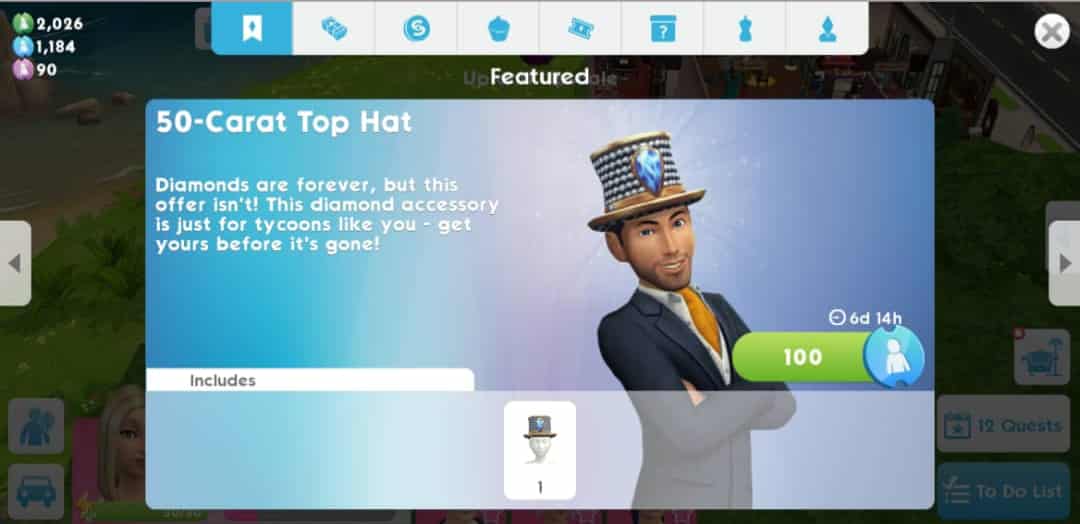
Get the 50-Carat Party/Top Hat and Bracelet to make your sims look more fabulous with other…sims! I know you love diamonds!

MORE to The Sims Mobile: Version 11.0 Update OverviewMORE to The Sims Mobile: Version 11.0 Update OverviewMORE to The Sims Mobile: Version 11.0 Update Overview

The Sims 4 Seasons: Integration with Vampires

0

One of the top questions that simmers have been asking ever since the announcement of The Sims 4 Seasons Expansion Pack is how will vampires (from The Sims 4 Vampires Game Pack) react to different weather and will they be able to come out.

SimGuruJill and SimGuruChibi have answered yesterday during the livestream some of the vampire-related questions, saying that vampires will be able to come outside of their homes when it’s not so sunny.

We also got a confirmation that, when it comes to UV protection, vampires will be able to be under the glass roofs and that The Sims Team is currently working on making Vampires safe from the sun rays under the umbrella.

The Sims 4 Seasons: Integration with Vampires The Sims 4 Seasons: Integration with Vampires The Sims 4 Seasons: Integration with Vampires

SimGuruChibi even published a public poll on her Twitter profile asking if simmers want umbrellas to protect vampires from the sun. The outcome of this poll was that most people did want that feature.

The ability to shield vampires from the sun using an umbrella is coming, however, not with the next update.

Getting started with Simblr

The Sims 4 has such a large social media presence on YouTube, Twitch, and Twitter that it can be easy to overlook the ever growing simming community on Tumblr – one of the internet’s most active blogging platforms! With users boasting upwards of thirty thousand followers, content creators around every corner, and a fair number of EA Game Changers in the mix – the “simblr” community is not one to be underestimated.

Tumblr’s easy to navigate platform encourages users of all ages and follower counts to join in on the fun and start sharing their own unique content! Jumping into such a large, close knit community can be intimidating, so here’s a few tips to get you started.

Step one, get down with the lingo!

The first step in understanding such a vast community of users is understanding what all of their unique abbreviations stand for! Veteran simmers may recognize some of these common terms, but first-timers in the community may benefit from a handy cheat sheet!

  • Where can I find… (or commonly abbreviated as “wcif”) is a quick and easy way to ask other simblrs where they downloaded content they’re currently using! Common practice is to include links to the requested content in the reply, as seen in the example below.

Getting started with Simblr

  • WIP (or work in progress) signifies something a user is currently working on! Often seen in the context of creating edits or custom content, such posts are usually created to build excitement for an upcoming project or receive feedback from their followers.
  • MM (or maxis match) refers to a specific style of custom content! Originating from the days when Maxis exclusively created Sims, maxis match content is made in the existing style of the game.
  • Alpha, the direct opposite of maxis match, signifies realistic content! It is created in a similar style to what you would find in real life, as opposed to the cartoony style of most sims games.

Step two, create a space to showcase your content!

Whether you decide to share gameplay pictures, write stories, or try your hand at creating custom content… You need a platform! Choose a username and icon that somewhat relates to the Sims so other users know what to expect from your blog. A common theme amongst the community is to choose icons pulled straight from the game.

Getting started with Simblr

Step three, get to work blogging!

With some basic knowledge under your belt, it’s time to hit the blogosphere! Start posting your content of choice. Try not to stress about followers or notes – this is the fun part! Post what makes you happy, and everything else will follow.

Whether you grow into a blog with a large, devoted following one day or remain small – enjoy every step of the way! Every single milestone is an accomplishment and reason to celebrate.


Hello, everyone! For those of you who don’t know me, I’m storylegacysims on Tumblr and Twitter – but please feel free to call me Molly.

I’m new to The Sims Community and I can’t wait to get to know all of you! If you ever have any questions, feel free to reach out to me on either of the above platforms.

The Sims 4 Seasons: New Millie Bobby Brown Promo Video

0

Millie Bobby Brown has published a new celebrity ad for The Sims 4 Seasons Expansion Pack!

The Sims FreePlay: New Update Teaser Screen

1

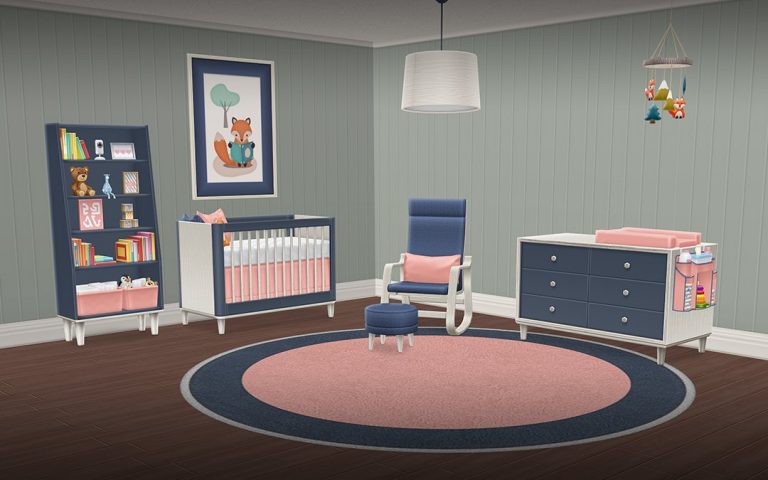
The Sims FreePlay Team continue to tease their big new update for the game. This time, they’ve included some of the new objects that are going to be included in the update, possibly revolving around babies.

The Sims FreePlay: New Update Teaser Screen

9 perfectly casual things that happened in The Sims 4 Seasons Livestream

The Sims Team have wrapped their first (and only) livestream for The Sims 4 Seasons Expansion Pack. During the livestream the team has shown some pretty casual features that the pack brings. There’s nothing out of the ordinary that you can expect from this pack, and so we’ve made a list of some of the most casual things that happened during the stream and that you’ll be able to do as well once Seasons comes out.

Once again, all of the stuff mentioned below are extremely casual and happen in real life on everyday basis.

1) The family had romantic relations inside of a leaf pile – right in front of their daughter. Honestly, parenting goals.

9 perfectly casual things that happened in The Sims 4 Seasons Livestream

2) The teen daughter later continued to chat various things with a scarecrow which almost came to life!

9 perfectly casual things that happened in The Sims 4 Seasons Livestream

3) The family brought fruitcake and pie to a ghost, ninja and nude gnome that appeared in the kitchen.

9 perfectly casual things that happened in The Sims 4 Seasons Livestream

4) The father wasn’t having it so he kicked the gnomes – resulting in most stuff in the house to completely break. Ugh, don’t you hate when that happens?!

9 perfectly casual things that happened in The Sims 4 Seasons Livestream

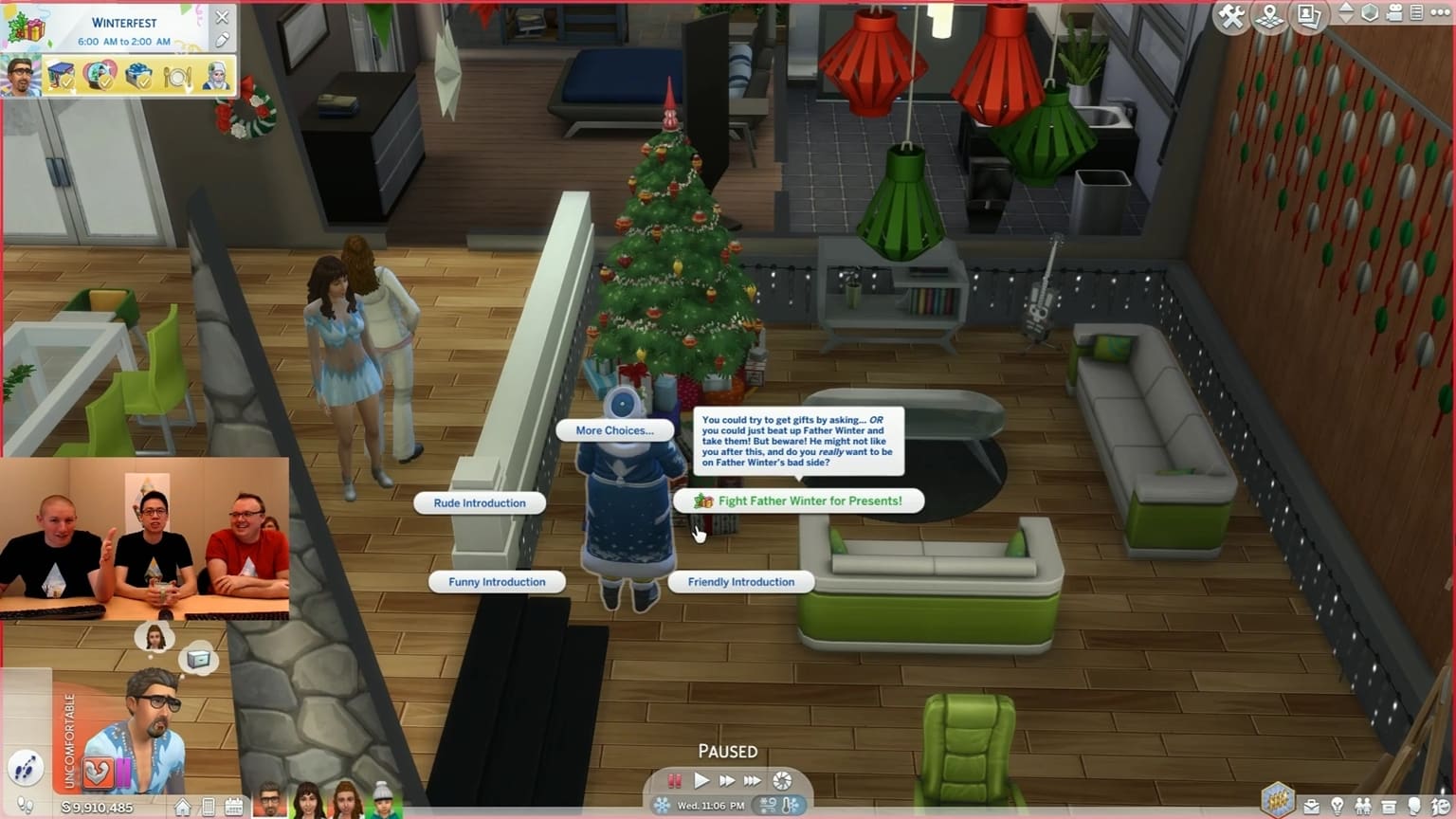
5) Father Winter was ready to deliver the presents to the family. However, he slipped and fell right at the entrance. This is why you should always place down fireplaces on your home lot!

9 perfectly casual things that happened in The Sims 4 Seasons Livestream

6) Dad was so eager for presents that he straight up beat up Father Winter.

7) Dad then continued his night by wooing his wife with a swarm of bees, as one does in real life.

9 perfectly casual things that happened in The Sims 4 Seasons Livestream

8)…he later continued to be a role father by sending a swarm of bees to attack his daughter.

9 perfectly casual things that happened in The Sims 4 Seasons Livestream

9) No bad deed goes unpunished though – kicking gnomes, fighting with Father Winter and attacking his own daughter all resulted in this:

The Sims 4 Seasons: New Screens and GIFs by SimGurus

0

SimGuruMorgan and SimGuruGeorge have shared a whole new batch of screenshots and GIFs from The Sims 4 Seasons Expansion Pack. Check them out!

giphy

giphy

giphy

giphy

giphy

The Sims 4 Seasons: New Screens and GIFs by SimGurusThe Sims 4 Seasons: New Screens and GIFs by SimGurus

The Sims 4 Seasons: Thumbnail Previews of New CAS Items

4

The Sims Team went through a lot of different Create A Sim items in their livestream for The Sims 4 Seasons Expansion Pack.

Down below you can check out thumbnail previews for all the new Create A Sim items that have been shown for Feminine Adults, Masculine Adults, Children and Toddlers. Please note that there is a possibility that the team left out a items during the livestream.

Feminine Adults

The Sims 4 Seasons: Thumbnail Previews of New CAS Items

Masculine Adults

The Sims 4 Seasons: Thumbnail Previews of New CAS Items

Children

The Sims 4 Seasons: Thumbnail Previews of New CAS Items

Toddlers

The Sims 4 Seasons: Thumbnail Previews of New CAS Items

The Sims 4: More information about the upcoming Free Gardening Update

6

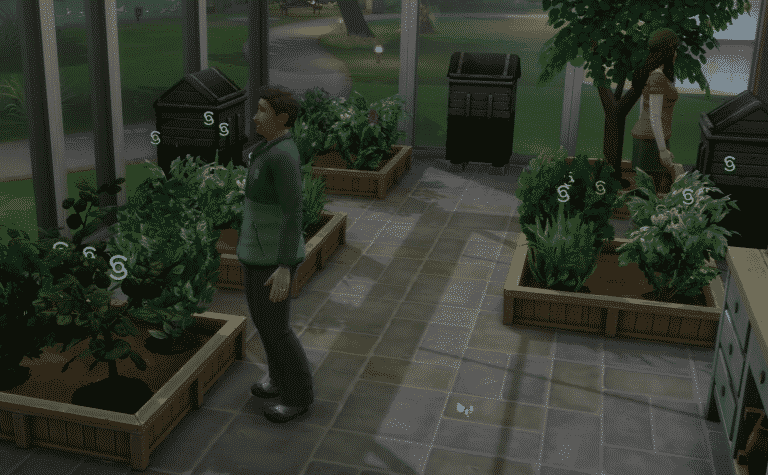
SimGuruRad shared plenty of new information about the upcoming free update for The Sims 4 Base Game that’ll improve Gardening and add some new features.

There’s a new area of affect thing that, for example by level 2 of gardening, if you want to water more than just one plant you are gardening and watering an area of plants. So, you will be gardening a whole planter box at once.

The new gardening update will include improvements with watering, weeding, harvesting and you’ll be able to sell plants straight from the plant boxes.

The Sims 4: More information about the upcoming Free Gardening Update

Using the “weed all” interaction will make your Sim pull out a vacuum, letting your Sims immediately vacuum all the weeds instead of having your Sims get down on your knee and pull weeds manually.

The “Super Sell” interaction is a top tier interaction which requires a high gardening skill. With this interaction your Sim will automatically harvest all plants and sell them all at once.

The Sims 4: More information about the upcoming Free Gardening Update

With Evolution there’s a new, more clean User Interface. There are now 5 levels instead of 10 and when you evolve your plants it’s now an immediate interaction.

The Sims 4: More information about the upcoming Free Gardening Update